

Best Mobile Number Tracker with Google Map: Real Tools Ranked for 2025

Jun 11, 2026 • Filed to: Virtual Location Solutions • Proven solutions
 TL;DR:
Real-time location tracking on Google Maps using just a phone number is impossible without the device owner's explicit consent.
● Live tracking tools like Google Maps Location Sharing and Life360 require mutual account setup and active sharing permissions, whereas monitoring software like mSpy demands physical installation on the target device.
● Number lookup services such as Truecaller only display approximate, static region-level registration data rather than actual GPS movement.
● Link-based trackers like GeoFinder.mobi can only retrieve a one-time GPS coordinate if the recipient actively opens a generated link and grants device location access.
Ask AI for a summary
 ChatGPT
 Perplexity
 Gemini
 Claude
 Grok
Grok
You type a phone number into Google Maps and expect something to happen. Instead, the screen stays empty. Searches for a mobile number tracker with Google Maps haven’t slowed down, even though the results rarely match expectations.
Google Maps was never built to turn random numbers into live locations. Yet countless tools, videos, and “free trackers” claim they can do exactly that. Some point to Google Earth. Others promise instant results with no setup. Most fall apart the moment you test them.
In this article, we’ll look at whether it’s actually possible to track a phone number this way, how location tracking really works when it does work, and which tools are commonly suggested as a mobile number tracker using Google Maps.
- Part 1: Can I Track a Number in Google Maps?
- Part 2: How to Find a Person’s Location by Phone Number
- Part 3: Best Mobile Number Trackers That Claim to Work With Google Maps
- 1. Google Maps (Location Sharing)
- 2. Truecaller (Approximate Location Lookup)
- 3. mSpy (Consent-Based Monitoring Tool)
- 4. Life360 (Family Location Sharing)
- 5. GeoFinder.mobi (Link-Based Number Location Tool)
- Part 4: Mobile Number Tracker Comparison: What Each Tool Really Offers

- Part 5: A Practical Alternative When Tracking Others Isn’t an Option
Part 1: Can I Track a Number in Google Maps?
A phone can be located using GPS, mobile networks, Wi-Fi, or Bluetooth. But this works only when the phone owner allows it. Without permission, Google Maps cannot show a live location.
A mobile number alone is not location data. Google Maps does not link private numbers to GPS signals. This is why a mobile number tracker with Google Maps does not work the way people expect.
Google Maps can search phone numbers only in one case. If the number belongs to a public business, it may appear with a name and address. Personal numbers are not indexed. Privacy rules block this access.
Claims about a Google Maps cell phone tracker that works without consent are not accurate.
Part 2: How to Find a Person’s Location by Phone Number
Finding a location depends on access, not guessing a number. These are the real options.
- Google Maps Location Sharing
Google Maps can show a live location if the person shares it with you. This is the most accurate Google Maps tracker mobile location method. It requires approval from the device owner. - Google Find My Device
This works only for your own phone. If your Google account is signed in and location is enabled, Google Maps can display the device position. It is not a phone number tracker with Google Maps for other people. - Third-Party Location Apps
Some apps claim to track a mobile number using Google Maps. In reality, they rely on shared links or user interaction. They cannot access live GPS without consent.
Accuracy varies. Permission is always required.
Part 3: Best Mobile Number Trackers That Claim to Work With Google Maps
Most tools in this space don’t track phones in real time. What they usually offer is a mix of number lookup, location estimation, or location sharing features that display results on a map. Some are useful in specific cases. Others are not.
Below are the most commonly discussed options when people search for the best mobile number tracker with Google Maps, ranked by practicality rather than promises.
1. Google Maps (Location Sharing)
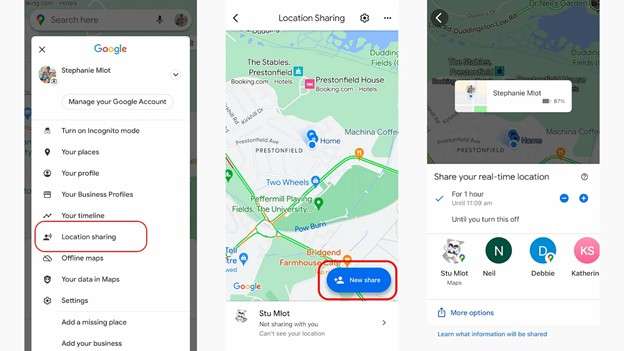
It is commonly known as a Google Maps cell phone tracker, but it can also be used to find your own phone if it is lost.
If someone shares with you his or her real-time location, Google Maps will display the movement on the map. This supports both Android and iOS, and updates are live.
Features
- Real-time location sharing
- Works directly inside Google Maps
- Shows movement, not just a static pin
Pros&Cons
2. Truecaller (Approximate Location Lookup)
Truecaller is frequently mentioned when users look for a mobile number tracker with Google Maps, but its role is limited.
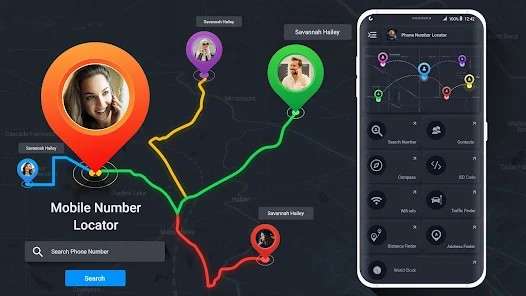
It does not track live movement. Instead, it shows the registered region or city associated with a number. Some versions display this information on a map-style interface.
Features
- Caller ID and spam filtering
- Region-level number location
- Map-based display in some versions
3. mSpy (Consent-Based Monitoring Tool)
mSpy is marketed as a tracking solution, often appearing in searches for a phone number tracker on Google Maps. In practice, it works only after installation on the target device.
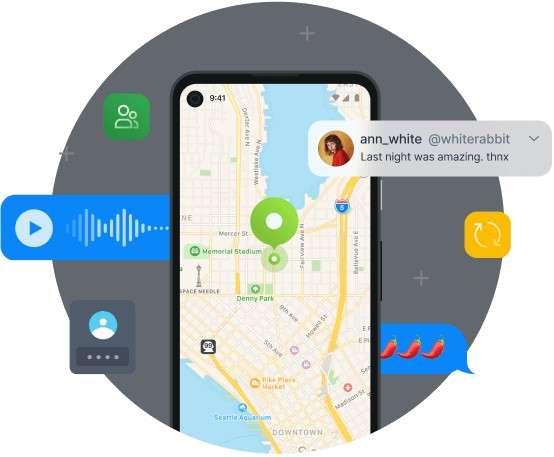
Once installed, it can show GPS location history on a map interface.
Features
- GPS location tracking
- Location history logs
- Web-based dashboard
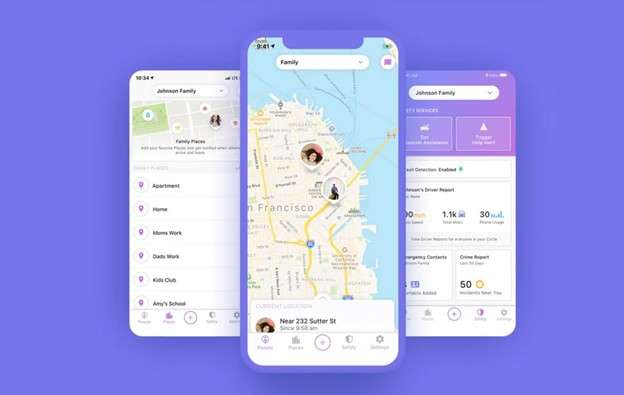
4. Life360 (Family Location Sharing)
Life360 focuses on family and group tracking. It doesn’t use phone numbers alone, but once users join a circle, locations appear on a shared map.
This is often confused with a mobile number location tracker with Google Maps, but it works through accounts and invitations.
Features
- Live location sharing
- Arrival and departure alerts
- Map-based tracking
5. GeoFinder.mobi (Link-Based Number Location Tool)
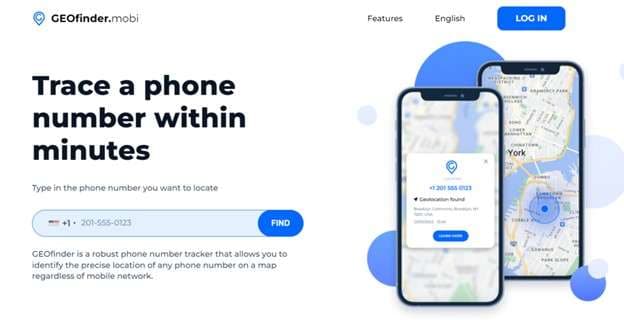
GeoFinder.mobi is one of the most frequently mentioned tools when people look for a mobile number tracker with Google Maps for free. Unlike basic number locators, it doesn’t rely on carrier databases alone. Instead, it uses a permission-based location request system.
Features
- Generates a location request link tied to a phone number
- Displays GPS coordinates on a map-style interface
- Works across Android and iOS browsers
Part 4: Mobile Number Tracker Comparison: What Each Tool Really Offers
Now that you’ve seen how each option works on its own, this table puts them side by side based on how they behave in real use, not marketing claims.
|
Tool |
Consent Required |
Live GPS Location |
Map Display |
Setup Effort |
Best Use Case |
| Google Maps (Location Sharing) | Yes | Yes | Native Google Maps | Low | Tracking family or friends who agree to share their location |
| Truecaller | No | No | Limited/static map | Very Low | Identifying unknown callers and the origin of the number |
| mSpy | Yes (installation) | Yes | Dashboard map view | High | Ongoing monitoring of a known device |
| Life360 | Yes | Yes | Dedicated map interface | Medium | Family or group location sharing |
| GeoFinder.mobi | Yes (link click) | Yes (one-time) | Google Maps–style | Low–Medium | Getting a single location when the recipient cooperates |
Part 5: A Practical Alternative When Tracking Others Isn’t an Option
Once permissions are removed, tracking stops. A phone number alone cannot reveal someone’s location, and no tool can bypass that limit reliably.
What you can control is how your own phone reports its location. Google Maps and many apps rely entirely on the GPS position your device provides. That location affects navigation, nearby results, and map behaviour. For tasks like route planning in another city, testing location-based apps, or managing location privacy, some users adjust their phone’s GPS instead of trying to track others.
Dr.Fone - Virtual Location (iOS/Android) supports this use case. It does not track numbers or devices. It temporarily changes your phone’s GPS location, which Google Maps recognises until the location is restored.

Dr.Fone - Virtual Location
1-Click Location Changer for both iOS and Android
- Teleport from one location to another across the world from the comfort of your home.
- With just a few selections on your computer, you can make members of your circle believe you’re anywhere you want.
- Stimulate and imitate movement and set the speed and stops you take along the way.
- Compatible with both iOS and Android systems.
- Work with location-based apps, like Pokemon Go, Snapchat, Instagram, Facebook, etc.


How to Change Your Phone’s Location on Google Maps Using Dr.Fone
Step 1. Install and Open Virtual Location
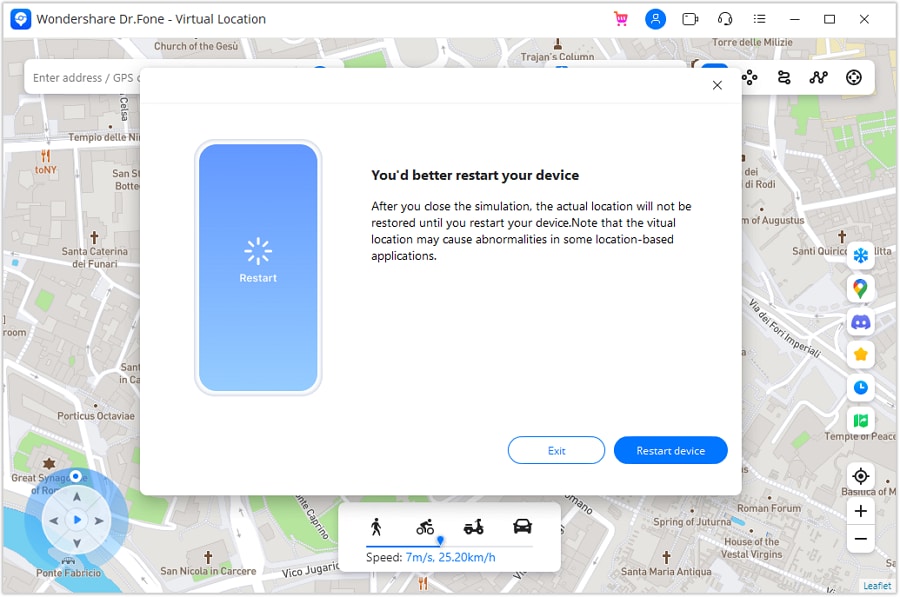
Download and install the desktop version of Dr.Fone. Open it and select the Virtual Location module from the main screen.
Step 2. Enable Teleport Mode
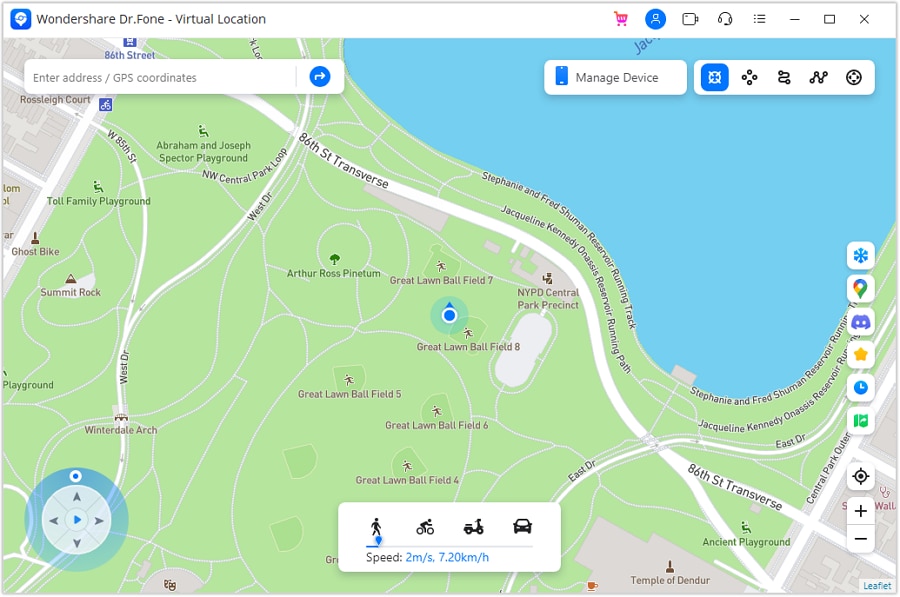
Click Teleport Mode (the first icon on the top-right of the map). This mode allows you to move your phone’s location instantly.
Step 3. Choose a New Location
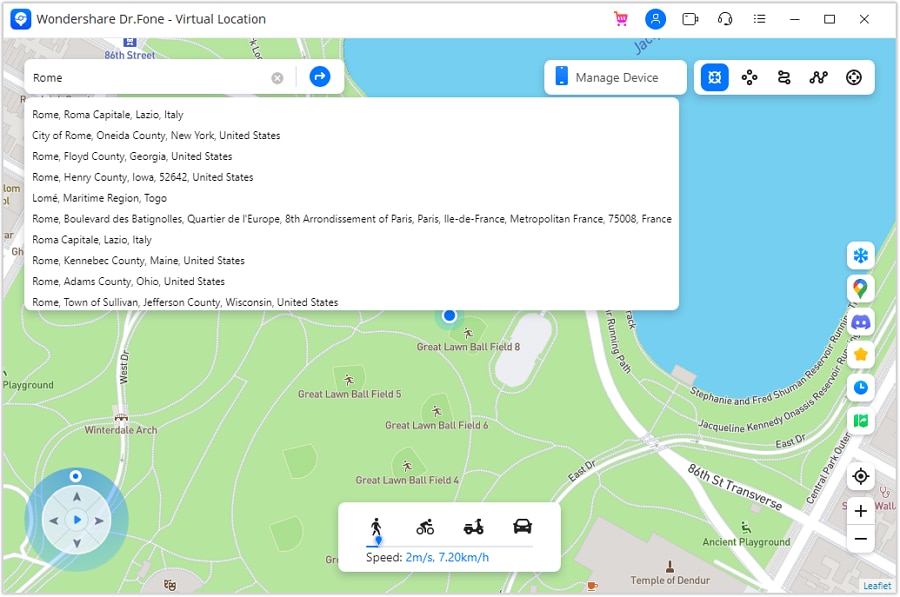
Enter a city, area, or coordinates into the search bar. Google Maps-style results will appear on the screen.
Step 4. Apply the Location
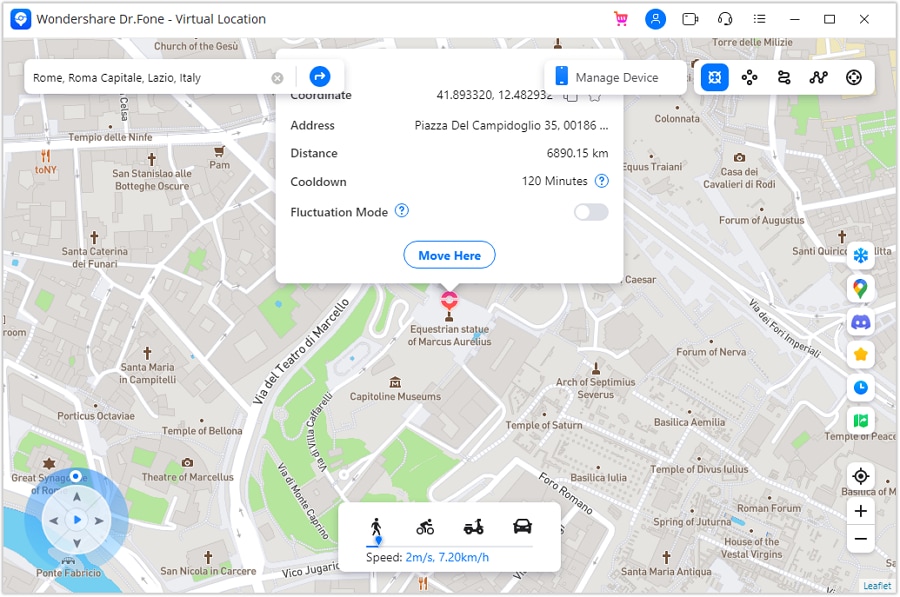
Click Move Here. Your phone’s GPS will update immediately. Google Maps and other location-based apps on your device will now reflect this new position.
Step 5. Verify on Your Phone
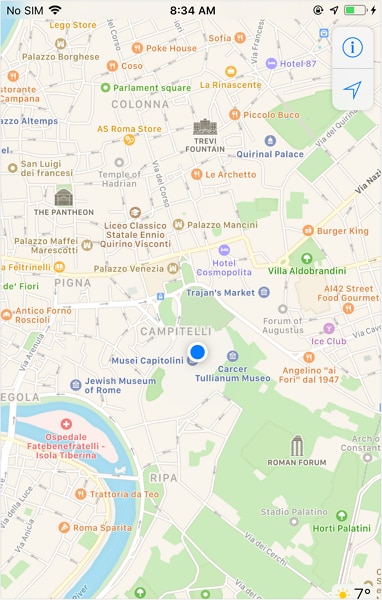
Open Google Maps on your phone and check your location. The pin should match the selected area.
Pro Tip: Restoring Your Real Location
Restart your phone or close the Virtual Location tool to return to your actual GPS position.
Optional: Simulated Movement (Jump Teleport Mode)
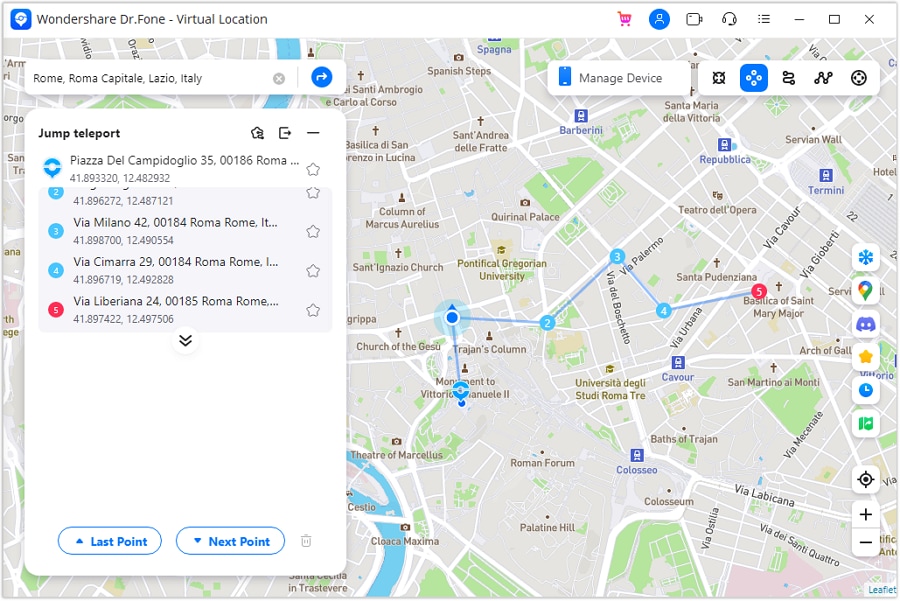
For users testing routes or map behavior over distance, Jump Teleport Mode allows you to move across multiple points gradually, mimicking travel rather than a single jump.
Conclusion
The idea of using a mobile number tracker with Google Maps sounds simple, but it only works within clear limits. Google Maps responds to shared access and account-based permissions, not raw phone numbers or public searches.
Some tools help when consent exists; others only provide surface-level information. Understanding that difference saves time and frustration. When tracking isn’t an option, managing your own location and device data becomes the practical alternative. Once expectations are realistic, finding a phone number tracker with Google Maps stops feeling confusing and starts feeling controlled.
 safe & secure
4,624,541 people have downloaded it
FAQs
 Q1. Can a mobile number tracker with Google Maps work without permission?Q2. Why do some apps show a map when searching a phone number?Q3. Is there a free mobile number tracker with Google Maps that actually works?Q4. Can Google Earth track a phone or IMEI number?Q5. What is the safest way to use Google Maps for location tracking?


Virtual Location
- Change iOS Location
- 1. Best iOS Location Changers
- 2. Fake iPhone GPS Location
- 3. Change iPhone Home Address
- 4. Change iPad Weather Location
- 5. Track a Cell Phone Location
- 6. iPhone GPS not Working
- 7. iPhone “No Location Found”
- 8. iPhone “Location Not Available”
- 9. iTools Alternatives
- 10. DoPokeGo++ Alternatives
- 11. 3uTools Alternatives
- 12. Foneazy MockGo Alternatives
- 13. "No Location Found" Vs."Location Not Available"
- Change Android Location
- 1. Best Android Fake GPS Apps
- 2. Free Android Location Spoofers
- 3. Fake Android GPS Location
- 4. Android Location Settings
- 5. Fake GPS No Root
- 6. Fake GPS on Huawei
- 7. Fake GPS without Mock Location
- Hide GPS Location
- 1. Stop Sharing Location without Notifying
- 2. Fake Location on Find My Friends
- 3. Stop Google Tracking Your Location
- 4. Fake Location on Google Maps
- 5. Spoof Location on Life360
- 6. Turn Off Life 360 Without Knowing
- 7. Stop Life360 from Tracking You
- 8. Life360 Circle: Tips & Tricks
- 9. Track Location by Mobile Number
- 10. How Do I Know If My Phone Is Being Monitored
- 11. Can Life360 Track You When Your Phone is Off
- Fake GPS on Games
- 1. Play Pokémon Go Without Moving
- 2. Celebrate National Pokémon Day
- 3. Fake GPS on Mobile Legends
- 4. Spoof Ingress Prime Location
- 5. Spoof Location on Jurassic World Alive
- Fake Location on Social Apps
- 1. Fake Location on Whatsapp
- 2. Fake Location on Facebook
- 3. Fake Location on Telegram
- 4. Fake Location on Tiktok
- 5. Does Your Snap Score Increase with Chats
- 6. Fake Location on Snapchat
- 7. Add Location Filters on Snapchat
- 8. Change Location on Twitter
- 9. Change Instagram Business Location
- 10. Change Instagram Region/Country
- 11. Stop mSpy from Spying You
- 12. Change Location On Linkedin
- Fake Location on Dating Apps
- 1. Fake Hinge GPS
- 2. Top Funny Hinge Prompts
- 3. Apps Like Tinder
- 4. Enjoy Tinder Gold
- 5. Fake Tinder GPS
- 6.Tinder Keeps Crashing
- 7. Find People on Tinder
- 8. Use Grindr on a PC
- 9. Grindr Web app explained
- 10. Fake Grindr GPS
- 11. Grindr Unable to Refresh
- 12. Fake Bumble GPS
- 13. Bumble Snooze Mode Guide
- 14. Tinder vs Bumble vs Hinge
- Get Around Geo-blocking
- 1. Hola Fake GPS Alternative
- 2. Change Netflix Location
- 3. Bypass MLB TV
- 4. Change Location on YouTube TV
- 5. Change Play Store Country
- 6. Change Facebook Marketplace Location
- Followers & Unfollowers Trackers
- Location & Social Apps Tips
- 1. How to Share Live Location on Snapchat
- 2. Best Mobile Number Tracker
- 3. Best Private IG Viewer Tools
- 4. View a Private Instagram Account
- 5. Screenshot on Instagram Without Them Knowing
- 6. Does Instagram Notify When You Screenshot
- 7. Find Out If Someone Screenshots Your Instagram Story
- 8. Does Instagram Notify When You Screen Record
- 9. Fix iPhone Location Not Updating
- 10. Does Snapchat Show Who Viewed Your Profile
- ● Teleport GPS location to anywhere
- ● Play AR games without moving
- ● Spoof Location on the popular Apps
- Free Download Free Download Free Download


 > How-to > Virtual Location Solutions > Best Mobile Number Tracker with Google Map: Real Tools Ranked for 2025
Alice MJ
staff Editor