

Stop Sharing Your Phone Location Without Them Knowing: 7 Easy Methods

Sep 23, 2026 • Filed to: Virtual Location Solutions • Proven solutions
 TL;DR:
You can seamlessly stop sharing your device location without sending notification alerts to your contacts by utilizing built-in offline toggles, manipulating app-specific permissions, or employing GPS spoofing software.
● Disabling "Share My Location" via Find My for iOS or Find Hub for Android freezes your last known spot without alerting others, while enabling Airplane Mode completely halts updates by cutting off cellular, Wi-Fi, and Bluetooth connections to display your status as offline.
● The Dr.Fone - Virtual Location application allows you to secretly spoof your exact GPS coordinates for location-based apps using a Teleport mode, offering compatibility with devices running up to Android 16 and iOS 26.
● Standard VPNs only change your IP address and cannot hide your device's GPS from tracking services, but Surfshark provides a specific GPS Override feature that circumvents this limitation exclusively on Android devices via Developer Options.
Ask AI for a summary
 ChatGPT
 Perplexity
 Gemini
 Claude
 Grok
Grok
Would you like to unshare your phone location and wish that no one notices anything? A lot of people turn on their location without even realizing it or forget to switch it off, and this can contribute to undesired tracking and privacy problems. Nevertheless, now you can ensure that you are not tracked, you choose who knows where you are, and you are able to keep your movements confidential.
For that, this guide resolves the query on how to stop sharing location without notifying with easy-to-try solutions. Whether you use an Android or an iPhone, these methods help you stay safe without alerting others.
- Part 1. Can You Pause Location Sharing on Phone Without Them Knowing?
- Part 2. Top 5 Reasons to Hide Your Mobile Device Location
- Part 3. Proven Methods to Turn Off Location Sharing Without Alerting Anyone (Android & iOS)
- Method 1: Turn On Airplane Mode
- Method 2: Disable Location Services
- Method 3: Block the Specific Contact
- Method 4: Try a Secondary Device for Your Location
- Method 5: Turn Off Find My/Find Hub Location
- Method 6: Use a Virtual Location Changer Solution - Dr.Fone Virtual Location

- Method 7: Enable VPN with Location Changing Features
Part 1. Can You Pause Location Sharing on Phone Without Them Knowing?
Before you learn how to stop sharing location without them knowing, do you know if it's possible or not? Well, you can pause location sharing on your phone via a few methods, and the other person will never know. Both Android and iPhone have options to turn off location access by specific apps or contacts, or by a spoofing app such as Dr.Fone - Virtual Location.
Therefore, when you employ these mediums, the other party will not get a notification. Besides, your location will show as being unavailable or frozen until you grant access once again.
Part 2. Top 5 Reasons to Hide Your Mobile Device Location
Since you can stop sharing location without them knowing, and this guide covers such solutions, understand the need for this action via the listed points:
- Protect Personal Privacy: If your phone shares location data all the time, apps and companies can learn a lot about you and create a detailed profile of your life. Therefore, if you limit the location access, it ensures privacy and controls who knows your movements.
- Reduce Risk of Stalking & Harassment: When the wrong person gets your location, they can follow you or cause harm. Thus, if one pauses or limits the location, it helps people in unsafe situations stay safe and makes it harder to track them.
- Avoid Commercial Tracking & Profiling: Advertisers and data brokers use location to sell products or guess habits, religion, or political views. Therefore, when you turn off location access, it not only reduces your tracking but also protects your personal details.
- Improve Device Security & Lower Attack Risk: Know that apps with location access can leak data if they are not secure. Plus, hackers can see where you are or when you are away. Therefore, if you limit the location to only trusted people, it keeps information safer.
- Save Battery & Reduce Background Work: Besides tracking and data stealing, GPS and constant location checks use battery and mobile data. So, if you turn it off or allow it only while using the app, it saves battery and stops apps from running tasks you do not need.
Part 3. Proven Methods to Turn Off Location Sharing Without Alerting Anyone (Android & iOS)
To learn how to stop sharing location on iPhone without them knowing, here are 7 dependable and straightforward ways you can rely on:
Method 1: Turn On Airplane Mode
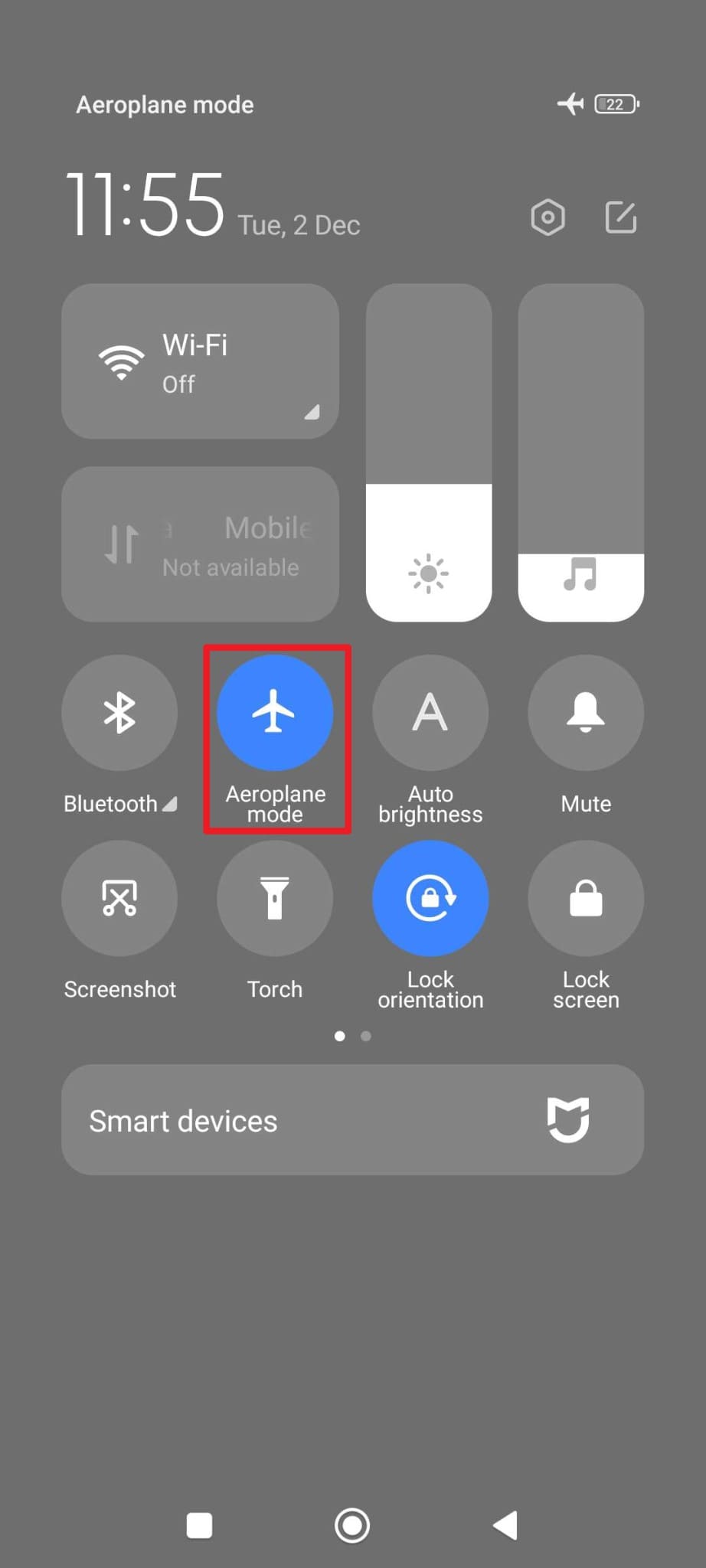
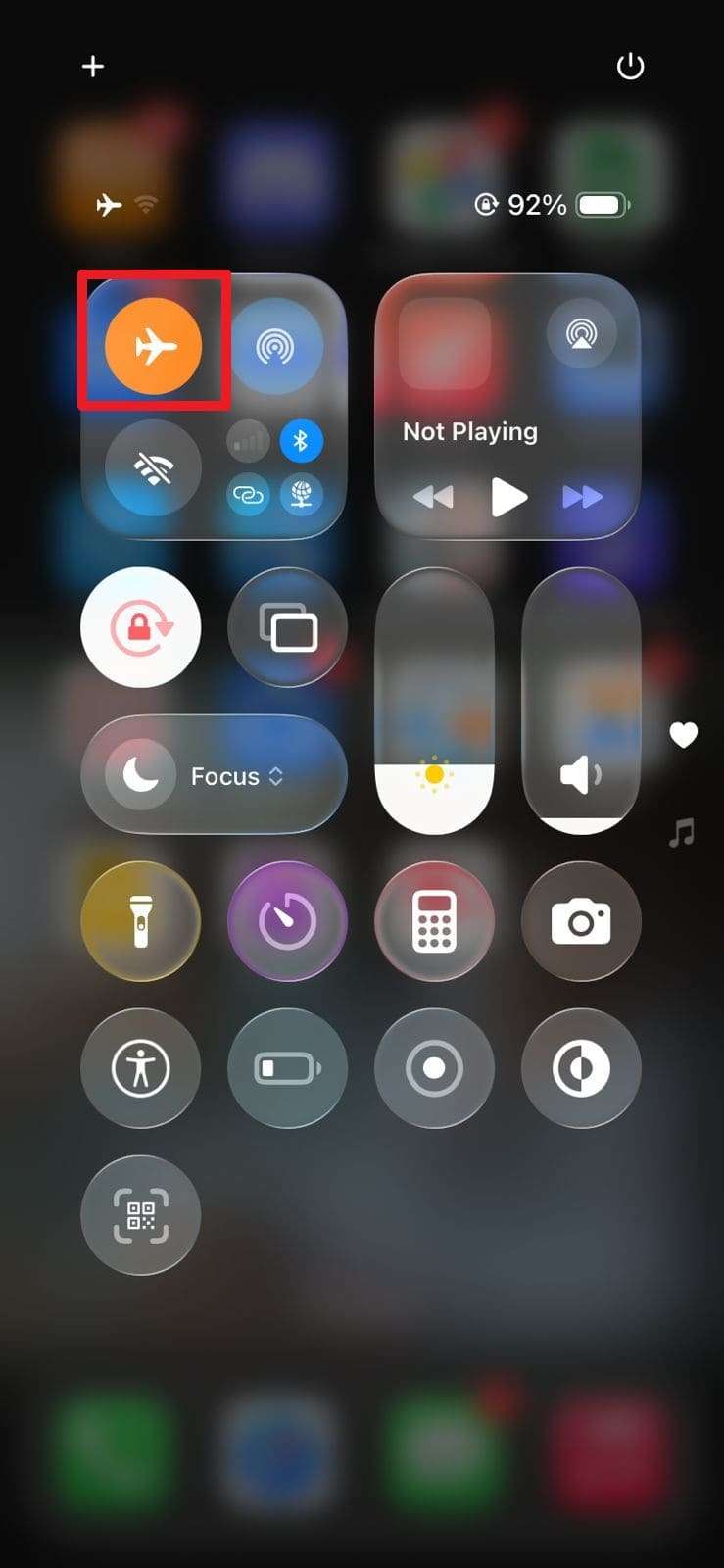
This solution turns off cellular data, Wi-Fi, and Bluetooth, so apps like Find My or Google Maps cannot send your current location. Additionally, those who check your location will see your last known spot, “offline,” or “location not available.” Since it lets users pause updates seamlessly, they can turn it on quickly from Control Center with a single tap, as outlined in the guide:
For Android
Instructions. Swipe down from the top of the screen and tap the “Airplane Mode” icon to enable it.
For iPhone
Instructions. In the Control Center, locate the “Airplane Mode” icon and tap it to turn it on.
Method 2: Disable Location Services
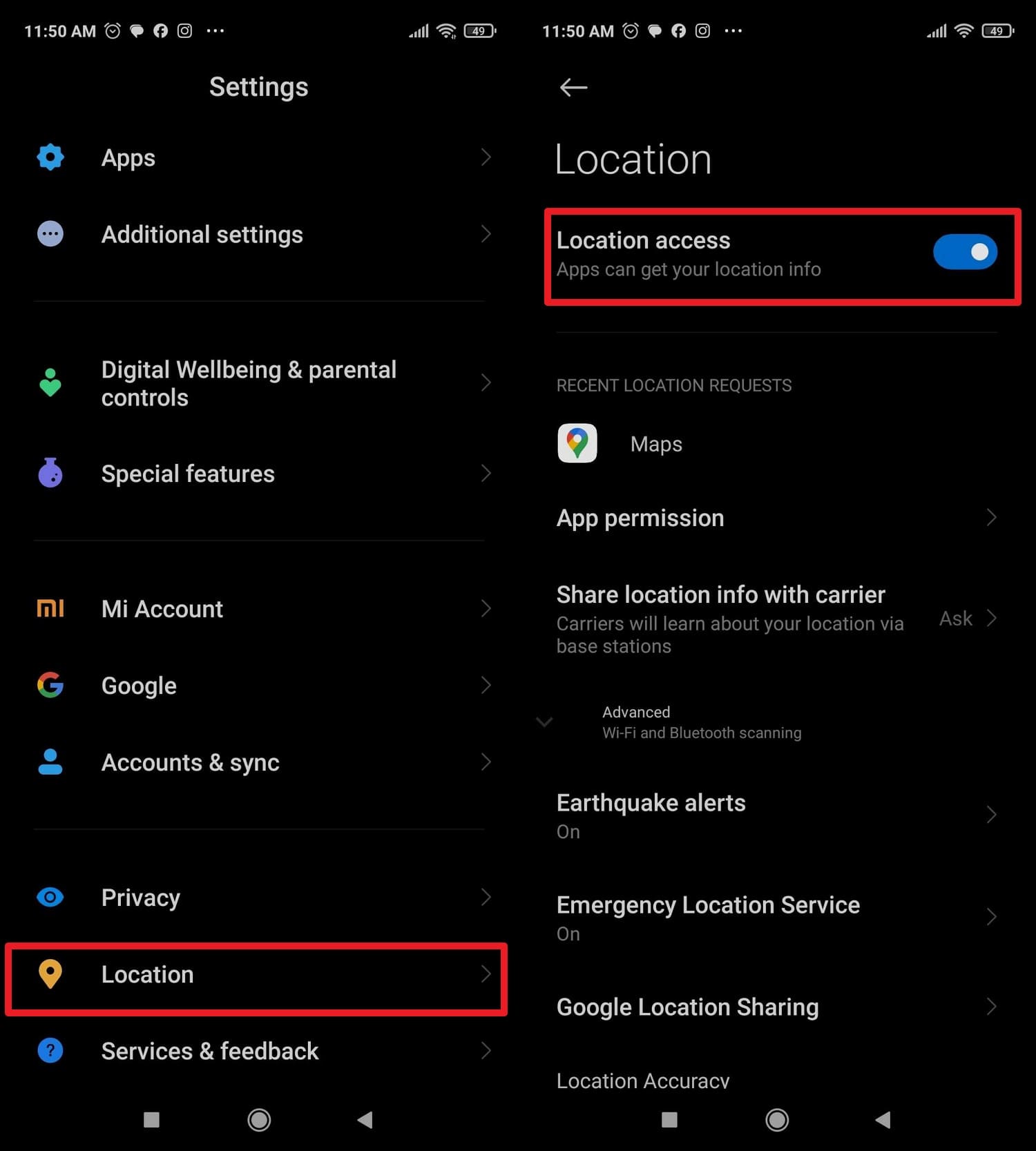
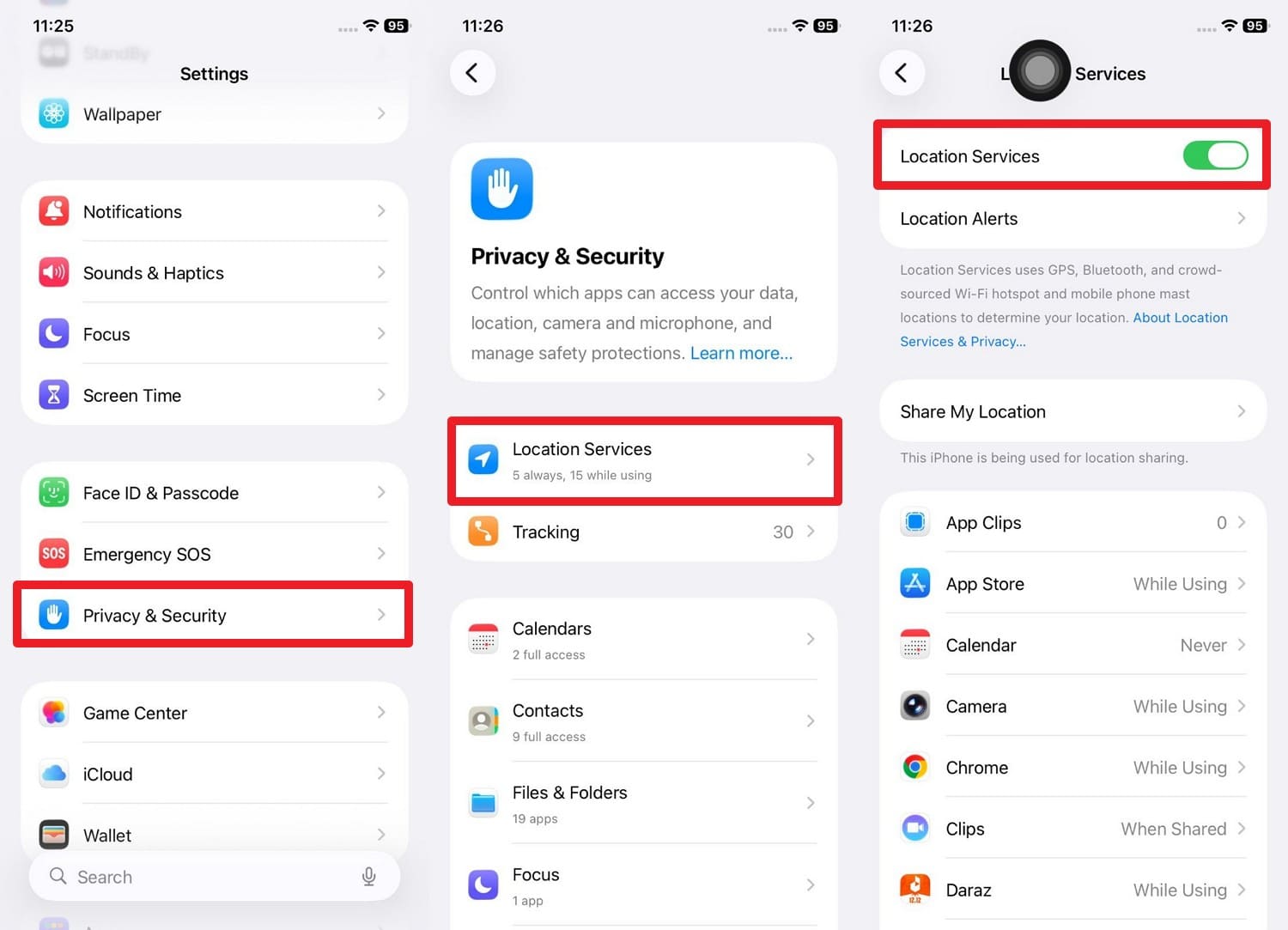
For those who question how to stop sharing location without notification, it is suggested to disable the location services. It cuts GPS and app access to your location, so apps like Find My or Google Find Hub cannot update your position. Additionally, users can turn it off completely or set individual apps to “Never” or “While Using” to control who sees their location, as instructed for Android and iOS:
For Android
Instructions. On the settings, locate the “Location” option and disable the “Location Access” toggle.
For iPhone
Instructions. Go to the “Privacy & Security” settings, pick the “Location Services” option, and disable the “Location Services” option.
Method 3: Block the Specific Contact
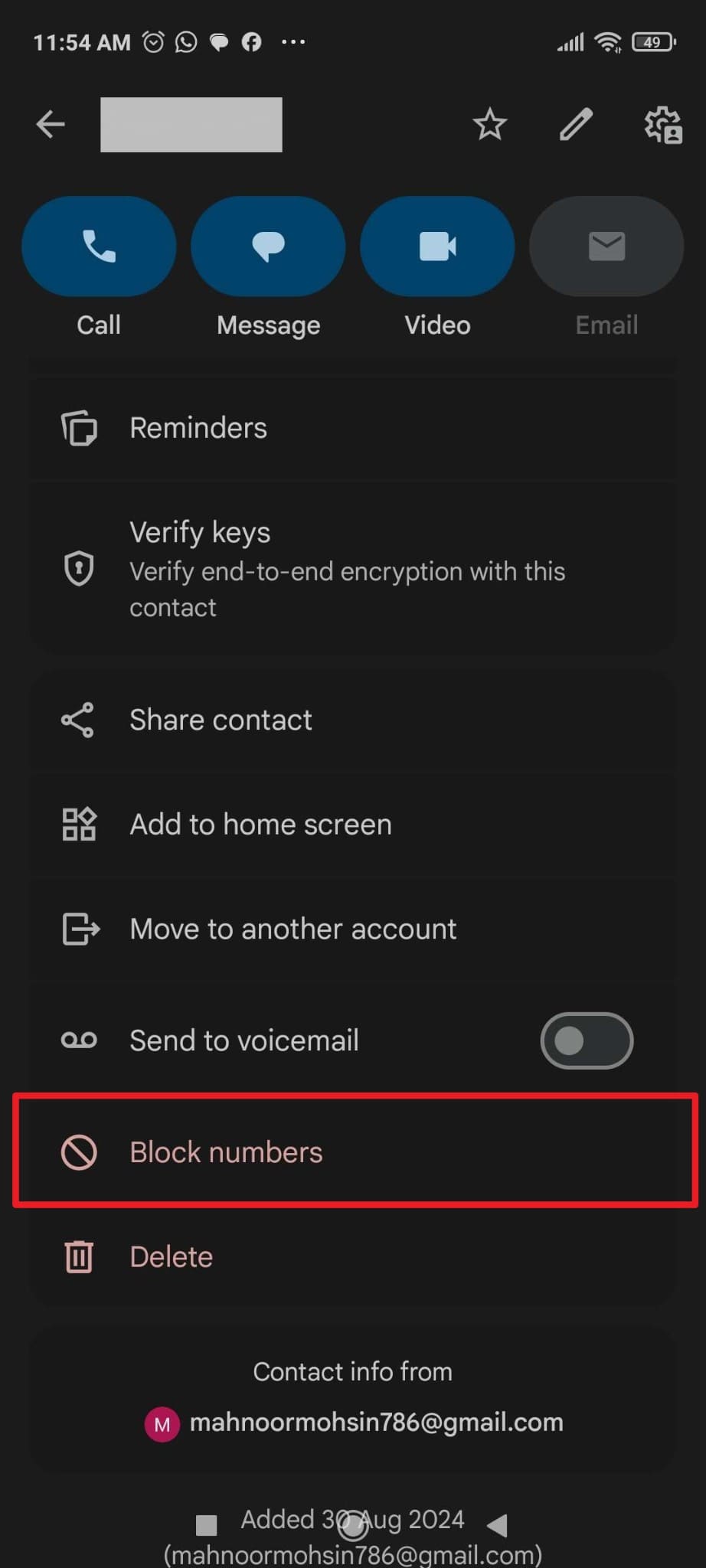
To stop sharing location without notifying, block a contact for a while, since it stops location sharing and limits their access to you. Additionally, it ends WhatsApp and iMessage location updates, as well as Google Maps or Find My Device. This helps protect privacy, reduce stress, and prevent misuse of your location.
For Android
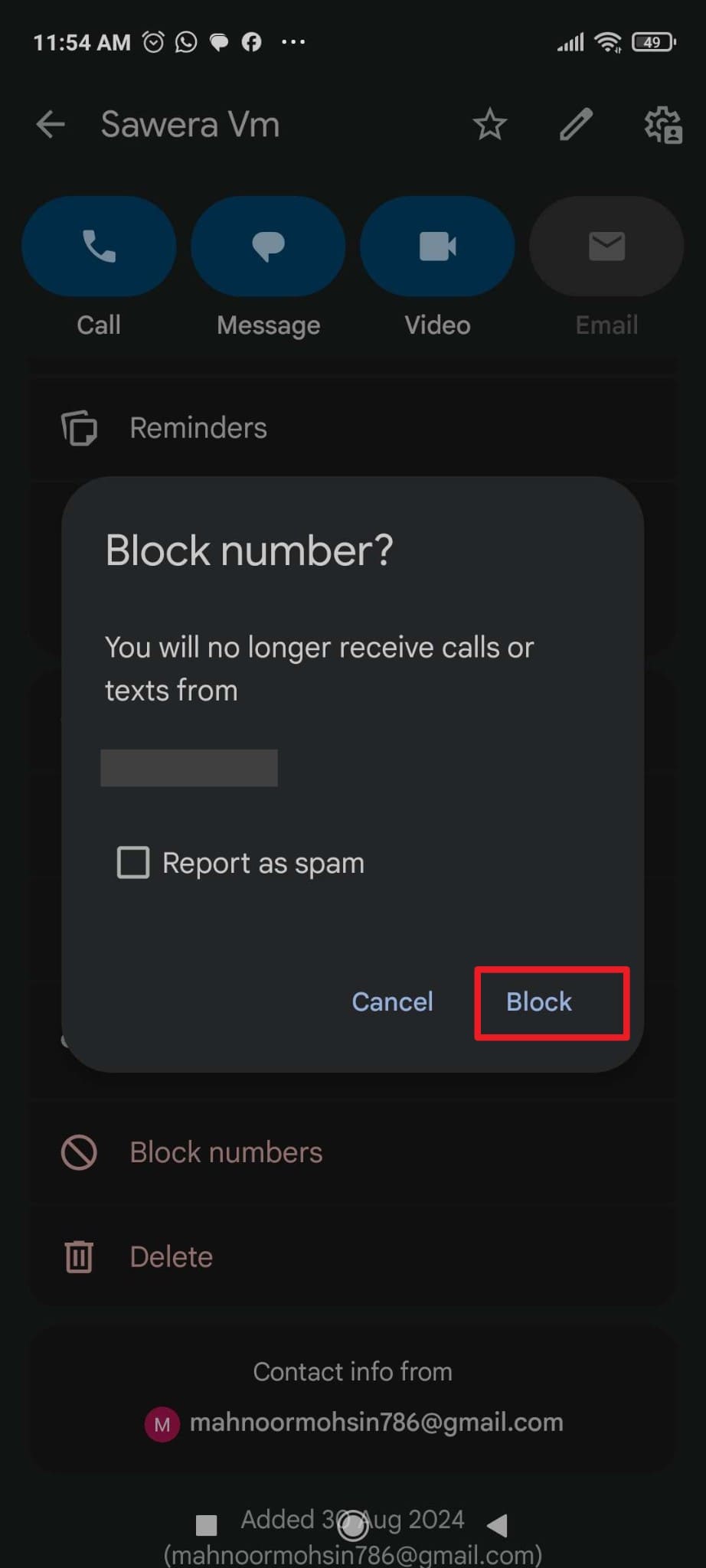
Step 1. Choose a certain number in the Contacts app and pick the “Block Numbers” option at the bottom of the screen.
Step 2. After that, choose the "Block" option on the pop-up menu that appears on the interface.
For iPhone
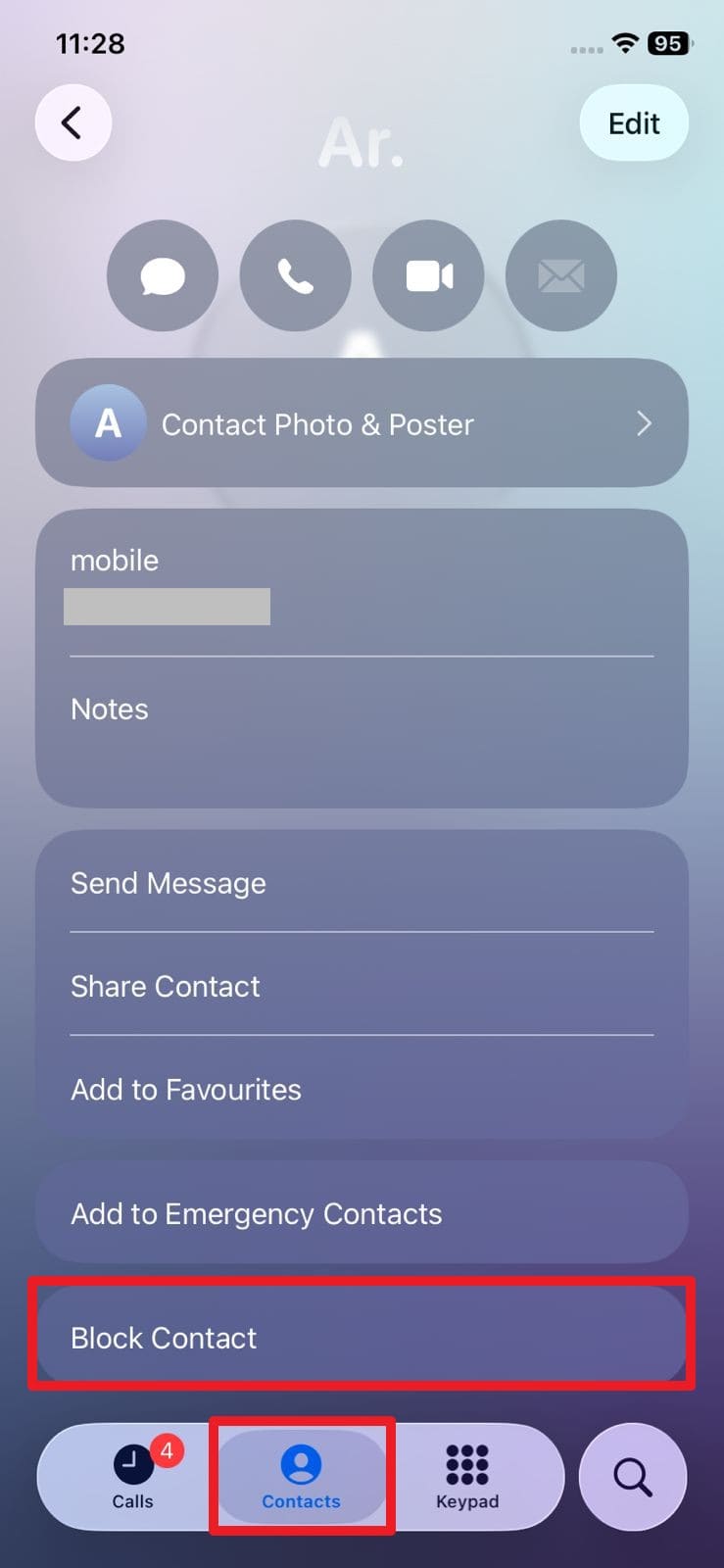
Step 1. On the Phone App, head to the “Contacts” tab and scroll down on the chosen contact’s page to pick the “Block Contact” option.
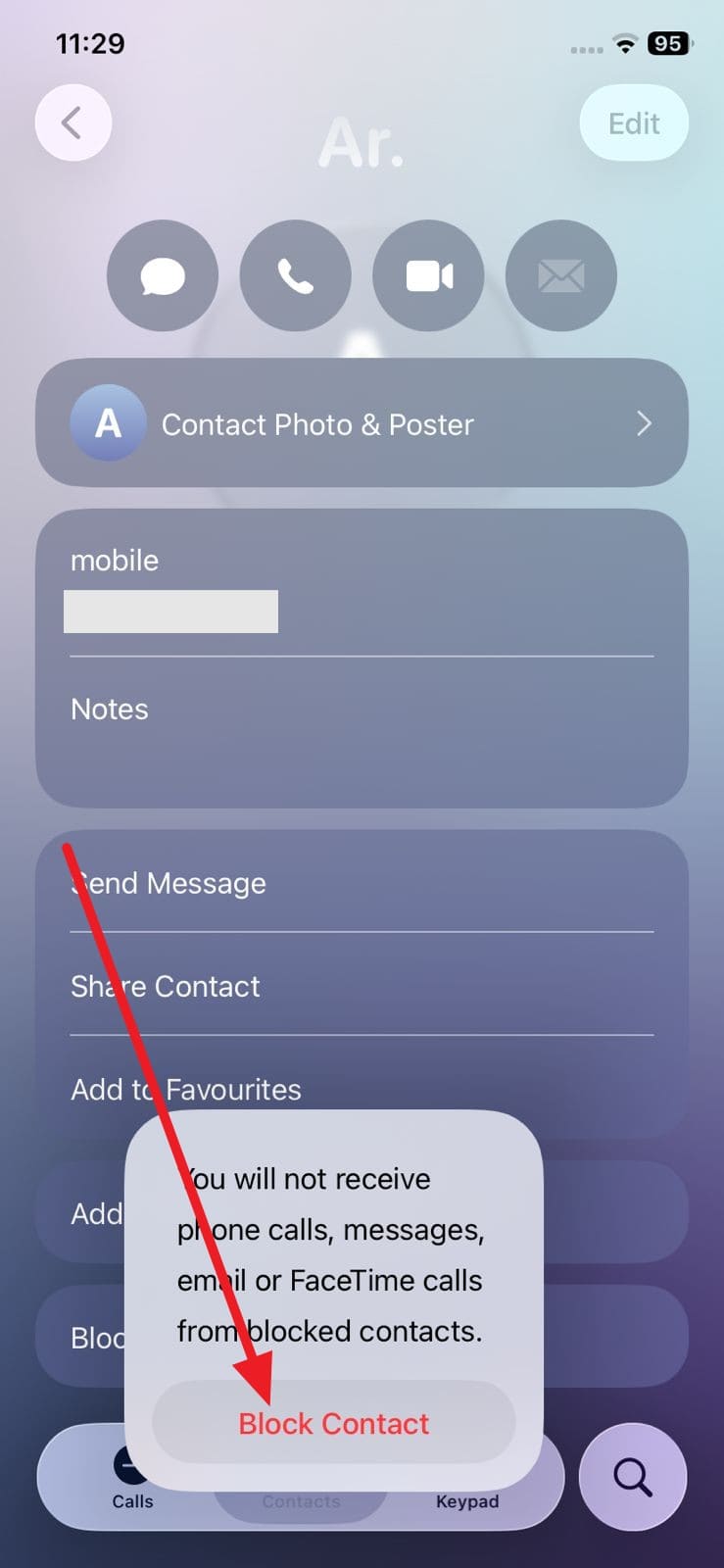
Step 2. After that, press the “Block Contact” option again on the pop-up that appears to confirm.
Method 4: Try a Secondary Device for Your Location
Sometimes, it's better to play tricks when you are out to learn how to stop sharing location without them knowing on an iPhone or Android. This means you use a second device, enter your credentials on it, and it will act as the primary location source in Find My or Google Find Hub. It lets you shift the location that others see, but it can create ethical problems if you try to mislead someone.
Method 5: Turn Off Find My/Find Hub Location
Users can also try to turn off Find My or Find My Device location to understand how to unshare location without someone knowing. When you disable “Share My Location” or “Allow Device to Be Located,” the device no longer updates your position for anyone. Also, contacts see your last known spot or your dot disappears, but they do not get a message saying you turned it off, as guided in the instructions below:
For iPhone
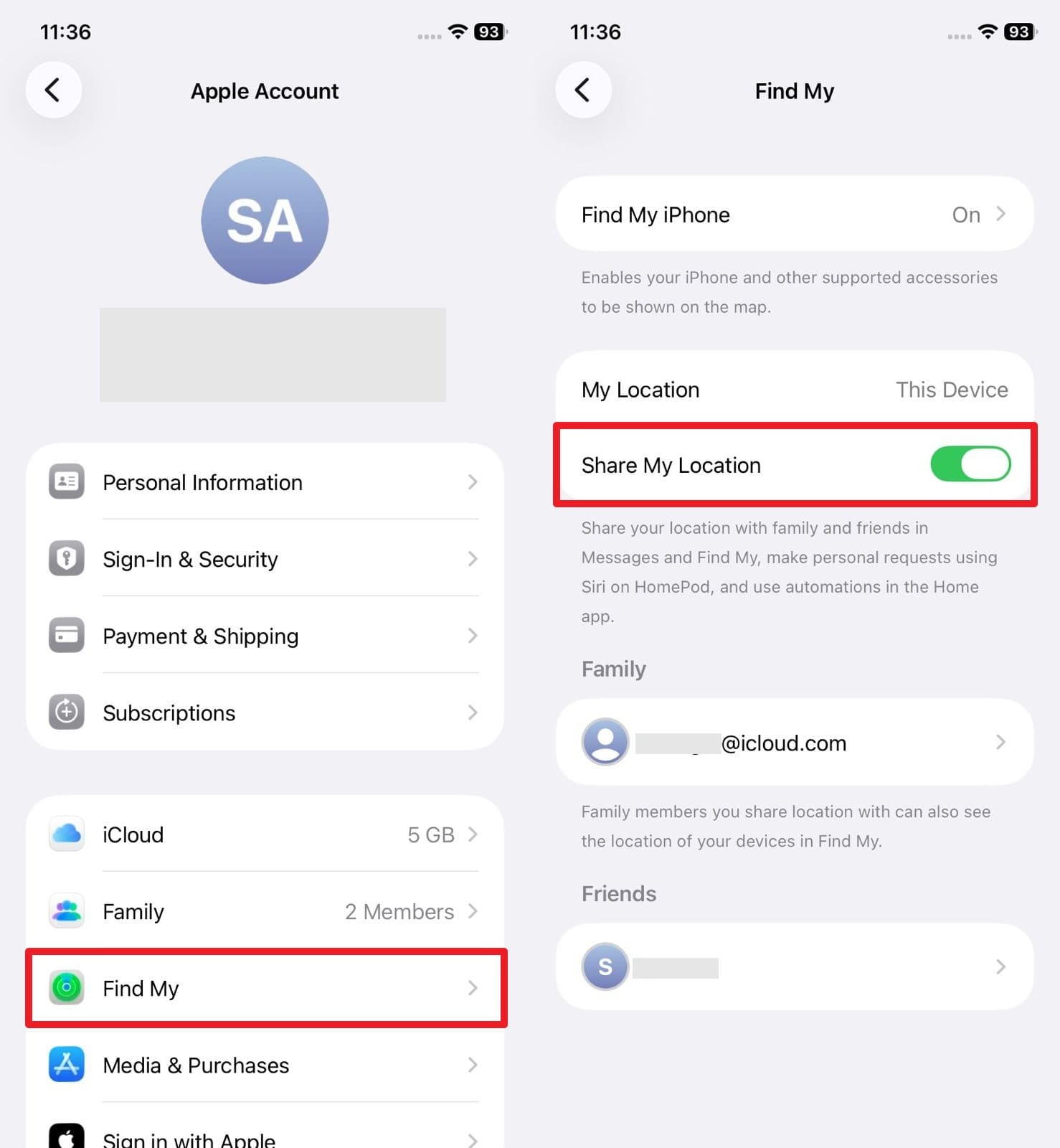
Instructions. Press your name on settings to choose the “Find My” option, and select the “Share My Location” option to disable it.
For Android
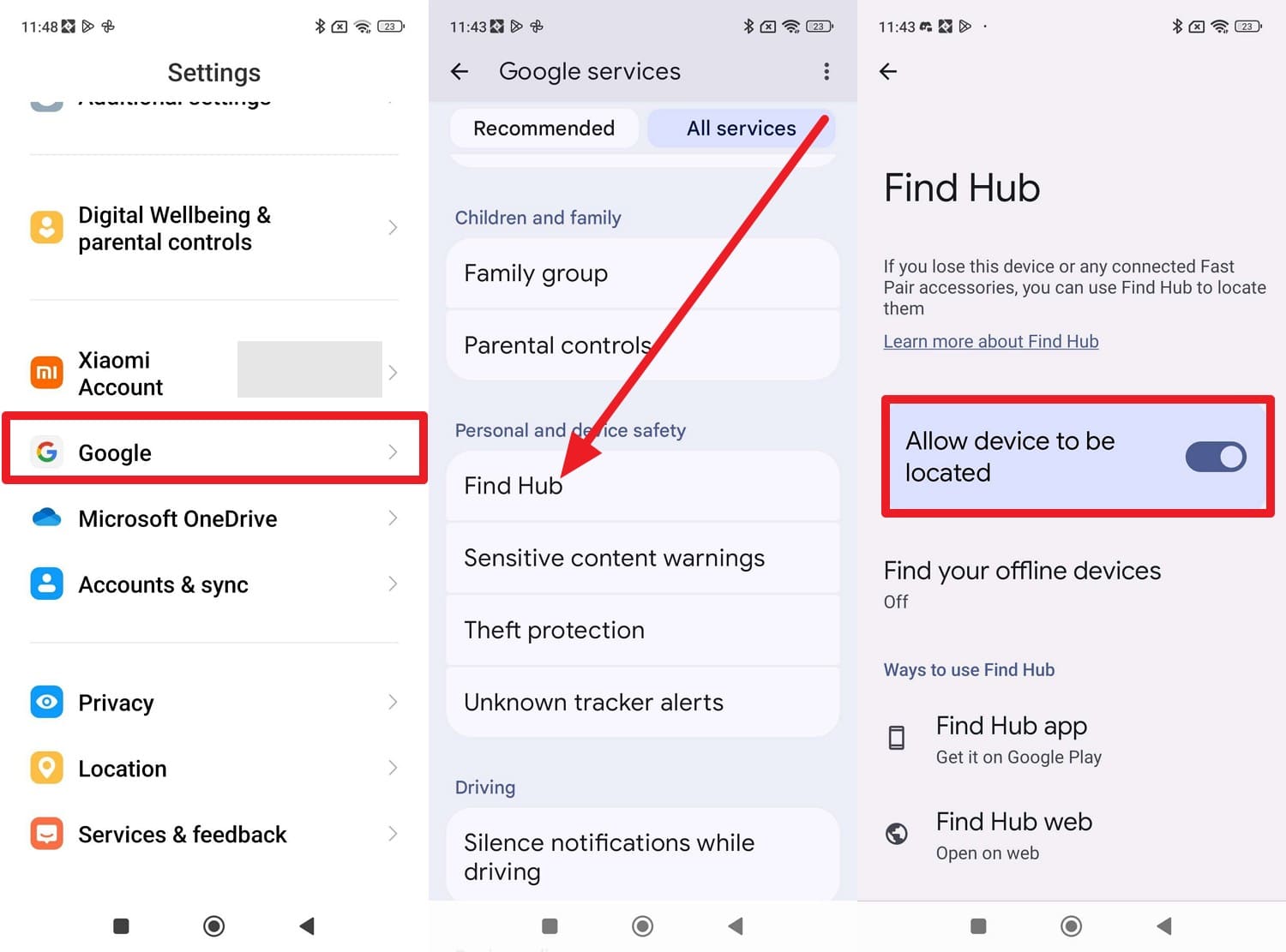
Instructions. Head to settings, select the “Google” option, then choose the “Find Hub” option under the “Personal and Device Safety” section. Here, disable the “Allow Device to Be Located” option.
Method 6: Use a Virtual Location Changer Solution - Dr.Fone Virtual Location
When the question is how to stop sharing location without notification, it's better to try a location spoofing app like Dr.Fone - Virtual Location. Renowned as a one-click location changer, it allows users to teleport to a GPS location anywhere, where Joystick offers flexibility for more fun in AR games. Moreover, the app works with location-based applications like Pokémon GO, Snapchat, Instagram, etc.
Despite being versatile, it is compatible with Android 16 and iOS 26, and allows you to choose a single route or to jump to teleport mode. For flexibility, it enables users to zoom in and zoom out of the map to mark the location that they want to fake precisely. Hence, the app guarantees that the GPS positions are stable and won’t jump between assumptions, which makes it a reliable solution for all.

Dr.Fone - Virtual Location
1-Click Location Changer for both iOS and Android
- Teleport from one location to another across the world from the comfort of your home.
- With just a few selections on your computer, you can make members of your circle believe you’re anywhere you want.
- Stimulate and imitate movement and set the speed and stops you take along the way.
- Compatible with both iOS and Android systems.
- Work with location-based apps, like Pokemon Go, Snapchat, Instagram, Facebook, etc.


Fake Location So No One Knows - Dr.Fone Virtual Location App [Simple Guide]
To further understand how to stop sharing location without someone knowing via Dr.Fone, adhere to the listed guide for clarity:
Step 1. Access the Location Changer App & Enable Teleport Mode
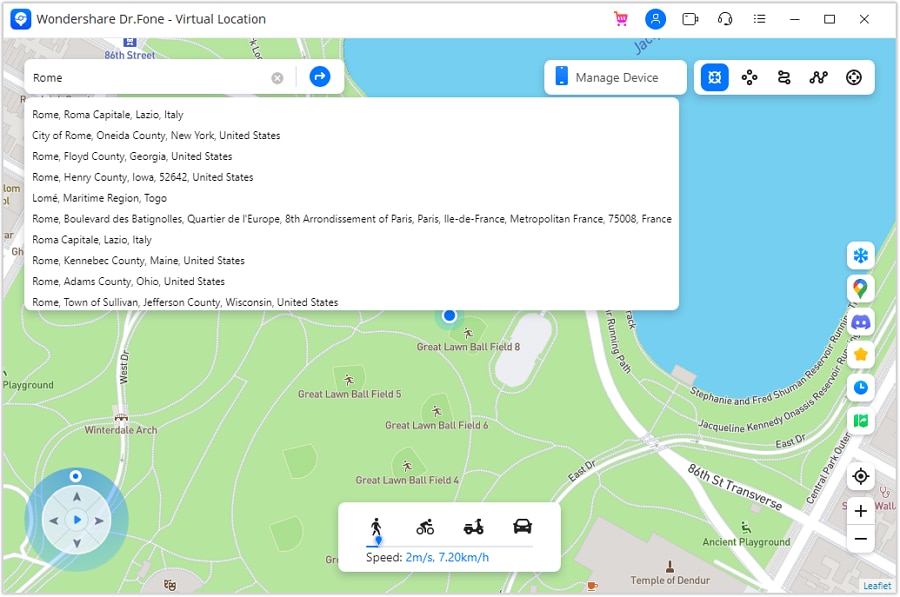
Turn on the “Teleport” mode in the tool by pressing the “Box” icon in the top-right corner, then head to the search box. There, type the location that you want to fake and hit the “Enter” key to start the teleporting process.
Step 2. Pick the Location & Press Move Here
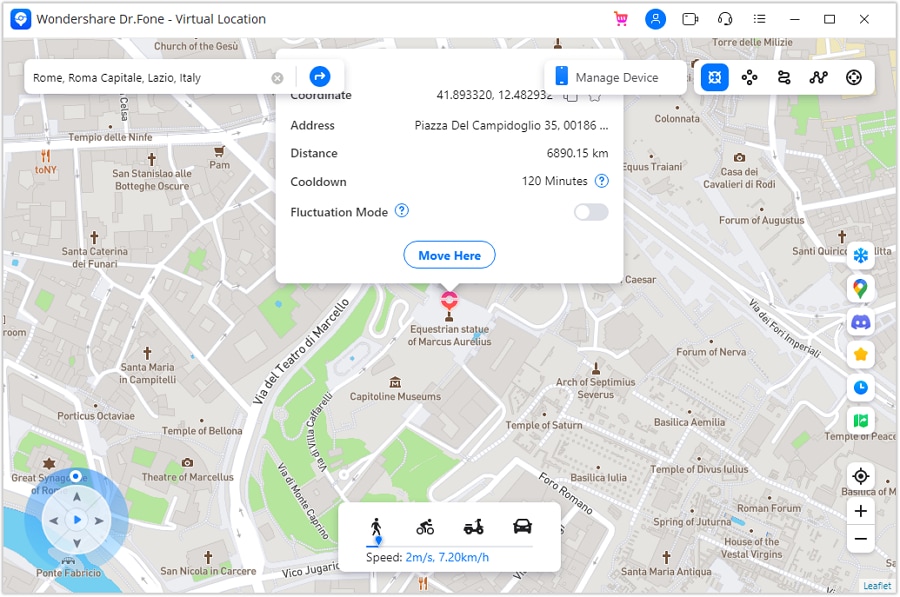
As the map directs you to that area, choose the “Move Here” button, and the app will instantly change the location. On the dedicated device, confirm it is the same as the computer by opening the Maps.
Method 7: Enable VPN with Location Changing Features
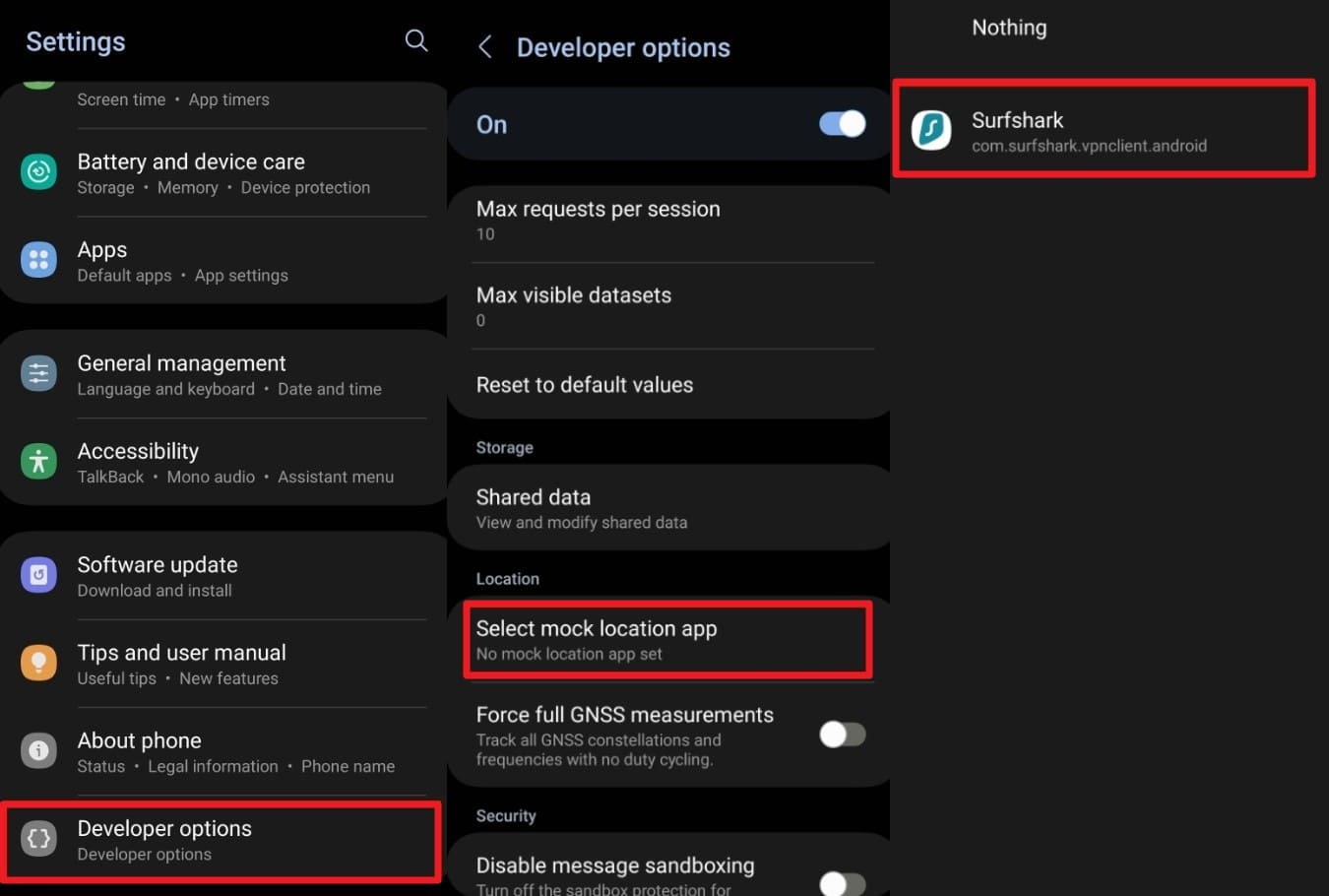
If you still ask, can I stop sharing location without notifying? Try a VPN that offers location-sharing features. A VPN can hide your online location by changing your IP address, but it does not change your iPhone's GPS for Find My or similar tracking. In this regard, a robust VPN like Surfshark is a good choice since it features a “GPS Override” feature that works seamlessly on Android devices, as guided:
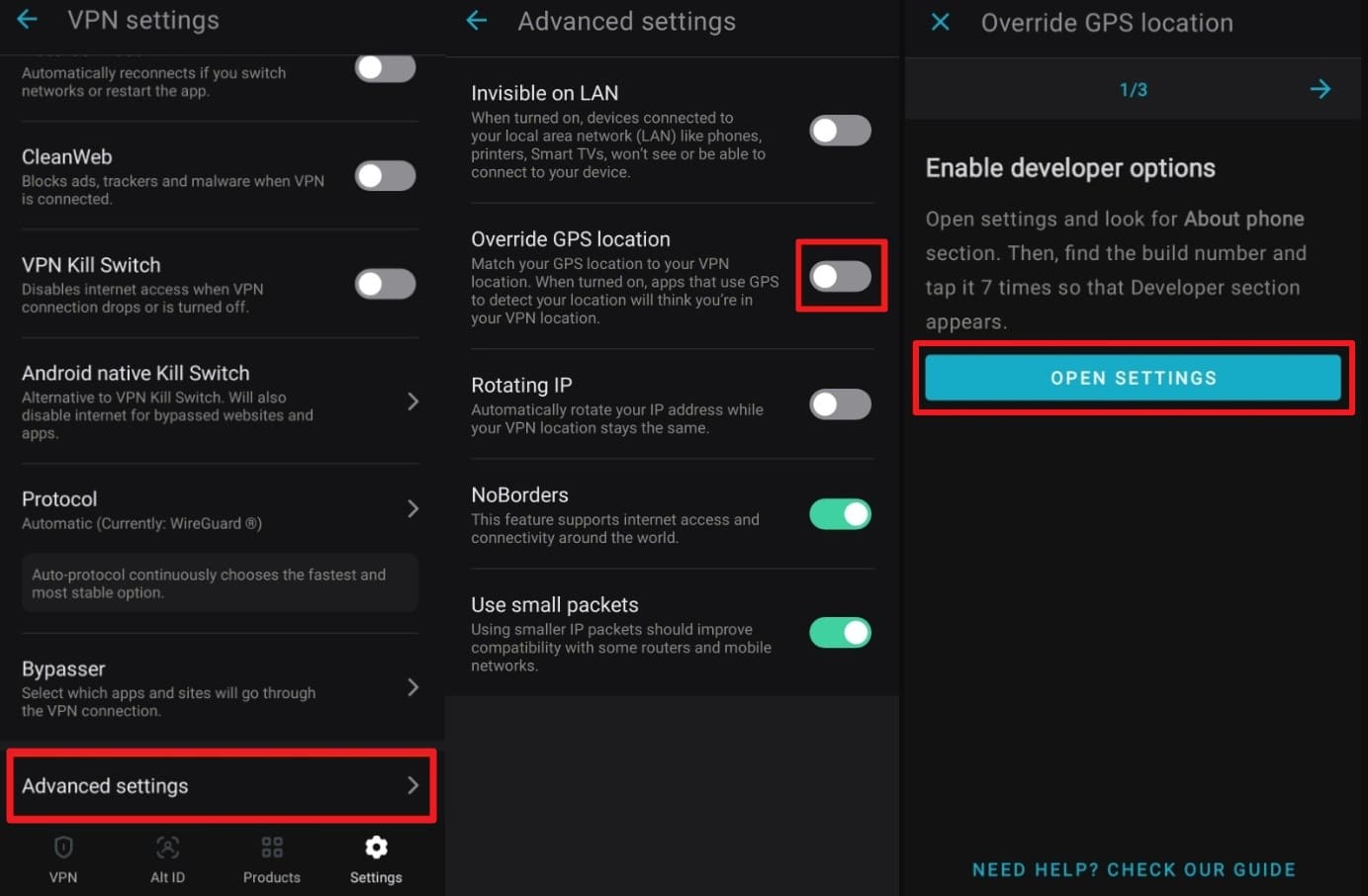
Step 1. As you launch the app, head to the settings to choose the “Advanced Settings” option under the “VPN Settings.” After that, enable the “Override GPS Location” option to activate the "Developer" option by picking the “Open Settings” option on the app.
Step 2. Within the settings, choose the “Developer Options” and opt for the “Select Mock Location App” option, and choose “Surfshark.”
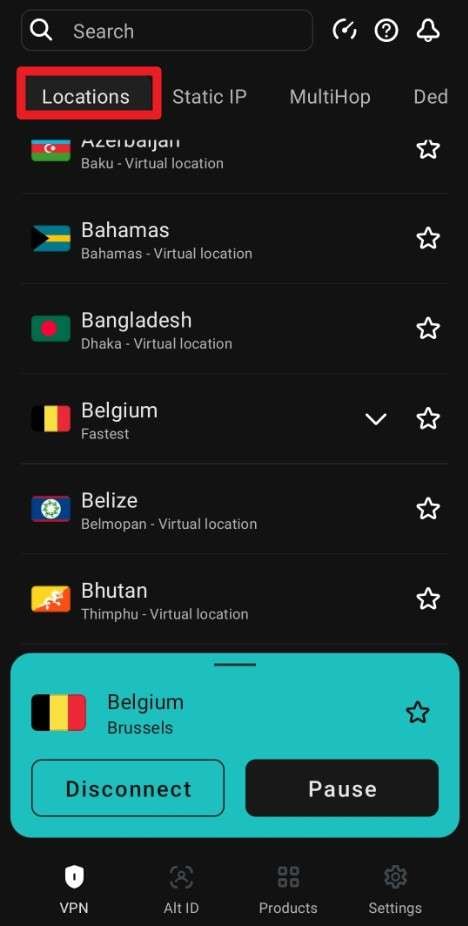
Step 3. Head to the "Locations" tab on the app and pick the desired servers to connect to. Once done, you will see a green indicator or a notification as long as you are connected to the VPN.
Conclusion
To wrap up, this guide has answered how to stop sharing location without notifying with 7 simple solutions. So, review them in detail, with a separate guide for Android and iOS users, to determine which best meets your needs. However, it is evident that faking a location is a reliable option, and the Dr.Fone - Virtual Location seems ideal, as it limits location notification hassle.
 safe & secure
4,624,541 people have downloaded it
FAQs
 Q1. Does “Location Not Available” mean someone turned it off?Q2. Can someone track me with only my phone number?Q3. Will my phone still save my location even if I hide it from others?
You Might Also Like

Virtual Location
- Change iOS Location
- 1. Best iOS Location Changers
- 2. Fake iPhone GPS Location
- 3. Change iPhone Home Address
- 4. Change iPad Weather Location
- 5. Track a Cell Phone Location
- 6. iPhone GPS not Working
- 7. iPhone “No Location Found”
- 8. iPhone “Location Not Available”
- 9. iTools Alternatives
- 10. DoPokeGo++ Alternatives
- 11. 3uTools Alternatives
- 12. Foneazy MockGo Alternatives
- 13. "No Location Found" Vs."Location Not Available"
- Change Android Location
- 1. Best Android Fake GPS Apps
- 2. Free Android Location Spoofers
- 3. Fake Android GPS Location
- 4. Android Location Settings
- 5. Fake GPS No Root
- 6. Fake GPS on Huawei
- 7. Fake GPS without Mock Location
- Hide GPS Location
- 1. Stop Sharing Location without Notifying
- 2. Fake Location on Find My Friends
- 3. Stop Google Tracking Your Location
- 4. Fake Location on Google Maps
- 5. Spoof Location on Life360
- 6. Turn Off Life 360 Without Knowing
- 7. Stop Life360 from Tracking You
- 8. Life360 Circle: Tips & Tricks
- 9. Track Location by Mobile Number
- 10. How Do I Know If My Phone Is Being Monitored
- 11. Can Life360 Track You When Your Phone is Off
- Fake GPS on Games
- 1. Play Pokémon Go Without Moving
- 2. Celebrate National Pokémon Day
- 3. Fake GPS on Mobile Legends
- 4. Spoof Ingress Prime Location
- 5. Spoof Location on Jurassic World Alive
- Fake Location on Social Apps
- 1. Fake Location on Whatsapp
- 2. Fake Location on Facebook
- 3. Fake Location on Telegram
- 4. Fake Location on Tiktok
- 5. Does Your Snap Score Increase with Chats
- 6. Fake Location on Snapchat
- 7. Add Location Filters on Snapchat
- 8. Change Location on Twitter
- 9. Change Instagram Business Location
- 10. Change Instagram Region/Country
- 11. Stop mSpy from Spying You
- 12. Change Location On Linkedin
- Fake Location on Dating Apps
- 1. Fake Hinge GPS
- 2. Top Funny Hinge Prompts
- 3. Apps Like Tinder
- 4. Enjoy Tinder Gold
- 5. Fake Tinder GPS
- 6.Tinder Keeps Crashing
- 7. Find People on Tinder
- 8. Use Grindr on a PC
- 9. Grindr Web app explained
- 10. Fake Grindr GPS
- 11. Grindr Unable to Refresh
- 12. Fake Bumble GPS
- 13. Bumble Snooze Mode Guide
- 14. Tinder vs Bumble vs Hinge
- Get Around Geo-blocking
- 1. Hola Fake GPS Alternative
- 2. Change Netflix Location
- 3. Bypass MLB TV
- 4. Change Location on YouTube TV
- 5. Change Play Store Country
- 6. Change Facebook Marketplace Location
- Followers & Unfollowers Trackers
- Location & Social Apps Tips
- 1. How to Share Live Location on Snapchat
- 2. Best Mobile Number Tracker
- 3. Best Private IG Viewer Tools
- 4. View a Private Instagram Account
- 5. Screenshot on Instagram Without Them Knowing
- 6. Does Instagram Notify When You Screenshot
- 7. Find Out If Someone Screenshots Your Instagram Story
- 8. Does Instagram Notify When You Screen Record
- 9. Fix iPhone Location Not Updating
- 10. Does Snapchat Show Who Viewed Your Profile
- ● Teleport GPS location to anywhere
- ● Play AR games without moving
- ● Spoof Location on the popular Apps
- Free Download Free Download Free Download


 > How-to > Virtual Location Solutions > Stop Sharing Your Phone Location Without Them Knowing: 7 Easy Methods
Julia Becker
chief Editor