
Easy methods for FRP Bypass Android 11 Tecno users

Jun 11, 2026 • Filed to: Screen Lock Removal • Proven solutions
 TL;DR:
Bypassing Factory Reset Protection on Tecno Android 11 devices is most reliably achieved using Dr.Fone - Screen Unlock (Android) via a PC, while phone-only workarounds offer alternative but highly complex manual routes.
● Dr.Fone - Screen Unlock (Android) requires a computer but delivers the fastest guided workflow and highest success rate across all Tecno Android 11 models by completely removing the lock.
● The PC-free APK method tailored for Tecno Pop 5 strictly requires a second Android smartphone equipped with the XShare app to successfully transfer the necessary bypass files.
● Manual lock-screen alternatives for Tecno Spark 7 and 8 models require altering Talkback settings, installing the TechnoCare APK, or utilizing a PIN-locked SIM card with saved contacts, though these flows are notably unstable and time-consuming.
Ask AI for a summary
 ChatGPT
 Perplexity
 Gemini
 Claude
 Grok
Grok
On Tecno phones running Android 11, Factory Reset Protection can turn a simple reset into a full access block. The device starts normally, but setup cannot continue unless the last synced Google account is entered. That security step protects user data, yet it can also stop genuine owners who forgot their credentials or received a reset device without the old account being removed. Because of that reason, FRP bypass for Android 11 Tecno is now a common module to all models like Tecno Spark and Tecno Pop 5.
Here, only practical, effective methods are covered, both in terms of guided software and manual options, so that the process remains clear and safe, meaningful for Tecno devices on Android 11.

Part 1. What Is FRP Lock and Why Do Tecno Android 11 Devices Trigger It
FRP stands for Factory Reset Protection. It is a security feature added by Google. When you reset a phone, it asks for the old Google account.
This happens when
- You reset the phone from recovery
- You forgot your Google account
- You buy a second-hand Tecno phone
Part 2. Comprehensive Methods for FRP Bypass Android 11 Tecno
Below are the most effective methods for FRP bypass Android 11 Tecno, including guided software and manual options, to help users choose the right solution for their specific Tecno device.
Quick Overview of FRP bypass Android 11 Tecno Methods
|
Method |
Ease of Use |
Time Required |
PC Required |
Success Rate |
Best For |
Key Limitation |
| Dr.Fone - Screen Unlock (Android) | Very Easy | Fast | Yes | High | Beginners and all Tecno models | Requires computer |
| APK transfer method | Moderate | Medium to Long | No | Medium | Users without a PC on the Pop series | Needs a second phone and multiple apps |
| SIM card workaround | Difficult | Long | No | Low to Medium | Users are trying the phone-only method | Many steps and unstable flow |
| TechnoCare APK method | Moderate | Medium to Long | No | Medium | Users searching for Tecno Spark 7 FRP bypass Android 11 or similar | Requires setup changes and patience |
For most users, the software-based approach gives the most stable and fast result for FRP bypass Android 11 Tecno. Manual methods can work, but they often require more time and careful execution.
Method 1: Best Software Option for Tecno Android 11 FRP Bypass
For users who want a clear and guided solution for FRP bypass Android 11 Tecno, Dr.Fone - Screen Unlock (Android) is a strong place to begin. It offers a more direct workflow than many manual methods used after a phone gets stuck on the Google verification screen following a factory reset. Dr.Fone Screen Unlock Android includes a built-in Remove Google FRP Lock feature, and its official support path covers Tecno, Infinix, and itel devices. This makes it a practical option for users looking for Tecno Android 11 FRP bypass with less trial and error.
Features
- Built-in Google FRP lock removal function
- Supports Tecno, Infinix, and itel devices
- Guided on-screen process for easier handling
- Suitable for less technical users
- Part of a broader Android unlocking toolkit
- Relevant for Tecno series like Spark, Camon, Pova, Phantom, and Pop

Dr.Fone - Screen Unlock (Android)
The Best Unlock Tool to Bypass FRP and Solve Your Screen Locks
- Completely unlinked from the previous Google account, it won’t be traced or blocked by it anymore.
- Remove all Android screen locks (PIN/pattern/fingerprints/face ID) in minutes.
- Compatible with various Android models.
- Provide specific removal solutions to promise a success rate.


- Step 1. Open the Screen Unlock tool
Launch Wondershare Dr.Fone on your computer and connect the Tecno phone. From the main screen, open Screen Unlock and choose Android.

- Step 2. Select the FRP removal option
Choose the Google FRP lock removal function. Then select Tecno from the brand list, so the software can load the correct process.

- Step 3. Let the software prepare the device
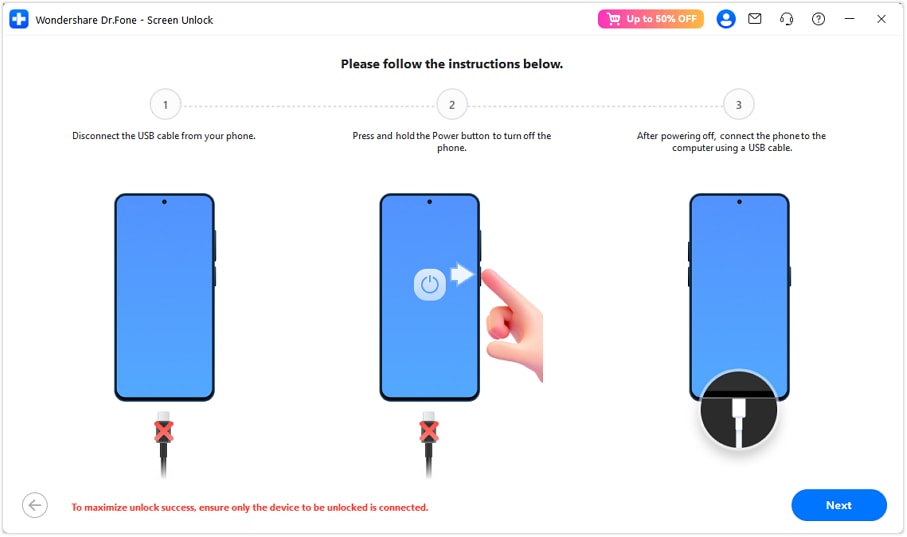
The program checks the phone and downloads the needed driver. When prompted, turn off the phone and reconnect it as shown on the screen.
- Step 4. Complete the process
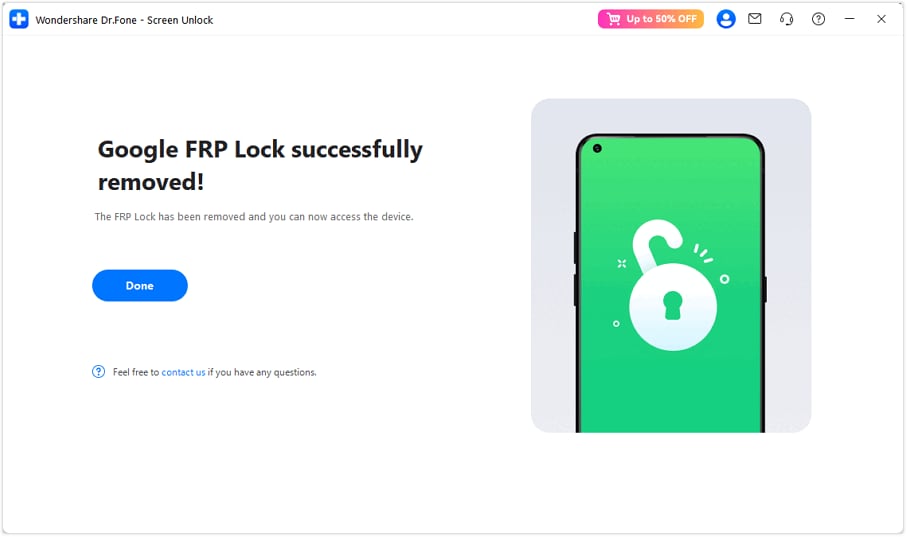
After the phone is detected again, the software continues the process. Keep the device connected until the completion message appears.
 safe & secure
4,624,541 people have downloaded it
Method 2: APK-based option for Tecno Pop 5 FRP bypass Android 11
APK-based methods are also commonly mentioned for FRP bypass on Android 11 Tecno devices. This option is typically referred to as a workaround for users who want to avoid using a PC or a SIM card.
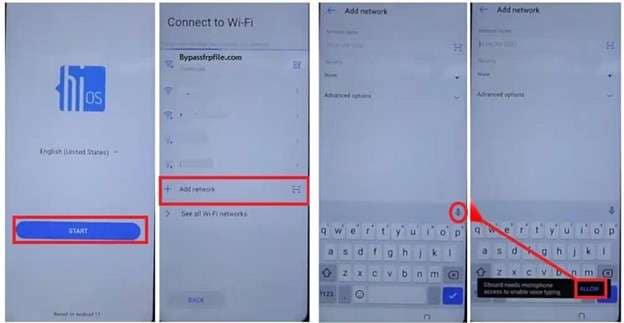
- Step 1. Boot the Tecno Android 11 phone, connect to Wi-Fi, go back to the welcome screen, then tap Add network to continue setup.
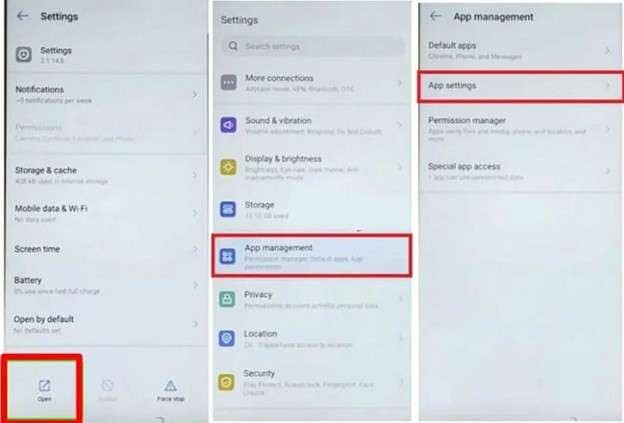
- Step 2. Go through the permission flow of the microphone until the pop-up redirects you to the Gboard app information page, and then, via the search engine, navigate again to the Settings app.
- Step 3. In Settings, navigate to app management, then open the XShare area, and prepare a second Android phone (also with XShare installed via the Play Store).
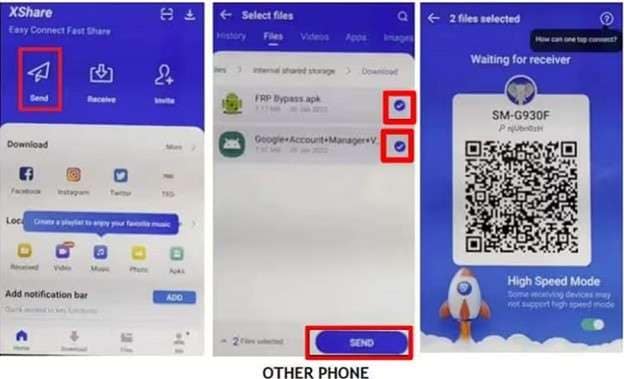
- Step 4. On the second mobile phone, open Chrome, download the two apps used in this method, transfer them to your locked Tecno via XShare, and install them.
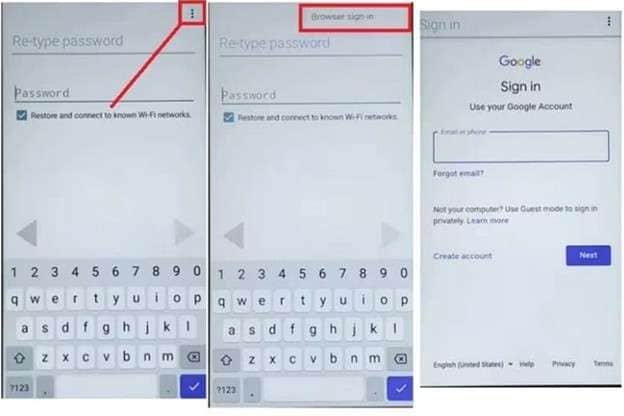
- Step 5. On the locked phone, open the FRP Bypass app, go to the browser's sign-in page, and log in with a Google account.
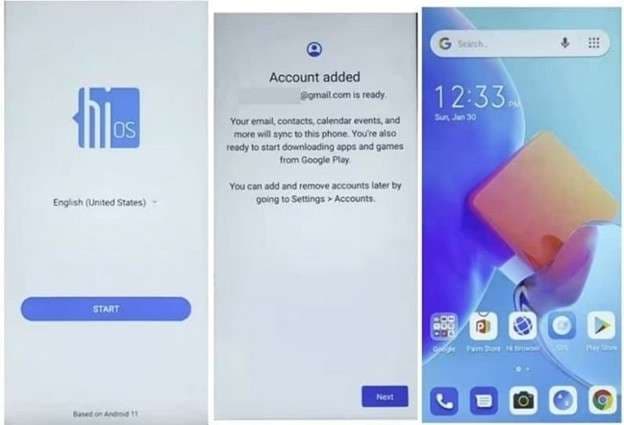
- Step 6. Go back to the app settings, delete Google Account Manager, and navigate to the first welcome screen. Set up until your phone shows that the account was added.
Method 3: Tecno Spark FRP bypass Android 11 without PC using a SIM card workaround
Another method often mentioned for FRP bypass Android 11 Tecno is the SIM card workaround. This option is usually discussed by users who want to try a phone-only process rather than a computer-based tool. It operates via the lock screen, emergency options, saved SIM contacts, file sharing, and app transfer steps. Because it usually requires more time and more patience than a guided software solution, as such.
- Step 1. Power on your Tecno device until you reach the Google verification screen. Make sure your device is locked. Then go back to the first screen and insert a PIN-locked SIM card that already has at least one contact saved.
- Step 2. Open the emergency area, enter the SIM PIN, and move through the emergency information screen until you reach the contact section. From there, use the saved SIM contact and place a call so more contact options become available.
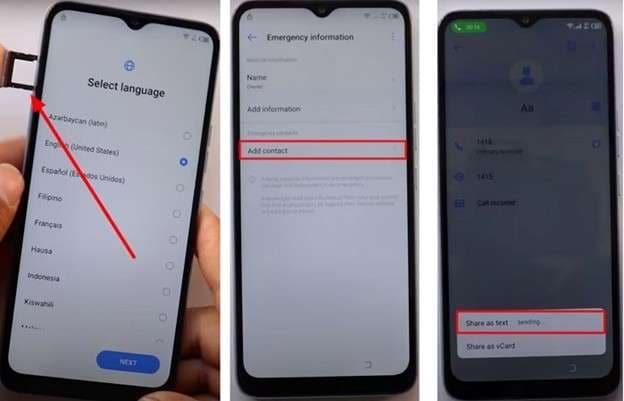
- Step 3. During that process, open the contact options, choose the share function, and use the available sharing app on the locked device. This prepares the phone for the next transfer stage.
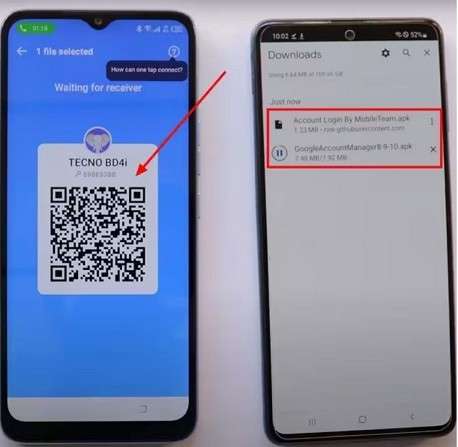
- Step 4. On another Android phone, download the apps used in this method and prepare the file-sharing app. Then connect both phones through the QR code process and transfer the required apps to the locked Tecno device.
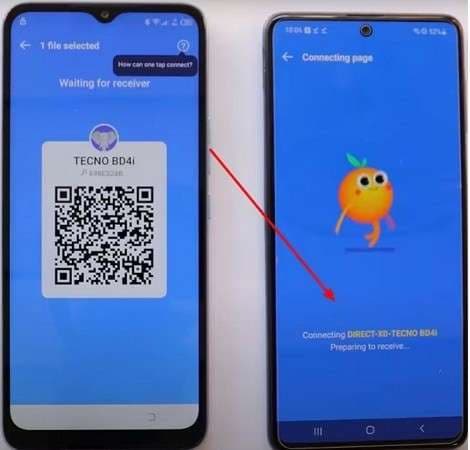
- Step 5. Install the apps received on the locked phone, open the app related to signing in, and when the sign-in page of your browser opens up, sign in to a Google account.
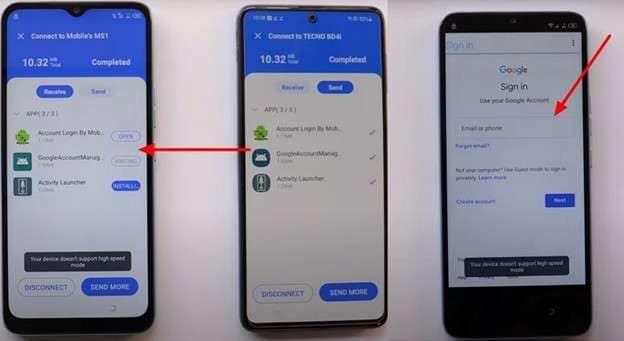
- Step 6. Next, launch the launcher app you downloaded, navigate through the Android setup entries, and continue through panels so that the phone can finish setting up.
Method 4: TECNO Spark 7/8 FRP bypass Android 11 without PC using TechnoCare APK
TechnoCare APK is often mentioned as a manual option for users who want a phone-only method for Tecno Spark 7/8 FRP bypass Android 11. It is usually discussed as a workaround that helps users reach account-related settings during setup and add another Google account.
Features
- APK-based manual workaround
- No PC based start
- Often used by people who want a no PC option
- Commonly combined with launcher and account-related steps
- Focuses on reaching settings and account sections during setup
- Usually takes more time than a guided software method
- Step 1. The process begins on the welcome screen by turning on Talkback and opening Talkback settings. From there, the user reaches a help page and opens a video-based route that leads to the browser.
- Step 2. After the browser opens, the method continues through the download history and file access. At this stage, the required launcher file is opened and installed so the phone can switch to a different home screen interface.
- Step 3. Once that launcher screen is available, the method goes into security and app settings. There, some device admin and Google-related app settings are adjusted before the TechnoCare app is installed.
- Step 4. After TechnoCare is opened, the process moves to accounts, so another Google account can be added. Then the changed app settings are turned back on, the phone is restarted, and setup continues from there.
Conclusion
Factory Reset Protection on Tecno Android 11 is useful for security, but it can also stop real owners from getting back into their phones after a reset. In this guide, each method serves a different need. APK and SIM-based options may help users who want a phone-only route, while TechnoCare suits people ready for a longer manual process. Still, these methods often require more time, more care, and more repetition.
For a smoother FRP bypass Android 11 Tecno experience, Dr.Fone - Screen Unlock (Android) stands out naturally. It gives users a clearer path, fewer setup complications, and a more stable way to handle Tecno Android 11 FRP bypass.
safe & secure4,624,541 people have downloaded it
FAQs
 Q1. Is FRP bypass safe on Tecno Android 11?Q2. Can I bypass FRP on Tecno Spark 7 without a PC?Q3. Does Dr.Fone support Tecno Pop 5 FRP bypass Android 11?


Android Unlock
- Android Password Lock
- 1. Reset Lock Screen Password
- 2. Ways to Unlock Android Phone
- 3. Unlock Wi-Fi Networks
- 4. Reset Gmail Password on Android
- 5. Unlock Android Phone Password
- 6. Unlock Android Without Password
- 7. Emergency Call Bypass
- 8. Enable USB Debugging
- 9. Unlock Asus Phone
- 10. Unlock Asus Bootloader
- Android Pattern Lock
- Android Pin/Fingerprint Lock
- 1. Unlock Android Fingerprint Lock
- 2. Recover a Locked Device
- 3. Remove Screen Lock PIN
- 4. Enable or Disable Screen Lock PIN
- 5. Pixel 7 Fingerprint Not Working
- Android Screen Lock
- 1. Android Lock Screen Wallpapers
- 2. Lock Screen Settings
- 3. Customize Lock Screen Widgets
- 4. Apps to Reinvent Your Android
- 5. Lock Screen Wallpaper on Android
- 6. Unlock Android with Broken Screen
- 7. Unlock Google Find My Device Without Problems
- 8. Forgot Voicemail Password on Android
- 9. Unlock SafeSearch on Google
- Android Screen Unlock
- 1. Android Device Manager Unlock
- 2. Unlocking Android Phone Screen
- 3. Bypass Android Face Lock
- 4. Bypass Android Lock Screen
- 5. Bypass Lock Screen By Emergency Call
- 6. Remove Synced Google Account
- 7. Unlock Android without Data Loss
- 8. Unlock Phone without Google Account
- 9. Unlock Android phone
- 10. Reset a Locked Android Phone
- 11. Unlock Doogee Phones
- 12. Best 10 Unlock Apps For Android
- 13. Remove Gmail Account
- 14. Unlock 30/30 Attempts Remaining
- 15. OEM Unlock Missing
- 16. Change Lock Screen Clock
- 17. OEM Unlocking on Android
- 18.Bypass Knox Enrollment Service
- 19. Unlock Google Pixel 6a, 6 or 7
- 20. Best Alternative to MCT Bypass Tool
- 21. Best Way to Unlock Your ZTE Phone
- Android SIM Unlock
- 1. Easily Unlock Android SIM
- 2. 5 Android Unlock Software
- 3. Carrier Unlock Phone to Use SIM
- 4. Change Android Imei without Root
- 5. How to Change SIM PIN on Android
- 6. Best Unlocked Android Phones
- Android Unlock Code
- 1. Lock Apps to Protect Information
- 2. Unlock Secret Features on Phone
- 3. Android SIM Unlock Code Generator
- 4. Ways to Sim Unlock Phone
- 5. Remove Sim Lock without Code
- 6. Updated Android Factory Reset Code
- Google FRP Bypass
- 1. Bypass Google Account Verification
- 2. Bypass Google FRP Lock On Phones
- 3. Bypass Google Pixel FRP
- 4. Huawei Bypass FRP Tools for PC
- 5. Direct Open FRP MobileTech
- 6. Bypass Samsung S24 FRP Lock
- 7. EDL Cable Unlock FRP
- 8. Unlock OnePlus Nord FRP
- 9. Tecno FRP Bypass
- 10. Remove Infinix FRP Lock
- 11. FRP Itel Lock Removal
- 12. Itel A23 FRP Bypass Easy Guide
- 13. Itel A16 FRP Bypass
- 14. Remove Google FRP Using Online Tools
- Unlock Bricked Phone
- 1. Restore Bricked Mobile Phone
- 2. Fix Motorola Bricked Phone
- 3. Fix Bricked Redmi Note
- 4. Unbrick Oneplus Easily
- 5. Unbrick Xiaomi Phone
- 6. Unbrick Huawei Phone
- 7. Unbrick Poco X3
- 8. Software to Unbrick Samsung
- 9. Unbrick 3DS
- 10. Unbrick PSP
- Android Unlock Tools
- 1. Griffin Unlocker Tool Review
- 2. BMB Unlock Tool Review
- 3. Android Multi Tools Review
- 4. Best Bootloader Unlock APKs
- 5. Top 5 Micromax FRP Tools
- 6. Pangu FRP Bypass
- 7. Google Account Manager APK FRP Review
- 8. D&G Password Unlocker Review
- 9. Android Multi Tools Review
- 10. Easy Samsung FRP Tool Review
- 11.Samfw FRP Tool
- Android MDM
- ● Manage/transfer/recover data
- ● Unlock screen/activate/FRP lock
- ● Fix most iOS and Android issues
- Free Download Free Download Free Download




James Davis
staff Editor