
What Is Samsung MDM Lock and How to Remove It in 2026

Oct 10, 2026 • Filed to: Screen Lock Removal • Proven solutions
 TL;DR:
Removing a Samsung MDM or Knox Guard (KG) lock legally requires IT admin credentials via the management portal, whereas unauthorized bypasses require data-wiping factory resets, ADB commands, or specialized PC tools.
● Deactivating the MDM agent through Settings or performing a factory reset via Recovery Mode will delete all personal data and is frequently blocked by modern corporate security policies.
● If the device restricts factory resets, users must rely on ADB commands with USB Debugging enabled or third-party utilities like RAJAMINUS and PLUK-GSM that utilize EDL mode to clear the management profile.
● Bypassing the MDM lock via a device reset will trigger Google Factory Reset Protection (FRP), requiring utilities like Dr.Fone - Screen Unlock (Android) to clear the Google account on Samsung models up to Android 16.
Ask AI for a summary
 ChatGPT
 Perplexity
 Gemini
 Claude
 Grok
Grok
Mobile Device Management (MDM) is software that lets companies remotely configure and secure enrolled devices. On a Samsung phone, an MDM lock means the device is controlled by an organization’s MDM system, so this lock can enforce policies like complex passwords, restrict apps, or prevent factory resets.
Users often want to remove the MDM lock to regain full control. This article explains what is meant by MDM lock and why one might remove this MDM lock. Read till the end to explore the methods for removing or bypassing the Samsung MDM lock.
- What is MDM Lock on a Samsung Phone?
- Can You Remove the Samsung MDM Lock?
- How to Remove Android MDM Lock? (Device Managed by Admin)
- Method 1. Use the Admin Console
- Method 2. Disable and Uninstall the MDM App
- Method 3. Factory Reset the Device Using Recovery Mode
- Method 4. Use ADB (Low-Level Mode)
- Method 5. Install Specialized MDM Removal Tools

- How to Bypass FRP Lock on Samsung Phone Using Dr.Fone Screen Unlock? (Android)
Part 1. What is MDM Lock on a Samsung Phone?
MDM stands for Mobile Device Management. It is a system for managing and monitoring mobile devices within an organization. On Samsung devices, MDM is typically delivered via Samsung’s Knox or another EMM agent. Once a Samsung phone is enrolled, the IT admin can enforce security policies (requiring a strong passcode) and restrict settings.
For example, the admin can disable apps, lock configuration menus, or put the device in kiosk mode. Essentially, an MDM-locked Samsung is fully under corporate control until the MDM is removed.
On the other hand, MDM Samsung unlock tools are designed to remove the MDM locks from the device, especially Samsung mobile phones.
How to Enable MDM on a Samsung Phone?
Organizations enable MDM enrollment using enterprise tools. For example, Samsung’s Knox Mobile Enrollment allows bulk auto-enrollment. An admin logs into the Knox Admin Portal and creates an enrollment profile that specifies the company’s MDM solution.

This profile is assigned to the device (often via a QR code or pre-loaded IMEI). On first boot, the phone automatically installs the MDM agent (such as Samsung’s Knox Service Plugin or a third-party MDM app) and becomes “managed.” In other cases, end users manually install the company’s MDM app and sign in with corporate credentials.
Part 2. Can You Remove the Samsung MDM Lock?
Yes, you can remove the MDM lock, but only with the right access or tools. If you have the MDM administrator’s account and password, you can log into the MDM portal and remove the device, which fully clears the lock. Without admin access, your options are limited.
You might contact your IT department to remove the MDM profile for you. In some cases, specialized software tools can bypass or remove the MDM agent, but these methods vary in effectiveness and may not work on all models.
What are the Major Reasons to Bypass Samsung MDM Lock?
People remove the KG lock from Samsung for various reasons:
- Gain Full App Access: MDM often blocks personal apps (social media) to enforce work-only use. Removing the lock lets you install and use any app freely.
- Protect Privacy: MDM software can monitor usage and enforce settings. Bypassing it puts the device fully under your control and avoids employer oversight of personal data.
- Forgotten Credentials: If you lose the MDM login or password, you can become stuck. Bypassing allows you back in without the original admin credentials.
- Remove Restrictions: Some MDM policies disable factory reset or certain settings, which can be frustrating. Bypassing Samsung MDM lock removes those blocks, restoring normal functionality.
Part 3. How to Remove Android MDM Lock? (Device Managed by Admin)
If a Samsung phone is managed by an admin, use one of these approaches:
Method 1. Use the Admin Console
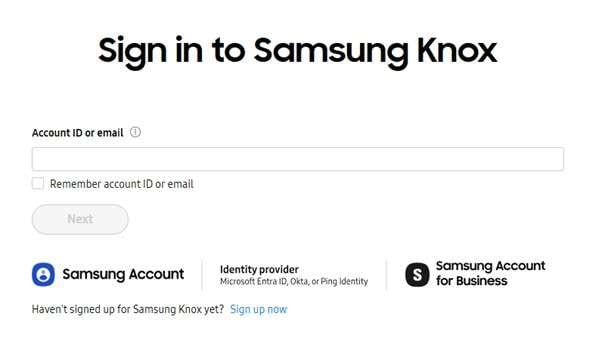
If you have the IT administrator’s login, you can unenroll the device directly. Removing the device from the MDM portal deletes its management profile. To apply this method, you will need the admin username and password for the MDM system.
Simply log in to the MDM web portal (ManageEngine, Intune, Knox Manage) and then locate your device in the list. Moving forward, choose the Remove or Unenroll option to proceed. Once the MDM record is deleted, Samsung reverts to normal status.
Method 2. Disable and Uninstall the MDM App
Many Android MDM solutions install a device-admin app. So, you can disable the admin privilege and uninstall the app to remove the MDM client. To apply this method, users need to know the device PIN and access Settings. However, some MDM policies prevent this uninstallation. Follow these steps to bypass the KG lock on Samsung:
Step 1. Start by reaching the Settings application and entering the Security and Privacy screen. Moving forward, tap on More Security Settings and access the Device Admin Apps screen.
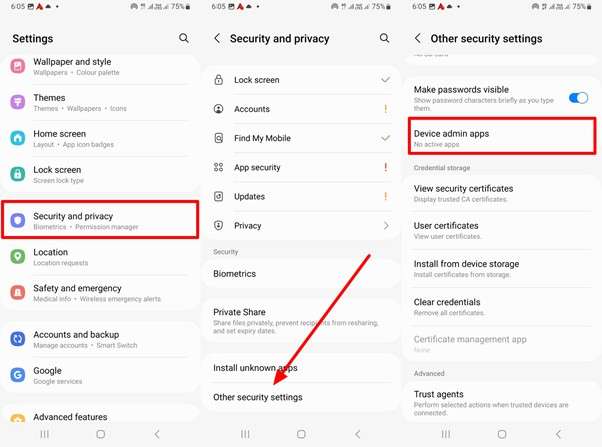
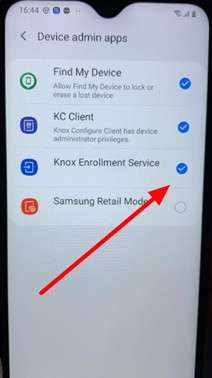
Step 2. Now, find the management app used by your organization, such as Knox Manage, and tap on this application. From here, turn off the toggle next to the MDM app. Finally, you need to tap Deactivate when prompted.
Step 3. Now, go to the Settings app and then reach the Apps screen. Finally, uninstall the MDM and confirm its removal. This deletes the MDM agent and lifts most Samsung MDM lock restrictions.
Step 4. After a restart, many policies associated with the Samsung MDM lock or the MDM KG locked status are cleared.
Method 3. Factory Reset the Device Using Recovery Mode
A factory reset erases the phone, which also removes the MDM agent in some cases. Resetting deletes all user data and settings, including any management apps. However, all of your personal data is lost, and modern MDM systems may block resetting. To bypass the MDM-locked Samsung, follow these steps:
Step 1. Charge your device to at least 30%, then power it off completely. Next, press and hold the Volume Down + Power buttons until the bootloader screen appears. Now, use the Volume Down key to navigate to Recovery Mode, and press Power to enter it.
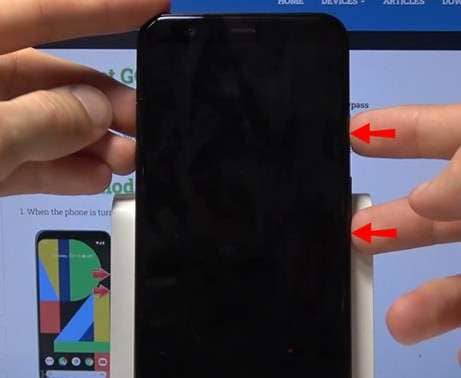
Step 2. If an Android robot with a warning symbol appears, hold the Power button and tap Volume Up once to open the full recovery menu.
Step 3. From the recovery menu, scroll with the volume keys to Wipe Data/Factory Reset, and select it using the Power button.
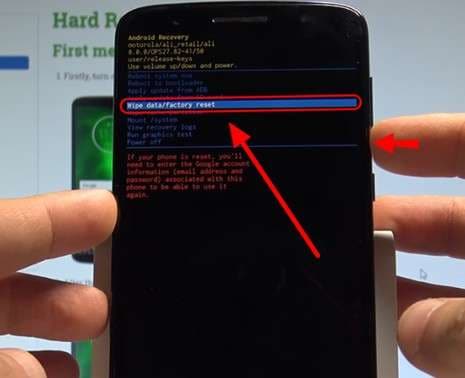
Step 4. On the next screen, choose Factory Data Reset and confirm with the Power button.
Pro tip: Sometimes, the MDM lock restricts users from factory resetting their phones. You can still reset the MDM-enabled phone by contacting the IT department or using admin credentials.
Method 4. Use ADB (Low-Level Mode)
On some Samsung models, you can use special boot modes to clear locks. For this, EDL (Emergency Download) mode or ADB access can run bypass software outside the normal OS. To perform this method, you will require a Windows PC with specialized tools and a Samsung phone that supports EDL mode. Follow these simple steps on your MDM KG-locked phone.
Step 1. After installing Android Platform Tools on your computer, enable USB Debugging on your Samsung device and connect it to the PC using a USB cable.
Step 2. Now, open Command Prompt on your computer and enter the following command:
adb shell rm /data/system/gesture.key
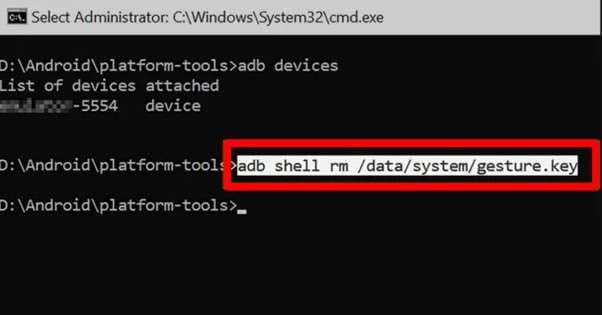
Step 3. This command removes the current lock screen file. Once it executes successfully, type the following to reboot the device:
adb reboot
Method 5. Install Specialized MDM Removal Tools
When the official removal methods are not an option, using third-party software becomes the most practical alternative. These tools are built specifically to bypass Samsung MDM restrictions, allowing you to perform a factory reset even when the device is blocked.
Step 1. RAJAMINUS
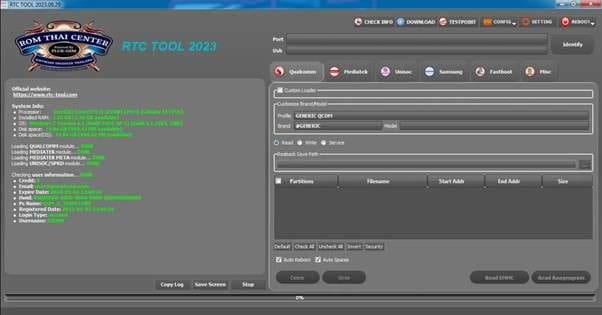
RAJAMINUS is a reliable utility known for quickly removing MDM restrictions from many Samsung devices. It works fast, often restoring access within a few minutes, and also includes extra features like flashing support and data recovery.
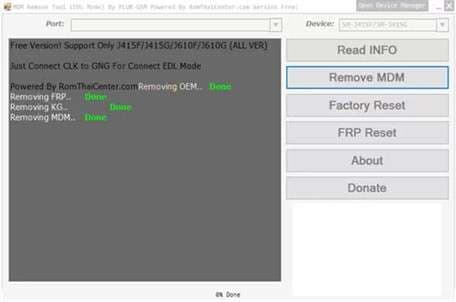
Step 2. PLUK-GSM
PLUK-GSM is another strong option that supports a wide range of Samsung phones and Android versions. It uses EDL mode to remove MDM profiles, which makes it effective against both corporate and school-issued management systems.
Part 4. How to Bypass FRP Lock on Samsung Phone Using Dr.Fone Screen Unlock? (Android)
After removing MDM or resetting your phone, you may encounter Google’s Factory Reset Protection (FRP) lock. For this, we recommend Dr.Fone - Screen Unlock (Android) that specifically supports FRP bypass on Samsung devices (all models up to Android 16).
Dr.Fone’s Screen Unlock (Android) can remove the Google account lock without technical skills. On top of that, this tool claims high success on the latest Samsung OS versions.
Dr.Fone - Screen Unlock (Android)
A Powerful Tool for Removing FRP on Android Devices
- Remove FRP lock on Samsung, Xiaomi, Redmi, Oppo, Realme, Vivo, Motorola, Lenovo, Huawei, Micromax, ZTE, and OnePlus phones without password or Google account.
- Bypass Google FRP account on all Samsung Phones and Tablets.
- 100% success rate for FRP bypass on Samsung Snapdragon devices.

- Bypass Google account verification after factory reset.
- No tech knowledge required, Simple, click-through, process.


Steps to Bypass FRP Lock with Dr.Fone
After removing the Samsung MDM lock, follow these steps to bypass FRP:
Step 1. Launch the Screen Unlock Tool
Once you open Dr.Fone on your computer, connect your Samsung smartphone or tablet. From the main dashboard, go to Toolbox and tap on the Screen Unlock feature to access the unlocking module.

Step 2. Choose the FRP Removal Option
When the next window appears, select Android and proceed to choose Remove Google FRP Lock. Moving forward, pick Samsung as your preferred brand and press the Start button to proceed.

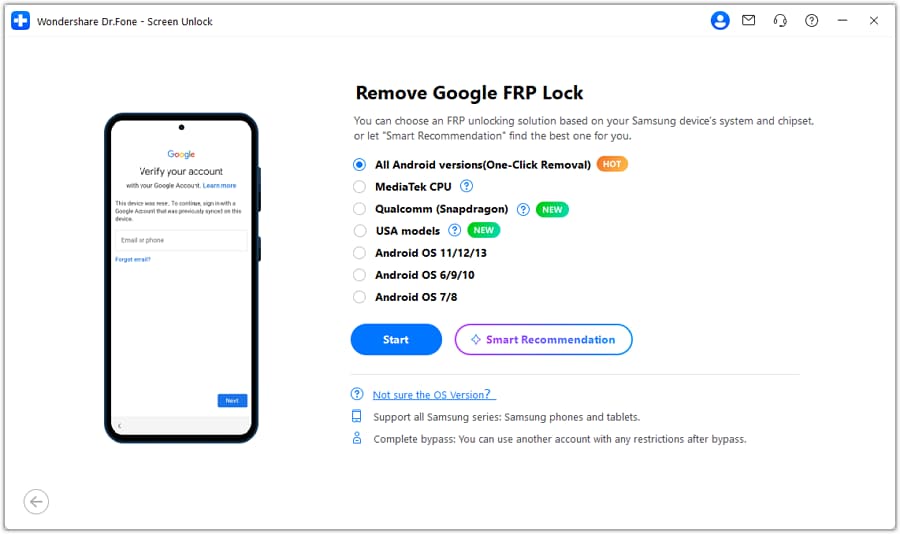
Step 3. Pick the All Android Versions (One-Click Removal)
If you are unsure of your device’s Android version, choose All Android versions (One-Click Removal) and hit Start. You’ll be guided to perform steps on your Samsung device. For this, open the Emergency Call screen and enter *#0*# to access the hidden diagnostic menu.
Step 4. Enable USB Debugging
A prompt will appear on your phone asking for USB debugging permission. Next, tap on Allow and then select Authorized on your computer to continue. Finally, Dr.Fone will begin removing the FRP lock, after which a confirmation message will appear.

For detailed guidance, see Dr.Fone’s official tutorial to bypass FRP lock.
Conclusion
Samsung’s MDM lock is designed to protect and control corporate devices, but it can be removed when needed. In summary, MDM allows companies to enforce security on enrolled phones. If you must remove it, the cleanest way is through the admin console or by uninstalling the MDM agent in settings.
Finally, if a reset triggers Google’s FRP lock, a tool like Dr.Fone – Screen Unlock (Android) can remove the FRP lock efficiently. It is highly recommended because this tool supports all recent Samsung models and provides an easy guided process.
 safe & secure
4,624,541 people have downloaded it
FAQs
 Q1. What is the KG lock on Samsung devices?Q2. Can I bypass MDM lock without admin permission?Q3. Will removing the MDM lock erase my data?Q4. Is it legal to remove the MDM lock from a company phone?


Samsung Unlock
- Samsung Code
- 1. Samsung Unlock Code List
- 2. Samsung Reset Code List
- 3. Samsung Secret Code List
- 4. Check Screen Using Secret Codes
- 5. Samsung Unlock Code Generators
- 6. Free Samsung Unlock Code
- 7. Free Samsung Unlock Code Generators
- 8. Samsung Galaxy S2 Unlock Code
- Samsung A Series FRP Bypass
- 1. Samsung A01 FRP Bypass
- 2. Samsung A01 Core FRP Bypass
- 3. Samsung A02/A02s FRP Bypass
- 4. Samsung A2 Core FRP Bypass
- 5. Samsung A10/A10s FRP Bypass
- 6. Samsung A11 FRP Bypass
- 7. Samsung A12 FRP Bypass
- 8. Samsung A20/A20S FRP Bypass
- 9. Samsung A14 FRP Bypass
- 10. Samsung A30/30s FRP Bypass
- 11. Samsung A50 FRP Bypass
- 12. Samsung A51 FRP Bypass
- Samsung J Series FRP Bypass
- 1. Samsung J2 FRP Bypass
- 2. Samsung J4 FRP Bypass
- 3. Samsung J5 Prime FRP Bypass
- 4. Samsung J6 FRP Bypass
- 5. Samsung J7 FRP Bypass
- 6. Samsung J7 Prime FRP Bypass
- 7. Samsung J250 FRP Bypass
- Samsung S Series FRP Bypass
- 1. Samsung S7 FRP Bypass
- 2. Samsung S22 FRP Bypass
- 3. Bypass Samsung S24 FRP Lock
- 4. Samsung S25 FRP Bypass
- 5. Samsung S26 FRP Bypass
- Samsung FRP Bypass for Others
- 1. Samsung M01 FRP Bypass
- 2. Samsung M11 FRP Bypass
- 3. Samsung G532F FRP Bypass
- 4. Samsung G531F/G531H FRP Bypass
- 5. Samsung Google Verification Bypass
- 6. HushSMS APK FRP Unlock
- 7. Samsung Android 11 FRP Bypass
- 8. Samsung FRP Bypass Without PC
- Samsung Factory/Hard Reset
- 1. Reboot Samsung
- 2. Hard Reset Samsung
- 3. Reset Locked Samsung Phone
- 4. Reset Samsung Tablet
- 5. Reset Samsung Without Password
- 6. Reset Samsung Account Password
- 7. Reset Samsung Galaxy S3
- 8. Reset Samsung Galaxy S4
- 9. Reset Samsung Galaxy S5
- 10. Reset Samsung Galaxy S9/S10
- 11. Reset Samsung Galaxy J5/J7
- 12. Reset Samsung A12
- 13. Factory Reset Samsung Tablet
- Samsung S Series Screen Unlock
- 1. Samsung S2 Screen Unlock
- 2. Samsung S3 Screen Unlock
- 3. Samsung S4 Screen Unlock
- 4. Samsung S5 Screen Unlock
- 5. Samsung S6 Screen Unlock
- 6. Samsung S7/S8 Screen Unlock
- 7. Samsung S20 Screen Unlock
- 8. Samsung S22 Ultra Screen Unlock
- 9. Unlock Samsung S25
- Samsung Screen Unlock
- 1. Best Samsung Unlock Software
- 2. Forgot Samsung Galaxy Password
- 3. Bypass Samsung Lock Screen PIN
- 4. Unlock Samsung Galaxy Phones
- 5. Unlock Bootloader on Samsung
- 6. Unlock Home Screen Layout
- 7. Unlock Samsung Password
- 8. Remove Google Account
- 9. MDM Remove Tools
- 10. Remove Samsung MDM Lock
- 11. Samsung Reactivation Lock
- Samsung SIM Unlock
- ● Manage/transfer/recover data
- ● Unlock screen/activate/FRP lock
- ● Fix most iOS and Android issues
- Free Download Free Download Free Download




James Davis
staff Editor