
How to Enable Redmi Note 6 Pro Face Unlock (Fix Missing Option)

Oct 24, 2026 • Filed to: Screen Lock Removal • Proven solutions
 TL;DR:
You can enable the Redmi Note 6 Pro Face Unlock in the Password & Security settings, but if the option is missing, switching your device region to Hong Kong or India will restore it.
● The facial recognition feature is less secure than fingerprint or PIN authentication and is strictly restricted from unlocking secure apps.
● If changing the region does not reveal the missing setting, installing the latest MIUI software update or performing a factory reset will resolve the software limits blocking the option.
● Users who are locked out of their device due to a forgotten Face ID, touch lock, or PIN can bypass the screen lock by connecting the phone to the Dr.Fone - Screen Unlock (Android) utility.
Ask AI for a summary
 ChatGPT
 Perplexity
 Gemini
 Claude
 Grok
Grok
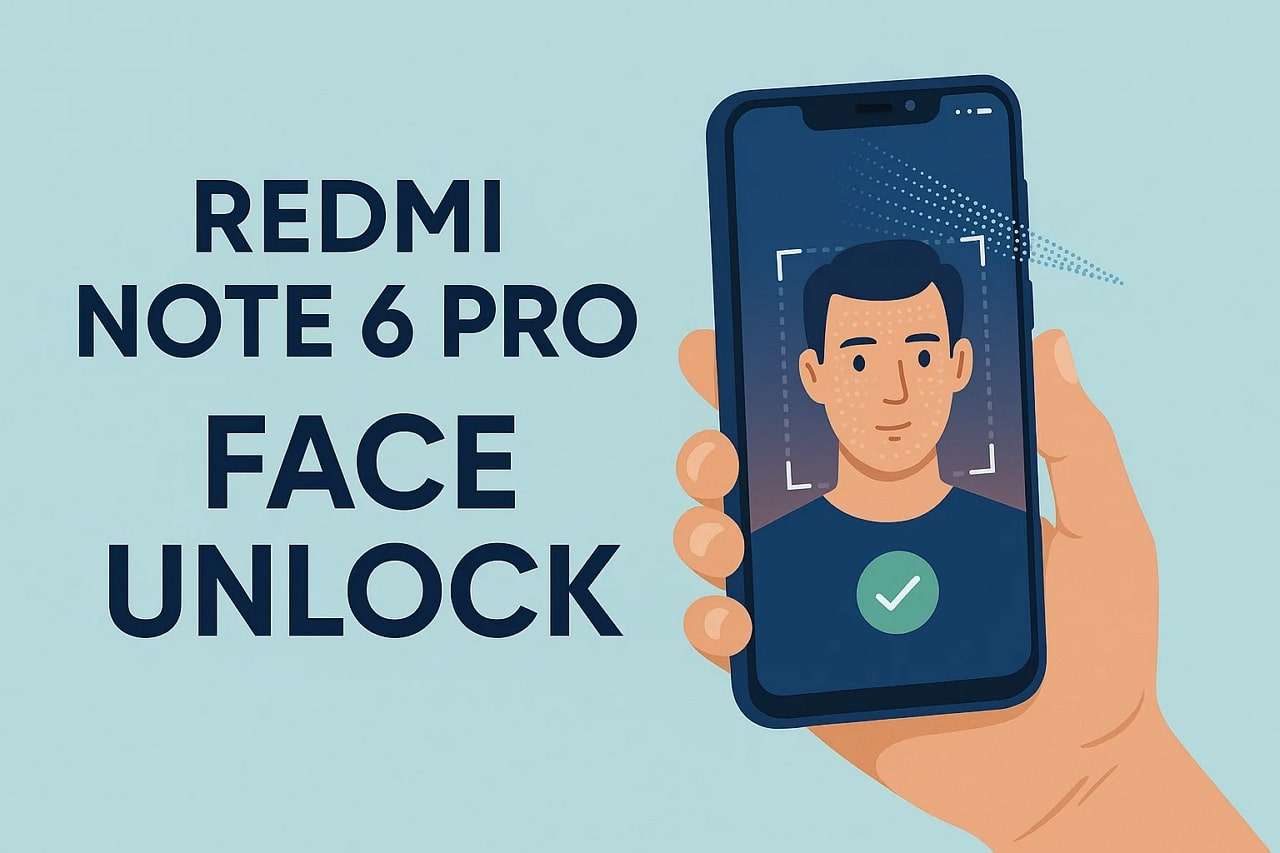
The Redmi Note 6 Pro Face Unlock feature allows users to unlock their phone quickly using facial recognition. Many Redmi users search for ways to enable face unlock, fix missing face unlock options, or improve unlocking speed. If you recently bought the device or cannot find the feature in settings, this guide explains how to enable, disable, and troubleshoot the Redmi Note 6 Pro face unlock feature step by step.
If the Redmi Note 6 Pro Face Unlock option is missing from your settings, this guide also provides several solutions to restore it. In addition, you will learn what to do if you forget your screen lock, PIN, or face unlock and need to regain access to your Redmi device.
- Part 1. Does the Redmi Note 6 Pro Have Face Unlock?
- Part 2. How to Turn On Face Unlock on Redmi Note 6 Pro
- Part 3. How to Turn Off Redmi Note 6 Pro Face Unlock
- Part 4. What to Do If the Redmi Note 6 Pro Face Lock Option Is Missing
- Part 5. What If You Forgot the Redmi Screen Lock/Face/Touch ID | Dr.Fone Screen Unlock (Android)

Part 1. Does the Redmi Note 6 Pro Have Face Unlock?
Before learning how to enable the Redmi Note 6 Pro Face Unlock feature, it helps to understand how it works. The Redmi Note 6 Pro includes a built-in facial recognition option within its security settings that allows users to unlock the device quickly using the front camera. Users can easily enable it under the Password & Security settings and add their face. This option lets the phone recognize the user’s face to quickly and safely unlock the device.
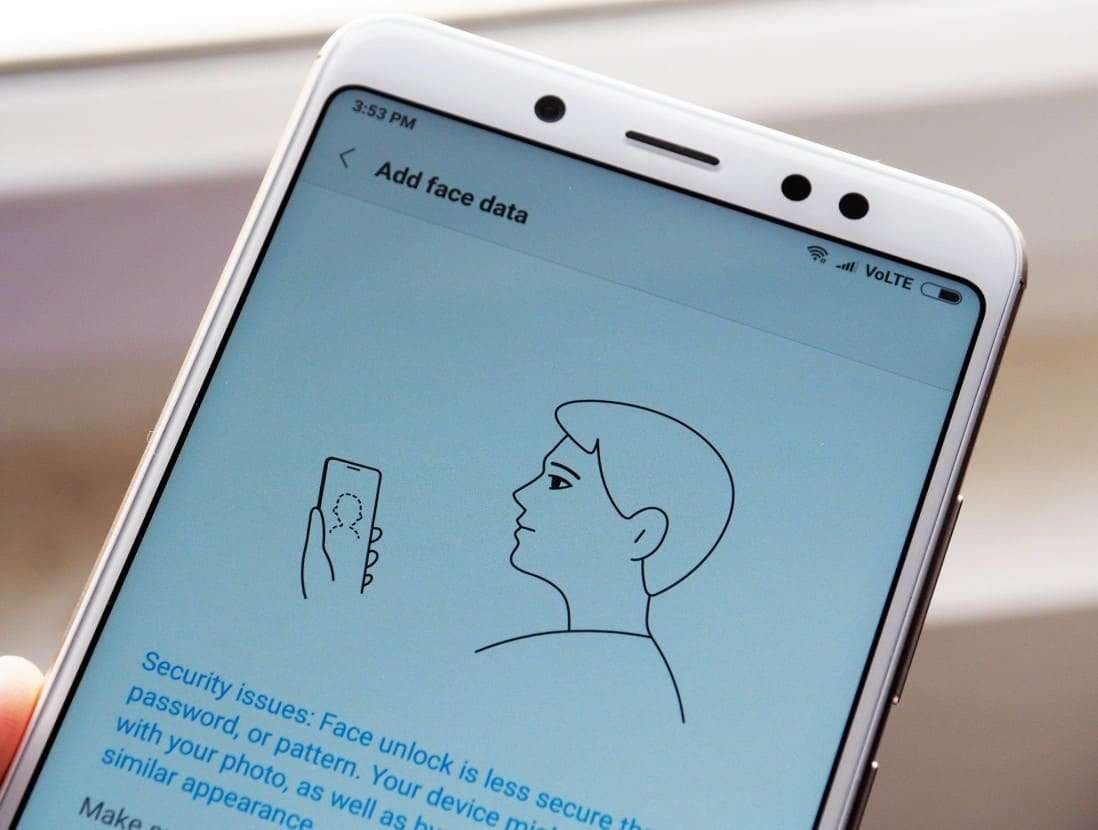
Once enabled, the feature uses AI for faster, more accurate results and works with the phone’s dual front cameras for better recognition. The function also comes with certain pitfalls that you can access by reviewing the listed points:
- Face Unlock is less secure than fingerprint or PIN, and can be easily fooled.
- Cannot unlock secure apps; facial data updates are needed after changes.
- Unavailable in some regions; overlays or dirty cameras reduce accuracy
Part 2. How to Turn On Face Unlock on Redmi Note 6 Pro
If you want to enable Redmi Note 6 Pro Face Unlock, follow the steps below. Once enabled, the phone will recognize your face and unlock the device instantly without entering a PIN or password. Face Unlock on the Redmi Note 6 Pro offers quick and easy access to the phone. Users can open the device by looking at the screen without typing a PIN or password. It helps in moments when hands stay wet or are busy, once enabled via the listed guide:
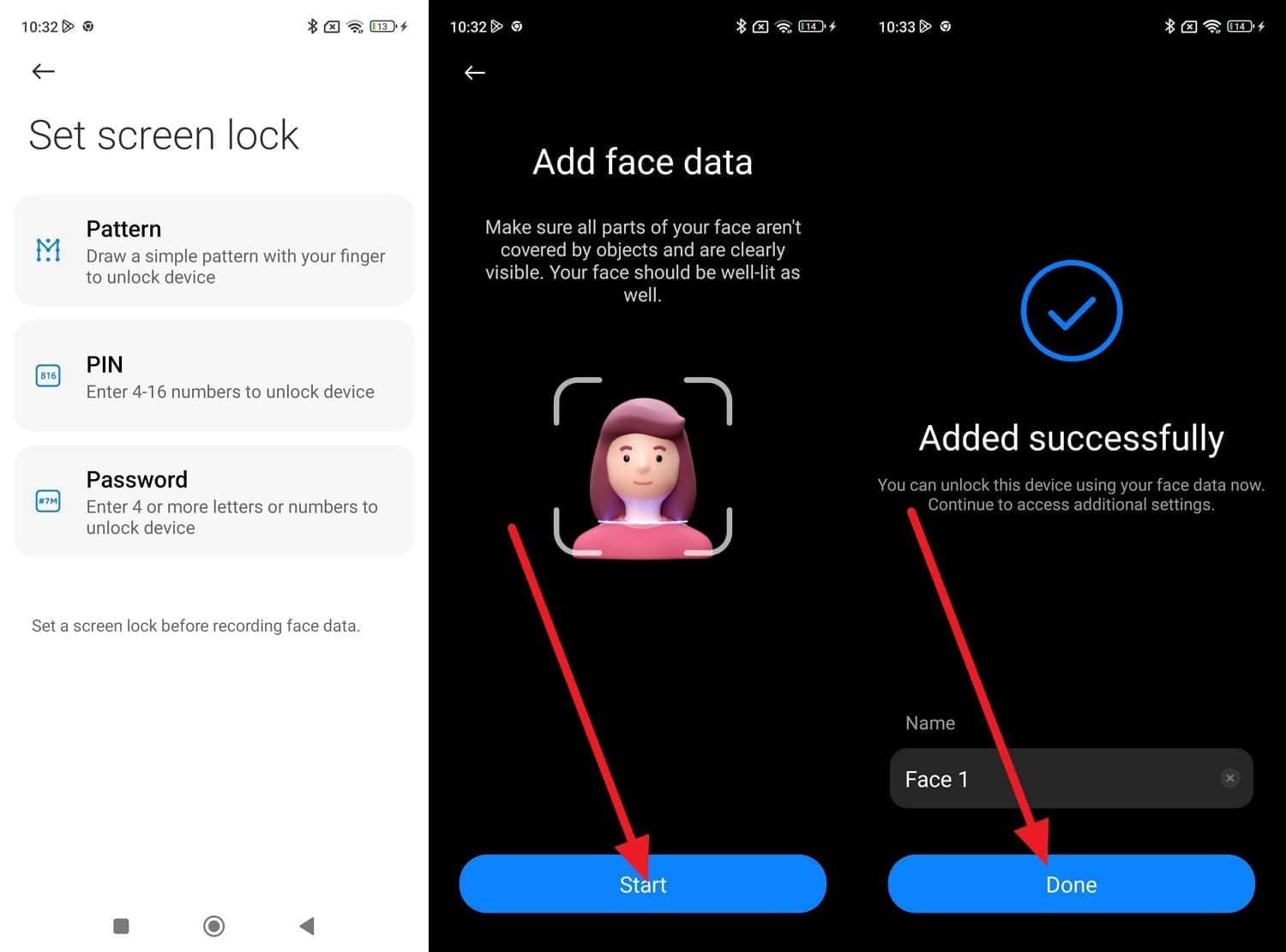
Step 1. In Settings, select “Password & Security,” then choose “Face Unlock” under “Screen Unlock.” After that, choose the “Next” button on the “Add Face Data” screen and commence to set the screen lock.
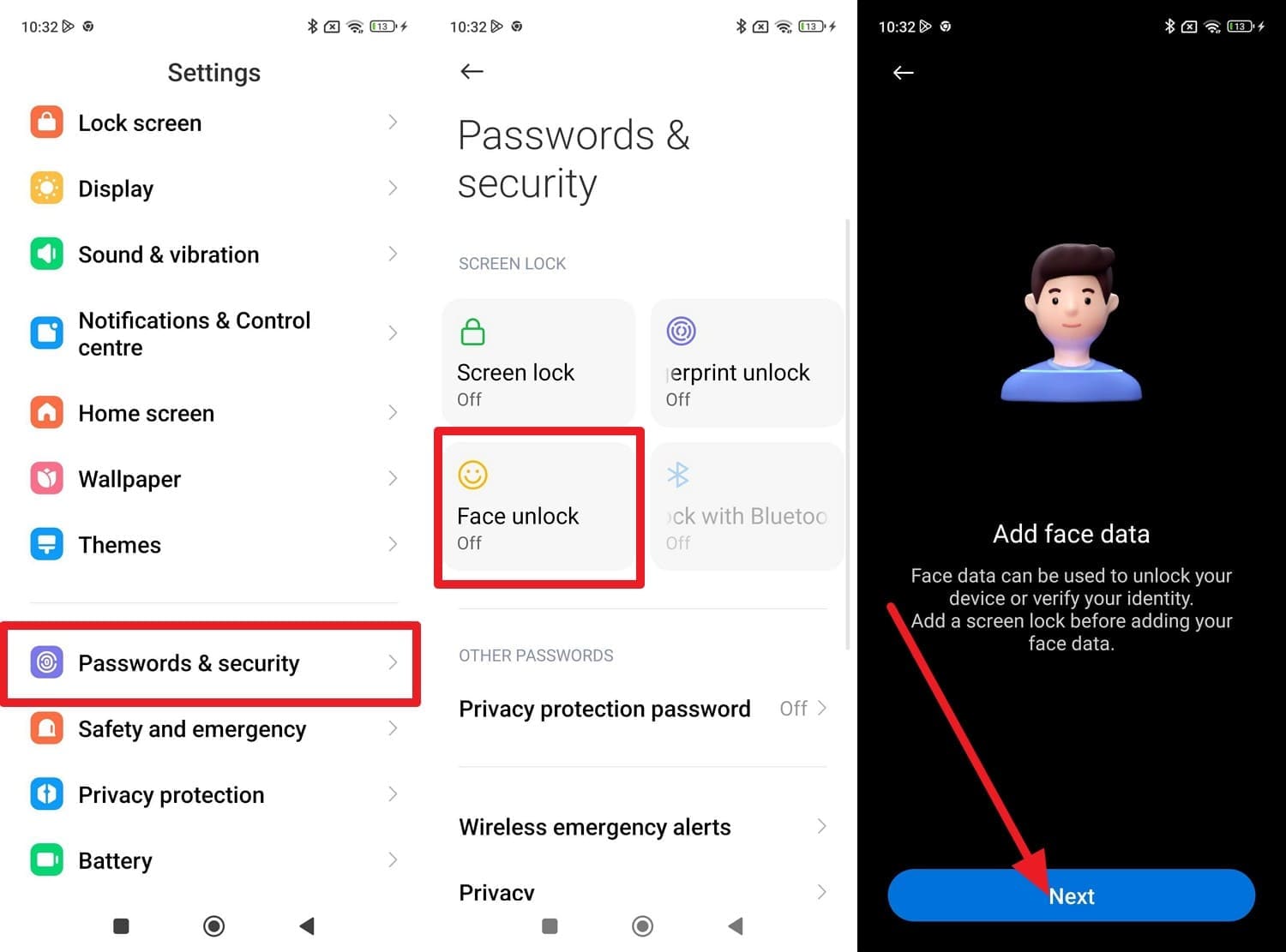
Step 2. Pick 1 of 3 options to set the screen lock, then tap the “Start” button on the “Add Face Data” screen and scan the face. After the face is added, choose the “Done” button, and your face lock will be enabled.
Part 3. How to Turn Off Redmi Note 6 Pro Face Unlock
If you want to disable the Redmi Note 6 Pro Face Unlock feature for privacy or security reasons, you can easily turn it off in the device settings by following the steps below.
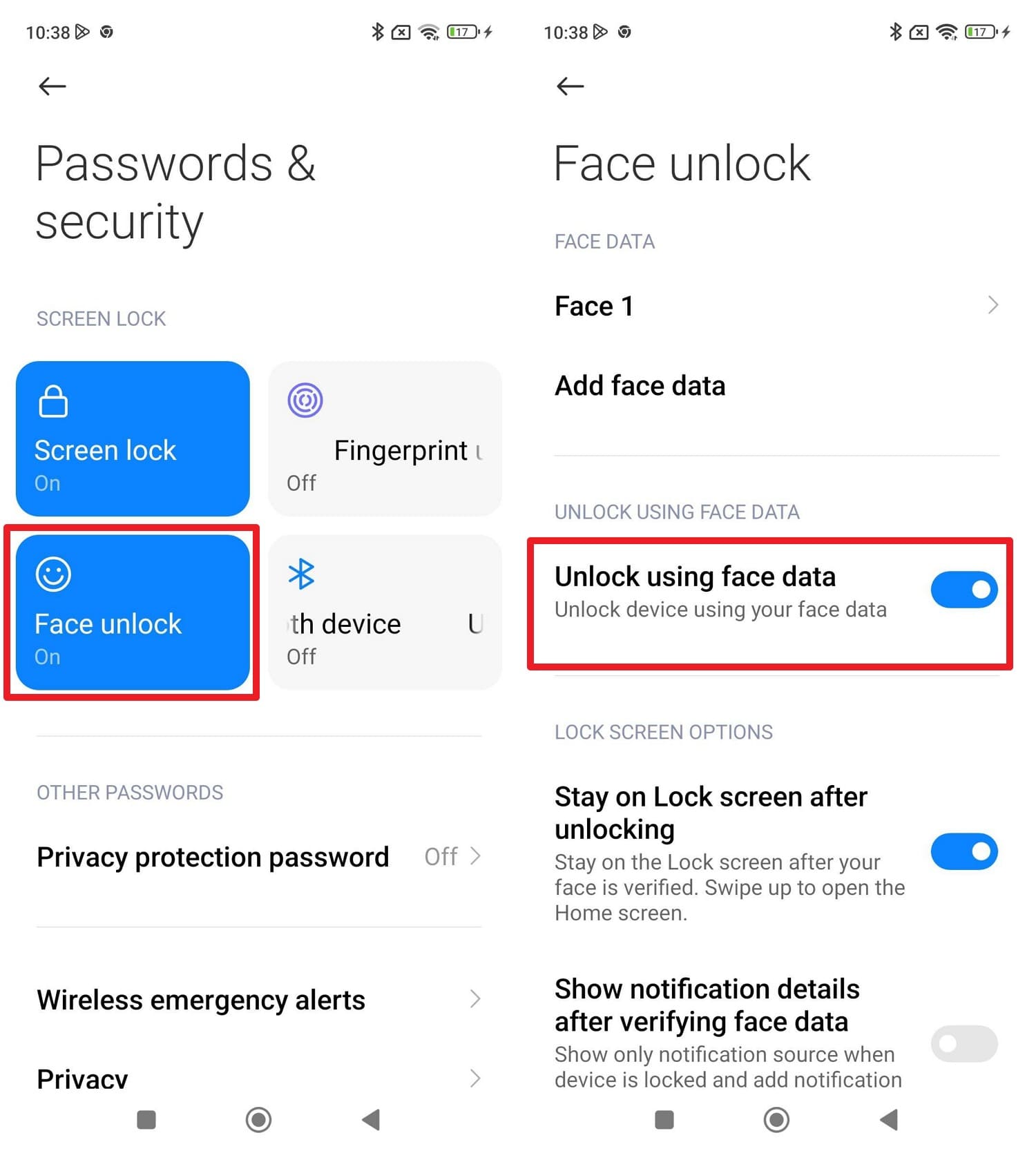
Instructions: Under the “Password & Security” settings, select the “Face Unlock” option, then enter the passcode to enable screen unlocking. After that, toggle off the “Unlock Using Face Data” option to disable it.
Part 4. What to Do If the Redmi Note 6 Pro Face Lock Option Is Missing
If the Redmi Note 6 Pro Face Unlock option is missing from the Password & Security settings, it may be caused by regional restrictions, outdated MIUI versions, or temporary system bugs. The following solutions can help restore the face unlock option.
1. Change Your Region Setting
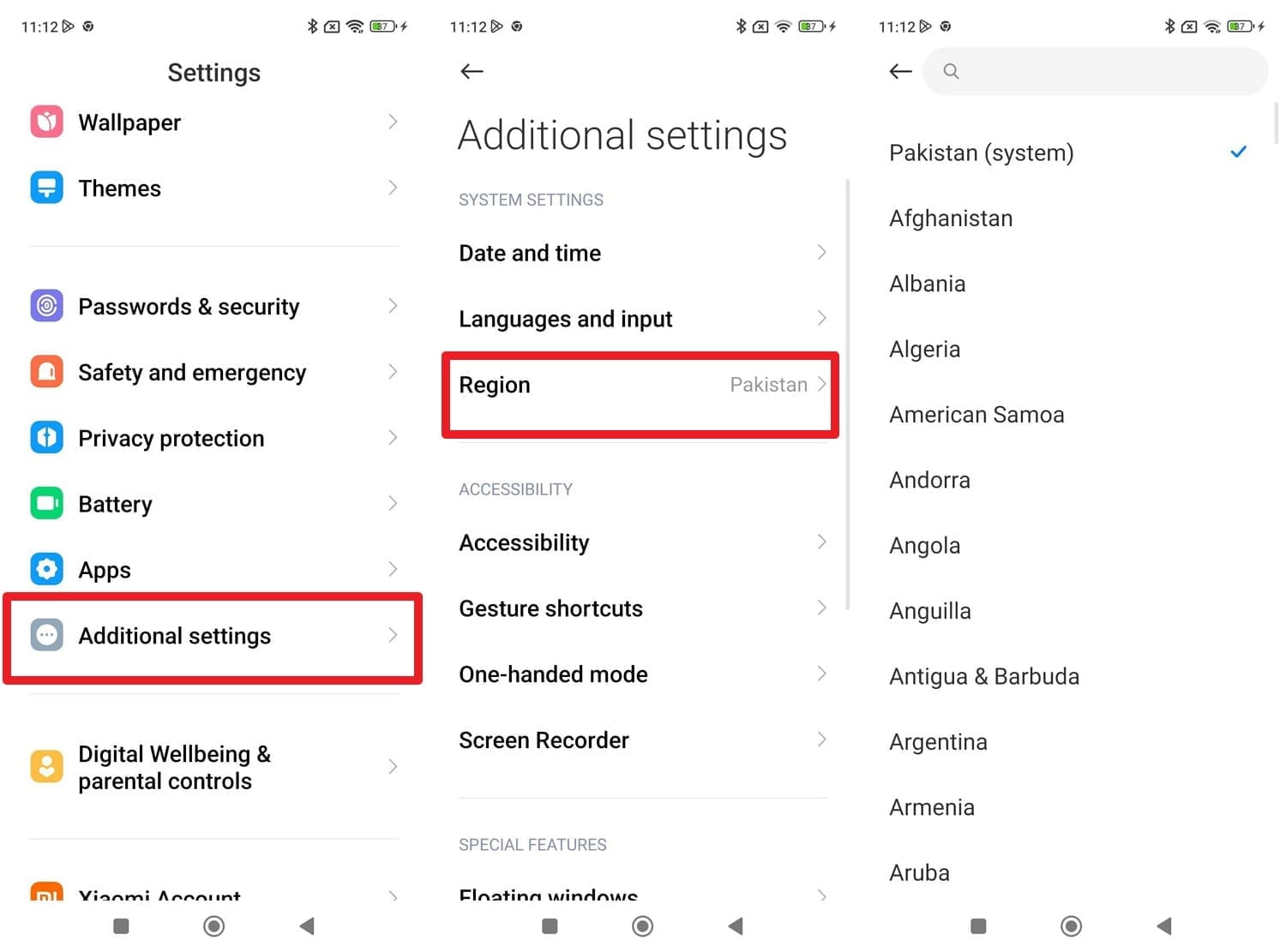
Change of region on the Redmi Note 6 Pro helps when the Face Unlock option does not appear. Xiaomi limits some features to certain areas, so setting the region to Hong Kong or India makes Face Unlock visible. This step requires no new firmware or tools and keeps all main phone functions the same. So, to know how to do that, review the illustrated guidelines for better clarity:
Instructions: Choose the “Additional Settings” option from the settings and pick the “Region” option. Choose the one where the Face Unlock feature is present and see if you can find this option now under the “Password & Security” settings.
2. Update Your MIUI/Phone Software
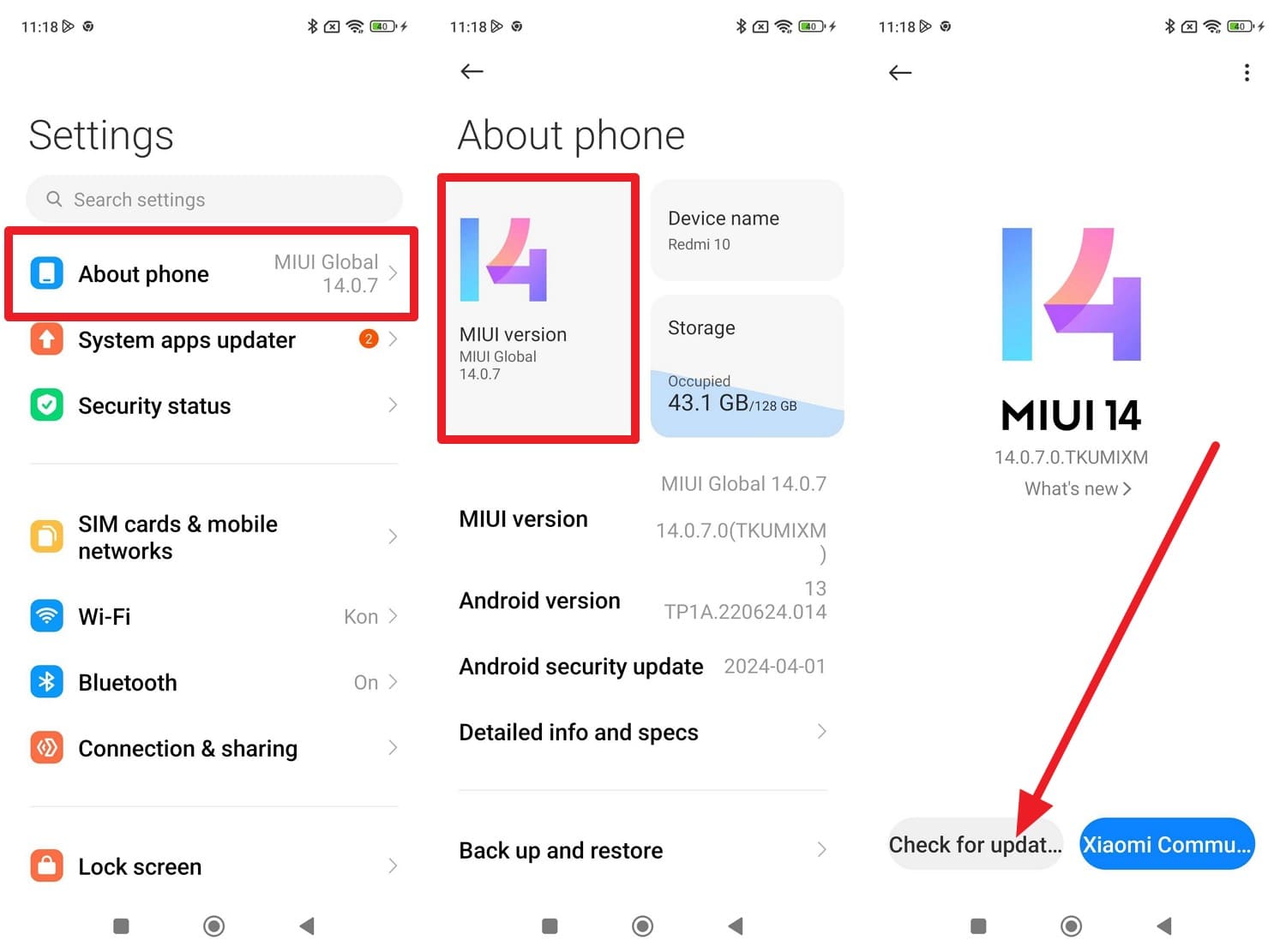
If the change of region hasn’t worked for the Redmi Note 6 Pro Face Lock feature, try updating the phone software. Xiaomi adds new features and fixes regional limits through updates. A newer version may restore Face Unlock, fix bugs, and improve security. Additionally, updates keep apps and system tools working well with the hardware. So, go through the given steps and learn how to update your phone in a few taps:
Instructions: Choose the “About Phone” option from the settings to press the “MIUI Version” option. Select the “Check for Updates…” option, then install any available updates to see if the solution works.
3. Restart or Factory Reset (If Needed)
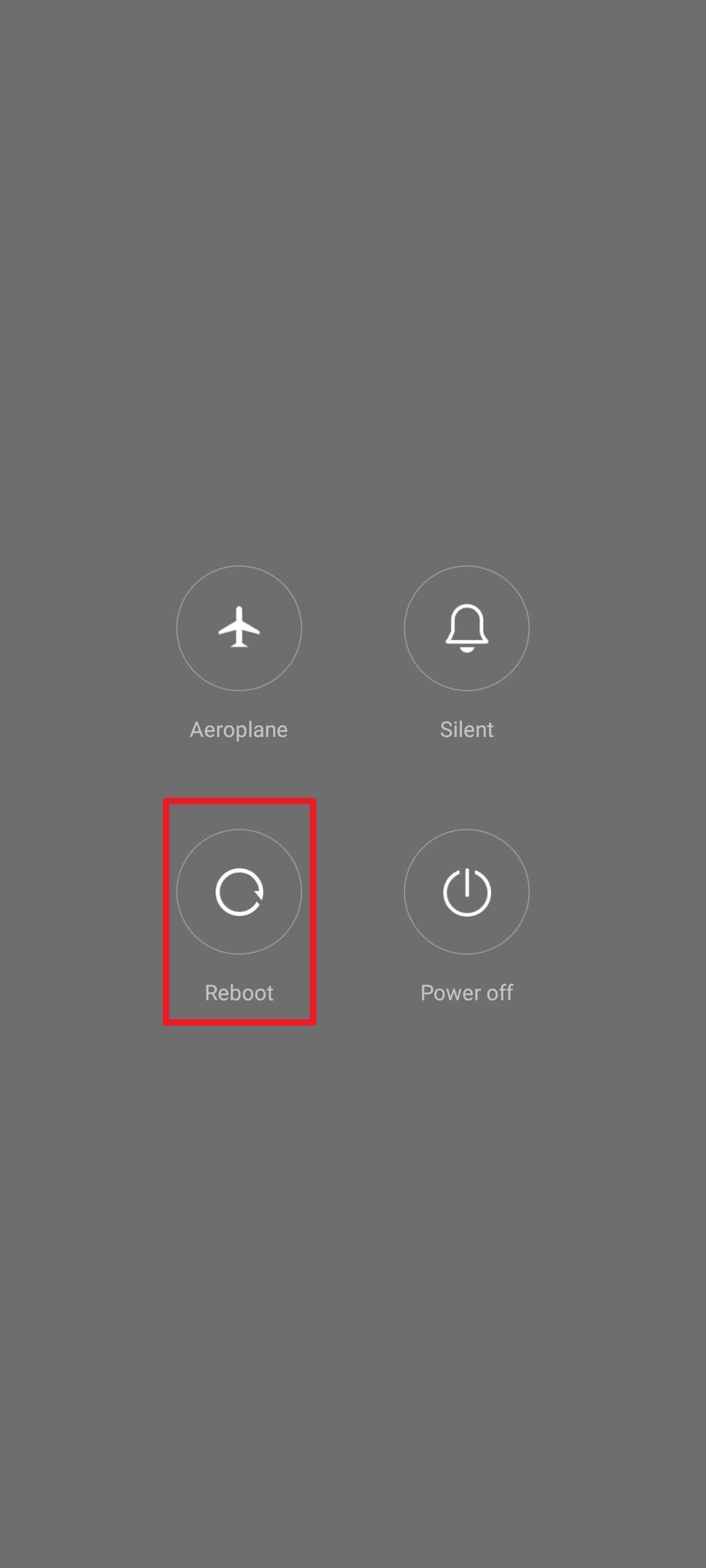
A restart or factory reset on the Redmi Note 6 Pro can help when the Face Unlock option disappears due to software issues or bad updates. Restart clears memory and system bugs and allows the phone to detect all features again. In comparison, a factory reset removes deep software issues, corrupt files, and conflicting apps that block Face Unlock. So, to restart the phone, review the listed simple steps mentioned ahead:
Instructions: Maintain pressure on the “Power” and “Volume Up” buttons and choose the “Reboot/Power Off” option. Wait a while after the screen goes black if you selected the Power Off option, then press and hold the “Power” button to restart.
Part 5. What If You Forgot the Redmi Screen Lock/Face/Touch ID | Dr.Fone Screen Unlock (Android)
If you are having any issues with the Redmi Note 6 Pro Face Unlock, PIN, or touch-unlock not working, Dr.Fone - Screen Unlock (Android) can help. The tool is designed to handle all types of Android locks, whether it's touch, PIN, or face, thanks to its versatility and intuitiveness. Additionally, the tool offers support for major Android brands like Samsung, Huawei, Xiaomi, OPPO, etc.
Using this tool is simple; it needs no technical skills and offers support for FRP bypass on Samsung, Xiaomi, OPPO, and multiple other devices. Just connect the device and enter the specific mode to easily unlock the face lock on Redmi in 2-3 simple steps. Overall, the tool updates itself weekly to offer relevant features for all the upcoming Android models, including the Redmi.

Dr.Fone - Screen Unlock (Android)
Unlock Forgot the Redmi Screen Lock/Face/Touch ID
- Completely unlinked from the previous Google account, it won’t be traced or blocked by it anymore.
- Remove all Android screen locks (PIN/pattern/fingerprints/face ID) in minutes.
- Compatible with various Android models.
- Provide specific removal solutions to promise success rate.


How to Unlock Screen Lock for Redmi with Dr.Fone – Screen Unlock (Android)
To know how you can deal with the problematic Redmi Note 6 Pro Face Lock and unlock the screen, review this simple guide for Dr.Fone:
Step 1. Launch the Screen Unlock Tool for Android
Opt for the “Screen Unlock” tool and choose the “Unlock Android Screen” option after confirming the device as “Android.” The tool will give you a list of brand options; pick Redmi, and it will automatically lead you to enter the specific mode.

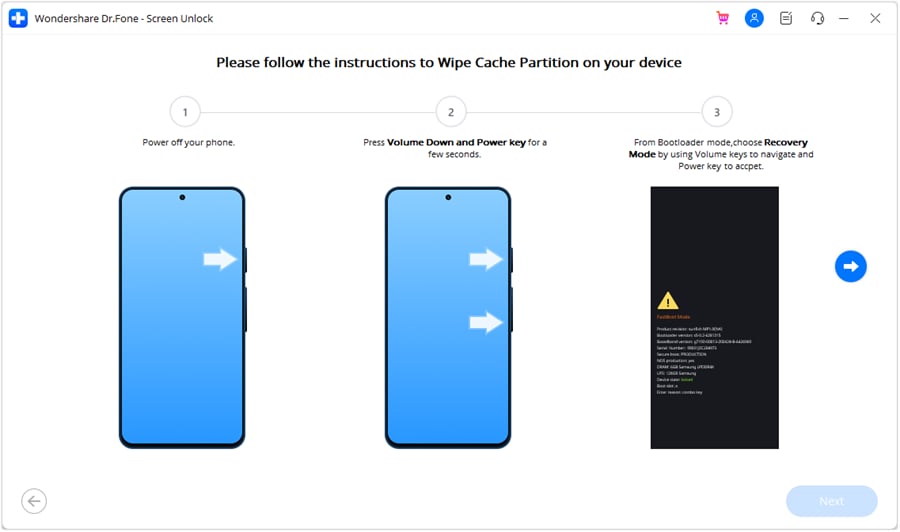
Step 2. Enter the Specific Mode and Unlock Redmi Screen Lock
Since the unlocking process varies by brand, the tool will start unlocking as it enters a specific mode. Wait for a while as the process completes, then choose the “Done” button, or select the “Try Again” option if you encounter an error.
Conclusion
In summary, the Redmi Note 6 Pro Face Unlock feature offers a quick and convenient way to unlock your phone. By following the steps in this guide, you can enable face unlock, disable it when needed, or fix the option if it is missing from your Redmi settings. If you don’t find the option, try the 3 solutions below and see if they work for you. Besides, if you have been locked out of your Redmi phone, unlock the screen lock with Dr.Fone - Screen Unlock (Android), as the tool supports multiple brands.
 safe & secure
4,624,541 people have downloaded it
FAQs
 Q1. How do I enable Redmi Note 6 Pro face unlock?Q2. Why is the Redmi Note 6 Pro face unlock option missing?Q3. Is Redmi Note 6 Pro face unlock safe?Q4. Why is Redmi face unlock slow?


Android Unlock
- Android Password Lock
- 1. Reset Lock Screen Password
- 2. Ways to Unlock Android Phone
- 3. Unlock Wi-Fi Networks
- 4. Reset Gmail Password on Android
- 5. Unlock Android Phone Password
- 6. Unlock Android Without Password
- 7. Emergency Call Bypass
- 8. Enable USB Debugging
- 9. Unlock Asus Phone
- 10. Unlock Asus Bootloader
- Android Pattern Lock
- Android Pin/Fingerprint Lock
- 1. Unlock Android Fingerprint Lock
- 2. Recover a Locked Device
- 3. Remove Screen Lock PIN
- 4. Enable or Disable Screen Lock PIN
- 5. Pixel 7 Fingerprint Not Working
- Android Screen Lock
- 1. Android Lock Screen Wallpapers
- 2. Lock Screen Settings
- 3. Customize Lock Screen Widgets
- 4. Apps to Reinvent Your Android
- 5. Lock Screen Wallpaper on Android
- 6. Unlock Android with Broken Screen
- 7. Unlock Google Find My Device Without Problems
- 8. Forgot Voicemail Password on Android
- 9. Unlock SafeSearch on Google
- Android Screen Unlock
- 1. Android Device Manager Unlock
- 2. Unlocking Android Phone Screen
- 3. Bypass Android Face Lock
- 4. Bypass Android Lock Screen
- 5. Bypass Lock Screen By Emergency Call
- 6. Remove Synced Google Account
- 7. Unlock Android without Data Loss
- 8. Unlock Phone without Google Account
- 9. Unlock Android phone
- 10. Reset a Locked Android Phone
- 11. Unlock Doogee Phones
- 12. Best 10 Unlock Apps For Android
- 13. Remove Gmail Account
- 14. Unlock 30/30 Attempts Remaining
- 15. OEM Unlock Missing
- 16. Change Lock Screen Clock
- 17. OEM Unlocking on Android
- 18.Bypass Knox Enrollment Service
- 19. Unlock Google Pixel 6a, 6 or 7
- 20. Best Alternative to MCT Bypass Tool
- 21. Best Way to Unlock Your ZTE Phone
- Android SIM Unlock
- 1. Easily Unlock Android SIM
- 2. 5 Android Unlock Software
- 3. Carrier Unlock Phone to Use SIM
- 4. Change Android Imei without Root
- 5. How to Change SIM PIN on Android
- 6. Best Unlocked Android Phones
- Android Unlock Code
- 1. Lock Apps to Protect Information
- 2. Unlock Secret Features on Phone
- 3. Android SIM Unlock Code Generator
- 4. Ways to Sim Unlock Phone
- 5. Remove Sim Lock without Code
- 6. Updated Android Factory Reset Code
- Google FRP Bypass
- 1. Bypass Google Account Verification
- 2. Bypass Google FRP Lock On Phones
- 3. Bypass Google Pixel FRP
- 4. Huawei Bypass FRP Tools for PC
- 5. Direct Open FRP MobileTech
- 6. Bypass Samsung S24 FRP Lock
- 7. EDL Cable Unlock FRP
- 8. Unlock OnePlus Nord FRP
- 9. Tecno FRP Bypass
- 10. Remove Infinix FRP Lock
- 11. FRP Itel Lock Removal
- 12. Itel A23 FRP Bypass Easy Guide
- 13. Itel A16 FRP Bypass
- 14. Remove Google FRP Using Online Tools
- Unlock Bricked Phone
- 1. Restore Bricked Mobile Phone
- 2. Fix Motorola Bricked Phone
- 3. Fix Bricked Redmi Note
- 4. Unbrick Oneplus Easily
- 5. Unbrick Xiaomi Phone
- 6. Unbrick Huawei Phone
- 7. Unbrick Poco X3
- 8. Software to Unbrick Samsung
- 9. Unbrick 3DS
- 10. Unbrick PSP
- Android Unlock Tools
- 1. Griffin Unlocker Tool Review
- 2. BMB Unlock Tool Review
- 3. Android Multi Tools Review
- 4. Best Bootloader Unlock APKs
- 5. Top 5 Micromax FRP Tools
- 6. Pangu FRP Bypass
- 7. Google Account Manager APK FRP Review
- 8. D&G Password Unlocker Review
- 9. Android Multi Tools Review
- 10. Easy Samsung FRP Tool Review
- 11.Samfw FRP Tool
- Android MDM
- ● Manage/transfer/recover data
- ● Unlock screen/activate/FRP lock
- ● Fix most iOS and Android issues
- Free Download Free Download Free Download




James Davis
staff Editor