
Easy Ways to Unlock a Wiko Phone When You Are Locked Out

Jun 11, 2026 • Filed to: Screen Lock Removal • Proven solutions
 TL;DR:
You can bypass a locked Wiko phone screen without data loss using ADB commands if USB debugging is pre-enabled, whereas inaccessible modern devices require a factory wipe or specialized software that will erase all internal data.
● Retaining your data is strictly limited to executing ADB commands via a connected computer, or utilizing the native Google Account login method which only functions on older devices running Android 4.4 and below.
● Performing a manual Hard Reset via Recovery Mode (Power + Volume Up) or remotely wiping the handset using Google Find My Device deletes all internal storage and triggers Factory Reset Protection (FRP), requiring the original Google account credentials to reactivate the phone.
● Dr.Fone - Screen Unlock (Android) provides a guided desktop procedure to remove PINs, patterns, and FRP restrictions for beginners, but this automated method will still erase the device data on Wiko models.
Ask AI for a summary
 ChatGPT
 Perplexity
 Gemini
 Claude
 Grok
Grok
A locked phone stops everything in an instant. You cannot open apps, check messages, or use your SIM. This issue is common with Wiko devices, especially models linked to carrier limits or strong screen security. Whether you are facing a pattern lock, a PIN block, or a network restriction like a Wiko U316AT unlock, the solution depends on the right method. Many guides offer unclear steps or unsafe tools.
This article focuses only on proven and practical ways to unlock the Wiko phone screen and network safely. From built-in Android options to advanced tools, each method here is selected to work effectively without confusion or risk.
- Part 1. What Does Unlock Wiko Phone Mean
- Part 2. Why Your Wiko Phone Gets Locked
- Part 3. Comprehensive Methods To Unlock Wiko Phone Screen
- Method 1: Unlock Wiko Phone without Data Loss via ADB Commands
- Method 2: Use Dr.Fone Screen Unlock Android For A Fast And Simple Fix

- Method 3: Use a Google Account On Older Wiko Phones Only
- Method 4: Hard Reset Wiko Phone from Recovery Mode
- Method 5: Erase Wiko Remotely with Google Find My Device
- Part 4. Things You Need to Do After Unlocking Wiko Phone Password
Part 1. What Does Unlock Wiko Phone Mean
Unlocking a Wiko phone refers to removing restrictions that stop you from using the device fully. These restrictions fall into two clear categories.
1. Screen Unlock
This means removing a lock set on the device, such as
- PIN
- Pattern
- Password
- Fingerprint or face lock
Screen locks are part of Android security. They protect personal data. When you remove this lock, you regain access to apps, files, and settings.
2. Network Unlock
This means removing carrier restrictions so the phone can accept SIM cards from different networks.
Many Wiko phones sold through carriers like Assurance Wireless are locked to one network. A Wiko phone assurance wireless unlock allows you to use another SIM after eligibility.
Part 2. Why Your Wiko Phone Gets Locked
Most of these locks protect phone users due to the Android security settings, as well as limits imposed by Wiko carriers. And in most instances, once you know the lock type, the reason is simple and apparent.
- Forgotten Screen Credentials
- Factory Reset Protection (FRP)
- Carrier Network Restriction
- Software Or System Errors
- Multiple Failed Attempts
Part 3. Comprehensive Methods To Unlock Wiko Phone Screen
In this guide, we will provide step-by-step methods that help you unlock your Wiko phone screen using reliable and trusted unlock tools if the PIN code or pattern lock has been forgotten or is inaccessible.
Quick Comparison of Wiko Phone Unlock Methods
|
Method |
Ease of Use |
Data Loss |
Best For |
Key Requirement |
Limitations |
| ADB Commands | Hard | No (if done right) | Advanced users who want control | ADB setup and USB debugging | Not beginner-friendly, needs technical skills |
| Dr.Fone Screen Unlock | Very Easy | Depends on the device | Most users need a fast solution | Computer and software tool | Data loss on some devices |
| Google Account Method | Easy | No | Older Android devices only | Linked Google account | Not available on newer phones |
| Hard Reset (Recovery Mode) | Medium | Yes | When the phone is fully locked | Button combination access | Deletes all internal data |
| Find My Device Erase | Easy | Yes | Remote unlock when the phone is not accessible | Internet and Google account | Erases data, needs account login |
Method 1: Unlock Wiko Phone without Data Loss via ADB Commands
Requires advanced-level users. Not really the best choice for beginners. ADB allows you to control an Android phone using commands executed from a computer. If it is set up correctly, it can help unlock the Wiko phone screen lock without a factory reset. That means your data may stay safe. Still, it is smart to back up your files first.
Before you start
You need these things ready first
- A computer
- ADB is installed on the computer
- A USB cable
- A Wiko phone that can connect to ADB
- Basic command knowledge
This method can help in cases like unlocking a Wiko U307 when the goal is screen access, not network access.
- Step 1. Install ADB on your computer
Using your PC, download the Android Debug Bridge tools and install them. This supplies commands for your computer to interact with your phone. - Step 2. Enable USB debugging and enter recovery mode
Your Wiko phone must allow ADB access. USB debugging should be active. Then boot the phone into Recovery Mode so the computer can try to connect. - Step 3. Open the command window
On your computer, go to the folder where ADB is installed. Press Shift and right-click in that folder. Then open PowerShell or Command Prompt. - Step 4. Connect your Wiko phone
Connect the phone to the PC using a USB cable. Allow the computer to recognize it. (Potentially need to install the right phone drivers and retry if nothing shows up.) - Step 5. Check whether ADB can see the device
Type this command and press Enter
adb devices
If your phone appears in the list, ADB is working. You can then move to the next step.

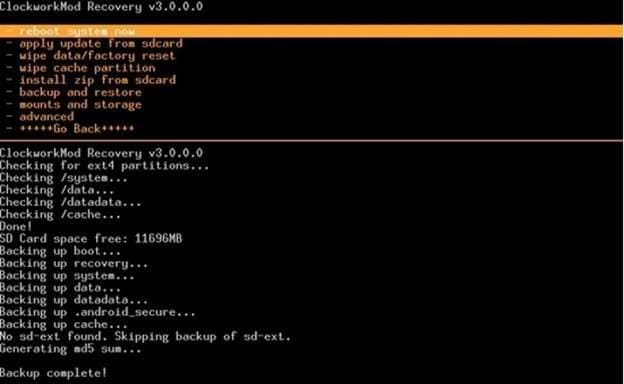
- Step 6. Keep the phone in recovery mode
Stay in recovery mode while doing the next part. On many devices, this mode opens by holding the Power button with Home and Volume Up or Volume Down. The key combo can differ by model.
- Step 7. Make a backup first
Before changing anything, create a backup. Use this command:
adb pull /data/media/clockworkmod/backup ~/Desktop/Android-up
This saves the backup folder to your computer desktop. It is an important step before you try to unlock the Wiko screen locks with commands. - Step 8. Set a new PIN with ADB
Now enter the commands below. Replace xxxx with the new PIN you want to use.
adb shell input text xxxx
adb shell input keyevent 66
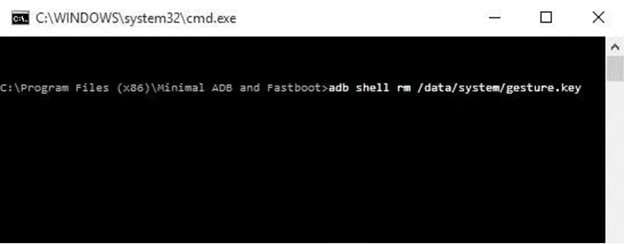
The first command enters the new PIN. The second confirms it. - Step 9. Remove the old gesture lock
After that, use this command
adb shell rm /data/system/gesture.key
This removes the saved gesture lock file. Once the phone restarts, the old pattern lock should be gone.
Method 2: Use Dr.Fone - Screen Unlock for A Fast And Simple Fix
If you do not want to deal with commands or technical setup, this method is much easier. Dr.Fone - Screen Unlock (Android) - A specialized tool designed only to unlock the screen of an Android device. It can assist you in unlocking a Wiko phone if you forgot the PIN, password, or pattern. Since this process is straightforward and quick, it makes a compelling option for users looking for an easier route.
Dr.Fone is made for screen lock removal on many Android brands. It supports locks such as pattern, PIN, password, fingerprint, and face lock. It can also remove FRP on supported devices. For most users, this makes it a practical way to unlock a Wiko without dealing with advanced steps.

Dr.Fone - Screen Unlock (Android)
The Best Unlock Tool to Bypass FRP and Solve Your Screen Locks
- Completely unlinked from the previous Google account, it won’t be traced or blocked by it anymore.
- Remove all Android screen locks (PIN/pattern/fingerprints/face ID) in minutes.
- Compatible with various Android models.
- Provide specific removal solutions to promise a success rate.


Why Dr.Fone is a good choice
- Removes pattern PIN and password locks
- Works with many Android brands and models
- Simple process for beginners
- Fast and guided on-screen
- Helpful for users who need to unlock Wiko phone free style solutions in an easy format
For some Samsung devices, screen unlock without data loss is supported. For most other Android phones, the screen lock removal process may erase device data. That is why it is smart to check support details first.
- Step 1. Open the screen unlock tool
Install and launch Dr.Fone on your computer. On the main screen, choose Screen Unlock. Then select Android and continue to unlock the Android Screen.

- Step 2. Choose your device brand
Now select the brand of the phone you want to unlock. Pick Wiko if available in the flow, or follow the closest guided process provided for your device path in the tool.

- Step 3. Put the Wiko phone into the required mode
Do follow the instructions on your screen. Dr.Fone will guide you to put the phone into the correct mode so that the software can start removing the screen lock.
The specific steps differ by device model. That is normal. Simply respond to the prompts in the program and you'll be good to go.
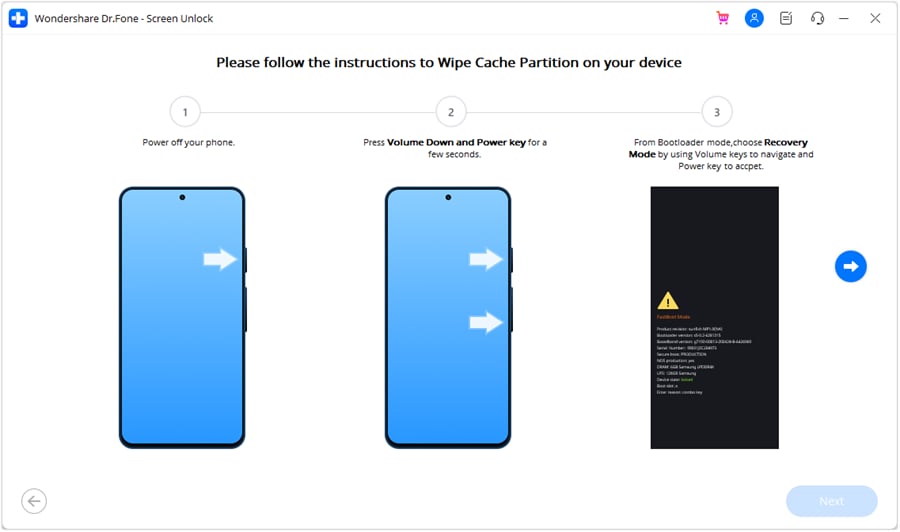
- Step 4. Let Dr.Fone remove the lock
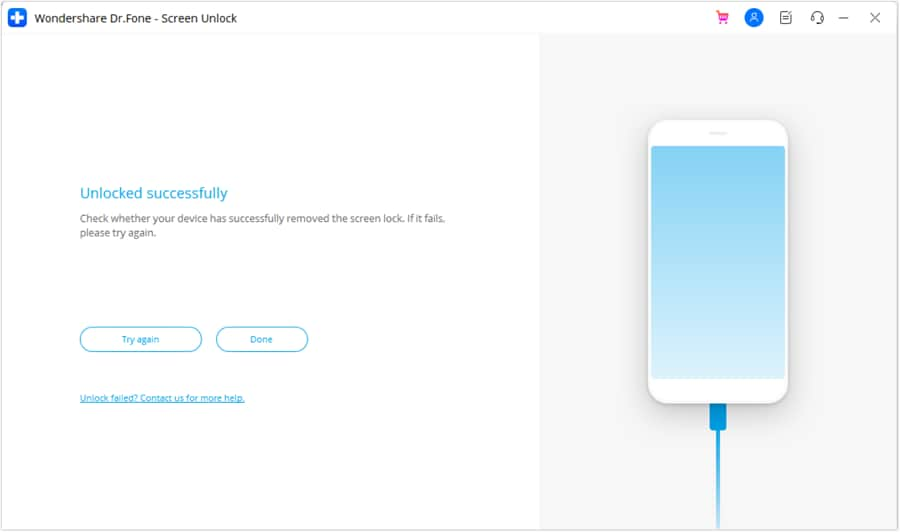
Dr.Fone initiates the unlock process when the phone is in proper mode. Wait for it to finish. In this step, it tries to get rid of the lock screen so that you can access your device. - Step 5. Check the result
This should unlock the screen successfully when the process is complete. Select Try Again and go through the guided prompts again if that is unsuccessful.
 safe & secure
4,624,541 people have downloaded it
Method 3: Use a Google Account On Older Wiko Phones Only
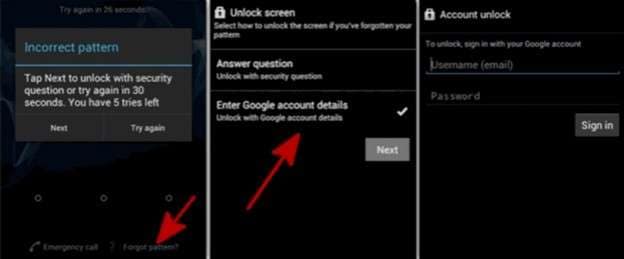
This method only fits older Android versions. If either of the two options, "Forgot pattern" or "Forgot password," appears on your Wiko phone, you can use this method by logging into the Google account linked with your Android device. This is not a universal method to unlock a Wiko phone, as it is closed on all newer devices.
- Step 1. Enter an incorrect pattern or password several times
Keep entering the wrong screen lock until the phone shows you "Forgot password" or "forgot pattern". - Step 2. Select the recovery option
When the option comes up, tap it to proceed to account verification. - Step 3. Log in with the connected Google account
Type in the email address and password for the Google account previously implemented on the Wiko phone. - Step 4. Set up a new screen lock
Once signed in, select a new password/PIN/pattern for the device. - Step 5. Use the new code to unlock the phone
We use a new screen lock for opening the phone.
Important note
This is a legacy method. It may help on older devices, but it is not the main answer for modern models, such as cases involving C210ae Unlock or Wiko Voix Unlock screen access.
Method 4: Hard Reset Wiko Phone from Recovery Mode
If you cannot access the screen and other options fail, a hard reset is a current and valid method. Wiko supports Recovery Mode when you are not entered into the phone menu (no matter if your unlock code is lost). This method will delete data saved on the phone’s internal storage.
- Step 1. Turn off the phone
Before we begin, make sure that your Wiko device is completely powered off. - Step 2. Open Recovery Mode
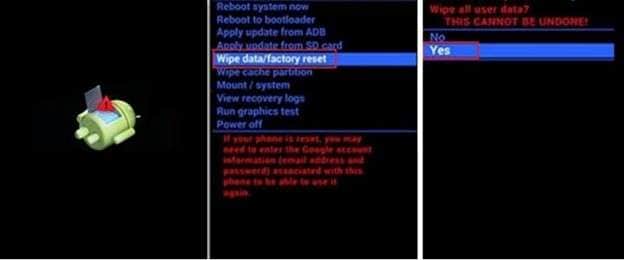
Depending on your specific model, press and hold the power button along with the volume button. On most Wiko phones, this is Power + Volume Up. Some guides describe other key combinations, but the path that Wiko supports itself generally appears to direct users to use Power and Volume Up. - Step 3. Select the reset option
When the recovery screen comes up, use volume keys to skip to Wipe data factory reset. - Step 4. Confirm the reset
Hit the power button, and that confirms it. Then click Yes to initiate the reset. - Step 5. Reboot the device
Once the process is completed, click on Reboot system now.
Important note
This method wipes all apps, settings, messages, contacts, and other data stored in internal memory. Sometimes it fails to wipe the SD card. Due to Factory Reset Protection, Android will also prompt you for the Google account that was linked with the phone previously after the reset.
Method 5: Erase Wiko Remotely with Google Find My Device
Google Find My Device is another valid current option. It can erase a Wiko phone from a browser if the device is linked to your Google account and available through Find My Device. This is useful when you cannot reach the phone directly, but it also wipes internal data. Google confirms that erase removes data on the device, though SD card data may not be deleted.
- Step 1. Open Find My Device in a browser
On a computer or another phone, open the Find My Device page in a browser. - Step 2. Sign in with the same Google account
Log in using the Google account connected to your locked Wiko phone. - Step 3. Select your device
Choose the Wiko phone from the list of devices on the account. - Step 4. Choose the erase option
Open the device settings or actions and select the option to erase or factory reset the device. - Step 5. Confirm the action
Approve the erase request and let the process finish.
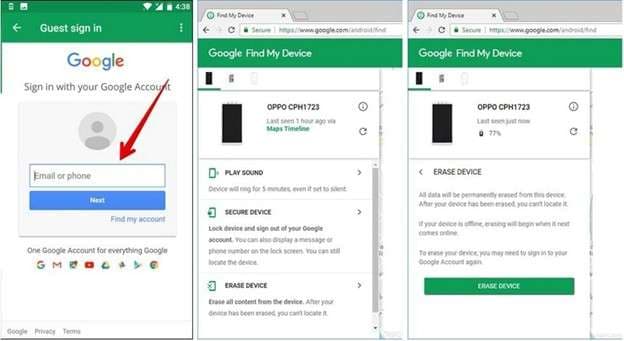
Important note
The phone will be reset, and the screen lock will be removed because the device returns to factory state. Internal storage data is deleted. The SD card may stay untouched. After the reset, you may still need the original Google account to set the phone up again.
Things You Need to Do After Unlocking the Wiko Phone Password
After you unlock the Wiko phone password, take a few important steps to avoid the same issue again.
- Reset the screen lock password
- Save the new password in a safe place
- Keep your Google account details safe
- Turn on USB debugging and Google Find My Device
- Back up your important phone files
Conclusion
A locked device can be fixed with the right method. ADB works best for skilled users who want control without data loss. Google account recovery fits older phones only. Hard reset and Find My Device help when access is fully blocked, but they remove data. Each option serves a clear purpose based on the situation. For most users, a guided tool offers a smoother path. Dr.Fone - Screen Unlock (Android) reduces steps, lowers risk, and helps unlock Wiko phones with ease. If you need a balanced and simple way to unlock Wiko, this approach often feels more practical.
safe & secure4,624,541 people have downloaded it
FAQs
 Q1. Can I unlock my Wiko phone without losing data?Q2. Is Dr.Fone safe to use for unlocking Wiko phones?Q3. Why can't I use Google Account recovery on my new Wiko phone?


Android Unlock
- Android Password Lock
- 1. Reset Lock Screen Password
- 2. Ways to Unlock Android Phone
- 3. Unlock Wi-Fi Networks
- 4. Reset Gmail Password on Android
- 5. Unlock Android Phone Password
- 6. Unlock Android Without Password
- 7. Emergency Call Bypass
- 8. Enable USB Debugging
- 9. Unlock Asus Phone
- 10. Unlock Asus Bootloader
- Android Pattern Lock
- Android Pin/Fingerprint Lock
- 1. Unlock Android Fingerprint Lock
- 2. Recover a Locked Device
- 3. Remove Screen Lock PIN
- 4. Enable or Disable Screen Lock PIN
- 5. Pixel 7 Fingerprint Not Working
- Android Screen Lock
- 1. Android Lock Screen Wallpapers
- 2. Lock Screen Settings
- 3. Customize Lock Screen Widgets
- 4. Apps to Reinvent Your Android
- 5. Lock Screen Wallpaper on Android
- 6. Unlock Android with Broken Screen
- 7. Unlock Google Find My Device Without Problems
- 8. Forgot Voicemail Password on Android
- 9. Unlock SafeSearch on Google
- Android Screen Unlock
- 1. Android Device Manager Unlock
- 2. Unlocking Android Phone Screen
- 3. Bypass Android Face Lock
- 4. Bypass Android Lock Screen
- 5. Bypass Lock Screen By Emergency Call
- 6. Remove Synced Google Account
- 7. Unlock Android without Data Loss
- 8. Unlock Phone without Google Account
- 9. Unlock Android phone
- 10. Reset a Locked Android Phone
- 11. Unlock Doogee Phones
- 12. Best 10 Unlock Apps For Android
- 13. Remove Gmail Account
- 14. Unlock 30/30 Attempts Remaining
- 15. OEM Unlock Missing
- 16. Change Lock Screen Clock
- 17. OEM Unlocking on Android
- 18.Bypass Knox Enrollment Service
- 19. Unlock Google Pixel 6a, 6 or 7
- 20. Best Alternative to MCT Bypass Tool
- 21. Best Way to Unlock Your ZTE Phone
- Android SIM Unlock
- 1. Easily Unlock Android SIM
- 2. 5 Android Unlock Software
- 3. Carrier Unlock Phone to Use SIM
- 4. Change Android Imei without Root
- 5. How to Change SIM PIN on Android
- 6. Best Unlocked Android Phones
- Android Unlock Code
- 1. Lock Apps to Protect Information
- 2. Unlock Secret Features on Phone
- 3. Android SIM Unlock Code Generator
- 4. Ways to Sim Unlock Phone
- 5. Remove Sim Lock without Code
- 6. Updated Android Factory Reset Code
- Google FRP Bypass
- 1. Bypass Google Account Verification
- 2. Bypass Google FRP Lock On Phones
- 3. Bypass Google Pixel FRP
- 4. Huawei Bypass FRP Tools for PC
- 5. Direct Open FRP MobileTech
- 6. Bypass Samsung S24 FRP Lock
- 7. EDL Cable Unlock FRP
- 8. Unlock OnePlus Nord FRP
- 9. Tecno FRP Bypass
- 10. Remove Infinix FRP Lock
- 11. FRP Itel Lock Removal
- 12. Itel A23 FRP Bypass Easy Guide
- 13. Itel A16 FRP Bypass
- 14. Remove Google FRP Using Online Tools
- Unlock Bricked Phone
- 1. Restore Bricked Mobile Phone
- 2. Fix Motorola Bricked Phone
- 3. Fix Bricked Redmi Note
- 4. Unbrick Oneplus Easily
- 5. Unbrick Xiaomi Phone
- 6. Unbrick Huawei Phone
- 7. Unbrick Poco X3
- 8. Software to Unbrick Samsung
- 9. Unbrick 3DS
- 10. Unbrick PSP
- Android Unlock Tools
- 1. Griffin Unlocker Tool Review
- 2. BMB Unlock Tool Review
- 3. Android Multi Tools Review
- 4. Best Bootloader Unlock APKs
- 5. Top 5 Micromax FRP Tools
- 6. Pangu FRP Bypass
- 7. Google Account Manager APK FRP Review
- 8. D&G Password Unlocker Review
- 9. Android Multi Tools Review
- 10. Easy Samsung FRP Tool Review
- 11.Samfw FRP Tool
- Android MDM
- ● Manage/transfer/recover data
- ● Unlock screen/activate/FRP lock
- ● Fix most iOS and Android issues
- Free Download Free Download Free Download




James Davis
staff Editor