
No Jailbreak Needed: How to Disable iOS Call Recording Notification with Dr.Fone

Oct 10, 2026 • Filed to: Screen Lock Removal • Proven solutions
 TL;DR:
Apple's native iOS call recording feature does not allow users to silence the audio announcement, but you can bypass this prompt without a jailbreak using Dr.Fone - Screen Unlock (iOS).
● The Dr.Fone "Disable Call Recording Notification Sound" process takes under two minutes via a USB computer connection and is strictly limited to devices running iOS 18.7 through 26.2 Beta.
● To stop the announcement using Apple's official settings, you must entirely turn off the recording capability by navigating to Settings > Apps > Phone > Call Recording.
● If your device is audibly reading caller names rather than playing a recording alert, this is a distinct feature that is disabled by setting "Announce Calls" to "Never" in the Siri settings.
Ask AI for a summary
 ChatGPT
 Perplexity
 Gemini
 Claude
 Grok
Grok
If you recently updated your iPhone and noticed a loud voice prompt like “This call will be recorded,” you’re not alone. Apple’s built-in call recording in iOS 18+ is designed to be transparent, which means it plays an audio notice to everyone on the call when recording starts—and may replay the notice during the conversation. That’s great for privacy, but frustrating if you’re trying to keep meetings smooth, reduce distractions, or record calls for documentation.
So, can you turn off the call recording announcement on the iPhone? Can you disable the call recording announcement without disabling recording entirely? And what about stopping the iPhone from announcing calls via Siri?
This guide answers those questions clearly, explains the official options Apple provides, and discusses what third-party tools claim to offer—so you can make an informed decision.
Important: Always follow your local laws and workplace policies. Many jurisdictions require consent from one or all parties before recording.
- Part 1. Can I disable the call recording announcement on iPhone?
- Part 2. How do I turn off call recording announcements? (What people usually mean)
- Part 3. Why Apple forces the recording notice (and why you can’t toggle it off)
- Part 4. How to record iPhone calls correctly (and reduce interruptions the legal way)
- Part 5. How to Disable the iOS Call Recording Alert Tone (iOS 18.7–26.2 Beta) with Dr.Fone

Part 1. Can I disable the call recording announcement on iPhone?
The short, official answer: not with Apple’s built-in call recording
With Apple’s native call recording feature, both call participants hear an audio notice that the call is being recorded when recording begins. Apple also notes that the notice may replay periodically. In other words, Apple intentionally designed the feature so you can’t silently record using the built-in recorder. Source
Apple’s iPhone User Guide describes the recording flow similarly: during a call, you tap the recording option, and both participants hear an audio notice. Apple does not provide a setting to remove only that announcement while keeping recording enabled. Source
So if your goal is call recording announcement disable (i.e., keep recording but remove the notice), iOS itself does not offer an official toggle for that.
What you can do in iOS
Even though you can’t disable just the notice, you still have several practical choices:
- Turn off call recording entirely so the option doesn’t appear.
- Stop the recording (or end the call) if someone else starts recording.
- Reduce other “announcement” features that people commonly confuse with recording notices, like Siri's “Announce Calls.”
Apple explicitly notes that if you don’t want a call to be recorded, you can stop it by ending the call, and the person who started recording can stop by tapping stop recording. Source
Part 2. How do I turn off call recording announcements? (What people usually mean)
When users search for how to stop call recorder announcement or how to disable call recording announcement, they often mean one of these two things:
- The iOS call recording notice (“This call will be recorded” + beep/notice).
- Siri announces who is calling (“Announce Calls”), which reads caller names aloud on headphones/CarPlay.
Let’s handle both.
2-1. Option A (Official): Disable iPhone Call Recording (removes recording + the notice)
If the announcement is bothering you and you don’t need the built-in recorder, the cleanest Apple-supported fix is simply to turn off call recording.
Apple’s iPhone User Guide explains that you can “Turn off Call Recording” by going to:
Step 1. Open Settings.
Step 2. Go to Apps → Phone → Call Recording.
Step 3. Turn off Call Recording.
This prevents you from recording calls, though it doesn’t prevent the other person from recording if they have the option. Source
This approach is also the safest answer to queries like:
- Disable call recording announcement
- How to stop the call recording announcement
- Turn off the call recording announcement on iPhone
Because in iOS, the announcement is tied to the built-in recording action itself.
2-2. Option B (Official): Stop Siri “Announce Calls” (the iPhone call announcement)
If what you’re hearing is Siri reading out caller names (especially with AirPods/Beats/CarPlay), that’s a different feature entirely—Announce Calls.
Apple documents the steps like this:
Step 1. Open Settings.
Step 2. Go to Siri (or Apple Intelligence & Siri).
Step 3. Tap Announce Calls.
Step 4. Choose “Never” if you want it off.
So if your question is specifically:
“How do I turn off my iPhone call announcement?”
Then you likely want to set Announce Calls = Never (or otherwise adjust to your preference). That will stop Siri from speaking caller names, but it will not remove the call recording notice in iOS.
Part 3. Why Apple forces the recording notice (and why you can’t toggle it off)
Apple positions call recording around transparency and consent. Their Personal Safety guidance states that when someone starts call recording, both participants receive an audio notice and the notice may replay periodically; you can’t prevent someone from turning it on, but you can end the call to stop it. Source
Many third-party explainers also describe the same behavior: when recording begins, a voice prompt like “This call will be recorded” plays (often followed by a beep). Source
From a user perspective, that can be annoying. From a privacy perspective, it’s intentional.
Part 4. How to record iPhone calls correctly (and reduce interruptions the legal way)
If your goal is to record for legitimate reasons—client confirmations, interviews, meeting notes—here are ways to make the process smoother without chasing a call recording announcement disable workaround:
Use a simple consent script
Before you press record, say something like:
“Hi, would it be okay if I record this call for accuracy? It’s just for my notes.”
Then record. Apple’s guide recommends ensuring the other participant is willing and gives explicit consent before recording. Source
Record only when needed
Because iOS recording isn’t automatic, you can choose when to press record. Apple describes recordings being saved automatically into the Notes app afterward. Source
Know where recordings go
Recordings you initiate are saved in Notes (Call Recordings folder), and transcripts may be available in supported regions/languages.
Part 5. How to Disable the iOS Call Recording Alert Tone (iOS 18.7–26.2 Beta) with Dr.Fone
For users who need to record conversations without the other party knowing, Dr.Fone - Screen Unlock (iOS) has introduced a cutting-edge "Disable Call Recording Tone" feature. This is currently the most effective way to disable the call recording announcement while maintaining system stability.
This approach is also the safest answer to queries like:
- No Jailbreak Required: Unlike old-school hacks, Dr.Fone works on official iOS versions (iOS 18.7 - 26.2 Beta) without compromising your phone's security.
- Complete Discretion: Successfully mutes the "This call is being recorded" prompt, allowing for seamless, silent recording.
- User-Friendly: Designed for non-technical users, the process is streamlined into just a few clicks.

Dr.Fone - Screen Unlock (iOS)
Unlock iPhone and Disable Call Recording Notification Sound Without Hassle.
- Simple, click-through, process.
- Remove screen passcodes, Face ID, Touch ID and Apple ID with ease.
- Bypass iCloud Activation Locks without Password.
- Bypass MDM and screen time without data loss.
- Supports the latest iOS version fully!



How to Disable Call Recording Announcement in 3 Steps:
Step 1. Connect Your Device
Launch Dr.Fone on your computer and connect your iPhone via a USB cable. Navigate through Toolbox > Screen Unlock > iOS to launch the specific tool in a new window.
Step 2. Initiate the "Disable Call Recording Notification Sound" Process
On the next screen, choose "Disable Call Recording Notification Sound" as the purpose of this operation.
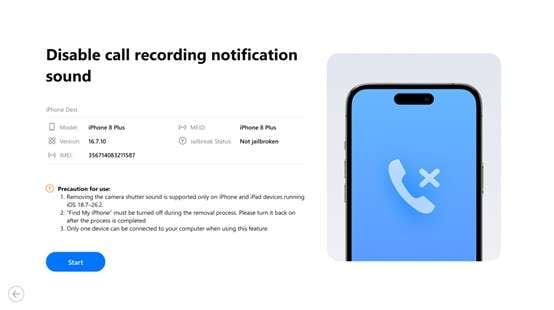
Step 3. Activate the Modification
Follow the on-screen instructions to allow Dr.Fone to access the necessary system configurations. The software will automatically detect your iOS version and prepare the bypass.
Step 4. Finish and Restart
Once the process is complete (usually taking less than 2 minutes), your iPhone will restart. You can now use the native recording button during calls without any audible alerts being sent to the other party.
Conclusion: The best way to “disable call recording announcement” is to choose the right feature
If you’re trying to turn off the call recording announcement on iPhone using Apple’s native recorder, the answer is simple: you can’t disable only the notice. Apple plays the audio announcement for transparency, and the supported solution is to disable call recording entirely if you don’t want that behavior.
If what you actually want is to stop Siri from reading caller names aloud, turn off Announce Calls in Siri settings.
And if you’re considering third-party utilities that claim to silence notification sounds, evaluate them carefully, stay compliant, and prioritize clear consent—because a recording is only useful when you can safely and ethically use it.
 safe & secure
4,624,541 people have downloaded it
FAQs
 Q1. How to disable call recording announcement on iPhone?Q2. Turn off call recording announcement iPhone — is there a setting?Q3. How to stop the call recorder announcement during a call?Q4. How do I turn off my iPhone call announcement?Q5. How to stop the call recording announcement vs. stop iPhone announcing calls — what’s the difference?


iPhone Unlock
- Access Locked iPhone
- 1. Reset Locked iPhone Without iTunes
- 2. Erase Locked iPhone
- 3. Get Into Locked iPhone
- 4. Factory Reset Locked iPhone
- 5. Reset Locked iPhone
- 6. iPhone Is Disabled
- 7. Fix iPhone Unavailable Issue
- 8. Forgot Locked Notes Password
- 9. Unlock Total Wireless Phone
- 10. Review of doctorSIM Unlock
- iPhone Lock Screen
- 1. Lock Apps on iPhone
- 2. Bypass iPhone Passcode
- 3. Unlock Disabled iPhone Without PC
- 4. Disable One More Minute Screen Time
- 5. Unlock iPhone Passcode Screen
- 6. Reset iPhone Password
- 7. Disable iOS Call Recording Notification
- 8. Remove Carrier Lock/SIM Restrictions
- 9. Get iMei Number on Locked iPhone
- 10. Add a New Face ID
- 11. iPhone Passcode Expired Pop-Up
- 12. Control Display Rotation
- 13. Fix iPhone is Disabled Connect to iTunes
- 14. Fix Turn Passcode Off Greyed Out
- 15. Get iPhone out of Demo Mode
- 16. Unlock Unresponsive Screen
- 17. iPhone Ask for Passcode After Reset
- Remove iCloud Lock
- 1. Unlock an iPhone 7 Plus iCloud
- 2. iOS 18 iCloud Unlock
- 3. iOS 26 iCloud Unlock
- 4. Crack iCloud-Locked iPhones to Sell
- 5. Jailbreak iCloud Locked iPhone
- 6. What To Do If You Bought A Locked iPhone?
- 7. Fix iPhone Unavailable No Erase Option
- 8. Find iCloud Email Address on Apple Device
- 9. Broque Ramdisk iCloud Bypass
- Unlock Apple ID
- 1. Remove Payment Method on iPhone
- 2. Create a New Apple ID Account
- 3. Change Apple ID on iPad
- 4. Change Your Apple ID Password
- 5. Apple ID Not Active
- 6. Fix Wrong Apple ID Issue on iPhone
- 7. Fix This Person Is Not Active
- 8. New iCloud Terms and Conditions
- 9. Fix Apple ID Account Unavailable
- 10.Find Apple ID by IMEI
- 11. Unlink 2 iPhones with the Same Apple ID
- 12. Reset Password at appleid.apple.com
- 13. App Store Keep Asking for Password
- 14. Find Apple ID Password No Reset
- 15. Trusted Devices List Not Available
- Remove SIM Lock
- 1. Unlock iPhone Using Unlock Chip
- 2. Unlock iPhone for Free
- 3. Unlock iPhone Online
- 4. Factory Unlock iPhone
- 5. SIM Unlock iPhone
- 6. Unlock AT&T iPhone
- 7. Unlock iPhone with IMEI Code
- 8. Unlock iPhone without SIM Card
- 9. Unlock Cricket iPhone
- 10. Unlock iPhone with/without SIM Card
- 11. Unlock T-Mobile iPhone
- 12. Unlock Verizon iPhone
- 13. iPhone IMEI Checker
- 14. Unlock Xfinity iPhone
- 15. Unlock iPhone From The Carrier
- 16. Turbo SIM iPhone
- 17. Get the Sprint Unlock Codes
- 18. Unlock a Sprint Phone
- 19. Fix When iPhone Says No Sim
- Unlock iPhone MDM
- 1. Remove MDM from iPhone
- 2. Remote Management on iPhone
- 3. MDM VS MAM
- 4. Top MDM Bypass Tools
- 5. IoT Device Management
- 6. Unified Endpoint Management
- 7. Enterprise Mobility Management
- 8. Top 10 Proxy Websites
- 9. Hindilinks4u Alternatives
- Unlock Screen Time Passcode
- 1. Reset Screen Time Passcode
- 2. Turn Off Screen Time without Passcode
- 3. Screen Time Passcode Not Working
- 4. Disable Parental Controls
- 5. Bypass Screen Time on iPhone Without Password
- 6. Delete Screen Time History on iPhone
- 7. Turn Off Downtime on iPhone
- 8. Download Age Restricted Videos
- MDM Unblock Games/Websites
- 1. Basketball Stars Game Unblocked
- 2. Play Getaway Shootout Unblocked
- 3. Play Build Now GG Unblocked
- 4. BitLife Unblocked
- 5. 10 Best Unblocked Anime Websites
- 6. Best Unblocked Game Websites
- 7. 1v1 LOL Unblocked
- 8. Get Poly Track Unblocked
- 9. Music Websites Unblocked
- 10. Spotify Unblocked
- 11. Interstellar Proxy Review
- Unlock Apple Watch
- Unlock iPod Touch
- ● Manage/transfer/recover data
- ● Unlock screen/activate/FRP lock
- ● Fix most iOS and Android issues
- Free Download Free Download Free Download


 > How-to > Screen Lock Removal > No Jailbreak Needed: How to Disable iOS Call Recording Notification with Dr.Fone
James Davis
staff Editor