
Samsung Galaxy S26 Ultra Privacy Display Review – Real User Experience & Performance

Oct 10, 2026 • Filed to: Screen Lock Removal • Proven solutions
 TL;DR:
The Samsung Galaxy S26 Ultra built-in Privacy Display effectively blocks side viewing using Flex Magic Pixel OLED technology, but it operates at the cost of cutting screen resolution in half and reducing brightness by 45%.
● This hardware feature is exclusive to the S26 Ultra and its effectiveness weakens if a traditional screen protector is applied, as the extra layer scatters the directed light and allows side visibility.
● Users can automate the privacy filter to activate only for specific apps, notification pop-ups, or PIN entries; if a forgotten PIN causes a device lockout, Dr.Fone - Screen Unlock is suggested to bypass the Android lock.
● Because the privacy pixel structure is physically built into the screen, users may still notice slight color shifts, graininess, and fuzzy small text even when the privacy feature is toggled off.
Ask AI for a summary
 ChatGPT
 Perplexity
 Gemini
 Claude
 Grok
Grok
You sit in a cafe and check your Galaxy S26 Ultra, but people nearby can see your screen. This common problem makes privacy a big concern for many users. However, little do you know that this privacy display on the S26 Ultra aims to solve this by limiting side viewing and protecting your content. It keeps your messages, photos, and apps safe from prying eyes in public places.
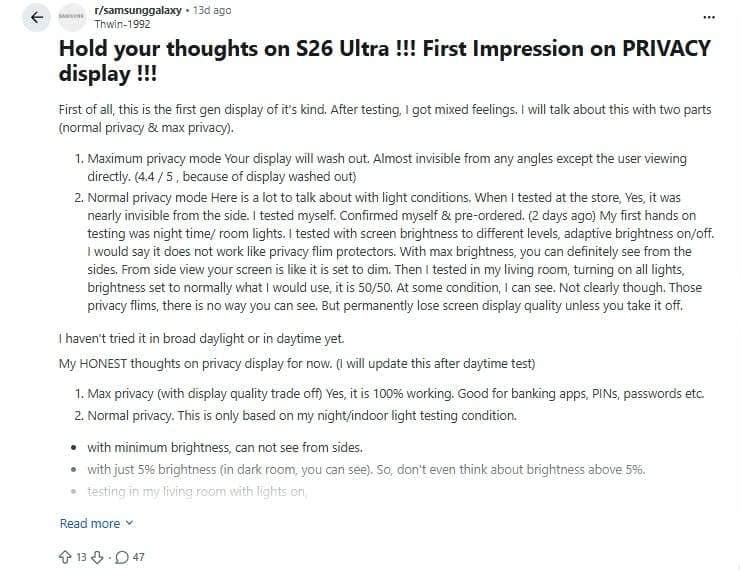
Nevertheless, you might wonder how well it works in real life. Well, Reddit comments have mixed reviews on this, some stating that:
"The Samsung Galaxy S26 Ultra Privacy Display is a first-gen feature with mixed results. Max privacy mode blocks side views almost fully, but makes the screen look washed out. Normal mode depends on brightness and lighting; it works well at low brightness or outdoors, but side visibility appears at higher brightness indoors. It does not match full privacy screen protectors, but it maintains better display quality and can be turned off at any time. Overall, it offers good privacy in some situations, but performance is not fully consistent yet." - Thwin-1992
If you want a clear answer, this review guide covers the real user experience of the S26 Ultra privacy screen. From display to performance, it will help you decide whether this feature truly adds value to your daily phone use. Somehow if you get locked out of the device and can't enable or disable this feature, learn how Dr.Fone can unlock your device locks in real time.
 safe & secure
4,624,541 people have downloaded it
- Part 1. Quick Verdict: Is the S26 Ultra Privacy Display Worth Using?
- Part 2. What Is the S26 Ultra Privacy Display and How Does It Work?
- Part 3. Real Experience with the S26 Ultra Privacy Display
- Part 4. How to Enable and Customize Privacy Display on the S26 Ultra
- Pro Tip. Use Dr.Fone – Screen Unlock if You're Locked Out of Your S26 Ultra

Part 1. Quick Verdict: Is the S26 Ultra Privacy Display Worth Using?
S26 privacy screen launched on February 25, 2026, at Samsung's Galaxy Unpacked in San Francisco. Those who have this device after March 11, 2026, have shared mixed reviews, which might confuse others' choices.
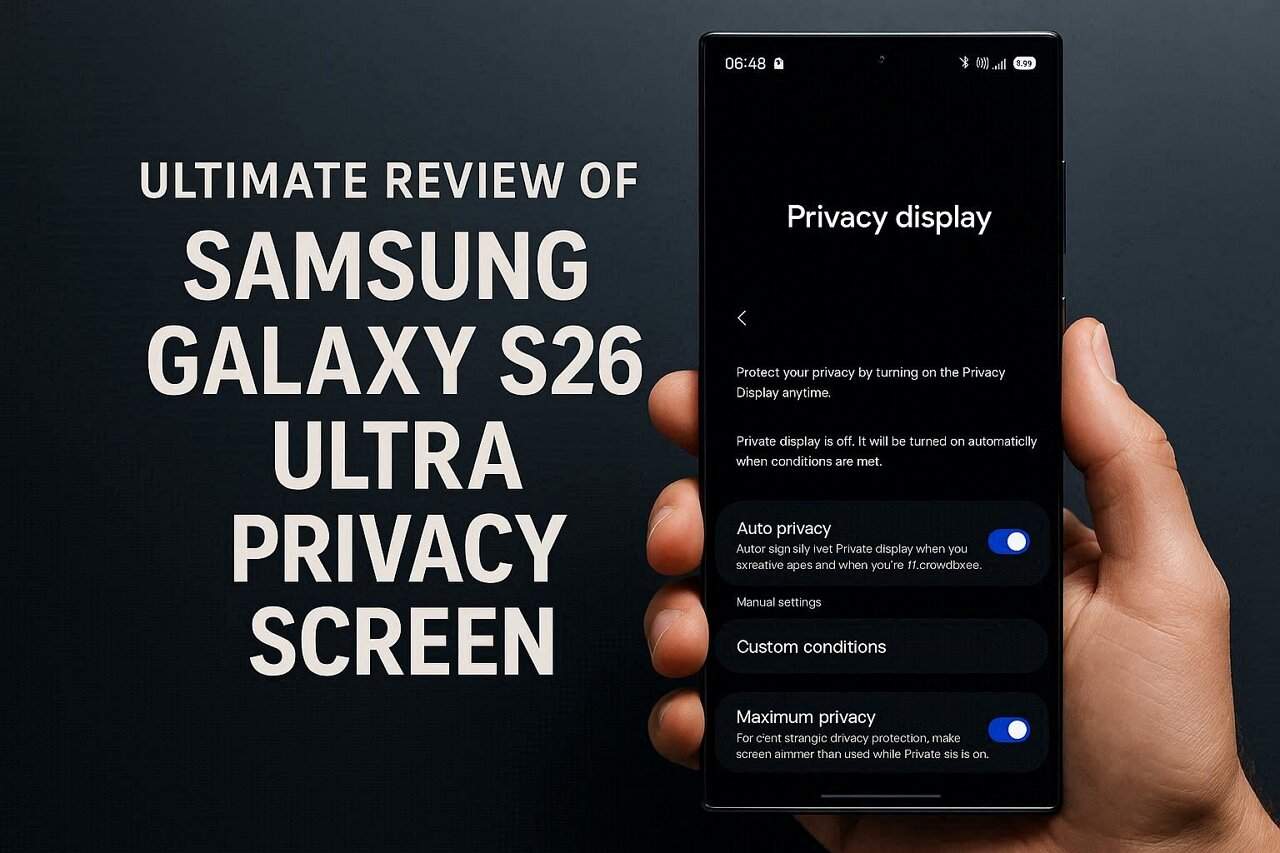
To wrap up these debates, those who care about privacy in public will find the Samsung Galaxy S26 Ultra Privacy Display useful. It blocks side views almost completely, making it hard for others to peek at your screen. Additionally, independent tests show side brightness drops sharply, and reviewers call it one of the S26 Ultra's best features. Most Reddit users say that:
"Cool tech, it's unfortunate that turning it on cuts the screen resolution in half and brightness by 45%." - Loose_Skill6641

This is true in fact, as turning the S26 privacy display on dims the screen and slightly reduces color and clarity. Therefore, it is not ideal for HDR movies, gaming, or outdoor use. Some users report eye strain or fuzzy text if left on too long. The feature works best as a situational tool for public places, banking, or work, and is easy to toggle on or off as needed.
Part 2. What Is the S26 Ultra Privacy Display and How Does It Work?
Know that the S26 Ultra Privacy display is a built-in hardware feature that narrows viewing angles, so only the user can see the screen clearly. People to the side see a dimmed or black image, and unlike stick-on privacy protectors, it uses the Flex Magic Pixel OLED system.
In terms of working, the display uses two pixel patterns: Wide for normal 178° viewing and narrow for a 30-60° cone aimed at the user's eyes. When Privacy Display is on, side views darken quickly while the front remains clear.
Privacy Display vs Traditional Privacy Screen Protector
According to the Reddit comment, "Samsung Galaxy S26 Ultra's privacy display works well without a screen protector, blocking side views for sensitive content. After adding a regular protector, the effect weakened, letting others see the screen from angles. Likely, the extra layer scatters light, reducing the privacy filter's effectiveness." - Anirban_Dey_96
This clarifies that this display is better than traditional screen protectors. To further justify these points, a detailed comparison table is given in this S26 privacy screen review section:
| Feature | S26 Ultra Privacy Display | Traditional Privacy Protector |
|---|---|---|
| Where It Lives | Built into the S26 Ultra OLED panel | Stick‑on film on top of the screen |
| Viewing‑angle Block | Very strong, tunable by software | Fixed, usually side‑only |
| On/Off Control | One tap toggle or per‑app rules | Must peel off or swap the protector |
| Image Quality Impact | Some dimming/softness when on | Constant dimming and clarity loss |
| Coverage | Can protect the full screen or parts only | Always covers the full display |
| Cost & Availability | Included, S26 Ultra only | Extra cost, works on many phones |
Key Features and Benefits of the S26 Ultra Privacy Display
If you want to know more about the S26 privacy mode settings, here are some of its key features along with benefits:
1. Built-in Hardware-Software Fusion: Built directly into the screen, this feature uses special technology called Flex Magic Pixel. Thus, it can be turned on or off instantly from settings or the quick panel. This means you get instant privacy when needed without adding a screen protector or affecting display quality.
2. Variable Privacy Modes: Users can switch between a normal view and a "Maximum privacy" mode that blocks side viewing almost completely. This helps in keeping your screen safe from prying eyes in public places like buses, offices, or cafes.
3. Smart Automation: Unlike other phones, S26 Ultra can turn on privacy display automatically for certain apps (like banking or social media) or when you enter passwords or PINs. Hence, this keeps your private information protected without needing to switch it on manually every time. When turned off, the screen works like a regular AMOLED display with full brightness and wide viewing angles, so there's no loss in quality.
4. Local Shield: The feature can focus on specific areas of the screen, such as blurring or hiding content in notifications. As a result, it keeps sensitive alerts private while still letting you use the rest of your screen normally.
5. Front-Facing Camera Integration: The system detects when someone is looking at your screen from the side and automatically enables privacy protection. This helps protect your data instantly without you needing to do anything.

Part 3. Real Experience with the S26 Ultra Privacy Display
Those who want to know what others think about the S26 Ultra privacy display adhere to the sequential user reviews:
- Positive Review
"The selective application to just hide certain apps, or notifications from a work profile, is a killer feature…." - captainant
- Negative Review
"It's a feature that is literally baked into the hardware, the way the pixels are structured. You can't ever turn it off, you can just minimize the impact of it. When it's "off," you still see color shifts, graininess, a slight blur with small text, and less deep blacks or a hazy look….." - IamOverIt8
Part 4. How to Enable and Customize Privacy Display on the S26 Ultra
After going through the feedback and details in this S26 privacy screen review, if you have decided to give it a try, it's important to know how to enable it. So, review the steps mentioned to learn how this feature helps prevent shoulder surfing:
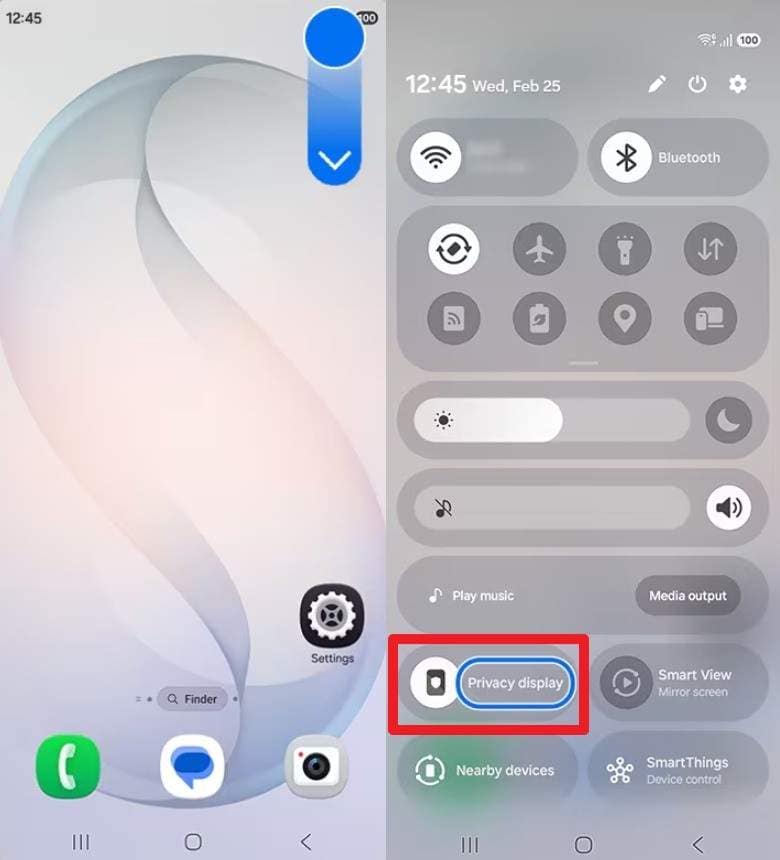
From Quick Panel
Instructions: Simply swipe down to open the Quick Panel and tap the "Privacy Display" icon.
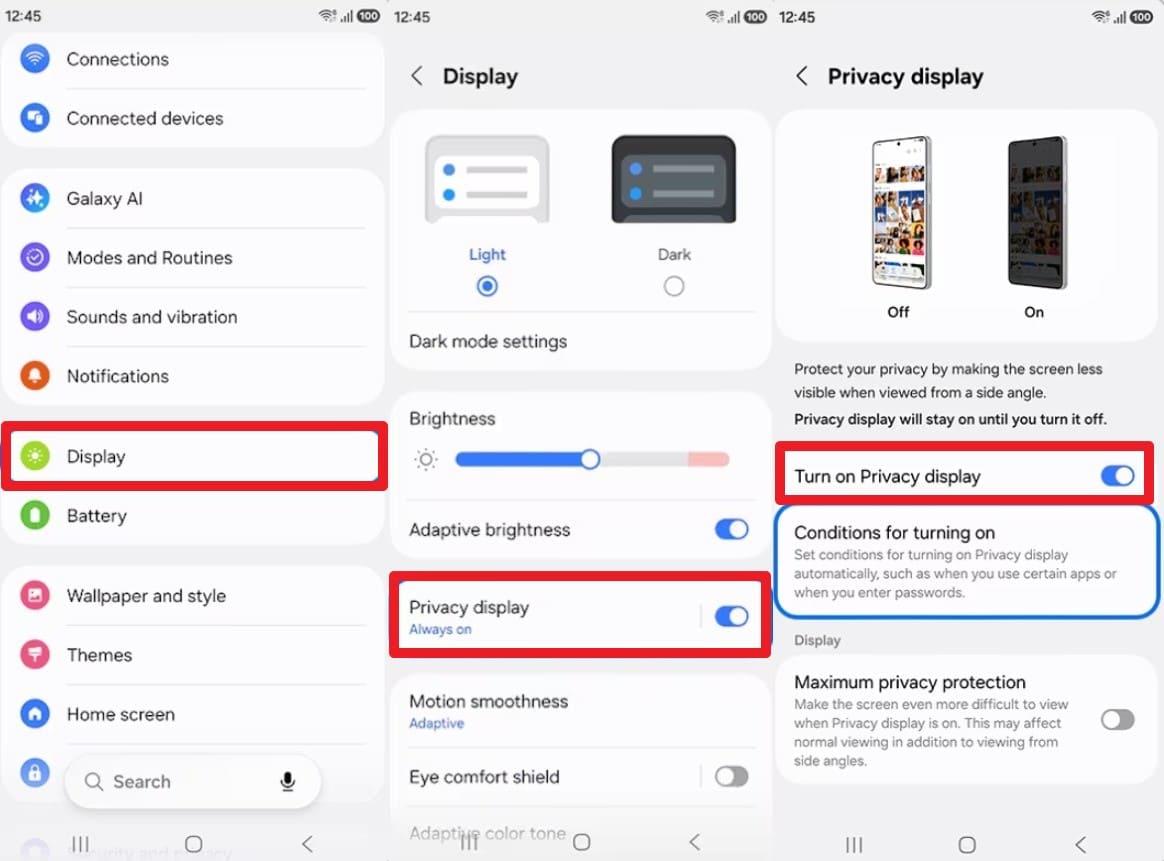
From Settings
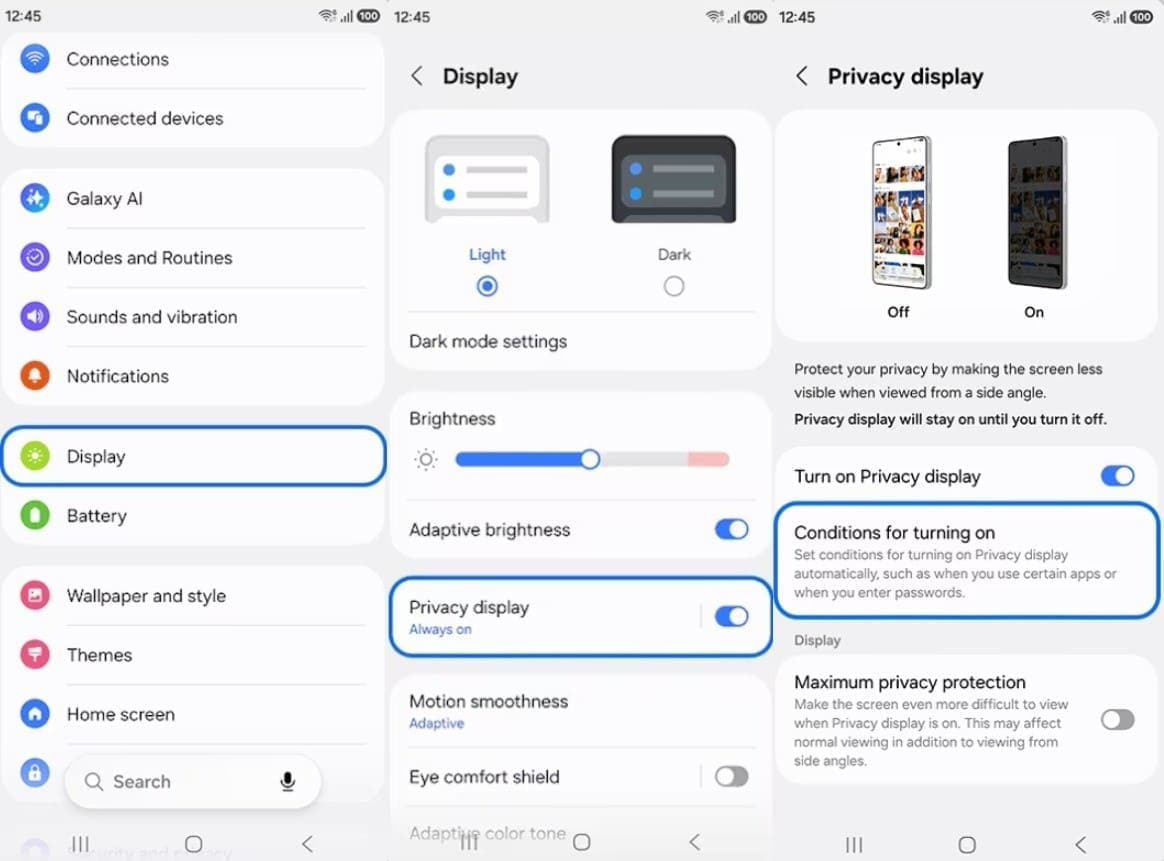
Instructions: In the Settings app, go to "Display" and choose the "Privacy Display" option. Here, toggle the "Turn on Privacy Display" option to enable it.
S26 Privacy Display Auto Mode – Set Conditions Easily
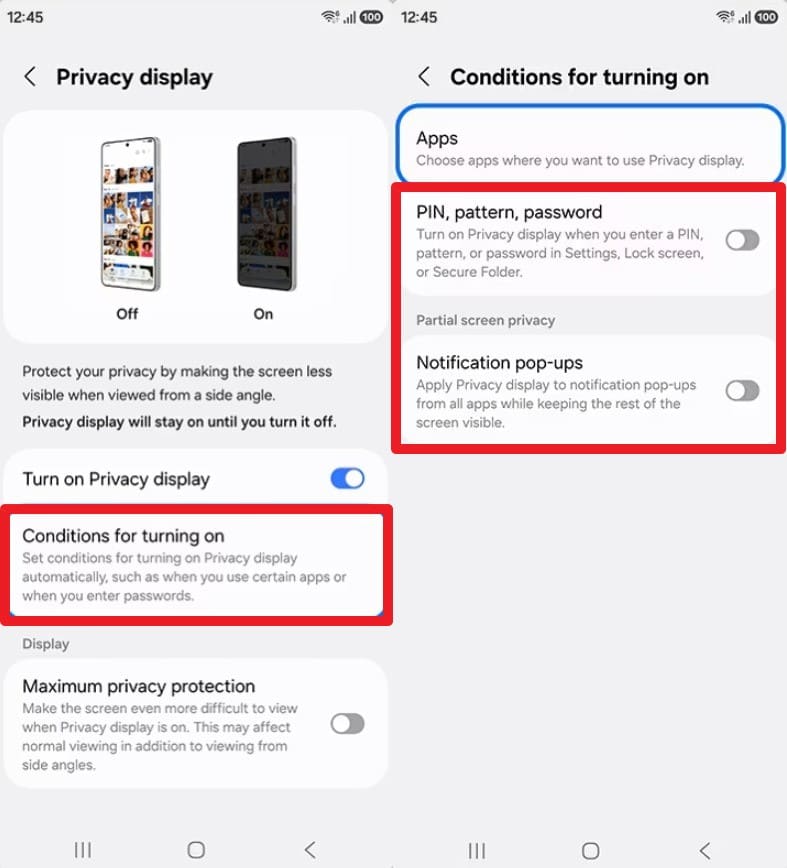
Regardless of the option you choose to enable the S26 ultra privacy screen, you can set conditions. So, to know how you can activate these privacy features for apps, notifications, and passcode, here is a simple guide:
- Step 1. If you choose to access this option via settings, tap on the "Conditions for Turning On" option. Now, toggle the option for "PIN, Pattern, Password" and "Notifications pop-ups" for extra privacy.
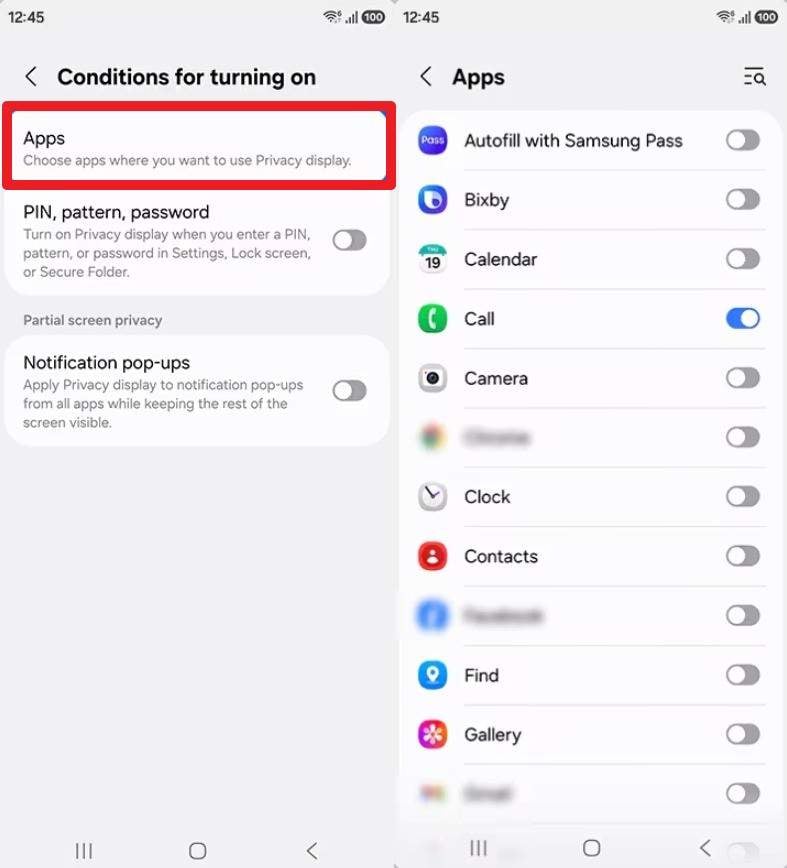
- Step 2. However, if you seek to enable this option for a certain application, tap on the "Apps" option within the "Conditions for Turning On" interface. Choose the app from the list, then turn on the toggle to ensure no one sees your activity while you use it.
Pro Tip. Use Dr.Fone – Screen Unlock if You're Locked Out of Your S26 Ultra
Suppose you enabled the S26 privacy screen for PIN and passcode or any other function, but can't access the device now because you forgot the PIN. In this case, Dr.Fone - Screen Unlock allows you to bypass various Android locks, including Pattern, PIN, Password, Fingerprint & Face Lock. With a 100% success rate, it claims to unlock major Android brands like Samsung, Huawei, Xiaomi, etc.
Furthermore, one can also use it to bypass the FRP lock on Samsung Snapdragon devices, along with the AI FRP bypass facility for Android 16 and Samsung S26/S25 devices. Since this aspect makes it a versatile choice, you can unlock it in 2-3 simple steps without needing technical skills. So, with 30 brands, 2000+ Android phones and tablets, you will also get weekly updates that no other tool offers.

Dr.Fone - Screen Unlock (Android)
The Best UnlockJunky Alternative to Bypass FRP and Solve Your Screen Locks
- Completely unlinked from the previous Google account, it wont be traced or blocked by it anymore.
- Remove all Android screen locks (PIN/pattern/fingerprints/face ID) in minutes.
- Compatible with various Android models.
- Provide specific removal solutions to promise good success rate.


Simple Guide to Unlock PIN or Password Lock on Samsung S26 Ultra
To help you set conditions for the S26 privacy screen after quick unlocking, follow the simple guide given ahead:
- Step 1. Choose the Screen Unlock Tool to Unlock S26 Ultra
Access the "Screen Unlock" tool for Android from the "Toolbox" tab and choose the "Unlock Android Screen" option.

- Step 2. Enter the Special Mode on S26 Ultra to Unlock It
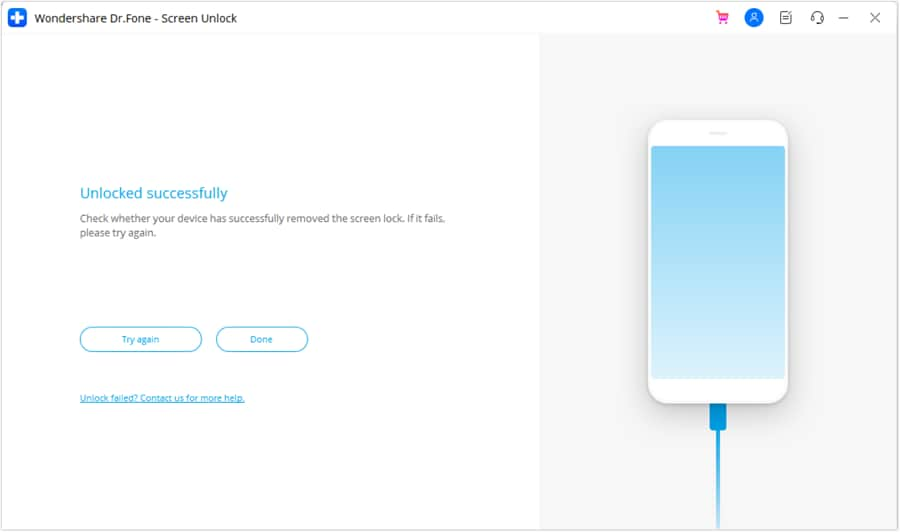
Select Samsung S26 Ultra from the device list, then wait for the tool to enter the device into special mode. There, the tool will start the unlocking process, review it, and tap "Done" as it ends.
safe & secure4,624,541 people have downloaded it
Conclusion
To sum up, the Samsung Galaxy S26 Ultra Privacy Screen offers strong side-view protection, keeping messages, apps, and sensitive content safe in public. To further justify it, this guide has given a detailed review of how it dims the light and what users think about it. So, while using it, if you get locked out of the device somehow, using Dr.Fone - Screen Unlock is suggested to open any type of Android lock.
safe & secure4,624,541 people have downloaded it
FAQs
 1.
Do I have to keep it ON all the time?2.
Does it work in both portrait and landscape?3.
Does privacy mode impact battery life?4.
Does it work for all apps?
1.
Do I have to keep it ON all the time?2.
Does it work in both portrait and landscape?3.
Does privacy mode impact battery life?4.
Does it work for all apps?


Samsung Unlock
- Samsung Code
- 1. Samsung Unlock Code List
- 2. Samsung Reset Code List
- 3. Samsung Secret Code List
- 4. Check Screen Using Secret Codes
- 5. Samsung Unlock Code Generators
- 6. Free Samsung Unlock Code
- 7. Free Samsung Unlock Code Generators
- 8. Samsung Galaxy S2 Unlock Code
- Samsung A Series FRP Bypass
- 1. Samsung A01 FRP Bypass
- 2. Samsung A01 Core FRP Bypass
- 3. Samsung A02/A02s FRP Bypass
- 4. Samsung A2 Core FRP Bypass
- 5. Samsung A10/A10s FRP Bypass
- 6. Samsung A11 FRP Bypass
- 7. Samsung A12 FRP Bypass
- 8. Samsung A20/A20S FRP Bypass
- 9. Samsung A14 FRP Bypass
- 10. Samsung A30/30s FRP Bypass
- 11. Samsung A50 FRP Bypass
- 12. Samsung A51 FRP Bypass
- Samsung J Series FRP Bypass
- 1. Samsung J2 FRP Bypass
- 2. Samsung J4 FRP Bypass
- 3. Samsung J5 Prime FRP Bypass
- 4. Samsung J6 FRP Bypass
- 5. Samsung J7 FRP Bypass
- 6. Samsung J7 Prime FRP Bypass
- 7. Samsung J250 FRP Bypass
- Samsung S Series FRP Bypass
- 1. Samsung S7 FRP Bypass
- 2. Samsung S22 FRP Bypass
- 3. Bypass Samsung S24 FRP Lock
- 4. Samsung S25 FRP Bypass
- 5. Samsung S26 FRP Bypass
- Samsung FRP Bypass for Others
- 1. Samsung M01 FRP Bypass
- 2. Samsung M11 FRP Bypass
- 3. Samsung G532F FRP Bypass
- 4. Samsung G531F/G531H FRP Bypass
- 5. Samsung Google Verification Bypass
- 6. HushSMS APK FRP Unlock
- 7. Samsung Android 11 FRP Bypass
- 8. Samsung FRP Bypass Without PC
- Samsung Factory/Hard Reset
- 1. Reboot Samsung
- 2. Hard Reset Samsung
- 3. Reset Locked Samsung Phone
- 4. Reset Samsung Tablet
- 5. Reset Samsung Without Password
- 6. Reset Samsung Account Password
- 7. Reset Samsung Galaxy S3
- 8. Reset Samsung Galaxy S4
- 9. Reset Samsung Galaxy S5
- 10. Reset Samsung Galaxy S9/S10
- 11. Reset Samsung Galaxy J5/J7
- 12. Reset Samsung A12
- 13. Factory Reset Samsung Tablet
- Samsung S Series Screen Unlock
- 1. Samsung S2 Screen Unlock
- 2. Samsung S3 Screen Unlock
- 3. Samsung S4 Screen Unlock
- 4. Samsung S5 Screen Unlock
- 5. Samsung S6 Screen Unlock
- 6. Samsung S7/S8 Screen Unlock
- 7. Samsung S20 Screen Unlock
- 8. Samsung S22 Ultra Screen Unlock
- 9. Unlock Samsung S25
- Samsung Screen Unlock
- 1. Best Samsung Unlock Software
- 2. Forgot Samsung Galaxy Password
- 3. Bypass Samsung Lock Screen PIN
- 4. Unlock Samsung Galaxy Phones
- 5. Unlock Bootloader on Samsung
- 6. Unlock Home Screen Layout
- 7. Unlock Samsung Password
- 8. Remove Google Account
- 9. MDM Remove Tools
- 10. Remove Samsung MDM Lock
- 11. Samsung Reactivation Lock
- Samsung SIM Unlock
- ● Manage/transfer/recover data
- ● Unlock screen/activate/FRP lock
- ● Fix most iOS and Android issues
- Free Download Free Download Free Download


 > How-to > Screen Lock Removal > Samsung Galaxy S26 Ultra Privacy Display Review – Real User Experience & Performance
Daisy Raines
staff Editor