
Download the latest version | Secure & verified
9 Ways to Bypass Samsung Lock Screen without Data Loss

Oct 10, 2026 • Filed to: Screen Lock Removal • Proven solutions
 TL;DR:
To unlock a Samsung phone without data loss, use Samsung Find My Mobile if it was previously enabled, or Dr.Fone - Screen Unlock (Android) for specific supported models, reserving a factory reset as a data-erasing last resort.
● Samsung Find My Mobile requires a pre-configured Samsung account, while the ADB command method only works if USB debugging was enabled before the device was locked and connected to an authorized PC.
● Legacy bypass options, such as the Google Login feature, are strictly limited to devices running Android 4.4 or lower, and emergency call workarounds are ineffective on modern models.
● If remote tools fail and your specific device is unsupported by no-data-loss software, a Recovery Mode factory reset is the most reliable fallback, though it permanently erases all local files and apps.
Ask AI for a summary
 ChatGPT
 Perplexity
 Gemini
 Claude
 Grok
Grok
Forgot your PIN, pattern, or password and now your Samsung phone is locked? You're not alone. Many users search for answers like how to unlock a Samsung phone without password, how to unlock Samsung phone without PIN, or how to unlock Samsung phone forgot password without factory reset.
If you still have access to your Samsung account, Google account, or a previously trusted computer, you may be able to unlock your phone without losing data. In this guide, we explain 9 ways to unlock a locked Samsung phone, including methods that work without PC, without factory reset, and without losing data on supported models.
To help you choose the right fix faster, we also note which methods require setup in advance, which ones erase data, and which options are outdated or only work on older Android versions.
- [Video Guide] Unlock a Samsung Phone Without Losing Data
- Method 1. Unlock a Samsung Phone Without Losing Data

- Method 2. Use Samsung Find My Mobile
- Method 3. Use Google Find My Device
- Method 4. Use Google Login (Android 4.4 or Lower)
- Method 5. Advanced Recovery Method (Older Devices Only)
- Method 6. Remove the Lock File with ADB
- Method 7. Factory Reset Your Samsung Phone
- Method 8. Use Safe Mode for Third-Party Lock Apps
- Method 9. Try Emergency Access Workarounds on Older Devices
Quick Answer: How to Unlock a Samsung Phone If You Forgot the Password
If you forgot your Samsung phone password, the best method depends on what access you still have:
- Use Samsung Find My Mobile if it was enabled earlier.
- Use Google Find My Device if remote controls are available for your device.
- Use a professional unlock tool to remove the lock screen without losing data on supported Samsung models.
- Use Recovery Mode only as a last resort, because it usually erases your phone.
If your top priority is data retention, start with the non-destructive methods first.
[Video Guide] Bypass Samsung Lock Screen without Losing Data
Bypass Samsung lock screen pattern, PIN, password, and fingerprint without any hassle!
 safe & secure
Method 1. How to Unlock a Samsung Phone Without Losing Data
Unlocking your Samsung phone has never been easier with Dr.Fone - Screen Unlock (Android). This handy tool lets you bypass lock screen patterns, PINs, passwords, and even fingerprints quickly and effortlessly. Whether you're dealing with a forgotten password or too many wrong attempts, Dr.Fone is here to help you regain access without the hassle. It's important to note that only specific Samsung and LG models can be unlocked without losing data, so make sure to select the right Samsung models on the list. With its user-friendly interface, Dr.Fone ensures a smooth unlocking process, giving you peace of mind and full access to your device in no time. Take control of your phone once again with this reliable solution!

Dr.Fone – Screen Unlock (Android)
Bypass Samsung Lock Screen without Losing Data!
- Remove 4 screen lock types, i.e., pattern, PIN, password & fingerprints.
- Bypass Google FRP on Samsung, Xiaomi, Redmi, OPPO, Realme, and Vivo devices without pin code or Google accounts.
- No tech knowledge is required. Everyone can handle it.
- Data will not be lost for older models of Samsung, and for others, you'll lose data.
You can follow the simple steps below.
This method is ideal if you want to remove screen lock on Samsung quickly and keep your files intact on supported models. If your device is not supported for no-data-loss mode, the tool may still unlock the phone, but data removal can occur.
- Step 1. Choose the "Screen Unlock" among all the options. Connect your Samsung device to the PC and click "Unlock Android Screen."

- Step 2. After selecting your Samsung model details, turn off the phone, hold the Home button, volume down, and power button simultaneously, and then press the volume up button to get into the Download Mode.

- Step 3. Now you will download the recovery package to your device.
- Step 4. Once the package is downloaded, you can see the process and get the device unlocked. The whole process to bypass the Samsung lock screen will not cause any data loss from your phone.
You can also use this tool to unlock other Android phones, including Huawei, Lenovo, Xiaomi, etc. The only sacrifice is that you will lose all the data after unlocking.
 safe & secure
Tips: If you're stuck with a locked Android screen and can't remember the password, don't worry—Wondershare Dr.Fone App-Screen Unlock (Android) is here to help. This handy app makes it easy to unlock your phone without needing a computer. Compatible with devices from Samsung, Huawei, Xiaomi, and others, you won't have to stress about losing access to your phone. Simply download the app and follow the straightforward steps to regain control of your device effortlessly. Say goodbye to lock screen frustrations and hello to easy access!
Dr.Fone App (iOS) & Dr.Fone App (Android)
Your One-Stop Expert for Screen Unlock, Smart Clean, Data Recovery, and Phone Management of Mobile Devices!
- Effortlessly unlock various locks on your device.
- Instantly free up storage space by smart clean.
- Rapidly recover different kinds of lost phone data and information.
- Easily manage cluttered and private device content.
- Supports both iOS and Android devices.



Method 2. How to Unlock a Samsung Phone Without Password Using Samsung Find My Mobile
Samsung Find My Mobile is one of the best answers to how to unlock a Samsung phone without password if the feature was enabled before you were locked out. It lets you manage your Samsung device remotely and can help you regain access without immediately factory resetting the phone. This method is especially useful if you want to try a Samsung-native option before moving to more advanced tools or data-erasing fixes.
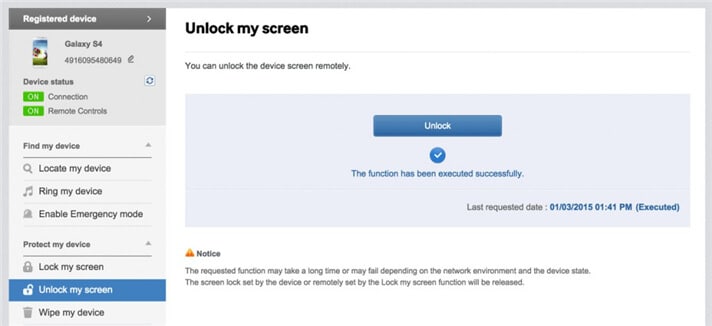
- Step 1. First, set up your Samsung account and log in.
- Step 2. Click the "Lock My Screen" button.
- Step 3. Enter a new PIN in the first field
- Step 4. Click the "Lock" button at the bottom
- Step 5. Within a few minutes, it will change the lock screen password to the PIN so that you can unlock your device.
Method 3. Use Google Find My Device to Reset a Locked Samsung Phone
Google Find My Device is a remote management feature that can help when your Samsung phone is locked and you can still access the linked Google account. In most cases, this option is used to erase and reset the device rather than unlock it while preserving data, so it is better treated as a backup solution if you cannot use Samsung Find My Mobile or a no-data-loss unlocking method.
If you need to reset a locked Samsung phone remotely, make sure Find My Device is enabled and the phone is online.
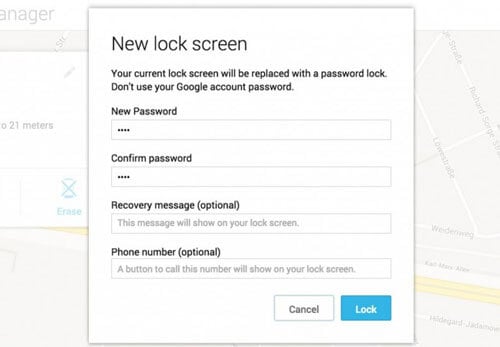
- Step 1. Visit google.com/android/devicemanager on other smartphones or PC.
- Step 2. Log in to the Google account that you used on your locked device.
- Step 3. Choose the device you want to unlock in the ADM interface.
- Step 4. Click on the "Lock" option.
- Step 5. Enter a password. There is no need to enter any recovery message. Select "Lock" again.
- Step 6. If it is successful, you will see a confirmation below with the "Ring, Lock and Erase" buttons.
- Step 7. Now you must get the password field on your phone to enter your new password, and your phone will be unlocked.
- Step 8. Go to lock screen settings on your device and disable the temporary password.
Method 4. Google Login (Supports Only Android 4.4 or Lower)
If your Samsung device runs Android 4.4 or lower, you may still be able to unlock it using the legacy Google login option after several failed attempts. This method only applies to older devices and is not available on modern Samsung phones.
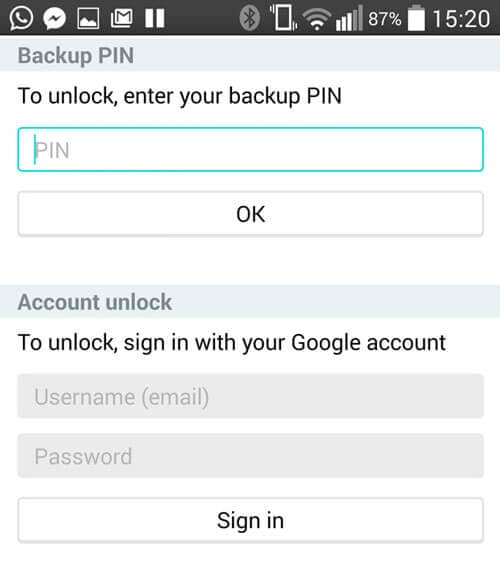
- Step 1. Enter the wrong pattern five times.
- Step 2. Choose "Forgot Pattern".
- Step 3. Enter your Google account login or backup PIN.
- Step 4. Now your phone would be unlocked.
Method 5. Advanced Recovery Method for Older Samsung Devices
This is an advanced method intended only for older Samsung devices that already have custom recovery access configured. It is not suitable for most users and may not work on newer Android versions. If you want the safest and simplest path, use the official account-based methods first.
- Step 1. Download a zip file named "Pattern Password Disable" on your computer and move it to your Samsung device's SD card.
- Step 2. Insert the card on your device.
- Step 3. Restart your device into recovery mode.
- Step 4. Flash the file on your card and restart the phone.
- Step 5. Now your phone would boot up without a lock screen. Don't worry if you have a gesture lock or password. All you need to do is input a random gesture or password, and it will be unlocked.
Method 6. Remove the Samsung Lock File Using ADB
This method only works if USB debugging was enabled before the device was locked and the computer was already authorized for ADB access. For most users, that is not the case, so this should be treated as a limited technical option rather than a universal fix.
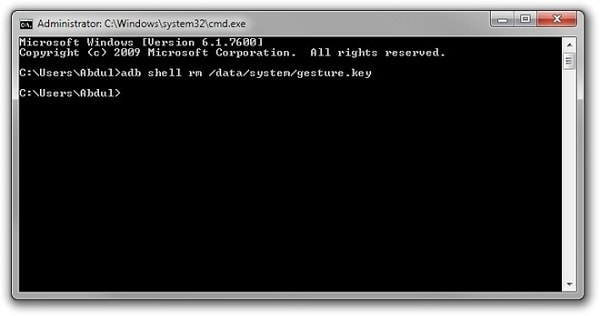
- Step 1. Connect your device to the PC using a USB cable and open the command prompt in the ADB directory. Type the command "adb shell rm /data/system/gesture. the key" and then press "Enter".
- Step 2. Restart your phone, and a secure lock screen must be gone, and you can access your device. Be sure to set a new PIN, pattern, or password before rebooting again.
Method 7. Factory Reset to Bypass Samsung Lock Screen
A factory reset is the most reliable last-resort option if you cannot unlock your Samsung phone through Samsung Find My Mobile, Google tools, or a supported no-data-loss solution. However, this method will erase your apps, settings, photos, and other local files, so use it only when data retention is no longer possible.
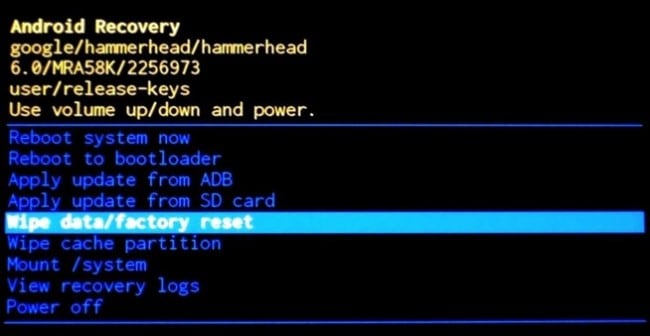
- Step 1. Hold the power button and volume down at the same time. It will open the Bootloader menu.
- Step 2. Press the volume down button two times to choose "Recovery Mode" and select it by pressing the "Power" button.
- Step 3. Hold down the power button and tap "Volume Up" once and enter the "recovery" mode.
- Step 4. Choose the "Wipe Data/Factory Reset" option by using the volume buttons.
- Step 5. Select it by pressing the Power button.
- Step 6. Select "Reboot System Now" once the process is done.
Back up your Samsung phone before a factory reset whenever possible to reduce the risk of permanent data loss.
Method 8. Boot into Safe Mode
Safe Mode can help only if the lock screen comes from a third-party app rather than Samsung's built-in system lock. If that applies to your device, Safe Mode may let you disable or remove the app and regain access.
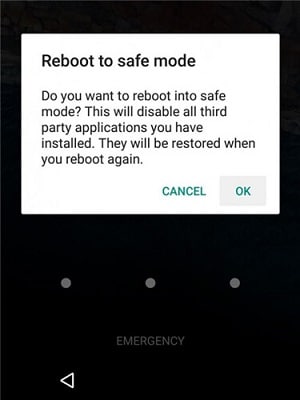
- Step 1. Open up the Power menu from the lock screen and press and hold the "Power Off" option.
- Step 2. It will ask if you want to boot in safe mode. Tap "OK".
- Step 3. Once the process finishes, it will temporarily disable the lock screen activated by the third-party app.
- Step 4. Uninstall the third-party lock screen or just reset the data.
- Step 5. Reboot your device and get out of safe mode.
- Step 6. Now the irritating lock screen app is obliterated.
Method 9. Try Older Emergency Access Workarounds
Some older Android and Samsung devices were reported to respond to emergency-access or call-based workarounds. These methods are inconsistent, rarely work on current models, and should be viewed only as legacy troubleshooting ideas rather than dependable solutions.
- Step 1. Take your friend's phone to call on your locked phone.
- Step 2. Accept the call and press the back button without disconnecting.
- Step 3. Now you can access the device completely.
- Step 4. Go to the security settings of the device and remove the pattern or pin.
- Step 5. It will ask you the correct pin that you don't know, guess, and try various combinations you can recall.
Tips: Looking for an all-in-one mobile management software? Look no further than Dr.Fone App - the ultimate choice for all your needs:
- Unlock: Removes various types of lock screens from multiple devices and systems.
- Location Changer: Easily changes GPS location on iOS/Android devices.
- WhatsApp Transfer: Facilitates the transfer of WhatsApp/WhatsApp Business data between Android and iOS devices.
- Data Recovery: Supports recovery of photos, messages, videos, contacts, files, and social app data from Android devices.
- Data Transfer: Enables two-way transfer of photos, videos, apps, music, contacts, and files between iOS and Android devices.
- System Repair: Fixes various iOS/Android system problems.
- Private Space: Encrypts and secures space on Android devices for storing photos and videos.
- Photo Enhancer: Enhances the image quality of photos on Android devices.
- Contact Backup: Backs up contacts on iOS devices.
- Phone Clean: Cleans up albums, contacts, and calendars on iOS devices, freeing up memory with just one click.
Discover the ultimate mobile management solution with Dr.Fone App (iOS) and Dr.Fone App (Android). Don't miss out, try it now and revolutionize your smartphone experience.
Conclusion
If you forgot your Samsung password, the best unlocking method depends on what access you still have. Start with Samsung Find My Mobile or Google Find My Device if your accounts were set up in advance. If your goal is to unlock a Samsung phone without losing data, a supported no-data-loss solution should be your first choice. Use factory reset only when other recovery methods are unavailable.
For users comparing solutions, this page covers options with and without PC, with and without factory reset, plus methods that only work on older Android versions. Read more: How to disable factory reset protection (FRP) for both Android and iOS devices.
safe & secureFAQs
 Q1. How can I unlock my Samsung phone if I forgot the password without losing data?Q2. How do I unlock a Samsung phone without password or PIN?Q3. How can I unlock a Samsung phone forgot password without PC?Q4. Will factory reset remove the Samsung lock screen?


Samsung Unlock
- Samsung Code
- 1. Samsung Unlock Code List
- 2. Samsung Reset Code List
- 3. Samsung Secret Code List
- 4. Check Screen Using Secret Codes
- 5. Samsung Unlock Code Generators
- 6. Free Samsung Unlock Code
- 7. Free Samsung Unlock Code Generators
- 8. Samsung Galaxy S2 Unlock Code
- Samsung A Series FRP Bypass
- 1. Samsung A01 FRP Bypass
- 2. Samsung A01 Core FRP Bypass
- 3. Samsung A02/A02s FRP Bypass
- 4. Samsung A2 Core FRP Bypass
- 5. Samsung A10/A10s FRP Bypass
- 6. Samsung A11 FRP Bypass
- 7. Samsung A12 FRP Bypass
- 8. Samsung A20/A20S FRP Bypass
- 9. Samsung A14 FRP Bypass
- 10. Samsung A30/30s FRP Bypass
- 11. Samsung A50 FRP Bypass
- 12. Samsung A51 FRP Bypass
- Samsung J Series FRP Bypass
- 1. Samsung J2 FRP Bypass
- 2. Samsung J4 FRP Bypass
- 3. Samsung J5 Prime FRP Bypass
- 4. Samsung J6 FRP Bypass
- 5. Samsung J7 FRP Bypass
- 6. Samsung J7 Prime FRP Bypass
- 7. Samsung J250 FRP Bypass
- Samsung S Series FRP Bypass
- 1. Samsung S7 FRP Bypass
- 2. Samsung S22 FRP Bypass
- 3. Bypass Samsung S24 FRP Lock
- 4. Samsung S25 FRP Bypass
- 5. Samsung S26 FRP Bypass
- Samsung FRP Bypass for Others
- 1. Samsung M01 FRP Bypass
- 2. Samsung M11 FRP Bypass
- 3. Samsung G532F FRP Bypass
- 4. Samsung G531F/G531H FRP Bypass
- 5. Samsung Google Verification Bypass
- 6. HushSMS APK FRP Unlock
- 7. Samsung Android 11 FRP Bypass
- 8. Samsung FRP Bypass Without PC
- Samsung Factory/Hard Reset
- 1. Reboot Samsung
- 2. Hard Reset Samsung
- 3. Reset Locked Samsung Phone
- 4. Reset Samsung Tablet
- 5. Reset Samsung Without Password
- 6. Reset Samsung Account Password
- 7. Reset Samsung Galaxy S3
- 8. Reset Samsung Galaxy S4
- 9. Reset Samsung Galaxy S5
- 10. Reset Samsung Galaxy S9/S10
- 11. Reset Samsung Galaxy J5/J7
- 12. Reset Samsung A12
- 13. Factory Reset Samsung Tablet
- Samsung S Series Screen Unlock
- 1. Samsung S2 Screen Unlock
- 2. Samsung S3 Screen Unlock
- 3. Samsung S4 Screen Unlock
- 4. Samsung S5 Screen Unlock
- 5. Samsung S6 Screen Unlock
- 6. Samsung S7/S8 Screen Unlock
- 7. Samsung S20 Screen Unlock
- 8. Samsung S22 Ultra Screen Unlock
- 9. Unlock Samsung S25
- Samsung Screen Unlock
- 1. Best Samsung Unlock Software
- 2. Forgot Samsung Galaxy Password
- 3. Bypass Samsung Lock Screen PIN
- 4. Unlock Samsung Galaxy Phones
- 5. Unlock Bootloader on Samsung
- 6. Unlock Home Screen Layout
- 7. Unlock Samsung Password
- 8. Remove Google Account
- 9. MDM Remove Tools
- 10. Remove Samsung MDM Lock
- 11. Samsung Reactivation Lock
- Samsung SIM Unlock
- ● Manage/transfer/recover data
- ● Unlock screen/activate/FRP lock
- ● Fix most iOS and Android issues
- Free Download Free Download Free Download




Alice MJ
staff Editor