


 TL;DR:
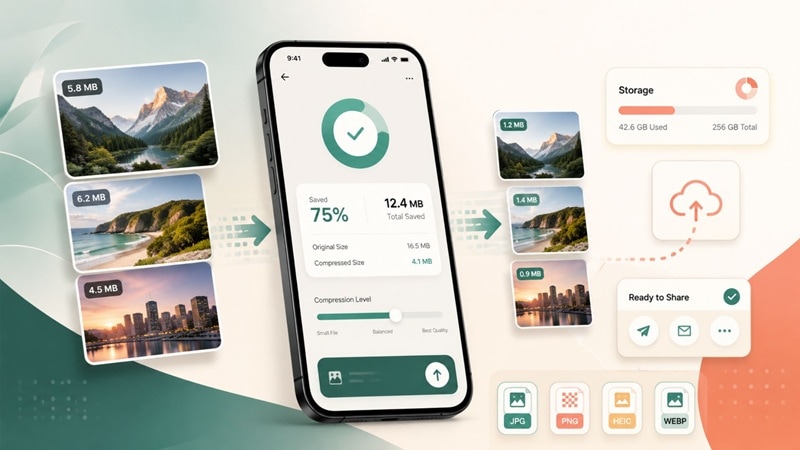
Choose an iPhone image compressor app based on whether you need batch storage cleanup, dimension control, strict file-size limits, or broader photo utilities.
- Dr.Fone App fits users who want compression within a wider iPhone photo and storage toolkit.
- Photo Compress - Shrink Pics is suited to batch processing, while Resize Photos focuses on dimensions, DPI, and formats.
- For strict KB limits, confirm that the app lists target-size control, and keep the original before using lossy compression.
Ask AI for a summary
 ChatGPT
 Perplexity
 Gemini
 Claude
 Grok
Grok
A university portal may reject a 4 MB passport photo because it must be under 200 KB. An email attachment can fail for the same reason, while hundreds of high-resolution photos may slowly fill iPhone storage. Each scenario has its own problem, so no single image compressor app will solve all of them. In a useful app for reducing image size, you should find a balance between controlling the file-size and image quality, batch processing, supported image formats, privacy, and the cost. If the limit is strict, an app to reduce image size in KB also needs precise output control.
This guide compares iPhone compressor apps based on those practical needs, so you can choose the right tool for uploads, storage, or everyday photos.
Part 1: What Should You Look for in an Image Compressor App?
Before choosing an app, compare the controls that directly affect file size, quality, privacy, and usability.
1. File-Size Control
Look for a compression slider, estimated output size, target KB/MB option, and resolution controls. A target-size feature is especially useful in an app to reduce image size in KB when an upload must stay below a fixed limit. Current Image Compressor & Resizer listings, for example, advertise preset targets from 20 KB to 1 MB.
2. Quality Control
Using compression, especially with lossy formats like JPEG, can make details less visible. Opt for apps that offer a before/after preview, adjustable quality, and a display of the final file size. It helps you balance final size with image appearance.
3. Batch Compression
Batch processing is valuable when the goal is freeing iPhone storage. Check whether the app can process several photos or complete albums instead of one file at a time.
4. Format Support
Confirm support for the formats you use, such as JPEG/JPG, PNG, HEIC/HEIF, and WebP. Apple notes that HEIF can use less storage than JPEG while maintaining comparable visual quality.
5. Privacy
Check the App Store App Privacy section and the developer policy. Look for stated on-device processing, image uploads, and declared data collection. Apple requires these disclosures, but also notes that they are developer-reported rather than independently verified.
6. Price and Limits
Look at the free tier, ads, subscriptions, in-app purchases, batch limits, and premium-only features. Don’t consider ‘free download’ as unrestricted use.

Part 2: Best Image Compressor Apps for iPhone
Best Image Compressor Apps for iPhone With Different Strengths are as follows.
2.1 Dr.Fone APP — Best for Compression Within a Broader Photo Utility App
Dr.Fone is a good fit if you want photo compression without installing a tool that only does one job. Its iPhone utility focuses on storage management and also includes wider photo features. The official Photo Cleaner guide confirms support for compressing large photos on iPhone, while Dr.Fone's iOS page also lists tools such as AI Photo Enhancer and Old Photo Restoration.
For compression, the workflow is simple. You can select photos, preview them before processing, compress them, and optionally remove the larger originals to recover storage. The guide states that compressed photos are saved automatically.
Dr.Fone App - Photo & Video Compressor for iPhone
Compress Photos & Videos to Free Up iPhone Storage
- Compress Large Photos to Reduce File Size
- Compress Large Videos Instead of Deleting Them
- Free Up More Storage Space for New Photos, Videos, and Apps
- Manage Space-Consuming Photos and Videos More Efficiently



How to Compress Photos on iPhone
How to Compress Photos on iPhone with Dr.Fone App
Dr.Fone App provides a straightforward way to shrink large photos on your iPhone. Here is how to use its Compressor feature from start to finish.
-
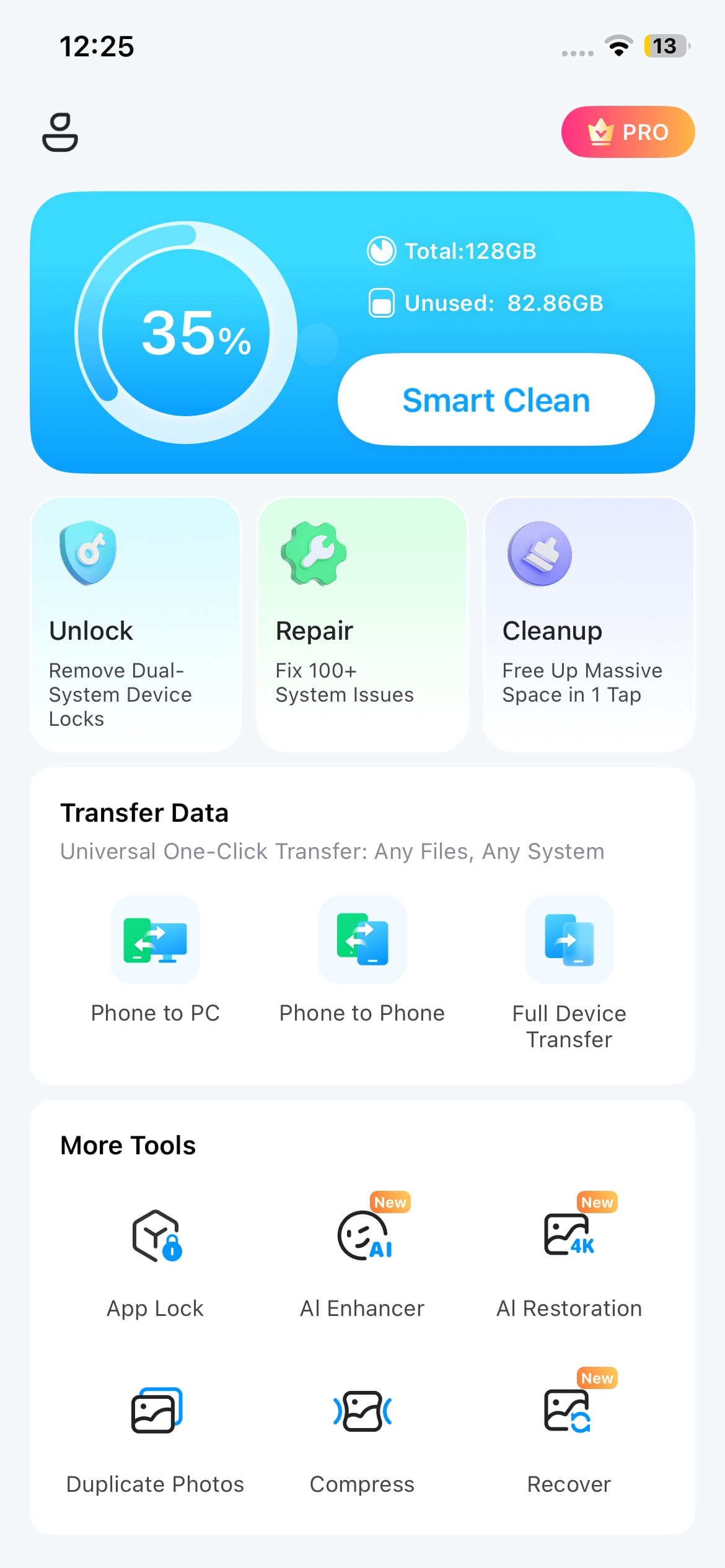
Step 1 Find the Compressor Feature
Open Dr.Fone App, browse to “More Tools,” and choose “Compressor.” This opens the section where you can reduce the size of photos or videos.
-
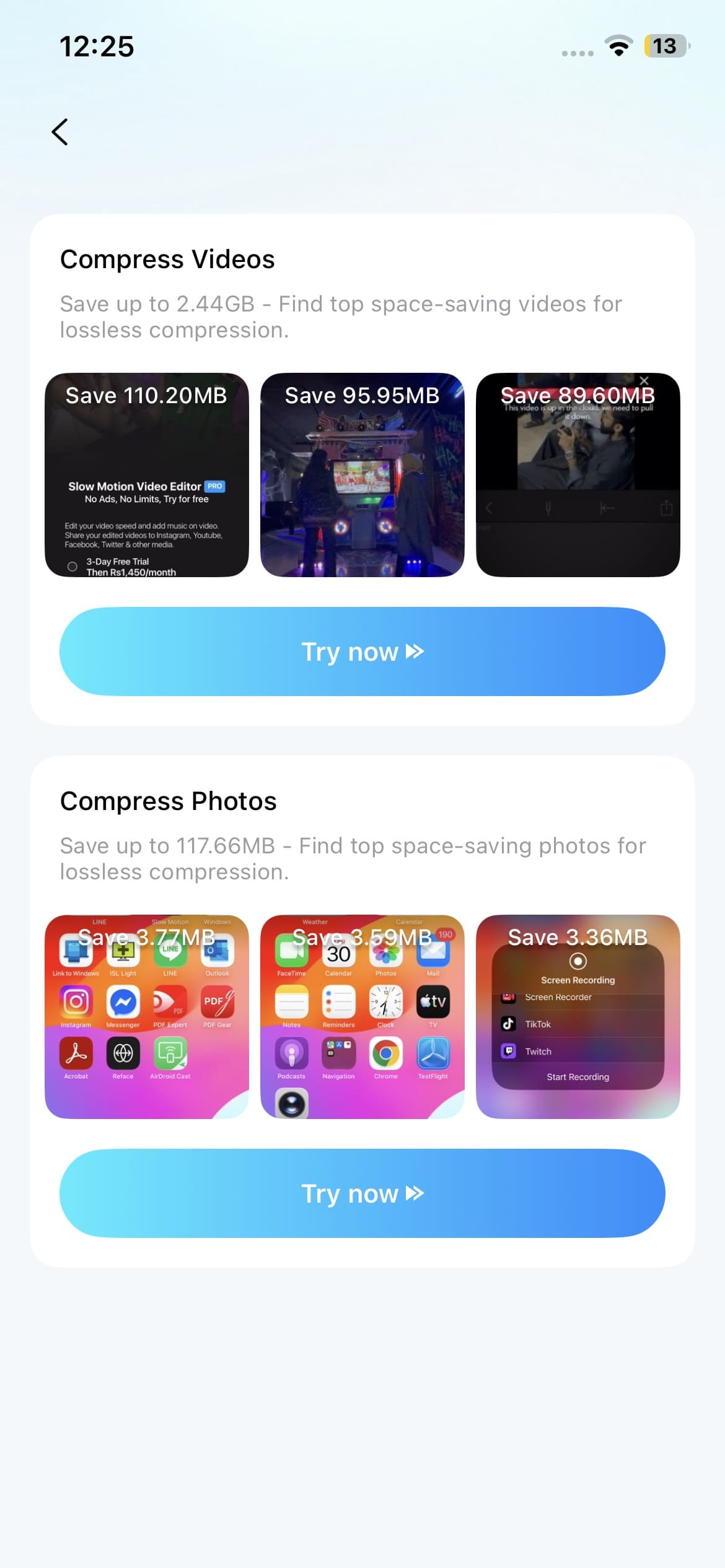
Step 2 Add the Photos You Want to Reduce
Tap “Try Now” in the “Compress Photos” section, then select the photo you want to process. The app will prepare it for compression and show the expected size change.
-
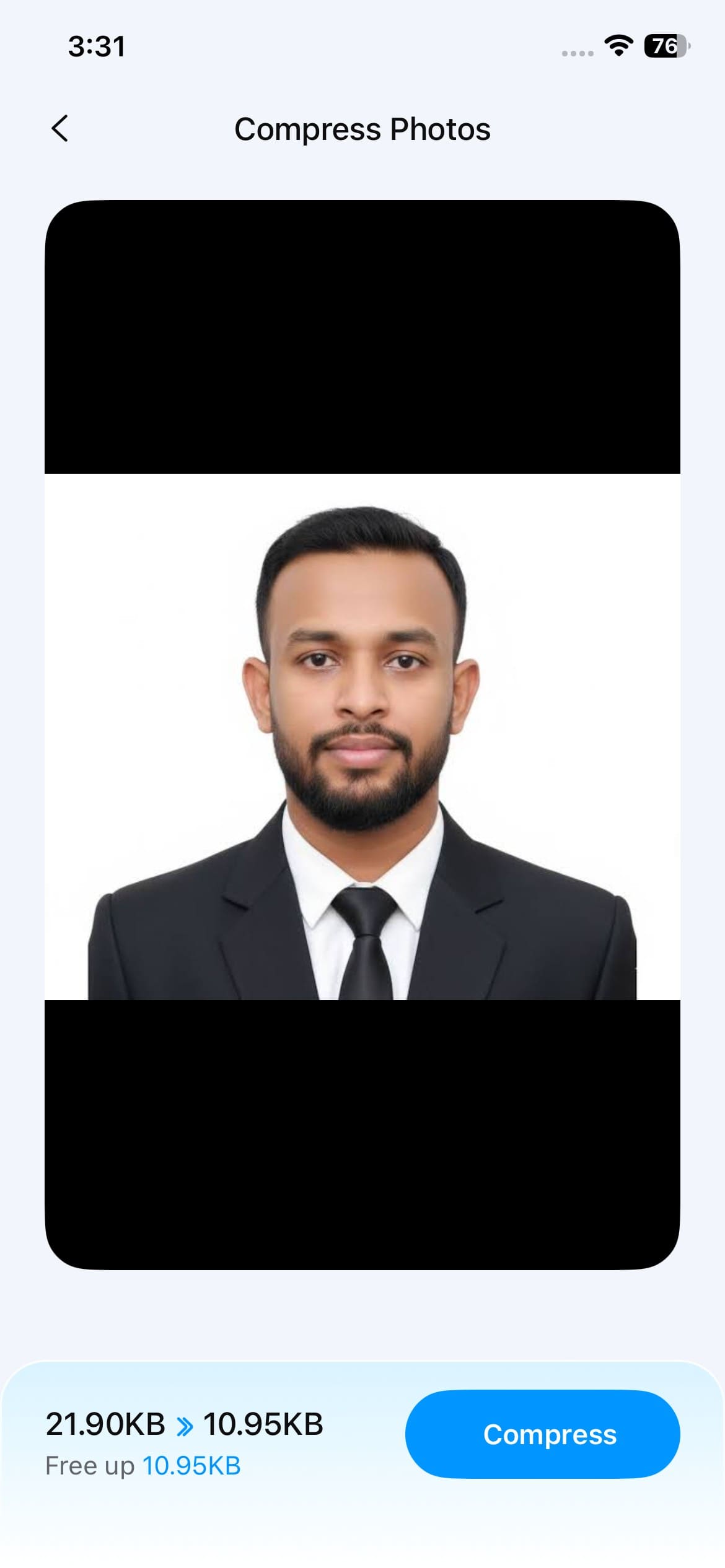
Step 3 Compress and Export the Smaller Photo
Check the estimated output size and tap “Compress” to begin. When the process finishes, preview the new version and confirm that the size and quality meet your needs. Tap “Save” to keep the compressed photo on your iPhone.
Best for: iPhone users who want an app to reduce image size as part of a wider photo and storage utility rather than a single-purpose photo compress app.
Worth noting: The official guide does not document exact-KB targeting or lossless compression. Don't assume those features unless they appear in the current app version.
2.2 Photo Compress - Shrink Pics — Best for Batch Storage Cleanup
Photo Compress - Shrink Pics focuses on reducing photo library storage. The current App Store listing supports single photos, multiple photos, and full albums. You can choose the JPEG compression ratio, resize image dimensions, preview the output, and compare storage before and after processing. JPEG Changing supports HEIC/HEIF along with other file types.
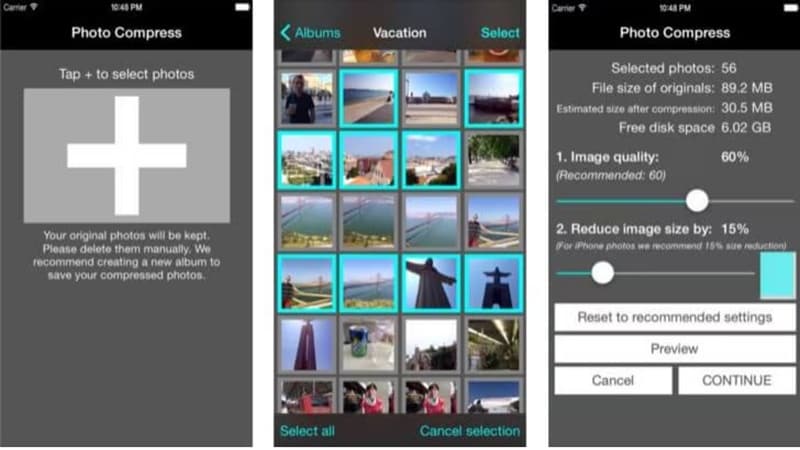
Best for: Best for compressing iPhone images when you're running short on storage space.
Keep in mind: The developer promotes minimal visible quality change, but the final result still depends on the compression level you choose.
2.3 Resize Photos — Best for Reducing Image Dimensions
Resize Photos takes a different route. It is not just a true file-data compressing tool but a resizing tool too. It comes with preset sizes and batch resizing which makes it easier to upload, email, or save large photos.
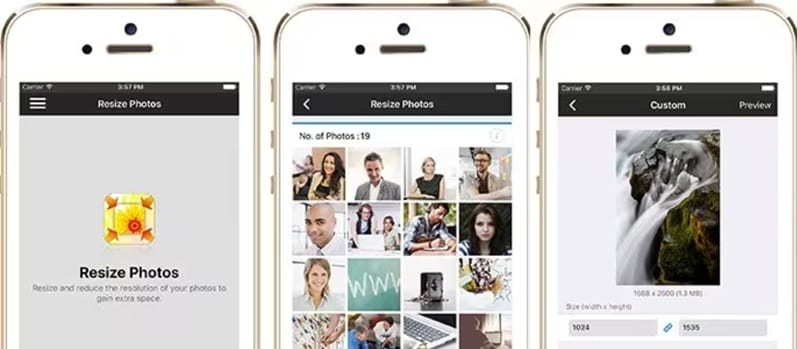
Best for: Users who mainly need smaller pixel dimensions rather than detailed compression controls.
Keep in mind: Its old App Store link from the source could not be independently verified as a current US listing, so availability should be checked before publication.
2.4 PhotoShrinker — Best for Simple Storage Reduction
PhotoShrinker is designed for shrinking huge libraries of photos. According to its current page in the App Store, it says that it is able to maximize photos to use up to one-tenth of their original storage. However, that will be a developer claim only and should not be considered a guarantee for every photo. The app also provides photo previews before processing.
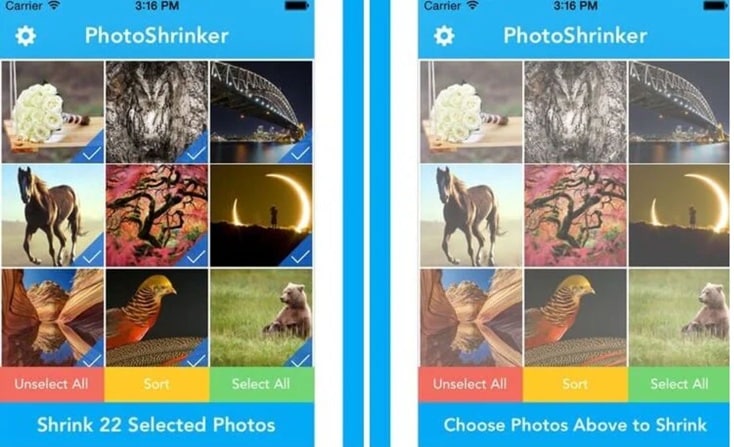
The current US listing shows PhotoShrinker as a paid app. Its last substantive version listed on the App Store dates back to 2017, and the developer has not provided App Privacy details to Apple.
Best for: Basic photo-library shrinking without many advanced controls.
2.5 Resize Image — Best for Quick Dimension Changes and Sharing
Resize Image is better described as an image resizer than a dedicated photo compress app. Its current App Store listing focuses on changing image dimensions through a simple interface, then exporting or sharing the result. The app has also offered pixel, percentage, aspect-ratio, and preset-size controls in its feature history.
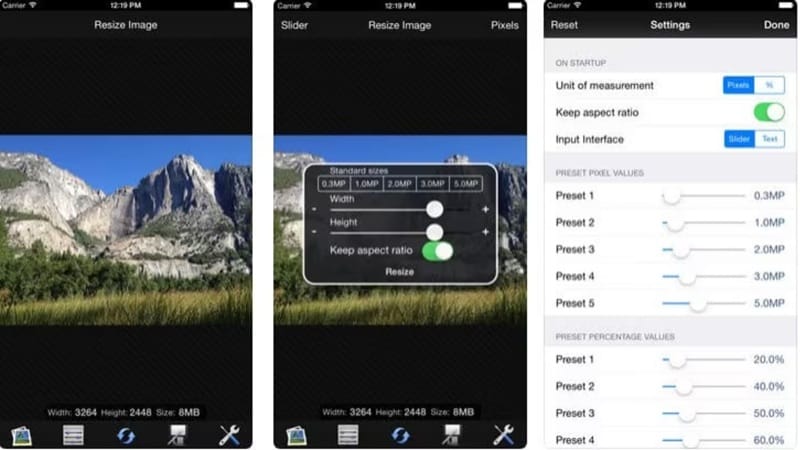
It is currently free to download with in-app purchases, including an option to remove ads.
Best for: Quickly making an image smaller in dimensions for websites, messages, or social sharing.
2.5 Pico – Compress Photos — Best for Preview and File Details
The supplied Wondershare 2026 roundup describes Pico as a compressor for photos and videos with preview tools, optimization settings, direct sharing, and file metadata information. It is aimed at balancing smaller media files with acceptable visual quality.
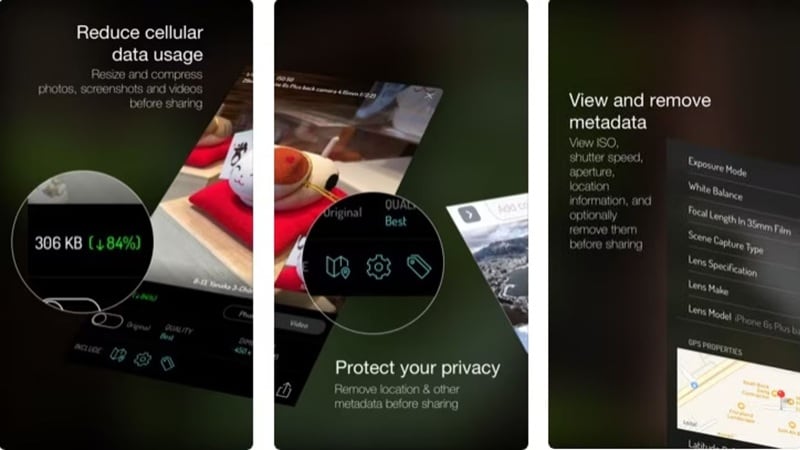
Best for: Users who want to inspect compression details and metadata before sharing media.
Keep in mind: The App Store link cited by the source could not be independently confirmed as a current US listing. Check its present availability before recommending an image compressor free download.
Part 3: Quick Image Compressor App Comparison
The best choice depends on whether you need true compression, smaller dimensions, batch storage cleanup, or more control over the final file.
| App | Best For | Compression Control | Target KB/MB | Batch Support | Format Tools | Main Differentiator |
|---|---|---|---|---|---|---|
| Dr.Fone APP* | Broader iPhone photo and storage utilities | Exact compression controls not specified for current Dr.Fone App | Not specified | Not specified for Dr.Fone App | Broader AI/photo tools | Multi-purpose phone toolkit |
| Photo Compress - Shrink Pics | Batch storage cleanup | Adjustable JPEG quality + optional resize | Not specified | Yes; photos and albums | HEIC/HEIF → JPEG | Storage-before/after view |
| Resize Photos· | Resizing and compressing by dimensions | Pixel, physical size, DPI and format controls | Not specified | Yes | JPEG, PNG, HEIC | Strong dimension and resolution control |
| PhotoShrinker | Simple storage reduction | Automatic photo optimization | Not specified | Multiple-photo workflow is supported; exact batch limit not clearly stated in current listing | Not specified | Storage-focused automatic shrinking |
| Pico – Compress Photos | Preview and file details | Optimization and dimension settings | Not specified | Not specified | Not currently verifiable | Compression preview + metadata tools |
Quick takeaway: Choose Photo Compress for batch storage cleanup, Resize Photos for dimension control, and PhotoShrinker for simpler shrinking. Dr.Fone suits users who want broader photo tools, while Pico is more focused on preview and file details.
Part 4: Which Image Compressor App Should You Choose?
Match the app to the job:
- Dr.Fone APP: Best if you want compression within a broader iPhone photo and storage toolkit.
- Photo Compress - Shrink Pics: Best for batch compression and freeing photo-library storage.
- Resize Photos·: Best when you need control over dimensions, DPI, and output format.
- PhotoShrinker: Best for simple, storage-focused shrinking with minimal setup.
- Pico – Compress Photos: Best for preview and file-detail checks, but confirm current availability first.
For strict KB limits: choose an app to reduce image size in KB only if it clearly lists target-size control.
4.1 Brief Note: App vs. Built-In iPhone Methods
A dedicated compressor is more useful when you need repeated controls, batches, target file sizes, or format tools.
For occasional work, Apple's current Preview app can export images in formats including HEIC, JPEG, PDF, PNG, and TIFF and provides a slider for adjusting file size.
For the full native workflow, keep those steps in a separate Compress Image on iPhone guide rather than mixing two different search needs here.
FAQ
-
1. Can I restore a compressed photo to its original quality?
Not after lossy compression if the original file is gone. Lossy compression permanently removes some image data. Keep the original until you are happy with the compressed copy. -
2. Does compression always reduce image resolution?
Not. Compression reduces files without changing the number of actual pixels. Certain applications provide the option of resizing which alters width and height separately. -
3. Is HEIC smaller than JPEG on iPhone?
Under normal circumstances, absolutely. According to Apple, HEIF/HEIC compresses better than JPEG and takes up less storage while delivering a similar visual experience. -
4. Does compressing a photo remove location metadata?
Not necessarily. Metadata handling depends on the app and export process. On iPhone, you can remove location information separately before sharing a photo. -
5. Can I compress the same photo more than once?
Yes, but repeated lossy compression can remove more image information and reduce quality. It is better to compress from the original file when possible.
Conclusion
The right image compressor app should fit the task, not just make a file smaller. Photo Compress - Shrink Pics suits batch storage cleanup, Resize Photos is better for dimension control, and PhotoShrinker keeps the process simple. For strict upload caps, choose an app to reduce image size in KB that clearly lists target-size support.
Dr.Fone stands out for users who prefer compression inside a broader iPhone photo and storage toolkit, with extra photo utilities beyond a single-purpose photo compress app. Before installing any app to reduce image size, check its current features, privacy details, pricing, and final image quality.


Selena Lee
staff Editor
Generally rated4.5(105participated)