

 TL;DR:
Dr.Fone App is a strong choice for damaged black-and-white photos because it combines AI colorization with restoration, face enhancement, and upscaling.
- Photomyne and Dr.Fone App suit users who want quick, one-tap mobile colorization.
- Colorize Black & White Photo is suitable when manual color adjustments are important.
- AI-generated colors are estimates, so keep the original monochrome photo and check free-use, export, and privacy limits before processing multiple images.
Ask AI for a summary
 ChatGPT
 Perplexity
 Gemini
 Claude
 Grok
Grok
Most photo colorization apps can add color in seconds, but choosing the right one involves more than judging the first result. Color realism, face quality, restoration support, export limits, privacy, platform availability, and manual controls can all affect the final experience.
This guide compares 5 popular options using those practical criteria, starting with Dr.Fone App. You will see how each app handles black-and-white photos, what its free access really includes, where processing happens, and which tools suit damaged, faded, or clean images. The comparison also explains how accurate AI colorization can be and which colorization app fits different photo needs in 2026.
- Part 1. What Is a Colorization App?
- Part 2. How to Choose the Best Colorization App
- Part 3. 5 Best Colorization Apps for Black-and-White Photos
- Part 4. Colorization App Comparison: Which One Should You Choose?
- Part 5. Free Colorizing App: What Should You Check Before Choosing One?
- Part 6. How Accurate Are Photo Colorizing Apps?
- Part 7. Which Colorization App Is Right for Different Photo Needs?
- Frequently Asked Questions
Part 1. What Is a Colorization App?
A colorization app uses AI to analyze a black-and-white photo and predict realistic colors for faces, clothing, objects, and backgrounds. Since the original image contains no reliable color information, the app estimates suitable shades from visual patterns learned during training. Most tools automate this process, making them useful for restoring old photos without advanced editing skills.
However, a photo colorizer app should be judged on more than one-tap colorization. The best options differ in color realism, face quality, export resolution, free-use limits, privacy, and restoration features. Some apps only add color, while others can also repair scratches, reduce blur, sharpen faces, or enhance damaged photos within the same workflow.
Part 2. How to Choose the Best Colorizing App?
To know how to choose the right photo colorizing app, the given table explains the criteria in detail:
| Factor | What to Check | Why It Matters |
|---|---|---|
| Color Realism | Natural skin, clothing, and background tones | AI predicts colors, so realistic-looking shades may still differ from the original scene. |
| Face Quality | Clear facial details and consistent skin tones | Faces draw attention quickly, making color and detail errors easier to notice. |
| Restoration Tools | Scratch, stain, blur, and damage repair | Old photos often need physical damage repaired before or alongside colorization. |
| Output Quality | Export resolution, sharpness, and compression | A strong preview matters less if the saved image loses quality or detail. |
| Manual Color Controls | Saturation, tone, or manual adjustments | Extra controls help correct inaccurate AI colors and refine the final appearance. |
| Free Access | Photo limits, ads, credits, and watermarks | Free plans may restrict processing, export quality, or the number of usable images. |
| Privacy | Local processing, cloud use, and deletion policies | Personal family photos may be uploaded to external servers during processing. |
| Ease of Use | Steps from import to final export | A good colorization app should deliver usable results without requiring complex editing skills. |
Part 3. 5 Best Colorization Apps for Black-and-White Photos
Based on the criteria above, this section reviews and compares the 5 best applications. Get to know which is the best colorizing app that suits your needs and compare it with others.
1. Dr.Fone App (Android | iOS)
The best colorizing app for you depends on what else your photo needs, and Dr.Fone App is designed around that idea. It groups its photo tools under the AI Tools section. With AI Restoration, you can choose between Restoration and Colorize modes. The Colorize mode processes the image automatically and lets you compare the result before saving.
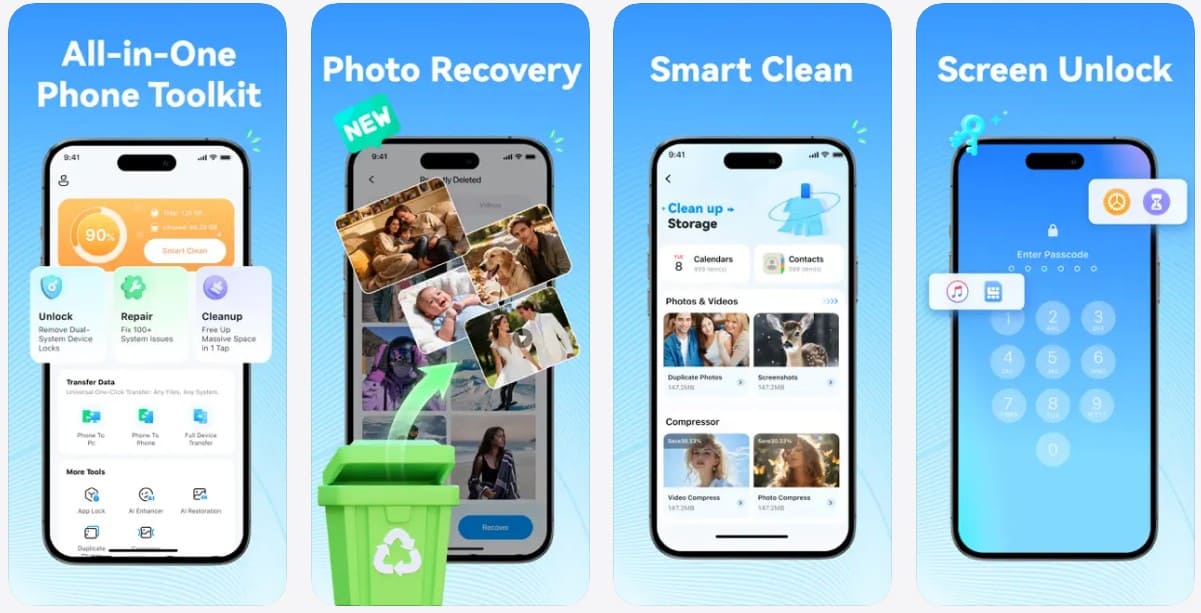
Users can also restore the photo first and colorize it afterward within the same workflow. Photo Restoration targets cracks, dust, stains, and blurred faces, while AI Photo Enhancer supports enlargement up to 8x. The app is easy to use and works well for enhancing individual old photos without advanced editing skills.
Dr.Fone App - AI Photo Restorer & Enhancer (iOS & Android)
Restore, Colorize, Enhance, and Upscale Photos with AI
- Restore Old Photos by Fixing Creases, Tears, and Scratches
- Colorize Black-and-White Photos with AI
- Auto-Enhance Photos and Improve Portrait Details to HD Quality
- Upscale Images to 2x, 4x, or 8x for Clearer Results



2. Colorize by Photomyne (Android | iOS)
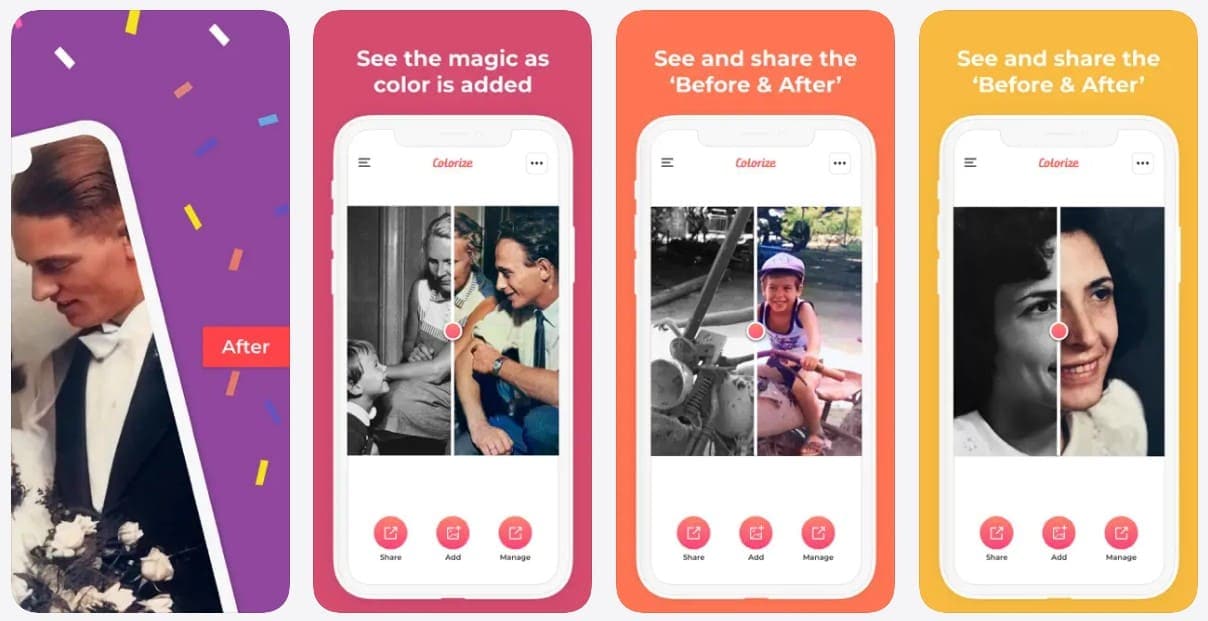
While Dr.Fone combines multiple photo tools, this colorize app focuses mainly on quick black-and-white photo colorization. It automatically adds color and lets users save or share the finished result. Premium access supports broader use without the free-tier limits. Users can import photos from device storage or capture printed pictures using the camera.
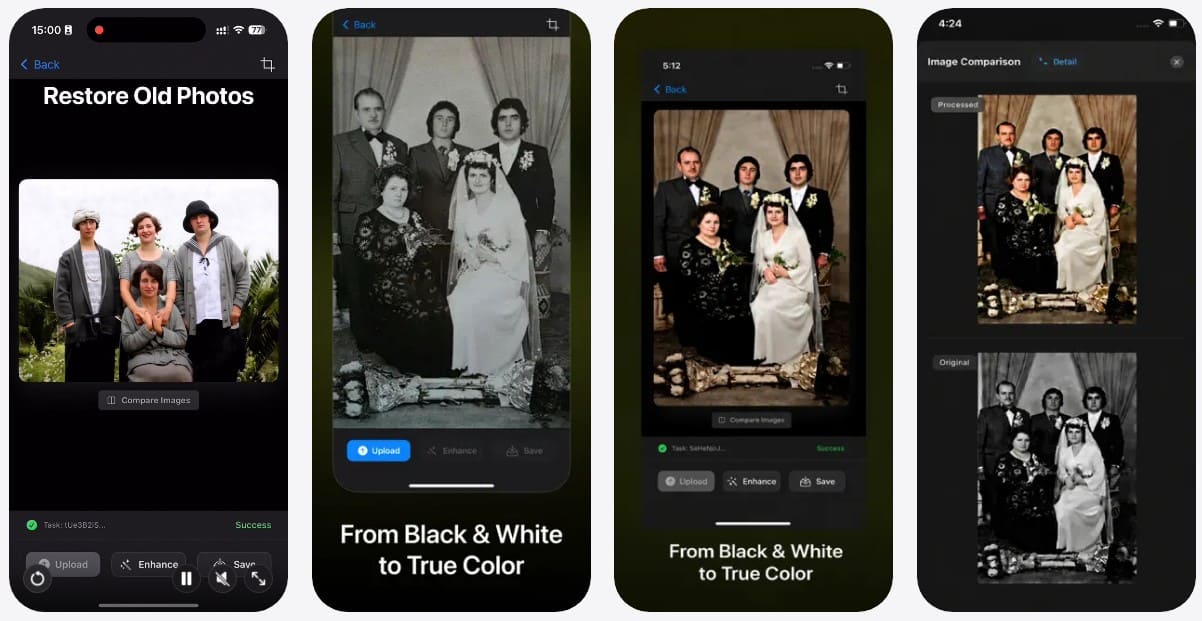
3. Colorize - Restore Old Photos (Android | iOS)
This photo colorizer app automatically adds realistic colors to black-and-white portraits, landscapes, and historical photos. It can also repair cracks, stains, tears, faded areas, and visual noise in older images. Like Dr.Fone App, it lets users compare the restored result with the original. Uploaded photos are also removed from its servers within 24 hours.
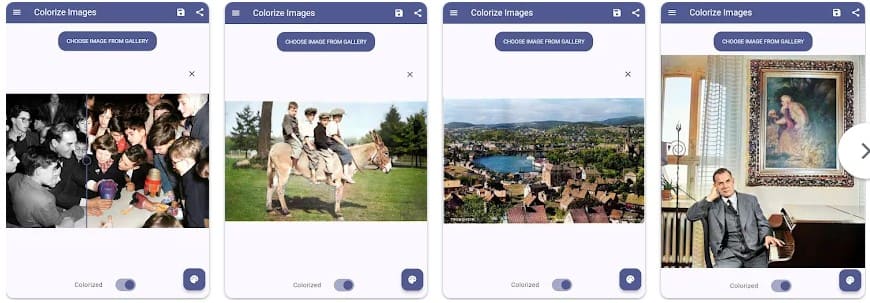
4. Colorize Images (Android)
Colorize Images uses deep learning models on remote GPU servers to process photos without placing the full workload on your phone. This colorize app supports images from galleries, cameras, and sharing options such as Chrome, WhatsApp, Facebook, or Google Photos. It works with JPEG and PNG files, including scans of film, Polaroids, and printed photos.
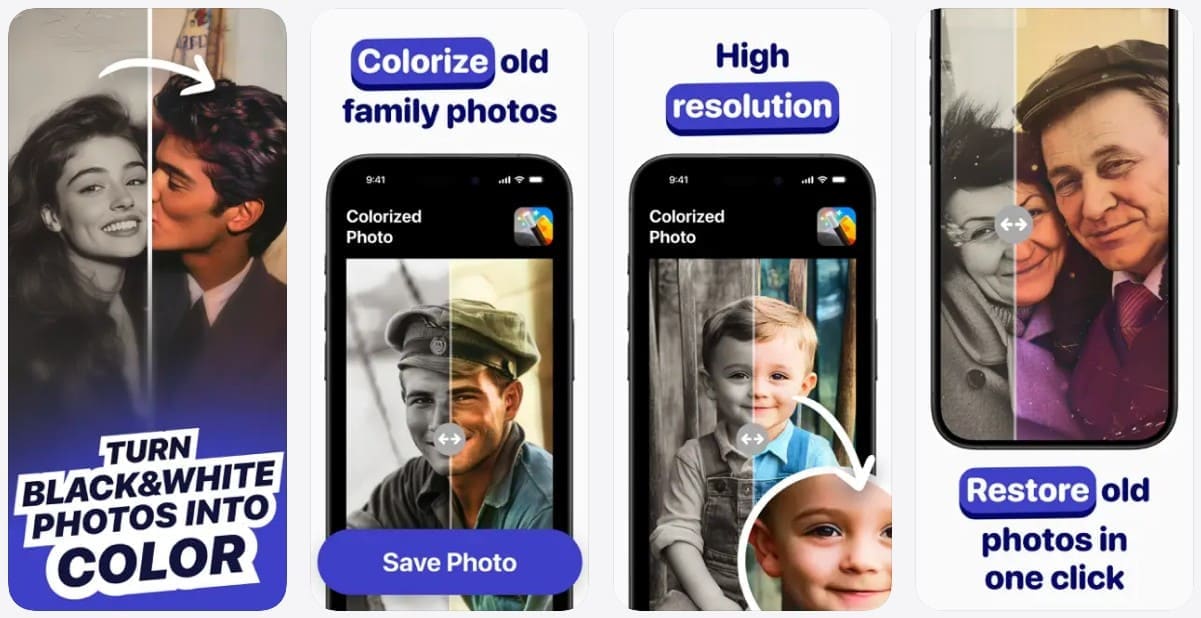
5. Colorize Black & White Photo (iOS)
As another best colorize photo app, it automatically adds natural-looking color to old black-and-white photos using AI. Additionally, iOS users can fine-tune shades for a more personalized result. After colorizing, you can compare the original and updated versions side by side. Overall, the app produces clear colorized photos suitable for printing or digital sharing.
Part 4. Colorization App Comparison: Which One Should You Choose?
This section compares all 5 options to help you choose the best colorizing app for your photo needs in 2026.
| App | Colorization Method | Photo Processing | Free Access | Restoration Features | Result Control |
|---|---|---|---|---|---|
| Dr.Fone App | Automatic, one tap | On device | Limited free use | Cracks, stains, face enhancement, 8x upscaling | Before-and-after comparison |
| Colorize by Photomyne | Automatic, one tap | Not clearly stated | First few photos free | Colorization focused | Simple result review |
| Colorize - Restore Old Photos | Automatic | Not clearly stated | Free with in-app purchases | Scratch repair, face enhancement, upscaling | Before-and-after comparison |
| Colorize Images | Automatic | Remote GPU servers | Free with ads | Mainly colorization | Colorization settings available |
| Colorize Black & White Photo | Automatic with manual edits | Not clearly stated | Free with in-app purchases | Mainly colorization | Manual color adjustments |
Verdict: Dr.Fone App is a strong choice for old or damaged photos because it combines AI colorization with restoration tools. It also supports scratch repair, face enhancement, and upscaling in one workflow.
Guide to Use Dr.Fone App AI Photo Restoration Tool
To see how this colorize app works in practice, follow the steps below to colorize and restore an old photo with Dr.Fone App:
-
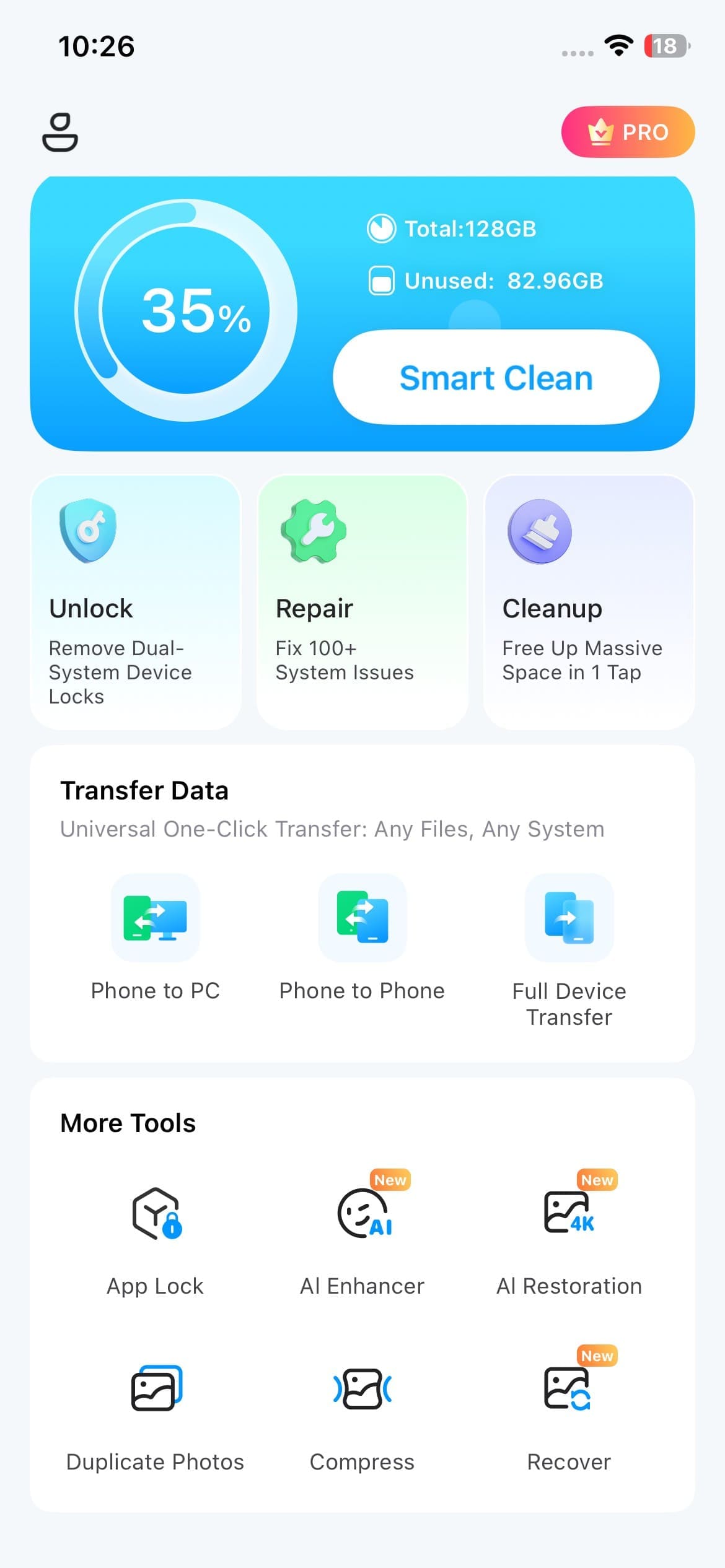
Step 1 Access the AI Restoration Tool
Launch Dr.Fone App and select “AI Restoration” to access its Restoration and Colorize modes.
-
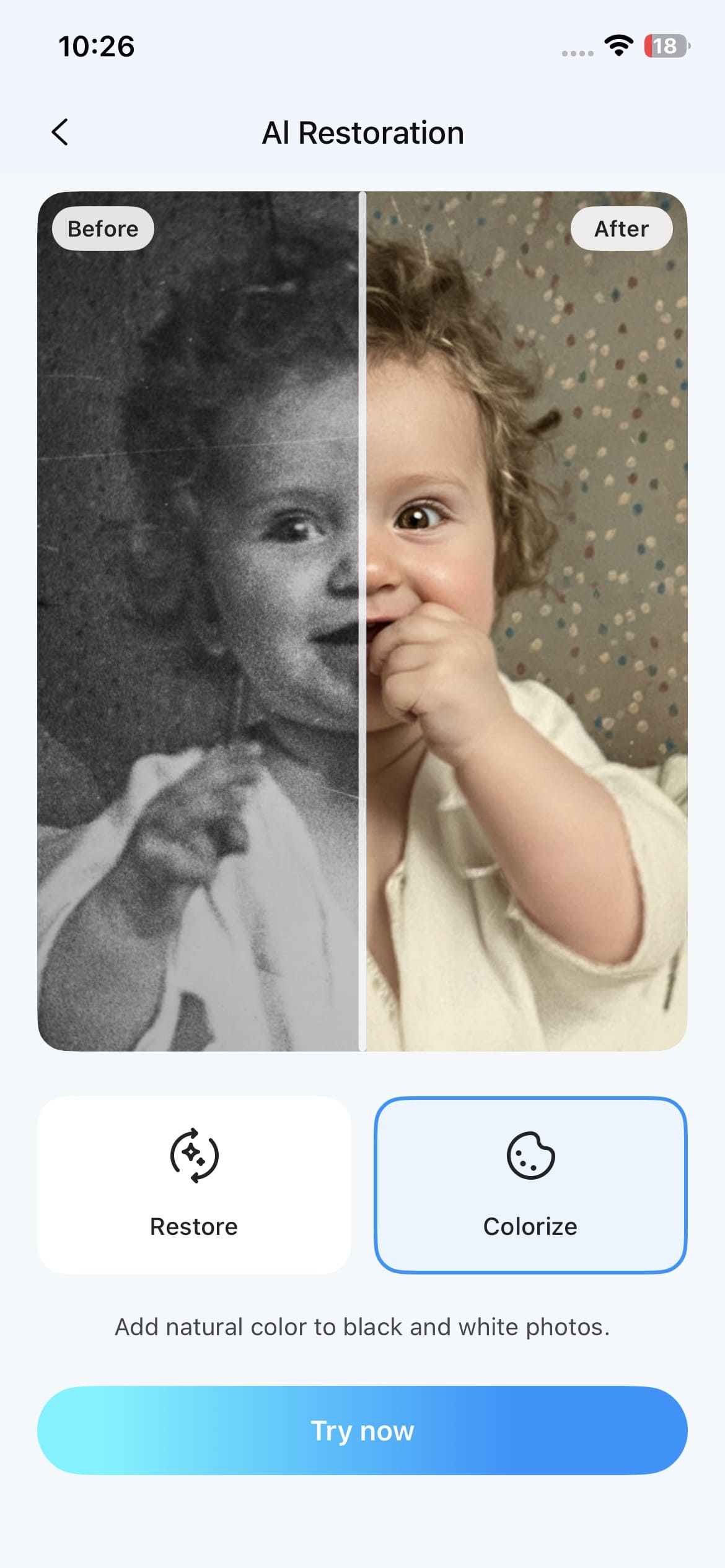
Step 2 Choose Colorize and Try Now
Choose “Colorize” and tap “Try Now.” Then, select the photo you want to import and process.
-
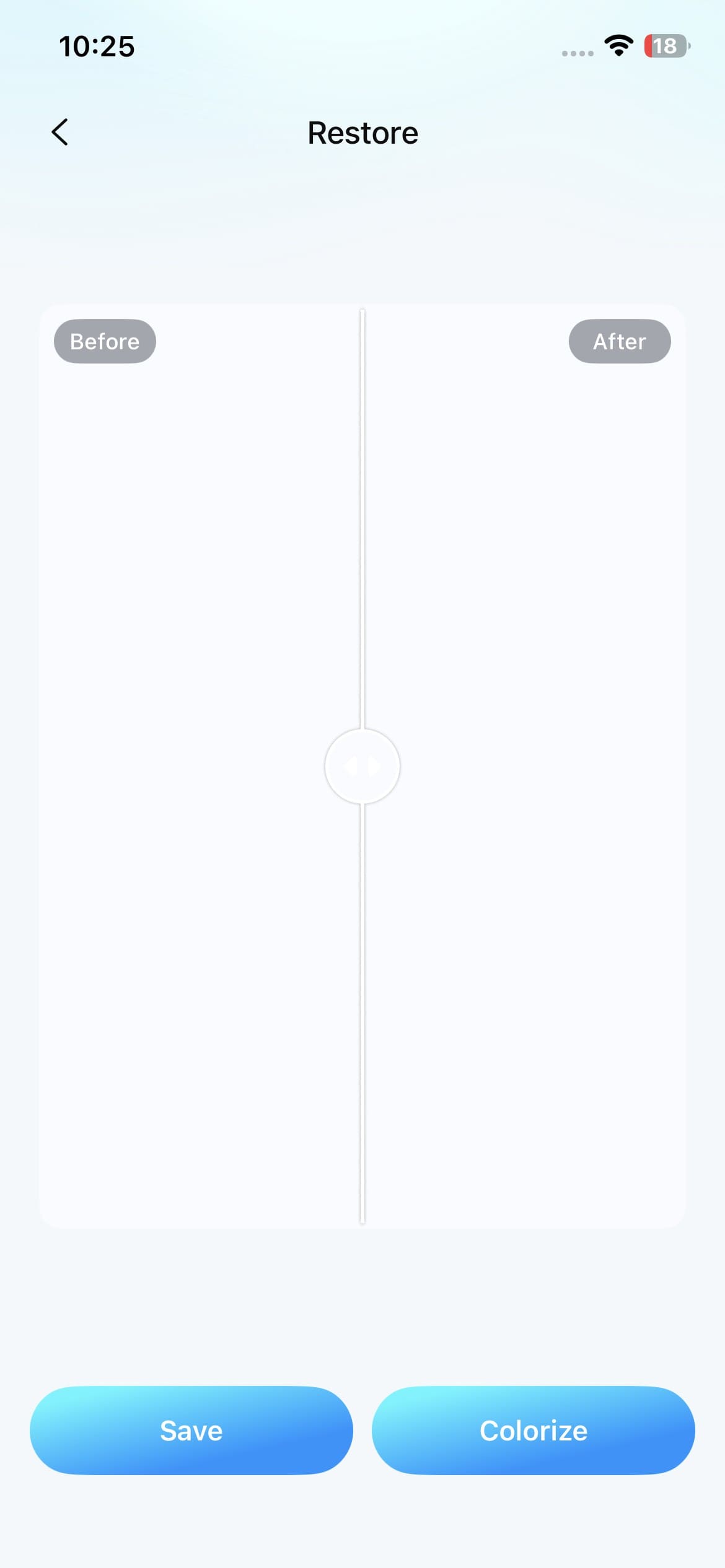
Step 3 Review Your Colorized Photo
Compare the original and colorized results, then tap “Save” to export. Use “Restoration” separately if needed.
Part 5. Free Colorizing App: What Should You Check Before Choosing One?
Many users search for a free colorizing app without knowing how much the free experience can vary between tools. Before choosing one, it helps to understand what “free” actually includes and where common restrictions may appear.
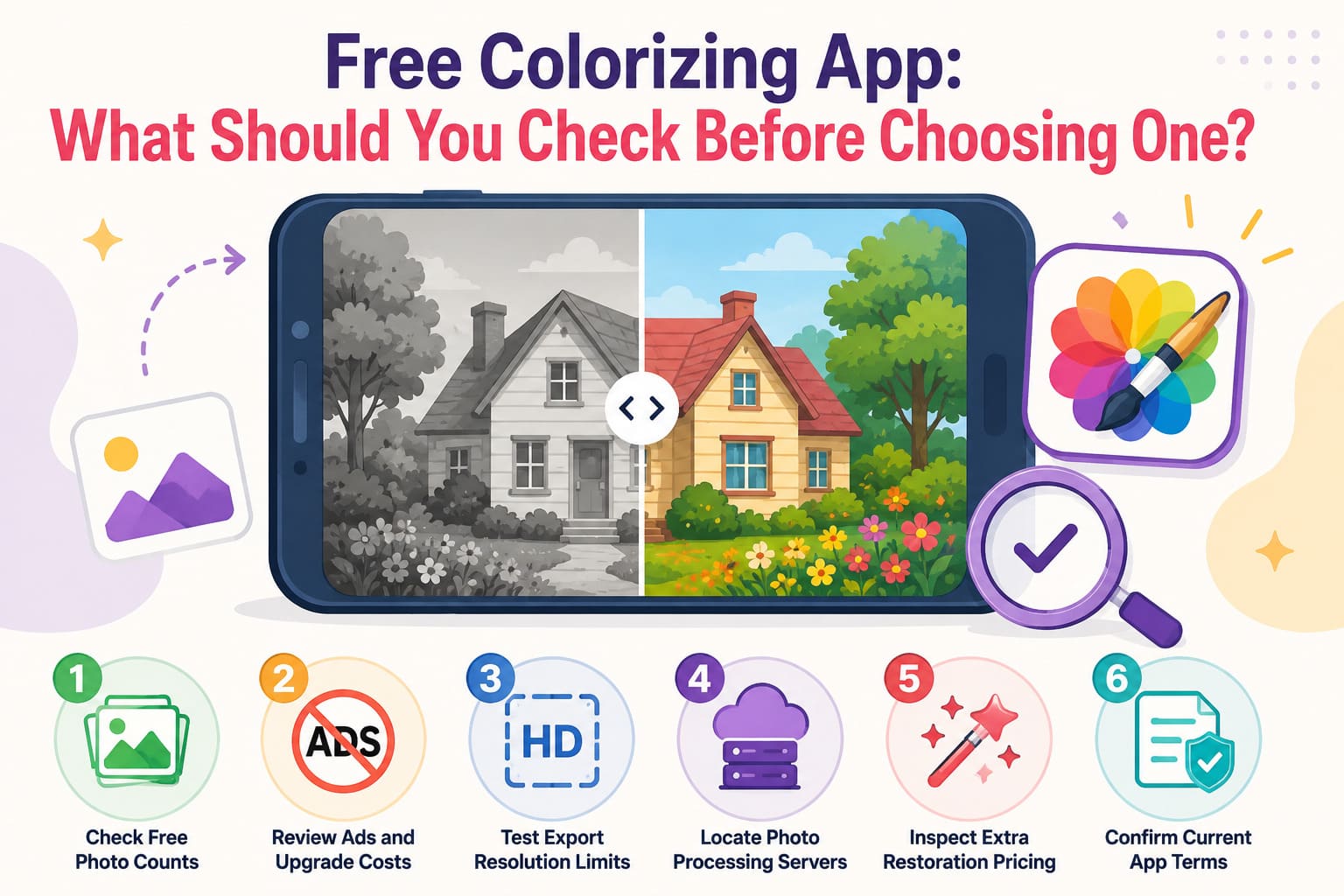
- Check Free Photo Limits: Confirm how many images you can colorize before payment is required. Photomyne offers the first few photos for free before requiring paid access. Dr.Fone App also provides limited free uses across its AI tools.
- Review Ads and Upgrade Costs: Some free apps offset processing costs through advertisements or paid upgrades. Colorize Images supports ad-based free colorization, while paid options provide additional benefits and remove some free-tier restrictions.
- Check Export Quality: Find out whether free exports retain good resolution or introduce watermarks, compression, or other restrictions. Dr.Fone App allows HD-quality exports without a watermark during its available free AI uses.
- Review Photo Processing and Privacy: Check whether personal photos are processed locally or uploaded to external servers. Colorize Images uses remote servers for processing, with uploaded images generally removed within 24 hours unless its quicker removal option applies.
- Check Restoration Access: Colorization and photo restoration are not always included under the same free allowance. Look for scratch removal, blur correction, face enhancement, and damage repair, then confirm whether these features require separate credits or payment.
- Confirm Current App Terms: Free limits, subscriptions, and prices can change between regions and app stores. Colorize Images reports that pricing can vary with applicable taxes, so review the latest terms before subscribing.
Part 6. How Accurate Are Photo Colorizing Apps?
Accuracy also matters when choosing a colorize app because AI predicts colors rather than recovering the originals, so results can vary. These 5 points explain the main accuracy limits:
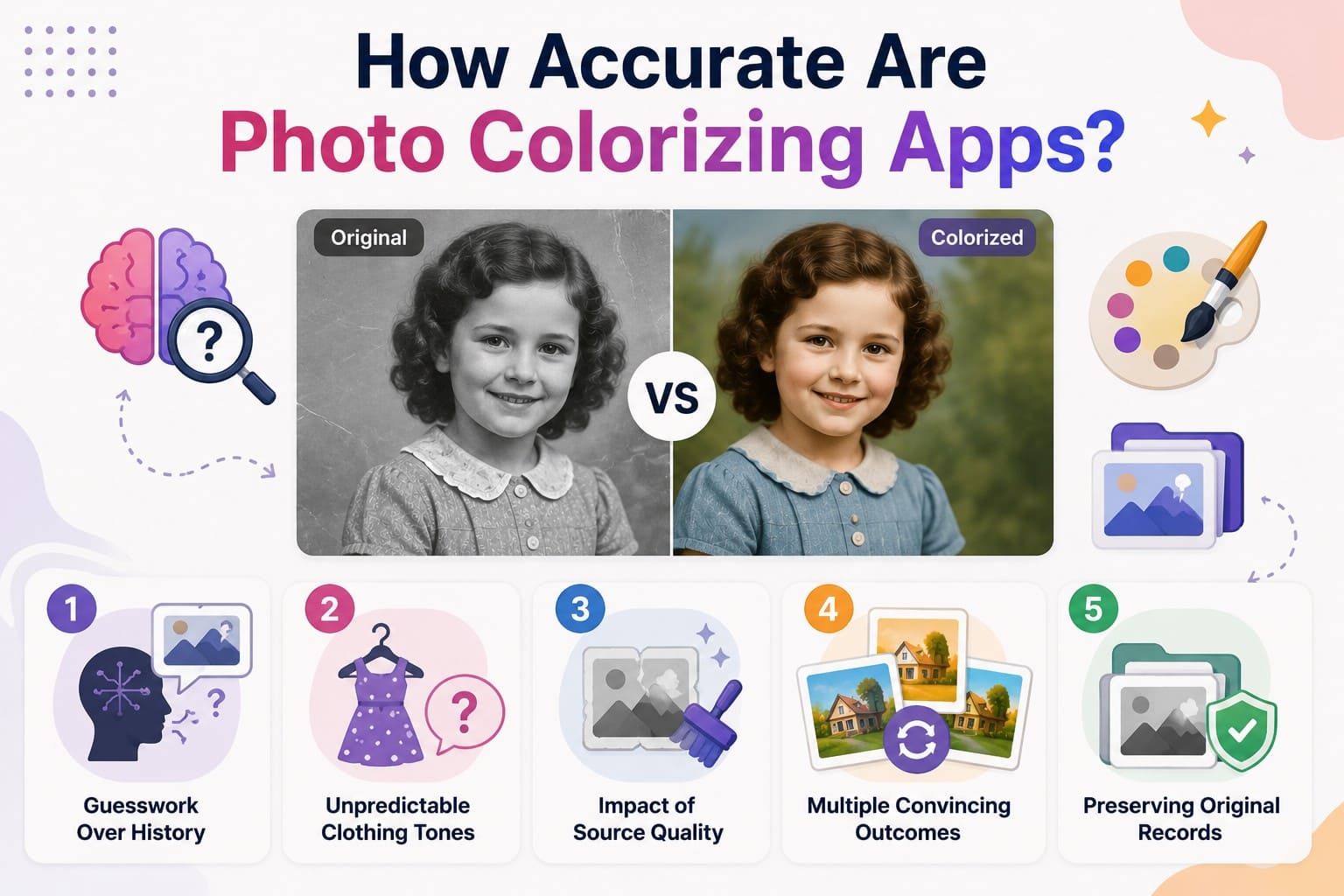
- Guesswork Over History: Artificial intelligence predicts shades from learned patterns instead of recovering original colors. MyHeritage confirms that generated colors are estimates and may not match reality.
- Unpredictable Clothing Tones: Clothing and similar objects often lack reliable visual clues about their original shades. Plausible colors should not be treated as factual historical evidence.
- Impact of Source Quality: Faded, blurry, or scratched originals give AI less visual information to work with. Better source quality generally helps produce cleaner and more convincing colorization.
- Multiple Convincing Outcomes: The same black-and-white image can support several plausible color interpretations. Manual controls can help refine results when the first automated version looks inaccurate.
- Preserving Original Records: Keep the untouched monochrome photo alongside any colorized version. AI-generated colors should be treated as interpretations rather than definitive historical records.
Part 7. Which Colorization App Is Right for Different Photo Needs?
Use this table to compare options and choose the best colorizing app for your photo needs and preferred level of control.
| Photo Need | What to Prioritize | Suitable App |
|---|---|---|
| Colorize and Restore Together | Colorization with built-in repair tools | Dr.Fone App |
| Damaged Old Photos | Scratch, blur, and face restoration | Dr.Fone App or Colorize - Restore Old Photos |
| Improve Low-Quality Photos | Enhancement and upscaling with colorization | Dr.Fone App |
| Simple Mobile Editing | Easy AI workflow with minimal technical steps | Dr.Fone App or Colorize by Photomyne |
| Quick One-Tap Colorization | Fast processing with minimal steps | Colorize by Photomyne or Dr.Fone App |
| Manual Color Adjustment | Post-colorization editing controls | Colorize Black & White Photo |
Conclusion
Choose a colorization app based on the condition of your old photos and the level of editing they need. Simple scans may only require quick colorization, while damaged images benefit from restoration and enhancement tools.
Dr.Fone App combines colorization with scratch repair, face enhancement, and image upscaling, making it a practical option for restoring family photos. Before processing multiple images, review the app’s current free-use and export limits.
FAQ
-
1. What is the best app for colorizing black-and-white photos?
Dr.Fone App is a strong choice for old or damaged photos because it combines AI colorization with restoration, face enhancement, and upscaling. For clean photos that only need color, a simpler one-tap app may be enough. -
2. Is there a free colorizing app for old photos?
Several apps offer free colorization with limits. Photomyne provides a few free photos, while other tools may rely on ads or paid upgrades. Dr.Fone App also offers limited free uses across its AI tools and modes, with watermark-free exports during those available uses. -
3. Are AI colorizing apps historically accurate?
A photo colorizing app predicts likely colors from learned patterns rather than recovering the original shades. Different apps may produce different results for the same photo, so keep the untouched black-and-white version for historical reference. -
4. Can a photo colorizer app also restore damaged old photos?
Dr.Fone App and Colorize - Restore Old Photos can repair and colorize old images in one workflow, while Photomyne and Colorize Images focus mainly on colorization. For damaged photos, choosing an app with restoration tools can save extra editing steps.







Selena Lee
staff Editor
Generally rated4.5(105participated)