


 TL;DR:
Compressing WhatsApp videos effectively requires adjusting your file to fit specific platform limits by trimming clips to 90 seconds for Status, reducing chat videos below the 100 MB or 64 MB connection-based thresholds, or bypassing compression entirely by sharing up to 2 GB files as documents.
● Depending on your operating system, you can reduce video sizes locally using the Dr.Fone App on iPhone, exporting 720p or 480p MP4s via Clipchamp on Windows, saving lower-resolution MOV files through QuickTime Player on Mac, or using Media.io for browser-based processing.
● When manually adjusting video settings, prioritize trimming unnecessary footage and dropping the frame rate to 30 fps, ensuring you always apply these changes directly to the original source file to prevent cumulative quality loss.
● Avoid excessively shrinking standard chat and Status videos before sending, because WhatsApp automatically reprocesses these uploads; since Status lacks an HD media option, over-compressing beforehand will severely degrade fine details in text, faces, and dark scenes.
Ask AI for a summary
 ChatGPT
 Perplexity
 Gemini
 Claude
 Grok
Grok
The best way to compress video for WhatsApp depends on how you plan to share it. Regular chats have file size limits, while Status videos have a duration limit. Sending a video as a document follows a separate file-sharing workflow, making the right approach important for balancing size and quality.
Trimming unnecessary footage, lowering resolution, and adjusting bitrate can make large videos easier to share. This guide explains practical compression methods for iPhone, Windows, Mac, web browsers, and WhatsApp Status, starting with the Dr.Fone App.
In this article
Part 1. How Are You Sending the Video on WhatsApp?
Before you compress video to WhatsApp, first consider how you plan to share it. Videos sent through chats, Status, and document sharing follow different limits and processing rules. Choosing the right sharing method helps you reduce the file size without sacrificing more video quality than necessary.
| Sharing Method | Limit or Rule | What Happens to Quality | Best Approach |
|---|---|---|---|
| Chat Video | 100 MB at 720p on faster connections, 64 MB at 480p on slower ones | Standard media is compressed, while HD quality is available for chats | Compress only enough to meet the applicable limit |
| Status | Maximum 90 seconds | HD quality is unavailable, and uploaded quality may be reduced | Trim longer clips before applying stronger compression |
| Document | Up to 2 GB per file | Uses a separate file sharing workflow instead of normal media sharing | Use when preserving the original file quality matters most |
WhatsApp may process regular media after upload, so avoid compressing videos more than necessary. The HD quality option can preserve more detail in supported chats, although some processing may still occur. For larger videos, prioritize a practical file size without sacrificing unnecessary quality. Document sharing is a better alternative when preserving the original file matters more than inline playback.
Part 2. What Should You Reduce Before Compressing a WhatsApp Video?
Before you compress a WhatsApp video, trim unnecessary footage first. Next, lower 4K or 1080p resolution when that level of detail is unnecessary. Reducing bitrate can further decrease file size without changing the video dimensions. You can also convert 60 fps footage to 30 fps when smoother motion is not essential.
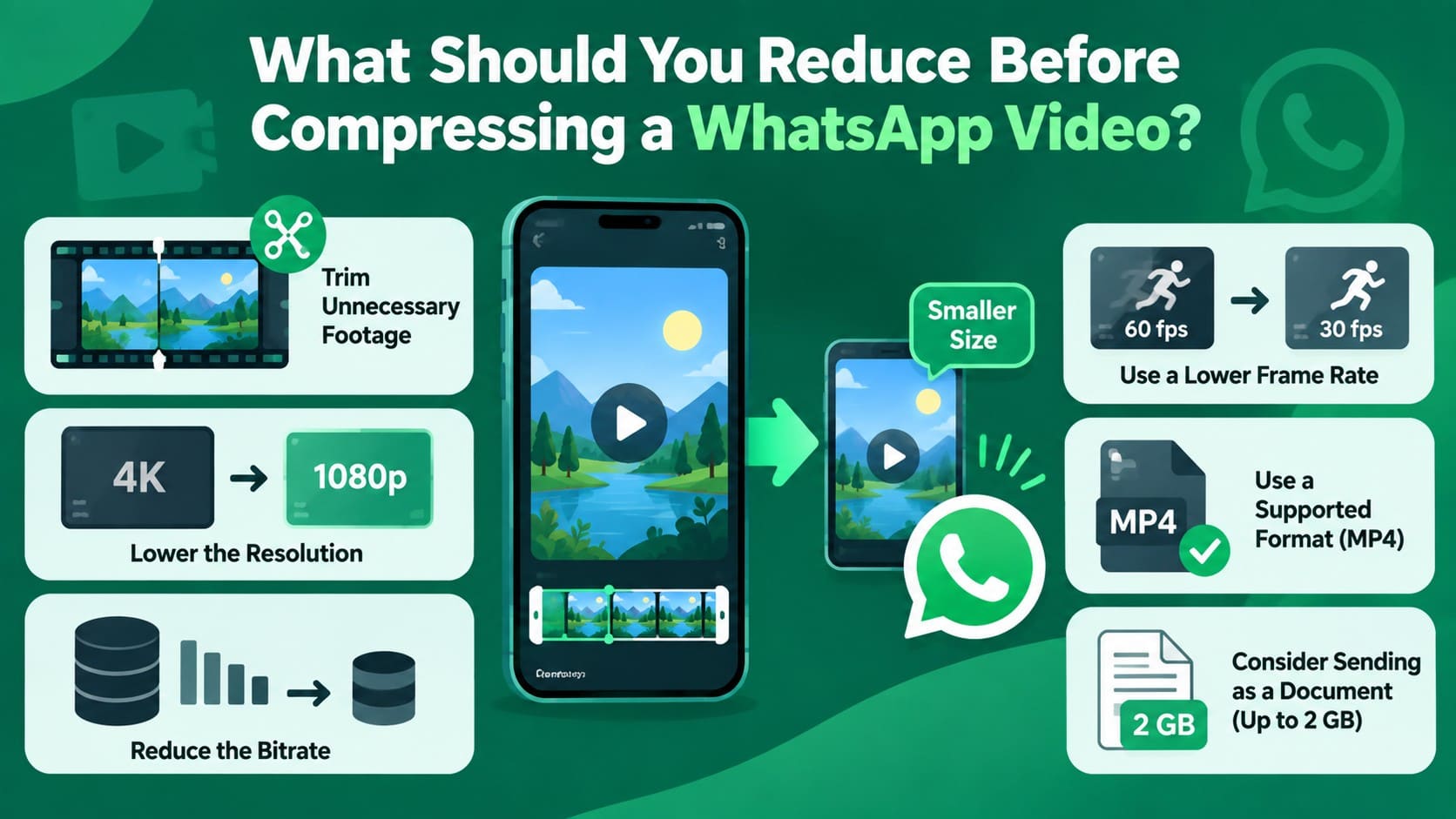
Format can also affect compatibility. MP4 is among the video formats officially supported by WhatsApp. When maintaining quality matters more than inline playback, consider sending the video as a document instead of compressing it heavily. This method supports files up to 2 GB.
Part 3. 4 Ways to Compress Video for WhatsApp
Whether you want to compress video for WhatsApp on iPhone, Windows, Mac, or online, the aim is to reduce file size while preserving as much quality as possible. The following 4 methods provide practical options for different devices and platforms.
Method 1. Compress WhatsApp Video on iPhone with Dr.Fone App
The Dr.Fone App offers a convenient way to reduce video size for WhatsApp directly on an iPhone. It lets you select large videos from your device, compress them, and save smaller copies for easier sharing. This can be particularly useful for camera videos, screen recordings, and longer clips that take up significant storage or are too large for convenient sharing.
Compression takes place locally on the iPhone, so your videos do not need to be uploaded to an external server. The app also helps you find larger files by organizing videos from latest to largest and includes photo compression for additional storage management. After compression, you can preview the smaller copy before sharing it on WhatsApp. The original can then be kept or removed later based on your storage needs.
Simple Guide to Compress Video for WhatsApp on iPhone
Here is how to compress videos for WhatsApp using the Dr.Fone App in 3 simple steps:
Dr.Fone App - Photo & Video Compressor for iPhone
Compress Photos & Videos to Free Up iPhone Storage
- Compress Large Photos to Reduce File Size
- Compress Large Videos Instead of Deleting Them
- Free Up More Storage Space for New Photos, Videos, and Apps
- Manage Space-Consuming Photos and Videos More Efficiently



-
Step 1. Select the Video Compressor
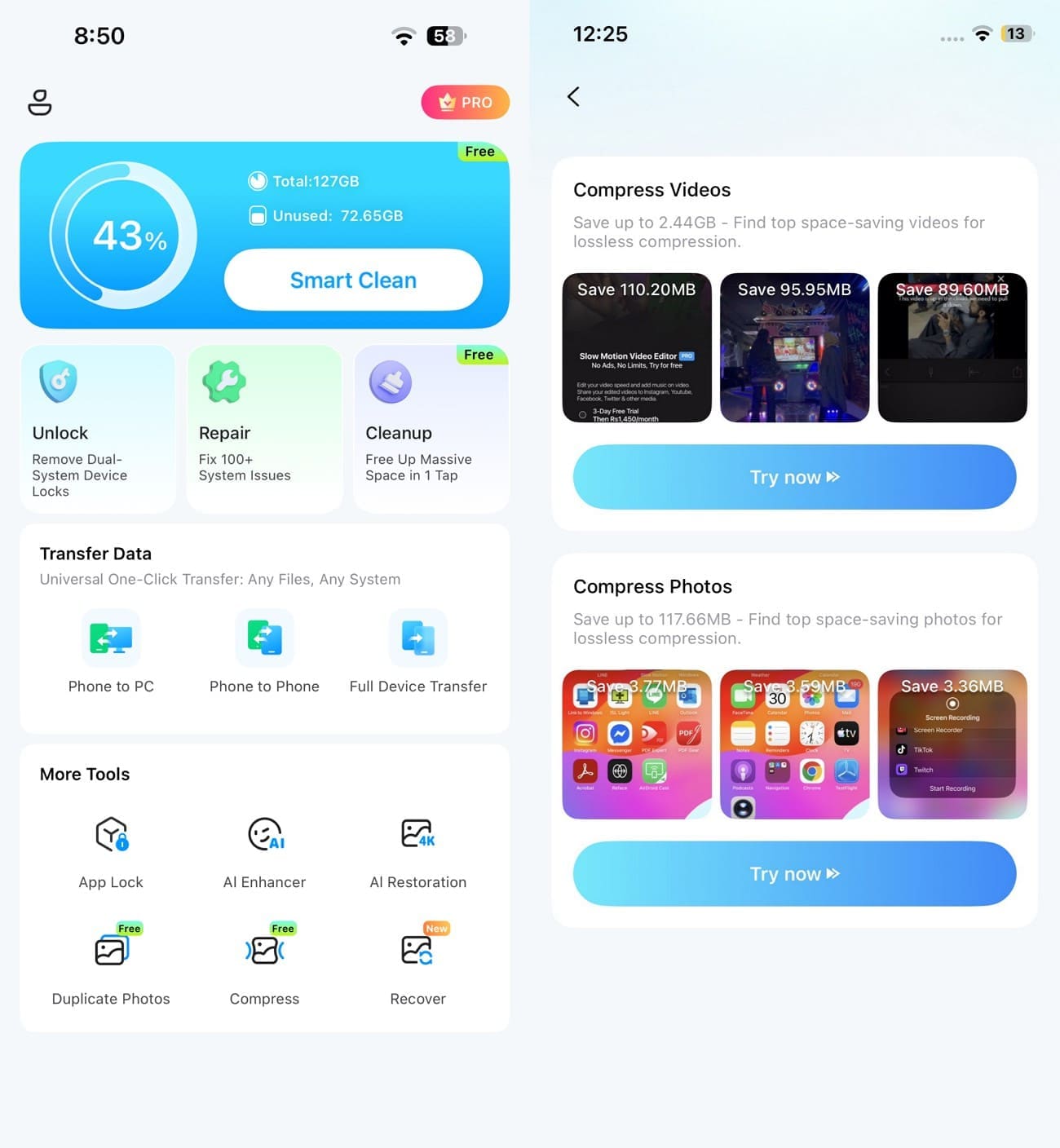
Install the app, then go to the “More Tools” section and select the “Compress” Tool. Go to the “Compress Videos” section and tap “Try Now” to choose the video you want to compress for WhatsApp.
-
Step 2. Compress the Video for WhatsApp Locally
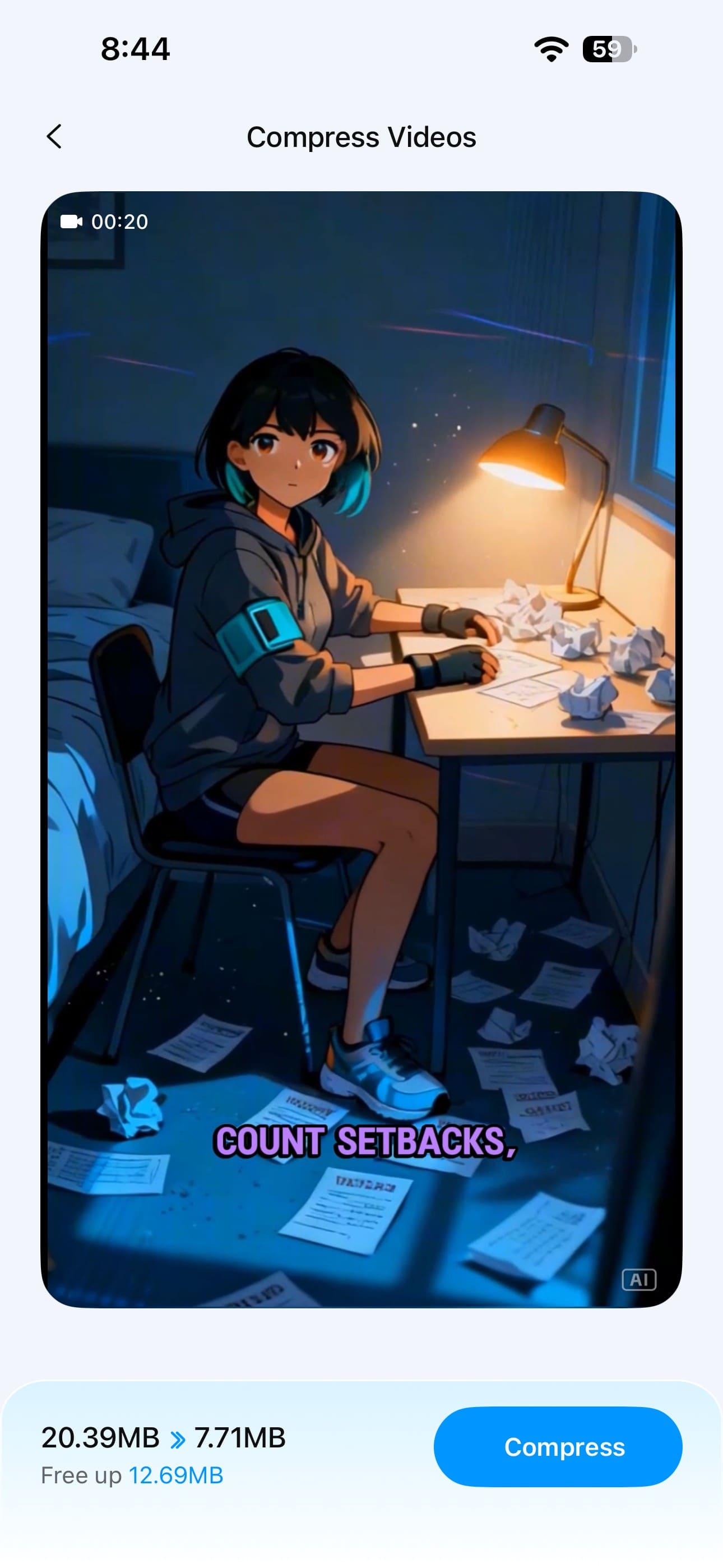
Review the “Free Up” details at the bottom and press the “Compress” button. The app processes the video on your device and creates a smaller copy.
-
Step 3. Review and Send the Compressed Video
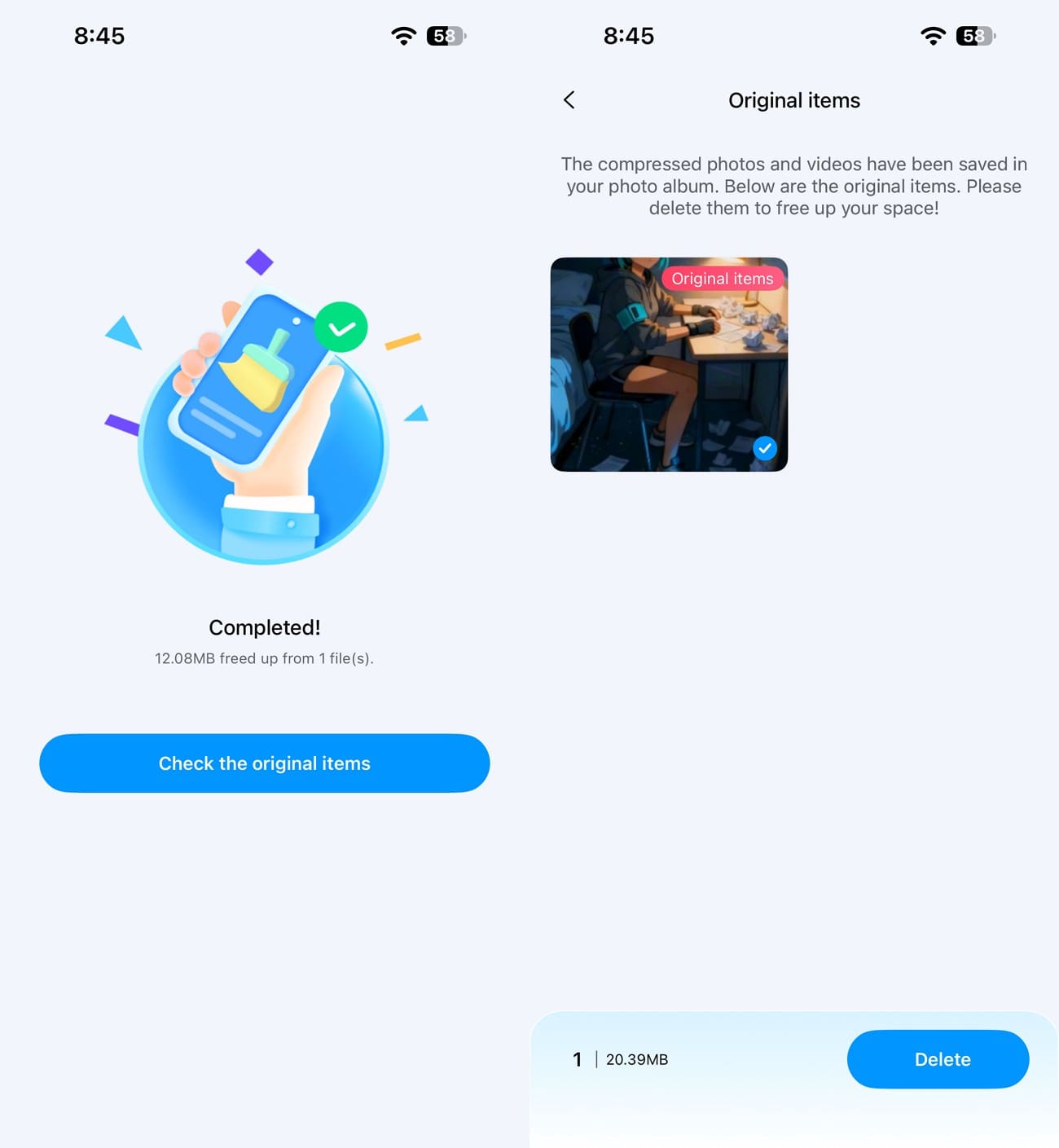
After compression, tap “Check the Original Items” to review the source video and delete it only if you no longer need it. Next, open WhatsApp, select the compressed copy from your gallery, and send it to the desired chat.
Method 2. Compress Video Online for WhatsApp with Media.io
To compress video online for WhatsApp, Media.io provides a browser-based option without requiring software installation. It supports common formats such as MP4, MOV, AVI, MKV, and WMV, with controls for adjusting compression levels before export. Multiple videos can also be processed together when needed. Follow these steps to compress your videos online for WhatsApp:
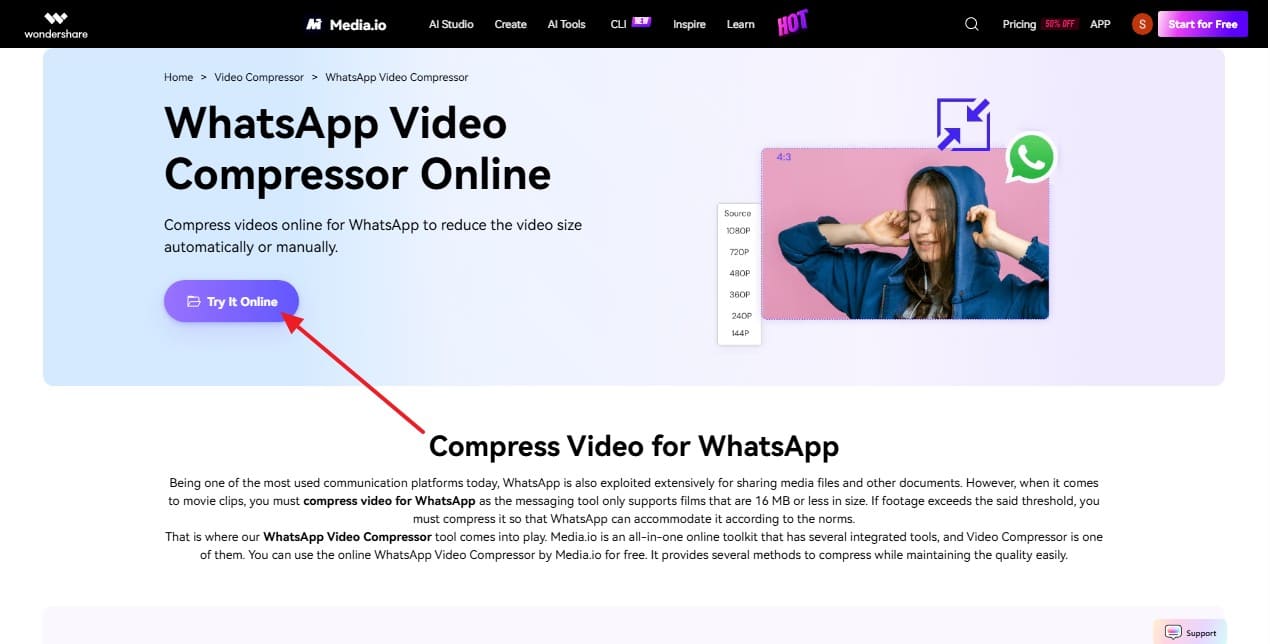
Step 1. On the WhatsApp Video Compressor Online page, select the “Try It Online" option and add the video you want to compress for WhatsApp.
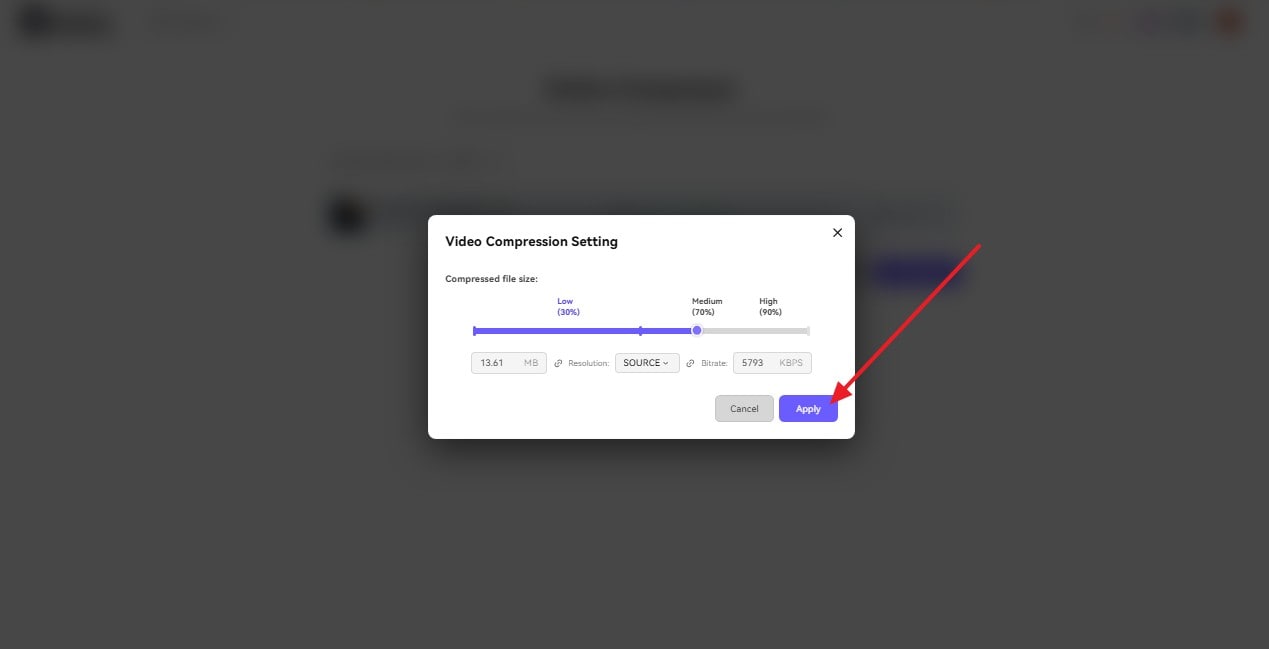
Step 2. Press the “Settings” icon next to the file, choose the compression level, and tap on “Apply.”
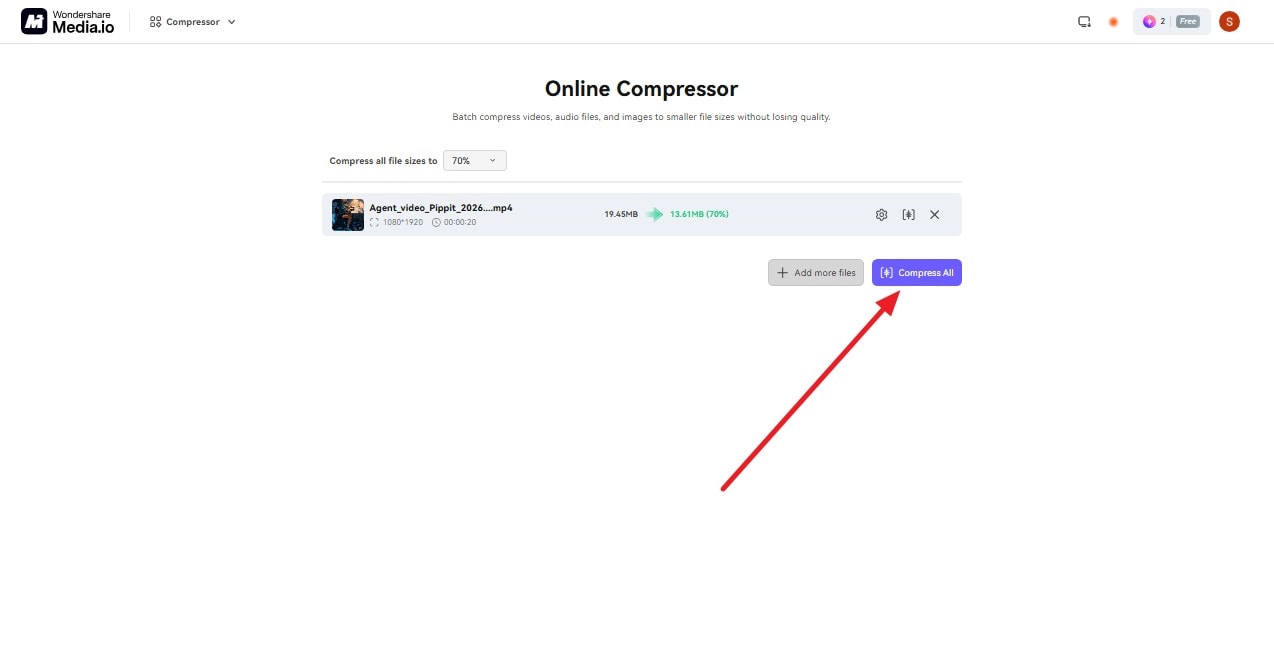
Step 3. Click the “Compress All” button to start processing the video. Once it finishes, check the new file size, download the compressed copy, and send it through WhatsApp.
Method 3. Reduce WhatsApp Video Size on Windows with Clipchamp
You can use Clipchamp to reduce video size for WhatsApp by trimming unwanted footage and exporting the final video at a suitable resolution. It supports MP4 exports at 480p, 720p, 1080p, and 4K. Choosing 720p or 480p can make large videos easier to share while retaining enough detail for everyday viewing. The following steps explain how to compress your video with Clipchamp:
Tip: WhatsApp also supports MP4, so you usually don't need to convert the Clipchamp export again before sending it.
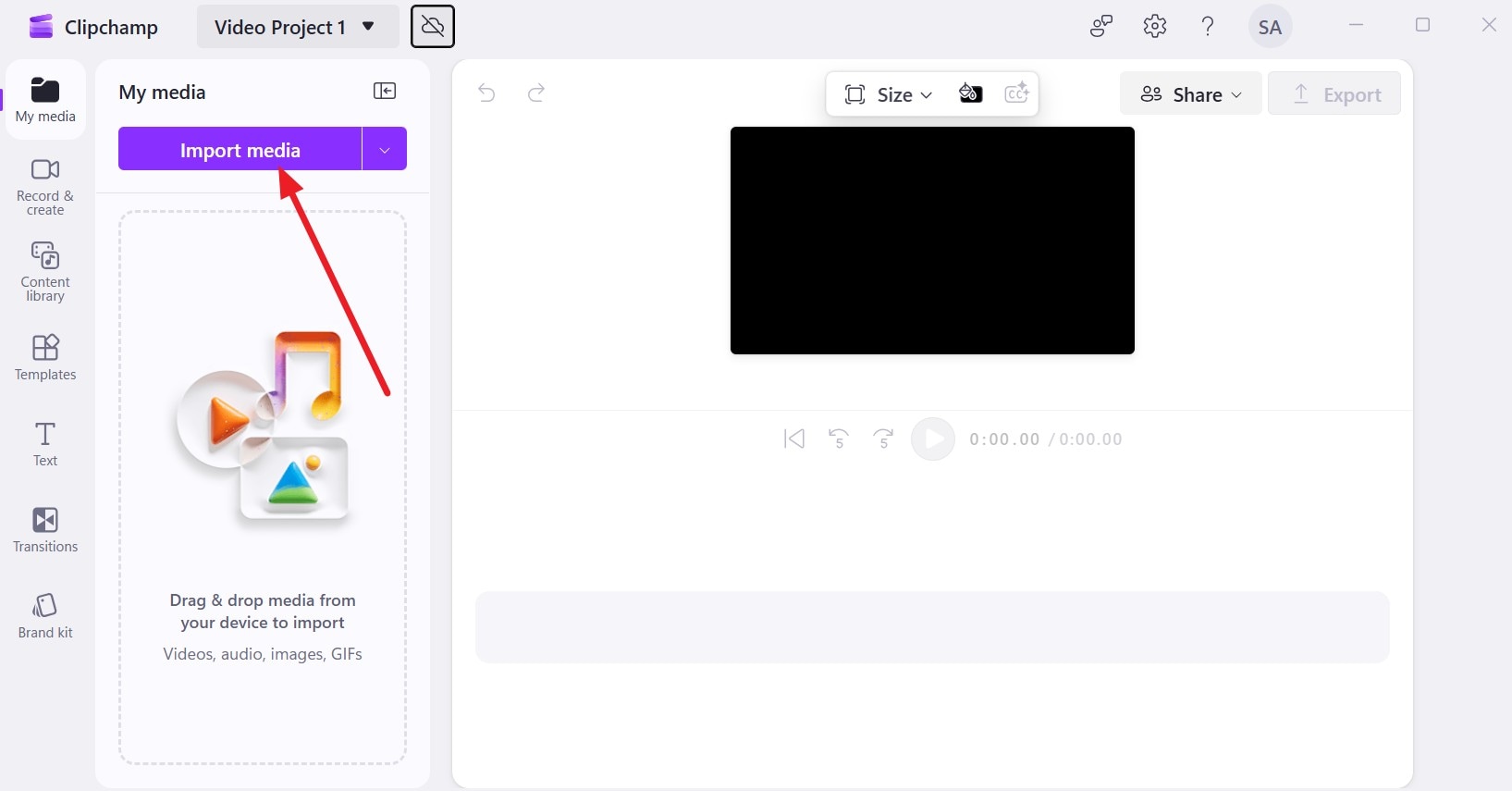
Step 1. Press the “Create a New Video” and “Import Media” options and add the media you want to compress for WhatsApp.
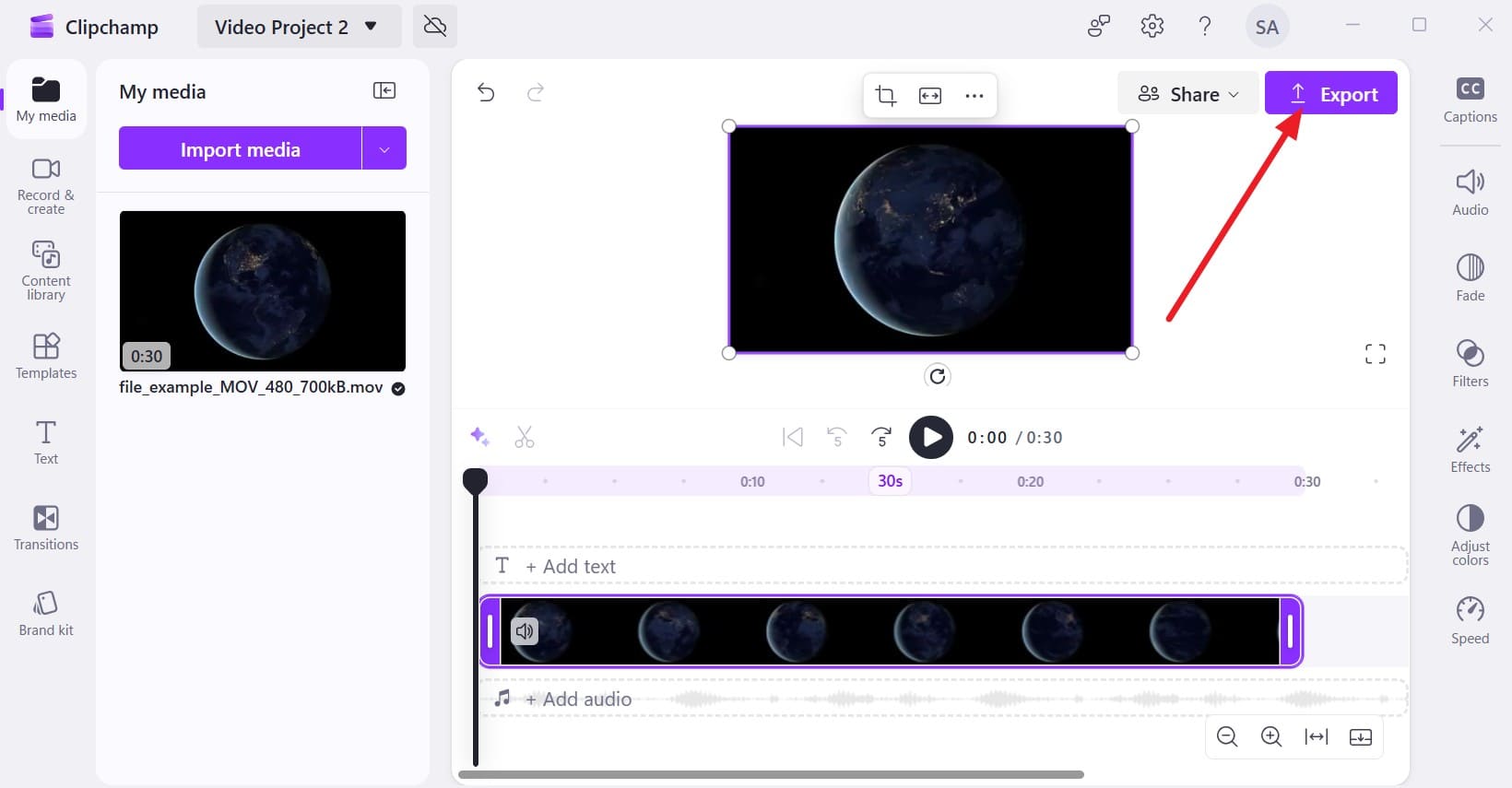
Step 2. Drag it to the timeline and trim any sections you do not need before you tap “Export.”
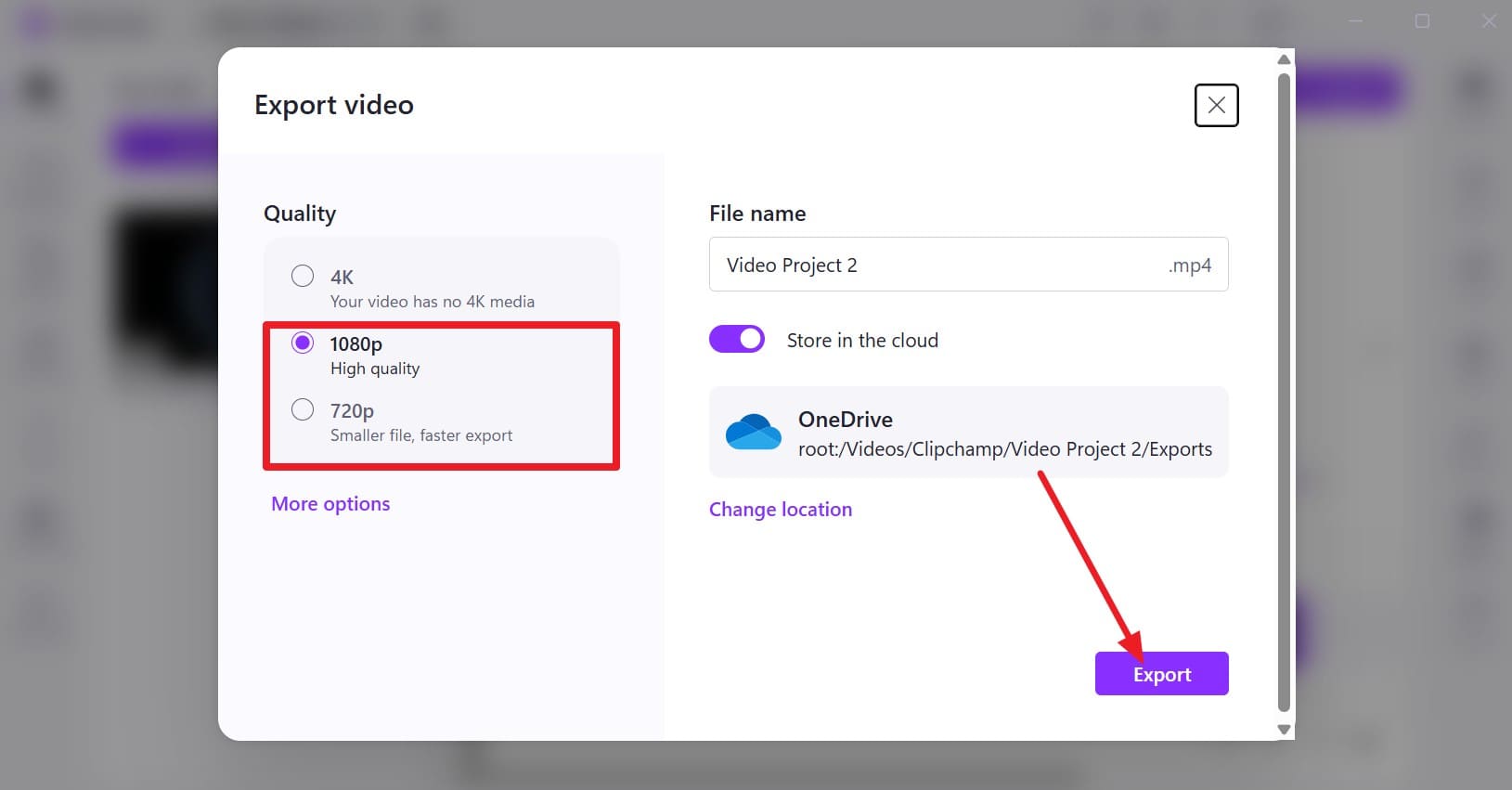
Step 3. In the pop-up menu, choose “720p” or “480p” if the original video is too large. Wait for the export to finish, check the new file size, then attach the MP4 in WhatsApp.
Method 4. Reduce WhatsApp Video Size on Mac with QuickTime Player
Mac users can use QuickTime Player to compress WhatsApp video by exporting a lower-resolution copy. Depending on the source, QuickTime offers 480p, 720p, 1080p, and 4K export options. Lowering the resolution can reduce file size while keeping the video suitable for everyday viewing. Since WhatsApp supports MOV files, the exported video can be shared directly without converting it to MP4. Follow these steps to use this method:
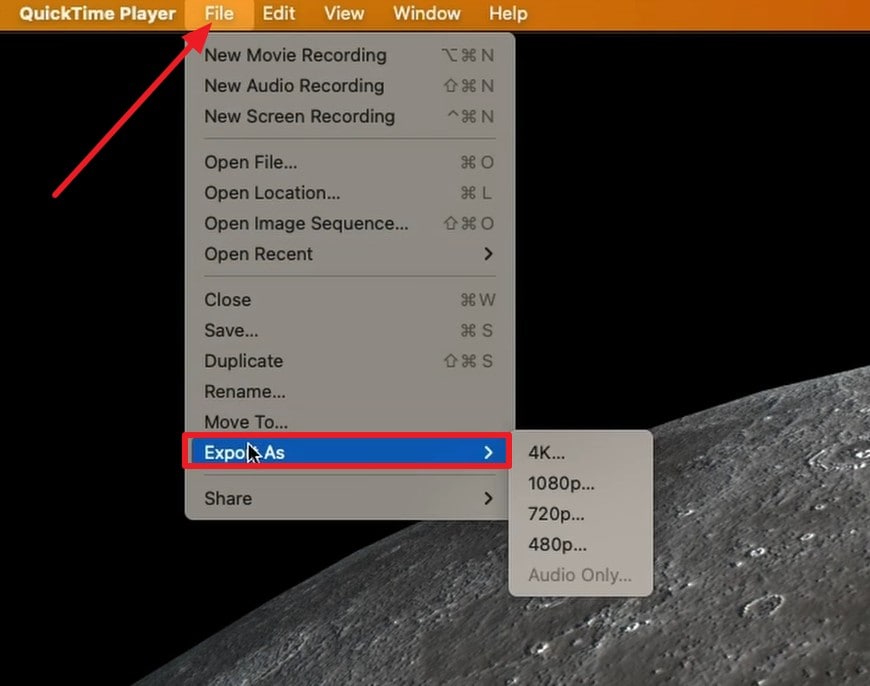
Step 1. Open the video in QuickTime Player, then go to "File" > "Export As." Choose "1080p," "720p," or "480p" based on how much you need to reduce the video size for WhatsApp.
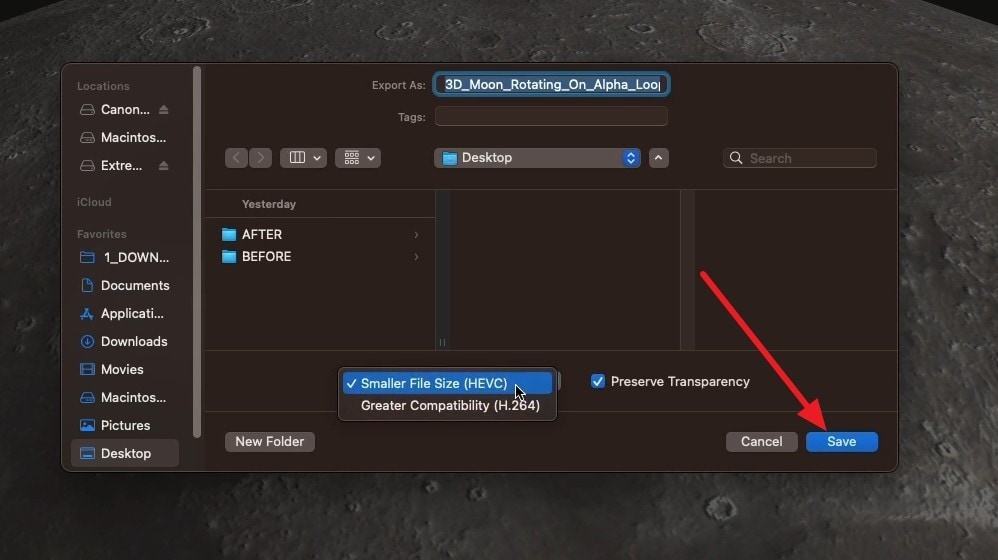
Step 2. To compress a WhatsApp video at 1080p or 4K, choose "Smaller File Size" for HEVC or "Greater Compatibility" for H.264.
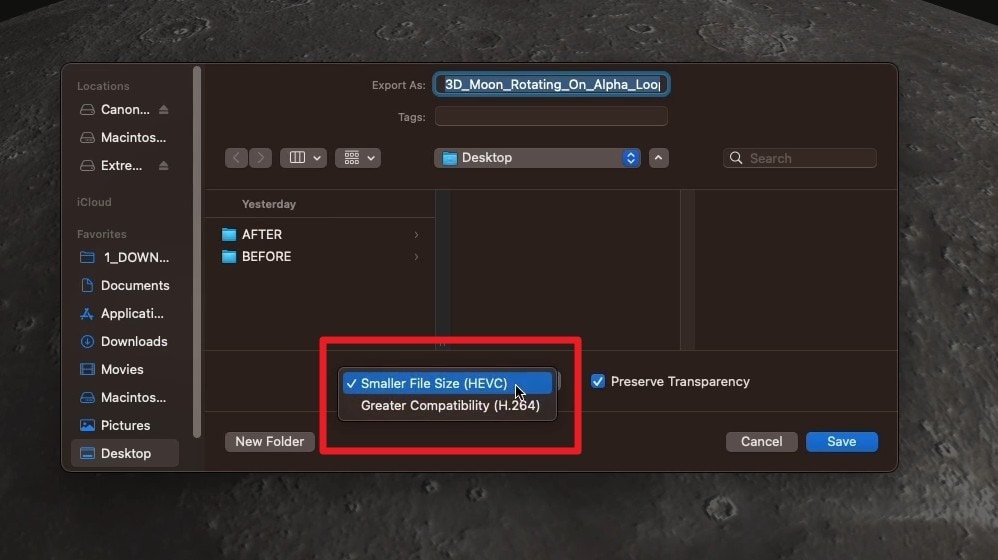
Step 3. Choose a file name and destination, then click the “Save” button. Play the exported MOV, check its size and quality, then attach that copy in WhatsApp.
Part 4. How to Compress Video for WhatsApp Status?
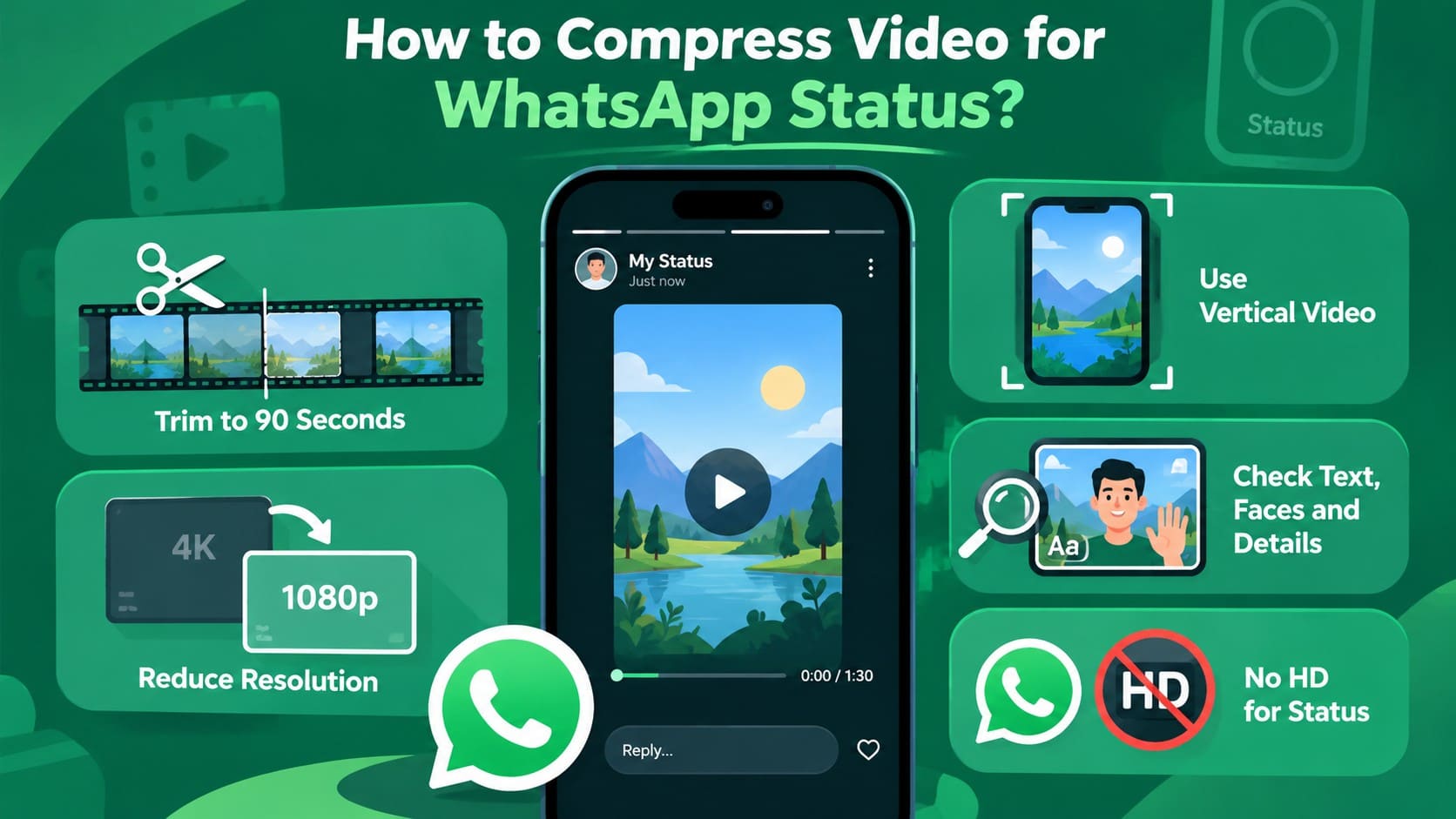
To compress video for WhatsApp Status, begin with the 90-second Status limit. Trim longer footage to the section you want to share, then lower the resolution if a 4K source still creates an unnecessarily large file. Using a vertical format can also make the video better suited to phone viewing.
Once compressed, preview the video and check text, faces, and motion for noticeable quality loss. WhatsApp does not currently offer the HD media option for Status, and uploaded media may appear lower quality than the original. For this reason, aim for moderate compression instead of reducing the file size more than necessary.
Part 5. Best Video Settings for WhatsApp Sharing
The right settings can help you reduce video size for WhatsApp while keeping the video clear enough for sharing. The table below compares how resolution, bitrate, frame rate, codec, duration, and audio bitrate affect file size and quality. Use it to identify which settings to adjust based on your video and sharing needs.
| Setting | Smaller File | Quality or Compatibility Priority | When to Change It |
|---|---|---|---|
| Resolution | 480p or 720p | 1080p for more detail | Lower it when 1080p or 4K creates an unnecessarily large file. |
| Bitrate | Lower bitrate | Higher bitrate for more detail | Reduce it when the video remains too large at the chosen resolution. |
| Frame Rate | 30 fps | 60 fps for smoother motion | Choose 30 fps when smoother motion is not essential. |
| Codec | HEVC for better compression efficiency | H.264 for wider compatibility | Prefer H.264 when compatibility with more devices matters. |
| Duration | Trim unnecessary footage | Keep full length | Remove unwanted sections before reducing visual quality. |
| Audio Bitrate | Lower audio bitrate | Higher bitrate for clearer audio | Reduce it when high-quality audio is not important. |
Part 6. Why Does WhatsApp Reduce Video Quality After You Send It?
Even after you compress WhatsApp video before sending, WhatsApp may process the file again during upload. As a result, the received video can sometimes look softer or less detailed than the compressed file on your device. Here are the main reasons this happens:
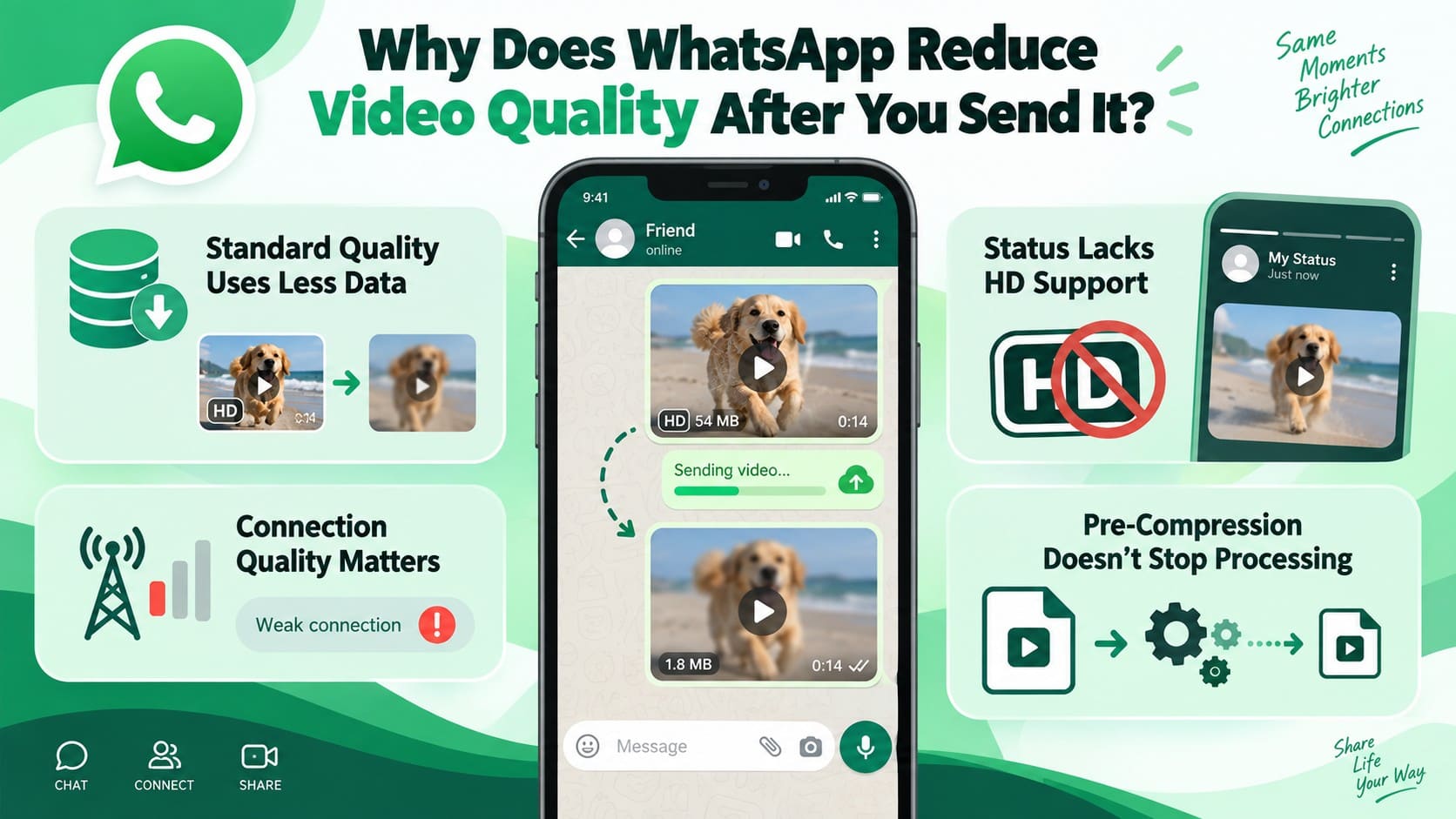
- Standard Quality Reduces Video Detail: WhatsApp compresses videos sent using Standard quality to reduce file size and data usage. This processing can remove fine details, making the received video appear softer than the original.
- Connection Speed Affects Default Video Quality: WhatsApp applies different default video size and resolution limits depending on connection speed. These limits can affect the quality of videos shared through the standard media workflow.
- Status Does Not Support HD Uploads: WhatsApp currently does not offer the HD media option for Status. Status media may undergo processing that leaves the uploaded video looking less detailed than the original.
- WhatsApp May Reprocess Compressed Videos: Compressing a video before sending helps control its size but does not prevent WhatsApp from processing it again. Excessive pre-compression can leave less visual detail to preserve during this additional processing.
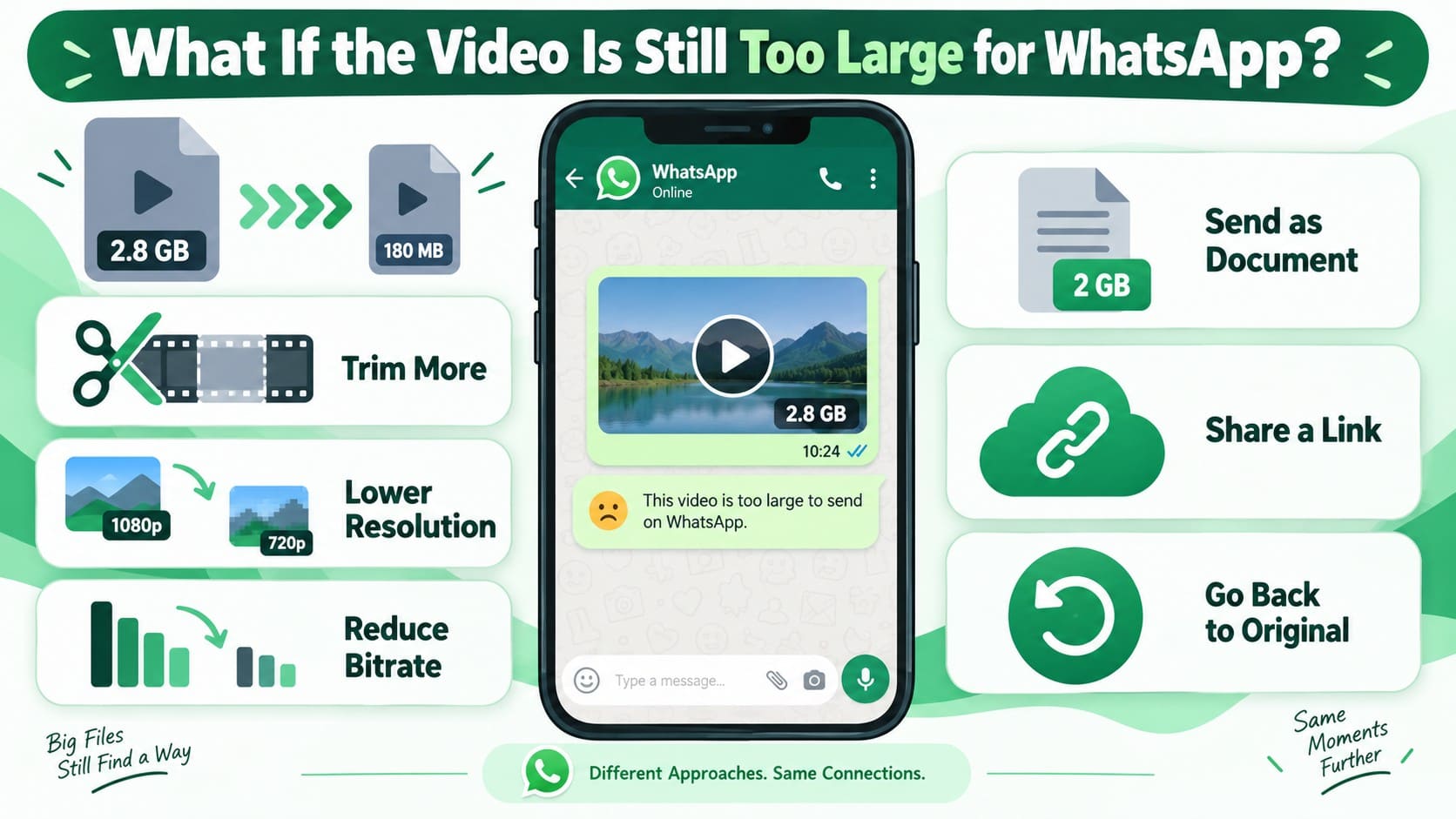
Part 7. What If the Video Is Still Too Large for WhatsApp?
If the video remains too large, focus on reducing only what is necessary. Remove unwanted footage first, then lower the resolution or bitrate in small increments. Check the result after each adjustment, especially around text, faces, and fast motion. Always return to the original file when testing significantly different settings to avoid cumulative quality loss.
When you cannot compress video to WhatsApp further without noticeably reducing quality, change the sharing approach instead. The document option discussed earlier can accommodate larger videos without the normal media-sharing workflow. For files beyond WhatsApp’s available limits, upload the original video to cloud storage and share its link through the chat.
Part 8. How to Preserve Video Quality After Compressing for WhatsApp?
Keeping a compressed video clear requires checking the areas where quality loss is most noticeable. After you compress video for WhatsApp, review the following elements before sending the final file:
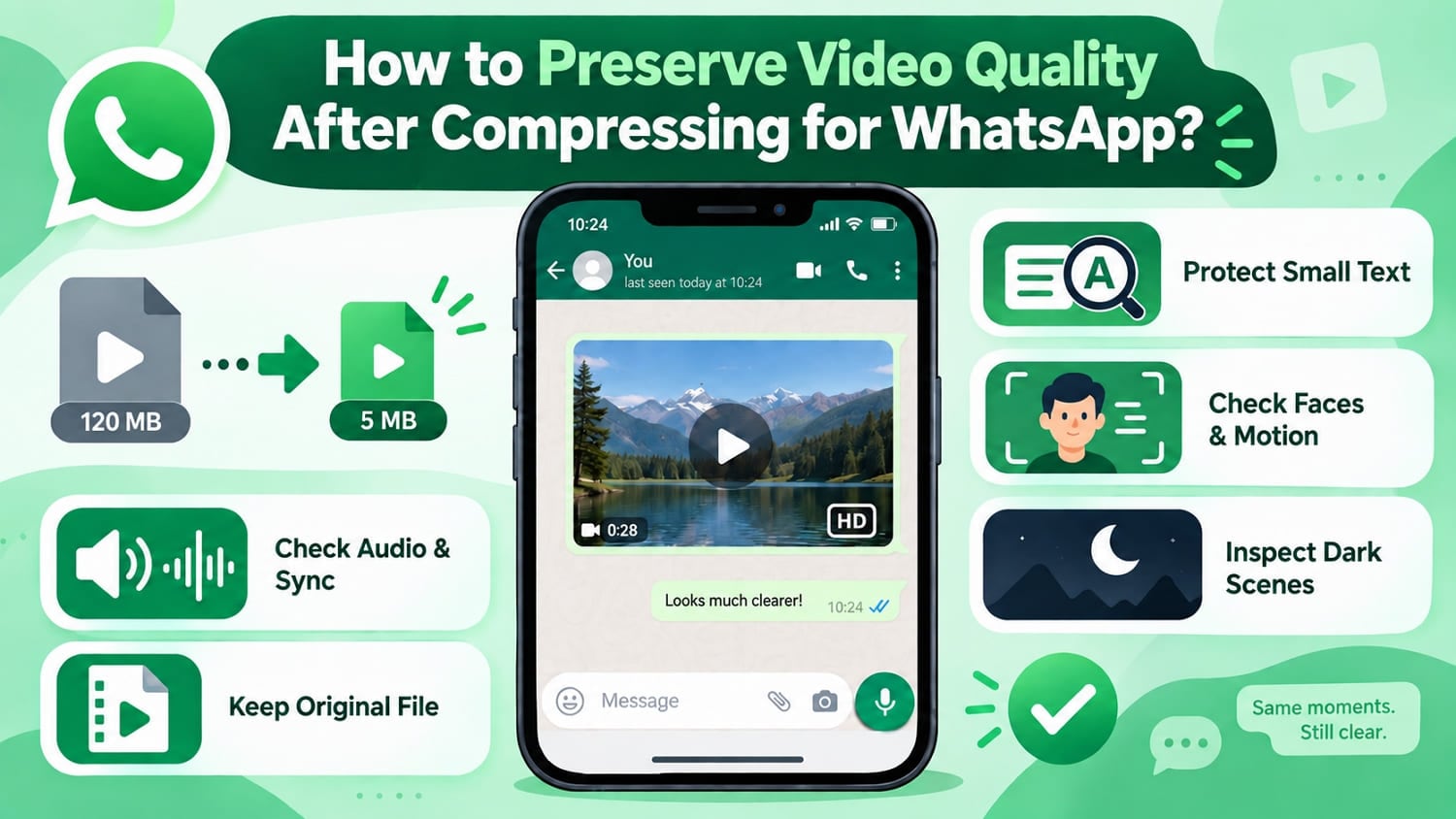
- Protect Small Text: Screen recordings and tutorials can lose readability quickly after compression. Check labels, captions, and interface text to ensure they remain clear before sending the video.
- Check Faces and Fast Movement: Compression artifacts are often more noticeable around faces and moving subjects. Review these areas closely to make sure important details and motion still look clear.
- Inspect Dark Scenes Closely: Shadows and low-light footage can reveal blockiness, banding, and lost detail after compression. Check darker sections carefully before deciding the final video quality is acceptable.
- Check Audio and Sync: Play the compressed video from beginning to end before sharing it. Make sure speech remains clear, and the audio stays properly synchronized with the video.
- Avoid Recompressing the Same File: Keep the original video available when testing different compression settings. Starting again from the source prevents additional quality loss from accumulating across multiple compressed copies.
Conclusion
The best way to compress video for WhatsApp depends on how and where you plan to share it. Trim unnecessary footage and adjust resolution or bitrate carefully to balance file size with visual quality. For convenient iPhone compression, the Dr.Fone App can create smaller video copies locally. With the right settings and sharing method, large videos become easier to send without unnecessary quality loss.
Frequently Asked Questions
-
1. What is the current WhatsApp video size limit?
WhatsApp supports different video limits depending on your connection. The default limit is 100 MB at 720p on faster connections and 64 MB at 480p on slower connections. For larger videos, document sharing provides a separate file allowance of up to 2 GB. -
2. How long can a video be for WhatsApp Status?
WhatsApp Status supports videos up to 90 seconds long. For longer clips, trim the video to the section you want to share before reducing resolution or applying stronger compression. -
3. Does WhatsApp compress videos automatically?
Yes. WhatsApp can process videos sent as regular media, even when you compress them beforehand. The Dr.Fone App can help reduce the file size before sharing, but WhatsApp may still apply its own processing during upload. -
4. Is it better to send a large WhatsApp video as media or as a document?
Use normal media when convenient in-chat playback matters. If preserving the original file quality is more important, send the video as a document instead. For videos you still want to share as normal media, the Dr.Fone App can reduce the file size beforehand while keeping the video ready for regular WhatsApp sharing.


James Davis
staff Editor
Generally rated4.5(105participated)