

 TL;DR:
Clipdrop Image Upscaler is suitable for browser-based enlargement, but free accounts are limited to 2x upscaling and 20 uses per rolling 24 hours.
- Clipdrop Pro supports 4x, 8x, and 16x enlargement, with higher-resolution processing and queue priority.
- Dr.Fone App is better suited to iOS and Android users who need up to 8x enhancement, mobile access, and additional AI photo tools.
- Choose Clipdrop for browser access or 16x output, and choose Dr.Fone App for phone-based enhancement between 2x and 8x.
Ask AI for a summary
 ChatGPT
 Perplexity
 Gemini
 Claude
 Grok
Grok
Clipdrop Image Upscaler offers four enlargement levels: 2x, 4x, 8x, and 16x. However, free users are limited to 2x upscaling with 20 uses per 24 hours. Understanding this difference between the available options and plan limits helps you choose the right setting before processing an image.
This review explains how each upscale factor affects image size, compares Clipdrop Free and Pro, and highlights its main strengths and limitations. It also compares Clipdrop with Dr.Fone App, which supports up to 8x image upscaling on mobile, to help phone users decide which option fits their needs better.
- Part 1. Clipdrop Image Upscaler at a Glance
- Part 2. How to Use Clipdrop Image Upscaler
- Part 3. How Do Clipdrop’s 2x, 4x, 8x, and 16x Upscale Options Work?
- Part 4. Clipdrop Image Upscaler: Benefits and Limitations
- Part 5. Clipdrop Image Upscaler Free vs Pro
- Part 6. Clipdrop vs Dr.Fone App: Which Image Upscaler Fits You Better?
- Part 7. How to Upscale an Image with Dr.Fone App
- Part 8. Should You Use Clipdrop Image Upscaler or Dr.Fone App?
Part 1. Clipdrop Image Upscaler at a Glance
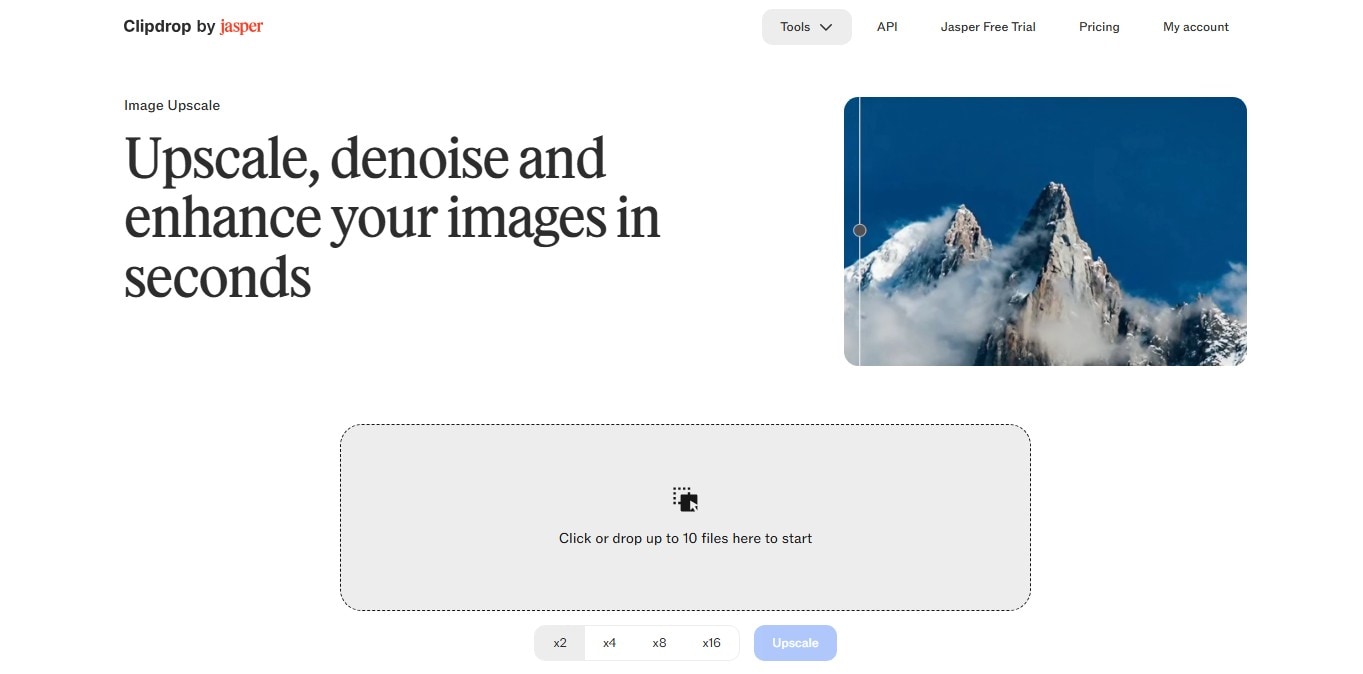
Clipdrop Image Upscaler is a browser-based tool that enlarges images while improving their overall sharpness and visual detail. Instead of simply stretching existing pixels, it uses AI processing to increase resolution and reduce common quality issues during enlargement. For a quick overview of the Clipdrop Image Upscaler, check the key details in the table below:
| Factor | Current Clipdrop Details |
|---|---|
| Platform | Browser-based tool available through Clipdrop, with API access offered through Jasper. |
| Upscale Factors | Displays 2x, 4x, 8x, and 16x enlargement options. |
| Batch Upload | Supports adding up to 10 images at once. |
| Main Enhancement Functions | Combines image upscaling, denoising, and compression-artifact reduction. |
| Free Access | Supports 2x upscaling with up to 20 uses per rolling 24 hours. |
| Pro Access | Unlocks higher upscale factors up to 16x, high-resolution processing, and queue priority. |
| Ownership | Operated by Jasper following its acquisition of Clipdrop from Stability AI. |
Part 2. How to Use Clipdrop Image Upscaler
Once you understand the main Clipdrop Image Upscaler features, the next step is learning how the tool works in practice. Follow the steps below to upscale an image and review the result:
-
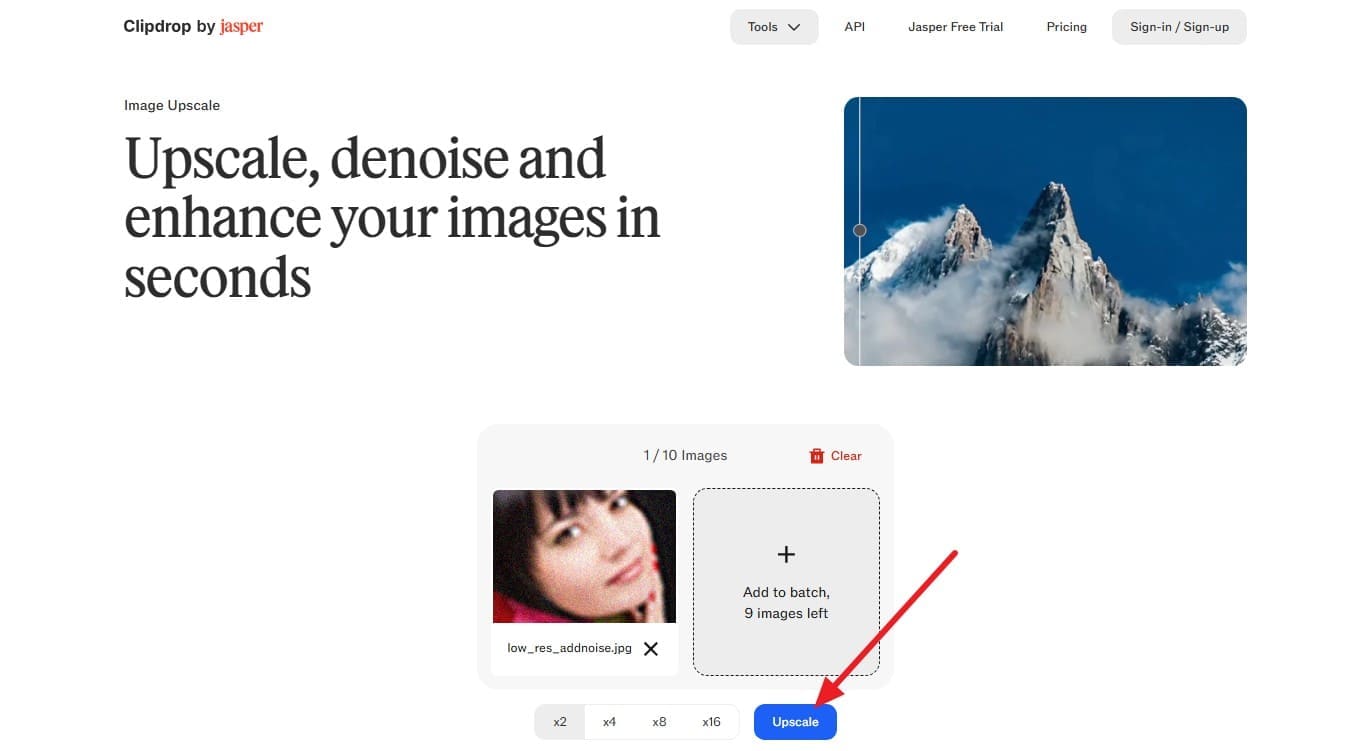
Step 1 Open the tool and choose an upscale option
Open the tool in any browser and drop the image to choose the upscale options. Select “x2” or “x16” and click on the “Upscale” button to continue.
-
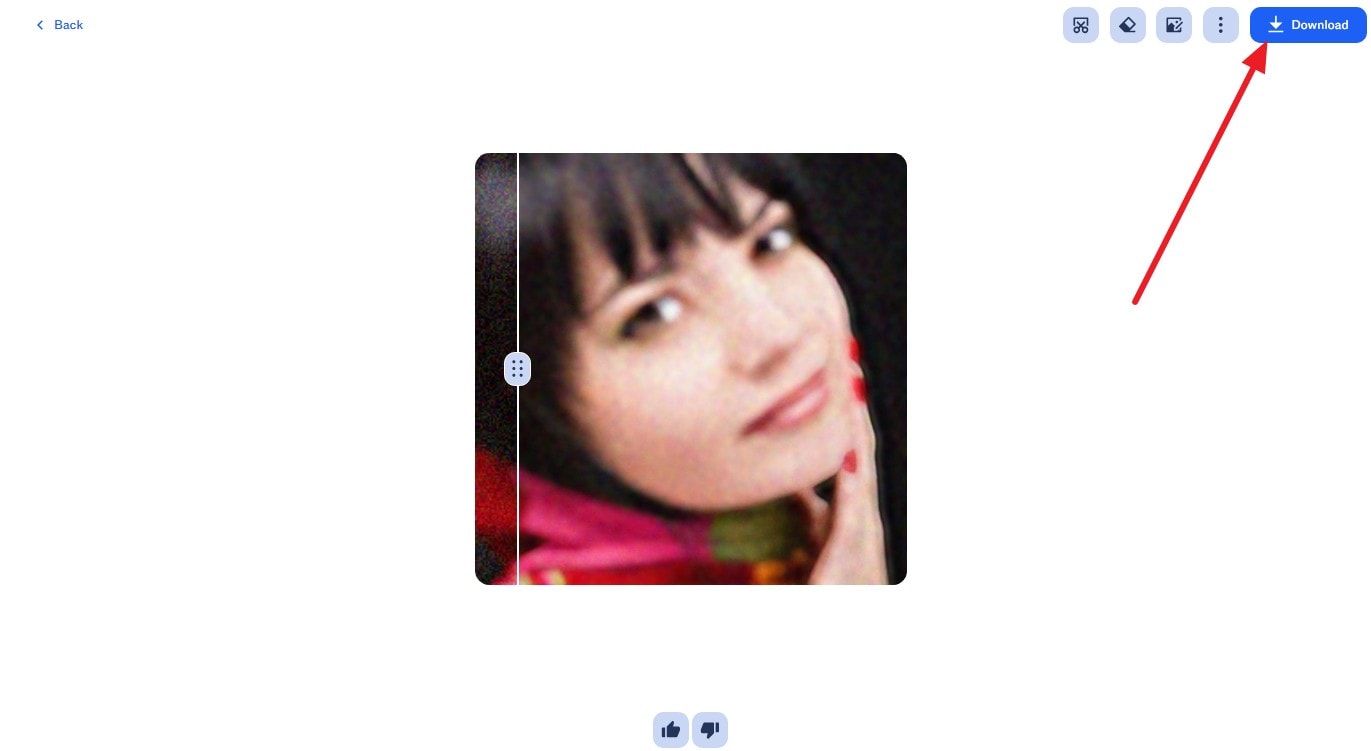
Step 2 Compare and download the result
Compare the results after processing, then tap "Download" to export.
Part 3. How Do Clipdrop’s 2x, 4x, 8x, and 16x Upscale Options Work?
Each Clipdrop upscale factor increases both image dimensions, so the total pixel count grows much faster than the stated multiplier. For example, 2x creates 4 times the pixels, while 4x creates 16 times more. Higher upscale levels can support larger outputs, but the right option still depends on the source image, required size, and acceptable quality.
| Upscale Option | Dimension Increase | Suitable Use | Main Quality Risk |
|---|---|---|---|
| 2x | 1000 × 1000 → 2000 × 2000 | Web images and moderate enlargement | Minor artificial detail may appear |
| 4x | 1000 × 1000 → 4000 × 4000 | Larger displays and print preparation | Textures may start looking artificial |
| 8x | 1000 × 1000 → 8000 × 8000 | Small or low-resolution source images | Faces and text may lose accuracy |
| 16x | 1000 × 1000 → 16000 × 16000 | Extreme enlargement when very large output is needed | Generated details may differ noticeably from the original |
Part 4. Clipdrop Image Upscaler: Benefits and Limitations
This section highlights the advantages and limitations of the Clipdrop Upscaler, helping you understand where it performs well and where it may fall short in 2026.
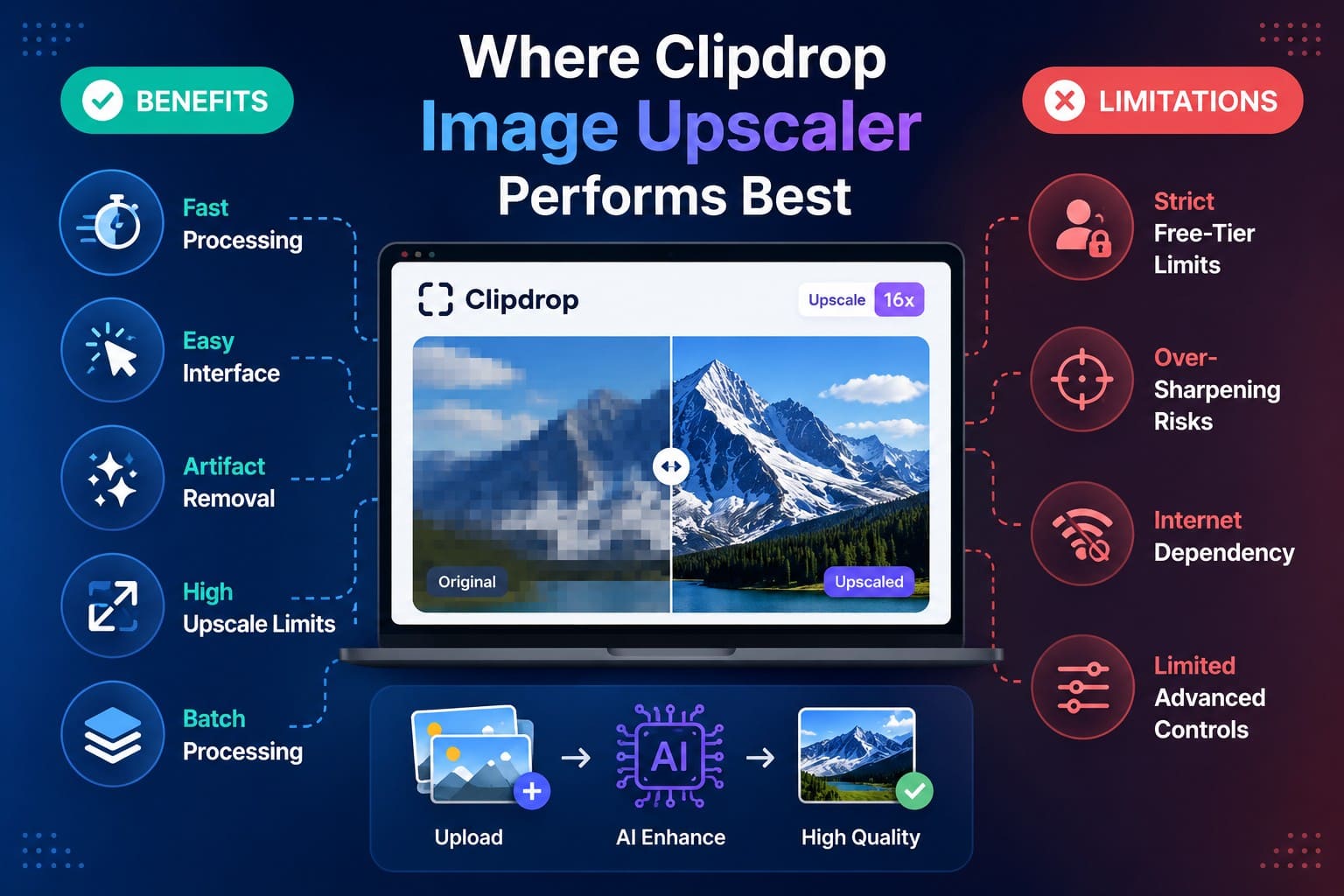
Where Clipdrop Has Benefits
- Fast Processing: Uses automated AI to enhance and upscale images within a short processing time.
- Easy Interface: Offers a straightforward drag-and-drop browser workflow without requiring software installation.
- Artifact Reduction: Helps reduce compression artifacts and noise while improving overall image resolution.
- High Upscale Limits: Free users get 2x upscaling, while Pro users can access higher factors up to 16x.
- Batch Upload Support: Allows users to add up to 10 image files at once for more convenient processing.
Where Clipdrop Has Limitations
- Strict Free-Tier Limits: Free accounts are restricted to 2x upscaling with limited daily usage.
- AI Detail Changes: Higher enlargement levels may generate textures or details that differ from the original image.
- Internet Dependency: Requires an active internet connection because the tool operates through a web browser.
- Limited Manual Controls: Provides fewer advanced adjustment options for users who want detailed control over the enhancement process.
Part 5. Clipdrop Image Upscaler Free vs Pro
After reviewing the main advantages and limitations, the next step is comparing the free and paid versions of the Clipdrop Image Upscaler. The table below highlights their key differences to help you decide whether upgrading to Pro is worthwhile.
| Feature | Free | Pro |
|---|---|---|
| Available Upscaling | Up to 2x | Up to 16x |
| Daily Usage | Up to 20 uses per rolling 24 hours | Higher usage allowance |
| High-Resolution Processing | Limited | Included |
| Queue Priority | Standard processing queue | Priority processing |
| Suitable User | Occasional image enlargement and basic enhancement | Frequent users needing larger, higher-resolution outputs |
| Price | $0 | $15/month |

Part 6. Clipdrop vs Dr.Fone App: Which Image Upscaler Fits You Better?
The free 2x limit in the Clipdrop upscale tool may leave users looking for a more flexible option. This is where Dr.Fone App for Android and iPhone comes in. Clipdrop works through a browser, while Dr.Fone provides a native mobile workflow. The table below compares both tools across their key image-upscaling features:
| Factor | Clipdrop Image Upscaler | Dr.Fone App |
|---|---|---|
| Platform | Works in a browser on desktop and mobile. | Native apps for iOS and Android. |
| Workflow | Upload an image, choose an upscale factor, process, then download. | Open the AI Enhancement tool, choose a mode, process the image, then save. |
| Upscaling Access | 2x free, with higher factors up to 16x on Pro. | Supports up to 8x through Ultra HD mode. |
| Photo Enhancement | Combines enlargement with automatic image enhancement. | Offers dedicated AI enhancement modes for improving clarity and detail. |
| Denoising | Applies automatic cleanup during upscaling. | Uses AI enhancement to reduce noise and improve image quality. |
| Mobile Convenience | Accessible on mobile through a web browser. | Designed for direct use through the mobile app. |
| Online Upload Required | Images are uploaded through Clipdrop’s web workflow. | Avoids the browser-upload workflow, though fully local processing is not confirmed. |
| Best Fit | Users who need browser-based enlargement up to 16x. | Mobile users who want up to 8x enhancement with additional AI tools. |
Part 7. How to Upscale an Image with Dr.Fone App
Clipdrop Upscaler stops at 2x for free users, so reaching 4x or higher requires a Pro subscription. Since many photos are already stored on a phone, browser-based processing also adds an upload step. Dr.Fone App offers up to 8x upscaling through its mobile workflow and includes Auto, Portrait, and Ultra HD modes, with up to 4 free uses.
Enhanced images can be exported without watermarks, while local processing supports safer photo handling. Dr.Fone App also completes enhancement scans in under 2 minutes, lets users compare results before saving, and delivers HD output. Beyond upscaling, it includes AI Restoration and AI Colorize for repairing damaged photos and adding color to black-and-white images.
Dr.Fone App - AI Photo Restorer & Enhancer (iOS & Android)
Restore, Colorize, Enhance, and Upscale Photos with AI
- Restore Old Photos by Fixing Creases, Tears, and Scratches
- Colorize Black-and-White Photos with AI
- Auto-Enhance Photos and Improve Portrait Details to HD Quality
- Upscale Images to 2x, 4x, or 8x for Clearer Results



Other Key Features
- System Repair: Fixes 150+ common iOS system issues, including boot loops, black screens, crashes, and update failures.
- Data Eraser: Permanently removes private files, personal data, and unwanted content before selling, recycling, or giving away a device.
- Screen Unlock: Removes supported screen locks, including PINs, passwords, patterns, Face ID, Touch ID, and other lock methods.
- Phone Transfer: Transfers contacts, photos, videos, messages, and other supported data directly between compatible smartphones with minimal steps.
- Data Recovery: Recovers deleted or lost photos and videos from supported devices for easier mobile data restoration.
Guide to Upscale an Image with Dr.Fone App
Since Dr.Fone App offers more than basic image upscaling, the following guide shows how to use its AI Enhancement tool as an alternative to the Clipdrop Image Upscaler.
-
Step 1 Access the AI Enhancement Tool
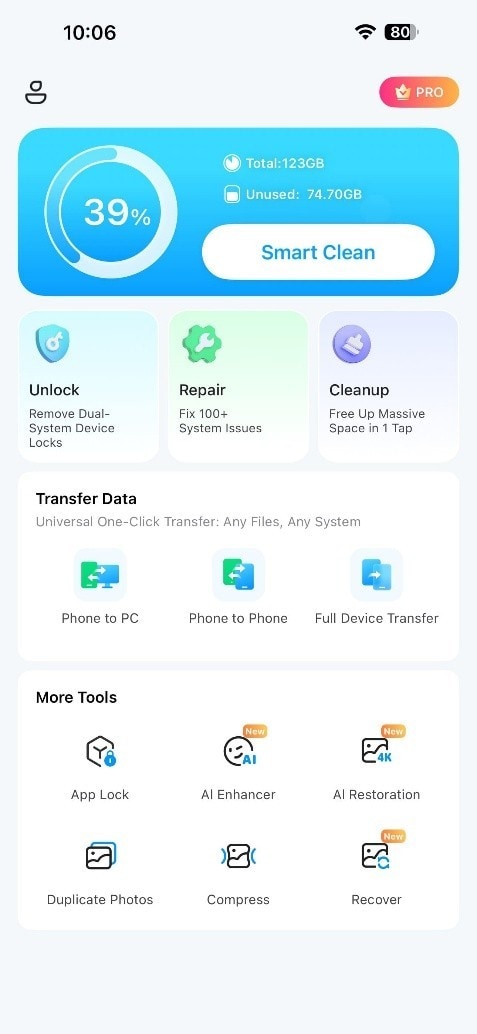
Open the "More Tools" section in the Dr.Fone App, then tap "AI Enhancement" to access the available enhancement modes.
-
Step 2 Select the Mode and Load Your Photo
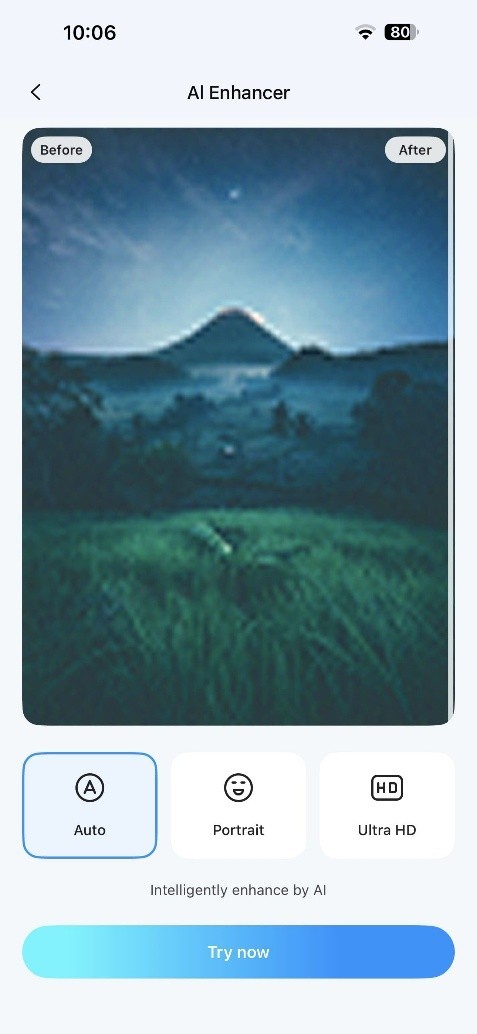
Select either “Auto” or “Portrait” based on the photo, then tap “Try Now.” Add the image and wait for the AI enhancement to complete.
-
Step 3 Enhance and Inspect the Result
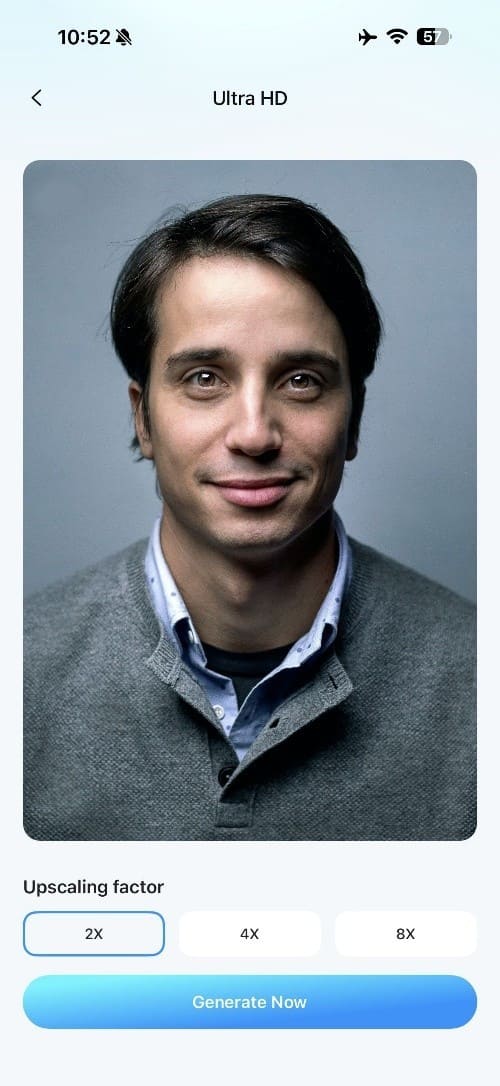
To choose the upscale factor, select “Ultra HD” and choose up to 8x. After uploading the image, press “Generate Now,” then review the result and tap “Save.”
Verdict: Dr.Fone App runs natively on iOS and Android, supports up to 8x upscaling, and avoids Clipdrop’s browser-based workflow. It also combines upscaling, sharpening, and denoising in one mobile process, while Clipdrop Free is limited to 2x enlargement. Beyond enhancement, Dr.Fone App includes additional AI tools such as Restoration and Colorize, making it a more versatile option for mobile photo editing.
Part 8. Should You Use Clipdrop Image Upscaler or Dr.Fone App?
Both tools suit different image-upscaling needs, and the better choice depends on factors such as platform, upscale level, workflow, and output requirements. The section below compares six common situations to show when the Clipdrop image upscale tool or Dr.Fone App may be the better option.
| Situation | Best Choice | Why |
|---|---|---|
| Quick 2x Browser Upscaling | Clipdrop Free | Simple web workflow with no app installation required. |
| Need 16x Enlargement | Clipdrop Pro | Supports higher upscale levels beyond Dr.Fone App’s 8x limit. |
| Desktop-Based Image Upscaling | Clipdrop | Convenient for users who prefer processing images directly in a browser. |
| Upscaling Phone Photos | Dr.Fone App | Native iOS and Android workflow makes mobile enhancement more convenient. |
| Need 2x to 8x Enlargement | Dr.Fone App | Ultra HD mode supports multiple upscale levels up to 8x. |
| Improve Blurry or Low-Quality Photos | Dr.Fone App | AI enhancement tools improve clarity, sharpness, and visible details. |
| Restore Old or Damaged Photos | Dr.Fone App | Additional restoration tools help repair faded, damaged, or low-quality images. |
| Need More AI Photo Tools | Dr.Fone App | Includes enhancement, restoration, colorization, and other AI photo features. |
Conclusion
Clipdrop Image Upscaler is a practical choice for quick browser-based enlargement, although free users are limited to 2x upscaling. Dr.Fone App is better suited to mobile users who want up to 8x enlargement together with additional AI photo enhancement tools. Clipdrop remains stronger for users who need browser access or up to 16x output, while Dr.Fone offers a more convenient option for everyday phone-based photo enhancement.
FAQ
-
1. Is Clipdrop Image Upscaler free?
Free accounts support 2x upscaling with up to 20 uses per 24 hours. Higher enlargement factors, high-resolution processing, and priority queue access are reserved for Clipdrop Pro users. -
2. Can Clipdrop upscale an image 8x or 16x?
Yes. Clipdrop Pro supports up to 16x upscaling, while free accounts are limited to 2x. At 16x, both image dimensions increase by 16 times, producing 256 times as many total pixels as the original. -
3. Does Clipdrop improve image quality as well as resolution?
Clipdrop combines denoising and compression-artifact reduction with image enlargement. For mobile users who want up to 8x upscaling with additional AI enhancement tools, Dr.Fone App can be a more convenient alternative. -
4. Is Clipdrop Image Upscaler better for photos or screenshots?
Clipdrop supports photos and screenshots, offering upscaling, denoising, and compression-artifact reduction. For users mainly enhancing photos on iPhone or Android, Dr.Fone App is an alternative with a native mobile workflow and up to 8x upscaling.









Selena Lee
staff Editor
Generally rated4.5(105participated)