

 TL;DR:
Choose an unblur app based on the type and severity of blur: mild softness may respond well to sharpening, while missed focus and severe motion blur have limited recovery potential.
- Dr.Fone App is suited to mixed issues such as blur, noise, poor lighting, facial details, low resolution, and aging photos.
- Remini is aimed at blurry faces, YouCam Enhance combines sharpening with denoising and lighting correction, and Snapseed offers manual sharpening without subscriptions, purchases, ads, or watermarks.
- AI enhancement may create artificial faces, text, halos, or textures, so retaking or rescanning is preferable when accuracy matters.
Ask AI for a summary
 ChatGPT
 Perplexity
 Gemini
 Claude
 Grok
Grok
Two blurry photos can look nearly identical while suffering from completely different problems. Camera shake spreads existing detail across pixels, while missed focus prevents the lens from capturing fine detail clearly. This difference determines how much an unblur app can realistically improve a photo.
Choosing the right tool also depends on whether you are dealing with facial blur, noise, poor lighting, compression, or an old, damaged image. This guide compares 8 apps based on the problems they handle best. Compare their enhancement capabilities and ideal uses, then see why Dr.Fone App stands out as a versatile choice for handling multiple photo issues.
- Part 1. First, Identify Why Your Photo Looks Blurry
- Part 2. 8 Best Apps to Unblur Photos
- 1. Dr.Fone App – Best All-Rounder
- 2. Remini – Best for Blurry Faces
- 3. YouCam Enhance – Best for Blur With Noise or Poor Lighting
- 4. Snapseed – Best for Manual Sharpening
- 5. Adobe Photoshop Express – Best for Broader Editing Control
- 6. Pixelup – Best for Old Blurry Photos
- 7. EnhanceFox – Best for Quick One-Tap Enhancement
- 8. Fotor – Best for Simple AI Photo Cleanup
- Part 3. Which Unblur App Should You Try First?
- Part 4. How to Unblur a Picture with Dr.Fone App
- Part 5. How Much Blur Can AI Actually Fix?
- Part 6. Why an Unblur App Sometimes Makes a Photo Look Worse
- Part 7. Unblur, Sharpen, or Retake: What Should You Do?
- Frequently Asked Questions
Part 1. First, Identify Why Your Photo Looks Blurry
Before choosing the best app to unblur pictures, review the table below to understand what causes different types of photo blur:
| What You See | Likely Cause | Can an Unblur App Help? | Best Approach |
|---|---|---|---|
| Slight Softness | Minor focus error or weak image processing | Yes, usually | Apply light sharpening |
| Directional Smear | Camera movement during capture | Partly | Try AI deblurring |
| Uniformly Soft Frame | Camera focused at the wrong distance | Limited | Retake the photo if possible |
| Grainy and Soft Image | Low light, high ISO, or camera movement | Often | Reduce noise, then enhance sharpness |
| Soft Face, Sharp Background | Subject movement or incorrect focus | Sometimes | Use face-focused AI enhancement |
| Faded and Unclear Photo | Aging, fading, or physical deterioration | Often | Restore damage, then enhance details |
| Blocky or Mushy Details | Heavy JPEG compression or low image quality | Partly | Reduce compression artifacts first |
Part 2. 8 Best Apps to Unblur Photos
Review the options below to find the best app to unblur photos based on your blur type, enhancement needs, and preferred level of editing control.
1. Dr.Fone App – Best All-Rounder (Android | iOS)
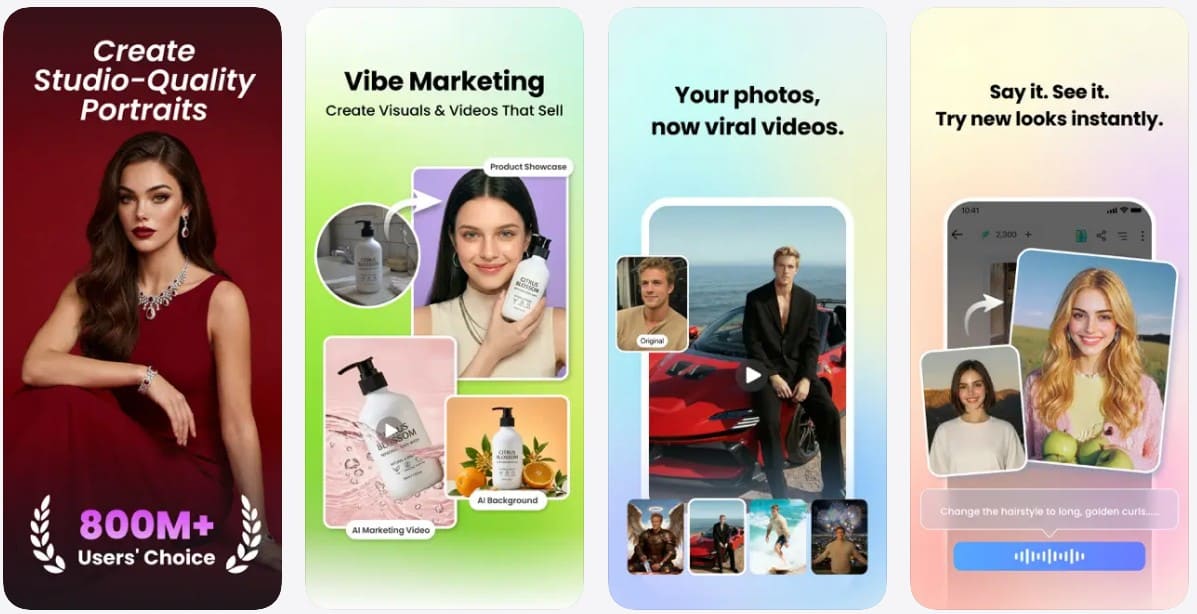
Dr.Fone App stands out for handling different photo problems without requiring manual editing skills. Its AI Enhancer provides 3 modes for different needs. Auto works well for general blurry or low-quality photos, while Portrait focuses on improving facial details in portraits. Ultra HD is designed for stronger enhancement and lets users choose 2x, 4x, or 8x upscaling when more resolution is needed.
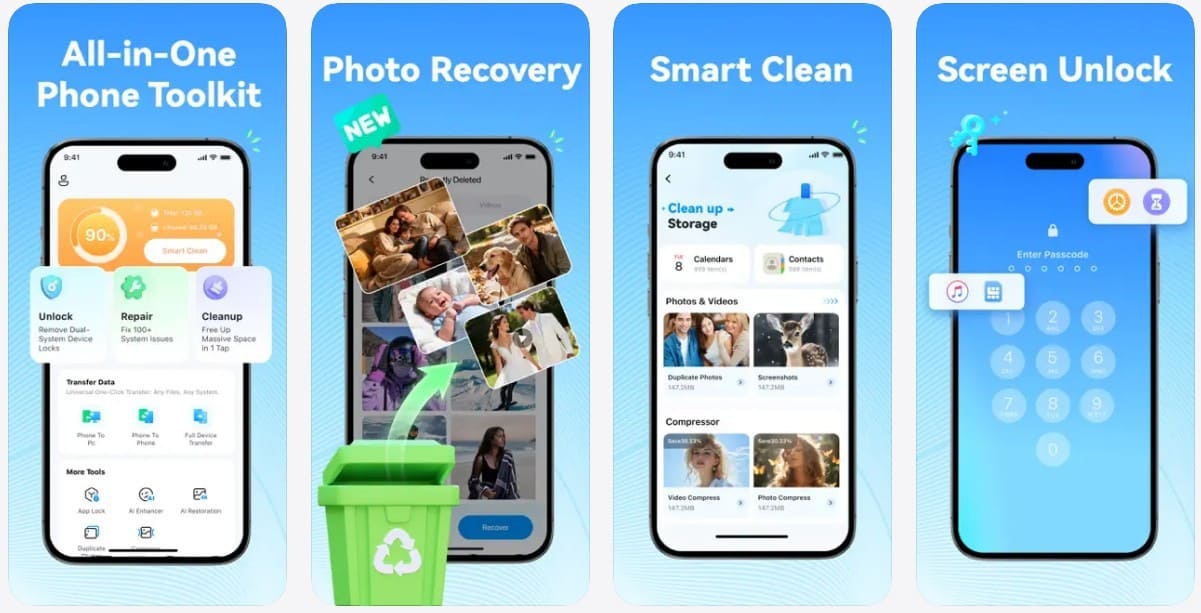
Available on iOS and Android, the app also makes it easy to inspect improvements through a before-and-after comparison. Instead of limiting users to basic sharpening, its AI can enhance clarity, reduce noise, improve low-light photos, and refine portrait details. Dr.Fone also includes separate restoration and colorization capabilities for older pictures, making it a versatile unblur image app for blurry, grainy, low-resolution, and aging photos.



2. Remini – Best for Blurry Faces (Android | iOS)
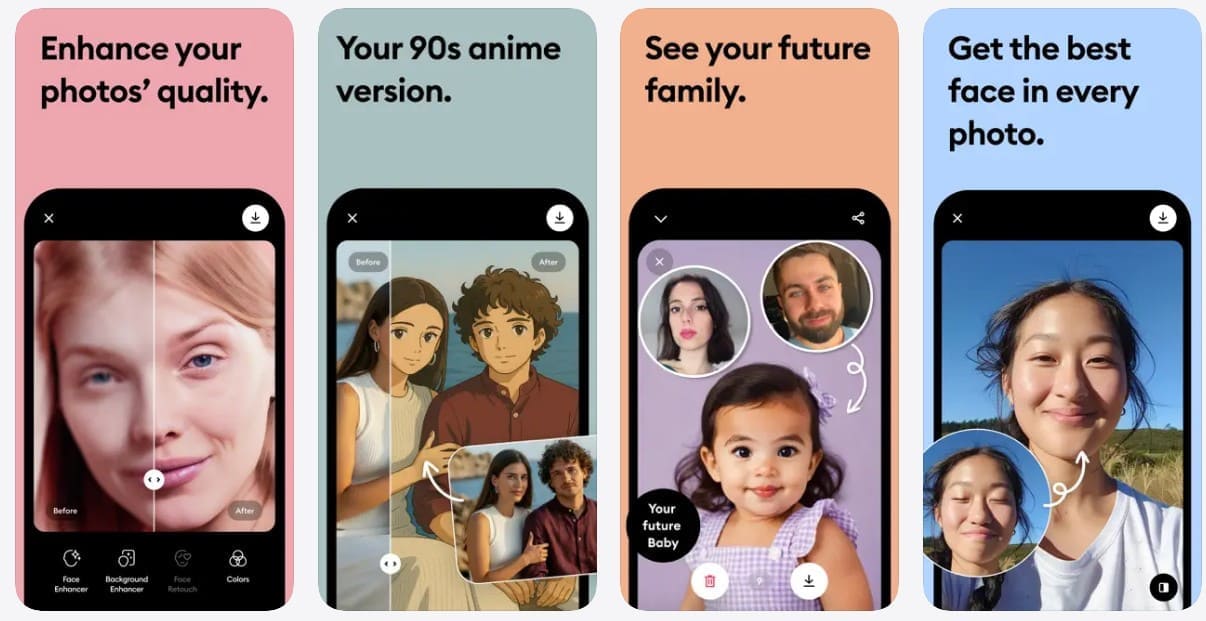
Remini is another app to unblur photos that uses AI to sharpen out-of-focus pictures and improve facial details in portraits, selfies, and group shots. It can also enhance grainy, pixelated, and low-resolution images while increasing their clarity. For older memories, Remini can repair blurry or scratched photos and transform them into clearer, high-definition images with one-tap enhancement.
3. YouCam Enhance – Best for Blur With Noise or Poor Lighting (Android | iOS)
YouCam Enhance uses AI to unblur, sharpen, denoise, color-correct, and upscale blurry or low-quality photos. Its Scenario Mode supports batch enhancement and automatically selects a suitable mode for portraits, landscapes, documents, or anime. AI Lighting can also correct dark and overexposed shots. As a photo unblur app, it improves pixelated visuals and can upscale photos for higher-quality results.
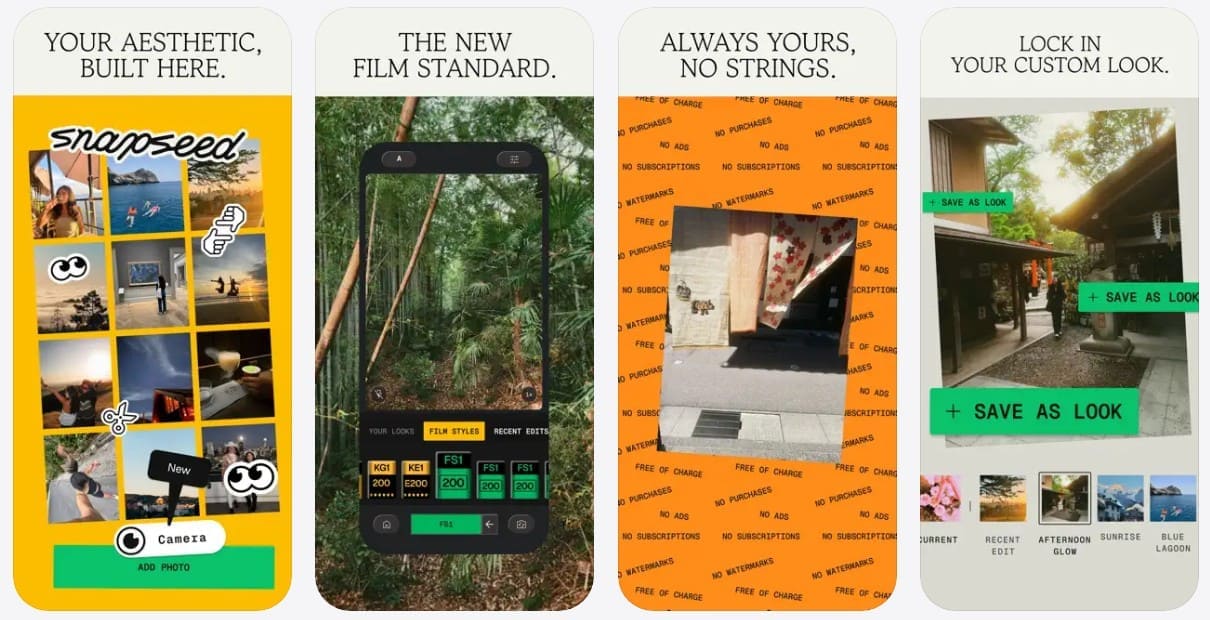
4. Snapseed – Best for Manual Sharpening (Android | iOS)
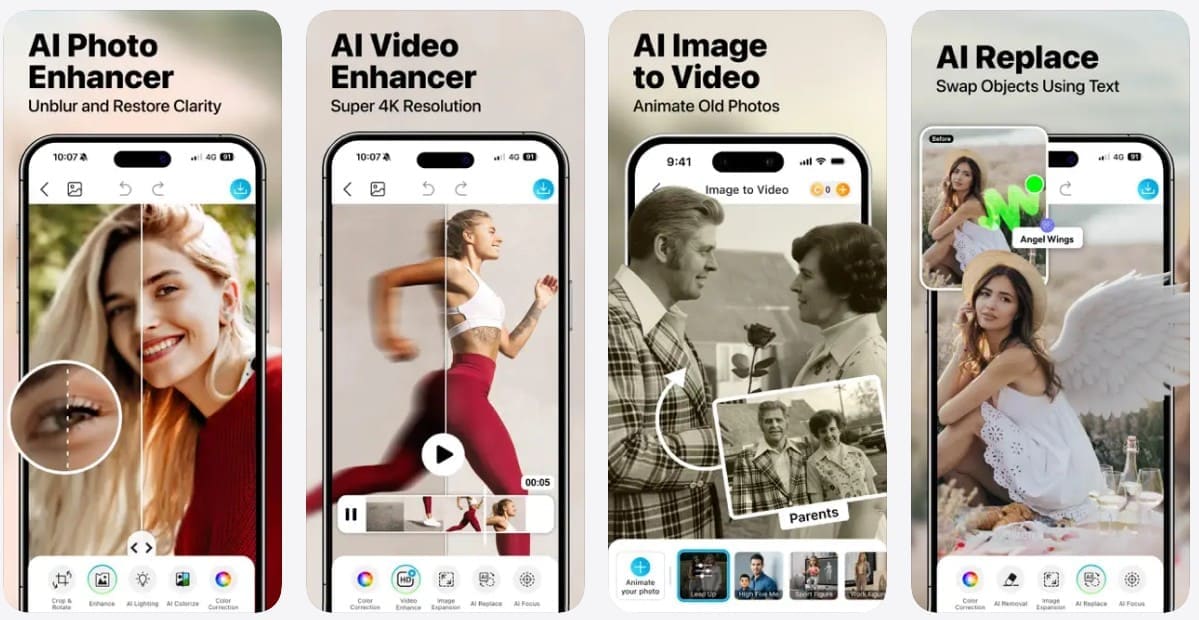
Among popular apps to unblur photos free, Snapseed offers 30+ pro tools and filters without subscriptions, purchases, ads, or watermarks. Its Details tool helps improve surface details, while Dehaze clears haze, fog, or glare for better contrast. Users can also apply their preferred edits to multiple photos with Batch Editing. However, severe blur remains difficult to correct because sharpening cannot fully recover details that were not captured clearly.
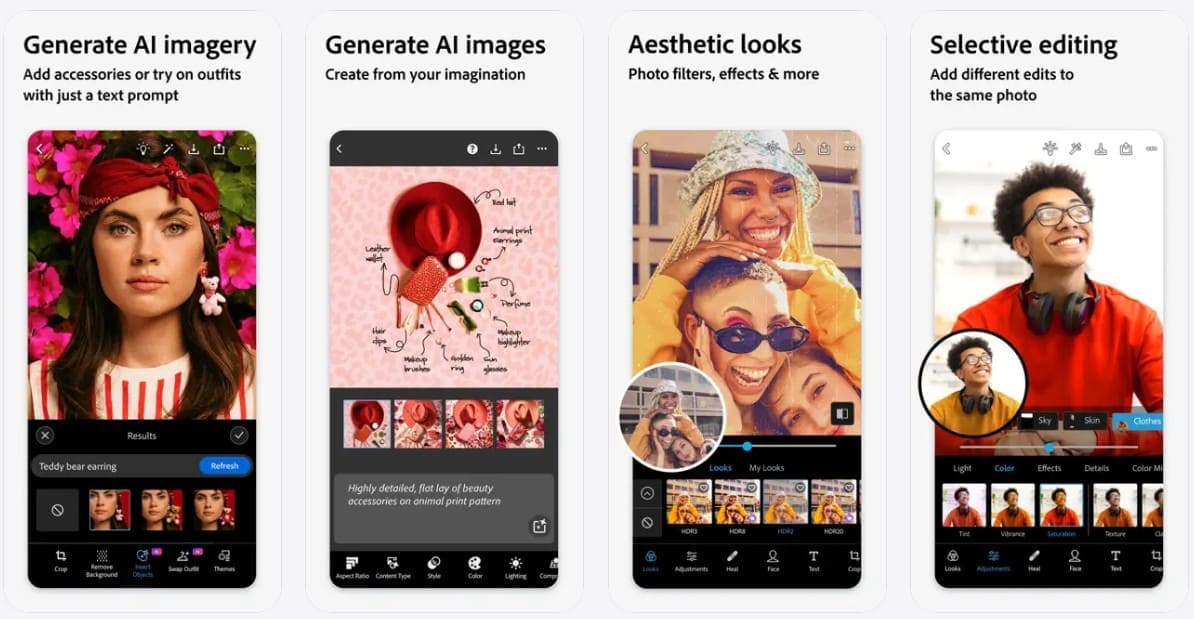
5. Adobe Photoshop Express – Best for Broader Editing Control (Android | iOS)
Photoshop Express provides sharpening alongside clarity, exposure, and noise-reduction controls for more detailed photo editing. It can reduce digital grain and improve the appearance of hazy, low-light, or slightly blurry images. As one of the best apps to unblur photos, it also offers manual control over different adjustments instead of relying only on automatic enhancement. Some advanced editing tools and features require a Premium subscription.
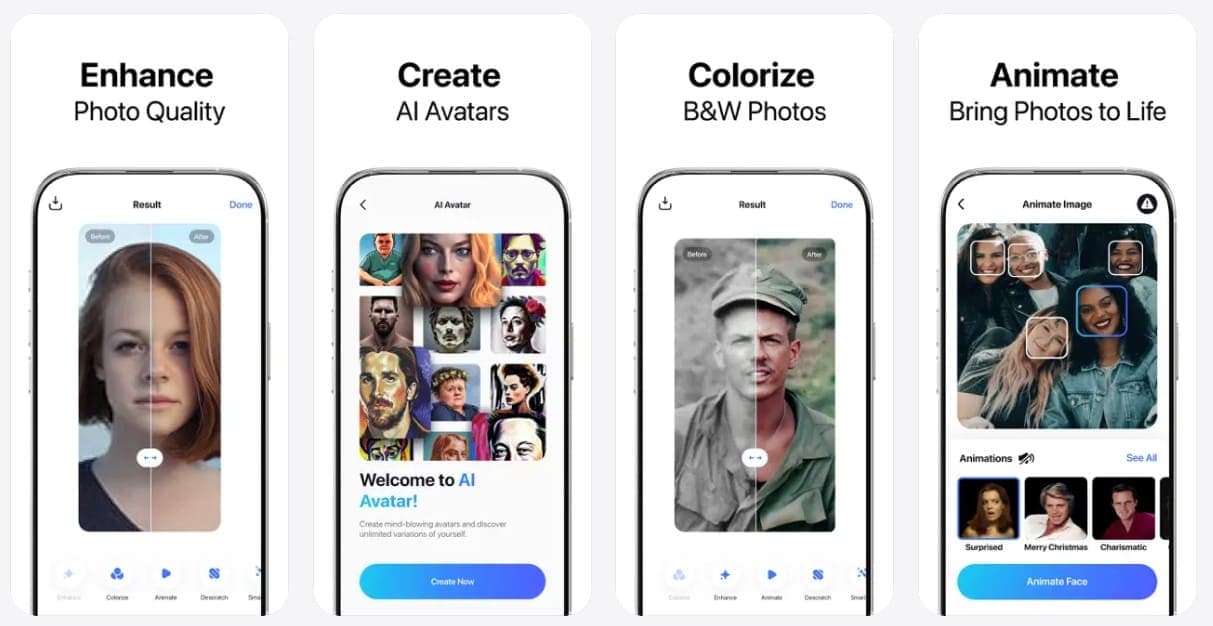
6. Pixelup – Best for Old Blurry Photos (Android | iOS)
Old photos often lose clarity because of fading, blur, low resolution, or visible damage. Pixelup uses AI to improve these issues and restore clearer details in older pictures. As an app to unblur pictures, it can sharpen unclear faces, enhance resolution, and improve overall image quality. Its restoration features can also reduce visible scratches and damage, while AI colorization adds natural-looking colors to black-and-white family photos.
7. EnhanceFox – Best for Quick One-Tap Enhancement (Android | iOS)
EnhanceFox combines AI sharpening, denoising, and resolution enhancement to improve blurry and low-quality photos on iOS and Android. This app to unblur pictures can refine soft or unclear details and upscale images for higher-resolution results with minimal effort. It also supports video enhancement and lets users compare the improved result with the original. Its automatic approach makes EnhanceFox suitable for quick fixes without requiring detailed manual adjustments.
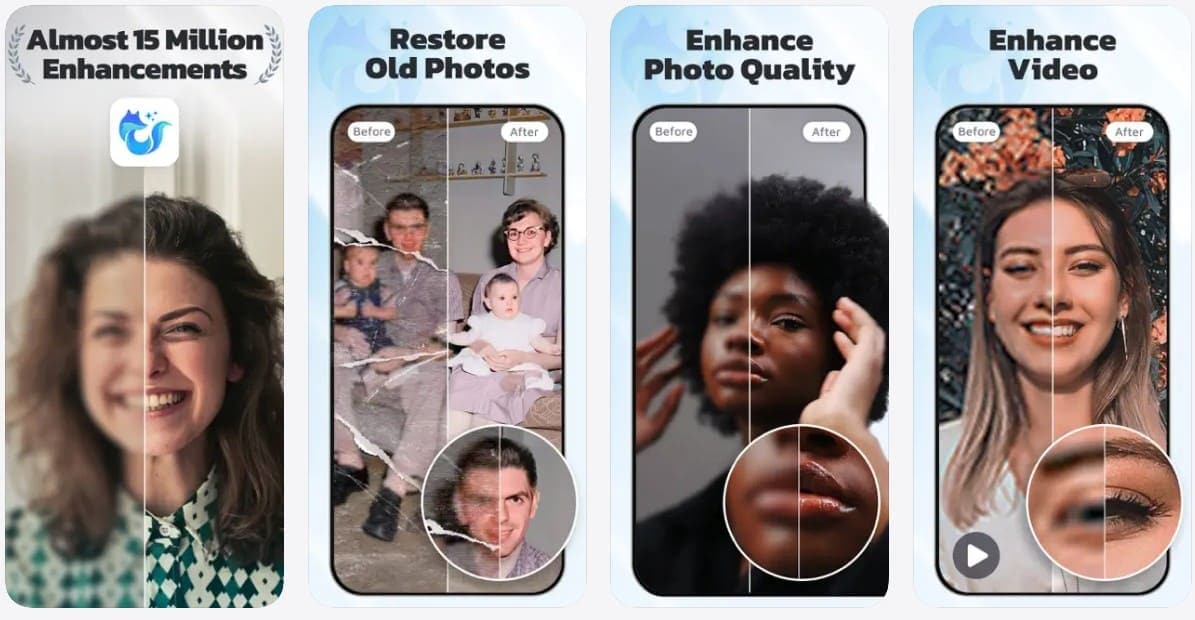
8. Fotor – Best for Simple AI Photo Cleanup (Android | iOS)
Fotor uses AI enhancement to improve blurry, low-quality, and unclear photos directly on mobile. As a photo unblur app, it can sharpen details, improve overall image quality, and restore old photos affected by scratches, fading, or visible damage. Users can also enhance videos using its mobile editing tools. Beyond automatic enhancement, Fotor provides controls for brightness, contrast, sharpness, color, and other adjustments for further editing.
Part 3. Which Unblur App Should You Try First?
If you are wondering which is the best app to unblur photos for your specific needs, compare the options in the table below:
| Photo Problem | Best App to Try | Why Choose It |
|---|---|---|
| Multiple Photo Issues | Dr.Fone App | Handles softness, noise, low-light issues, and facial details in one enhancement workflow. |
| Blurry Faces | Remini or Dr.Fone App | Specializes in enhancing and reconstructing facial details in blurry or low-quality portraits. |
| Blur + Low Light or Noise | YouCam Enhance or Dr.Fone App | Combines AI sharpening, denoising, and lighting enhancement for dark or grainy photos. |
| Mild Softness | Snapseed | Provides manual sharpening controls for photos that only need subtle detail enhancement. |
| Blur + Broader Editing Needs | Photoshop Express | Pairs sharpening with clarity, exposure, and noise-reduction controls for more flexible editing. |
| Old or Damaged Photos | Dr.Fone App or Pixelup | Combines photo enhancement with restoration and colorization tools for older images. |
| Quick Automatic Enhancement | Dr.Fone App, EnhanceFox, or Fotor | Offers AI-powered enhancement for improving blurry or low-quality photos with minimal manual adjustments. |
Part 4. How to Unblur a Picture with Dr.Fone App
Photos often suffer from multiple issues at once, including blur, grain, and poor lighting. Dr.Fone App simplifies enhancement with Auto, Portrait, and Ultra HD modes designed for different photo needs. This versatility makes it the best app to unblur photos with mixed quality problems directly on your phone. Follow the steps below to enhance and upscale your blurry photos without requiring advanced editing skills:
Dr.Fone App - AI Photo Restorer & Enhancer (iOS & Android)
Restore, Colorize, Enhance, and Upscale Photos with AI
- Restore Old Photos by Fixing Creases, Tears, and Scratches
- Colorize Black-and-White Photos with AI
- Auto-Enhance Photos and Improve Portrait Details to HD Quality
- Upscale Images to 2x, 4x, or 8x for Clearer Results
-
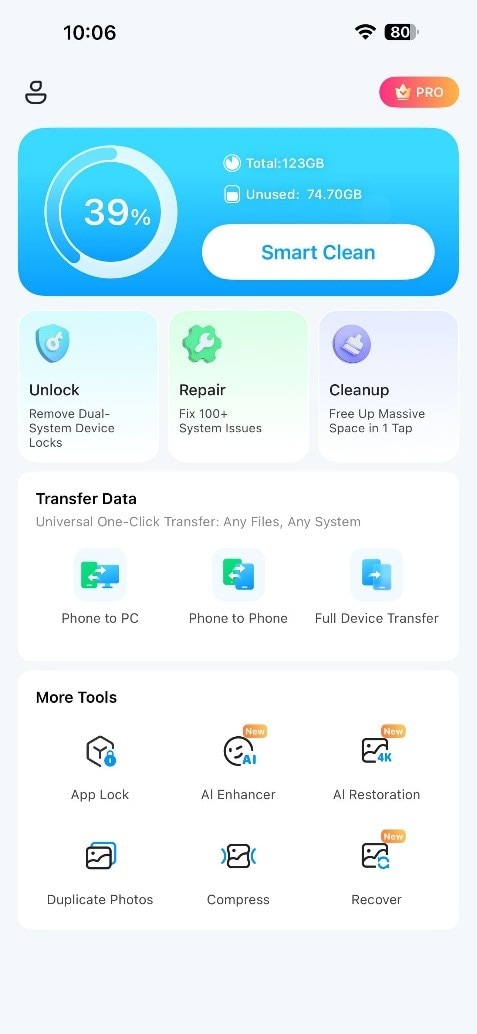
Step 1 Access the AI Enhancer Tool
Open the Dr.Fone App, locate the "AI Enhancer" tool, and tap it to access the photo enhancement modes.
-
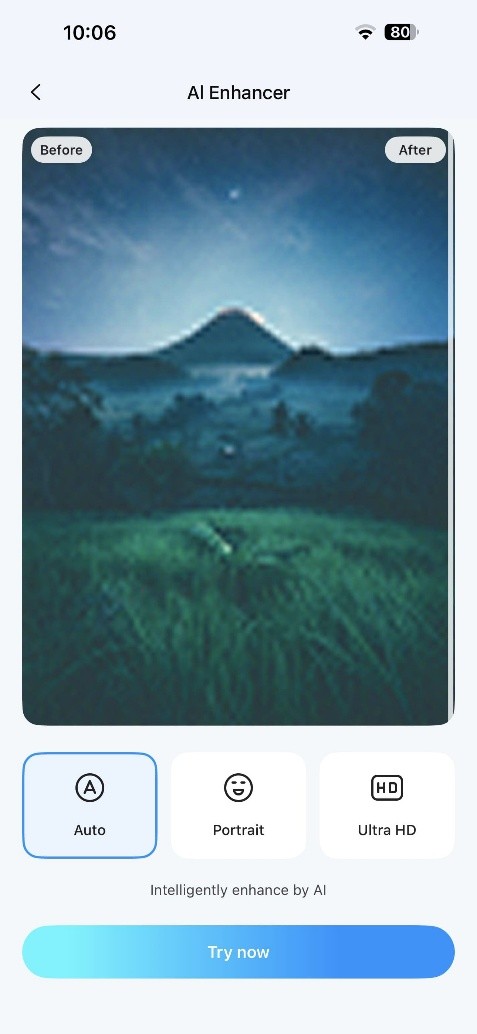
Step 2 Select a Mode and Add Your Photo
Select “Auto” or “Portrait” mode based on your blurry photo, tap “Try Now,” and choose the image from your camera roll to begin enhancement.
-
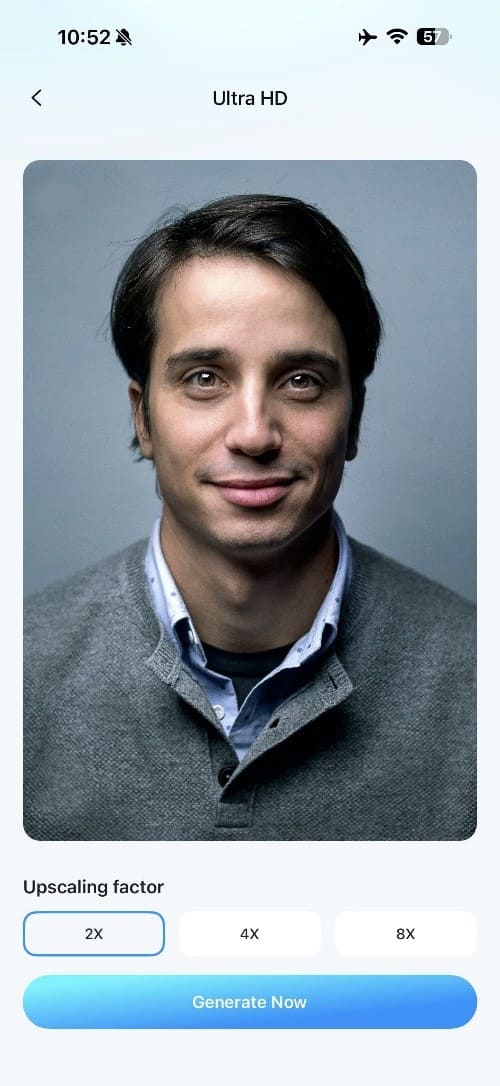
Step 3 Upscale and Review the Result
For stronger enhancement, select “Ultra HD,” choose 2x, 4x, or 8x upscaling, and tap “Generate Now.” Compare the improved photo with the original, then tap “Save” to export it.
Part 5. How Much Blur Can AI Actually Fix?
To understand what to expect from an unblur image app, review the table below to see how effectively AI can handle different levels of blur:
| Blur Severity | Typical Example | Expected AI Improvement | Main Risk |
|---|---|---|---|
| Mild Softness | Slightly out of focus but details remain visible | High | Oversharpening can create edge halos |
| Moderate Blur | Handheld shot with slight camera movement | Moderate | Fine textures may appear artificial |
| Strong Motion Blur | Fast-moving subject smeared across the frame | Limited | AI may reconstruct shapes inaccurately |
| Missed Focus | Camera focused behind or in front of the subject | Minimal | Missing details may be artificially generated |
| Severely Degraded | Very small, compressed, or heavily blurred image | Mostly cosmetic | Faces and fine details may look inaccurate |
Part 6. Why an Unblur App Sometimes Makes a Photo Look Worse
Apps to unblur pictures can sometimes make photos look worse, especially when enhancement is applied too aggressively. Here are 6 common ways this can happen:
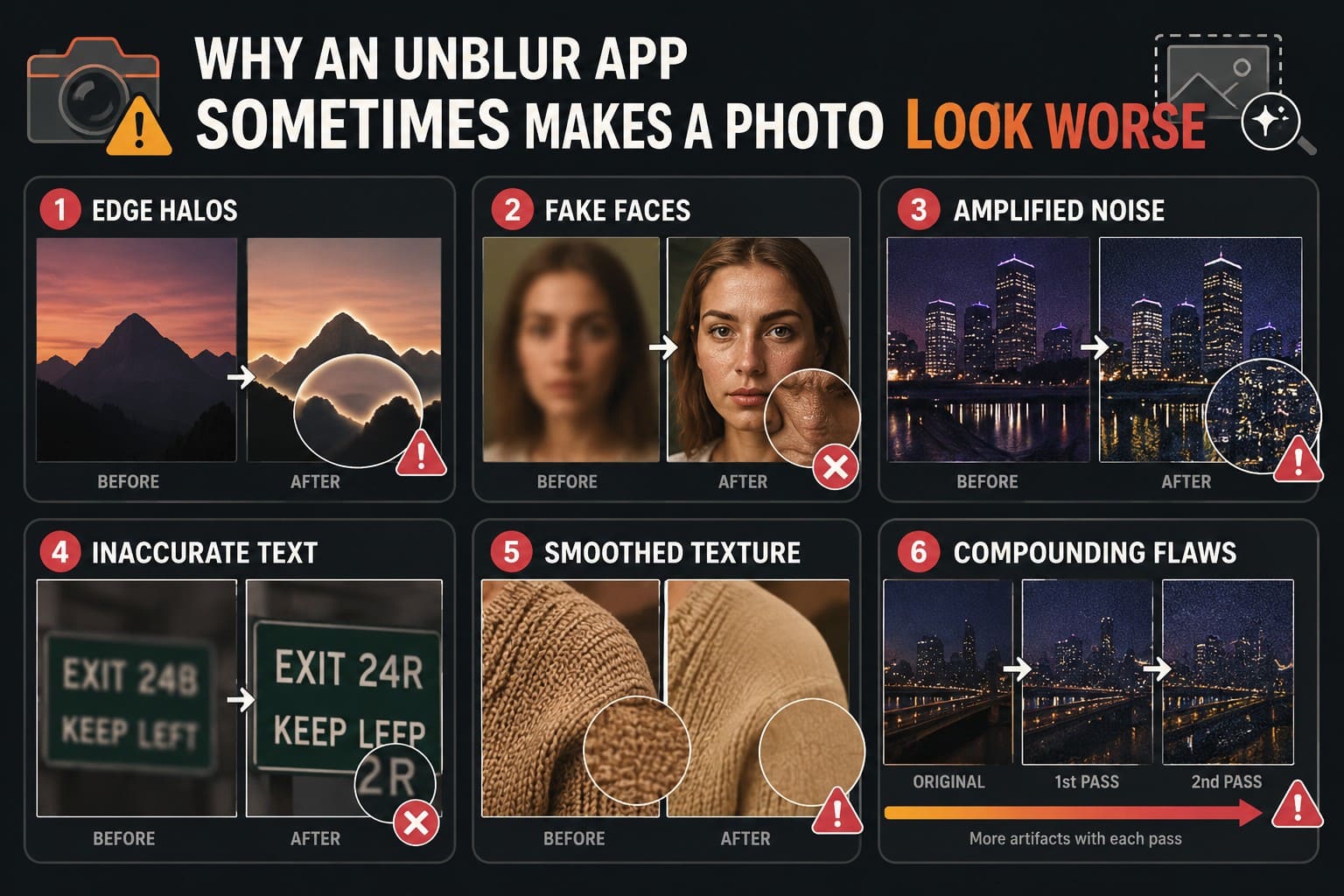
- Edge Halos: Over-sharpening creates bright or dark outlines around high-contrast areas like hairlines and horizons. Adobe documents this halo effect as a common result of excessive edge enhancement.
- Fake Faces: AI tools can generate or restore facial details missing from the original source file. This can make reconstructed faces look realistic but differ from the actual subject.
- Amplified Noise: Strong sharpening boosts hidden digital grain along with genuine image edges. Balancing sharpening with noise reduction can help produce more natural results.
- Inaccurate Text: Unclear letters and small logos may be guessed by AI rather than reproduced accurately. Always treat reconstructed text and numbers as unverified when precision matters.
- Smoothed Texture: Heavy noise reduction can remove natural details along with unwanted background grain. Excessive processing may leave skin and other fine textures looking unnaturally smooth.
- Compounding Flaws: Running multiple enhancement passes can make minor compression artifacts and noise more noticeable. Always keep the original file untouched to compare it with each processed version.
Part 7. Unblur, Sharpen, or Retake: What Should You Do?
Once you have chosen the best photo unblur app, the next step is knowing whether to unblur, sharpen, or retake your photo. The table below compares common situations, the best action for each, and the reason behind it:
| Situation | Best Action | Reason |
|---|---|---|
| Slightly Soft Photo | Sharpen lightly | Existing detail mainly needs stronger edge contrast |
| Blurry Portrait | Use face-focused enhancement | Specialized AI can improve facial features more effectively |
| Camera-Shake Photo | Try AI deblurring | Motion spreads recorded detail across nearby pixels |
| Missed-Focus Image | Retake if possible | Fine details may not have been captured clearly |
| Important Text or Document | Retake or rescan | AI-reconstructed characters may not be accurate |
| Photo That Can Be Retaken | Retake it | A new capture can preserve more authentic detail |
Conclusion
Identify the type of blur before choosing any enhancement tool. Camera shake can preserve smeared detail, while missed focus may leave limited fine detail to recover. Always inspect the enhanced photo closely for artificial edges, textures, or facial changes. For mixed issues like grain, poor lighting, and softness, Dr.Fone App offers a versatile unblur app solution to improve overall photo clarity with minimal effort.
FAQ
-
1. Can an unblur app fix camera shake?
Partly. Camera shake can make details look blurred, and AI may restore some lost clarity. However, heavy shake or fast movement can leave too little clear detail for an unblur app to fix accurately. -
2. Why does AI sometimes change a blurry face?
AI may change a blurry face because some facial details are unclear or missing. It may recreate features like eyes, teeth, or skin texture, which can make the enhanced face look different from the original person. -
3. Can an app fix a photo that is completely out of focus?
Usually not completely. If the camera did not capture enough clear detail, an app has little original information to restore. AI may improve the photo’s appearance, but some details can be generated rather than accurately recovered. -
4. Is sharpening the same as unblurring a photo?
No. Sharpening makes existing edges look clearer, while unblurring tries to reduce the visible blur across the image. If a photo is badly out of focus, sharpening cannot restore details that were never captured clearly.








Selena Lee
staff Editor
Generally rated4.5(105participated)