


 TL;DR:
Making a photo HD requires targeted adjustments to clarity, sharpness, and noise rather than simply changing file formats, as AI enhancement tools can infer plausible textures but cannot guarantee the recovery of missing information the camera never originally captured.
● For an automated mobile workflow on iOS and Android, Dr.Fone APP provides one-touch AI enhancement and upscales images to 2x, 4x, or 8x without requiring manual editing.
● Browser-based options fit specific use cases, with Fotor supporting batch processing (though free exports are watermarked and capped at 2x enlargement) and Canva streamlining upscaling directly into web design templates.
● Adobe Photoshop and Lightroom are necessary for precise local adjustments, such as reducing background noise while protecting specific facial details, but require a premium subscription and technical editing skills.
Ask AI for a summary
 ChatGPT
 Perplexity
 Gemini
 Claude
 Grok
Grok
A picture can seem fine in your gallery, but might turn soft, grainy or pixelated when enlarged, reused from social media, dumped into a presentation or added to a shop. Not just resolution but compression, missed focus, noise, weak source detail can all lessen quality that is usable.
An HD photo enhancer can improve clarity, sharpness, noise, and sometimes resolution, but the right fix depends on the defect. AI can infer plausible detail in a weak image; it cannot guarantee the recovery of information the camera never captured.
This guide explains what making a photo HD really involves and how to choose the right enhancement approach.
Part 1: What Does “Make a Photo HD” Actually Mean?
Making a photo HD typically refers to making it clearer and more usable when enlarged by noise reduction, detail enhancement or resolution upscaling.
1.1 HD, Resolution, and Image Quality Are Different
HD refers to defined display-resolution formats. Resolution describes pixel dimensions or, for print, pixel density. Image quality also depends on focus, noise, compression, exposure, and source detail.

First and foremost, HD is not a file format Just converting a JPG to a PNG doesn’t enhance quality, nor does it add missing detail. A bigger image can also still look blurry.
1.2 Why Does a Photo Look Low Quality?
What went wrong during the image's capture or processing frequently determines the visibility issue:
| Problem in Source | What You Usually Notice |
|---|---|
| Too few pixels | Pixelation when enlarged |
| Missed focus / motion blur | Soft or unclear subjects |
| High ISO / poor lighting | Grain or visible noise |
| Heavy JPEG compression | Blockiness or artifacts |
| Repeated social-media compression | Lost texture and detail |
| Low contrast / poor exposure | Flat or hard-to-see detail |
This is why one HD photo converter cannot fix every image equally well.
1.3 What Can AI Enhancement Realistically Improve?
An HD photo enhancer may improve perceived sharpness, noise, softness, edge definition, texture, overall clarity and sometimes even pixel dimensions. Nevertheless, if essential information is badly obscured, masked or is missing, artificial intelligence may generate credible information, rather than restoring the exact original information.
When you know the main problem, you can pick an enhancement method with regard to the speed and control needed.
Part 2: Method 1- Make a Photo HD with Dr.Fone APP
When an unclear photo is already on your phone, manually balancing sharpness, noise reduction, clarity, and other adjustments may be unnecessary. Dr.Fone APP offers AI Photo Enhancer inside its AI Toolbox for a more automated mobile workflow. The official guide documents the same enhancement process for both iOS and Android.
2.1 Why Use Dr.Fone APP for Photo Enhancement?
Dr.Fone is suited to users who want an HD photo enhancer that requires little manual editing. Instead of adjusting several controls separately, you select the image and let the enhancement process run automatically.
According to the supplied product brief:
- Auto Enhancer: A tool for the automatic enhancement of your photo quality.
- Portrait Enhancer: Made for selfies, profile pictures, portraits or other people images.
Dr.Fone App - AI Photo Restorer & Enhancer (iOS & Android)
Restore, Colorize, Enhance, and Upscale Photos with AI
- Restore Old Photos by Fixing Creases, Tears, and Scratches
- Colorize Black-and-White Photos with AI
- Auto-Enhance Photos and Improve Portrait Details to HD Quality
- Upscale Images to 2x, 4x, or 8x for Clearer Results



2.2 How to Convert an Image to HD with Dr.Fone App
-
Step 1:
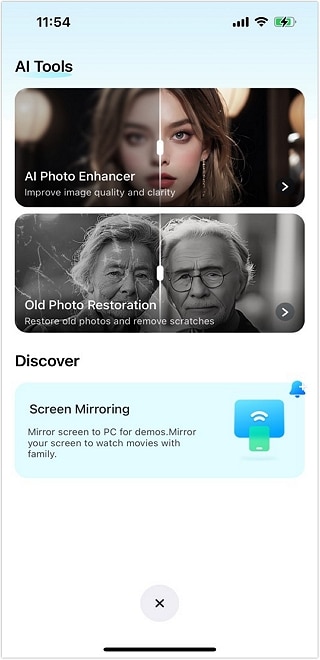
Launch Dr.Fone APP → tap AI Toolbox → select AI Photo Enhancer.
-
Step 2:
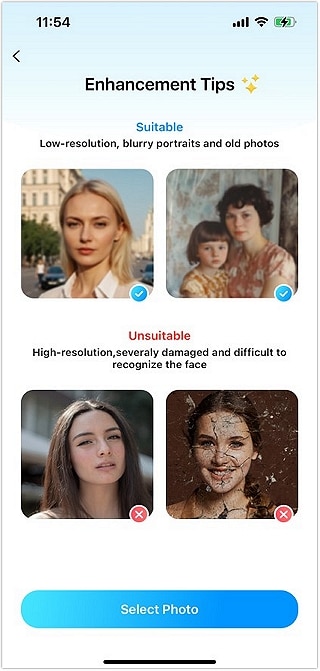
Tap Select Photo and choose the soft, blurry, or low-quality image from your device.
-
Step 3:
Tap Enhance and allow the app to process the photo.
-
Step 4:
Use the before-and-after slider to inspect faces, edges, small text, and textures. If the result looks natural, tap Save.

2.3 Where This Method Works Best
This mobile workflow is particularly practical for:
- everyday phone photos that look soft
- selfies and portraits
- social-media images
- product photos needing a cleaner presentation
- visuals used in reports or presentations
The aim is improved clarity and overall image quality—not a guaranteed resolution or recovery of every missing detail. For occasional enhancement without installing an app, an online tool may be more convenient.
Part 3: Method 2 - Use an Online HD Photo Converter
An HD photo converter online is useful when you need to improve one or two images without installing an app. The best choice depends on whether you want automatic enhancement, some manual control, or a photo that will immediately become part of a design.
3.1 Fotor - Best for Bulk HD Conversion
Fotor combines AI upscaler technology and batch processing, which hints it is useful to handle several photos at once.
The free output reduces visible pixelation, but it is locked at 2x and has a watermark. Paid access eliminates the watermark and offers bigger enlargement.

Best for: Photographers, social-media managers, and users processing multiple images.
Pros
- Batch processing on paid plans
- Noise reduction and deblurring
- Cleaner output at normal viewing size
Cons
- Free results are watermarked
- Free enlargement is capped at 2x
- Credits can run out quickly
- AI may invent detail
3.2 Adobe Photoshop - Best for Controlled Enhancement
Although a basic HD photo converter is useful, Photoshop is more of better at, doing things. When upscaling an image, AI-assisted resampling and Preserve Details 2.0 can retain detail.
In the test provided, the blurred edges and entire portrait became sharper and clearer while maintaining a natural look.

Best for: Scanned photos, restoration work, and detailed correction.
Pros
- Strong results with proper settings
- Good control over enlargement
- Useful AI-assisted tools
- Preserves detail well
Cons
- Premium subscription required
- Takes more skill than one-click tools
- Results depend on correct settings
3.3 Canva - Best for Design-Ready Images
Canva is practical when you want to turn an image into high resolution and then use it in a post, presentation, thumbnail, or poster.
Its tested output showed cleaner edges, reduced pixelation, and good color consistency at normal viewing size. The workflow is simple, especially for existing Canva users.

Best for: Bloggers, marketers, and social-media creators.
Pros
- Easy drag-and-drop workflow
- Built-in templates and layout tools
- Suitable for web and social content
- Supports upscaling and format conversion
Cons
- Fewer specialized AI models
- Some advanced tools require Pro
- Not ideal for very large print or 8K output
For quick enhancement, these tools are convenient. If the image needs exact control over noise, color, exposure, or selected areas, desktop editing is the better next step.
Part 4: Desktop and Manual Methods to Improve Photo Quality
Automatic enhancement works well for quick corrections, but some photos need different fixes in different areas. Desktop editors such as Photoshop and Lightroom provide more control over how each problem is treated.
4.1 What Manual Editing Gives You Control Over
Photoshop and Lightroom allow you to change sharpening, noise reduction, exposure, highlights, shadows, contrast, texture, clarity, color separately.

Choice editing adds another benefit. With masks or local adjustments, you could correct one place without affecting the whole image. You can reduce noise in a dark background while protecting facial detail. Or, brighten an underexposed subject without lifting the entire frame.
4.2 When Manual Editing Is the Better Choice
A controlled workflow is especially useful for:
- professional product photos
- images requiring accurate color
- corrections limited to specific areas
- batches that need a consistent look
- photos where automatic AI creates unnatural changes
Manual editing takes more effort, but it gives you greater control over the final appearance.
4.3 Sharpening Does Not Increase Resolution
Sharpening and resolution solve different problems.
- Sharpening increases perceived edge definition, making existing detail appear crisper.
- The pixel dimensions of the image increase or decrease by adding or removing pixels using resizing.
A photo can therefore appear to be sharper while being exactly the same width and height. If the main problem is clarity, perhaps editing will be sufficient. If the pixel dimensions required are too small, resolution is another problem altogether.
Part 5: HD vs. 4K vs. Image Upscaling, What's the Difference?
HD enhancement, 4K conversion, and image upscaling are related, but they solve different problems. A higher pixel count can help when an image is too small, but it does not automatically fix blur, noise, or weak source detail.

| Your Goal / Problem | What You Actually Need | Best Approach | What It Changes | Important Limitation |
|---|---|---|---|---|
| Photo looks soft, noisy, or unclear | Better visible quality | HD photo enhancer | Clarity, sharpness, noise, perceived detail | Does not guarantee recovery of missing detail |
| Need a quick phone-based fix | Mobile enhancement | Dr.Fone APP | Overall image quality with low manual effort | Result depends on source quality |
| Need one or two browser-based fixes | Online enhancement | HD photo converter online | Quality improvement, sometimes resolution | Free limits and output vary by service |
| Need precise correction | Manual editing | Photoshop / Lightroom | Noise, color, exposure, sharpness, local areas | Requires more time and control |
| Image is too small | Larger pixel dimensions | Dedicated upscaler | Width and height | Larger size does not automatically fix blur |
| Need exact 4K output | Specific resolution target | 4K workflow | Final dimensions, commonly 3840 × 2160 | 4K dimensions alone do not improve source detail |
Key takeaway: A clearer image, a larger image, and a 4K image are not the same result. Use enhancement for visible quality problems, upscaling for insufficient dimensions, and a 4K workflow only when an exact resolution target is required.
FAQ
-
1. What does it mean to make a photo HD?
In strict technical use, HD refers to a resolution class. In photo-enhancement tools, “HD” is also used more broadly for improving clarity, detail, and sometimes pixel dimensions. -
2. Is an HD photo the same as a 1080p image?
No. 1080p is 1920 × 1080 pixels and is commonly called Full HD (FHD). Standard HD is typically 1280 × 720. An enhanced photo does not automatically become 1080p. -
3. Can AI convert a low-resolution image to high resolution?
Yes. AI can increase pixel dimensions and infer plausible detail. However, it will not retrieve any detail that is entirely missing. -
4. Does converting JPG to PNG make a photo HD?
JPG and PNG refer to formats. Simply changing the file format does not raise pixel count or fill in missing detail, raising pixel dimensions involves resizing or resampling. -
5. Can an AI HD photo converter completely fix a blurry image?
Not always. Slight degradation in performance, due to blur, noise, or low resolution, may improve, but severely out-of-focus detail, an unrecognisable mask, or missing detail cannot be reliably reconstructed as the same original information.
Conclusion
A better-looking photo is not simply a larger one. A good HD photo enhancer should fix the actual issue (noise, softness, blur, weak detail, or low resolution). More importantly, the final result should not look unnatural. For instant enhancement to your smartphone, Dr.Fone APP is a practical choice as its AI Photo Enhancer makes the process easy and straightforward.
An HD photo converter online suits occasional edits, while desktop tools remain useful for detailed correction. Whichever route you choose, source quality still matters. AI can improve and reconstruct detail, but it cannot guarantee the exact recovery of information that was never captured.









James Davis
staff Editor
Generally rated4.5(105participated)