

 TL;DR:
Dr.Fone App is the strongest all-round choice for restoring old photos with scratches, stains, faded details, blur, and other damage, while other apps specialize in faces, album scanning, colorization, or one-tap repair.
- Use Dr.Fone App for combined restoration, colorization, facial enhancement, and upscaling on Android and iOS.
- Choose RetroFix for visible scratches, Remini for blurry faces, Reimagine or Photomyne for printed albums, and FixMyPics for separate restoration controls.
- Repair physical damage before colorizing or enhancing, and always keep an untouched master scan because AI cannot reliably recreate missing details or historically accurate colors.
Ask AI for a summary
 ChatGPT
 Perplexity
 Gemini
 Claude
 Grok
Grok
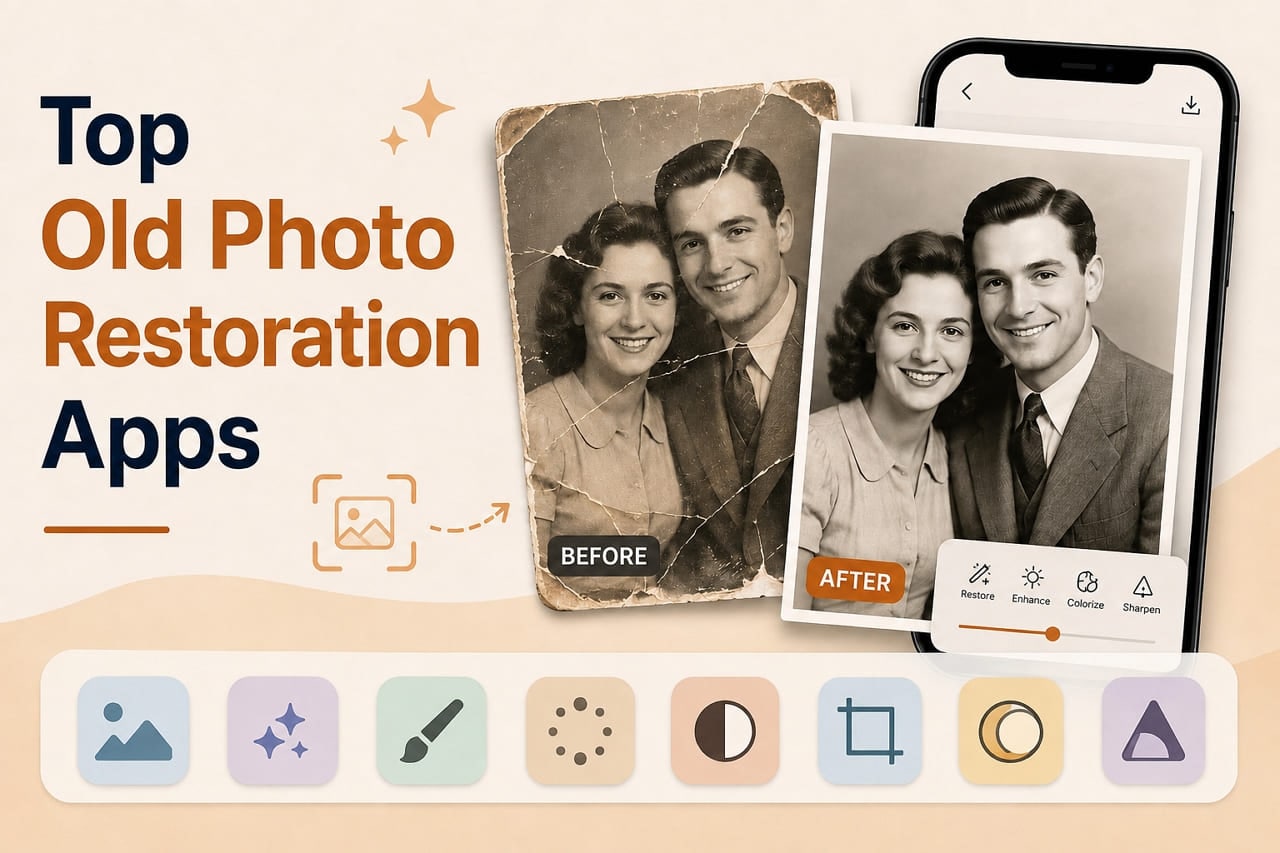
Old photos fade, tear, develop stains, and lose clarity over time, putting valuable family memories at risk. Fixing this damage often requires more than basic editing tools. An old photo restoration app can repair scratches, reduce stains, restore faded colors, sharpen blurry faces, and improve damaged areas. Whether you have worn family portraits, creased prints, faded photographs, or low-quality scans, the right app can restore important details.
It can also help preserve the original character of treasured photographs. This ultimate guide compares the 8 best apps for restoring old photos in 2026. Explore their restoration features, key strengths, and ideal uses to see why Dr.Fone App stands out as the top overall choice.
- Part 1. What Does Your Old Photo Need Restored?
- Part 2. 8 Best Apps for Restoring Old Photos
- Part 3. Which Restoration App Fits Different Old Photo Problems?
- Part 4. How to Restore an Old Photo Using Dr.Fone App
- Part 5. Restore, Colorize, or Enhance: What Should You Do First?
- Part 6. How to Judge a Restored Photo Before Keeping It?
- Part 7. Preserve the Original Photo After Digital Restoration
- Part 8. What AI Photo Restoration Cannot Reliably Recreate
- Frequently Asked Questions
Part 1. What Does Your Old Photo Need Restored?
Before choosing an app, identify what is actually wrong with your photo. This helps determine which photo restorer app fits your needs. The table below covers 7 common problems and the restoration features required for each:
| Photo Problem | What It Looks Like | Restoration Feature Needed | What to Check After Repair |
|---|---|---|---|
| Scratches | Thin white or dark lines across the photo | Scratch and damage repair | Check that lines disappear without smudging nearby details |
| Creases or Tears | Visible breaks with missing detail along damaged areas | AI reconstruction or inpainting | Inspect reconstructed areas for natural and consistent details |
| Faded Colors | Washed-out tones or noticeable yellow color shifts | Color restoration | Compare restored colors and skin tones with known references |
| Blurry Faces | Soft, unclear, or poorly defined facial features | Face enhancement | Confirm facial features remain recognizable and realistic |
| Stains or Discoloration | Dark, yellow, or uneven patches across the photo | Stain removal and tone correction | Look for smooth blending around corrected areas |
| Black-and-White Photos | Photos containing no original color information | AI colorization | Treat generated colors as plausible rather than historically accurate |
| Low-Resolution Scans | Soft details and limited clarity at larger sizes | Resolution enhancement | Inspect fine details for unnatural textures or added artifacts |
Part 2. 8 Best Apps for Restoring Old Photos
Once you identify the damage, compare these 8 picture restoration apps to find the option that best matches your photo restoration needs.
1. Dr.Fone App – Best All-Rounder for Old Photo Restoration (Android | iOS)
Handling multiple signs of aging is where Dr.Fone App becomes especially useful. Its AI Restoration feature addresses scratches, stains, noise, faded details, and blurry areas in old photographs. Users can choose Restore to repair visible damage, then apply Colorize when needed and compare the processed result before saving. This keeps restoration straightforward without requiring complex manual adjustments.
Dr.Fone App - AI Photo Restorer & Enhancer (iOS & Android)
Restore, Colorize, Enhance, and Upscale Photos with AI
- Restore Old Photos by Fixing Creases, Tears, and Scratches
- Colorize Black-and-White Photos with AI
- Auto-Enhance Photos and Improve Portrait Details to HD Quality
- Upscale Images to 2x, 4x, or 8x for Clearer Results



Beyond restoration, this app to restore old photos provides dedicated AI Enhancement tools for improving image quality further. Auto mode handles general enhancement, while Portrait focuses on facial details. Ultra HD offers 2x, 4x, and 8x upscaling options for increasing image resolution. Together, these AI capabilities provide a convenient mobile workflow for restoring, colorizing, enhancing, and upscaling old photos on Android and iOS.
2. Renew – Best for One-Tap Restoration (Android | iOS)
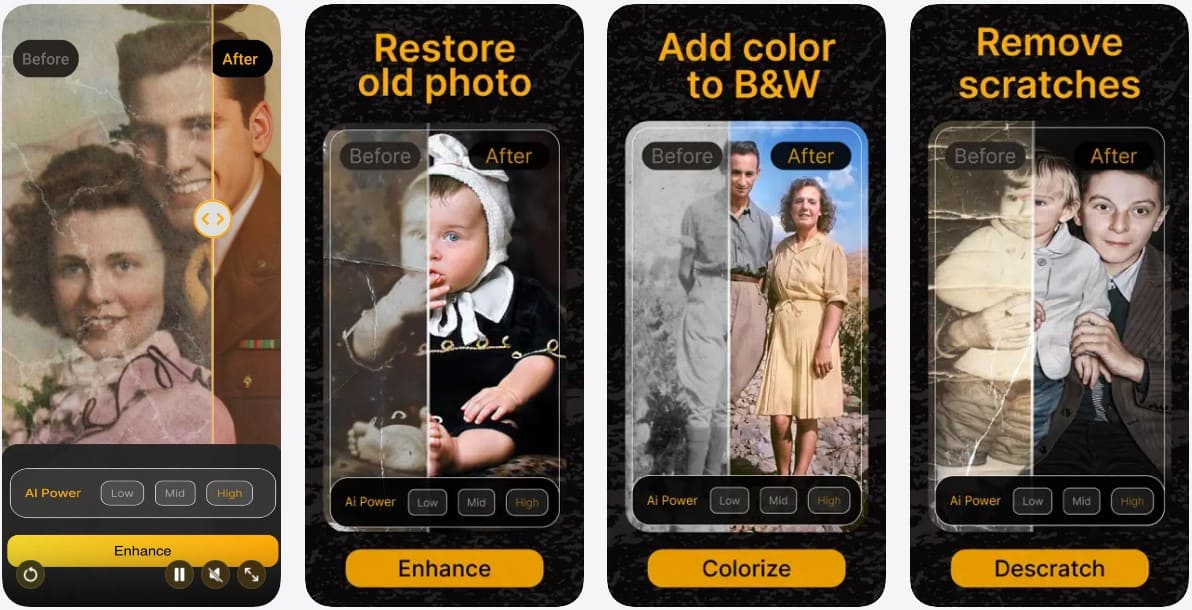
Designed to simplify old-photo repair, Renew uses one-tap AI restoration for scratches, creases, tears, fading, blur, and lost clarity. This old photo recovery app also offers colorization, facial sharpening, animation, and adjustable AI strength for controlling restoration intensity. Renew supports HD exports for printing and framing, while its streamlined interface makes repairing and enhancing damaged family photos accessible without complex manual editing.
3. RetroFix – Best for Scratches and Visible Damage (Android | iOS)
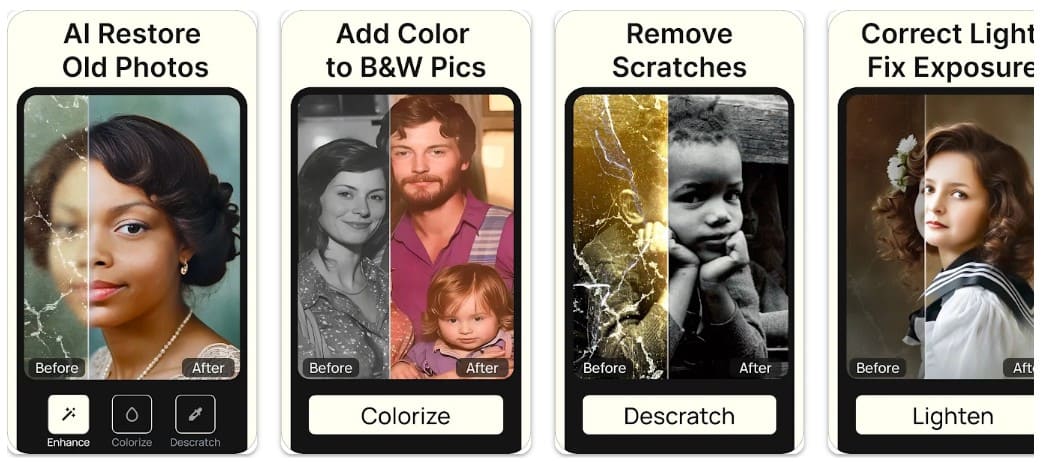
RetroFix provides Low, Mid, and High modes for choosing different levels of old photo restoration. As one of the best apps for restoring old photos, it addresses scratches, discoloration, blur, and other visible aging damage. Users can also colorize black-and-white photos, sharpen faded details, and improve underexposed images. Its Old Photo Editor adds further options for refining and enhancing vintage photographs.
4. Reimagine by MyHeritage – Best for Family Albums (Android | iOS)
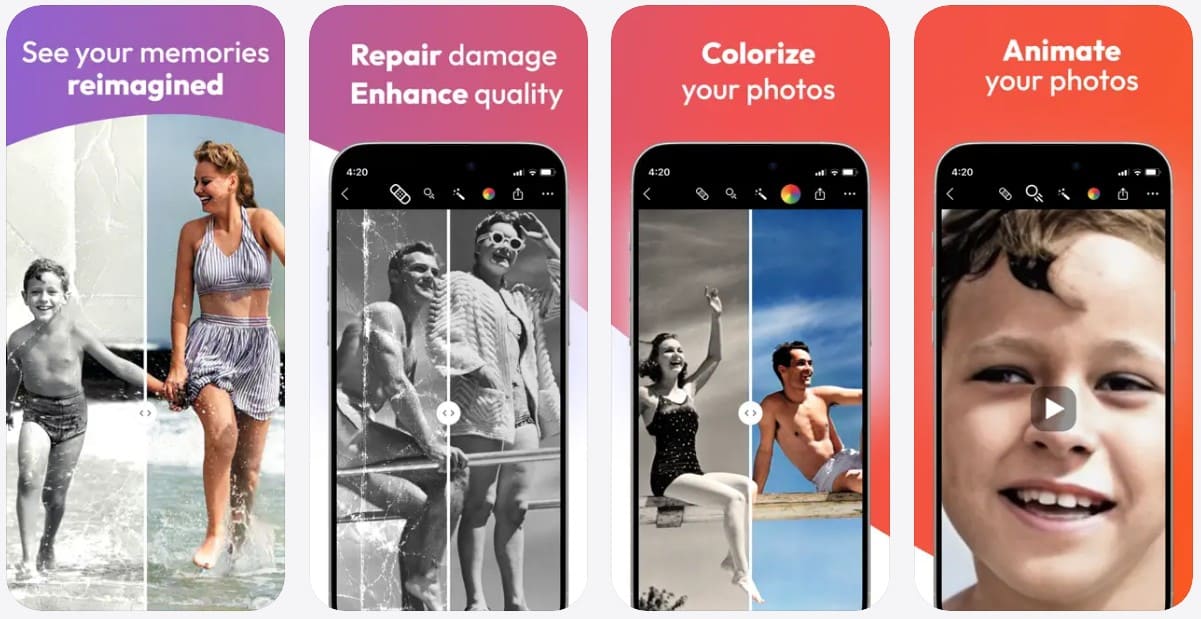
Built for preserving family photo collections, Reimagine can scan entire album pages and automatically detect, crop, and save individual photos. This old photo recovery app also repairs scratches and creases, enhances resolution, restores faded colors, and colorizes black-and-white photos. Reimagine keeps improved versions separate from originals, while its multi-photo scanner makes digitizing large family albums considerably easier.
5. Remini – Best for Faces in Old Portraits (Android | iOS)
Blurry faces are where Remini stands out, using AI to identify faces and facial features before enhancing them to sharper HD quality. This photo restorer app also repairs old, blurry, scratched, pixelated, and damaged photos while reducing grain and sharpening details. Remini works particularly well with portraits and group photos, making it a strong choice when facial clarity is the main restoration priority.
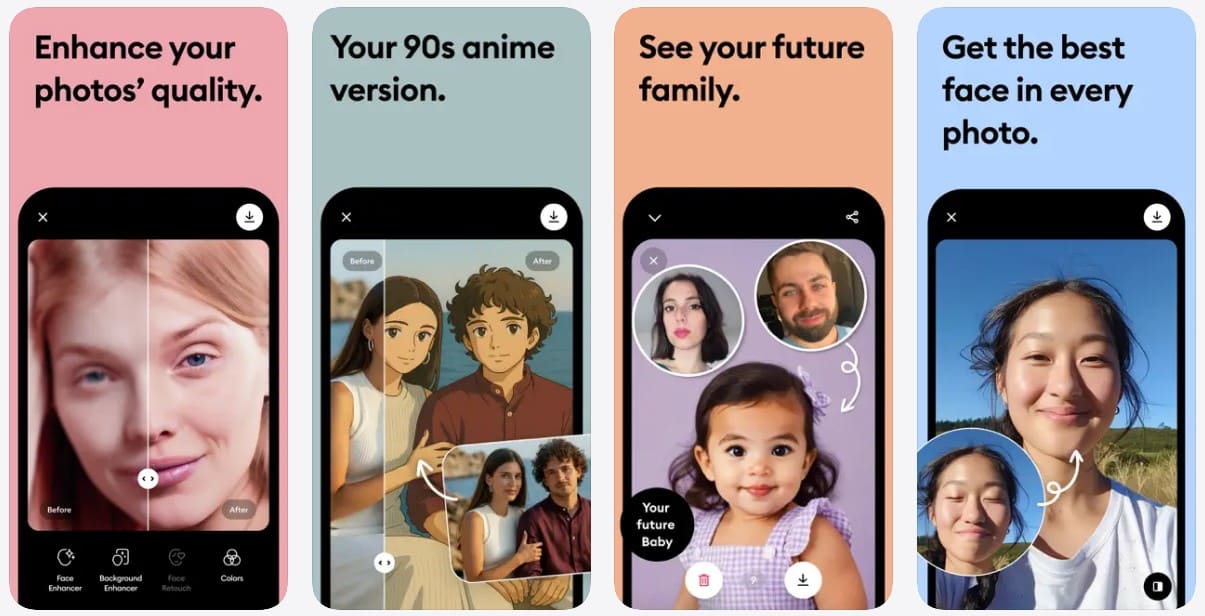
6. Pixelup – Best for Enhancement Plus Colorization (Android | iOS)
Old portraits often need more than basic sharpening, and Pixelup combines several AI features for that purpose. This old photo restoration app offers Enhance, Colorize, Descratch, and Animate tools for improving aged photos. It can refine facial details, colorize black-and-white images, and address scratches, tear marks, and stains. Users can also animate restored photos, making Pixelup useful for both restoration and creative enhancement.
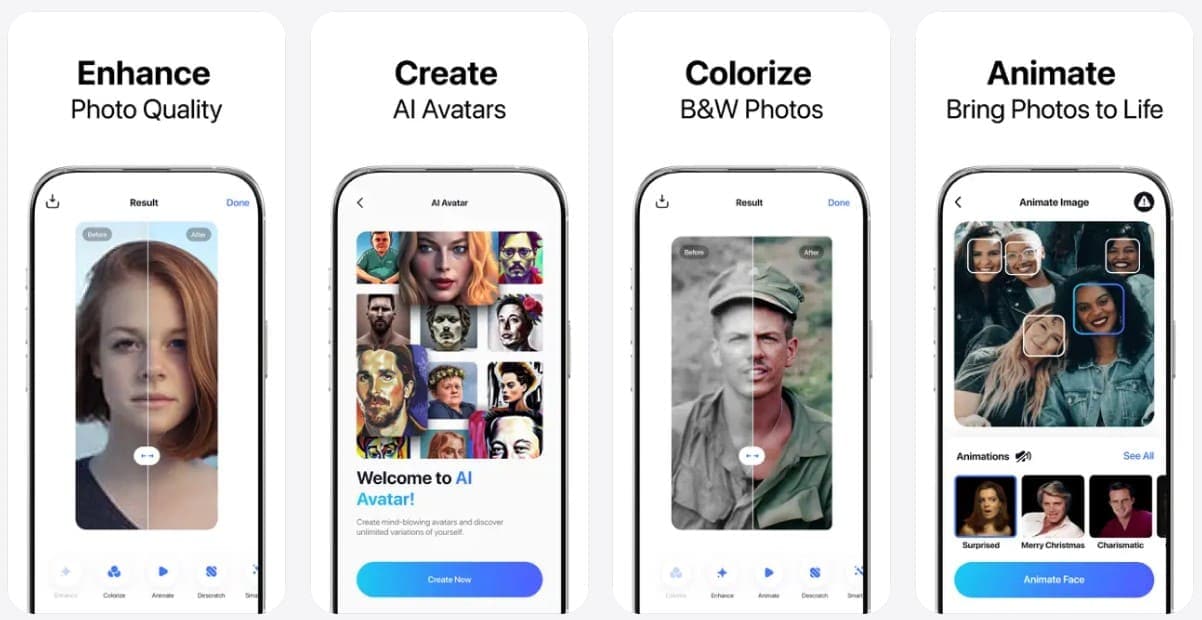
7. FixMyPics – Best for Separate Restore, Descratch, and Colorize Tools (Android | iOS)
For photos with different types of damage, this app to repair old photos provides separate Restore, Descratch, and Colorize tools. FixMyPics lets users import or capture a photo, then address scratches, spots, fading, and other visible flaws. Its V1, V2, and V3 options provide different restoration results for comparison. Once finished, users can select Save, use Save HD with Pro, or share the restored photo directly.
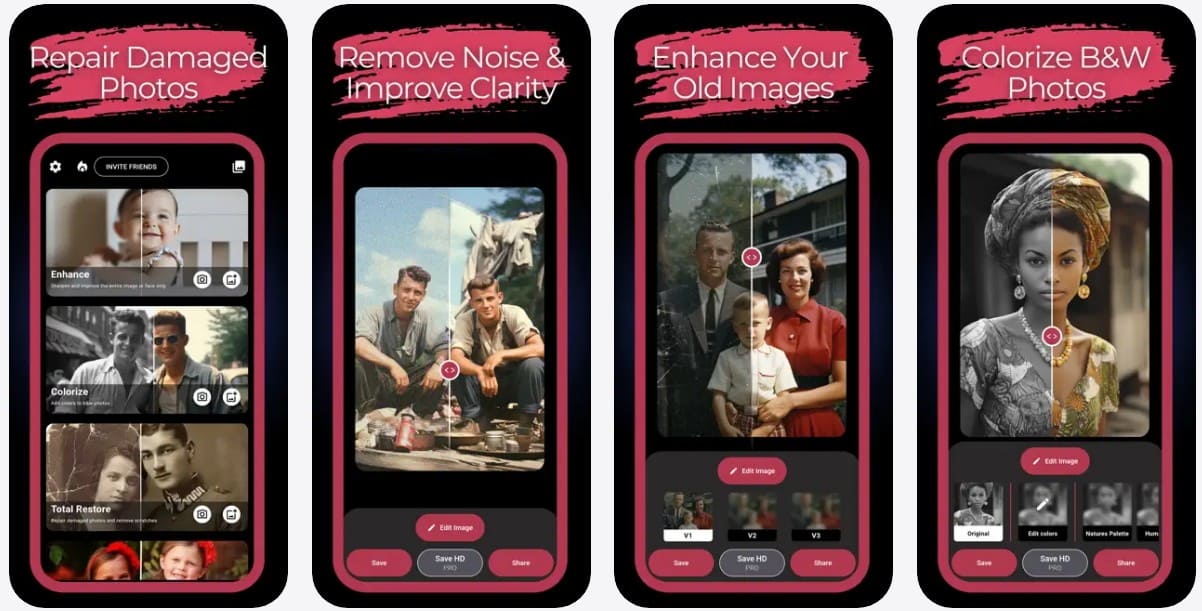
8. Photomyne – Best for Scanning and Preserving Printed Photos (Android | iOS)
Photomyne is a picture restoration app focused on scanning, restoring, and preserving printed photos. It detects multiple photos, crops and rotates them, and saves individual digital copies. Its tools include color restoration, B&W colorization, and sharpening blurry faces. The app also offers AI Restore for scratches, tears, fading, glare, and other damage. This makes Photomyne especially useful for digitizing and improving old family albums.
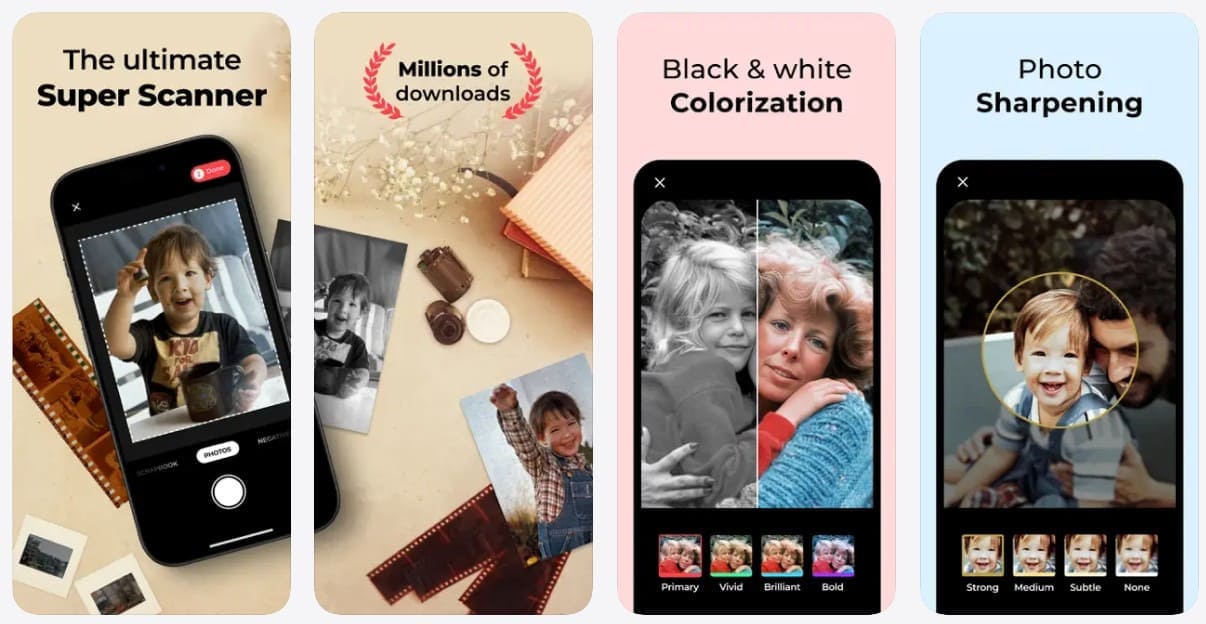
Part 3. Which Restoration App Fits Different Old Photo Problems?
After reviewing each old photo restoration app, use this section to narrow down your options. The table recommends suitable apps based on different old photo restoration needs:
| Restoration Need | Feature to Prioritize | Recommended App |
|---|---|---|
| Multiple Types of Damage | Combined automatic restoration | Dr.Fone App |
| Scratches or Creases | Dedicated damage repair | RetroFix or Dr.Fone App |
| Blurry Faces | Facial detail enhancement | Dr.Fone App |
| Faded Color Photos | Color and tone restoration | Dr.Fone App |
| Black-and-White Photos | AI colorization | Renew or Dr.Fone App |
| Full Family Albums | Multi-photo album scanning | Reimagine by MyHeritage or Dr.Fone App |
| Quick One-Tap Repair | Automatic processing with minimal steps | Renew or Dr.Fone App |
| Separate Restoration Controls | Individual restoration options | FixMyPics |
Part 4. How to Restore an Old Photo Using Dr.Fone App
Restoring damaged prints often involves repairing scratches, improving faded details, and enhancing overall clarity. Using separate tools for these tasks can make the process more complicated. Dr.Fone App brings these capabilities together, with its AI Restoration tool designed specifically for repairing old photos. If you want to restore damaged pictures using this picture restoration app, follow the steps below:
Dr.Fone App - AI Photo Restorer & Enhancer (iOS & Android)
Restore, Colorize, Enhance, and Upscale Photos with AI
- Restore Old Photos by Fixing Creases, Tears, and Scratches
- Colorize Black-and-White Photos with AI
- Auto-Enhance Photos and Improve Portrait Details to HD Quality
- Upscale Images to 2x, 4x, or 8x for Clearer Results
-
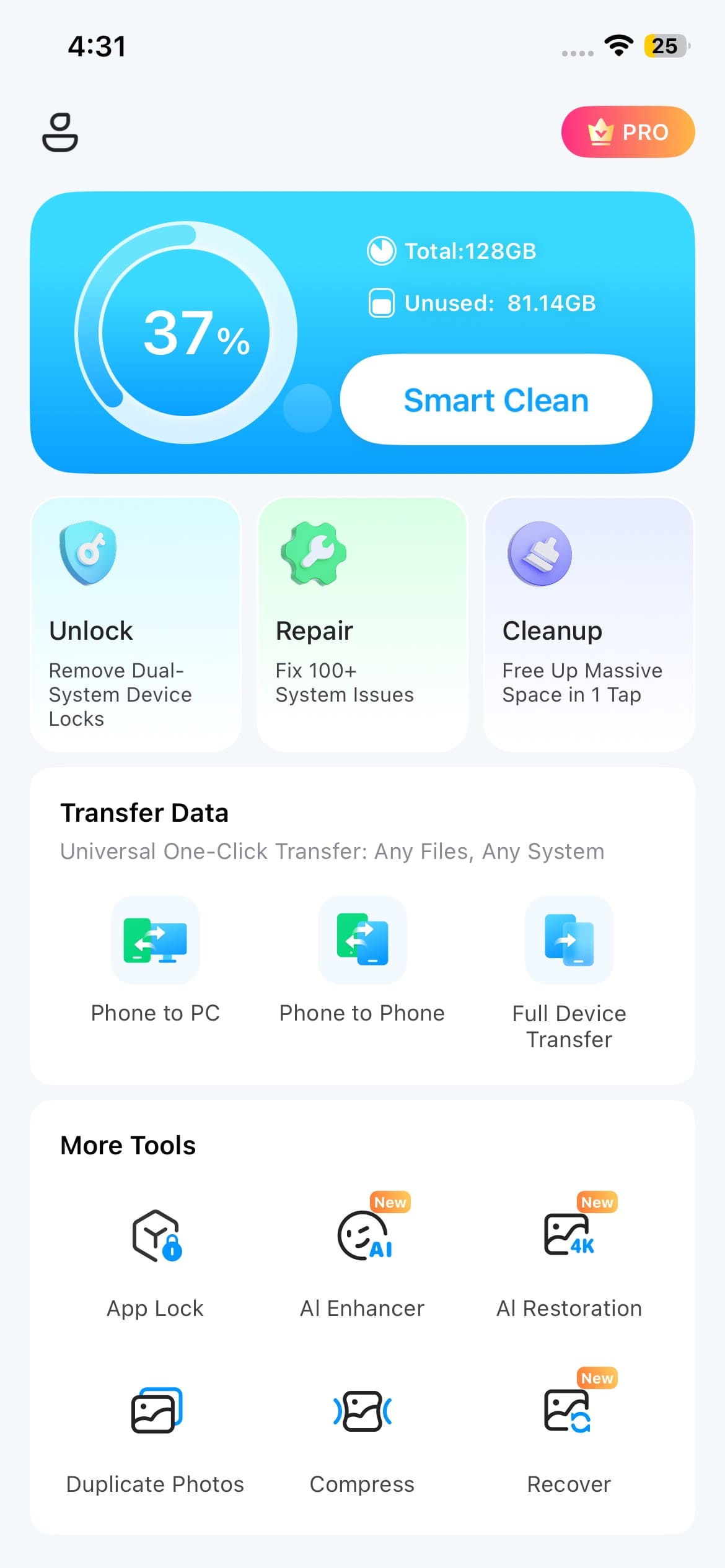
Step 1 Access the Old Photo Restoration Tool
Under “More Tools,” tap “AI Restoration” to open the feature for restoring damaged old photos.
-
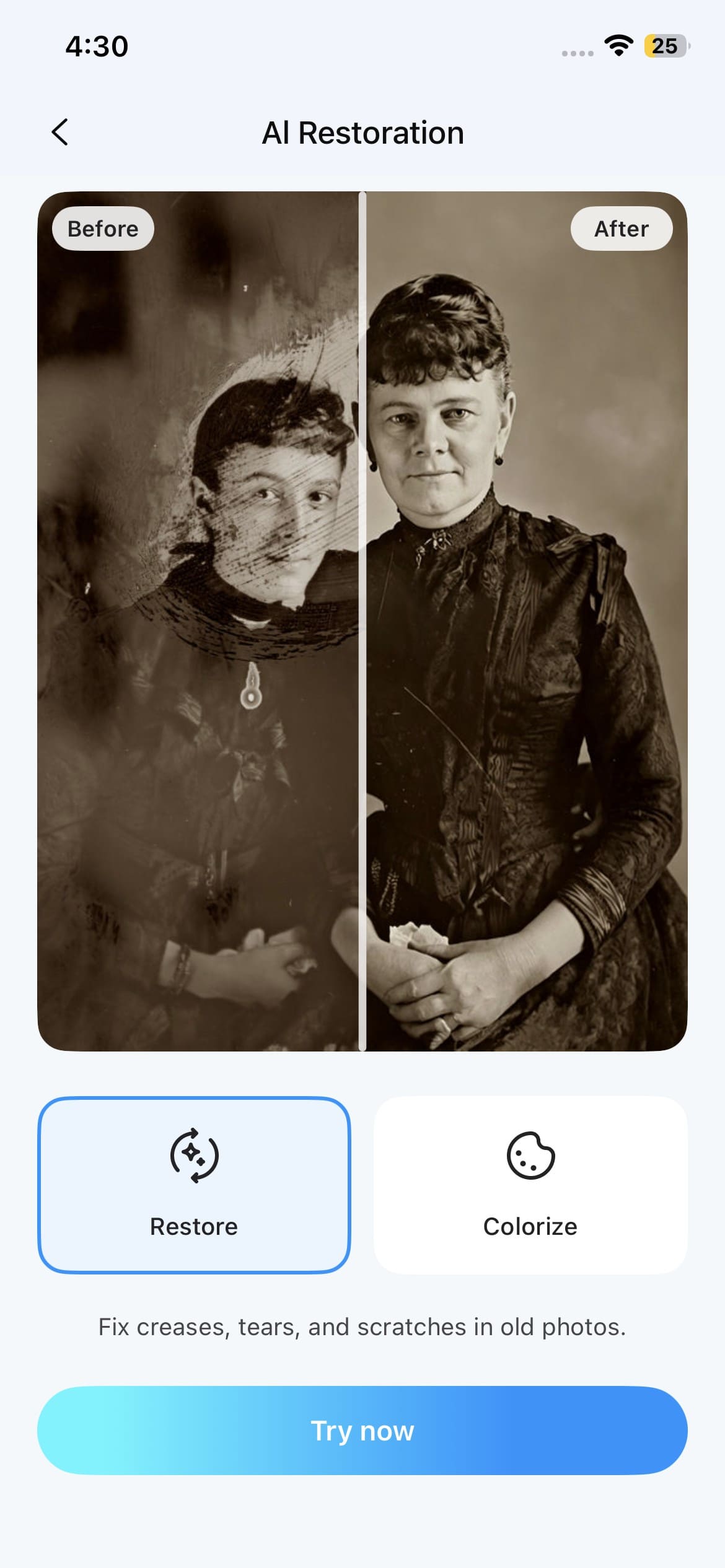
Step 2 Select the Restore Mode and Add Your Photo
Choose “Restore,” tap “Try Now,” and add the old photo you want the app to repair.
-
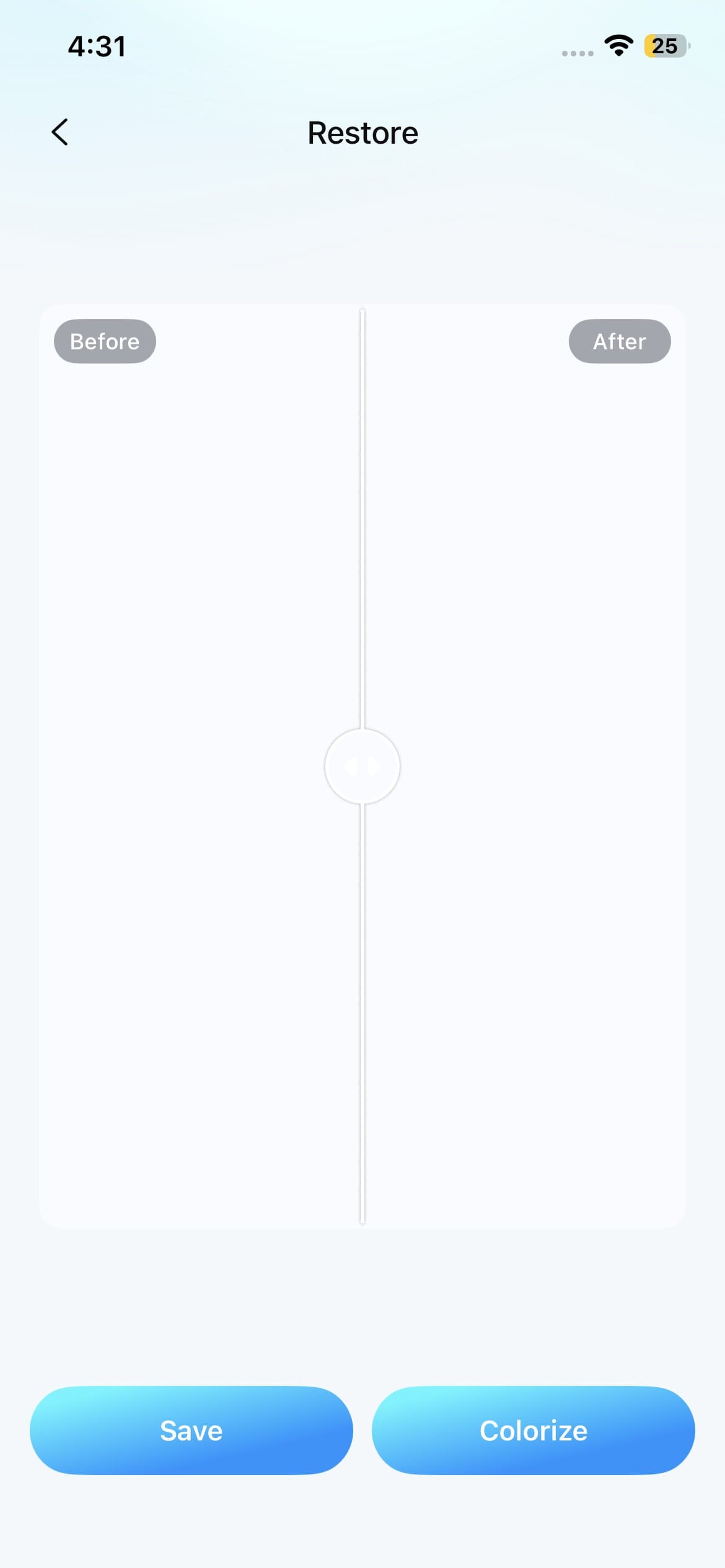
Step 3 Review the Restored Photo and Save It
Once restoration finishes, compare the repaired details with the original. Tap “Colorize” for an optional color version, or select “Save” to export the restored photo.
Part 5. Restore, Colorize, or Enhance: What Should You Do First?
Whichever photo restorer app you choose, following the right restoration sequence can improve the result. Each stage prepares the photo for the next, helping you avoid unnecessary processing and preserve important details. Follow the order below for a more effective restoration workflow:
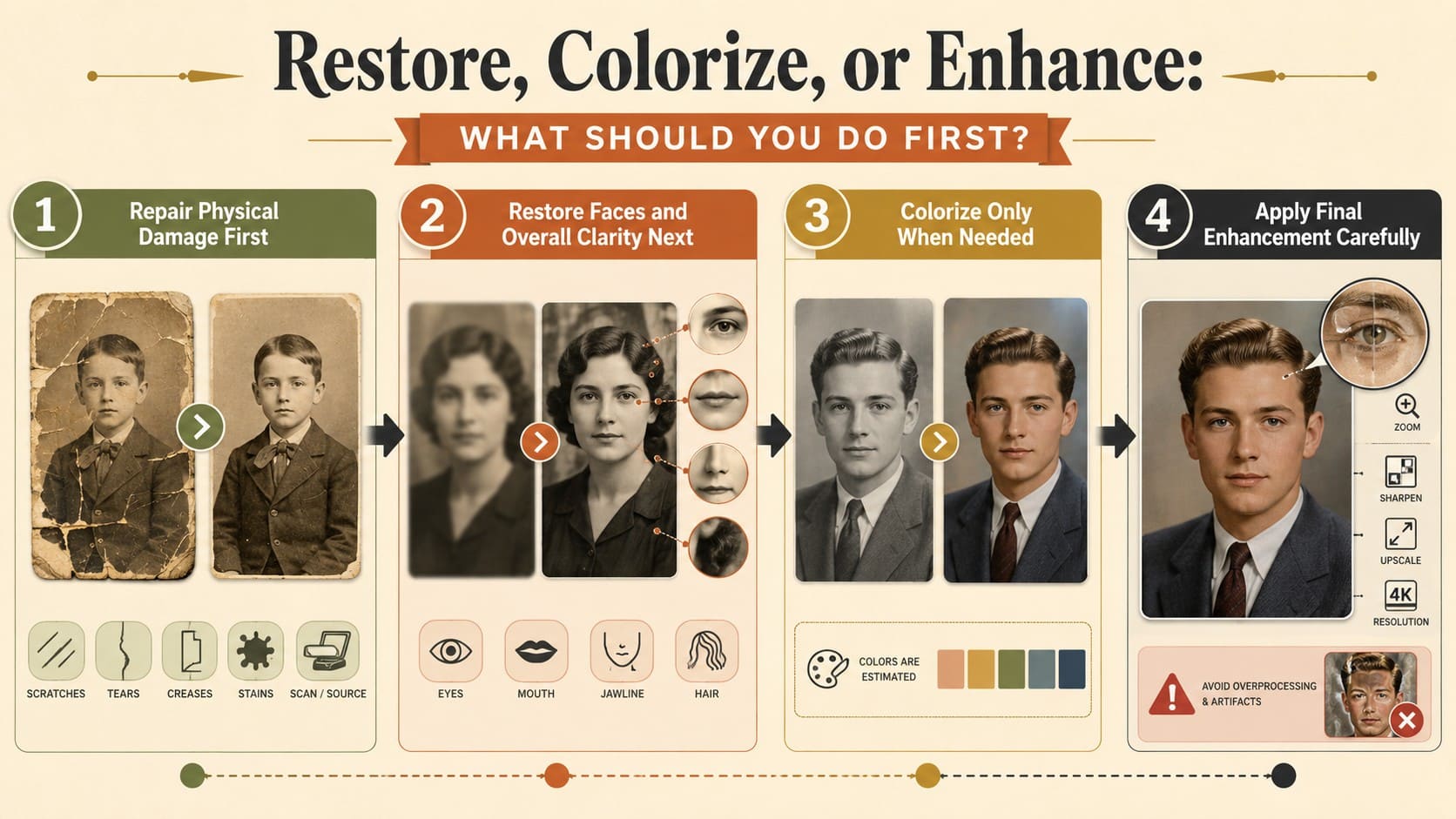
Repair Physical Damage First
- Start with scratches, stains, tears, creases, and other visible physical damage.
- Use the cleanest available scan so the restoration tool has more original image detail to process.
- Review repaired areas carefully because AI repair can reconstruct details where the original information is damaged or missing.
Restore Faces and Overall Clarity Next
- Enhance blurry faces and soft details after completing the main damage repair.
- Compare facial features and other important details with the original photo after enhancement.
- Treat newly enhanced details as estimates when the source image contains limited information.
Colorize Only When Needed
- Use an old photo recovery app to colorize black-and-white photos when you want a plausible color interpretation.
- Treat AI-generated colors as estimates because black-and-white photos do not preserve their original color information.
- Keep the original black-and-white photo separately rather than replacing it with the colorized version.
Apply Final Enhancement Carefully
- Use further enhancement when the restored photo still needs improved clarity or detail.
- Compare the enhanced result with the original to ensure important features still appear natural.
- Keep the original file intact and save restored or enhanced results as separate versions.
Part 6. How to Judge a Restored Photo Before Keeping It?
After restoring an image with a picture restoration app, evaluate the result carefully before saving the final version. Use the following checks to assess restoration quality and accuracy:
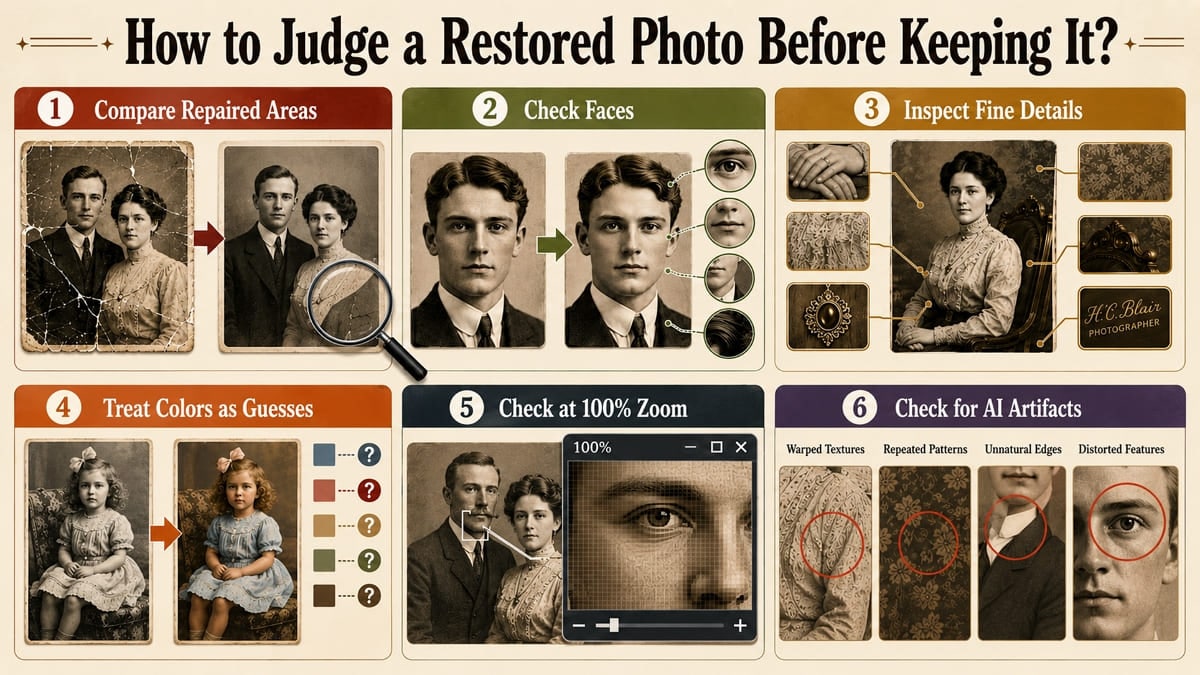
- Compare Repaired Areas: Check scratches, creases, tears, and missing sections closely. Restoration tools may reconstruct damaged or missing details rather than recover the exact original information.
- Check Faces: Compare eyes, mouth, jawline, hair, and identifying features with the original scan. Severe damage may lead restoration tools to produce plausible facial details that differ from the original person.
- Inspect Fine Details: Look closely at hands, clothing patterns, lettering, jewelry, and backgrounds where AI reconstruction may alter details. Treat reconstructed elements as estimates rather than assuming they accurately represent the original.
- Treat Colors as Guesses: Remember that black-and-white photos do not retain their original color information. MyHeritage explains that AI-generated colors are estimates, so clothing and other objects may receive inaccurate shades.
- Check at 100% Zoom: Judge the photo at normal size, then inspect important areas at full scale. Adobe explains that 100% view displays one image pixel for each monitor pixel, helping you inspect details accurately.
- Check for AI Artifacts: Inspect repaired areas for warped textures, repeated patterns, unnatural edges, or distorted features. These artifacts may indicate that the restoration introduced details that do not blend naturally with the original photo.
Part 7. Preserve the Original Photo After Digital Restoration
After using a photo restorer app, take a few extra steps to preserve both the restored image and its original details:
| Preservation Step | Why It Matters | Best Practice |
|---|---|---|
| Keep an Untouched Master Scan | AI restoration can add or alter image details | Archive the original scan separately and restore copies |
| Save Versions Separately | Restoration, colorization, and enhancement produce different outputs | Keep separate original, restored, enhanced, and colorized files |
| Back Up in Multiple Places | Storage devices can fail or become inaccessible | Keep copies in more than one storage location |
| Protect the Physical Print | Heat, humidity, light, and handling can accelerate deterioration | Store prints in a cool, dry, dark place using archival materials |
| Handle Originals Carefully | Fingerprints, bending, and abrasion can permanently damage prints | Handle prints by their edges and minimize unnecessary contact |
| Never Overwrite the Original | Restored images may contain reconstructed or altered details | Preserve the original scan as the primary reference copy |
Part 8. What AI Photo Restoration Cannot Reliably Recreate
No matter which old photo recovery app you use, AI restoration has limits. The following 6 points explain which details these apps cannot reliably recreate from damaged or missing image information:
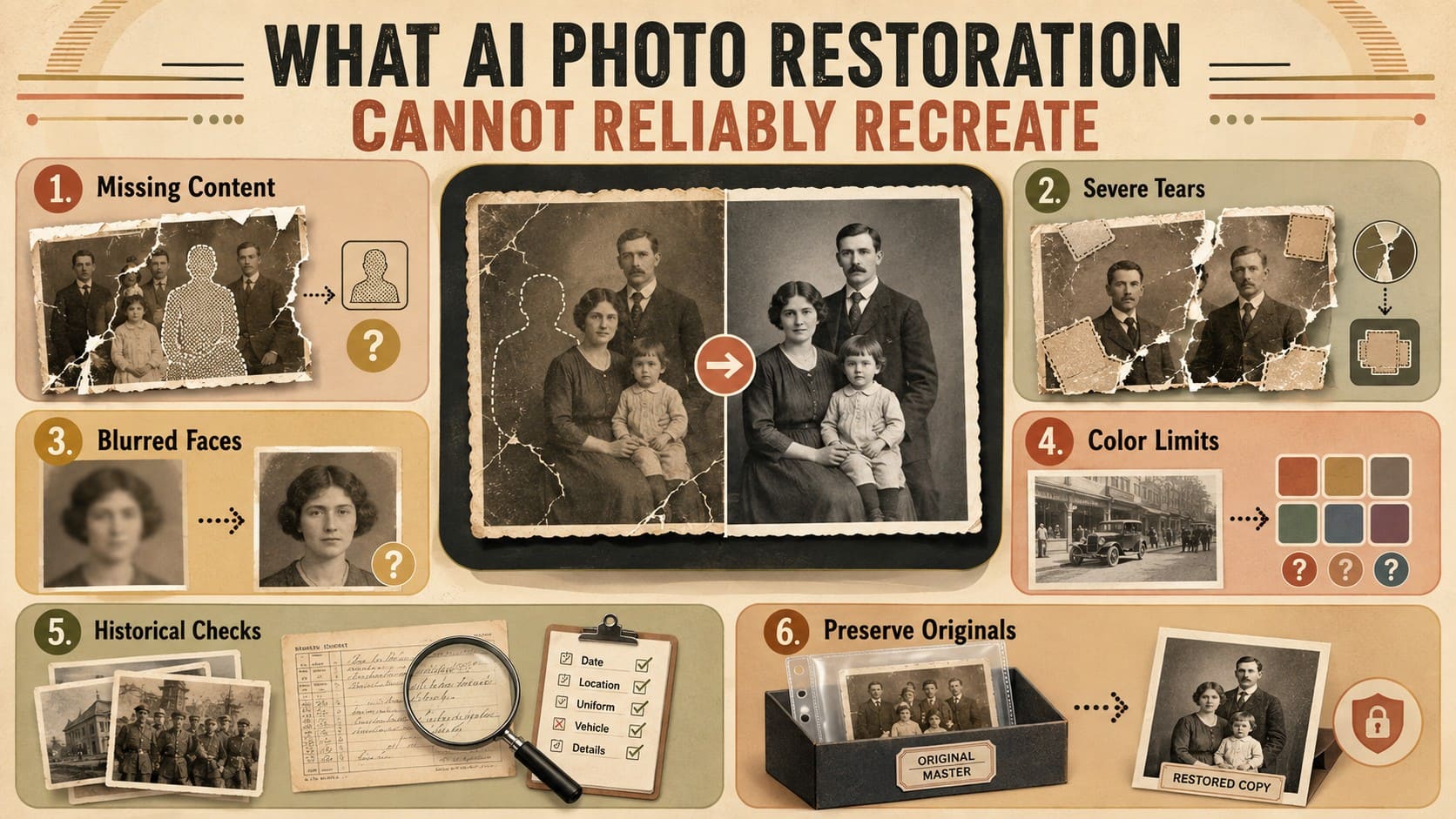
- Missing Content Limits: When tears or missing sections remove important details, an old photo restoration app may reconstruct damaged areas using surrounding image information. Treat these reconstructed details as plausible estimates rather than exact recoveries of the original content.
- Severe Tears and Gaps: Large missing areas leave little original information for restoration tools to analyze. AI may reconstruct these sections, but it cannot verify what the missing content originally looked like.
- Heavily Blurred Faces: Apps can enhance low-detail faces, but they cannot reliably recover facial information that was never captured clearly. Strong reconstruction may produce plausible details that differ from the original person.
- Monochrome Color Limits: Black-and-white photographs do not retain the original colors needed for exact color recovery. AI colorization estimates plausible tones, so clothing, objects, and backgrounds may receive inaccurate colors.
- Historical Accuracy: AI cannot confirm that reconstructed faces, signs, objects, or colors are historically accurate. Compare important restored details with other photographs, documents, or reliable historical references when available.
- Original Image Authenticity: A restored image should not replace the original scan as the primary reference. Preserve the untouched master separately and treat restored, enhanced, or colorized versions as derivative copies.
Conclusion
Choose the right old photo restoration app based on the type of damage affecting your photo. Some apps specialize in scratches, while others focus on faces, colors, or overall clarity. For photos with multiple issues, Dr.Fone App combines several AI restoration capabilities in one mobile solution. Regardless of the app you choose, preserve the original scan because AI restoration cannot recover every lost detail with complete accuracy.
FAQ
-
1. Can an app repair scratches and creases in an old photo?
Yes. AI restoration tools can repair scratches, stains, and creases when enough original detail remains. Dr.Fone App addresses multiple signs of aging, while severely damaged or missing areas may require AI reconstruction rather than exact recovery. -
2. Should I scan an old photo before restoring it?
Scanning at 600 DPI when practical captures fine details that can support restoration. A high-quality scan provides more source information for processing while reducing repeated handling of fragile original prints. -
3. Can AI restore a badly torn photo accurately?
AI can reconstruct badly torn areas, but it cannot recover missing details with complete accuracy. When original information is absent, the tool generates plausible content based on the remaining image, so results should be treated as approximations. -
4. Is it better to restore or colorize an old photo first?
Repairing scratches, stains, tears, and other damage first provides a cleaner image for colorization. Dr.Fone App separates Restore and Colorize options, allowing you to repair the photo, review the result, and then apply colors.


Selena Lee
staff Editor
Generally rated4.5(105participated)