

 TL;DR:
Dr.Fone App is a practical all-in-one choice for increasing photo quality and resolution, with AI enhancement, Portrait, Ultra HD, restoration, and colorization tools.
- Use Remini for face-focused enhancement, YouCam Enhance for low-light noise reduction, and Lightroom Mobile for detailed manual control.
- Dr.Fone App supports 2x, 4x, and 8x Ultra HD upscaling, while heavily blurred originals may still produce inaccurate reconstructed details.
- Compare enhanced images with the originals at the same zoom level and check faces, textures, halos, noise, and actual resolution gains.
Ask AI for a summary
 ChatGPT
 Perplexity
 Gemini
 Claude
 Grok
Grok
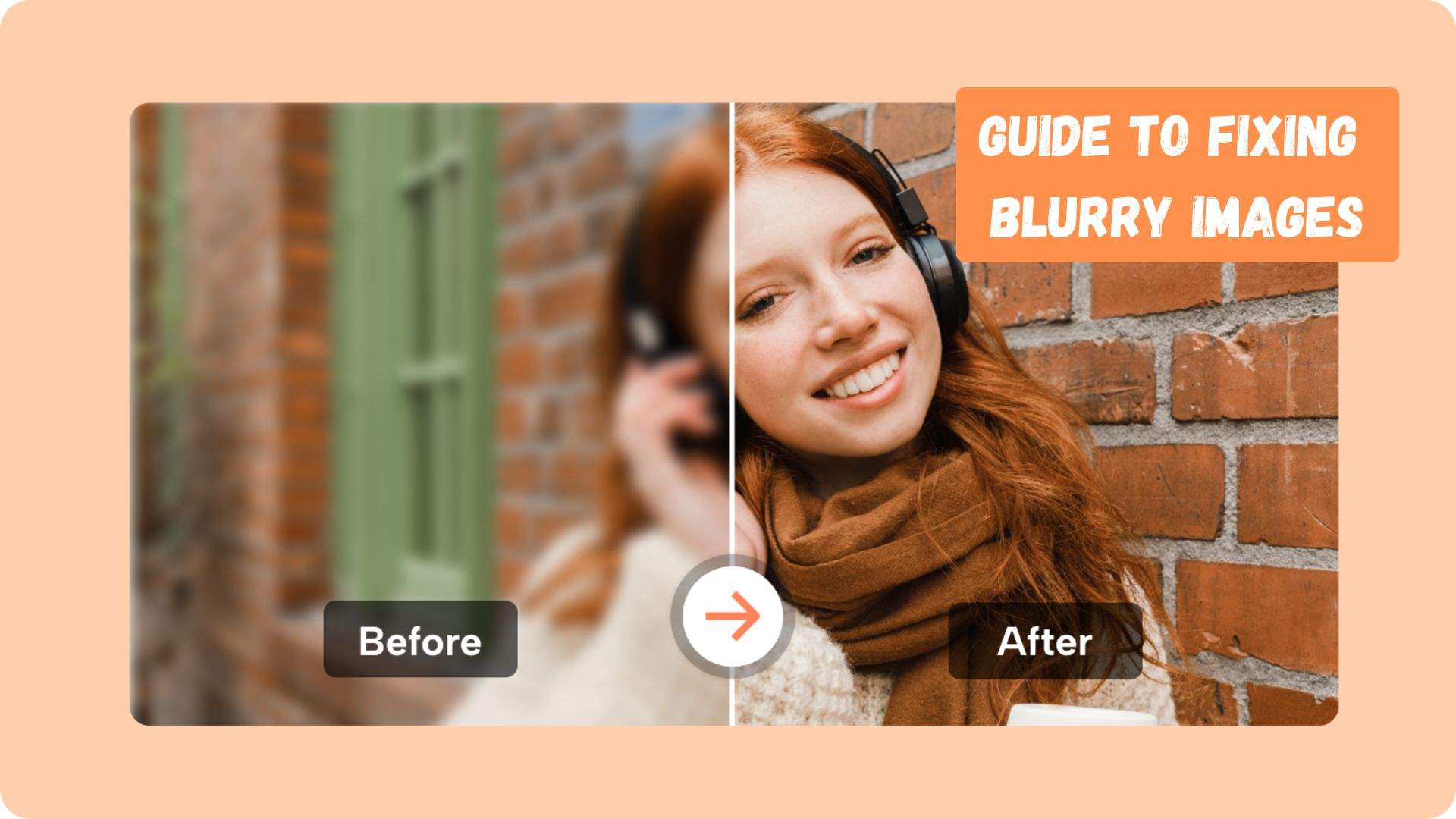
Blurry pictures can hide important details and make otherwise good shots look unclear. Choosing the right app to increase photo quality can sharpen soft areas, refine facial details, and improve overall clarity with minimal effort. Poor lighting, digital noise, low resolution, and heavy compression can reduce image quality and leave photos looking fuzzy. Modern mobile apps now use AI technology to address these common problems automatically.
Depending on the image, these tools can reduce grain, sharpen edges, improve resolution, restore faded details, and enhance colors. This guide compares 8 of the best apps for improving blurry, pixelated, low-quality, and old photos. It also explores whether Dr.Fone App offers a suitable all-in-one solution.
- Part 1. What Photo Quality Problems Can Enhancement Apps Fix?
- Part 2. 8 Best Apps to Increase Photo Quality
- Part 3. Compare the Best Apps to Enhance Photo Quality
- Part 4. Which App Should You Choose for Different Photo Problems?
- Part 5. How to Increase Photo Quality with Dr.Fone App
- Part 6. How to Choose the Best App to Enhance Photo Quality?
- Part 7. How to Check Whether Photo Quality Actually Improved
- Frequently Asked Questions
Part 1. What Photo Quality Problems Can Enhancement Apps Fix?
An enhance photo resolution app can address different image-quality problems, from poor sharpness and low resolution to noise and faded colors. However, the final improvement depends on the original photo and the enhancement technology the app uses. Here are 6 key areas that photo enhancement apps can improve:
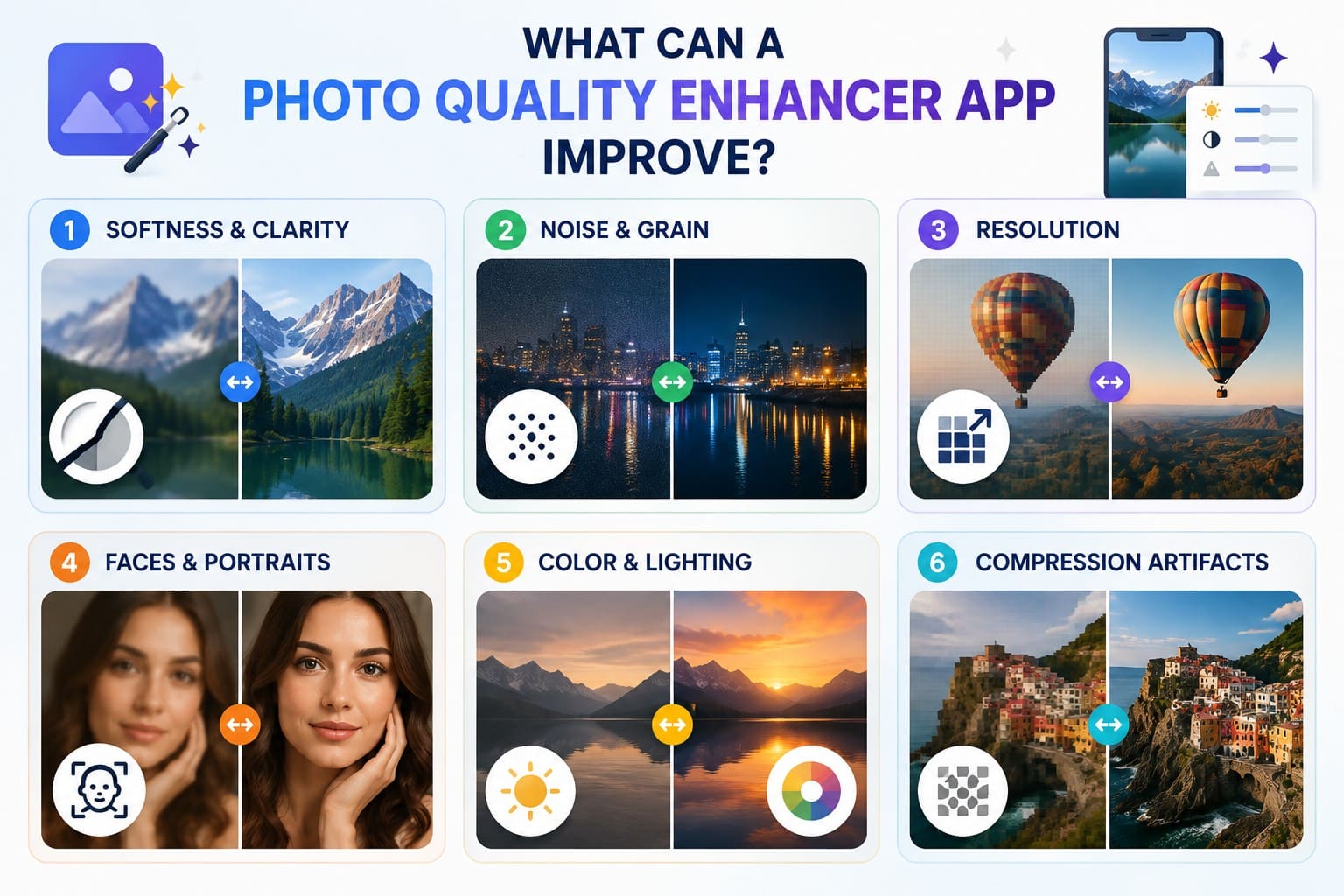
- Softness and Clarity: Sharpening increases contrast around edges to make details appear clearer and better defined. However, it cannot recover fine details that are completely missing from the original photo.
- Noise and Grain: Denoising tools reduce unwanted luminance and color noise that often appears in low-light photos. Effective processing removes visible grain while preserving important textures, edges, and fine details.
- Resolution: An app to increase photo resolution enlarges low-resolution images by adding new pixels. AI upscaling can predict and generate plausible details during enlargement, though the final quality still depends on the source image.
- Faces and Portraits: Some AI enhancement tools are designed specifically for faces and portraits. They can refine facial features, skin details, and overall clarity, but heavily blurred faces may produce less accurate results.
- Color and Lighting: Enhancement tools can improve brightness, contrast, exposure, tonal balance, and colors. Some AI tools can also colorize old photos, although faded or poorly exposed originals may produce less accurate results.
- Compression Artifacts: Heavy JPEG compression can introduce pixelated patches, halos, and blurred details. Enhancement tools can reduce these visible artifacts, creating a cleaner image for further editing or upscaling.
Part 2. 8 Best Apps to Increase Photo Quality
With the basics covered, this section reviews 8 of the best apps to enhance photo quality to help you choose the right one.
1. Dr.Fone App – Best for All-in-One AI Photo Enhancement (Android | iOS)
Dr.Fone App brings multiple AI capabilities together for improving blurry, pixelated, low-resolution, and portrait photos. Its AI Enhancer provides Auto, Portrait, and Ultra HD modes, allowing users to match enhancement with different image needs. Ultra HD supports 2x, 4x, and 8x upscaling for stronger resolution improvement, while Portrait focuses on facial details.
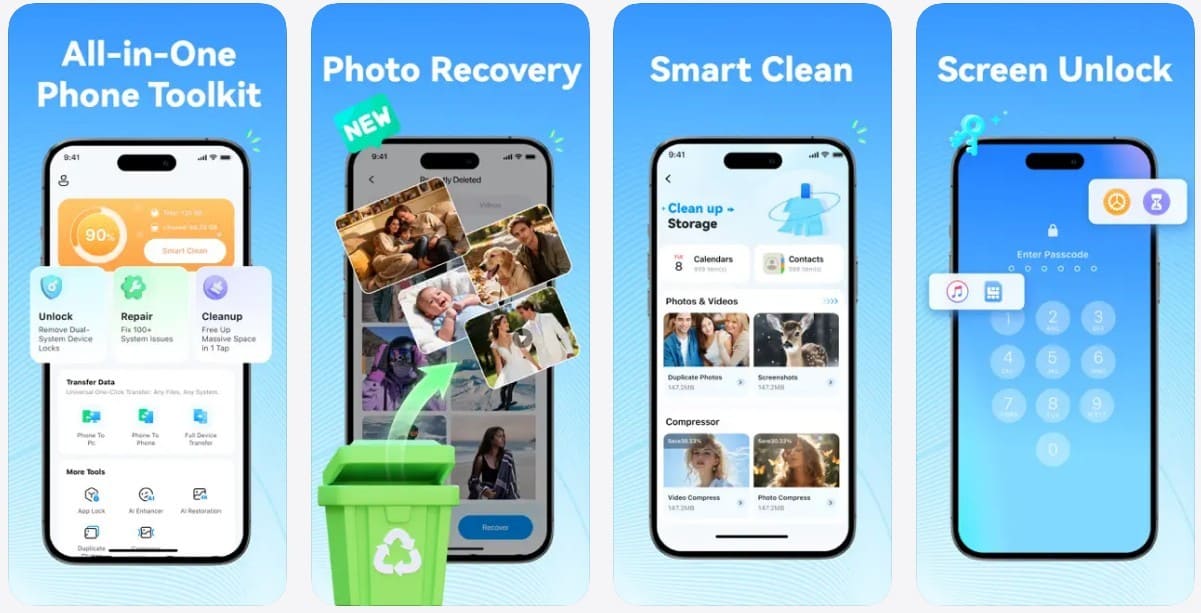
Beyond enhancement, the app includes AI Restoration and Colorize tools for repairing and adding color to older photos. Users can also compare processed images with their originals before saving. With enhancement, upscaling, restoration, and colorization in one mobile workflow, Dr.Fone App is a versatile app to increase photo resolution.
Dr.Fone App - AI Photo Restorer & Enhancer (iOS & Android)
Restore, Colorize, Enhance, and Upscale Photos with AI
- Restore Old Photos by Fixing Creases, Tears, and Scratches
- Colorize Black-and-White Photos with AI
- Auto-Enhance Photos and Improve Portrait Details to HD Quality
- Upscale Images to 2x, 4x, or 8x for Clearer Results



2. YouCam Enhance – Best for Automatic Photo Cleanup (Android | iOS)
YouCam Enhance automatically sharpens blurry photos, reduces pixelation, and improves image resolution with AI-powered enhancement. Its Scenario Mode can optimize processing for different image types and supports batch enhancement for multiple photos. The app also provides automatic lighting adjustments to improve dark, underexposed, or overly bright images. These automated features make this app to increase image resolution useful for quick photo cleanup with minimal manual editing.
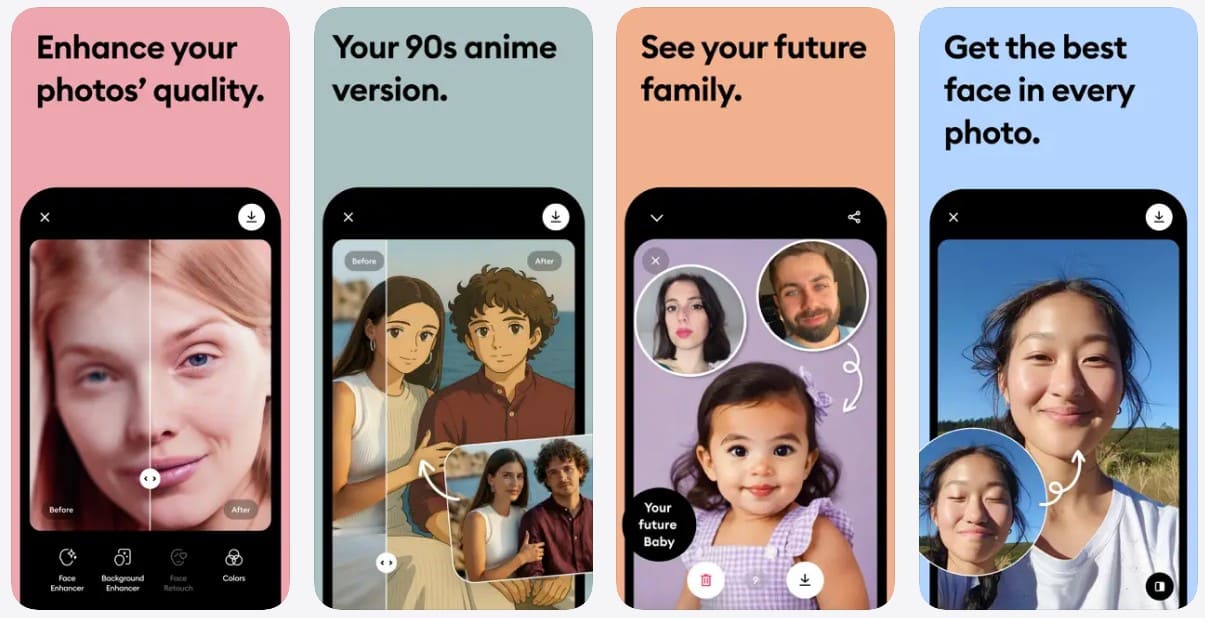
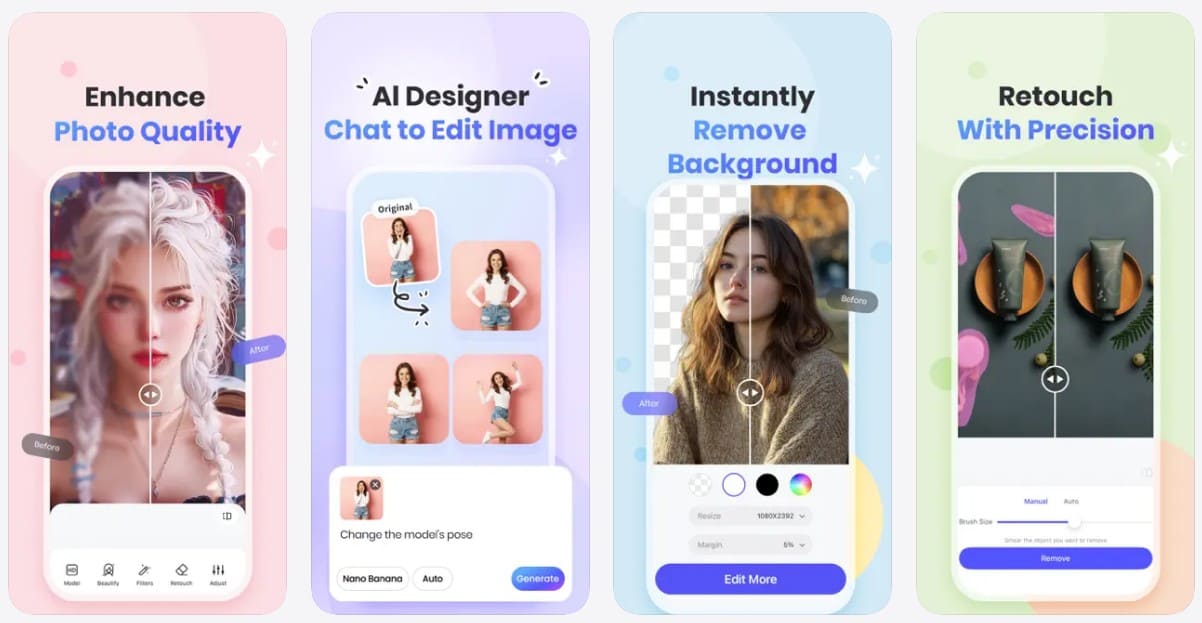
3. Remini – Best for Faces and Portraits (Android | iOS)
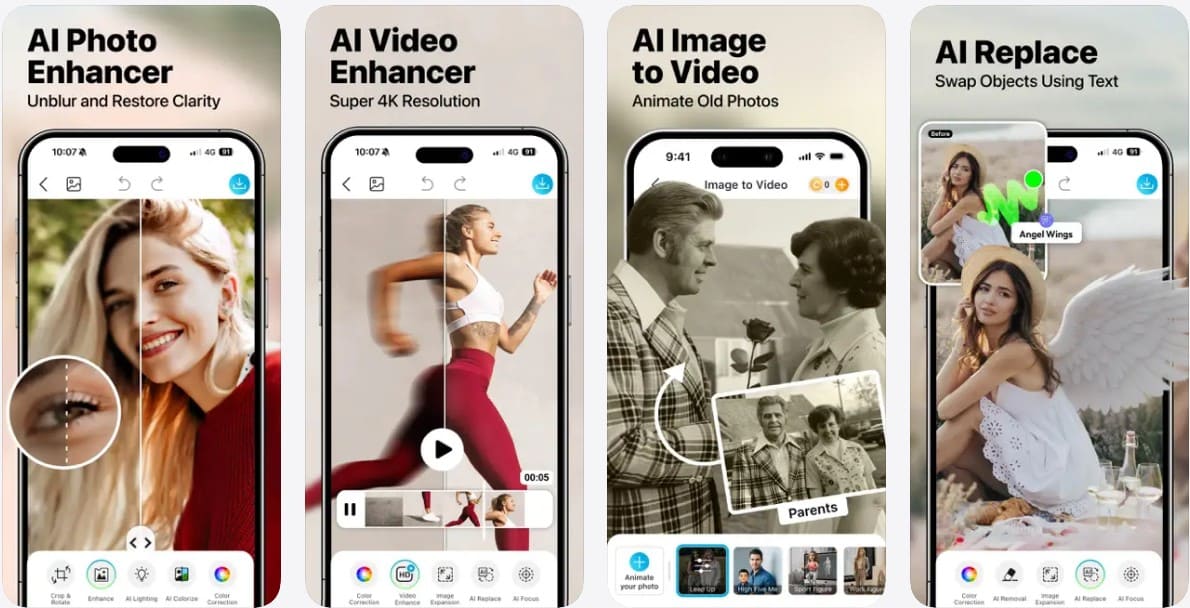
This enhance photo resolution app specializes in refining faces within blurry, pixelated, or low-quality portraits. Its AI enhancement can sharpen facial features, improve clarity, and make older portraits appear more defined. Remini can also enhance faded or damaged family photos where important facial details have become difficult to see. Its strong focus on faces makes it particularly suitable for portraits, selfies, and older photographs.
4. Pixelup – Best for Old and Damaged Photos (Android | iOS)
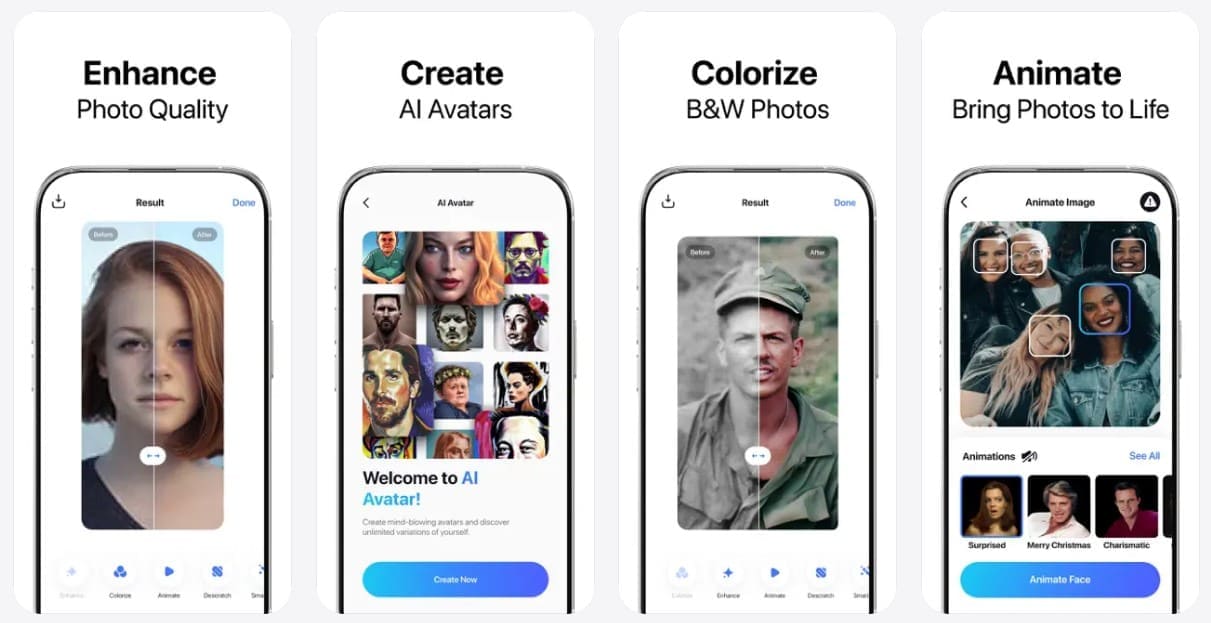
Pixelup is an app to increase photo resolution that sharpens blurry images and improves facial details in old or low-quality photos. Its AI enhancement can improve clarity and make faded pictures appear more defined. Users can also colorize black-and-white photos, making the app especially useful for restoring older family pictures. Additional animation features can bring static portraits to life, providing another creative option for preserving memorable photos.
5. EnhanceFox – Best for Quick One-Tap Enhancement (Android | iOS)
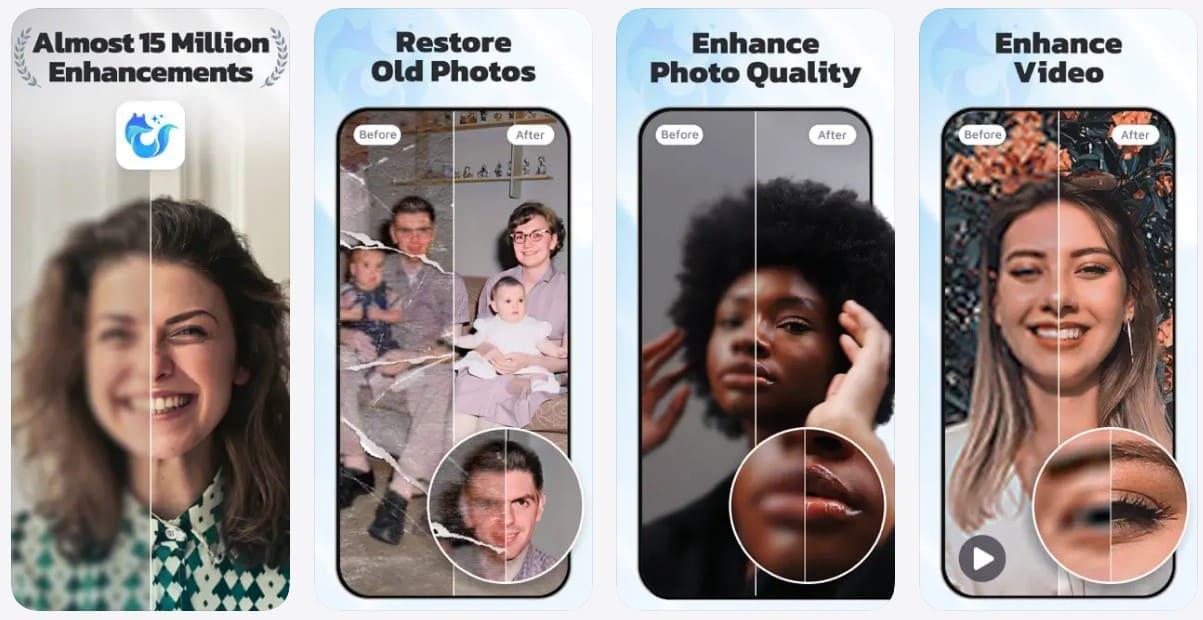
This app to increase photo quality uses AI to sharpen blurry images, reduce noise, and improve overall clarity with minimal effort. Its straightforward workflow makes quick enhancement convenient for portraits, old photos, and other low-quality images. EnhanceFox also provides dedicated tools for restoring and colorizing older pictures. Beyond photos, users can enhance blurry or low-resolution videos, making the app useful for improving different types of visual content.
6. PhotoDirector – Best for More Enhancement Controls (Android | iOS)
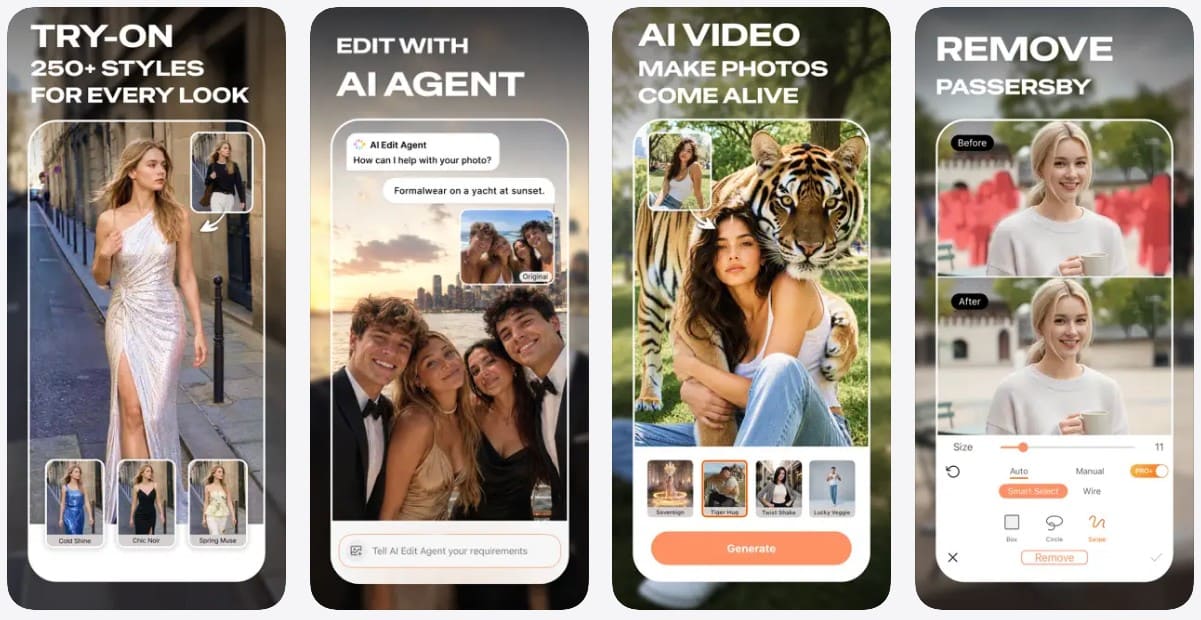
PhotoDirector combines automatic AI enhancement with dedicated tools for sharpening, denoising, and deblurring photos. Users can improve overall quality first, then fine-tune specific areas that need more attention. The app also supports image upscaling and provides creative AI effects for transforming photos into different styles. Object removal further helps eliminate unwanted people or distractions, making PhotoDirector a flexible enhance photo resolution app for detailed editing.
7. PicWish – Best for Simple AI Upscaling and Enhancement (Android | iOS)
This best app to enhance photo quality uses AI to sharpen blurry images, improve clarity, and increase resolution through a simple workflow. PicWish also works on mobile and through a browser, giving users flexibility across different devices. Beyond enhancement, it provides background removal, object removal, and other AI editing tools. These features make it particularly useful for improving product photos, portraits, and everyday images without requiring advanced editing skills.
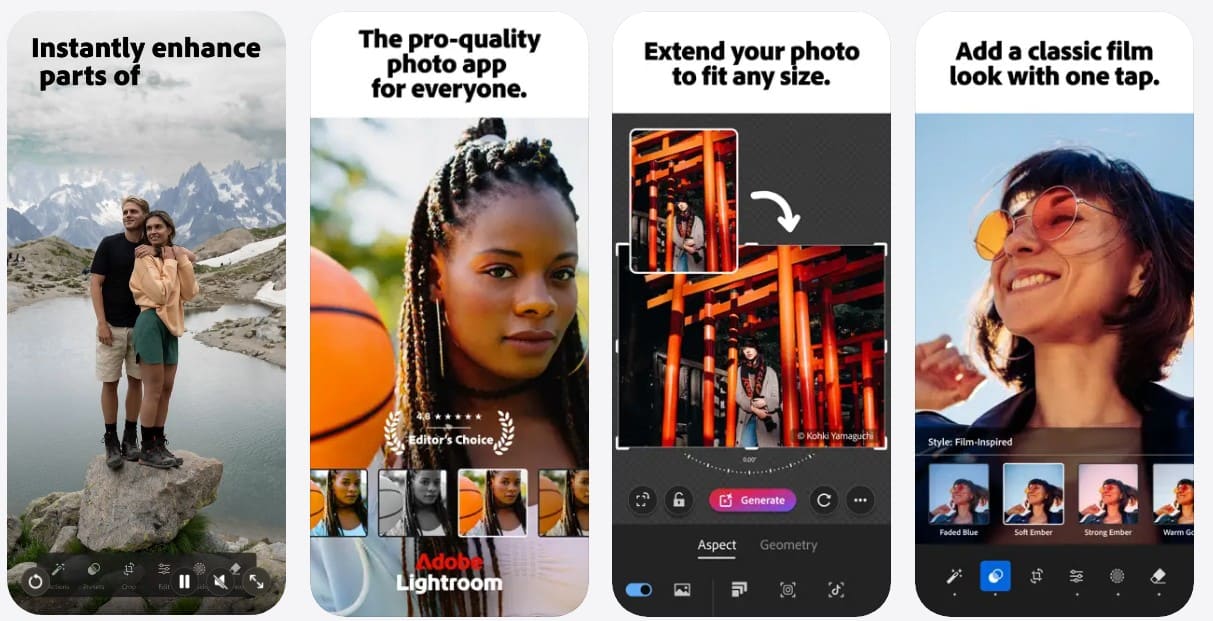
8. Adobe Lightroom Mobile – Best for Controlled Photo Quality Improvement (Android | iOS)
For users seeking an app to increase image resolution, Lightroom Mobile provides extensive editing controls for improving overall photo quality. Users can adjust exposure, contrast, highlights, shadows, white balance, and colors through detailed controls. Its masking tools allow targeted improvements to specific areas without changing the entire image. Adobe Cloud syncing also keeps supported edits accessible across devices, allowing users to continue their work on a computer.
Part 3. Compare the Best Apps to Enhance Photo Quality
To find the best app to enhance photo quality, compare all 8 options across their enhancement capabilities, resolution improvement, portrait support, ease of use, and other key factors:
| App | Best For | AI Enhancement | Resolution Improvement | Portrait Enhancement | Extra Photo Tools | Ease of Use |
|---|---|---|---|---|---|---|
| Dr.Fone App | Best overall | Auto, Portrait & Ultra HD | Up to 8x | Dedicated Portrait mode | Restoration & colorization | Very simple |
| YouCam Enhance | Automatic cleanup | One-tap AI enhancement | Up to 4K | Strong portrait tools | Lighting & object removal | Very simple |
| Remini | Faces and portraits | Automatic AI enhancement | Up to 2x | Strong face enhancement | Old photo enhancement | Very simple |
| Pixelup | Old photos | Automatic AI enhancement | HD enhancement | Face enhancement | Restoration & colorization | Simple |
| EnhanceFox | Quick enhancement | Automatic AI enhancement | Resolution enhancement | Face enhancement | Photo & video enhancement | Very simple |
| PhotoDirector | Editing control | AI plus manual tools | AI upscaling | Portrait editing | Object removal & effects | Moderate |
| PicWish | Simple upscaling | Automatic AI enhancement | Up to 4K | General enhancement | Background & object removal | Simple |
| Adobe Lightroom Mobile | Manual editing | AI-assisted editing | Limited on mobile | Selective adjustments | Color & lighting controls | Advanced |
Part 4. Which App Should You Choose for Different Photo Problems?
Among the paid and free apps to enhance photo quality, the right choice depends on the specific problem with your image. Use the comparison below to find the most suitable app for each photo issue:
| Photo Problem | Feature to Prioritize | Recommended App |
|---|---|---|
| Overall Low Quality | Balanced AI enhancement | Dr.Fone App |
| Blurry Face | Facial detail enhancement | Remini or Dr.Fone App |
| Low Resolution | Resolution enhancement | Dr.Fone App |
| Grainy Low-Light Photo | Noise reduction | YouCam Enhance |
| Old or Damaged Photo | Restoration and colorization | Dr.Fone App |
| Pixelated Image | Detail reconstruction | Dr.Fone App |
| Photo Needing Manual Control | Detailed adjustment controls | Adobe Lightroom Mobile |
| Quick One-Tap Enhancement | Automatic enhancement | Dr.Fone App |
Part 5. How to Increase Photo Quality with Dr.Fone App
Different photo problems often require different enhancement methods. A blurry portrait may need facial refinement, while a low-resolution image requires stronger detail enhancement. Using separate tools for each issue can make the process less convenient.
Dr.Fone App simplifies this by combining AI-powered enhancement with restoration and colorization tools in one mobile app. To use this best app to enhance photo quality, follow the simple steps provided below:
-
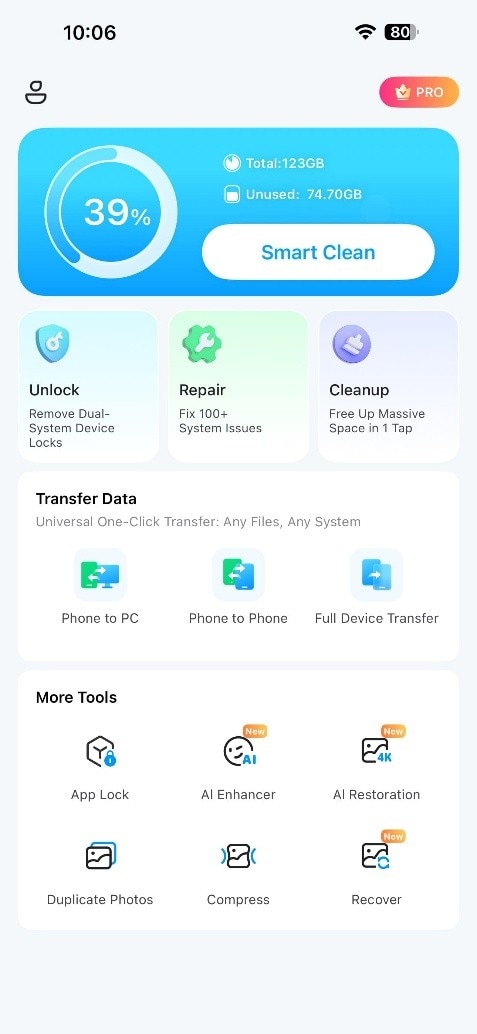
Step 1 Start With AI Enhancement
Launch Dr.Fone App and tap “AI Enhancement” on the main screen to access its photo enhancement options.
-
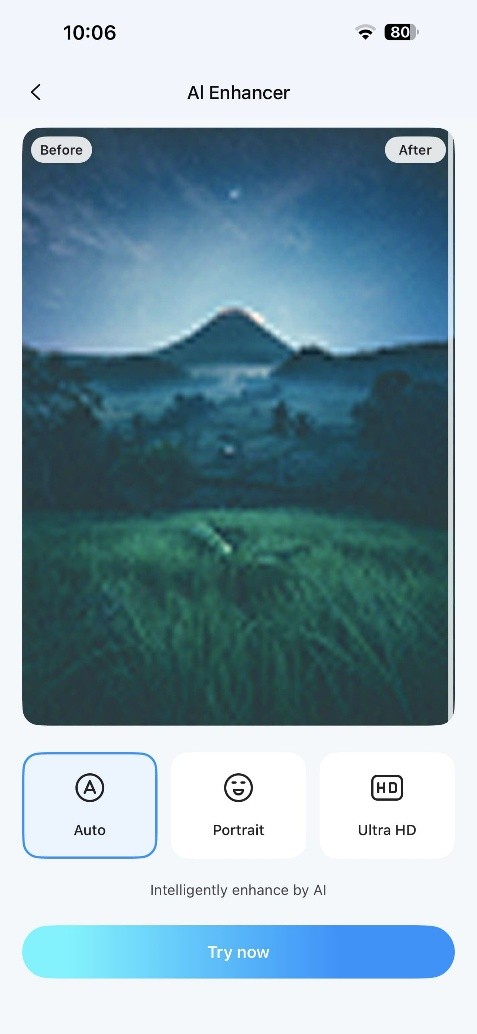
Step 2 Match the Mode to Your Photo
Choose “Auto” for general enhancement or “Portrait” for facial details. Tap “Try Now,” then select the blurry photo you want to enhance.
-
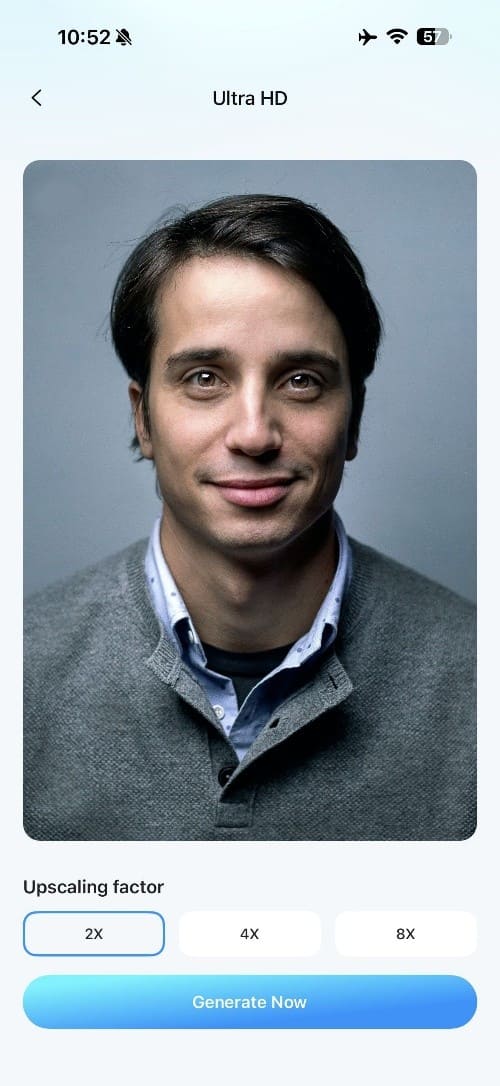
Step 3 Boost the Resolution and Save
For higher resolution, switch to “Ultra HD” and choose 2x, 4x, or 8x upscaling. Once processing finishes, compare the result and tap “Save” to export the enhanced photo.
Part 6. How to Choose the Best App to Enhance Photo Quality?
When choosing the right app to increase photo resolution, consider these 6 factors to find an option that matches your image and enhancement needs:
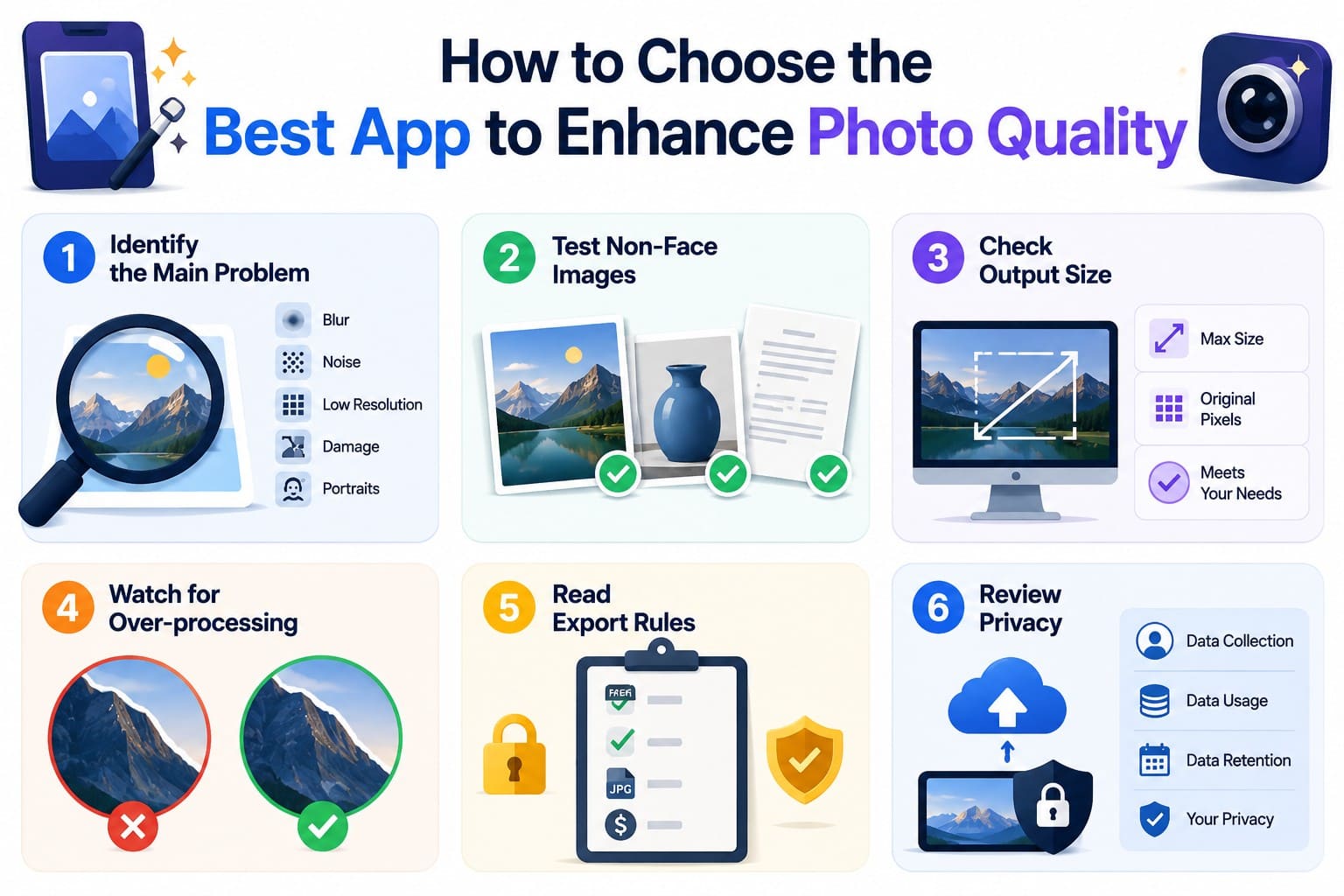
- Identify Your Photo Problem: Determine whether you need to fix blur, noise, low resolution, damaged details, or faces. Choose an app designed to handle your main issue effectively.
- Check Different Image Types: Some enhancers perform better on portraits than landscapes, products, text, or other images. Check whether the app works well with the photos you usually enhance.
- Review Resolution Limits: Check how far the app can increase image resolution and whether its maximum output size meets your needs for sharing, viewing, or printing.
- Look for Natural Results: Inspect faces, hair, edges, textures, and text after enhancement. Excessive sharpening or AI reconstruction can introduce halos, distorted details, or an unnatural appearance.
- Check Free and Export Limits: Review free enhancement limits, watermarks, supported formats, resolution restrictions, and subscription requirements before choosing an app for regular use.
- Review Photo Privacy: Check whether photos are processed locally or uploaded to external servers. For cloud-based processing, review the app's data collection, storage, and deletion policies.
Part 7. How to Check Whether Photo Quality Actually Improved
After using an enhance photo resolution app, check the final image carefully to confirm whether its quality has genuinely improved. Use these 6 methods to evaluate the enhanced result:
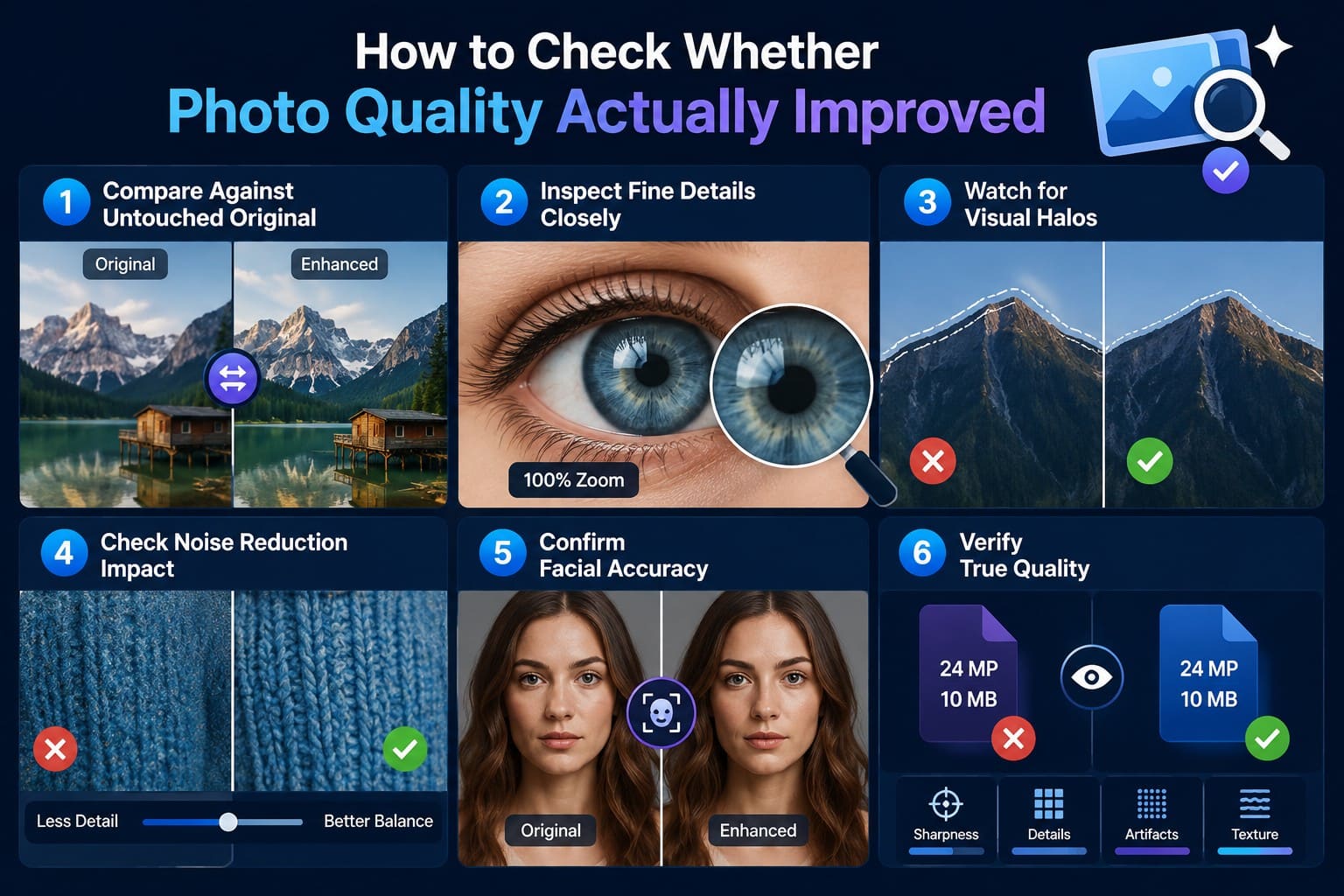
- Compare With the Original: View the enhanced and original photos side by side at the same zoom level. Compare sharpness, textures, noise, and reconstructed details to identify noticeable improvements.
- Inspect Fine Details: Examine hair, text, edges, patterns, and other recognizable details closely. Look for distorted textures, artificial shapes, or invented details that were not visible in the original.
- Check for Sharpening Halos: Examine high-contrast edges around faces, hair, buildings, and horizons. Bright or unnatural outlines can indicate excessive sharpening. For a closer assessment, view the image at 100% zoom and inspect the edges carefully.
- Evaluate Noise Reduction: Inspect skin, fabric, foliage, and other textured areas after enhancement. Effective noise reduction should reduce visible grain without making genuine details look overly smooth or artificial.
- Confirm Facial Accuracy: Compare enhanced facial features directly with the original portrait. Pay particular attention to the eyes, mouth, hair, and facial shape to identify inaccurate AI-generated details.
- Verify the Resolution Gain: Higher pixel dimensions alone do not guarantee better image quality. Compare actual sharpness, textures, and visible artifacts alongside the output resolution to determine whether the enhancement produced a useful improvement.
Conclusion
Choosing the right photo enhancer comes down to the problem you need to fix. Whether you want an app to increase photo quality, improve resolution, reduce blur, or restore an old picture, always compare the result with the original. Among the options covered, Dr.Fone App stands out with AI-powered enhancement, restoration, and colorization tools, making it a practical all-in-one choice for improving different types of mobile photos.
FAQ
-
1. Which app is best for increasing photo resolution?
Dr.Fone App is a strong choice for increasing photo resolution while improving overall image quality. Its AI-powered enhancement can refine blurry or low-quality photos, while additional restoration and colorization tools make it useful for handling different photo problems within one mobile app. -
2. Can an app improve a blurry photo without changing the face?
Yes, photo enhancement apps can improve facial clarity, but AI may reconstruct details that were unclear in the original. Compare enhanced eyes, mouth, facial shape, and other features with the source photo to ensure the person's appearance remains accurate. -
3. Does increasing image resolution always improve photo quality?
No. Increasing resolution adds more pixels, but it does not guarantee clearer or more accurate details. Existing blur, noise, and compression artifacts may remain visible after enlargement. For better results, enhance these issues first and upscale the image only as much as needed. -
4. Which type of photo enhancer is better for low-light images?
A photo enhancer with strong noise-reduction capabilities works best for low-light images. It can reduce visible grain while preserving important textures and details. For portraits, choose an app that also maintains natural facial features during enhancement.









Selena Lee
staff Editor
Generally rated4.5(105participated)