


 TL;DR:
To successfully compress videos for Discord in 2026, verify your actual account upload limit—typically 20 MB for free users or up to 500 MB for Nitro—and manually target slightly below that size to avoid unnecessary quality loss from web tools still using outdated 8 MB or 10 MB presets.
● Select a compression tool based on your device and required controls: Dr.Fone App provides direct on-device processing exclusively for iPhone, Media.io is ideal for setting an exact target file size online, and FreeConvert offers advanced codec adjustments for free uploads up to 1 GB.
● Export your compressed videos in MP4 format using the H.264 codec for the broadest playback compatibility on Discord, and reduce the file size by lowering the bitrate, resolution, or frame rate.
● Stop compressing and instead trim the footage, share a cloud storage link, or utilize Nitro if reaching the required upload limit makes the video noticeably unclear.
Ask AI for a summary
 ChatGPT
 Perplexity
 Gemini
 Claude
 Grok
Grok
A reliable Discord video compressor can reduce oversized videos while keeping them clear enough to share. Since Discord limits can vary and compressor presets may become outdated, checking your account’s current upload limit before compression is important.
This guide compares seven video compressors, including the Dr.Fone App for iPhone and several online options. You’ll also learn which compression controls matter, when to trim footage or lower resolution, and how to choose the right tool for your Discord uploads.
In this article
Part 1. What File Size Should a Discord Video Compressor Target?
The ideal video compressor for Discord depends on your account's upload allowance. The table below compares current limits with practical compression goals and suitable settings for each Discord plan:
| Discord Plan | Official Upload Limit | Compression Goal | Best Approach |
|---|---|---|---|
| Free | 20 MB | Around 18 MB | 720p, moderate bitrate |
| Nitro Basic | 50 MB | Around 45 MB | 1080p usually fits |
| Nitro | Up to 500 MB | Rarely needed | Trim long clips only |
Discord’s upload limit can vary by account and available features, so check your current limit before compression. Aim slightly below the maximum to leave enough room for a successful upload. Then, adjust resolution, bitrate, or video length to reach the target without reducing quality more than necessary.
Part 2. 7 Best Video Compressors for Discord
A good video compressor for Discord should reduce file size without sacrificing more quality than necessary. Important differences include target size controls, compression settings, platform support, privacy, and outdated Discord presets. The seven options below cover mobile and browser-based tools for preparing videos that fit your Discord upload limit.
1. Dr.Fone App – Best All-Rounder for iPhone
Dr.Fone App lets you compress videos directly on your iPhone without transferring them to a computer first. As a Discord file size compressor, it is useful for reducing gameplay clips, screen recordings, reaction videos, and camera footage before uploading them. You can select one or multiple videos for compression, making it convenient when several large clips need to be prepared for Discord.
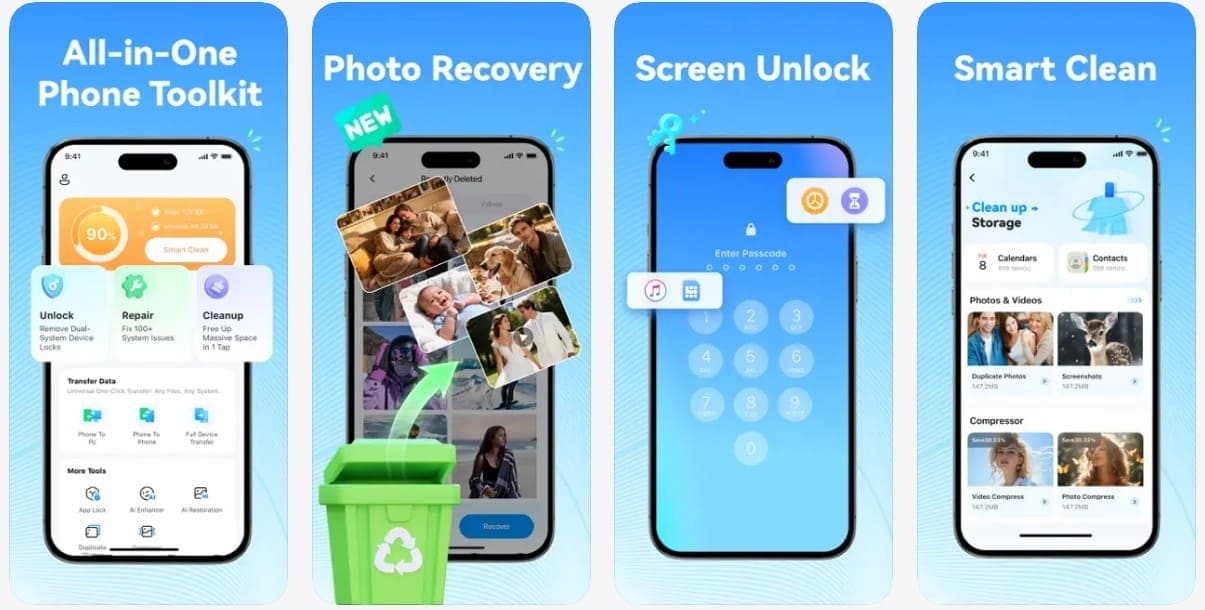
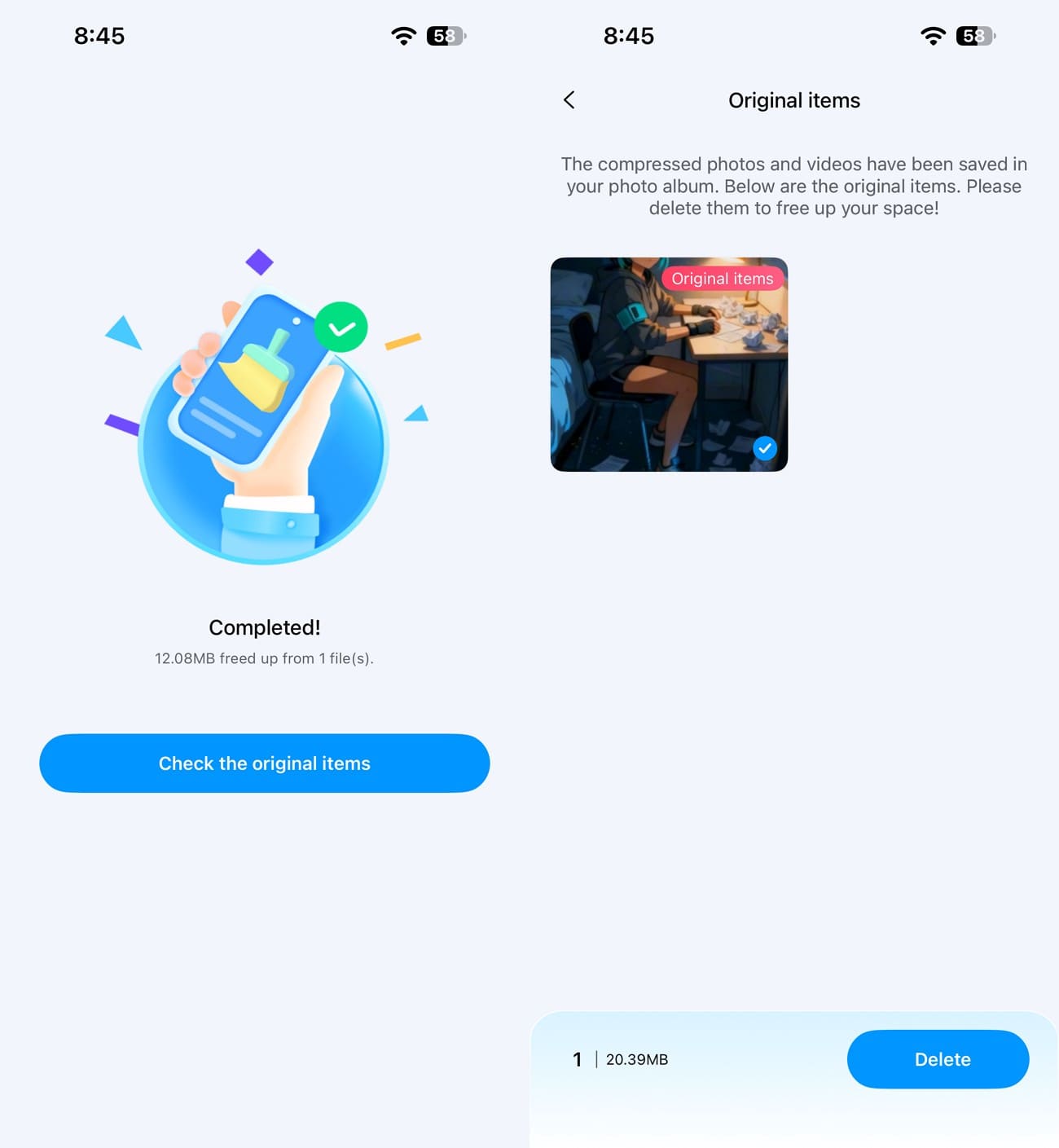
After compression, you can review the results and keep the smaller copies ready for sharing. Dr.Fone App also organizes media by file size, helping you identify videos that occupy the most storage space. Its built-in storage cleaning tools provide an option to remove original videos after you have checked the compressed versions. This combines video compression and storage management within one iPhone app.
Guide to Compress Video for Discord on iPhone
Here is how this video Discord compressor helps you reduce video size on your iPhone in 3 simple steps:
Dr.Fone App - Photo & Video Compressor for iPhone
Compress Photos & Videos to Free Up iPhone Storage
- Compress Large Photos to Reduce File Size
- Compress Large Videos Instead of Deleting Them
- Free Up More Storage Space for New Photos, Videos, and Apps
- Manage Space-Consuming Photos and Videos More Efficiently



-
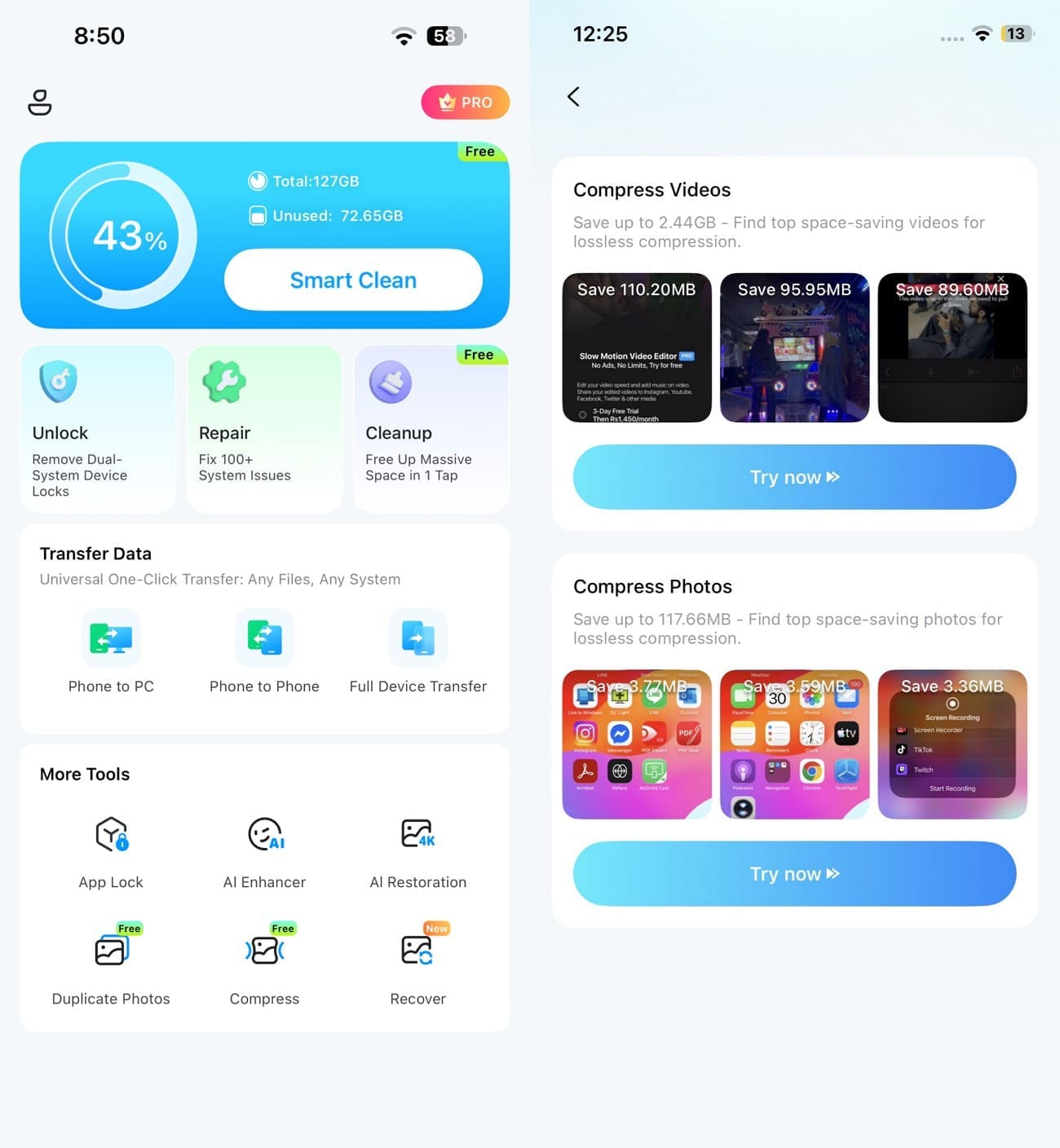
Step 1. Select the Video Compressor
Tap “Compress” under “More Tools,” then select “Try Now” in the “Compress Videos” section to choose your videos.
-
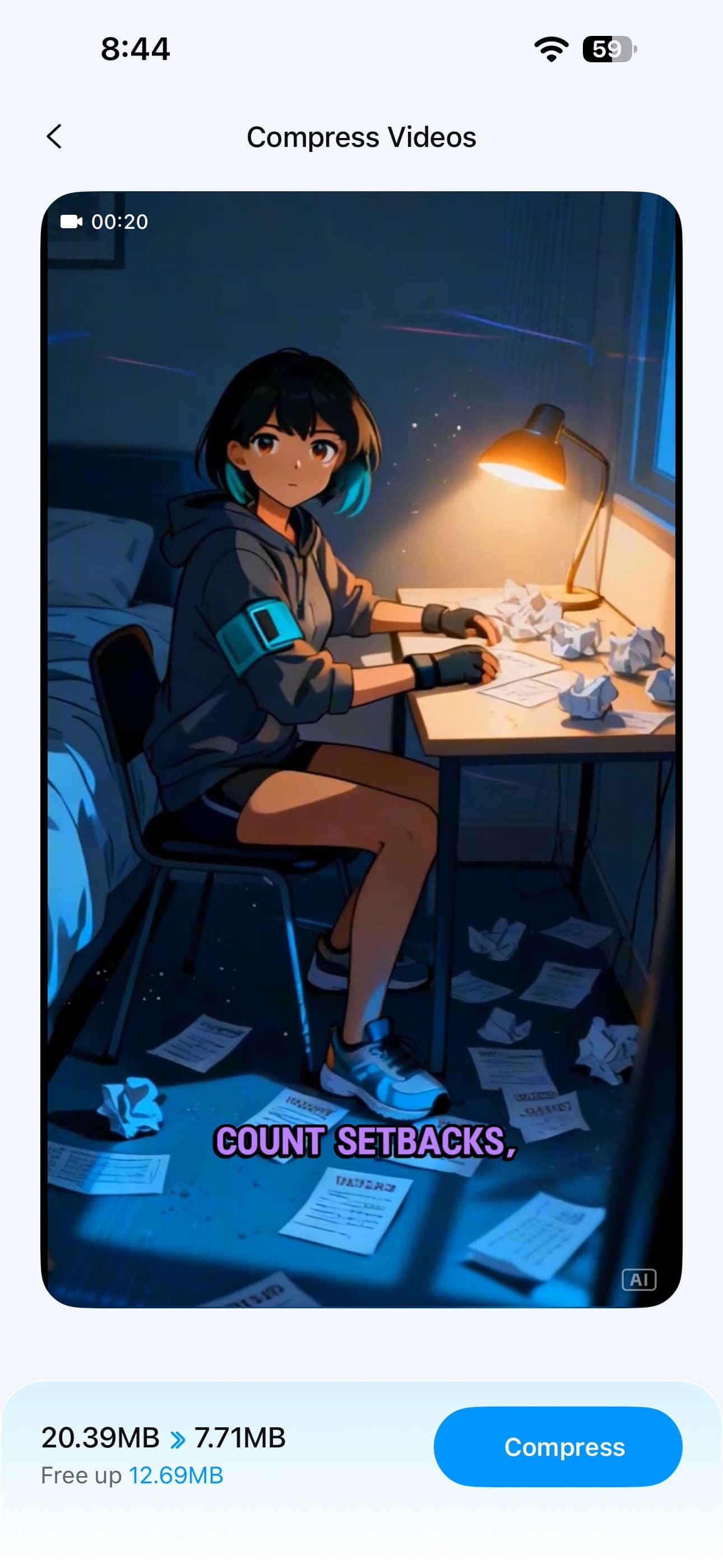
Step 2. Start Video Compression
Check the estimated “Free Up” space, then tap “Compress” to begin reducing the selected video’s file size.
-
Step 3. Save the Smaller Video and Upload It to Discord
Use “Check the Original Items” to review the source video, then delete it only if you no longer need it. The compressed version stays saved in Photos, where you can select the smaller file and upload it directly to a Discord chat or server.
Pros
Compresses videos directly on the iPhone without requiring transfers to a computer or browser-based tool.
Keeps the original video available until you choose to remove it after checking the compressed copy.
Cons
Does not provide advanced codec controls for users who want more technical settings.
Video compression is limited to iPhone, leaving Android and desktop users without this workflow.
2. Media.io – Best for Online Target-Size Compression
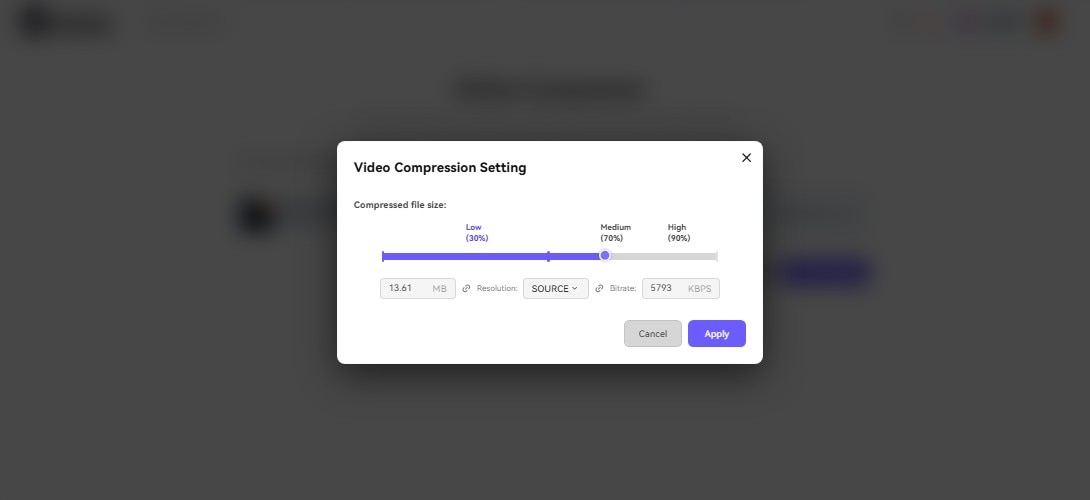
Media.io is an online Discord video compressor designed for users who want to compress videos toward a specific file size. It works through browsers on Windows, Mac, Linux, iOS, and Android without software installation. You can adjust the target size, resolution, and bitrate while working with formats including MP4, MOV, AVI, MKV, FLV, and WebM. Batch processing also lets you compress multiple Discord videos together.
Pros
- Supports high-resolution video processing, including 4K and 8K output options for compatible source files.
- Compressed videos can be saved directly to Google Drive or Dropbox for easier sharing and storage.
Cons
- Uploaded videos require server-based processing, making it less suitable for users prioritizing local compression.
- Large video uploads and compression can become slow without a stable internet connection.
3. VEED – Best for Estimated File Size and Video Editing
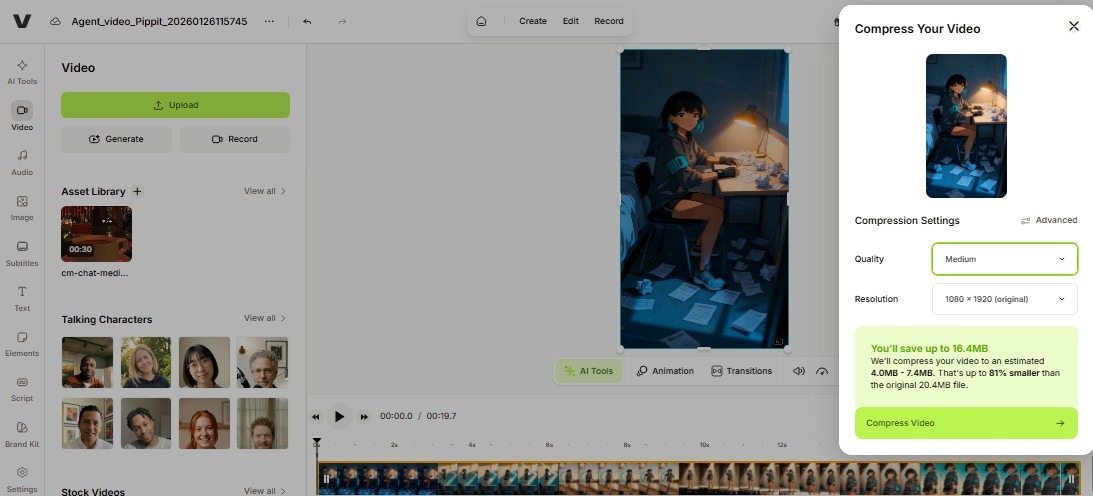
VEED combines compression with editing tools, making it useful when a Discord video needs adjustments before uploading. This online video compressor Discord tool provides Low, Medium, and High compression presets alongside manual controls for bitrate, frame rate, CRF, and resolution. It also displays an estimated output size while you configure compression, helping you judge whether the finished video should fit within your Discord account’s upload limit.
Pros
- Built-in trimming and cropping can remove unnecessary footage before compressing videos for Discord.
- Captioning tools let you prepare subtitled clips without switching to a separate video editor.
Cons
- Free exports include a VEED watermark, which remains visible on videos subsequently uploaded to Discord.
- The free plan restricts export quality, limiting users who want higher-resolution compressed Discord videos.
4. Clideo – Best for Simple Discord Video Compression
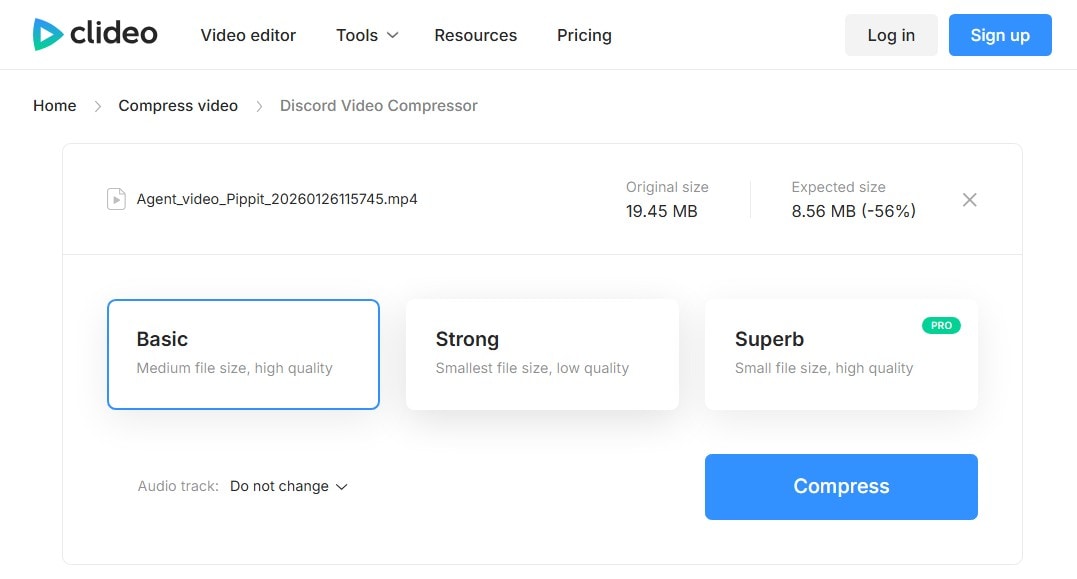
Built around preset-based compression, Clideo is a straightforward Discord file size compressor for users who do not need detailed codec controls. It offers Basic, Strong, and Superb compression modes while estimating the resulting file size and compression ratio before processing. Videos can come from a device, Google Drive, Google Photos, or Dropbox. Clideo also supports popular formats such as MP4, MOV, AVI, and WMV.
Pros
- Lets you preview the compressed video before downloading it or saving it to cloud storage.
- Can remove or compress the audio track for additional size reduction with a Pro plan.
Cons
- Free video exports include a Clideo watermark, requiring Pro for watermark-free Discord uploads.
- Free users can process files only up to 500 MB, while larger uploads require Pro.
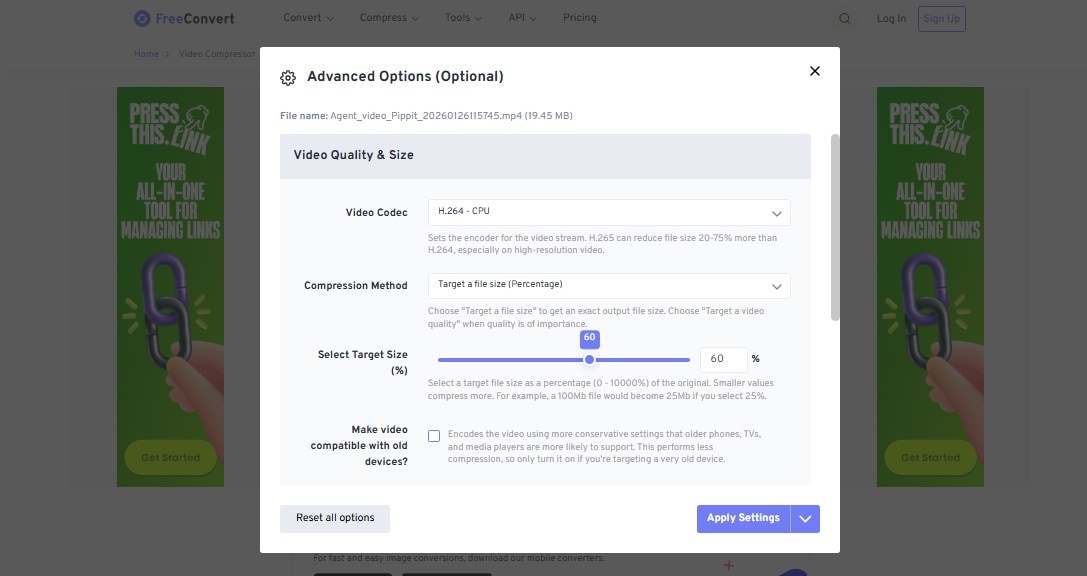
5. FreeConvert – Best for Advanced File-Size Control
More detailed compression settings make FreeConvert useful as a video compressor for Discord when you need greater control over file size. You can target a percentage of the original size or compress by video quality. Other options include H.264 and H.265 codecs, maximum bitrate controls, and resolution resizing. These settings help reduce large gameplay clips or recordings to a specific Discord upload limit without relying on a fixed preset.
Pros
- Accepts videos from your device, Google Drive, Dropbox, OneDrive, or a direct URL.
- Scale On Demand plans support individual files up to 20 GB for larger video compression jobs.
Cons
- Free usage limits individual uploads to 1 GB, which may restrict large high-resolution recordings.
- Percentage-based target sizing may require checking the result to ensure acceptable video quality.
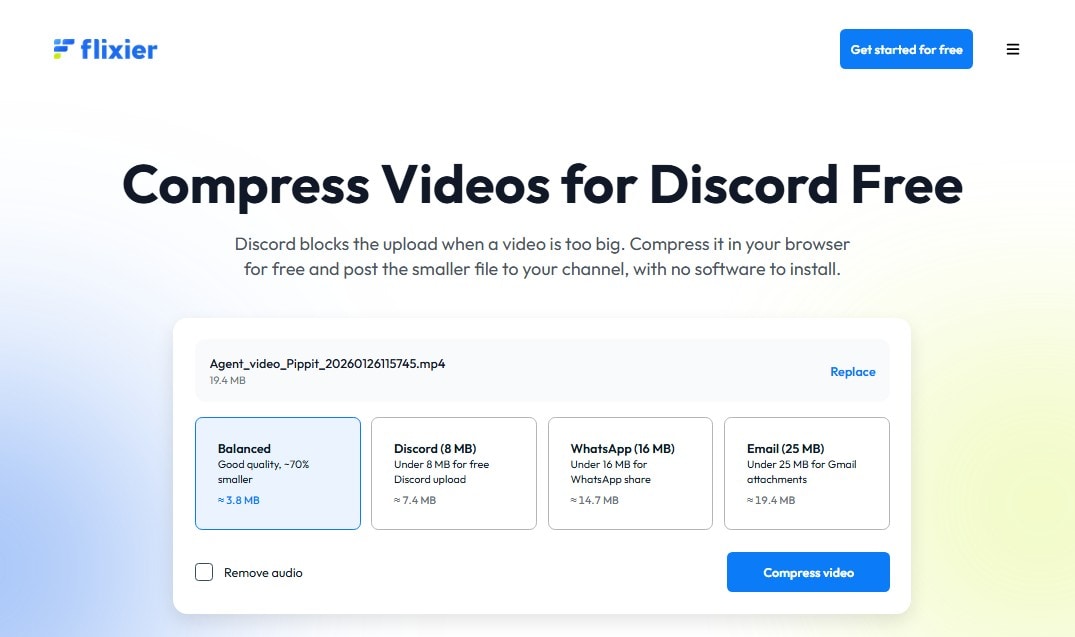
6. Flixier – Best for Browser-Based Compression with Local Processing
Unlike a typical cloud-based compressor, Flixier handles compression locally in your browser without sending the video to its servers. This video compressor Discord option supports MP4, MOV, MKV, and WebM files. You can choose bitrate- or CRF-based compression and adjust frame rate, resolution, and compression strength. An estimated output size also helps you judge whether the video will meet your Discord upload limit.
Pros
- Lets you continue editing the compressed video with trimming, cropping, captions, and other tools.
- Requires no account to access its standalone video compression tool.
Cons
- Uses the outdated 10 MB Discord limit instead of reflecting the current 20 MB free upload limit.
- Large videos can use more device resources because compression runs locally in the browser.
7. Kapwing – Best for MP4 Compression and Collaborative Editing
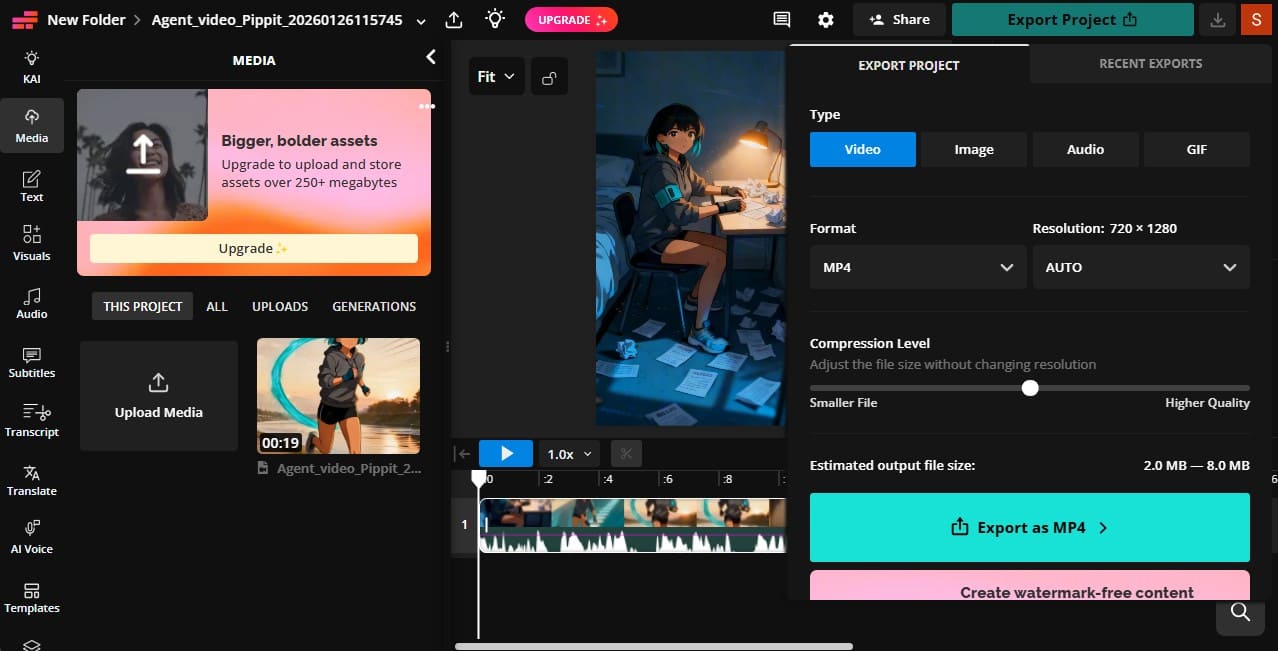
Kapwing is a browser-based MP4 compressor for Discord that combines compression with practical editing controls. During export, you can adjust compression and resolution while checking the estimated output size. It also lets you trim unnecessary footage before compression to reduce the file further. Kapwing accepts MP4, MOV, WebM, AVI, WMV, and MKV uploads, while finished videos can be exported as MP4 or shared through a link.
Pros
- Shows an estimated file size while you adjust the MP4 compression level.
- Lets you trim footage before compression or share the finished video through a link.
Cons
- Its Discord compressor page still recommends an outdated 8 MB upload target.
- No dedicated iOS or Android app is currently available, so mobile compression runs in a browser.
Part 3. Which Discord Video Compressor Fits Your Need?
Choosing the right video compressor Discord users need depends on their device, compression goals, and preferred level of control. The table below matches each tool with the use case it handles best:
| User Need | Feature to Prioritize | Recommended Compressor |
|---|---|---|
| All-Rounder for iPhone | On-device compression | Dr.Fone App |
| Specific File Size Target | Target size control | Media.io |
| Simple Online Compression | Automatic compression | Clideo |
| Editing Before Upload | Size estimation and editing | VEED |
| Advanced Compression Control | Codec and quality settings | FreeConvert |
| Privacy-Focused Compression | Local browser processing | Flixier |
| MP4 Compression and Editing | MP4 export and editing | Kapwing |
Part 4. MP4 Compressor for Discord: What Format Should You Export?
Using an MP4 compressor for Discord is not only about reducing file size. The export format and codec also affect compatibility and compression efficiency. Discord’s official attachment guide supports MP4 videos encoded with H.264, HEVC/H.265, or AV1.
| MP4 Codec | Discord Support | Best Use | Keep in Mind |
|---|---|---|---|
| H.264 | Supported | Broad device compatibility | Safest choice for most users |
| HEVC/H.265 | Supported | Smaller files at similar quality | Playback support varies outside Discord |
| AV1 | Supported | Efficient compression | Older hardware may have limited support |
For most users, MP4 with H.264 is the safest choice because of its broad compatibility. HEVC can deliver smaller files of similar quality, while AV1 provides greater compression efficiency but typically benefits from newer hardware and software support.
Part 5. What Compression Controls Matter Most for Discord?
A Discord file size compressor gives you several ways to reduce an oversized video without lowering quality more than needed. The table below explains the most useful compression controls, what each changes, and when to use them:
| Compression Control | Why It Matters for Discord | Best Use |
|---|---|---|
| Target File Size | Helps aim below your upload limit | When you know the required size |
| Estimated Output Size | Predicts file size before export | Avoiding repeated test exports |
| Bitrate | Reduces size without changing resolution | Large gameplay or camera clips |
| Resolution | Reduces size when 4K or 1080p is unnecessary | Oversized high-resolution videos |
| Frame Rate | Lowering 60 FPS to 30 FPS can reduce size | Videos where smoother motion is less important |
| Trimming | Removes unnecessary footage without reducing remaining quality | Long videos with unwanted sections |
Part 6. Why Discord Compressor Presets Can Be Misleading in 2026
A built-in preset on a video compressor for Discord may not always reflect Discord’s current upload limit. Several compressor pages still mention older 8 MB or 10 MB targets. Discord’s updated File Attachments FAQ lists a 20 MB non-Nitro limit, and notes that selected users may see larger limits during ongoing tests.
This matters because an outdated preset can compress a video far more than necessary. A 19 MB video may already fit your account, so reducing it to 8 MB would only sacrifice extra quality. Treat presets as a starting point and check your Discord upload limit before choosing a compression target.
Part 7. When Should You Stop Compressing and Use Another Option?
A video compressor for Discord works best when you can reduce file size without making the clip noticeably unclear. Once compression starts affecting quality, the alternatives below can help you share the video without reducing it further.
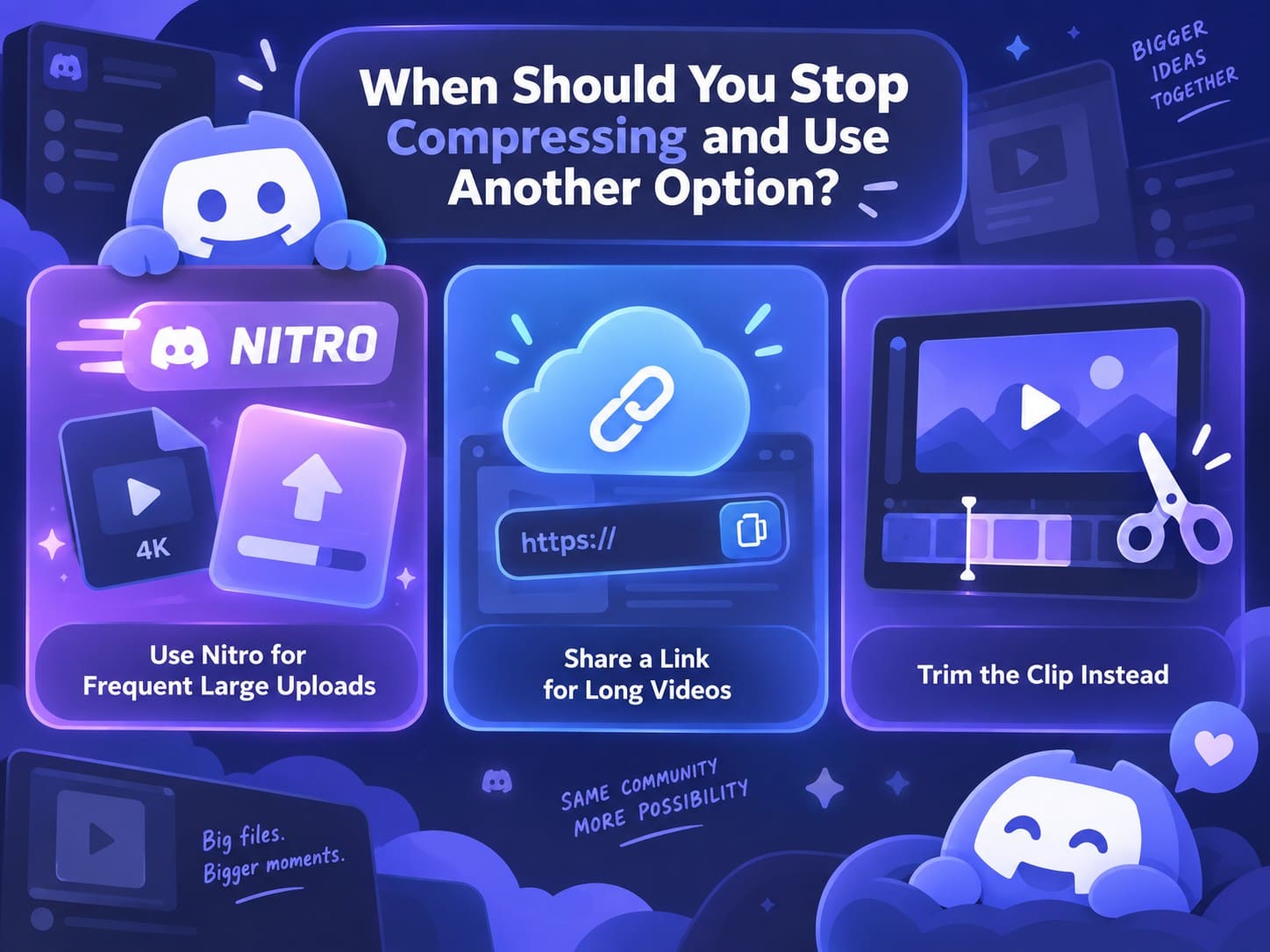
- Use Nitro for Frequent Large Uploads: Regularly sharing large files can make higher Nitro upload limits more practical than compressing every video before sending it.
- Share a Link for Long Videos: Upload lengthy recordings to cloud storage or a video platform and share the link instead of heavily compressing the original video.
- Trim the Clip Instead: Remove unnecessary sections when only part of the video needs sharing. This reduces file size without lowering the quality of the remaining footage.
Note: Keep the smaller file only for uploading to Discord. For later edits, export a fresh copy from the original video instead of recompressing the compressed version.
Conclusion
Choosing the right Discord video compressor means balancing file size with video quality and your account’s current upload limit. iPhone users can compress videos directly with the Dr.Fone App, while online tools provide different levels of size and quality control. Avoid relying on outdated Discord presets, check the compressed result before uploading, and consider trimming or link sharing when further compression would noticeably reduce quality.
Frequently Asked Questions
-
1. What is the best Discord video compressor for MP4 files?
Dr.Fone App is a convenient choice for compressing MP4 videos directly on an iPhone. Kapwing combines MP4 compression with editing tools, while FreeConvert provides more control over bitrate, codec, and quality. The best option depends on your device and required compression controls. -
2. Can a Discord compressor reduce a video to an exact file size?
Some Discord compressors let you set a target file size, but the final output may vary slightly. Set the target below your account’s upload limit to leave enough room for the compressed video to upload successfully. -
3. Why do some Discord video compressors still show an 8 MB or 10 MB limit?
Some compressor pages still use Discord’s older upload limits in their presets. Check the current attachment limit or the limit displayed on your Discord account before setting a compression target. -
4. Is it better to compress a Discord video or upgrade to Nitro?
Compression works well for occasional videos that slightly exceed your upload limit. Nitro is more practical for users who frequently share larger files, with higher upload limits reducing the need to compress each video before sharing. -
5. How do I send a video on Discord that is too large?
Compress the video below your account’s upload limit or trim unnecessary footage to reduce its size. For longer videos that would lose too much quality after compression, upload the file elsewhere and share a link on Discord instead.


James Davis
staff Editor
Generally rated4.5(105participated)