

 TL;DR:
AI can colorize black-and-white photos by predicting likely shades from objects, lighting, textures, and scene context, but it cannot recover the original colors.
- Use a sharp, well-exposed scan with clear details, good contrast, and minimal scratches before colorizing.
- Dr.Fone App lets Android and iPhone users use AI Restoration and Colorize to process photos, compare results, and save the finished image.
- Review skin tones, object colors, edges, and color bleeding carefully, and preserve the original image separately.
Ask AI for a summary
 ChatGPT
 Perplexity
 Gemini
 Claude
 Grok
Grok
Run the same monochrome portrait through three AI colorizers, and you may get three different shirt colors. Since a black-and-white photo does not preserve its original color information, AI predicts likely shades instead of recovering them. This is important to understand when you want to colorize photo files realistically.
Different AI tools can produce different results from the same image because their models interpret visual details differently. Image quality, contrast, and visible details can also affect the final colors. This guide explains how to prepare your photo, choose a suitable colorization method, review the results, and use the Dr.Fone App effectively.
- Part 1. What Is AI Photo Colorization and How Does It Work?
- Part 2. What Photos Work Best for AI Colorization?
- Part 3. How to Colorize a Black-and-White Photo with Dr.Fone App
- Part 4. How to Review and Improve an AI-Colorized Photo
- Part 5. Common AI Photo Colorization Problems and Fixes
- Part 6. Can You Colorize a Photo Online for Free?
- Part 7. How to Colorize a Photo in Photoshop on PC/Mac?
Part 1. What Is AI Photo Colorization and How Does It Work?
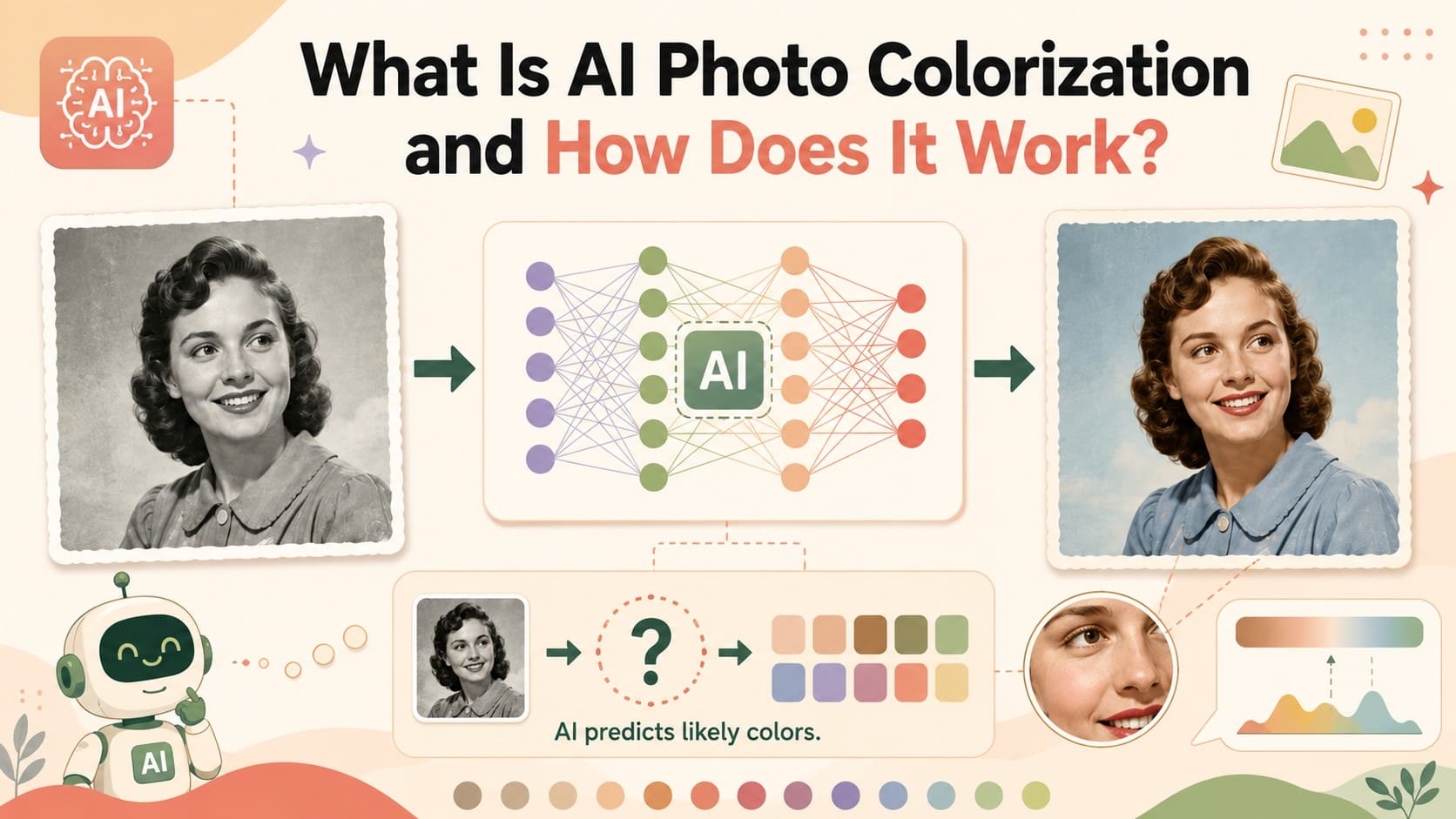
Colorize AI, or AI photo colorization, adds predicted colors to a black-and-white picture using trained AI models. According to the Library of Congress, black-and-white images contain shades of gray rather than chromatic color information. Therefore, AI does not recover the image's original colors. Instead, it analyzes objects, lighting, textures, and surrounding details to estimate realistic shades.
What Does an AI Colorizer Actually Do?
An AI colorizer reads remaining visual clues in a grayscale image to generate realistic hues:
- Objects and Subjects: Recognizes items like faces, clothing, cars, and trees.
- Brightness and Shadows: Uses tonal range to map out lighting and depth.
- Edges and Textures: Spots borders to keep colors contained within correct boundaries.
- Scene Context: Evaluates surroundings to determine likely color palettes.
- Trained Patterns: Compares elements against visual data from millions of color photographs.
As multiple colors can match the same shade of gray, the system makes a calculated prediction rather than recovering original color information. Research studies on automatic image colorization via arXiv highlight that this process remains complex because no single correct colorization exists for a monochrome photograph.
Part 2. What Photos Work Best for AI Colorization?
With the basics covered, the following table explains which types of images typically produce better results with an AI photo colorizer:
| Photo Condition | Why It Helps AI Colorization | What to Do Before Colorizing |
|---|---|---|
| Clear Faces and Objects | Makes subjects easier for the AI model to recognize | Use the sharpest available copy |
| Balanced Exposure | Preserves visible details in highlights and shadows | Correct overly dark or bright areas |
| Good Tonal Contrast | Helps distinguish objects, edges, and textures | Adjust Levels or Curves if the image looks flat |
| Minimal Scratches and Stains | Reduces the chance of damage being interpreted as image detail | Repair obvious damage first |
| Clean, Detailed Image | Provides more usable visual information for the AI model | Use the highest-quality available source |
| Original File Available | Provides a reference and allows future editing attempts | Preserve the original file separately |
Why Do Exposure and Contrast Matter?
AI colorizers depend on grayscale structure to understand picture content. When shadows block out shapes or bright highlights wash out details, the model loses critical facial and object cues. Adobe states that faded, overexposed, or underexposed photos result in less accurate color predictions.
To fix this, Adobe recommends using adjustment tools like Curves or Camera Raw to balance brightness and contrast before colorizing. For old scans, adjusting exposure first often works better than switching to a different AI tool right away.
Does Scan Quality Affect AI Photo Colorization?
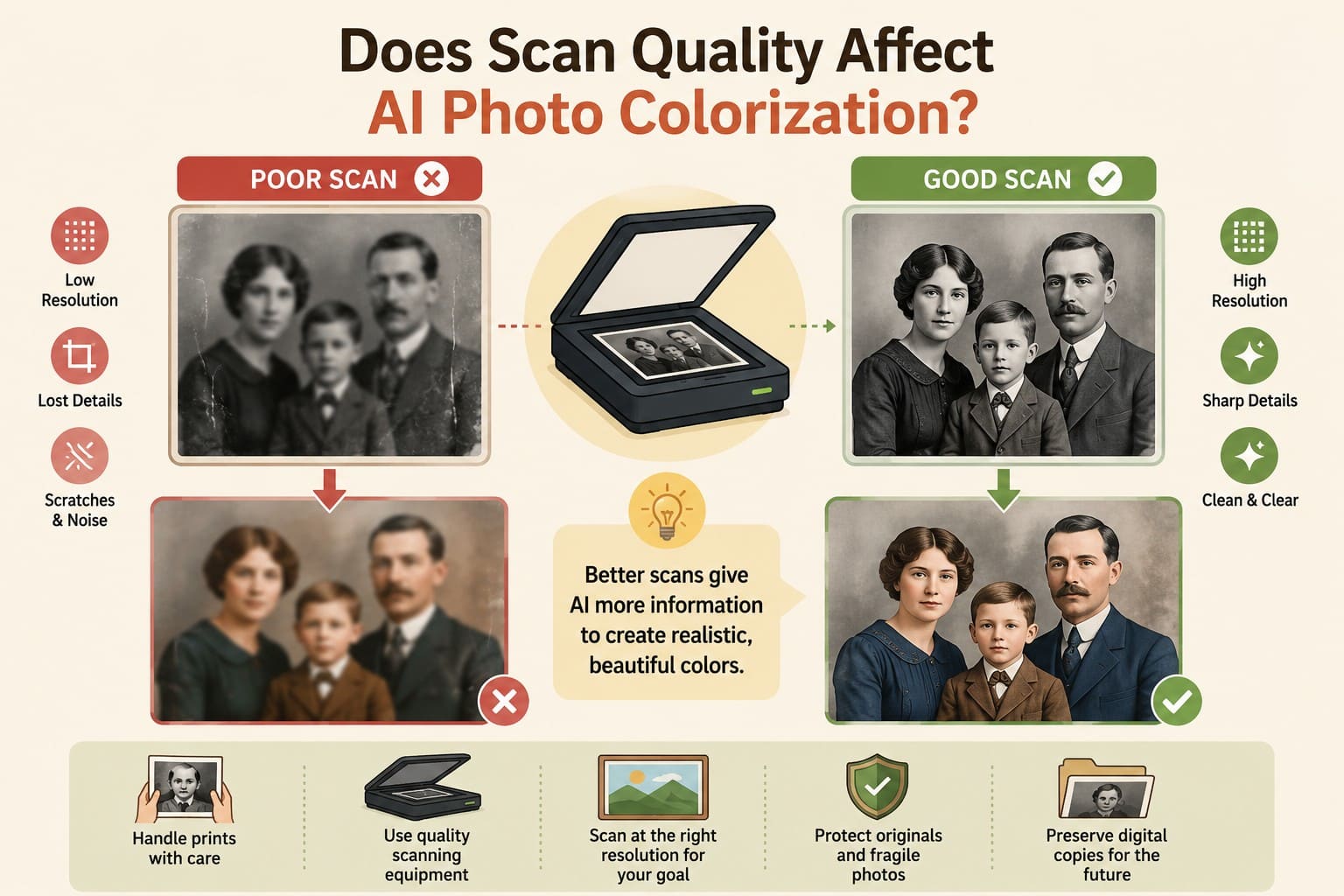
A better scan in an AI image colorizer preserves more tonal detail, sharp edges, facial features, and textures for the model to read. However, no single DPI value works best for every picture. The Library of Congress notes that proper scanning resolution depends on the original item's physical traits, not a universal standard.
For valuable or fragile prints, the Library of Congress recommends careful handling and appropriate digitization practices to protect the original material. Rather than using one fixed scanning resolution for every photo, choose a clean, detailed scan at a resolution suited to the original image and its intended use.
Part 3. How to Colorize a Black-and-White Photo with Dr.Fone App
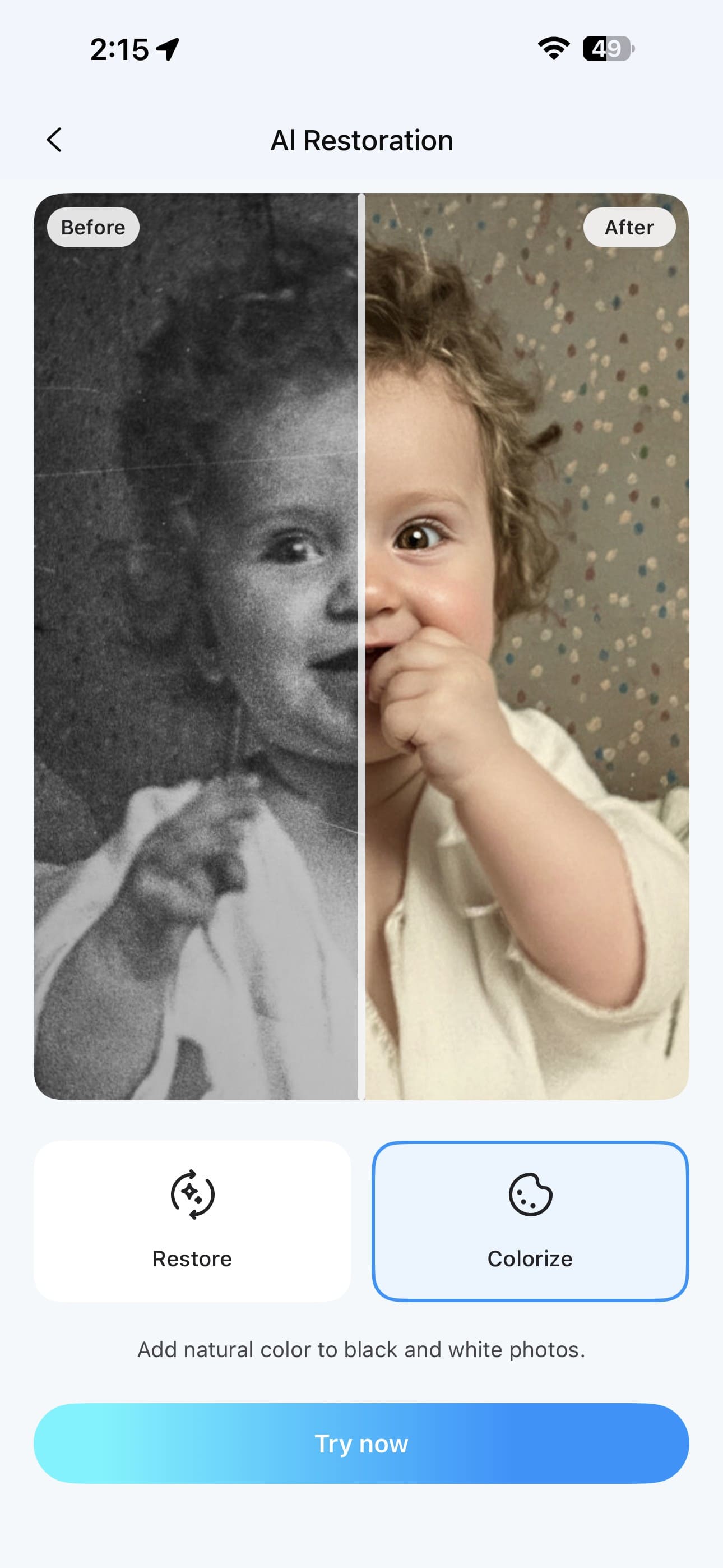
If you want a simpler way to colorize photo files without detailed manual editing, you can use Dr.Fone App, available on Android and iPhone. Its AI Restoration tool provides Restore and Colorize options for improving old photos directly from your phone. You can import a black-and-white image, choose Colorize, and let AI generate a colorized version without manually adjusting individual areas.
After processing, you can compare the original and colorized results using the before-and-after view and save the finished image to your device. The Restore feature can also improve visible damage or image quality before colorization when needed. This mobile workflow provides a straightforward alternative for users who prefer automated photo enhancement and colorization.
Dr.Fone App - AI Photo Restorer & Enhancer (iOS & Android)
Restore, Colorize, Enhance, and Upscale Photos with AI
- Restore Old Photos by Fixing Creases, Tears, and Scratches
- Colorize Black-and-White Photos with AI
- Auto-Enhance Photos and Improve Portrait Details to HD Quality
- Upscale Images to 2x, 4x, or 8x for Clearer Results



Simple Tutorial to Colorize Old Photos with Dr.Fone App AI
To use this AI image colorizer and add color to your black-and-white photos, follow these simple steps:
-
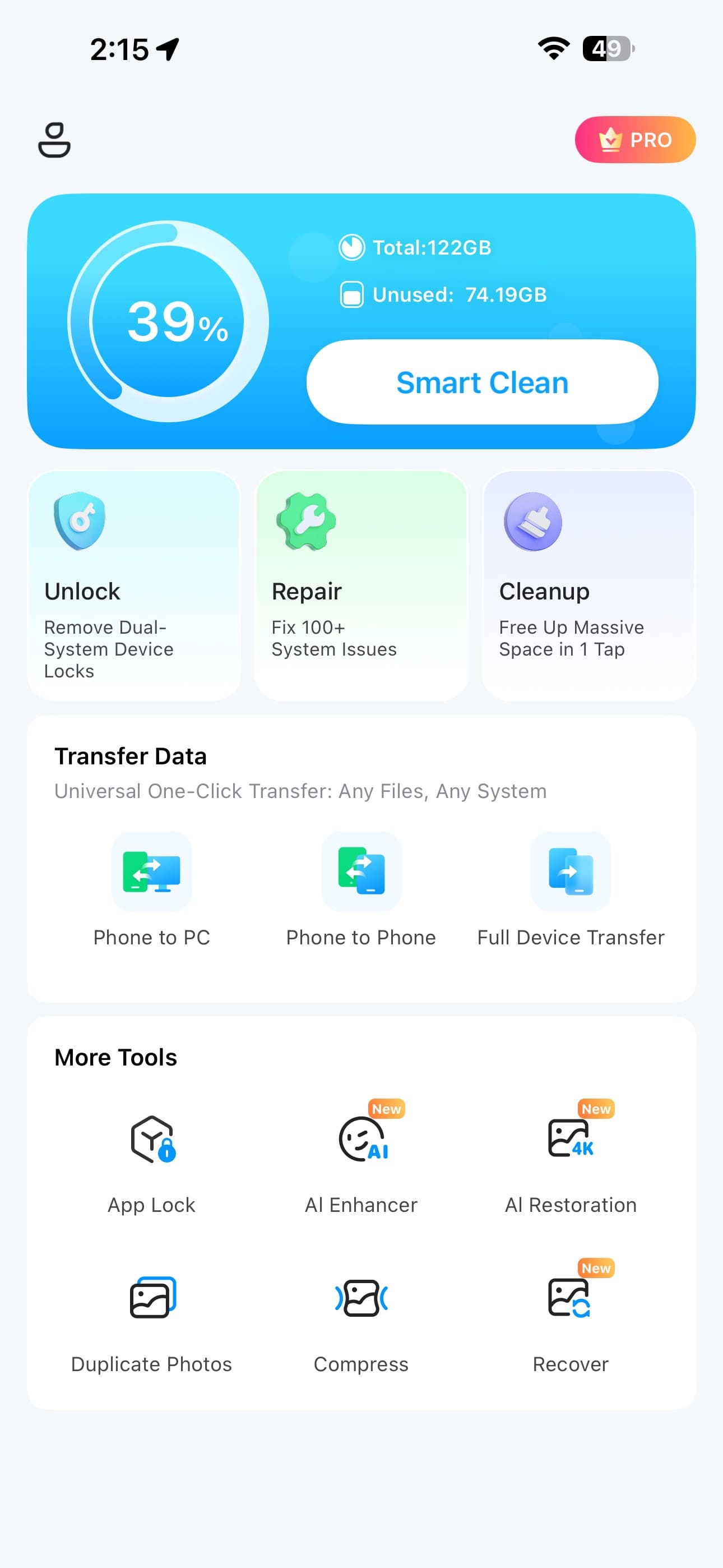
Step 1 Open the AI Restoration Tool
Access the “AI Restoration” tool from the available AI features to begin the colorization process.
-
Step 2 Select Colorize and Import the Photo
Choose the “Colorize” mode, tap “Try Now,” and select the black-and-white photo you want to colorize from your device.
-
Step 3 Review the Colorized Result and Save
Once the colorization is complete, compare the result with the original image, then tap “Save” to export it to your device.

Part 4. How to Review and Improve an AI-Colorized Photo
After you colorize a photo with AI, review the result carefully and use these practical tips to identify issues and improve the final image:
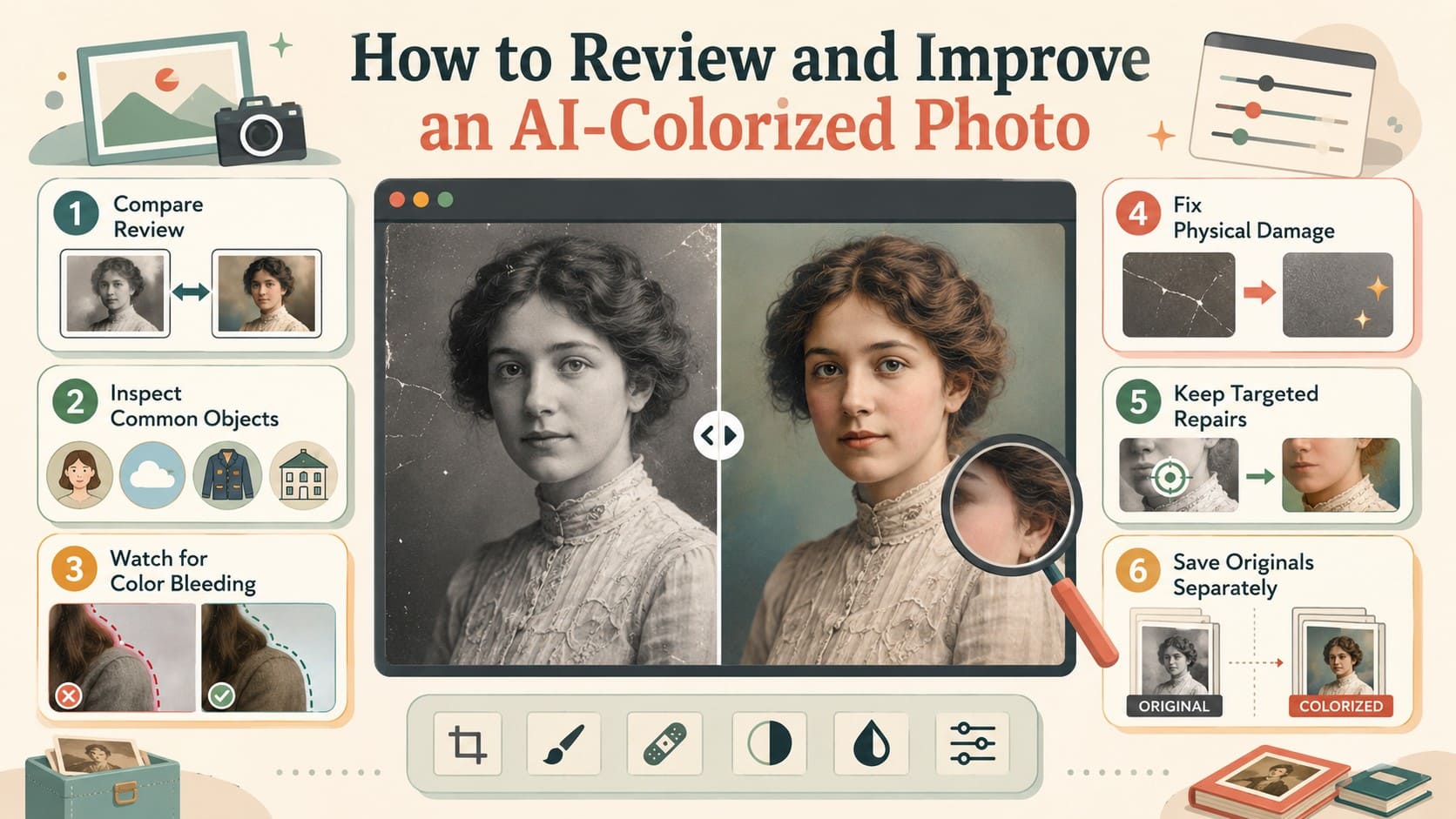
- Compare Both Versions: Compare the monochrome and colorized versions at matching zoom levels to spot unnatural changes and determine which areas need further adjustment.
- Inspect Common Objects: Check skin tones, skies, vegetation, and clothing for natural-looking colors. Pay particular attention to clothing and painted objects because their original colors cannot be determined from grayscale alone.
- Watch for Color Bleeding: Inspect hair, collars, faces, and object boundaries for colors spreading into nearby areas. Research on automatic colorization identifies color bleeding around object boundaries as a common issue.
- Correct Uneven Colors: Look for areas that appear unusually dull, oversaturated, or inconsistent with nearby objects. Adjust saturation, hue, or individual regions when AI-generated colors look unnatural.
- Refine Problem Areas: Correct specific areas where AI has produced implausible colors instead of recoloring the entire image. Targeted adjustments can improve skin, clothing, backgrounds, and other incorrectly colorized regions.
- Save Originals Separately: Preserve the original black-and-white image and export the colorized version as a separate file so you can return to the source later.
Part 5. Common AI Photo Colorization Problems and Fixes
You may encounter a few common issues when using an image colorizer. The following table highlights these problems, their possible causes, and practical ways to fix them:
| Problem | Possible Cause | What to Try |
|---|---|---|
| Unnatural Skin Tones | AI misinterprets facial tones or lighting | Adjust color balance or correct the skin manually |
| Color Bleeding | Weak or ambiguous object boundaries | Refine edges or correct the affected area manually |
| Dull Colors | Low tonal contrast or conservative AI predictions | Adjust saturation and color balance after colorizing |
| Incorrect Object Colors | AI predicts an unsuitable but plausible color | Correct the area manually or try another colorizer |
| Uneven Colorization | Complex lighting or poorly recognized regions | Correct affected areas or try colorizing again |
| Damage Affecting the Result | Scratches or stains are interpreted as image details | Restore visible damage first, then colorize again |
Part 6. Can You Colorize a Photo Online for Free?
Plenty of tools let you colorize photos online for free, although free usage often comes with limitations. Depending on the service, you may encounter image limits, credits, lower-resolution downloads, watermarks, or restricted access to advanced features.
Many browser-based AI colorizers upload images to remote servers for processing, so review the service's privacy policy before using personal photos. Different tools can also produce different color predictions from the same image, making comparison useful. For a mobile alternative, Dr.Fone App provides AI-powered photo enhancement tools that can help improve old or low-quality photos directly from your phone.
Part 7. How to Colorize a Photo in Photoshop on PC/Mac?
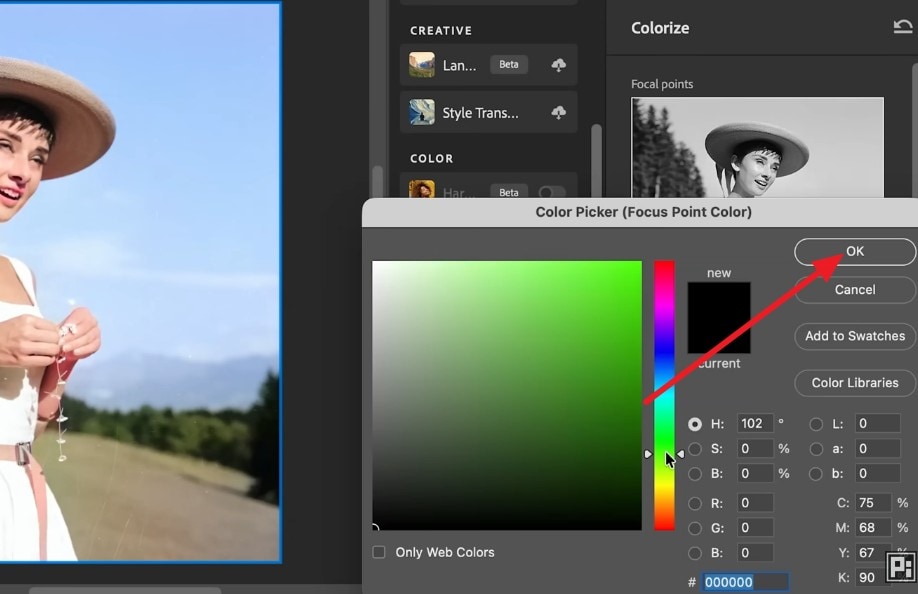
If you already own Photoshop, you can colorize in Photoshop using its AI-powered Colorize Neural Filter. The tool analyzes a black-and-white image and automatically predicts suitable colors for different areas. You can then refine individual colors and adjust the overall result for a more natural appearance.
This approach offers greater control when specific parts of the AI-generated colorization need manual correction. Follow the step-by-step instructions below for detailed assistance:
-
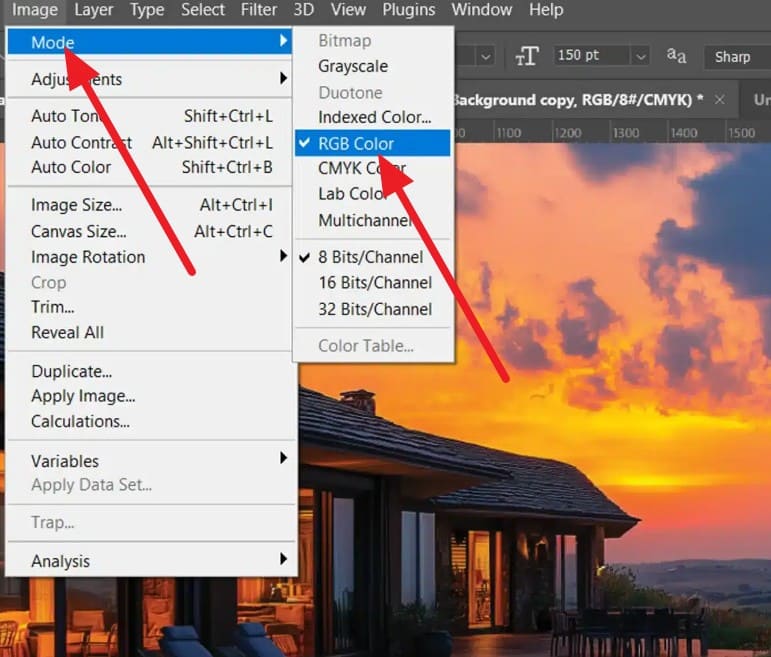
Step 1 Open the Image and Change the Color Mode
Open your image and navigate to “Image > Mode,” then change the setting from Grayscale to “RGB Color.”
-
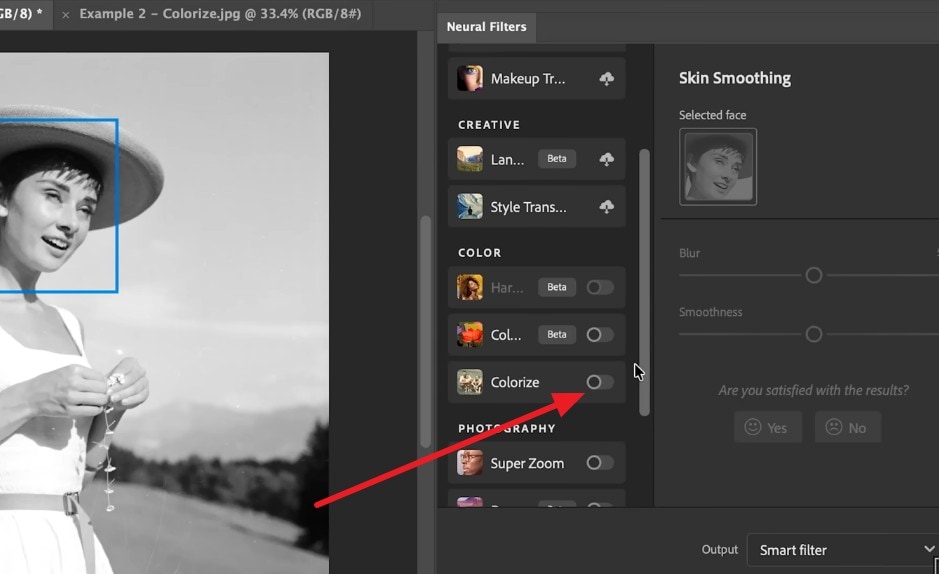
Step 2 Enable the Colorize Option
Duplicate your base layer, go to “Filter > Neural Filters,” locate “Colorize,” and turn it on to generate an initial color base.
-
Step 3 Adjust Colors and Apply the Filter
Adjust individual color points in the window if needed, then click “OK.”

Conclusion
Restore visible damage and improve contrast before you colorize photos, as scratches, fading, and unclear details can affect AI predictions. Dr.Fone App provides AI-powered enhancement tools to improve old or low-quality photos directly from your phone. Once the image is enhanced, review the colorized result carefully and check skin tones, object colors, and edges for inconsistencies.
FAQ
-
1. Can AI determine the original colors of a black-and-white photo?
A grayscale image holds no color information to recover, so every result you see is a prediction based on what similar objects usually look like. Clothing and painted surfaces show it most, since those could genuinely have been any color. -
2. Should I restore an old photo before or after colorizing it?
Restore the photo first, as scratches and fading can affect AI color predictions. Repairing visible damage gives the colorizer cleaner details and helps produce more consistent, natural-looking results. -
3. Can AI colorize a scanned black-and-white photo?
Yes, AI can colorize scanned black-and-white photos. Use a clean, detailed scan with minimal glare and crop unnecessary borders so the model can better recognize subjects, edges, textures, and tonal details. -
4. Why do different AI colorizers give different colors to the same image?
Different AI colorizers can produce different results because their models are trained differently and interpret grayscale details in different ways. Since the original color information is unavailable, multiple color predictions can be equally plausible.








Selena Lee
staff Editor
Generally rated4.5(105participated)