

 TL;DR:
Use the smallest upscale factor needed to reach 3840 × 2160, then inspect the result for realistic detail, halos, noise, and correct saved dimensions.
- A 1920 × 1080 image needs 2x scaling, while a 1280 × 720 image needs 3x scaling to reach 4K UHD.
- AI can estimate plausible textures and edges, but it cannot reliably restore detail lost through severe blur, compression, or very small source files.
- Dr.Fone App offers Auto, Portrait, and Ultra HD modes, including 2x, 4x, and 8x options in Ultra HD.
Ask AI for a summary
 ChatGPT
 Perplexity
 Gemini
 Claude
 Grok
Grok
Two photos can measure 3840 by 2160 pixels yet differ significantly in visual quality. Reaching 4K dimensions adds pixels, but it does not automatically restore missing detail. An effective image upscaler 4K uses AI to create a sharper, more detailed-looking result.
Choosing the right enhancement approach can make the difference between a naturally sharper image and one filled with artificial-looking details. This guide explains how to assess image quality, choose the right upscale factor, use the Dr.Fone App for mobile image enhancement, and understand the practical limits of AI upscaling.
- Part 1. What Is an Image Upscaler 4K?
- Part 2. AI Image Upscaling vs Normal Image Resizing
- Part 3. What Upscale Factor Do You Need to Reach 4K?
- Part 4. How to Upscale an Image to 4K with Dr.Fone App
- Part 5. Can You Use an Image Upscaler 4K for Free?
- Part 6. How to Check the Quality of a 4K Upscaled Image
- Part 7. What Are the Limits of Upscaling an Image to 4K?
- Frequently Asked Questions
Part 1. What Is an Image Upscaler 4K?
A 4K image upscaler enlarges an image to 4K resolution using AI-assisted processing rather than simple mathematical scaling. The following points further highlight its key aspects for better understanding:
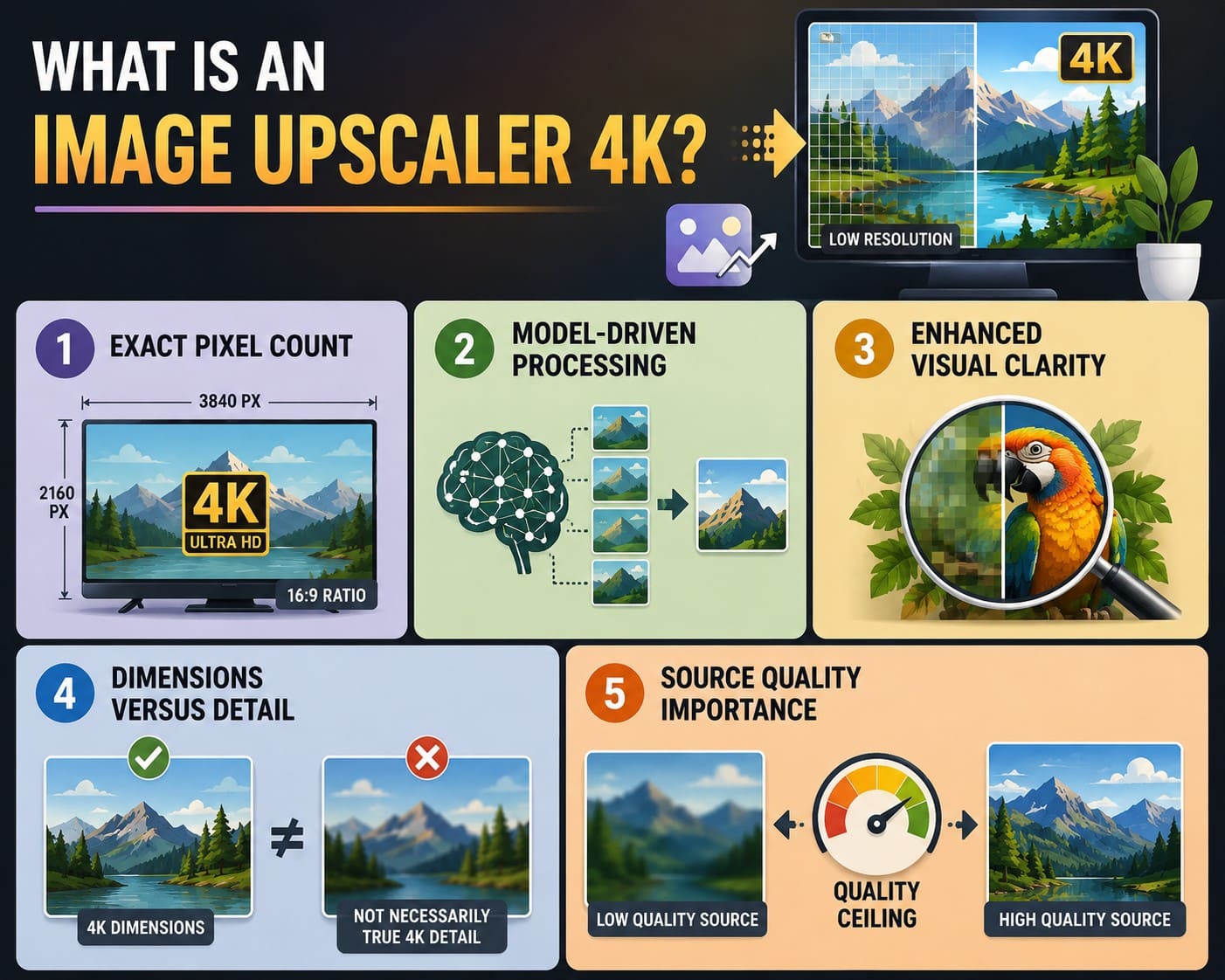
- Exact Pixel Count: 4K UHD commonly targets a standard 3840 × 2160 resolution with a 16:9 aspect ratio. Reaching these specific dimensions provides a clear numerical target that you can measure mathematically.
- Model-Driven Processing: Smart tools utilize trained AI models to predict new pixel information based on patterns learned during training. This approach differs from standard resizing, which calculates additional pixel values through conventional interpolation methods.
- Enhanced Visual Clarity: Advanced AI processing can produce cleaner-looking edges and more convincing textures for elements like fabric, foliage, or hair. However, these improvements remain estimated rather than representing brand-new physical detail captured in the original photograph.
- Dimensions Versus Detail: A file with full 4K dimensions does not guarantee the final image contains genuine 4K-level detail. Adobe explains that upsampling adds pixels and requires the image enhancer 4K software to determine what those additional pixels should contain.
- Source Quality Importance: Original photo quality strongly affects the result because sharper images provide more usable information. Adobe notes that resampling can reduce image quality and recommends starting with an image at a sufficiently high resolution for the intended output.
Part 2. AI Image Upscaling vs Normal Image Resizing
Once you understand the basics of an image quality enhancer 4K, it helps to know how AI upscaling differs from normal resizing. Traditional resizing uses interpolation algorithms to calculate new pixel values, while AI upscaling uses trained models to generate plausible additional detail. The table below explains the key differences:
| Factor | Normal Image Resizing | AI Image Upscaling |
|---|---|---|
| How Pixels Are Added | Calculates new pixels using interpolation | Predicts new pixel details using trained models |
| Detail | Mainly enlarges existing image information | Can generate plausible fine details |
| Edges & Textures | May appear softer after enlargement | Can produce cleaner edges and textures |
| Low-Resolution Sources | Often become noticeably softer | Can produce more detailed-looking results |
| Processing | Uses interpolation algorithms | Uses machine-learning model inference |
| Best For | Moderate image size increases | Larger enlargements and detail enhancement |
Does AI Upscaling Recover Original Detail?
AI upscaling creates convincing textures, but the added detail remains a predicted estimate rather than true captured data. Trained AI models analyze existing visual patterns to generate plausible pixels and enhance apparent detail.
This distinction matters because enhanced photos can work well for prints or displays, while technical images and documents require careful review since sharper-looking details do not necessarily mean factual accuracy.
Part 3. What Upscale Factor Do You Need to Reach 4K?
Before using an AI image upscaler 4K, you should understand several factors that can affect the final image quality.
How Much Do You Need to Upscale?
The table below shows the required upscale factor for different original image sizes and the resulting 4K output dimensions.
| Original Image | Upscale Factor | Output Size | Result |
|---|---|---|---|
| 1920 × 1080 (1080p) | 2x | 3840 × 2160 | 4K UHD |
| 1280 × 720 (720p) | 3x | 3840 × 2160 | 4K UHD |
| 960 × 540 | 4x | 3840 × 2160 | 4K UHD |
| 1280 × 720 (720p) | 4x | 5120 × 2880 | Above 4K UHD |
| 3840 × 2160 | 1x | 3840 × 2160 | Already 4K UHD |
How Do You Calculate the Required Upscale Factor?
Use the target dimensions as your reference to calculate the required upscale factor when you upscale a photo to 4K:
Required width factor = 3840 ÷ original width
For Example
1920 × 1080 → 3840 × 2160 = 2x
For a 720p Image
1280 × 720 → 3840 × 2160 = 3x
Tip: Choose the smallest upscale factor needed to reach your target instead of automatically selecting 4x or 8x. Going beyond 4K increases file dimensions and size without guaranteeing better visible detail.
Does a Higher Upscale Factor Mean Better Quality?
Higher upscale factors add more pixels, but they do not guarantee more accurate detail. Severe blur or heavy compression can become more noticeable at larger scales. Excessive upscaling may also amplify existing artifacts and produce artificial-looking textures.
Part 4. How to Upscale an Image to 4K with Dr.Fone App
Most 4K photo enhancer online free tools run in a browser or on a desktop, which often means transferring photos from your phone before enhancement can begin. That extra process can be inconvenient when the images you want to improve are already sitting in your camera roll. Dr.Fone App brings its AI Photo Enhancer directly to iOS and Android, making mobile photo enhancement more convenient.
This AI app offers Auto, Portrait, and Ultra HD modes for different enhancement needs. Beyond improving image clarity and resolution, it also provides AI Photo Restoration for restoring old or damaged photos. This feature can enhance faded images, improve visible details, and refresh older photos using AI processing, giving the app broader use beyond standard image upscaling.
Dr.Fone App - AI Photo Restorer & Enhancer (iOS & Android)
Restore, Colorize, Enhance, and Upscale Photos with AI
- Restore Old Photos by Fixing Creases, Tears, and Scratches
- Colorize Black-and-White Photos with AI
- Auto-Enhance Photos and Improve Portrait Details to HD Quality
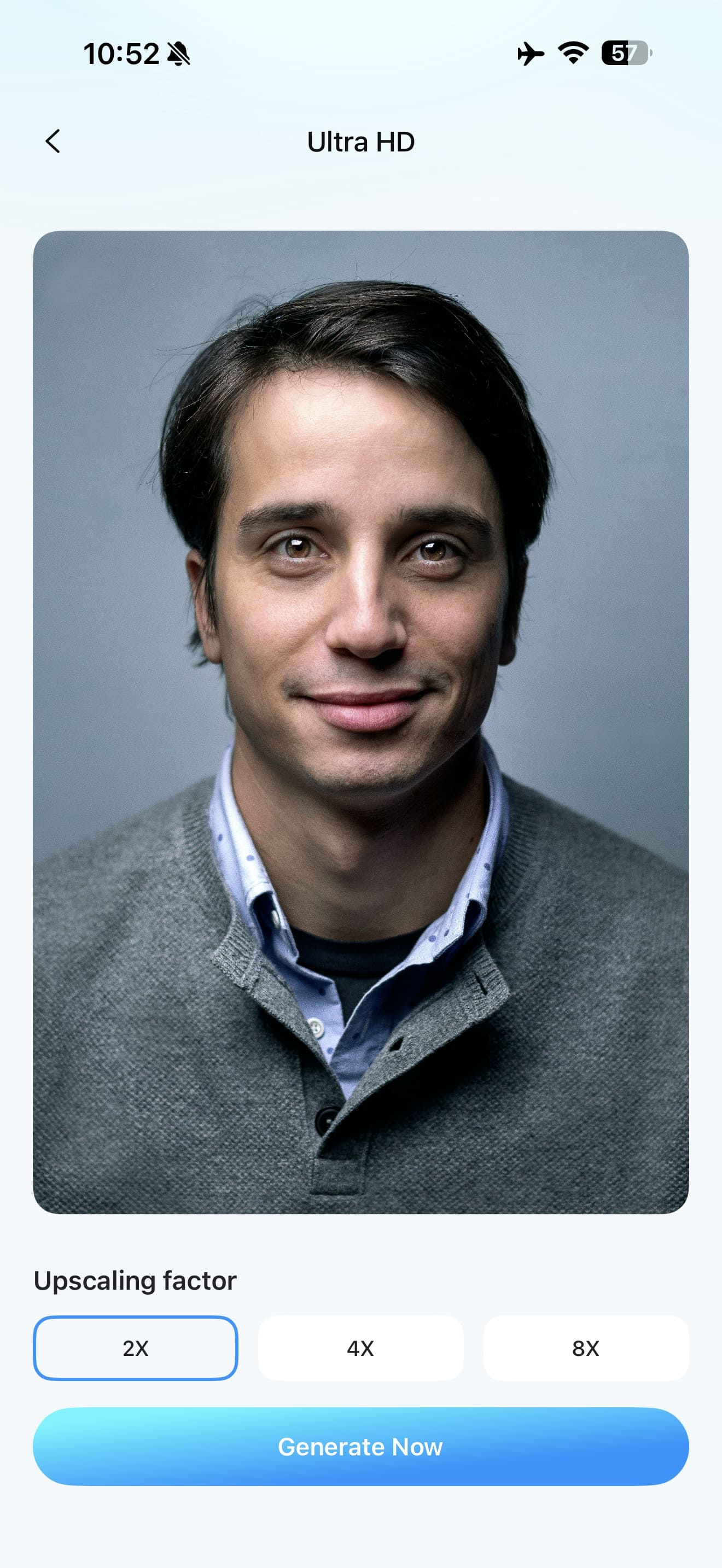
- Upscale Images to 2x, 4x, or 8x for Clearer Results



How to Upscale a Photo to 4K with Dr.Fone App
To upscale an image to 4K with the Dr.Fone App, follow these simple steps to enhance your photo in less than 2 minutes:
-
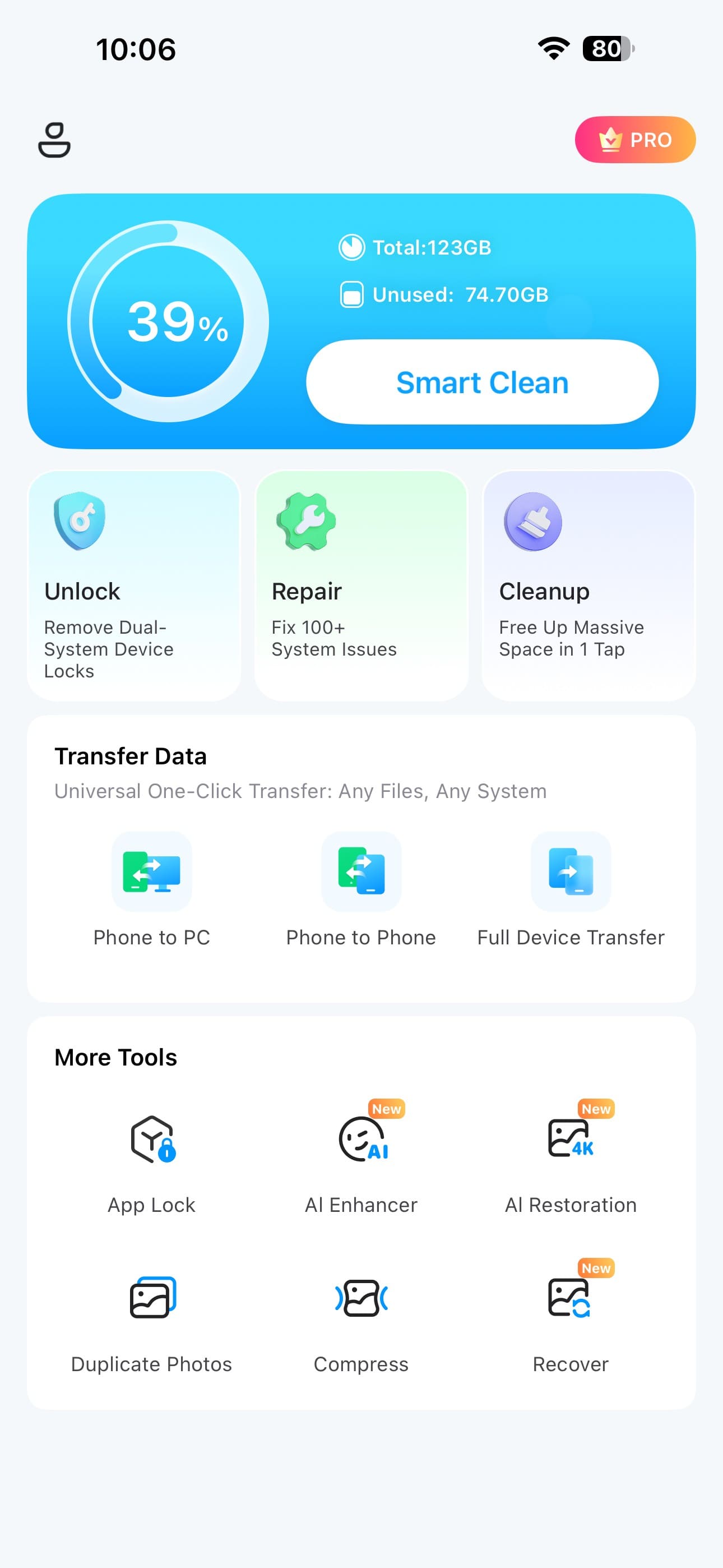
Step 1 Access the AI Enhancer
Launch the Dr.Fone App and tap “AI Enhancer” on the main interface to access its photo enhancement features.
-
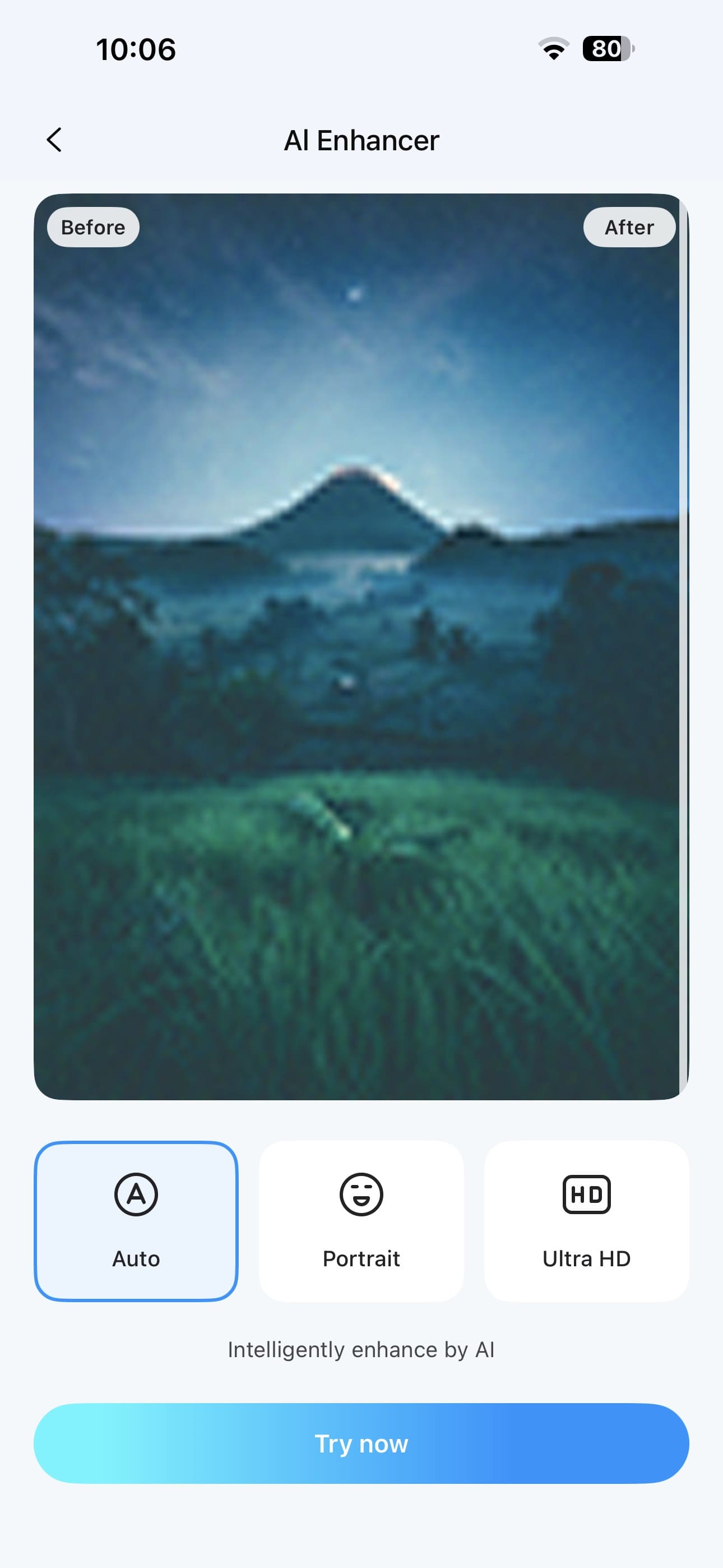
Step 2 Select a Photo Enhancement Mode
Choose “Auto,” “Portrait,” or “Ultra HD” based on your enhancement needs, tap “Try Now,” and then import the photo you want to enhance.
-
Step 3 Choose the Upscale Level, Compare, and Save
If you select Ultra HD, choose 2x, 4x, or 8x based on your desired upscale level. Once processing is complete, compare the original and enhanced image, then tap “Save” to store the result.

Part 5. Can You Use an Image Upscaler 4K for Free?
Cost is another consideration because free access usually comes with limitations. An image upscaler 4K free option may restrict enhancements, exports, or other premium features. Some tools may also add watermarks to free exports. With Dr.Fone App, users can try the AI Photo Enhancer for free, while available features and usage limits can depend on the current version and plan.
Part 6. How to Check the Quality of a 4K Upscaled Image
After using an image enhancer 4K, perform these 5 checks to evaluate the quality of the upscaled image:
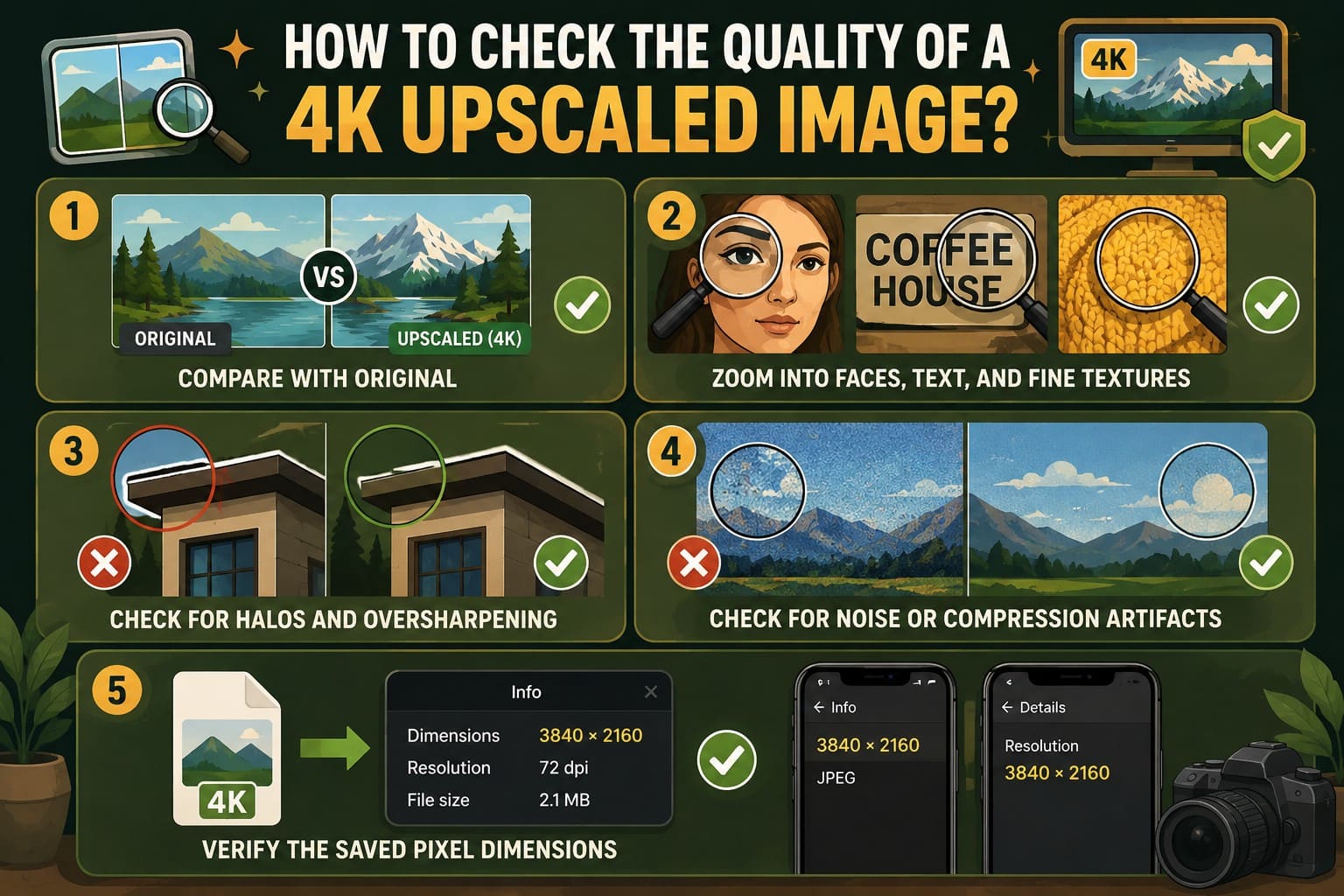
- Compare Directly Against the Original: Open both files at the same zoom level rather than judging the new one alone. An enhanced version that's only better from a distance won't help much.
- Zoom Into Faces, Text, and Fine Textures: These areas reveal problems quickly because you already know what they should look like. Watch for smoothed-over features, letters that have changed shape, and skin rendered like flat plastic.
- Look for Halos and Oversharpening: Bright outlines around high-contrast edges are a common warning sign, along with details that look etched or engraved rather than photographed. Both can indicate that the processing was pushed too far.
- Check for Added Noise or Compression Artifacts: Some processing can amplify grain or blocking that was barely noticeable in the smaller image. Flat areas like skies and walls often reveal these problems first, so start there.
- Verify the Saved Pixel Dimensions: Open the exported file's information panel and confirm it measures 3840 × 2160 when targeting 4K UHD. On iPhone, check the image information in Photos. On Android, check the image details. Previews can be misleading, and some tools may export at different dimensions than expected.
Part 7. What Are the Limits of Upscaling an Image to 4K?
Some results may fail these checks regardless of which tool you use, and the source image is often the reason. An effective image quality enhancer 4K workflow should account for these key limitations before upscaling:
| Limit | What to Expect |
|---|---|
| Severe Blur | Lost detail cannot be reliably reconstructed, especially when the source contains heavy motion blur. |
| Heavy Compression | Compression artifacts may remain or become more noticeable after enlargement. |
| Very Small Images | Too little original information means more of the final detail must be estimated. |
| AI-Generated Detail | Generated textures and edges may look convincing without accurately recovering the original details. |
| Accuracy-Critical Content | Unreadable text, faces, or license plates may remain unreliable even when they appear sharper. |
Conclusion
Choose the right scale factor before selecting software. Evaluate the actual visual result instead of trusting numbers alone. Inspect textures, check edges for harsh halos, and verify saved file dimensions, because an exported file measuring 4K differs greatly from one that genuinely looks crisp.
For mobile users seeking a reliable solution, Dr.Fone App provides an efficient image upscaler 4K utility. It processes files directly on your device, avoids tedious file transfers, and offers watermark-free outputs to enhance your camera roll effortlessly.
FAQ
-
1. Can I upscale any image to 4K?
Yes, most images can be enlarged to 3840 × 2160 pixels. However, reaching 4K dimensions does not guarantee 4K-quality detail. The final quality depends heavily on the resolution, sharpness, and overall condition of the original image. -
2. Is 4x upscaling the same as 4K?
No. 4x describes the enlargement factor, while 4K describes a target resolution. For example, scaling a 1280 × 720 image by 3x produces 3840 × 2160. Scaling the same image by 4x produces 5120 × 2880, which exceeds 4K UHD. -
3. Does a 4K image upscaler improve blurry photos?
Sometimes. AI upscaling can make mildly blurry or compressed photos appear clearer. However, severe motion blur and missing details cannot be reliably recovered, and aggressive enhancement may introduce artificial-looking textures. -
4. Can I upscale a photo to 4K without changing its aspect ratio?
Yes, but the final dimensions depend on the original aspect ratio. A 16:9 image can scale directly to 3840 × 2160. Square or 4:3 photos require different dimensions to preserve their proportions, rather than being stretched to fit 16:9.








Selena Lee
staff Editor
Generally rated4.5(105participated)