

 TL;DR:
For mildly blurry text, AI enhancement and light sharpening may improve visible letter shapes, while OCR is better when you only need editable or searchable words.
- Dr.Fone App supports Auto, Portrait, and Ultra HD enhancement modes on Android and iPhone, with Ultra HD offering up to 8x upscaling.
- Severe blur, merged characters, and missing details cannot be reliably restored; use the original image, document, or a clearer scan for critical information.
- Apple Live Text requires an iPhone XS, XR, or later running iOS 15 or newer.
Ask AI for a summary
 ChatGPT
 Perplexity
 Gemini
 Claude
 Grok
Grok
Fuzzy words on a screen or paper can make notes, signs, receipts, and other important details difficult to read. Camera shake, missed focus, compression, or low resolution can blur letter edges and reduce readability. Learning how to deblur text can improve these images and make unclear words easier to understand.
This guide explains why text becomes blurry and which recovery methods work for different levels of blur. You’ll learn how the Dr.Fone App can improve mildly blurry images and when dedicated text recovery tools are more suitable. It also explains how OCR and original source files can help verify important information accurately.
- Part 1. Can Blurry Text Actually Be Recovered?
- Part 2. Why Does Text Become Blurry in an Image?
- Part 3. How to Deblur Mildly Blurry Text with Dr.Fone App
- Part 4. Better Ways to Recover Text When Image Enhancement Is Not Enough
- Part 5. How to Sharpen Text in an Image Without Overprocessing It?
- Part 6. Use OCR When You Need the Words, Not a Clearer Image
- Part 7. When Should You Stop Trying to Unblur Text?
- Frequently Asked Questions
Part 1. Can Blurry Text Actually Be Recovered?
Before choosing the right text deblur solution, determine how severe the blur is and whether the missing details are recoverable. The table below compares common text conditions, their causes, recovery potential, and the best approach:
| Text Condition | Common Cause | Recovery Potential | Best Approach |
|---|---|---|---|
| Mild Softness | Slight focus error or resizing | Good | Use AI enhancement or light sharpening, then OCR |
| Camera Shake | Handheld shooting at a slow shutter speed | Moderate | Try AI deblurring, then verify each character |
| Low-Resolution Screenshot | Enlarged beyond its original resolution | Moderate | Try AI upscaling or find the original source |
| Compression Blur | Compression during image sharing | Moderate | Use AI enhancement or request the original image |
| Out-of-Focus Text | Camera focused on the background | Poor | Try AI enhancement or retake with proper focus |
| Severely Unreadable Text | Character strokes merged by heavy blur | Very poor | Retrieve the original document instead of trusting AI |
Part 2. Why Does Text Become Blurry in an Image?
Text can become unreadable more easily than other image details because letters depend on sharp edges and distinct character shapes. These common issues can blur those details and create the need to unblur text in an image:
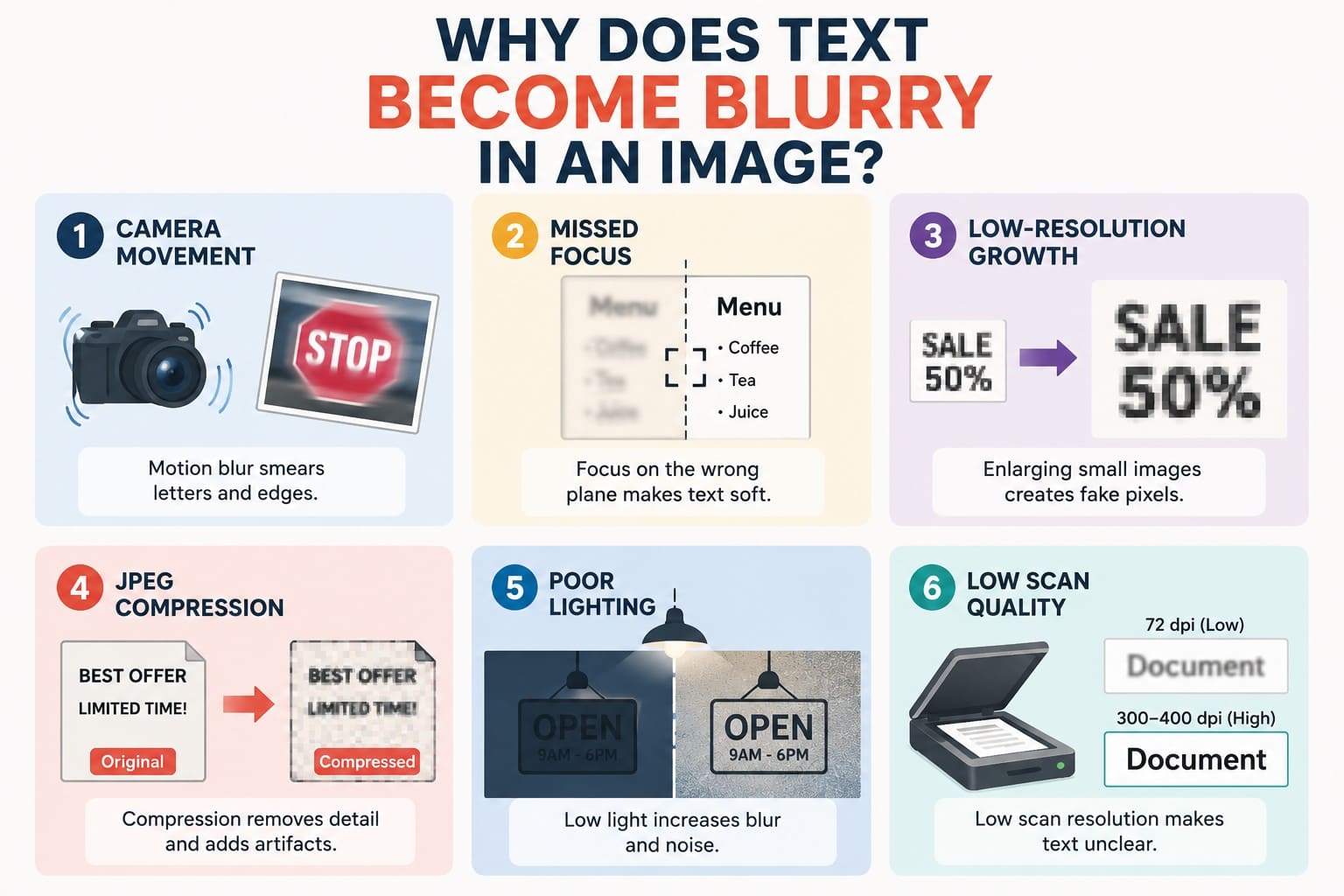
- Camera Movement: Camera shake during capture creates motion blur that smears letter edges and hides individual character strokes. Nikon explains that slower shutter speeds make motion blur more noticeable.
- Missed Focus: When the camera focuses in front of or behind the text, letter edges lose their sharpness. Autofocus can struggle with small, low-contrast subjects or poor lighting.
- Low Resolution: Small images and screenshots contain limited pixel information. Enlarging them adds interpolated pixels but cannot restore text details that were never captured.
- JPEG Compression: Lossy compression removes image information and can introduce artifacts around detailed areas. Adobe confirms that JPEG compression can degrade sharp details, particularly in images containing text.
- Poor Lighting: Dim conditions may require slower shutter speeds or higher ISO settings. Slower shutter speeds can cause motion blur, while higher ISO settings can increase image noise.
- Low Scan Quality: Insufficient scanning resolution can reduce the detail captured around fine character edges. Epson recommends 300 to 400 dpi when converting scanned documents into editable text with OCR.
Part 3. How to Deblur Mildly Blurry Text with Dr.Fone App
Mild blur is easier to fix because the original letter shapes remain partly visible. When camera shake, soft focus, or low resolution makes text fuzzy rather than unreadable, smart apps can sharpen edges, reduce noise, and improve contrast. Dr.Fone App’s AI Photo Enhancer handles these improvements seamlessly and helps unblur text through 3 modes: Auto, Portrait, and Ultra HD.
Available on Android and iPhone, all modes can be used almost 4 times for free, without export watermarks or ads. Ultra HD supports up to 8x upscaling for added detail. Other AI Tools, including AI Restoration and Colorize, can revive older images containing text. Overall, AI-powered processing reduces manual effort and completes enhancement locally within 5 minutes.
Dr.Fone App - AI Photo Restorer & Enhancer (iOS & Android)
Restore, Colorize, Enhance, and Upscale Photos with AI
- Restore Old Photos by Fixing Creases, Tears, and Scratches
- Colorize Black-and-White Photos with AI
- Auto-Enhance Photos and Improve Portrait Details to HD Quality
- Upscale Images to 2x, 4x, or 8x for Clearer Results



Simple Guide to Improve Blurry Text Using Dr.Fone App
To learn how to unblur a text image using the Dr.Fone App, follow these 3 simple steps to enhance blurry text and improve its overall clarity:
-
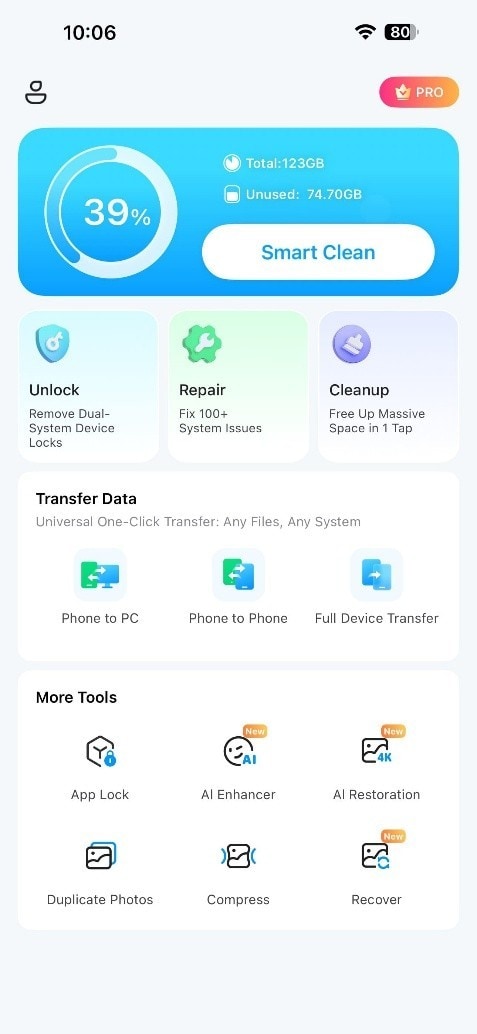
Step 1 Choose the AI Enhancer Tool
After installing Dr.Fone App, open the “More Tools” section and select “AI Enhancer” to access the innovative enhancement modes.
-
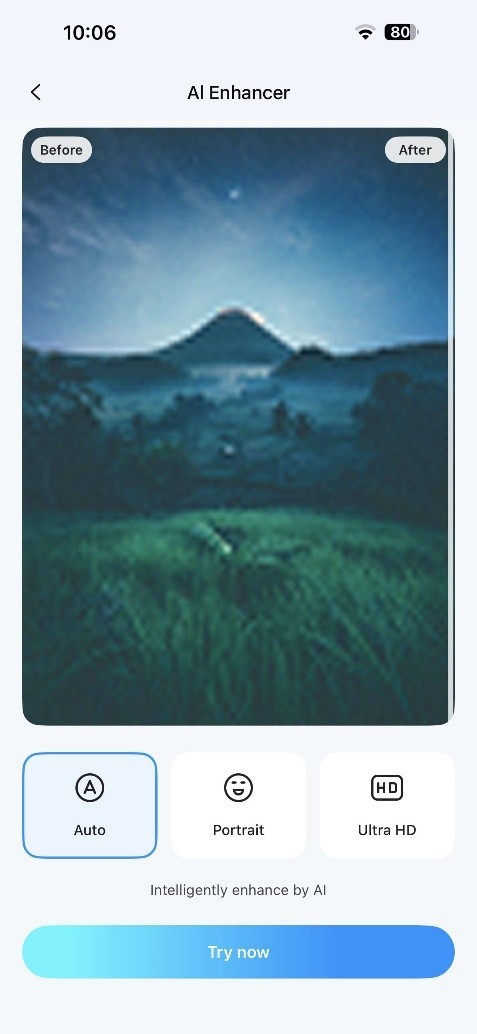
Step 2 Choose the Mode and Load the Screenshot
Select “Auto” or “Portrait” mode based on the blurry text, tap “Try Now,” then import the screenshot to begin AI enhancement.
-
Step 3 Enhance and Review the Small Characters
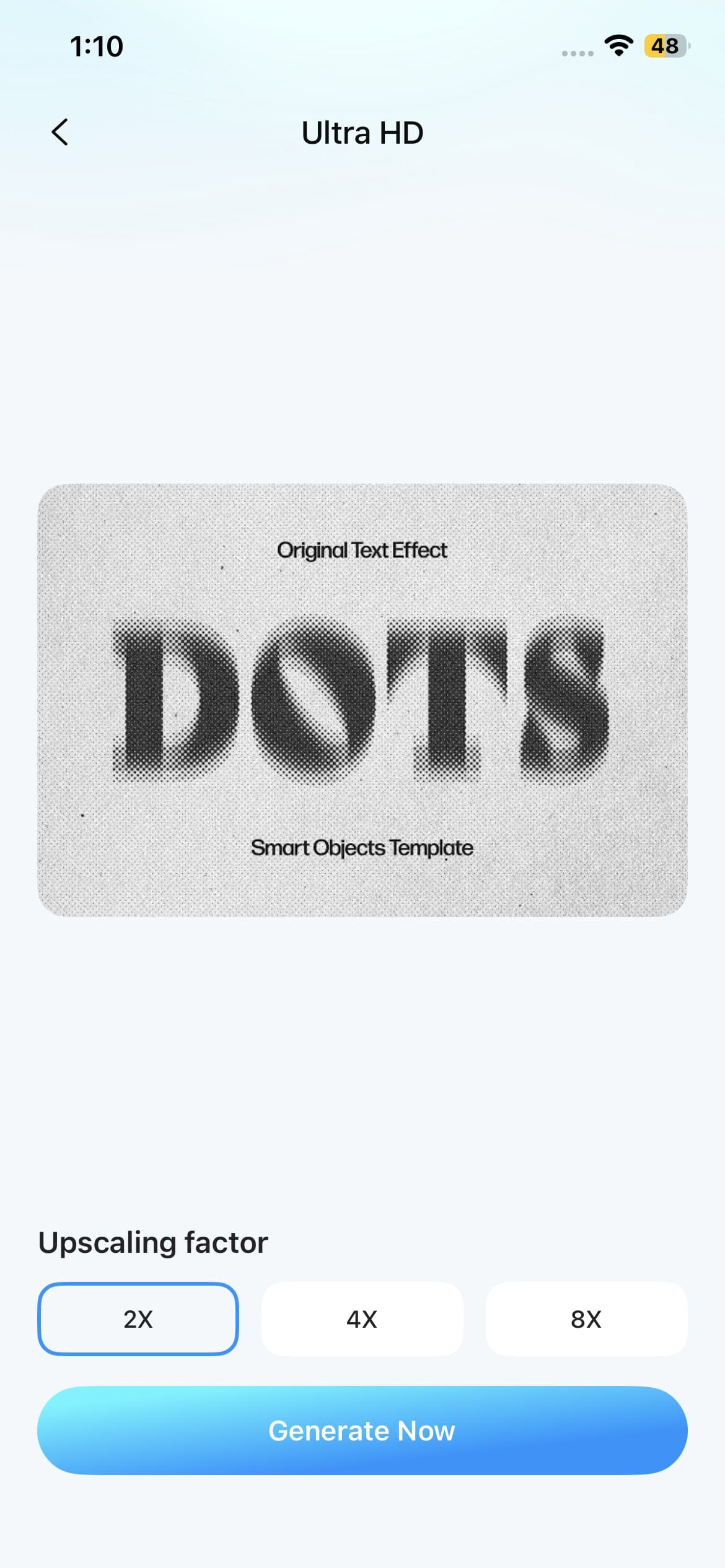
For more control over enlargement, select “Ultra HD” mode and choose your preferred upscale factor. Tap “Generate Now” to process the image, compare the enhanced result, and press “Save” to export it to your camera roll.
Part 4. Better Ways to Recover Text When Image Enhancement Is Not Enough
If image enhancement is not enough, try these 3 alternative methods to recover clearer text. Review each option to learn how to unblur text more effectively:
Get the Original Image or Screenshot
Look for the original screenshot or image on the device where it was captured, since it usually retains the best available quality. Otherwise, ask the sender for the original file because some messaging apps may compress shared images and reduce text clarity. Avoid repeatedly forwarding compressed copies, as additional compression or resizing can make blurry text even harder to read.
Rescan or Retake the Text
When the physical original is available, recapturing it clearly often works better than heavy image processing to deblur text.
- Rescan at 300 DPI or Higher: Scan standard documents at 300 DPI or higher to capture clearer character edges. For very small text, a higher resolution may preserve more detail.
- Shoot in Even Light, Holding the Phone Parallel: Use even lighting to minimize shadows and glare across the page. Keep the phone parallel to reduce perspective distortion that can affect text readability.
- Focus on the Text Before Shooting: Tap directly on the text before taking the photo so your iPhone or Android camera prioritizes the writing instead of surrounding objects.
3. Use a Dedicated Text Recovery Tool
A better capture is not always available, which is where dedicated text-enhancement tools can help. General image enhancers improve overall quality, while specialized features can target text clarity more directly. PDFelement offers a Text Sharpening option under Enhance Scan to improve unclear text in scanned PDFs. If you want to sharpen text in an image with this tool, follow these steps:
-
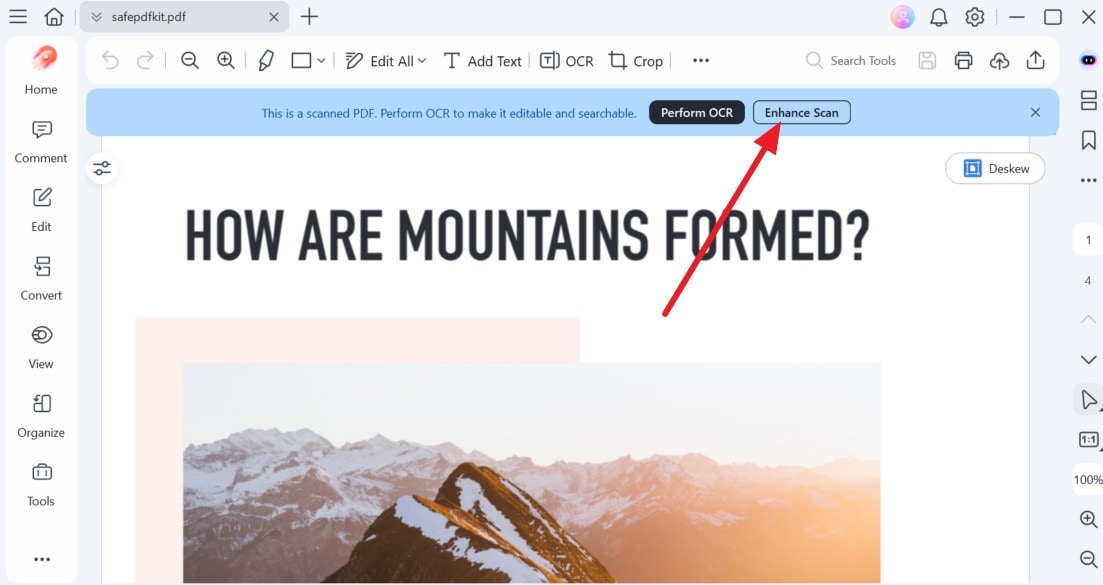
Step 1 Open the File and Enhance the Scan
Open the scanned PDF or image file in PDFelement. When the prompt appears, click the “Enhance Scan” option to access the available enhancement settings.
-
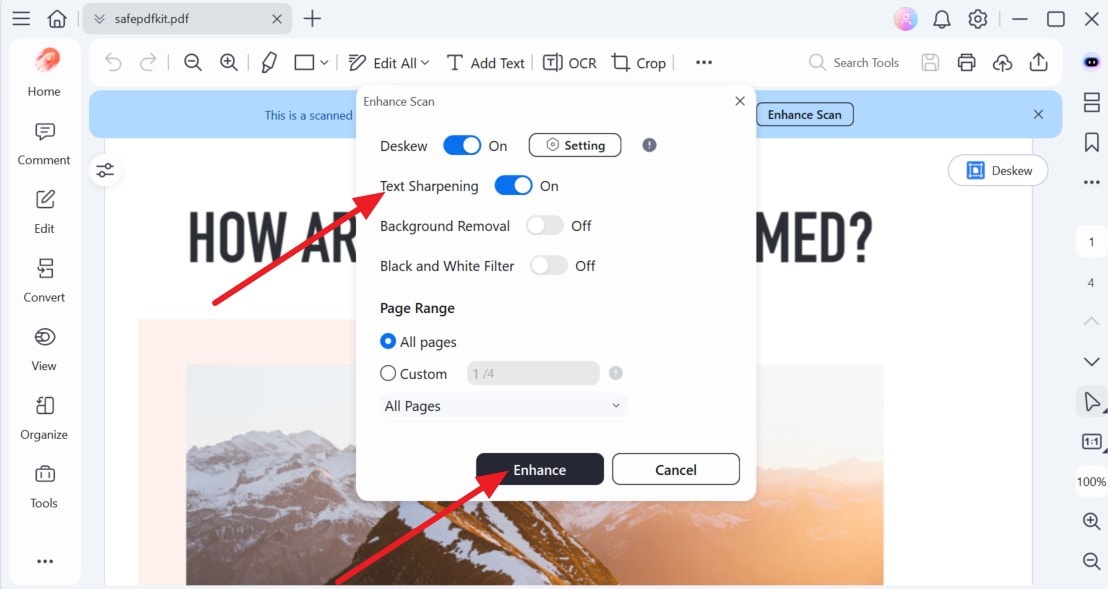
Step 2 Enable Text Sharpening
After that, enable “Text Sharpening,” select the required page range, and click “Enhance.” Once processing finishes, compare the sharpened text with the original before relying on names, numbers, or other critical details.
Part 5. How to Sharpen Text in an Image Without Overprocessing It?
Whether you choose an unblur text image online free tool or a paid solution, excessive processing can make text look unnatural. Follow these 6 tips to improve clarity without damaging important character details:
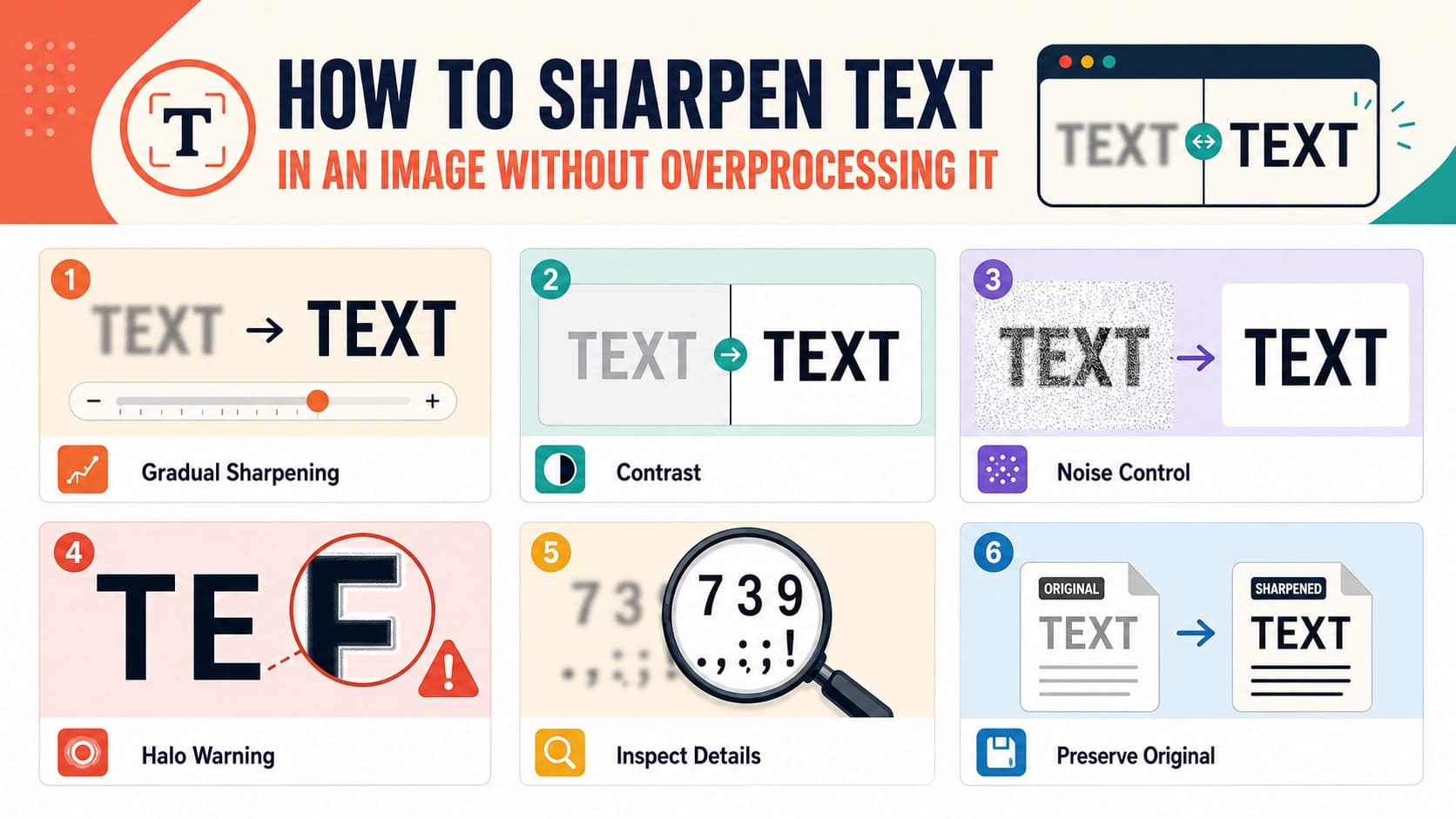
- Apply Sharpening Gradually: Increase sharpening in small steps and stop once the characters become clearer. Excessive sharpening can create halos, jagged edges, and unnatural-looking letter strokes.
- Adjust Contrast Carefully: Increase contrast slightly when letters blend into their background. Avoid extreme adjustments because crushed shadows or highlights can hide thin strokes and other text details.
- Control Noise Before Sharpening: Reduce distracting noise before applying stronger sharpening because sharpening can make grain and artifacts more visible. Avoid aggressive denoising that removes fine character details.
- Watch for Halos Around Letters: Inspect text edges for unnatural bright or dark outlines during sharpening. If halos appear around characters, reduce the sharpening amount to prevent an overprocessed appearance.
- Inspect Text at Full Size: Review the image at 100% and examine small letters, numbers, and punctuation. Stop processing when strokes become jagged, unusually thick, or distorted.
- Compare With the Original Image: Keep the original available while making adjustments and compare both versions regularly. Reduce the processing if sharpening introduces false details or changes recognizable character shapes.
Part 6. Use OCR When You Need the Words, Not a Clearer Image
Many people trying to unblur text in image files only need to recover the written content, not improve the image itself. Image enhancement and OCR serve different purposes, as shown below:
| Goal | Image Enhancement | OCR |
|---|---|---|
| Make Text Visually Clearer | Yes, can improve visible text clarity | No, recognizes text rather than visually enhancing it |
| Copy Text Into a Document | No, text remains embedded in the image | Yes, recognized text can be copied or edited |
| Make Image Text Searchable | No, enhancement alone does not create searchable text | Yes, OCR can create searchable text or PDFs |
| Preserve the Original Layout | Yes, the image layout remains unchanged | Depends on the OCR tool and selected output format |
| Read Mildly Blurry Characters | May improve clarity when character details remain | May recognize characters if they remain distinguishable |
| Recover Severely Unclear Characters | No guarantee when original details are missing | No guarantee and may return incorrect characters |
How to Extract Text with Apple Live Text?
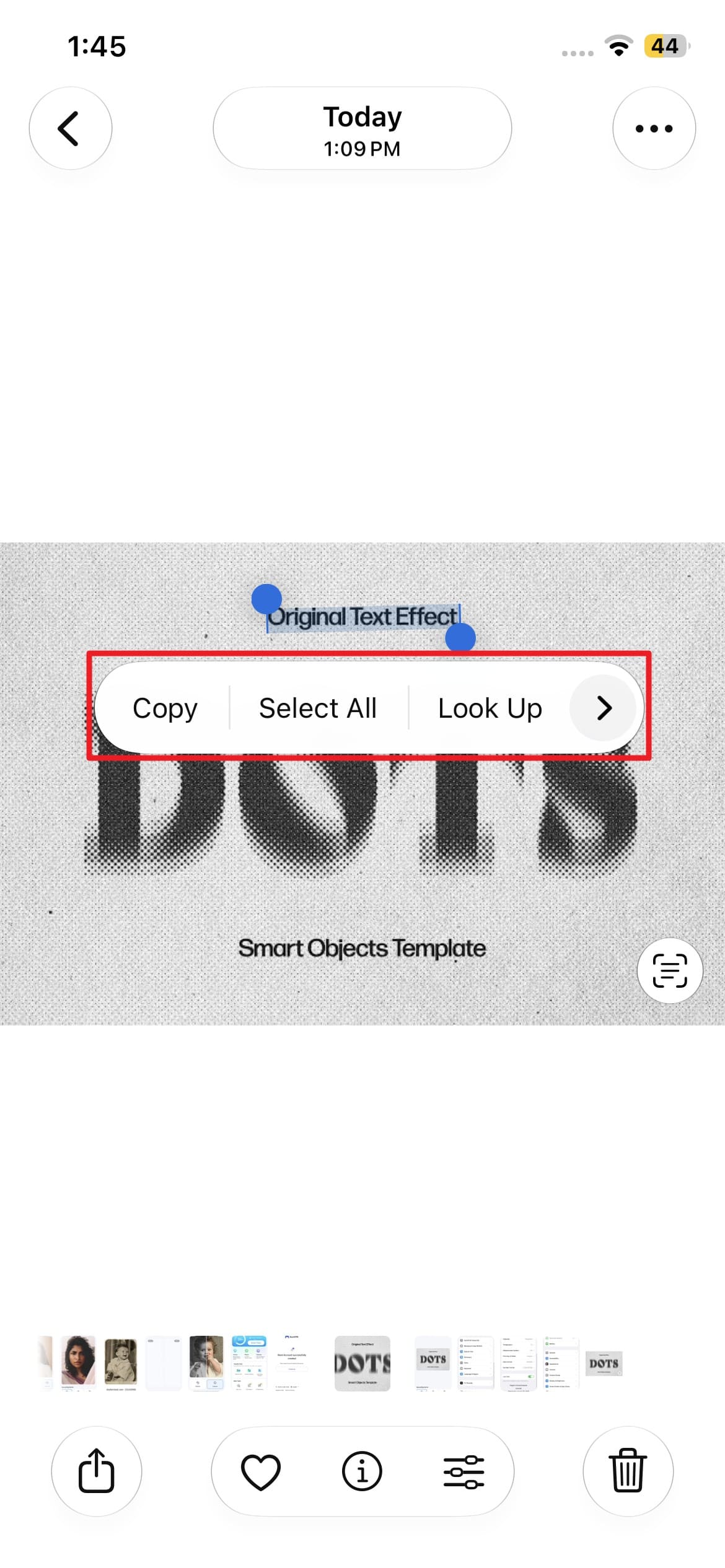
Apple's Live Text works on iPhone XS, XR, or later running iOS 15 or newer and can be enabled under Settings > General > Language & Region. It recognizes text directly from images for copying, translating, searching, or sharing. If you need extraction instead of unblurring a text image, follow these instructions:
Instructions. Once enabled, open the Photos app and select an image containing text. Tap the “Live Text” button, highlight the required words, then choose “Copy, Translate, Look Up, or Share” based on your needs.
Part 7. When Should You Stop Trying to Unblur Text?
While trying to unblur text, it is important to know when further enhancement may become unreliable or create misleading details. The following situations explain when you should stop processing and look for a better source instead:
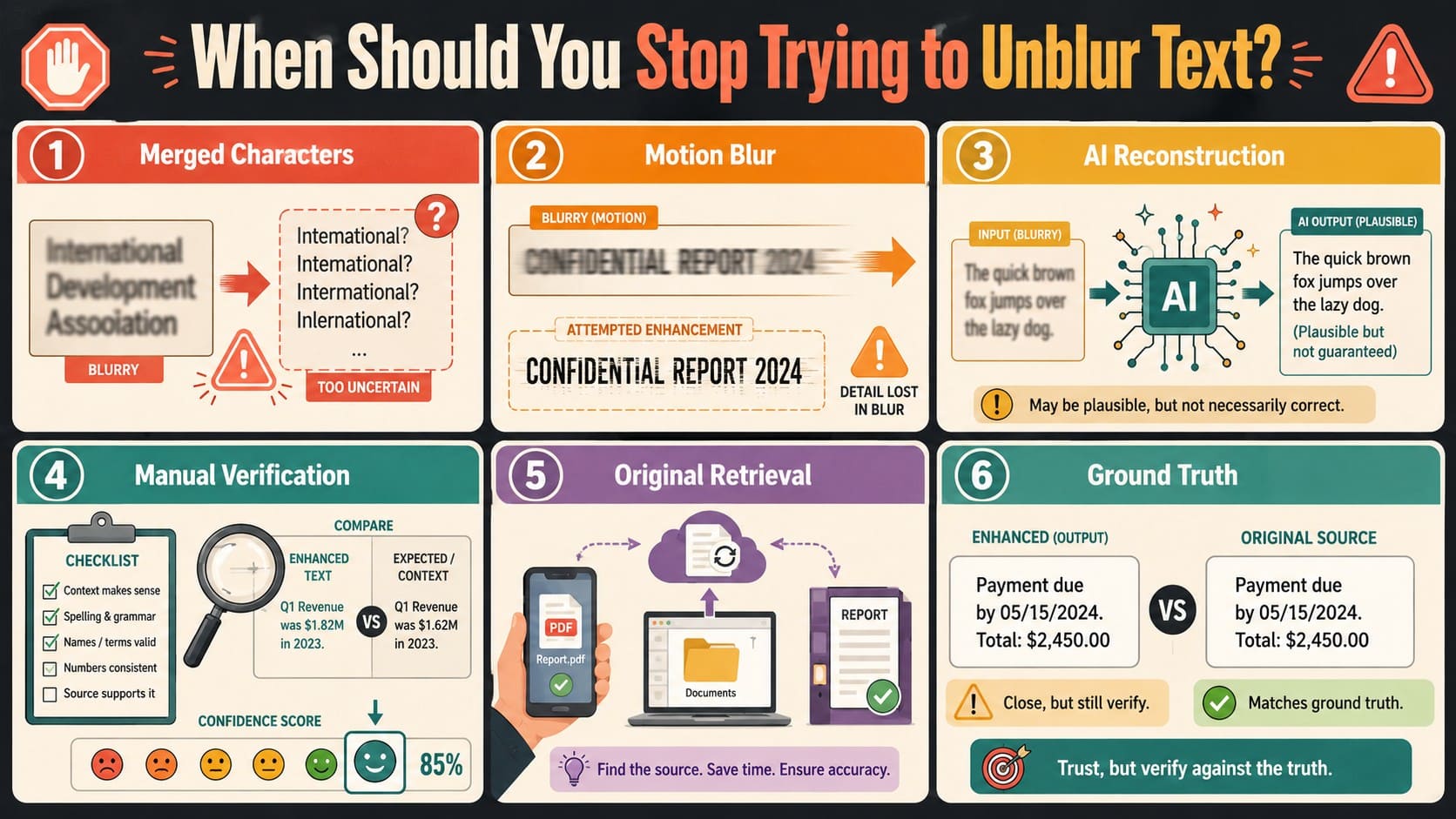
- Merged Characters: When blur causes neighboring letter strokes to overlap, enhancement becomes unreliable because character boundaries disappear. Once important strokes are no longer distinguishable, sharpening or AI processing cannot reliably determine the original characters.
- Motion Blur: Severe motion blur can smear small edges that separate visually similar characters. Further sharpening may emphasize the blurred trails instead of restoring the original strokes, making the text potentially more misleading.
- AI Reconstruction: AI enhancement can reconstruct or estimate image details during processing. When the original character information is unclear or missing, these generated details should not be considered an exact representation of the original text.
- Uncertain Results: Stop processing when different enhancement settings produce noticeably different letters, numbers, or words. Such inconsistencies suggest the available image information is insufficient to determine the original text reliably.
- Original Retrieval: Use original documents or authoritative copies when contracts, numbers, prices, or exact values remain unclear. Microsoft's OCR guidance confirms that blur, resolution, contrast, lighting, and other image conditions can reduce text recognition accuracy.
- Ground Truth: Stop processing when enhancement begins changing recognizable character shapes or introducing uncertain details. Compare the result with the original source before treating reconstructed or sharpened text as reliable factual evidence.
Conclusion
Choosing the right method depends on whether you need clearer images or simply want to extract readable words. Built-in recognition features can extract text, while enhancement tools help deblur text and improve visual clarity.
For mild blur, the Dr.Fone App can enhance images directly on mobile devices. When important characters remain unclear after processing, the original image or document remains the most reliable source. Always verify critical names, numbers, and values before relying on enhanced text.
FAQ
-
1. Can AI accurately recover text that is completely unreadable?
No. AI cannot reliably recover text when the original character details are completely missing. The Dr.Fone App can improve mild blur when letter shapes remain visible. For severely unreadable text, retrieve the original file, create a clearer scan, or verify the information manually. -
2. Is OCR the same as unblurring text in an image?
OCR recognizes visible characters and converts them into editable or searchable text. Image enhancement improves the visual clarity of the original image instead. OCR does not repair blurry pixels, while sharpening cannot guarantee that unclear characters become accurate. -
3. Why does screenshot text become blurry after sharing?
Messaging apps may compress or resize screenshots during sharing, reducing the clarity of small text. Repeated sharing can further affect image quality. For better readability, send the original screenshot or choose a high-quality or file-sharing option when available. -
4. Can sharpening make blurry text harder to read?
Yes. Excessive sharpening can create halos, emphasize noise, and distort fine letter edges, making blurry text harder to read. Apply sharpening gradually and stop when characters become clear. If important details remain unclear, compare the result with the original image.








Selena Lee
staff Editor
Generally rated4.5(105participated)