


 TL;DR:
Selecting the best iPhone video compressor depends on your specific workflow needs, with Dr.Fone App serving users who require free batch processing and storage management, while other dedicated tools are better suited for precise metric adjustments.
● For exact output sizing, Video Compress - Shrink Videos uses a straightforward target-size slider, whereas Kompresso provides granular technical controls over resolution, frame rate, format, and H.264/H.265 codecs.
● Apple's free iMovie lacks manual bitrate controls and batch processing, restricting size reduction strictly to single-file exports at lower preset resolutions like 540p for social media or 360p for messaging.
● Verify that your chosen app guarantees local on-device processing to prevent uploading private footage to external servers, and check if the free tier restricts output with watermarks or export limits.
Ask AI for a summary
 ChatGPT
 Perplexity
 Gemini
 Claude
 Grok
Grok
Choosing a video compressor is not only about making an iPhone video smaller. Different apps offer target file sizes, bitrate controls, resolution settings, batch compression, or simpler presets. The right choice depends on how much control you need, how often you compress videos, and whether you prefer quick processing or more detailed settings.
The right video compressor app for iPhone should fit those needs without complicating the process. This guide compares 7 dedicated options, including the Dr.Fone App, while also looking at Apple’s free iMovie for basic video size reduction.
In this article
Part 1. Best iPhone Video Compressor Apps at a Glance
Before comparing each video compressor for iOS in detail, use the table below to see the main differences between these apps. It compares compression controls, batch support, local processing, free access, and ease of use to help you narrow down your options.
| App | Best For | Compression Controls | Batch Compression | On-Device Processing | Free Access | Ease of Use |
|---|---|---|---|---|---|---|
| Dr.Fone App | Compression + storage management | Estimated size reduction | Yes | Yes | Free | Easy |
| Compress Videos & Resize Video | Quick compression | Dimensions, frame rate | Paid feature | Yes | Free with paid features | Very easy |
| Video Compress - Shrink Videos | Target file size | Target-size slider | Not listed | Yes | Free with ads and paid features | Very easy |
| Kompresso | Advanced controls | Bitrate, resolution, FPS, format, codec | Yes | Yes | Free with paid features | Moderate |
| Video Compress - Shrink Vids | Preview before saving | Resolution presets, bitrate | Yes | Yes | Free with paid features | Easy |
| HQ Compress | Batch compression | Target output size | Yes | Not clearly stated | Free, no ads | Easy |
| Video Compressor App: Compress | MOV and MP4 compression | Target size, dimensions | Not listed | Not clearly stated | Free with paid features | Very easy |
Part 2. 7 Best Video Compressor Apps for iPhone
The best video compressor for iPhone depends on the controls you need, from target file size and resolution to bitrate and batch compression. The comparison below shows what each app handles best and where its features are most useful.
1. Dr.Fone App – Best All-Rounder Free Video Compressor
Dr.Fone App provides a free video compressor for iOS for reducing large videos without adding another complicated workflow. You can select videos from your iPhone, process multiple files in batches, review the reduced sizes, and save the compressed versions. Photo compression is also available for free, letting you reduce both image and video storage within the same app.
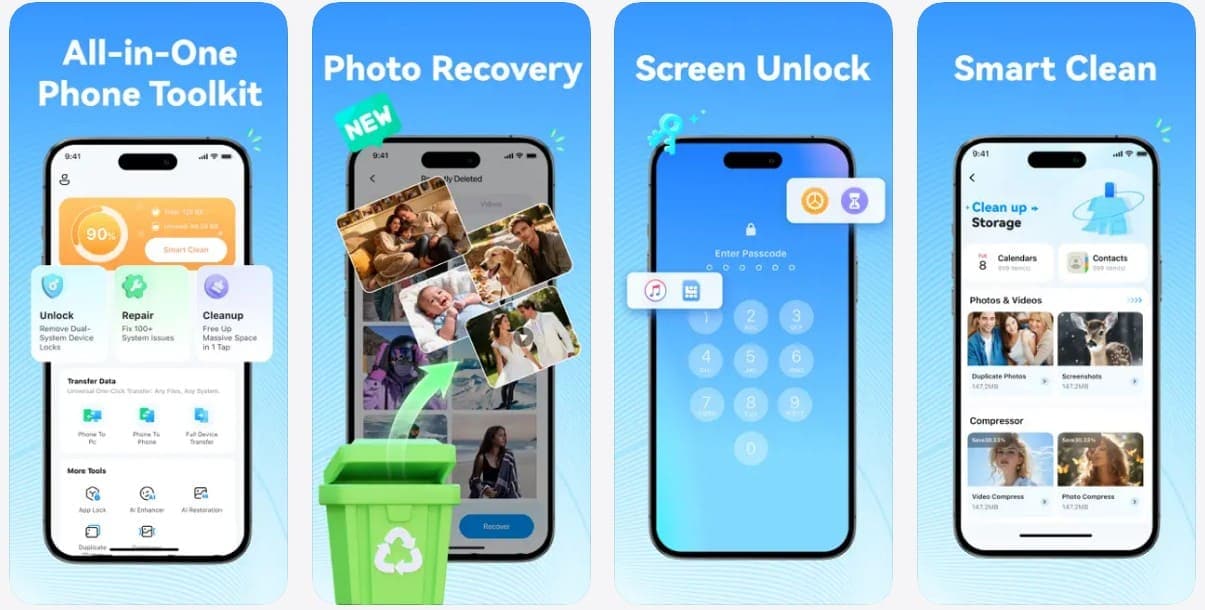
You can filter media from newest to largest, making it easier to identify videos and images consuming the most storage. Dr.Fone App also combines compression with other phone-management features, which is useful when compression is only one part of managing your device. Its free photo and video compression particularly strengthens its value for users who regularly need to reduce large media files.
Guide to Use the Free Video Compressor of Dr.Fone App
After exploring the key features of this free video compressor app for iPhone, follow the guide below to compress your videos:
Dr.Fone App - Photo & Video Compressor for iPhone
Compress Photos & Videos to Free Up iPhone Storage
- Compress Large Photos to Reduce File Size
- Compress Large Videos Instead of Deleting Them
- Free Up More Storage Space for New Photos, Videos, and Apps
- Manage Space-Consuming Photos and Videos More Efficiently



-
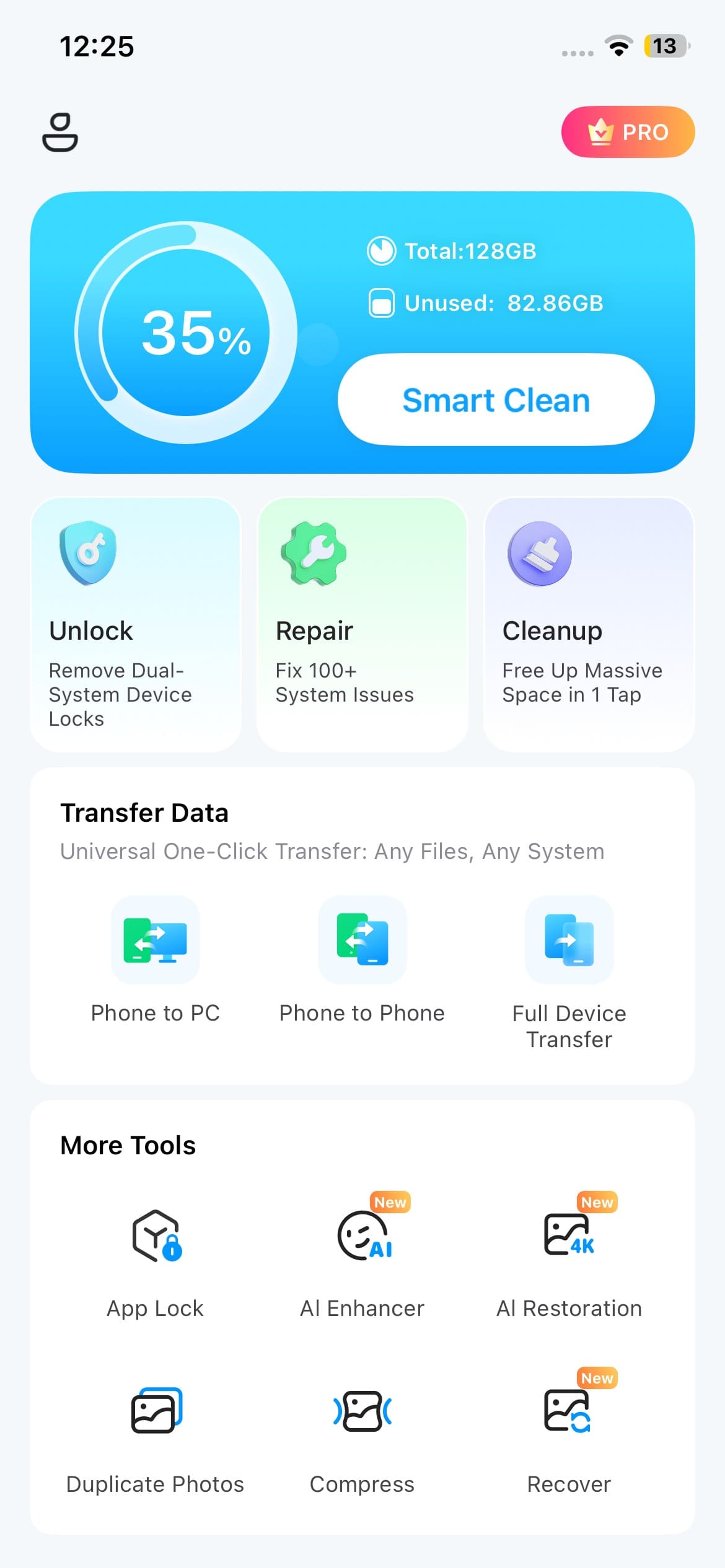
Step 1. Access the Compressor Tool
From the Dr.Fone App, head to “More Tools” and choose “Compress” from the available options.
-
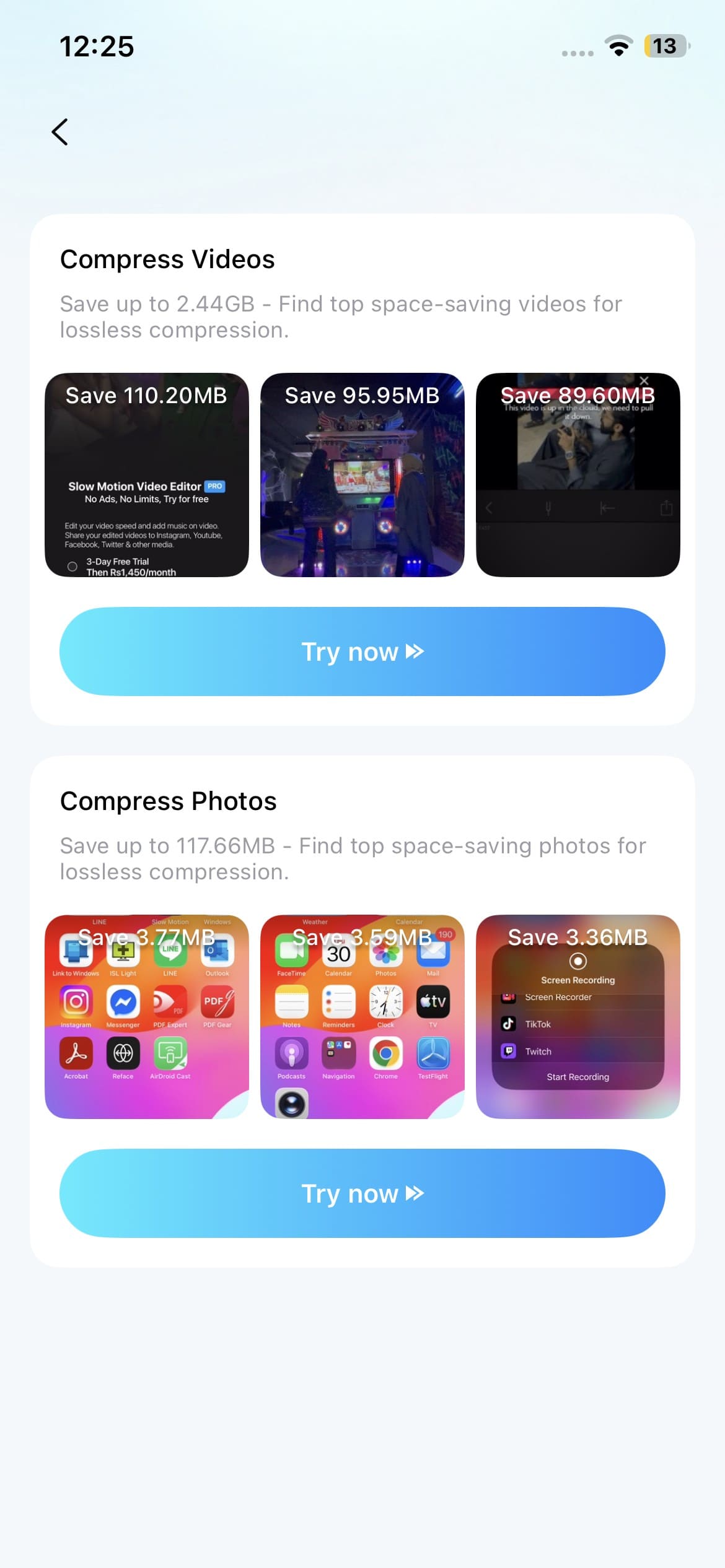
Step 2. Select the Videos to Compress
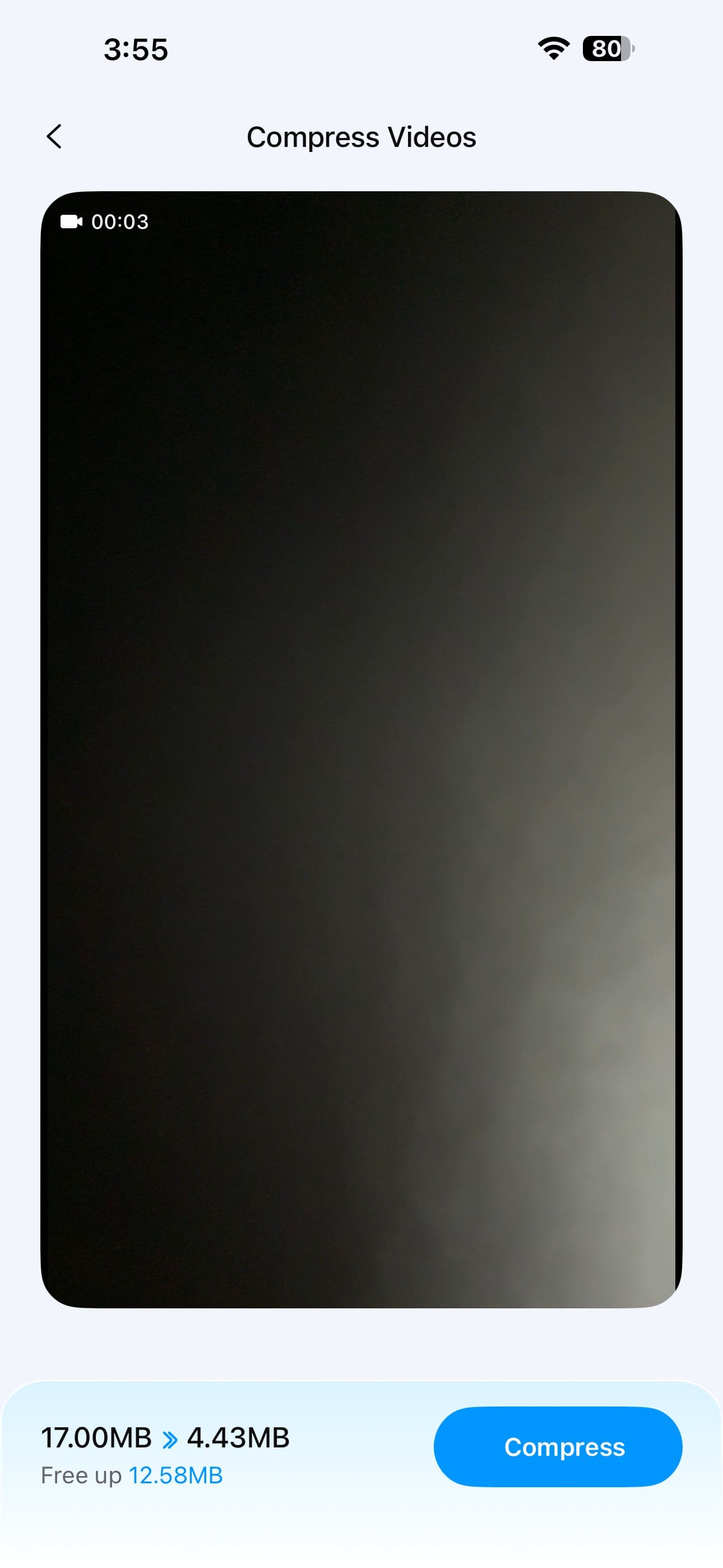
Under “Compress Videos,” tap “Try now” and select one or multiple videos from your iPhone for free compression.
-
Step 3. Compress and Save the Videos
Tap "Compress" to process the selected videos. Review the compressed results, then save the versions you want to keep on your iPhone.
2. Compress Videos & Resize Video – Best for Simple On-Device Compression
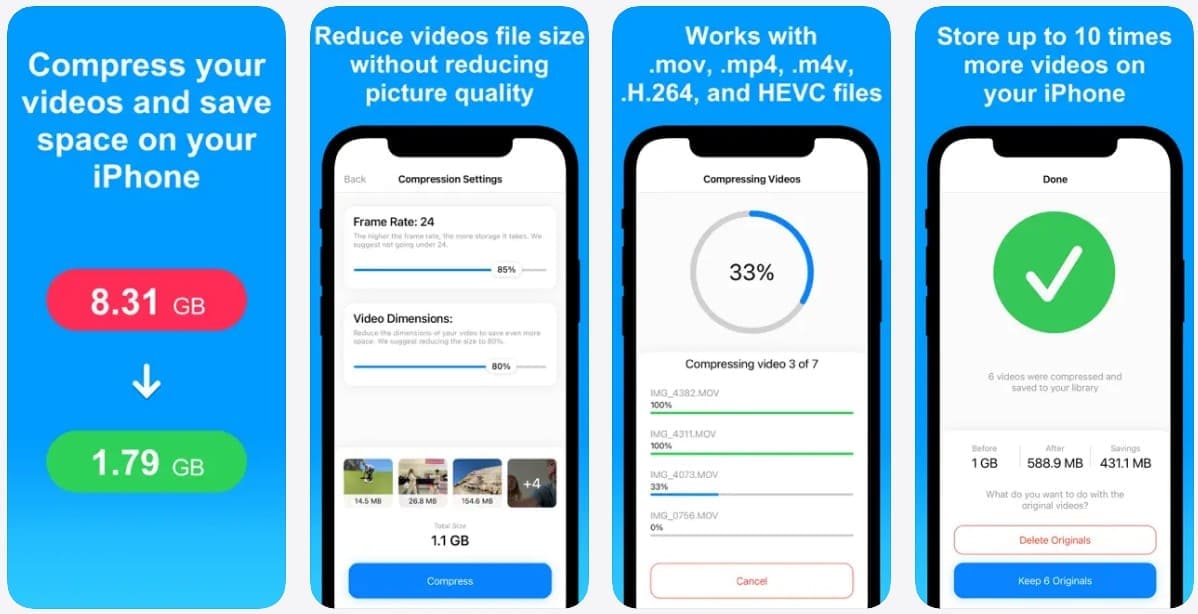
Using separate controls, Compress Videos & Resize Video provides Frame Rate and Video Dimensions sliders for adjusting compression manually. This best iPhone video compressor option recommends 24 FPS and 80% dimensions as a balanced starting point. It supports H.264, HEVC, MPEG-4, M4V, MP4, and MOV files. Compressed videos are saved to the Photos library and an automatically created “Compressed Videos” album for easier access.
3. Video Compress - Shrink Videos – Best for Target File Size Control
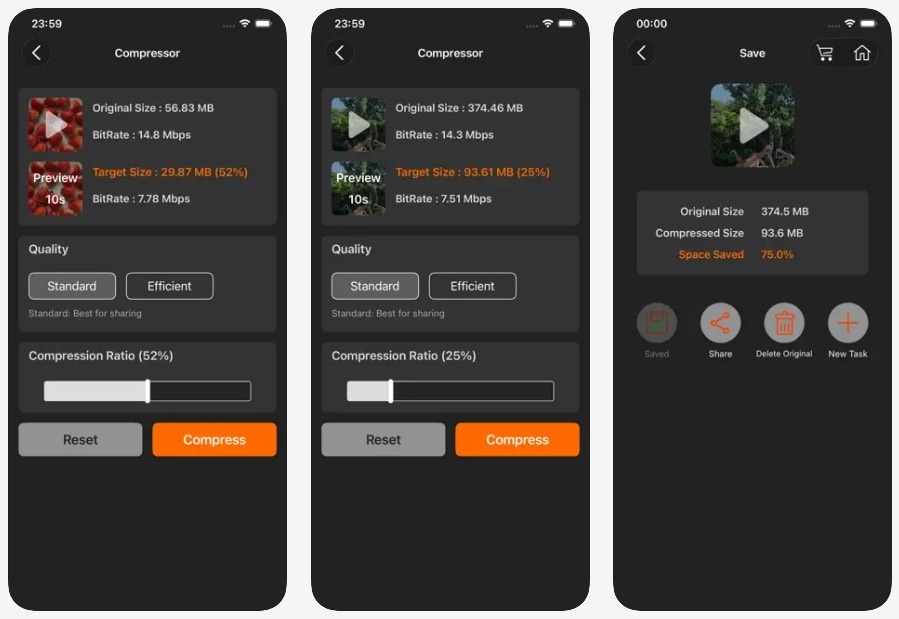
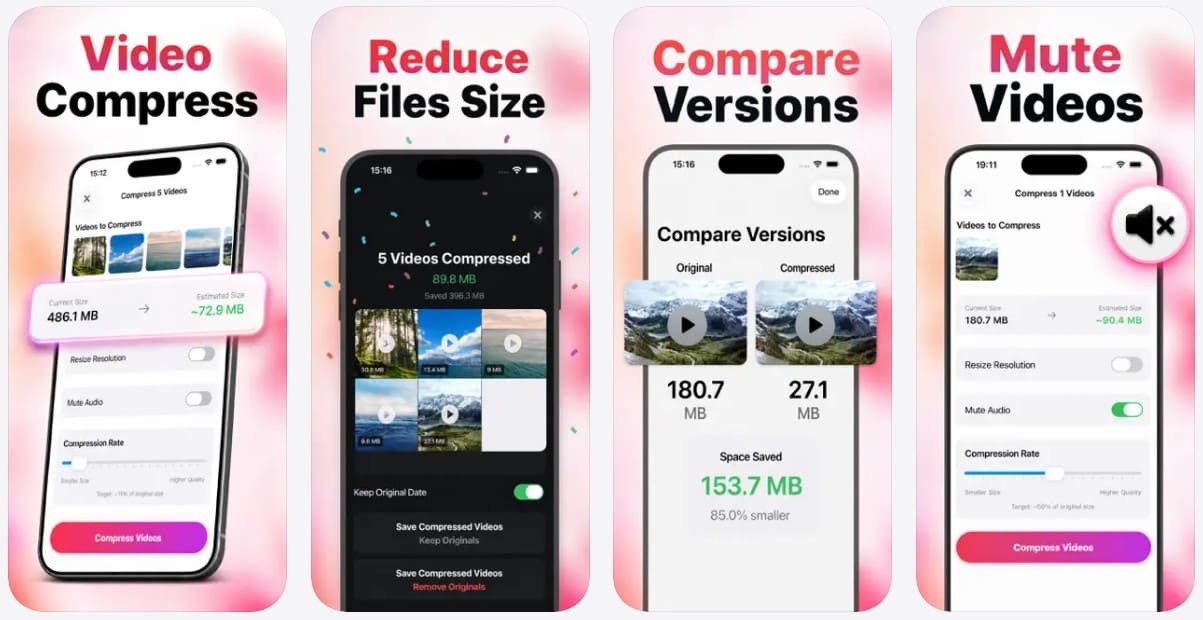
Fine-tuning output size is straightforward with Video Compress - Shrink Videos, which provides Standard and Efficient compression modes. Its Compression Ratio slider updates the Target Size, letting you control the expected output before processing. This free video compressor for iPhone also displays the original size, compressed size, and Space Saved percentage after compression. Videos are processed locally without uploads, and finished files can be shared directly.
4. Video Compressor - Kompresso – Best for Advanced Compression Controls
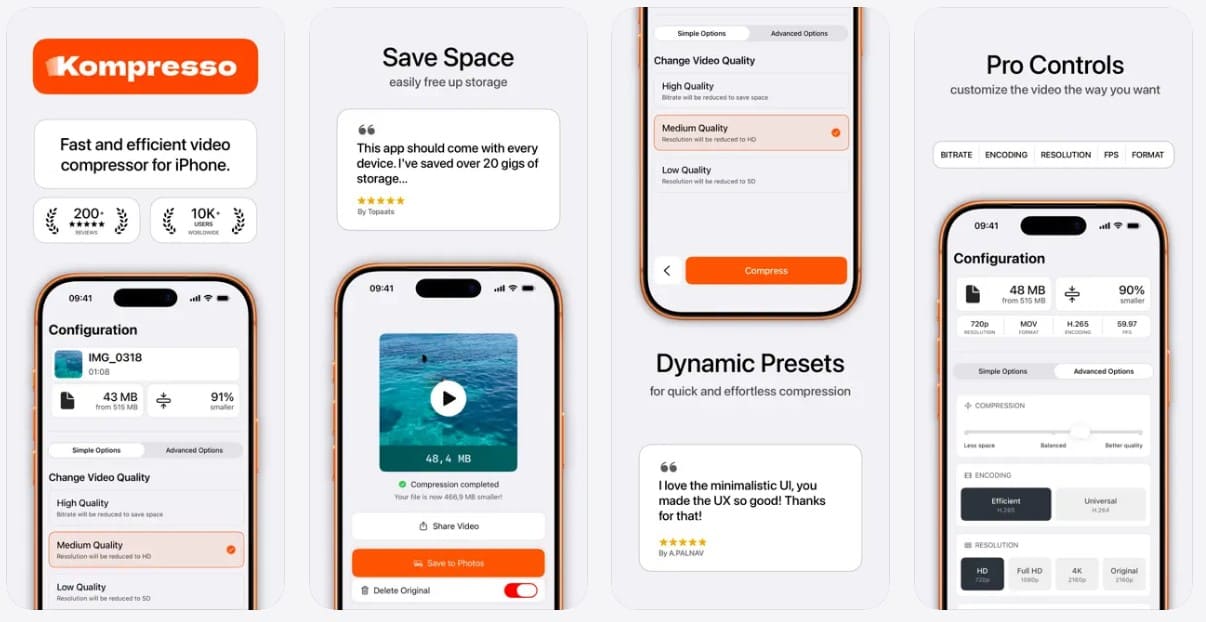
More detailed control is the focus of Video Compressor - Kompresso, with adjustable bitrate, resolution, frame rate, format, and codec settings. This video compressor for iOS supports 720p, 1080p, and 4K resolutions alongside H.264 and H.265 encoding. You can export MP4, MOV, or M4V files and batch-compress videos using shared or individual settings. Kompresso+ unlocks longer exports and additional format-conversion capabilities.
5. Video Compress - Shrink Vids – Best for Previewing Quality Before Saving
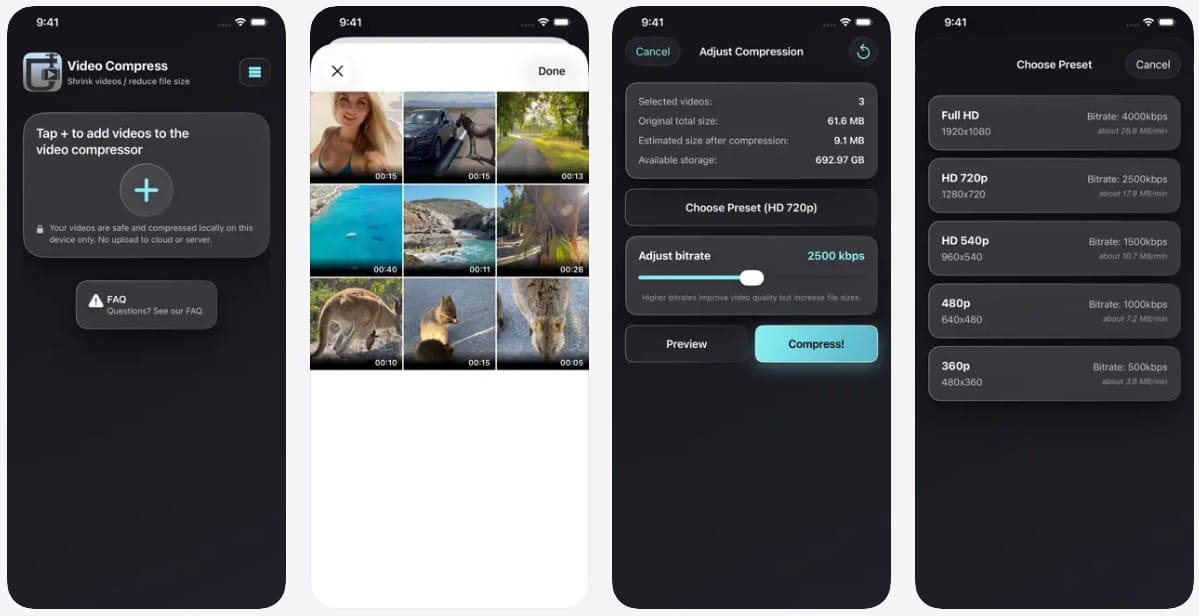
Before committing to compression, Video Compress - Shrink Vids lets you compare the original and compressed video through a before-and-after preview. This video compressor app for iPhone provides 1080p, 720p, 540p, 480p, and 360p resolution presets alongside a bitrate slider. It also estimates the new file size before saving, supports multiple-video compression, handles 4K recordings, and processes videos directly on the device.
6. Video Compressor - HQ Compress – Best for Batch Compression
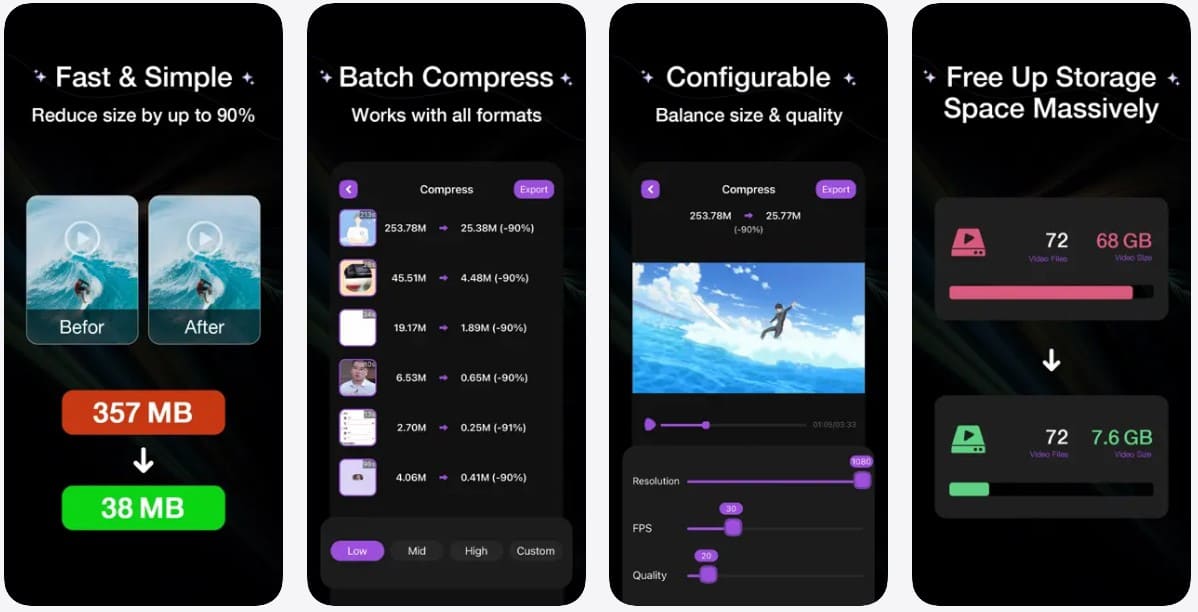
For multiple files, Video Compressor - HQ Compress supports batch compression with Low, Mid, High, and Custom compression levels. Custom mode provides separate sliders for Resolution, FPS, and Quality, giving you finer control over output. This free video compressor app for iPhone also displays original and estimated compressed sizes with the reduction percentage. Its preview window lets you inspect the video while configuring these compression settings.
7. Video Compressor App: Compress – Best for MOV and MP4 Compression
Video Compressor App: Compress simplifies file reduction by letting you choose an approximate target size for MP4 and MOV videos. This video compressor for iOS also lets you resize video dimensions before processing. It supports large files, including 4K footage and lengthy screen recordings. The size controls provide a straightforward way to prepare smaller videos for storage, email, Messages, or sharing through other apps.
Part 3. What Should You Compare Before Choosing an iPhone Video Compressor?
Finding the best video compressor for iPhone involves more than choosing the app that creates the smallest file. Before deciding, consider these 5 factors to find an app that matches your compression needs:
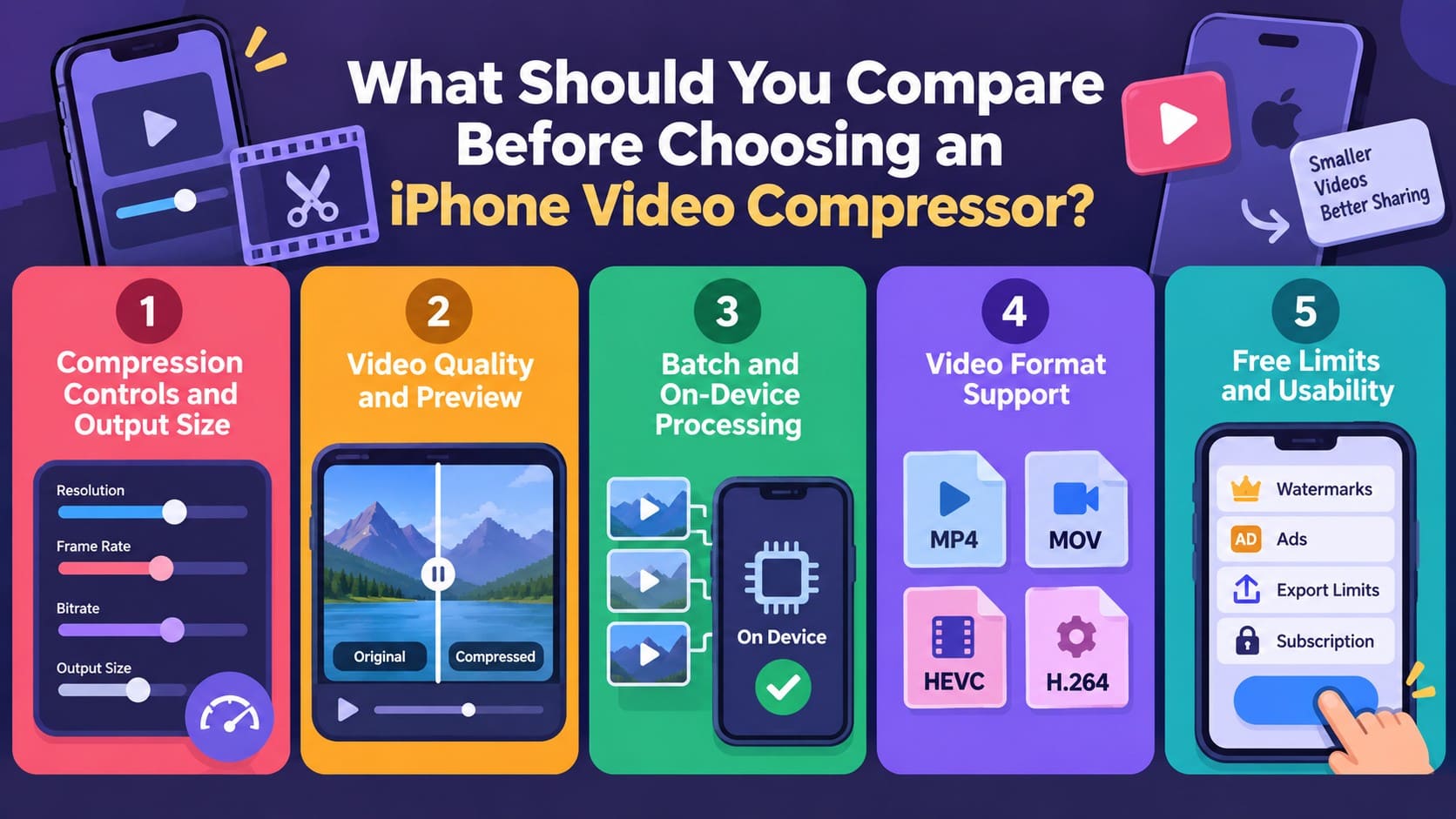
- Compression Controls and Output Size: Look for controls over resolution, frame rate, bitrate, or target file size. Without manual controls, the app should intelligently optimize compression based on each video’s characteristics.
- Video Quality and Preview: Check whether the app provides previews or comparisons before saving. This helps you confirm that compression reduces file size without noticeably affecting visual quality.
- Batch and On-Device Processing: Look for batch processing when handling multiple videos at once. On-device processing also keeps your videos on the iPhone instead of uploading them externally.
- Video Format Support: Confirm that the app supports your source video formats and required output options. Wider format compatibility makes compressed videos easier to use across different platforms.
- Free Limits and Usability: Check for ads, watermarks, export limits, and paid features before downloading. Also, consider whether the interface makes regular video compression quick and straightforward.
Part 4. Video Compressor App vs iMovie: Which Is Better on iPhone?
You do not always need a dedicated video compressor for iOS to make an iPhone video smaller. Apple’s free iMovie app can reduce file size by exporting at a lower resolution. However, dedicated compressor apps offer features that iMovie lacks, such as target file sizes, bitrate controls, and batch compression. The table below compares these differences to help you choose the right approach.
| Factor | Dedicated Compressor Apps | iMovie |
|---|---|---|
| Main Purpose | Compress videos with dedicated size controls | Edit videos and reduce size during export |
| File Size Control | Target-size sliders or estimated output size | No target file-size control |
| Resolution Control | Custom dimensions or resolution presets | 360p, 540p, 720p, 1080p, or 4K where supported |
| Bitrate Control | Direct bitrate sliders in apps like Kompresso | No manual bitrate control |
| Frame Rate Control | Adjustable FPS in apps like Kompresso | 30 or 60 fps where supported |
| Batch Compression | Multiple videos in apps like Dr.Fone and HQ Compress | One project exported at a time |
| Quality Preview | Before-and-after preview in supported apps | No compression comparison preview |
| Editing Features | Mainly compression-focused controls | Trim, split, titles, transitions, filters, and audio |
| Cost | Free, limited free, or paid depending on app | Free |
Apple specifically recommends exporting an iMovie project at a lower resolution to reduce its file size. According to Apple’s guide, a 1-minute video is about 70–105 MB at 1080p and 19–27 MB at 720p. It drops to 12–16 MB at 540p and 6–9 MB at 360p. Apple recommends 540p for social media and 360p for text messaging.
Part 5. Which Type of Video Compressor App Fits Your Goal?
The best video compressor app for iPhone depends on what you want to achieve with the compressed video. The table below matches each common compression need with suitable apps, helping you narrow your options without comparing every feature again.
| Your Goal | Recommended App | Why It Fits |
|---|---|---|
| Compress Videos and Manage iPhone Storage | Dr.Fone App | Useful when compression is part of a broader cleanup, with additional tools for managing media and storage. |
| Compress Several Videos at Once | Dr.Fone App / HQ Compress | Saves time on larger libraries by letting you process multiple videos instead of handling each file separately. |
| Get Simple, Everyday Compression | Dr.Fone App / Compress Videos & Resize Video | Keeps the workflow approachable when you want smaller videos without dealing with complex compression settings. |
| Control File Size and Output Quality | Video Compress - Shrink Videos / Kompresso | Gives you more say over the result through target sizing or detailed controls for bitrate, resolution, frame rate, and format. |
| Preview Results Before Saving | Dr.Fone App / Video Compress - Shrink Vids | Helps you check the compressed result or expected output before deciding which version you want to keep. |
| Compress MOV and MP4 Videos | Dr.Fone App / Video Compressor App: Compress | Works well for common iPhone videos, with straightforward options for reducing large MOV and MP4 files. |
| Only Need Basic Compression Occasionally | iMovie | Makes sense for occasional use when lowering the export resolution provides enough file-size reduction. |
Part 6. What Compression Settings Matter Most on iPhone?
Whichever video compressor for iOS you choose, understanding the main compression settings can help you get better results. The table below explains what each setting changes and when you should adjust it.
| Setting | What It Does | When to Adjust It |
|---|---|---|
| Resolution | Reducing resolution lowers the number of pixels in each frame, which can substantially decrease file size. | Lower it when you can sacrifice some image detail for a smaller video. |
| Bitrate | Controls how much video data is used over time. Lower bitrates usually produce smaller files with less visual detail. | Adjust it when you need more precise control over file size and visual quality. |
| Frame Rate | Reducing FPS means fewer frames are stored each second, which can help decrease file size. | Lower it for videos that do not require especially smooth motion. |
| Duration | Removing unnecessary footage directly reduces the amount of video data that needs to be stored. | Trim unwanted sections before applying heavier compression to the remaining footage. |
| Codec | HEVC can deliver similar visual quality to H.264 at a smaller file size. | Choose HEVC for better efficiency or H.264 when broader device and platform compatibility matters. |
| Compression Strength | Higher compression prioritizes a smaller output but may introduce visible quality loss or compression artifacts. | Increase it gradually when smaller size matters, checking the resulting video quality after compression. |
Part 7. How to Avoid Choosing the Wrong Video Compressor App
Before downloading the best iPhone video compressor for your needs, look beyond the App Store description and consider what happens during compression and export. These 5 checks can help you avoid quality issues, unexpected limits, and compatibility problems:
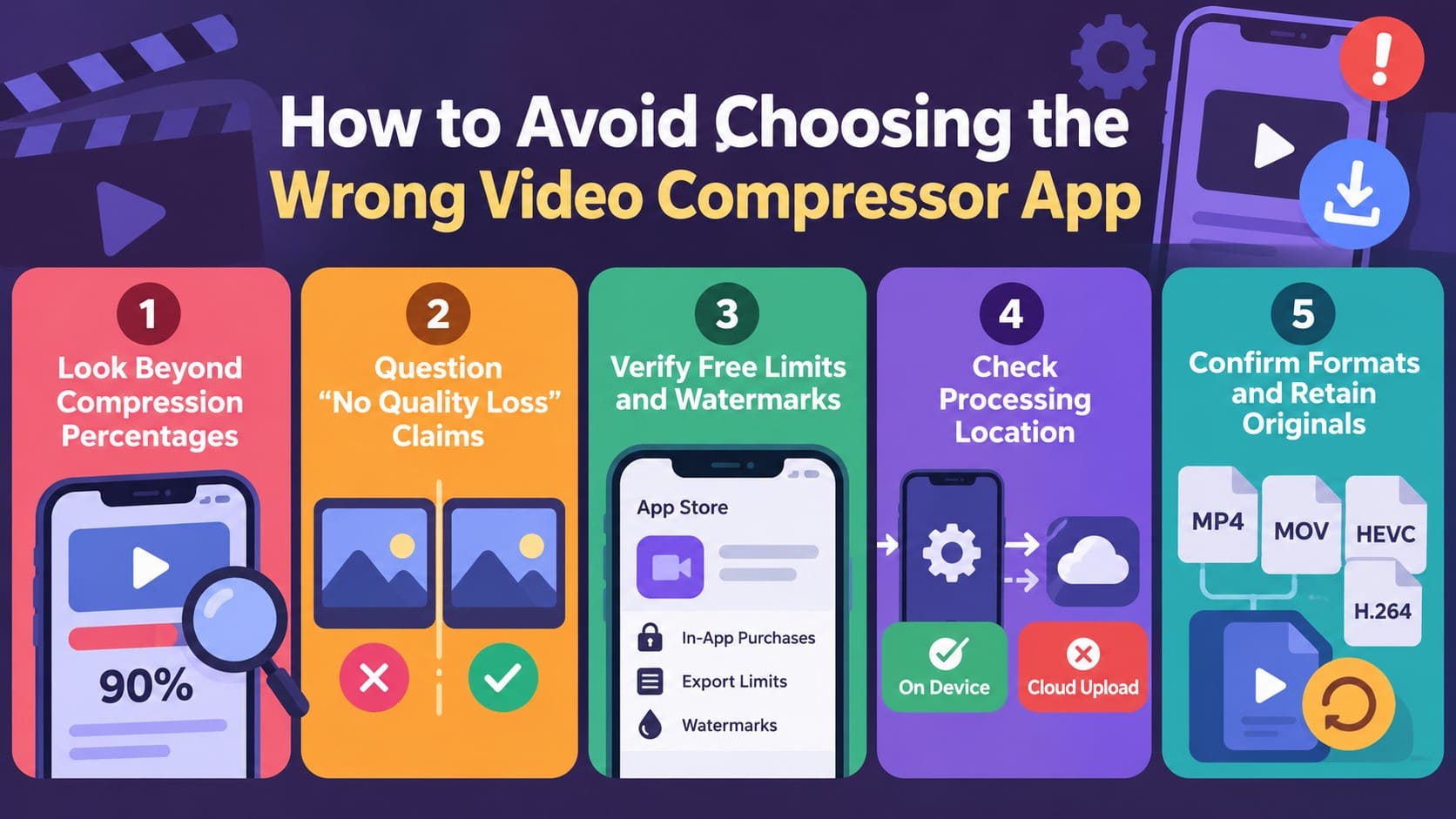
- Look Beyond Compression Percentages: Compare the resulting file size with the final video quality instead of choosing an app only for its advertised reduction percentage.
- Question “No Quality Loss” Claims: Check how the compressed video actually looks before trusting quality claims. Stronger lossy compression can affect visible detail as file size decreases.
- Verify Free Limits and Watermarks: Check whether free exports include watermarks, size limits, ads, subscriptions, or locked features. This helps uncover restrictions before you rely on the app.
- Check Processing Location: Find out whether compression happens directly on your iPhone or requires uploading videos to external servers. On-device processing can be preferable for private footage.
- Confirm Format and Export Compatibility: Check whether the app supports your source format, resolution, and frame rate. Also verify that its output works with your intended device or platform.
Conclusion
Choosing the best video compressor app for iPhone comes down to the controls your workflow actually needs. Target-size adjustment, batch compression, bitrate controls, and quick presets serve different purposes. Dr.Fone App is a practical choice when you want video compression alongside broader media and storage management.
Free access can vary considerably between apps, so check export limits, watermarks, and locked features before committing. For occasional compression, iMovie also provides a free option when reducing the export resolution is enough.
Frequently Asked Questions
-
1. What is the best type of video compressor app for large iPhone videos?
Look for batch compression or target-size controls when handling large iPhone videos. Dr.Fone App supports batch compression for multiple videos, while a dedicated target-size control can be more practical for reducing one oversized video. -
2. Is there a free video compressor for iPhone without a watermark?
Yes. Dr.Fone App offers free video compression on iPhone, making it a practical option for reducing large video files. This free video compressor for iPhone also supports batch compression, so you can process multiple videos together without paying for the compression feature. -
3. Is iMovie better than a dedicated video compressor app?
iMovie works well for basic size reduction through lower-resolution exports. Dedicated apps offer more compression controls, while Dr.Fone App combines video compression with batch processing and broader media and storage-management features. -
4. Can an iPhone video compressor reduce file size without changing the resolution?
Yes. An iPhone video compressor can reduce file size without changing resolution by adjusting compression settings. Dr.Fone App is a practical option for compressing large iPhone videos while keeping the process simple.

James Davis
staff Editor
Generally rated4.5(105participated)