

 TL;DR:
A 4K image for consumer UHD is usually 3840 × 2160 pixels at a 16:9 aspect ratio, while 4x is only an enlargement multiplier and does not always produce exact 4K dimensions.
- Use Dr.Fone APP's AI Photo Enhancer for a quick mobile workflow, but inspect the exported dimensions and image detail before use.
- Online tools may use either a 4K-oriented target or scale-based enlargement, with free-use limits, file restrictions, and privacy terms to check.
- Use Photoshop when you need exact 3840 × 2160 sizing, cropping, aspect-ratio control, and resampling adjustments.
Ask AI for a summary
 ChatGPT
 Perplexity
 Gemini
 Claude
 Grok
Grok
An image may look okay at its actual size but it may not have enough pixels for a 4K screen, presentation, digital artwork, or bigger output. Making a small picture 3840 × 2160 can make any existing softness and artefacts more apparent.
A 4K photo converter increases the photo resolution, but the final result depends on the source dimensions and quality.
This article clarifies what constitutes a 4K image and explains why enlargement and 4K are not the same. Lastly, we will look at how to convert an image to 4K. During conversion, we will keep the aspect ratio, source dimensions, image quality, and final use in correct proportions.
Part 1: What Is a 4K Image, and Is 4x the Same as 4K?
Consumer displays have 4K UHD, which is usually 3840 × 2160 pixels in a 16:9 ratio.
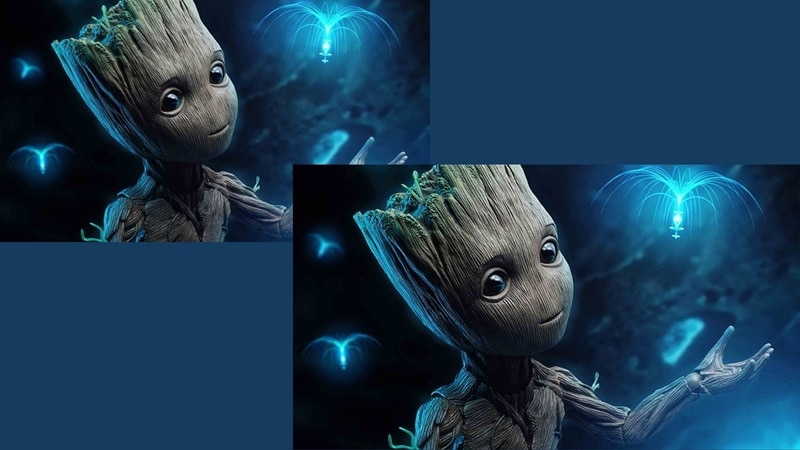
This numerical value indicates an image’s size, not quality. Someone can shoot a 3840 x 2160 image and still be soft and poor since the source can be blurred, compressed, or damaged.
1.1 4K vs. 4x Upscaling
The difference is simple:
- 4K = target pixel dimensions
- 4x = enlargement multiplier
A 4x upscale increases source width and height by a factor of four. It only played at 3840 × 2160 when the start sizes allowed it.
| Source | After 4x | Exact 4K? |
|---|---|---|
| 960 × 540 | 3840 × 2160 | Yes |
| 800 × 600 | 3200 × 2400 | No |
| 1280 × 720 | 5120 × 2880 | No |
| 600 × 400 | 2400 × 1600 | No |
Key takeaway: 4x can come up below, on, or above 4K depending on the source size.
Further, a 4K television has approximately four times as many total pixels as a 1080p television, although this is not the same as simply enlarging each dimension by four times.
1.2 Why Aspect Ratio Matters
It could downscale or crop a 16:9 source. When you keep their proportions, square, portrait, 4:3 and 3:2 images retain different properties.
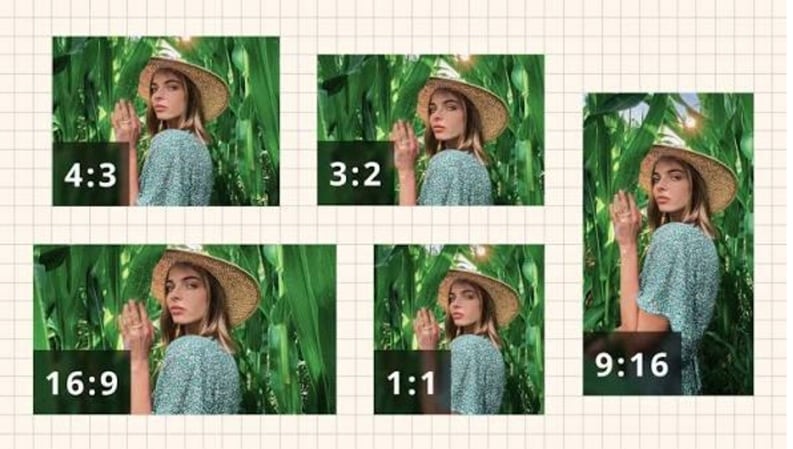
Cropping or padding the image is more likely to yield a perfect 3840 × 2160 frame rather than stretching the image.
When the target size and aspect ratio are understood, the choice of method for conversion becomes much simpler.
Part 2: Method 1 — Convert Image to 4K Resolution with Dr.Fone APP
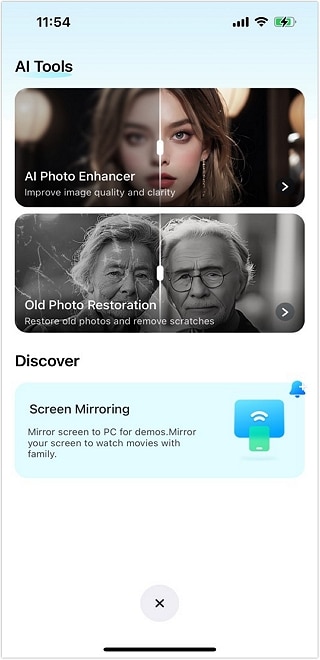
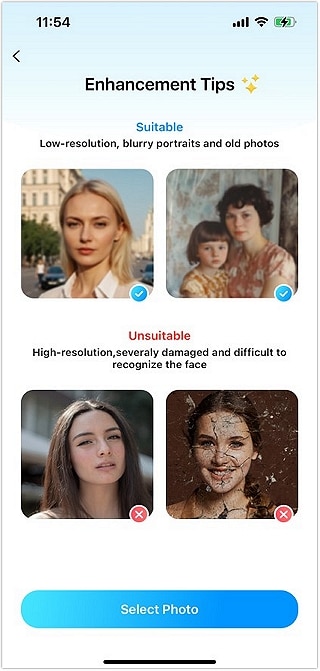
Dr.Fone APP offers AI Photo Enhancer as part of its mobile AI tools. You can access it on iOS. It is a one-click solution to enhance image quality and resolution. The app allows comparing the original photo to the edited version before saving it.
Used for image enlargements, the product brief supports 2x, 4x, and 8x upscaling. In terms of workflows that focus on 4K, 4× is the most relevant option as it can upres smaller source dimensions towards UHD sized result.
It should still be treated as an enlargement scale, not a guarantee of exact 4K output.
Dr.Fone App - AI Photo Restorer & Enhancer (iOS & Android)
Restore, Colorize, Enhance, and Upscale Photos with AI
- Restore Old Photos by Fixing Creases, Tears, and Scratches
- Colorize Black-and-White Photos with AI
- Auto-Enhance Photos and Improve Portrait Details to HD Quality
- Upscale Images to 2x, 4x, or 8x for Clearer Results



2.1 How to Upscale an Image with Dr.Fone APP
-
Step 1 Open AI Toolbox
Launch Dr.Fone APP and tap AI Toolbox at the bottom. Update the app if the option is not visible.

-
Step 2 Choose AI Photo Enhancer
Select AI Photo Enhancer from the tools list to open the feature.
-
Step 3 Add Your Photo
Tap Select Photo and choose the image you want to improve.
-
Step 4 Enhance and Save
Click Enhance and allow the correction to complete. Contrasting the before-and-after outcome, slider, then hitting Save if you are delighted with it.

2.2 Check Whether the Result Meets Your 4K Target
Dr.Fone APP's AI Photo Enhancer supports image upscaling up to 4K resolution. Still, check the exported image before using it for a 4K display or other large output. The final result can depend on the source image, its proportions, and the enhancement applied.
A larger output also does not guarantee better-looking detail. Blur, compression, and missing information in the original can still affect the enhanced image.
Best for: phone photos, presentation visuals, creator assets, digital portfolios, and users who prefer a quick mobile workflow.
Part 3: Convert an Image to 4K Online
Browser tools are useful if you want to convert an image to 4K resolution online free of charge without installing software. The important thing to check is whether the tool uses a 4K target or a factor scale.
3.1 Two Browser-Based 4K Options
4KConverter — Best for a 4K-Oriented Target
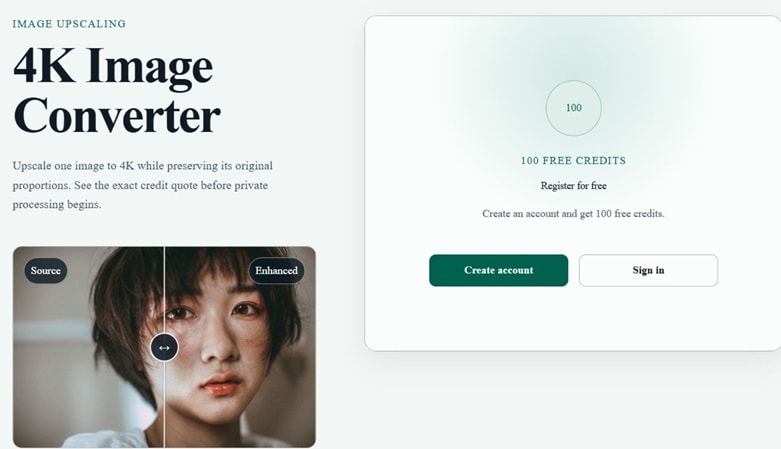
A browser-based converter built around 4K-oriented output while keeping the original aspect ratio.
- Minimum 2160 pixels on the shorter dimension.
- A 16:9 photo can achieve 3840 × 2160.
- Retains the original proportions of square and portrait images.
- Compatible with JPG, PNG & WebP.
- File cannot be larger than 25 mb
- Newly verified accounts are awarded 100 starting credits.
- Uploaded files are scheduled to expire within 24 hours
AVCLabs Online Image Upscaler — Best for Scale-Based Enlargement
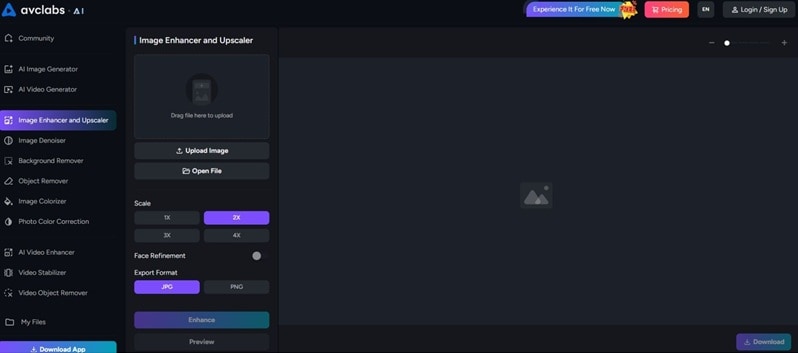
A browser-based upscaler that enlarges the source by scale rather than forcing an exact 4K frame.
- Supports enlargement up to 4x
- Final dimensions depend on the source image
- Includes optional Face Refinement
- Lets users preview the processed result
- Exports as JPG or PNG
- Registered users can access free credits
- Uploaded images and videos are deleted after 3 days
3.2 Typical Online Workflow
Upload image → choose 4K target or enlargement scale → check output dimensions → process → inspect → download
The dimension check matters because 4K output and 4x enlargement don't always produce the same result.
3.3 What to Check Before Choosing a Free 4K Converter
Before using a free 4 K image converter, check:
- Output method: exact resolution or scale factor
- Maximum resolution: whether it reaches your target
- Aspect ratio: preserved, cropped, or stretched
- File limits: size, batch, and credit limits
- Formats: supported upload and export types
- Watermarks: whether free downloads include one
- Privacy: how long files stay on the server
- Result quality: inspect faces, text, logos, edges, and textures
Part 4: Convert an Image to 4K with Photoshop
Photoshop is more suitable for customers who want a lot more control over image capture, including adjusting image size, aspect ratios, resampling and text effects before saving. It allows you to set output dimensions yourself and adjust the image for export – unlike a basic 4K photo converter.
4.1 Upscale and Resize with Photoshop
-
Step 1 Open Image Size
Open your photo in Photoshop and go to Image > Image Size.
-
Step 2 Set the Required Pixel Size
Enable Resample and specify Width and Height in pixels. For standard 4K UHD image size 3840 × 2160, the source image must already be 16:9. Maintain the aspect ratio to avoid distortion.
-
Step 3 Choose a Resampling Method
Select Automatic or Preserve Details 2.0. Adobe recommends Preserve Details 2.0 for enlargement because it is designed to retain sharper edges and reduce artefacts.
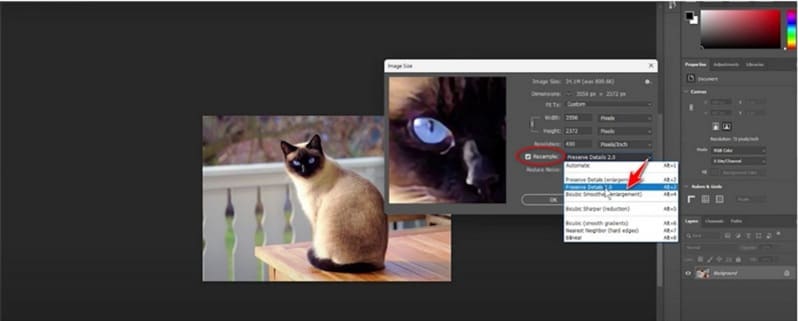
-
Step 4 Apply and Check the Result
Click OK to resize the image. Inspect details before export, then make any needed sharpening, noise, or color adjustments.
4.2 What If the Image Is Not 16:9?
Do not stretch a square, portrait, 4:3, or 3:2 photo to 3840 × 2160 as that will distort the image. To get a precise 16:9 image, maintain the piaspect ratio and either crop or add canvas.
When precision is paramount and control over width, height, aspect ratio, and resampling is essential, Photoshop’s Image Size feature can still be useful, even if the feature has multiple or advanced uses.
Why Choose Photoshop?
- Exact width and height
- Strong crop and aspect-ratio control
- Choice of resampling method
- Extra sharpening, denoising, and color editing
- Better control over composition before export
Part 5: Which 4K Conversion Method Should You Choose?
It all boils down to how much control you need when choosing a 4K photo converter. Some tools are all about speed and easy-to-use scaling. Others allow tighter control over the final pixel size, aspect ratio, and editing function. The table shown below highlights the differences between Dr.Fone APP, 4KConverter, AVCLabs and Photoshop.
| Factor | Dr.Fone APP | 4KConverter | AVCLabs Online Image Upscaler | Adobe Photoshop |
|---|---|---|---|---|
| Platform | Mobile app | Browser | Browser | Desktop |
| Best for | Quick phone photo enhancement | Direct 4K-oriented conversion | Simple scale-based enlargement | Exact sizing and detailed editing |
| Sizing method | AI Photo Enhancer | Targets at least 2160 px on the short edge | Upscales up to 4x | User-set pixel dimensions |
| Exact 3840 × 2160 control | Not shown in current public workflow | Only naturally for suitable 16:9 sources | No; result depends on source size | Yes |
| Aspect ratio | Source-dependent | Preserves original proportions | Final size follows source + scale | Full crop and sizing control |
| Manual effort | Low | Low | Low | Higher |
| Main advantage | Easy mobile workflow | Built specifically around 4K-sized output | Fast online 4x enlargement | Precise dimensions, resampling, and editing |
| Main limitation | Check final dimensions after enhancement | Non-16:9 images will not become exact 3840 × 2160 | 4x does not automatically equal 4K | Takes more setup and editing |
Quick Decision Guide
- Want a quick mobile workflow? → Dr.Fone APP 4x AI upscaling.
- Want to convert one or two images without installing software? → Online 4K converter.
- Need exact 3840 × 2160 dimensions and composition control? → Photoshop.
Conclusion
A 4K photo converter is useful only when the final image suits the job, not simply because the file is larger. 4K remains a target resolution, while enlargement is just the route used to get there. For phone-first editing, Dr.Fone APP’s AI Photo Enhancer keeps the process simple: choose a photo, enhance it, compare the result, and save. For quick conversions, online converters are fine from the browser, but use Photoshop for accurate sizing and careful cropping and framing.
Prior to converting an image to 4K resolution, check the final image pixel dimension, aspect ratio, and source quality as these factors still affect the convincing look of the result.
FAQ
-
1. What resolution is a 4K image?
For consumer UHD, 4K usually means 3840 × 2160 pixels at a 16:9 aspect ratio. Digital cinema may use 4096 × 2160. -
2. Does 4x upscaling always make an image 4K?
No. It depends on the source size.
960 × 540 → 4x → 3840 × 2160, but 800 × 600 → 4x → 3200 × 2400. -
3. Can I convert image to 4K resolution online free?
Yes, but free tools often limit credits, file size, output size, or downloads. Always check the current free-use terms before processing several images. -
4. Can any low-resolution photo become true 4K quality?
No. A file can be enlarged to 4K dimensions, but missing source detail cannot be perfectly recovered. AI may create sharper or more believable detail, not the exact original information. -
5. Is a 4K image automatically better for printing?
No. Print quality depends on print size, resolution, source detail, and viewing distance. As the physical print gets bigger, the same 4K image would appear less detailed.








Selena Lee
staff Editor
Generally rated4.5(105participated)