


 TL;DR:
To bypass Discord's pre-upload size check, you must reduce your video below your active tier limit—20 MB for Free users, 50 MB for Nitro Basic, or 500 MB for Nitro—because the platform rejects oversized files before applying its own mobile compression.
● Utilize platform-specific tools to downsize files: the Dr.Fone App for direct iPhone compression, Media.io for browser-based batch processing, or native lower-resolution exports at 720p or 480p using Windows Clipchamp or Mac QuickTime Player.
● Prioritize trimming unnecessary footage first before altering quality, then selectively lower the bitrate to maintain motion clarity in fast gameplay clips or decrease the resolution for screen recordings and tutorials.
● Avoid repeatedly compressing the same file to reach the target size; if a single pass fails, create a new export directly from the original recording or use a cloud hosting link to prevent severe visual degradation.
Ask AI for a summary
 ChatGPT
 Perplexity
 Gemini
 Claude
 Grok
Grok
Discord checks your video’s file size before applying compression. A clip that already exceeds your upload limit can fail before Discord gets a chance to reduce its size. Compressing the video, lowering its resolution, or trimming unnecessary footage can help it fit within the limit. The maximum file size also varies depending on your Discord plan.
This guide covers current upload limits, common reasons videos become too large, and 4 practical ways to reduce them. You will also learn how the Dr.Fone App can help you compress video for Discord directly on your iPhone.
In this article
Part 1. What Is the Discord Video Upload Limit in 2026?
Before you compress video for Discord, check the upload limit available with your plan. The table below compares the current file size limits for Free, Nitro Basic, and Nitro users, helping you determine how much the video needs to be reduced.
| Discord Plan | Current Upload Limit | When Compression Is Needed |
|---|---|---|
| Free | 20 MB per file | Longer or high bitrate 1080p clips |
| Nitro Basic | 50 MB per file | Longer clips and high bitrate recordings |
| Nitro | Up to 500 MB per file | Mostly lengthy or high bitrate 4K footage |
Discord raised its Free upload limit from 10 MB to 20 MB in August 2026. More importantly, Discord now checks the original file size before compression. This means a video exceeding your available limit must be reduced before Discord can process the upload.
Upload limits can also vary by server. Higher Server Boost levels may support larger attachments, so always check the limit available in the specific Discord server before compressing your video.
Part 2. Why Is Your Video Too Large for Discord?
A video may exceed Discord’s upload limit even when it plays normally on your device. Several recording and export choices can quickly increase its size. Before you make videos smaller for Discord, consider these common factors behind oversized video files:
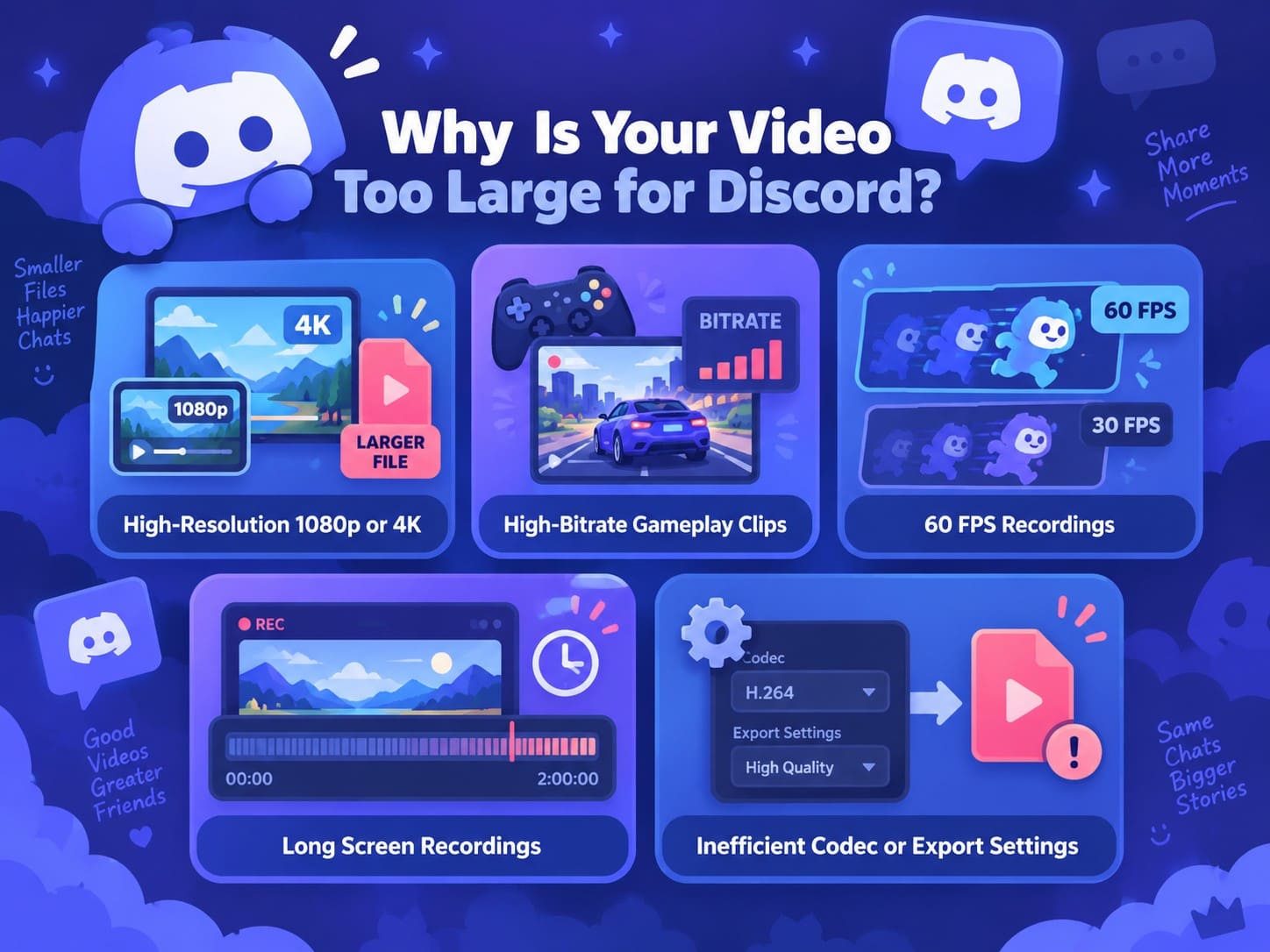
- High Resolution 1080p or 4K Recordings: Higher resolutions contain more visual data, which can quickly increase file size. Even short 4K recordings may exceed Discord’s upload limit, especially when recorded at higher quality settings.
- High Bitrate Gameplay Clips: Gameplay recording software often uses higher bitrates to preserve fast motion and visual detail. As a result, even relatively short gameplay clips can become too large for Discord.
- 60 FPS Recordings: Recording at 60 FPS captures twice as many frames per second as 30 FPS. Maintaining good quality across those additional frames can require a higher bitrate and increase the resulting file size.
- Long Screen Recordings and Camera Videos: Longer videos contain more footage that must be stored. Tutorials, meetings, screen recordings, and camera videos can quickly exceed Discord’s upload limit as their duration increases.
- Inefficient Video Codec or Export Settings: Codec choice and export settings directly affect the final file size. Less efficient codecs, unnecessarily high bitrates, or high-quality export presets can produce much larger videos than needed.
Part 3. How to Make a Video Smaller for Discord?
Once you identify what is making the video too large, you can choose the most suitable way to compress video for Discord. Different methods work better across iPhone, desktop, and browser-based workflows, so the right option depends on where your video is stored and how you prefer to reduce its size.
Method 1. Compress a Discord Video on iPhone with Dr.Fone App
For Discord clips saved on your iPhone, a mobile video compressor for Discord can reduce file size without moving the video to another device. The Dr.Fone App lets you select one or multiple videos, review the estimated space reduction, and compress them directly. This makes it useful for gameplay clips, screen recordings, reaction videos, and camera footage.
Dr.Fone App also provides options to sort videos from latest to largest and compress images through the same toolset. After compression, you can review the results while keeping the original files or deleting them to free up storage. This gives you control over both video size and available iPhone storage before uploading your compressed clip to Discord.
Guide to Compress Discord Videos with Dr.Fone App
To learn how this video size reducer for Discord works, follow these 3 simple steps to compress your clips and prepare them for uploading.
Dr.Fone App - Photo & Video Compressor for iPhone
Compress Photos & Videos to Free Up iPhone Storage
- Compress Large Photos to Reduce File Size
- Compress Large Videos Instead of Deleting Them
- Free Up More Storage Space for New Photos, Videos, and Apps
- Manage Space-Consuming Photos and Videos More Efficiently



-
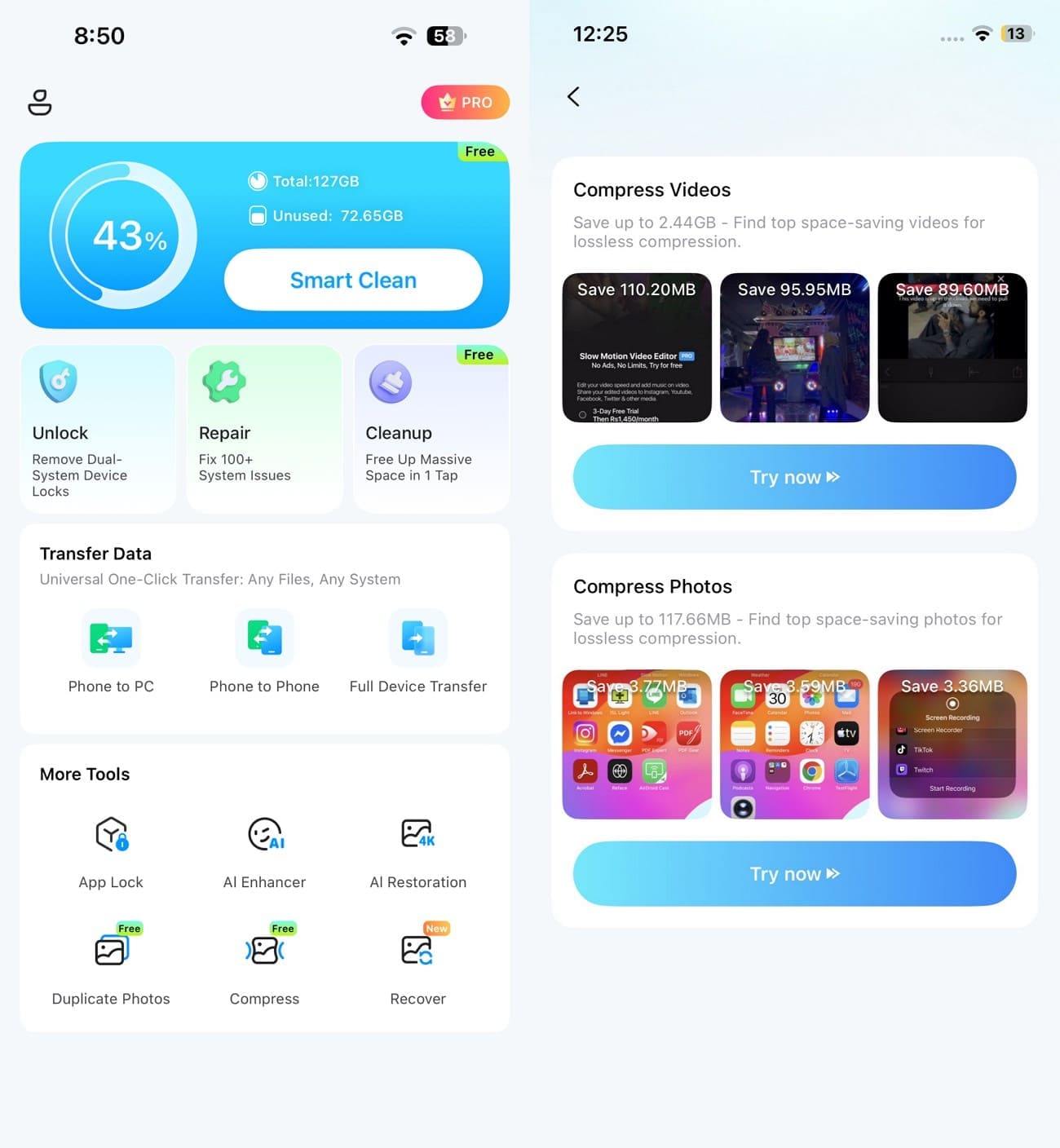
Step 1. Access the Video Compressor
Under “More Tools,” tap “Compress.” Find “Compress Videos” on the next screen and select “Try now” to open the video compressor.
-
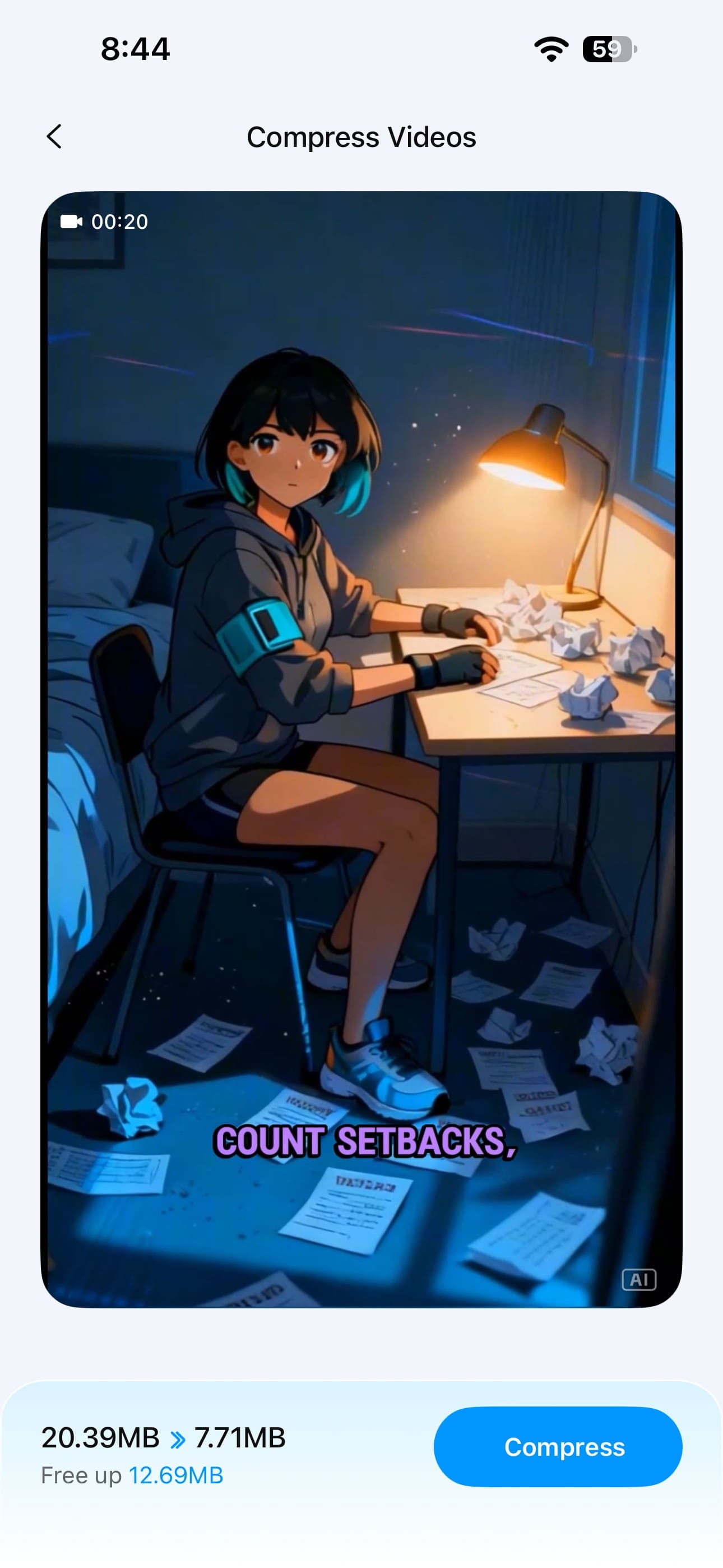
Step 2. Select Videos and Compress
Choose one or multiple videos you want to reduce for Discord. Check the “Free Up” space, then tap “Compress” to begin processing them.
-
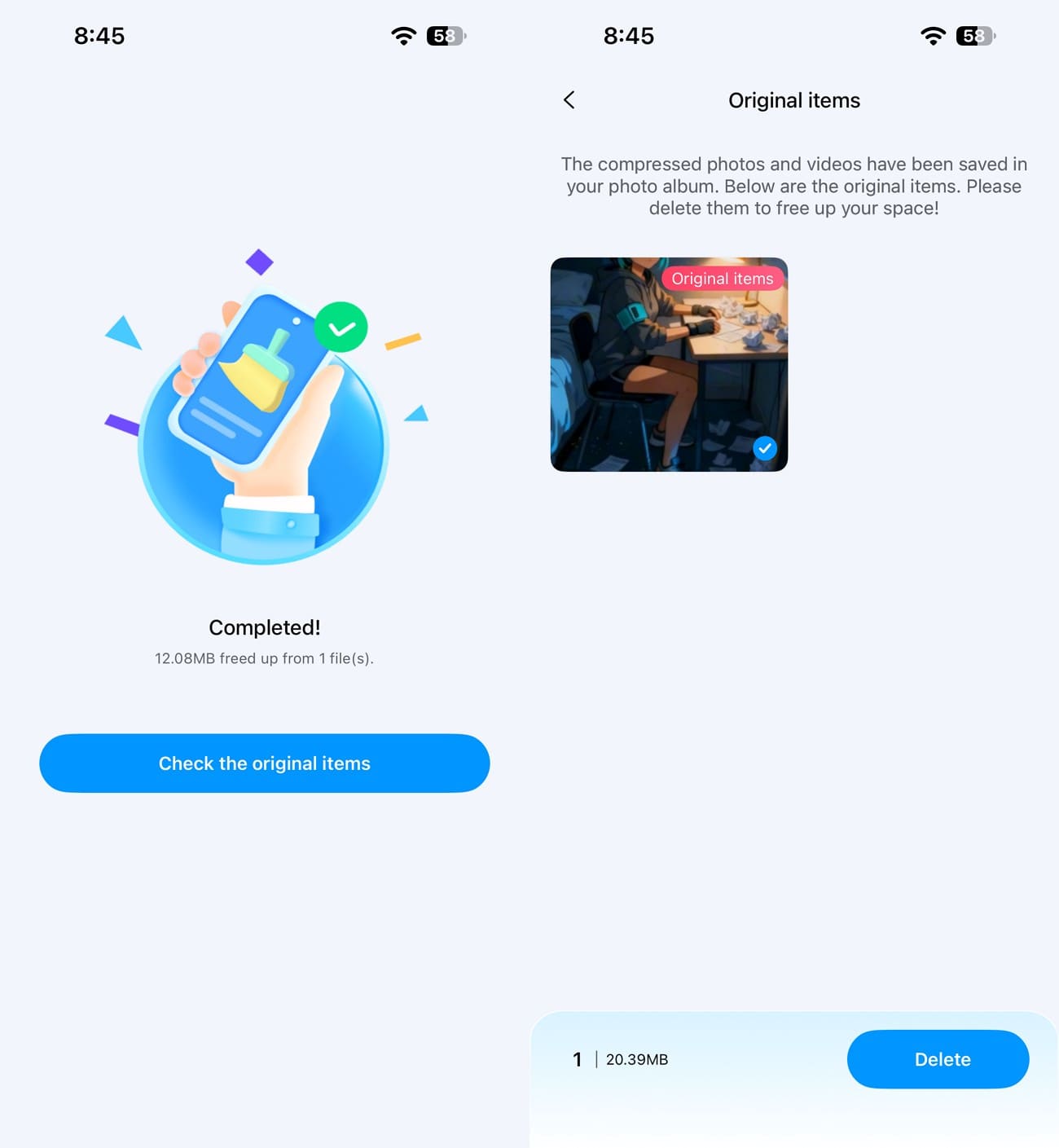
Step 3. Delete Original and Upload to Discord
After compression, tap “Check the Original Items” and delete the original video only if it is no longer needed. Next, open Discord, choose the compressed video from your gallery, and upload it directly to your preferred chat or server.
Method 2. Compress a Discord Video Online with Media.io
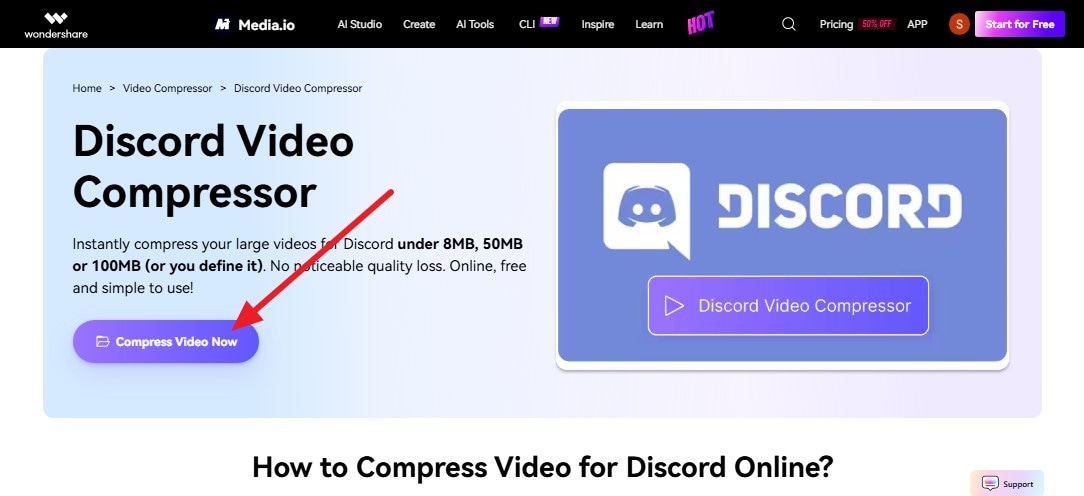
For users who prefer not to install another program, Media.io handles Discord video compression directly through a web browser. It supports common formats such as MP4, MOV, WEBM, AVI, MKV, and WMV, along with batch processing for multiple videos. Resolution, bitrate, and target file size can also be adjusted according to your upload needs. Here is how to compress your Discord video using Media.io:
Step 1. Click the “Compress Video Now” button and add the video you want to compress for Discord.
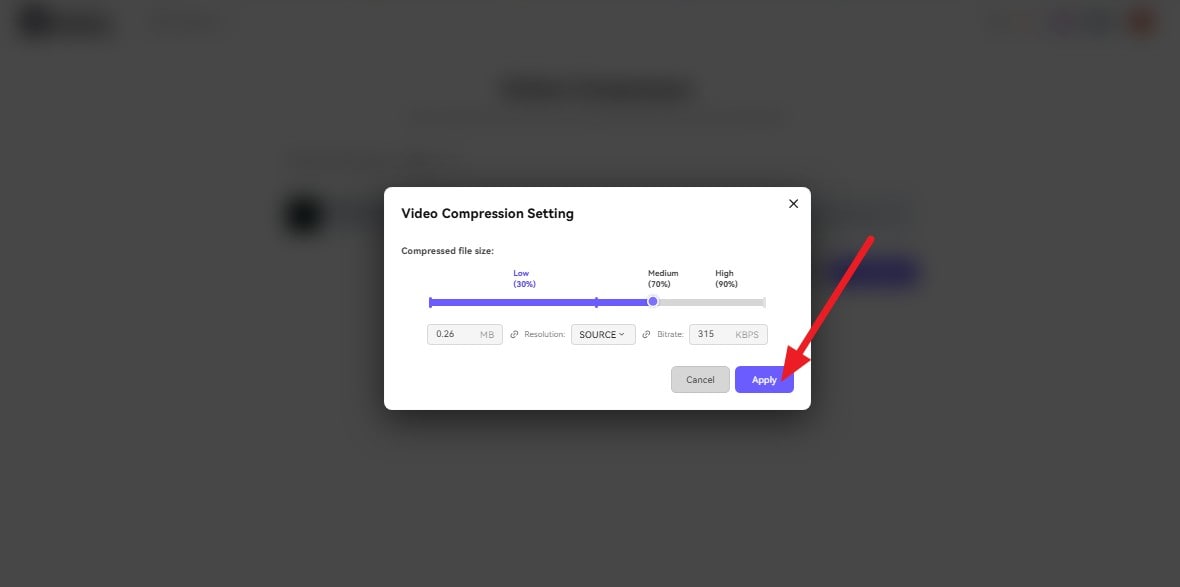
Step 2. Click the “Settings” icon, select your preferred compression settings and bitrate, then choose “Apply” to confirm the changes.
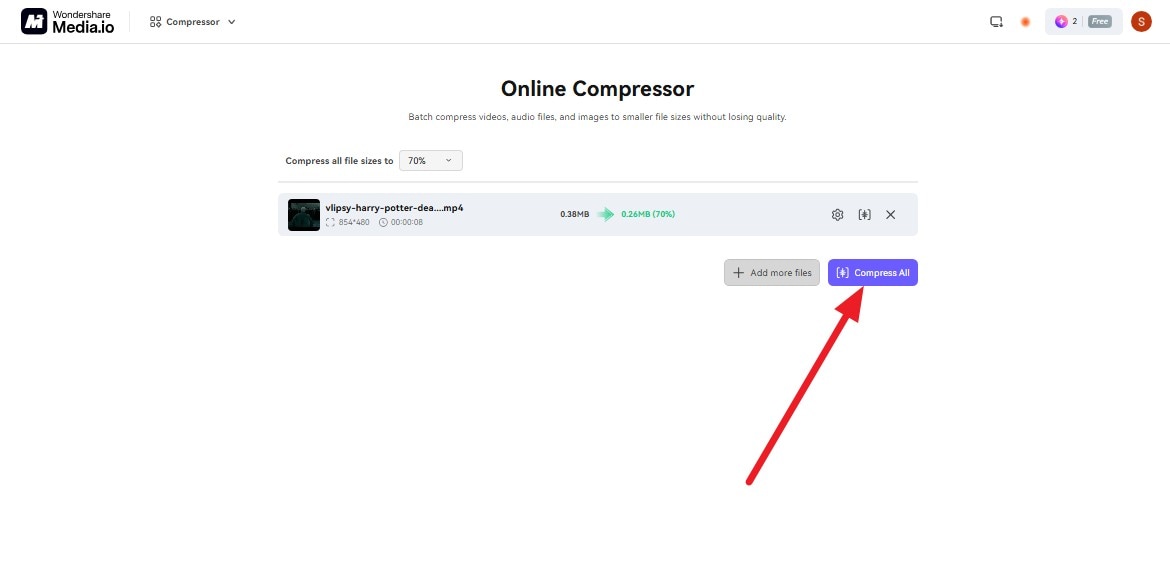
Step 3. Select “Compress All” to start processing the video and wait for the compression to finish. Once complete, check the new file size, download the compressed video, and upload it to your Discord chat or server.
Method 3. Reduce Discord Video Size on Windows with Clipchamp
Clipchamp makes it easy to reduce video size for Discord by creating a lower resolution MP4 copy of your original video. Large 4K or 1080p recordings can be exported at 720p or 480p when resolution is contributing to the oversized file. This reduces the amount of visual data while keeping the video ready for sharing. Here is how the lower-resolution export works in Clipchamp:
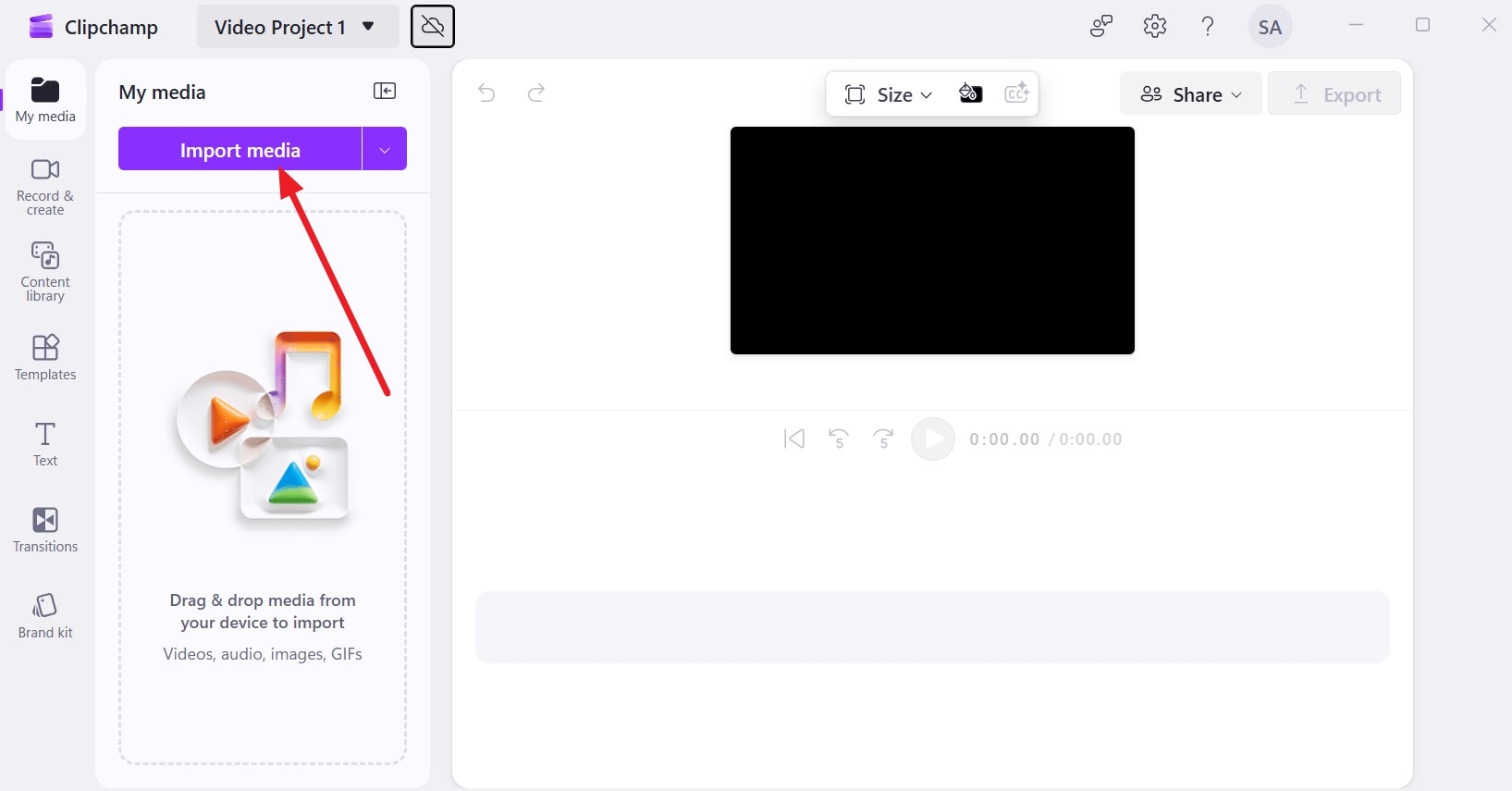
Step 1. Choose the “Create a New Video” and “Import Media” options and add the video.
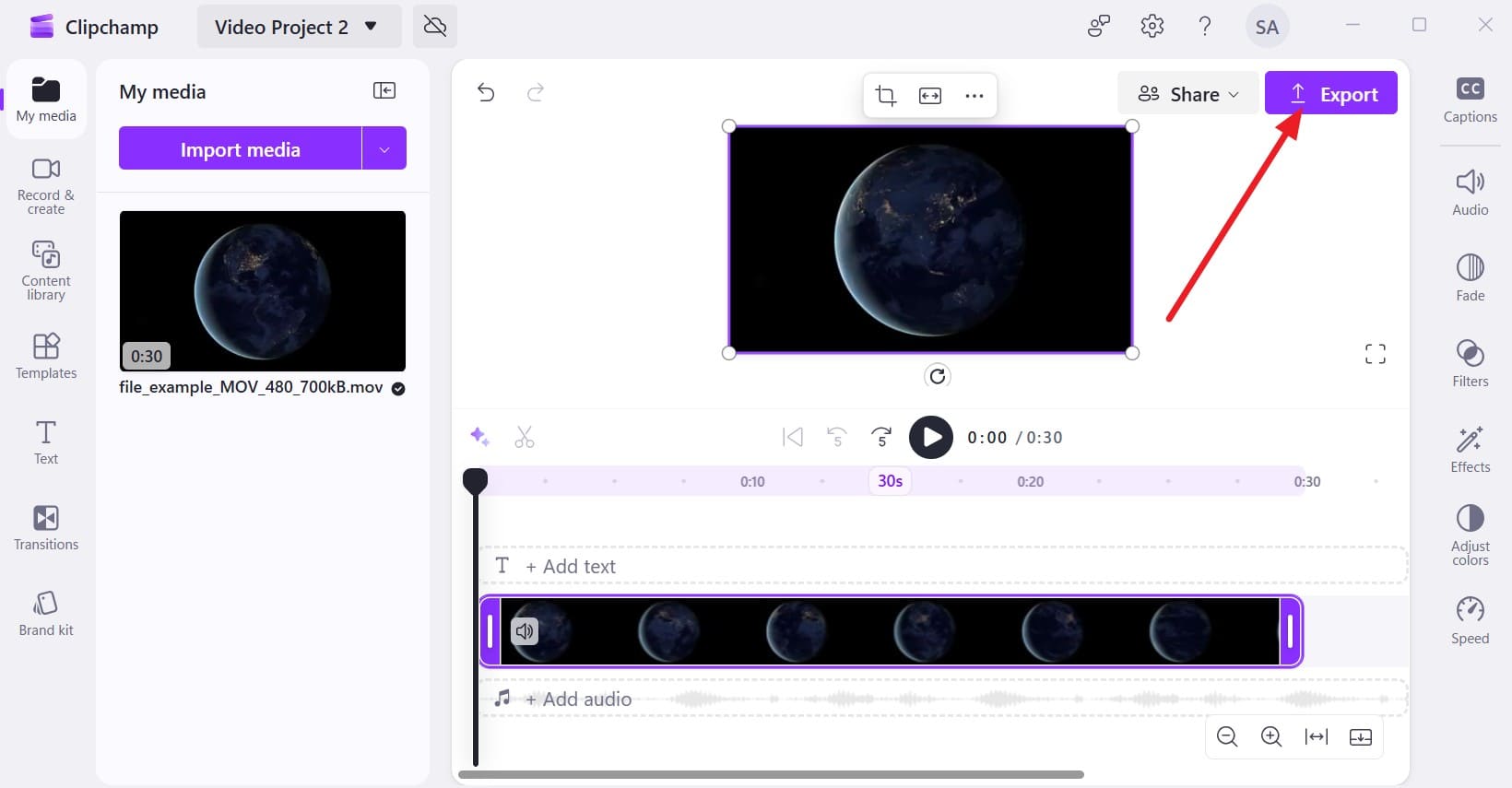
Step 2. Select the “Export” option after you drag the video to the timeline.
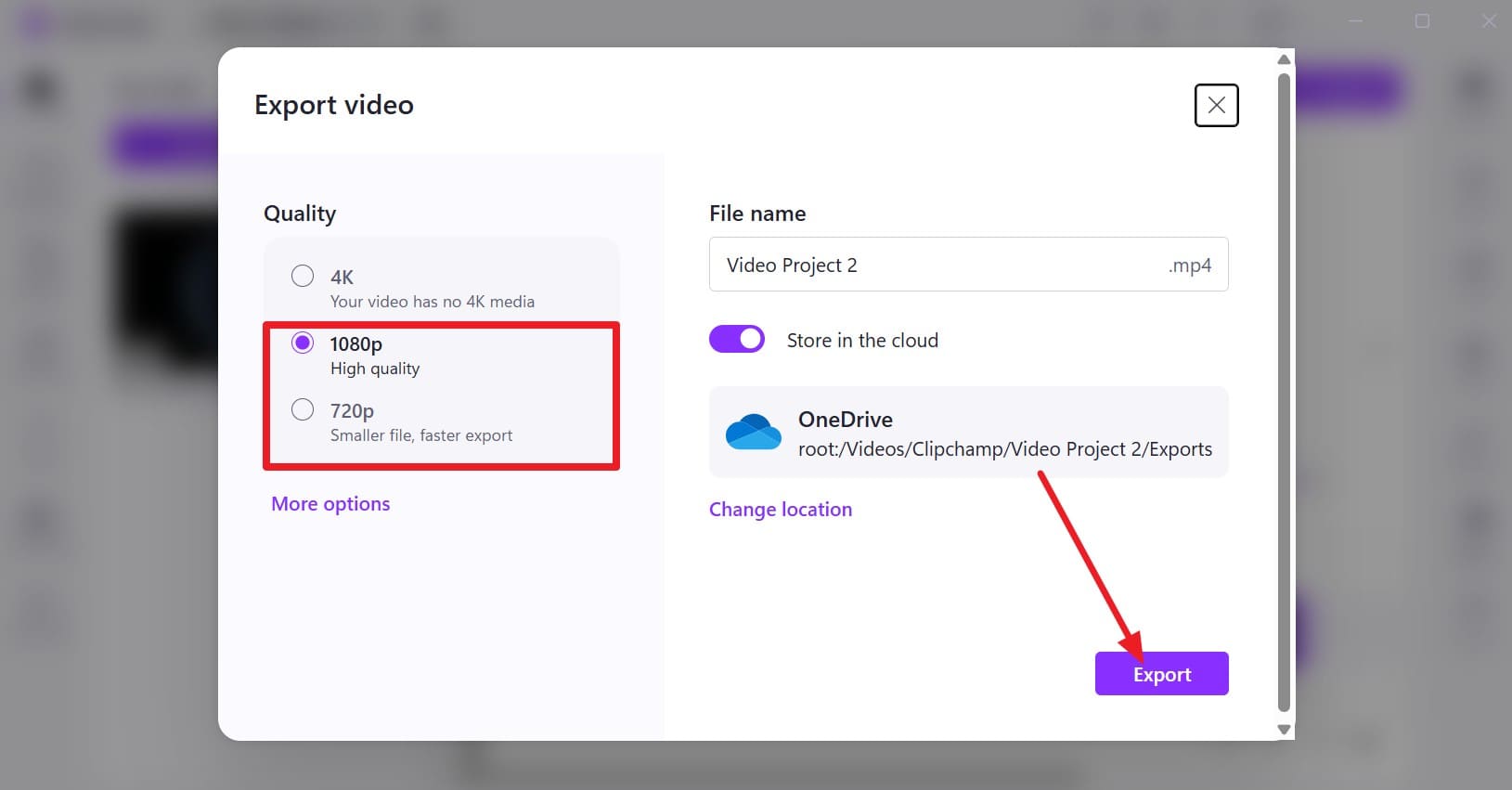
Step 3. Pick a lower resolution such as “720p” or “480p” if the original file is still too large, then press “Export.” Wait for the export to finish, then check the new file size before uploading it to Discord. Open Discord, attach the compressed video, and upload the smaller file to your chat or server.
Method 4. Reduce Discord Video Size on Mac with QuickTime Player
For Mac users, QuickTime Player offers a built-in way to compress video for Discord through lower-resolution exports. You can open the original clip and save a smaller version without installing another compression tool. Exporting at 720p or 480p can reduce oversized recordings while keeping them suitable for sharing. Follow these steps to create a smaller Discord-ready video with QuickTime Player:
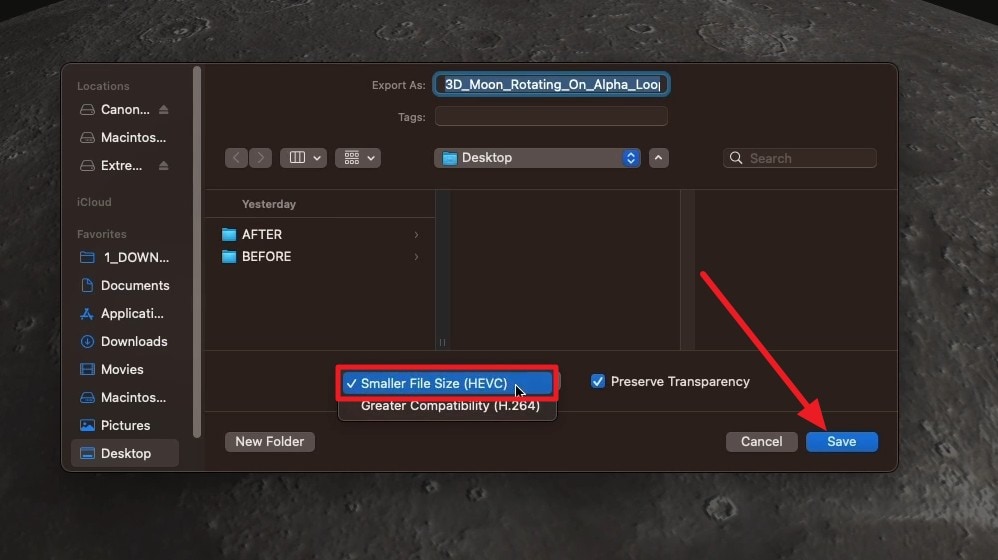
Step 1. Open the video in QuickTime Player, then select “File > Export as” from the menu. Choose a lower export option such as “720p” or “480p” to create a smaller video file.
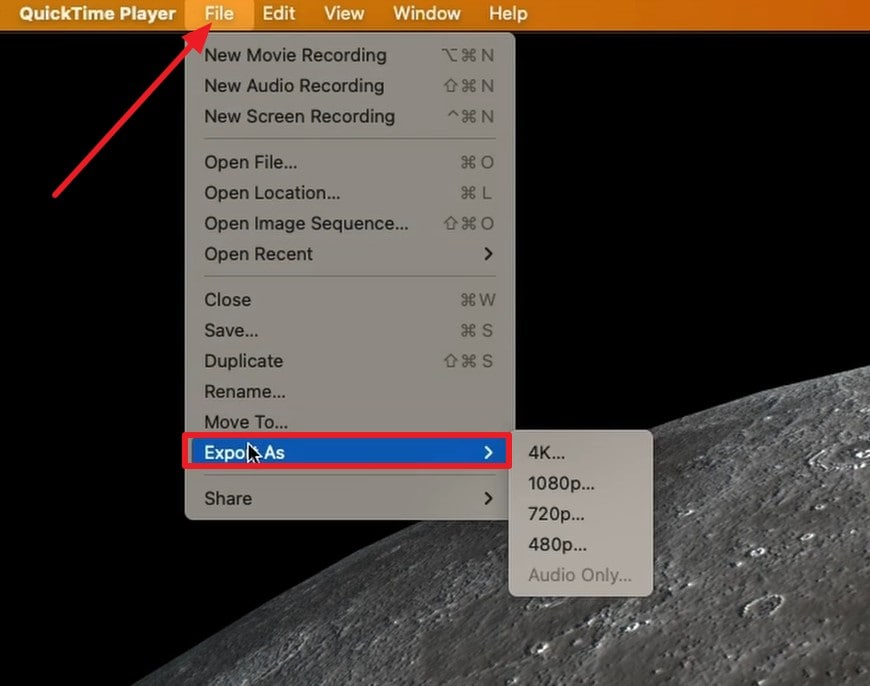
Step 2. Select “Smaller File Size” when available, then click “Save” to export the compressed video. Once the export is complete, check the final file size and upload it to Discord if it fits your available limit.
Part 4. How Small Should You Make a Video for Discord?
Your video only needs to be small enough to stay within the upload limit available to your Discord account or server. When you reduce video size for Discord, aim slightly below that limit rather than targeting the exact maximum. This provides some margin while avoiding unnecessary compression that could reduce visual quality.
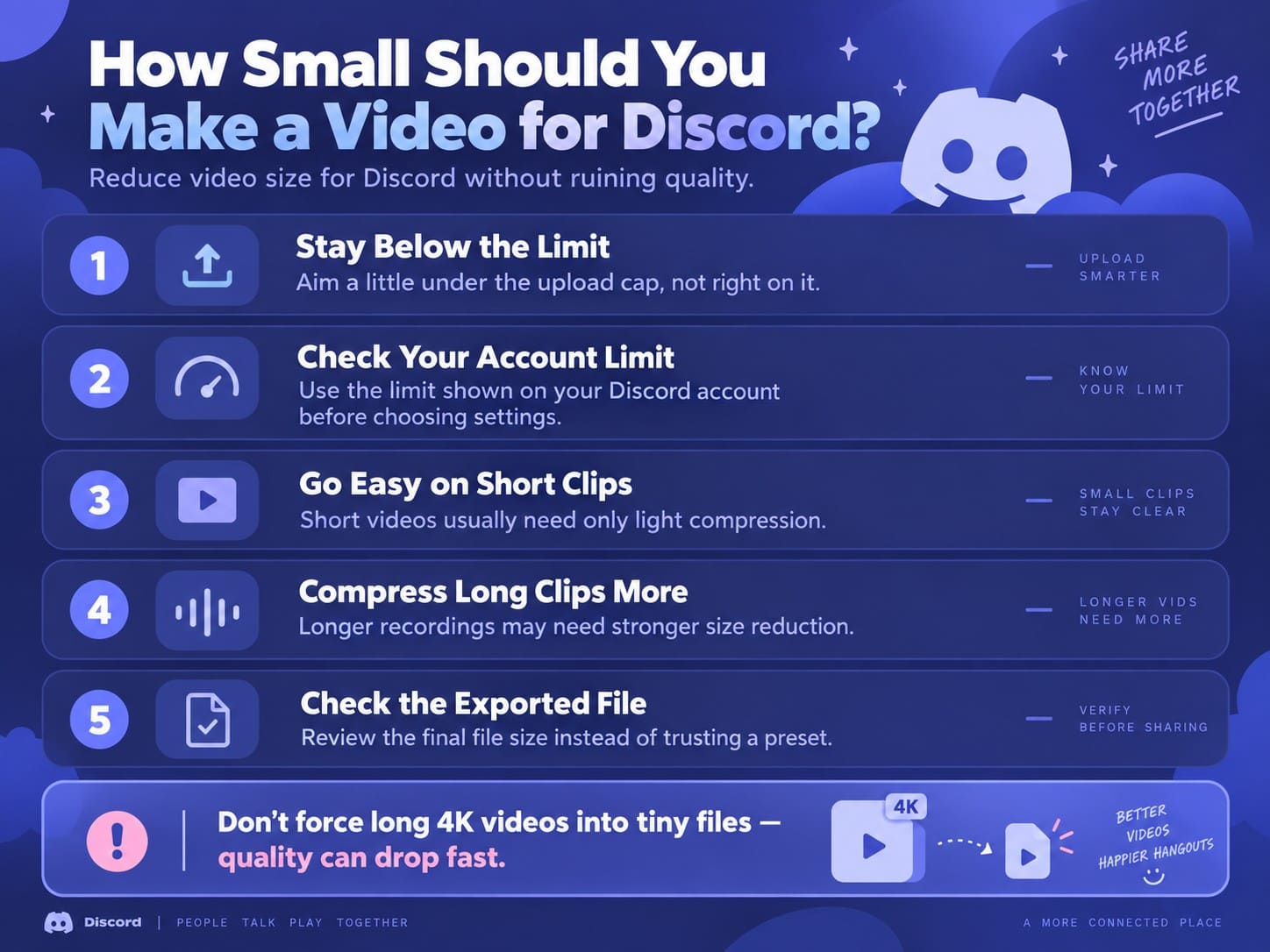
The amount of Discord video compression depends on the original file. Short clips may need only a small reduction, while long, high bitrate, or 4K recordings can require larger changes. Prioritize meeting the size limit without sacrificing important details, then check the exported file size before uploading.
Part 5. Best Compression Approach for Different Discord Videos
Choosing the right compression settings depends on the type of video you plan to upload. To compress video for Discord effectively, gameplay recordings, screen captures, and phone videos may each need a different approach.
| Video Type | Main Size Issue | Reduce First | Protect |
|---|---|---|---|
| Gameplay Clip | High bitrate and fast motion | Bitrate carefully | Motion clarity |
| Screen Recording | Long duration | Trim unnecessary footage | Text readability |
| Reaction Video | Length and camera bitrate | Trim, then bitrate | Facial detail |
| Meme Clip | Unnecessary bitrate | Bitrate | Visual clarity |
| Phone Camera Video | High resolution and bitrate | Resolution | Important details |
| Long Tutorial | Long duration | Trim, then resolution | Text and audio clarity |
Fast-moving videos like gameplay need enough data to preserve motion clarity, while mostly static screen recordings can often handle stronger compression. Rather than applying the same settings to every file, adjust your Discord video compression based on the clip type and the details you need to preserve.
Part 6. Which Video Settings Matter Most for Discord Compression?
Using a video size reducer for Discord usually involves adjusting settings that directly affect the final file size. Resolution, bitrate, frame rate, codec, and audio quality can each make a difference. Understanding these settings helps you reduce the file while preserving the video details that matter most.
| Setting | Effect on File Size | Best Time to Reduce | Keep in Mind |
|---|---|---|---|
| Bitrate | Lower bitrate stores less data per second, reducing file size. | High bitrate gameplay and camera recordings | Too low can cause blur or artifacts in motion |
| Resolution | Lower resolution reduces the number of pixels encoded in each frame. | Oversized 4K or 1080p videos | Preserve enough detail for text and important visuals |
| Duration | Trimming footage directly reduces the amount of video data stored. | Long tutorials, meetings, and recordings | Remove unnecessary sections before reducing quality |
| Frame Rate | Reducing 60 FPS to 30 FPS can lower the required video data. | Videos where smooth motion is less important | Fast action may appear less smooth |
| Codec | More efficient codecs can deliver similar quality at lower bitrates. | Large videos being re-exported | Confirm Discord and device playback compatibility |
| Audio Bitrate | Lower audio bitrate reduces the data allocated to the audio track. | Videos where high-fidelity audio is unnecessary | Keep speech and important sounds clear |
Among these settings, bitrate, resolution, and duration usually have the greatest impact on video size. Trim unnecessary footage first, then adjust the resolution or bitrate based on the clip type and the quality you need to preserve.
Part 7. What If the Video Is Still Too Large for Discord?
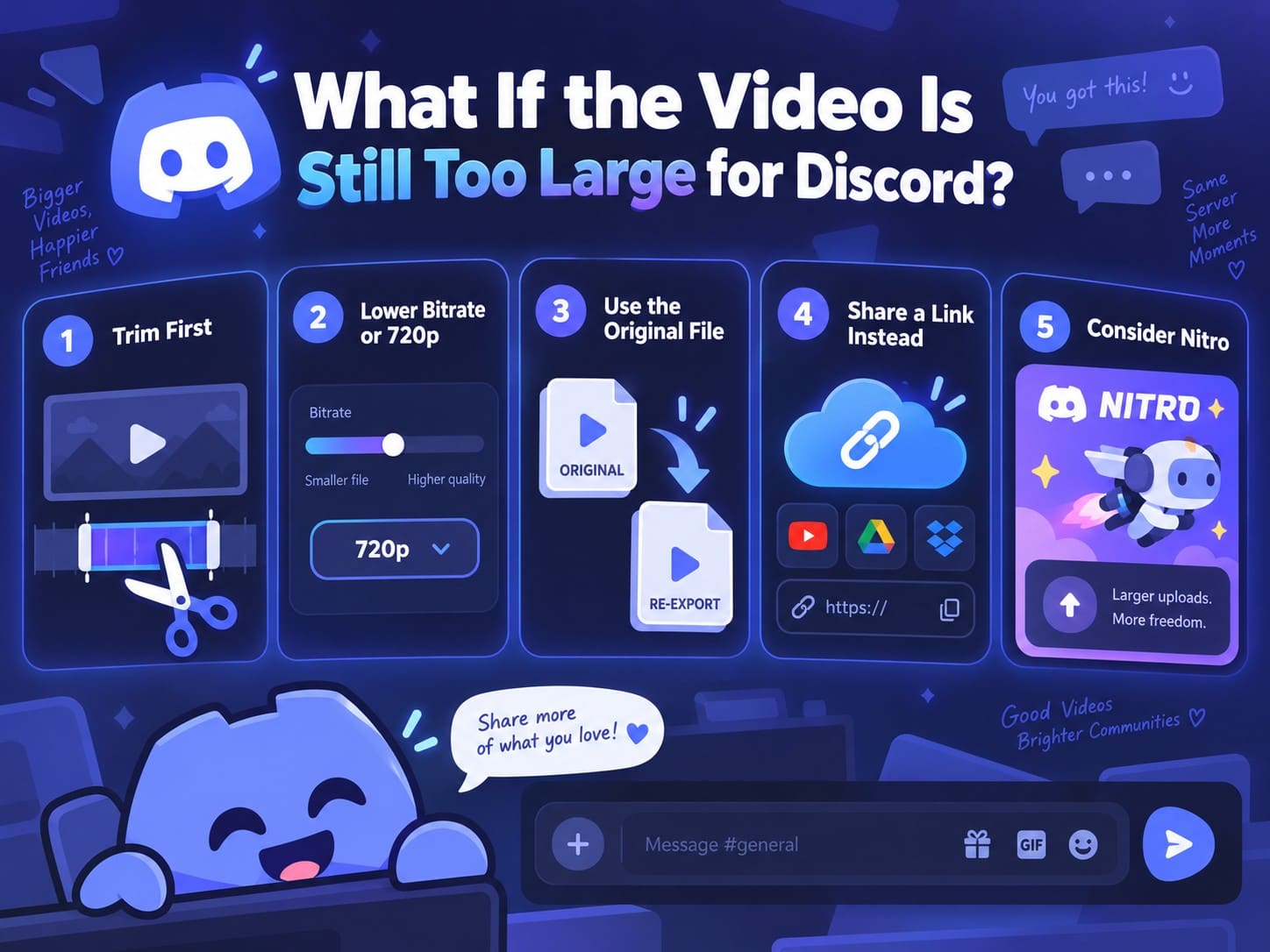
If your video still exceeds the upload limit, avoid repeatedly compressing the same file. To reduce video size for Discord, start by trimming unnecessary footage, then lower the bitrate or resolution as needed. This approach reduces the file size while helping preserve important visual details.
Still unable to meet the limit? Return to the original video and create a new export rather than compressing an already reduced copy. When further compression causes noticeable quality loss, consider sharing a cloud or video hosting link. Frequent users of larger files can also consider Discord Nitro for higher attachment limits.
Conclusion
Meeting Discord’s upload limit does not mean sacrificing video quality. Start by checking your available file size, then trim unnecessary footage or adjust the resolution and bitrate as needed. For a quicker option on iPhone, the Dr.Fone App can help you compress video for Discord directly. When further compression noticeably affects quality, sharing a cloud or video hosting link may be a better choice.
Frequently Asked Questions
-
1. What is the Discord video upload limit without Nitro?
Without Nitro, Discord users can upload files up to 20 MB each. This limit applies to individual attachments, so larger videos must be compressed below 20 MB before they can be uploaded directly. -
2. Why does Discord reject my video before compressing it?
Discord checks the original video size before applying its mobile compression. If the file already exceeds your available upload limit, Discord can reject the upload before compression reduces its size. -
3. Is 720p good enough for sharing videos on Discord?
For most Discord clips, 720p can provide a good balance between file size and visual quality. Consider keeping 1080p when text, gameplay details, or other fine visuals need greater clarity. -
4. What should I do if my video is still too large for Discord?
Start by trimming unnecessary footage, then lower the resolution or bitrate as needed. If the video still exceeds Discord’s limit without acceptable quality, consider sharing it through a cloud storage or video hosting link.


James Davis
staff Editor
Generally rated4.5(105participated)