

Mi Flash Unlock Tool: What It Is & Why You Might Use It

Jun 11, 2026 • Filed to: Screen Lock Removal • Proven solutions
 TL;DR:
The official Mi Flash Unlock Tool enables Windows PC users to unlock the bootloader of Xiaomi, Redmi, and POCO devices for root access and custom ROM installation via Mi Account authorization.
● Device preparation requires enabling OEM Unlocking and USB Debugging in Developer Options before booting the phone into Fastboot mode using the Volume Down and Power buttons.
● The bootloader unlocking process permanently erases all existing device data, removes factory security protections, and can cause boot loops if executed incorrectly.
● While the Mi Flash Unlock Tool focuses on bootloader modification, Dr.Fone - Screen Unlock (Android) serves as a distinct alternative specifically for bypassing forgotten screen passcodes or Google FRP locks without requiring Mi Account credentials.
Ask AI for a summary
 ChatGPT
 Perplexity
 Gemini
 Claude
 Grok
Grok
The Mi Flash Unlock Tool acts as a key that opens the true power of Xiaomi phones. Some see it as a doorway to full control over Xiaomi phones, while others view it as a tool that may void security. In truth, it can help fix phones stuck on startup, restore performance, or allow new ROMs.
Thus, this guide explains what the Mi Flash Unlock Tool is and why many users rely on it. You will also get to know how to use it seamlessly via detailed steps. For situations where you need quick solutions to unlock your Xiaomi phone, dive into sequential details to get all the answers.
- Part 1. What is Mi Flash Unlock Tool?
- Part 2. Key Features of Mi Flash Unlock Tool Latest Version
- Part 3. Pro Tip. How to Unlock Your Xiaomi Smartphone Without a Passcode/Google Account

- Part 4. How to Use Mi Flash Unlock Tool - Step-by-Step Guide
- Part 5. User Reviews, Pros & Cons of Mi Flash Unlock Tool
Part 1. What is Mi Flash Unlock Tool?
The Mi Flash Unlock Tool is an official Xiaomi software that lets users unlock the bootloader of Xiaomi, Redmi, and POCO phones. The tool uses a Mi Account for security and runs on a Windows PC via USB. Besides, unlocking the bootloader with this tool erases all data, so users must back up their phones first.
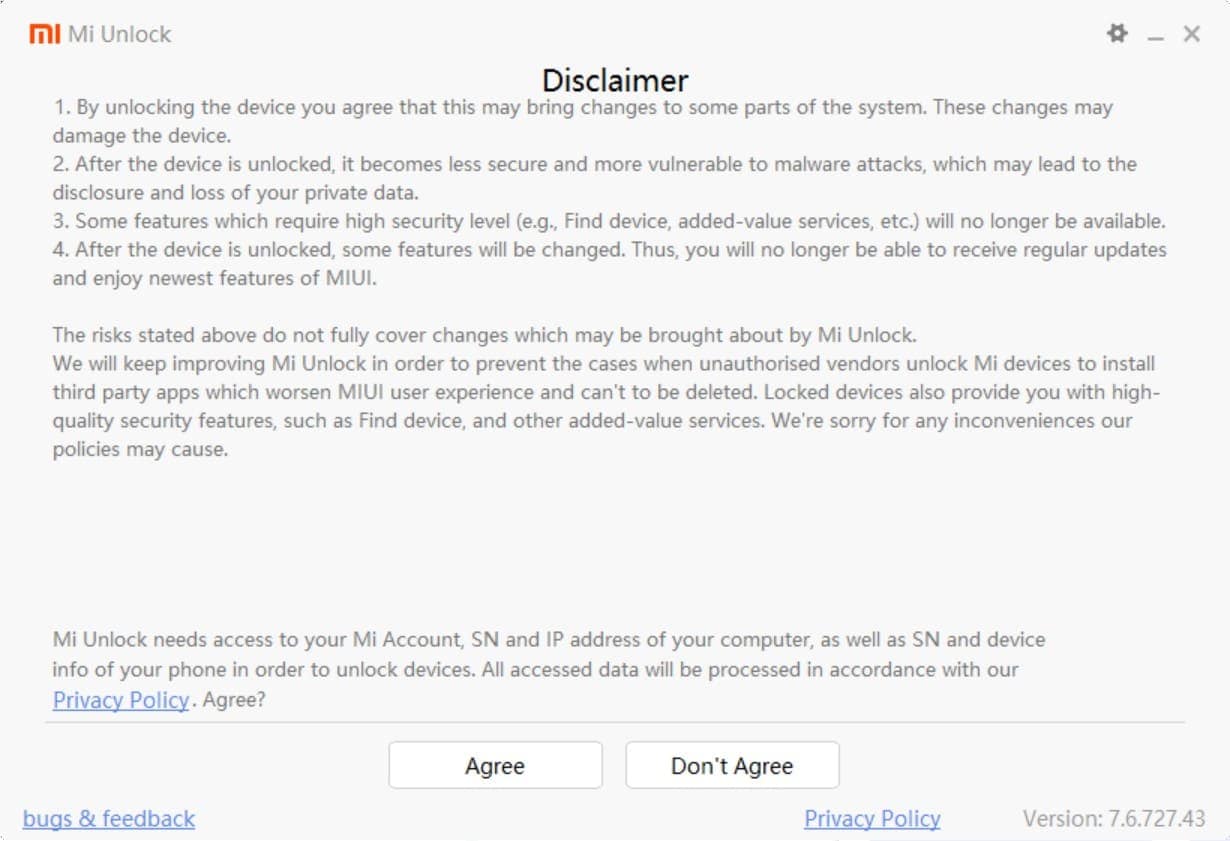
Besides, this tool is a safe method to unlock Xiaomi bootloaders without damaging the device. It even gives users more control over the phone and allows custom software or root access. Plus, it ensures that the process remains official, verified, and secure.
Part 2. Key Features of Mi Flash Unlock Tool Latest Version
While using the Mi Flash Unlock latest version, here are some of its innovative features you can benefit from:
|
Feature Name |
What It Does |
Why It’s Useful |
| Official Bootloader Unlock | Unlocks the bootloader of Xiaomi, Redmi, and POCO devices through Mi Account authorization | Enables rooting, installing custom ROMs, and advanced system customization |
| Easy, No-Install Setup | Runs directly from an executable file without installation | Simplifies setup—just extract and launch on Windows |
| Fastboot Mode Operation | Works when the device is in Fastboot mode (Power + Volume Down) | Standard unlock procedure supported across all Xiaomi models |
| Mi Account Verification | Requires users to log in to their Mi Account before unlocking | Ensures authorized access and prevents misuse |
| Driver Integration | Bundled with USB and device drivers that need to be installed first | Fixes device detection issues and simplifies the connection process |
| Multi-Device Compatibility | Supports Xiaomi, Redmi, and POCO phones and tablets | Works across a wide range of devices and models |
| Data Wipe Notice | Erases all data during the unlock process | Protects user privacy and ensures a clean system state |
| Progress and Error Logs | Displays unlock progress and common error codes | Helps diagnose problems during the unlocking process |
| Auto-Update Check | Automatically checks for newer versions at launch | Keeps the tool updated and secure with minimal effort |
Part 3. Pro Tip - How to Unlock Your Xiaomi Smartphone Without a Passcode/Google Account
While learning about the Mi Flash Unlock Tool latest version, if you seek seamless solutions to unlock Xiaomi phones, Dr.Fone - Screen Unlock (Android) is the best option. Whether you are dealing with the Pattern, PIN, Password, Fingerprint & Face Lock, this tool handles all. You can also use it to bypass FRP lock and regain full access to your Xiaomi device in no time.
Additionally, it supports FRP bypass on all Samsung devices and claims to have a success rate of 100%. Using this, users can easily unlock major Android brands like Realme, Huawei, Motorola, etc. in 2-3 simple steps. With an intuitive interface and guided steps, Dr.Fone is an ideal option for beginners since it requires no technical skills.

Dr.Fone - Screen Unlock (Android)
Unlock Your Xiaomi Smartphone Without a Passcode/Google Account
- Completely unlinked from the previous Google account, it won’t be traced or blocked by it anymore.
- Remove all Android screen locks (PIN/pattern/fingerprints/face ID) in minutes.
- Compatible with various Android models.
- Provide specific removal solutions to promise success rate.


Unlock Xiaomi Smartphones with Dr.Fone - Screen Unlock (Android)
If the usage of the Poco X3 Pro flash unlock tool is hectic for you, review the listed guide and know how Dr.Fone makes unlocking easier for you:
Step 1. Access the Screen Unlock Tool for Android
Choose the “Unlock Android Screen” option as you opt for the “Android” after accessing the Screen Unlock tool on PC or MacBook.

Step 2. Enter the Specific Mode to Unlock Xiaomi
On the new screen, choose the Xiaomi phone, and the tool will lead you to enter the specific mode. This process can vary from model to model, so when the screen unlock process ends, hit the “Done” button.

Part 4. How to Use Mi Flash Unlock Tool - Step-by-Step Guide
As you made the Mi Flash Unlock download possible, here is how you can use it seamlessly:
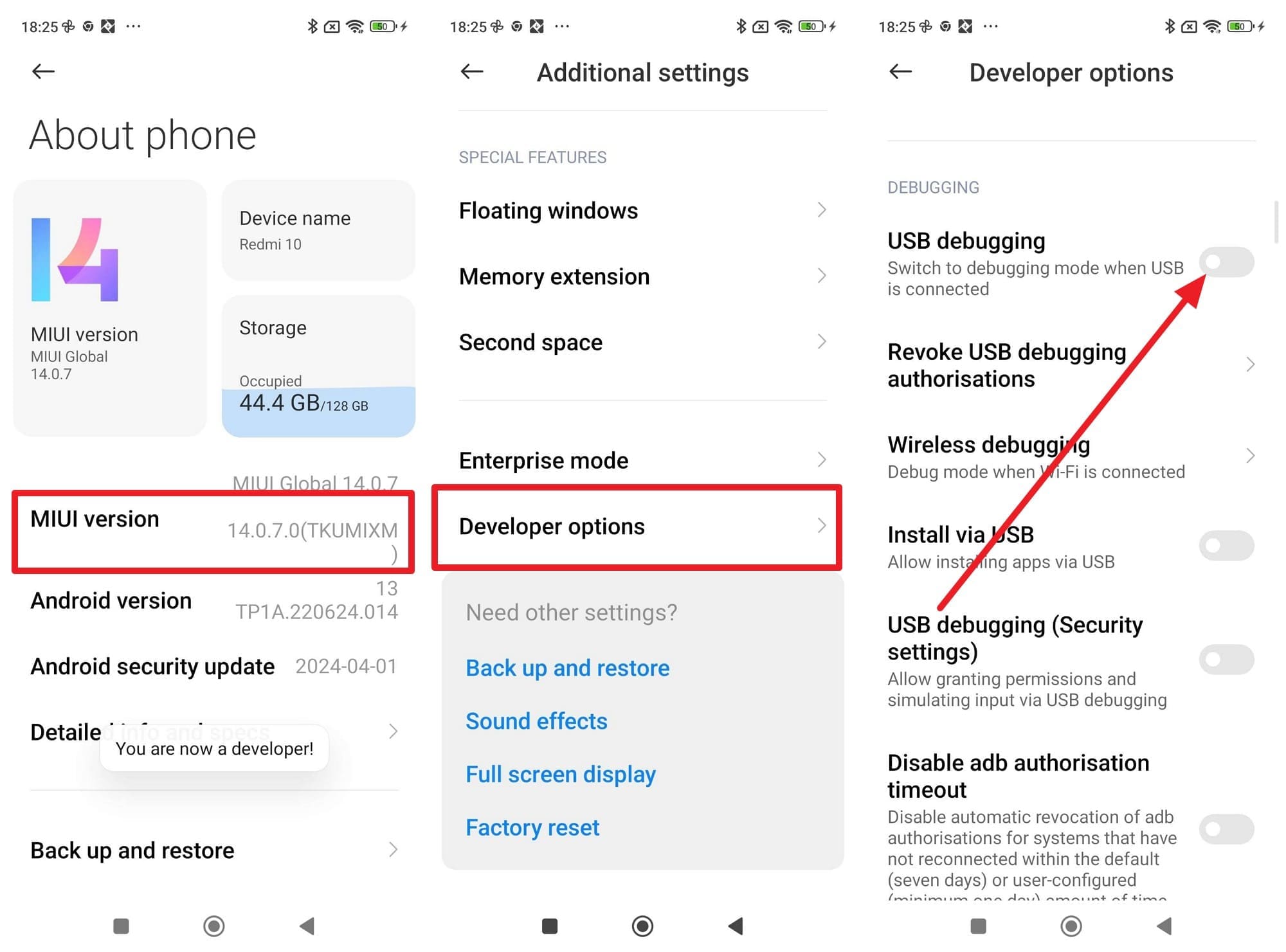
Step 1. Make sure to back up any important files before proceeding. After that, open “Settings” and go to “About phone,” then tap “MIUI Version” seven times carefully. This activates Developer Mode, which is required to access advanced options on your device. After that, go to “Additional Settings,” and then open “Developer Options” to enable “OEM Unlocking” and “USB Debugging” options.
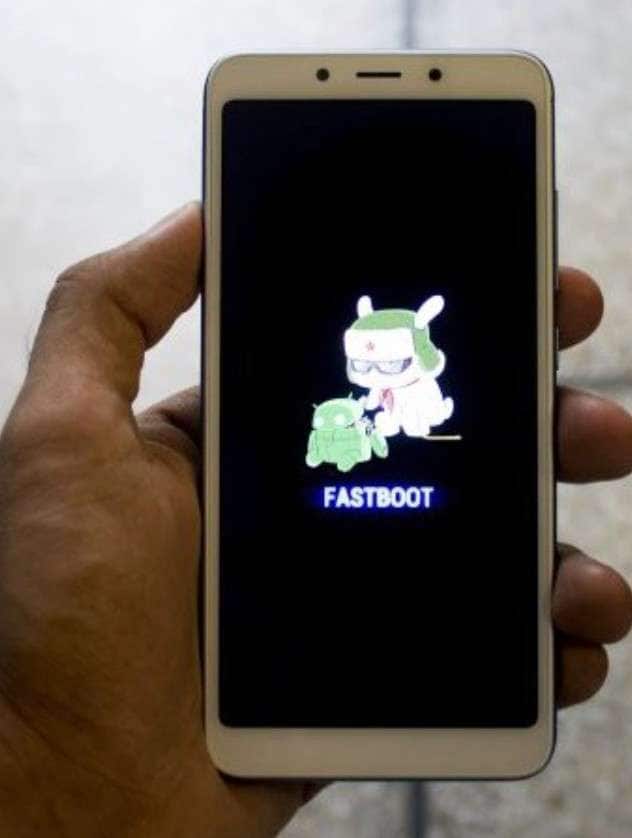
Step 2. From your computer, visit this website and download the Mi Flash Unlock Tool ZIP file. Extract the ZIP folder and run miflash_unlock.exe to launch the tool on your PC. Now, power off your device, then hold the “Volume Down” and “Power” buttons together until Fastboot appears. Connect your device to the computer using a USB cable to prepare for unlocking.
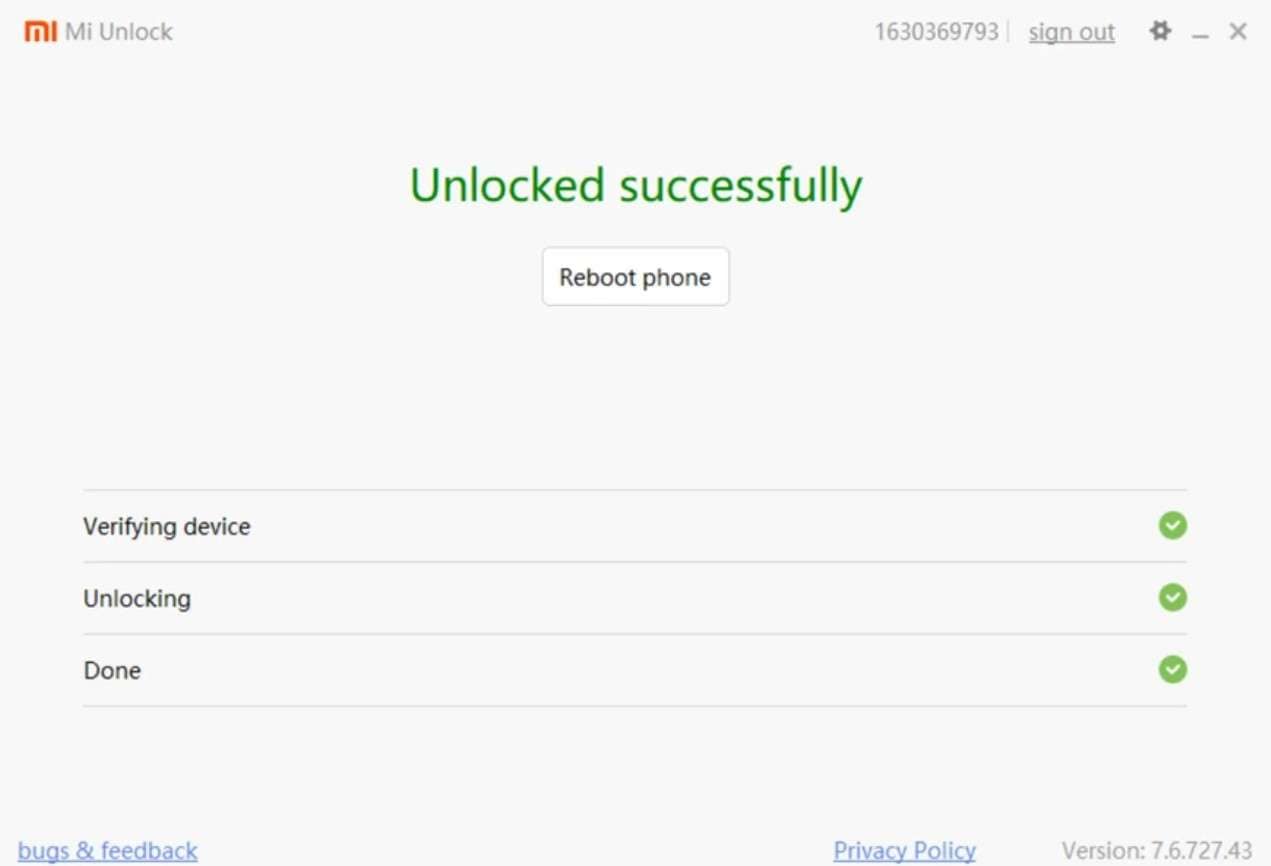
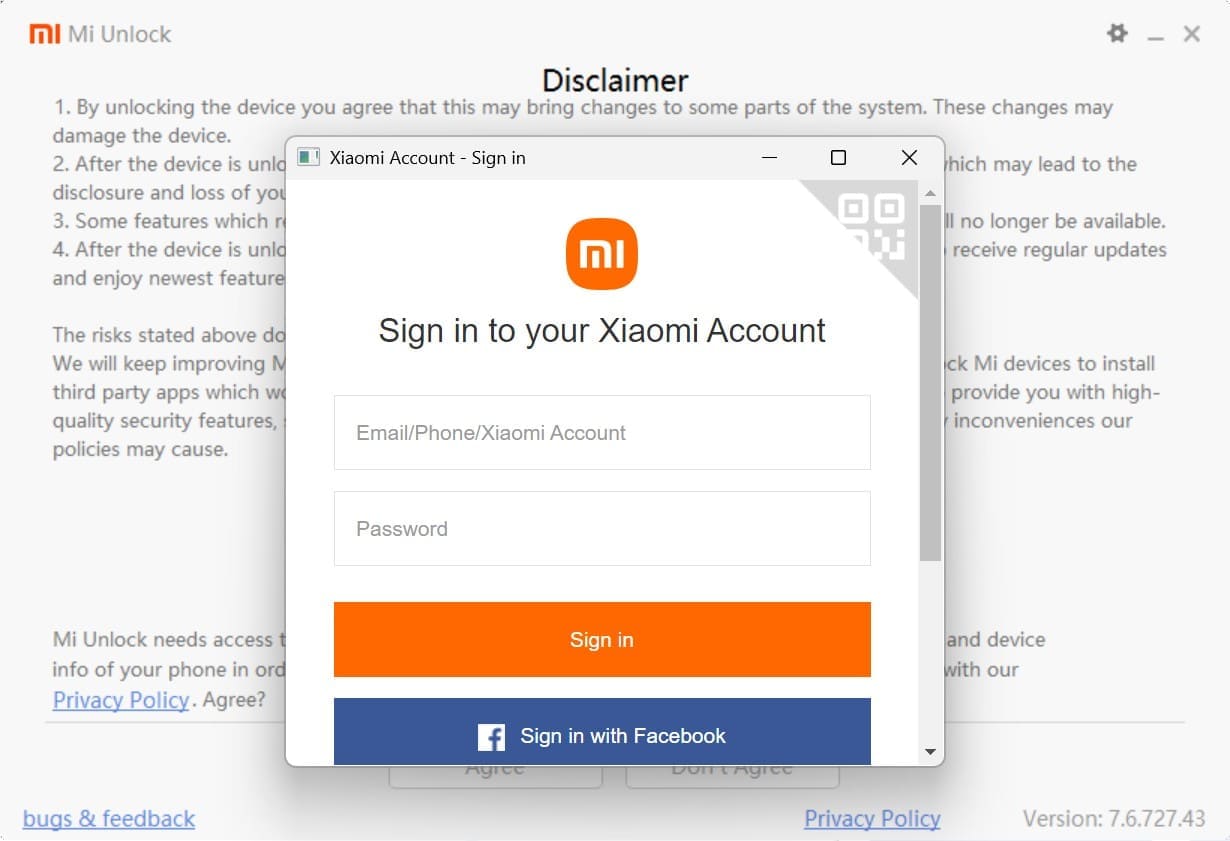
Step 3. Open the Mi Flash Unlock Tool on your computer and sign in with the same Mi account used on your phone. Verify your account using the linked phone number or email, then let the tool detect your device and permissions. Click “Unlock” to start the process, and wait as the progress bar completes; your device may reboot several times. When finished, the tool will show the "Unlocked Successfully" screen. Choose "Restart Mobile Phone" if prompted and set up your device normally. You may see a warning about an unlocked bootloader upon reboot; this is normal and expected.
Part 5. User Reviews, Pros & Cons of Mi Flash Unlock Tool
When one tries to download Mi Flash Unlock, they might get baffled by the mixed reviews. So, to determine if it's worth using, adhere to the given review and the pros and cons of this tool:
Pros
- Free to use, no installation required, runs directly on Windows.
- User-friendly interface with clear guidance and feedback.
- Built-in drivers for easier phone-PC connection.
- Supports a wide range of device models, including the latest releases.
- Enables advanced features: custom ROMs, rooting, and more control.
Cons
- Only works with Xiaomi, Redmi, and POCO devices.
- Requires a Windows PC; no official Mac or Linux support.
- Unlocking wipes all device data, so a full backup is essential.
- The unlock process can fail due to account/device restrictions.
- Not for beginners, improper use can brick the device or cause boot loops.
User Reviews
Positive Reviews
- “The Mi Flash Unlock Tool is very reliable and simple to use. It detected my device instantly and unlocked the bootloader without any issues.”
- “I appreciated how safe the tool felt. Following the steps carefully, my Xiaomi phone was unlocked quickly, and I could install custom ROMs easily.”
Negative Reviews
- “The tool sometimes fails to detect the device, especially on Windows 11, which can be frustrating and time-consuming.”
- “It requires a Mi account and phone verification, which can be inconvenient if you forget your login details or linked number.”
Conclusion
Summing up, this guide has reviewed Mi Flash Unlock in detail and has guided how to use it. So, explore the details and review its pros and cons to decide if it's worth trying. However, if you desire to unlock Xiaomi phones without a passcode/Google Account, Dr.Fone - Screen Unlock (Android) is the suggested choice. This tool is ideal for beginners and requires no skills, unlike the Mi Flash Unlock.
 safe & secure
4,624,541 people have downloaded it
Frequently Asked Questions
 Q1. Is Mi Flash Unlock Tool safe for all Xiaomi devices?Q2. Do I need a Mi Account to use the tool?Q3. Is fastboot mode necessary to use the tool?Q4. Can Mi Flash Unlock Tool cause problems on my Xiaomi phone?


Android Screen Unlock
- Unlock Android Screen
- Best Unlock Apps For Android
- Unlock Android Pattern Lock
- Bypass Android lock
- Unlock Android with Broken Screen
- Unlock Android Forgot PIN
- Unlock Without Google Account
- Unlock without Factory Reset
- Unlock Android Tablets
- Reset Locked Android Phone
- SafeUnlocks Review
- Unlock Huawei Phones
- Unlock Google Pixel Phones
- Unlock OnePlus Phones
- Unlock Vivo Phones
- Unlock Sony Xperia
- Unlock LG Phones
- Unlock Mi Pattern Lock
- Unlock OPPO Phones
- Unlock Realme Phones
- Unlock LG Phones
- Unlock Honor Phone
- Unlock Kyocera Phone
- Unlock Samsung Screen
- Bypass Samsung Lock
- Unlock Samsung Password/Pin
- Top Samsung Unlock Softwares
- Samsung Unlock Code Generator
- Get Free Samsung Unlock Codes
- Samsung Galaxy Secret Code List
- Samsung Knox Disable
- Reset Samsung Galaxy A12
- Unlock Samsung S22 Ultra
- Bypass Android FRP
- Top FRP Bypass Tools
- Disable FRP
- Bypass Android FRP
- Bypass FRP with PC
- Bypass FRP with ADB
- Bypass Google Account Verification
- Custom Binary Blocked by FRP Lock
- Bypass Google Pixel FRP
- Bypass Huawei FRP
- Huawei FRP Code
- Bypass Xiaomi/Redmi/Poco FRP
- Bypass OPPO FRP
- Bypass LG FRP
- Bypass Motorola FRP
- Bypass Lenovo FRP
- Bypass Realme FRP
- Bypass ZTE FRP
- Vivo Y15a FRP Bypass
- Moto G Pure FRP Bypass
- Bypass Samsung FRP
- Galaxy Z Fold 7 FRP Bypass
- Bypass Galaxy M01 FRP
- Bypass Samsung M11 FRP
- Bypass Samsung J5 Prime FRP
- Bypass amsung A02/A02 FRP
- Bypass Samsung A10/A10s FRP
- Bypass Samsung A12 FRP
- Bypass SamsungA20/A20S FRP
- Bypass Samsung A21/A21s FRP
- Bypass Samsung Galaxy 50 FRP
- Bypass Samsung Galaxy 51 FRP
- Bypass Samsung S7 FRP
- Bypass Samsung Galaxy S22 FRP
- FRP Bypass Tools
- Test DPC APK
- FRP File Bypass
- ES File Explorer
- Maxroms FRP Bypass
- GSM Aladdin
- Android Novo Tools FRP
- GSMNeo FRP
- Phoenix Service Tool
- MRT Key Review
- XSoft FRP Unlock
- FRPFile FirmwareBD
- ZeroKnox Removal Tool
- Samflash Tool
- Techeligible FRP Unlock
- Riserom FRP Bypass
- Romstage FRP Bypass
- GSM Prime FRP
- ● Manage/transfer/recover data
- ● Unlock screen/activate/FRP lock
- ● Fix most iOS and Android issues
- Free Download Free Download




Alice MJ
staff Editor