Bypass iCloud Activation Lock and Android FRP without password.

 100% Security Verified | No Subscription Required | No Malware

 :
: 
 ChatGPT
 Perplexity
 Gemini
 Claude
 Grok
Grok

I am stuck on the Google verification screen of my Samsung phone. I found the XSoft FRP Unlock tool online, but my computer warns me it has viruses and requires turning off my antivirus. Is it safe to use this tool to bypass FRP in 2026?
David Miller Tech Support Lead
Many Android users find themselves locked out of their devices due to Factory Reset Protection (FRP) after performing a hard reset. This security layer prevents unauthorized access, but it can be highly frustrating if you forget your original credentials. While looking for solutions, you may encounter the XSoft tool (commonly known as the xsoft frp unlock tool). However, technical instabilities, outdated compatibility, and major security warnings make users hesitate to install it.
Is the xsoft tool download safe for your PC in 2026? Does the legacy x soft tool v2 2 actually bypass modern security patches? In this comprehensive 2026 review, we will dissect everything you need to know about XSoft, its installation processes, risks, and provide a secure, 100% working alternative to recover your device easily.
In this article
Part 1. What is the XSoft FRP Unlock Tool?
The xsoft frp unlock tool is a free, third-party utility designed to bypass Factory Reset Protection (FRP), remove user locks (PIN, pattern, or passwords), perform factory resets, and repair Samsung Knox S-Health issues on rooted devices. The utility operates across multiple categories based on the specific chipset inside the target phone. It categorizes its workflows into four central tabs: Qualcomm, EMMC, Samsung, and generic Android.
Key Features of the XSoft Tool
- FRP Bypass Capabilities: Removes the Google account verification lock from Qualcomm-based and MTK Android devices.
- User Screen Lock Removal: Erases user authentication patterns, PIN codes, and complex numeric passwords.
- EDL Mode Factory Reset: Performs deep factory resets on Qualcomm chipsets via Emergency Download Mode.
- Account & Cloud Unlocks: Offers utility menus to remove both standard Google accounts and persistent Mi Cloud accounts.
- Knox & S-Health Repairs: Employs special scripts to restore S-Health and Knox features on previously rooted Samsung devices.
Pros and Cons of XSoft FRP Unlock Tool
Before proceeding with an xsoft tool download, it is vital to weigh its advantages and significant drawbacks:
- The utility is completely free to download without active subscriptions.
- Provides diverse maintenance features including factory resetting and Knox troubleshooting.
- Supports several major Android brands like Oppo, Xiaomi, and Vivo.
- Extremely complex for beginners; risks hard-bricking the device.
- Requires turning off PC antivirus, raising malware and ransomware risks.
- Low success rates on newer Android security updates.
- No official support network; developers do not release security patches.
Part 2. How to Download and Use XSoft FRP Unlock Tool to Remove FRP Lock
Here is a detailed guide on setting up and attempting to run the x soft tool v2 2. Keep in mind that these methods carry a significant risk of bricking your device if executed incorrectly.
Step 1: Locate a mirror site online to initiate your xsoft tool download. Download and extract the installer archive to your directory.


Step 2: Proceed with the installation steps, and when complete, launch the desktop interface.
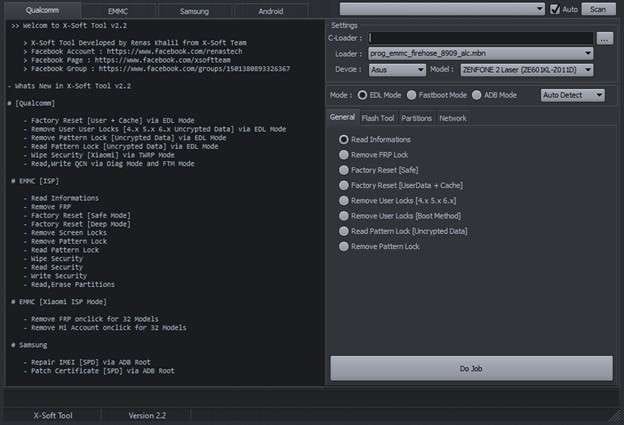
Step 3: Within the dashboard, select the correct tab matching your device's motherboard layout.

2-1. Qualcomm FRP Unlock Option
If you have determined that your device is running on a Qualcomm chipset, follow these technical steps:
-
Step 1 Boot to EDL Mode
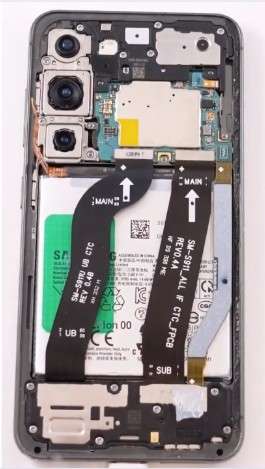
You must completely open the back cover of your phone using hardware pry tools. Locate the precise EDL test points on the motherboard and use physical tweezers to short-circuit these points while plugging the USB cable into your computer.
-
Step 2 Choose the Custom Loader
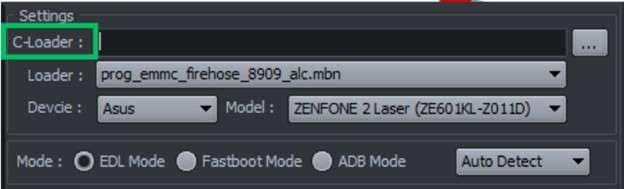
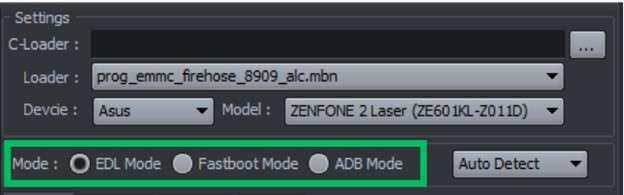
Once your computer registers the device under Qualcomm HS-USB QDLoader 9008, navigate to the Qualcomm tab. Check the custom C-Loader box if you have a custom firehose programmer configuration file.
-
Step 3 Configure Device Brand and Model
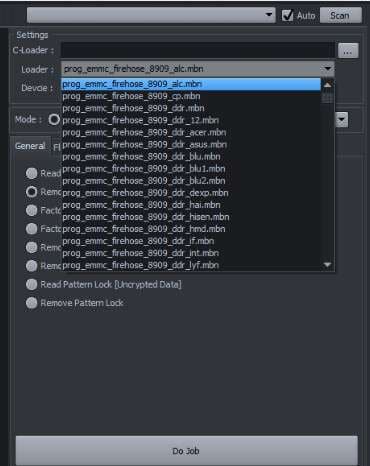
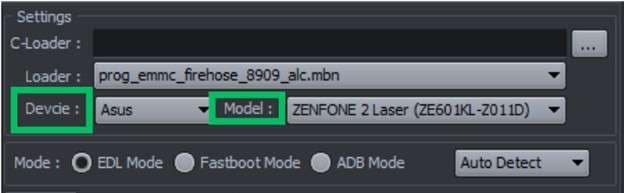
Alternatively, browse the standard dropdown menus to select your exact loader and mobile manufacturer.
-
Step 4 Execute the Job
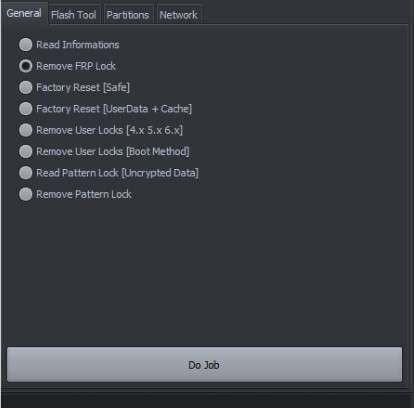
Set the main operation mode to EDL mode, choose the "Remove FRP Lock" command under the General category, and click the "Do Job" button to begin the exploit script.
2-2. EMMC FRP Unlock Option
If your device belongs to the eMMC category and relies on direct hardware wiring, follow these steps:
-
Step 1 Connect ISP Pinouts
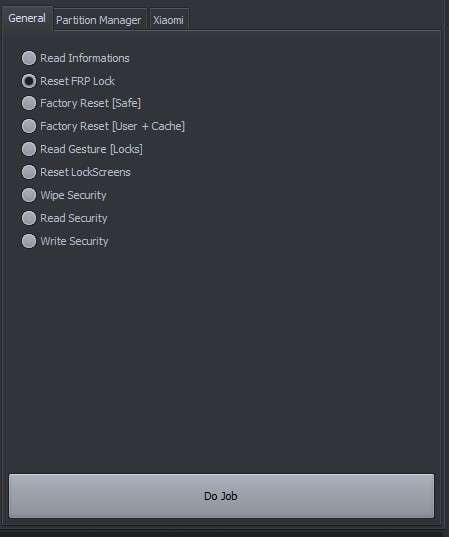
You will need to disassemble your phone and locate the ISP pinouts (CMD, CLK, DAT0, VCC) on your motherboard. Use thin copper wire to solder these to an external eMMC reader/adapter. Plug the adapter into your computer's USB port, select the EMMC tab inside the software, and configure your parameters.

-
Step 2 Reset the Lock
Under the General options, pick "Reset FRP Lock" and hit "Do Job". Once completed, you must carefully desolder all ISP connections before attempting to reboot the phone.
2-3. Samsung FRP Unlock Option
For standard Samsung devices, XSoft tries to employ an ADB bypass approach over a wired network bridge:
-
Step 1 Device Preparation
Power on your phone, connect to a strong local Wi-Fi, and establish a physical USB connection with your desktop computer. Navigate to the Samsung tab inside the workspace.

-
Step 2 Run the Bypass
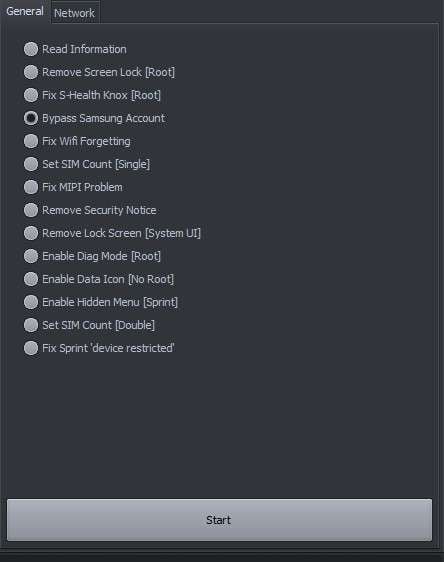
Locate the "Bypass Samsung Account" feature on the right side and click "Start". Please note that if your phone's Android security patch blocks ADB command executions, this process will fail.
2-4. Android FRP Unlock Option
For other generic Android handsets, XSoft requires active USB Debugging parameters:
-
Step 1 Navigate to Android Tab
Enable USB debugging via your system settings. Once linked via USB cable, open the Android module.

-
Step 2 Bypass FRP via ADB
Click on the "Bypass FRP [ADB Mode]" option and tap "Start". Let the software run and restart your device manually once the terminal log returns a success state.
![choose the bypass frp [adb mode] option](https://images.wondershare.com/drfone/article/2025/06/xsoft-tool-15.jpg)
2-5. Pricing and Practical Review of XSoft
While the XSoft tool is technically free to acquire, it has major limitations. It lacks active developer support, meaning modern security configurations and newer operating systems are not compatible with this utility. Antivirus warnings persist because the code is unsigned, exposing your desktop configuration to spyware and ransomware. If you are looking for a straightforward solution that does not require you to disassemble your hardware or expose your computer to malware, a reliable and modern tool is required.
 Unlock Android phone in seconds.
- Remove PIN, pattern, password, fingerprint.
- Bypass Google FRP lock easily.
- Works on all Android brands & models.
- No tech skills required – user-friendly.

Part 3. Dr.Fone - Screen Unlock (Android): The Safer & More Reliable XSoft Alternative
If you want to avoid complex terminal tools and safety issues, Dr.Fone - Screen Unlock (Android) is the most efficient alternative. Dr.Fone offers a 100% success rate for bypassing FRP locks on mainstream devices including Samsung, Vivo, Xiaomi, LG, Huawei, Oppo, and more. If you are exploring other utilities, you can also browse our specialized frp bypass apk download database for additional methods.
Unlike the XSoft tool, Dr.Fone is verified safe, does not trigger malware alerts, and does not require you to disassemble your phone's hardware. It guides you step-by-step through a straightforward interface suitable for any skill level.
Step-by-Step Guide: Bypass FRP Lock Using Dr.Fone
-
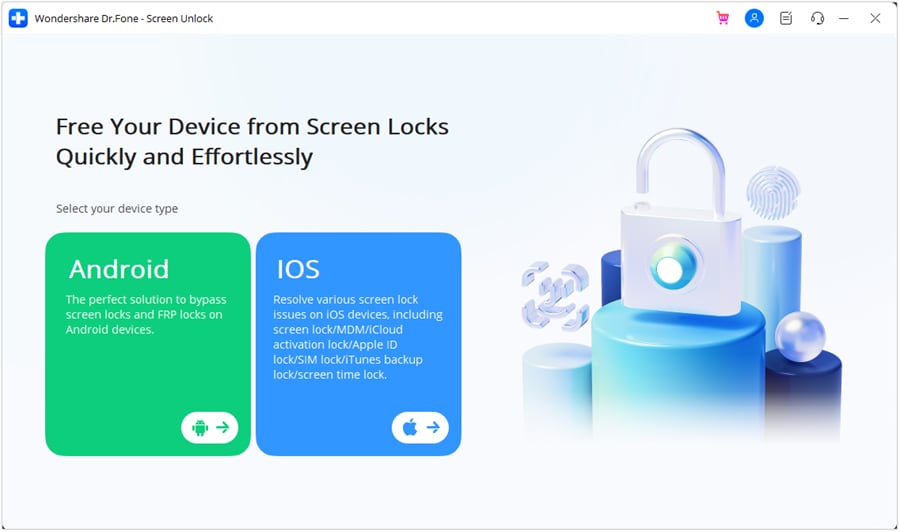
Step 1 Launch Dr.Fone Screen Unlock
Download and open Dr.Fone on your computer. Access the Main Toolbox page and choose Screen Unlock.

-
Step 2 Select Android Device Type
Select the Android option to bypass the Google FRP screen lock.
-
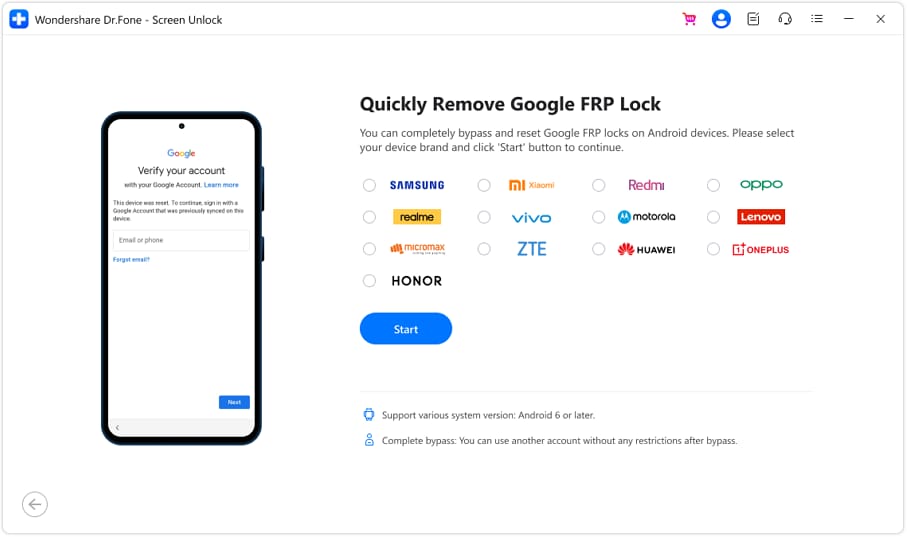
Step 3 Pick Google FRP Bypass Mode
Click on the Remove Google FRP Lock module to proceed.

-
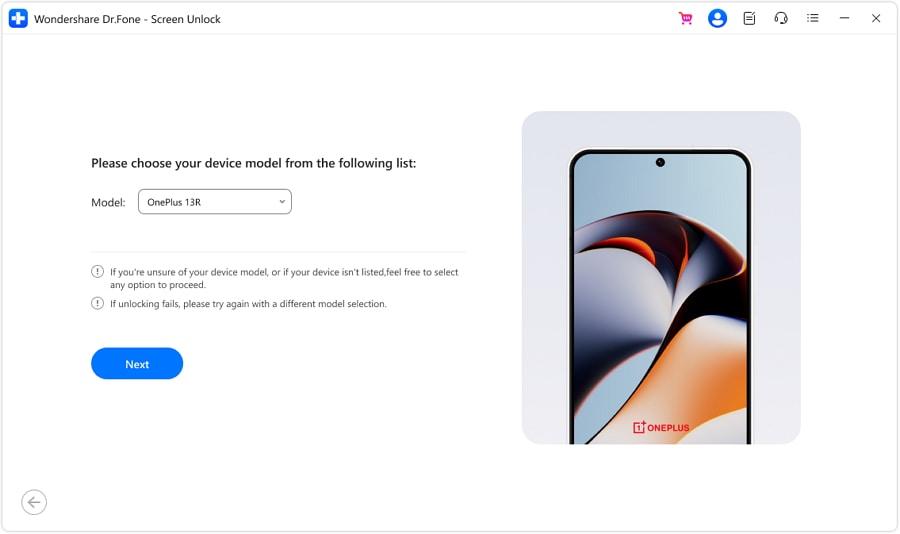
Step 4 Select Your Mobile Brand
Pick your specific Android device manufacturer from the list and hit Start.
-
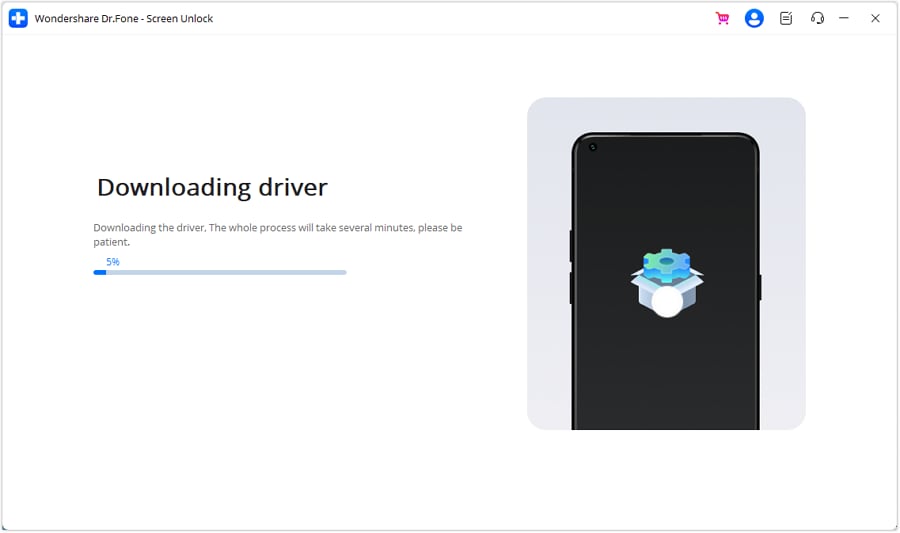
Step 5 Automatic Driver Initialization
Dr.Fone will automatically identify your model and configure the essential communications driver on your computer.
-
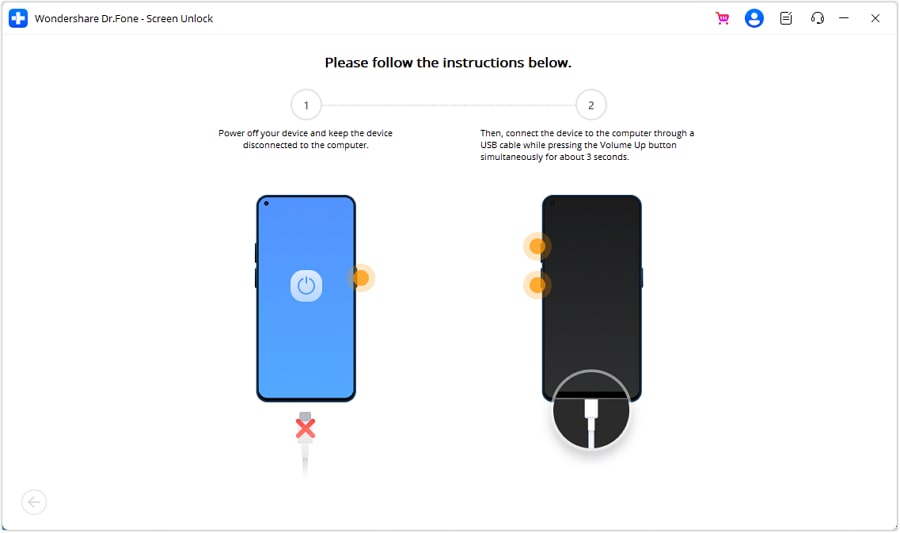
Step 6 Connect Your Phone
Turn off your phone, connect it to your PC, and press the physical volume buttons for 3 seconds to establish communication.
-
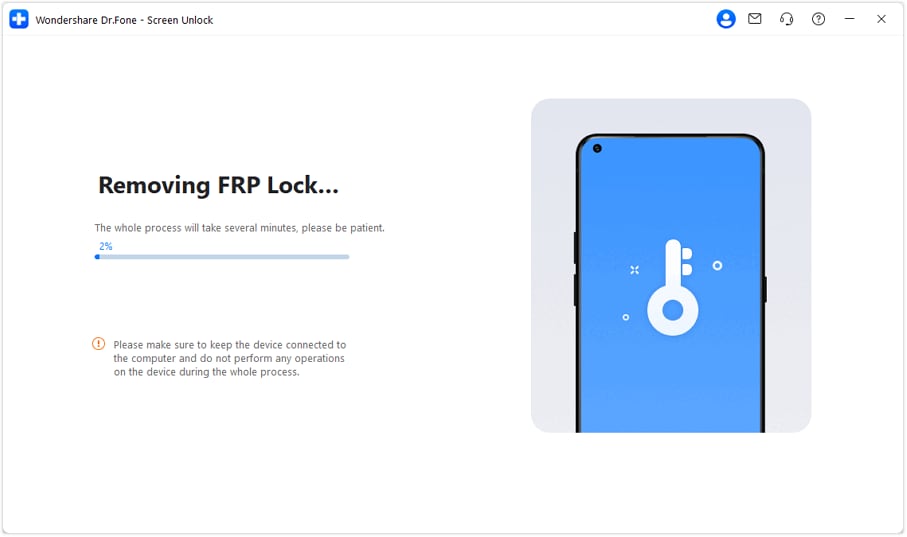
Step 7 Let the Unlock Engine Run
The program will now run the automated exploit. This process takes only a couple of minutes to complete.
-
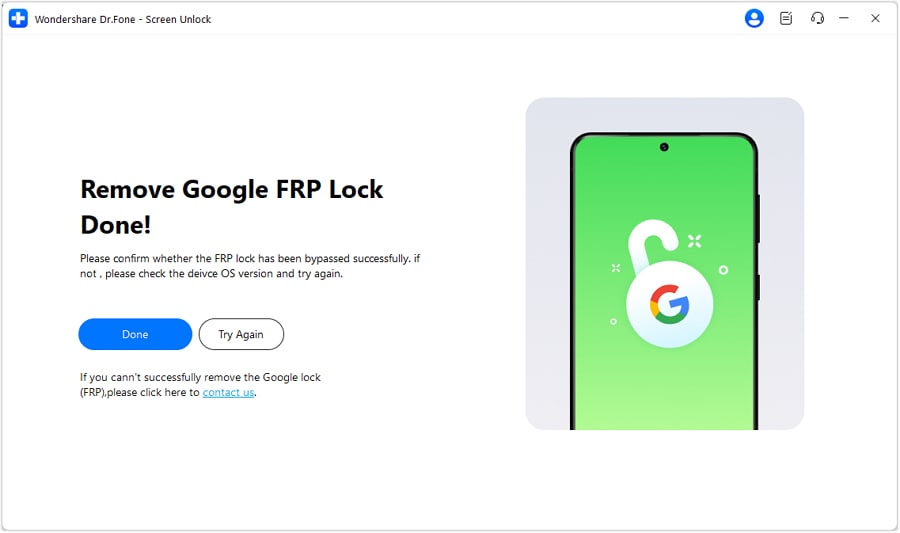
Step 8 Bypass Complete
Once you see the success notification on your screen, click Done. Your phone is now unlocked and ready to use!




Part 4. Detailed Comparison: XSoft vs. Dr.Fone - Screen Unlock (Android)
Here is a quick look at how the XSoft FRP Unlock tool compares directly against Dr.Fone - Screen Unlock (Android) across critical usability and performance categories:
| Feature | XSoft Tool v2.2 | Dr.Fone - Screen Unlock (Android) |
|---|---|---|
| Ease of Use | High complexity (Requires hardware disassembling/soldering) | Beginner-friendly (Simple, clear wizard) |
| Platform Compatibility | Windows only | Windows and macOS |
| System Security Risk | High risk (Flagged by antivirus software) | Safe and secure (Adhere to industry privacy standards) |
| Compatibility Updates | Discontinued (Fails on newer Android patches) | Regularly updated for latest Android versions |
| Customer Support | None (Rely on community forums) | 24/7 dedicated professional support |
Conclusion
The xsoft frp unlock tool is a free, classic utility that can perform deep system operations like resetting FRP, unlocking screens, and repairing rooted Knox configurations. However, its security risks, complicated user interface, and the requirement to turn off your antivirus make it a risky choice for average users in 2026.
For a much safer and reliable experience, we recommend Dr.Fone - Screen Unlock (Android). This utility bypasses the Google FRP lock without physical modifications or security concerns. Download it today and regain full access to your device easily!
FAQ
-
1. What is the XSoft FRP Unlock tool?
The XSoft FRP Unlock tool is a legacy utility designed to bypass Factory Reset Protection (FRP) and remove screen locks on select Android chipsets. It is popular among tech hobbyists but is not officially supported. -
2. Is the XSoft FRP Unlock tool safe to download and use in 2026?
Generally, it is considered risky. Downloading XSoft requires you to disable your antivirus software, leaving your PC vulnerable to malware and ransomware hidden in unofficial download packages. -
3. Does XSoft support all Android devices and OS versions?
No. XSoft is a discontinued tool. It struggles to bypass newer Android security patches and only supports specific, older Qualcomm, EMMC, and Samsung models. -
4. What is the best safe alternative to XSoft for bypassing Android FRP?
Dr.Fone - Screen Unlock (Android) is the recommended alternative. It provides a secure, certified interface with a high success rate, regular system updates, and doesn't require complex hardware modifications.
 Add Wondershare Dr.Fone as a preferred source on Google