Permanently erase all iOS & Android data—completely unrecoverable.

 100% Security Verified | No Subscription Required | No Malware

 :
: 
 ChatGPT
 Perplexity
 Gemini
 Claude
 Grok
Grok
You have just sent a highly sensitive or awkward message to the wrong person, and immediate panic sets in. On an iPhone, this stressful scenario occurs far more frequently than you can imagine in 2026. As a result, many users frantically question whether a person can actually recall a text once it has been dispatched into the digital void. The objective truth is that not all communications can be unsent—success heavily depends on the specific messaging application, the operating system, and the recipient's device.
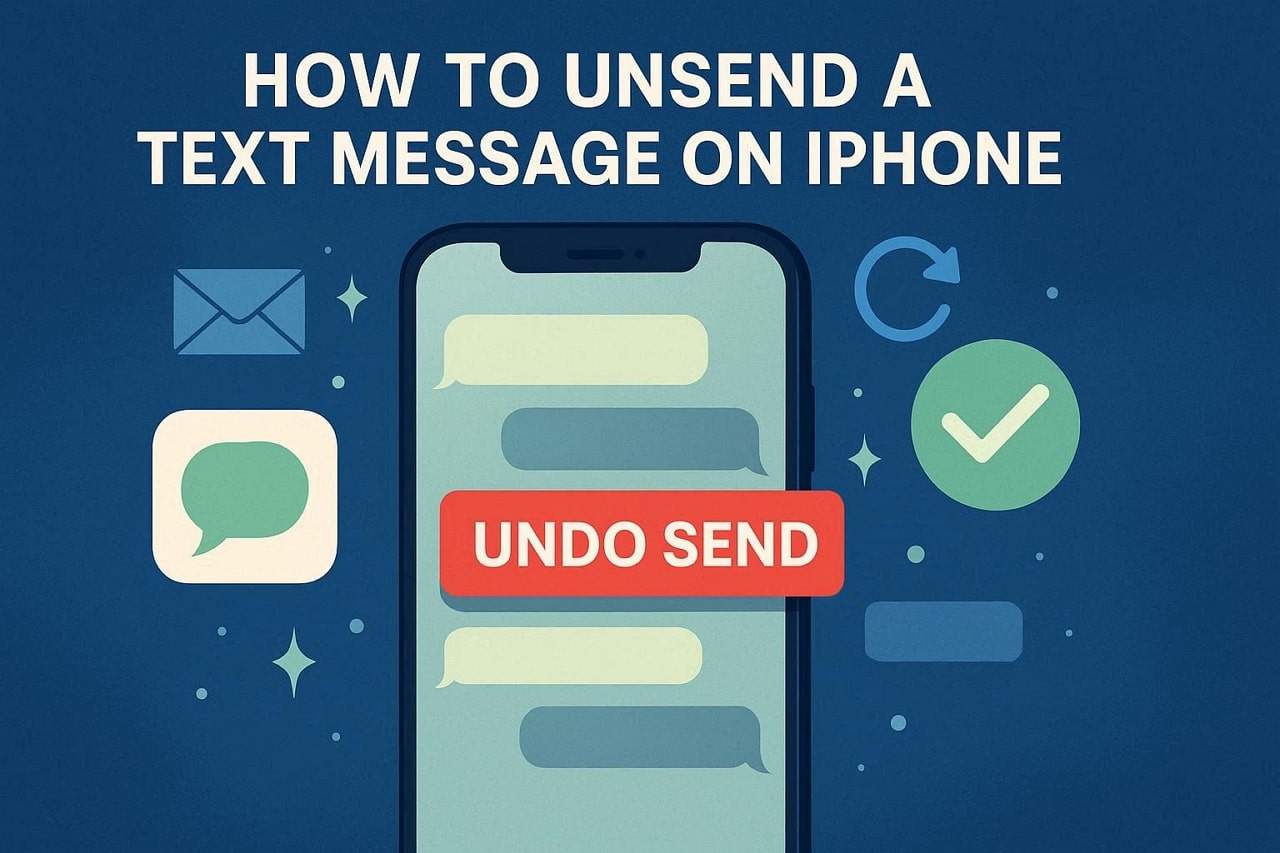
While certain modern applications allow a message to be universally recalled for all participants in a chat, ordinary SMS carrier messages lack this capability. If you are wondering exactly how to unsend a text message on iPhone, you have come to the right place. This comprehensive guide will equip you with the knowledge to act promptly, correct typos, and prevent messaging disasters before it is too late.
In this article
- Part 1. Can You Unsend a Text Message on iPhone?
- Part 2. How to Unsend Messages in iMessage [Step-By-Step Instructions]
- Pro Tip. Erase Sensitive iPhone Messages Using Dr.Fone - Data Eraser
- Part 3. How to Unsend a Text on iPhone Using Popular Social Apps
- Part 4. Avoid 5 Common Mistakes When Trying to Unsend Messages
Part 1. Can You Unsend a Text Message on iPhone?
To fully understand how to unsend a text on an iPhone, you must first recognize that Apple handles standard carrier texts (SMS) and its proprietary internet-based texts (iMessage) entirely differently. Therefore, this section outlines the critical differences and provides detailed insights into what actually works and what doesn't when you make a messaging mistake.
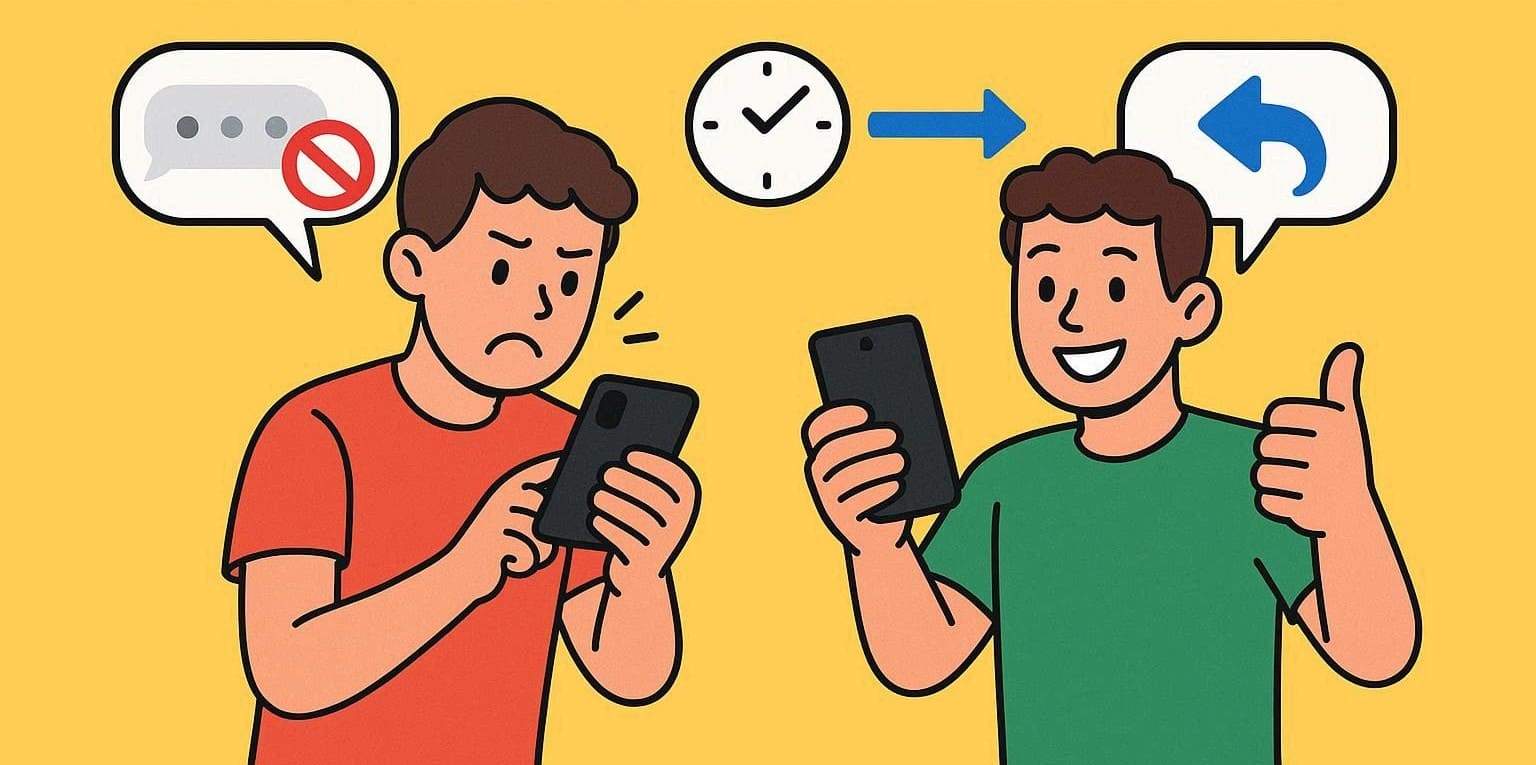
iMessage vs SMS — Why It Matters
| Feature | iMessage (Blue Bubble) | SMS/MMS (Green Bubble) |
|---|---|---|
| Can You Unsend? | Yes, with the Undo Send feature. | No, unsend or recall is not natively supported. |
| Time Limit | Strictly up to 2 minutes after sending. | Not applicable. |
| OS Requirements | Sender and recipient must be on iOS 16+ or modern Apple OS. | Works on any phone; no special OS support needed. |
| How To Do It | Long‑press message > Tap Undo Send. | Not possible; you can only delete locally on your own device. |
| What the Recipient Sees | Message disappears completely; the chat log shows a subtle note that a message was unsent. | The original text stays permanently visible exactly as it was sent. |
When Unsend Works Perfectly on iPhone
- The message you sent must be an Apple iMessage (indicated by a blue chat bubble), not a standard carrier SMS or MMS (green bubble).
- Both you and the person receiving the text must be utilizing iOS 16 or later, or a compatible modern iPadOS/macOS version.
- You must act swiftly within exactly two minutes of pressing send. You simply touch and hold the sent text bubble, then tap Undo Send.
When Unsend Is Not Possible
- If the message was dispatched as an SMS or MMS (for instance, to an Android user or when Apple servers are down), it fundamentally cannot be unsent or edited.
- The unsend command may fail to execute if anyone in the chat—whether in a one-to-one conversation or a larger group—is utilizing outdated software, such as iOS 15 or older Apple operating systems.
Part 2. How to Unsend Messages in iMessage [Step-By-Step Instructions]
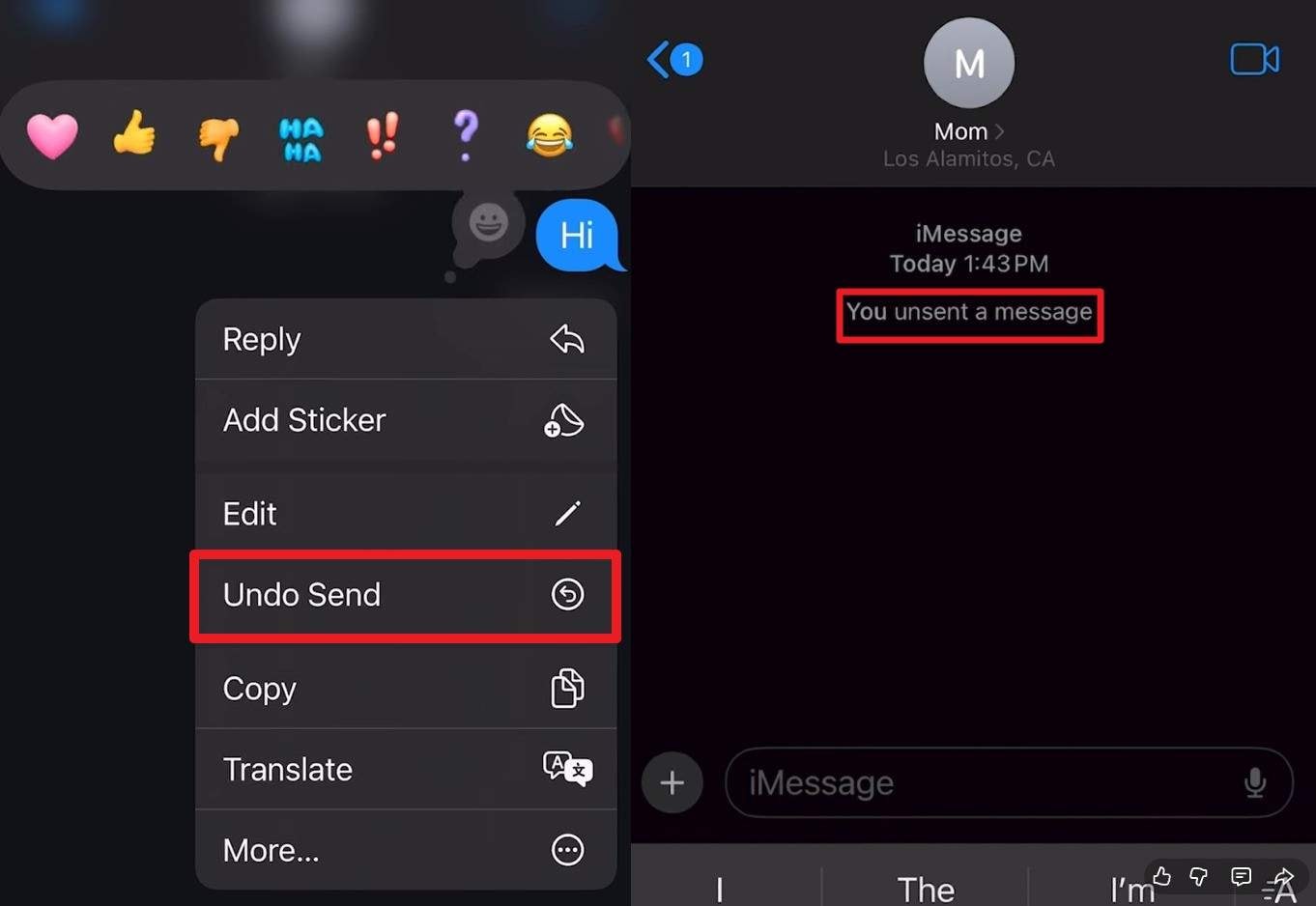
If you often question how do i unsend a text message on iphone safely, you should know that Apple grants you a narrow two-minute grace period. Additionally, if both you and your contact use an updated operating system like iOS 16 or later (or equivalent iPadOS/macOS), the process is flawless. According to official Apple Support documentation, both parties will merely see a small grey notification confirming the unsend attempt. To master how you can do it within this limited timeframe, adhere to the following precise instructions:
Step-by-step Instructions: Long-press the specific blue text bubble you wish to retract. From the contextual popup menu that appears, simply choose the "Undo Send" option. This will instantly trigger an animation that bursts the bubble, effectively removing it from both your local screen and the recipient's message thread.
Pro Tip. Erase Sensitive iPhone Messages Using Dr.Fone - Data Eraser
 Permanently erase all data on iOS & Android — completely unrecoverable.
- Military-grade wiping to fully protect your privacy.
- Generate verified erasure reports to boost device resale value.
- Selectively erase private data and remove junk & large files.
While discovering answers on how to unsend a text on an iPhone is great for recent mistakes, what happens when you need to permanently obliterate old, highly sensitive text threads? Dedicated software solutions like Dr.Fone - Data Eraser become essential when you need to sanitize your private data beyond recovery. This professional-grade tool can securely wipe iOS SMS messages, expansive call histories, intimate images, and personal videos in just a few clicks. Furthermore, users can selectively target specific data categories, choosing to securely shred Messages only, or even wipe private data from third-party social applications like WhatsApp, LINE, and Kik.
Offering extensive support for upcoming systems like iOS 26/iPadOS 26 and the latest iPhone 17 hardware series, Dr.Fone guarantees that your wiped data is strictly unrecoverable once the process finishes. Providing absolute peace of mind, the utility offers three simple guided steps to delete your sensitive messages, making it the most convenient privacy choice for both tech novices and experts. Dr.Fone also empowers users to manually select the specific Security Level algorithm used to overwrite the storage blocks.
Simple Guide to Wipe Private iOS Messages with Dr.Fone - Data Eraser
While many search for how do you unsend a message on ip to fix real-time errors, here is how Dr.Fone steps in to handle permanent historical data deletion:
-
Step 1 Launch the Data Eraser for iOS
After launching Dr.Fone on your computer, head to the "Erase Private Data" tab. You must pick the "Data Eraser" tool specifically for iOS as you securely connect your iPhone using an authentic lightning or USB-C cable.

-
Step 2 Choose the Messages Option and Start Scanning
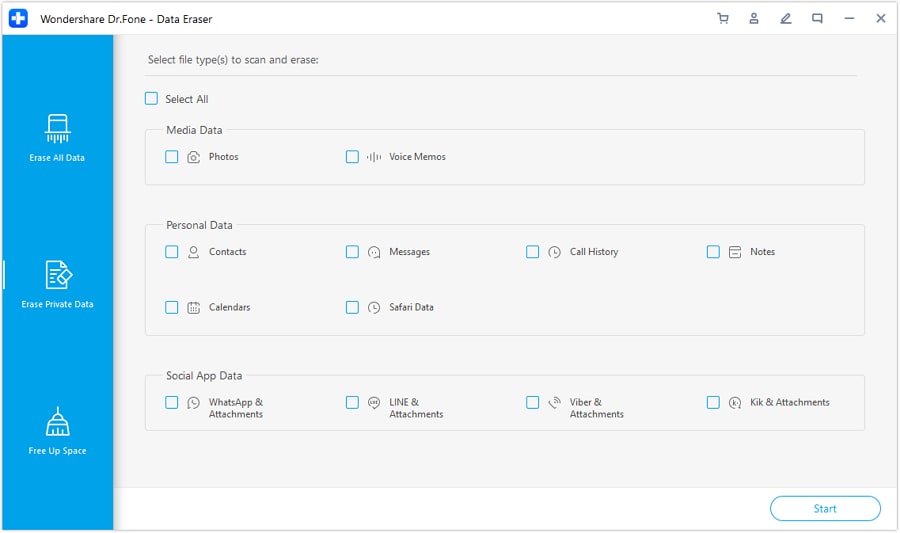
Once the interface loads, tick the "Messages" checkbox located in the "Personal Data" section. You can also select other required options. Next, press the blue "Start" button. The forensic tool will analyze and scan all existing iOS data; wait patiently until the deep scan finishes.
-
Step 3 Pick the Security Level to Wipe Data
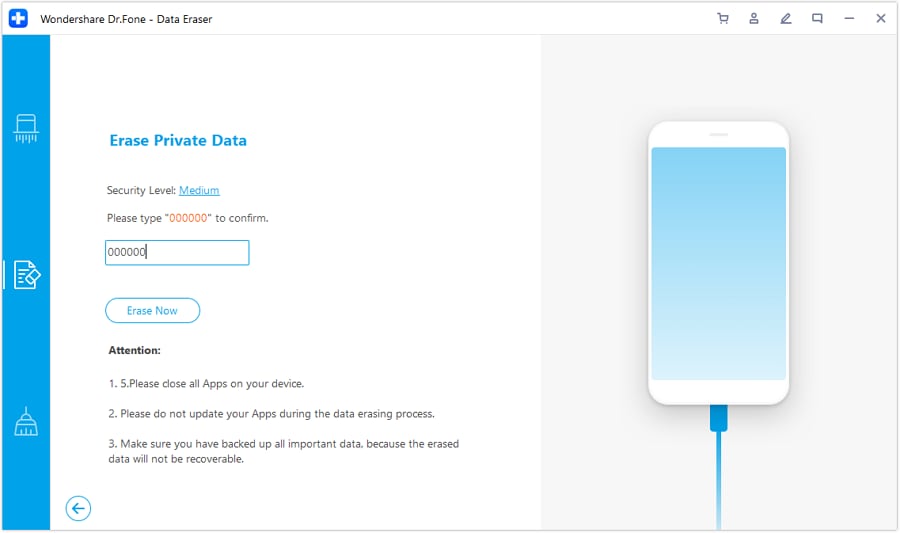
Carefully choose the specific text data threads as they visually appear on the tool's interface. Select the desired "Security Level" for overwriting, and manually type "00000" to confirm your destructive action. Finally, press the "Erase Now" button and let the military-grade algorithm wipe all private data for good.




Part 3. How to Unsend a Text on iPhone Using Popular Social Apps
For those who frequently ask how do you delete a sent text message on popular third-party networks like WhatsApp, Instagram, or other robust social apps, review the detailed guidelines listed below in this section to ensure your digital footprint is clean:
1. WhatsApp
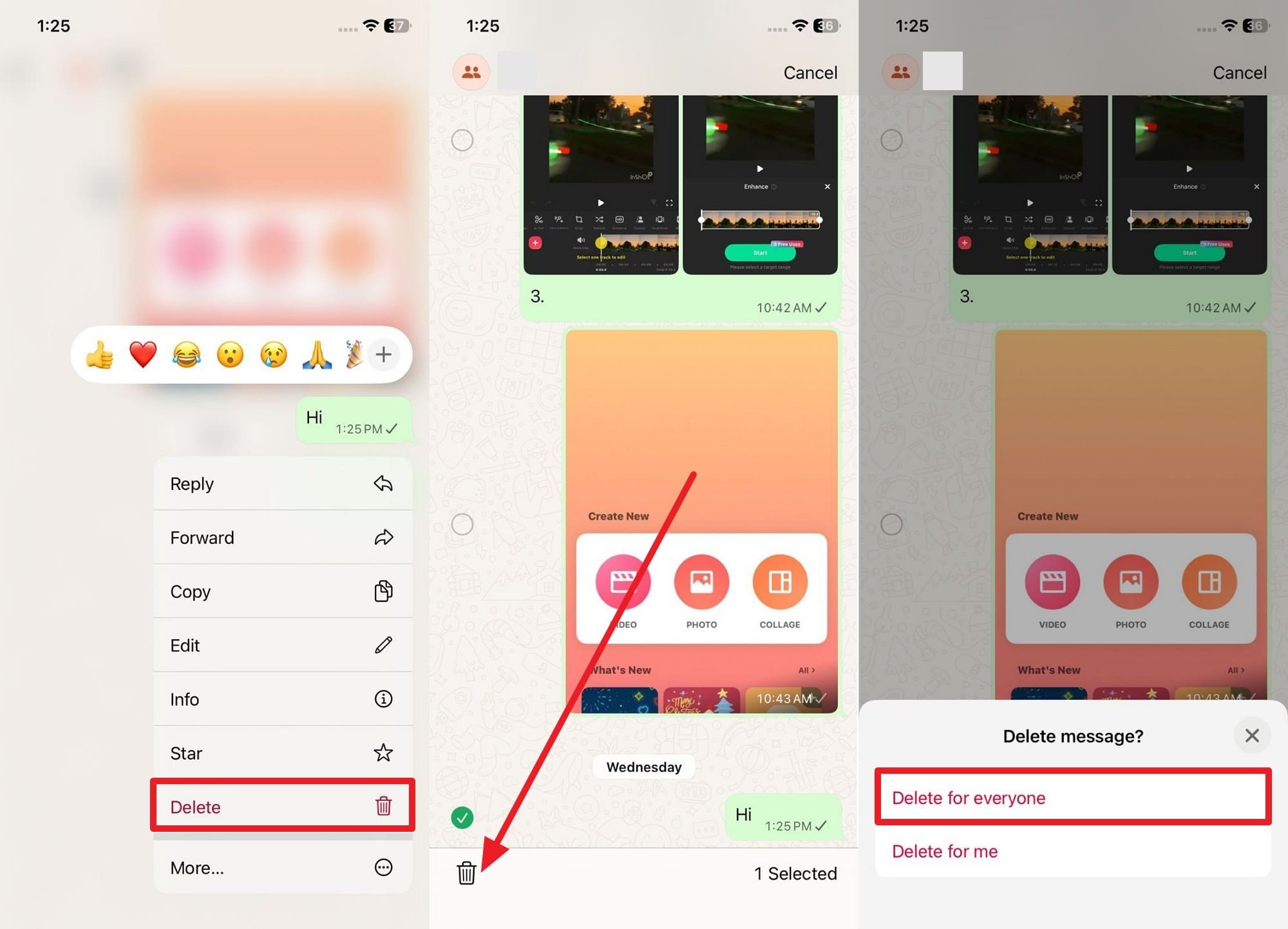
You can reliably unsend a WhatsApp communication on your Apple device using the "Delete for Everyone" function, which definitively removes the content from both your local chat and the recipient's phone. You must execute this action within approximately two days of sending. Keep in mind that after deletion, a visible placeholder note saying "This message was deleted" permanently appears in the chat log for everyone to see. To know how you can perform this specific action, adhere to the listed instructions:
Instructions: Long-press the specific green message bubble to reveal a menu, choose the "Delete" option from the popup, and tap the "Delete" trash can icon again if you wish to select multiple texts. After that, definitively select the "Delete for Everyone" option from the prompt to unsend it across all connected devices.
2. Instagram
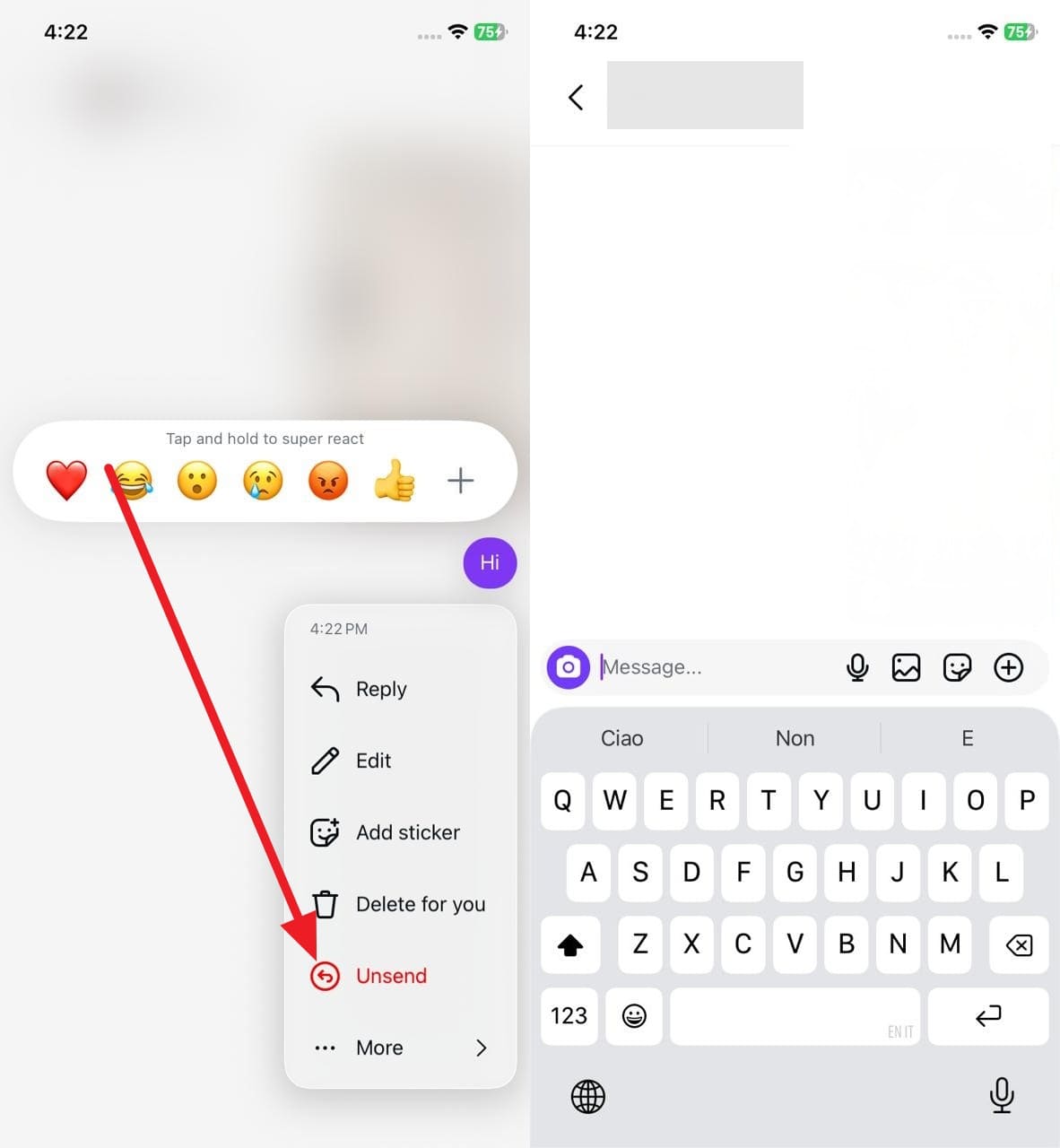
Users who search how to unsend a text on an iPhone via Instagram Direct Messages (DMs) will be pleased to know that you can retract messages silently. You do this by simply long-pressing the offending chat bubble and selecting "Unsend." This completely removes it from both your chat interface and the recipient's screen. Unlike WhatsApp, Instagram generally does not inject a placeholder notification when you unsend a message, though the recipient might still notice a gap in the conversation if they were actively reading the thread. Follow these steps:
Instructions: Simply press and hold the specific direct message you want to retract, and pick the red "Unsend" option from the sleek popup menu that magically appears.
3. Telegram
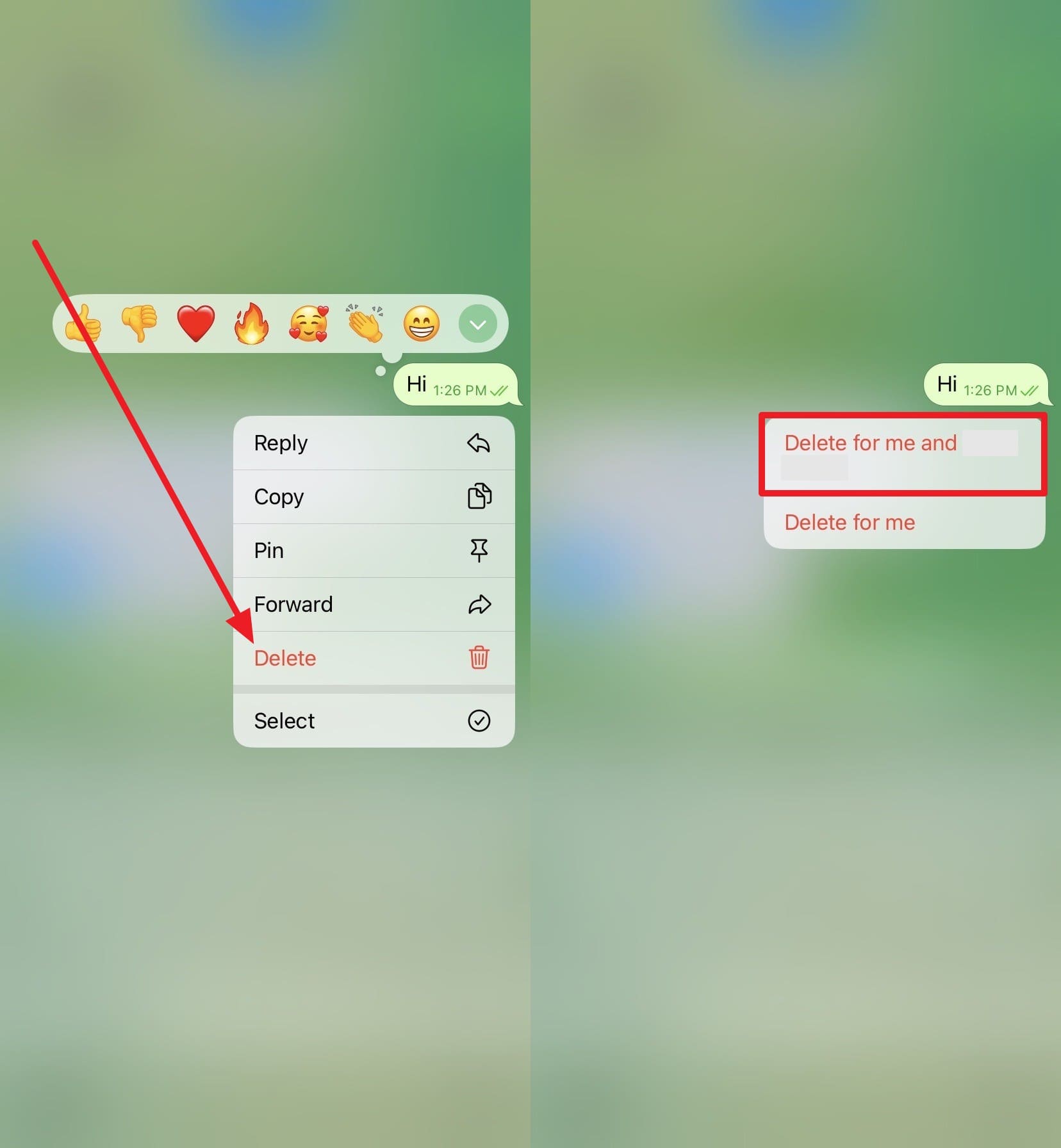
Telegram is renowned for its privacy. You can completely unsend a message in Telegram within private one-on-one chats, erasing it for both yourself and the other person, with absolutely no time limit restrictions. Impressively, it leaves no "deleted" placeholder trace unless the recipient actively notices that the text is suddenly missing. However, in larger group chats, standard users can only remove your own Telegram message without affecting what others see. Just tap and hold the text block and press Delete, as illustrated here:
Instructions: Highlight the message you seek to revoke, choose the "Delete" option, and critically ensure you tick the box or pick the "Delete for Me and (Recipient's Name)" option to unsend it everywhere.
4. Snapchat
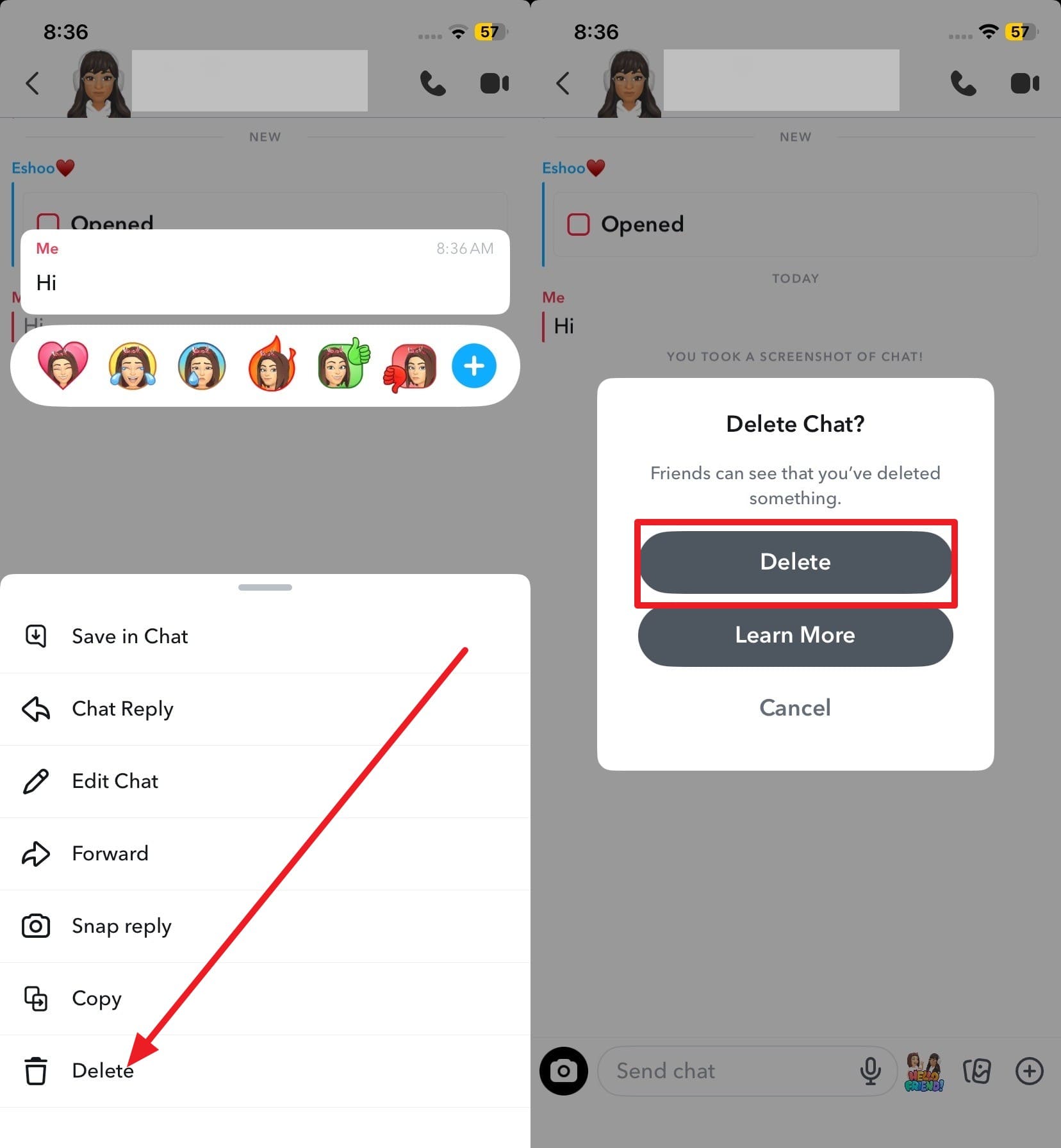
While learning how to unsend a text on iPhone inside the Snapchat ecosystem, you must know that an in-chat alert is always prominently displayed when a deletion occurs. You can delete sent messages on Snapchat from your iPhone, but it is not a stealthy unsend. The opposite party clearly sees that you deleted a chat item, and due to network latency, the message may still show for a split second on older app builds or bad internet connections. To safely delete a sent chat or photo Snap, follow this routine:
Instructions: Hard-press the specific text line in the chat window, select the "Delete" option, and then confirm by choosing "Delete" once more from the warning prompt.
Part 4. Avoid 5 Common Mistakes When Trying to Unsend Messages
Now that you are fully educated on how do you unsend a text on iphone, pay close attention to the most common operational mistakes to avoid them when you use any native or third-party messenger:
| Mistake | Why It Happens | Tip to Avoid the Error |
|---|---|---|
| Waiting Too Long to React | Apple's Undo Send only works securely within a strict 2-minute window. | Always act immediately after sending a mistaken iMessage. |
| The Recipient Uses an Older iOS | Older operating systems (iOS 15 or below) simply lack the code to support Undo Send. | Check the recipient's software ecosystem or OS version if reasonably possible. |
| Attempting to Recall an SMS/Green Bubble | Standard carrier SMS texts fundamentally lack backend internet recall capabilities. | Remember that only Apple iMessages (signified by blue bubbles) can actually be unsent. |
| No Internet/Offline Errors | The initial message may already be delivered, but the unsend command fails to transmit. | Ensure your Apple device is consistently connected to working Wi-Fi or cellular data. |
| Selecting Only "Delete for Me" | This only scrubs the message from your local device storage, leaving it on the recipient's end. | Always consciously use "Undo Send" or "Delete for Everyone" to remove it globally. |
Conclusion
To sum up everything, this 2026 master guide has conclusively resolved the widespread query for how to unsend a text message on iPhone while clarifying why normal SMS (green bubble) messages stubbornly refuse to support this feature. Not just that, the popular Unsend functionality for massive social applications like WhatsApp, Telegram, and Instagram was also thoroughly explored to explain exactly how they mask or erase data differently. For extreme situations where you actually need to permanently and irreversibly erase historical SMS, call logs, or old iMessages to protect your privacy, Dr.Fone - Data Eraser remains the top recommended software solution for an effortless, military-grade one-click wipe.
FAQ
-
1. Will group chats behave differently when unsending texts?
Yes, group environments can be tricky. Because all members of an iMessage group chat must have compatible iOS versions (iOS 16 or newer) for messages to be universally unsent, risks remain. If even one member runs older software, they may still see the original message even after you successfully utilize the Undo Send feature on your end. -
2. Can a deleted iMessage still appear in old backups?
Yes, unfortunately, this is a known privacy gap. Because Apple's iCloud or local iTunes device backups may store encrypted copies of your messages even after localized deletion, they can be recovered. Therefore, simply deleting a message from the Messages app interface does not guarantee it is fully eradicated from all historical backups. -
3. Does turning on Airplane Mode help unsend a message?
No, not reliably. Because once the iMessage or SMS packet is successfully delivered to the carrier or Apple servers, entering airplane mode cannot retroactively stop or recall it. Thus, airplane mode only acts as an emergency stop gap if the message is still in the "Sending..." phase and has not yet left your phone's antenna. -
4. Can you edit a text message instead of completely unsending it on iPhone?
Yes! As of recent iOS updates, if you make a simple typo, you do not always need to unsend the entire message. You can long-press the blue iMessage bubble within a generous 15-minute window and select "Edit." This allows you to fix the text, though a small "Edited" tag will appear under the message to maintain transparency with the recipient.
 Add Wondershare Dr.Fone as a preferred source on Google