Permanently erase all iOS & Android data—completely unrecoverable.

 100% Security Verified | No Subscription Required | No Malware

 :
: 
 ChatGPT
 Perplexity
 Gemini
 Claude
 Grok
Grok
Experiencing a situation where you open a website on your Apple device, only to be met with a page that keeps refreshing in an endless loop? This is known as the too many redirects on Safari error. When this ongoing issue occurs, you are completely blocked from accessing the site, which can be highly frustrating. Even though a multitude of factors, from faulty browser cookies to incorrect server settings, may be the root cause, you can effectively fix this issue on your device with a few straightforward steps.

This comprehensive guide dives deep into why this happens and explains exactly how you can resolve the Safari redirect loop to make websites load properly again. From basic network adjustments to learning how a deep data clearing of Safari via Dr.Fone can be the most effective solution, we have you covered.
In this article
Part 1. What Does Too Many Redirects Mean on Safari?
If you are wondering what does too many redirects mean, it is essentially a communication breakdown between the website's server and your Safari browser. It implies that the website keeps sending Safari between pages in an endless, unbreakable loop. To put it simply, Page A sends you to Page B, but Page B is programmed to send you back to Page A, repeating this cycle multiple times until the browser gives up.
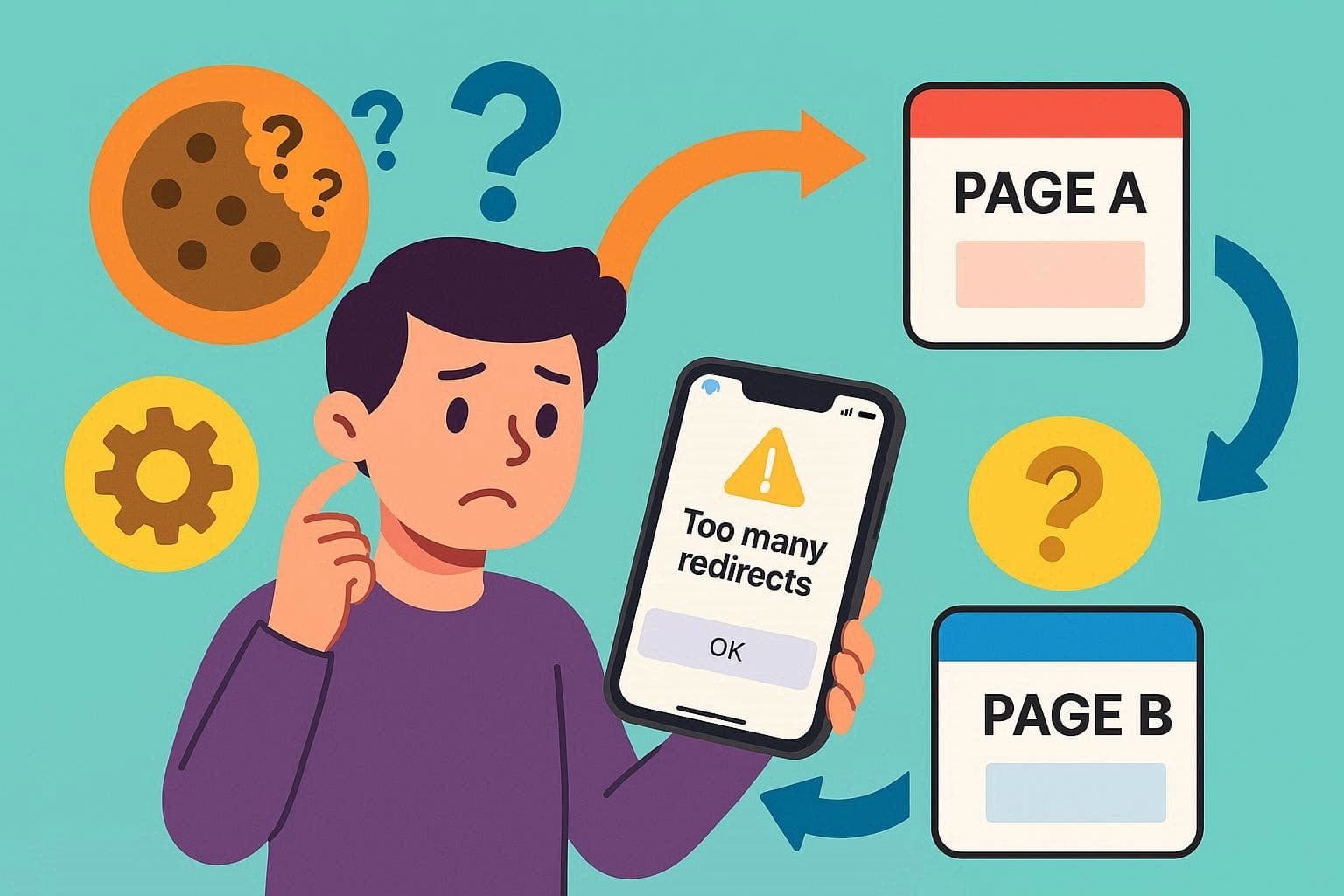
As a result of this infinite loop, Safari protects itself by halting the process, and you see the message "Safari cannot open the page because too many redirects occurred on iPhone." This usually happens because of conflicting website settings, expired session data, or old tracking cookies that confuse the browser's navigation logic.
Too Many Redirects on Safari: Common iPhone & iPad Scenarios
To further know when you are most likely to face the too many redirects on Safari error, review the listed scenarios in the table below:
| Scenario Type | What You See in Safari |
|---|---|
| Logging Into a Website (Google, School Portal, Game, etc.) | "Safari cannot open the page because too many redirects occurred" on the login page |
| Opening a Site You Often Visit | The site never loads, and the identical redirect loop error occurs every time on that specific domain |
| Switching Between http/https or www/non-www | The URL keeps bouncing rapidly between different versions in the address bar before crashing with an error |
| Using Content Blockers/VPN/Ad blockers | The web page partly loads for a split second, then an error occurs after a few seconds of loading |
| After Changing Time, Region, or iCloud Settings | Some secure logins (Apple ID, iCloud, banking websites) throw immediate redirect errors due to certificate mismatches |
Part 2. 4 Quick Fixes for Too Many Redirects on Safari
If you are stuck staring at a screen that says Safari cannot open the page because too many redirects occurred on iPhone, do not panic. Getting out of this loop is usually straightforward. Here, get to know how you can fix it by trying the 4 simple and highly effective ways given below in detail:
Way 1: Check Date and Time Settings
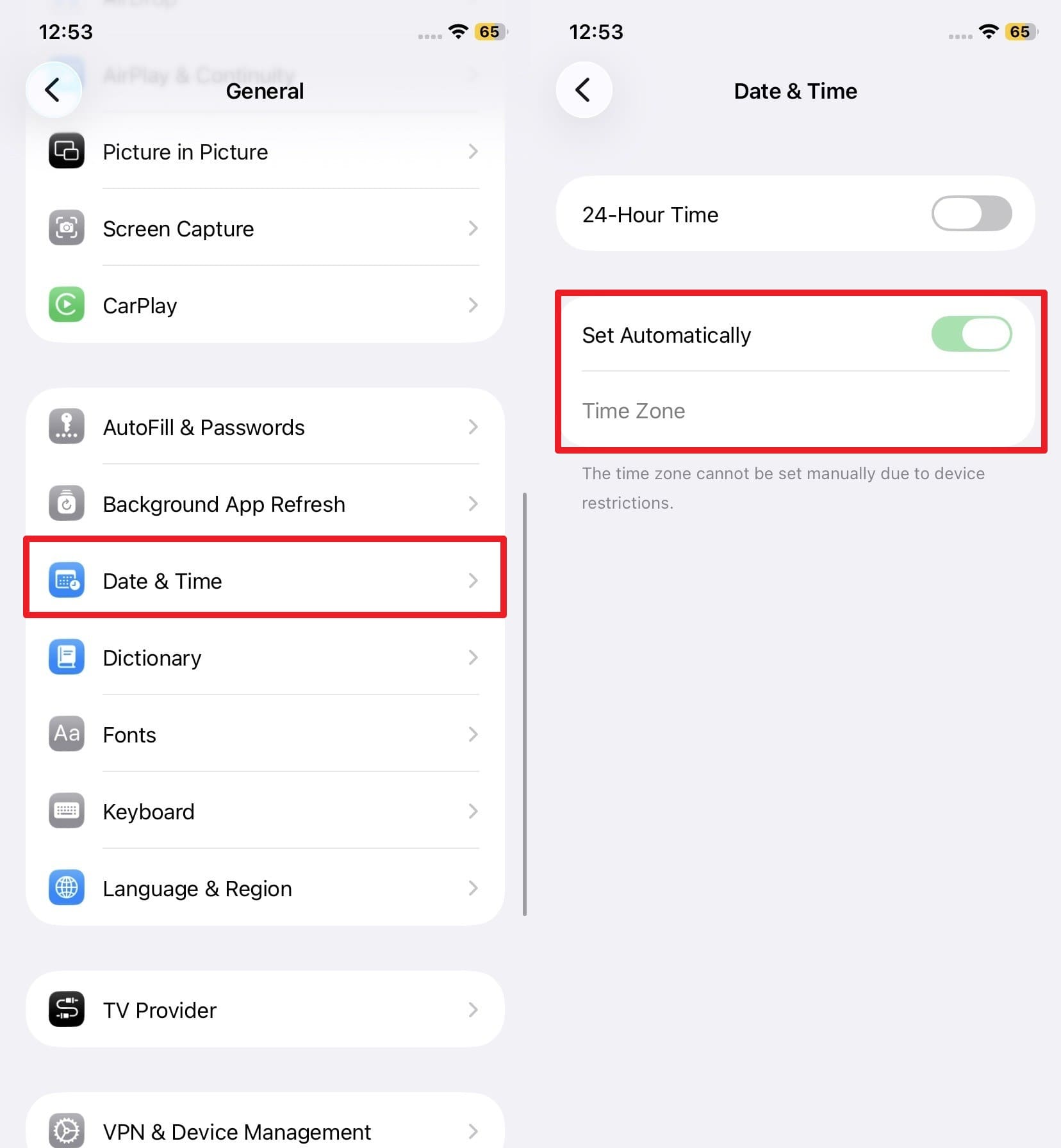
It might sound unrelated, but wrong clock settings actually break secure connections and login redirects. Therefore, enforcing the correct time fixes HTTPS certificate checks, ensuring sites like Google or Banking pages work seamlessly. It also stabilizes login cookies, which may look expired to the server if the clock is wrong, directly stopping repeated redirects. Since a false time can also confuse region-based redirects, here is how you can adjust and verify the date and time on your device:
Instructions: Open the Settings app, tap on General, select "Date & Time," then toggle on the "Set Automatically" option. Make sure the "Time Zone" is correctly set to your current location, and then reopen Safari to see if the issue persists.
Way 2: Disable Extensions or Content Blockers Temporarily
If you still get too many redirects on Safari, it is highly recommended to disable the extensions and content blockers. This can drastically help, as some third-party ad blockers or privacy extensions can aggressively interfere with essential cookies, login redirects, or SSO authentication, causing endless loops. By disabling them, you can quickly identify whether the problem stems from a specific extension or the site's server itself. Additionally, this fixes broken login or SSO pages that rely on cross-site cookies, as guided below:
Step 1. Access Safari Extensions Settings
Go to the Apps settings on your iPhone, choose "Safari," and tap on the "Extensions" option under the general menu.

Step 2. Toggle Off Active Extensions
In the "Allows These Extensions" section, pick the specific extension you seek to disable and simply toggle off the "Allow Extension" option.

Way 3: Restart Your iPhone & Retry Loading the Page
Despite trying the above ways, you might still ask how do I fix too many redirects on Safari. So, it is heavily suggested to restart the device because a reboot resets active network processes, DNS, and background services that may cause redirect loops. Not just that, it drops in-memory cookies and frozen session data to stop broken logon or redirect chains. You can accomplish this once done via the mentioned steps:
Step 1. Initiate Power Off Sequence
Close the Safari app entirely and maintain pressure on the "Power & Volume Up" button to access the "Slide to Power Off" slider.

Step 2. Reboot and Relaunch Safari
Slide this mechanism, wait for a brief while, and press the "Power" button until the Apple logo appears to restart the device. Once booted, reopen Safari to verify the fix.

Way 4: Clear Safari Cookies and Website Data
As you clear cookies and website data directly in Safari, it can almost universally resolve the too many redirects on Safari error. This critical action will remove old login info, bad redirect commands, and corrupted cache files. You can clear data for just the problem site or broadly across all sites, which often solves the issue without negatively affecting everything else. In addition, this forces the site to build a fresh redirect path and resets broken session cookies, as demonstrated below:
Option 1: Clear All Safari History & Data
Instructions: In the "Apps" settings, as you choose Safari, head down to the "History and Website Data" section and firmly choose the "Clear History and Website Data" option.

Option 2: Clear Data for One Specific Site
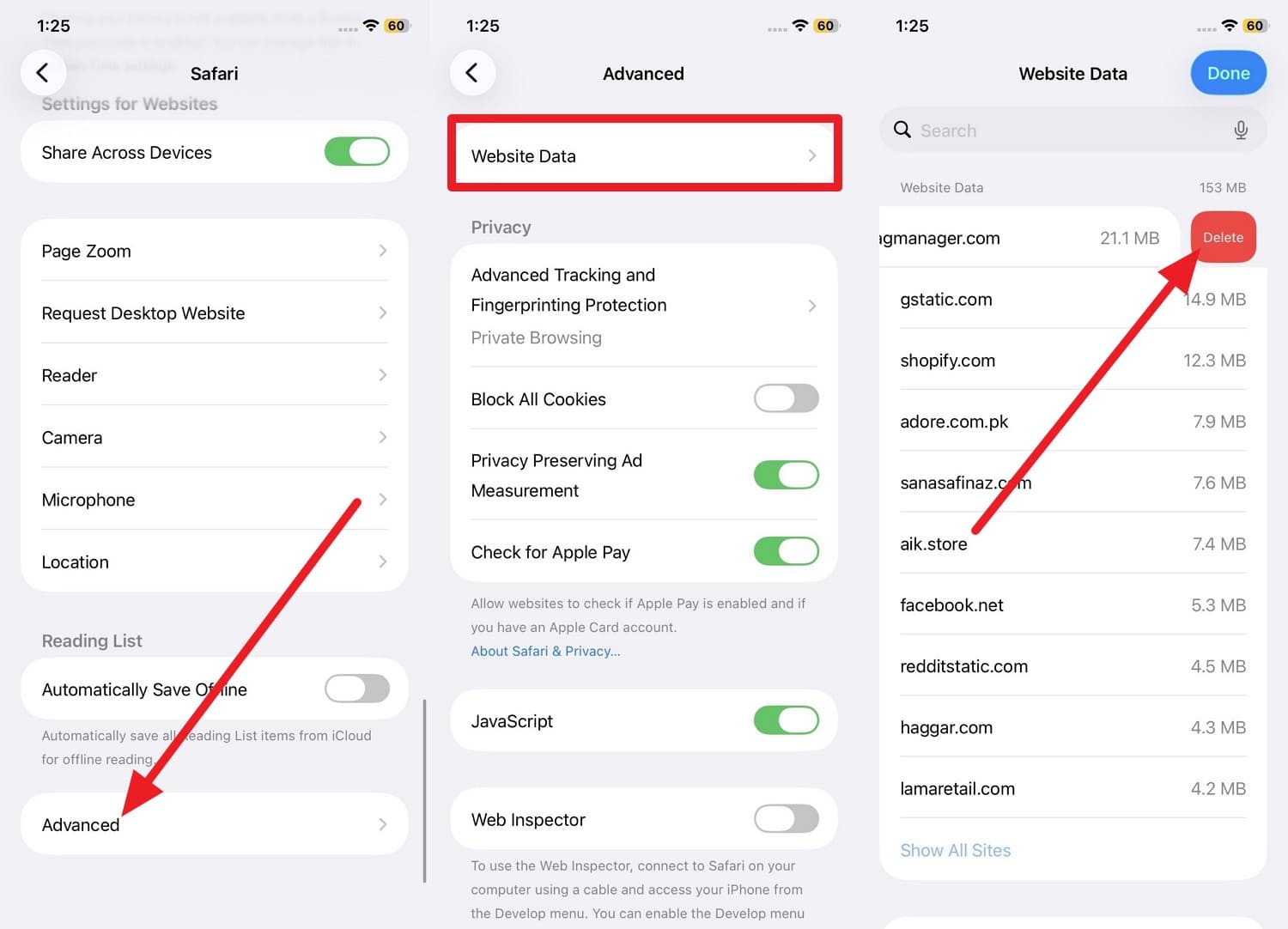
Instructions: Within the Safari settings, pick the "Advanced" option at the very bottom and tap on "Website Data." There, search for the specific site name causing trouble and swipe left to choose the "Delete" option.
Part 3. 4 Advanced Fixes If the Redirect Error Keeps Returning
There is a significant chance you might still face the issue that Safari cannot open the page because too many redirects occurred on iPad or iPhone even after trying the basic methods. If the problem is deeply rooted in system caching, try the 4 advanced and innovative methods mentioned below, complete with detailed guides:
Fix 1: Perform a Deep Safari Data Clean
 Permanently erase all data on iOS & Android — completely unrecoverable.
- Military-grade wiping to fully protect your privacy.
- Generate verified erasure reports to boost device resale value.
- Selectively erase private data and remove junk & large files.
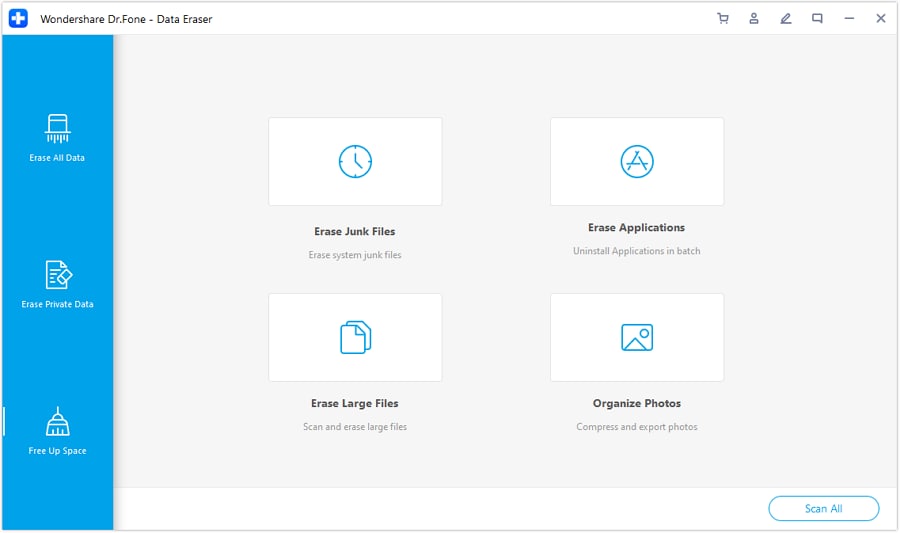
When normal browser clearing fails to resolve the loop, utilizing Dr.Fone - Data Eraser for iOS/iPad is highly recommended to definitively fix the too many redirects on Safari error. This professional software dives deeper than standard iOS settings, securely removing leftover cache, stubborn cookies, and hidden system data fragments that frequently cause persistent redirects or agonizing login loops.
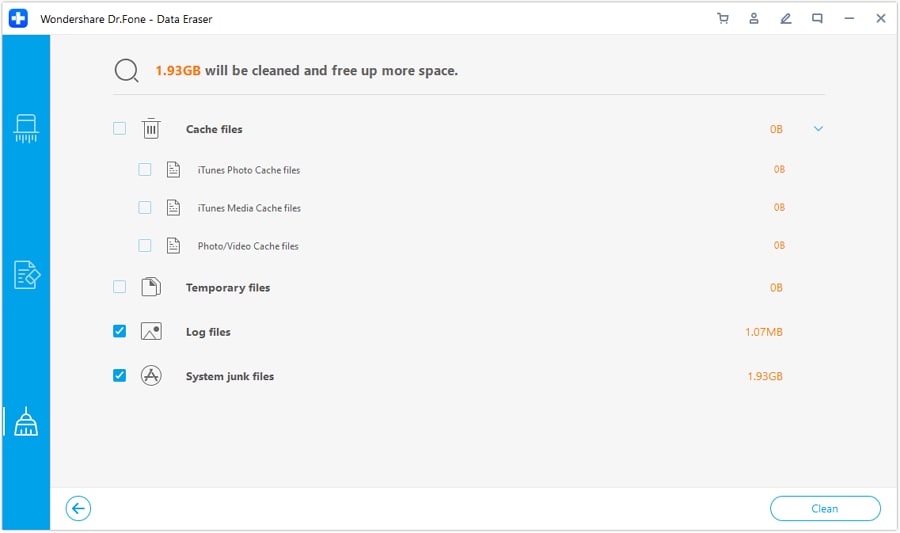
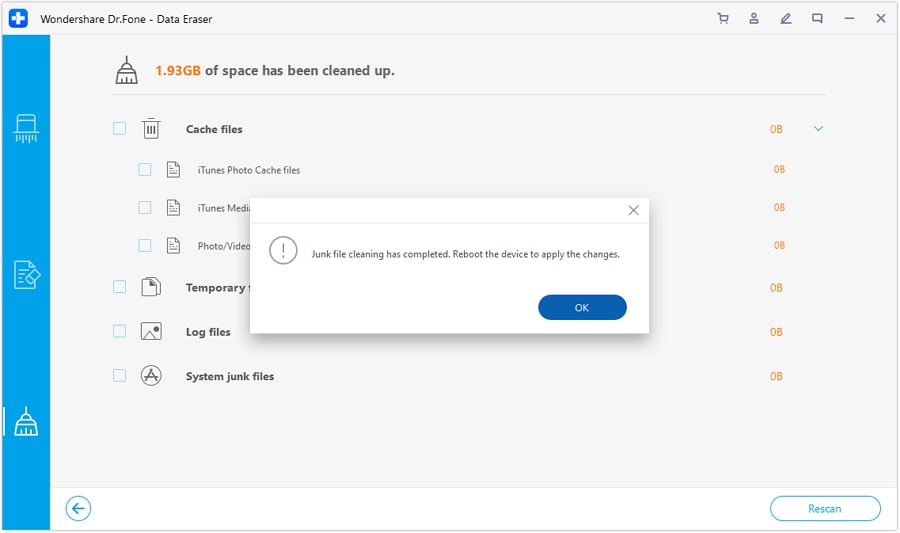
You can choose selective cleaning specifically targeting browser junk, ensuring you do not lose essential personal data, or perform a full device wipe if needed. It clearly highlights how much junk will be removed to help users make informed decisions. Unlike native methods, the robust process is incredibly effortless and enhances overall system performance by completely eliminating corrupt temporary files that interrupt secure web protocols.




 Add Wondershare Dr.Fone as a preferred source on Google