Recover photos, messages, WhatsApp, and more — no backup
needed.
Recover photos, messages, WhatsApp, and more — no backup
needed.

 100% Security Verified | No Subscription Required | No Malware

 :
: 
 ChatGPT
 Perplexity
 Gemini
 Claude
 Grok
Grok

I just sent a highly sensitive file to the wrong group chat by mistake. I need to know how to delete a WhatsApp message for everyone immediately before anyone opens it. Is there a way to do this quickly?
Common User Query
Imagine you just sent a message on WhatsApp and soon realize you made a massive mistake. It might have been sent to the wrong chat, contained a glaring typo, or perhaps you selected the wrong photo. Panic hits almost at once, and you desperately want the message to be gone before the other person has a chance to read it. This is exactly where understanding how to delete a WhatsApp message for everyone or effectively remove a single errant text across Android, iOS, and Web platforms becomes incredibly valuable.
Since WhatsApp provides this essential feature under a specific set of conditions, it is crucial to learn exactly what those requirements are and how to permanently delete a message from all connected devices in just a few taps. In this detailed 2026 guide, we will walk you through the entire process. In addition, you will get to know how professional desktop tools like Dr.Fone can step in to recover View Once messages, a process that seems impossible in many common cases.




In this article
- Part 1. WhatsApp "Delete for Everyone" Basics (Rules You Must Know First)
- Part 2. How to Delete a WhatsApp Message for Everyone [Single Messages]
- Part 3. How to Delete All Messages on WhatsApp for Everyone [Multiple Messages]
- Pro Tip. Recover WhatsApp View Once Messages with Dr.Fone
- Part 4. How to Fix WhatsApp Delete for Everyone If It's Not Working
Part 1. WhatsApp "Delete for Everyone" Basics (Rules You Must Know First)
While seeking accurate answers on how to delete a message for everyone on WhatsApp, it is critical to know that this messaging platform typically offers two distinct options when you select a message and tap on the Delete icon. These options range from 'Delete for Everyone' to 'Delete for Me'. To ensure you do not make a permanent error, this section covers the functional basics and core differences between these two commands.
Delete for Everyone vs Delete for Me: What's the Difference
To fully grasp how Delete for Everyone essentially differs from the standard Delete for Me command, adhere to the detailed comparison table provided below:
| Option | Where It Deletes the Message | What Others See | Good Use Case |
|---|---|---|---|
| Delete for Everyone | Removes from your chat and theirs | "This message was deleted" placeholder shows in the chat | Fixing mistakes, wrong person/group, sensitive info |
| Delete for Me | Removes only from your own device | Others still see the original message | Cleaning your chat history on your phone |
WhatsApp Delete for Everyone Time Limit & Newest Requirements
Since you are seeking to master the WhatsApp Delete for Everyone option and apply it effectively, this specific section highlights the exact time constraints and key technical requirements you must meet:
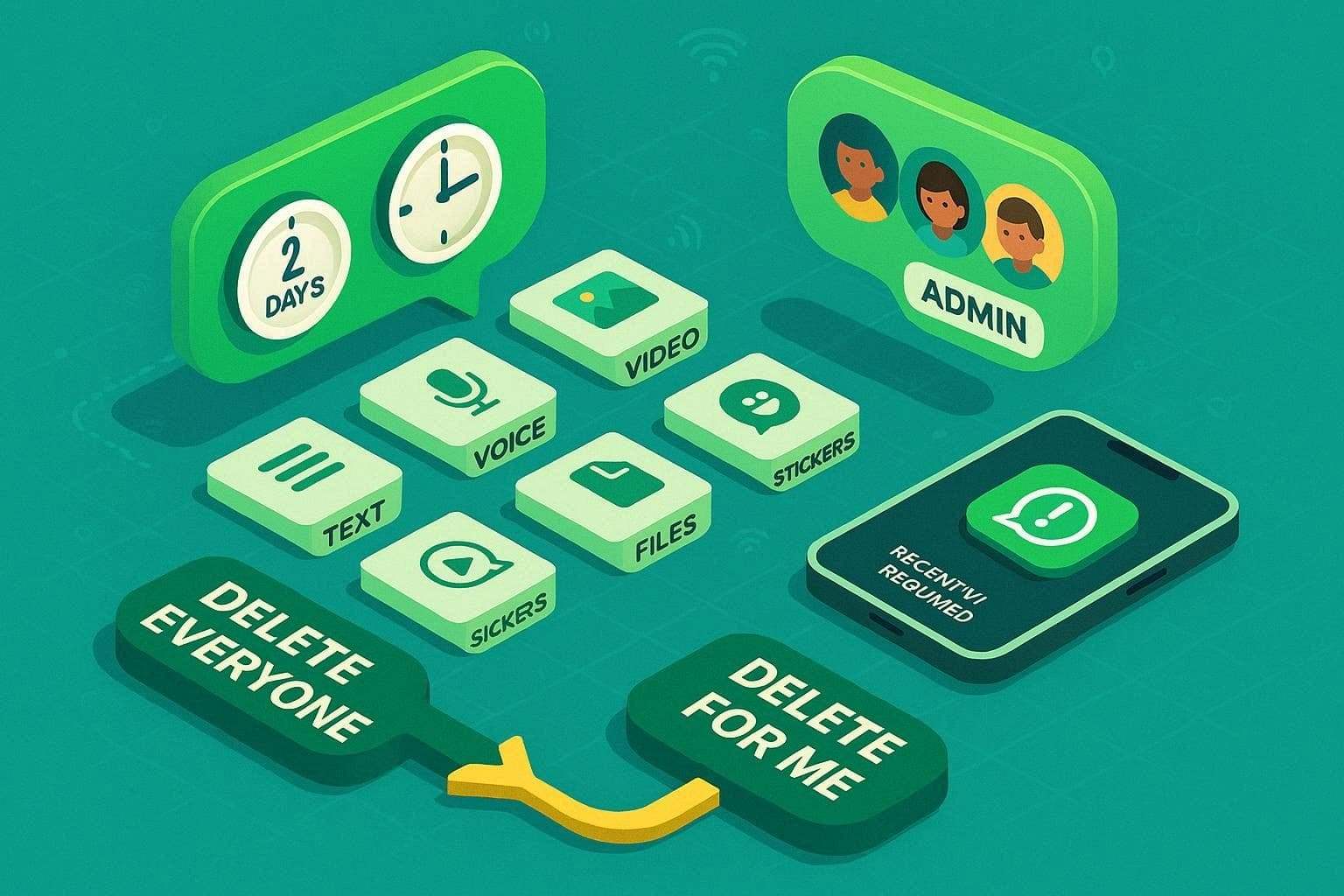
- The official time limit is about 2 days (specifically around 60 to 68 hours). If you miss this window, one can natively only use the "Delete for Me" option.
- Both people in the conversation need to be actively running on a recent, officially supported version of WhatsApp for the "Delete for Everyone" option to properly execute.
- The feature works universally for text messages, photos, uploaded videos, voice notes, attached documents, files, and even animated stickers.
- You must manually select each message you intend to remove and actively tap "Delete for Everyone". It does not happen automatically.
- A correctly synchronized phone time and an active internet connection are absolutely needed so WhatsApp can securely send a localized delete request to its servers.
- Authorized group admins possess the unique capability to delete messages sent by other normal group members within the exact same time window.
- You are unfortunately not officially notified by the application if the remote deletion process was unsuccessful on the recipient's side.
- If you mistakenly choose "Delete for Me," you now have a brief 5-second window to tap 'Undo' before that "Delete for Everyone" option practically disappears forever.
- Specific messages that are forwarded multiple times cannot always be retroactively deleted from the forwarded chat window by the original sender.
- If the end recipient uses iOS with the "Save to Camera Roll" default feature turned on, raw media files may potentially stay saved in their local Photos app even after the chat deletion is complete.
Part 2. How to Delete a WhatsApp Message for Everyone [Single Messages]
For those users who are in a hurry and seek to instantly know how WhatsApp deletes messages for everyone concerning a single, isolated message, carefully review this section. This helps tremendously when you spot a tiny error or accidentally send a wrong text and just don't need to bulk remove multiple messages all at once. So, once you are sure you meet the above technical requirements, here is exactly how you can natively perform this action on Android, iOS, and the WhatsApp web client to remove a single text bubble from both sides:
For Android
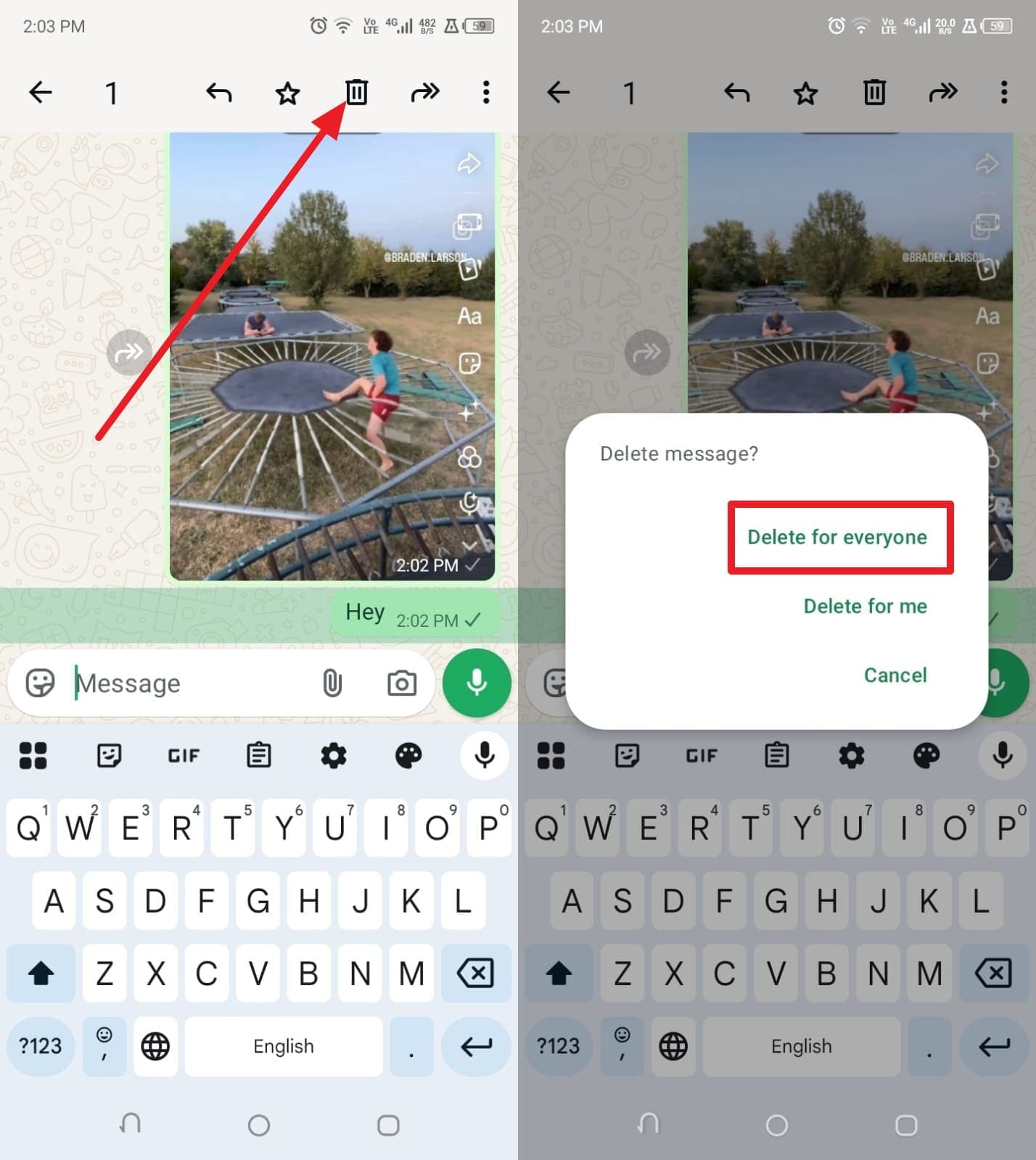
Instructions: As you navigate to the chat, press and hold the single message you wish to remove. Choose the "Delete" trash bin icon visible at the top menu bar, and simply select the "Delete for Everyone" option from the prompt.
For iPhone
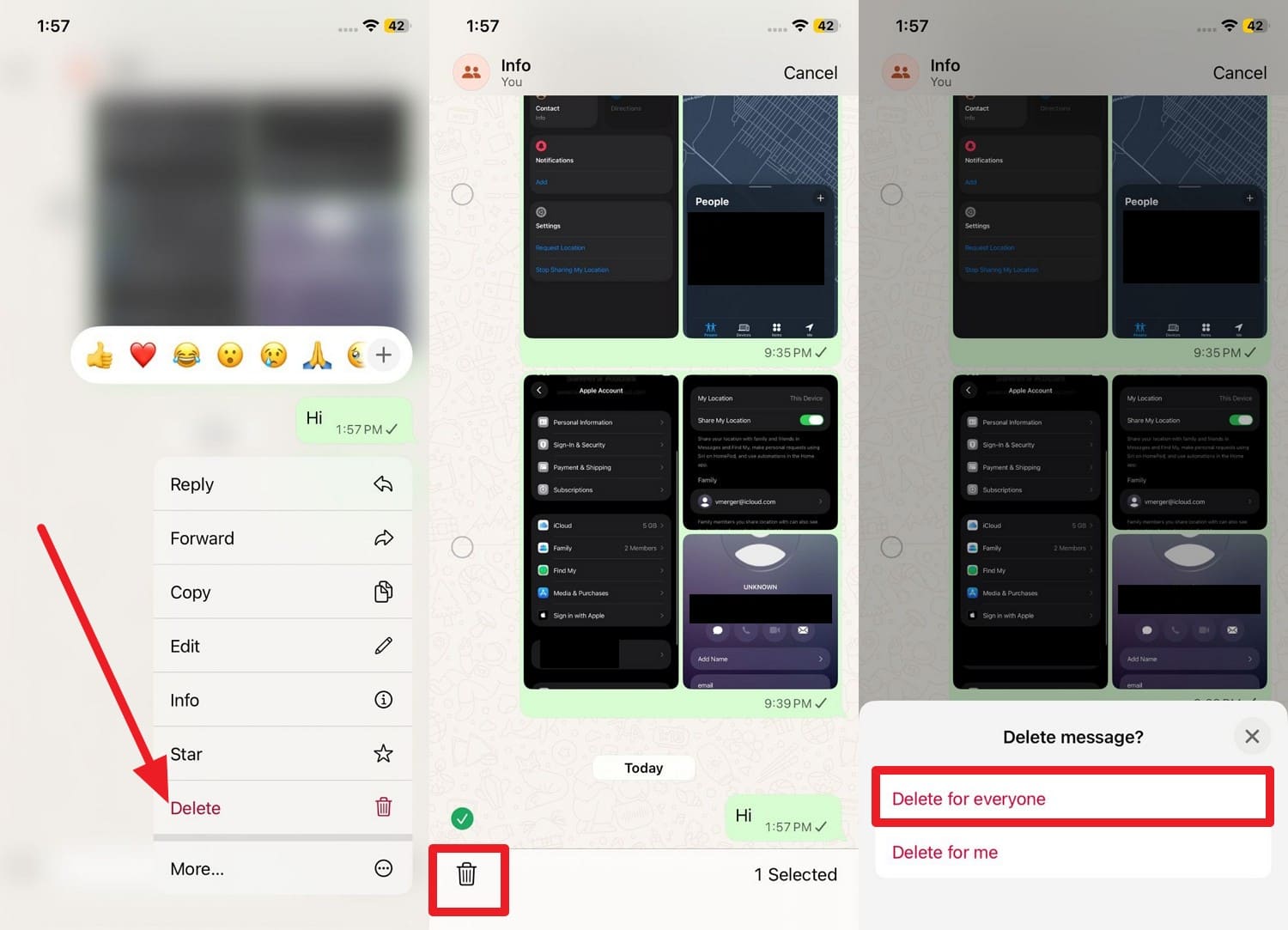
Instructions: Open your specific chat thread and long-press the target message. Then tap the "Delete" option from the contextual pop-up and press the "Delete" trash icon again located at the bottom corner. In the final pop-up menu, choose the "Delete for Everyone" option to successfully remove the message from both ends.
For Web
-
Step 1 Hover and Access the Menu
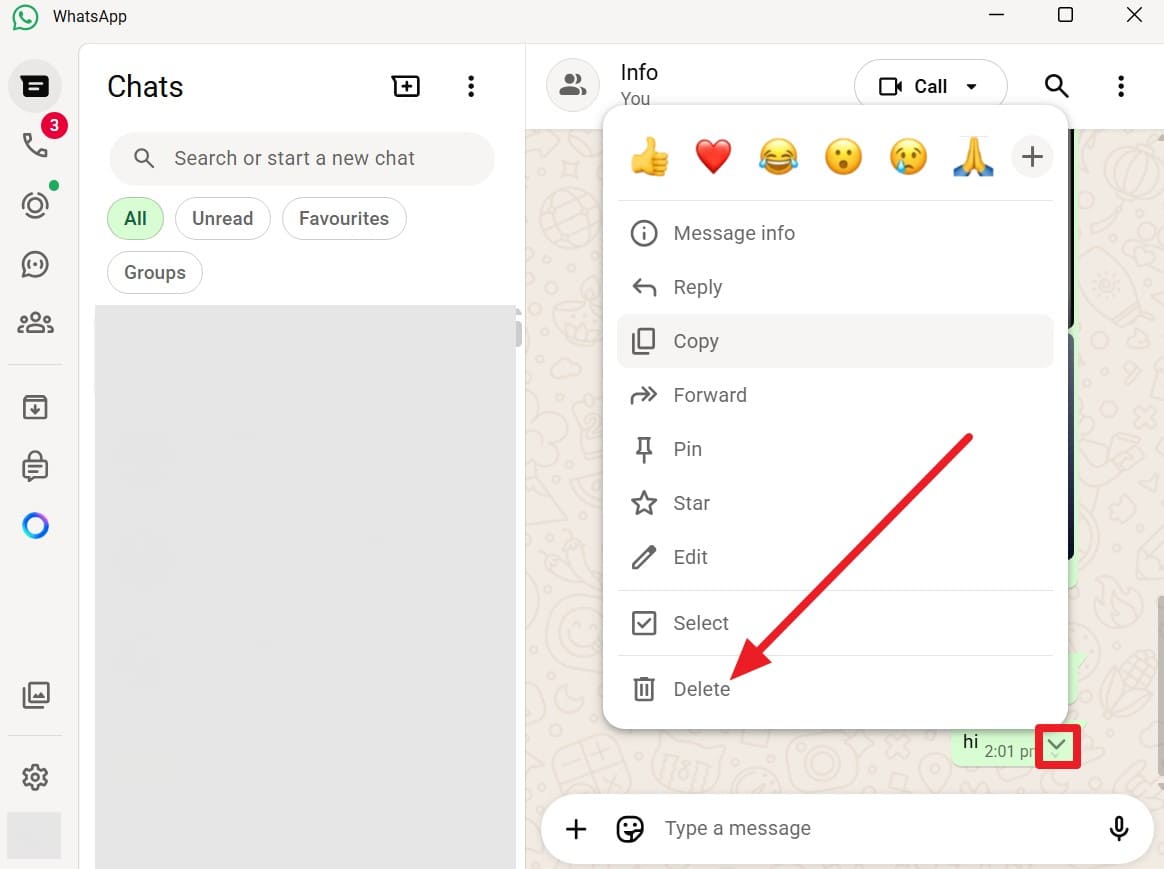
Hover your mouse cursor directly over the specific text bubble and tap on the "Downward" facing arrow icon located on the top right corner of the message to choose the "Delete" option from the drop-down pop-up menu.
-
Step 2 Confirm the Selection
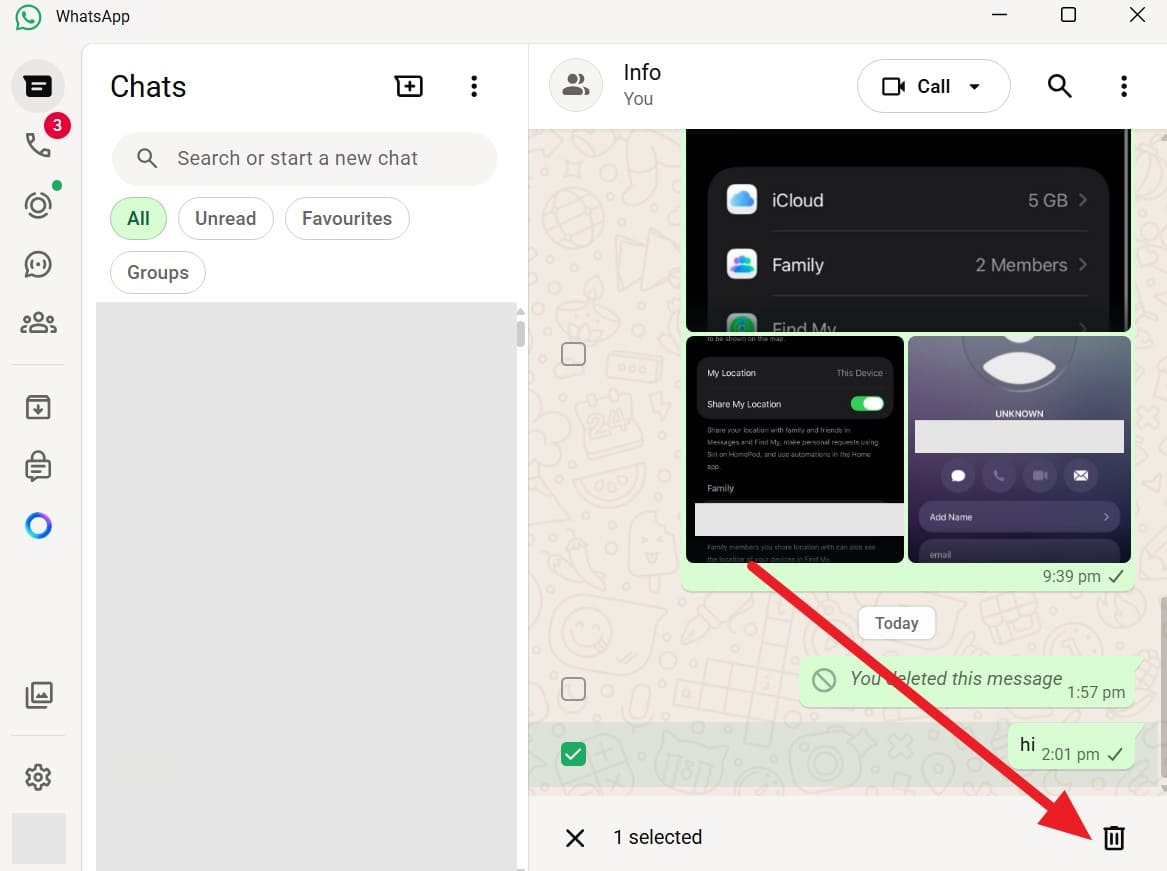
With the single errant text safely selected (a checkmark should appear next to it), physically tap on the primary "Delete" trash can icon again located at the bottom taskbar.
-
Step 3 Execute the Deletion
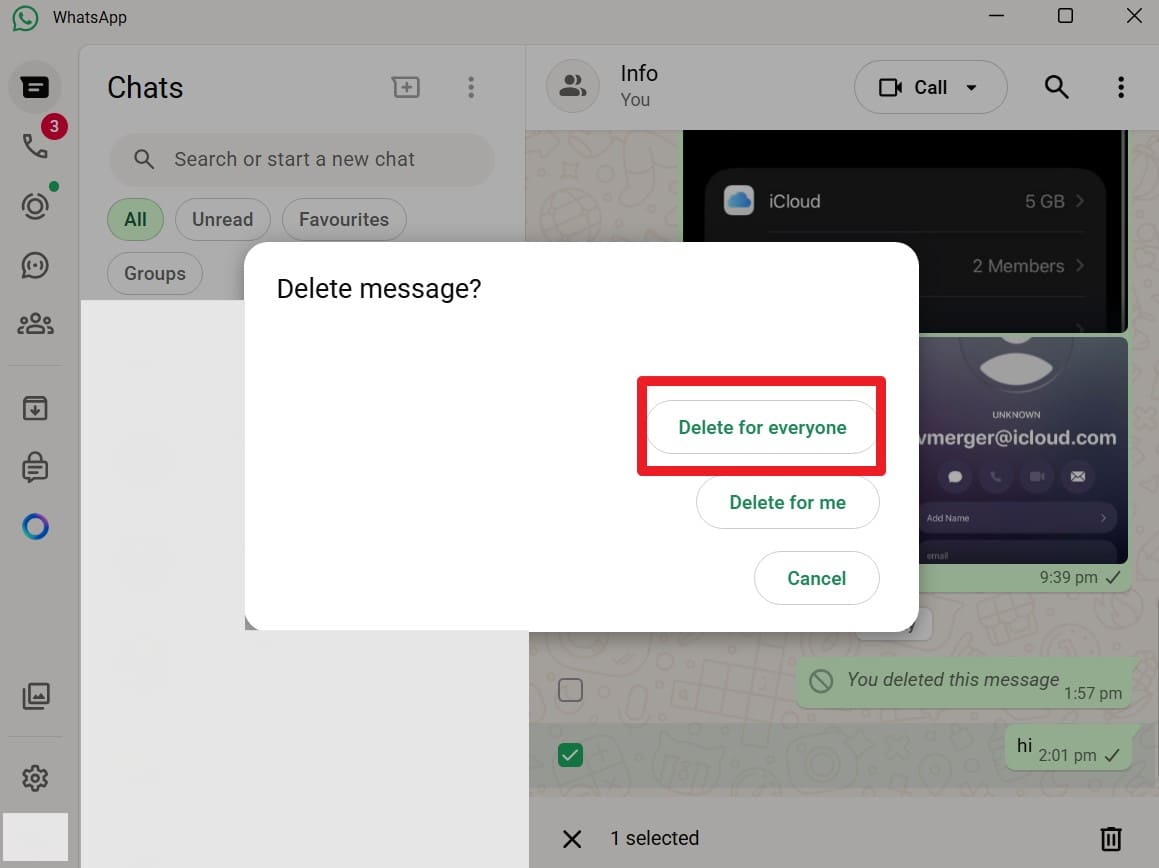
When the final warning pop-up dialogue appears on your monitor, select the "Delete for Everyone" option to completely remove the content from the server.
Part 3. How to Delete All Messages on WhatsApp for Everyone [Multiple Messages]
If your situation is slightly more complex and you desperately want to know how to delete a message on WhatsApp for everyone while targeting multiple messages consecutively, the process is slightly altered. Follow the detailed steps securely mentioned below:
For Android
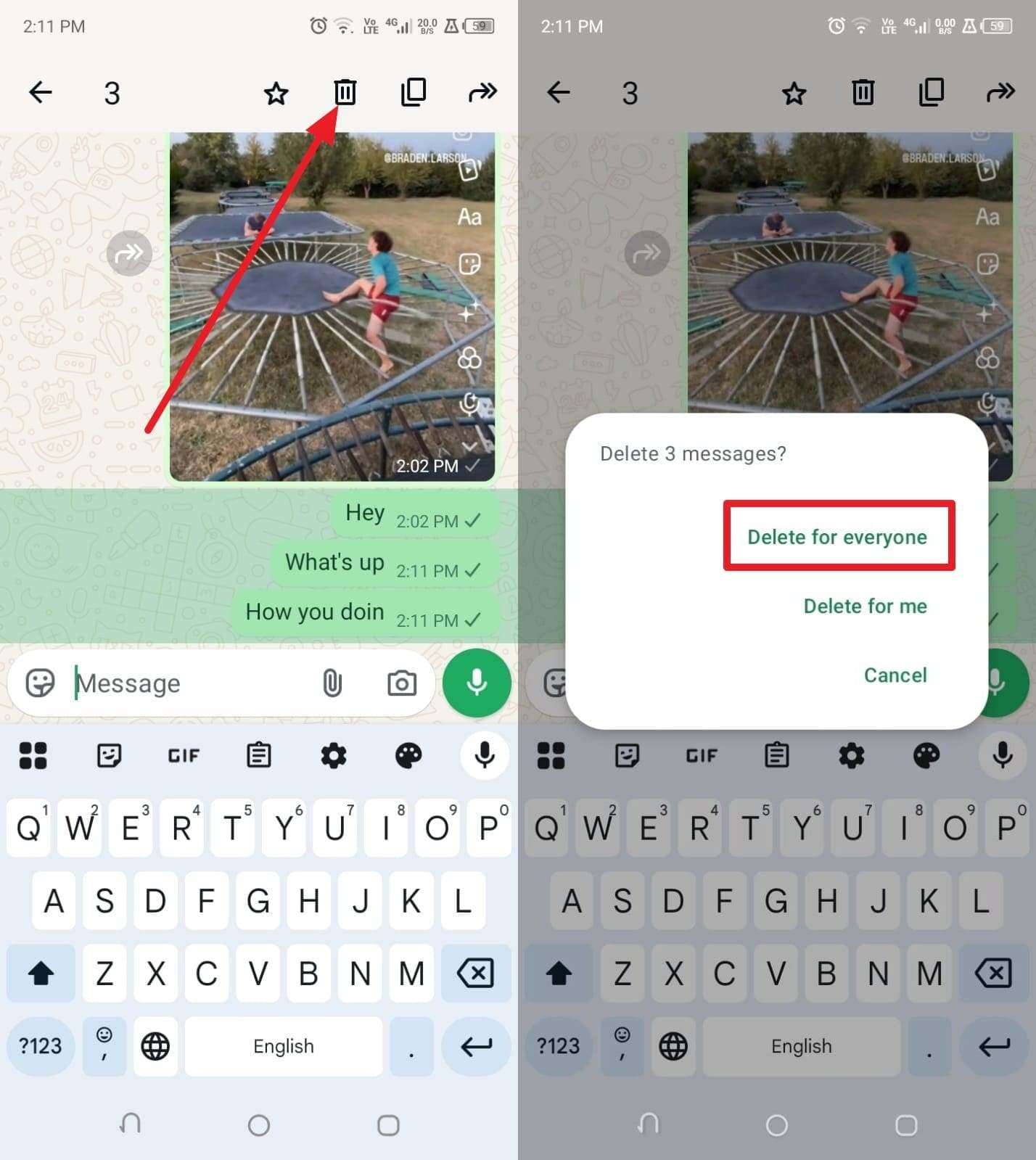
Instructions: Inside the active conversation, long-press on the first target message to highlight it. Next, manually tap and select the multiple subsequent messages until they are all successfully highlighted in green. Then, quickly tap the "Delete" trash icon at the top of the interface. Now, explicitly choose the "Delete for Everyone" option to confidently confirm the bulk deletion.
For iPhone
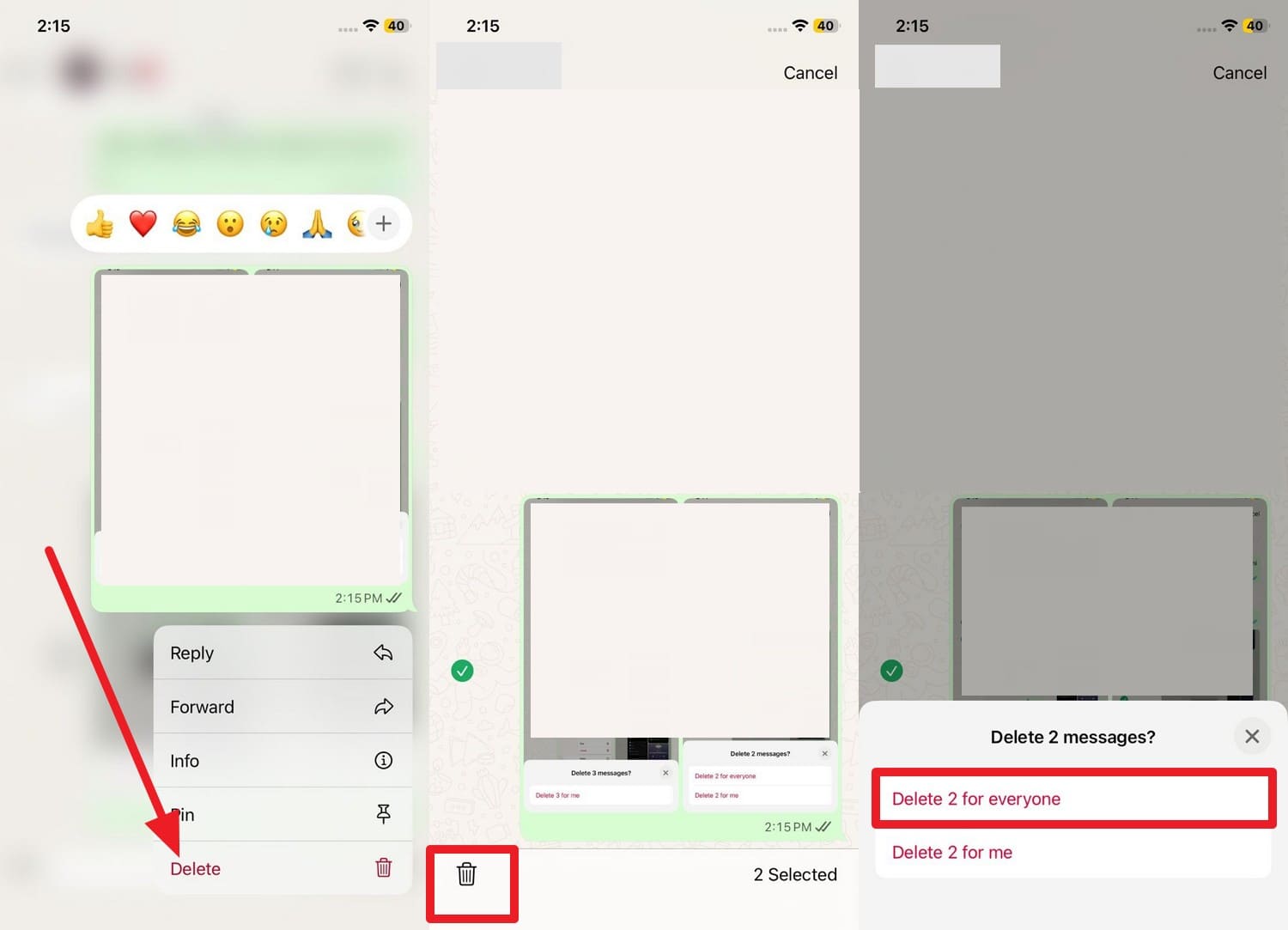
Instructions: As you head directly into a certain chat window, tap the "Delete" option from the context menu upon long-pressing the initial message. A checklist interface will appear. Then, actively check the empty circular boxes corresponding to the other targeted messages and systematically select the "Delete" icon located at the bottom left. In the resulting confirmation pop-up, firmly press the "Delete (number of messages) for Everyone" option to clear them out.
For Web
-
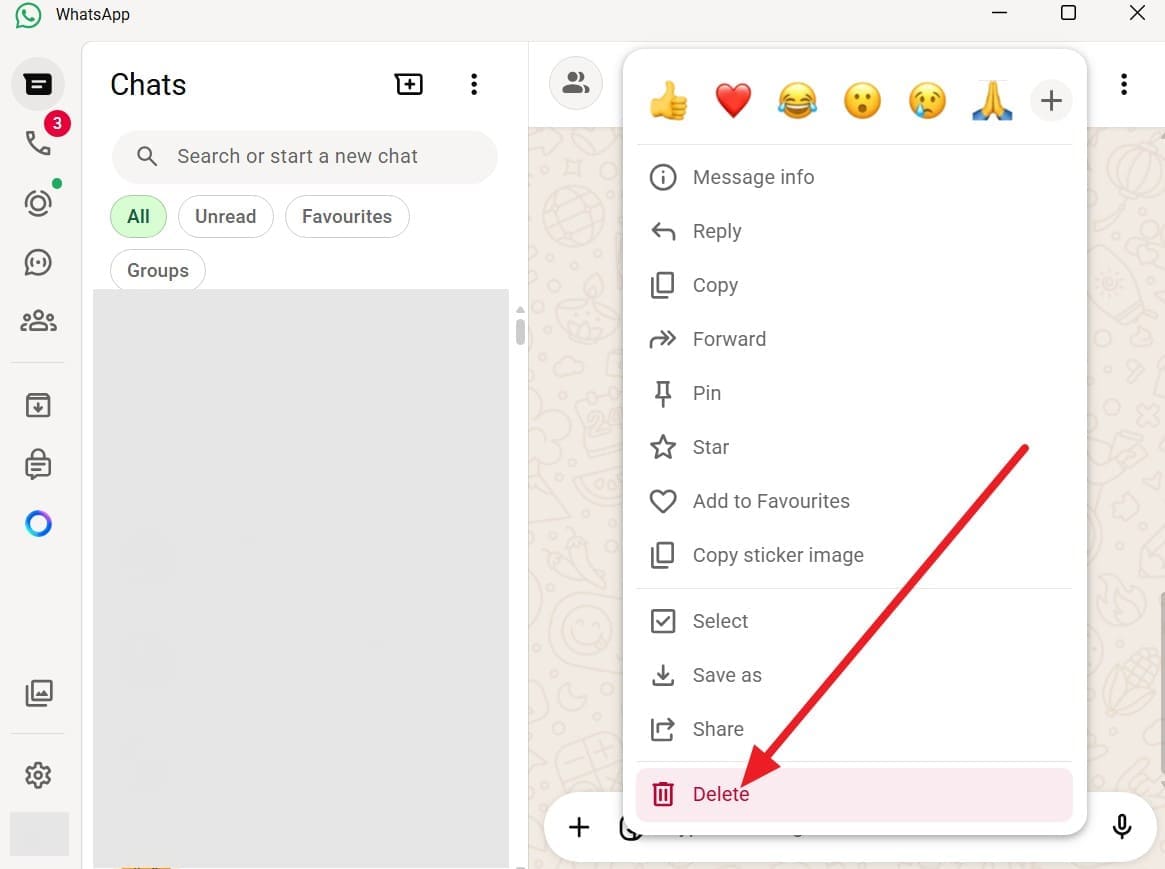
Step 1 Open the Selection Menu
Navigate directly to the browser chat window and tap the "Downward" arrow icon on any target bubble to clearly choose the "Delete message" option. This transforms the UI into a bulk selection mode.
-
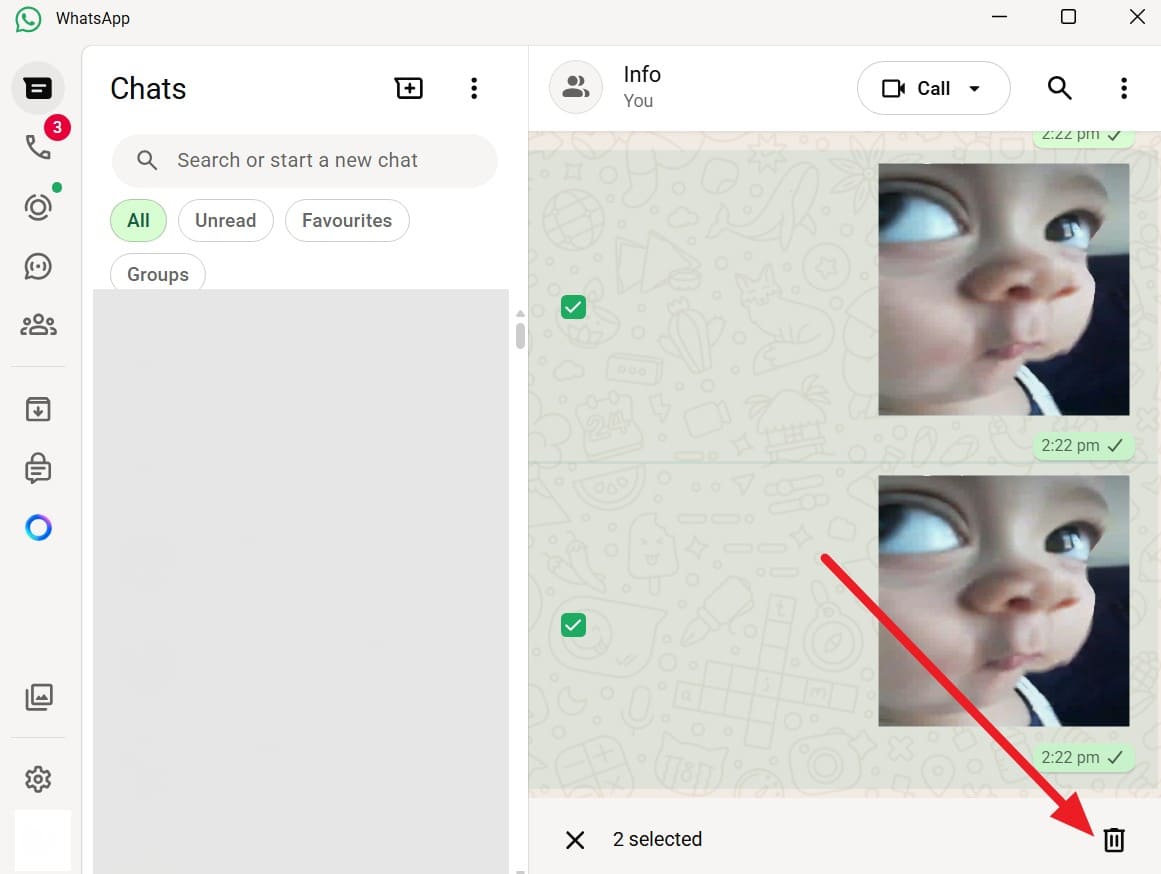
Step 2 Highlight Multiple Texts
After that bulk mode activates, cleanly check the empty boxes adjacent to the multiple messages you want gone, and heavily press the main "Delete" trash bin icon at the bottom of the screen.
-
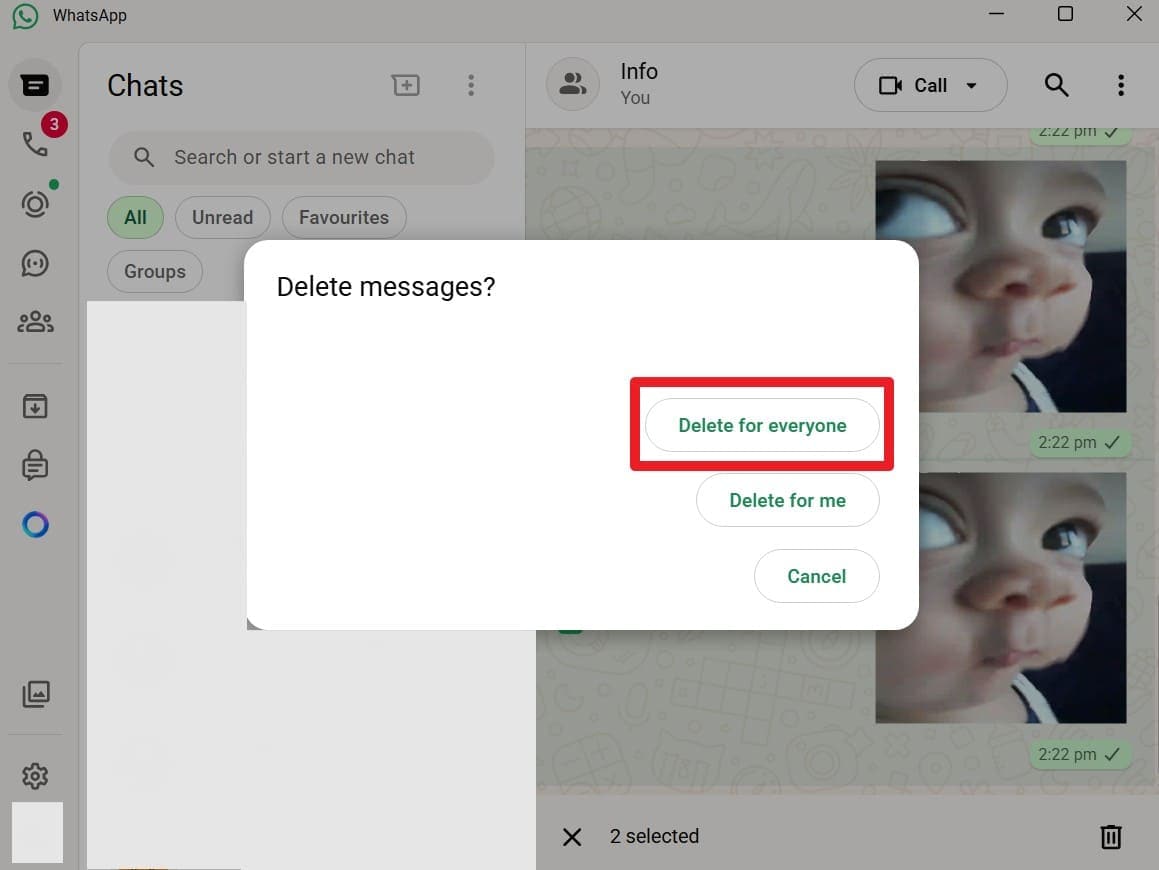
Step 3 Complete the Action
When the system's confirmation alert securely appears on the screen, tap definitively on the "Delete for Everyone" option to finalize the wipe.
Pro Tip: Recover WhatsApp View Once Messages with Dr.Fone
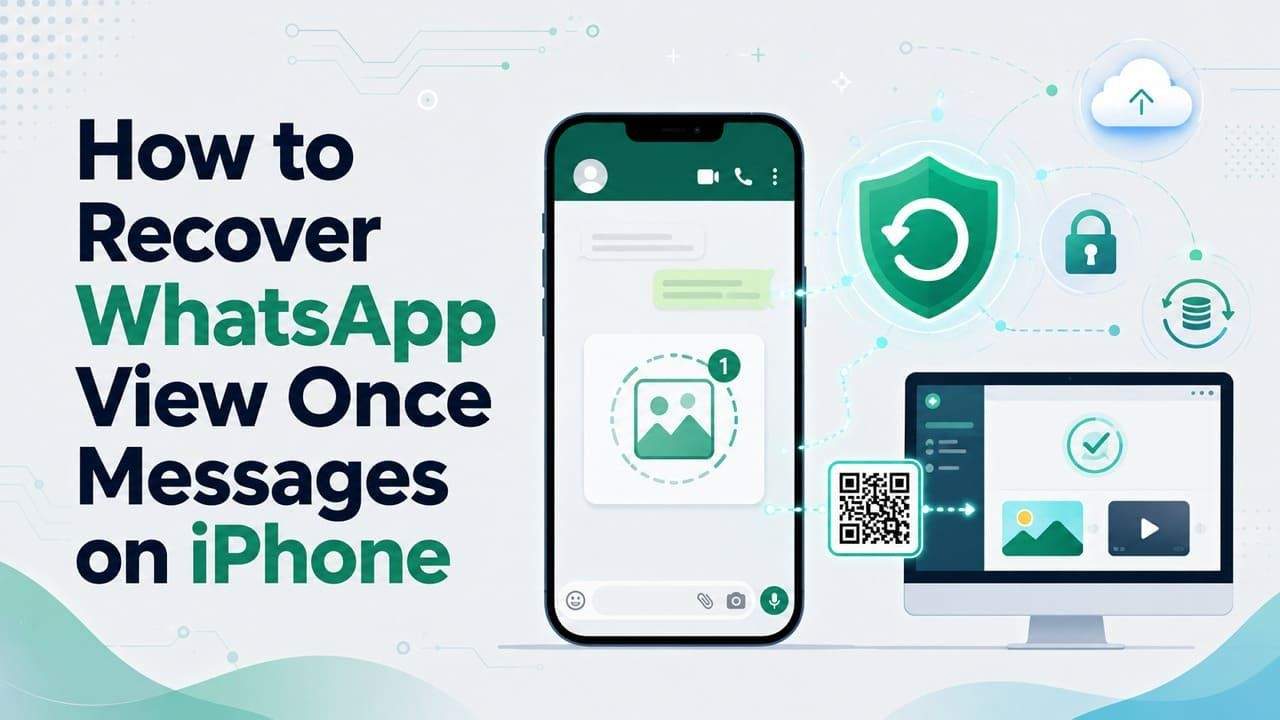
Though you are now fully equipped with the knowledge regarding the standard delete for everyone WhatsApp time limit, there are frequent real-world instances where you absolutely need to securely save important media files that were intentionally shared as strict View Once messages. Here, the highly regarded Dr.Fone - Data Recovery ecosystem for both Android and iPhone empowers you to flawlessly recover over 14 unique data types directly from iOS devices, iTunes, and robust iCloud backups in just 2-3 simple steps. While proudly offering a 100% secure local recovery process, users can easily link their WhatsApp accounts and safely selectively recover restricted View Once media files in expansive batches.
Later, any proactive user can securely preview the successfully retrieved data in meticulous detail on their PC. The tools systematically ensure that existing device data is not overwritten or corrupted. Empowered with all these intelligent traits, this software suite is extensively optimized for the absolute newest iOS architectures, the latest iPhone Series, and universally supports all major Android versions running on Samsung, Redmi, Oppo, and Motorola devices. No matter whether the target device is physically broken or the protected View Once media is several days old, Dr.Fone holds the capability to systematically recover it with a tremendously high success rate.
 Recovers data after deletion, crashes, or device damage.
- Supports photos, messages, contacts, WhatsApp, and more.
- Supports all major iPhone, iPad, and iPod models.
- Preview and recover only what you need.

Guide to Recover View Once Message from Android/iPhone via Dr.Fone
While diligently learning about the intricacies of the WhatsApp delete for everyone feature, follow the officially recommended guide below to smoothly recover protected View Once data using the desktop tool:
-
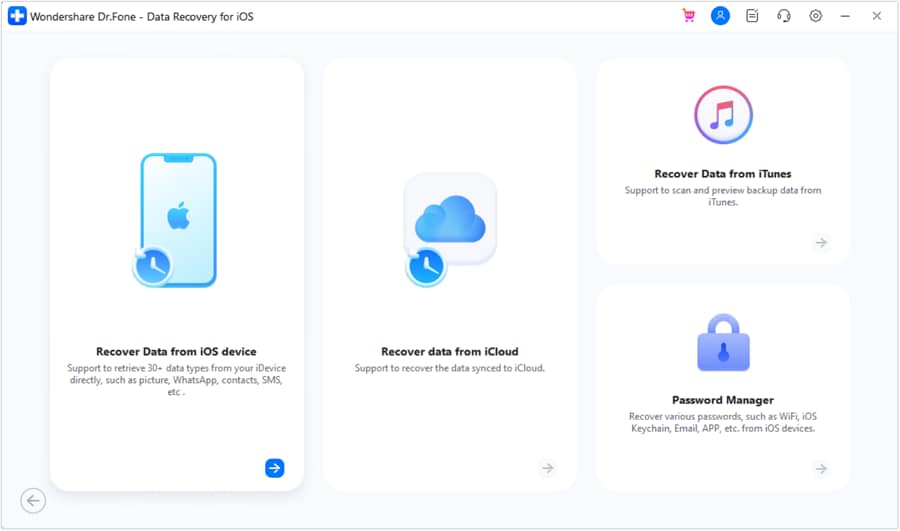
Step 1 Access the Recovery Tool and Initiate Scan
After successfully launching the main software and choosing the dedicated Data Recovery module for Android or iPhone, explicitly tap on the specialized "Recover WhatsApp View Once Data" option. Subsequently, purposefully choose the "Start Recovery" button on the main interface and safely scan the displayed QR code with your mobile device to securely link your WhatsApp account.
-
Step 2 Select Target View Once Files & Export Them
Carefully navigate through the results and distinctly choose the hidden View Once media files exactly as they appear in the preview pane. Once your selection is finalized, firmly tap the "Export" button to safely save them to your local computer directory.


Part 4. How to Fix WhatsApp Delete for Everyone If It's Not Working
Often, as you desperately try the process on how to delete all messages on WhatsApp for everyone, the system mysteriously fails to process the request. Before you panic entirely, systematically consider and apply the 8 proven troubleshooting solutions listed below:
Fix 1: Check Internet Connection
If you stubbornly can't delete the intended message, immediately make sure you have a perfectly stable Wi-Fi or cellular data connection. An active internet gateway is absolutely mandatory, as it securely lets WhatsApp send the backend delete command directly to its central servers and subsequently push that command to the other person's phone. A remarkably good connection also actively helps both side's chats show the exact same update in real-time and effortlessly avoid repeated network-related errors.
Fix 2: Try Airplane Mode & Retry
This somewhat unconventional method can also immensely help when you strangely can't use the native WhatsApp Delete for Everyone option. It forcefully stops the WhatsApp background process from establishing instant server contact, and comfortably lets you adjust basic phone data settings or retry the delete command option in an isolated environment. Since this protocol also effectively prevents any new incoming messages from arriving during this chaotic process, here is exactly how you can intelligently use it on Android, iOS, and the web:
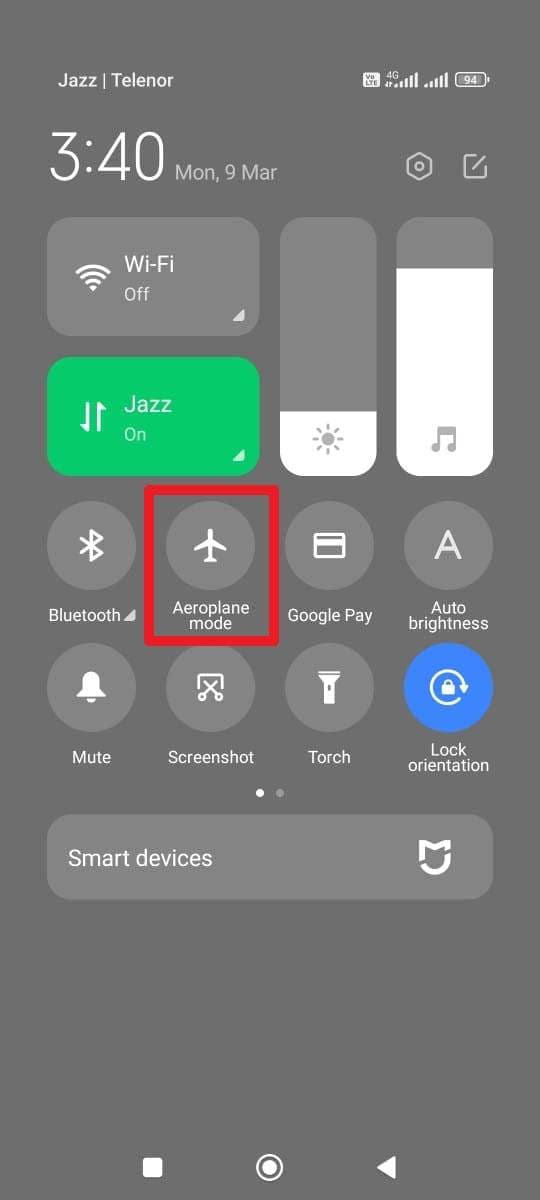
For Android
Instructions: Immediately go to your WhatsApp screen and gently swipe down from the top edge to reveal the Control Center. From there, physically enable and then shortly after disable the "Airplane Mode" toggle before attempting the deletion again.
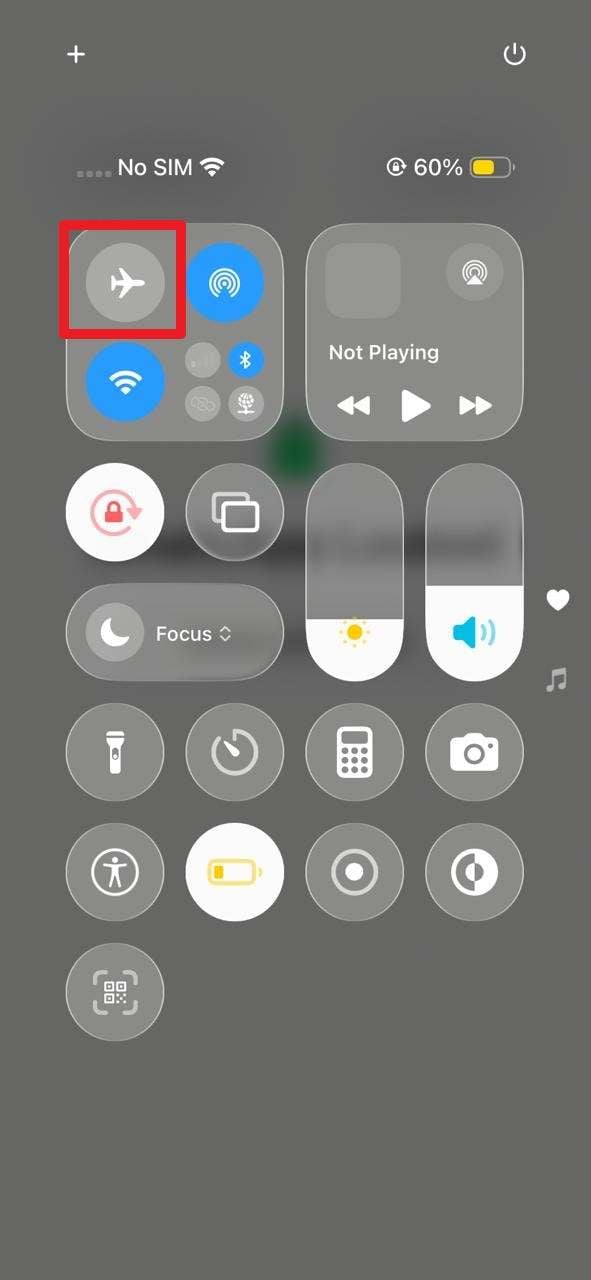
For iPhone
Instructions: After decisively swiping down from the top-right corner to open the Control Center, briefly enable and then deliberately disable the "Airplane Mode" icon. Once network bars return, strongly try to delete the WhatsApp message for everyone once again.
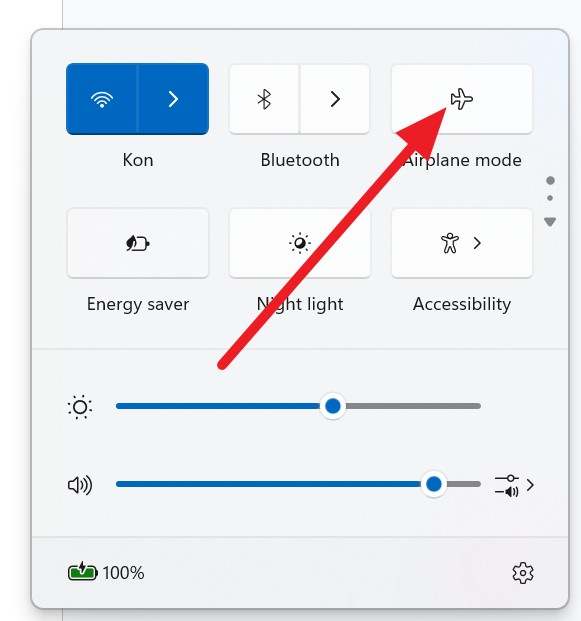
For Web
Instructions: On your main computer operating system, manually enable and subsequently disable the network Airplane Mode setting, or briefly change the localized time on your host phone. Remember, the web version heavily depends on the host phone's active connection state to securely authenticate.
Fix 3: Restart Phone and App
If you are technically still within the required delete for everyone WhatsApp time limit window, this incredibly simple operational step reliably refreshes the app's persistent background connection with the Meta server and effortlessly clears small cache bugs or temporary memory overload issues. In strict addition, it hard-resets essential phone background services and the crucial time sync protocol that WhatsApp ultimately needs to securely authenticate and send the remote delete command, as accurately guided below:
Restart Phone and PC
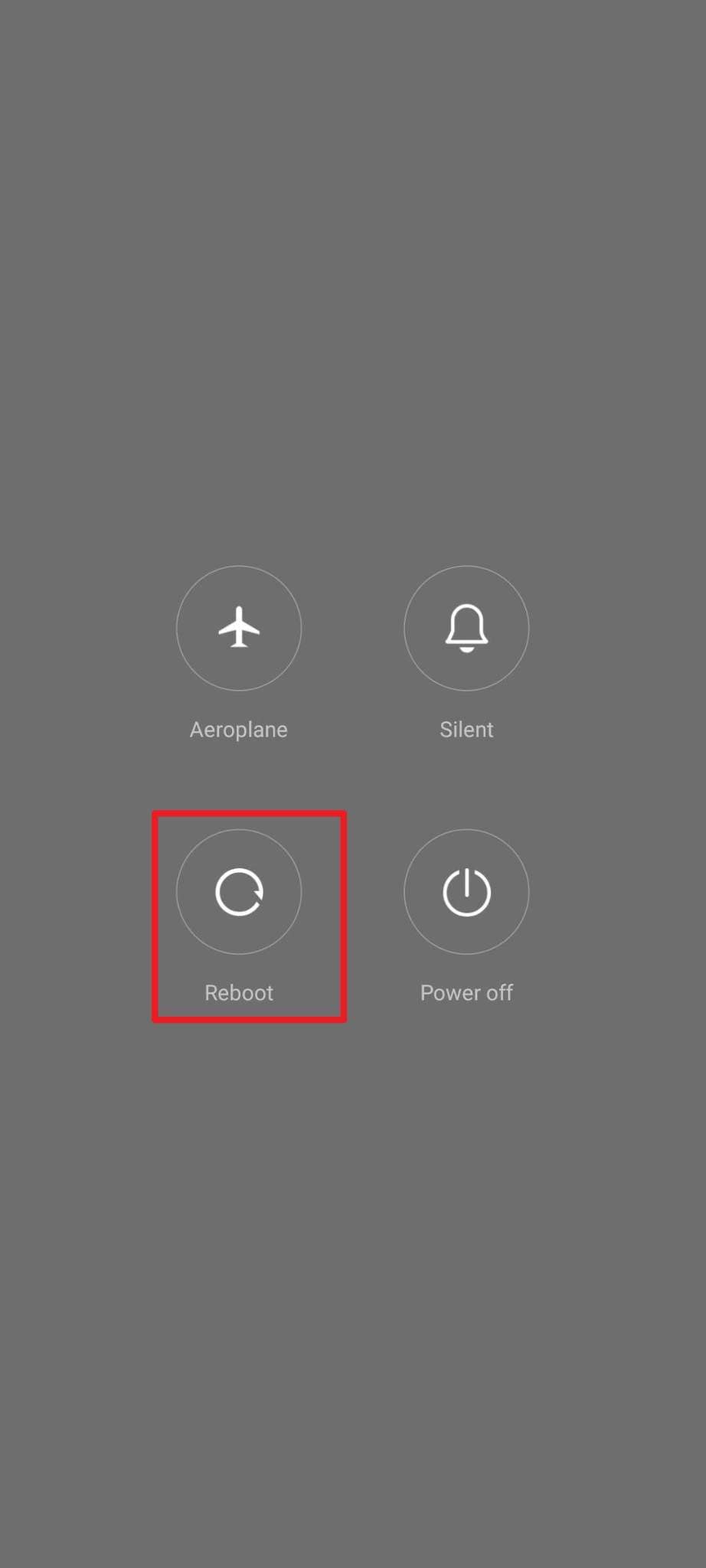
For Android
Instructions: Firmly press and hold the physical "Power + Volume Up" buttons simultaneously and securely choose the "Restart" option from the power menu.
For iPhone
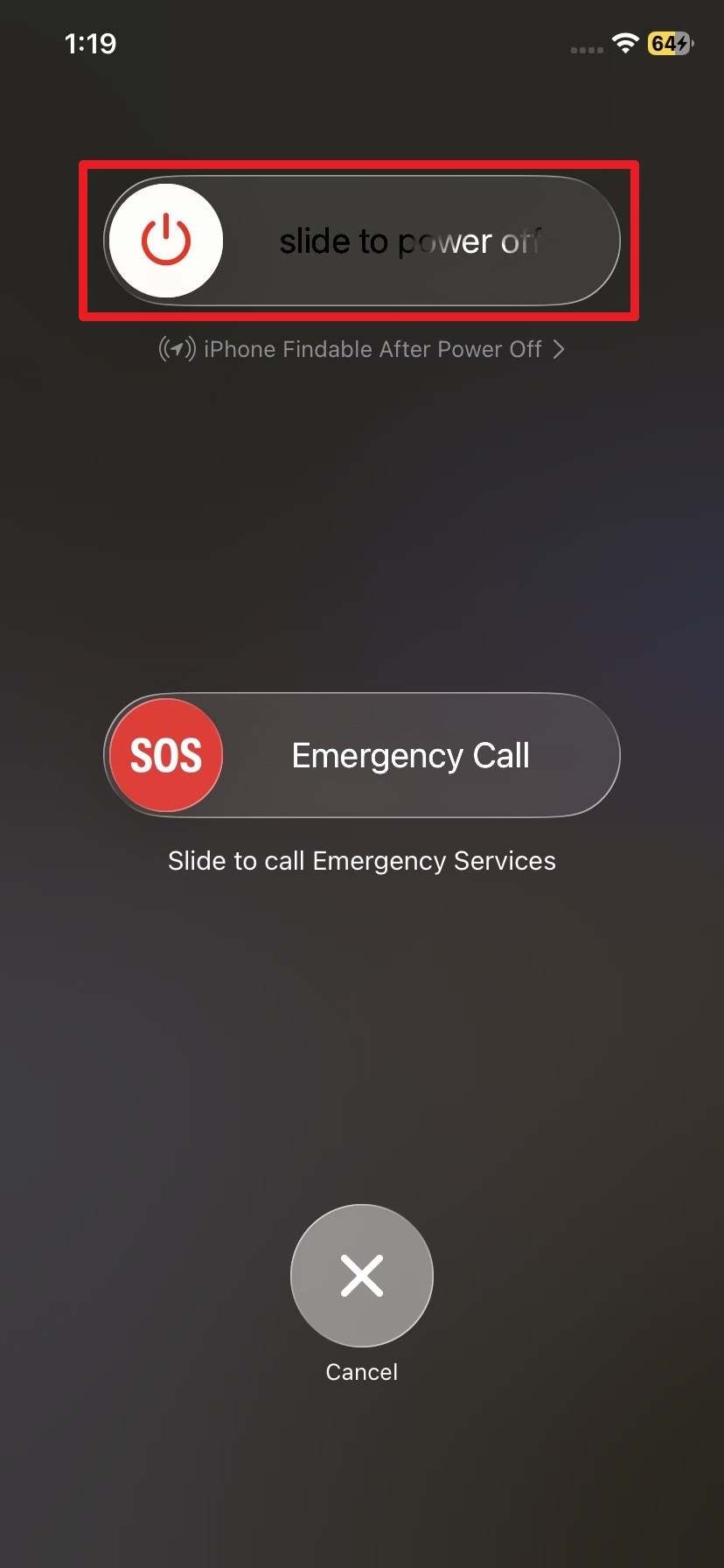
Instructions: Continually press and actively hold down the "Power and Volume Up" buttons concurrently > proceed to visually 'Slide to Power Off' using the touch screen slider.
For Web
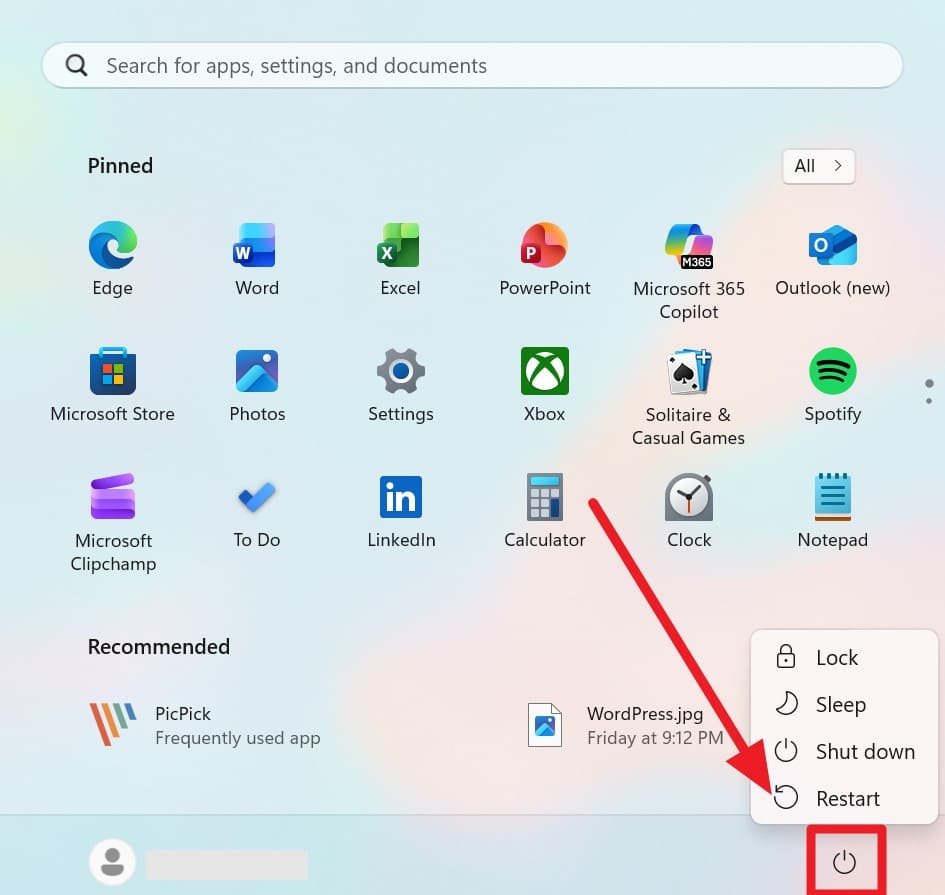
Instructions: Cleanly go directly to the bottom "Start" menu, deliberately choose the central "Power" icon, and definitively select the "Restart" sequence option to reboot the OS.
Restart App
For Android
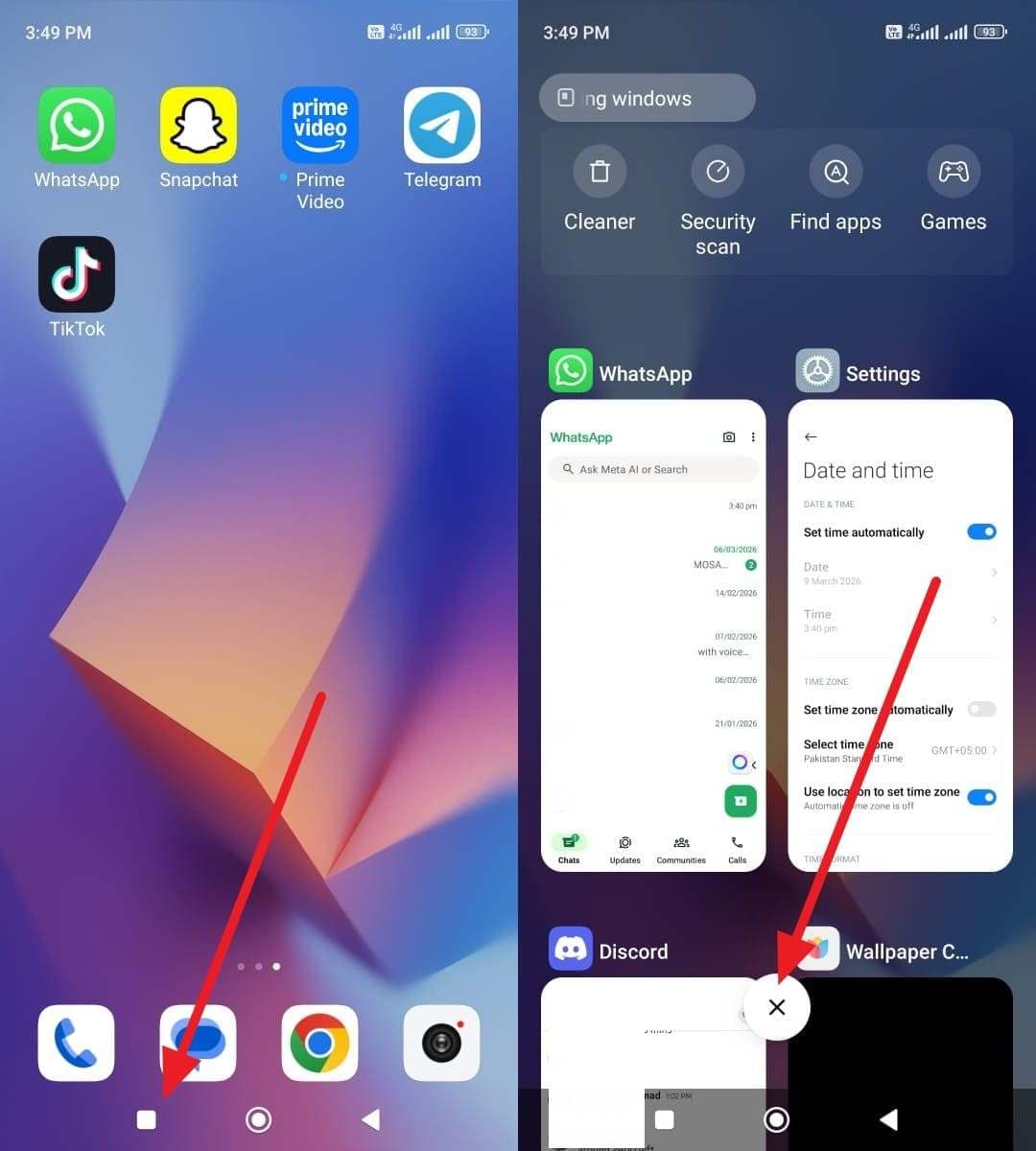
Instructions: Physically tap the bottom "Box" multitasking icon on your navigation bar, then quickly tap the "X" icon floating in the Recent Apps graphical interface to forcibly close WhatsApp from RAM.
For iPhone
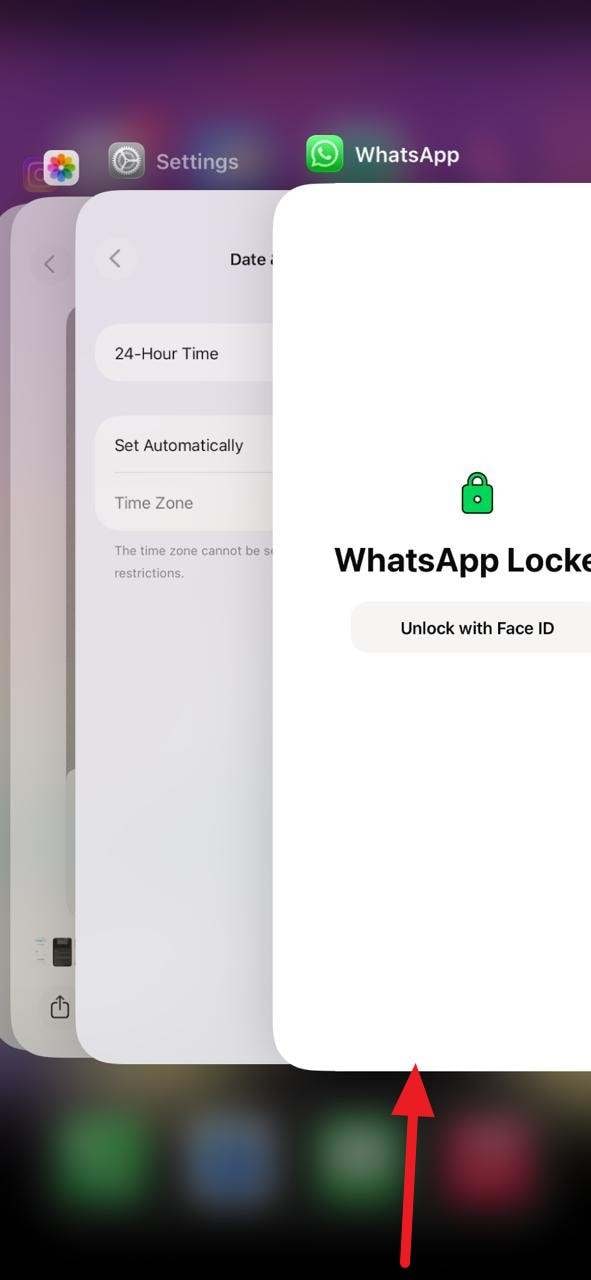
Instructions: Systematically swipe up the main WhatsApp application card in the iOS App Switcher menu to brutally close it out of active memory.
For Web
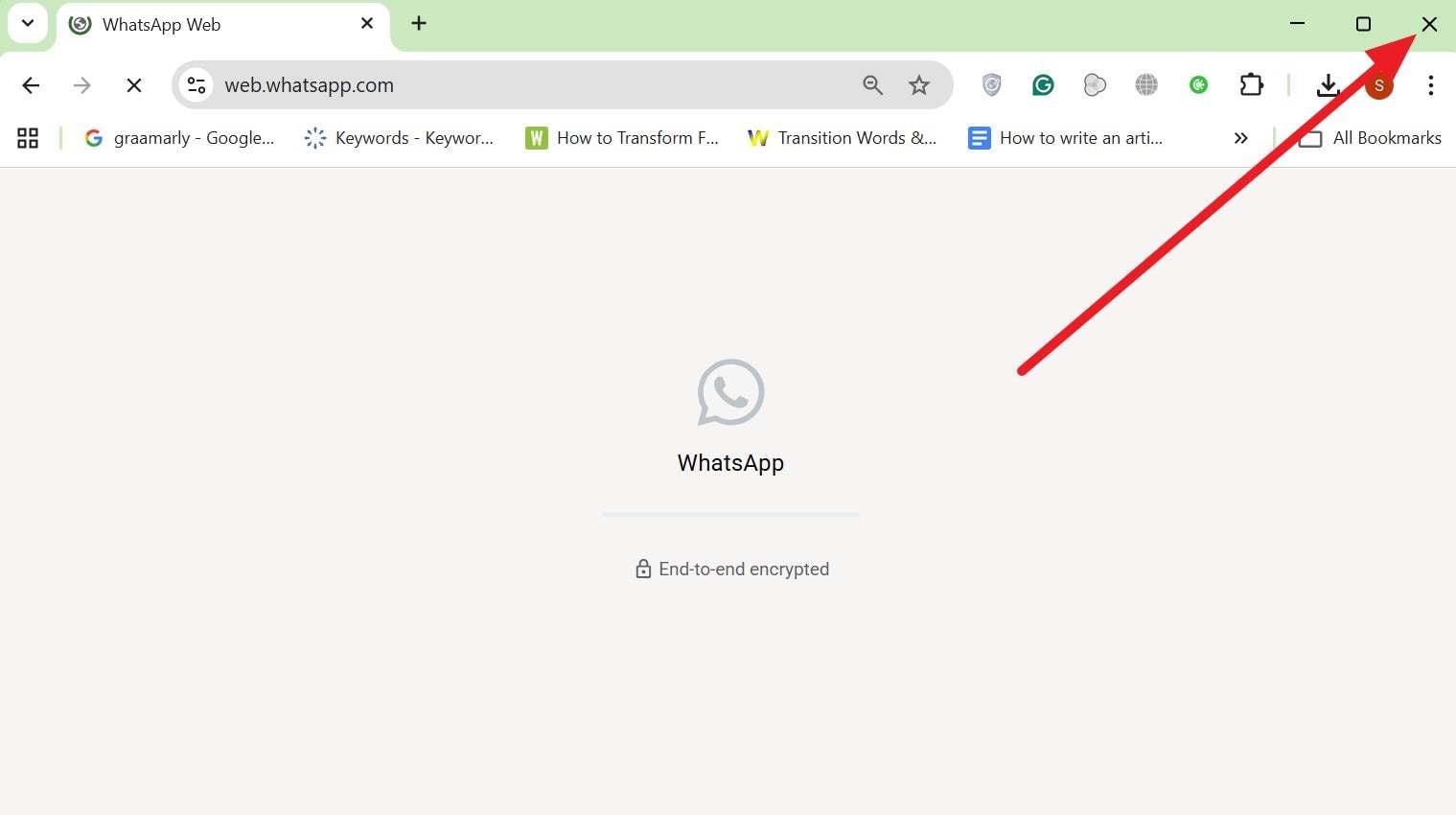
Instructions: Securely close the whole browser tab instance for a short while by directly pressing the standard "X" window icon on the browser tab bar.
Fix 4: Check Time Limit
Always double-check the precise time duration before you enthusiastically attempt to use the WhatsApp delete for everyone feature. This specific backend option works strictly only within WhatsApp's actively allowed window, which is documented to be around two days (plus a few hours) identically after a text message is permanently logged and sent.
Fix 5: Use the Same Device
This vital principle fundamentally helps the standard Delete for Everyone command work completely correctly and safely keeps chats in seamless sync. When you intentionally delete a logged message directly on the original sending device, the WhatsApp security architecture can easily match the localized message session keys and authenticate the remote delete command properly without raising security flags.
Fix 6: Confirm Recipient Uses Latest Version
Significantly older versions of the app may completely ignore the incoming remote delete command syntax, disastrously leaving the controversial message fully visible to the recipient. Actively updating both the sender's and receiver's app sides ensures the message consistently and reliably shows exactly as the intended "This message was deleted" placeholder in all associated chats.
Fix 7: Confirm Group Admin Rights
Official group admins can safely remove unauthorized or mistaken messages sent by absolutely any others, while standard regular group members can securely only delete their own independent texts. Distinctly knowing your specific permission role logically prevents incredibly wasted attempts on targeted messages you fundamentally cannot remove.
For Android
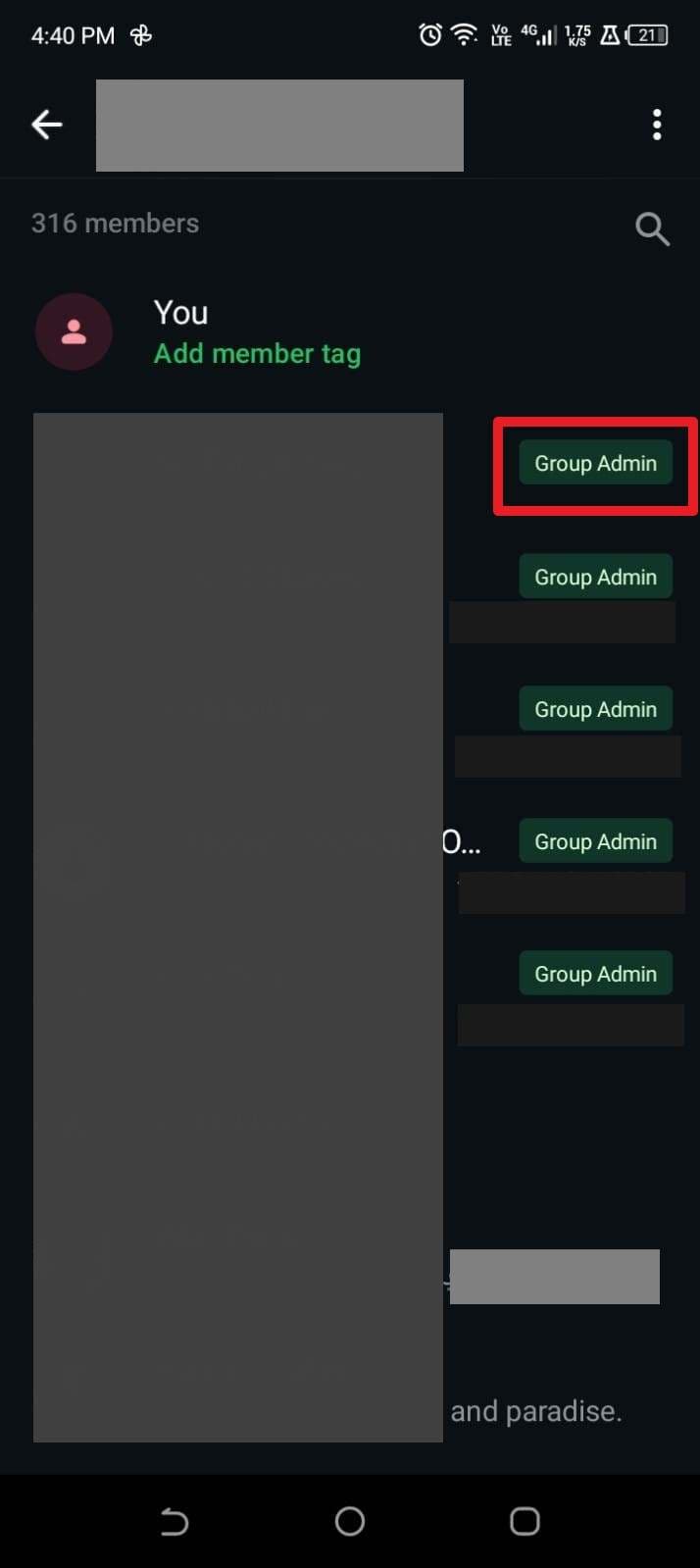
Instructions: Lightly tap the active group name at the very top of the chat UI and calmly scroll down to the main "Participants" list view. There, closely look for the green "Group Admin" status label situated next to the participant's name to instantly see who precisely holds the right to comfortably delete a message for everyone in the room.
For iPhone
Instructions: Deliberately tap the group's profile name at the very top, gently scroll down to the bottom "Participants" sector, and keenly find the unique "Group Admin" tag to clearly identify who precisely can delete messages in bulk.

For Web
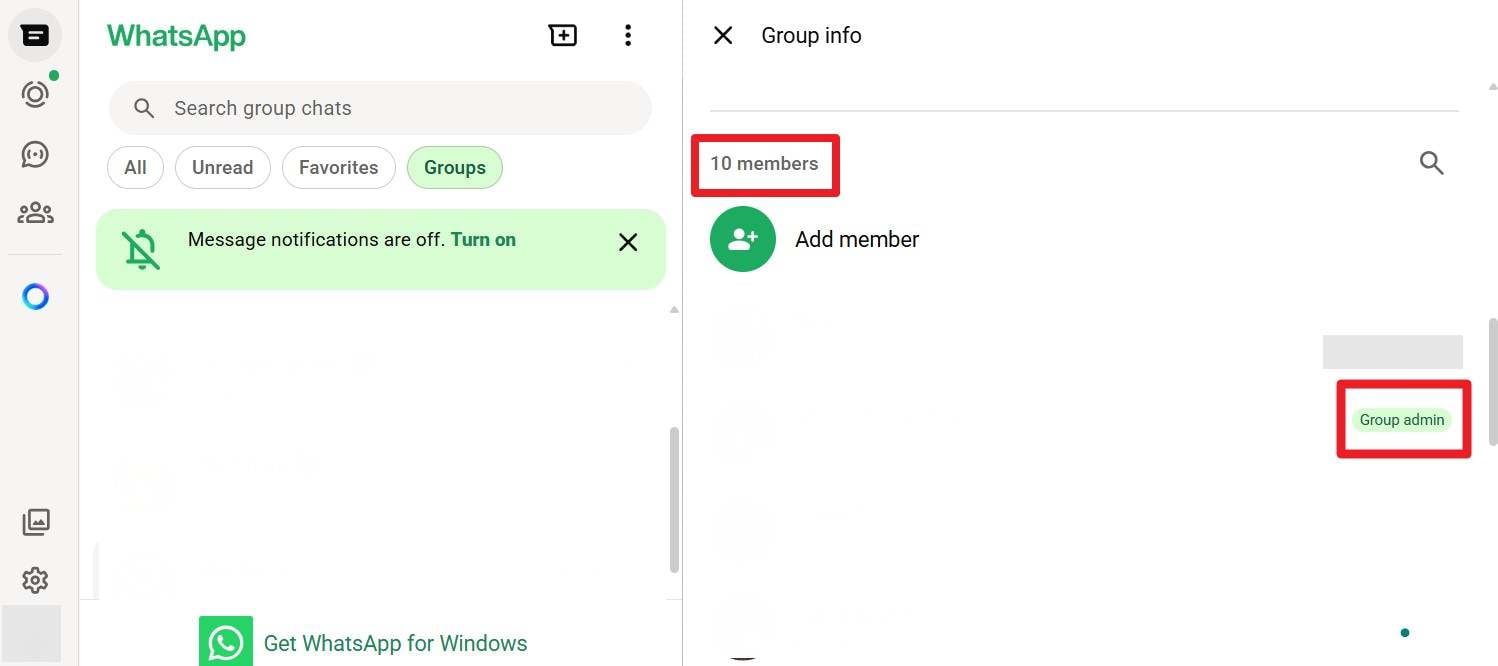
Instructions: Actively open the desired group's side panel info sheet, carefully scroll down to the detailed "Participants" list, and actively check for the specific "Group Admin" badge label to verify who possesses the overarching authorization to firmly delete messages.
Fix 8: Update Your WhatsApp App
If you are persistently trying to use the core Delete for Everyone WhatsApp time limit rule and constantly fail despite meeting criteria, critically ensure you update the underlying app. Comprehensive new software updates normally include the most current server rules, accurately correct localized time limits, and crucial bug fixes. They definitively ensure the UI delete option accurately appears and seamlessly works fully within the officially allowed server window, as expertly demonstrated below:
For Android
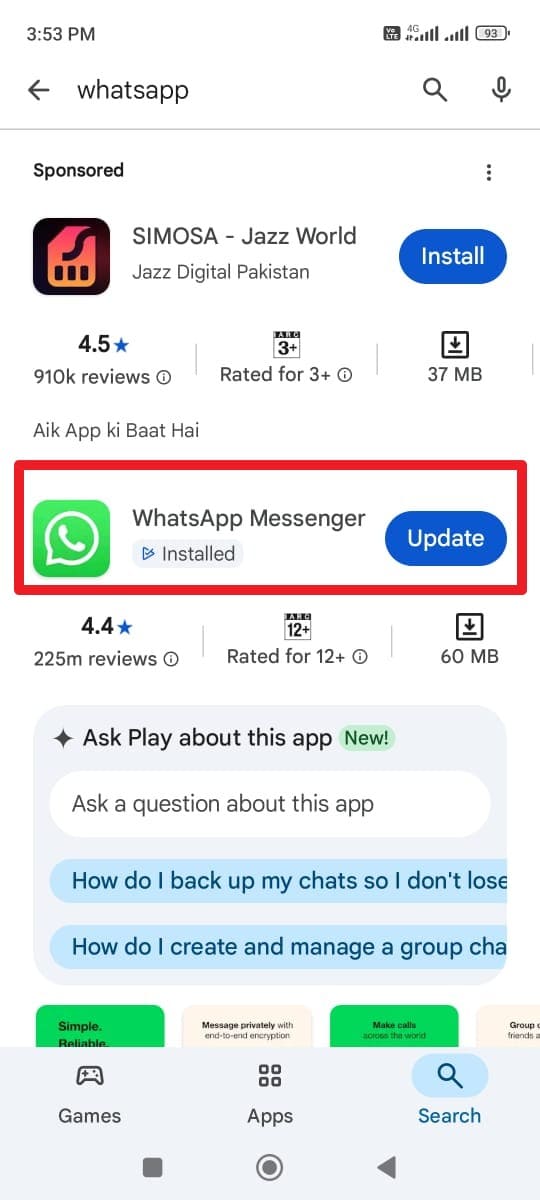
Instructions: Smoothly navigate over to the official Google Play Store, type and search for WhatsApp, and decisively tap on the green "Update" button.
For iPhone
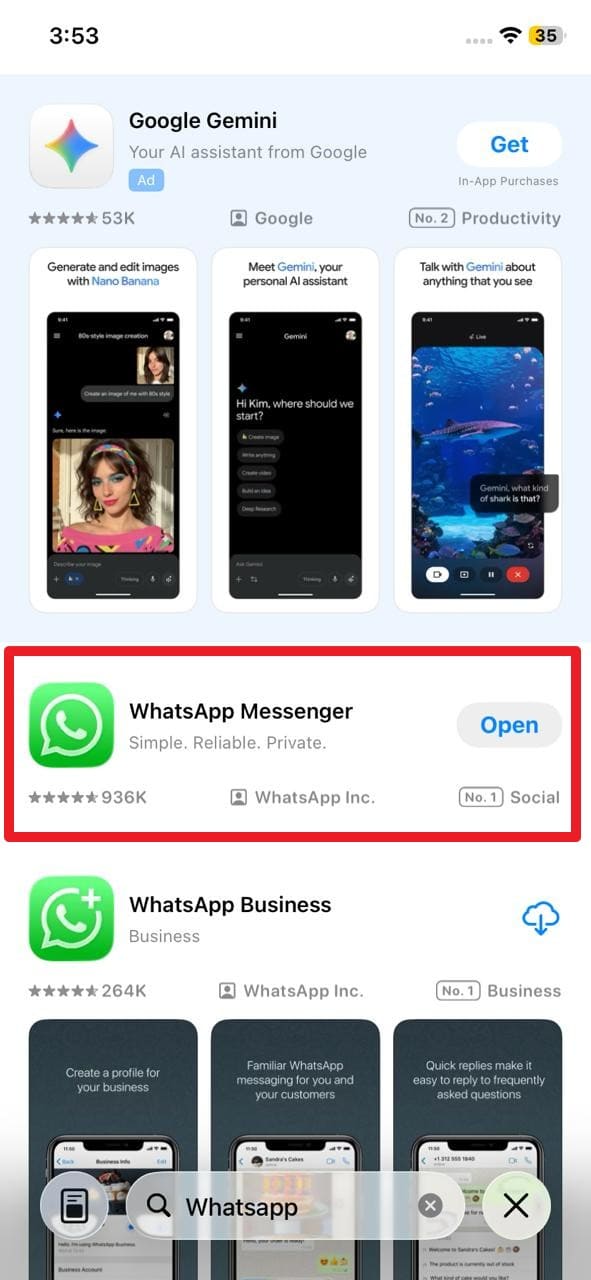
Instructions: Safely choose the blue "Update" oval option situated directly next to the official WhatsApp listing as you search directly on the iOS App Store dashboard.
Conclusion
To summarize everything, millions of daily users frantically want to desperately know how to delete a WhatsApp message for everyone the moment they accidentally send a highly flawed or sensitive text to someone unintended. Therefore, to decisively save you from monumental professional or social embarrassment, this deeply structured 2026 guide has accurately explained exactly how the highly demanded remote delete option technically works, and exactly how to natively use the "Delete for Everyone" option to systematically handle single and bulk multiple messages efficiently.
However, if you ever find yourself urgently wanting to securely recover restrictive View Once media files that seem utterly lost, intelligently using the highly acclaimed Dr.Fone - Data Recovery desktop toolkit is strongly and confidently recommended. This premium software environment effortlessly lets you rigorously retrieve multiple lost or hidden media files completely selectively in high-speed batches seamlessly from all major supported Android ecosystems and modern iOS architecture versions.
FAQ
-
1. Does deleting a message for everyone notify the recipient?
Yes, WhatsApp shows a clear "This message was deleted" placeholder bubble directly within the active chat thread. However, it does not officially reveal any specific system notification about precisely who originally deleted it or exactly what the raw contents previously were before the deletion command was sent. -
2. Do deleted messages disappear from push notifications?
Sometimes active push notifications may technically still temporarily display the original unencrypted message text preview on the lock screen immediately after it's sent. However, the critical moment when the user actually unlocks the device and natively opens WhatsApp, the local chat database refreshes violently, updates entirely, and correctly shows that the specific message was permanently deleted. -
3. Can I delete a WhatsApp message for everyone after 2 days?
Under normal official circumstances, WhatsApp firmly enforces a strict technical limit of approximately 60 to 68 hours (just under 3 days) to successfully execute the 'Delete for Everyone' server command. Once this distinct timeframe naturally expires, the app will definitively only offer you the local 'Delete for Me' option, permanently leaving the text fully visible to the recipient. -
4. Why doesn't the "Delete for Everyone" option show up on my device?
If the highly sought-after option is suddenly completely missing from your menu, it typically heavily implies that the official 68-hour deletion timeframe has undoubtedly already passed. Alternatively, it can frequently mean that either your installed WhatsApp version is incredibly outdated, or the specific target message was originally sent on an entirely different, unsynced device that WhatsApp security cannot locally authenticate.
 Add Wondershare Dr.Fone as a preferred source on Google