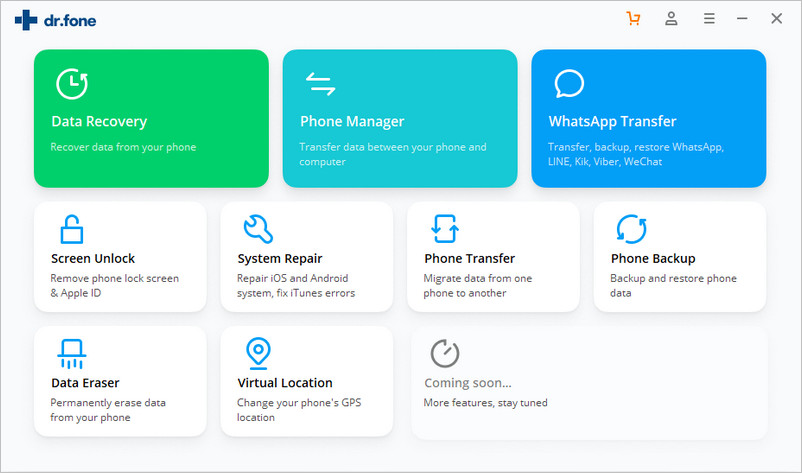
Effortlessly manage data through preview, delete, export, etc.

 100% Security Verified | No Subscription Required | No Malware

 :
: 
 ChatGPT
 Perplexity
 Gemini
 Claude
 Grok
Grok
For decades, Apple has followed an almost sacred ritual: every September, new iPhones arrive. This year, that tradition is breaking. For the first time, Apple is splitting its iPhone 18 launch across two separate seasons, and if you're waiting for the standard model, you're looking at a much longer wait than usual.
In September 2026, Apple will release the iPhone 18 Pro, iPhone 18 Pro Max, and its first-ever foldable iPhone. But here's the catch—there won't be a standard iPhone 18 joining them. Instead, you'll need to wait until spring 2027 for the base model. That's a six-month delay from Apple's typical schedule, meaning if you're still using an iPhone 17, you're potentially facing an 18-month window before your normal upgrade window arrives.
In this article
- Part 1. The Shift in Apple's Release Strategy - When the Standard iPhone 18 Won't Launch
- Part 2. The Real Problem: Long-Term iPhone Use and Data Risk
- Part 3. How to Backup Your Data
- Part 4. Taking Control with Automatic Data Protection
- Part 5. Implementing Dr.Fone iOS Backup for Peace of Mind
- Part 6. Smart Backup Strategies for the Wait
Part 1. The Shift in Apple's Release Strategy - When the Standard iPhone 18 Won't Launch
For decades, Apple has followed an almost sacred ritual: every September, new iPhones arrive. This year, that tradition is breaking. For the first time, Apple is splitting its iPhone 18 launch across two separate seasons, and if you're waiting for the standard model, you're looking at a much longer wait than usual.
In September 2026, Apple will release the iPhone 18 Pro, iPhone 18 Pro Max, and its first-ever foldable iPhone. But here's the catch—there won't be a standard iPhone 18 joining them. Instead, you'll need to wait until spring 2027 for the base model. That's a six-month delay from Apple's typical schedule, meaning if you're still using an iPhone 17, you're potentially facing an 18-month window before your normal upgrade window arrives.
Why is Apple doing this? Strategic reasons. Launching everything at once would create a crowded product lineup competing for attention. Instead, Apple is staggering releases to give each device breathing room and spreading out manufacturing pressure. For consumers, though, this creates an unexpected challenge: your current iPhone needs to last considerably longer than you planned.
Part 2. The Real Problem: Long-Term iPhone Use and Data Risk
This is where the delay starts feeling serious. iPhones aren't designed to last forever, and the longer you use your device, the more vulnerabilities emerge.
Hardware failures become more likely. Extended use accelerates wear on other components. Screens can develop dead pixels, speakers can degrade, and storage can develop read/write errors. These aren't guaranteed, but the longer your device is active, the higher the statistical probability of hardware issues.
The storage problem compounds the risk. As you continue using your iPhone for 18 months, your storage fills up—photos, videos, app caches, and downloads accumulate. Eventually, you might see storage warnings, which creates additional stress on the device and can slow performance even further.
The data loss risk is the most critical. Here's the scenario nobody likes to think about: Your iPhone has years of photos from family moments, important work contacts, medical records in your notes, financial information, and countless other irreplaceable data. Now imagine your aging device suddenly fails—a broken screen, a storage malfunction, a complete system failure—before you can upgrade. Without proper backups in place, that data is potentially gone forever.
Part 3. How to Backup Your Data
Apple offers backup options, and they work technically. But they have significant limitations that become apparent when you need them most.
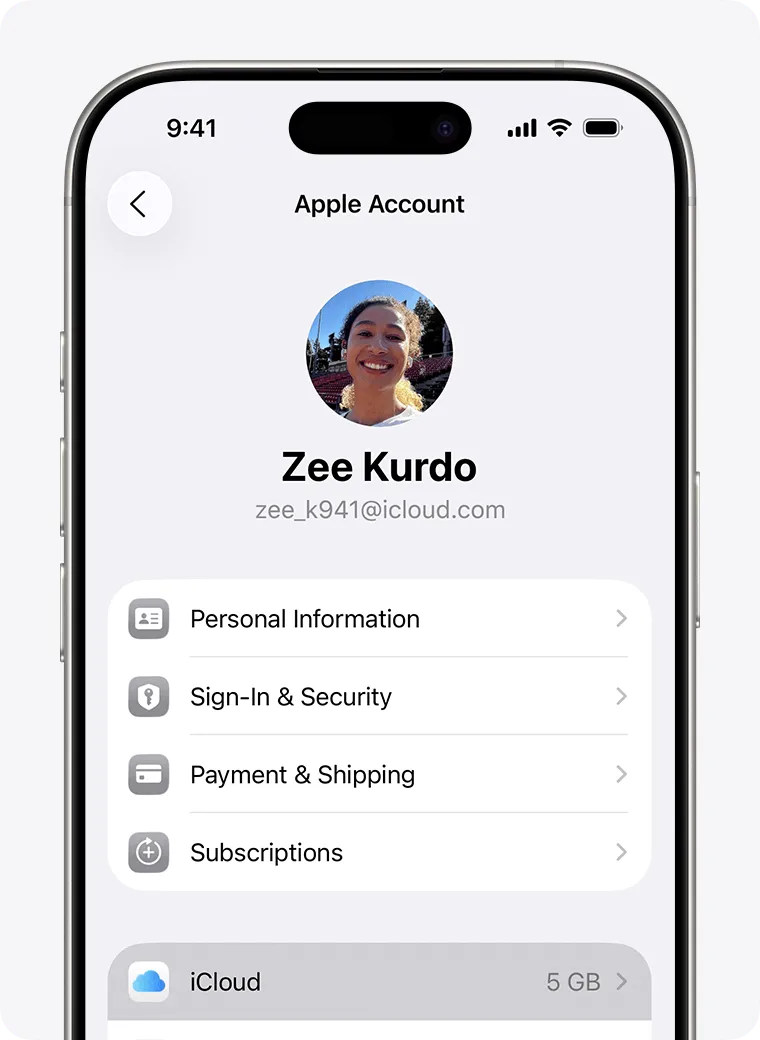
iCloud backup is Apple's flagship solution. Open Settings, tap your name, go to iCloud, and enable iCloud Backup. Your device will then back up automatically when connected to Wi-Fi, plugged in, and locked.
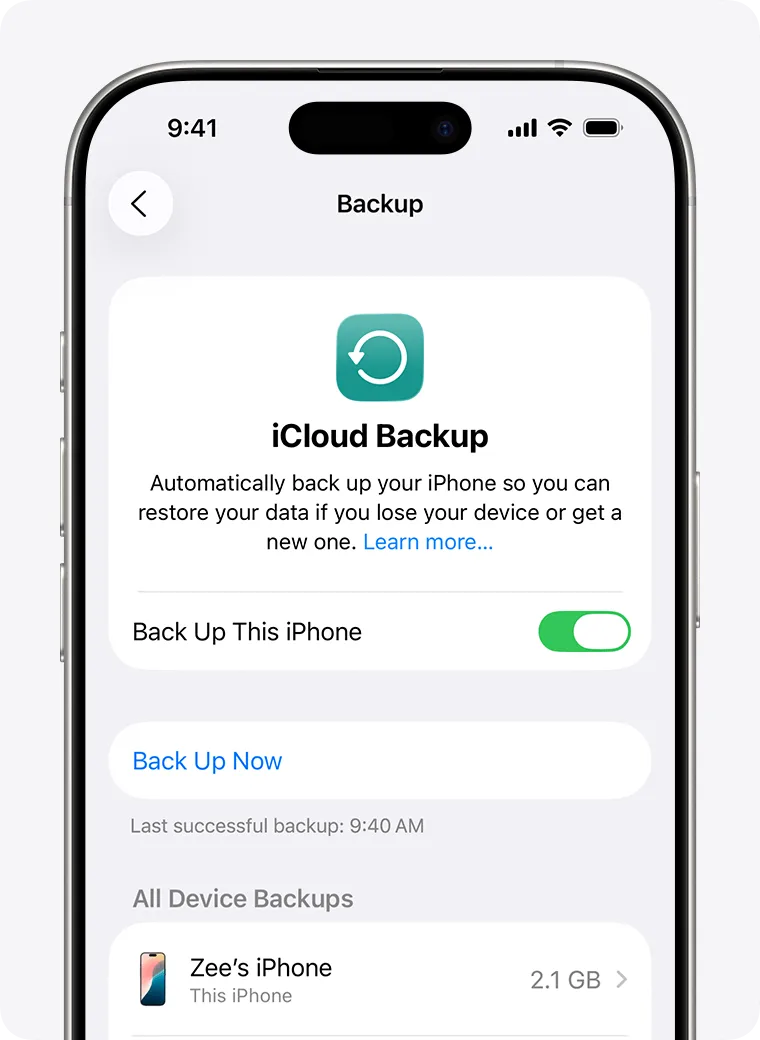
Source: Apple Suppor
On the surface, this sounds ideal. But there are real limitations:
| Aspect | iCloud Backup | Dr.Fone iOS Backup |
|---|---|---|
| Storage Limit | 5GB free (paid plans available) | Unlimited local storage on PC |
| Privacy | Data stored on Apple servers | Data stays on your computer |
| Backup Frequency | Once daily (automatic) | Customizable schedule (daily/weekly/monthly) |
| Network Dependency | Requires Wi-Fi + internet | Can work with USB connection |
| Preview Capabilities | Limited preview options | Full preview of all backup content |
| Cost | Free tier limited, $0.99-$2.99/month for upgrades | One-time purchase |
The storage problem is immediate. Apple gives you 5GB free. If you have substantial photo libraries, iCloud quickly hits its ceiling. You'll get a notification that backup failed because of insufficient storage.
Source: Apple Support
Now you face a choice: pay for more iCloud storage ($0.99-$2.99/month), delete data, or go without backups. For an 18-month waiting period, that adds up.
The network dependency is another weakness. iCloud backup requires Wi-Fi connection, and crucially, it only backs up when your device is plugged in, connected to Wi-Fi, AND the screen is locked. Travel, unreliable home internet, or simply forgetting to leave your phone plugged in overnight means backups get skipped. A simple internet outage or Wi-Fi disconnect during the backup window means your latest data never gets saved.
Backup failures happen silently. If backup fails due to network interruption or storage issue, you might not realize until disaster strikes. Most users assume their backup completed because they set it up and forgot about it. For someone waiting 18 months for their next phone, this is a serious vulnerability.
Part 4. Taking Control with Automatic Data Protection
Instead of relying solely on cloud-based backups that depend on storage limits and network conditions, the better approach is local automatic backup with full visibility.
During the 18-month wait for the iPhone 18, your data deserves active, consistent protection. This means:
- Automatic backups - Set it and forget it, without manual intervention
- Backup frequency - Daily or weekly backups to capture changes
- Full data preservation - Everything: photos, videos, contacts, messages, app data, voicemail, ringtones
- Backup preview - Verify what's been backed up so you know your data is safe
- Local storage - Keep backups on your computer, not dependent on cloud storage tiers
This approach ensures that if your iPhone does experience issues during the wait period, you have multiple recent backup snapshots to restore from.
Part 5. Implementing Dr.Fone iOS Backup for Peace of Mind
Wondershare Dr.Fone provides a comprehensive iOS data backup and restore solution designed to safeguard your iPhone, iPad, or iPod Touch data against unexpected loss. Unlike Apple's native iCloud or iTunes backups—which often come with storage limitations or rigid restore requirements—Dr.Fone offers a more flexible, user-controlled approach to protecting your personal information.It offers flexibility with two methods: manual backups for immediate protection, and automatic backups for ongoing peace of mind.
 Effortlessly manage data through preview, delete, export, etc.
- Transfer all data between devices.
- Robust backup solutions for reliable data protection.
- Mirror screens to PC for meetings, teaching, and control.

Manual Backup (Immediate Protection)
-
Step 1 Access the Backup Feature
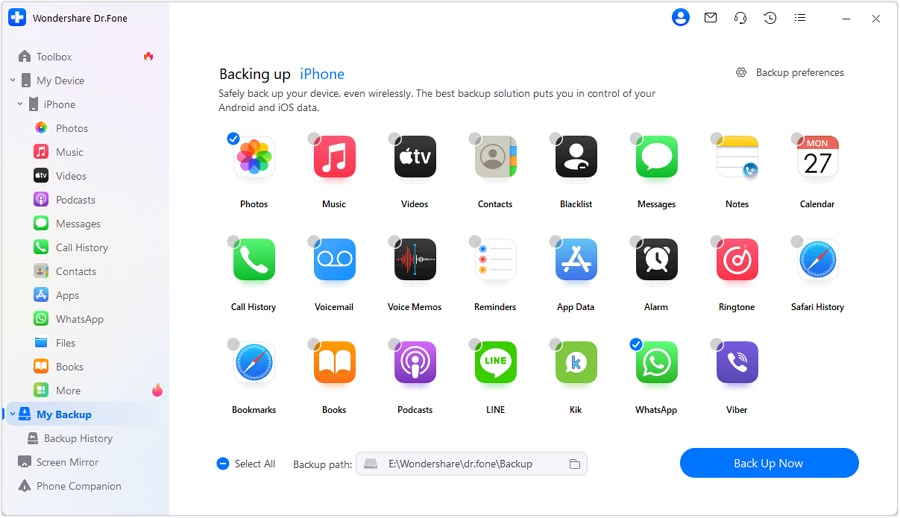
Launch Dr.Fone on your computer, connect your iPhone via USB, and click "Back Up Now" in the My Backup section.
-
Step 2 Let the Backup Complete
Dr.Fone automatically detects and backs up all data types: photos, videos, music, contacts, messages, calendars, reminders, voicemail, ringtones, notes, app data, and more. The process runs in the background—just keep your device connected.

-
Step 3 Verify and Store
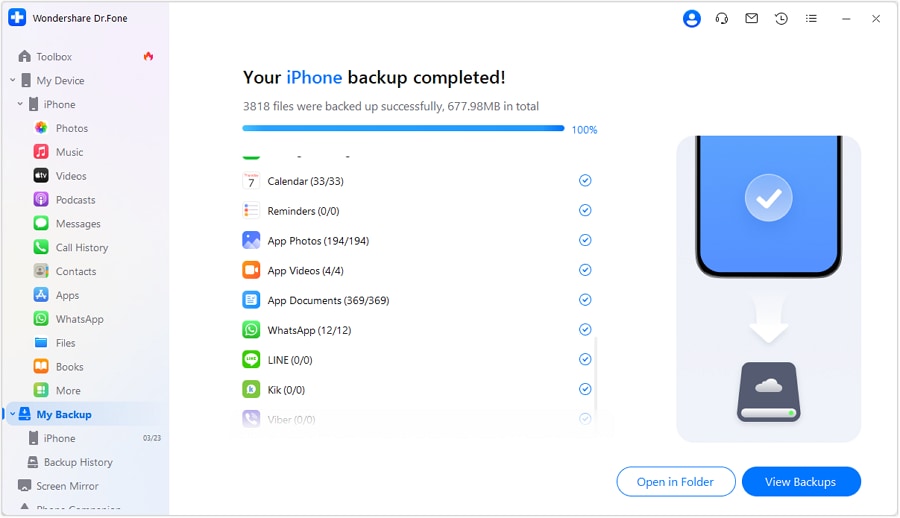
Once complete, Dr.Fone displays a summary of everything backed up. Click "View Backups" to verify your data, or "Open in Folder" to see where your backup is stored on your computer.
Automatic Backup (Ongoing Protection)
-
Step 1 Enable Automatic Backups
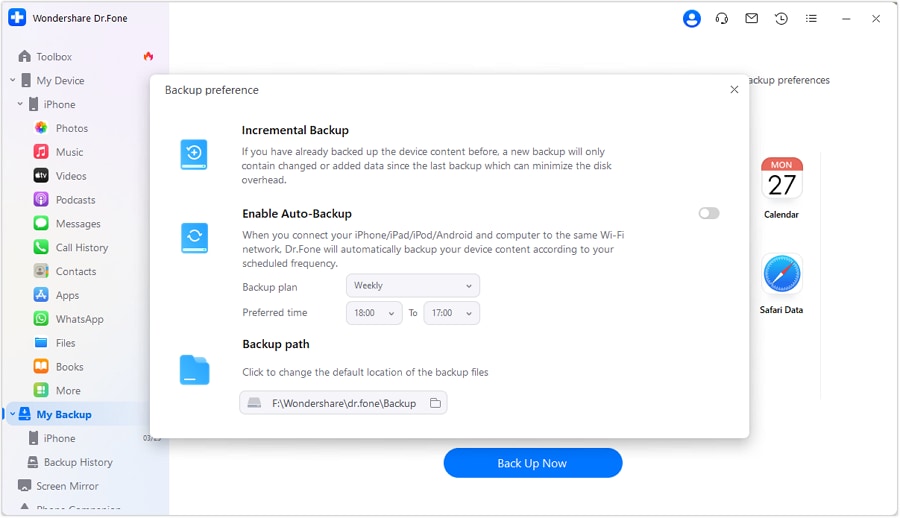
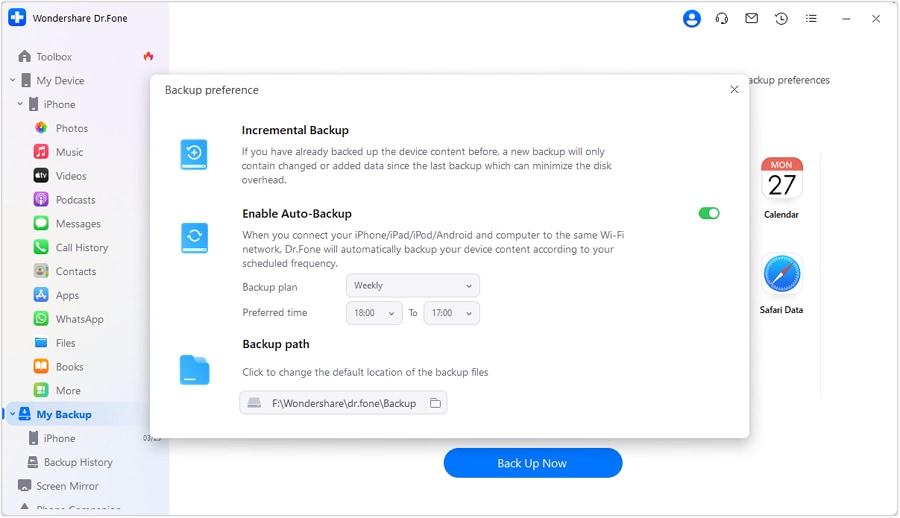
Navigate to "My Devices > Backup Preferences" and enable "Auto-Backup". This is where you set your backup schedule.
-
Step 2 Configure Backup Schedule
Set your preferred backup frequency (daily, weekly, monthly) and the time you want backups to run. Ensure your iPhone and computer are on the same Wi-Fi network when automatic backups are scheduled.
-
Step 3 Monitor Backup History
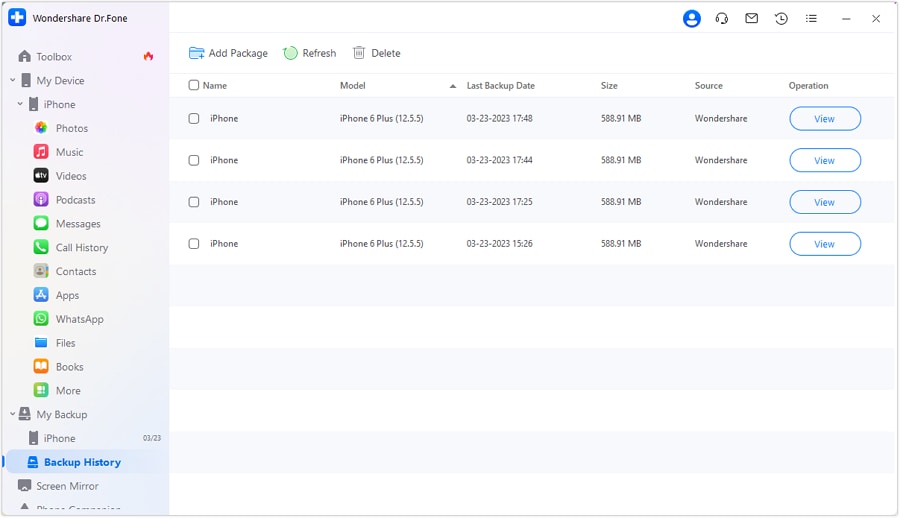
Click "Backup History" to see all previous backups. You can view exactly what's in each backup by clicking "View" and browsing through data categories.




Part 6. Smart Backup Strategies for the Wait
You're looking at an 18-month window between now and the iPhone 18 launch. Here's how to optimize your data protection during this time:
Immediate Action (This Month)
Start with a complete manual backup today. This establishes your baseline. Enable automatic backups so going forward, you're protected without thinking about it.
Monthly Verification
Once a month, open Dr.Fone, check your backup history, and verify recent backups completed successfully. Click "View" and scan through your photos and important files to confirm everything you care about is protected.
Before Travel
Before trips or situations where your phone will be heavily used, perform an extra manual backup. This captures your data at that moment in case anything goes wrong while you're away from home.
Battery Management
While your iPhone ages, monitor its battery health. Go to Settings > Battery > Battery Health & Charging. If it drops below 80%, consider reducing unnecessary background activity and enable Low Power Mode more frequently. Your backups will protect your data if the battery fails completely.
Conclusion
The iPhone 18 delay is unusual, but it's not unprecedented for devices to last 18 months. With proactive automatic backups through Dr.Fone, you eliminate the data loss risk that makes long device lifespans genuinely stressful. Your photos, contacts, messages, and everything else you've accumulated stay safe on your computer, independent of cloud storage limits, network conditions, or hardware failures.
By the time your iPhone 18 arrives in spring 2027, you'll have months of reliable backups ready to restore everything seamlessly to your new device. The delay becomes irrelevant because your data is already protected.
FAQ
-
1. Will there really be no standard iPhone 18 in September 2026?
Yes, according to current reports, Apple is splitting the iPhone 18 lineup. The Pro models and foldable iPhone will launch in September 2026, while the standard iPhone 18 will arrive in spring 2027. -
2. How long can I safely use my current iPhone without upgrading?
With proper care and battery management, your iPhone can easily last 18+ months. The key is monitoring battery health and maintaining regular backups to protect your data. -
3. Is iCloud backup enough for my data during this 18-month wait?
iCloud backup works but has limitations including 5GB free storage, daily backup frequency, and network dependency. For comprehensive protection during an extended wait period, a local backup solution with automatic scheduling provides more reliable coverage. -
4. What data does Dr.Fone iOS Backup protect?
Dr.Fone backs up photos, videos, music, contacts, messages, calendars, reminders, voicemail, ringtones, notes, app data, and more. It provides full data preservation with preview capabilities.
 Add Wondershare Dr.Fone as a preferred source on Google