Effortlessly manage data through preview, delete, export, etc.

 100% Security Verified | No Subscription Required | No Malware

 :
: 
 ChatGPT
 Perplexity
 Gemini
 Claude
 Grok
Grok
Rumors about iPhone 18's potential 5G satellite connectivity excite travel communities. Staying connected from remote mountains and wilderness camps sounds appealing. But the most dangerous moment on a trip isn't when you can't reach the internet—it's when you've lost your phone, it's been damaged, or your data has vanished. Before your next trip, ensuring your iPhone data is backed up matters far more than waiting for satellite features.
In this article
Part 1. Why the iPhone 18 Satellite Rumor Excites Travelers
The promise of connectivity everywhere. Industry reports suggest Apple's rumored C2 modem could enable seamless satellite connectivity when cellular networks fail. Building on Apple's existing Emergency SOS via Satellite feature, this represents genuine expansion beyond traditional infrastructure. Travel communities discuss these possibilities because they address a real need—remote hiking, off-road expeditions, and wilderness adventures encounter dead zones where networks don't exist.
The appeal is clear: freedom from geographical constraints, ability to share location during emergencies, and constant connection to help. These are genuinely valuable features for adventurers.
Part 2. The Real Travel Threat Nobody's Discussing
When data disappears, satellite won't help. While the internet debates future satellite capabilities, travelers face more immediate crises: data loss. Your phone slips during a hiking break, screen-first into rocks. A rainstorm soaks your device despite protective cases. A software glitch triggers factory reset. A pickpocket steals your phone. Your child accidentally deletes vacation photos. A drop into water destroys your device.
These aren't hypothetical—they happen monthly to thousands of travelers. Satellite connectivity won't prevent any of them. Perfect satellite connectivity won't recover shattered screens, restore stolen phones, or retrieve deleted photos. While satellite might help you call for help after disaster strikes, it does nothing to preserve your data before it happens.
Part 3. Why Backup Is More Critical Than Future Connectivity
The scenario that reveals true priority. Imagine: your iPhone 18 has perfect satellite connectivity. You're on a week-long camping trip, consistently connected despite being in the wilderness. But on day four, your phone falls into a river. Now that satellite-enabled device is waterlogged and unusable. All your photos, flight confirmations, reservation details, chat history, and work documents are inaccessible.
Without backup: you've lost your entire trip. Recovery takes weeks. With backup: within hours of borrowing a device in town, you've restored your entire digital life to a replacement phone. Your photos are intact. Your reservations reappear. Your trip continues virtually uninterrupted.
This is why backup isn't optional—it's the difference between a manageable problem and a travel-wrecking disaster. And unlike satellite features, you can implement it today.
Part 4. Understanding Your Backup Options
How to back up with iCloud
iCloud offers automatic backup through your Apple ID. Here's how to enable it:
-
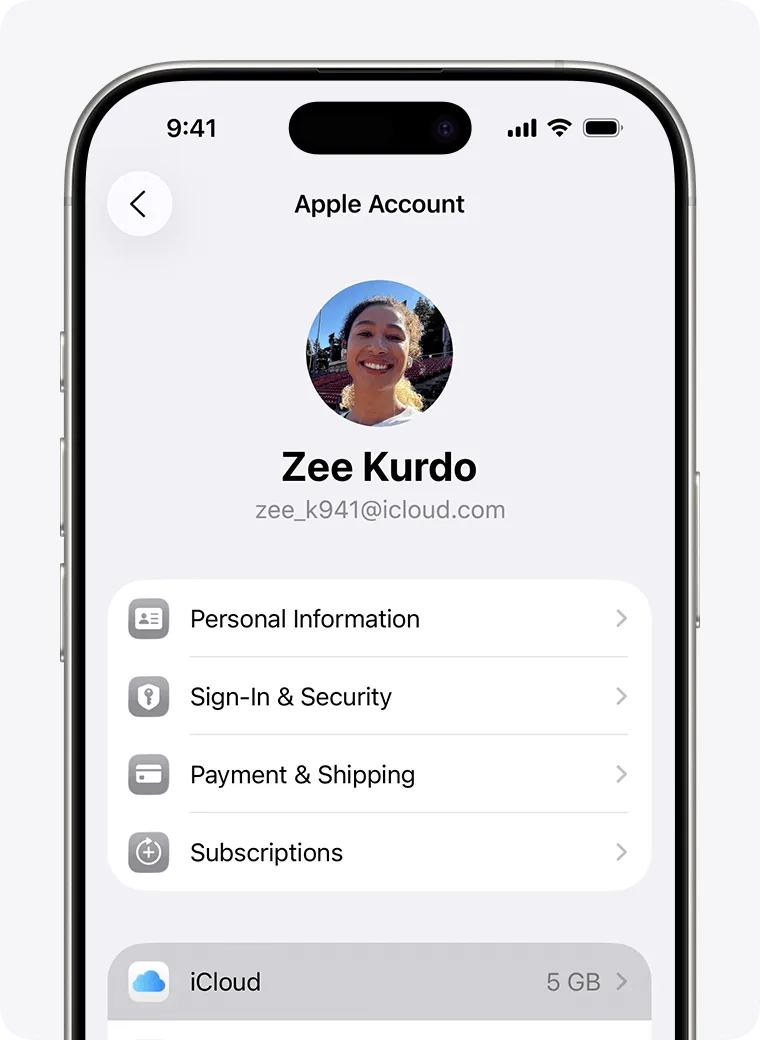
Step 1 Access iCloud Backup Settings
Open the Settings app on your iPhone. Tap your name at the top, then select iCloud. Tap iCloud Backup to access backup options.
Source: Apple Support
-
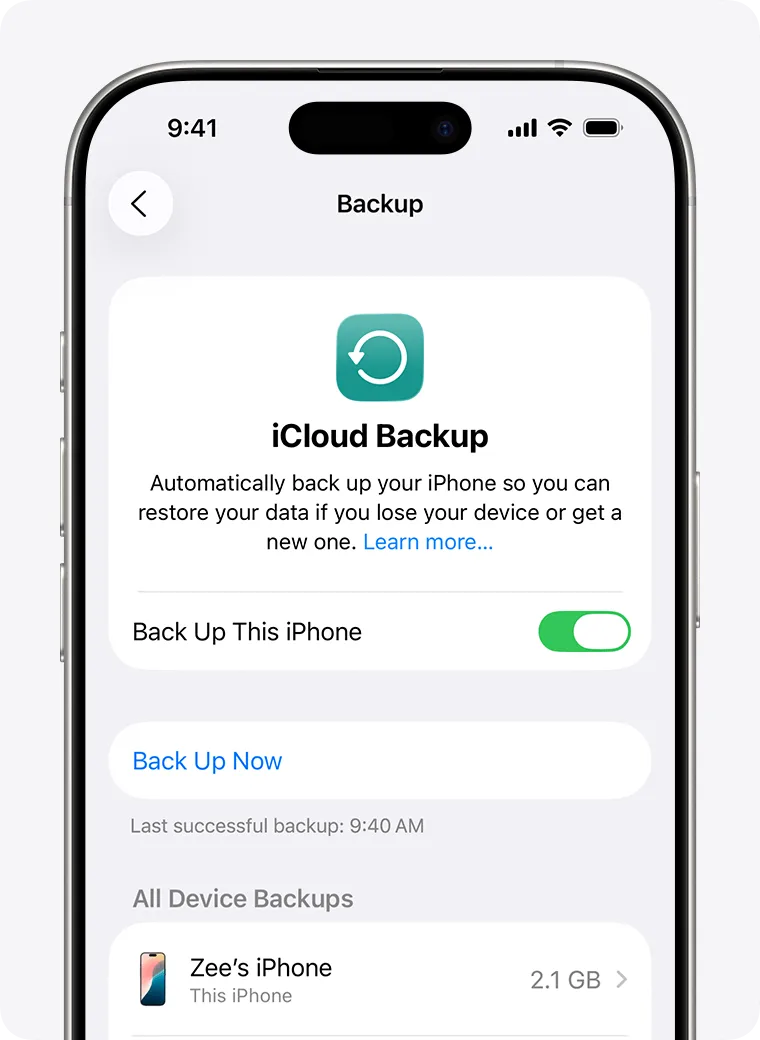
Step 2 Activate Backup & Connect
Enable "Back Up This iPhone" toggle. Make sure your device is connected to Wi-Fi, plugged into power, and the screen is locked. iCloud will automatically back up your data every 24 hours under these conditions.
Source: Apple Support
How to back up with iTunes/Finder
For local backup on your computer, use Finder (Mac) or the Apple Devices app (Windows):
-
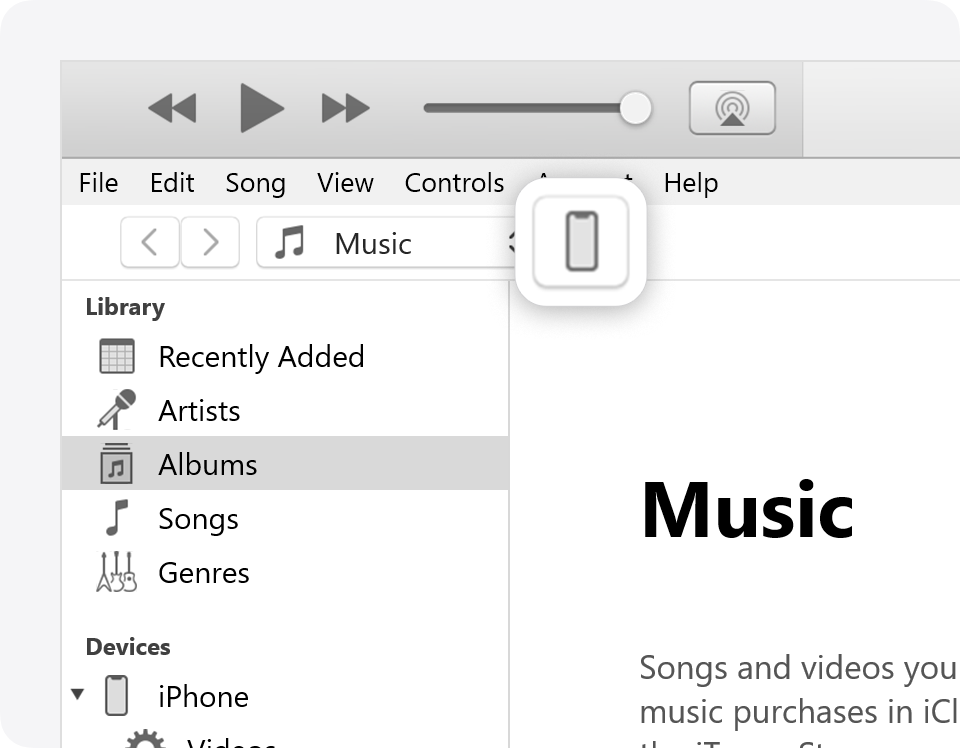
Step 1 Connect Device
Connect your iPhone to your computer using the USB cable. Open Finder on Mac or the Apple Devices app on Windows. Select your device when it appears.
Source: Apple Support
-
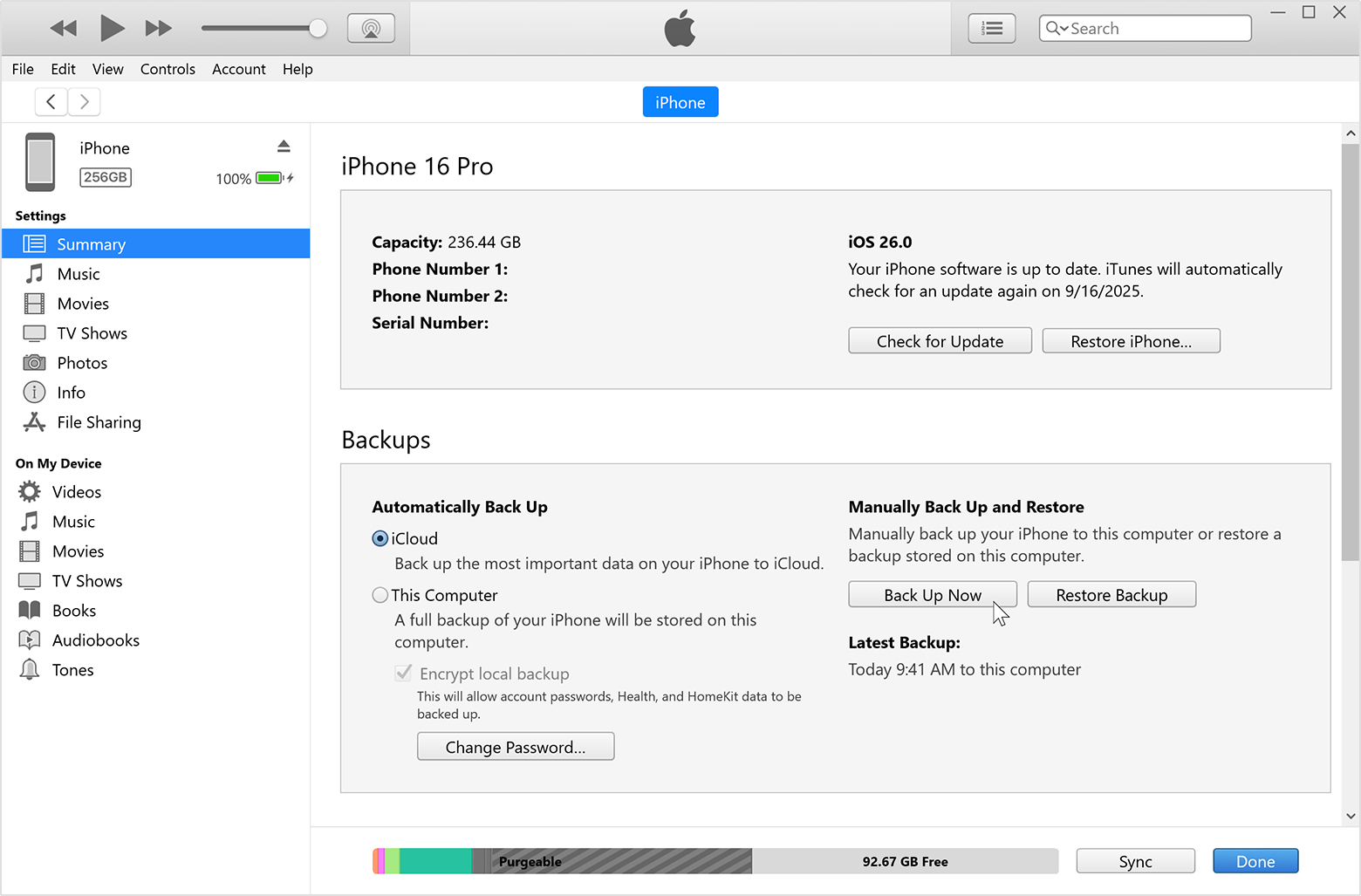
Step 2 Start Backup
Click General (Finder) or Summary (Apple Devices app). Check "Encrypt local backup" if desired. Click "Back Up Now" to begin.
Source: Apple Support
Why these options have limitations
iCloud requires constant connectivity and depends on sufficient cloud storage—if you exceed your limit, backups silently fail. iTunes/Finder requires manual initiation each time and involves clunky desktop software. Neither option was designed specifically for travelers needing quick, reliable backup before departure.
Part 5. Dr.Fone iOS Backup—The Travel-Ready Solution
Built for what travelers actually need. Dr.Fone iOS Backup solves the exact problems that plague standard options. It creates comprehensive local backups stored directly on your computer—you maintain complete control with no cloud dependency, no storage limits, and no account compromise risks.
 Effortlessly manage data through preview, delete, export, etc.
- Transfer all data between devices.
- Robust backup solutions for reliable data protection.
- Mirror screens to PC for meetings, teaching, and control.

Simple backup with visual verification:
-
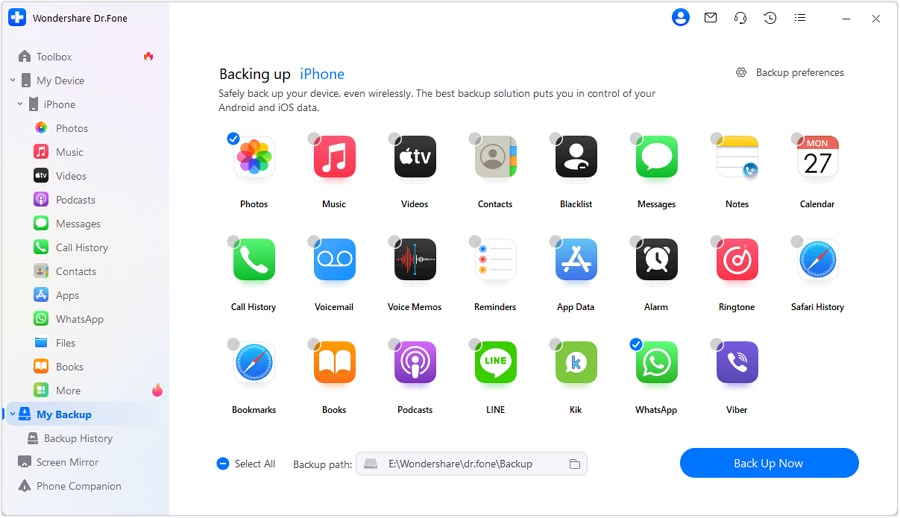
Step 1 Start the Backup
Open My Backup and click Back Up Now. This gives you a clear starting point, which is helpful if you want to take action today without getting pulled into a bigger setup process.
-
Step 2 Let the Backup Run
Dr.Fone detects the supported data on your iPhone and starts saving it automatically. At this stage, you mainly need to let the process finish and avoid interrupting it, which makes the experience feel simple even if your phone contains a lot of files.

-
Step 3 Check What Was Saved
When the backup is complete, open View Backups to review the result. That final check matters because it turns backup into something concrete—you are not just hoping it worked, you can actually see that it did.
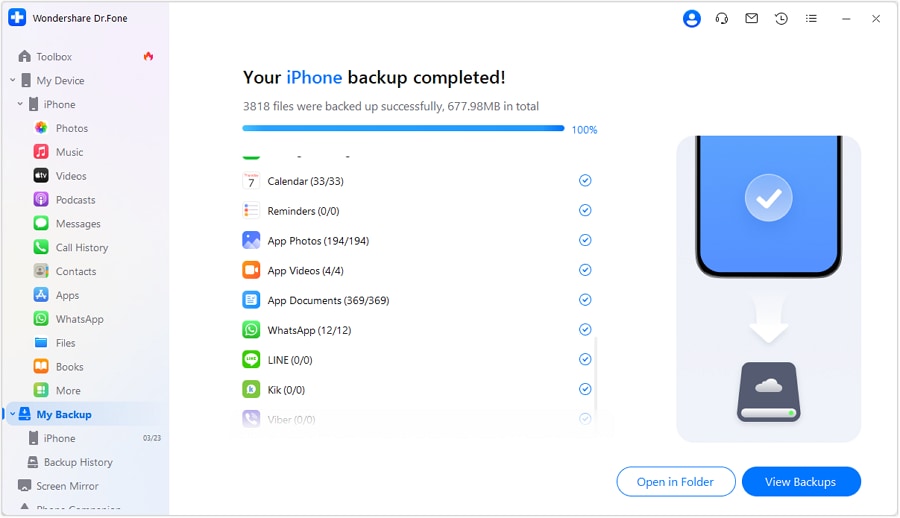
Optional automatic backups: Enable automatic backups through "My Devices > Backup Preferences." With your iPhone and computer on the same Wi-Fi, Dr.Fone creates fresh backups automatically—continuous protection without manual effort.
When disaster strikes: Restoration is equally simple. Access your backup history, select the backup you need, and let Dr.Fone restore to your replacement device—or even to an Android phone. Your entire digital life returns with minimal effort.




Part 6. Conclusion
The iPhone 18 satellite rumors are genuinely exciting, and future connectivity improvements will undoubtedly enhance remote communication capabilities. But here's what matters right now: most travel disasters aren't solved by network access—they're prevented through preparation. Data backup is the single most important preparation step available, requiring no special hardware or technology. Spend fifteen minutes creating a backup of your iPhone with Dr.Fone before you leave. Store it safely on your computer. Then travel with genuine confidence knowing your memories, documents, and important information are protected against the real threats you'll actually face. Satellite features might arrive later. Data protection? That's something you can accomplish today.
FAQ
-
How long does iPhone backup take?
Dr.Fone backups typically take only a few minutes depending on your device's data volume. iCloud backups can take much longer and require continuous Wi-Fi connection. For pre-travel preparation, Dr.Fone's speed makes it ideal for last-minute backups. -
Is iCloud backup enough for travel?
iCloud backup requires constant Wi-Fi connectivity and depends on sufficient storage space. If you exceed your limit during travel, backups silently fail. It also requires your Apple ID, which could be compromised. For travelers, a local backup stored on your computer provides more reliable protection. -
What's the difference between iCloud and local backup?
iCloud stores data on Apple's servers and requires internet connectivity to work properly. Local backup (iTunes/Finder or Dr.Fone) stores data on your computer—you maintain complete control and don't depend on cloud services, storage limits, or internet connection. -
What happens if my backed-up phone gets lost while traveling?
If your phone is lost or stolen during travel, your backup remains safe on your computer at home. Once you reach a location with internet access, you can restore all your data—photos, messages, contacts, documents—to a replacement device within minutes. Your trip continues with minimal disruption.
 Add Wondershare Dr.Fone as a preferred source on Google