 Effortlessly manage data through preview, delete, export, etc.

 100% Security Verified | No Subscription Required | No Malware

 :
: 
 ChatGPT
 Perplexity
 Gemini
 Claude
 Grok
Grok
Many users might be confused after updating to Android 17, as everything seems different with new icons and layout settings. It's a redesign based on Material 3 Expressive, Google's new design language for Android.
While the update mainly changes the interface's appearance, some users worry that their apps and settings are missing. Thus, this guide explains whether the Android 17 UI can affect your data or why users wonder where their data is. So, as you understand how Android 17’s UI compares to older Android versions, learn how to back up data with Dr.Fone - Phone backup solution for extra safety.
In this article
Part 1. What Is Material 3 Expressive in Android 17?
To know all the basic details regarding the Android 17 design, this section has gathered all the basics for you:
Definition of the New Design Language
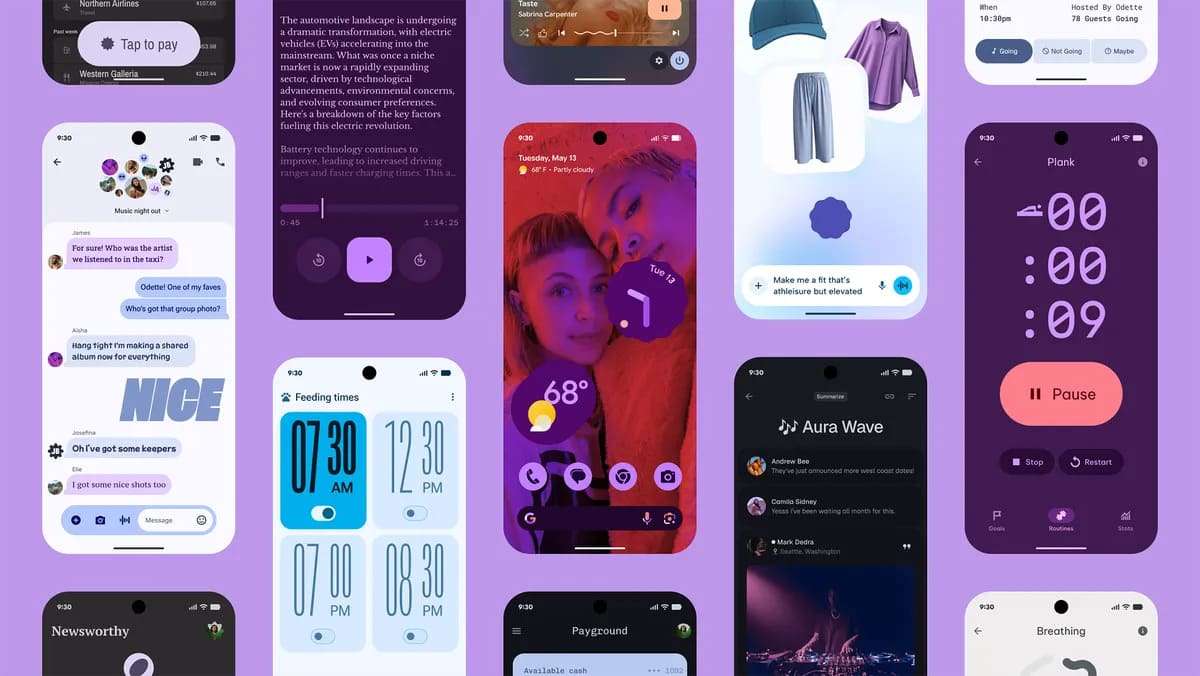
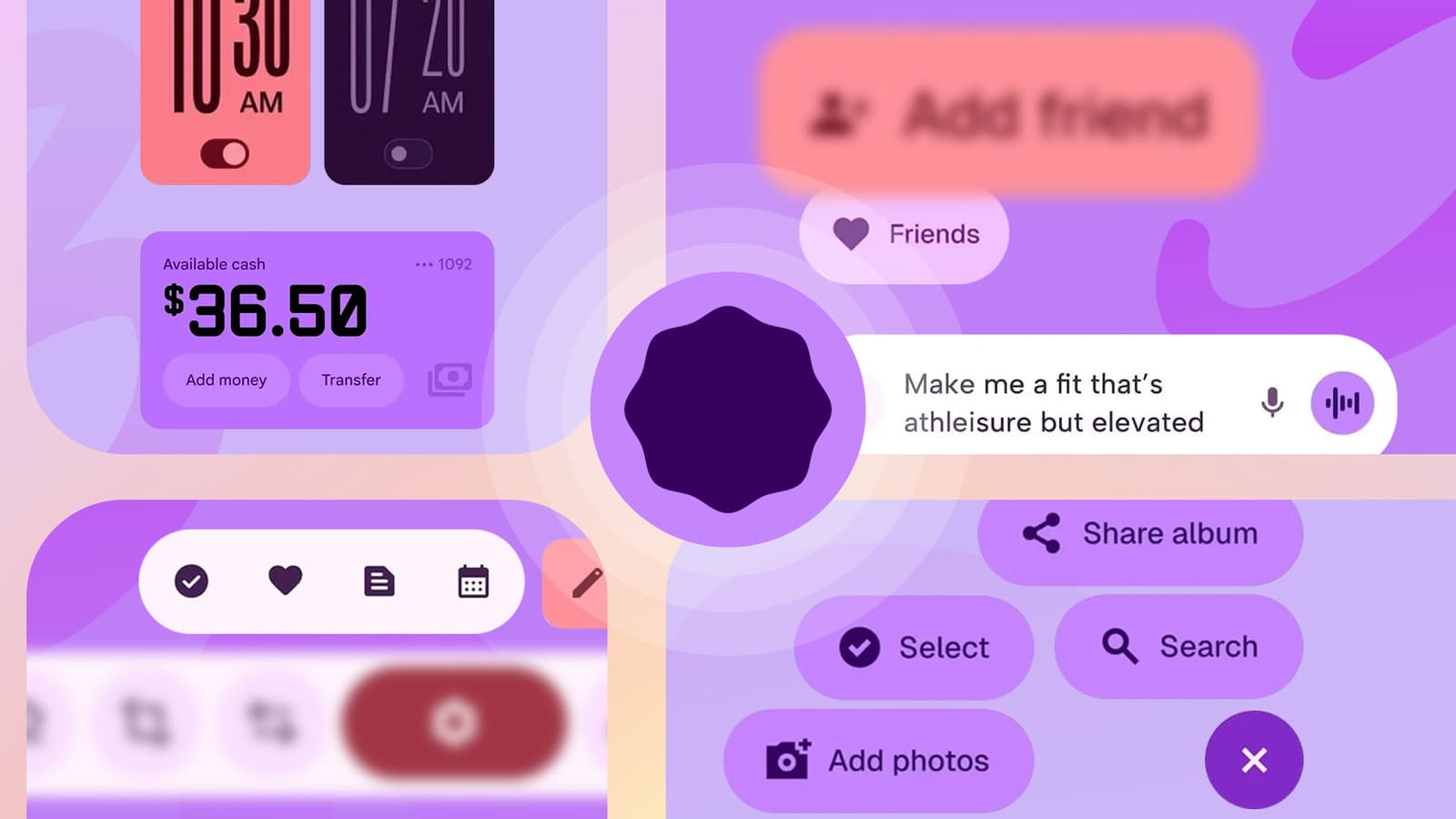
Material 3 Expressive is Google’s Android 17 design style that makes apps look more modern, colorful, and interactive. The Material Design Guidelines further says that it adds smoother shapes and animation transitions, and dynamic fonts that slightly change when users interact with the screen. Instead of using simple layouts, the upgrade focuses on design with glass-like blur effects and smoother motion.
Why Google Redesigned the UI
According to the UX Collective's analysis, Google changed the Android 17 UI because a simple, flat UI made apps harder to understand and use. Additionally, many users struggled to quickly identify buttons and important actions on the screen. Hence, based on Google Design Research, these changes help users find important options much faster and improve usability for both younger and older users.
Where You’ll Notice Material 3 Expressive First
As for the appearance, you will notice the Material 3 Expressive when you open the Settings and System menus. Transparent glass-like blur effects are added to the interface and are used for the lock screen, app drawer, power menu, and volume controls. Furthermore, the Quick Settings and Notifications also look better with separate layouts and bounce animation.
Part 2. What’s New in Android 17 UI Design?
Nonetheless, if you want collective details on the Android 17 design key aspects, review the mentioned points:
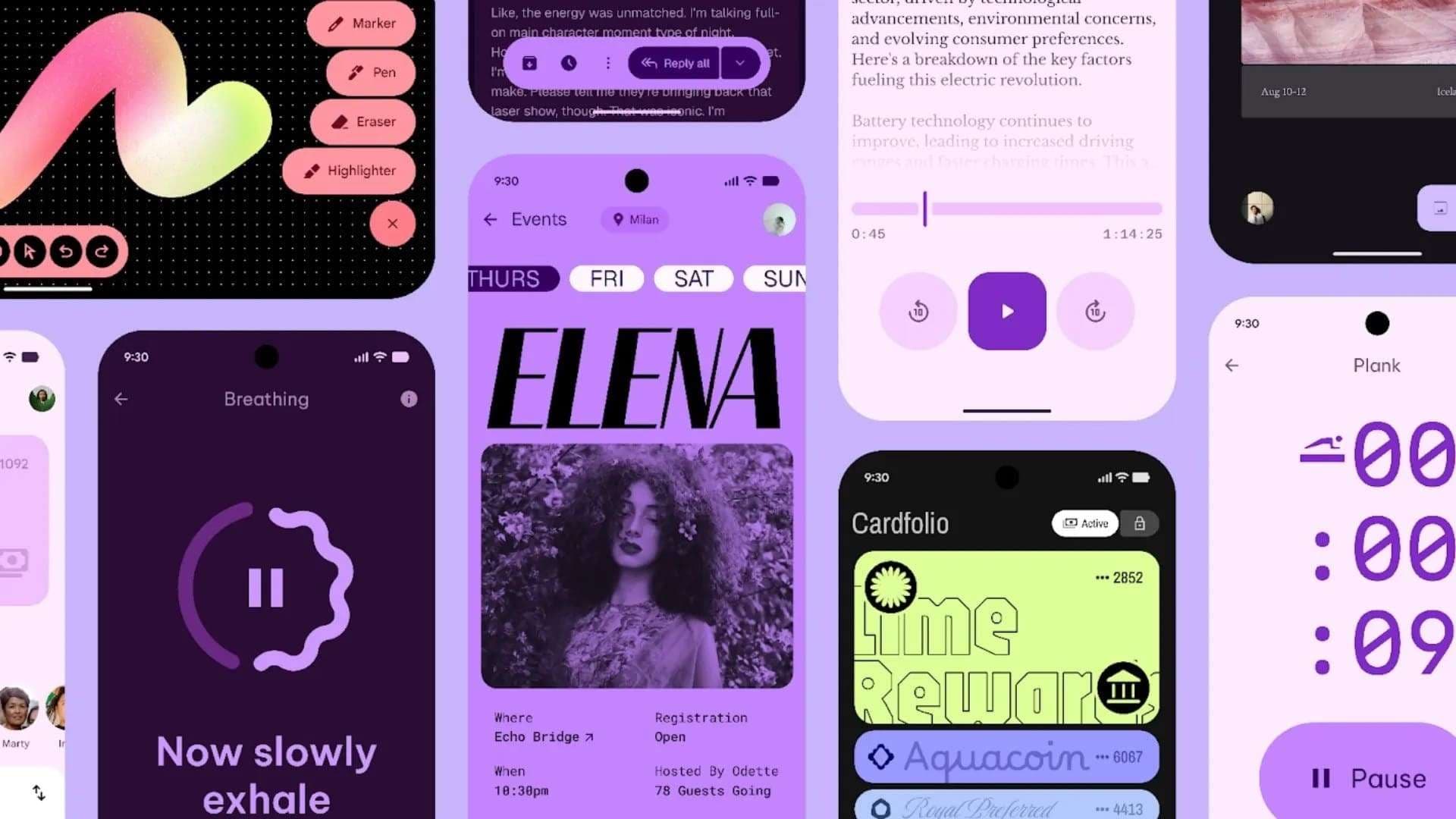
- Liquid Glass Design: As mentioned, the updated UI replaces plain backgrounds with transparent blur effects that resemble frosted glass. You will have a semi-transparent look that lets you see the wallpaper underneath. Hence, this is applied to the volume slider, power menu, and system pop-ups, according to 19Mobile leaks. Most of all, the UI uses Google’s dynamic coloring so that the blurred accents seamlessly adapt to your wallpaper.
- Split Quick Settings: The UI is rumored to split Notifications and Quick Settings into two distinct areas. In fact, you will get separate toggles for Wi-Fi and Mobile Data by default, while featuring the “Bounce” animation when you swipe or tap.
- Floating App Bubbles: Apps like calculator, notes, and browser can open in floating bubble windows, says Sportskeeds Tech. Moreover, you can keep up to 5 app bubbles on the screen for faster multitasking. In addition to standard theme icons, users can generate a custom icon pack using AI and force all icons to match the theme.
- App Lock & Hidden Labels: For extra security, you can now lock the apps with a fingerprint, face lock, or PIN without needing extra applications. Additionally, you can hide application names on the home screen for a cleaner, more secure look.
- Per-App Themes: You can now choose between light and dark modes for some apps, rather than for the whole phone. The Make of Use report further elaborates on this by example: If you keep social apps dark, other apps will work in light mode.
Part 3. Material 3 Expressive vs Previous Android Design: Full Comparison
Material You 2026, AKA Material Design 3, has now evolved into Material 3 Expressive. So, to know how this upgrade differs from the past UI features, review the mentioned table in detail:
| Aspect | Material 3 Expressive (Android 17+) | Previous Android Design (Material You / Early M3) |
|---|---|---|
| Overall Style | More fluid, playful, “lively” UI with depth and blur effects | Flatter, simpler surfaces with less depth and fewer visual flourishes. |
| Personalization | Deeper customization, richer dynamic color themes across more apps. | Basic Material You theming; dynamic color mainly in system and Google apps. |
| Motion & Physics | More natural, springy animations; elements subtly react to gestures (e.g., notifications, shade, recents). | Slower, simpler motion; fewer physics‑based interactions and micro‑reactions. |
| Depth & Blur | Heavy use of frosted‑glass panels, background blur, and layered surfaces for depth. | Mostly opaque panels with limited blur; depth is conveyed mainly by elevation and shadows. |
| Typography & Components | Emphasized typography, more expressive components, updated tokens, and layouts. | More conservative typography and component styling, closer to classic Material 3. |
| Information Density & Glanceability | Panels (Quick Settings, Live Updates, tiles) pack more glanceable info while staying visually rich. | Simpler layouts with less condensed, “at‑a‑glance” information in system surfaces. |
Part 4. Does Android 17 UI Change Affect Your Data?
Ideally, the Android 17 UI does not affect your personal data, but it does affect how things look. This means that your data and account details remain safe unless you reset or wipe the device yourself.
UI Changes vs System Data
Nonetheless, the mentioned table shows how the UI and system data are handled in Android 17:
| Aspect | UI Changes (Android 17) | System / Personal Data |
|---|---|---|
| What It Touches | Layout, colors, blur, animations, notifications, Quick Settings. | Apps, photos, videos, messages, app data, settings. |
| Default Behavior | Enabled by update; visual style changes automatically. | Data is preserved across the update by design. |
| Data Safety | Does not delete or read your personal files. | Only affected by things like factory reset or manual deletion. |
| Storage Impact | May slightly change system/UI storage footprint. | Overall, “System data” size can grow with use, but not just from UI tweaks. |
| When Data Changes | Only if you clear data, wipe the phone, or a bug causes corruption (rare). | Backups/restore, factory reset, or major errors. |
Why Users Think Data Is Missing
Even though Android 17's design has nothing to do with the data loss, many users still think their data is missing. Still, a few app names cover the name and rearrange the icon layout. The app will appear to be missing when it is, in fact, in the app drawer. The update also moves settings and toggles, such as Wi-Fi or mobile data, so users may think the feature or data has disappeared.

Part 5. Safe Migration Tips Before and After Android 17 Update
Since the data loss claims regarding the Android 17 UI have been cleared, this section explains why data migration is necessary and why a backup is a lifesaver.
Why Migration Still Matters Even with UI Updates
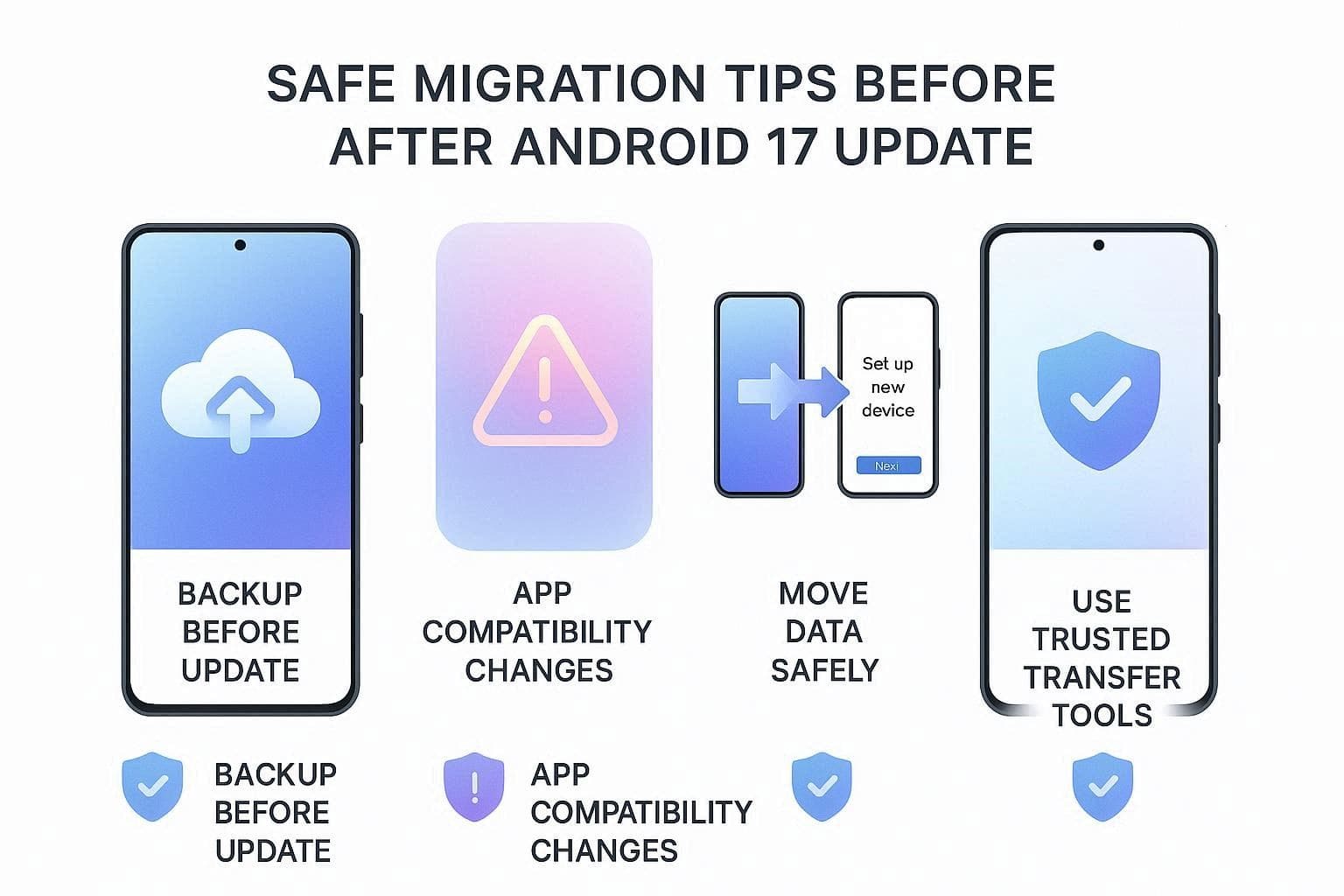
Migration matters because even though the UI looks new, apps still need to adjust to new system rules, security changes, and device behaviors. Without updates, apps may stop working properly or lose access to some features. Hence, users need a simple and secure method to move data, and Dr.Fone - Phone Transfer meets this need. The tool lets you migrate 18+ data types, including applications that can’t adopt new security rules.
Backup Before Updating: Dr.Fone - Phone Backup Solution
As the Android 17 design has updated security rules, it's important to back up the data. Especially when you want to move data to a non-Android 17 device and wait until the stable version is released. In this case, you can use Wondershare Dr.Fone that lets you backup and restore data on Android, including WhatsApp.
Since the tool is compatible with the 8,000 Android devices, you can also move 10+ data types, other than apps. Later, users can restore the backup to Android or iOS, even from iTunes or iCloud backups, without a learning curve. While creating the backup, you can choose the data types and later preview them on the PC to determine the accuracy.
 Effortlessly manage data through preview, delete, export, etc.
- Transfer all data between devices.
- Robust backup solutions for reliable data protection.
- Mirror screens to PC for meetings, teaching, and control.

-
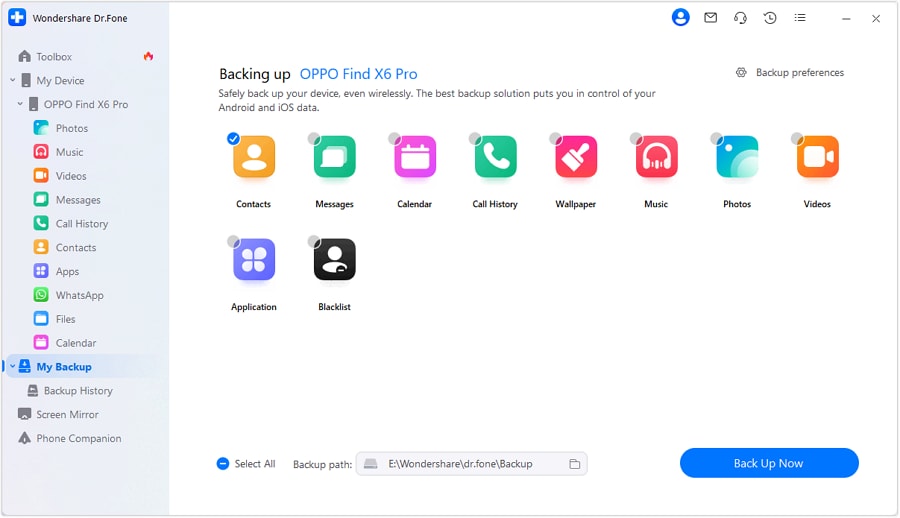
Step 1 Press Back Up Now on Dr.Fone Backup Toolbox
Press the “Back Up Now” button as you connect the device to the tool, then head to the “My Backup” tab.
-
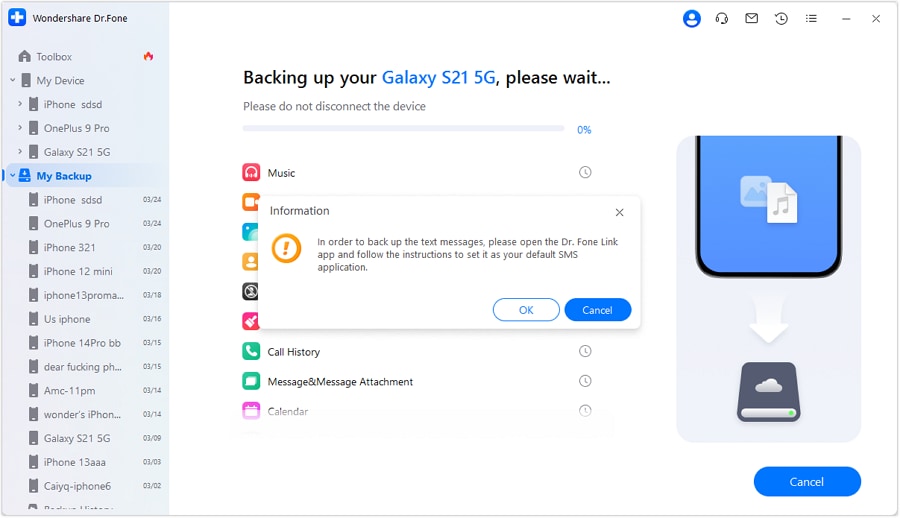
Step 2 Set Dr.Fone Link As the Default Message App
Set the Dr.Fone Link app to the default if you want to back up the “Messages” app and press “OK.”
-
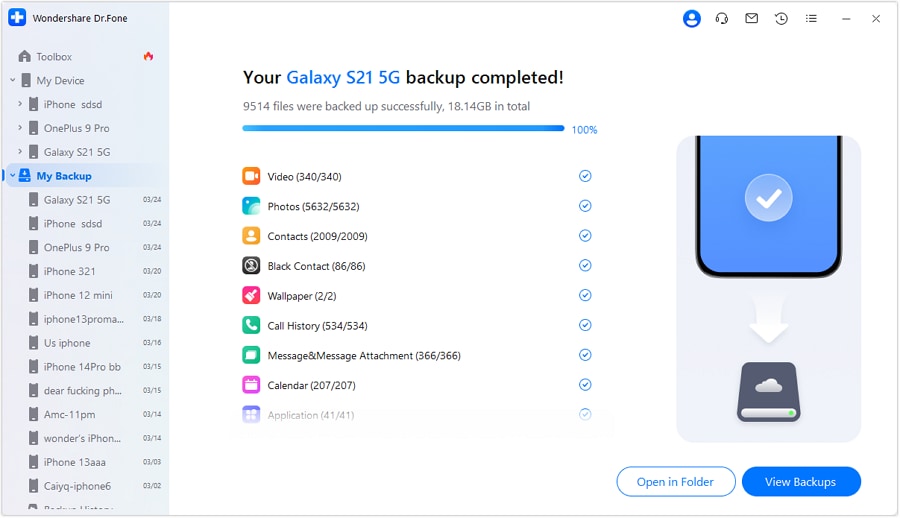
Step 3 Choose to Preview the Created Backup on Dr.Fone
Choose the other data types as well, and when prompted, set SMS to the default app and click the “OK” button to confirm. When the progress bar completes, review the created backup by pressing the “Open in Folder” option.




Post‑Update Checklist: Make Sure Nothing Is Missing
As you gather the basic details regarding Material You 2026, perform the mentioned checks as you create the backup manually or via Dr.Fone - Phone Backup:
| What to Check | What the User Should Do |
|---|---|
| Core Apps & Accounts | Open Messages, Phone, Email, WhatsApp, and social apps; confirm you’re logged in, and chats, contacts, and call history are still there. |
| Photos, Videos & Files | Check Google Photos/Gallery and the file manager for any recent photos, videos, or downloads you had before the Android 17 update. |
| Cloud Sync & Backups | Confirm Google account sync is on, and check that Drive/Photos/WhatsApp backups are recent and successful. |
| App Permissions & Notifications | Open a few key apps and review permissions/notifications so they can still access storage, camera, mic, and send alerts normally. |
| Settings, Widgets & Home Screen Layout | Make sure important widgets, app shortcuts, and launcher settings survive the update, or restore them from your backup if needed. |
Conclusion
Android 17 UI changes like Material 3 Expressive only refresh the look and feel, not your personal data. Your photos, apps, and messages are safe unless you manually remove or reset the device. However, some apps may need updates to work properly with the new system rules. To stay safe, move the app data to a new phone with Dr.Fone - Phone Transfer. Additionally, create a safe backup using Wondershare Dr.Fone that can also help with restoration later.
FAQ
-
1. Will Material 3 Expressive change where my apps and settings are?
No, it only changes the look and layout; your apps and settings stay in the same place. -
2. Can the Android 17 UI update delete my photos or messages?
No, the UI update does not delete photos, messages, or personal data on your device. -
3. Do I need to back up my phone if it’s “just a design update”?
Yes, a backup is still recommended because major updates can sometimes cause unexpected issues. In this case, you can use Dr.Fone – Phone Backup to save 10+ data types on the PC. -
4. Can I make Android 17 look more like older Android versions?
Yes, you can change themes, icons, and settings to make it look closer to the old Android.
 Add Wondershare Dr.Fone as a preferred source on Google



