 Effortlessly manage data through preview, delete, export, etc.

 100% Security Verified | No Subscription Required | No Malware

 :
: 
 ChatGPT
 Perplexity
 Gemini
 Claude
 Grok
Grok
Do you plan to update to iOS 27 right after its official, stable release? If so, the new Wallet feature, Camera improvements, and Apple Intelligence tools will let you handle more important data seamlessly than ever.
While the iOS 27 Wallet creates a pass and AI features simplify complex tasks, they can also create a data loss risk if something goes wrong during an update. Thus, this guide explains all the iOS 27 changes and shows how to create a backup to secure important data. As you learn the effect of AI editing, understand whether Dr.Fone - Phone Backup (iOS) can be a reliable choice.
In this article
Part 1. Why iOS 27 Changes Make Backup More Important Than Ever
MacWorld says that Apple will add better iOS 27 visual intelligence and AI features to Photos and other parts of the system. Hence, these tools need extra background processing to analyze and manage your data. So, if your phone runs out of battery or gets interrupted during an update or sync, some files could be damaged or lost.
What Can Be Lost Without Backup
In case of any issue, you could lose more than just photos, like message attachments, voice memos, and work-related files. In rare cases, file database errors can make it difficult to recover this information, which is why backup is important.
How iCloud Wallet Sync Works
Before you know how an iOS 27 Wallet creates a pass, it's important to learn how the sync works and secure data in case of failed updates. Note that this is done through the Apple Account, and Apple does not store actual credit or debit card numbers in iCloud, says Apple. Instead, it uses encrypted digital tokens to protect your payment data.
So, when iCloud sync is enabled via the mentioned steps, Wallet information can be restored on a new Apple device. This can be done when you use the same Apple ID to log in, so that you can easily recover important data.
-
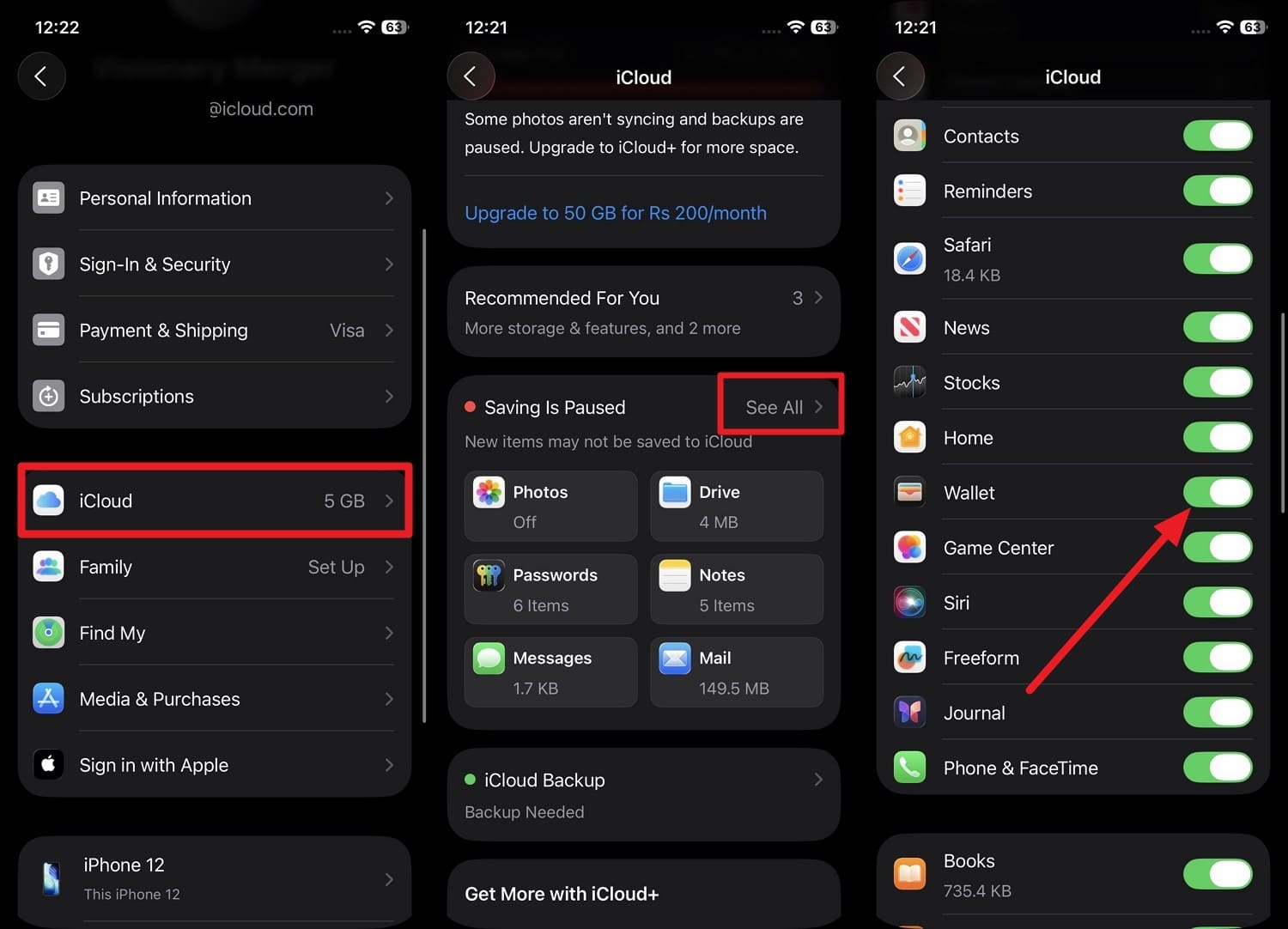
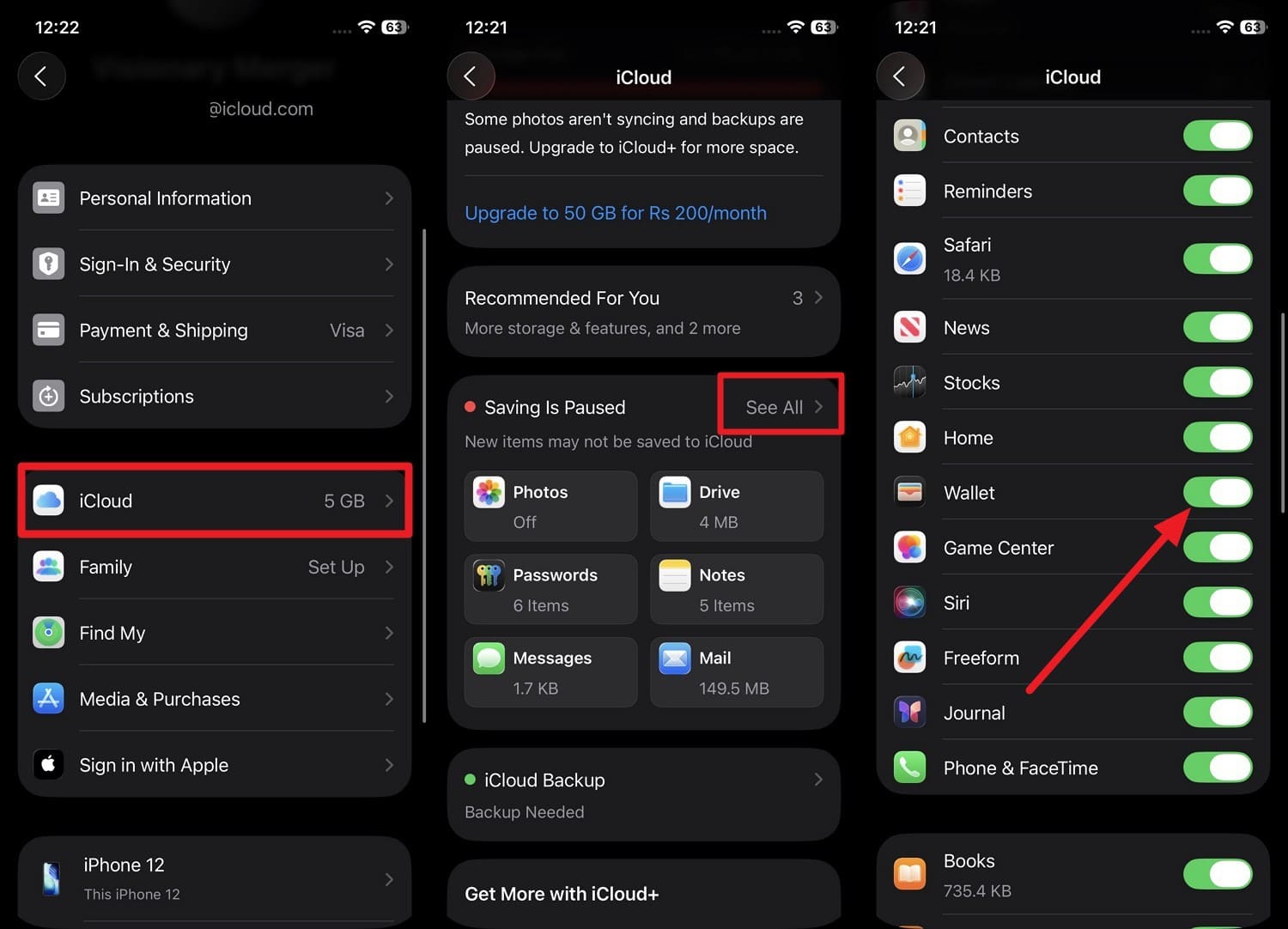
Step 1 In the Settings app, tap your “Apple ID” details and go to “iCloud” settings to pick the “See All” option.
-
Step 2 There, locate and toggle the “Wallet” option to enable seamless syncing across all your linked devices.
Safe Backup Preparation Steps
- Keep your phone connected to a strong, stable local connection so that the data doesn’t drop mid-transfer.
- Connect your phone to the charger to prevent the battery from running out as you save the process.
- Double-check your account space to make sure you have enough gigabytes available to complete the transfer cleanly.
Part 2. iOS 27 Wallet App Changes You Should Know
So far, you have the basics and know the potential cause of data loss in iOS 27. Hence, review the mentioned features and learn how the iOS 27 Wallet create a pass or what new features it has:
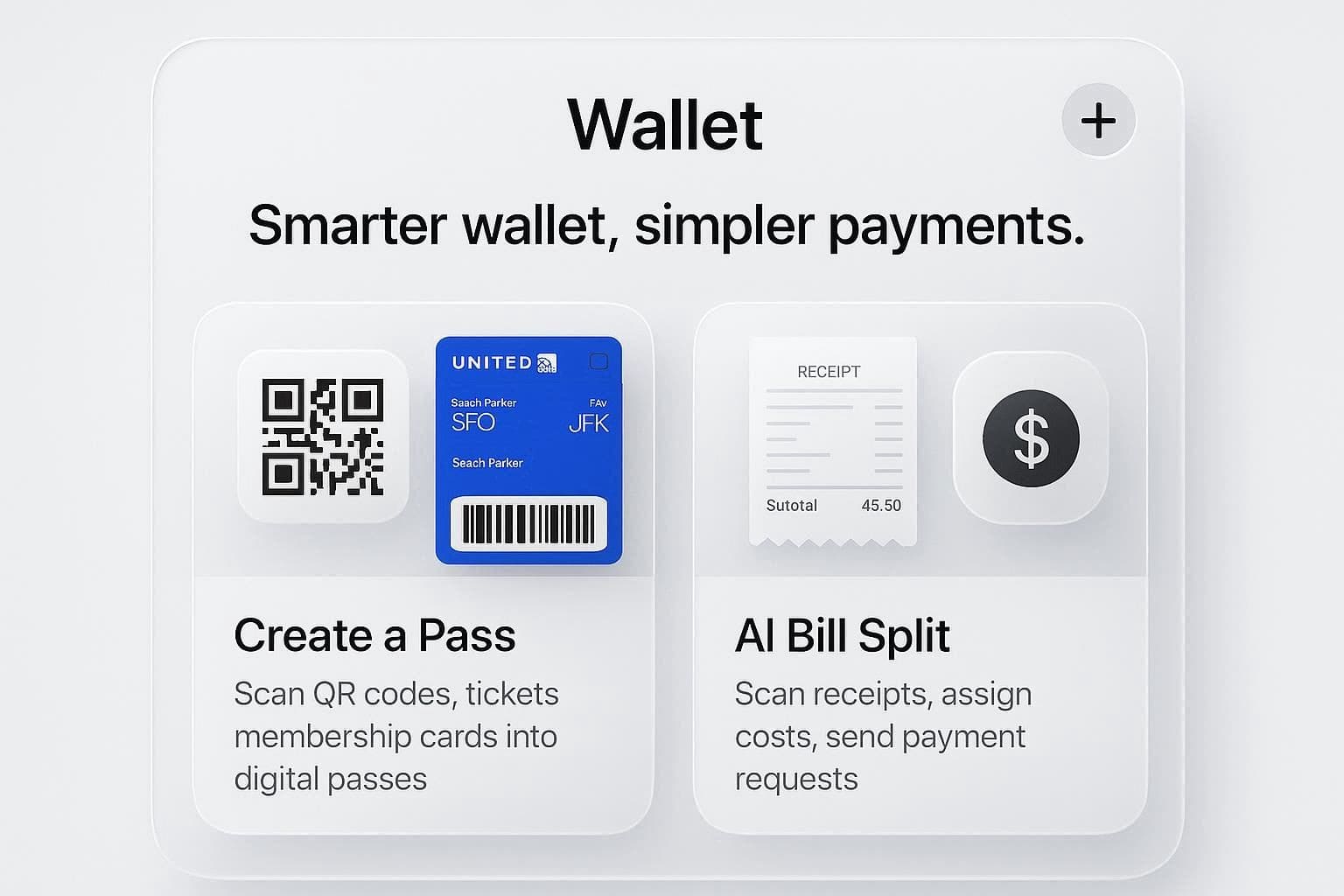
- Create a Pass: This feature solves the problems of users or businesses that do not natively support Apple Wallet. With this, you can scan the barcode or QR code at the concert venue or gym if you can’t use the “Add to Apple Wallet” button. According to 9to5Mac, Apple will allow users to take a photo of a physical card, choose a template, and select a background color for customization. Based on the rumors, users will have Standard, Membership, or Event template options, and the color will range from Orange, Blue, and Purple. Later, users can assign an icon to the digital pass, so it looks clean in your app lineup.
- AI Bill-Split: You will now be able to split bills through the Apple Wallet and Messages after you take an image of a receipt. Other than iOS 27 Wallet create a pass, the Wallet app will use text recognition to read the receipt and let you tap on certain line items and assign them to contacts, says Apple Insider. After the detailed analysis, the app will create an Apple Cash request that your friends can approve instantly on their iPhone or Apple Watch.
Part 3. iOS 27 Camera App & AI Visual Intelligence Features
In addition to Wallet, review this section and know the iOS 27 AI features of the Camera and AI Visual Intelligence:
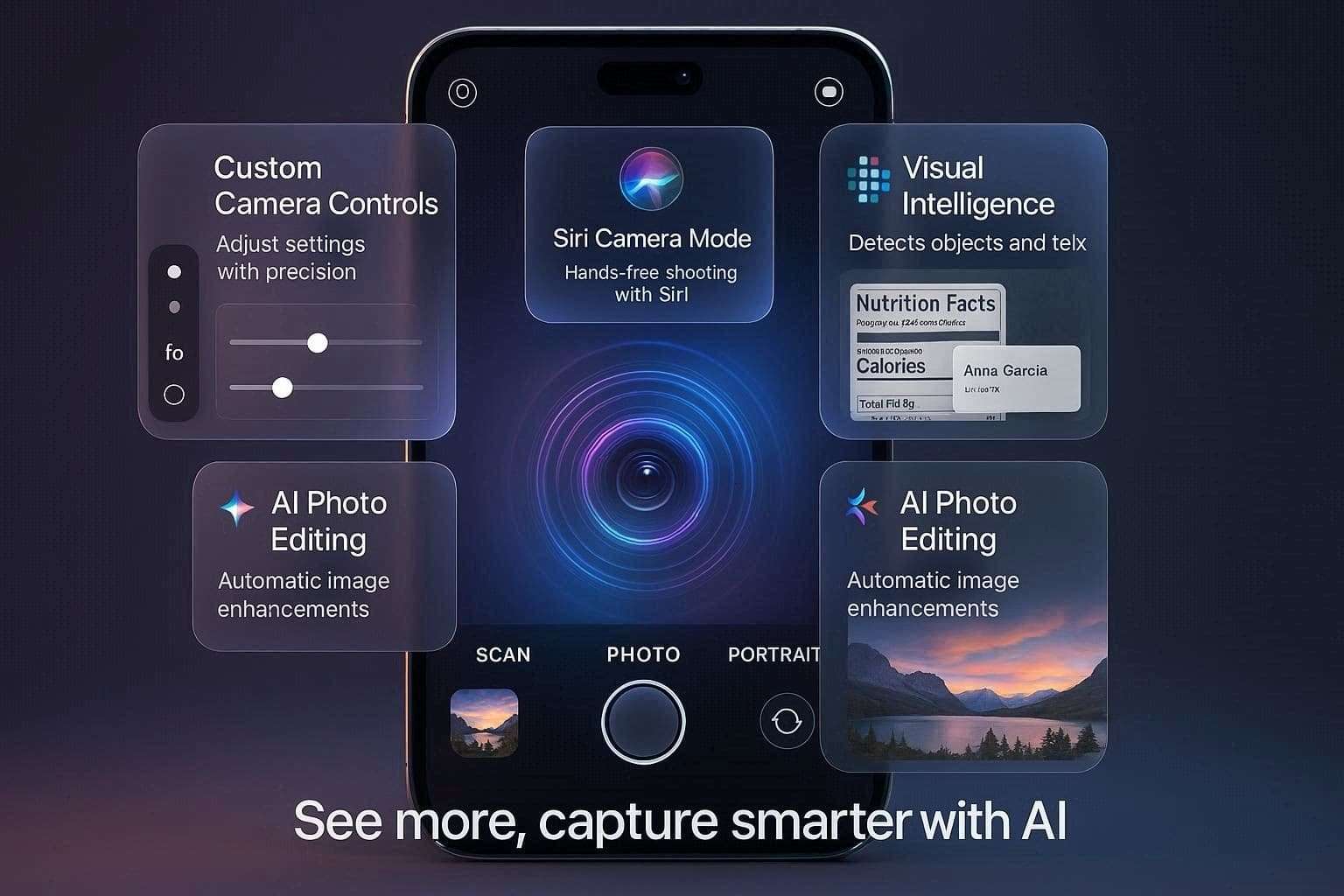
- Camera App Changes: According to the MacWorld leaks, the Camera app will have a fully customizable User Interface. Instead of the fixed button layout, users will be able to pin the dedicated Camera widget on the main shooting screen for easy access. Through the Widget controls, you can swap the default controls, which include depth of field and photographic modes.
- Siri Camera Mode: In the Camera App, Apple will change and upgrade its Visual Intelligence feature through the “Siri” mode. As you switch to this mode, it will activate the live AI agent, and you can point at any object to get details or use voice to ask questions. Additionally, you can immediately route the picture into a Google reverse image search.
- Visual Intelligence Upgrades: Through the Visual Intelligence feature, Siri will also be able to scan food labels to extract nutritional information. In addition, it will be able to scan the business cards and add the phone numbers to the Contacts app.
- AI Photo Editing: Other than the iOS 27 visual intelligence features, users can leverage 3 editing options in the Photos App, like extend, enhance, and reframe. The Extend feature will use generative fill technology to widen cropped images and create the same background. Moreover, Enhance will improve image quality, and Reframe will adjust the composition of spatial photos after you capture them.

Part 4. How to Back Up Photos, Wallet, and AI Data Before iOS 27
Now that you have learned all about iOS 27's visual intelligence, editing, and Wallet features, it's time to keep your data safe. Before the stable iOS 27 version release, you can try the 3 mentioned backup methods:
1. Use iCloud Backup (Recommended)
Through this method, photos and videos are backed up directly or synced through iCloud Photos. Whereas app data, device settings, or Apple Watch backups can be restored after the update. Since this backup is stored on the Cloud and runs automatically, you can restore it easily using the same Apple ID, as guided:
-
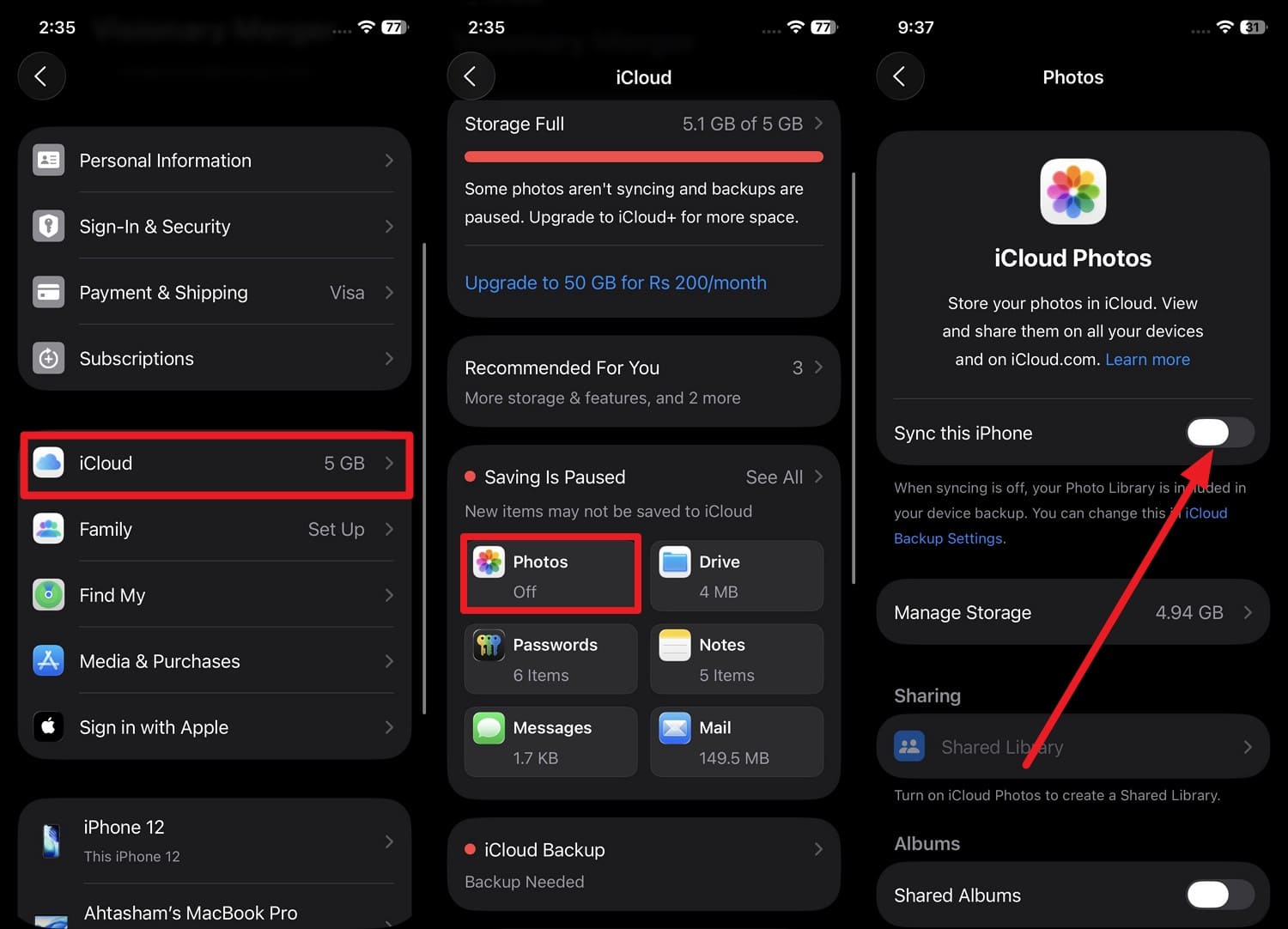
Step 1 If you want to sync the full library, tap on Apple ID > iCloud and choose the “Photos” option to enable “Sync This iPhone.”
-
Step 2 For Wallet or other apps, tap the “See All” option and toggle the “Wallet” or other apps in the iCloud settings.
-
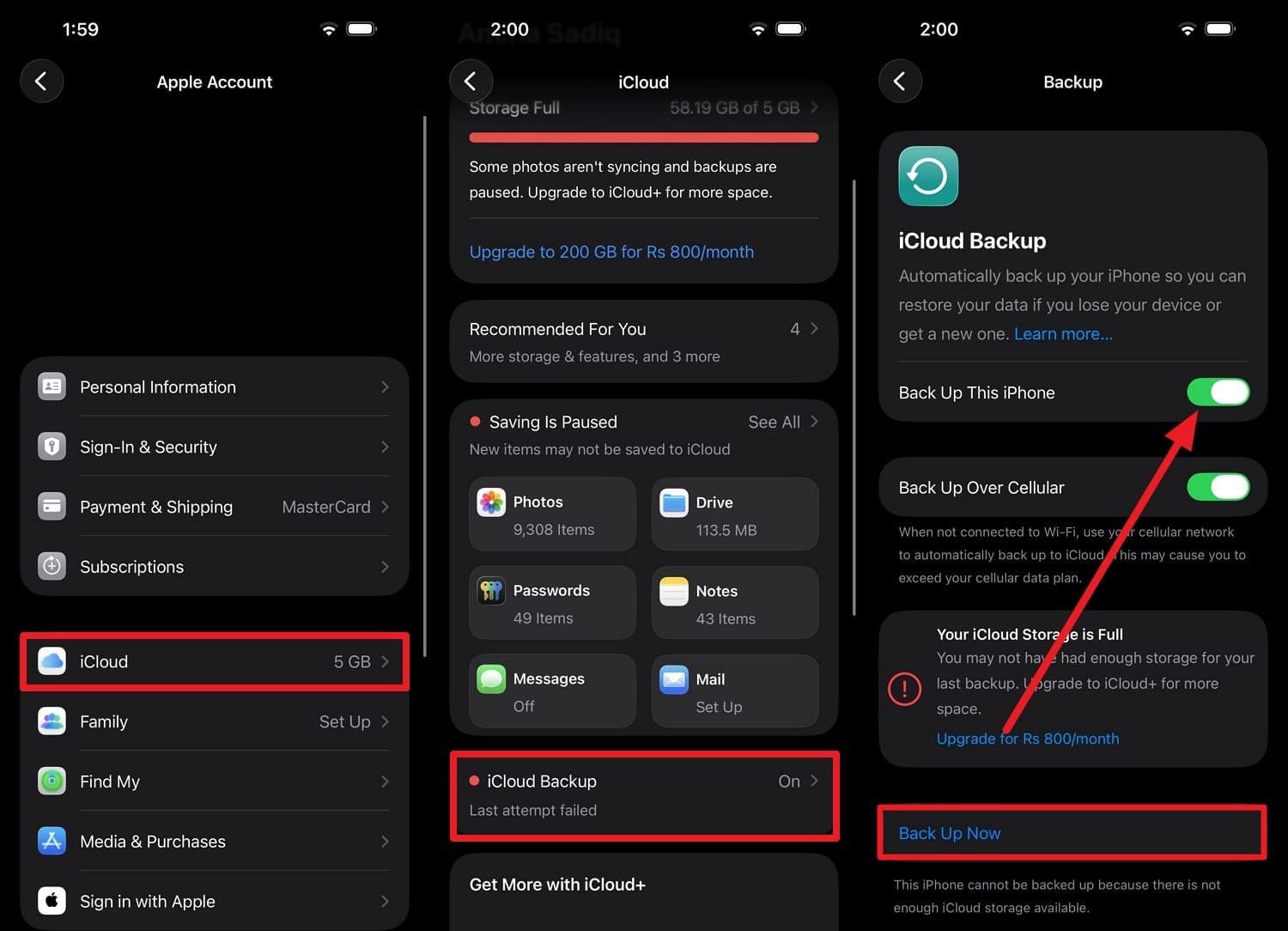
Step 3 Now, to back up before iOS 27, head back to “iCloud” and choose “iCloud Backup” to enable “Back Up This Phone” and press “Back Up Now.”
2. Backup Using Computer (Mac/Windows)
To save data before using iOS 27 AI features, this backup option lets you create a complete snapshot of your iPhone, not just iCloud. In addition, this local backup also avoids iCloud storage limits and makes it easy to secure a large library or many apps. When encrypted, it can also include sensitive data and can be performed in a few taps, as demonstrated:
-
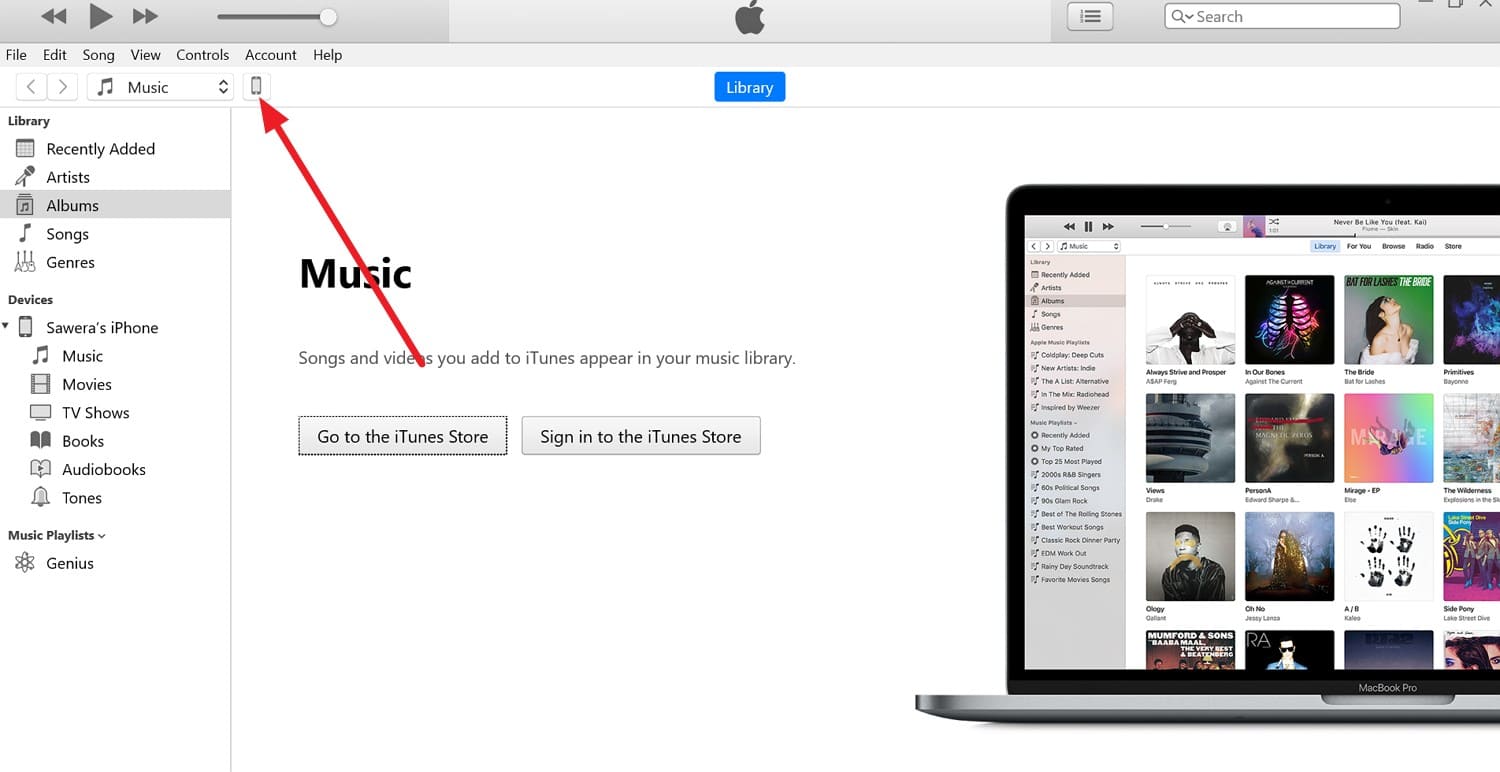
Step 1 Tap the “Small Phone” icon in iTunes as you connect the device, then tap the “Trust” button.
-
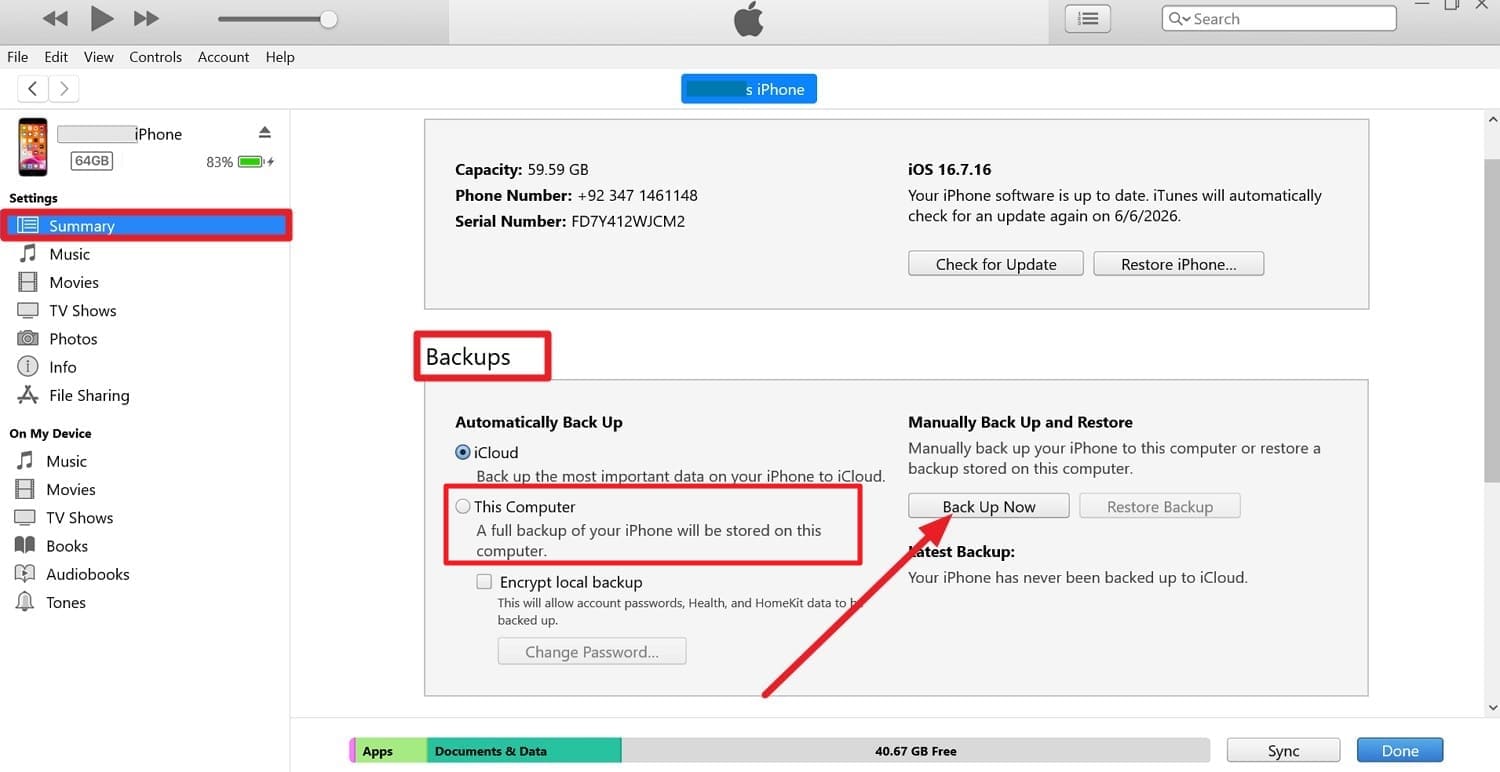
Step 2 Locate the “Backups” section in the “Summary” tab and enable the "This Computer" option before pressing the "Back Up Now" button.
3. Dr.Fone - Phone Backup (iOS)
It's said that iTunes overwrites previous backups when you create a new one, and iCloud methods need manual hassle. So, to avoid these issues, you can use the Wondershare Dr.Fone to create a safe local backup that will never be overwritten. With a few taps, users can create selective, incremental backups of 26+ data types and choose the desired backup location.
Since these options are limited in iTunes and iCloud, you can set the time and plan for the Incremental backups to save the manual effort. Most of all, you can preview the backed-up data and choose what apps or images to back up. The restore is seamless, and can be done on PC or any other device, including iOS and Android.
 Effortlessly manage data through preview, delete, export, etc.
- Transfer all data between devices.
- Robust backup solutions for reliable data protection.
- Mirror screens to PC for meetings, teaching, and control.

Guide to Create the Backup Before iOS 27 Release via Dr.Fone
-
Step 1 Choose to Back Up Photos and Apps
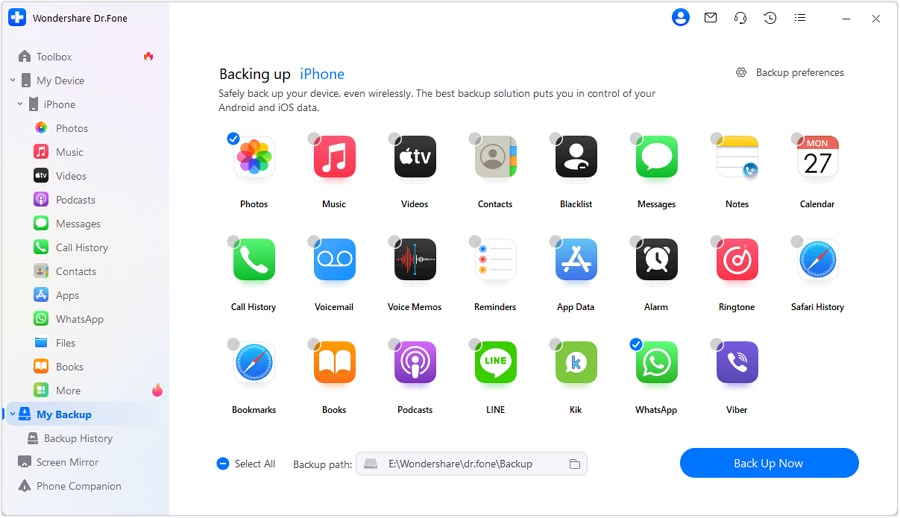
Choose the “Photos” and apps, along with the other 26 data types, in the "My Backup" tab before pressing the “Back Up Now” button.
-
Step 2 View and Browse Files When Dr.Fone Backup Is Done
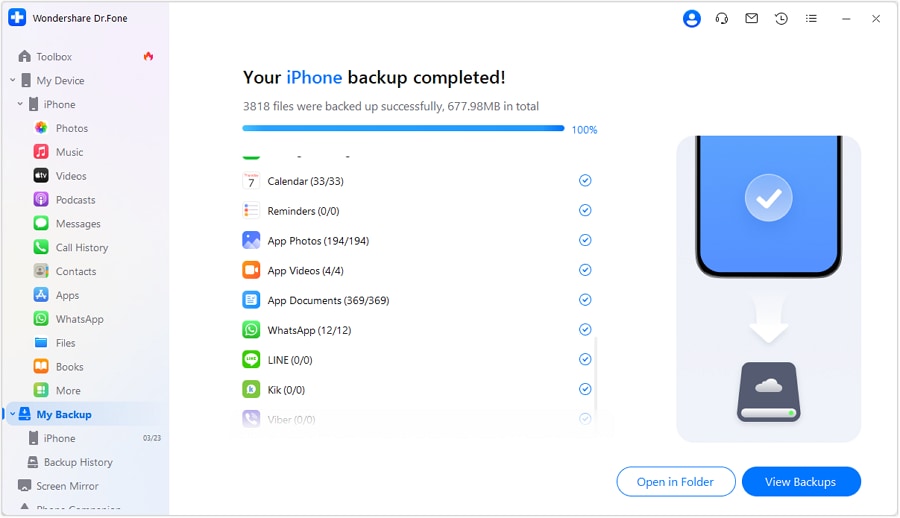
When the tool detects the data types and creates a local backup, choose to “View Backups” or “Open in Folder” to browse Photos and app data.
Conclusion
Apple will introduce iOS 27 Wallet create a pass, and other AI and visual intelligence features to make complex tasks effortless. Hence, this guide has introduced all of the details and has explained how heavy AI editing can affect the original image.
So, when iTunes backup is prone to data overwrite, and iCloud backup needs setup, experts suggest you use Wondershare Dr.Fone. This tool lets you create selective, incremental backups of 26 data types that you can restore to any device.




Frequently Asked Questions
-
1. Can I use the iOS 27 Wallet Create a Pass feature without an internet connection?
The pass creation process will require an internet connection to set up and sync. Nonetheless, many saved passes can still be viewed and used offline once added to Apple Wallet. -
2. Will iOS 27 AI features work on all supported iPhones?
No, some advanced Apple Intelligence and Visual Intelligence features may require newer iPhone models with compatible hardware. -
3. Does using AI photo editing in iOS 27 reduce image quality?
Generally, Apple aims to preserve image quality, but results may vary depending on the type and extent of AI edits applied. -
4. What should I do if iOS 27 gets stuck during installation?
Keep the phone connected to power, ensure a stable internet connection, and wait for the process to be completed. Since any glitch can lead to data loss, it's best to create selective, incremental backups with Dr.Fone - Phone Backup (iOS).
 Add Wondershare Dr.Fone as a preferred source on Google



