 Effortlessly manage data through preview, delete, export, etc.

 100% Security Verified | No Subscription Required | No Malware

 :
: 
 ChatGPT
 Perplexity
 Gemini
 Claude
 Grok
Grok
Imagine tapping the “Update” option on Android 17, and the screen freezes while you wait for the progress to complete after an hour. What's worse is that all the data is lost, as you were able to access the device again. Since major operating system upgrades bring exciting new features, they can also alter core system files, causing installation freezes and random data corruption.
With Android 17 introducing heavy core framework changes, the risk of a software conflict causing data loss is higher than usual. This is why this guide will explain some Android 17 backup options to help you secure your contacts, images, and apps. So, as you locate the suitable option for your needs, learn how tools like Wondershare Dr.Fone save you the hassle of manual work.
In this article
- Part 1. Why You Must Back Up Before Android 17 Update
- Part 2. What to Do Before Upgrading to Android 17
- Part 3. How to Back Up Your Android Device Before Android 17
- Part 4. How to Back Up Contacts Before Android 17
- Part 5. How to Back Up Photos and Videos Before Android 17
- Part 6. How to Transfer Apps and App Data Safely?
Part 1. Why You Must Back Up Before Android 17 Update
Before you search for the Android 17 update prep methods, this section explains why a backup is a lifesaver.
Risks During Major Android Updates
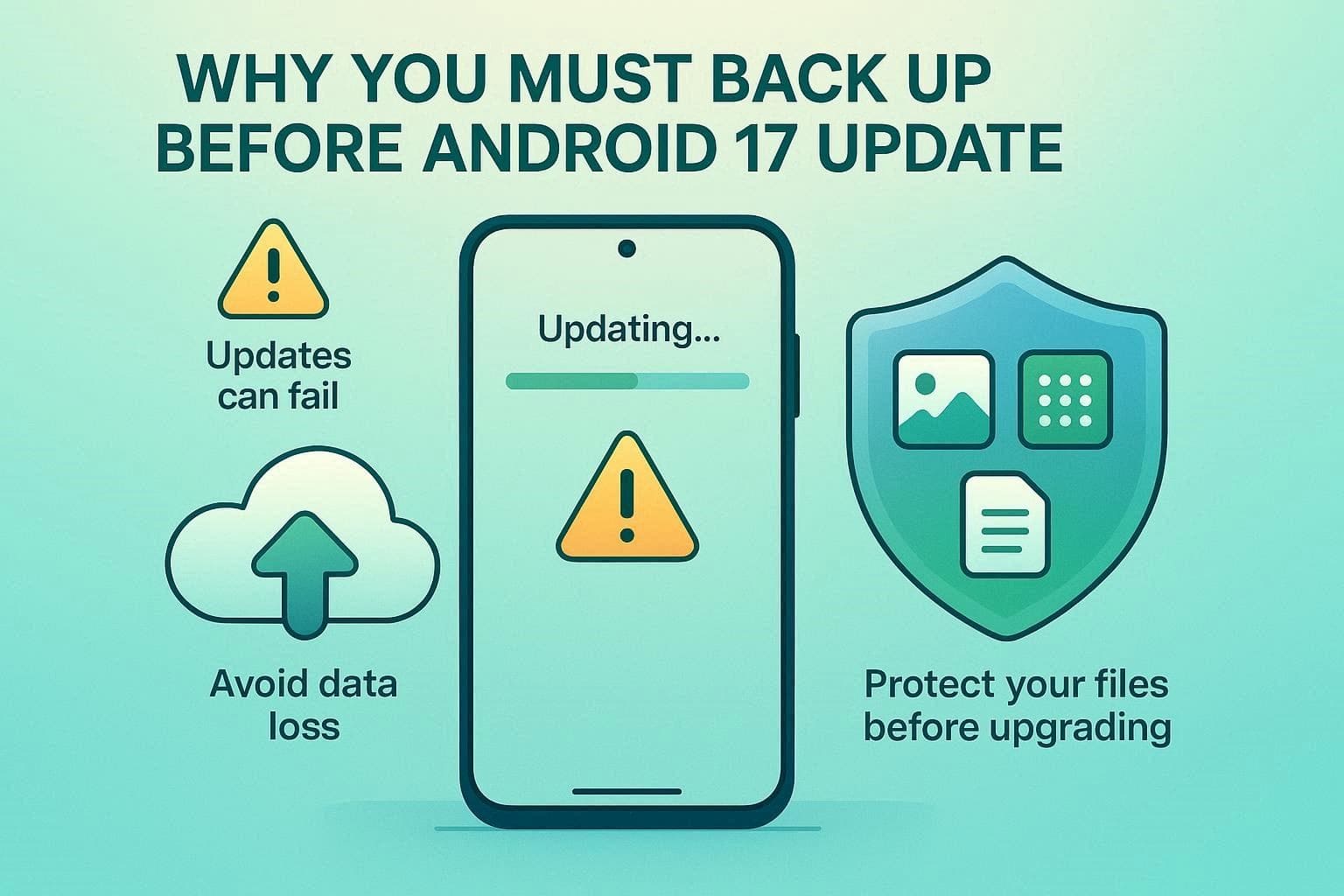
According to the XDA developers, when you initiate a major system upgrade like Android 17, the installer rewrites the core system files. Thus, the process can sometimes lead to storage-related errors, installation failures, or temporary system freeze during the update. Kaspersky further states that these major transitions can trigger severe memory leaks, lock out system UI interaction, or make the hardware completely unresponsive.
What Users Commonly Lose
When users encounter the issue, they primarily lose locally stored files rather than those synced to the cloud. Secure Data Recovery also says that failed OS installations can corrupt app caches or force system recoveries that wipe local device data.
Why Android 17 Updates Require Extra Care
Before the Android 17 update, learn what types of upgrades need extra care and why via the listed reasons:
| Metrics | Updates Details |
|---|---|
| Beta Instability | Bugs like battery drain, overheating, lag, crashes, and network issues; not safe for daily use |
| Security Changes | Stronger app verification, limited sideloading/rollback, harder to downgrade. |
| App Compatibility | Many apps are not ready; banking, payments, and games may crash or break. |
| Performance Impact | Temporary lag, heat, and battery drain due to indexing and optimization. |
| System Behavior Changes | New background controls and system logic may break automation and workflows. |
Part 2. What to Do Before Upgrading to Android 17
Based on the updated threats, you need to meet the mentioned prerequisites for the Android 17 backup:
- Check Device Compatibility
Make sure your device is officially supported for Android 17, as old or unsupported phones may not get the update. So, check the list from the Android Developer page since unofficial files can cause serious system damage or even brick your device. - Free Up Storage Space
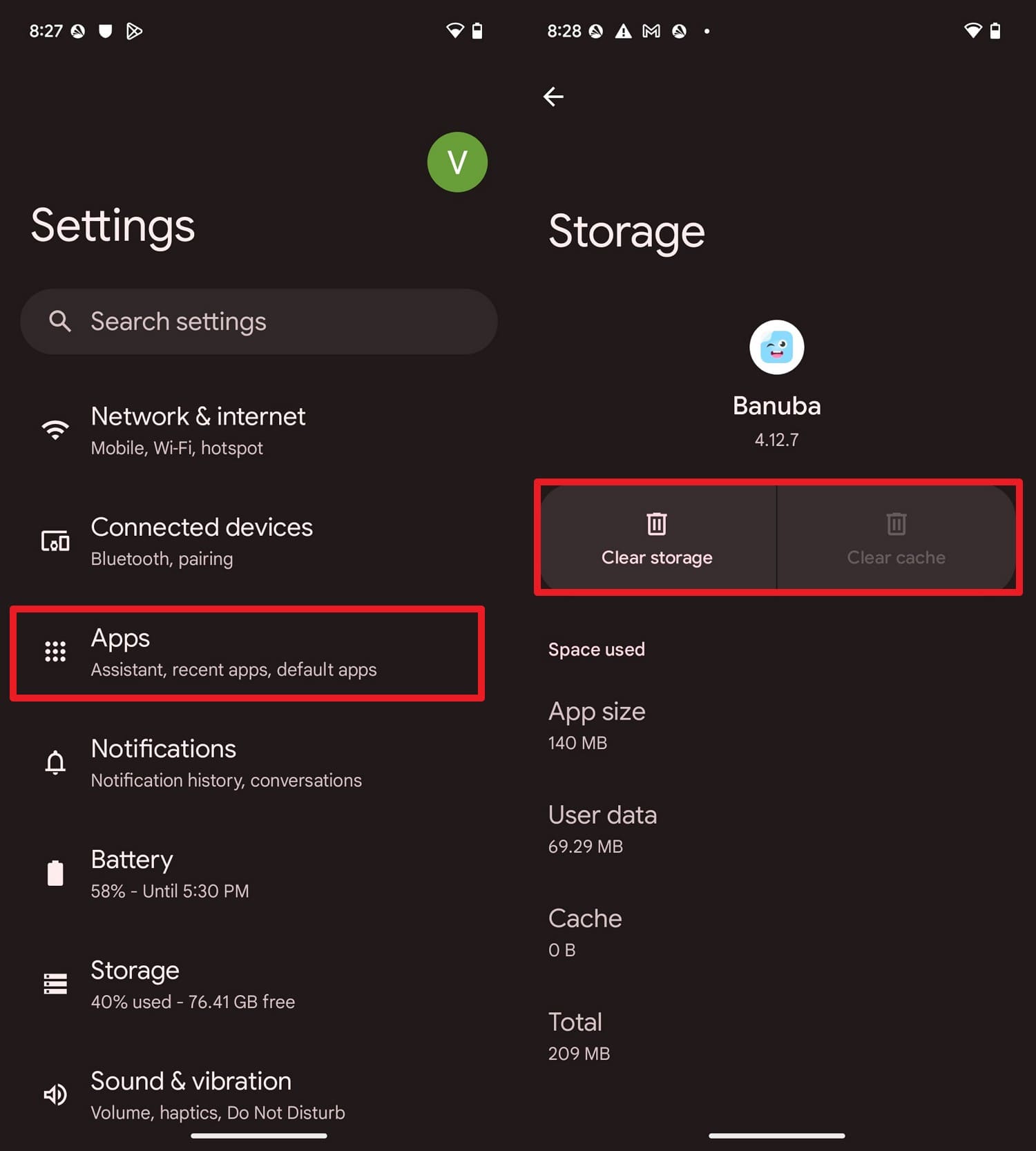
On Reddit and T3 sites, it's said that the update package will be about ~3.22GB, and your device needs 5-10 GB of free space to install the Android 17 update. Since storage can cause installation errors, here is how you can make enough space:
Instructions (Google Pixel as Example): In the Settings, go to “Apps > All Apps” and select a heavily used app from the list. On the “Storage & Cache” interface of the app, choose between the “Clear Storage” or “Clear Cache” option to make space.
- Charge and Connect Properly
In addition to space, charge your phone to 80% and ensure a stable Wi-Fi connection to avoid interruptions and installation failures.
Part 3. How to Back Up Your Android Device Before Android 17
For the Android 17 update prep, here are some common methods you can try for backup:
1. Google Account Backup (Recommended)
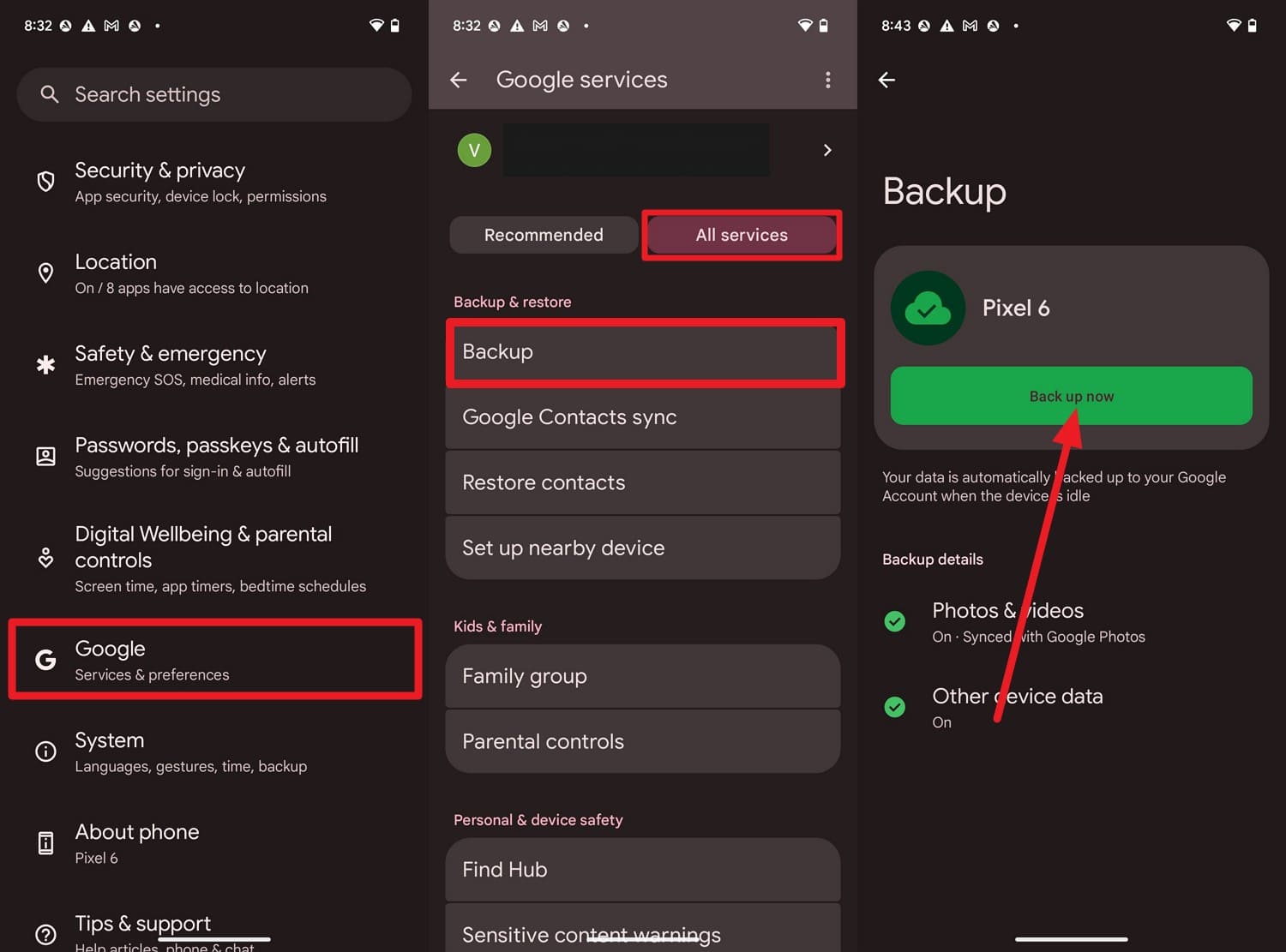
This option saves Google services and runs automatically over Wi-Fi with encryption to get you a free backup and recovery option. Since it also restores settings, apps, Wi-Fi password, and account data in case of reset, here is how it can perform:
Instructions: On Google Pixel’s settings, pick the “Google” option and select the “All Services” tab. Choose the “Backup” option and press the “Back Up Now” button to continue.
2. Local Backup on Device or PC
Users can use the SD or PC to create an offline copy of the selected data that they can control. Since this method works even if the cloud restore fails, you can back up larger files with data integrity intact, as demonstrated:
-
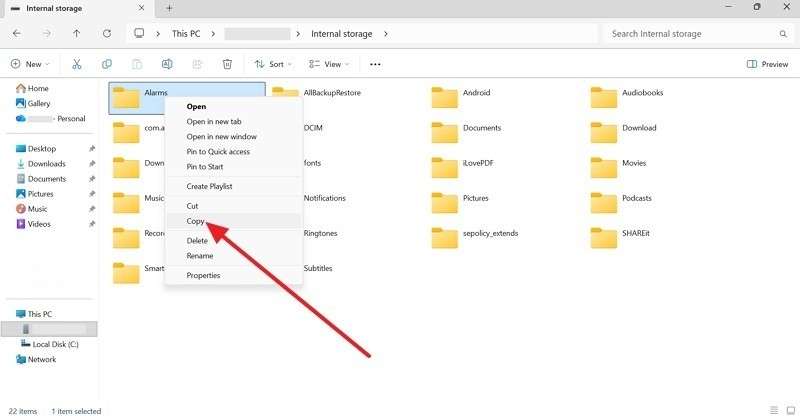
Step 1 For the local Android 17 backup on the PC, connect the phone via USB, then select the data from Internal Storage and choose “Copy.”
-
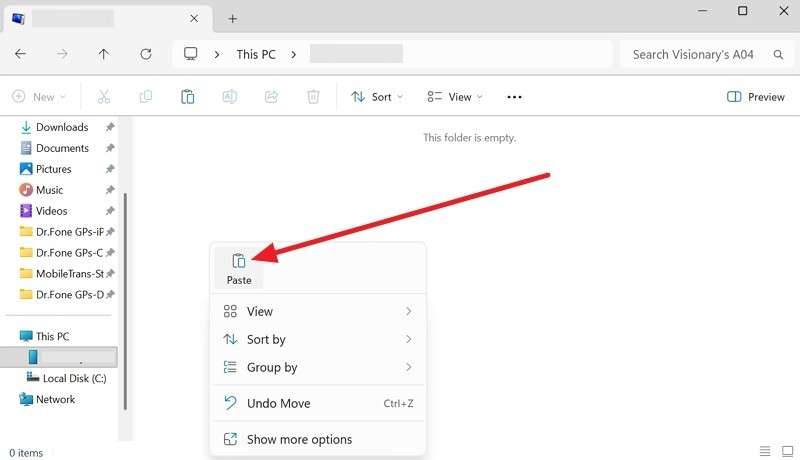
Step 2 Make a new folder in the File Explorer and right-click to paste the copied data.
Part 4. How to Back Up Contacts Before Android 17
Other than the data, if you want to secure your contacts before the Android 17 update, try the 2 given ways:
1. Sync Contacts with Google Account
This method ensures that all contacts are saved to the cloud, so they won’t be lost during updates or device issues. Once enabled, the contacts stay synced across all the devices and update everywhere when edited, as guided:
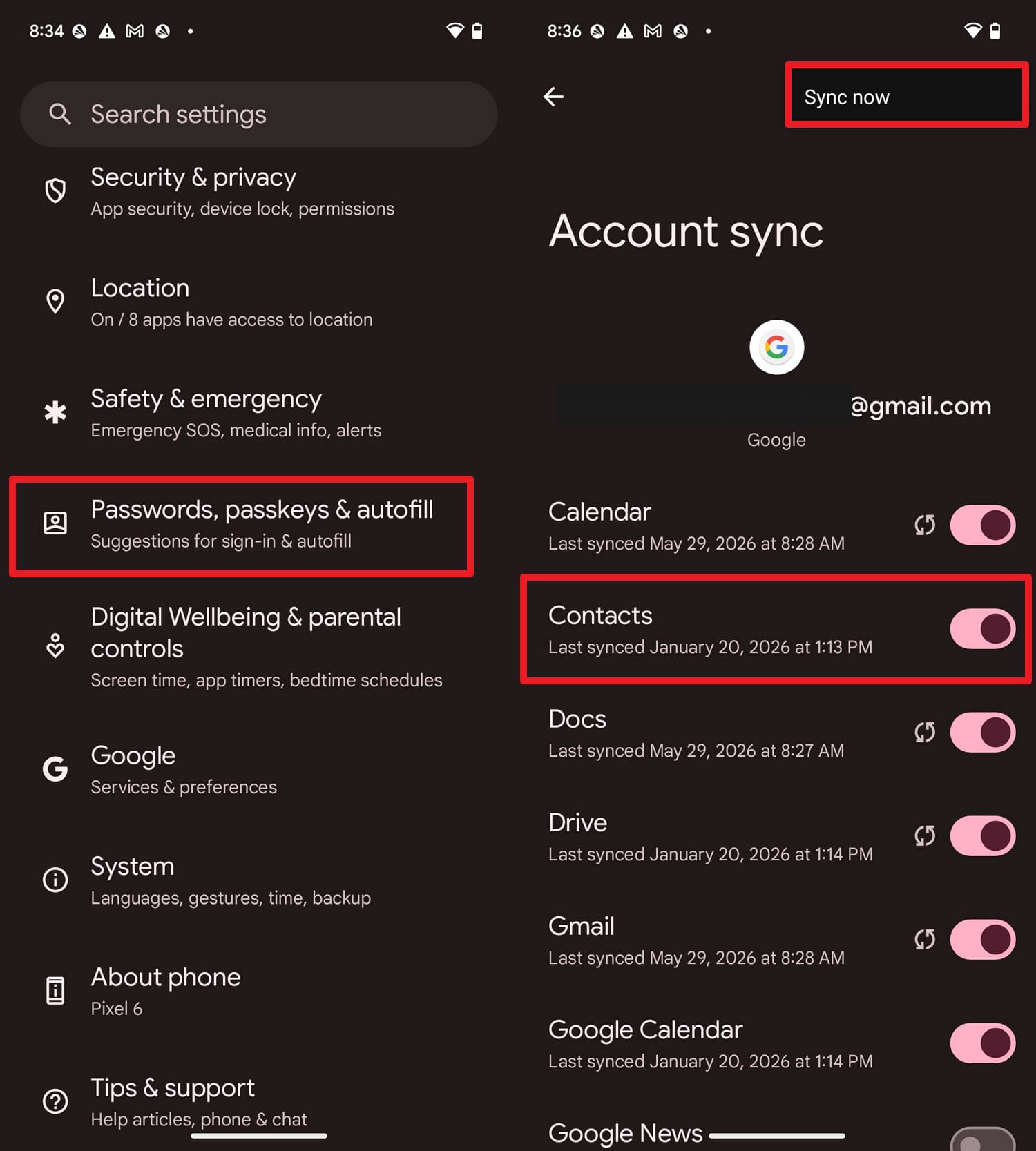
Instructions: Choose the “Passwords, Passkeys & Autofill” option and tap the mentioned Google account to pick the “Account Sync” option. Here, toggle the option for “Contacts” and pick the “Sync Now” option by pressing “Three Dots” at the top.
2. Export Contacts Manually
If you want to move to an Android 17-supported device, export the contacts as VCF files before the Android 17 update. You can also keep a secure copy of the selected contact on apps like Gmail, once the given steps are performed:
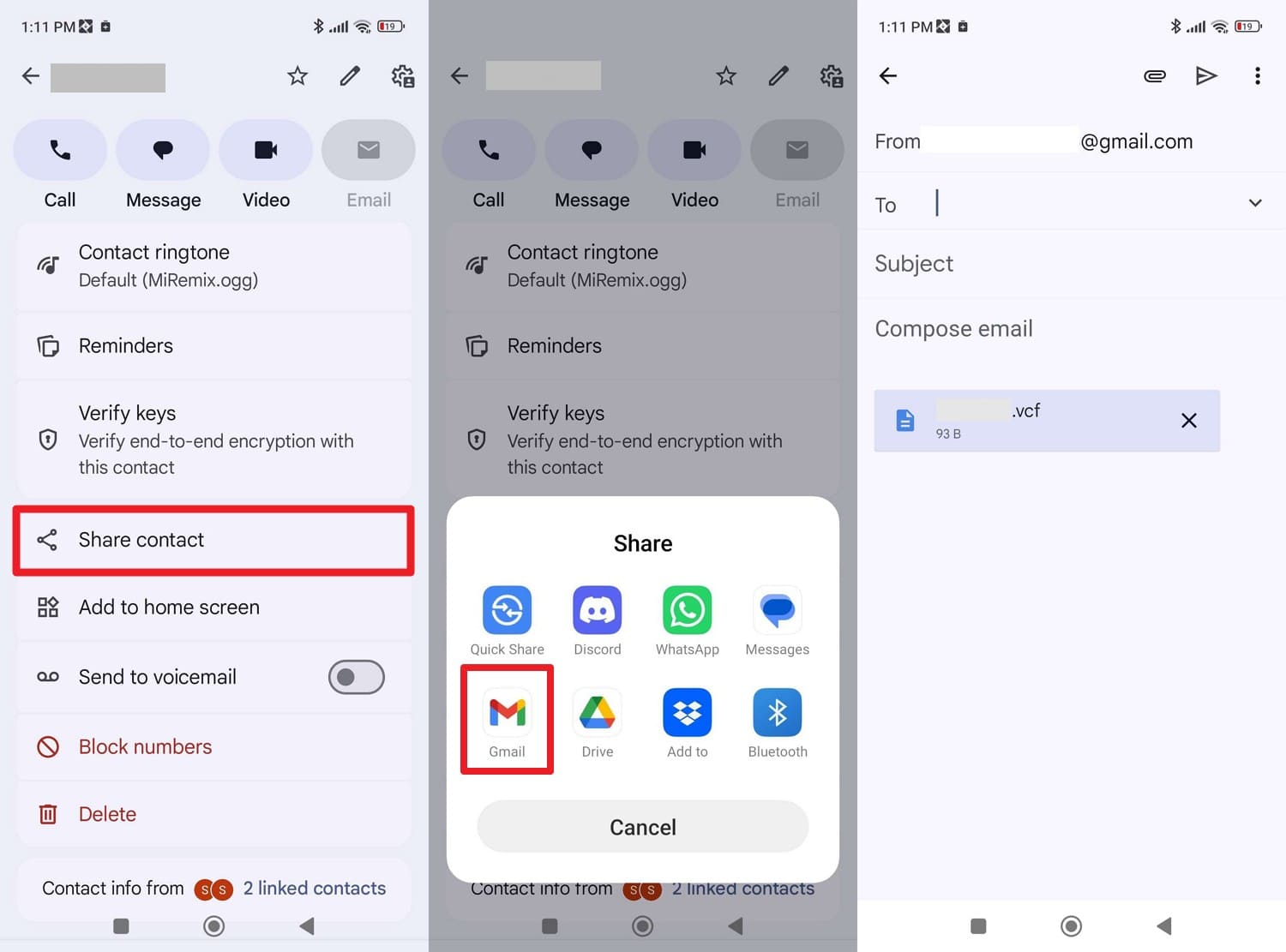
Instructions: In the Contacts app, choose the phone number you want to back up, then press “Share Contact > Share.” Choose “Gmail” or other platforms and add the sender details to export the VCF file.
Part 5. How to Back Up Photos and Videos Before Android 17
To save selected images or videos automatically and manually, try the 2 backup options:
1. Google Photos Backup Method
You can also use this backup method before the Android 17 update to store all the images and videos in the cloud. This method also makes your library accessible on any device with your Google Account and adds a custom organization and search feature, as guided:
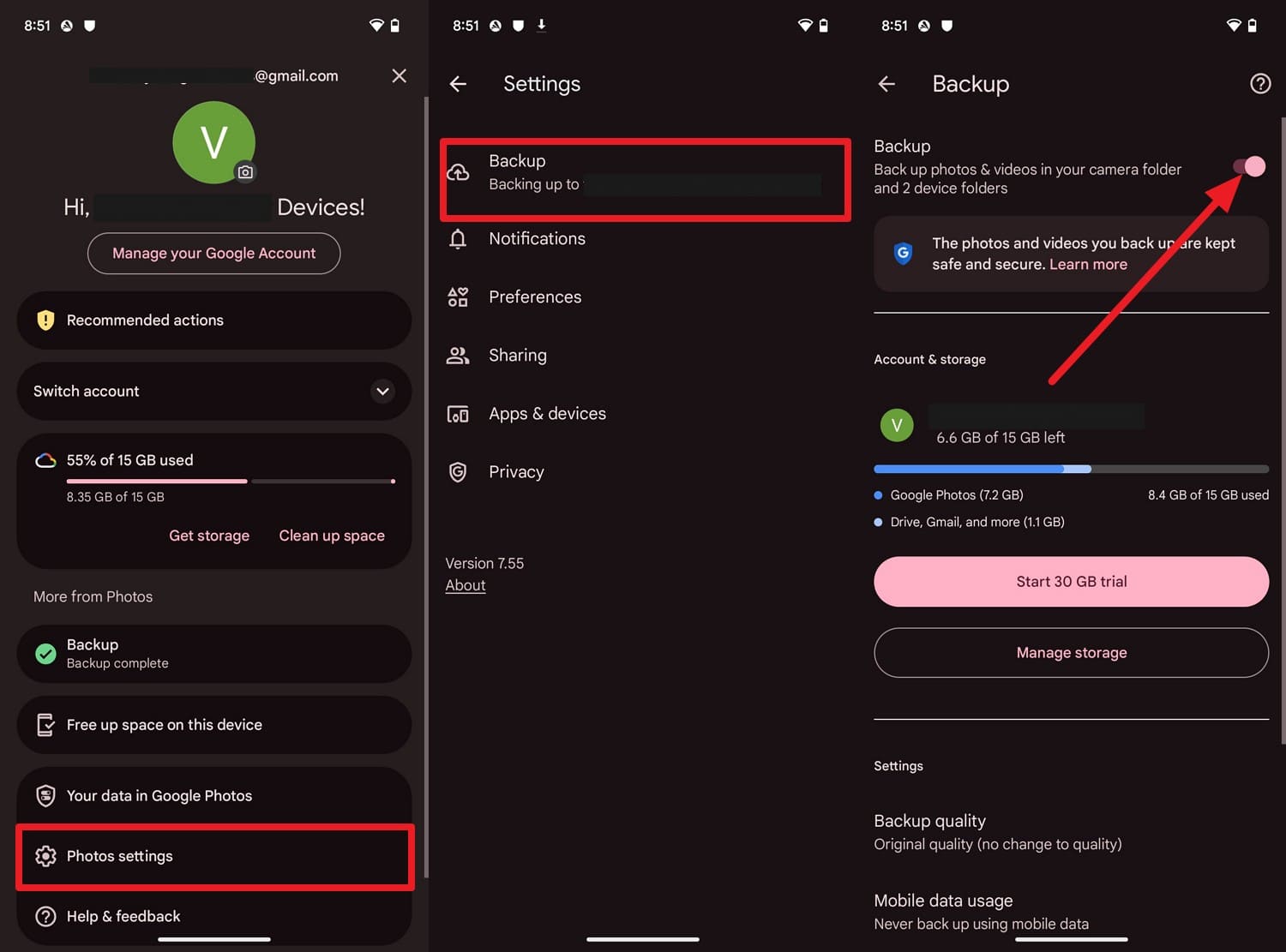
Instructions: Open Google Photos, tap your “Profile” picture, then go to “Photos Settings > Backup” and turn on “Backup.” Once enabled, your photos and videos will automatically sync to your Google account and will be restored after the Android 17 update when you sign back in.
2. Manual Transfer Option
To upgrade to an Android 17-supported device, you can also manually share and download images. In this case, you can use a cloud service, like Google Drive, to upload and save the data on Android 17, as guided:
-
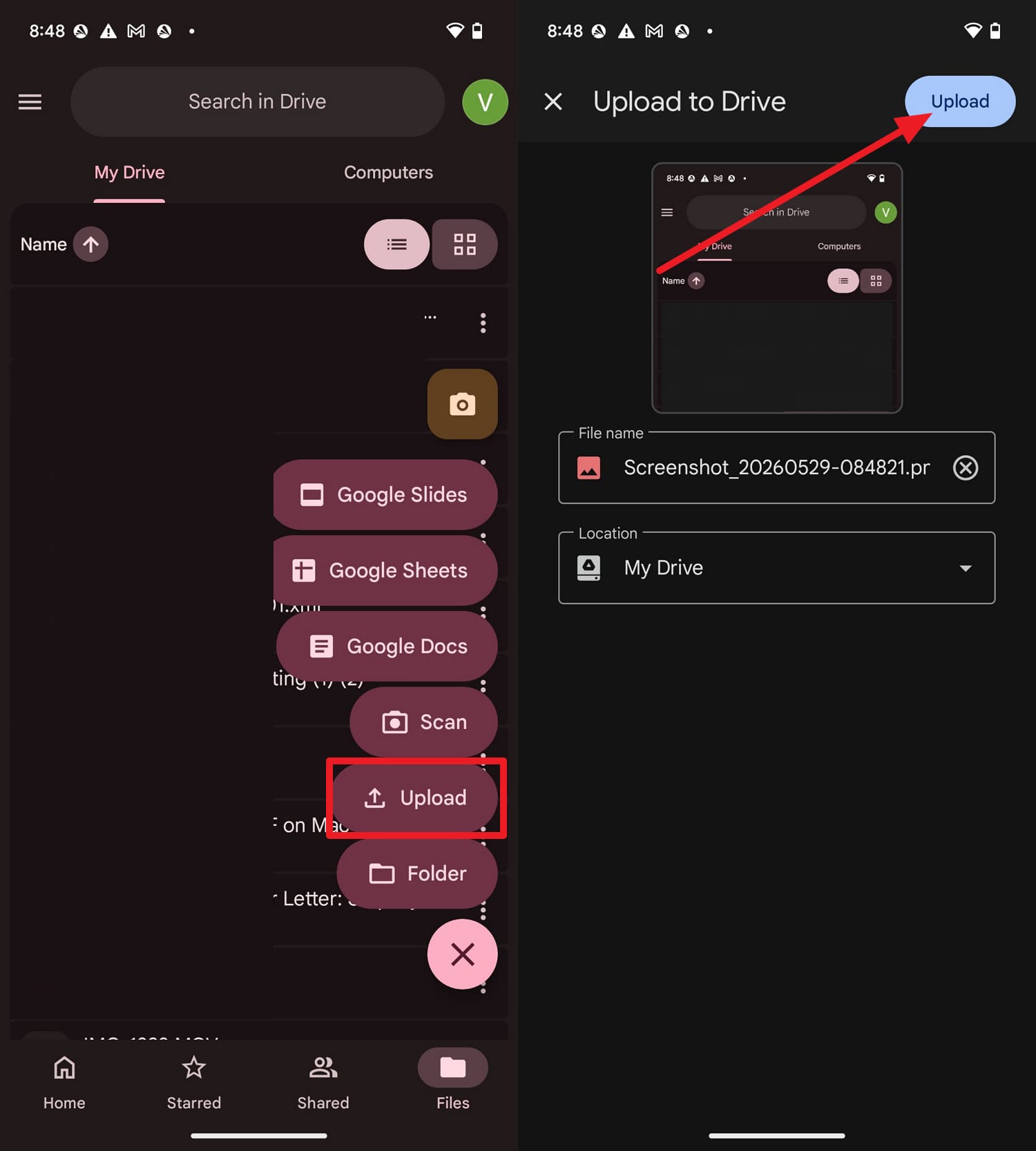
Step 1 Tap the "+" button to choose the "Upload" button, select the media you want to back up, and tap "Upload."
-
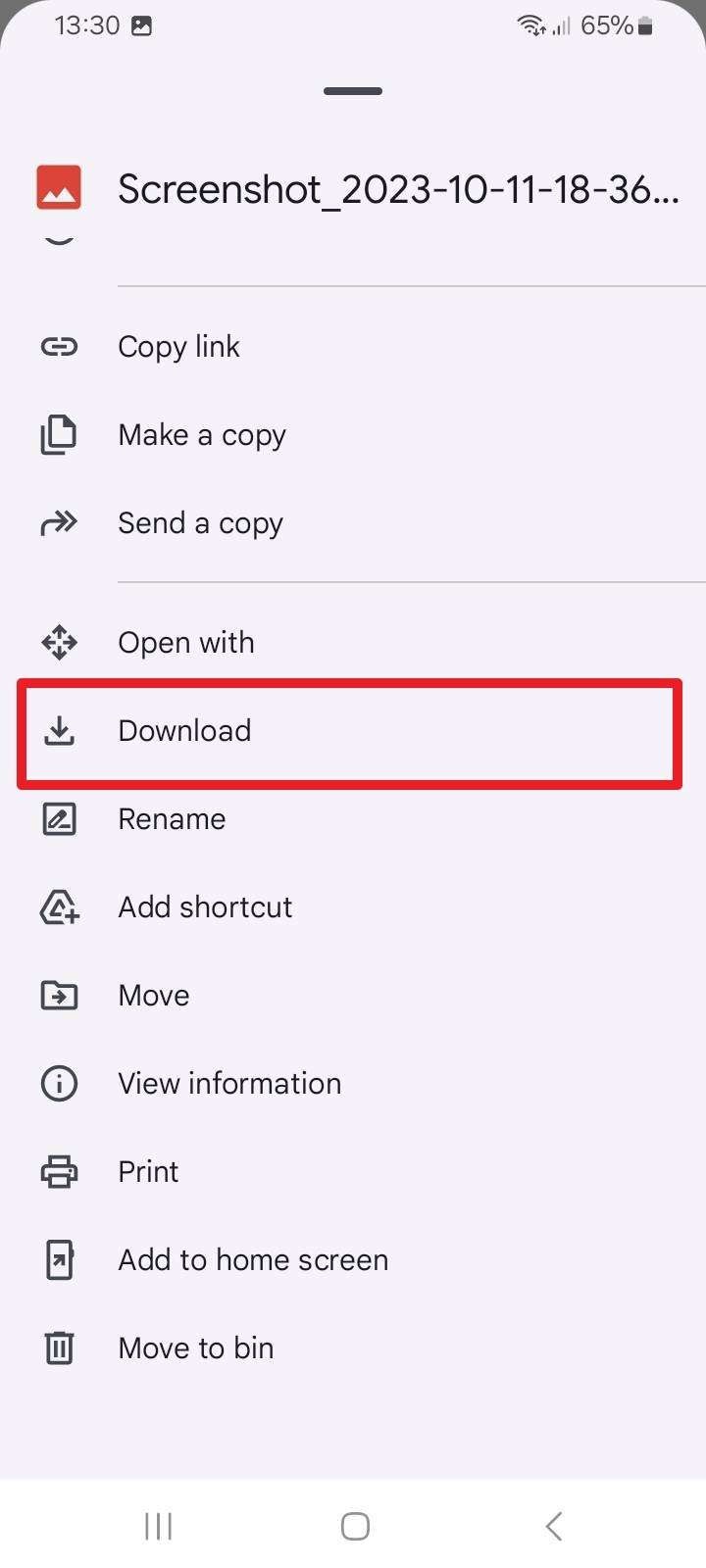
Step 2 On Android 17, locate the shared media as you sign in with the same ID, and pick the “Download” option by tapping the “Three Dots” icon.
Part 6. How to Transfer Apps and App Data Safely?
This Android 17 backup method primarily caters to the application, which is the major concern for most users.
1. Automatic App Restore via Google Play
Google Play remembers your app history, including previously removed apps. Thus, after the update, it can automatically restore supported app settings, sign-ins, and game progress. It also works with cloud and local backups, giving extra recovery protection without needing extra tools or setup. So, just sign in to your Google account and restore your apps easily.
2. Use Third-Party Backup Tool: Wondershare Dr.Fone
Rather than using separate backup methods for certain data types, use a backup tool like Wondershare Dr.Fone. This tool pairs via the Dr.Fone Link app & USB and lets you back up applications, images, videos, and files with one click. In this regard, the tool is compatible with 8,000 Android devices and can back up selected and bulk data without requiring any skills.
With its upcoming weekly update for Android 17, right after the official release, you can preview the created backup and restore using the same tool. Users can also use it to restore data from Android or iOS to iCloud or iTunes backups, securing 10+ data types. Since the process can be performed in 3 simple steps, it's better than manual Android 17 update prep backup methods.
 Effortlessly manage data through preview, delete, export, etc.
- Transfer all data between devices.
- Robust backup solutions for reliable data protection.
- Mirror screens to PC for meetings, teaching, and control.

Guide to Back Up & Restore Android Before Android 17 Update
To know how you can use this tool to back up and restore, perform a real-world test via the mentioned guide:
-
Step 1 Pick the Data Types in My Backup Tab
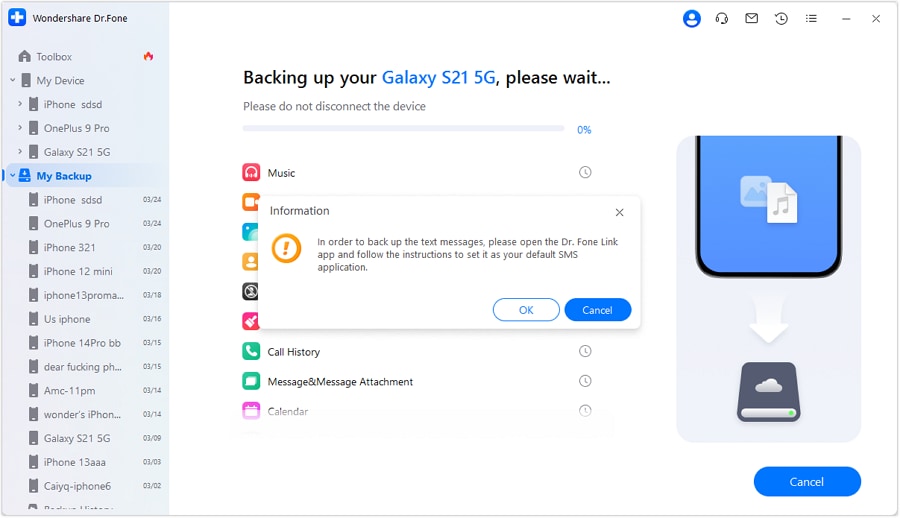
Connect Android, go to the “My Backup” section on the tool, and press the “Back Up Now” button as you choose the data types.
-
Step 2 Set Dr.Fone and SMS as Default Applications
If the SMS is selected as a data type, set the Dr.Fone Link app as the default app by pressing the “Ok” button. This will start the backup process, and as it completes, choose the “OK” button to set SMS as the default app.

-
Step 3 Restore the Backed-up Data to Android 17
To restore the backup, select the data types when choosing the Android 17 updates device in the “My Backup” section. After that, press the “Restore to Device” and “Continue” buttons to start using the Android 17 device.




1. Always back up before Android 17 update
Major OS upgrades like Android 17 can cause data loss due to system rewrites, instability, or failed installations. A full backup protects your contacts, photos, apps, and settings.
2. Use both cloud and local backups
Google Account and Google Photos protect synced data, but a local tool like Dr.Fone ensures full control and recovery of all 10+ data types, even if the cloud fails.
Conclusion
Upgrading to Android 17 is exciting, but early software releases always carry major risks, such as app crashes or accidental data deletion. This is why this guide has explained why the Android 17 backup is important. Nonetheless, if you rely on your phone as your daily driver, the verdict is to wait for a stable release or try the backup options mentioned.
While standard cloud options can save basic files, utilizing a comprehensive solution like Wondershare Dr.Fone provides a much safer local backup on your PC. It ensures that even if a system crash forces you to wipe your device during the installation loop, you can instantly restore your entire device.
FAQ
-
1. Do I need both Google backup and a local backup?
Yes, using both gives stronger protection if cloud recovery fails or some local files are not backed up properly. -
2. Will updating to Android 17 delete my photos or apps?
Usually no, but failed updates or factory resets can unexpectedly remove apps, files, settings, and saved media. -
3. Is backing up only to Google Photos enough?
No, Google Photos protects media only, not apps, contacts, messages, settings, or important downloaded files. Hence, you can use backup tools like Dr.Fone to keep a secure copy of 10+ major data types. -
4. Can I roll back from Android 17 if I don’t like it?
Sometimes yes, but downgrading often requires wiping your phone and may not work on all devices afterward. -
5. How often should I back up my Android phone?
Back up weekly or before major updates to protect recent photos, contacts, apps, files, and important settings.
 Add Wondershare Dr.Fone as a preferred source on Google



