 Effortlessly manage data through preview, delete, export, etc.

 100% Security Verified | No Subscription Required | No Malware

 :
: 
 ChatGPT
 Perplexity
 Gemini
 Claude
 Grok
Grok
Many users worry about the loss of photos after they try the new editing features in the iOS 27 update. The app is expected to introduce powerful AI editing tools that include iOS 27 photos, extend, enhance, and reframe.
Nonetheless, users wonder whether their original images are safe and how to recover them if something goes wrong. Therefore, this guide explains the editing features and how Apple handles them. Additionally, some built-in and third-party tools, like Dr.Fone - Phone Backup, can create and restore local backups.
In this article
- Part 1. What’s New in the iOS 27 Photos App?
- Part 2. Will iOS 27 Editing Affect Your Original Photos?
- Part 3. How to Back Up Photos Before Using iOS 27 AI Editing
- Part 4. How to Restore Photos on iOS 27 After Editing or Loss
- Part 5. How to Avoid Losing Photos During iOS 27 Update
- Frequently Asked Questions
Part 1. What’s New in the iOS 27 Photos App?
Before you learn to back up iPhone photos, it's important to know what features iOS 27 will bring to the Photos App. So, the listed points will give you an idea whether they can be a threat to data loss:
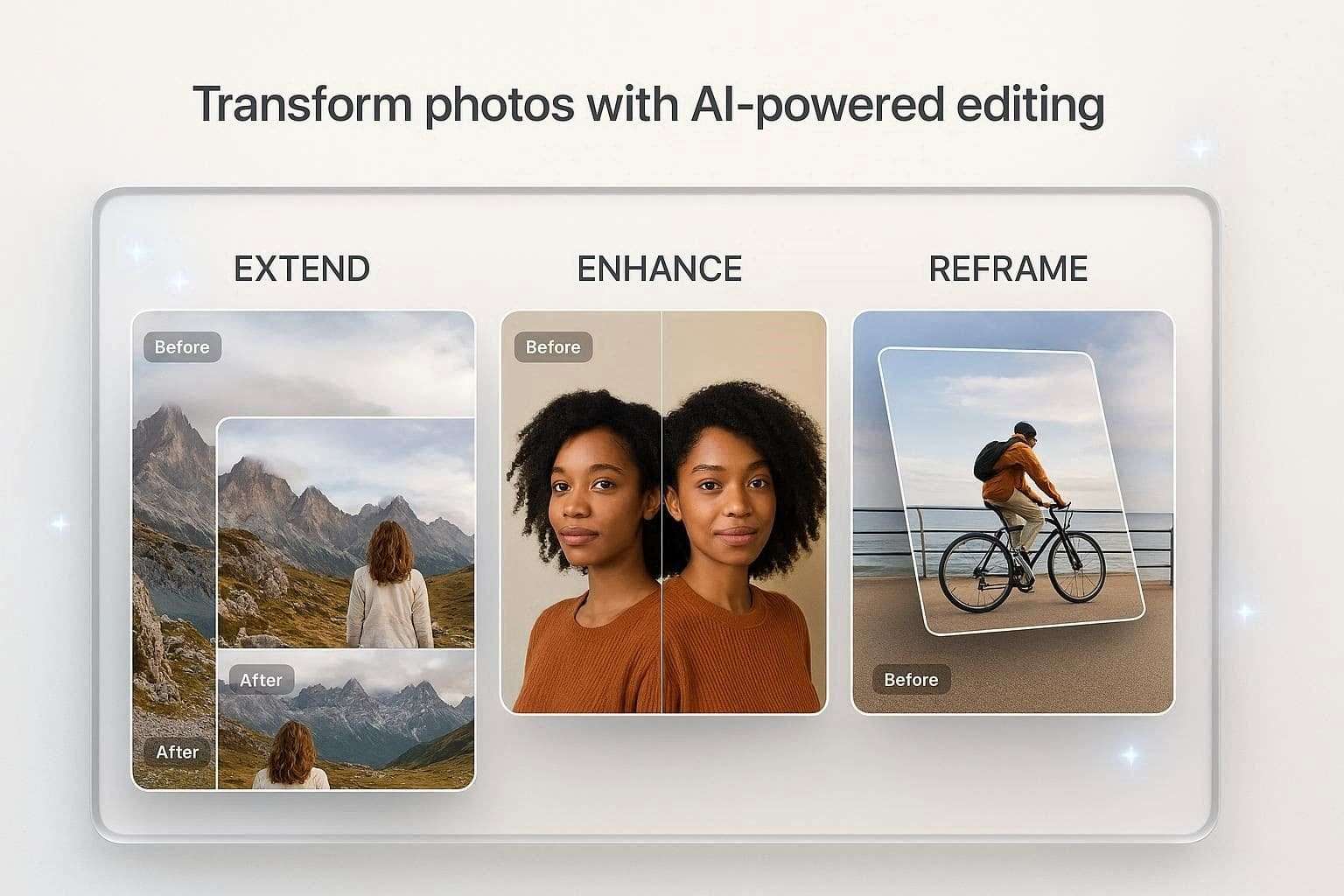
- Extend: The app now features a dedicated AI editing section where the Extend feature uses generative AI. Hence, this looks at the picture and realistically fills in and expands the background. According to MacRumors and Quaid Technologies, if you overcrop an image, this feature will generate matching scenery to fill the image.
- Enhance: According to the Quaid Technologies leaks, the feature will use deep learning AI models rather than standard filters. Through this, it will automatically enhance the photo’s lighting, shadows, and contrast to optimize image quality without making it look too fake.
- Reframe: This feature is designed for Spatial photos and lets you automatically shift the photo's perspective or angle. So, this can be done after the image has been taken, and ensure your pictures are perfectly framed for a 3D viewing experience.
Part 2. Will iOS 27 Editing Affect Your Original Photos?
How Apple Handles Edited Images
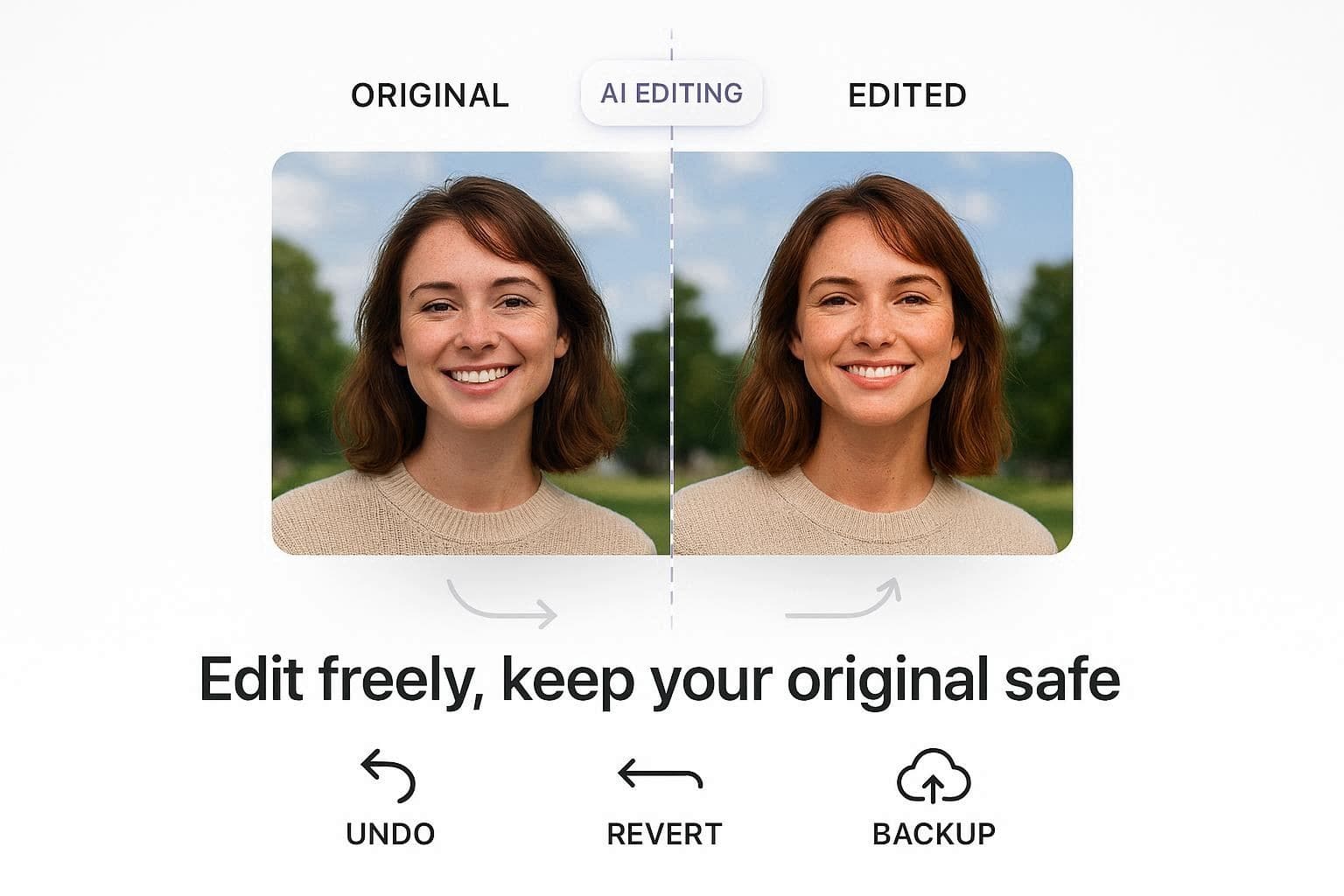
Apple processes the images through non-destructive editing, which means that the software applies adjustments as a separate layer. Thus, this does not overwrite the original file, and users can easily reverse the changes using the “Revert” or “Undo” icons, says Apple.
When Data Loss Can Still Happen
As noted in Reddit comments, the most common reasons for image loss are incorrect transfer or low storage space. Thus, this can cause the photos to freeze, glitch, or fail to save properly.
In addition, some problems can occur if the iPhone restarts unexpectedly or loses internet connection when photos are syncing to iCloud. In most cases, iOS updates may cause software bugs that affect your photo sync and storage.
Why Backups Are Still Important
For the reasons mentioned, it's important to back up iPhone photos to prevent complete data loss. If you save a copy to a computer or the cloud, you can keep your images safe even if something happens to your iPhone.
Additionally, this extra backup ensures you have access to both edited and original images, which you can easily restore.
Part 3. How to Back Up Photos Before Using iOS 27 AI Editing
So, to know how you can back up iPhone photos, this section explains 4 simple and effective methods:
1. Use iCloud Photos Sync
This method syncs edits and originals across all your Apple devices and helps save storage space on your iPhone. Through this, you can also ensure Apple Intelligence can access your complete photo library and make it easier to try new AI editing features.
To know how this can be done through the iOS settings, a detailed guide is given ahead:
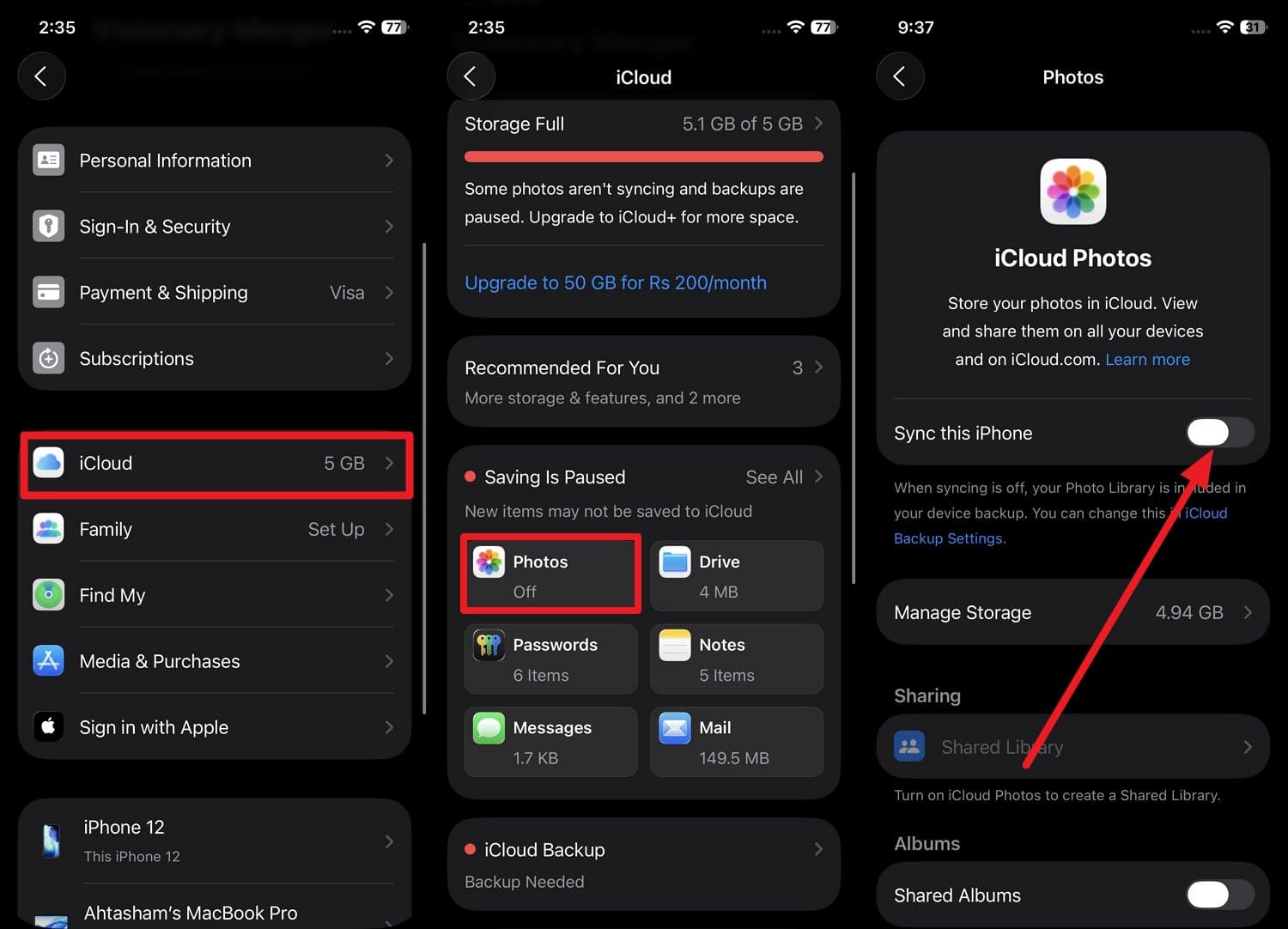
Instructions: As you tap your name in the settings, choose “iCloud” and “Photos.” On the new interface, toggle on “Sync This iPhone” and keep your phone connected to Wi-Fi so it can upload all images.
2. Back Up Using a Computer (Mac or Windows)
You can also use iTunes or Finder to back up and restore photos on iOS 27 because you get the local copy that does not depend on the cloud. Thus, such types of backups are easy to restore, avoid cloud storage limits, and keep libraries safe for the long term.
Since it also avoids data overwriting to some extent, here is how it's done on iTunes Windows:
-
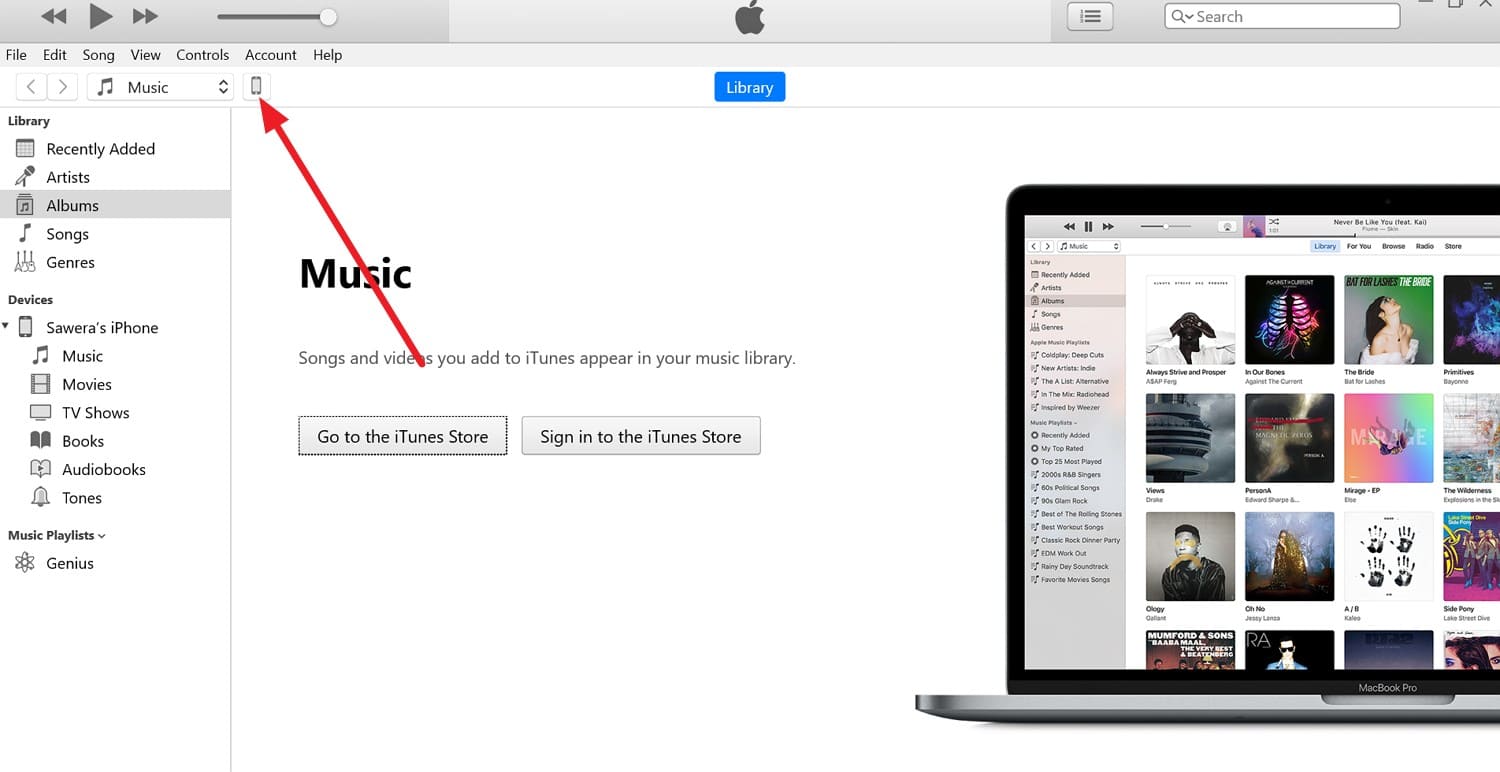
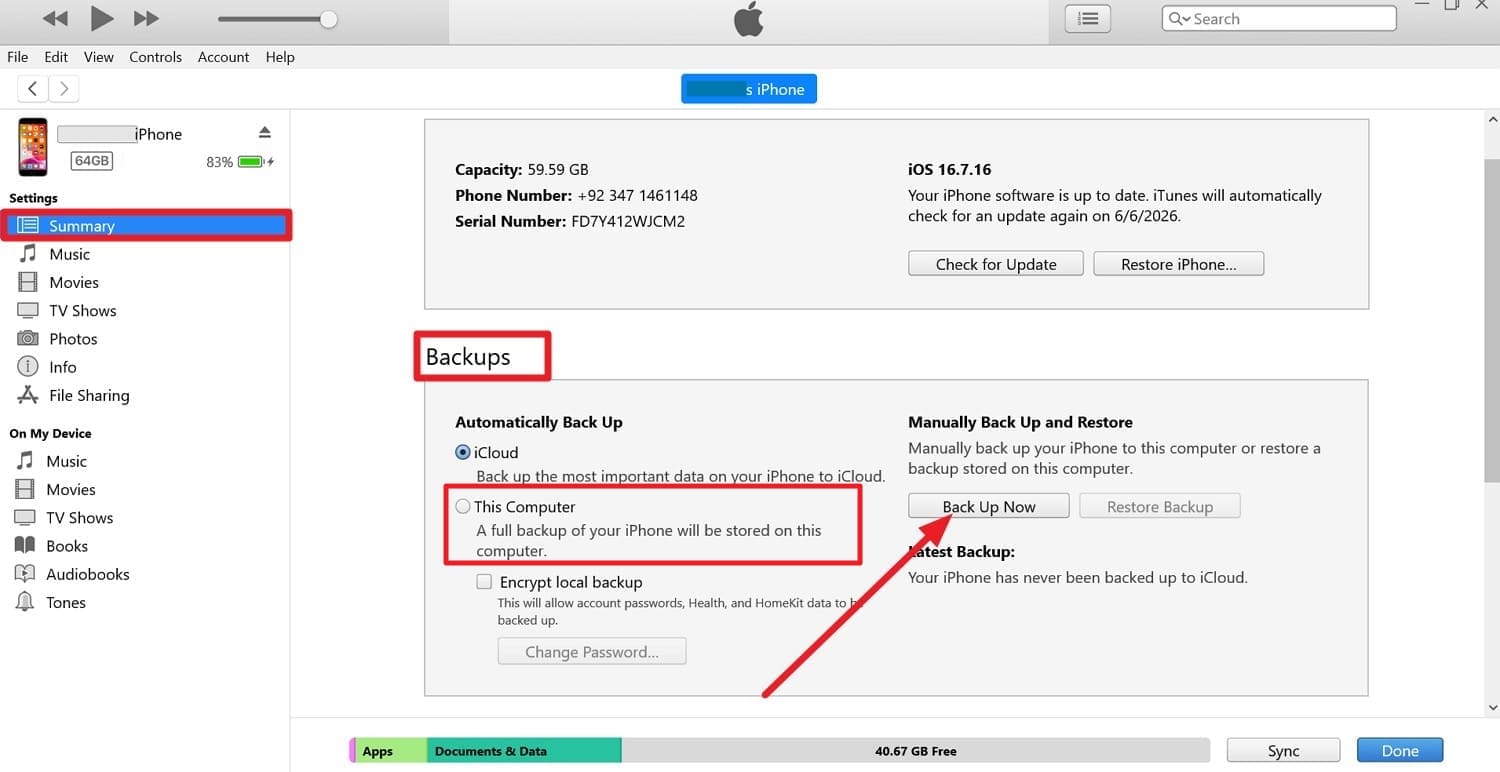
Step 1 Connect the phone to Windows using a USB cable, then select “Trust” and the small “Phone” icon in iTunes to continue.
-
Step 2 In the “Summary” tab, pick the “This Computer” option from the “Backups” section and click on the "Back Up Now" button.
3. Use Google Photos or Cloud Alternatives
Before you try iOS 27 photos, extend, enhance, and reframe features, use this backup option for extra security. This can help if something happens to the iPhone, iCloud account, or photo library.
With its backup option, you can view saved images on any device and share them easily, as guided:
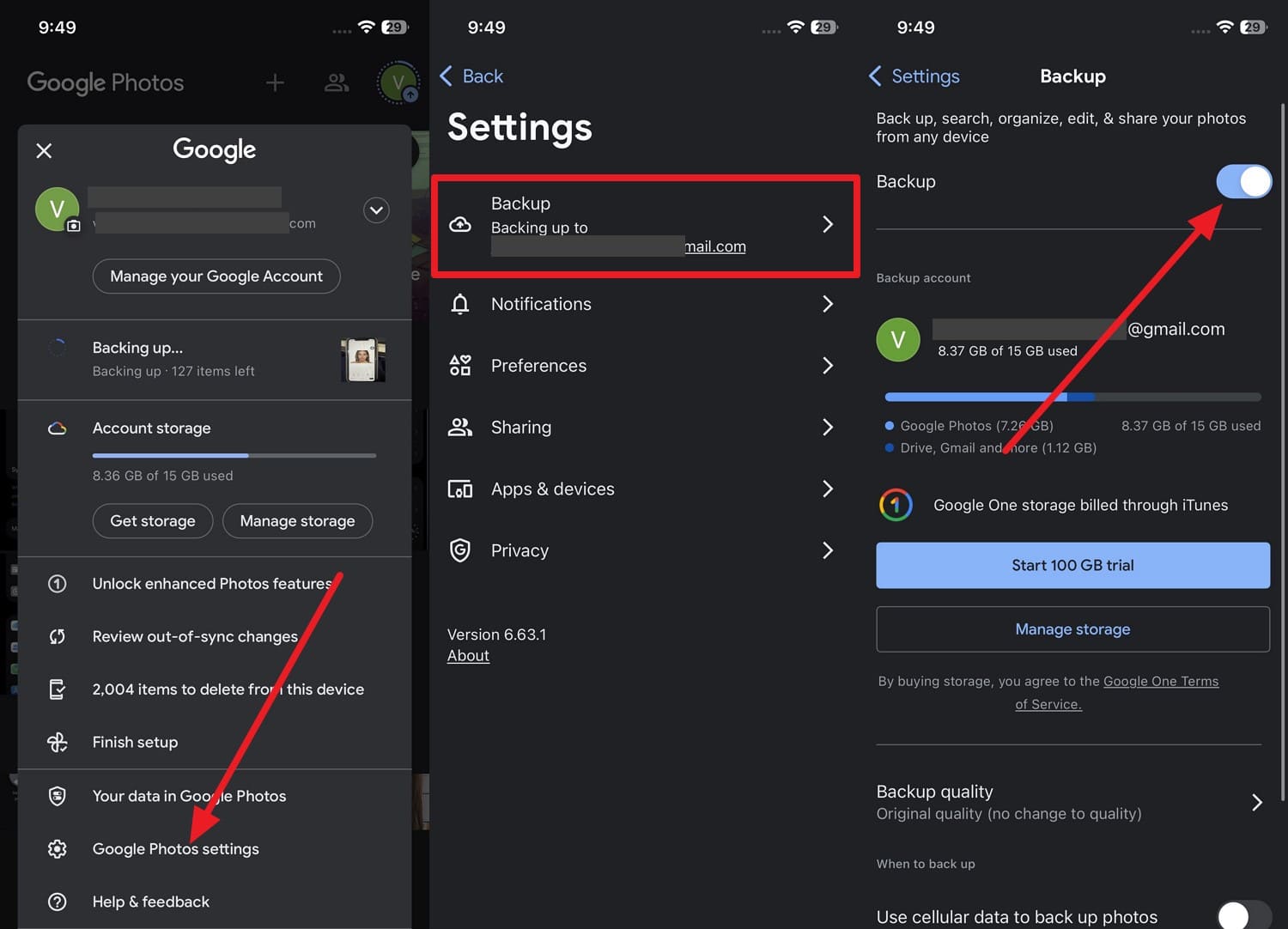
Instruction: Tap the “Profile” icon in the iOS Google Photos app, then select the “Google Photos Settings” and “Backup” options. Here, turn on the “Backup” toggle to upload your entire camera roll.
4. Manual Backup Via Dr.Fone Phone Backup (iOS)
If you want to back up iPhone photos selectively or automatically, you can use Wondershare Dr.Fone. This tool lets you manually back up selected images to the PC or create an incremental backup.
Most iOS experts prefer this tool since it lets you save the backup location and backup time for incremental backups. With this option, the tool claims not to overwrite images, and you can preview them easily.
Most of all, Dr.Fone also allows you to automatically back up over Wi-Fi and ensure no data loss or leak during the backup process. Compared to other backup options, it is fully guided and can be done in 2-3 simple steps, which makes it the right choice for amateurs.
 Effortlessly manage data through preview, delete, export, etc.
- Transfer all data between devices.
- Robust backup solutions for reliable data protection.
- Mirror screens to PC for meetings, teaching, and control.

Guide to Create a Manual Backup of iOS 27 Images on Dr.Fone
To know how you can use this tool to save a local copy, let’s test it in the real world via this guide:
-
Step 1 Choose Images to Back Up Using Dr.Fone
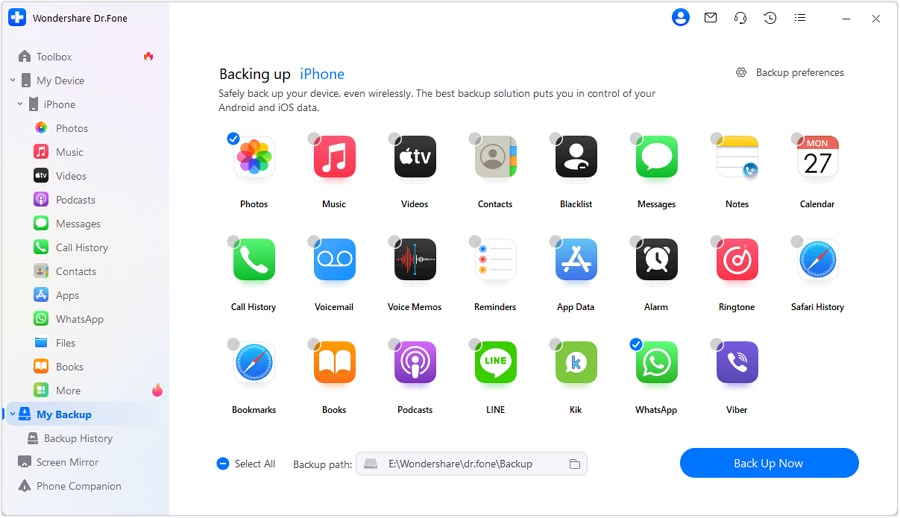
From the “My Backup” tab, choose “Photos,” select the backup location from the “Backup Path” menu, then press the “Back Up Now” button.
-
Step 2 Preview and Browse Images from Local Backup
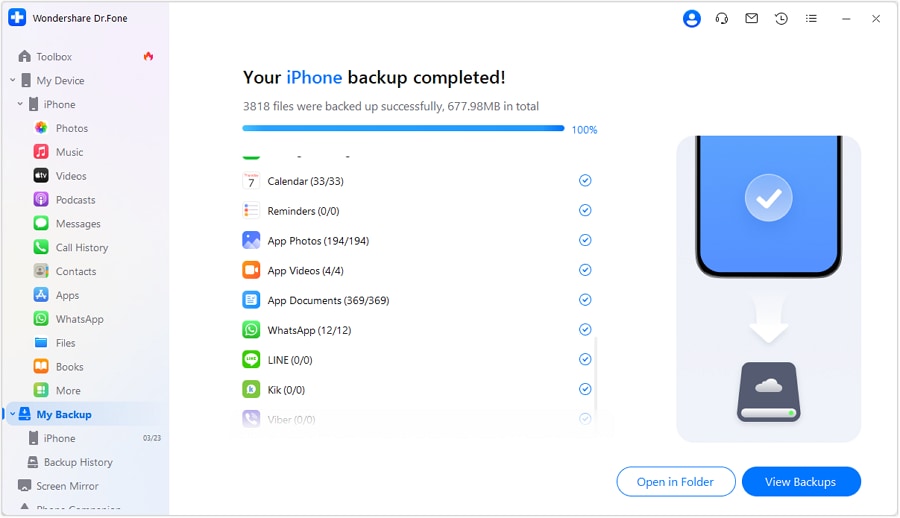
The tool will detect the chosen metrics and display the progress bar to create a local backup on the PC. When it concludes, choose between the “View Backups” and “Open in Folder” options to preview and browse saved images.




Part 4. How to Restore Photos on iOS 27 After Editing or Loss
Once you edit the image with iOS 27 photos, extend, enhance, and reframe features, here is how you can restore your data:
1. Restore from iCloud Photos
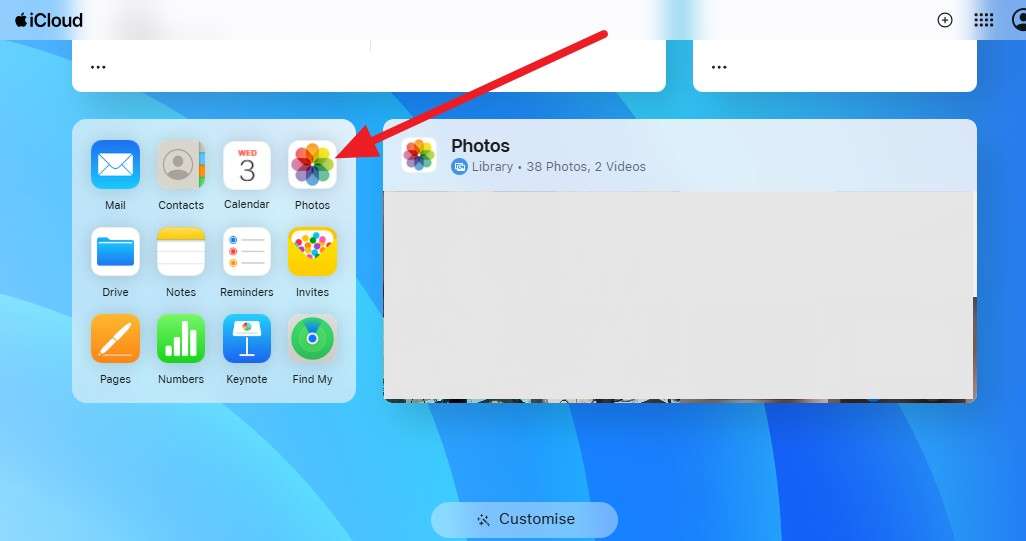
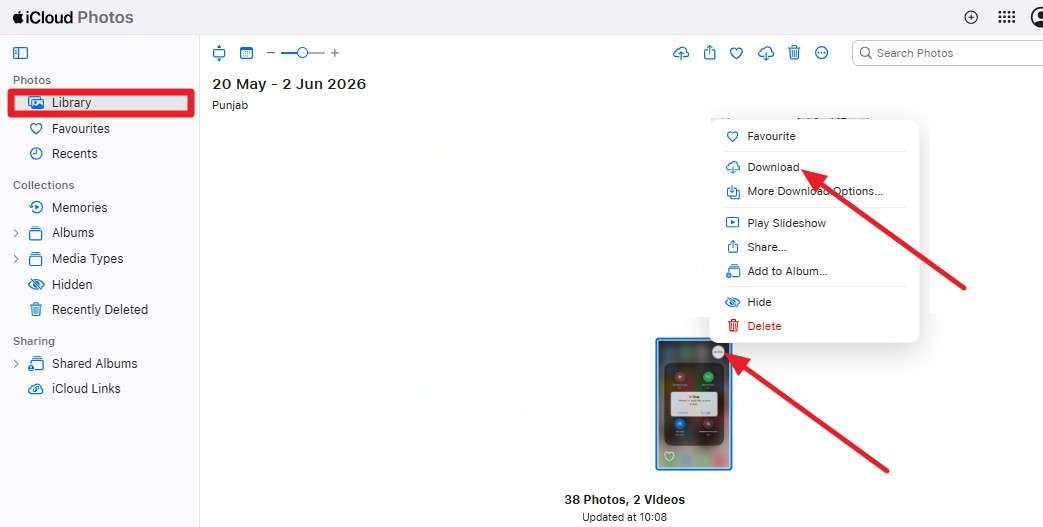
Since iCloud keeps full-quality originals and syncs them across Apple devices, you can restore them from iCloud.com. This can be done on the Safari app or on a PC and is guided in the steps below for clarity:
-
Step 1 Go to iCloud.com on PC and open the “Photos” app, then go to “Library.”
-
Step 2 There, locate the original image and tap the “Three Dots” icon to choose the “Download” option.
2. Restore from Local Backup
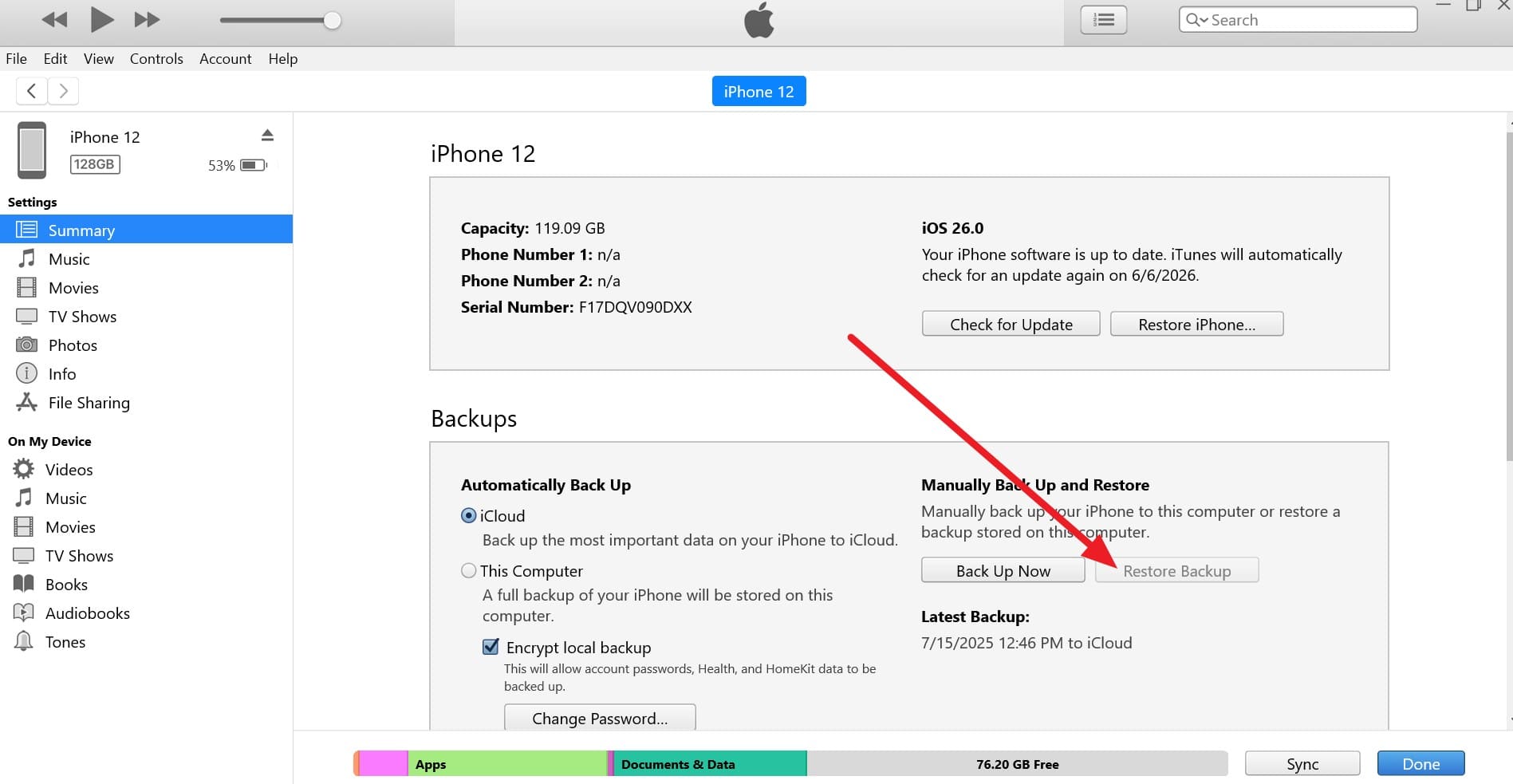
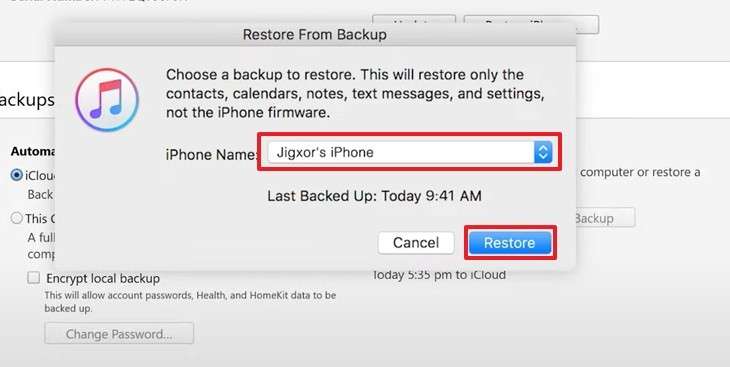
To restore photos on iOS 27, you can use the iTunes/Finder-made local backup on the computer and media as it was. Since it's ideal to restore large libraries, the following steps show how they can be restored through a USB connection:
-
Step 1 As you “Trust” and tap the “Phone” icon, choose the “Restore Backup” option in the Summary tab.
-
Step 2 After that, stretch the “iPhone Name” menu, choose the backup, and tap the “Restore” button.
3. Recover Deleted or Edited Photos
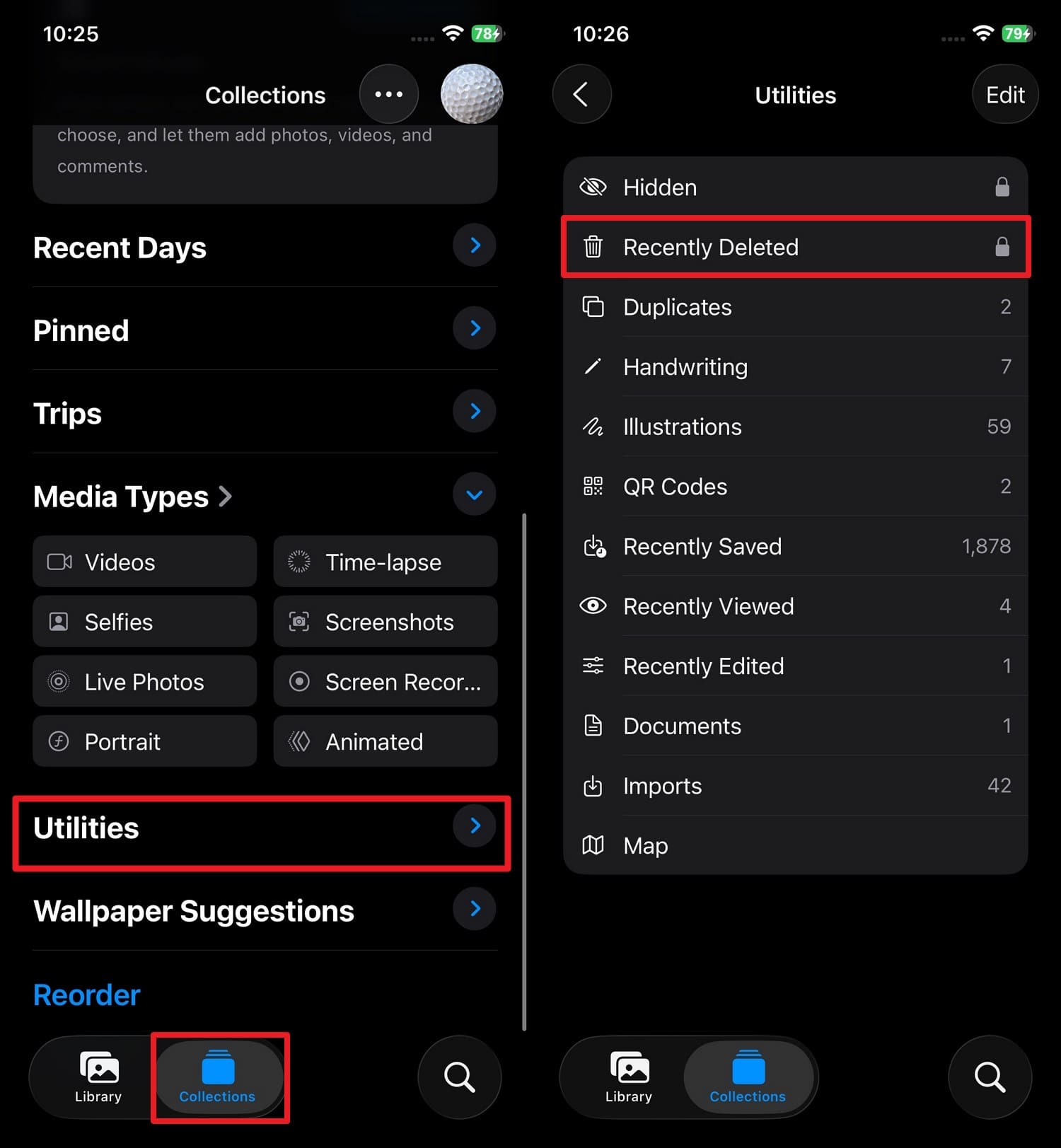
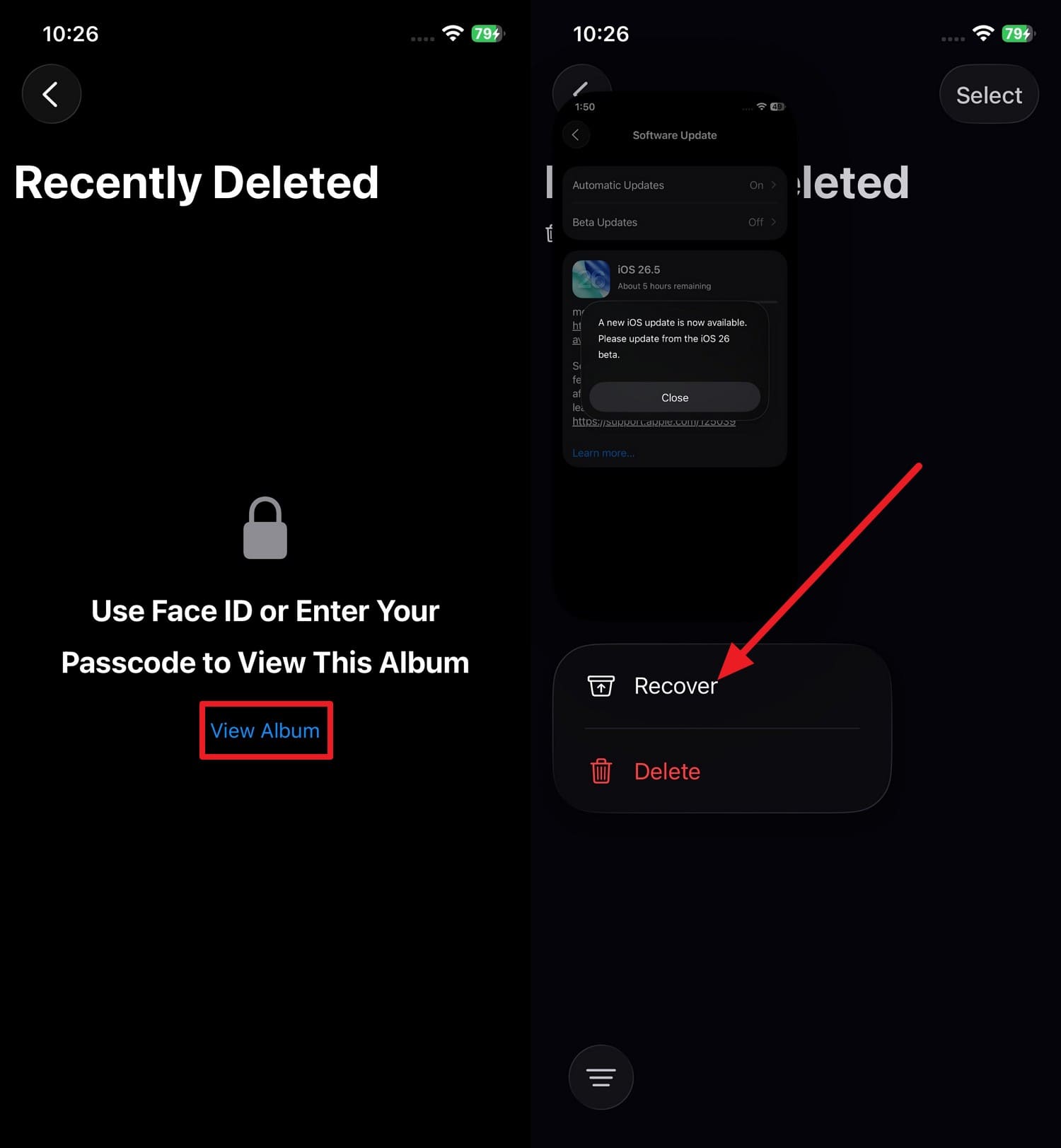
If the images were deleted and not backed up, you can use the Recently Deleted folder to recover them within 30 days. After this time, the images will be permanently removed, and this method works across your Apple devices if iCloud Photos is enabled.
So, to access this option on iOS and restore the media, review this guide for clarity:
-
Step 1 Go to “Collections” and “Utilities” in the Photos App to choose the “Recently Deleted” folder.
-
Step 2 Pick the “View Album” option to add the Face ID or passcode and select the image to tap the “Recover” option.
4. Use Dr.Fone - Phone Backup (iOS) to Restore
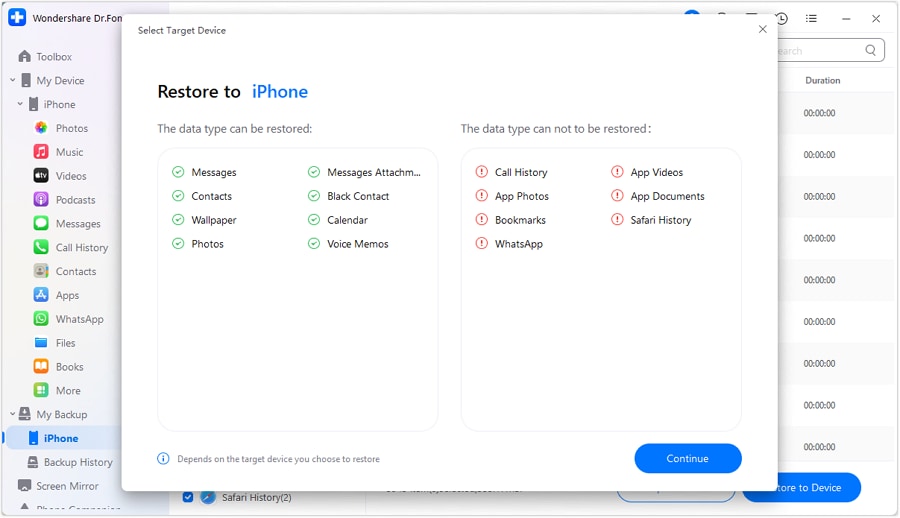
After using the iOS 27 photos, extend, enhance, and reframe features, you can also use Dr.Fone - Phone Backup (iOS) to restore data. Unlike iTunes or iCloud, you can restore the backed-up images on Android and iOS.
In addition, you can choose what to restore or skip, which is not possible with the built-in restore options. After the detailed preview, users can choose to restore the backup to the device or PC, as guided:
-
Step 1 Locate the Backup History for iPhone in My Backups
Access the “Backup History” from the “My Backups” tab on the left and choose the last backup to “View.”

-
Step 2 Choose to Restore iOS 27 Images to PC or Device
After that, pick the images you want to restore, then select the options “Export to PC” or “Export to Device,” and click “Continue.”
Part 5. How to Avoid Losing Photos During iOS 27 Update
Now, you know how to back up iPhone photos and restore them after using the Photos App AI features. To be on the safe side, follow the mentioned expert’s tips to avoid data loss when you need to edit or move images:
| Tip | What to Do Briefly |
|---|---|
| Turn On iCloud Photos | Enable iCloud Photos and let it finish syncing. |
| Make a Full Phone Backup | Back up to a computer (Finder/iTunes) first. |
| Use a Second Cloud (Google Photos, Etc.) | Upload your Camera Roll to another cloud app. |
| Check Storage Before Updating | Ensure there is enough free space for the iOS 27 installation. |
| Avoid Interrupting the Update | Keep the phone charging and connected to Wi‑Fi during the update. |
Conclusion
The new iOS 27 photos extend, enhance, and reframe features make photo editing seamless like never before. Even though Apple’s non-destructive editing helps protect the images, photo loss can happen, and this guide has explained why.
So, follow the mentioned backup and restore ways and use Wondershare Dr.Fone for extra safety. This will allow you to create a selective and incremental backup that you can restore to any device without any learning curve.
Frequently Asked Questions
-
1. Will my photo metadata stay intact after AI editing?
In most cases, important details, such as date, time, and location information, remain intact in the photo after editing. -
2. Can I back up only selected photos instead of my entire library?
Yes, tools like Dr.Fone - Phone Manager let you selectively export specific photos instead of backing up your entire library. You can preview images, choose only the files you need, and save them directly to your computer for easier management and recovery later. -
3. What happens if my iCloud storage is full during photo backup?
New photos may stop syncing until you free up the space or upgrade your iCloud storage plan. To save this hassle, you can use tools like Dr.Fone - Phone Backup (iOS) to create a backup without any storage limits.
 Add Wondershare Dr.Fone as a preferred source on Google



