Effortlessly manage data through preview, delete, export, etc.

 100% Security Verified | No Subscription Required | No Malware

 :
: 
 ChatGPT
 Perplexity
 Gemini
 Claude
 Grok
Grok
Watching Netflix on your phone is pretty convenient. But nothing quite beats the experience of viewing your favorite shows on a 4K display on a TV.
Casting sends content from a phone to a TV through a wireless connection. As a result, you can watch shows on a larger screen. This method avoids the complex setup and navigation required by the Netflix TV app. However, Netflix has recently updated its policies. Therefore, you must meet new compatibility requirements. This guide explains those requirements in detail. In addition, it shows how to cast Netflix from a phone to a TV using both built-in features and alternative methods.
However, Netflix has recently updated its policies. Therefore, you must meet new compatibility requirements. This guide explains those requirements in detail. In addition, it shows how to cast Netflix from a phone to a TV using both built-in features and alternative methods.
In this article
Part 1. Can I Cast Netflix from Phone to TV?
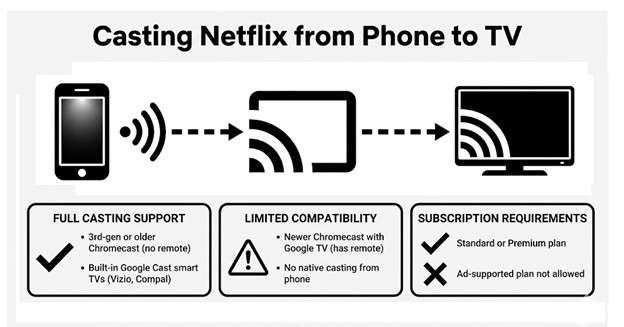
Yes. You can cast Netflix from your phone to a TV. However, this may not be supported based on your device and your current subscription plan. This is because of the major policy changes Netflix introduced in December 2025. According to these updates, casting support changed on several devices. Therefore, you must confirm your setup before you try to connect.
1-1. Full Casting Support
Netflix still supports casting on third-generation or older Google Chromecasts. These models do not have a physical remote. But you can still access the built-in Cast button inside the Netflix app.
Also, smart TVs with built-in Google Cast technology keep supporting native casting. These include select Vizio and Compal TVs. These devices function the same way they did before the policy update. As a result, you can continue streaming Netflix from phone to TV without extra steps.

1-2. Limited Compatibility
Newer Chromecast with Google TV models do not support native Netflix casting from a phone. Many modern streaming devices with remotes have also lost this feature.
However, these devices still stream Netflix normally through their installed Netflix apps. You can watch content directly on the TV interface. Yet, you cannot send content from your phone using the Cast button. Therefore, you must use alternative connection methods to stream from your mobile device.
1-3. Netflix Screen Mirroring
Netflix is slowly removing support for alternative options for Netflix mirroring to TV. These include tools like the built-in screen cast tools in Android and AirPlay in iOS devices. You might still be able to use the Samsung Smart View option to screen mirror Netflix. But the native Cast button is the only reliable option so far.
1-4. Subscription Requirements
Apart from compatible hardware, you must subscribe to Netflix’s Standard or Premium plan to use casting features. The ad-supported plan does not allow streaming Netflix from a phone to a TV.
Part 2. Why is There No Cast Button on Netflix?
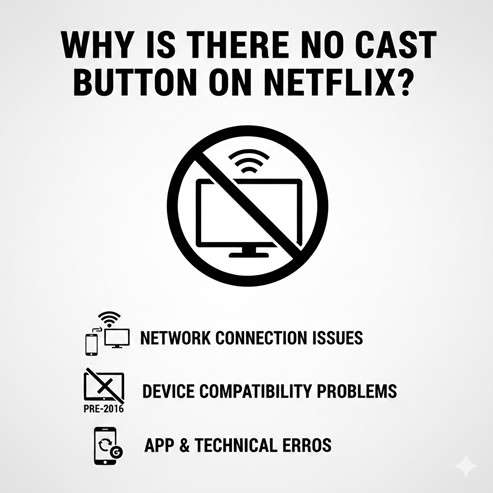
No cast button in the Netflix mobile app can be because there is no supported TV to cast to. Alternatively, you're not subscribed to a Standard or Premium plan. Sometimes the cast button may not appear even if you meet all requirements. In this case, here are some common reasons behind it.
- 1. Network Connection Issues
The casting feature only works if both your phone and TV are connected to the same Wifi network. This is because the devices connect directly through your home network and not through the internet. An unstable network connection might be why you cannot use the casting function. You can learn more about how it works in our guide on how to mirror an Android screen to a PC using WiFi. - 2. Device Compatibility Problems
Many smart TVs made before 2016 cannot use Google Cast. Some low-cost models also lack this feature. Make sure you have updated the Netflix app to the newest version. Old versions can hide the cast button even on compatible devices. - 3. Technical Errors
Watch how the cast button behaves during use. Try casting from other apps like YouTube or Spotify. If they work, a corrupted app cache may block casting. On Android, outdated Google Play Services can also break casting functions.
Part 3. How to Cast Netflix from Phone to TV: 2 Working Methods
You can either use the Netflix app’s casting feature or an HDMI connection. Let’s look at how to cast Netflix from phone to TV with these methods.
-
Method 1 Use Chromecast Native Casting
You can use the app’s native Cast button to stream on your TV. You’ll need a compatible device according to Netflix's new policy. You also need the Standard or Premium subscription.
Here’s how to stream Netflix from phone to TV.
- Connect your phone to the Wi-Fi network. It should be the same as the TV connected to your phone.
- Tap open the Netflix app. Sign in using your specific credentials.
- Tap the Cast icon, similar to WiFi waves in a square. It’s found at the top right of your screen.
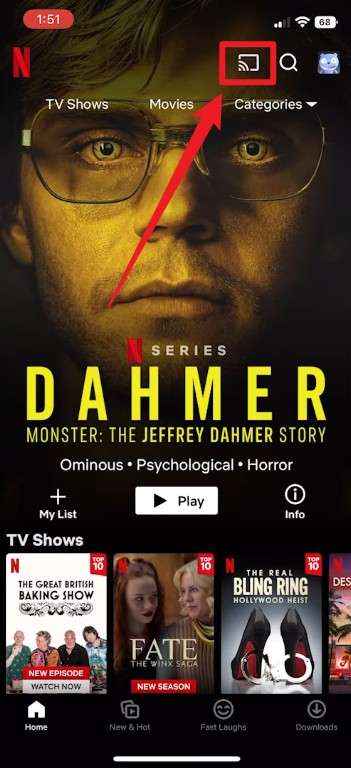
- Select your Chromecast or smart TV’s name from the list of available devices.
- Browse and choose a show or movie, and it will stream on your TV while your phone acts as the remote.
-
Method 2 HDMI Cable Connection
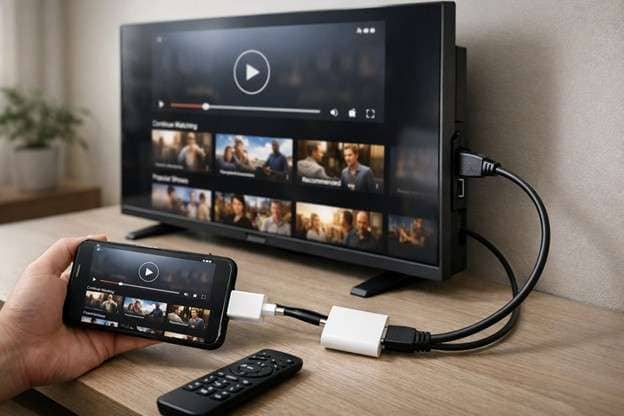
This method mirrors your phone’s screen directly to the TV. And you don’t need the same WiFi. Typically, you will need a cable that supports the video output. This means a Lightning Digital AV Adapter for iPhone and a USB-C to HDMI adapter for Android. Third-party adapters may not work.
Here’s how to hook up Netflix from phone to TV using a cable.
- Link the HDMI adapter to your phone. Attach an HDMI cable to the adapter.
- Plug the other end of the cable into an HDMI slot on your TV.
- Switch to the specific HDMI input. Use your TV’s remote control to do this.
- Your phone screen will appear on the TV. Open Netflix to start streaming.
Bonus Tip: Mirror Your Android Phone to PC or Mac with Wondershare Dr.Fone
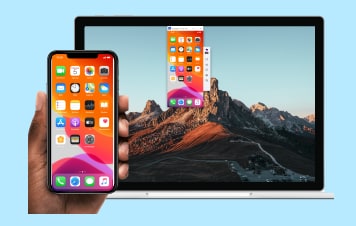
You can do more than cast Netflix to a TV. You can also mirror your Android device to a computer. This method lets you watch Netflix on a larger screen. You can use it even if the Netflix mobile app does not support casting.
Dr.Fone - Screen Mirror (Android) allows you to mirror your Android screen to a PC or Mac. The software supports both wireless connection and USB cable connection. It provides smooth and lag-free screen mirroring. Therefore, it works well for gaming and app demonstrations.
Dr.Fone shows the full screen of your smartphone or tablet on your computer. You can control all apps directly from your PC or Mac. You can also take screenshots. In addition, you can record the screen. The setup process is simple. You do not need technical assistance.
Dr.Fone supports all Android devices that run Android version 5.0 up to Android 16. It works with major brands. These include Samsung, Huawei, Xiaomi, Google Pixel, and more.
 Effortlessly manage data through preview, delete, export, etc.
- Transfer all data between devices.
- Robust backup solutions for reliable data protection.
- Mirror screens to PC for meetings, teaching, and control.

Steps to Mirror Android Screen with Dr.Fone
-
Step 1 Install the Dr.Fone app
Install the Dr.Fone Link app on your smartphone or tablet. Then, download and install Wondershare Dr.Fone on your desktop. Launch it and link your device through a USB connection.
-
Step 2 Start Mirroring
Allow the program to detect your device. Next, select the “Screen Mirror” function from the left menu.
-
Step 3 Select Device
Locate the arrowhead next to “Mirror your Device to computer.” Select your Android device from the list. Then, click the “Screen Mirror” button.

-
Step 4 Monitor the Mirror Progress
Watch the progress bar for screen mirroring as it loads. After completion, your Android’s screen will appear on your computer. Click “End Mirroring” to stop the session if needed.

-
Step 5 Manage the Mirror Screen
You will see a toolbar next to your phone’s display. From here, click “Record” to record your phone’s screen. Click the same button to stop recording when done. You can also click the “Screenshot” button to capture images.

-
Step 6 Control Your Screen If Needed
You can also control your Android screen. To do this, use your mouse for navigation and keyboard for typing and other relevant functions.

Conclusion
That’s all about how to cast Netflix from phone to TV. To sum up, you can use the built-in cast option in the Netflix mobile app. It only works for select supported TVs, via standard or premium subscription, and when connected to the same WiFi on both devices.
Sometimes the cast option may not appear on some devices due to compatibility issues or app glitches. In this case, you can still view your Netflix app on a larger screen of a computer using Dr.Fone - Screen Mirror (Android). It lets you mirror the entire display of your Android to a PC or a Mac. You can control it directly from the computer. Plus, it works with almost all Android brands and models. So, don’t wait. Download and try it now!




FAQs about Casting Netflix from Phone to TV
FAQ
-
1. Can I cast Netflix from an Android phone?
Yes. Casting works with 3rd-generation or earlier Chromecast models. It also works with smart TVs that have built-in Google Cast. You need a Netflix Standard or Premium plan. Ad-supported plans do not allow casting. Make sure both your phone and TV are on the same Wi-Fi network. -
2. Where is the cast icon on Netflix?
You can find the cast button in the Netflix app. It appears in the top or bottom right corner. The icon looks like a rectangle with Wi-Fi waves. Your phone shows it only when it finds a compatible device. Both devices must connect to the same Wi-Fi network. -
3. How to connect Netflix to a TV from a phone using a code?
Open Netflix on your TV first. Select the “Sign in” option. The TV shows a code number and a QR code. Next, open Netflix on your phone. Go to Account > Connect to TV and enter the code. Your phone now connects to Netflix on the TV. -
4. Can I screen mirror Netflix from Android to TV?
Netflix is removing screen mirroring support on most devices. But you might be able to mirror Netflix to a TV through built-in features. Samsung phones can use Smart View. Other Android phones can rely on Cast Screen or Screen Casting. -
5. Can I use AirPlay to cast Netflix from my iPhone to the TV?
No. Netflix no longer supports AirPlay inside its app. The app blocks any display that relies on AirPlay for device communication. As a result, the TV shows a black screen while the audio continues to play.
 Add Wondershare Dr.Fone as a preferred source on Google