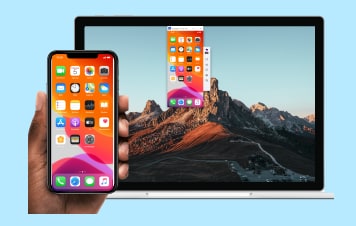
Effortlessly manage data through preview, delete, export, etc.

 100% Security Verified | No Subscription Required | No Malware

 :
: 
 ChatGPT
 Perplexity
 Gemini
 Claude
 Grok
Grok
What if you can’t attend the FIFA World Cup 2026 because of visa restrictions or geopolitical travel bans? With this issue, you might not want to watch tournaments on a small screen, yet you can’t afford a projector. Nonetheless, you can mirror your phone to a PC for the World Cup to enjoy matches on a bigger display in an affordable manner.
So, if you want to choose the right option to cast the Android and iPhone screen, this guide has you sorted. Review the mentioned options for Windows and Mac to see how Dr.Fone - Screen Mirror meets all your needs perfectly.
In this article
Part 1. Why Mirror Your Phone to a PC for World Cup Matches?
Review the mentioned reasons to know why you need to watch the World Cup on a bigger screen than your phone:
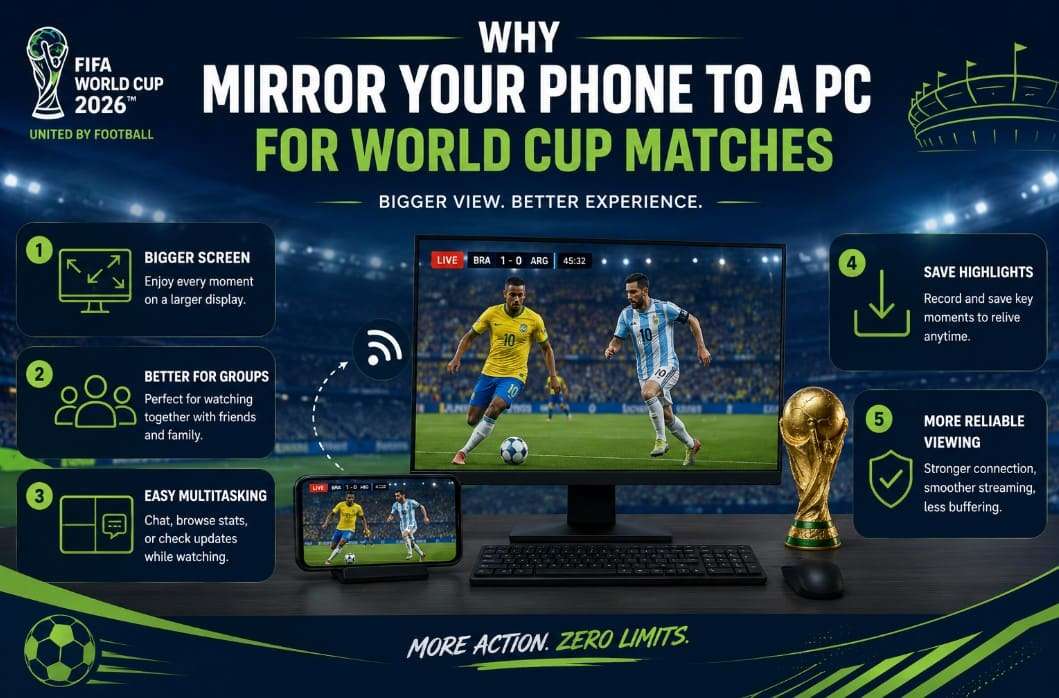
- Bigger Screen: A PC is much larger than a phone, which makes matches, replays, and stats easier to see. In addition, you can enjoy the games more comfortably and catch details that may be hard to notice on a small display.
- Better for Groups: When you mirror to a PC, it lets more people watch the match together without gathering around one phone. Thus, this creates a fun setup view where everyone can easily follow goals, replays, and key moments.
- Easy Multitasking: You can watch the World Cup matches and check live stats on social media on the same computer. This is because some tools let you control phone apps and adjust screen view to switch between tasks.
- Save Highlights: Most of the tool comes with screen recorders and screenshot features to capture important moments. Hence, you can save clips directly to your computer or share them on social media after quick edits.
- More Reliable View: Your phone can stay connected to the charger while the match plays on the PC. In addition, a wired connection or a strong local network often provides smoother playback than weak Wi-Fi casting.
Part 2. Best Settings for Smooth, Lag-Free Screen Mirroring
So, if you have decided to cast match highlights from phone to PC, here are some settings you can choose from:
| Tip / Setting | What To Do | Why It Helps |
|---|---|---|
| Use 5 GHz or Wired | Connect both devices to 5 GHz Wi‑Fi or HDMI/LAN | Reduces interference and lag |
| Close Phone Background Apps | Quit games, downloads, and heavy apps | Frees CPU/RAM and stabilizes mirroring |
| Adjust Resolution/Quality | Lower resolution or bitrate if it stutters | Balances picture sharpness and delay |
| Prefer Wired for Live Sports | Use cable (HDMI/USB‑C/Lightning adapter) | Lowest latency for real‑time action |
| Confirm Audio + Full‑screen | Check that the sound is active, then go full‑screen | Avoids desync and distractions during play |
Part 3. How to Mirror Phone to PC for World Cup Instantly
To screen mirror a football stream to a computer, this detailed section explains some options you can consider:
Method 1: Use Advanced & Dedicated Phone Mirroring Tool [Dr.Fone – Screen Mirror]
Dr.Fone - Screen Mirror (iOS) and Dr.Fone - Screen Mirror (Android) are the complete solutions to mirror phones and tablets to PC and Mac. Users can connect devices via cable or Wi-Fi; they simply have to scan the QR code in the Dr.Fone Link App. Since the tool requires no additional setup or code to link devices, users can also use it to capture or record screens.
For iOS 27/iPadOS 27 and iPhone 17 series or the latest Android model, you can resize the screen to record or take a screen capture. All this can be done in 3 simple steps, which makes it an ideal choice for amateurs to stream the FIFA World Cup. Most of all, you can manage and access social media apps on computers and get weekly updates for all OS versions with Dr.Fone.
 Effortlessly manage data through preview, delete, export, etc.
- Transfer all data between devices.
- Robust backup solutions for reliable data protection.
- Mirror screens to PC for meetings, teaching, and control.

Guide to Cast Android Screen to PC or Mac with Dr.Fone Over Wi-Fi
If you want to mirror your phone to a PC for the World Cup via a Wi-Fi connection, here is the Dr.Fone guide for Android users:
-
Step 1 Go to the Screen Mirror Tab to Link Devices
In the “Screen Mirror” tab under the “My Device” section, scan the QR code to install the Dr.Fone Link app.

-
Step 2 Access the QR Code Scanner to Link
From the Dr.Fone Link App, tap the “QR Code Scanner” icon and scan the code to get the “Screen Mirroring is in Progress” alert.

-
Step 3 Choose to End FIFA World Cup Streaming
Now, you can stream FIFA World Cup matches or choose the “End Mirroring” option to conclude the session.




Method 2. Microsoft Phone Link
As an Android user, you can use Microsoft Phone Link to watch the World Cup on a bigger screen from your phone. When connected to the Phone Link app, you can use the larger display, type on the keyboard, and access images and clips. Since it is built into Windows 10/11, it's simple to use and wireless, and is guided ahead:
-
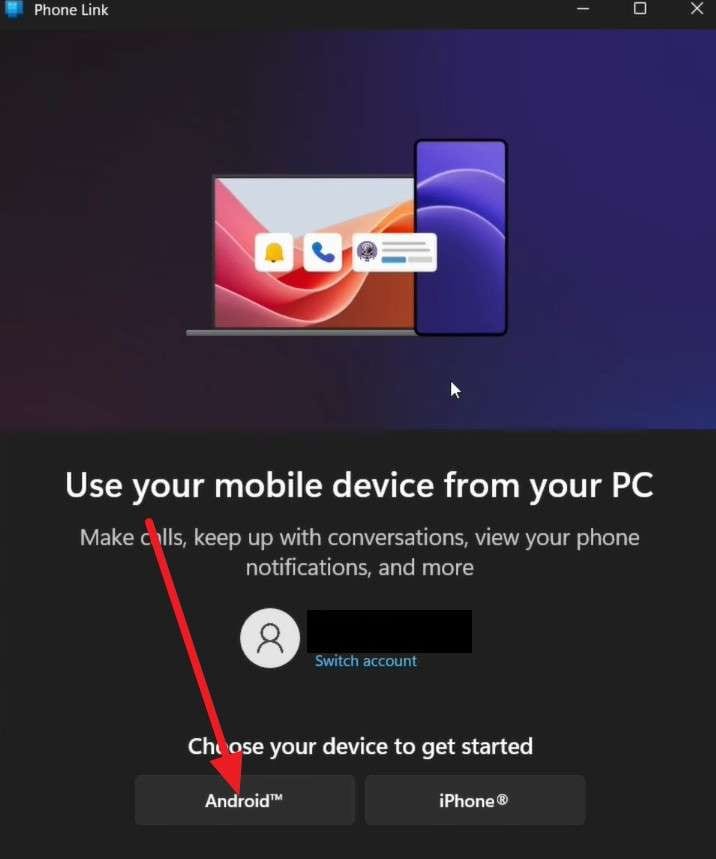
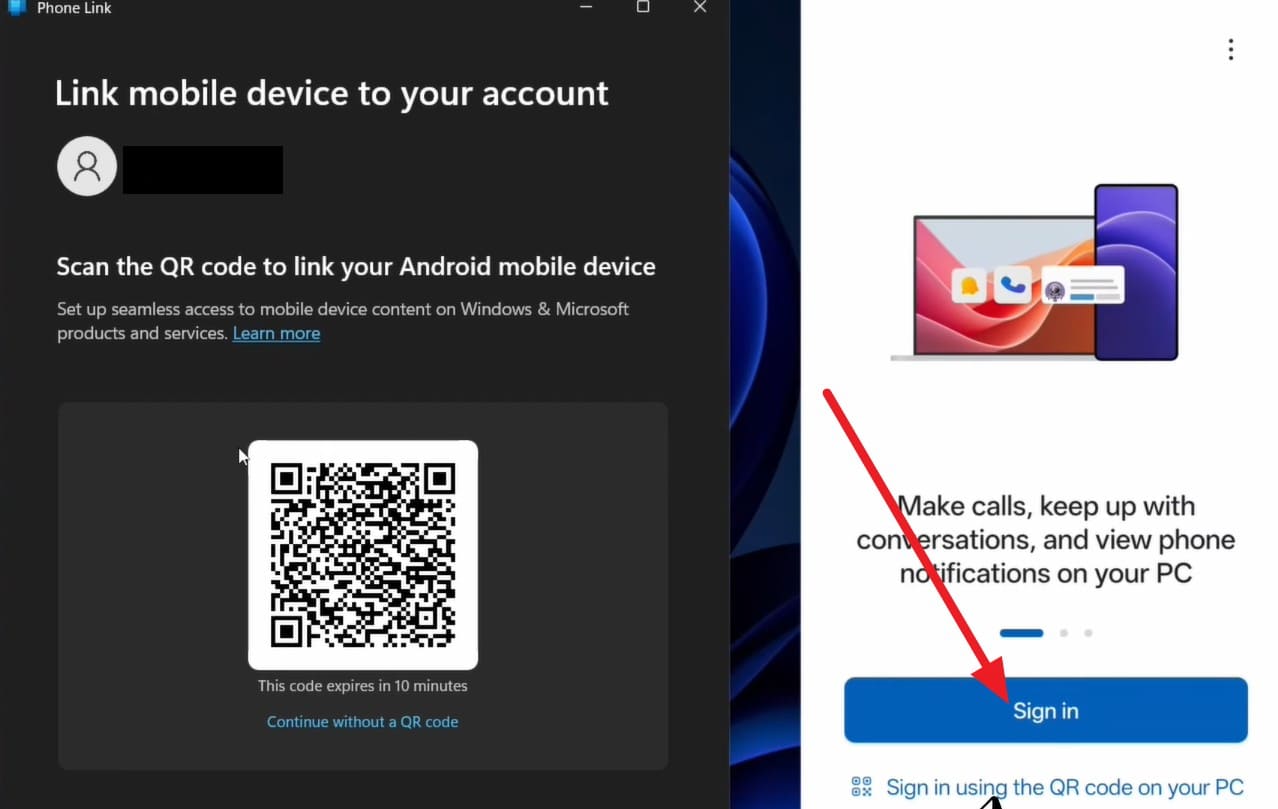
Step 1 Install the Link to Windows app on the phone and go to the “Phone Link” app on the PC. There, tap the “Android” option to access the QR code on the new interface.
-
Step 2 Pick the “Sign In” option on the Android app, scan the QR code, and choose the “Continue” button.
-
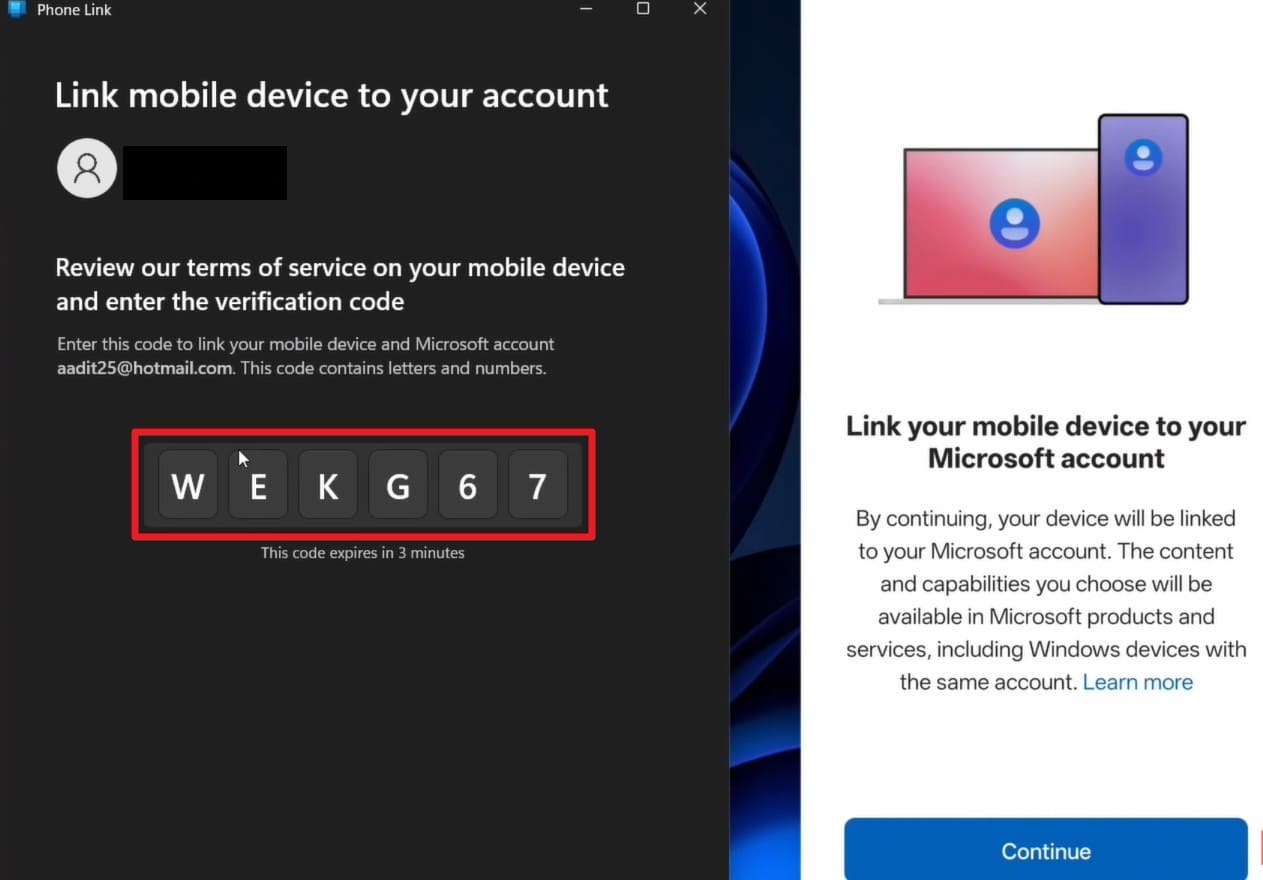
Step 3 After that, paste the code you see on the PC, then enter the Microsoft password once in the Android app.
-
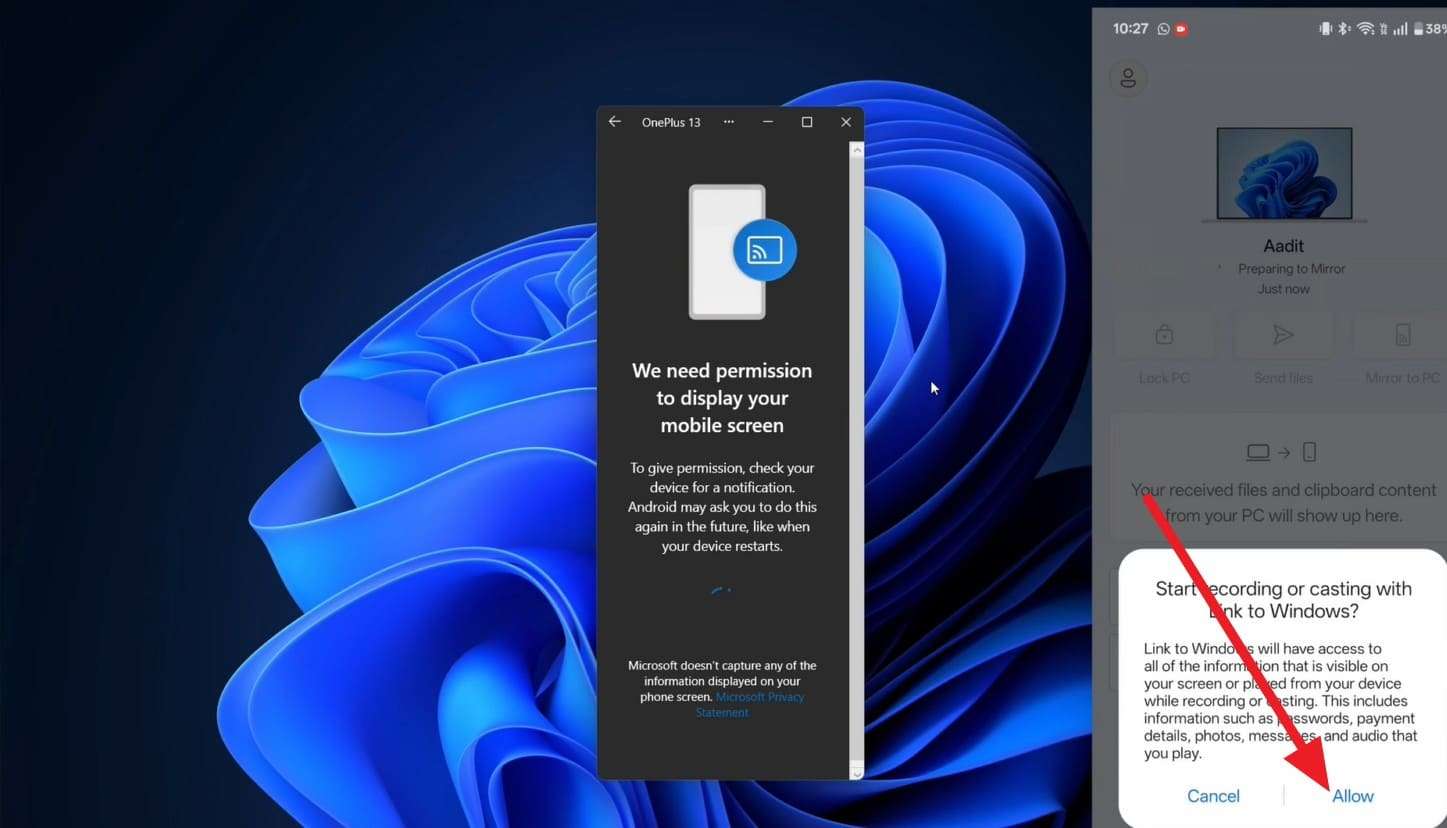
Step 4 Now, choose the “Mirror To PC” and “Allow” options, and your PC is ready to cast the FIFA World Cup matches.
-
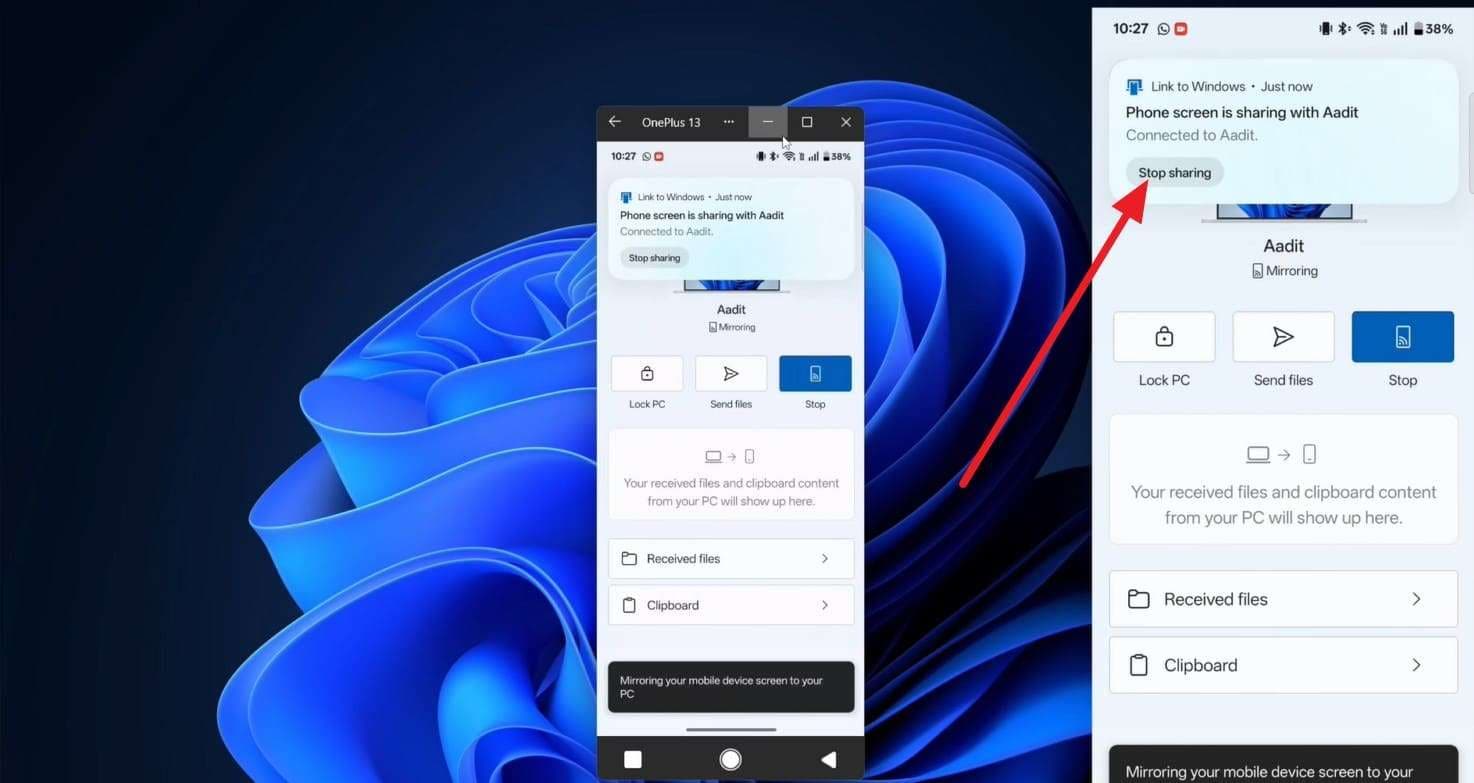
Step 5 In the pop-up menu, you can choose the "Stop Mirroring" option when you want to end the session.
Method 3. Wireless Casting to Windows
Anyone with a Windows 10 or 11 PC and a compatible Android device can use the Wireless Casting to Windows option. To watch the World Cup on a bigger screen from a phone, it works without cables and extra apps. Additionally, you can watch the World Cup and browse on the same phone, once the listed steps are followed:
-
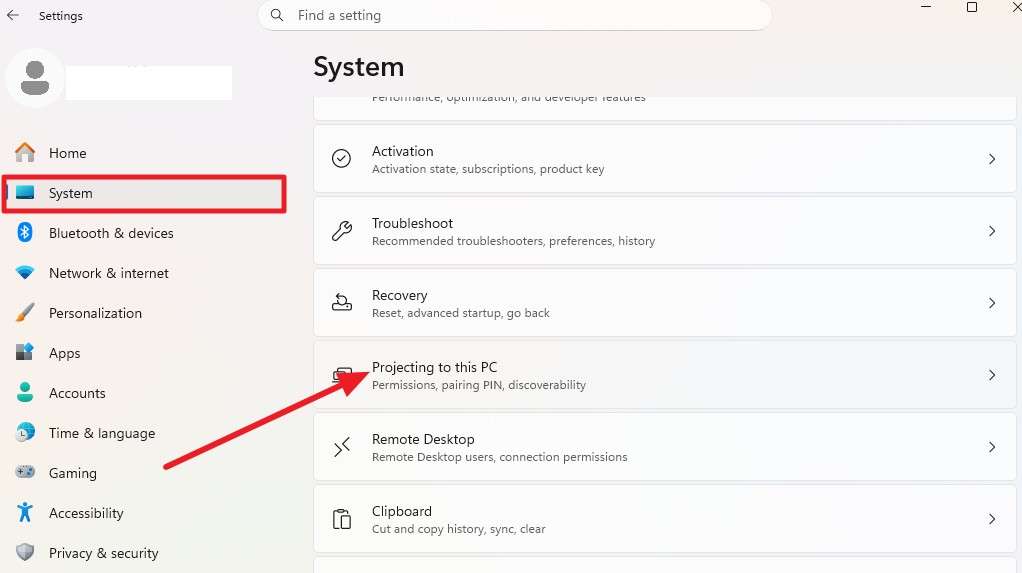
Step 1 Go to the “System” settings and pick the “Projecting to this PC” option to choose the “Optional Features” option.
-
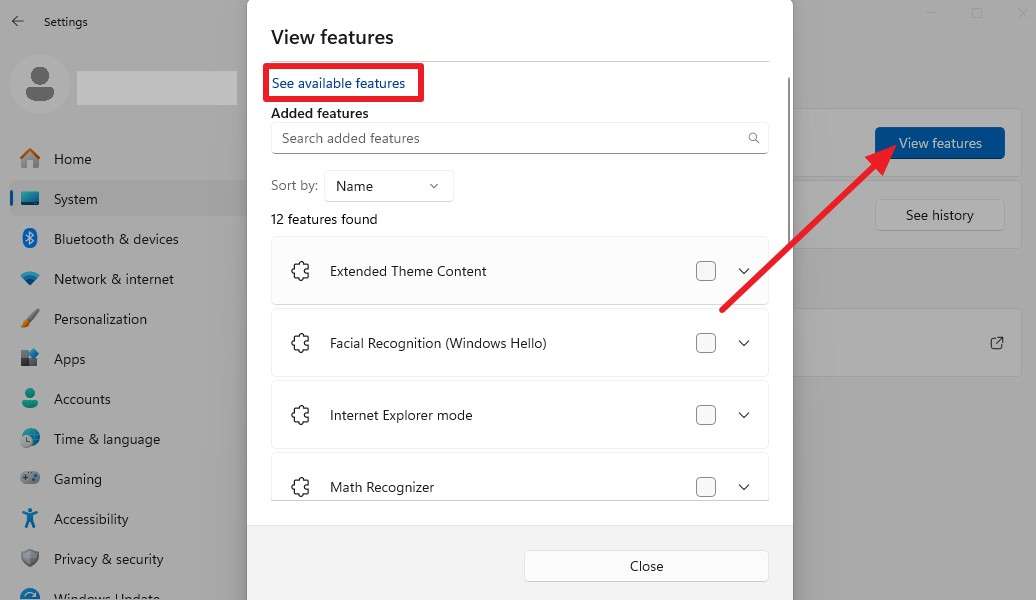
Step 2 On the new interface, tap the "View Features" option, and click the "See Available Features" option in the pop-up menu.
-
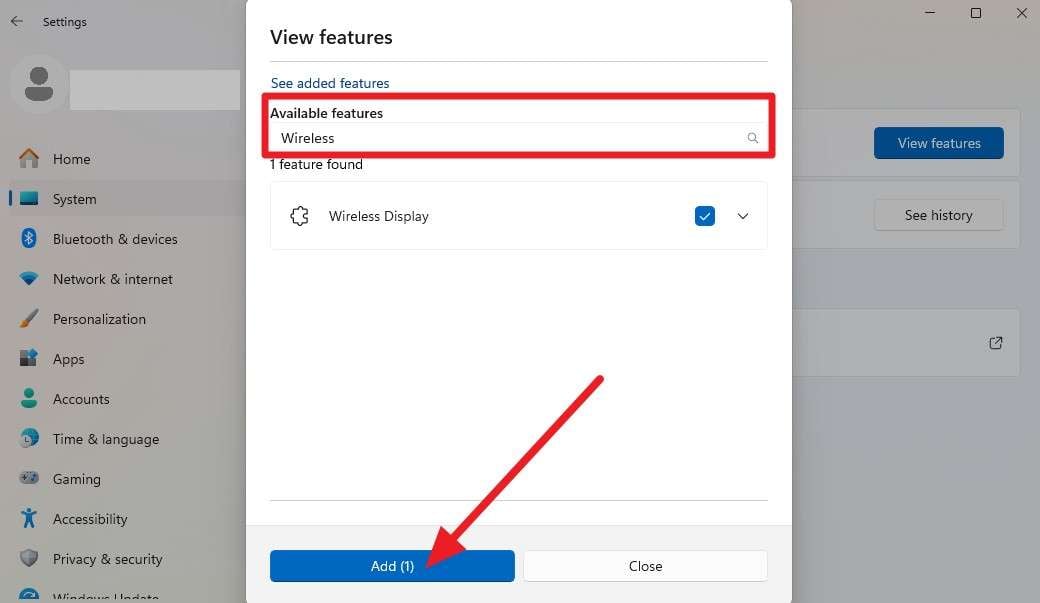
Step 3 Then, in the “Available Features” textbox, search for “Wireless Display” and tick the option to “Add.” Go back to the “Projecting to this PC” option and set the settings to “Available Everywhere.”
-
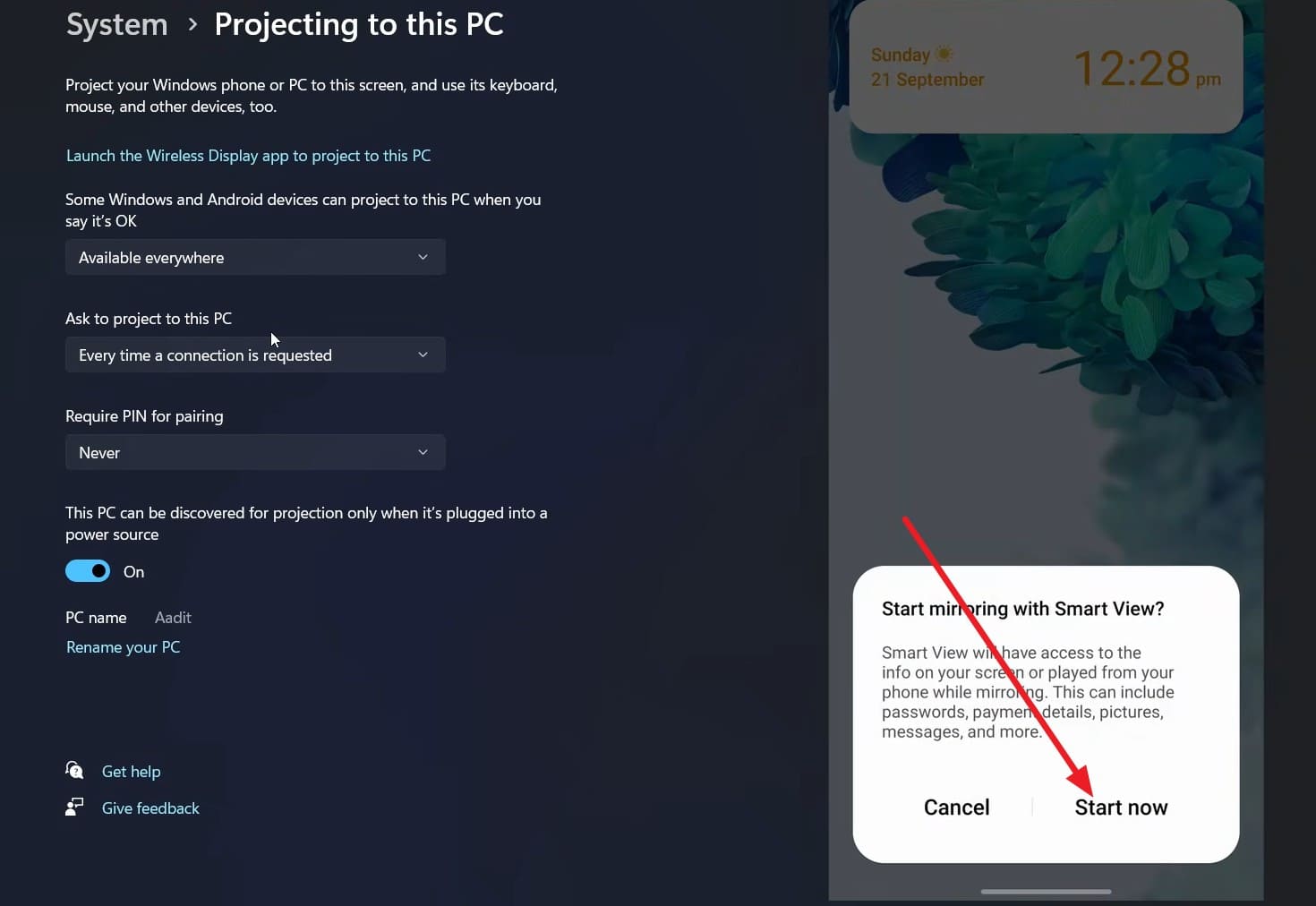
Step 4 On the phone, go to “Quick Settings” and pick the “Smart View” or “Cast” option, as the name may vary by device. Ensure the phone and PC are connected to the same Wi-Fi, then select “Start Now” and “OK” as they appear to cast the screen.
Method 4. AirPlay to Mac
To screen mirror a football stream to a computer, use this option if you have a Mac and an iPhone 8 or newer. When connected to Wi-Fi, you can keep the match visible while using other Mac apps. Since it needs no extra setup or apps, you can also enjoy better audio through Mac speakers or headphones. So, the detailed guide to use AirPlay to Mac cast option is given ahead:
-
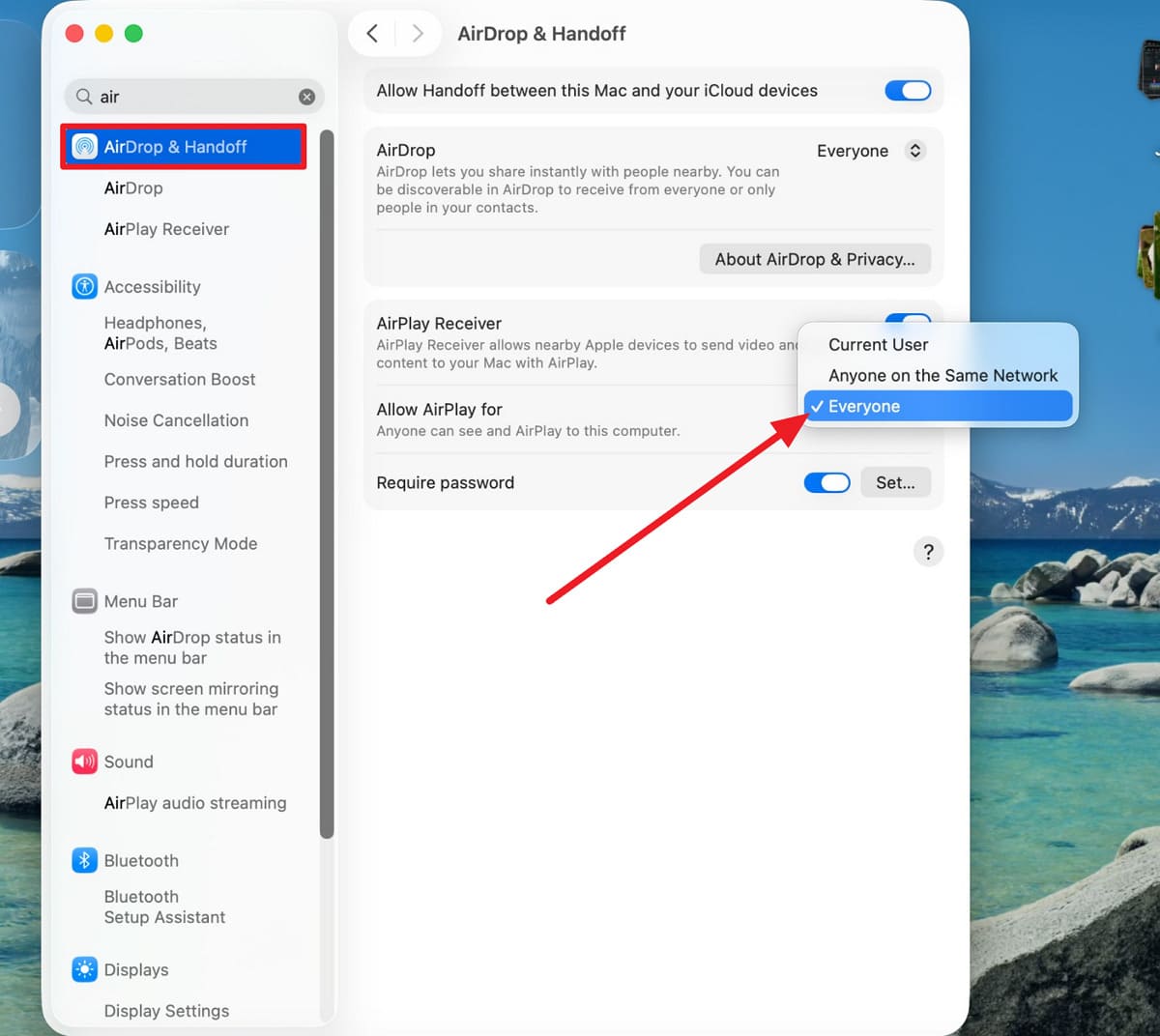
Step 1 Ensure your iPhone and Mac are connected to the same Wi-Fi network, then go to Mac General settings and choose “AirDrop & Handoff.” There, enable the “AirPlay Receiver” option and set the “Allow AirPlay For” to “Everyone” option.
-
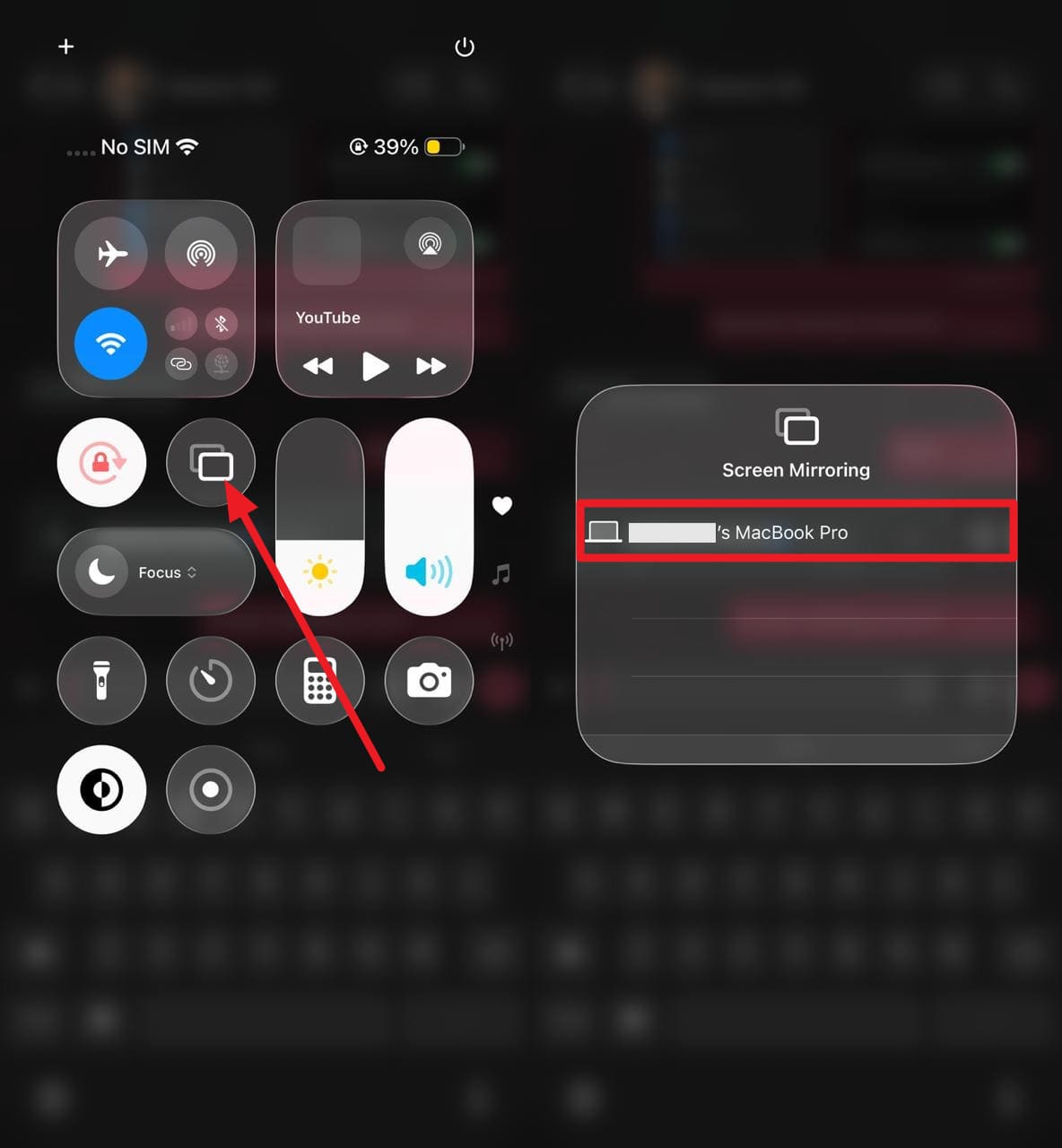
Step 2 In the iPhone Control Center, tap the “Screen Mirror” icon, then choose the MacBook from the pop-up to cast the screen.
Method 5. Samsung DeX on Windows
For users with compatible Galaxy phones and tablets that support Samsung DeX, it provides a desktop-like experience beyond Microsoft's Link to Windows. To screen mirror a football stream to a computer, this option supports keyboard and mouse controls so that you can run several apps at once. Users can also use it to move files when connected wirelessly or via cable through the given steps:
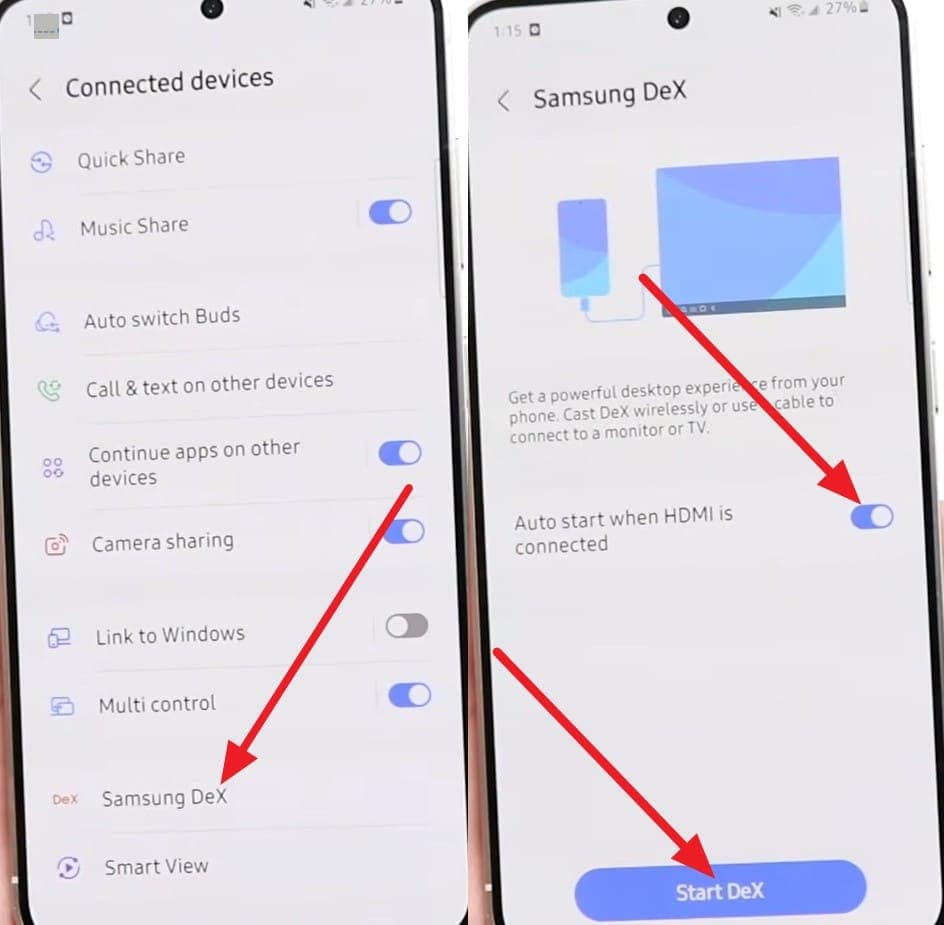
Instructions. Search for the “Samsung DeX” option in the settings and enable “Auto Start When HDMI Is Connected.” Use a USB cable to connect your compatible Galaxy phone to the PC, then select the “Start DeX” option on the phone. When asked, accept the connection on the PC, and you are ready to stream FIFA World Cup matches.
Part 4. Which Method Is Best for Watching Live Matches on a Computer?
At this point, you might wonder what the best option is to screen mirror a football stream to a computer. In this regard, review the detailed table mentioned and choose the screen mirror solution that suits your needs and device:
| Metrics | Dr.Fone – Screen Mirror | Microsoft Phone Link | Wireless Casting to Windows | AirPlay to Mac | Samsung DeX on Windows |
|---|---|---|---|---|---|
| Platforms | Android & iOS - Windows/Mac (app or browser) | Android - Windows | Android - Windows (Miracast-supported devices) | iPhone/iPad - Mac | Supported Galaxy phones and tablets - Windows PC |
| Extra Control | Full PC control with clicks, typing, screen recording, screenshots, and device management | Notifications, messages, calls, and access to selected mobile apps | Basic screen viewing only | Screen viewing with limited interaction | Full desktop experience with keyboard and mouse support |
| Connection Type | USB or Wi-Fi | Wi-Fi | Wi-Fi & Miracast | Wi-Fi & AirPlay | USB or Wireless DeX |
| Setup Difficulty | Simple wizard with QR code and broad cross-platform compatibility | Easy after linking with a Microsoft account | Moderate; requires enabling Wireless Display and phone casting | Easy through Control Center and Screen Mirroring | Moderate; requires installing and connecting the Samsung DeX app |
| Multitasking | Yes: mirror, record, capture screenshots, and use multiple apps simultaneously; works with any football streaming app | Yes: use your phone alongside Windows applications | Limited to the content shown in the mirrored window | Yes: use Mac apps while keeping the iPhone or iPad screen visible | Yes: run multiple Android apps in separate DeX windows |
| Extra Features | Screen recording, screenshots, online mirroring without installation via browser, wireless and USB connectivity, and support for phones and tablets | Notifications, SMS, calls, and file access | Built-in Windows feature with no third-party app required | Native Apple audio and video support with iPhone Mirroring | Desktop-style interface, productivity apps, file transfer, and big-screen gaming |
Of all the options, Dr.Fone - Screen Mirror is the ideal choice to screen mirror a football stream to a computer. Though the tool is not built in, it can be used for both Android and iPhone on Windows and Mac. So, with no device limitations, it's easy to connect devices and stream FIFA World Cup matches for all users.
Conclusion
For users who are looking for simple ways to mirror a phone to a PC for the World Cup, this guide has provided some solutions. Whether you use built-in or third-party ways, choose the best screen mirror settings mentioned here. As for the best option, use Dr.Fone - Screen Mirror (Android) and Dr.Fone - Screen Mirror (iOS) to cast screen and screen record or capture special FIFA World Cup moments.
FAQ
-
1. Will screen mirroring reduce my phone's battery life?
Yes, longer FIFA World Cup screen mirror sessions can drain the battery faster. Therefore, it is suggested to keep your phone connected to a charger to avoid battery drain or shutdown issues. -
2. Can I watch World Cup matches in full-screen mode on my PC?
Yes, Dr.Fone - Screen Mirror for Android and iPhone gives you the option to adjust the screen. Through this, you can view World Cup matches in full-screen mode or capture screenshots and record clips. -
3. What should I do if my mirrored screen keeps disconnecting?
Check your Wi-Fi signal, update your devices, close background apps, and keep both devices close to the router. As a secure, safe mirror option, you can also switch to Dr.Fone - Screen Mirror and try its Wi-Fi and USB screen mirror options.
 Add Wondershare Dr.Fone as a preferred source on Google