Effortlessly manage data through preview, delete, export, etc.

 100% Security Verified | No Subscription Required | No Malware

 :
: 
 ChatGPT
 Perplexity
 Gemini
 Claude
 Grok
Grok
Viewing your phone's content on a larger display can feel like a technological marvel, and Xiaomi has made this experience incredibly accessible. With the Mi Wireless Display feature, you can now seamlessly screen mirror any content from your phone to your TV or PC in real-time. The best part is the absence of cumbersome cables or complicated setups; a stable wireless connection is all it takes to bring your phone's world to life on a grander scale.
To help you master this feature, this guide explores three distinct methods for different scenarios. You will learn precisely how to mirror your Mi smartphone to your PC or TV with clear, step-by-step instructions, enabling you to choose the solution that best fits your needs, whether for presentations, gaming, or media streaming.
In this article
Part 1. What Exactly Is Wireless Display on a Mi Phone?
When exploring Xiaomi wireless display capabilities, it's important to understand that Xiaomi phones support screen mirroring through a feature deeply integrated into the MIUI operating system. On devices running MIUI 11 or newer, users can effortlessly project their phone's screen onto a compatible TV, monitor, or PC. This process uses established protocols like Miracast to create a direct, low-latency wireless link, requiring only that both the phone and the receiving display are connected to the same Wi-Fi network.
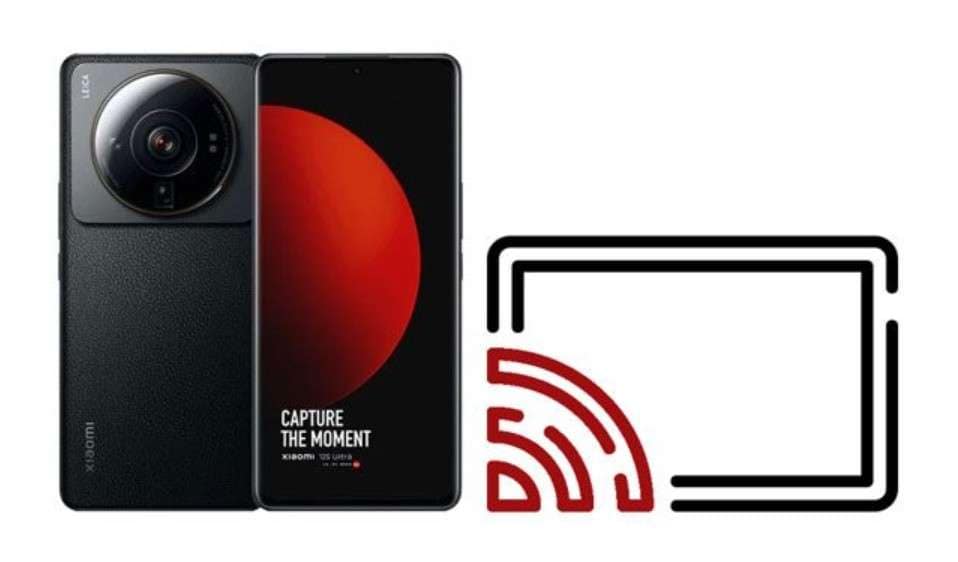
A key advantage of this feature is its broad compatibility. It isn't limited to Xiaomi-branded displays; you can easily screen mirror xiaomi tv models from major brands like Samsung, LG, and Sony, as long as they support Miracast. To activate it, you typically navigate to Settings > Connection & Sharing > Wireless Display (or sometimes labeled as Cast). Your phone will then automatically scan for and list nearby discoverable devices on the same Wi-Fi network. Once you select a device, the connection is established, and your phone's screen is mirrored instantly.
Part 2. How to Screen Mirror Xiaomi to Your Computer
If you need to screen mirror Xiaomi content onto a computer, there are several effective approaches. This section details three reliable methods, providing step-by-step guides to help you determine which one is the most convenient and powerful for your specific use case.
Method 1. Dr.Fone - Screen Mirror (Android) for an Enhanced Experience
For users seeking more than basic mirroring, Dr.Fone - Screen Mirror (Android) provides a comprehensive solution to cast your Android phone or tablet to a PC or Mac. It offers flexible connection options via USB or Wi-Fi, ensuring a stable link. The Wi-Fi connection is particularly straightforward, requiring both devices on the same network and a simple cast code or QR scan for an instant, delay-free mirror.
Beyond simple display sharing, Dr.Fone elevates the experience by allowing you to take high-quality screenshots and record your mirrored sessions directly on the computer—perfect for creating tutorials or saving gameplay clips. Furthermore, it grants you full control over your phone using your PC's mouse and keyboard, making it easy to manage data or play mobile games on a larger screen. The entire process is guided and can be completed in just three simple steps.
 Effortlessly manage data through preview, delete, export, etc.
- Transfer all data between devices.
- Robust backup solutions for reliable data protection.
- Mirror screens to PC for meetings, teaching, and control.

A Simple Guide to Mirror Xiaomi to a Computer with Dr.Fone - Screen Mirror
For seamless Mi screen mirroring using Dr.Fone, follow these straightforward steps:
-
Step 1 Launch Dr.Fone and Prepare for Connection
Open Dr.Fone on your computer and navigate to the "My Device" section, then select "Wireless Navigation." This will prompt you to install the Dr.Fone Link app on your Android device. Ensure both your PC and Xiaomi phone are connected to the same Wi-Fi network to prepare for casting.

-
Step 2 Scan the QR Code to Establish the Link
In the "Screen Mirror" tab on your PC, a QR code will be displayed. Open the Dr.Fone Link app on your phone and tap the "QR Scanner" icon in the top right corner. Point your phone's camera at the QR code on your computer screen to scan it. The connection will be established almost instantly, and your Xiaomi screen will appear on your PC.

-
Step 3 Begin Mirroring and End the Session
You can now cast your screen, record the session, or take screenshots. When you are finished, simply click the “End Mirroring” button within the Screen Mirror tab on your PC to disconnect the session.

Method 2. Using the Built-in MIUI Cast Feature
For native Xiaomi mirroring, you can use the MIUI Cast feature built directly into your phone's software. This method allows you to mirror your screen to a computer without installing any additional apps. It establishes a wireless connection over your local Wi-Fi, ensuring your data remains private and secure. Follow this guide to set it up:
-
Step 1 Enable Wireless Display on Your PC
First, ensure both your PC and Xiaomi phone are on the same Wi-Fi network. On your PC, go to System Settings and select “Projecting to this PC.” Click on “Optional Features,” then “View Features.”

-
Step 2 Install the Wireless Display Feature
In the pop-up menu, search for "Wireless Display." Select it from the list and click the “Add” or “Install” button to add this capability to your PC.

-
Step 3 Configure Projection Settings
Once the feature is installed, return to the “Projecting to this PC” settings page. Set the first drop-down menu to "Available Everywhere" and the second one to "Every Time a Connection is Required” for security.

-
Step 4 Connect Your Xiaomi Phone
With your PC ready, open Settings on your Xiaomi phone. Go to “Connection & Sharing” and tap “Cast.” Toggle the “Cast” option on. Your phone will search for available devices. When your PC's name appears, tap it to begin mirroring your screen.

Method 3. Sharing via Communication Platforms like Zoom
You can also use communication apps like Zoom for basic Xiaomi mirroring. This method is highly versatile as it works across Android, iOS, Windows, and Mac, allowing you to share your screen with anyone regardless of their device. With robust security and flexible options, Zoom provides a simple way to display your Xiaomi's screen for remote collaboration, teaching, or support. The process is seamless and straightforward:
Instructions: First, start a Zoom meeting on your PC and join the same meeting from the Zoom app on your Xiaomi phone. In the mobile app, tap the "Share" icon at the bottom of the screen, and then select "Screen" from the pop-up menu. Your entire phone display will now be mirrored to all participants in the Zoom meeting. To stop sharing, tap the "Stop Share" button on your phone or simply leave the meeting.

Part 3. How to Screen Mirror Your Xiaomi on a Smart TV
For users looking to Xiaomi cast to TV, the process is equally simple. This section will guide you through the most common method using the Google Home app, which is ideal for TVs with Chromecast built-in, such as the Xiaomi Mi TV Box.
Instructions: Begin by ensuring your Xiaomi phone and your smart TV are connected to the same Wi-Fi network. Next, install the Google Home app from the Play Store on your phone. Open the app and navigate to the “Devices” tab. It will automatically detect compatible devices on your network. Select the TV you wish to cast to, and then tap the “Cast my screen” option. After granting the necessary permissions, your phone's screen will be mirrored to the TV within moments.


Conclusion
In summary, the Mi Wireless Display feature has made it remarkably easy to cast your phone's screen to both PCs and TVs. This article has outlined several simple and effective methods for mirroring your device, complete with detailed instructions. Whether you use the built-in Cast function for quick connections or a communication app for remote sharing, you have plenty of options. For the most reliable and feature-rich experience, especially when mirroring to a PC, Dr.Fone - Screen Mirror (Android) stands out. With these tools, you can enjoy your favorite videos, games, and apps on a larger screen without any complex setup.




FAQ
-
1. Which Xiaomi phones support the Mi Wireless Display feature?
The vast majority of Xiaomi, Redmi, and POCO phones running MIUI 11 or a newer version include the Wireless Display (or Cast) feature. It is a standard, built-in function on most modern models, ensuring easy wireless connectivity with compatible TVs and computers. -
2. Is Mi Wireless Display secure for sharing private content?
Yes, it is secure. The feature operates over your local Wi-Fi network, creating a direct link between your phone and the display. This means your data never leaves your personal network or gets transmitted to external servers, keeping your photos, videos, and files safe from privacy risks. -
3. Does Mi Wireless Display transmit audio as well as video?
Absolutely. The feature is designed to stream both video and audio simultaneously to the connected screen. This provides a complete and synchronized media experience, allowing you to enjoy movies, music, and presentations with clear sound directly on the larger display. -
4. Can I use Mi Wireless Display for a lag-free gaming experience?
While you can mirror games using this feature, the performance heavily depends on your Wi-Fi network's strength and stability. For casual gaming, it generally works well. However, for fast-paced, competitive games, you might experience some latency. A strong, stable network connection is crucial for minimizing delay and achieving a more enjoyable gameplay experience.
 Add Wondershare Dr.Fone as a preferred source on Google