Move contacts, messages, photos, videos, app data, and more between iOS and Android.

 100% Security Verified | No Subscription Required | No Malware

 :
: 
 ChatGPT
 Perplexity
 Gemini
 Claude
 Grok
Grok
Setting up a brand-new smartphone is always an exciting experience, but that excitement can quickly turn into frustration when you realize your two-factor authentication (2FA) applications did not automatically transition over. Because Google Authenticator is built primarily around local security, it does not passively export your highly sensitive 2FA codes across hardware without explicit user action or cloud setup. This means simply reinstalling the app on your fresh iPhone or Android device will not magically bring back your codes.
In this comprehensive 2026 guide, we will break down the most secure and effective methodologies to migrate Google Authenticator to a new phone. Whether you have your old device fully operational or need contingency plans because it was lost or broken, we will cover the built-in QR export features, Google Account synchronization, and backup code recovery. Furthermore, if you are looking to seamlessly transition all your digital life—like contacts, media, and applications—across different ecosystems, we will explain how robust data management tools can handle the heavy lifting for you.
In this article
- Part 1. How to Migrate Google Authenticator to a New Phone (With Old Phone)
- Part 2. How to Transfer Google Authenticator Without the Old Phone
- Part 3. What If Some Accounts Didn't Transfer?
- Part 4. Transfer Everything with Dr.Fone - Phone Transfer
- Part 5. Troubleshooting Common Google Authenticator Migration Issues
Part 1. How to Migrate Google Authenticator to a New Phone (With Old Phone)
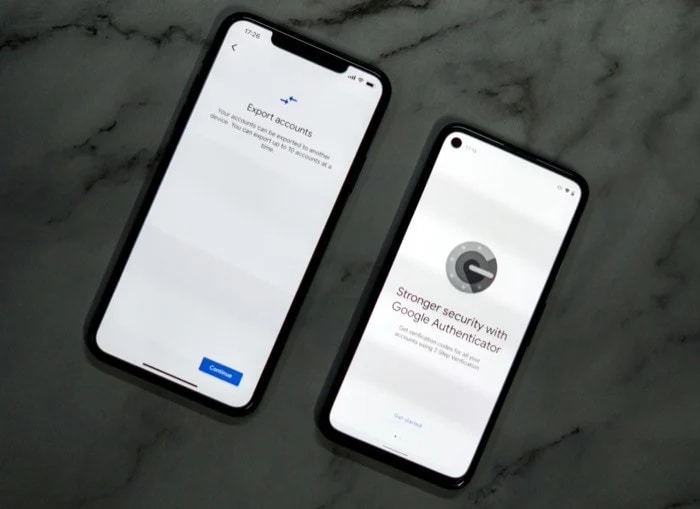
If you still have physical access to your previous smartphone, the migration process is incredibly swift, secure, and hassle-free. Google recently enhanced the Authenticator app by introducing an export function that allows you to batch-transfer all your 2FA accounts via a secure QR code. Alternatively, you can utilize the new cloud synchronization feature. Let us explore both approaches to seamlessly move your 2FA configurations.
Pre-Migration Checklist:
- Ensure your old device is unlocked and the Google Authenticator app is updated to the latest version.
- Download and install the Google Authenticator app on your target device (compatible with both Android and iOS).
- Verify that both smartphones have an active and stable Wi-Fi connection.
Method 1: Using the Built-In Transfer Feature (Highly Recommended)
Leveraging the native QR code export tool is arguably the most secure method because it transfers your cryptographic seeds directly over local scanning without relying on external cloud servers. This means you bypass the need to re-authenticate manually with dozens of individual services.
-
Step 1 Install Authenticator on the new device
Locate Google Authenticator in your app store, download it, tap "Get Started," and securely log into your primary Google account.
-
Step 2 Generate the export QR code
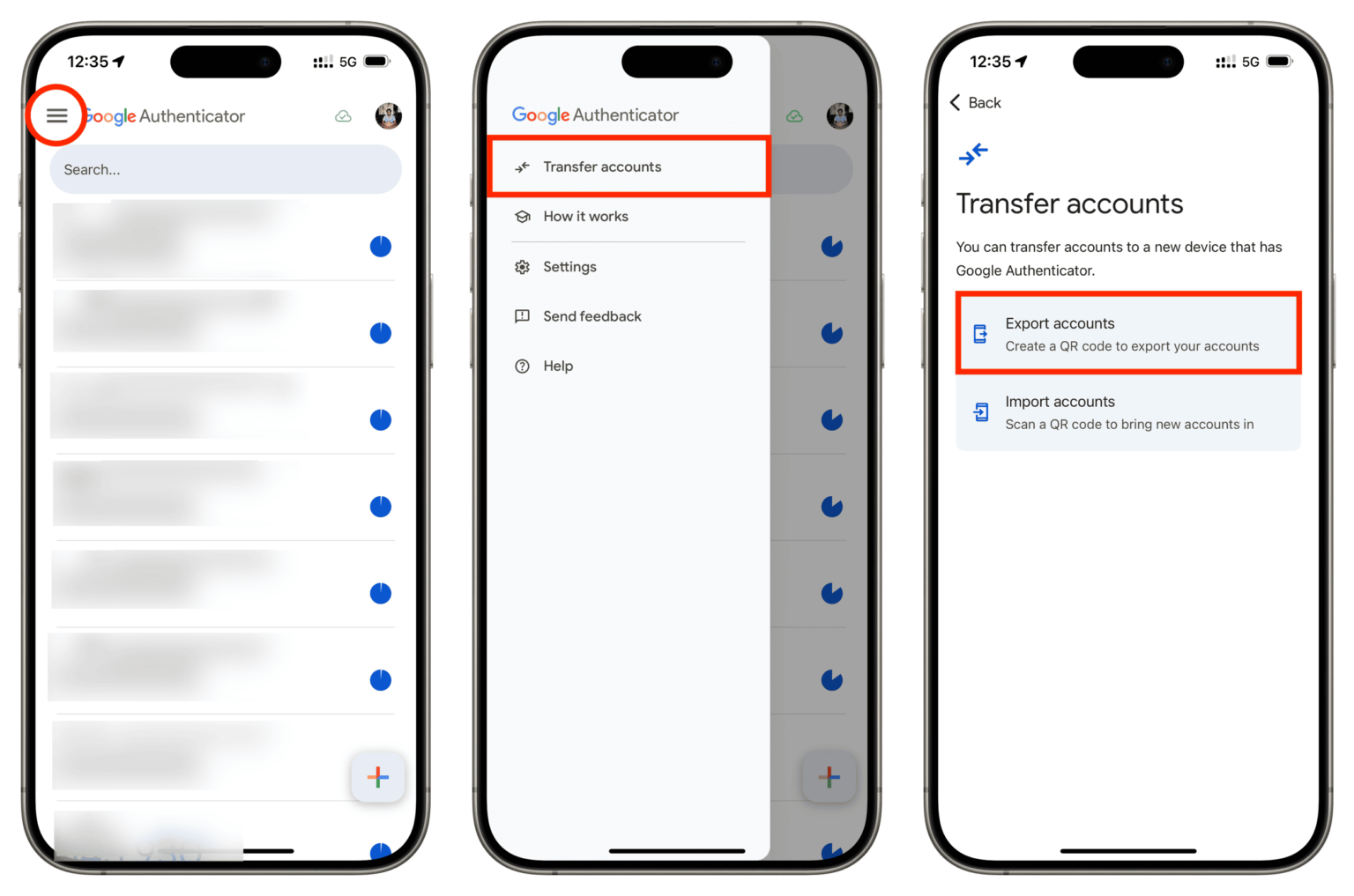
Open the app on your old phone. Tap the top menu, navigate to Transfer accounts, and select Export accounts. You will be prompted to authenticate (via PIN or biometrics). Choose the accounts you wish to migrate and tap "Next" to reveal the unique QR code.
-
Step 3 Scan the code with your new device
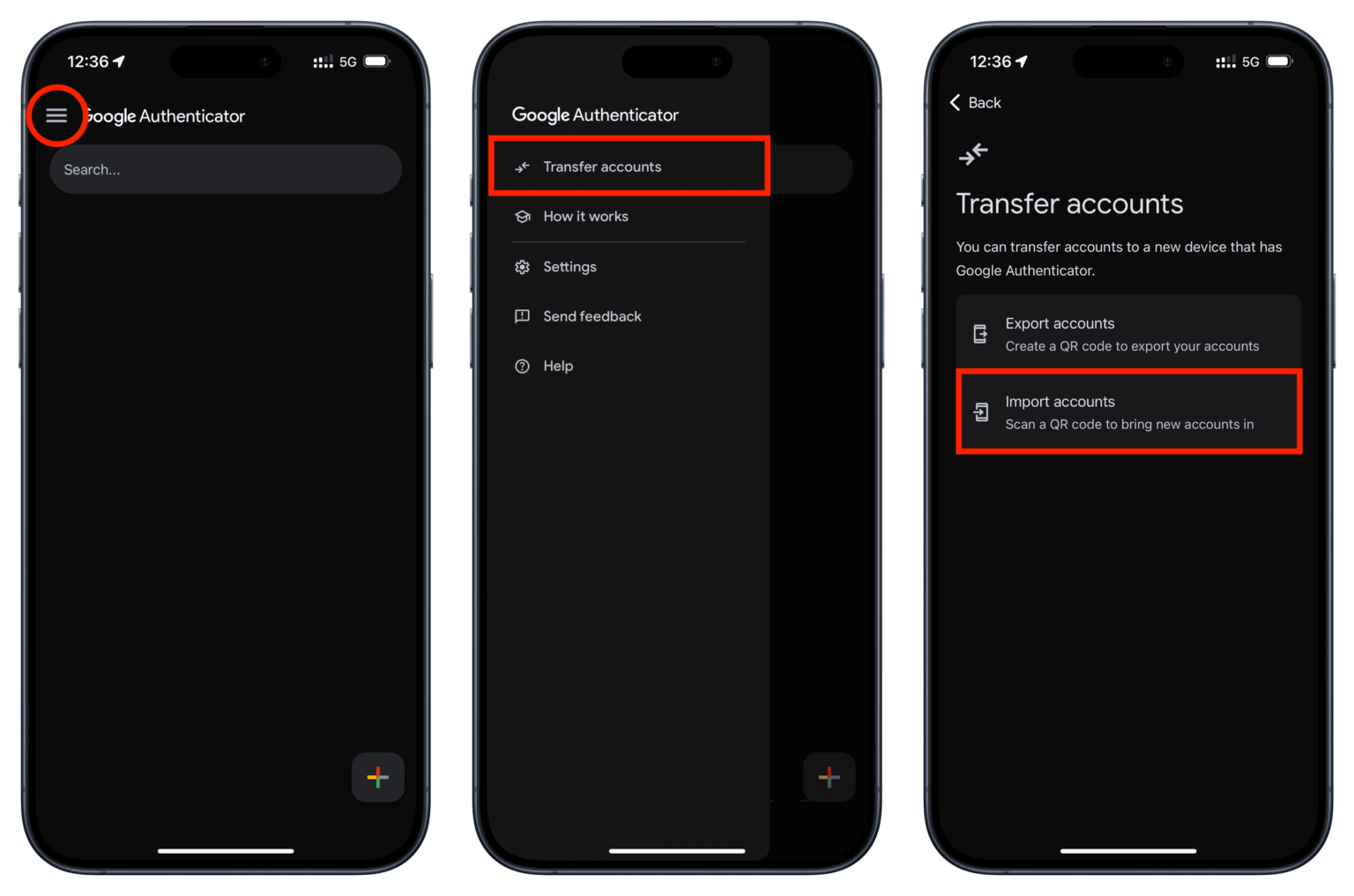
On your new phone, access the top menu, go to Transfer accounts, choose Import accounts, and tap "Scan QR code." Point your new phone's camera at the screen of the old device.
-
Step 4 Confirm the successful transfer
Almost instantly, your new phone will display a confirmation banner indicating that all selected Authenticator accounts have been successfully imported and are ready to generate codes.

Method 2: Leveraging Google Account Cloud Sync
If you previously authorized Google Authenticator to back up your codes to your Google Account, the transition becomes even simpler, bypassing the QR code altogether. This synchronizes your secrets securely across devices tied to the same identity.
- Step 1: Launch Google Authenticator on your new smartphone and tap "Get Started." Ensure you sign in using the exact same Google account credentials active on your old device.
- Step 2: Provided account sync was active, the app will instantly fetch the encrypted data from Google's servers and populate your interface with the restored 2FA codes.
- Step 3: Perform a quick test by logging into a non-critical synced service to confirm the time-based codes are valid.
Post-Transfer Verification Steps
- Randomly select two or three critical platforms (such as email, banking, or social media) and attempt a login to guarantee the generated tokens are accepted.
- Retain your old phone in its current state for at least 24 to 48 hours. This acts as a safety net in case any platform fails to authenticate properly.
- Once fully confident in the new device, permanently wipe the 2FA seeds from your old phone by navigating to the menu and selecting "Remove account."
Part 2. How to Transfer Google Authenticator Without the Old Phone
If you find yourself in a scenario where your previous smartphone is irreparably damaged, lost, or stolen, utilizing the seamless QR transfer method is impossible. However, you are not permanently locked out. Here are the standard recovery procedures to regain your Google Authenticator functionality.
Recovery Route 1: Utilizing Saved Backup Codes
When you initially configure 2FA on most modern platforms (including Google, Dropbox, Discord, and GitHub), they explicitly instruct you to download or print a list of one-time backup codes. These are designed precisely for this worst-case scenario. To restore access, attempt to log in normally. When prompted for the Authenticator code, select the option indicating you do not have your device, and input one of your backup codes. Once inside your account security settings, disable the existing 2FA connection and re-register the new phone's Authenticator app.
Recovery Route 2: Service-Specific Account Recovery
If you failed to save backup codes, you must rely on the individual account recovery pipelines provided by each service. This is often a slower process because platforms prioritize keeping unauthorized users out.
- Navigate to the login portal of the affected service and click the "Trouble logging in" or "Account Recovery" link. For Google accounts, visit accounts.google.com/signin/recovery.
- Follow the rigorous prompts. This may require answering deep security questions, verifying via a secondary recovery email, receiving an SMS token to a registered fallback number, or even waiting a few days for human review to verify your identity.
Part 3. What If Some Accounts Didn't Transfer?
Occasionally, strict enterprise policies or minor synchronization glitches might result in certain 2FA accounts failing to migrate via the QR export method. If you notice missing entries, you must manually reconnect these specific profiles to your new smartphone. It is crucial to have alternative verification methods available for these isolated services.
-
Step 1 Access the platform
Log in to the specific service using your master password coupled with an alternative verification method, such as an SMS code or an emergency backup key.
-
Step 2 Navigate to security settings
Find the security, privacy, or two-factor authentication dashboard within your account profile.
-
Step 3 Disable the old connection
Turn off the existing Authenticator link. The platform will typically warn you that 2FA is now disabled.
-
Step 4 Re-enable and pair
Immediately toggle 2FA back on, select "Authenticator App" as your preferred method, and use your new phone to scan the freshly generated QR code displayed on your computer screen.
-
Step 5 Save new backup codes
Generate a new batch of backup codes and store them in a highly secure location, such as an encrypted password manager.
Part 4. Transfer Everything with Dr.Fone - Phone Transfer
Successfully migrating your Google Authenticator codes is a critical step, but it represents only a fraction of the heavy lifting involved in setting up a new smartphone. Beyond security protocols, you likely need to transition gigabytes of contacts, cherished photos, extensive message histories, videos, and application settings without spending hours manually copying files. To handle this massive data transition smoothly, Dr.Fone – Phone Transfer emerges as the ultimate, all-encompassing migration solution.
Dr.Fone – Phone Transfer is engineered to be a highly secure, intuitive, and remarkably fast utility that facilitates cross-platform data copying with a single click. Whether you are transitioning from an aging Android to the latest iPhone, or vice versa, the software eliminates compatibility barriers. Fully optimized for the newest iterations like iOS 26 and Android 16, it supports the seamless transfer of up to 18 distinct data types. This means you can migrate your call logs, calendar events, music libraries, and SMS threads simultaneously, entirely circumventing the need for confusing cloud backups or risky factory resets.
Comprehensive Guide: Executing Data Migration with Dr.Fone
 Move data between iOS to Android and vice versa.
- Transfer contacts, SMS, photos, videos, music, and more types.
- Available with all phones with Android and iOS versions.
- Simple, click-through process.

-
Step 1 Launch the dedicated transfer module
Install and open the Wondershare Dr.Fone suite on your Windows or Mac computer. From the primary dashboard, navigate to the "Toolbox" section and click on "Phone Transfer" to initiate the dedicated interface.

-
Step 2 Connect and define your devices
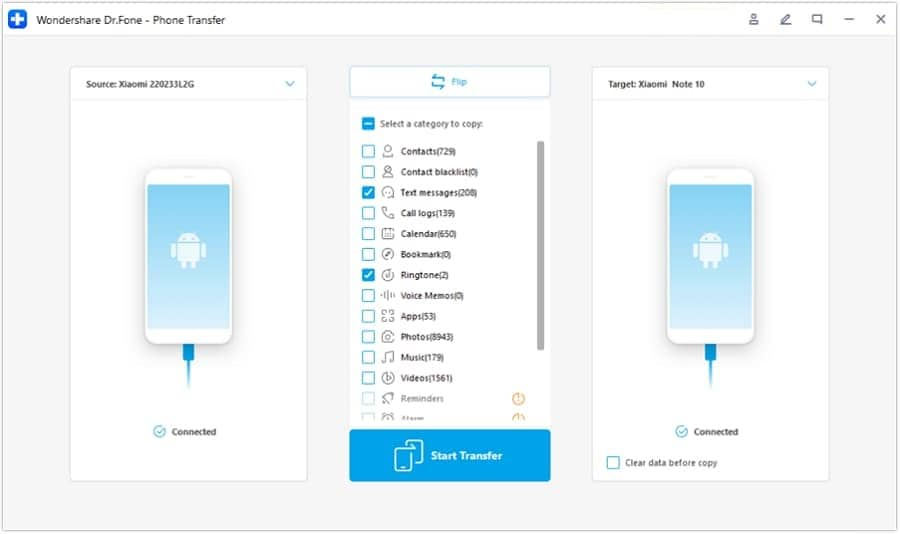
Plug both your old and new smartphones into the computer using high-quality USB cables. The software will detect them. Set your previous device as the "Source" and the new one as the "Destination." If they are mapped incorrectly, simply click the "Flip" button to reverse the directional flow.

-
Step 3 Select data types and commence transfer
The interface will present a categorized list of transferable data. Check the boxes corresponding to the content you wish to migrate—such as photos, contacts, and text messages. Once ready, click "Start Transfer" to begin the high-speed copying process.
-
Step 4 Safely finalize the migration
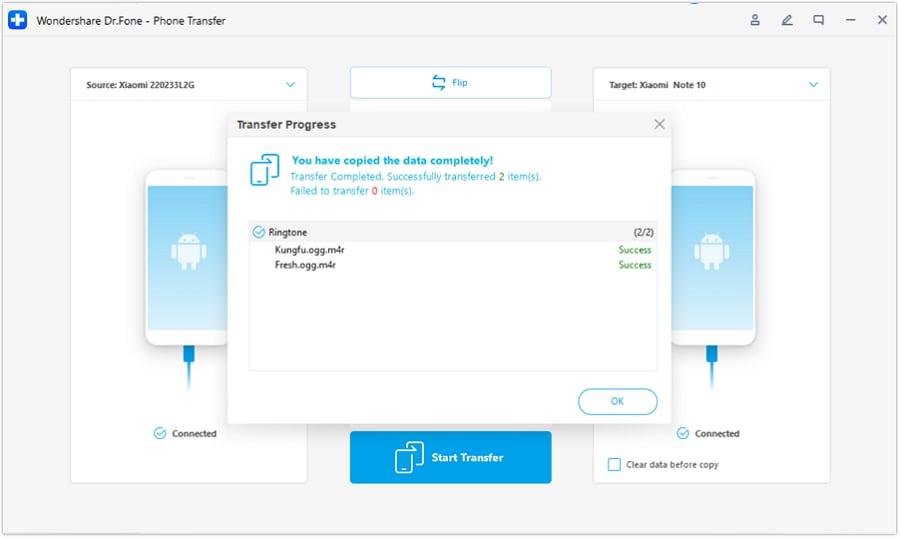
Allow the software to process the files without disconnecting the cables. Upon completion, a success prompt will appear on the screen. Click "OK" to finalize the session, and your new phone will be fully populated with your essential data.




Part 5. Troubleshooting Common Google Authenticator Migration Issues
Even with standard protocols, digital migrations can encounter hiccups. Here are detailed solutions to the most frequent obstacles users face when transferring Google Authenticator.
- Codes consistently fail to authenticate: If your newly migrated codes are being rejected, the root cause is almost always time drift. Time-based One-Time Passwords (TOTP) rely on precise device clocks. To fix this, open Authenticator settings, navigate to "Time correction for codes," and tap "Sync now." Ensure your phone's system settings are set to update time automatically via network provided values.
- Camera refuses to scan the QR code: If the app struggles to parse the export QR code, try increasing the brightness on the source device to maximum. Ensure both camera lenses are clean and free of smudges. If environmental scanning completely fails, use the "Enter a setup key" alternative provided by the service to manually type in the cryptographic string.
- The "Export" feature is entirely missing or disabled: If you cannot locate the export function, verify that your app is updated to the latest available version. Furthermore, if your device is managed by a corporate IT department (MDM) or linked to a strict enterprise Workspace account, administrators may have deliberately blocked exporting to prevent unauthorized credential duplication. In such cases, you must manually reset your 2FA for each service.
- Only partial account migration occurred: If you exported ten accounts but only received seven, the transfer payload may have been too large for a single QR code block, or specific accounts corrupted. You will need to utilize backup codes to log into the missing services and generate entirely new 2FA links for your new device.
Conclusion
While the prospect of losing access to your secure accounts can be daunting, moving Google Authenticator to a new phone in 2026 is an entirely manageable procedure if approached methodically. By utilizing the app's integrated QR export tool, enabling secure Google Account synchronization, or keeping fallback backup codes handy, you can guarantee uninterrupted access to your digital life. Furthermore, when you are undertaking a comprehensive device upgrade, relying on dedicated software like Dr.Fone – Phone Transfer ensures that your messages, contacts, and multimedia files transition just as smoothly as your security credentials, making your new phone feel instantly familiar.
FAQ
-
1. Can Google Authenticator be set up on two phones simultaneously?
Yes, it is technically possible. To achieve this, you must retain the original setup QR code provided by the service (or the export QR from Authenticator) and scan it with multiple devices simultaneously. However, maintaining identical authenticators on multiple active devices increases your attack surface and is generally not recommended for optimal security hygiene. -
2. Will Google Authenticator transfer automatically to a new phone upon login?
No, not by default. Unless you have explicitly opted into Google's cloud synchronization feature within the app's settings, your 2FA codes remain heavily encrypted and localized to your physical hardware. You must manually initiate the transfer using the export tool or enable sync before switching devices. -
3. Can the Google Authenticator export feature bridge the gap between iOS and Android?
Absolutely. The QR export feature operates entirely independently of the host operating system. The generated QR code adheres to standardized cryptographic protocols, allowing you to easily generate it on an older Android device and scan it flawlessly with a brand-new iPhone, or vice versa. -
4. What happens if I lose my phone and never saved my backup codes?
If you lose your device, lack backup codes, and never enabled cloud synchronization, you are effectively locked out at the authenticator level. You will be forced to rely on the manual account recovery processes provided by each individual service (like Google, Apple, or your bank). This often involves verifying your identity via alternative emails, SMS recovery numbers, or providing government-issued identification to customer support, which can take several days.
 Add Wondershare Dr.Fone as a preferred source on Google