Move contacts, messages, photos, videos, app data, and more between iOS and Android.

 100% Security Verified | No Subscription Required | No Malware

 :
: 
 ChatGPT
 Perplexity
 Gemini
 Claude
 Grok
Grok
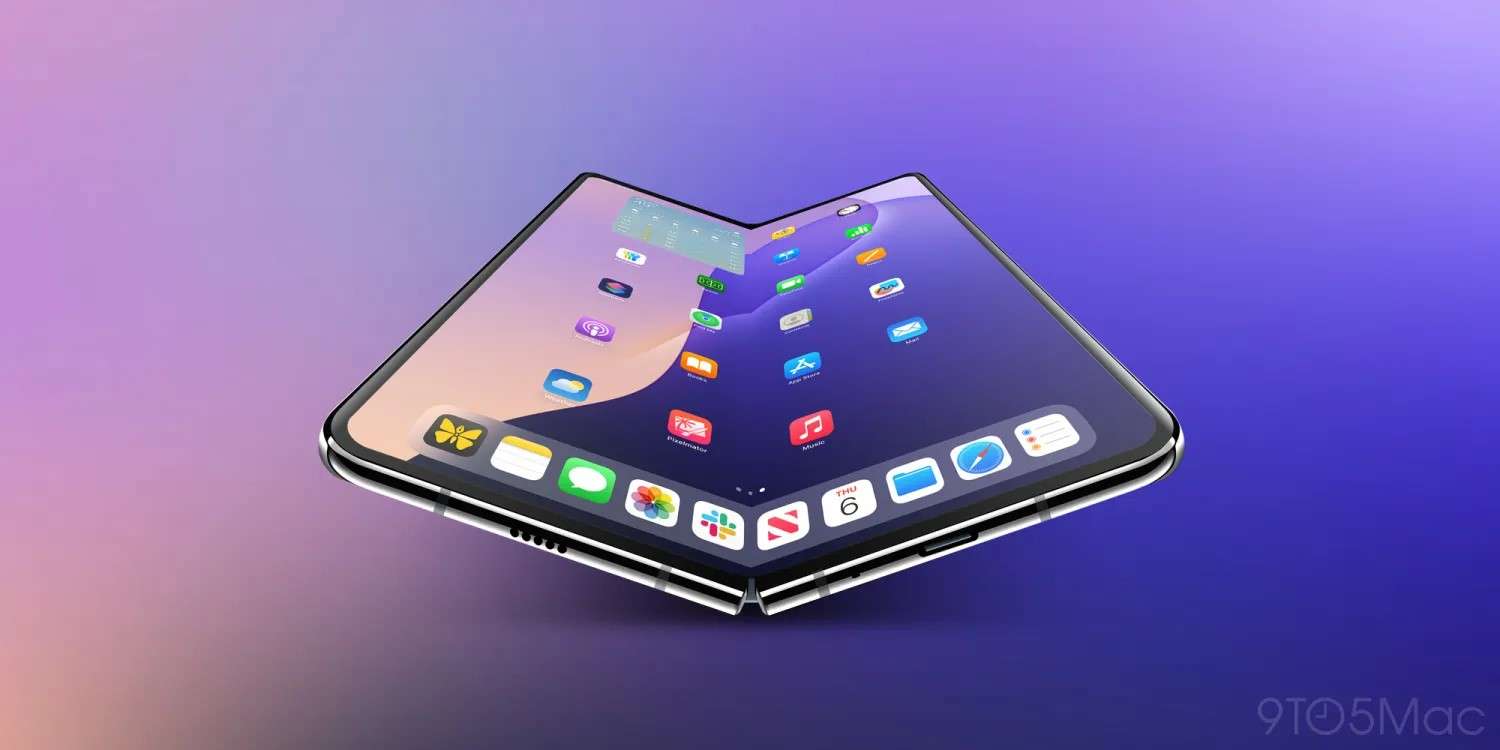
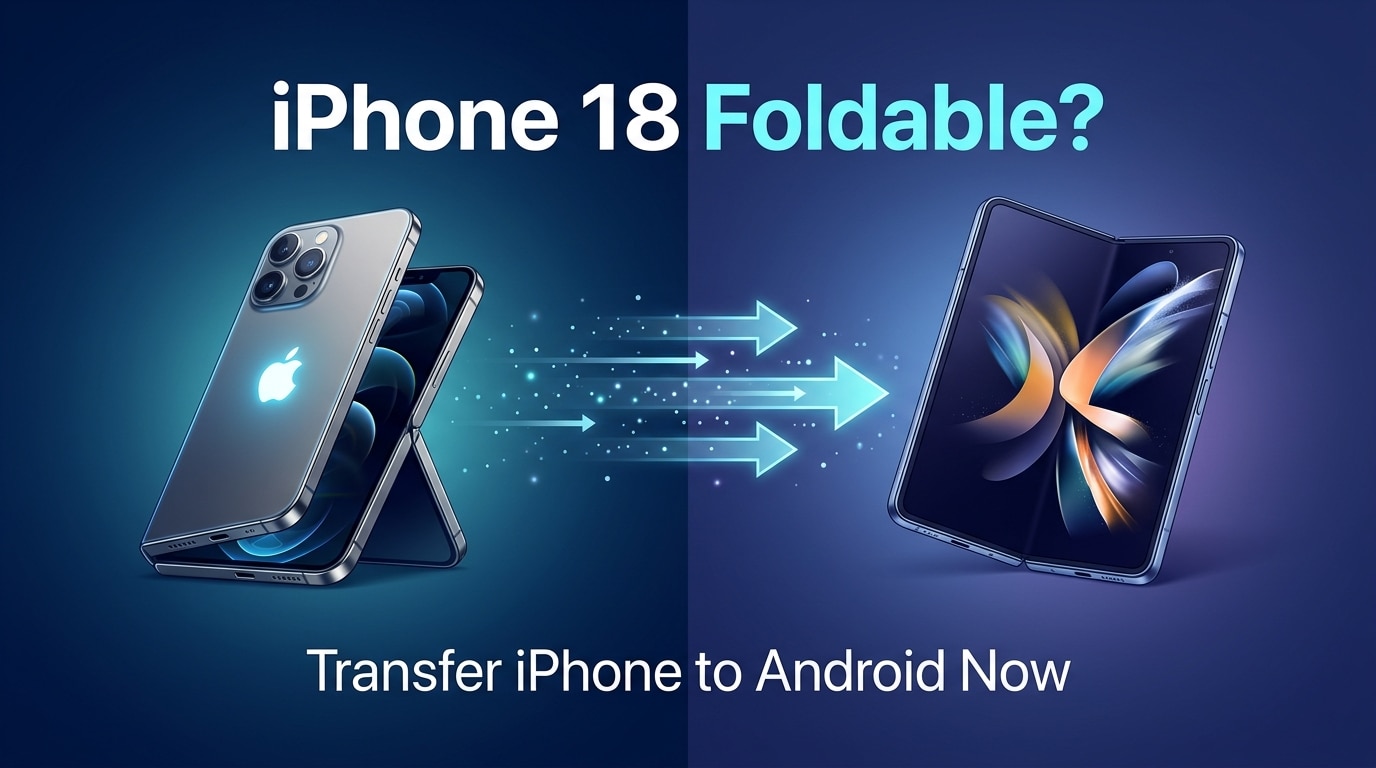
Rumors about iPhone 18's potential foldable screen continue to intensify, with new concept images and supply chain reports emerging regularly. Every leak sparks heated discussions in tech communities, but the impact goes beyond excitement—it's prompting some users to seriously consider switching to Android's mature foldable ecosystem right now. For those contemplating the move, the decision isn't really about which phone to buy. It's about solving one critical problem: seamlessly transferring all their iPhone data to an Android device.
In this article
Part 1. Why Foldable Phones Are Pushing iPhone Users to Android Now
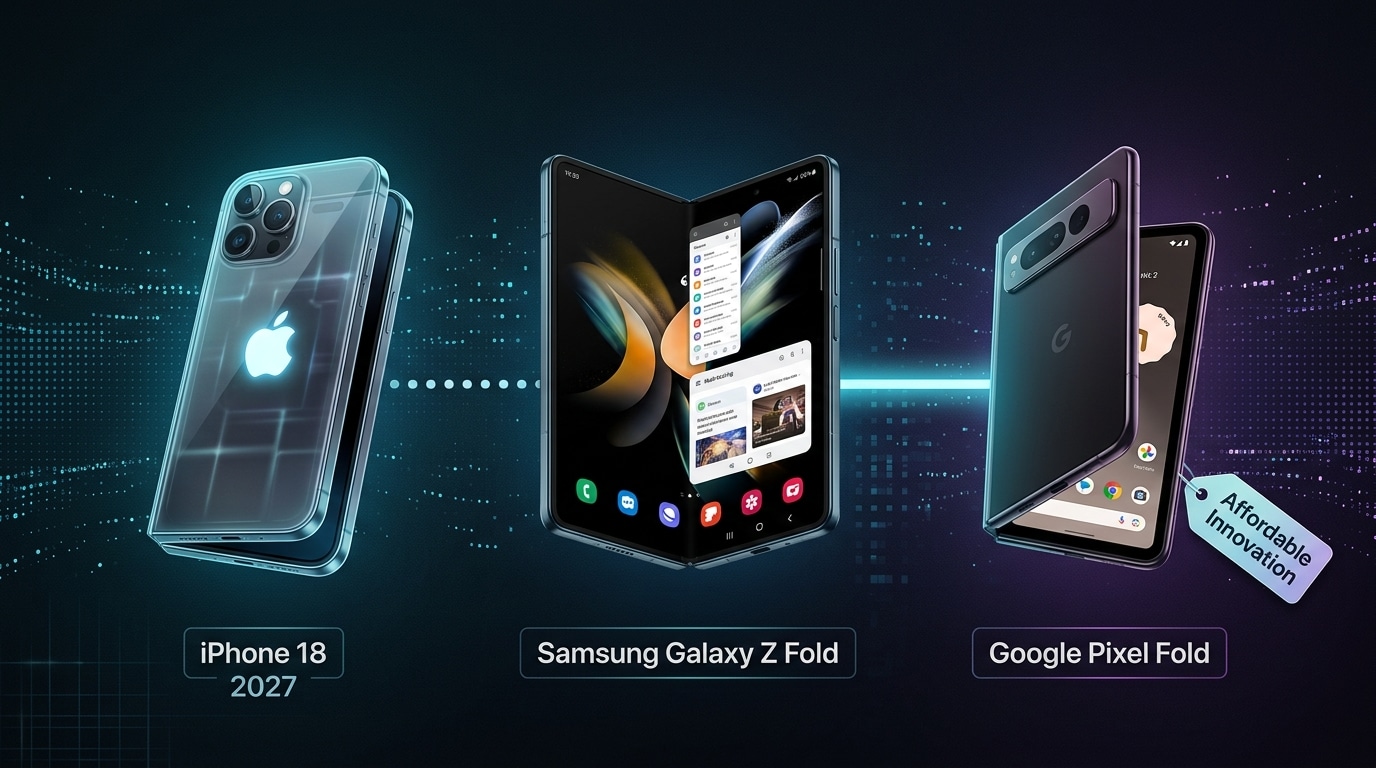
The speculation around iPhone 18's foldable capabilities has reached fever pitch. Samsung's Galaxy Z Fold series has matured significantly, offering reliable folding technology that's increasingly appealing to mainstream users. Meanwhile, Google's Pixel Fold is gaining traction as a more affordable foldable option. Each new announcement about these devices inevitably triggers comparisons with hypothetical iPhone foldables.
The interesting dynamic isn't that everyone wants to switch—it's that a specific segment of early adopters is starting to seriously consider it. These users have historically waited for Apple to perfect technology before adopting it, but foldable screens represent a rare moment where the competition has moved faster. Staying with iPhone means waiting until 2027 or later for a potential foldable model. Switching now means accessing proven foldable technology immediately.
Part 2. Why Data Migration Is the Real Switching Barrier
Here's where the enthusiasm hits reality: switching from iPhone to Android requires moving not just your phone, but your entire digital life. Your photos, messages, contacts, app data, calendar events, notes, email accounts, and countless other digital possessions all live on your iPhone.
The fear isn't irrational. iPhone and Android use completely different operating systems, file structures, and cloud ecosystems. iCloud, Apple's backbone, doesn't easily hand over data to Google services. Some information transfers smoothly. Other data gets stuck in proprietary formats. Many users have heard horror stories about losing messages or not finding their photos on a new Android device. That uncertainty makes even excited potential switchers hesitate.
This isn't about choosing a new phone anymore—it's about ensuring zero data loss during transition.
| Data Type | Transferability | Ease Level |
|---|---|---|
| Contacts | Native support | Easy |
| Messages | Limited/Problematic | Difficult |
| Photos | Supported | Easy |
| Calendar Events | Native support | Easy |
| Notes | Limited format support | Moderate |
| App Data | App-dependent | Difficult |
| Email Accounts | Direct setup | Easy |
Part 3. How to Transfer Data from iPhone to Android
Android provides built-in official migration tools that appear automatically during new device setup.
Method 1: Data Transfer During Setup
-
Step 1 Power On Your New Android Device
Turn on your new Android device and follow the initial setup wizard. When prompted "Do you want to copy data from another device?", select "iPhone or iPad" option.
-
Step 2 Scan QR Code to Pair Devices
Your Android device displays a QR code. Use your iPhone camera to scan this code to establish a secure connection between both devices.
-
Step 3 Select Data Types & Complete Transfer
The system displays a checklist of transferable data—contacts, photos, videos, calendar events, bookmarks, and more. Check the data types you want and tap "Copy" to start the transfer process.
This method works well for basic data transfer. However, limitations exist: app data rarely transfers completely, message formatting sometimes gets corrupted, and certain Apple-specific information may be lost.
Method 2: iCloud and Google Account Sync
-
Step 1 Enable iCloud Sync on iPhone
Go to "Settings > [Your Name] > iCloud" and ensure key services like Photos, Calendar, and Contacts are enabled for syncing.
-
Step 2 Add Google Account on Android Device
During Android setup, sign in with the Google account where you synced iPhone data. Enable sync for Google services.
This approach is straightforward but incomplete—it only captures data you previously synced to Google services. Messages, notes, app data, and locally stored photos remain inaccessible.
Part 4. Dr.Fone Data Transfer—Supporting Complete Data Types
Dr.Fone - Phone Transfer handles the complexity that official solutions often miss. The tool supports comprehensive data migration including contacts, messages, photos, videos, calendar events, notes, bookmarks, app data, call history, and more—essentially giving you complete control over what transfers and how.
Key Advantages:
- Dr.Fone supports data types that official Google and Apple tools either ignore or handle poorly
- Messages transfer successfully without formatting corruption
- App data migrates where possible with minimal loss
- You get transparent control over each data category
- The process is faster than sequential syncing through multiple services
 Move data between iOS to Android and vice versa.
- Transfer contacts, SMS, photos, videos, music, and more types.
- Available with all phones with Android and iOS versions.
- Simple, click-through process.

How Dr.Fone Simplifies the Process:
-
Step 1 Connect Both Devices
Launch Dr.Fone, select "Transfer" from the toolbox, and connect both your iPhone and Android device via USB cables.

-
Step 2 Select Data Categories
It is important for you to define the path of transfer, thus, the selection of Source and Destination.Then choose which data types to transfer and tap the Start Transfer button. Dr.Fone's interface lets you select specific categories or transfer everything at once—contacts, messages, photos, calendar, notes, bookmarks, and more.

-
Step 3 Turn Off iCloud Syncing
When the Dr.Fone asks to turn off iCloud syncing, open the Settings of your iDevice and continue to select your name from the top.

Step 3 Step 4Data Transfer Completes
As the data is transferred successfully, the complete details are displayed related to its completion. Click OK to close down the process.
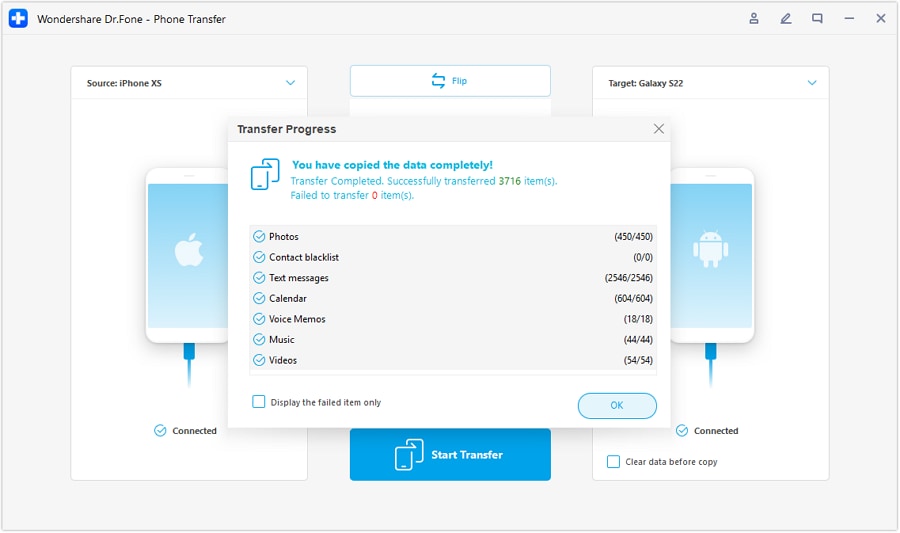
The entire process typically completes in minutes, with transparent progress tracking and minimal manual intervention required.




Part 5. Conclusion—Solutions Exist
The barrier to switching from iPhone to Android isn't technical anymore—it's psychological. The official tools work adequately for basic data. Third-party solutions like Dr.Fone - Phone Transfer handle comprehensive migration scenarios that official methods miss. Users now have multiple viable pathways to successfully transfer their complete digital life from iPhone to Android.
Foldable screen technology isn't coming to iPhone in the near term. Android foldables are mature, refined, and available today. If you've been waiting for Apple to innovate in this category, the tools exist to make the switch without losing anything in the process. The decision becomes simpler: choose the device you want, then handle the technical transition confidently.
FAQ
-
How long does the data transfer process take?
Basic transfers through official methods take 15-30 minutes depending on data volume. More comprehensive transfers handling all data types typically complete within an hour, often much faster. -
Can I transfer app data from iPhone apps to Android?
This is the trickiest part. Many apps don't transfer their data because Android and iOS use different architectures. However, cloud-based apps (Gmail, Google Photos, Microsoft 365) transfer seamlessly since they sync to the cloud. -
What should I do with my old iPhone after transferring data?
After confirming all your data transferred successfully, you can trade it in, sell it, recycle it, or keep it as a backup device. Just remember to erase all personal data from the device before transferring it to someone else.
 Add Wondershare Dr.Fone as a preferred source on Google