Move contacts, messages, photos, videos, app data, and more between iOS and Android.

 100% Security Verified | No Subscription Required | No Malware

 :
: 
 ChatGPT
 Perplexity
 Gemini
 Claude
 Grok
Grok
Apple's latest reveal has sent tech enthusiasts into a frenzy—the iPhone 18 is finally on the horizon, and for many of you, that means one thing: it's time to upgrade. But before you get too excited about unboxing that shiny new device, there's a crucial question looming: how are you going to move everything from your current iPhone to the new one?
If the thought of manually transferring thousands of photos, texts, contacts, and apps makes you break into a cold sweat, you're not alone. Data migration is that often-overlooked bridge between your old and new worlds. Get it right, and your new iPhone feels like a seamless extension of your current one. Get it wrong, and you could lose years of precious memories or vital information.
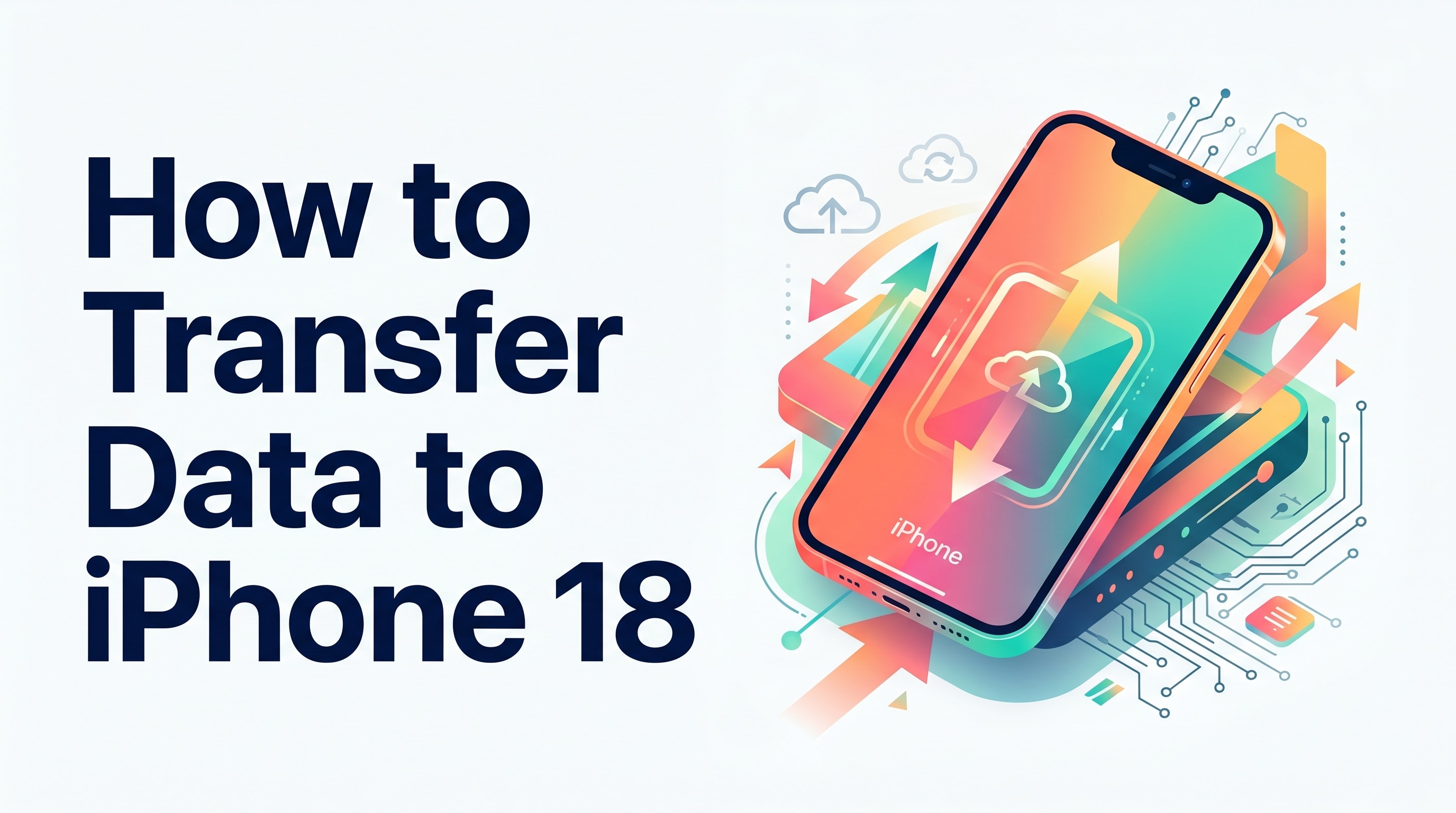
Let's walk through what's coming with iPhone 18, why upgrading matters, and most importantly, how to transfer your data without losing a beat.
Part 1. The iPhone 18 Revolution: What's Actually New?
Part 2. The iPhone Upgrade Scenario: Every User's Dilemma
Part 3. What Are Your Data Transfer Options?
3-1. Quick Start: The Wireless Approach
3-2. iCloud Backup: The Cloud Approach
3-3. Mac/PC Transfer: The Computer Approach
Part 1. The iPhone 18 Revolution: What's Actually New?
Apple is shaking things up with the iPhone 18 lineup, and it's not the typical yearly incremental update. Instead of one grand reveal, we're looking at a split launch strategy that spans from fall 2026 to spring 2027.
Here's the breakdown:
<
| Model | Launch Timeline | Key Upgrades |
|---|---|---|
| iPhone 18 Pro / Pro Max | September 2026 | Smaller Dynamic Island, variable aperture lens, A20 Pro chip |
| iPhone Fold (Foldable) | September 2026 | 5.5" outer + 7.8" inner display, Touch ID, titanium build |
| iPhone 18 / 18e | Spring 2027 | 12GB RAM, 24MP front camera, enhanced brightness |
The standard iPhone 18 and 18e won't hit shelves until spring 2027, but if you're a Pro user or want to experience foldable technology, the fall lineup is calling your name. What ties all these models together? The custom-built A20 chip on a groundbreaking 2-nanometer process, promising faster performance with better battery efficiency.
The real question isn't whether to upgrade—it's how to do it without leaving data behind.
Part 2. The iPhone Upgrade Scenario: Every User's Dilemma
Picture this: you've ordered your iPhone 18 Pro. It arrives, you unbox it with that familiar Apple excitement, and then reality hits. On your old iPhone sits years of accumulated data—thousands of photos from family vacations, important work documents, carefully organized contacts, app settings you've fine-tuned to perfection, and messages you've wanted to keep.
The panic sets in: How do I get all of this to my new phone without losing anything? Which method should I use? Will my data stay secure during transfer?
This isn't paranoia—it's a legitimate concern. Data migration failures happen, and they're frustrating, time-consuming, and potentially costly. You're not just moving files; you're transferring your digital life.
Part 3. What Are Your Data Transfer Options?
When you unbox a new iPhone, Apple gives you several built-in options to move your data. Let's explore each approach and understand what works best in different situations.
3-1. Quick Start: The Wireless Approach
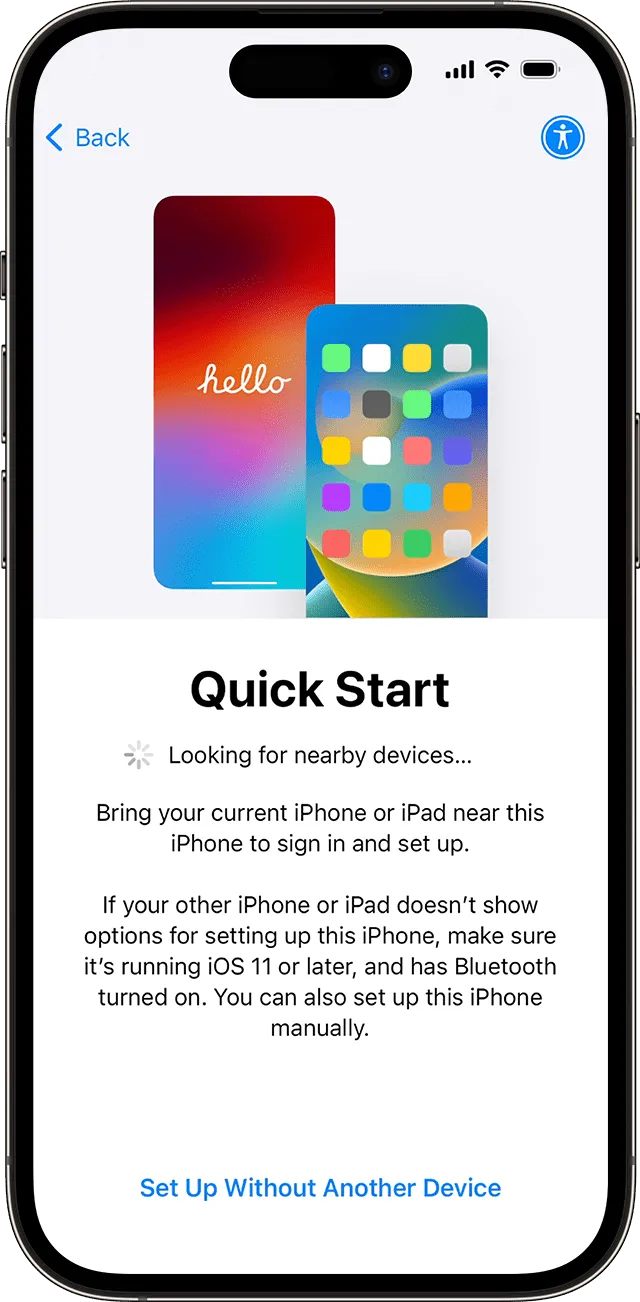
Quick Start is Apple's wireless transfer method designed to be simple and straightforward. Place your new iPhone next to your old one, keep both connected to Wi-Fi and Bluetooth, and data transfers between them.
Source:Apple service
The appeal is obvious—no cables, no computer required. However, there's a significant limitation: both phones must remain in close proximity and stay connected throughout the entire process. If your Wi-Fi connection drops, stutters, or becomes unstable, the transfer pauses or may fail entirely. For users with large data libraries (100GB+), this wireless method can take several hours. If you're traveling, in an area with unreliable internet, or need to use one of your phones during the transfer, Quick Start becomes problematic.
3-2. iCloud Backup: The Cloud Approach
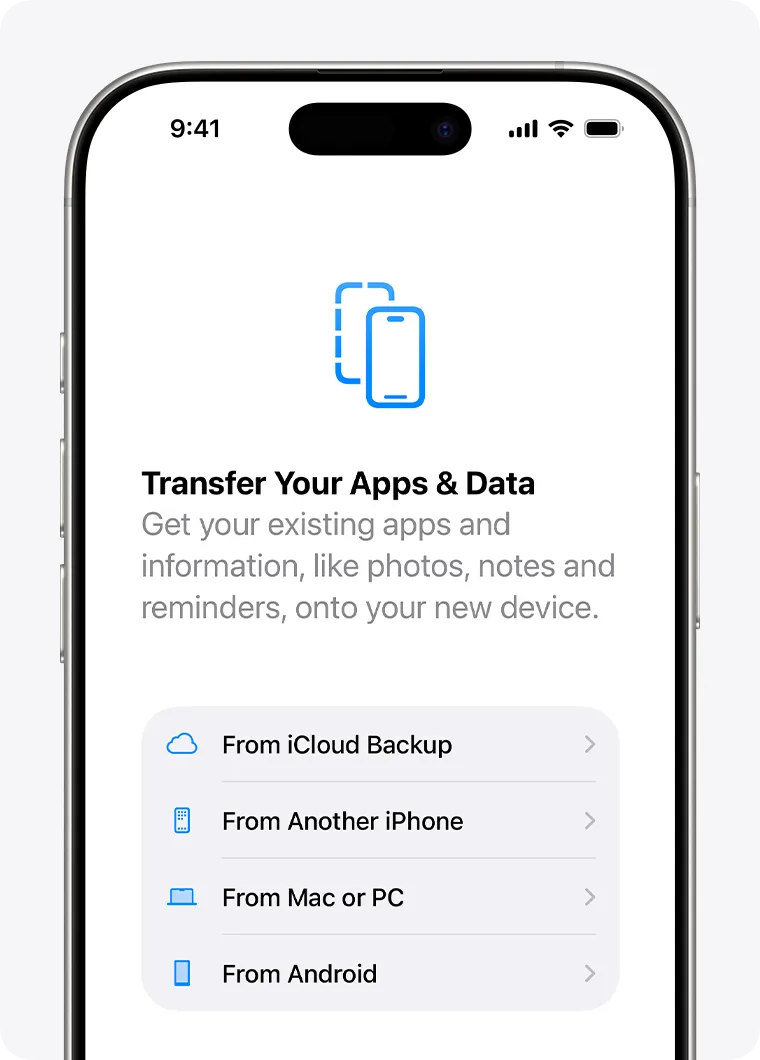
iCloud backup offers flexibility by letting you back up your old iPhone to the cloud, then restore from that backup on your new device. You don't need both phones present at the same time, which is convenient.
Source:Apple service
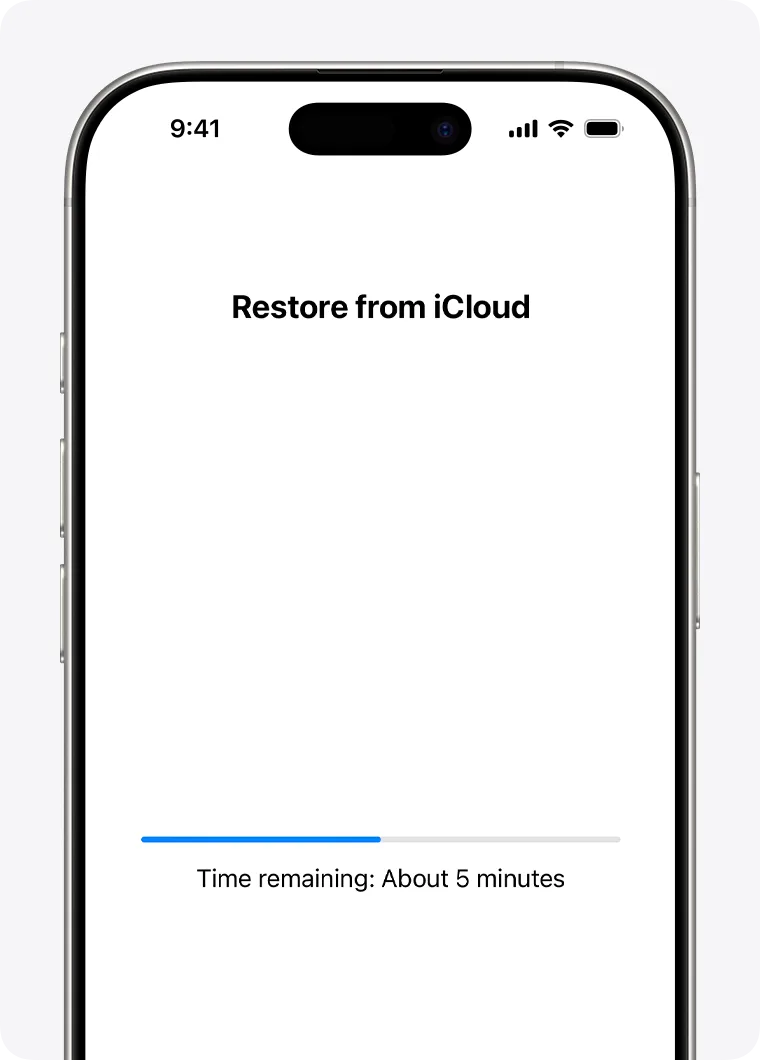
However, this method requires foresight. You need to have already backed up your old iPhone before setting up the new one—which many users forget to do until they're holding their new device. Apple's free iCloud storage tier is limited to 5GB. If you have more than that, you're paying for additional cloud storage. The restoration process depends entirely on your internet speed and can take hours, even days for large backups. Content continues downloading in the background after setup, which means your apps and data aren't immediately ready to use.
Source:Apple service
3-3. Mac/PC Transfer: The Computer Approach
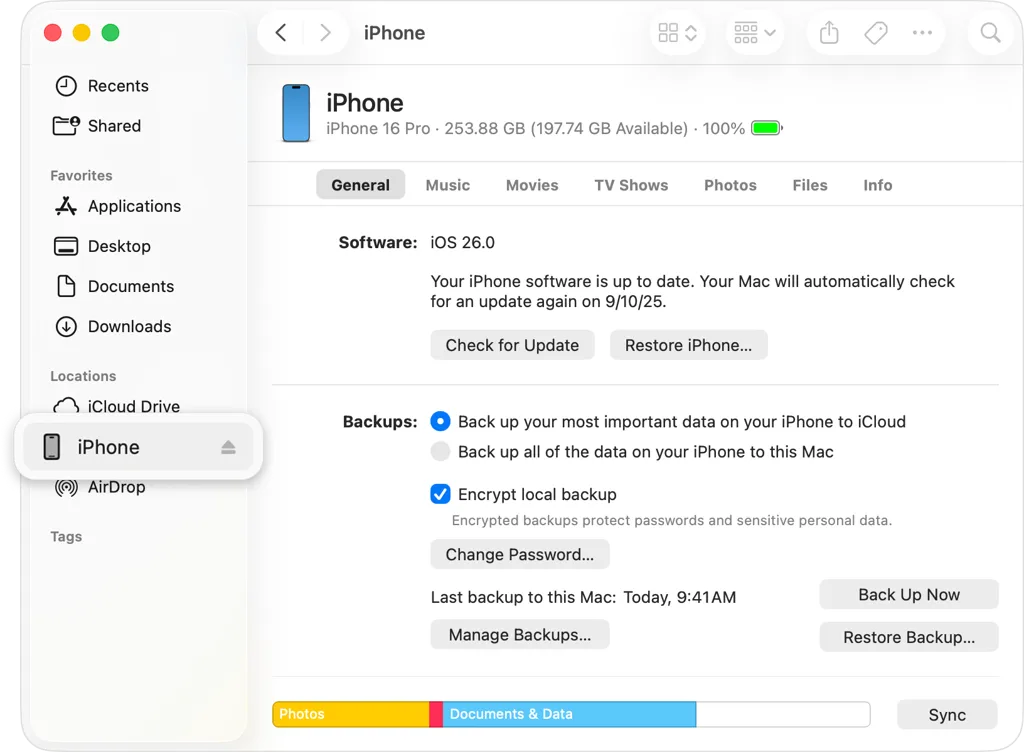
You can also restore from a backup stored on your Mac or PC using Finder (macOS) or iTunes (Windows). Connect your new iPhone to the computer that has your backup, and restore from there.
Source:Apple service
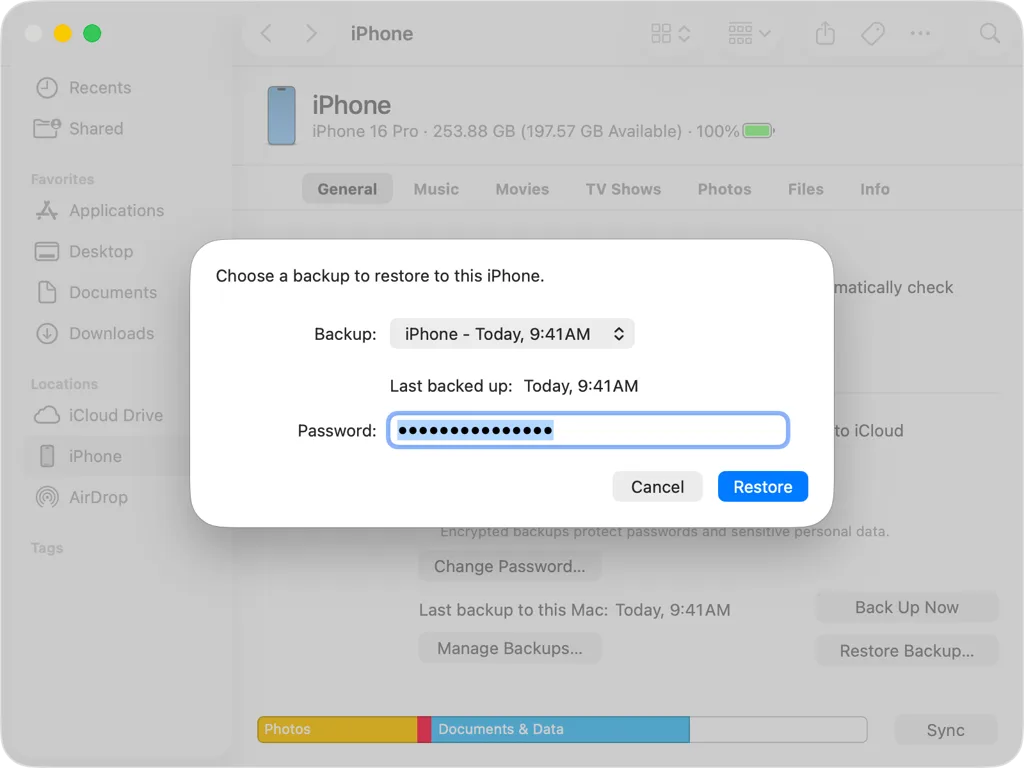
Source:Apple service
This method requires you to have previously backed up your device to your computer. The setup feels outdated in 2026—tethering your device to a computer with cables isn't the seamless experience you'd expect. The restoration time depends on backup size and can take hours.
The Common Problem Across All Three Methods
Here's the real issue: none of Apple's built-in methods guarantee complete data transfer. Users frequently report missing elements after using Quick Start, iCloud, or Mac/PC transfers—ringtones don't carry over, voicemail gets left behind, certain app settings don't transfer, voice memos go missing, or wallpapers aren't restored. It's frustrating to discover mid-week that something important didn't make the move.
Part 4. A More Comprehensive Solution
This is where a purpose-built transfer tool becomes valuable. Dr.Fone - Phone Transfer is designed specifically to handle the comprehensive data migration that Apple's built-in options sometimes miss. Rather than relying on Wi-Fi stability, pre-existing iCloud backups, or computer software, Dr.Fone handles the transfer directly and completely—all your photos, music, videos, contacts, texts, calendars, reminders, voicemail, ringtones, voice memos, bookmarks, notes, and wallpapers move over without gaps.
The process is significantly faster than Quick Start for large data collections, and it doesn't require iCloud subscriptions, cloud storage fees, or computer setup. Data transfers through secure encrypted channels, so your information stays protected throughout.
 Move data between iOS to Android and vice versa.
- Transfer contacts, SMS, photos, videos, music, and more types.
- Available with all phones with Android and iOS versions.
- Simple, click-through process.

How to Transfer Your Data with Dr.Fone: 5 Simple Steps
Ready to move everything over? Here's exactly how to do it:
Step 1 Connect and Set Transfer Path
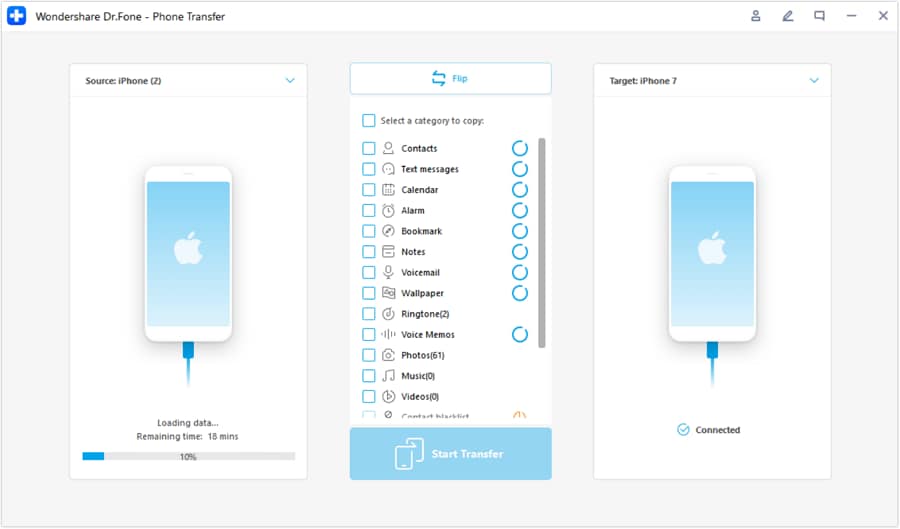
Download Dr.Fone and launch the Phone Transfer tool on your computer. Connect both your old and new iPhone via USB cables. The software will automatically detect both devices. Simply specify which phone is the Source (old iPhone) and which is the Destination (new iPhone). Use the Flip button if you need to reverse the direction.
Step 2 Choose Your Data Types
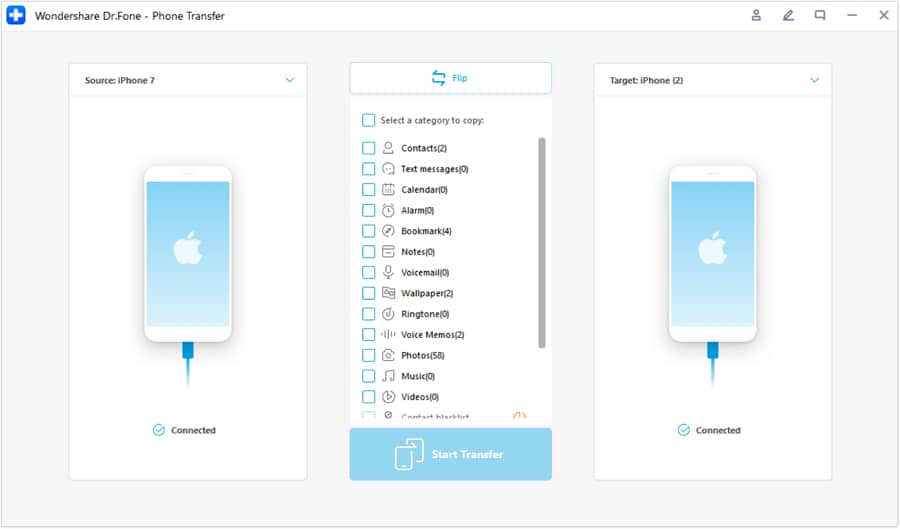
After successfully determining the source and destination, select the specific data types you want to transfer. Checkmark all data and select Start Transfer to proceed with the operations.
Step 3 Disable Find My Feature
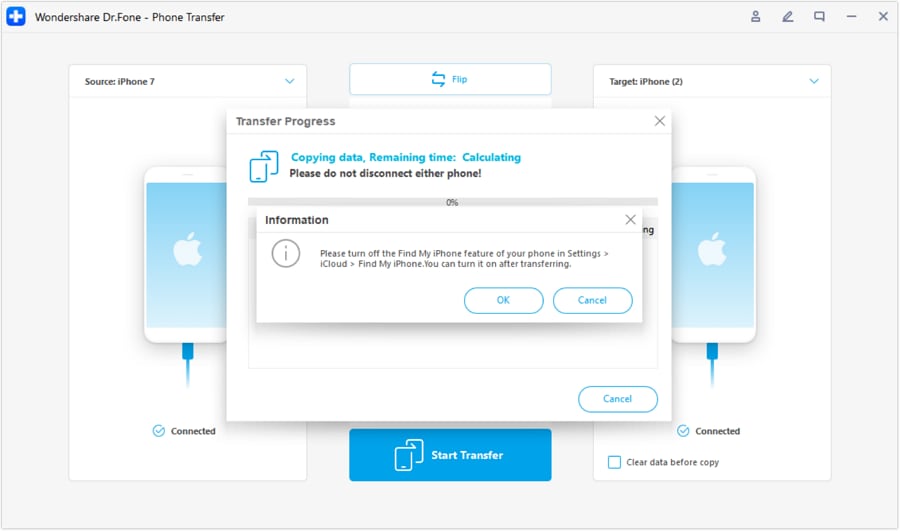
A prompt will appear asking you to turn off the Find My feature on your source iPhone. This is a quick step—just go to Settings > [Your Name] > iCloud > Find My and toggle it off. Dr.Fone will guide you through this.
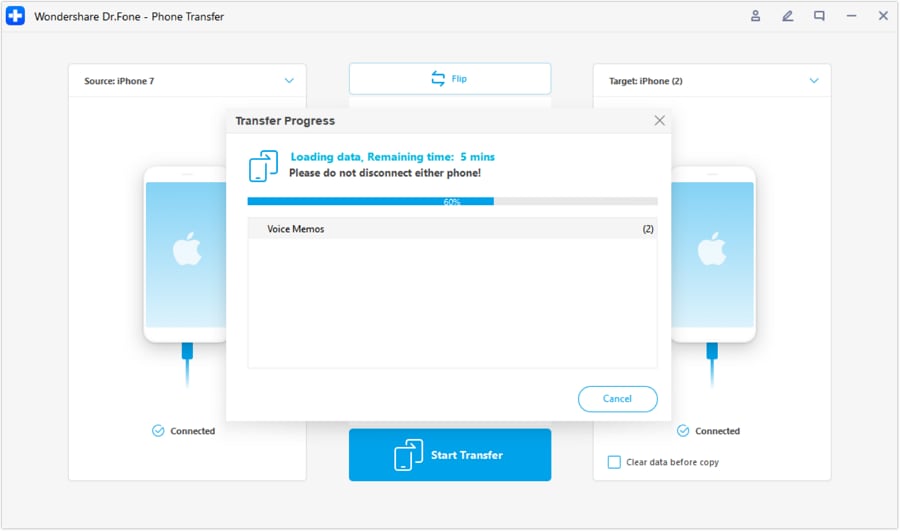
Step 4 Watch the Transfer Progress
As you turn off the feature, the data transfer initiates, and the progress bar displays the completion of the process.
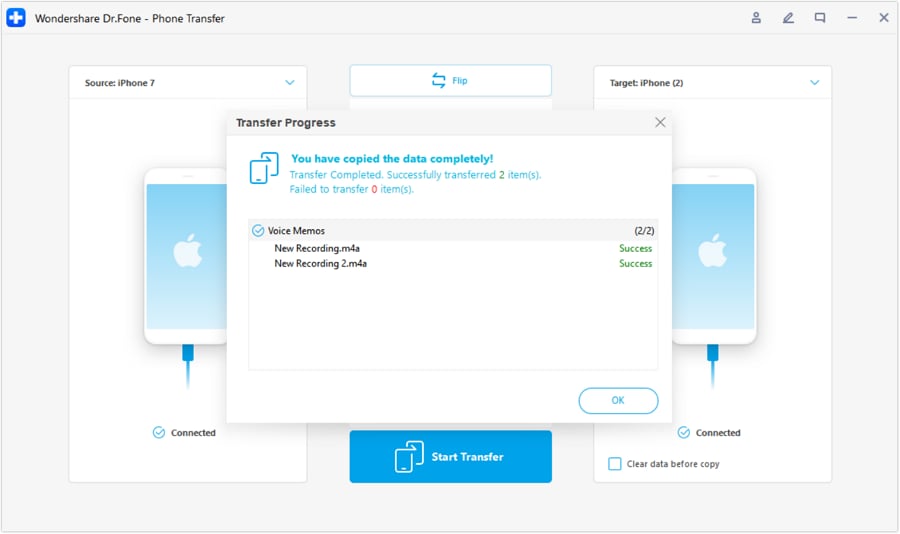
Step 5 Complete iOS to iOS Phone Transfer
Once done, the window in the front shows the completed phone transfer. Click OK to conclude the process entirely.




Part 5. Conclusion
When your iPhone 18 arrives—whether it's the Pro model in fall 2026 or the standard version in spring 2027—you want to start fresh without sacrificing your past. Understanding your transfer options helps you make the choice that fits your needs and your data.
You've invested years in building your digital life on your current iPhone. Moving it shouldn't feel like a risky game of chance. Whether you choose Apple's built-in methods or opt for a more comprehensive solution, the goal is the same: a complete, secure, and stress-free transition to your new device.
Set up your transfer strategy today, bookmark this guide, and when that iPhone 18 notification hits, you'll know exactly how to make the move.
FAQs
 Q1. Is there a way to avoid iCloud storage fees when backing up?Q2. Can I selectively transfer only certain data to my new iPhone 18?Q3. Does data transfer work the same way for all iPhone models upgrading to iPhone 18?
 Add Wondershare Dr.Fone as a preferred source on Google