Move contacts, messages, photos, videos, app data, and more between iOS and Android.

 100% Security Verified | No Subscription Required | No Malware

 :
: 
 ChatGPT
 Perplexity
 Gemini
 Claude
 Grok
Grok
Have you ever been typing a long email or editing a document on your phone and wished you could instantly switch to your tablet without starting over? Google is solving this frustration with a major new feature coming in Android 17 called "Continue On." This new update serves as a handoff tool that lets you seamlessly move your active apps and daily work between your connected Android devices.
While this real-time sharing is great for quick multitasking, it only moves your current task, not your entire phone's memory. Knowing this, you might be confused and want to learn more about the Android Handoff feature. If so, review this guide in detail and learn when you can use data transfer tools like Dr.Fone - Phone Transfer when Handoff falls short.
In this article
Part 1. What Is Android 17 Handoff?
If you want to become familiar with the Android 17 multi-device Handoff tool, this section provides basic details.
Definition of Cross-Device Continuity
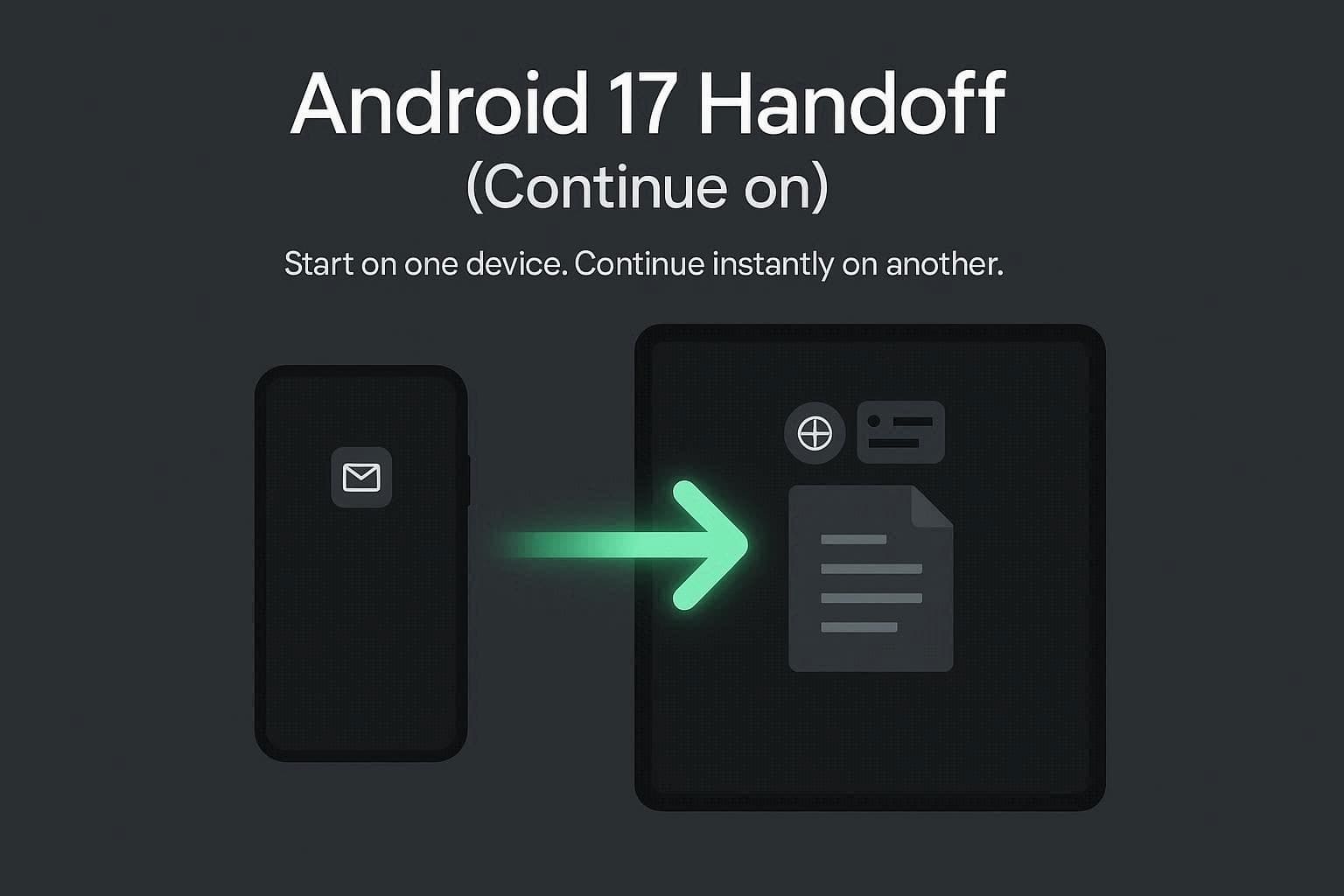
Basically, the Android 17 Handoff, officially called “Continue On,” is a built-in feature. It lets you start a task on one Android device and instantly pick up right where you left off on another nearby device. In simple words, it's like switching a live Google Docs or email from your phone to your tablet.
Thus, this creates cross-device continuity, meaning your devices work together in real-time to move workflows back and forth.
How Android 17 Improves Continuity
To further know the cross-device continuity of Android via the Handoff tool, review the mentioned key aspects of “Continue On:”
- Smart Task Suggestions: According to Android Authority, when you are working on one device and select a nearby Android device, the suggestion icon appears in the device’s taskbar. Hence, with one tap, you can jump back to work without searching for the previous screen.
- True Bidirectional Flow: This feature is a 2-way end, meaning supported devices can act as both the Sender and the Receiver. Through this, you can easily bounce app sessions between multiple screens depending on where you want to work, says Android Headlines.
- App-to-App Deep Linking: Android Developers says that, instead of just opening an app's homepage (Chrome, Gmail, Google Docs, or supported apps), the system uses deep linking. Thus, this security keeps everything as you left, like your cursor position in a Google Doc or an open email draft in Gmail.
- Intelligent Web Fallback: If you transfer a task to a device without the required app installed, Android 17 won’t show an error, says Android Authority. Instead, it automatically opens the web versions in your default browser so you can continue without interruption.
Part 2. How Android 17 Handoff Works?
The Android Handoff feature works by securely syncing your active app activity to the nearby devices through Bluetooth and a shared Google Account. Hence, when you switch to another Android device, it detects the synced activity and shows the quick shortcut in the taskbar. As you tap it, it instantly restores your workspace through the app itself or a web version if the app isn’t installed.
What You Can Do with Android 17 Handoff
It was introduced at Google I/O 2026 and is now in active development and testing as part of Android 17 Beta. According to Sammyfans, Google's thrust at the launch was on the phone-to-tablet switch, emphasizing what users can do with this. So, if you also want to benefit from it, here are some actions you can perform seamlessly:
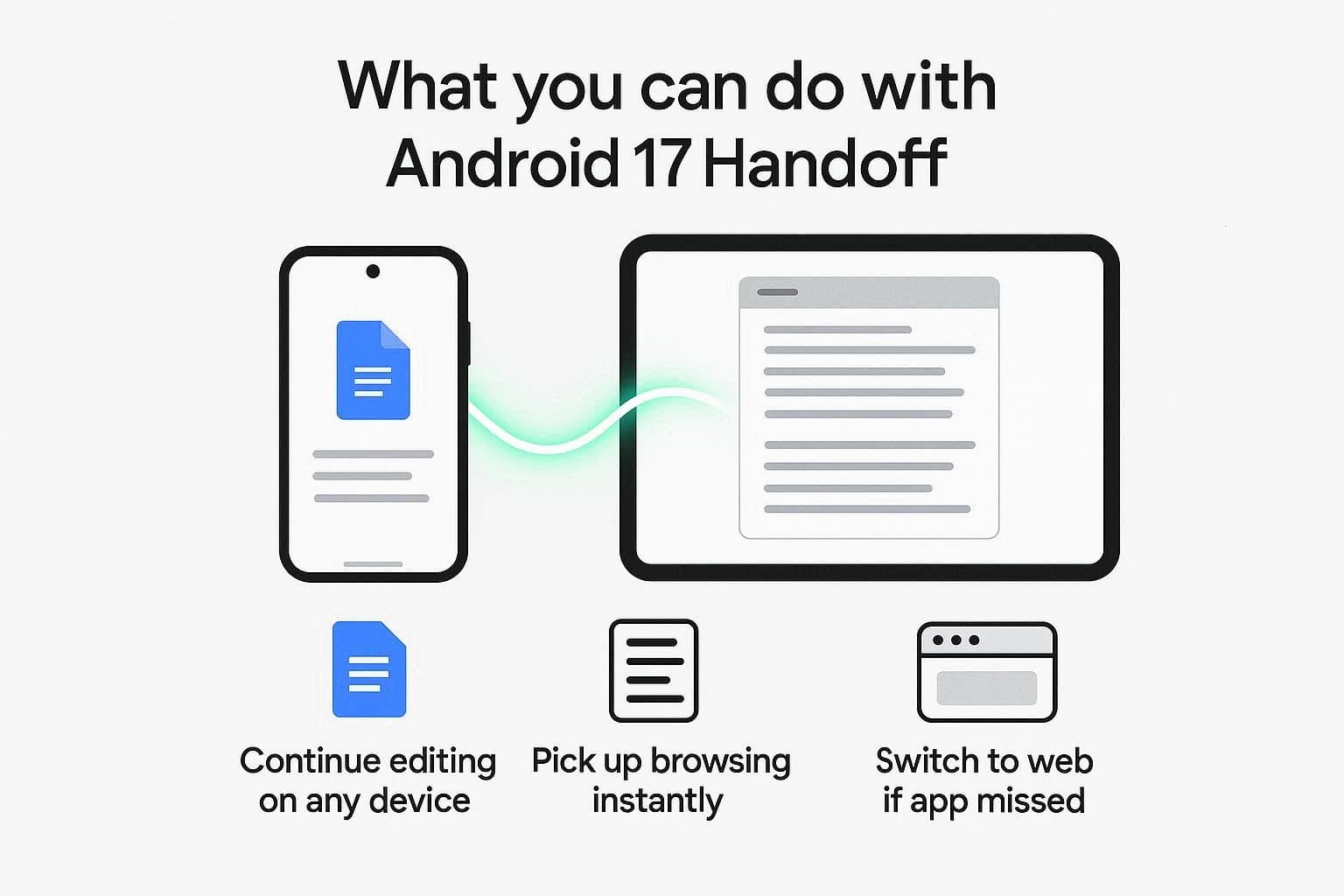
- Document Editing: If you're working on Google Docs on the go and then sit beside the Android tablet at home, the prompt will appear in your taskbar. As you tap it, you can open the exact same document with all the changes intact to continue working on a larger display.
- Continuous Web Browsing: Let's say you are reading a long article on the phone, you can bounce that live web page to your tablet with the "Continue On" pop-up. The feature will mirror all your tabs and your exact scrolling position to save time on history navigation.
- Smart App Fallbacks: Users may overlook that the same app is not installed on both devices. The feature securely coordinates across devices in close proximity linked to the same user account. Hence, Android 17 automatically routes you to the official web app equivalent in your browser, ensuring the workflow never ends.
Devices Supported by Android 17 Handoff
While learning the key aspects, it's important to understand which devices can leverage the Android 17 multi-device feature. According to Android Headlines, compatibility can vary, and the feature might be available on all devices.
Samsung users still have to use the auto-hotspot feature, as the “Continue On” feature is incompatible; the same goes for Android Go devices. Hence, devices updating to Android 17, such as the Google Pixel 6 series, Pixel Tablet, and Android-powered Googlebooks, will support the Android Handoff feature.
How to Enable Android 17 Handoff?
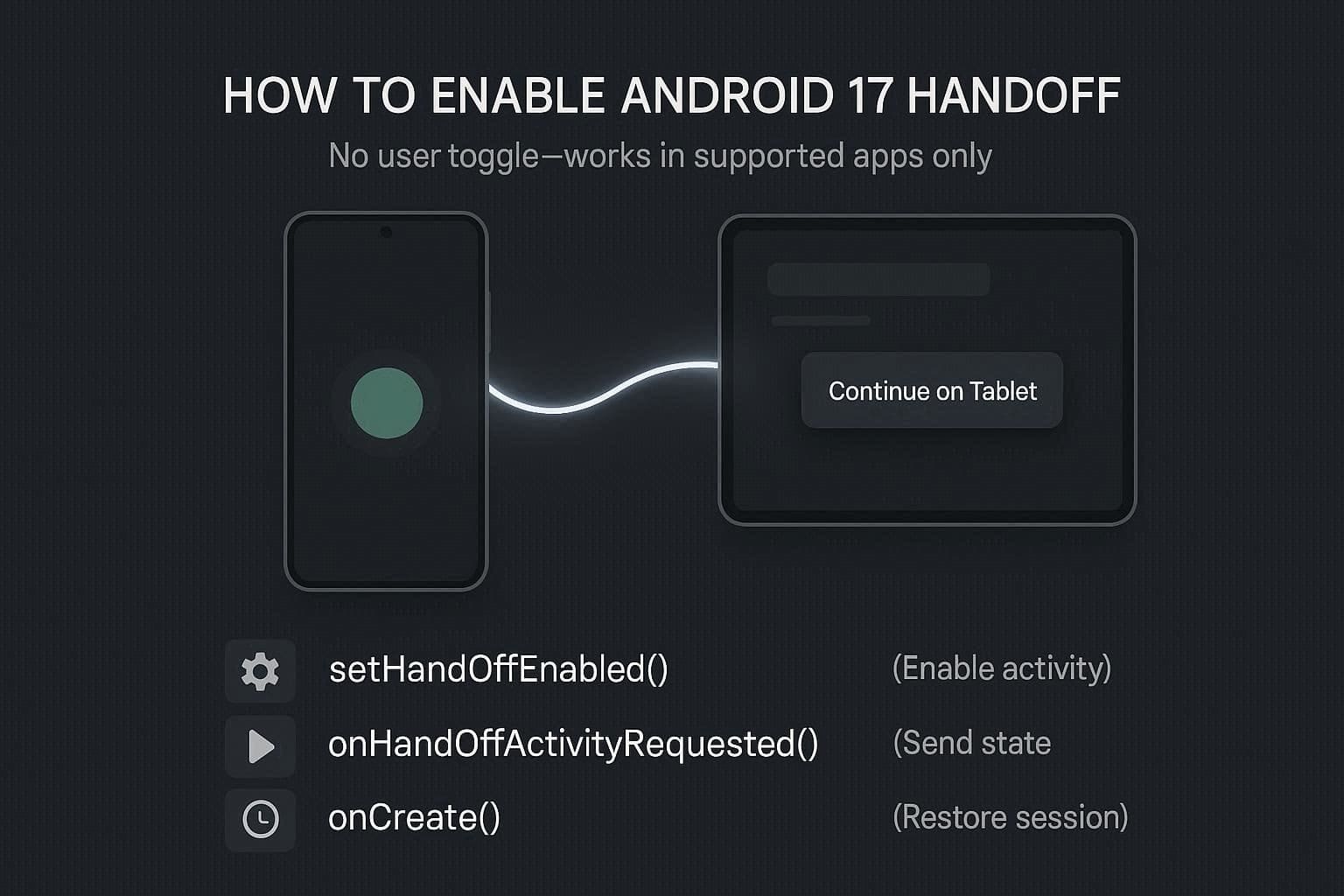
On Android 17, there isn’t a special button to enable the Android Handoff feature yet. Instead, the feature works at the system level and only appears in the app that officially supports it. For users, you mainly need Android 17 on nearby devices and compatible apps, while developers must enable the feature in their app’s code.
Since Android 17 is still in beta and phone makers use different interfaces, some brands may later add a visible Handoff setting. Nonetheless, if you are developing an app and want to enable Handoff, you need to set it up for each activity in your code. The Developer Android report has shared the overall workflow, so follow the listed scripts to know it in detail:
- You have to use the “setHandoffEnabled()” for every activity that should support Handoff.
- Implement “onHandoffActivityRequested()” and return a “HandoffActivityData” object with details like IDs, cursor location, and scroll position.
- In “onCreate()” or app setup, detect the incoming Handoff data and rebuild the same screen and state.
After the setup, Android automatically shows Handoff suggestions when compatible nearby devices are detected.
Part 3. Common Confusion About Android 17 Handoff
Regarding the cross-device continuity Android Handoff features, users have multiple misconceptions. Hence, this section has resolved the 3 common ones asked frequently on platforms like Reddit:

Does Everything Transfer Automatically?
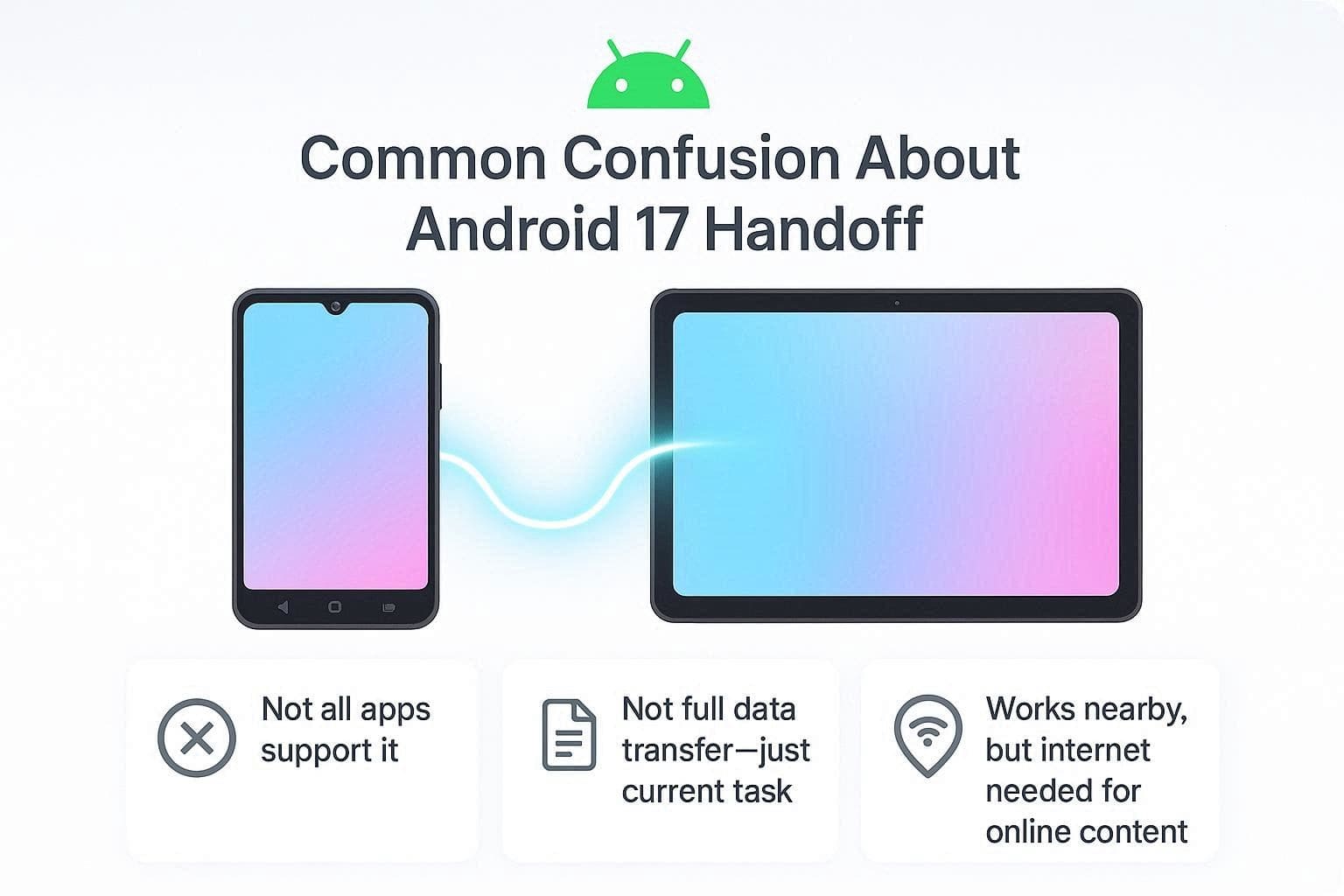
Handoff only works for apps and screens that developers specifically enable; it doesn't automatically transfer everything. Each app must mark a certain screen as "handoff-enabled" using the code, and only those screens can be moved to another device. Hence, if an app or screen doesn't support it, you won't see the "Continue on this device" pop-up at all.
Is It the Same as Full Data Transfer?
This feature only continues a specific task, not your whole phone or app data. Simply, it lets you move “What you are doing” to another device and keeps the same screen and state. Thus, it doesn’t copy everything, and the same screen on the second device opens via a deep link to restore the saved state. In fact, the Telepolis report says that Google designed it to switch tasks, not for full backup or data transfer.
Does It Work Without the Internet?
The Android Handoff feature mainly works by using nearby connections, such as Bluetooth or Wi-Fi, and a Google Account. Through this, the devices can communicate with one another when they are close to each other to shift tasks.
Nonetheless, it's not completely offline: if a task requires an internet connection, the receiving device also needs a data connection. Here, you can take the web page as an example: loading online content requires an internet connection, but a device-to-device connection doesn’t.
Part 4. Use Data Transfer Tools When Handoff Isn’t Enough
Let’s say the Handoff cross-device continuity Android 17 wasn’t enough when you needed a complete migration solution. To understand why it fell short here and what the solution could be, this section has you sorted.
Why Handoff Is Not a Full Migration Tool
By default, the features are designed to continue one specific task to another device, not the entire device. Additionally, it moves the current screen or activity, not the app or system data.
Instead, it works on the app that developers explicitly support using the Handoff APIs, and it doesn’t copy settings, data, or apps like a migration tool. Hence, the feature only restores the current sessions, whereas migration sets up a new phone with all your data.
When to Use Full Transfer Tools
Since the Android Handoff feature is limited for migration, the following reasons highlight when you need a “Phone Transfer Tool.”
| Situation | Why Full Transfer is Needed |
|---|---|
| New Phone Setup | Copies everything (apps, accounts, settings, wallpapers, etc.) to the new device |
| Large Media Transfer | Moves big files like photos, videos, music, and documents |
| Selling An Old Phone | Creates a full copy so you can safely erase the old device |
| Switching Brands | Transfers data between different manufacturers using special tools |
| Full Backup | Saves everything as a recovery copy in case the phone is lost or damaged |
Use the One-Click Data Transfer Solution: Dr.Fone - Phone Transfer
When the Android 17 multi-device Handoff feature limits phone migration, tools like Dr.Fone - Phone Transfer step in. Since the tool is compatible with Android 16 and the latest iOS 26 version, its weekly updates will support Android 17 migration upon its release. Then users can share data between Android and iOS, or between iOS and Android, instead of relying on the Handoff tool.
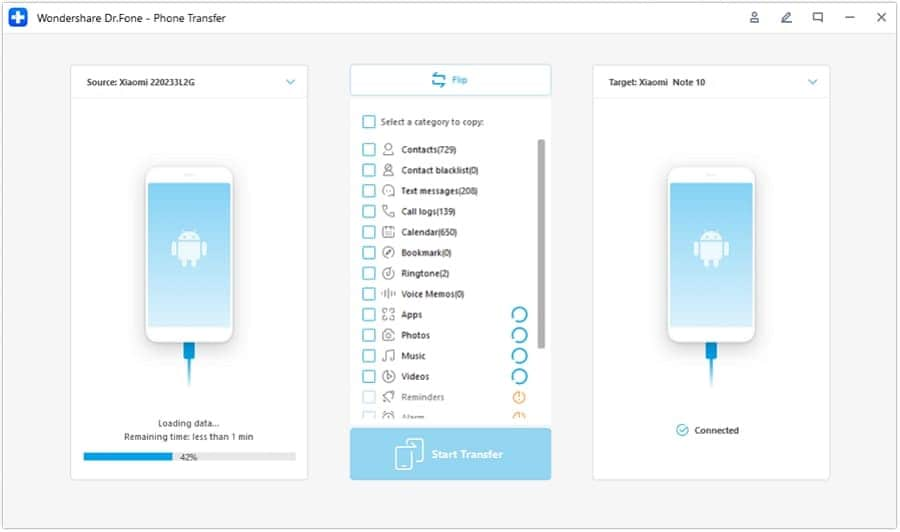
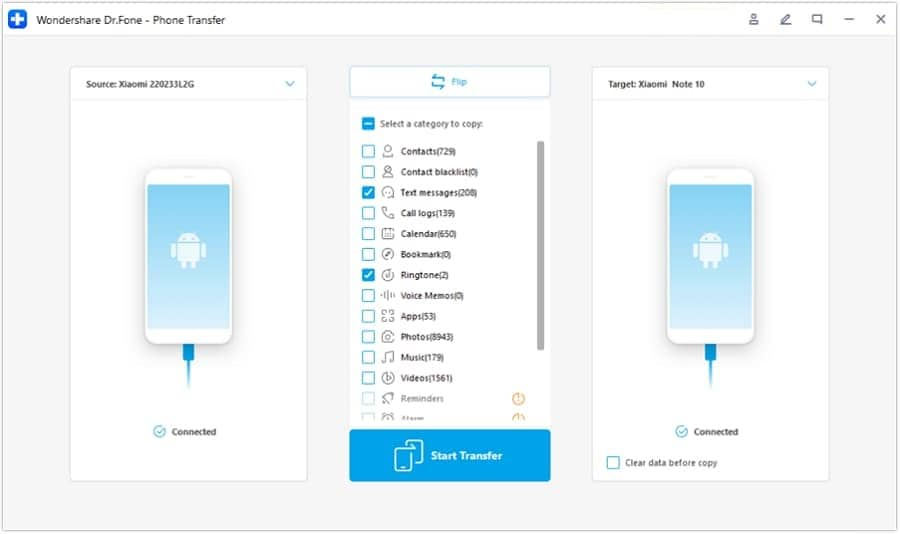
This phone transfer tool allows you to select the sender and receiver devices using the Flip icon to share 18+ data types. In this regard, you can choose the data in bulk and share contacts, messages, or photos that Handoff can’t. Regardless of the transfer direction, using this tool is seamless, and the data can be shared in 2-3 simple steps.
 Move data between iOS to Android and vice versa.
- Transfer contacts, SMS, photos, videos, music, and more types.
- Available with all phones with Android and iOS versions.
- Simple, click-through process.

How to Move the Data to Android 17 via Dr.Fone?
To know how you can use this tool upon the Android 17 release for data sharing, here is a detailed guide for you. In this section, the real-world test is performed using Android devices to determine whether the claims are true.
-
Step 1 Access the Dr.Fone Phone Transfer Solution
Locate the “Phone Transfer” tool on the Dr.Fone toolbox and use the “Flip” icon to choose the sender and receiver device.
-
Step 2 Flip Devices and Start the Data Transfer
Here, pick the data types, and press the “Start Transfer” button to let the tool move all data to Android 17 that Handoff can’t.




Part 5. Handoff vs Data Transfer on Android 17: Which One Do You Need?
Between the Android Handoff feature and the Dr.Fone Phone transfer tool, if you want to know which option you need, review the given table:
| Question / Need | Android 17 Handoff (“Continue On”) | Dr.Fone - Phone Transfer (Data Tool) |
|---|---|---|
| Main Purpose | Continue a current task on another device (same account) | Move data from one phone to another (old to new) |
| Typical Use Case | Pick up a supported app activity on a tablet after starting on a phone | New phone setup, cloning contacts, photos, messages, apps |
| What It Moves | Screen/activity state (what you’re doing right now) | Bulk data: contacts, messages, photos, videos, some app data |
| Devices Required | Two Android 17 devices in the same ecosystem/account | Two phones (Android/Android or Android/iOS) plus a PC and cables |
| Setup Needed | Built into Android 17; only needs supported apps | Install Dr.Fone on PC, and connect both phones |
| When You Use It | Many times per day while multitasking across phone/tablet | Occasionally, mainly when changing phones or doing a big copy |
| Internet Requirement | Local, nearby devices; online still needed if the content itself lives in the cloud | Often uses USB; no constant internet needed after the tool is downloaded |
| Replaces Your Old Phone? | No, the old device is still fully active | Yes, it can prepare you to retire or reset the old device after transfer |
| Best For | Seamless cross‑device work and media continuity | Full or near‑full migration of your personal data |
1. Android 17 Handoff is for task continuity
It allows users to continue a specific app activity from one device to another seamlessly using Bluetooth and Google Account sync. It does not transfer full data.
2. Dr.Fone - Phone Transfer is for full data migration
It supports bulk transfer of 18+ data types between Android and iOS devices, making it ideal for new phone setup, selling old phones, or switching brands.
Conclusion
The Android Handoff feature is still in beta, but this guide has uncovered reports and Android claims to explain what it is. So, explore the provided details to learn how to use and enable the “Continue On” feature to bounce the workflow back and forth across devices. Since the tool has limited data migration capabilities, experts suggest using transfer tools like Dr.Fone - Phone Transfer to migrate 18+ data types in bulk.
FAQ
-
1. Can you continue in incognito or private browsing mode?
No, the Android 17 Handoff feature doesn’t let you jump into the app's incognito or private browsing modes. -
2. What happens if the connection drops during a handoff?
If the connection drops before tapping, the shortcut disappears, and nothing changes on the original device. -
3. Can you turn off “Continue On” completely?
Yes, you can turn off the “Continue On” feature, and it only works if you opt in per app.
 Add Wondershare Dr.Fone as a preferred source on Google