Move contacts, messages, photos, videos, app data, and more between iOS and Android.

 100% Security Verified | No Subscription Required | No Malware

 :
: 
 ChatGPT
 Perplexity
 Gemini
 Claude
 Grok
Grok
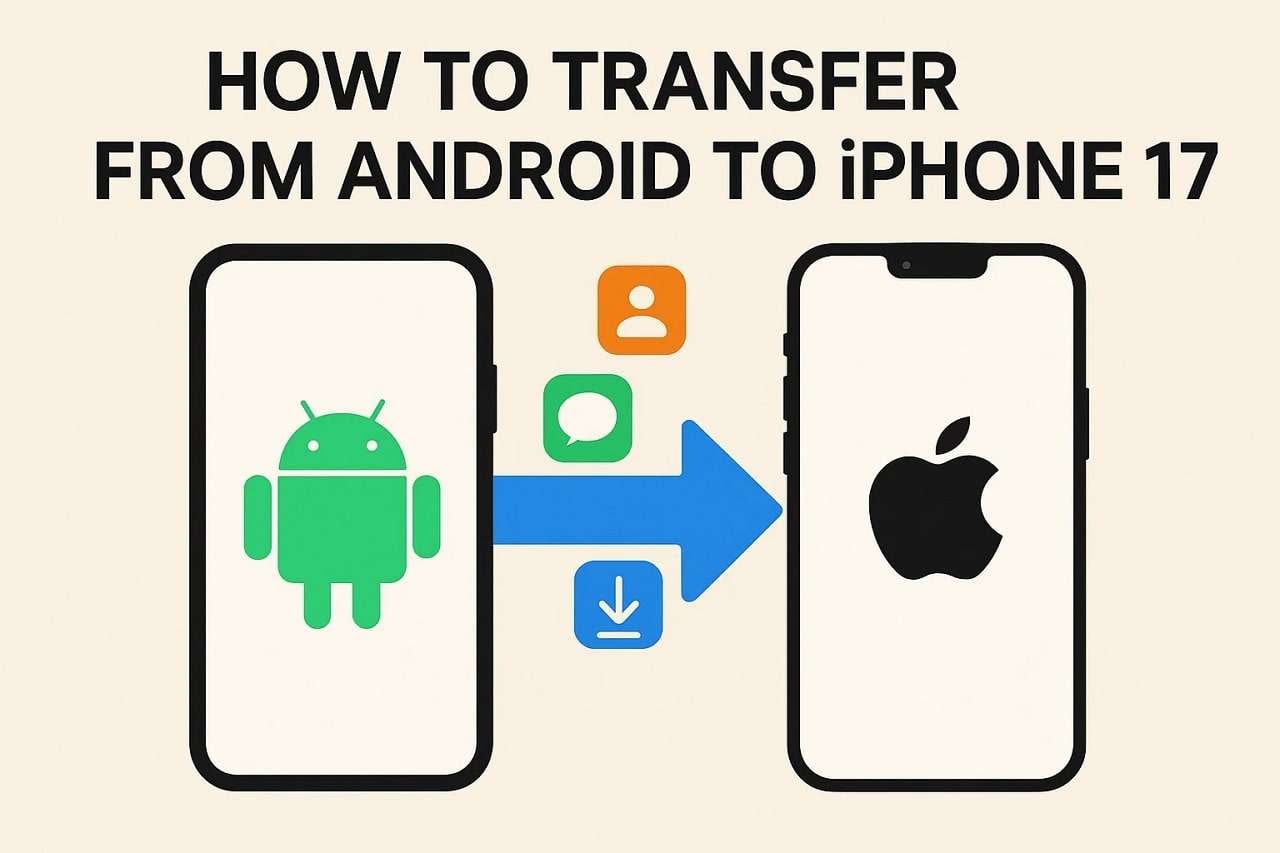
Upgrading to the new iPhone 17 is an exciting experience, but the thought of moving all your precious data from an Android device can be daunting. The process of ensuring contacts, photos, messages, and apps make a safe journey can feel overwhelming. Many users find themselves asking, "What's the best way to transfer my data from Android to iPhone 17 without leaving anything important behind?"
Fortunately, the migration process has become significantly more streamlined. In this comprehensive guide for 2026, we explore six distinct methods to help you seamlessly migrate from Android to your new iPhone 17. From Apple's own solution to powerful third-party tools and simple manual transfers, you'll find a method perfectly suited to your technical comfort and data transfer needs, ensuring a smooth transition to the iOS ecosystem.
In this article
- Part 1. Using Move to iOS: Apple's Official Method
- Part 2. One-Click Transfer from Android to iPhone 17 [Most Efficient]
- Part 3. Migrating with Cloud Services Like Google Drive
- Part 4. Using Instant Messaging Apps for Quick File Transfers
- Part 5. Transferring Individual Files via Email
- Part 6. Moving Larger Files with File Sharing Services
Part 1. Using Move to iOS: Apple's Official Method
Apple provides a free, built-in solution called 'Move to iOS' to help users migrate from Android to iPhone 17. This application creates a secure, direct Wi-Fi connection between your two devices to transfer essential data like contacts, message history, photos, videos, and calendars. It's designed to be used during the initial setup of your new iPhone, making it a convenient first option. For a successful transfer, ensure both devices are connected to power and are close to each other.
Step 1 Initiate the Transfer on Your iPhone
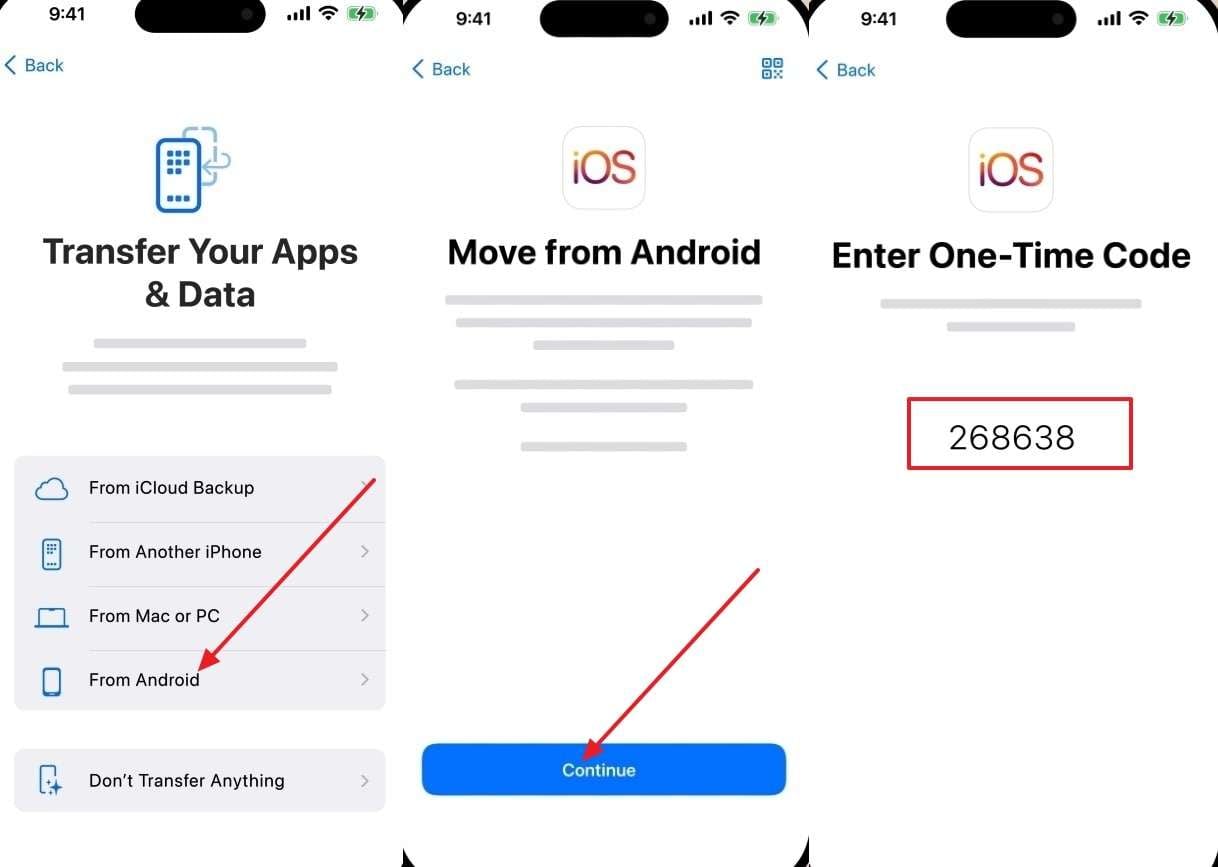
During the setup process of your new iPhone 17, you will reach the "Transfer Your Apps & Data" screen. Select the "From Android" option. Tap "Continue" to display a one-time code or a QR code on your iPhone's screen. This code will be used to pair your devices.
Step 2 Connect and Select Data on Your Android
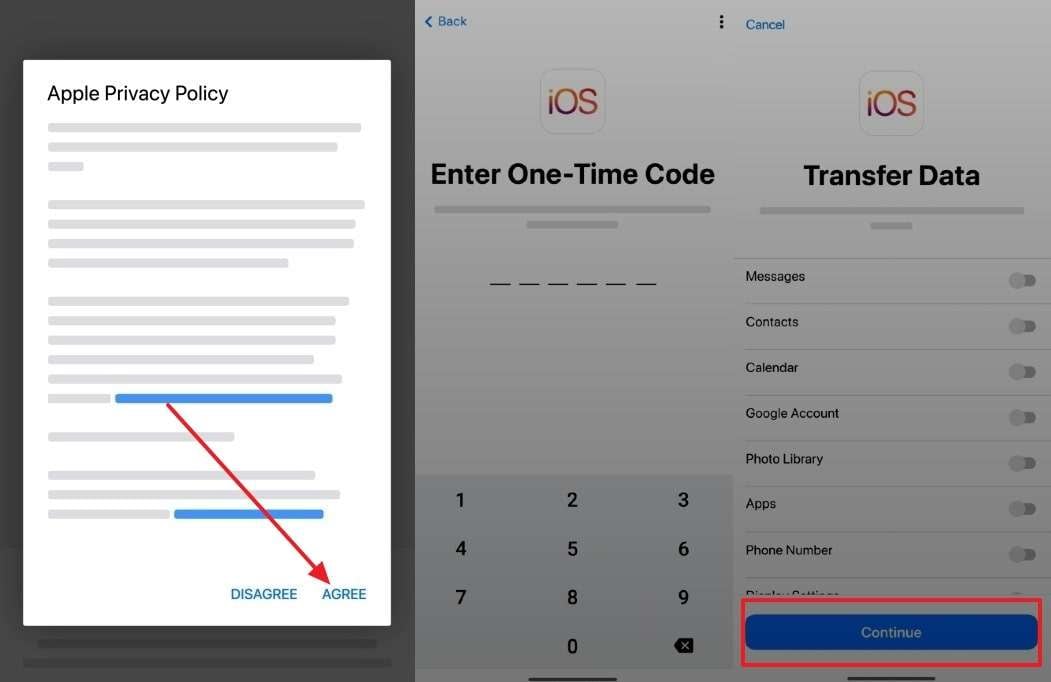
On your Android device, open the Move to iOS app, agree to the terms, and proceed until you reach the screen asking for the code. Enter the six or ten-digit code from your iPhone. A "Transfer Data" screen will appear, allowing you to select the content you wish to move, such as contacts, messages, photos, and more. Select your data and tap "Continue" to begin the migration.
Limitations of Move to iOS
- The transfer must be performed during the initial iPhone setup. If your iPhone is already set up, you'll need to erase it and start over to use this feature.
- It can be slow, especially with large amounts of data, and is prone to interruptions if the Wi-Fi connection is unstable.
- Not all data types are supported. Certain app data, call logs, and files not stored in standard folders may not be transferred.
- WhatsApp data transfer is supported but must be initiated before you activate WhatsApp on your new iPhone.
Part 2. One-Click Transfer from Android to iPhone 17 [Most Efficient]
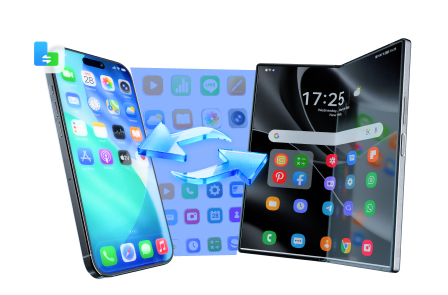
For a more comprehensive and flexible solution to copy data from Android to iPhone 17, a professional tool like Dr.Fone - Phone Transfer is highly recommended. It overcomes the limitations of free methods by offering a stable, fast, and extensive transfer process. This tool supports over 8000 device models and is fully compatible with the latest Android 15 and iOS 26, ensuring a smooth transition regardless of your device.
Dr.Fone allows you to transfer more than 12 file types, including photos, videos, contacts, messages, and even specific app data that Move to iOS might miss. The transfer is done via a secure USB connection to your computer, which eliminates the risk of Wi-Fi instability and significantly speeds up the process. You can perform the transfer at any time, not just during the initial iPhone setup, and you even have the option to clear data on the target device before copying.
 Move data between iOS to Android and vice versa.
- Transfer contacts, SMS, photos, videos, music, and more types.
- Available with all phones with Android and iOS versions.
- Simple, click-through process.
Guide on How to Move Android Data to iPhone 17 with Dr.Fone - Phone Transfer
Follow these simple steps to migrate your data from Android to your new iPhone 17 using the Dr.Fone toolkit.
Step 1 Launch Dr.Fone and Select Phone Transfer
Begin by launching the Wondershare Dr.Fone toolkit on your computer. From the main toolbox, select the "Phone Transfer" module. Connect both your Android phone and your new iPhone 17 to the computer using their respective USB cables.

Step 2 Set Source and Target Devices
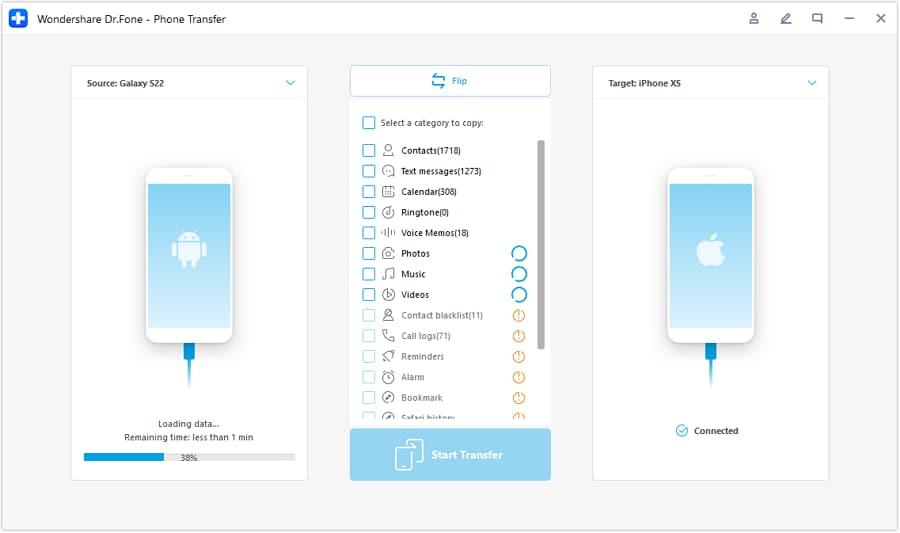
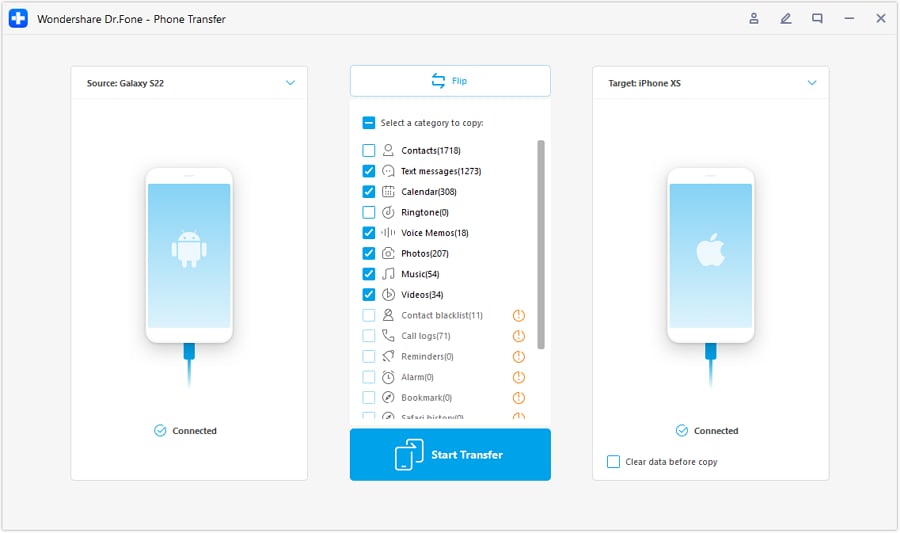
The software will automatically detect both devices. Ensure your Android phone is set as the "Source" device on the left and your iPhone 17 is the "Target" device on the right. If they are in the wrong order, simply click the "Flip" button to switch their positions.
Step 3 Select Data and Start the Transfer
A list of transferable data types will be displayed in the center. Check the boxes next to the data categories you want to move (e.g., Contacts, Photos, Music). Once you've made your selection, click the "Start Transfer" button to begin the migration process. Keep both phones connected until the transfer is complete.
Why Choose Dr.Fone – Phone Transfer
- Cross-Platform Simplicity: Effortlessly move data between any two devices, whether it's Android to iOS, iOS to Android, or between devices on the same OS, all with a single click.
- Stable and Fast: By using a computer and USB connection, it provides a more stable and significantly faster transfer than wireless methods, which are prone to disconnection.
- Universal Compatibility: It is not restricted to specific brands like Samsung Smart Switch or Apple's Move to iOS. It works with over 8000+ smartphones from all major manufacturers.
- No Setup Restrictions: Unlike Move to iOS, you can use Dr.Fone to transfer data at any time, even long after you've set up your new iPhone 17.
- Extensive Data Support: It supports a wider range of data types than most free solutions, ensuring a more complete migration of your digital life without any data loss.
Part 3. Migrating with Cloud Services Like Google Drive
Using a cloud service like Google Drive is another effective way to transfer info from Android to iPhone 17, especially for files, photos, and documents. Google Drive offers 15GB of free storage, which can be sufficient for essential backups. This method involves uploading your data from your Android device to the cloud and then downloading it onto your new iPhone 17.
Step 1 Upload Files from Android to Google Drive
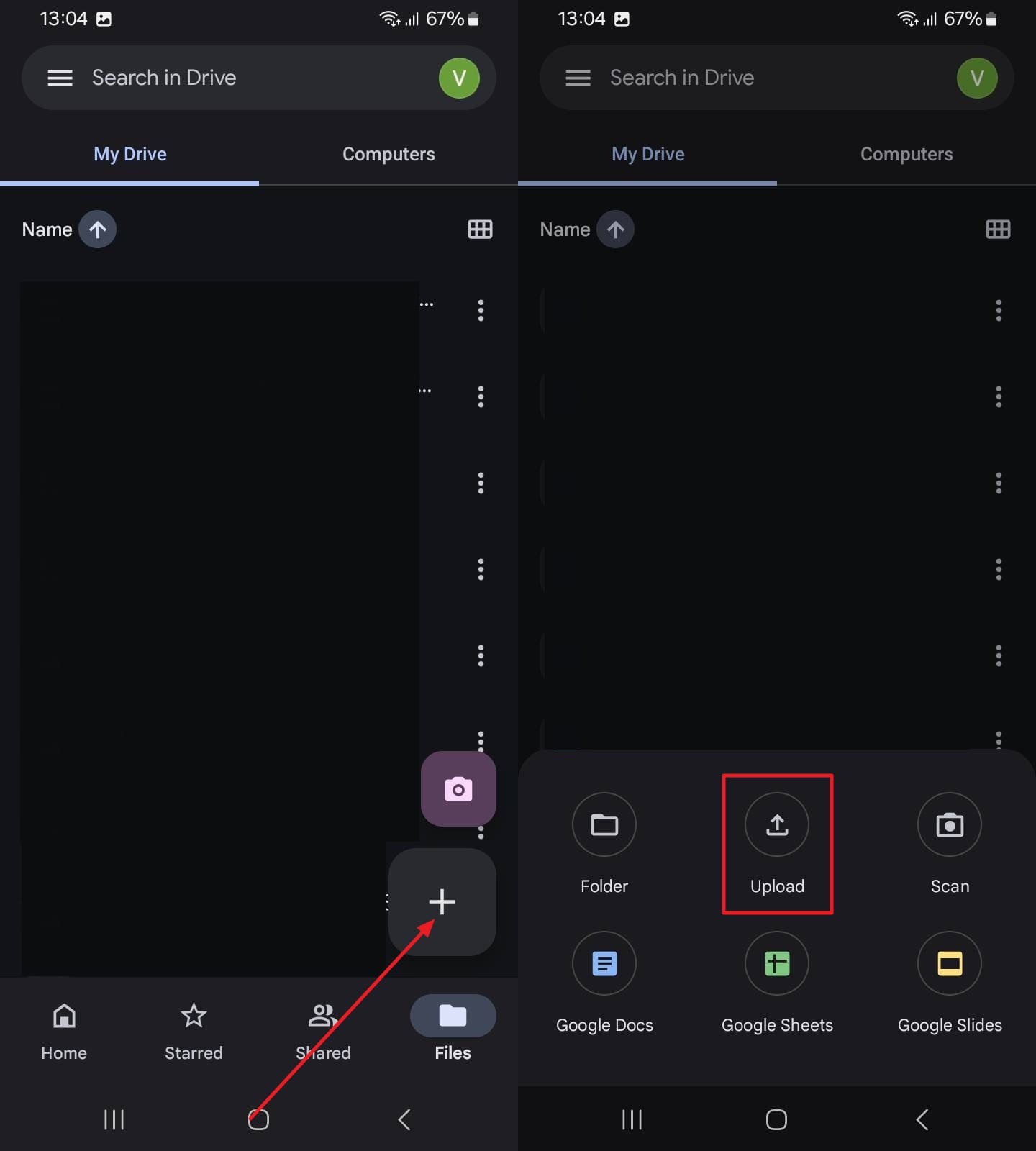
On your Android phone, open the Google Drive app. Tap the '+' icon and select "Upload." Browse your phone's storage and select the photos, videos, documents, and other files you want to transfer. Wait for the upload to complete.
Step 2 Access and Download on iPhone 17
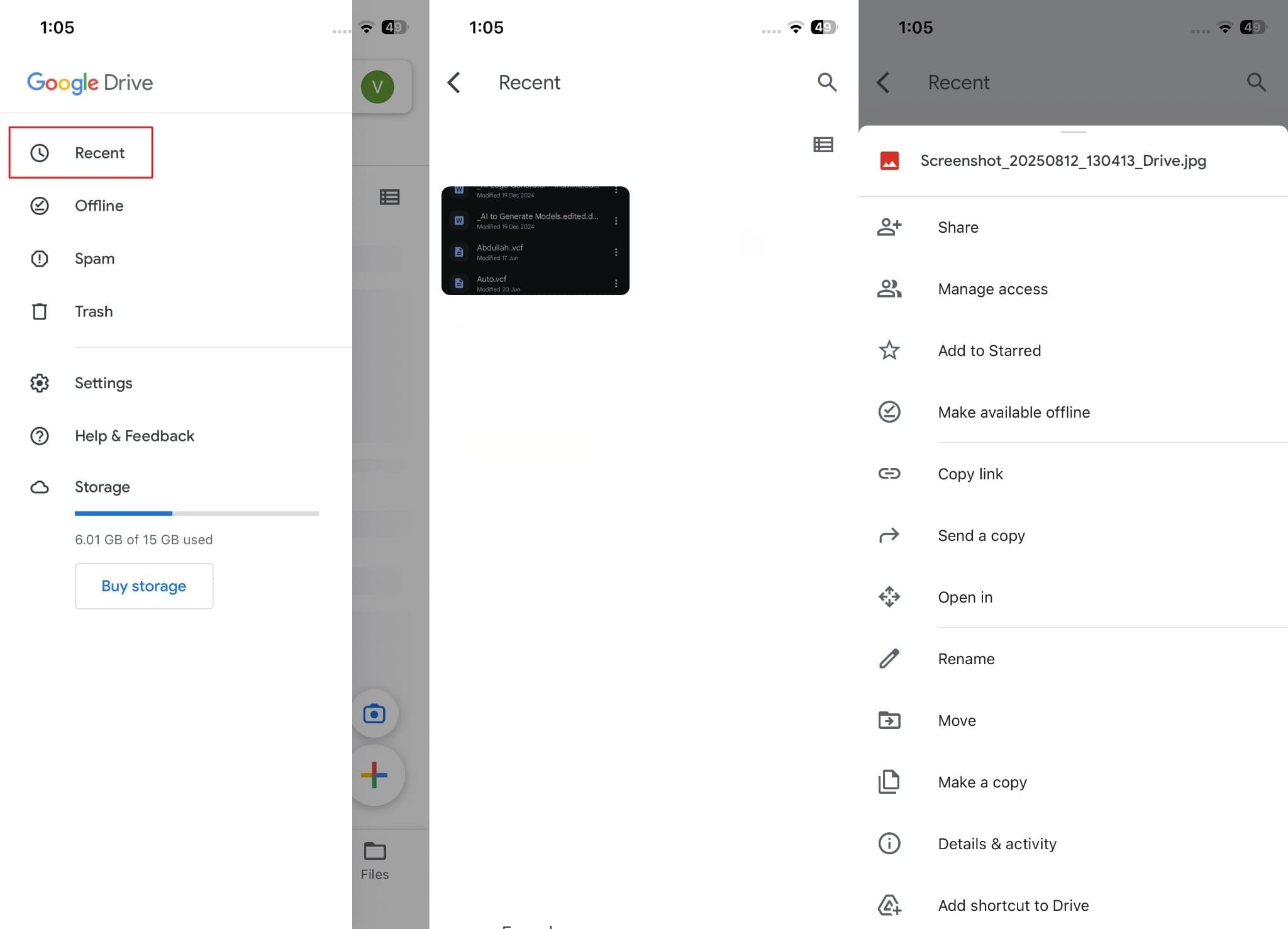
Install and open the Google Drive app on your new iPhone 17. Sign in with the same Google account. You will see all your uploaded files. You can open files directly or tap the three-dot menu next to a file and select "Open in" or "Send a copy" to save it to your iPhone's local storage or another app.
Limitations of Cloud Services
- This method is heavily dependent on your internet connection speed for both uploading and downloading.
- Free storage is limited (15GB for Google Drive). Transferring large amounts of data may require a paid subscription.
- It's a manual process best suited for files and media. It cannot transfer data like contacts, messages, or app settings directly.
Part 4. Using Instant Messaging Apps for Quick File Transfers
For transferring a handful of photos, videos, or documents, instant messaging apps like WhatsApp can be a surprisingly quick solution to copy data from Android to iPhone 17. With support for files up to 2 GB, you can easily send media to a friend or even to yourself (if you have two accounts or use a trusted contact) and then download it on the new device.
Step 1 Send Media from Your Android Device
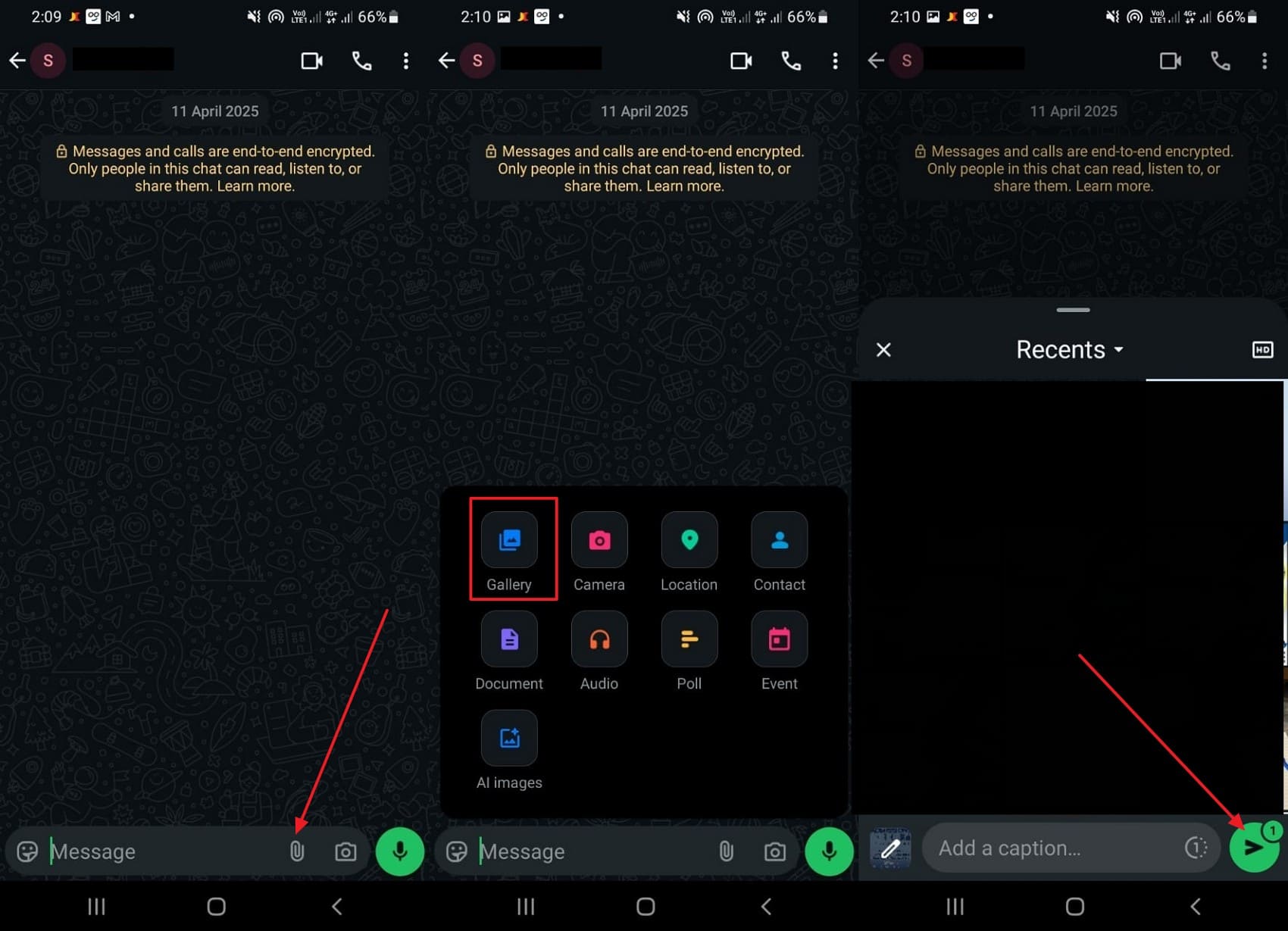
Open a chat in WhatsApp on your Android phone. Tap the paperclip (attachment) icon, choose "Gallery" for photos and videos or "Document" for other files. Select the files you want to share and tap the send icon.
Step 2 Save the Media on Your iPhone 17
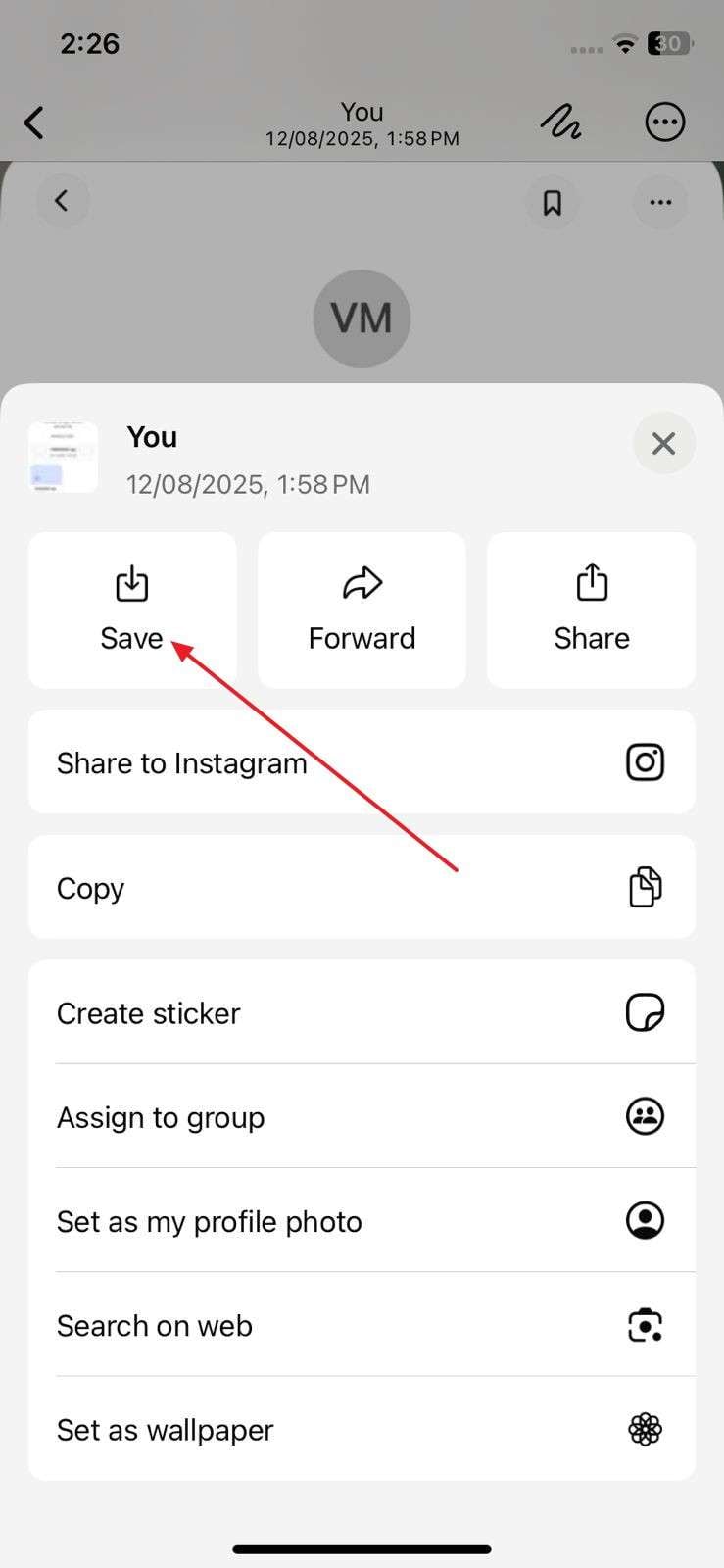
On your iPhone 17, open the same WhatsApp chat. Tap on the received photo or video. Once it opens, tap the "Share" icon in the bottom-left corner and select "Save" to download it to your Photos app.
Limitations of Messaging Apps
- This method is not suitable for bulk transfers; it's designed for sharing a few files at a time.
- WhatsApp and other messaging apps compress images and videos by default, which can lead to a loss in quality unless you send them as documents.
- There is a file size limit (2 GB on WhatsApp), which may not be sufficient for large video files.
Part 5. Transferring Individual Files via Email
Email remains a classic and reliable method for transferring a small number of important files, such as documents, contacts (as vCard files), or a few photos. To make the transfer from Android to iPhone 17, you can simply email the files to yourself from your Android device and then open the email on your new iPhone. Gmail, for example, allows attachments up to 25 MB.
Step 1 Compose and Send an Email from Android
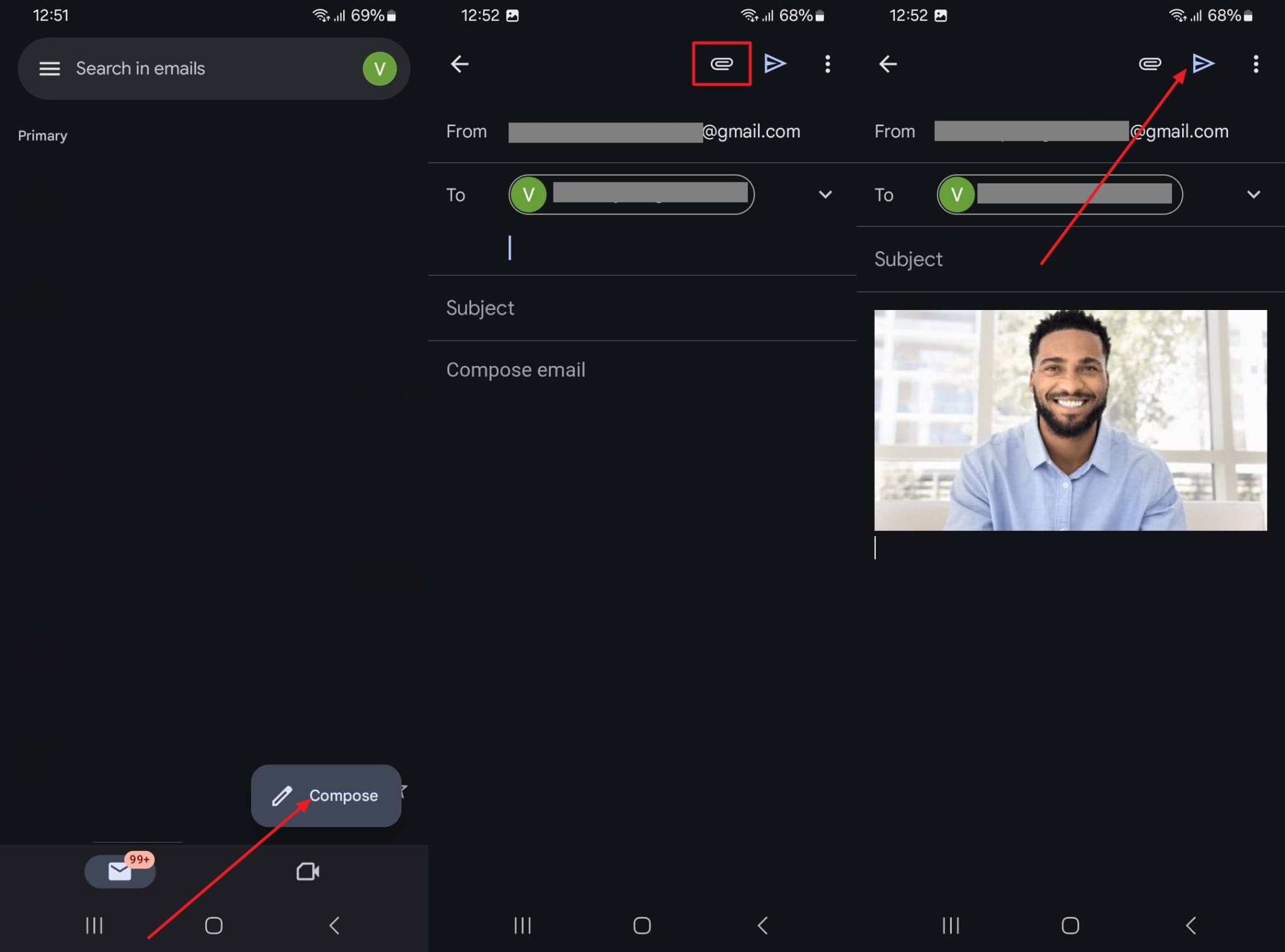
Open your email app (like Gmail) on your Android phone. Tap "Compose," enter your own email address in the "To" field, and tap the attachment icon to select the files you want to send. Once attached, hit the "Send" icon.
Step 2 Open and Save the Attachment on iPhone 17
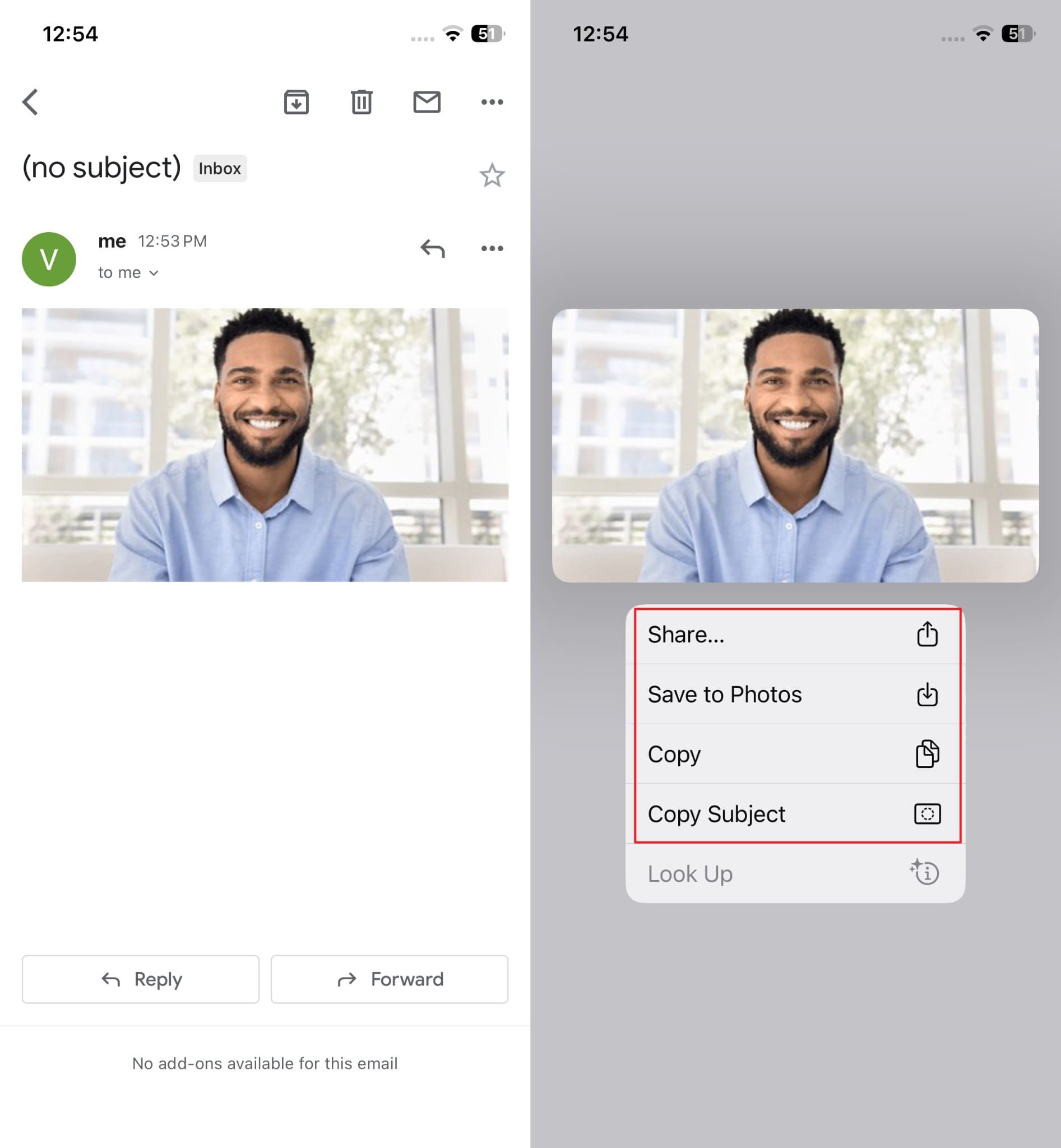
On your iPhone 17, open the Mail app and sign in to the same email account. Open the email you just sent to yourself. Tap and hold the attachment to bring up the share sheet, then select an option like "Save to Files" or "Save Image" to store it on your device.
Limitations of Email Transfer
- There's a strict file size limit for attachments, typically around 25 MB, which makes it unsuitable for videos or large collections of photos.
- This method is tedious and impractical for transferring more than a few files. It is not a solution for migrating your entire phone's data.
Part 6. Moving Larger Files with File Sharing Services
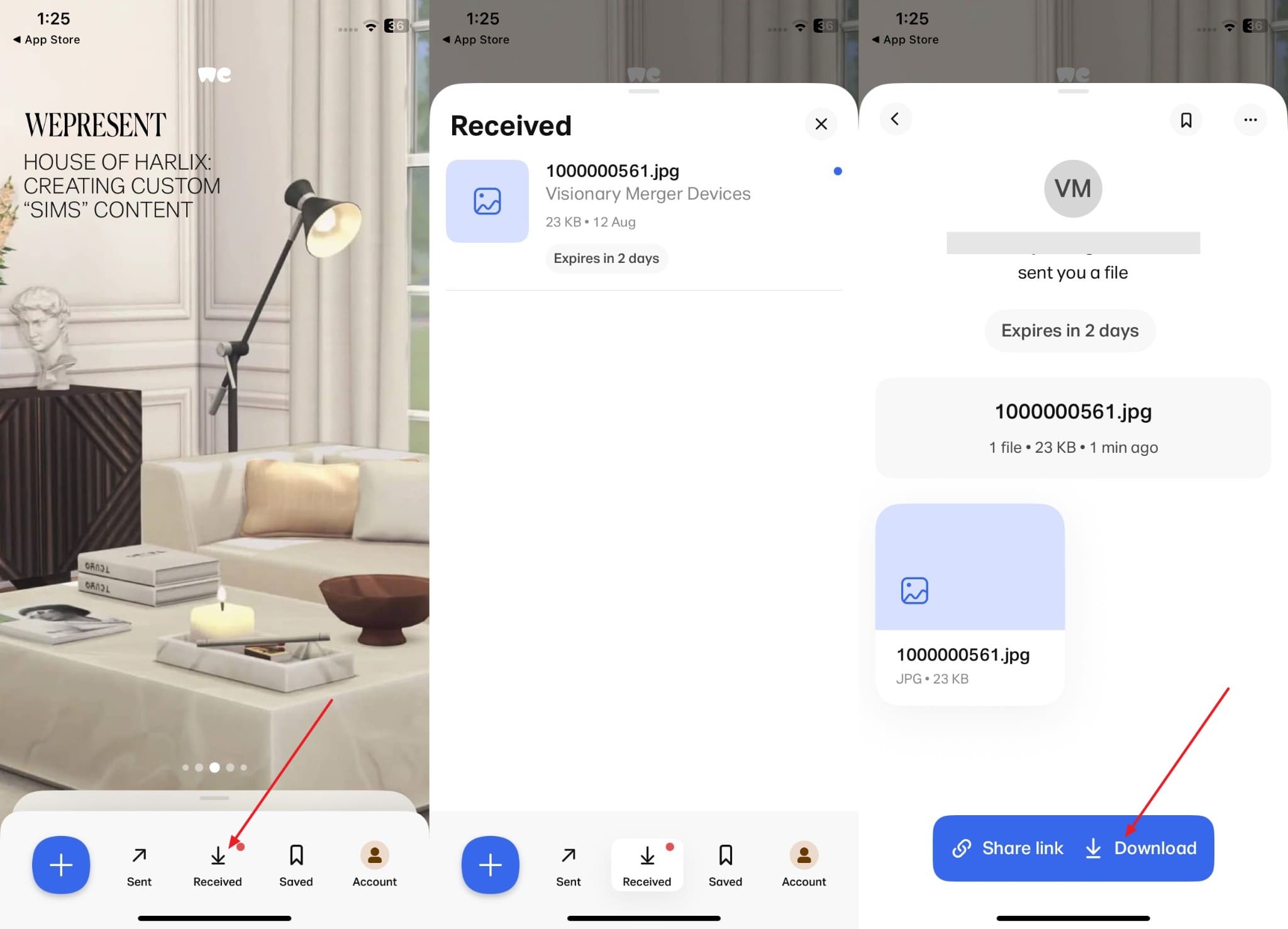
For files that are too large for email, services like WeTransfer offer a convenient way to move data from Android to iPhone 17. The free version of WeTransfer allows you to upload files up to 2 GB and share them via a simple download link. This is an excellent option for transferring large videos, photo albums, or project folders without needing to sign up for an account.
Step 1 Upload Files and Create a Link on Android
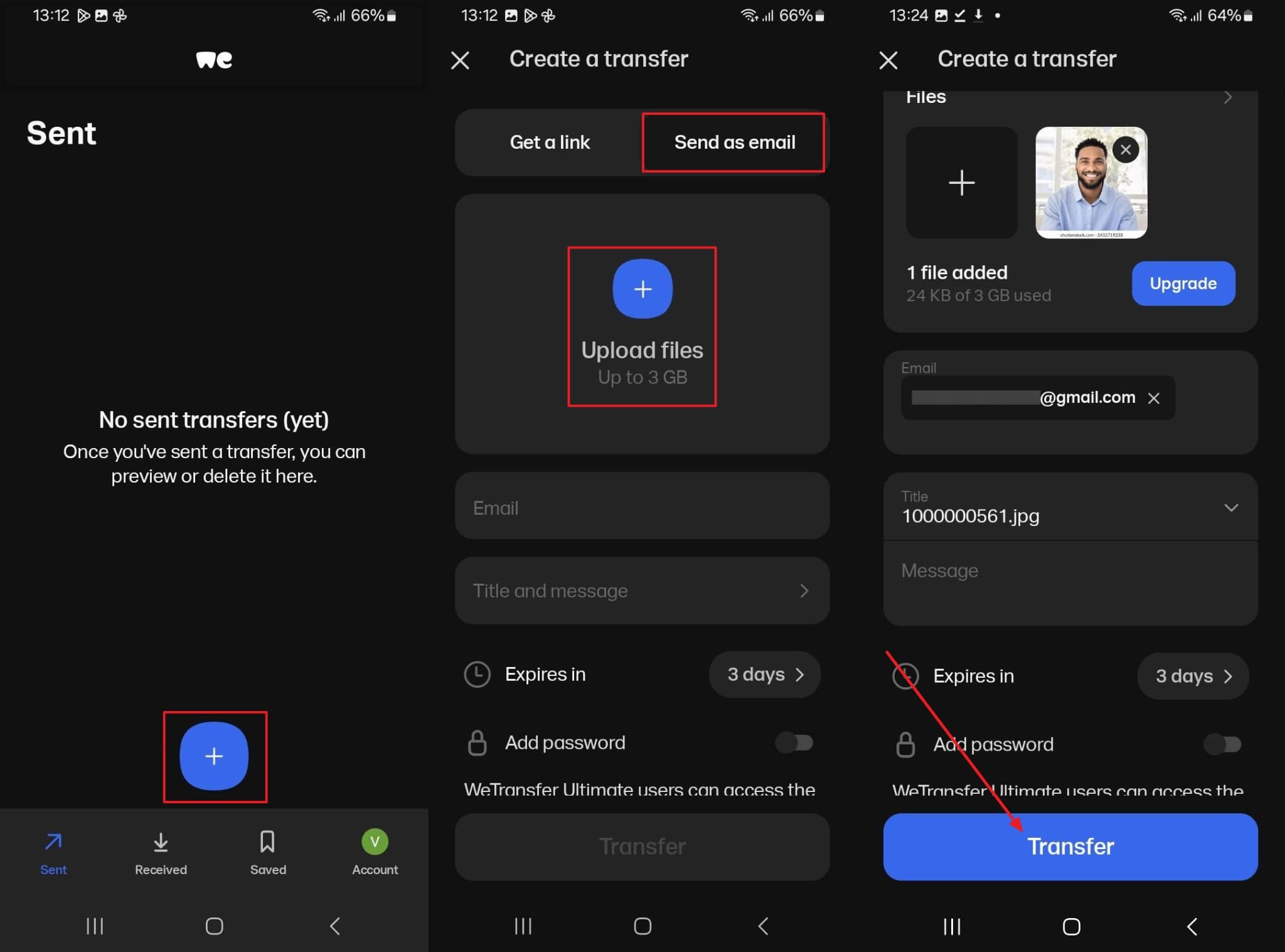
Open the WeTransfer app or website on your Android device. Tap the '+' icon to upload your files. After selecting your files, choose the option to get a transfer link. Once the upload is complete, copy the generated link.
Step 2 Download Files on iPhone 17
On your iPhone 17, open the WeTransfer link in a web browser (you can send the link to yourself via message or email). The download page will appear. Tap the "Download" button to save the files to your iPhone, which will typically be stored in the Files app.
Limitations of File Sharing Services
- Free versions have limitations on file size (e.g., 2 GB for WeTransfer) and the download links expire after a set period (usually 7 days).
- Like cloud services, this method relies on your internet speed and is not designed for transferring system data like contacts or messages.
Conclusion
In conclusion, this guide has provided six viable methods to transfer from Android to iPhone 17, ensuring you can choose the one that best fits your needs. While manual methods like cloud storage and email are suitable for a few files, Apple's Move to iOS offers a basic, integrated solution for initial setup. However, for a truly comprehensive, fast, and flexible migration without data loss, a dedicated tool is superior.
We highly recommend Dr.Fone - Phone Transfer as the ultimate solution. Its ability to transfer 12+ data types across over 8000 devices at any time makes it the most powerful and reliable choice for a seamless transition to your new iPhone 17. Download it today to experience the easiest phone transfer process available.




FAQ
1. What is the fastest way to transfer everything from Android to iPhone 17?
The fastest and most comprehensive method is using a dedicated software tool like Dr.Fone - Phone Transfer. It uses a stable USB connection to move a wide variety of data types in a single click, which is significantly faster and more reliable than wireless methods like Move to iOS or manual cloud uploads.2. Can I transfer my WhatsApp chats from Android to iPhone 17?
Yes, you can. Apple's Move to iOS app now supports WhatsApp chat history migration, but it must be done during the initial setup of the iPhone. For a more flexible solution that can be used anytime, Wondershare Dr.Fone offers a dedicated WhatsApp Transfer tool that handles chats, attachments, and more between Android and iOS seamlessly.3. Will my apps be transferred from Android to iPhone 17?
No, apps themselves cannot be directly transferred from Android to iOS because they are built for different operating systems. However, when you use the Move to iOS app, it will identify the free apps you have on your Android device that are also available on the Apple App Store and suggest you download them during the setup process. Paid apps will need to be repurchased.4. Is it safe to use third-party tools to migrate data to my new iPhone?
Yes, it is safe as long as you use reputable and well-known software. Tools like Dr.Fone - Phone Transfer are developed by established companies and prioritize data security. They use a direct, local connection between your devices and computer, meaning your data is never uploaded to an online server, ensuring your privacy is protected throughout the process.
 Add Wondershare Dr.Fone as a preferred source on Google