Move contacts, messages, photos, videos, app data, and more between iOS and Android.

 100% Security Verified | No Subscription Required | No Malware

 :
: 
 ChatGPT
 Perplexity
 Gemini
 Claude
 Grok
Grok
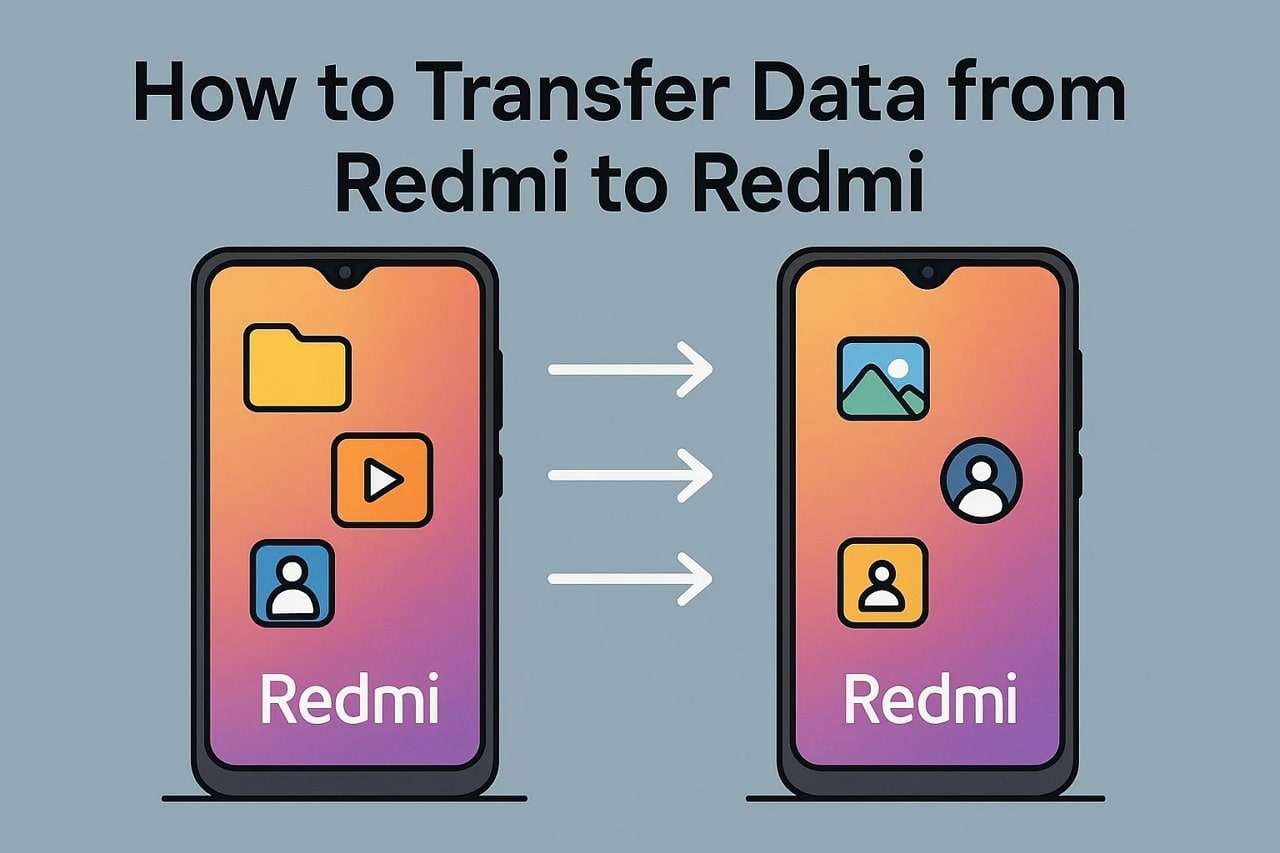
Wondering how to transfer data from Redmi to Redmi when switching to a brand-new Xiaomi phone in 2026? Migrating your digital life can seem daunting, but during the Xiaomi initial setup data transfer process, you can easily move contacts, photos, applications, and crucial system files without losing a single byte of important information.
The most straightforward and widely recommended method is utilizing Xiaomi’s official Mi Mover app, which leverages Wi-Fi Direct technology to seamlessly copy data without requiring mobile internet access. However, for users seeking faster speeds or cross-platform compatibility, leveraging third-party solutions like Dr.Fone, ShareMe, cloud backup systems, or direct PC transfers can effectively complete your redmi to redmi data transfer. Below, we break down every method so you can choose the perfect fit for your workflow.
In this article
- Part 1. How to Transfer Data from Redmi to Redmi with Mi Mover
- Part 2. Use Dr.Fone - Phone Transfer for a One-Click Redmi to Redmi Data Transfer
- Part 3. Try ShareMe or Other File-Sharing Apps to Transfer Data from Redmi to Redmi
- Part 4. How to Transfer Data from Redmi to Redmi Using Cloud/Local Storage
- Part 5. How to Transfer Files from Redmi to Redmi via PC [Manual]
- Part 6. Explore Quick Share to Transfer Files from Redmi to Redmi
- Part 7. Try Email to Perform Quick Data Transfer from Redmi to Redmi
- Part 8. Which Is the Best App to Transfer Data from Redmi to Redmi
Part 1. How to Transfer Data from Redmi to Redmi with Mi Mover
Mi Mover is Xiaomi’s built-in official utility designed specifically to solve how to transfer data from Redmi to Redmi. As a staple during the Xiaomi initial setup data transfer process, this native app empowers users to securely migrate applications, contacts, call logs, photos, high-resolution videos, and miscellaneous files straight from the legacy device to the new handset.
The core advantage of Mi Mover lies in its reliance on Wi-Fi Direct. By creating an isolated local network, the transfer process operates entirely independently of external mobile data or public internet access. This direct device-to-device bridge guarantees high-speed transfers while keeping sensitive personal information inherently secure and untethered from cloud vulnerabilities.
If you're wondering how to properly initiate this built-in protocol, follow the exact setup sequence detailed below:
-
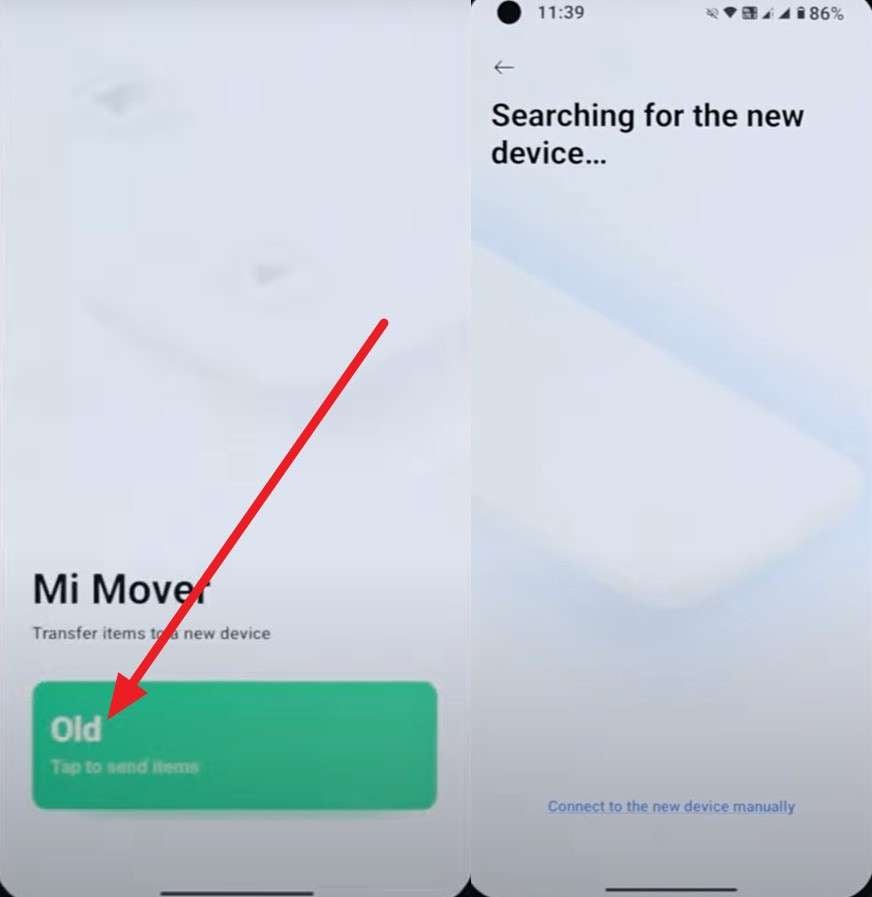
Step 1 Install and Initiate on the Legacy Device
Ensure Mi Mover is installed on both Redmi smartphones. On your older device, launch the app and tap the "Old" button. You must grant the necessary system permissions when prompted. The device will then automatically begin scanning its proximity for the new phone.
-
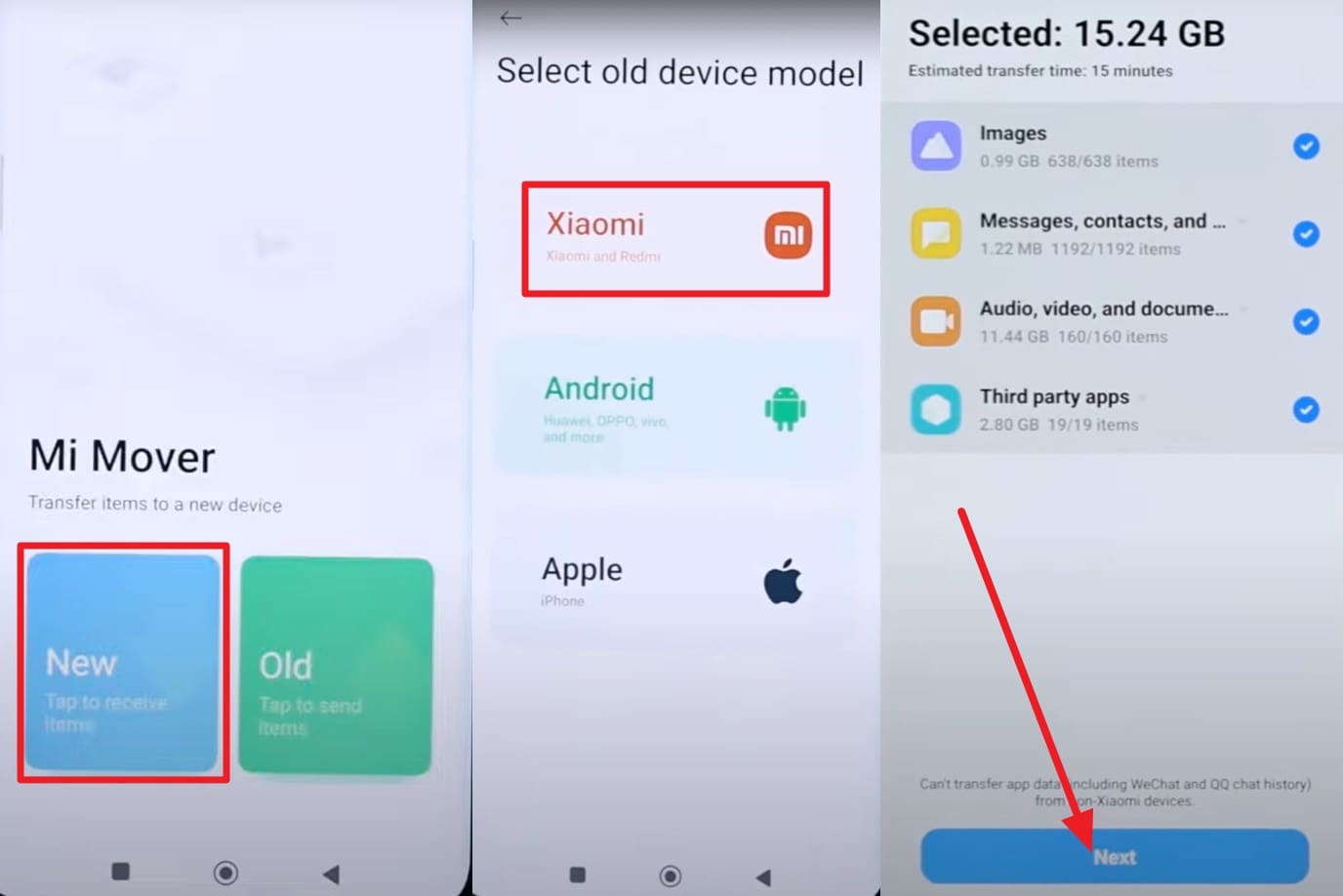
Step 2 Connect and Execute the Data Migration
Moving over to the new Redmi device, select the "New" button, followed by the "Xiaomi/Redmi" category. If prompted to confirm the installation, select the "Installed" parameter. The older device's avatar will subsequently appear on your new screen. Select the specific data categories you wish to clone, tap "Next," and finalize by hitting "Send."
Known Limitations of Mi Mover
- Mi Mover is strictly constrained to the Xiaomi ecosystem, meaning it only bridges Xiaomi, Redmi, or MIUI-powered hardware.
- App migrations can occasionally crash or corrupt if the two devices are operating on significantly different iterations of MIUI ROMs.
When to Use Mi Mover During Xiaomi Initial Setup
For the vast majority of Xiaomi consumers, migrating data happens instantly upon unboxing the device. During this Xiaomi initial setup phase, the operating system overtly suggests leveraging Mi Mover to automate the influx of legacy data.
- Automatically transplants contacts, multimedia, and select third-party apps.
- Harnesses Wi-Fi Direct for an accelerated, localized device-to-device bridge.
- Functions flawlessly without a SIM card or active broadband connection.
- Performs optimally when both devices are unified under recent MIUI or HyperOS versions.
Part 2. Use Dr.Fone - Phone Transfer for a One-Click Redmi to Redmi Data Transfer
If you prefer skipping the restrictive native tools in favor of a robust, universally compatible redmi to redmi data transfer app, you should strongly consider using Dr.Fone - Phone Transfer. Unlike Mi Mover, which is strictly locked into the Xiaomi ecosystem, Dr.Fone thrives on extreme versatility—fully compatible with the latest iPhone 17 lines, Samsung Galaxy S25 modules, and all 2026 Android architectures. It seamlessly empowers users to shuttle data across completely different operating systems without a hitch.
Supporting over 8,000 distinct smartphone models (including carrier-locked variants from AT&T, Verizon, Sprint, and T-Mobile), this premium software guarantees stability. You will bypass common wireless connection drops and enjoy a true one-click desktop solution. Moving up to 15 distinct file types natively, it utilizes a hardwired USB architecture that finishes massive data transfers in drastically less time than Wi-Fi reliant tools.
Guide to Use Dr.Fone - Phone Transfer for Redmi to Redmi Migration
Mastering how to transfer data from Redmi to Redmi using Dr.Fone takes just a couple of clicks. Follow this streamlined manual to execute the transfer:
 Move data between iOS to Android and vice versa.
- Transfer contacts, SMS, photos, videos, music, and more types.
- Available with all phones with Android and iOS versions.
- Simple, click-through process.

-
Step 1 Launch the Tool and Align the Android Hardware
Upon launching the Dr.Fone software on your desktop, navigate to the Phone Transfer module. Connect both Redmi devices via sturdy USB cables. Utilize the central "Flip" icon to ensure your older phone is positioned as the "Source" and the new one as the "Destination." Once aligned, select the specific file types (contacts, photos, etc.) and click the "Start Transfer" button.

-
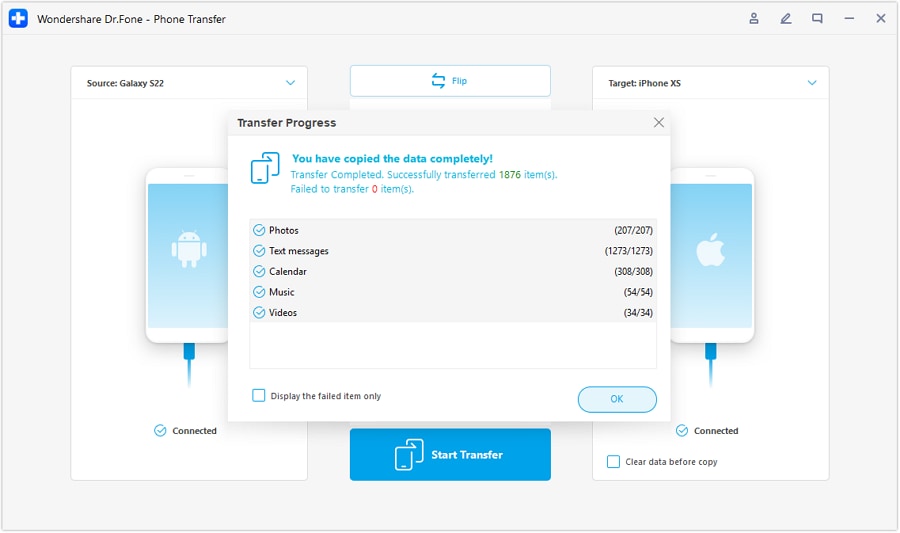
Step 2 Supervise and Finalize the File Replication
Monitor the progress bar dynamically transferring your files. Ensure neither device is disconnected during this window. Once the interface confirms completion, press the "OK" button and safely eject both Redmi smartphones.
Core Use Cases for Dr.Fone – Phone Transfer
- Populating a new device post-initial setup without erasing or overriding existing core files.
- Securely ferrying critical bookmarks, PDFs, and encrypted documents across personal and enterprise devices.
- Surgically migrating specific file categories rather than executing a blind, all-encompassing bulk clone.
- Flawlessly transitioning between Android and iOS environments while keeping HD photos and 4K videos totally intact.
- Bypassing complex manufacturer constraints when moving data between competing smartphone brands.




Part 3. Try ShareMe or Other File-Sharing Apps to Transfer Data from Redmi to Redmi
For those still seeking a localized wireless method, ShareMe exists as a highly capable alternative for Redmi to Redmi data transfer. Functionally parallel to Mi Mover, this utility employs Wi-Fi Direct to vault media across two nodes without chewing into your monthly data allowance or requiring an active router.
This makes ShareMe an incredibly resilient option when you are in transit or off the grid and need to blast photos, extensive videos, PDFs, or APK files between Xiaomi/Redmi devices rapidly. With an intuitive GUI and localized architecture, user privacy is maintained as nothing hits external cloud servers.
-
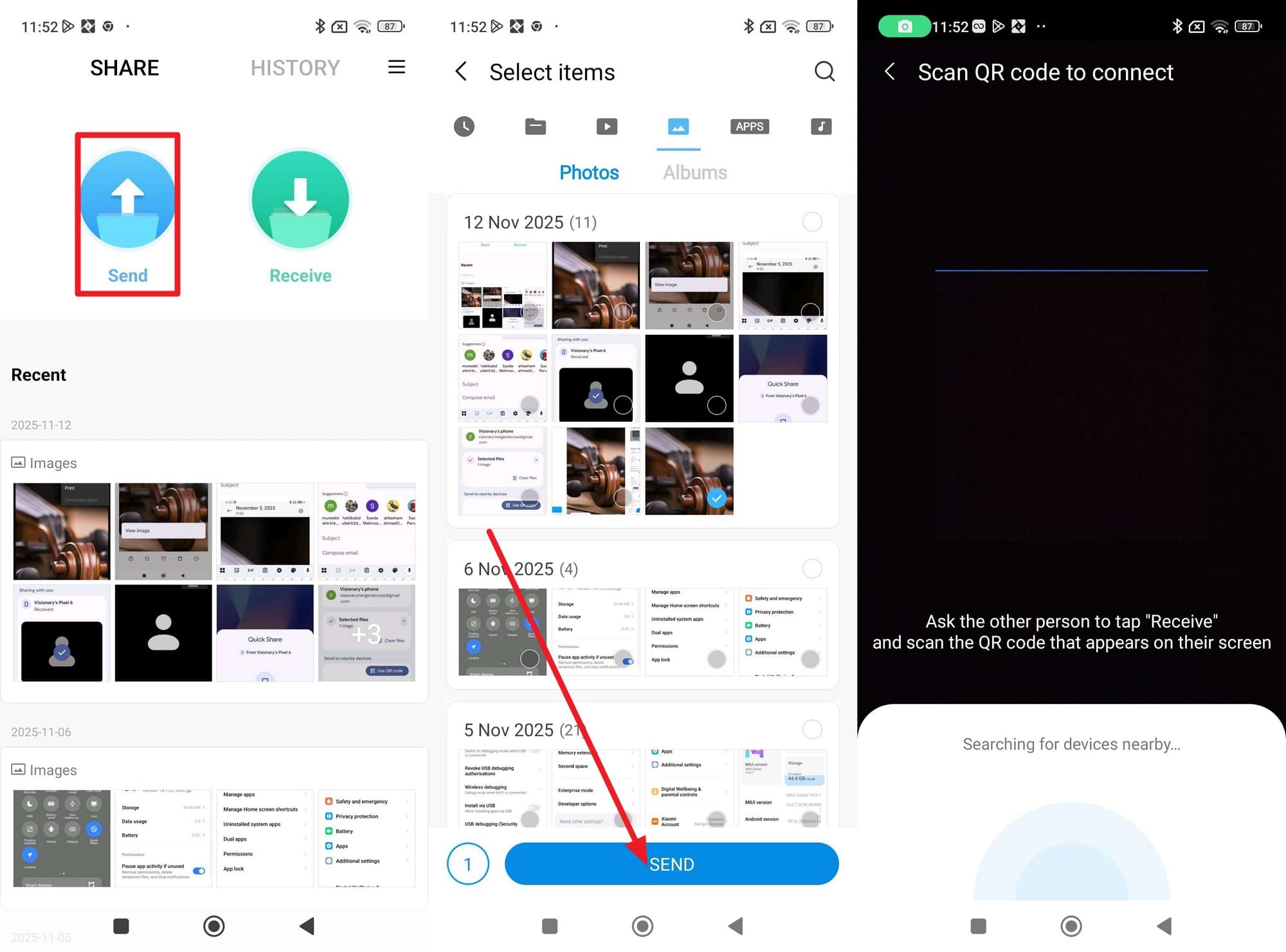
Step 1 Select Media on the Host Device
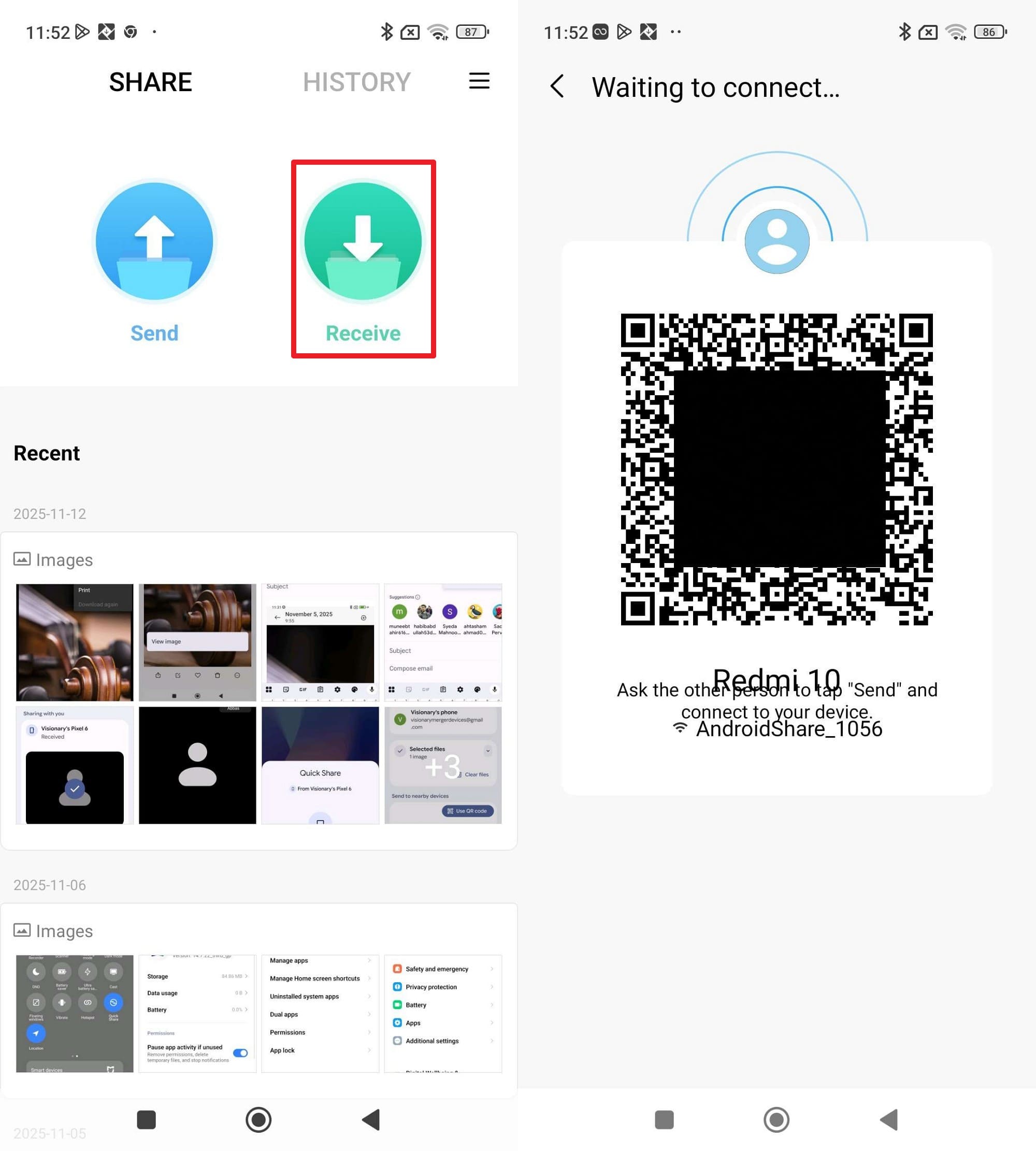
Once ShareMe is installed and open on both terminals, tap the prominent "Send" prompt on your legacy Redmi phone. Comb through your directories, highlight the target media assets you wish to export, and tap "Send" again to generate a unique scanning QR code.
-
Step 2 Scan and Receive on the Destination Device
Switch to the newly purchased Redmi unit and press "Receive." The app will prompt the camera interface—simply point it at the QR code displayed on the older phone. Post-authentication, the transfer executes automatically via Wi-Fi Direct. Keep both screens unlocked and within close physical proximity until finished.
Limitations of ShareMe
- The ad-supported framework of the free variant can prove obtrusive and disrupt the user experience during multiple transfer runs.
- Incoming files are forcefully routed to strict default directories, making custom folder mapping or direct-to-SD saving impossible.
Part 4. How to Transfer Data from Redmi to Redmi Using Cloud/Local Storage
If you're asking how to transfer data from Redmi to Redmi without third-party tools or direct device links, exploring native cloud integrations and local storage backups provides an excellent, asynchronous alternative.
Way 1. Google Drive Backup Integration
Relying on Google Drive Backup represents one of the most structurally secure ways to bridge data between Android systems. It acts silently in the background, safeguarding a wide spectrum of system data, and streamlines the restoration phase on brand-new hardware. By tethering data to your Google credentials, it can be recalled on virtually any modern device. While the free tier caps at 15GB, the military-grade encryption makes it a top-tier choice.
-
Step 1 Initiate the Cloud Backup
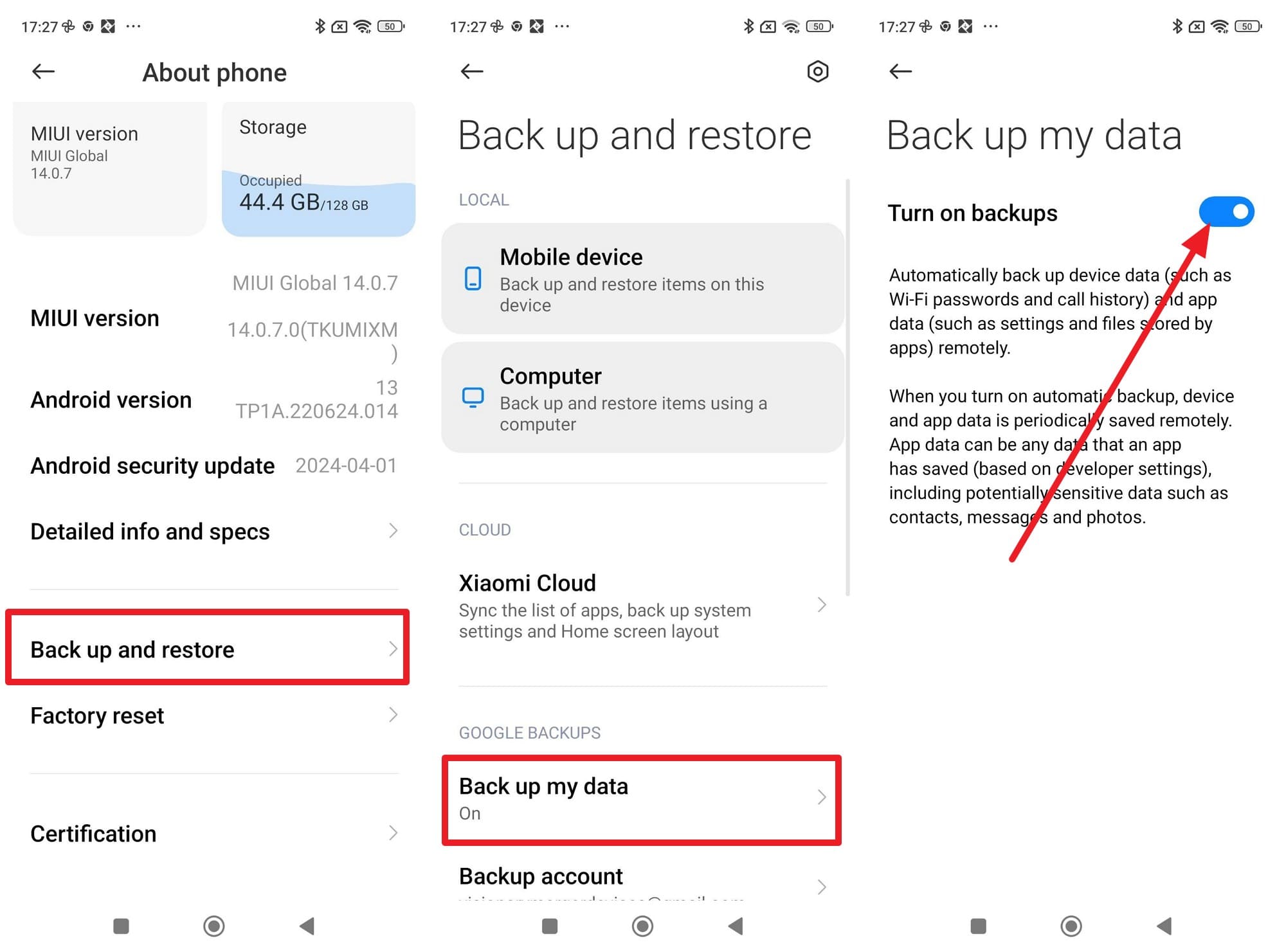
Navigate to "Settings" > "About Phone" on the old device, tap "Backup and Restore," and select "Backup My Data." Toggle on the "Turn on Backups" parameter to force the system to sync your current device state to Google's servers.
-
Step 2 Restore the Archive on the New Device
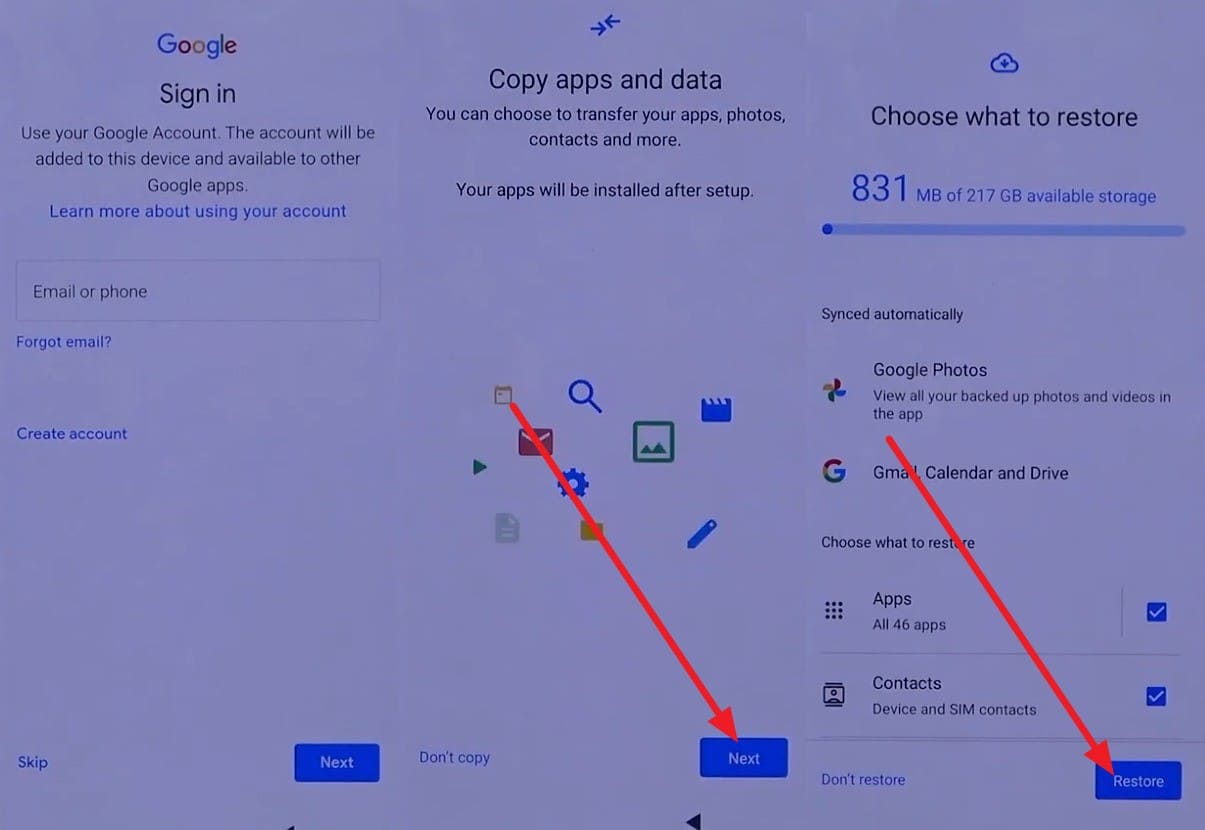
Power on your new Redmi, establish a stable Wi-Fi connection, and input the exact Google credentials used previously. Once the setup wizard reaches the "Copy Apps & Data" page, tap "Next." Select your recently uploaded backup package, check the specific elements you want to port over, and firmly tap "Restore."
Limitations of Cloud Backup
- Highly specific third-party app configurations, bespoke files, and non-standard chat histories frequently fail to sync.
- Pushing and pulling heavy data payloads demands exceptionally fast and stable broadband to avoid timeouts.
Way 2. Xiaomi Native Local Backup
For users wary of the cloud, Xiaomi's Local Backup infrastructure acts as a potent closed-loop alternative for transfer data redmi to redmi. Circumventing internet speeds entirely, it generates a comprehensive system image encompassing everything from app caches to core settings. This method is incredibly robust, completely free, and ideal for consumers navigating restrictive bandwidth environments.
-
Step 1 Generate the Local Archive
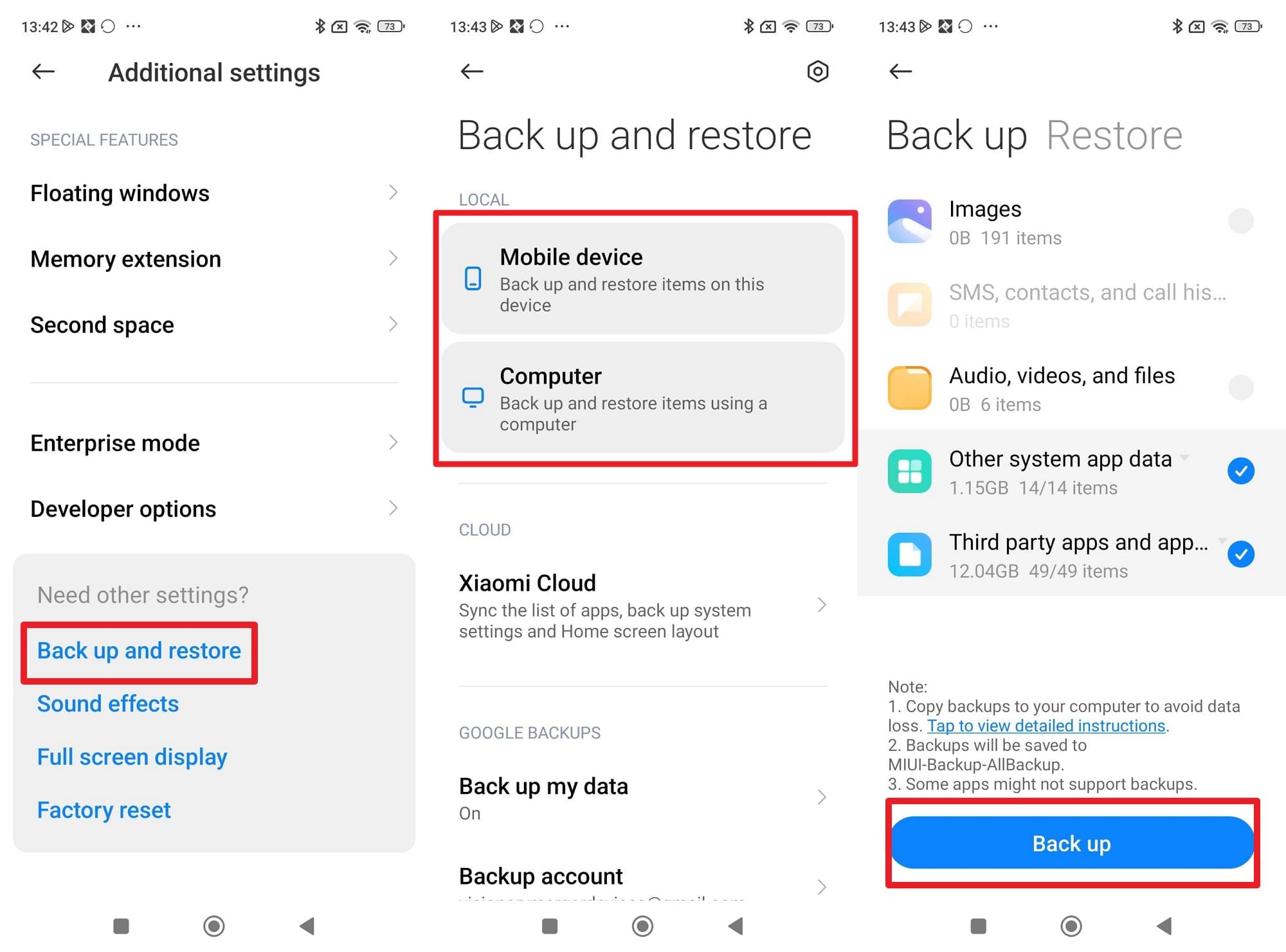
Dive into "Additional Settings," tap "Backup and Restore," and navigate to the "Local" tab. The interface will prompt you to meticulously pick the data layers you wish to archive. Once satisfied, hit the "Backup" button and authenticate the action with your device PIN.
-
Step 2 Relocate the Backup Folder
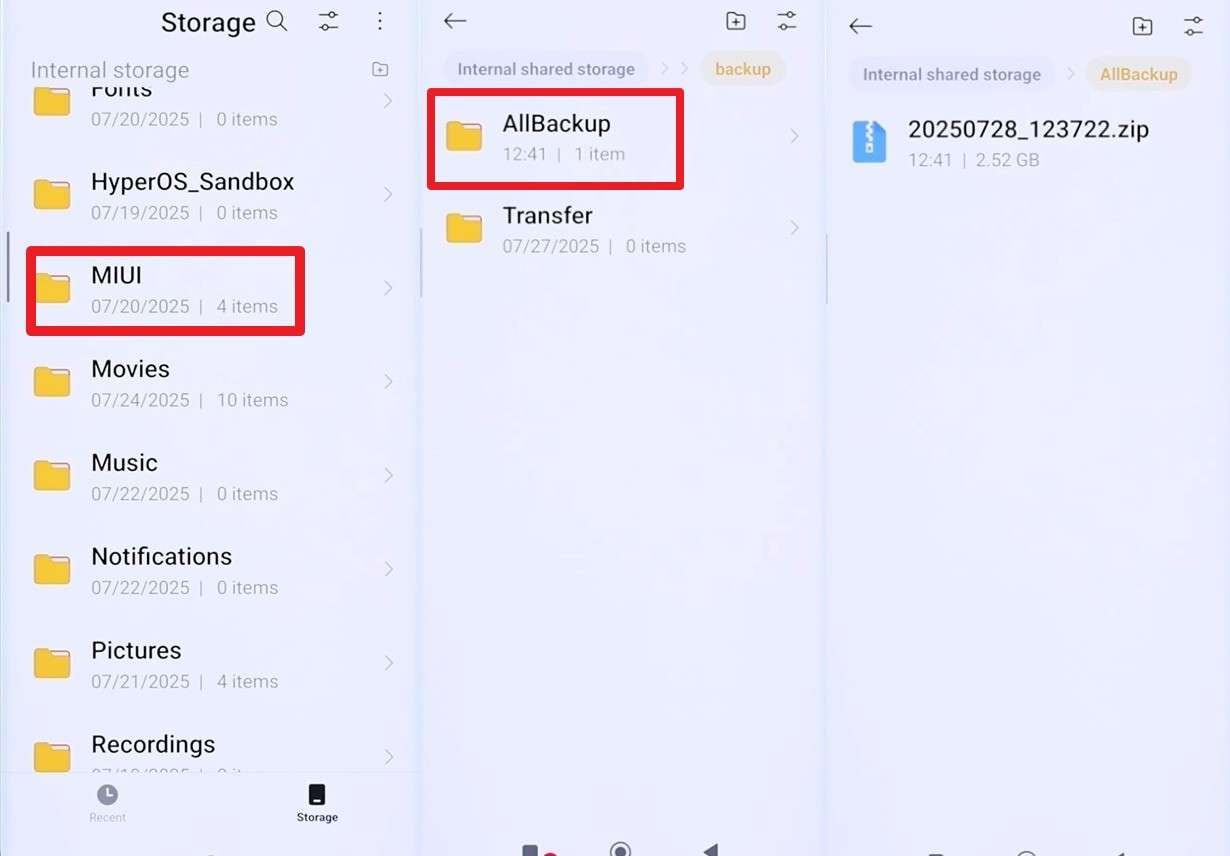
Extract the localized package onto an external flash drive or PC. You can locate the raw data by navigating through the native File Manager > Storage > MIUI > Backup > All Backup.
-
Step 3 Inject and Restore on the Target Hardware
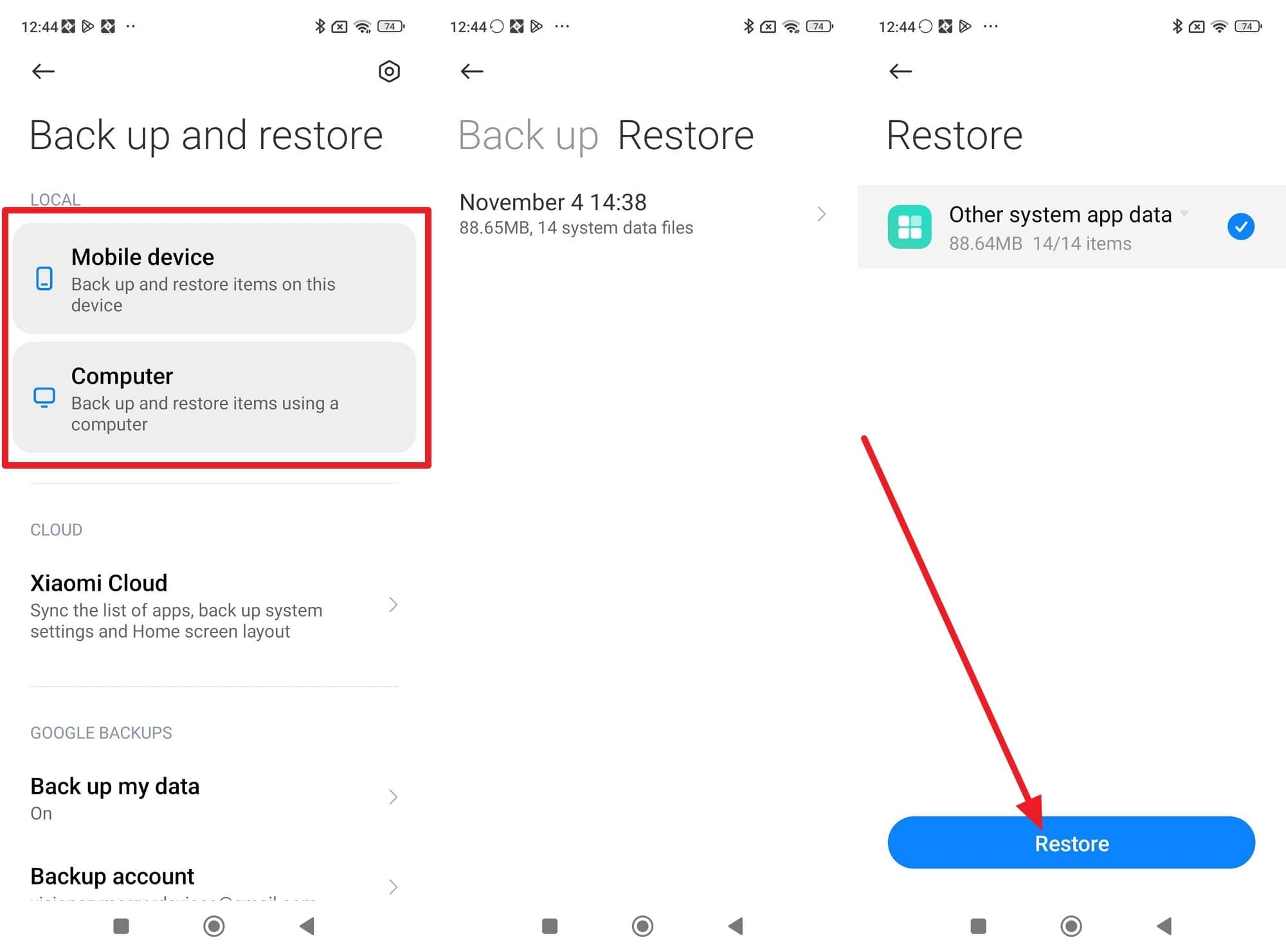
Initialize the new Redmi unit and inject the external drive (or PC connection). Paste the copied backup directory into the identical root path (File Manager > Storage > MIUI > Backup > All Backup). Head back to "About Phone" > "Mobile Device," navigate to the "Restore" tab, supply your PIN, tap the recognized local file, and execute the "Restore" protocol.
Limitations of Local Backups
- Demands tedious manual file management and an intermediary storage device like an OTG drive or PC.
- Creating massive local archives actively cannibalizes the old device's internal storage, which can fail if space is already depleted.
Part 5. How to Transfer Files from Redmi to Redmi via PC [Manual]
Sometimes, the most dependable method to figure out how to transfer data from Redmi to Redmi is retreating to the classic manual PC route. This analog tactic bypasses restrictive software limits, allowing you to drag and drop virtually any visible file type with absolute folder control. It boasts vastly superior stability compared to Wi-Fi frameworks and requires absolutely zero third-party account sign-ins.
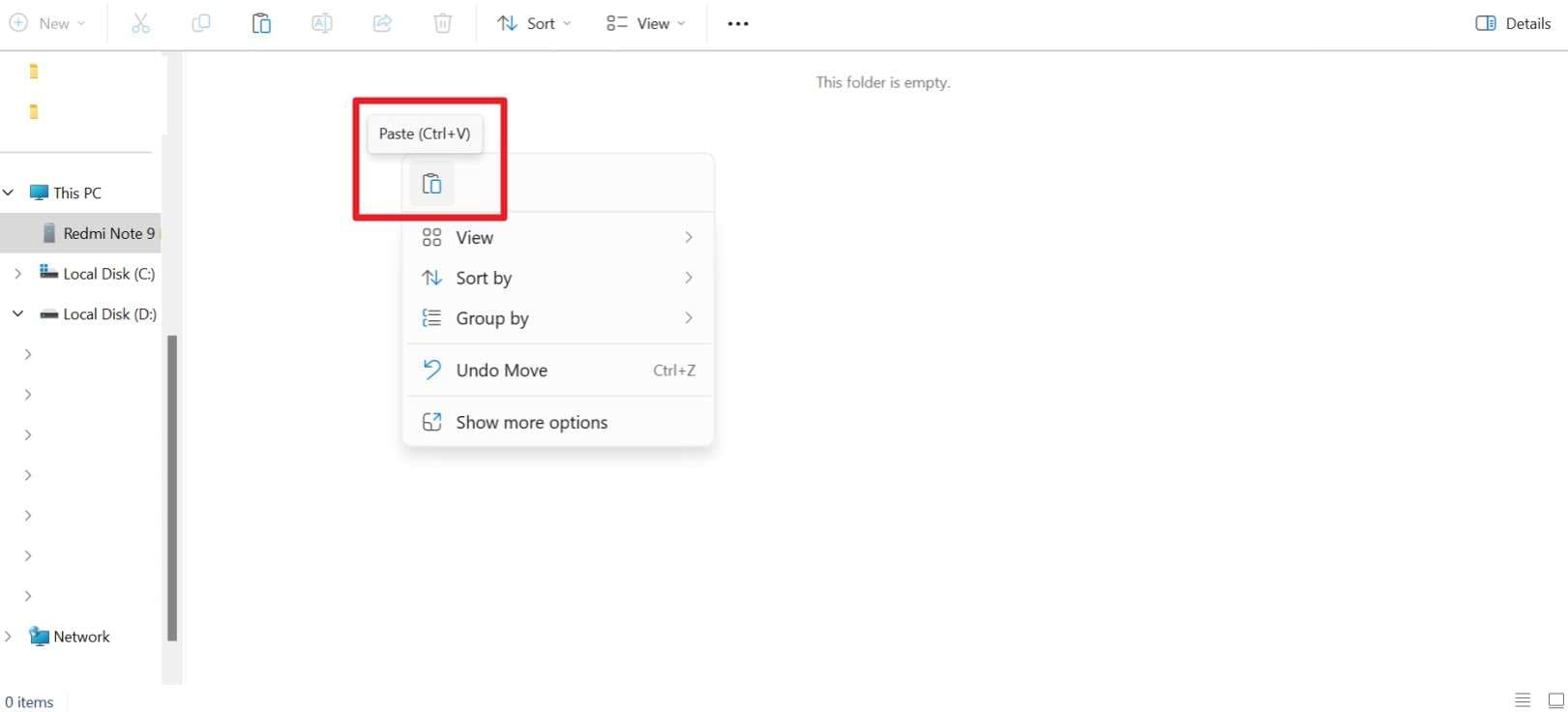
Instructions: First, hardwire both Redmi smartphones to your desktop via high-quality USB data cables. When prompted on the phone screens, toggle the USB configuration to “File Transfer” (or MTP) mode. Launch your PC's file explorer, identify the legacy Redmi drive under “This PC,” burrow into the storage, highlight the crucial assets, and hit “Copy.” Next, open a secondary explorer window targeting the new Redmi drive, navigate to the corresponding destination directory, and select “Paste” (or Ctrl + V) to seamlessly inject the data.
Limitations of PC Transfers
- Degraded or charge-only USB cables, alongside failing PC ports, will instantly abort the file stream.
- Fundamentally inaccessible for consumers who do not currently own or have access to a desktop environment.
Part 6. Explore Quick Share to Transfer Files from Redmi to Redmi
If utilizing a dedicated redmi to redmi data transfer app feels like overkill for just a few files, Android's built-in Quick Share (formerly Nearby Share) serves as an exceptionally rapid and frictionless pipeline. Quick Share enables you to vault high-fidelity media across devices without compromising compression standards or demanding complex technical knowledge. It relies on a hybridized Bluetooth and Wi-Fi Direct protocol to ensure strict privacy across the Android and Windows ecosystems.
-
Step 1 Broadcast the File
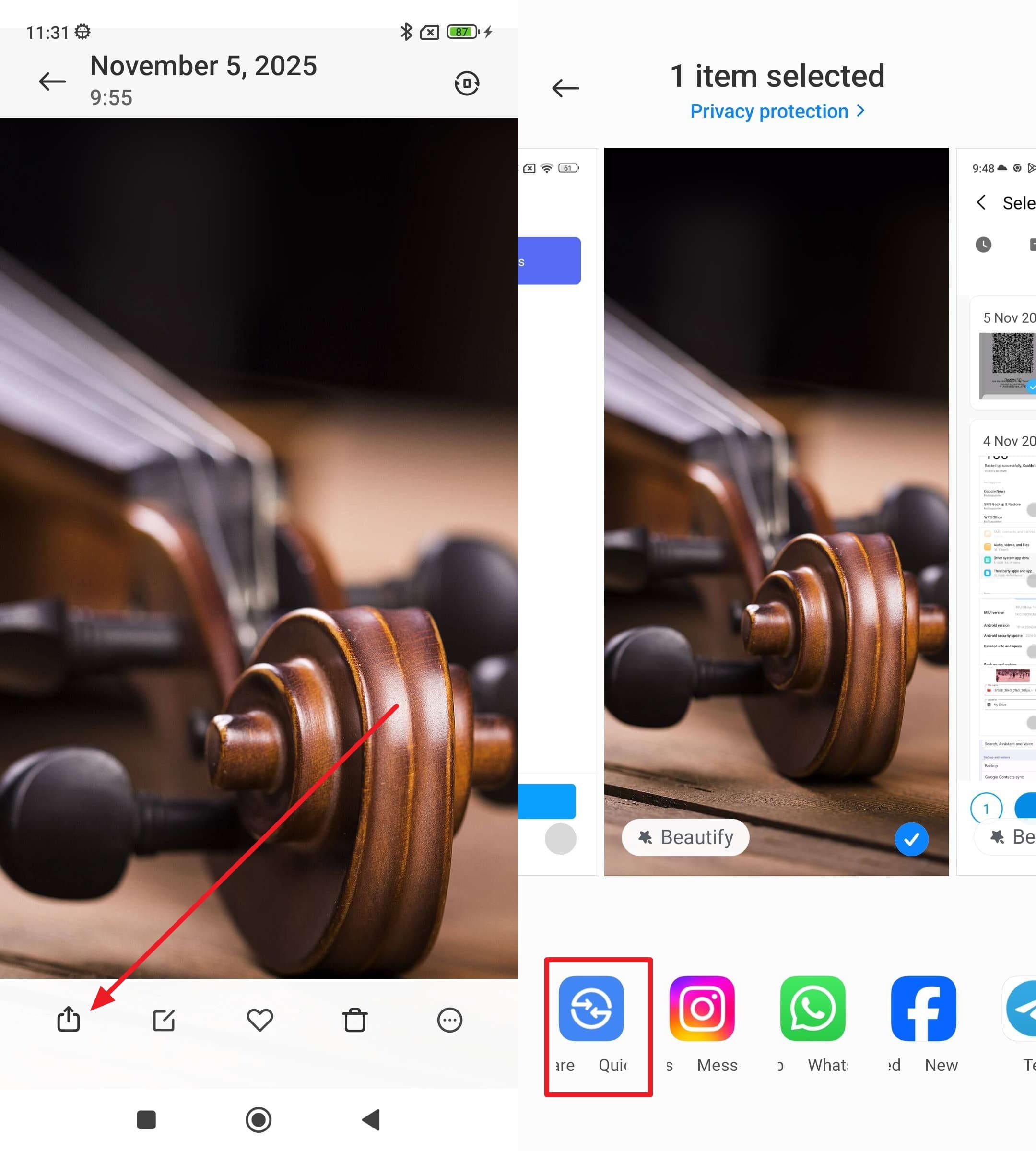
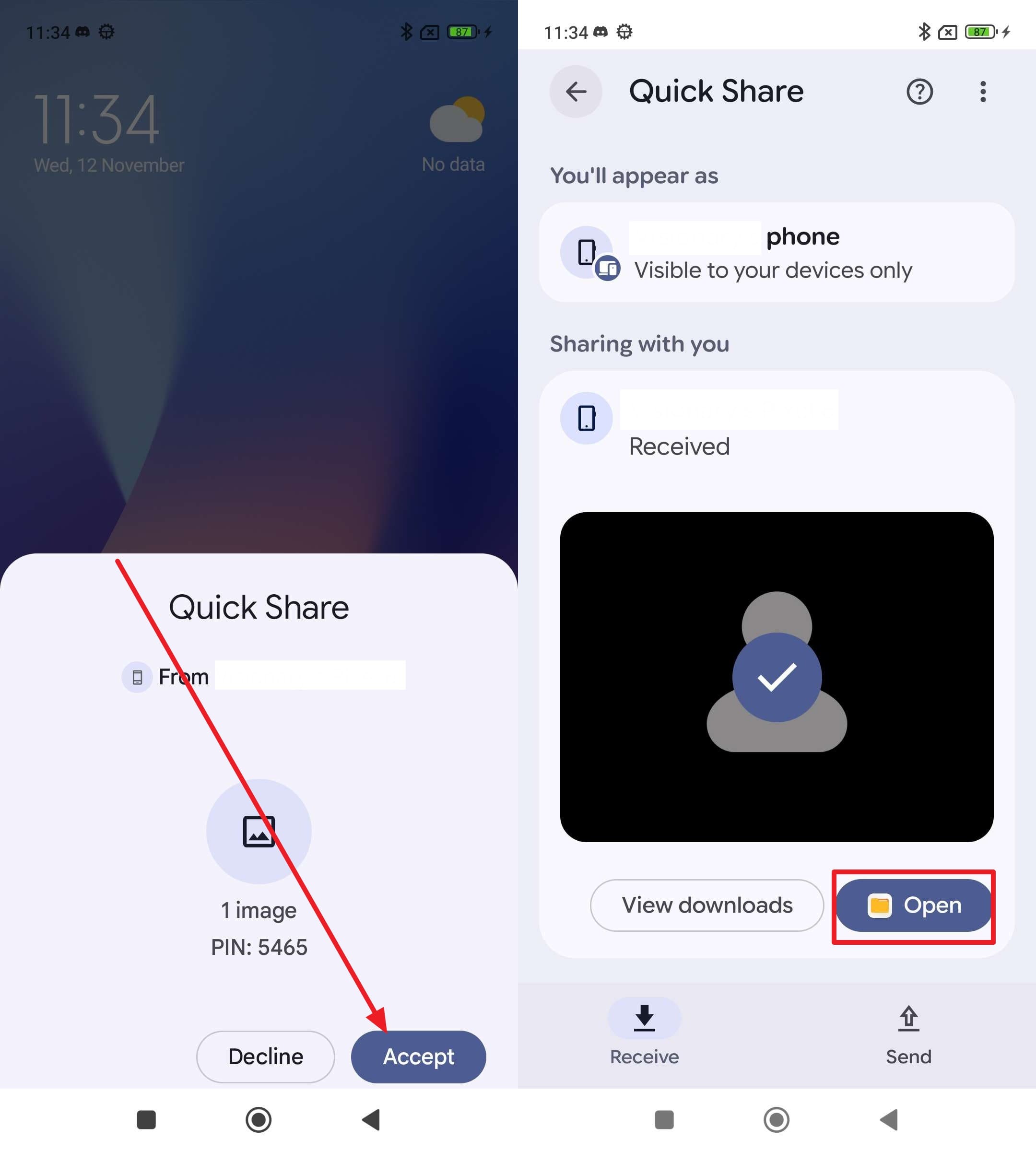
On the older handset, pull up the specific asset you intend to migrate. Tap the standard "Share" node and select the "Quick Share" icon from the bottom sheet grid. The device will scan the vicinity—simply tap the broadcasted name of your new Redmi phone.
-
Step 2 Authorize the Reception
The target Redmi device will instantly chime with a reception notification. Tap the "Accept" authorization to trigger the high-speed transfer. Once finished, hit "Open" to verify the file integrity or locate it later housed within your default "Downloads" directory.
Limitations of Quick Share
- The short-range radio signals strictly limit operational distance to approximately 30 feet; moving further will sever the handshake.
- If leveraging Quick Share's fallback cloud link mechanic, users will crash into frustrating daily size limits and throttles.
Part 7. Try Email to Perform Quick Data Transfer from Redmi to Redmi
While admittedly archaic, utilizing standard email architecture remains a highly functional fallback for answering how to transfer data from Redmi to Redmi—especially when dealing with ultra-lightweight files. Every active smartphone boasts innate email functionality, entirely negating the need to hunt down external tools. Furthermore, bouncing files through an email client creates a permanent, searchable cloud footprint of the transmission.
-
Step 1 Package and Transmit the Payload
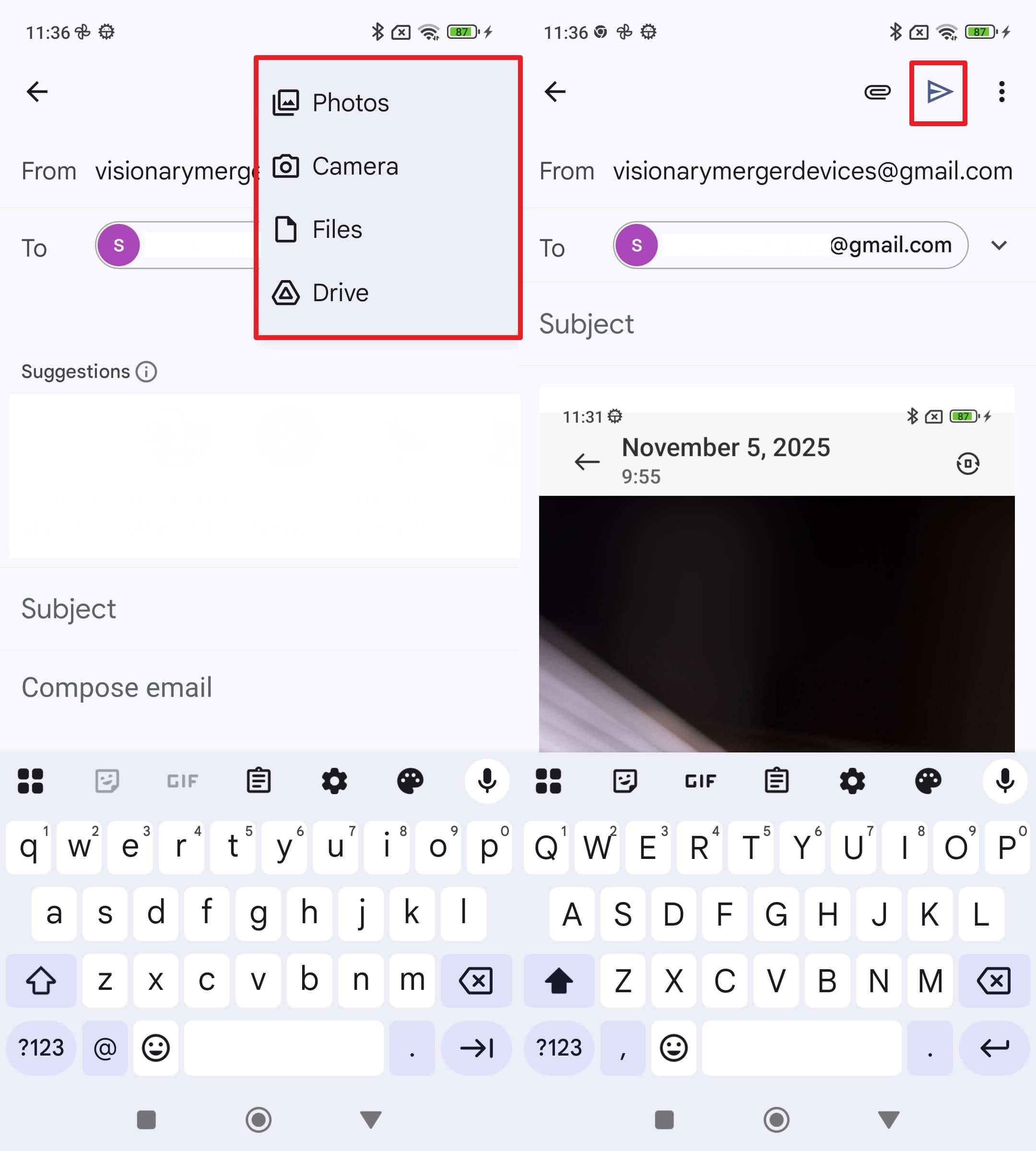
Launch your preferred email client on the older device (like Gmail). Tap "Compose" and slot in a personal email address accessible on the new device into the "To" parameter. Utilize the "Attach File" paperclip icon to embed your desired documents or compressed images, and tap "Send."
-
Step 2 Extract the Data Remotely
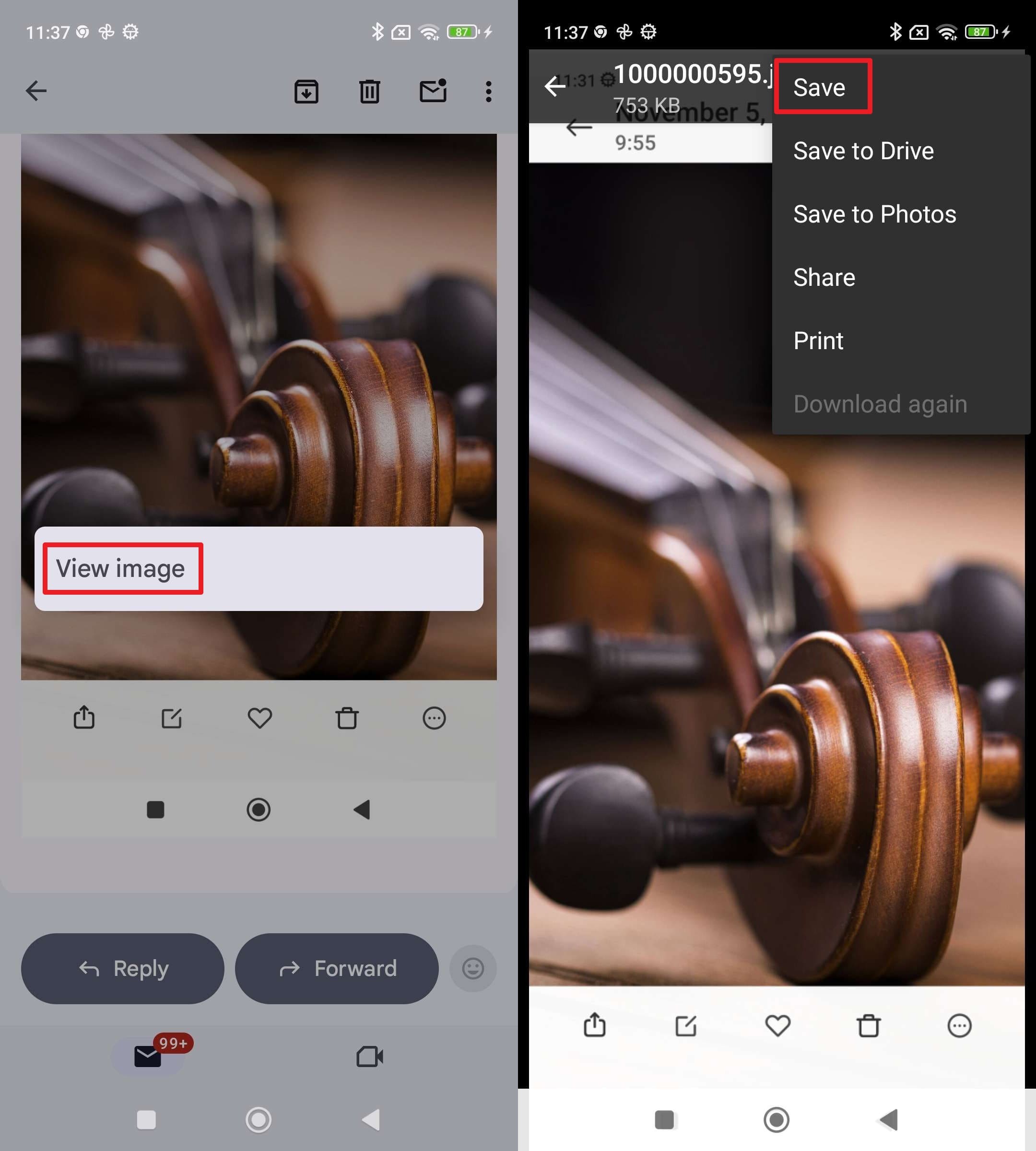
Pick up the incoming Redmi phone, refresh the corresponding email inbox, and open the newly arrived message. Tap the attached asset, utilize the overflow "Three Dots" menu, and execute the "Save" or "Download" command to anchor it directly to your new internal storage.
Limitations of Email Transfers
- Severe logistical bottlenecks: Providers universally cap file attachments at a paltry 20–25MB threshold, crippling video and bulk transfers.
- Fundamentally incapable of migrating structural device data like SMS logs, system preferences, or un-exported contact cards.
Part 8. Which Is the Best App to Transfer Data from Redmi to Redmi
Navigating the expansive landscape of transfer tools reveals distinct advantages for each methodology. While Xiaomi's native utilities like Mi Mover excel during out-of-the-box setups, third-party software infrastructures consistently deliver superior handling for heavy workloads or intricate cross-OS migrations.
To definitively determine the optimal transfer data from redmi to redmi strategy, analyze our comprehensive 2026 performance matrix below:
| Data Transfer Ways | Setup Difficulty | Speed | Supports All File Types | Best For |
|---|---|---|---|---|
| Mi Mover | Medium | Moderate | No | Strictly MIUI to MIUI wireless transfers |
| Dr.Fone - Phone Transfer | Very Easy | Fastest | Yes | Heavy data, cross-platform migrations, one-click ease |
| ShareMe | Easy | Fast | Yes | P2P wireless file sharing between active Androids |
| Google Drive Backup | Easy | Slow to Moderate | No | Background cloud redundancy and automated restoration |
| Local Backup | Medium | Moderate to Fast | No | Creating physical snapshot archives without internet |
| Via PC Manual | Medium | Fast | Yes | Surgical folder control and massive bulk transfers |
| Quick Share | Easy | Fast | Partial | Rapidly beaming a handful of media files locally |
| Easy | Slow | No | Tiny PDFs or singular text documents below 25MB |
Synthesizing the empirical data presented above, Dr.Fone - Phone Transfer clearly emerges as the dominant champion for moving data. Its capacity to circumvent ecosystem locks, paired with its industry-leading data transmission speed via desktop, renders it the absolute best choice for users who demand a flawless, one-click transition without risking data corruption.
Conclusion
Ultimately, executing a seamless leap between devices heavily relies on choosing the correct tool. Answering how to transfer data from Redmi to Redmi is easily resolved through Xiaomi’s Mi Mover if you catch it during the Xiaomi initial setup data transfer window, harnessing Wi-Fi Direct for reliable wireless jumps.
However, modern smartphone usage often demands superior flexibility. If you are handling exceptionally large video files, bypassing cloud storage limits, or demanding absolute cross-platform reliability, premium utilities like Dr.Fone, alongside native local backups and PC transfers, offer the ultimate peace of mind when migrating to your new hardware.
FAQ
-
1. How do I transfer data from Redmi to Redmi during Xiaomi setup?
When powering on the new Xiaomi device, follow the initial setup wizard until prompted to copy data from another device. Launch the Mi Mover application on the legacy phone, establish the Wi-Fi Direct handshake between both units, and systematically check the data blocks you wish to transplant. -
2. Does Mi Mover use Wi-Fi Direct?
Yes, it does. Mi Mover deliberately engineers an isolated Wi-Fi Direct bridge between two corresponding Xiaomi or Redmi smartphones. This technology facilitates rapid device-to-device streaming that is entirely independent of carrier cellular data or external router access. -
3. Can I transfer apps and contacts using Mi Mover?
Absolutely. Mi Mover is expressly coded to extract and relocate deep system files including address book contacts, third-party APKs, multimedia galleries, internal documents, and various call histories between compatible Xiaomi architecture. -
4. What is the fastest way to transfer data from Redmi to Redmi?
For entirely wireless operations, Mi Mover over Wi-Fi Direct holds top tier speeds by avoiding cloud upload bottlenecks. However, for maximum bandwidth efficiency—especially when transferring gigabytes of data—using a wired USB connection with Dr.Fone - Phone Transfer remains mathematically the fastest technique available.
 Add Wondershare Dr.Fone as a preferred source on Google