Move contacts, messages, photos, videos, app data, and more between iOS and Android.

 100% Security Verified | No Subscription Required | No Malware

 :
: 
 ChatGPT
 Perplexity
 Gemini
 Claude
 Grok
Grok
You might have a large amount of data on your phone that you don’t want to lose. As a safe choice, you bought a new device, and now you wonder how to transfer data to your new phone before the World Cup. To help you, this guide offers 8 practical methods; review them and find out if Dr.Fone - Phone Transfer is the most dependable solution.
In this article
Part 1. Why You Should Transfer Data Before a World Cup Trip?
Britannica says that the FIFA World Cup 2026 will take place from June 11 to July 19, 2026. So, if you have decided to switch phones before the World Cup trip, review the mentioned reasons to learn why safe data transfer is a must:
| Reason | Explanation |
|---|---|
| Avoid Storage Issues | Free space for new photos and videos |
| Protect Memories | Keeps photos, videos, and chats safe |
| Prevent Data Loss | Avoid losing files if the phone breaks or is lost |
| Easy Upgrade | Move everything quickly to a new phone |
| Travel Ready | Keeps tickets, maps, and apps accessible |
Part 2. How To Transfer Data to a New Phone Before Your World Cup Trip
Regarding the iPhone to Android transfer for travel, try the listed 8 methods:
1. Dedicated Phone Transfer Tools
Since these tools can create direct phone links, here are some foremost options you can opt for:
Method 1. One-Click Data Transfer Using Dr.Fone - Phone Transfer
Compatible with Android 17 and iOS 27 Beta, Dr.Fone - Phone Transfer from Wondershare is the complete transfer solution. The tool lets you move 13 data types from iOS to iOS and 12 from Android to Android. Since it also supports cross-platform transfer, you can also move 12 data types from iOS to Android and 8 from Android to iOS.
Regardless of the transfer direction, the Flip icon makes it easy to pick the source and target device. Additionally, you can select the data you want to transfer and move it in batches. Since it requires no setup and works over a USB connection, any user can use it without storage or device limits.
 Move data between iOS to Android and vice versa.
- Transfer contacts, SMS, photos, videos, music, and more types.
- Available with all phones with Android and iOS versions.
- Simple, click-through process.

Guide to Move iOS Data to Android Before FIFA World Cup
Let’s test all the claims of this tool to move photos, videos, and contacts to a new phone via this guide:
-
Step 1 Use the Dr.Fone Phone Transfer Tool
In the Phone Transfer tool, connect the devices and use the “Flip” icon to differentiate devices, then select the data types and press the “Start Transfer” button.

-
Step 2 Turn Off iCloud Photos Option
Disable the iCloud Photos options via the given instructions and choose “Next” to start the data transfer before the World Cup.





Method 2. Try Move to iOS / Smart Switch
These tools are official and free, and Move to iOS is best suited for Android to iPhone transfer data to your new phone before the World Cup. Whereas for Samsung devices, Smart Switch gives wired and wireless options and is guided ahead:
From Android to Android (Smart Switch)
-
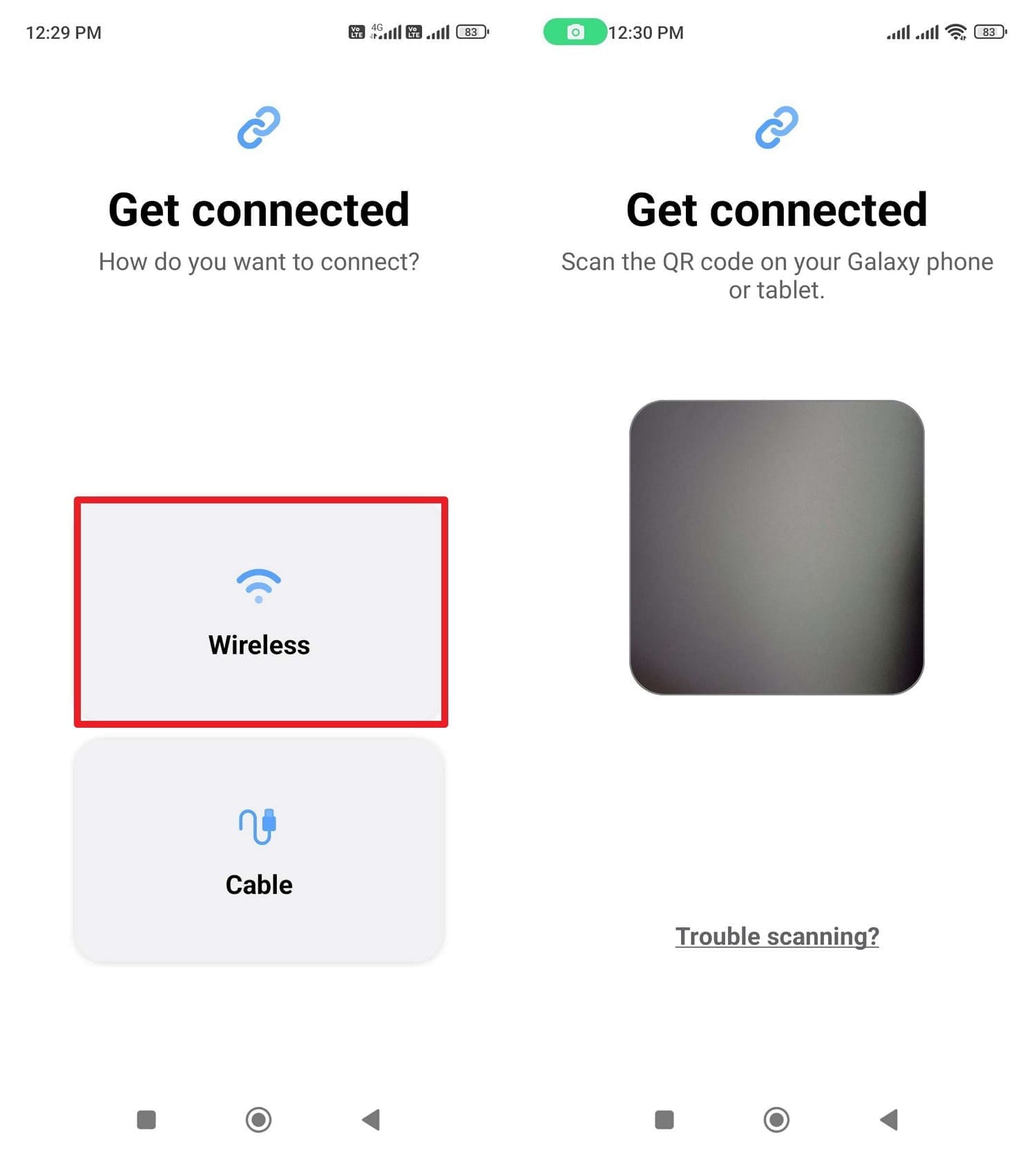
Step 1 Choose the “Wireless” option on the old phone to access the scanner.
-
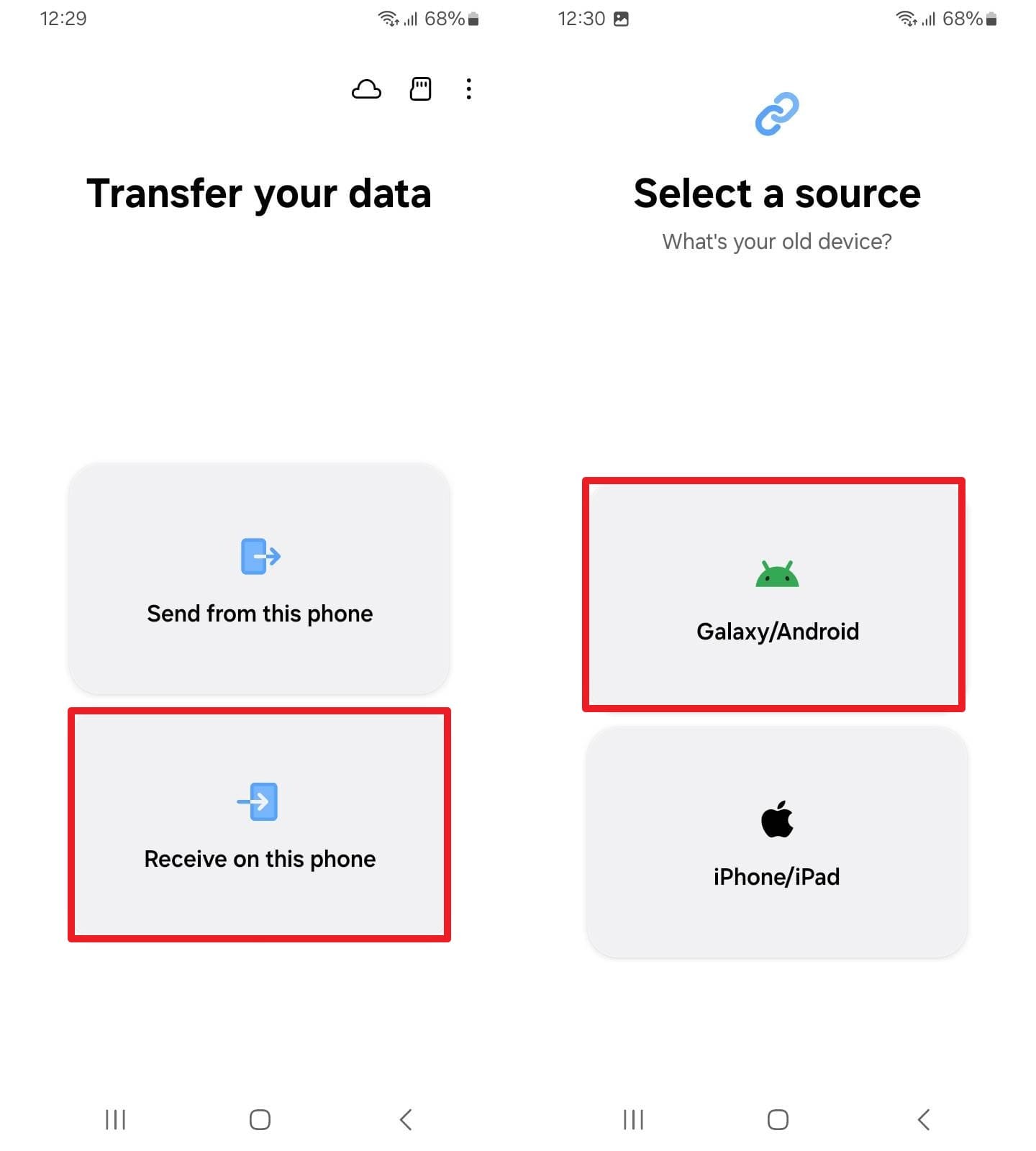
Step 2 Pick “Receive On This Phone” and “Galaxy/Android” option on the new device.
-
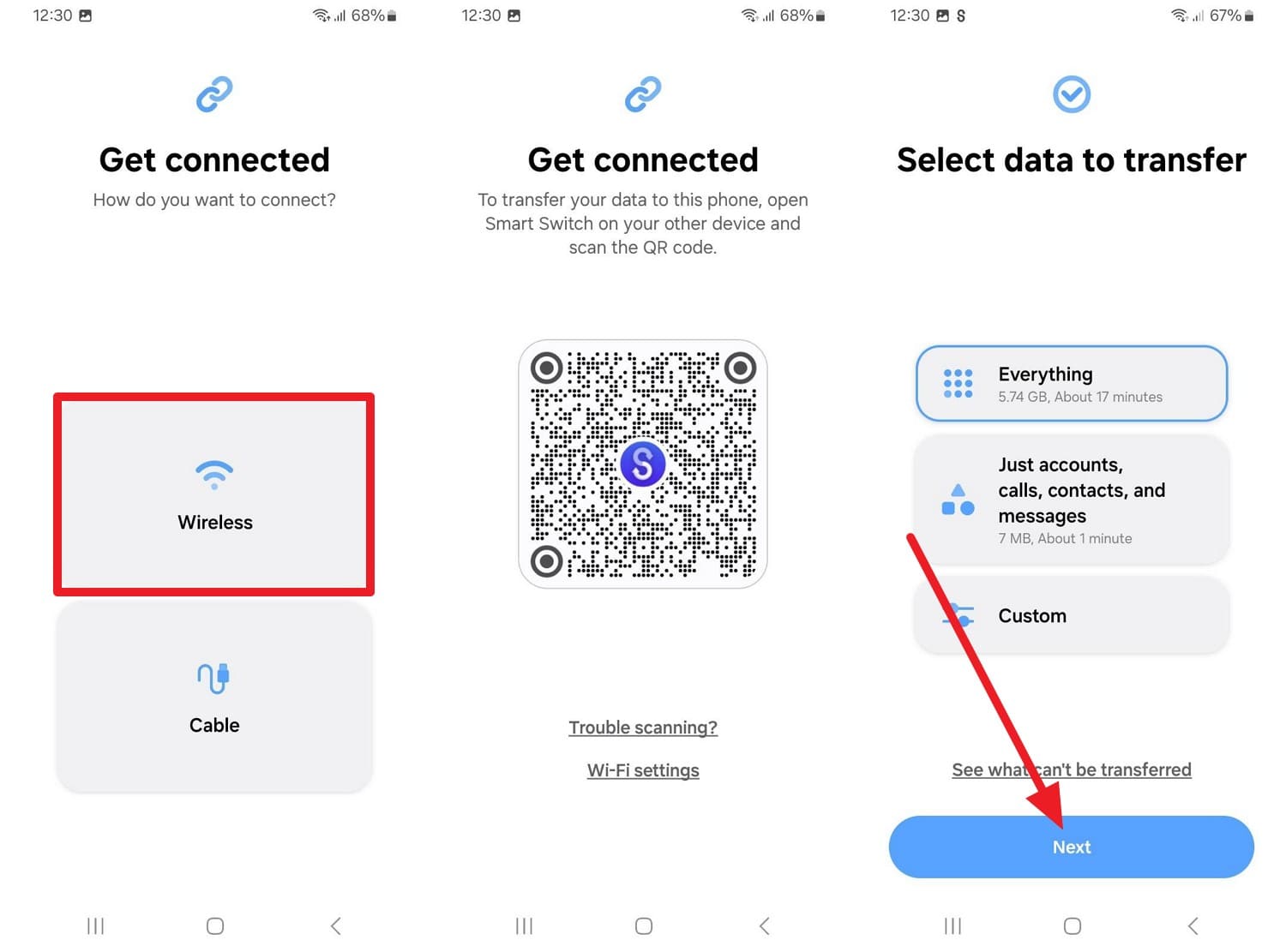
Step 3 Tap the “Wireless” option, scan the QR code, select the data types, then tap “Next.”
From iPhone to Android (Smart Switch)
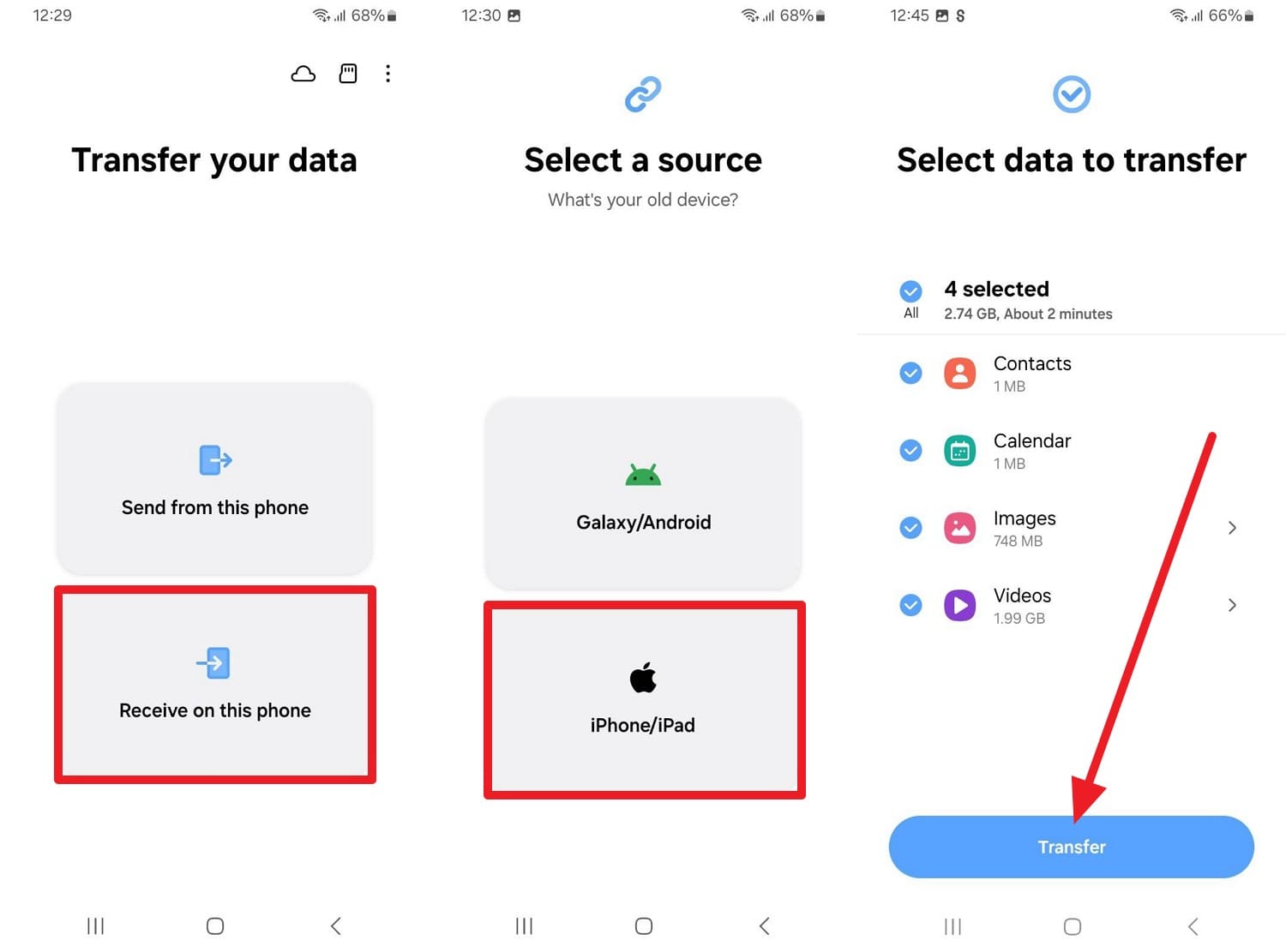
With iPhone must be running iOS 5.0 or later, Smart Switch can also transfer data from an iPhone to an Android device. Nonetheless, you must receive the data on a Samsung Galaxy smartphone or tablet, as shown:
-
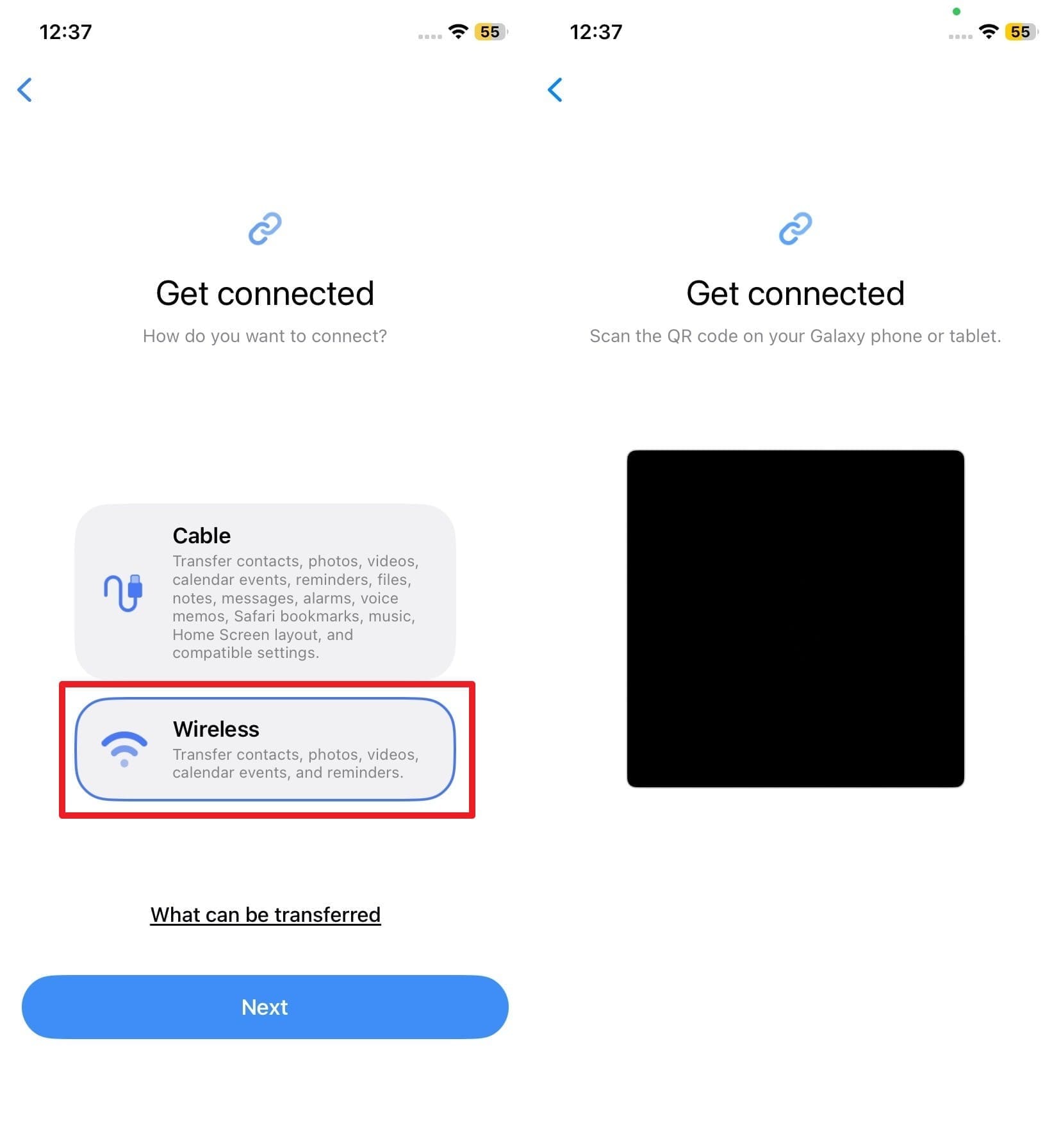
Step 1 Choose “Wireless” on the iPhone and access the QR code scanner.
-
Step 2 On Android, select “Receive On This Phone > iPhone/iPad > Wireless,” then scan the code. Pick the data types and press the “Transfer” button.
2. Built-In Device Migration Features
If you want to transfer data to a new phone before the World Cup during the setup, here are 2 options:
Method 3. iPhone-to-iPhone (Quick Start)
With secure Wi-Fi connection and Bluetooth connection, you just need to keep devices close and transfer data, as guided:
-
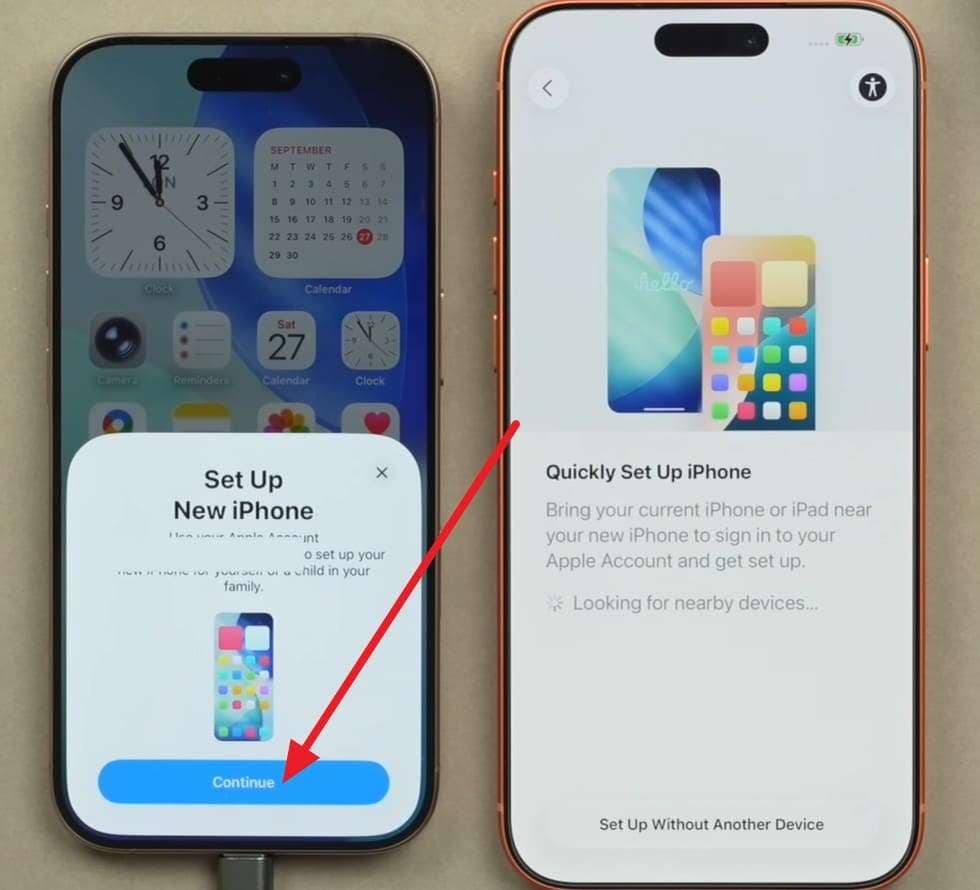
Step 1 When you place the phones close together while they are on charge, choose the “Continue” option on the old phone's “Quick Start” screen.
-
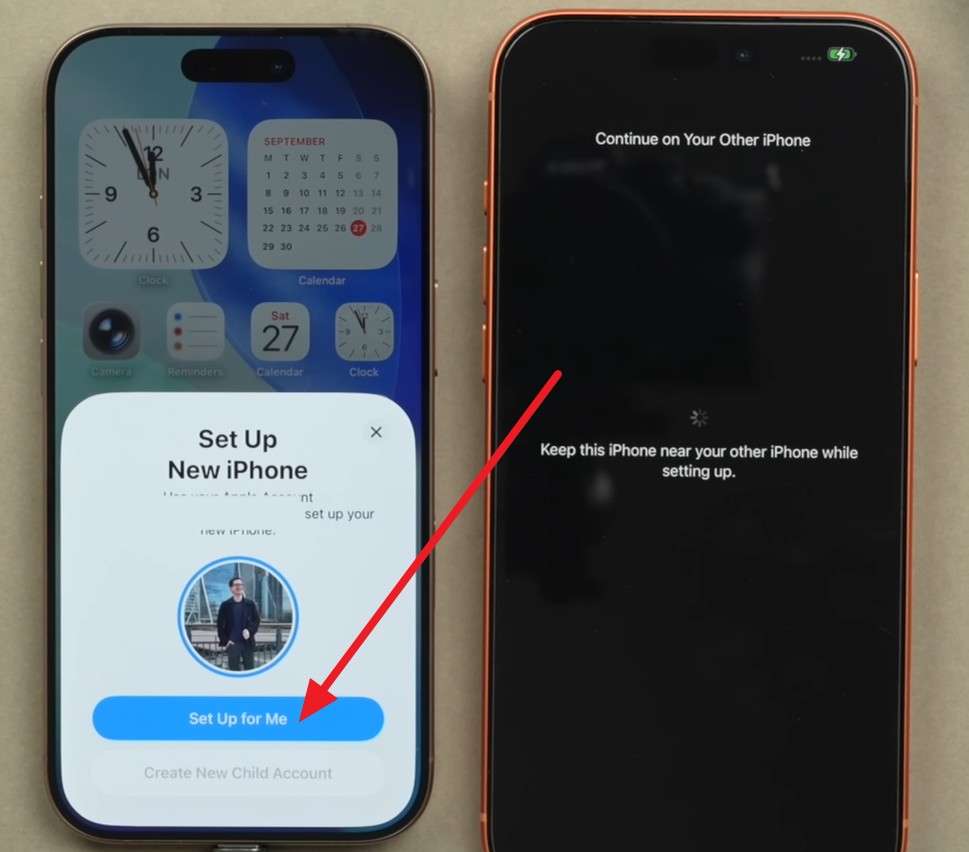
Step 2 Pick the “Set It Up For Me” option after you scan the animation on your new phone.
-
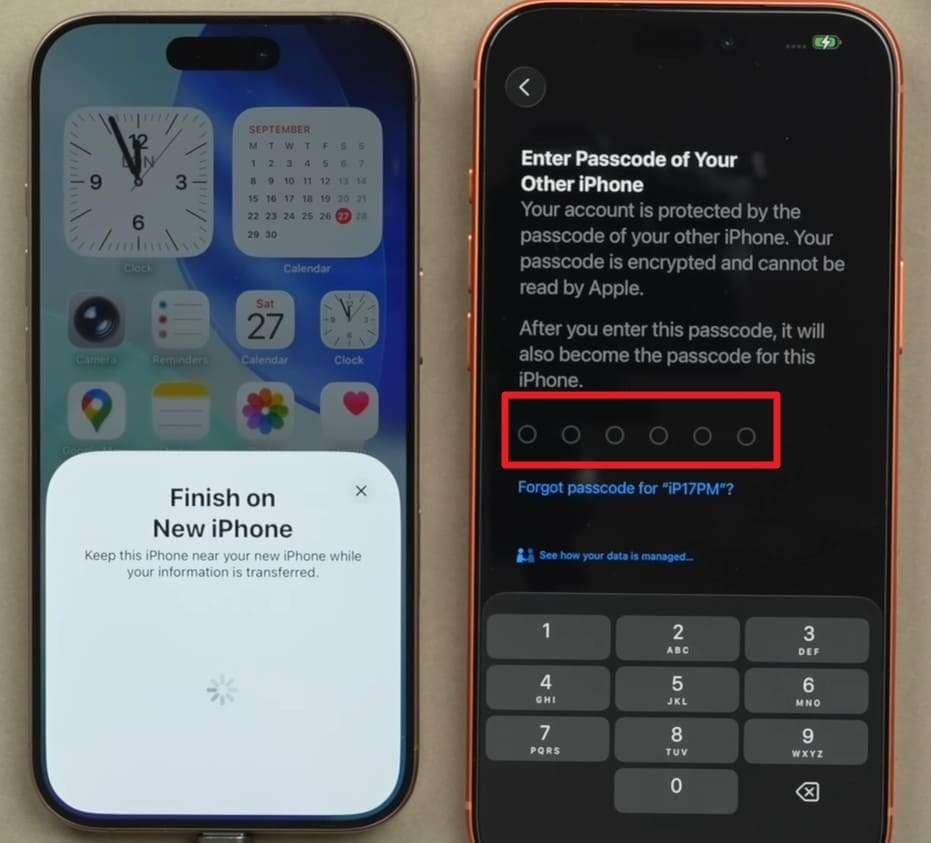
Step 3 Enter the old phone passcode and follow or skip the mentioned setup instructions.
-
Step 4 Choose a transfer option, such as “Download From iCloud,” and sign in.
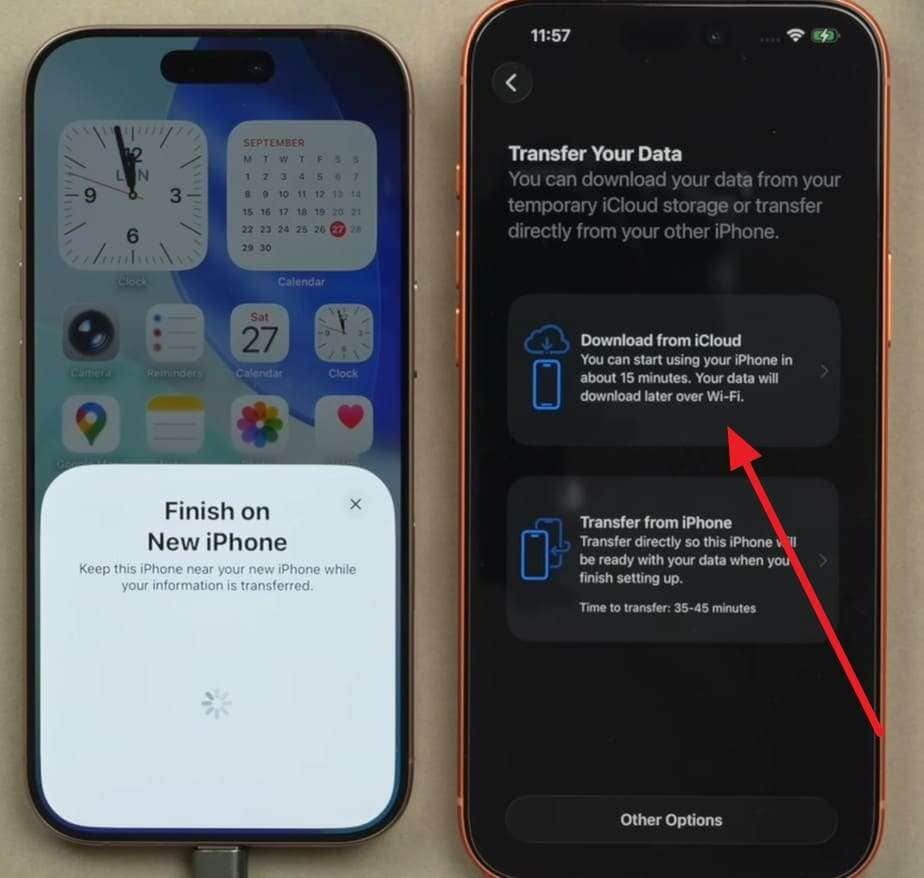
-
Step 5 Select the “Continue” option to share all data or “Customize.”
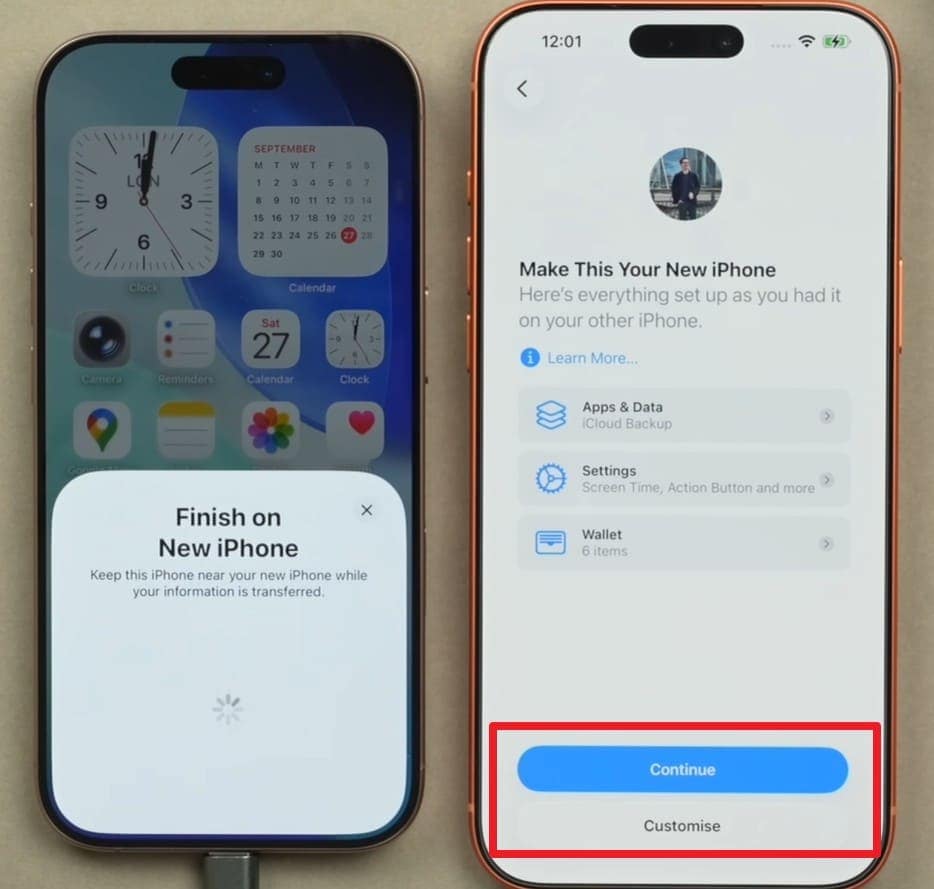
Method 4. Android to Android (Android Switch)
If you want to switch phones before the World Cup trip, Android Switch can help. Make sure both devices are charged and have Wi-Fi and Bluetooth enabled, and are demonstrated ahead:
-
Step 1 Continue to set up the new device > Select the “Pixel or Android Device” option.
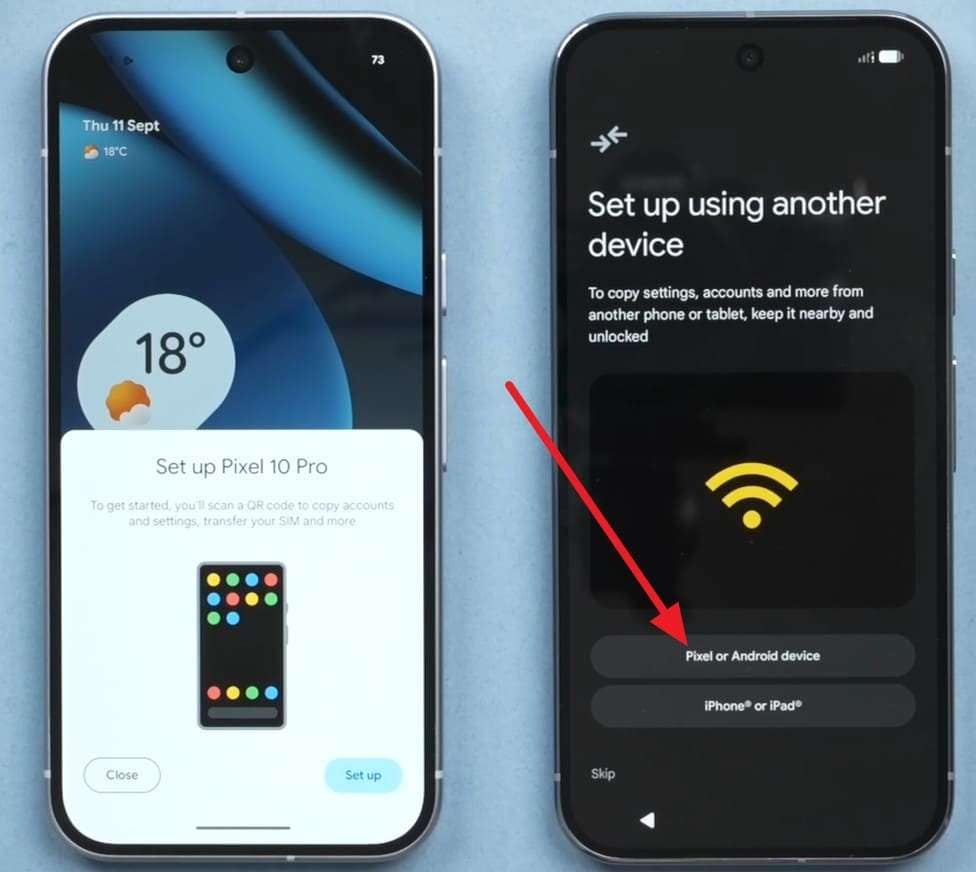
-
Step 2 Choose the “Set Up” button on the old phone and access the QR code on the new one.
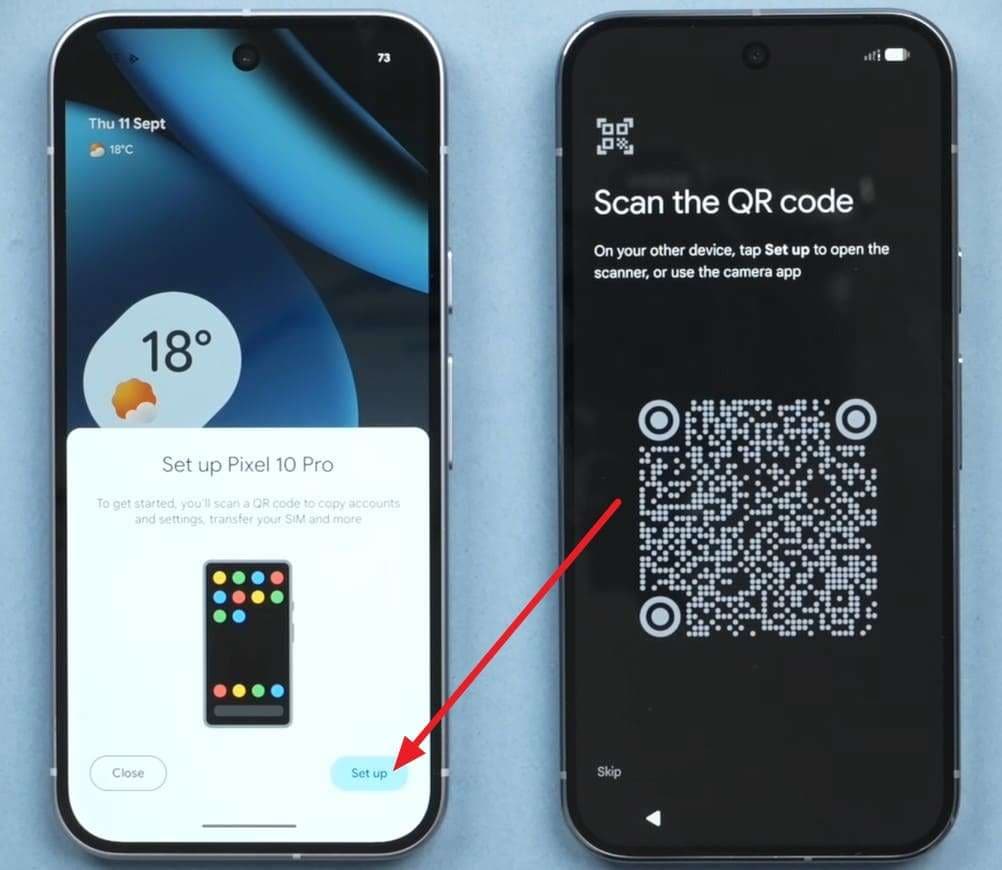
-
Step 3 Scan the QR code, then enter the passcode on your new one to authenticate.
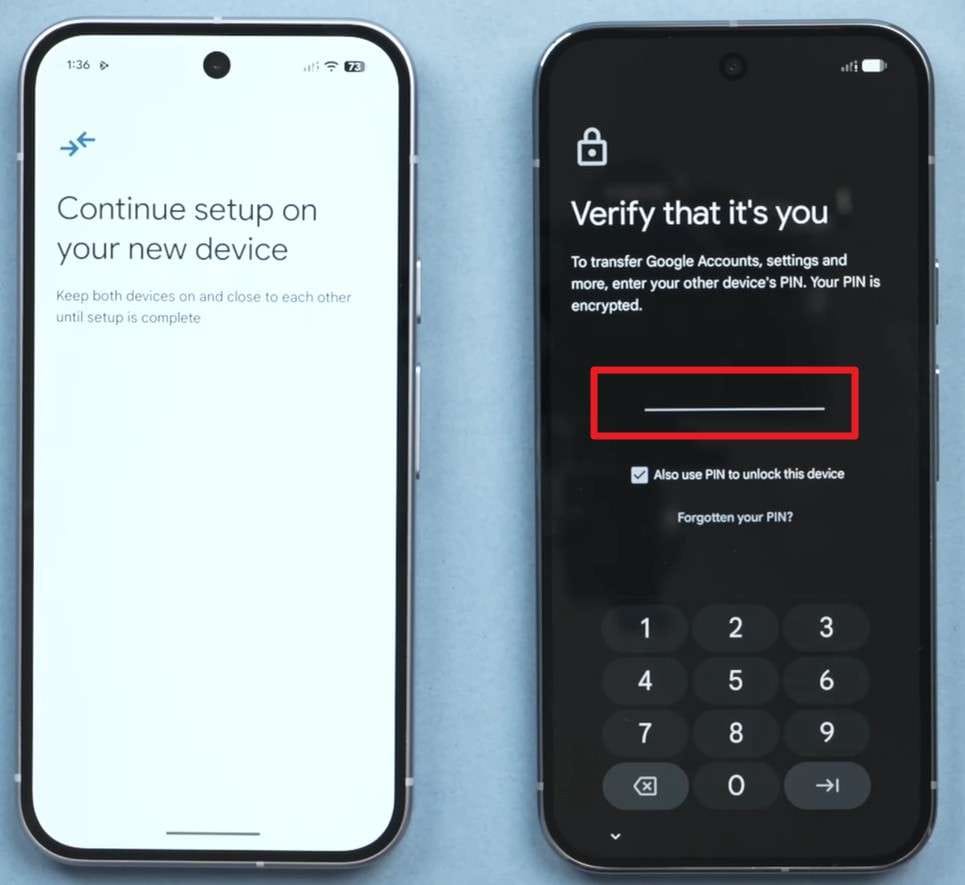
-
Step 4 Pick the “Next” button on the “Copy App and Data” interface as you continue to set up.
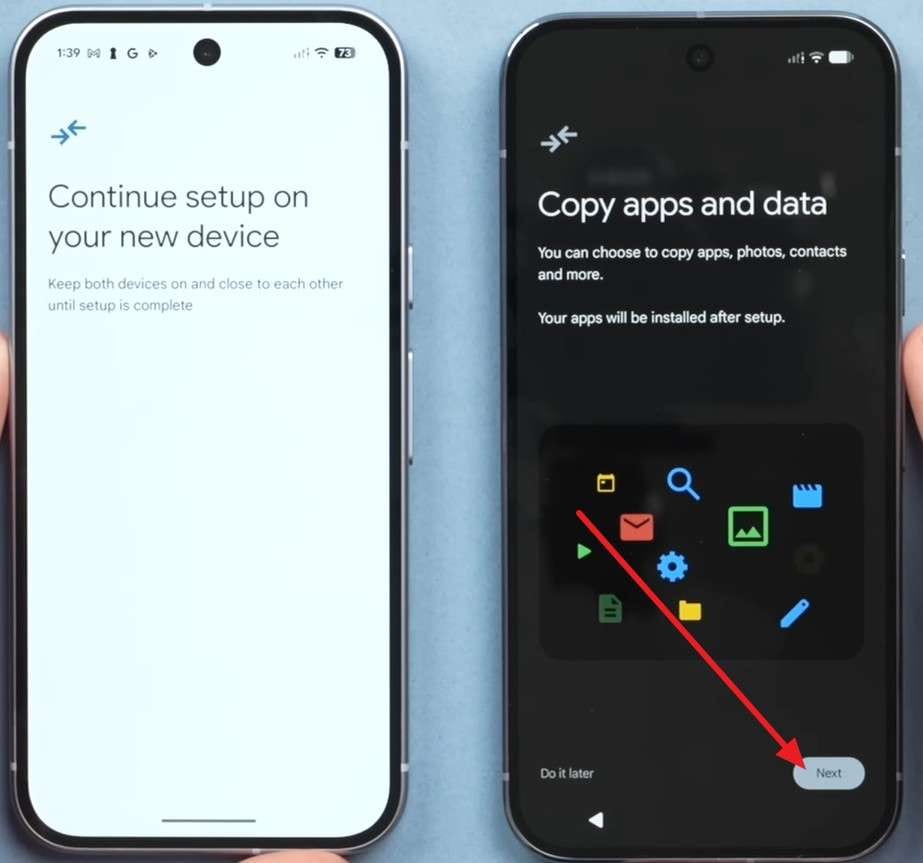
-
Step 5 Select the data transfer option, then tap the “Copy” button to transfer the data and set up the device.
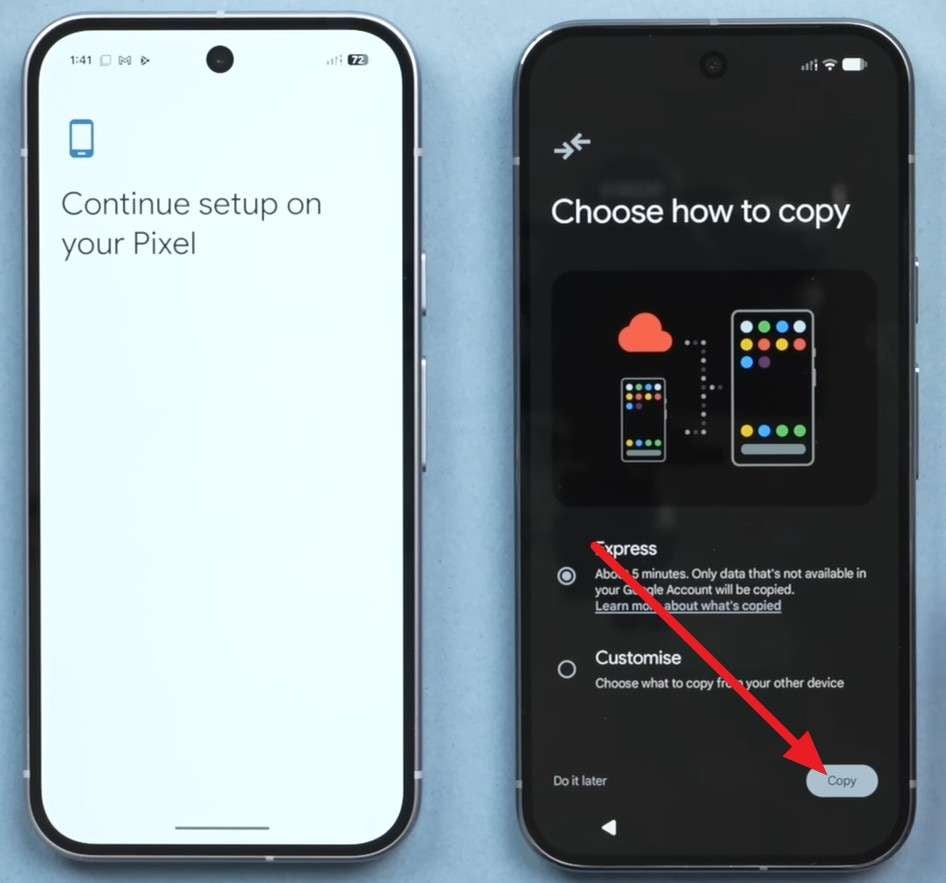
3. Cloud-Based Transfer Methods
Other than the setup methods, try the given cloud options to move photos, videos, and contacts to the new phone:
Method 5. Utilize Cloud Backups
Here are some Android and iPhone-based cloud transfer options you can try:
Option 1. Restore Data from a Cloud Backup
You can restore data from iCloud or Google Drive Backup before the World Cup and set up the device. Since it simply needs to sign in to the old account and choose the backed-up data, here is how it's done:
Restore iCloud Backup
-
Step 1 Create a backup on the old iPhone via “Apple ID > iCloud > iCloud Backup > Back Up This Phone > Back Up Now.”
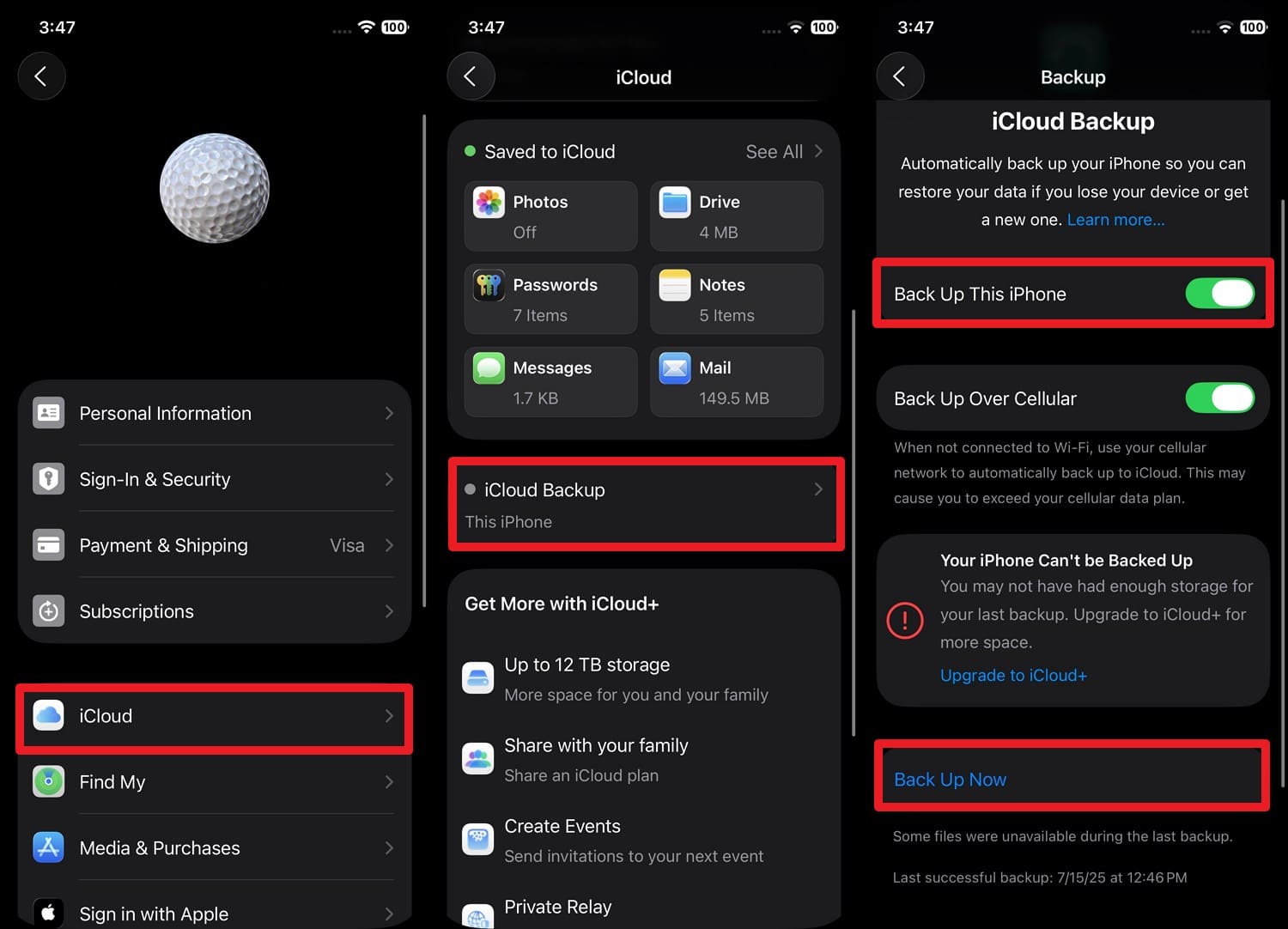
-
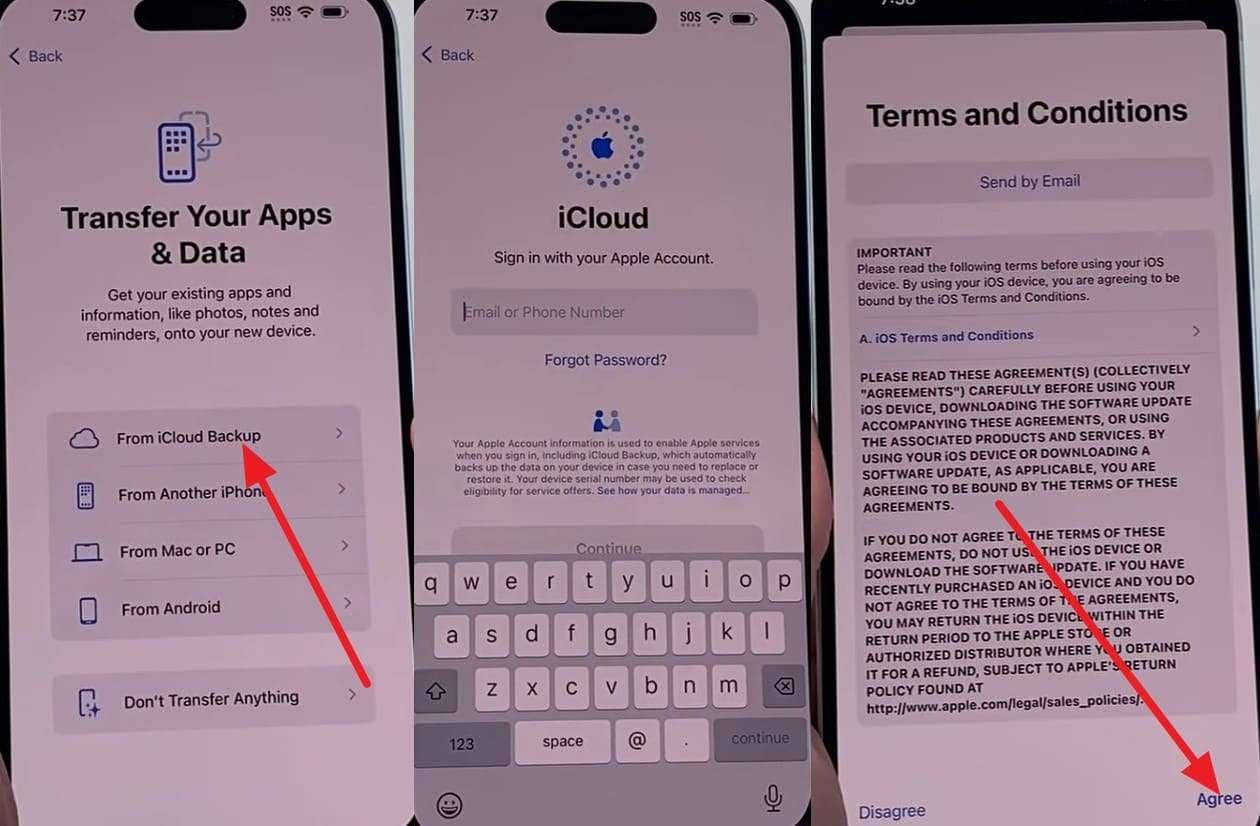
Step 2 Set up the new iPhone > From iCloud Backup > Add Apple ID > Press “Agree” to the terms.
-
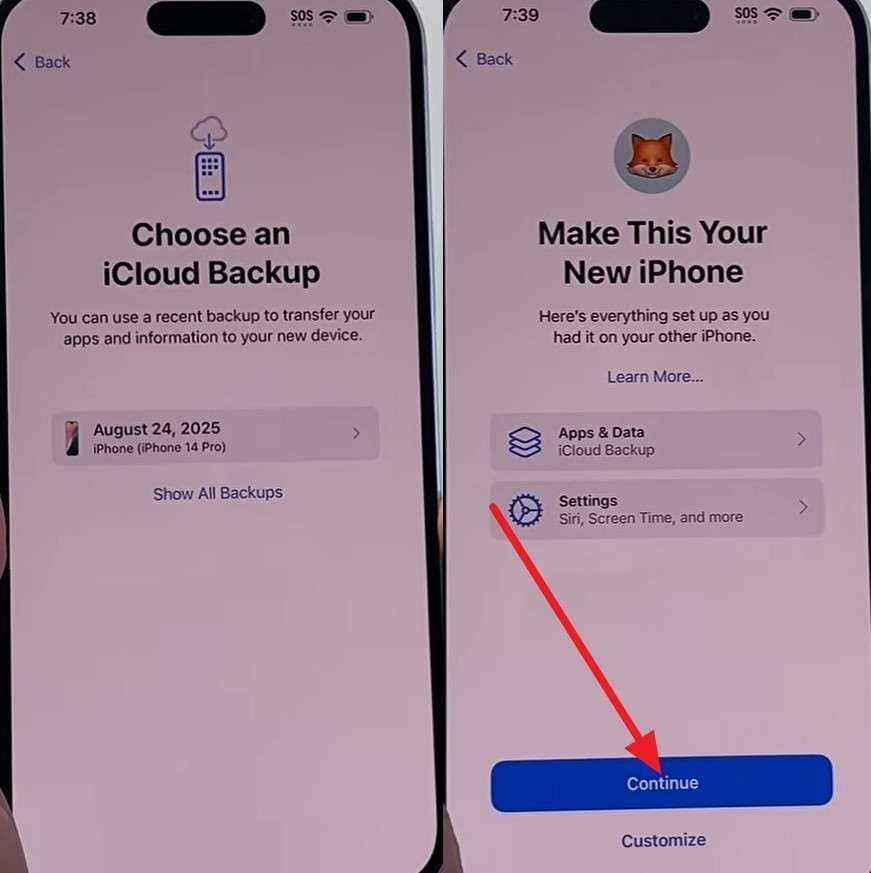
Step 3 Pick the backup you created and choose “Continue” to set up and restore data.
Restore Google Drive Backup
-
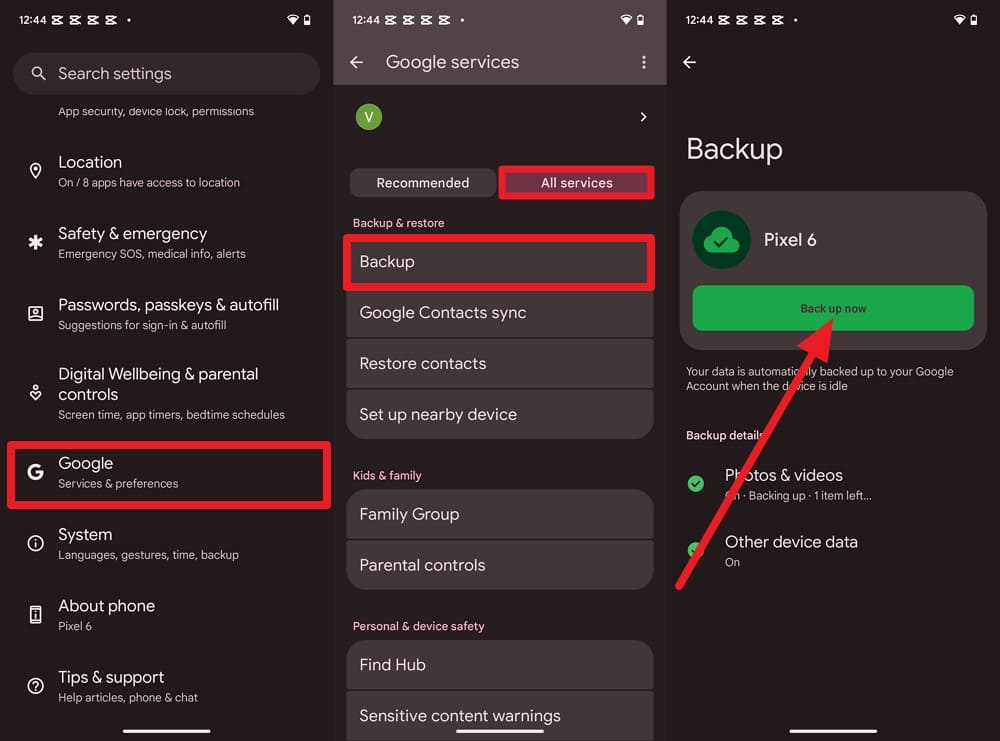
Step 1 Go to “Settings > Google > All Services > Backup > Back Up Now” to create a backup.
-
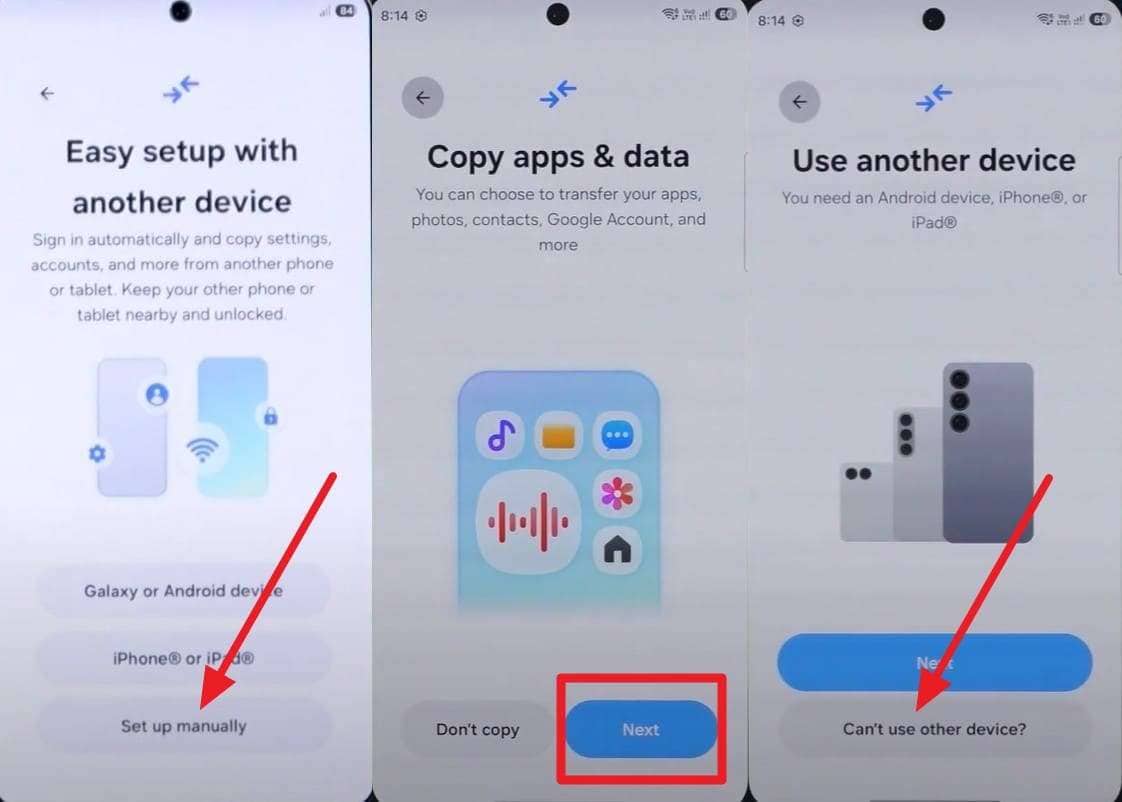
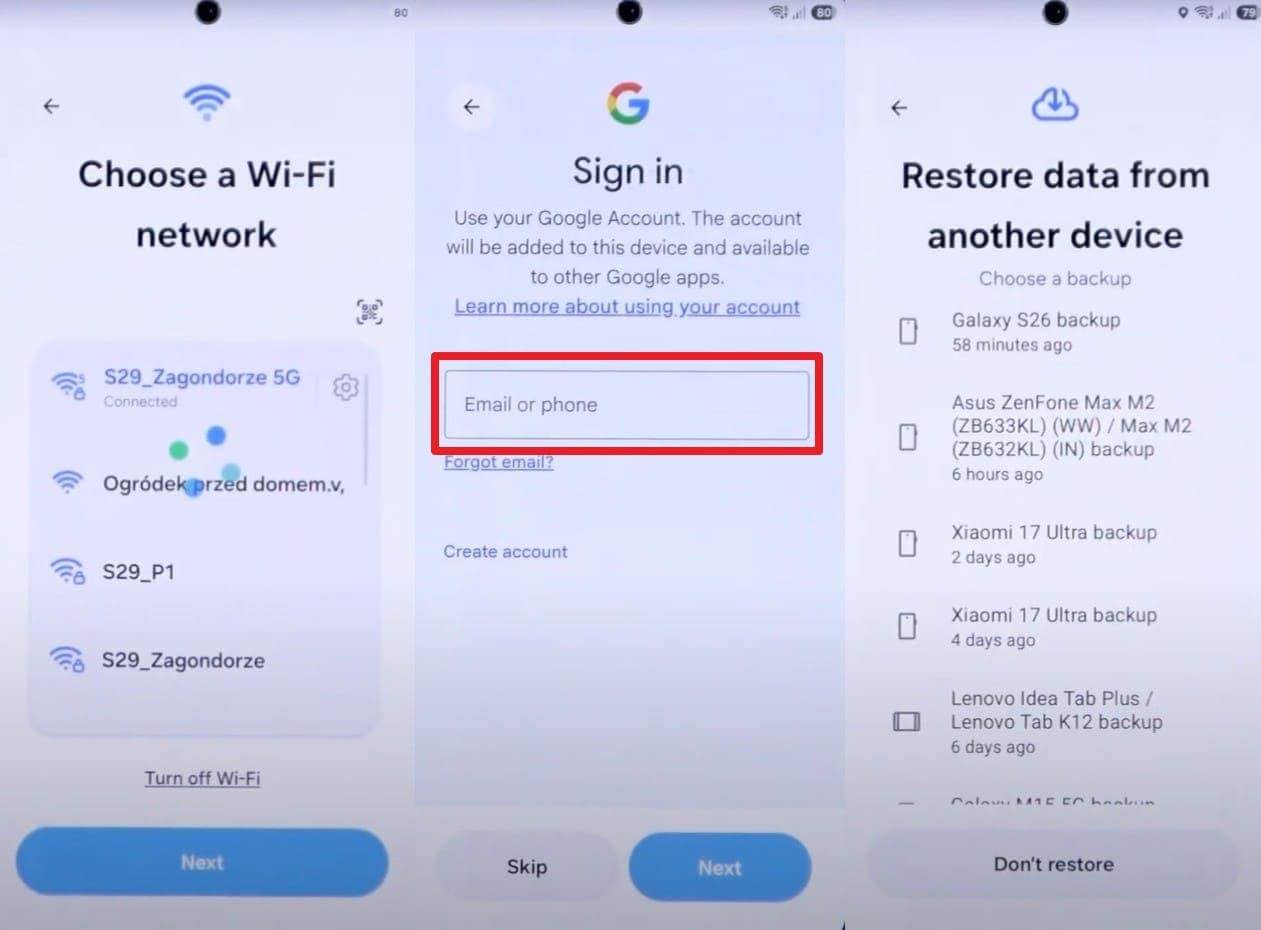
Step 2 Set up a new phone and continue selecting the “Set Up Manually > Next > Can’t Use Other Device?” options.
-
Step 3 Connect to the Wi-Fi and sign in to your Google Account to pick the backup.
Option 2. Google Photos or Google Drive
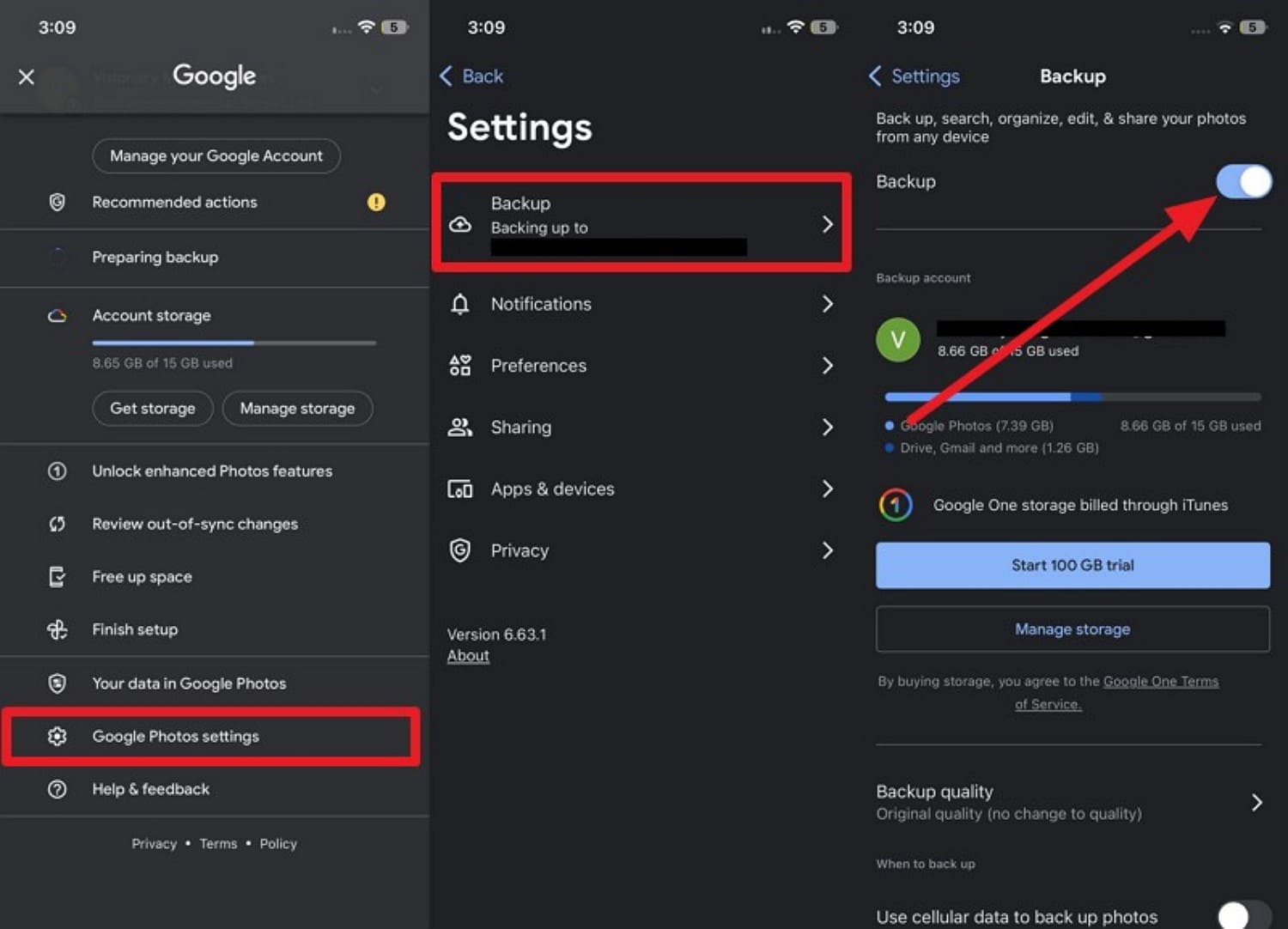
When you only want to move the media files, use the Google Photos Backup option before you switch phones before the World Cup trip.
On iPhone
Instructions: On Google Photos, go to “Profile > Google Photo Settings > Backup > Enable Backup.”
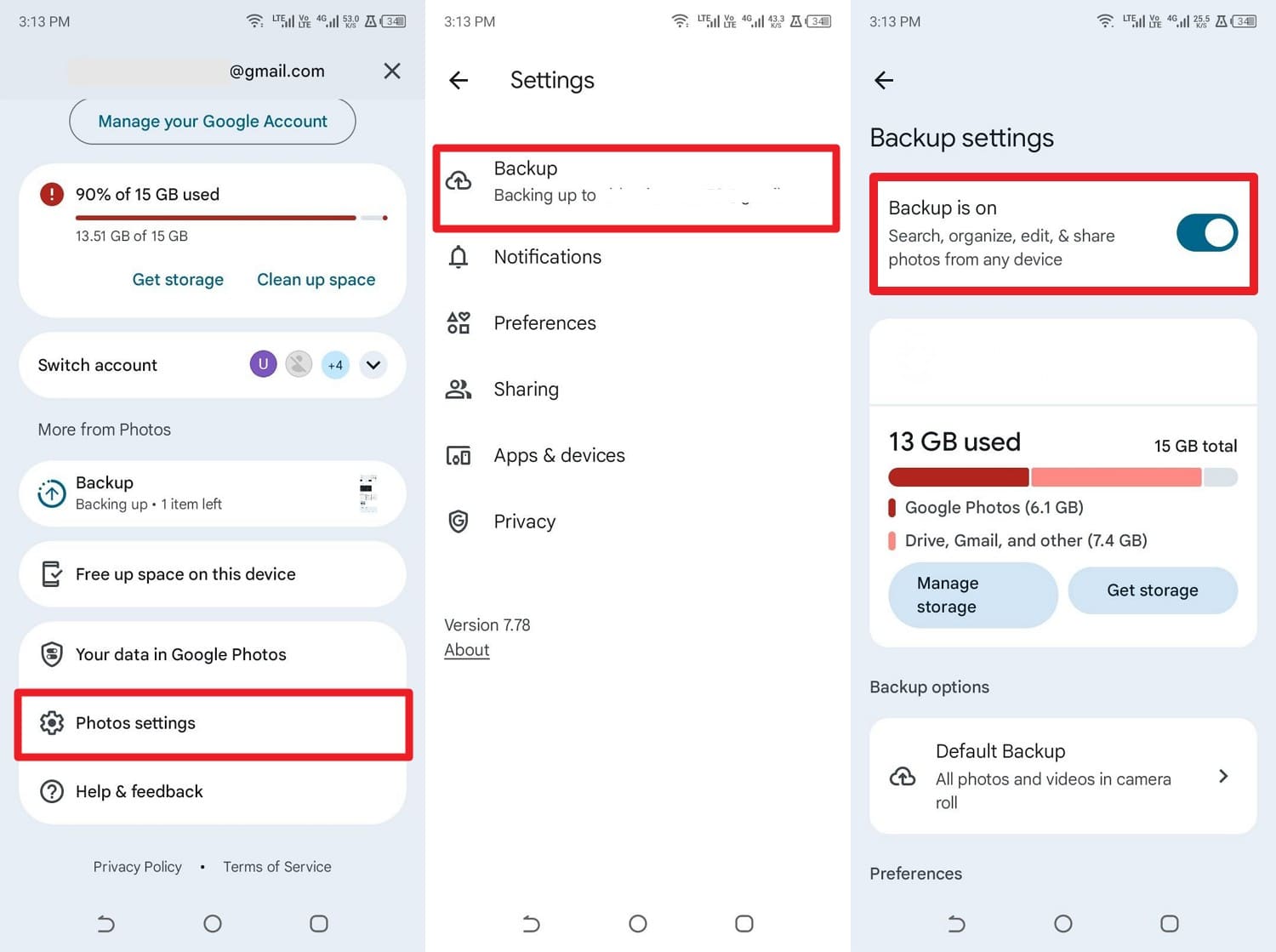
On Android
Instructions. In the Google Photos app, pick “Profile icon > Photo Settings > Backup Up > Activate Backup Is On.”
4. Wireless Local Transfer Methods
For the wireless iPhone to Android transfer for travel, use the mentioned options to transfer selective data:
Method 6. Nearby Share / Quick Share / AirDrop (Wireless Transfer)
Such methods use direct Wi-Fi connections, so you can share data faster than with Bluetooth or internet-based methods, as guided:
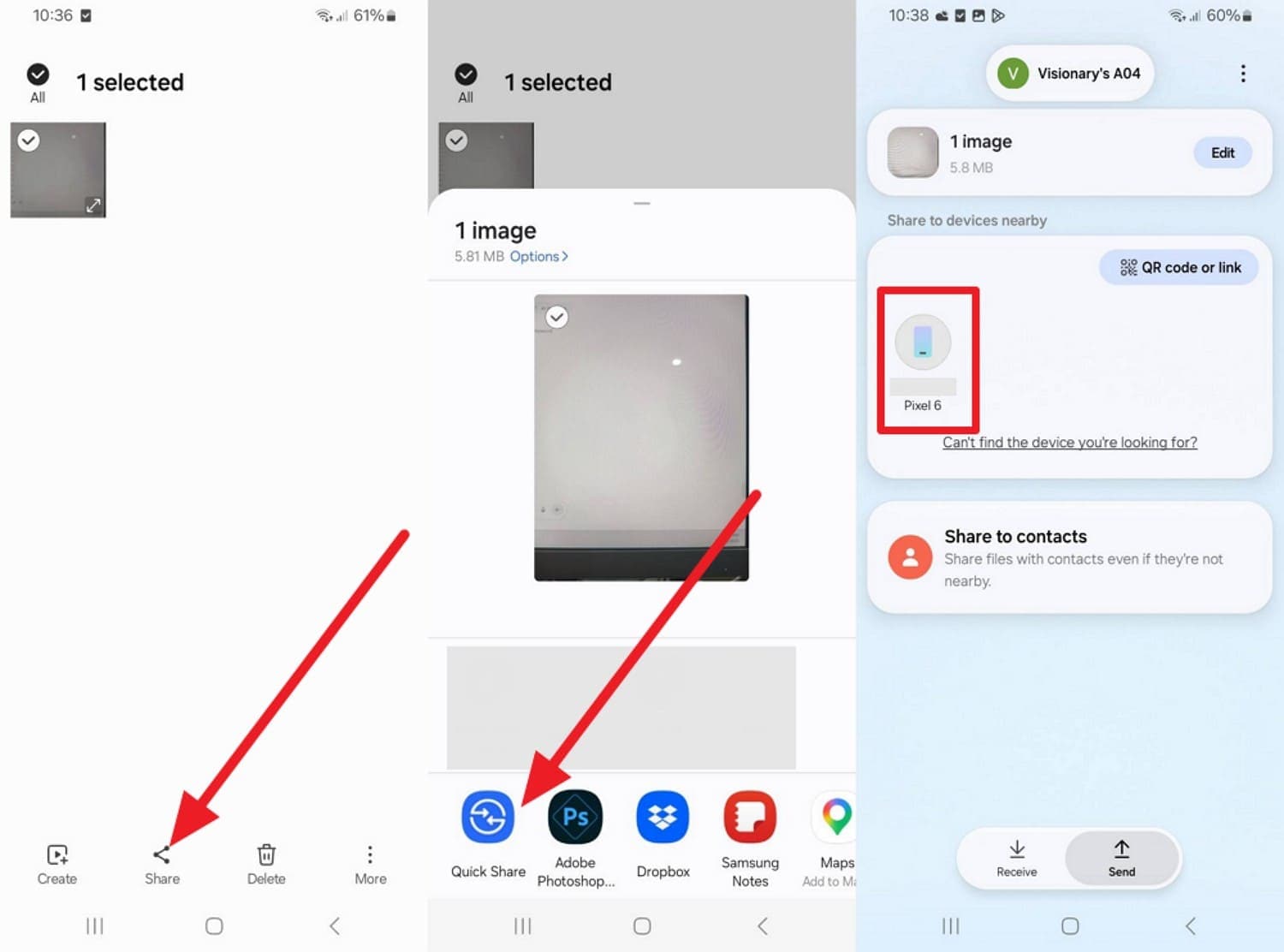
For Nearby Share / Quick Share:
-
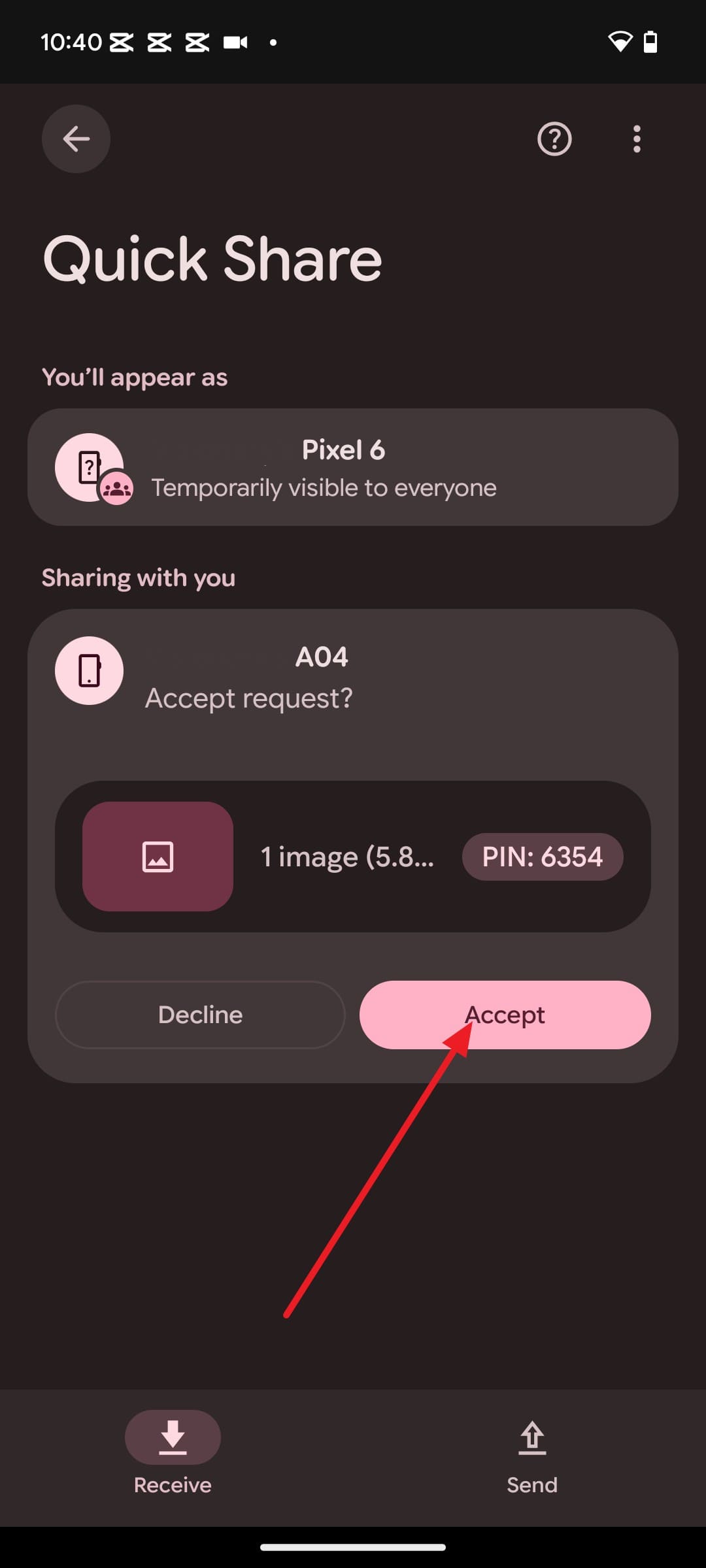
Step 1 Choose the “Share” and “Nearby Share / Quick Share” option as you choose the media and pick the receiving device.
-
Step 2 When the popup menu appears, choose the “Accept” option on the new phone.
For AirDrop
-
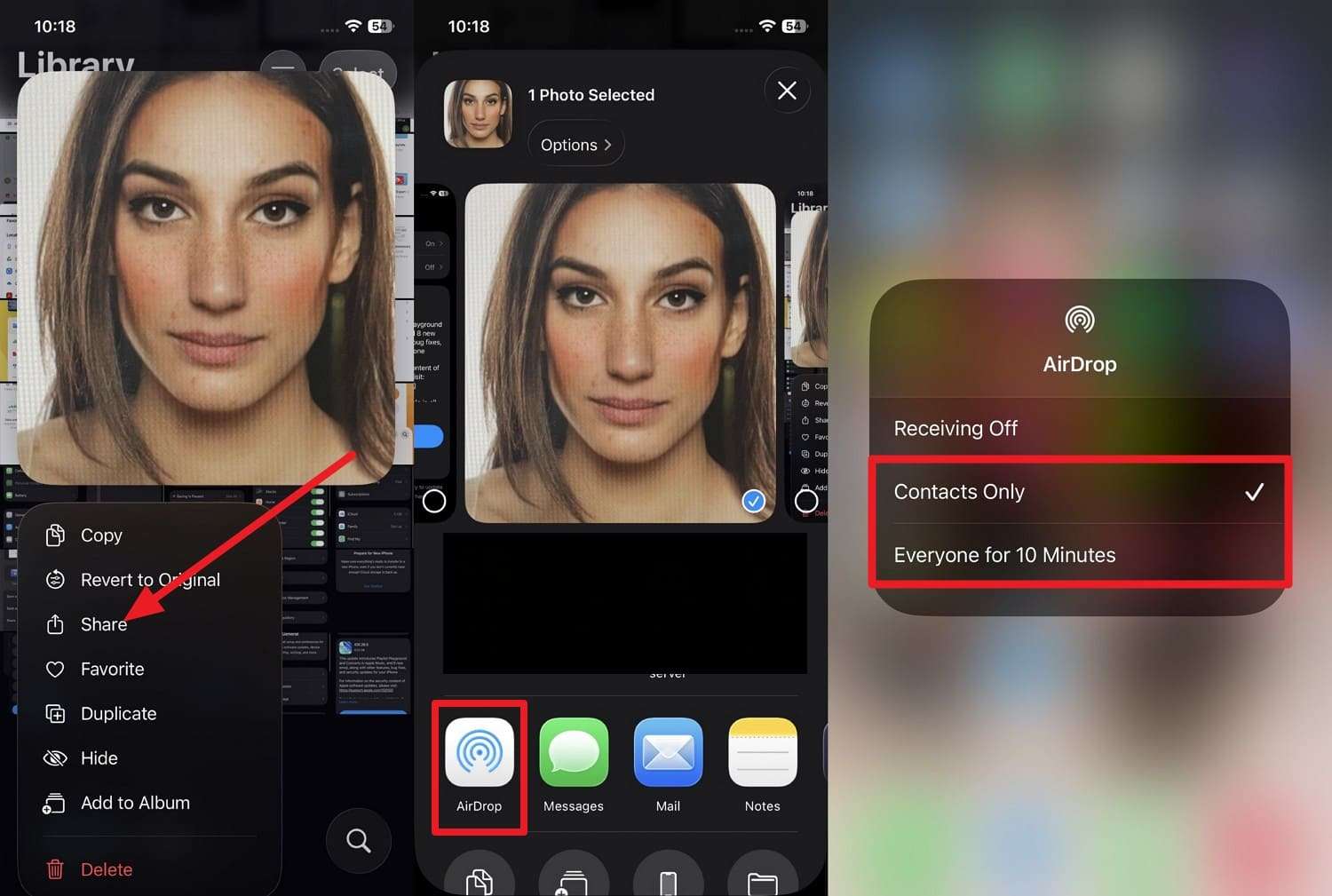
Step 1 Choose “Media> Share > AirDrop,” then select the required AirDrop option.
-
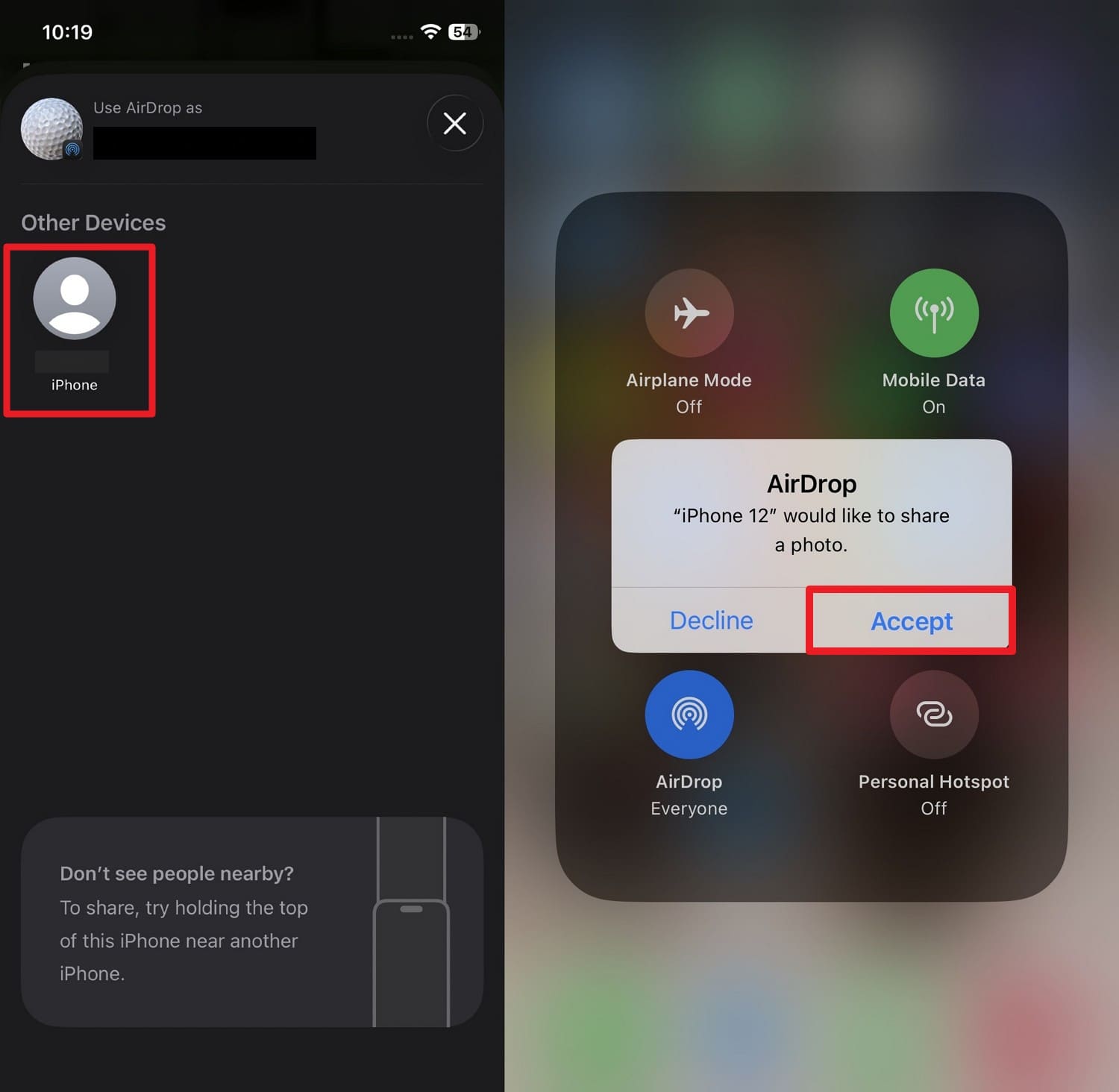
Step 2 Select the target device on the old iPhone, then tap the “Accept” button on the new iPhone.
5. Direct Hardware Transfer Methods
For those who want to move photos, videos, and contacts to a new phone with complete control, here is one option:
Method 7. Direct Cable Transfer (Fastest Option)
You can use a USB connection to selectively and manually share Android or iPhone data without internet or an extra app, as shown:
-
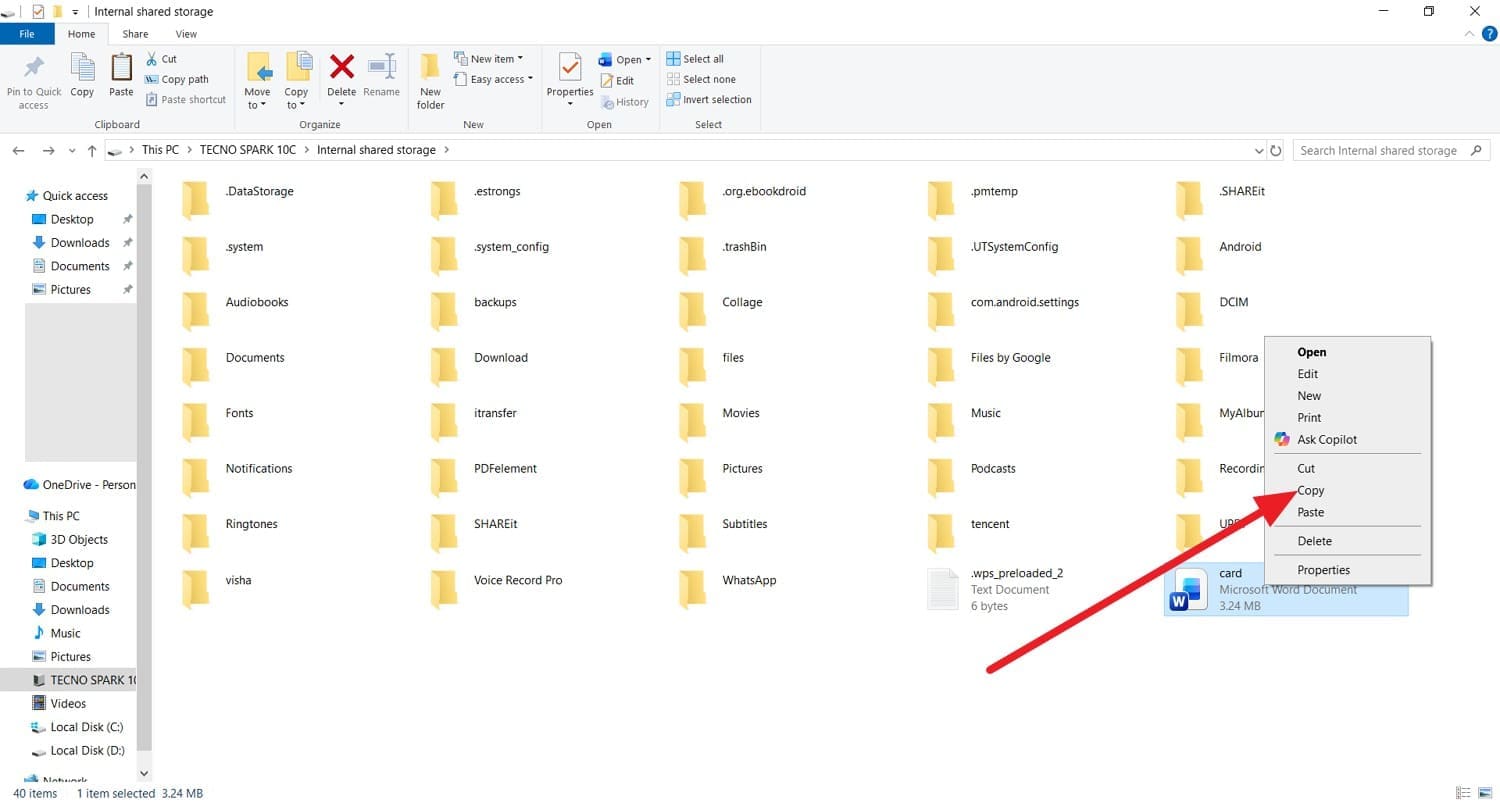
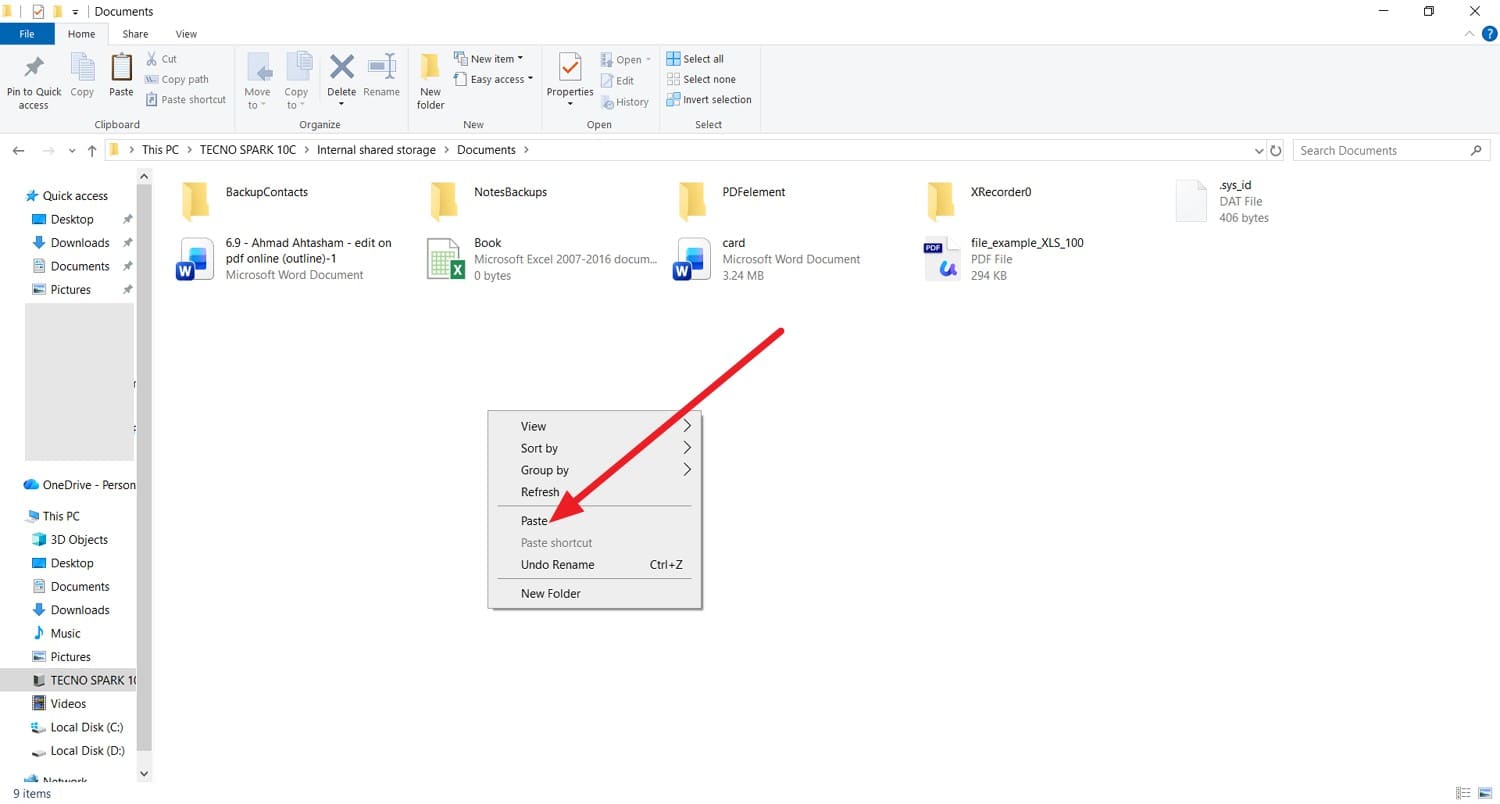
Step 1 Connect both devices to the PC and copy the data from the source phone’s internal storage using the right-click menu.
-
Step 2 Go to the target device folder and right-click to “Paste” the data.
6. App-Based Selective Transfer Methods
If you are looking for some app-based transfer options for iPhone to Android transfer for travel, review the mentioned one:
Method 8. Use Instant Messaging Apps
You can use apps like WhatsApp to share multiple data types in bulk between Android and iPhone via the given details:
-
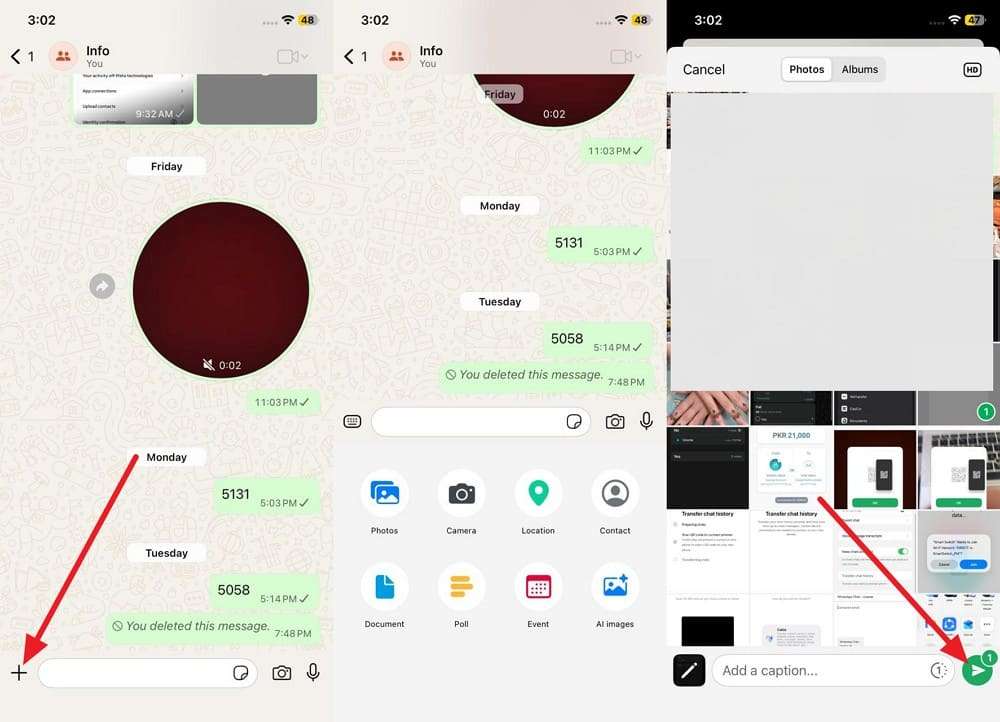
Step 1 Tap the “+” icon to select the media files you want to transfer, then tap the “Send” icon.
-
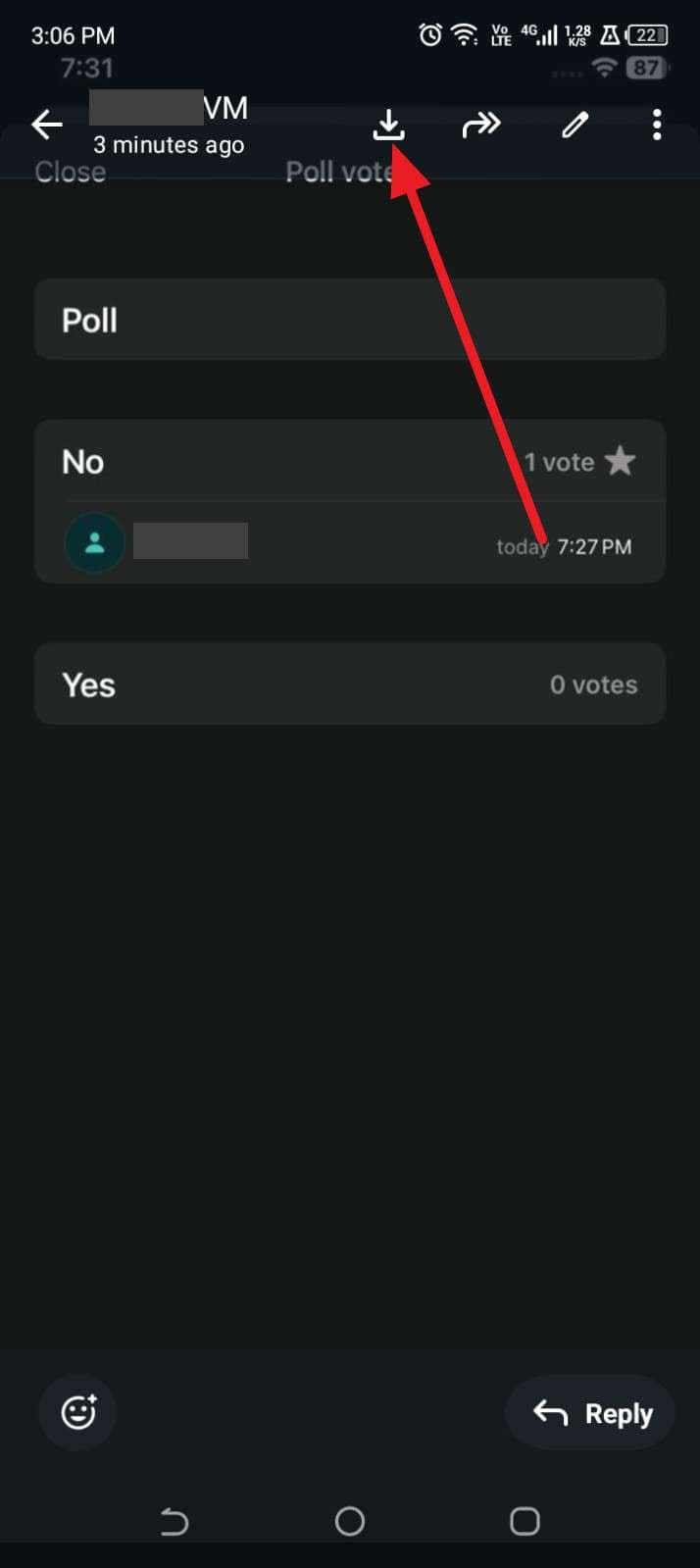
Step 2 On Android, tap the received data and choose the “Download” icon to save.
Part 3. Which Phone Transfer Method Is Best Before the World Cup?
If you want to know which method is best to transfer data to a new phone before the World Cup, review the given table:
| Methods | Platforms | Speed | Data Types Covered | Internet Required | Best For |
|---|---|---|---|---|---|
| Dr.Fone - Phone Transfer | Android ↔ iPhone, Android ↔ Android, iPhone ↔ iPhone | Highest | 8–13 data types, depending on the transfer direction | No | Complete, direct device-to-device transfer |
| Move to iOS / Smart Switch | Move to iOS: Android → iPhone Smart Switch: Android/iPhone → Samsung Galaxy |
Fast | Core phone data and supported settings | No for local transfers (Wi-Fi/cable); Yes for some backup modes | Switching to an iPhone or Samsung Galaxy device |
| iPhone-to-iPhone (Quick Start) | iPhone → iPhone | Fast | Most device data, apps, and settings | No for direct phone-to-phone transfers; Yes when downloading from iCloud | Upgrading from one iPhone to another |
| Android to Android (Android Switch) | Android → Android | Fast (cable) to Medium (Wi-Fi) | Most device data and basic system settings | No for local transfers; Yes for some backup-based transfers | Upgrading to a new Android device |
| Restore from a Cloud Backup (Google Drive / iCloud) | Android (Google Drive), iPhone (iCloud) | Medium to Slow | Previously backed-up data and supported app content | Yes (a stable Wi-Fi connection is recommended) | Setting up a new phone from an existing backup |
| Google Photos / Google Drive | Android, iPhone, Web | Medium | Photos, videos, and selected files only | Yes | Moving important media before the World Cup |
| Quick Share / AirDrop | Quick Share: Android ↔ Android AirDrop: iPhone ↔ iPhone, Mac |
Fast | User-selected files and media | No (uses local Wi-Fi and Bluetooth) | Fast local transfers of selected files |
| Direct Cable Transfer | Android ↔ Android, iPhone ↔ iPhone, Phone ↔ Computer | Fast | Manually copied files and supported media | No, requires a USB connection | Manually transferring specific files |
| WhatsApp (Instant Messaging Apps) | Cross-platform | Medium to Fast | Chats, media, and supported attachments only | Yes | Sharing chats and media between devices |
Verdict: Dr.Fone - Phone Transfer is the reliable choice if you want to move data across platforms without any account, storage, or internet limit.
Part 4. 5 Essential Tips for a Smooth Phone Upgrade Before Traveling
Follow the mentioned tips to securely move photos, videos, and contacts to a new phone:
| Tips | Why It Helps |
|---|---|
| Back Up Important Travel Data | Always save tickets, boarding passes, hotel bookings, travel, and World Cup entry passes. |
| Create a Full Phone Backup | Use Dr.Fone's backup feature for iOS and Android to save the complete data that you can later preview. |
| Update Both Phones | Install the latest software to reduce transfer errors and compatibility issues. |
| Check Storage Space | Make sure the new phone has enough space for all your data and World Cup content. |
| Test Key Apps After Transfer | Verify that banking, maps, messaging, and ticket apps work correctly before departure. |
Conclusion
Since many users seek effective ways to transfer data to a new phone before the World Cup, this guide has explained 8 main options. Out of all the subways, Dr.Fone - Phone Transfer is the preferred choice to move selective data types in batches without any device or storage limits.
FAQ
-
1. Can I transfer my eSIM to a new phone?
Yes, most eSIMs can be moved to a new phone by scanning the QR code or using your carrier’s eSIM transfer options. -
2. Will my Wallet tickets and boarding passes move automatically?
No, you usually need to re-add them manually to Apple Wallet or Google Wallet on your new phone. -
3. Will I lose my WhatsApp chats switching from iPhone to Android?
No, if you use the WhatsApp built-in methods or Dr.Fone – WhatsApp Transfer, all your chats will remain intact.
 Add Wondershare Dr.Fone as a preferred source on Google