Move contacts, messages, photos, videos, app data, and more between iOS and Android.

 100% Security Verified | No Subscription Required | No Malware

 :
: 
 ChatGPT
 Perplexity
 Gemini
 Claude
 Grok
Grok
A new iOS 27-compatible iPhone is exciting until you realize you have to move all your data and WhatsApp chats safely.
Many users worry that their vital data will be lost or that they will get stuck in the transfer process. As a result, they look for simple and effective methods for iPhone-to-iPhone transfer iOS 27. Thus, this guide explains Apple’s official transfer methods and advanced phone transfer tools, like Dr.Fone - Phone Transfer. Learn why data loss happens and whether Dr.Fone - Phone Transfer is the best option compared to the built-in ways for novices.
In this article
Part 1. Why iPhone-to-iPhone Transfer Is Tricky on iOS 27
When one ought to move WhatsApp iOS 27 or any other data, this section explains what can be tricky and why data loss occurs.
What Users Usually Struggle With
During data migration, users can get stuck on the Quick Start “Waiting for Update” screen if the new phone has an older iOS version than the old one. According to a report by iTandCoffee, the basic data may also take time to fully sync.
Furthermore, users often need to sign in again to authentication apps and security services because these apps do not automatically transfer sensitive login information.
Why Data Loss Happens During Migration
Learn why data loss can happen when you try iOS 27 setup new iPhone or any other transfer method:
| Cause | What It Means |
|---|---|
| Software Mismatch | The new phone has older software than your old one, causing the backup to fail. |
| Interrupted Wi-Fi | Your internet drops out mid-transfer, leaving files incomplete or corrupted. |
| Security Lockouts | Banking apps and passwords block automatic transfers for your protection. |
| Rushed Setup | The transfer is cut short while massive photo and message files are still syncing. |
Part 2. Before You Start: Preparation Checklist
1. Check iOS 27 Compatibility on Both iPhones
This helps avoid setup and migration problems when both devices support similar iOS versions. So, according to MacRumors, your device must not be an iPhone 11 Series, iPhone SE (2nd Gen, 2020), or iPhone XS / XS Max / XR and Older.
2. Update Old iPhone to the Latest iOS Version First (If Recommended)
You can use Quick Start, iCloud backups, or direct transfer smoothly if the phones run the same iOS version. Hence, you will face fewer stuck transfer issues and make it easier to restore data once updated via the mentioned steps:
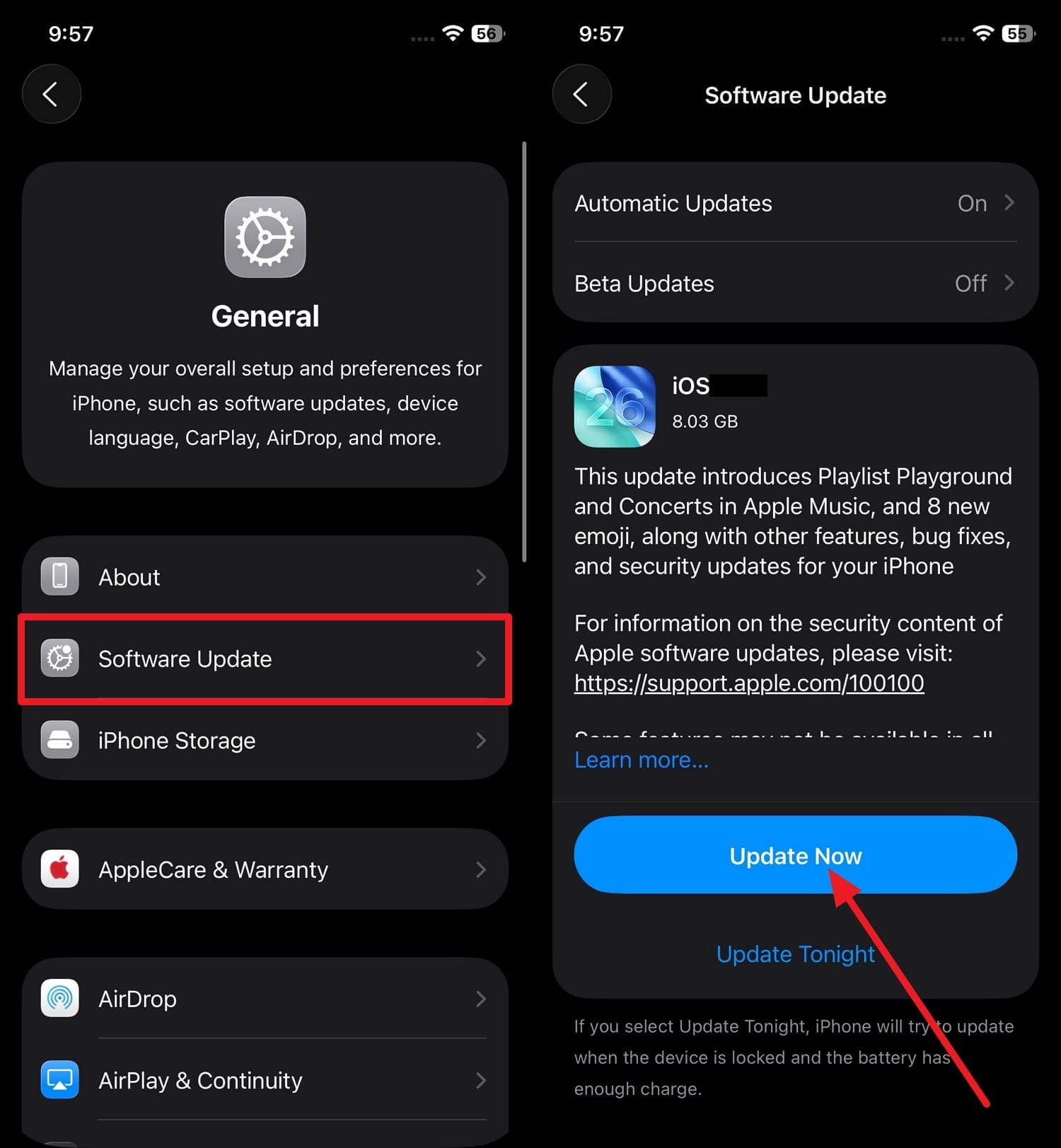
Instructions. Tap the “Software Update” button in the General settings, and when the iOS 27 update is here, choose to “Update Now.”
3. Make a Backup Before Any Transfer (iCloud or Computer)
To move WhatsApp iOS 27 or any other data, backup secures the information if something goes wrong during the setup or migration process. Hence, users can create an iCloud backup of all data types or use tools like Dr.Fone - Phone Backup (iOS).
Since iCloud backups are prone to overwriting, you can create a selective and incremental backup of 26+ data types with Dr.Fone.

4. Ensure Stable Wi‑Fi, Enough Battery, and Free Storage
Weak internet can interrupt the process, and a low battery can cause it to stop unexpectedly. So, make sure you have enough storage, a full battery, and a stable connection to finish the transfer smoothly.
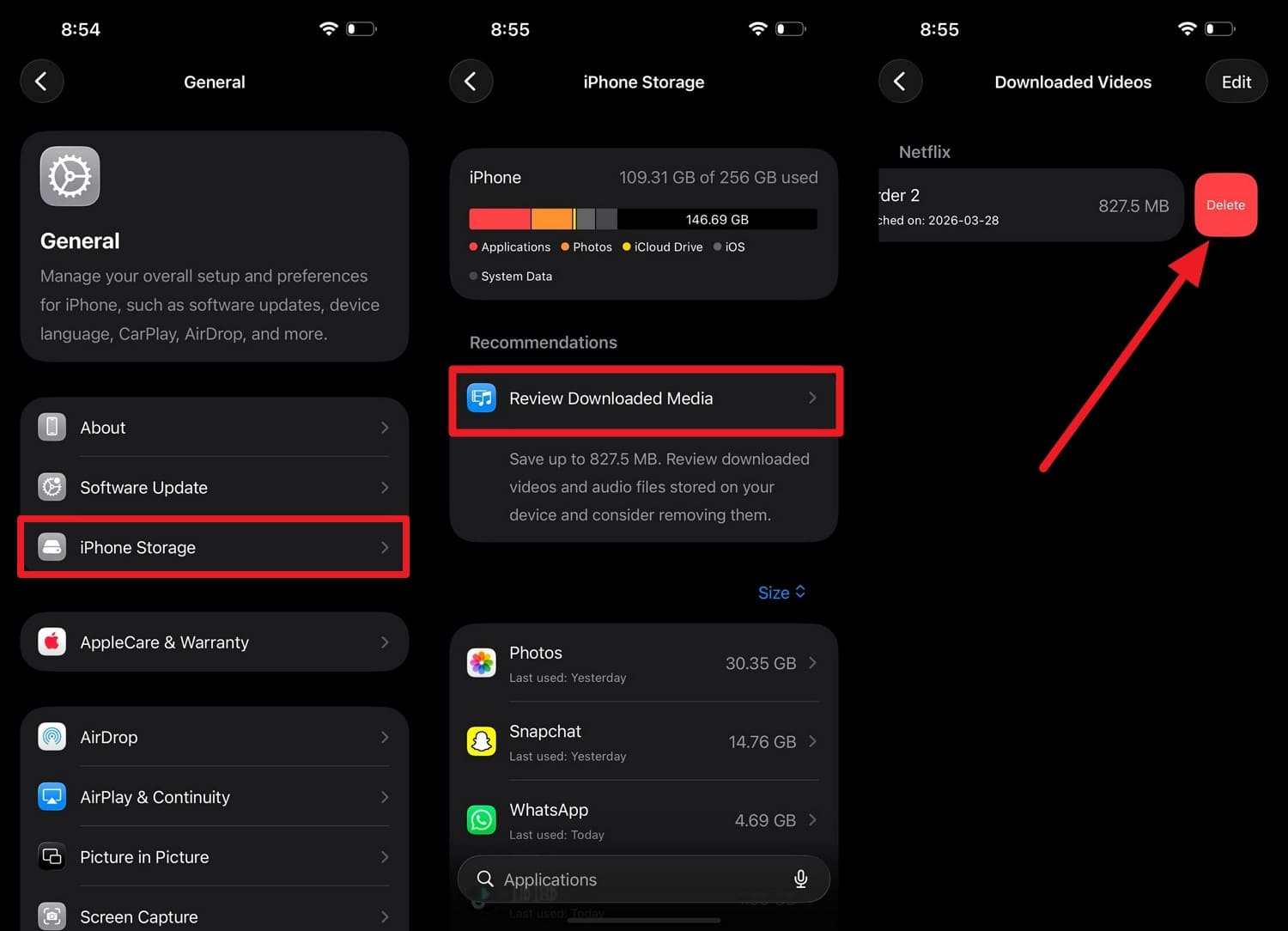
If you want to make space, learn how to access iPhone Storage through the given steps:
Instructions. Choose the “Review Downloaded Media” option in the iPhone Storage and swipe left on large files to “Delete.”
Part 4. Best Methods to Transfer Data to a New iPhone on iOS 27
Now that you are ready for the iPhone-to-iPhone transfer iOS 27, try the 9 methods given in this section:
Way 1. One-Click Phone Transfer Tools (Dr.Fone – Phone Transfer)
When you want a collective iPhone-to-iPhone transfer iOS 27 solution, where you can move apps and sensitive data, use Dr.Fone - Phone Transfer.
Designed for convenience, this method lets you move 13 file types from iOS to iOS in batches. Users can selectively choose what they want to share and skip, and it will support iOS 27 right after its official release.
This is because of its weekly updates and cross-platform transfer support for all upcoming Android and iOS versions. When official methods need setup or passcode access, this tool relies on a USB connection only and moves data in 2-3 simple steps.
Most of all, Dr.Fone also offers dedicated WhatsApp Transfer and Phone Backup tools, giving users additional options for moving chats and protecting data before migration.
 Move data between iOS to Android and vice versa.
- Transfer contacts, SMS, photos, videos, music, and more types.
- Available with all phones with Android and iOS versions.
- Simple, click-through process.

Guide to Move Data to iOS 27 Using Dr.Fone - Phone Transfer
Whether to move WhatsApp iOS 27 or basic data types, let’s test how well this tool performs in real-world scenarios via the mentioned guide:
-
Step 1 Use the Phone Transfer for iOS to iOS 27 Migration
Choose the “Phone Transfer” tool from the toolbox, connect both iPhones, and use the “Flip” icon to differentiate sender and receiver.

-
Step 2 Pick Data Types to Start Transfer
After that, choose from the 13 data types for iOS to iOS and press the “Start Transfer” button to continue.

-
Step 3 Disable iCloud Photos Sync to Move All Data
Turn off the option for “iCloud Photos” through the given guide and choose “Next” to fetch data on a new iOS 27 device.





Way 2. iCloud Backup and Restore (Sign In with Your Apple ID)
This method allows you to connect your iPhone to your existing iCloud account to restore data. Since you use the same Apple ID, it ensures a smooth transfer through the given guide if you have a previous backup and a stable Wi-Fi connection:
-
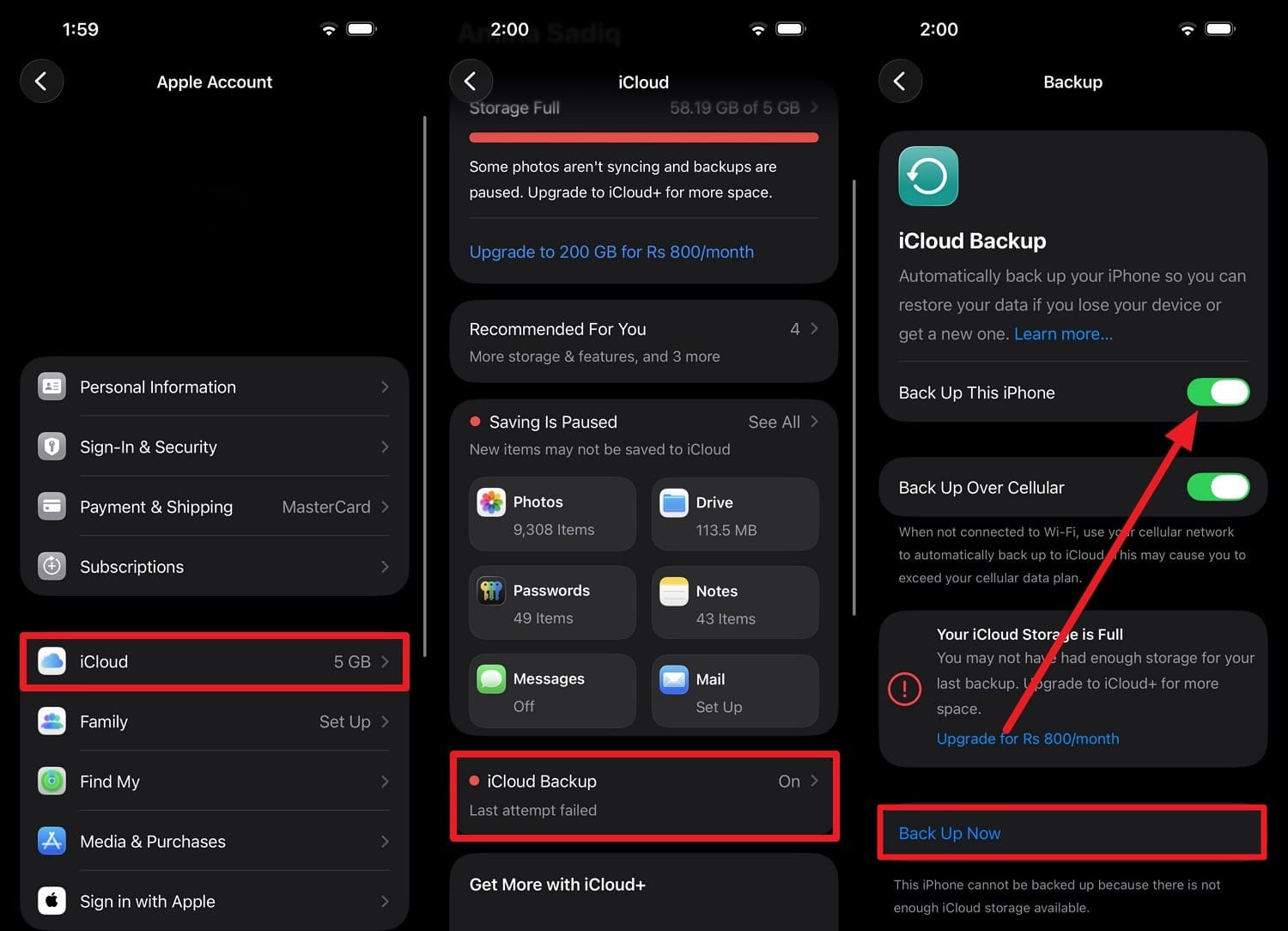
Step 1 To create the iCloud Backup on the old phone, tap on “Apple ID > iCloud > iCloud Backup > Back Up This Phone and “Back Up Now.”
-
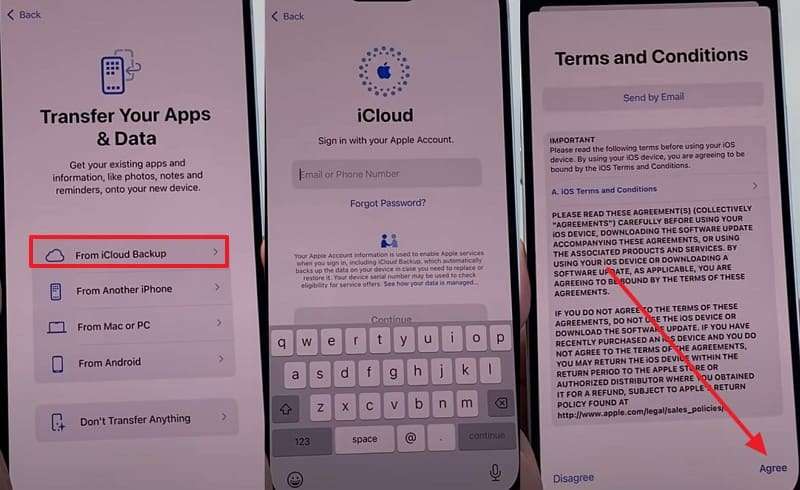
Step 2 Now, continue the setup on the new phone and pick “From iCloud Backup” on the “Transfer Your Apps & Data” interface. Here, enter the same Apple ID as on the old iPhone, then “Agree” to the Apple terms to continue.
-
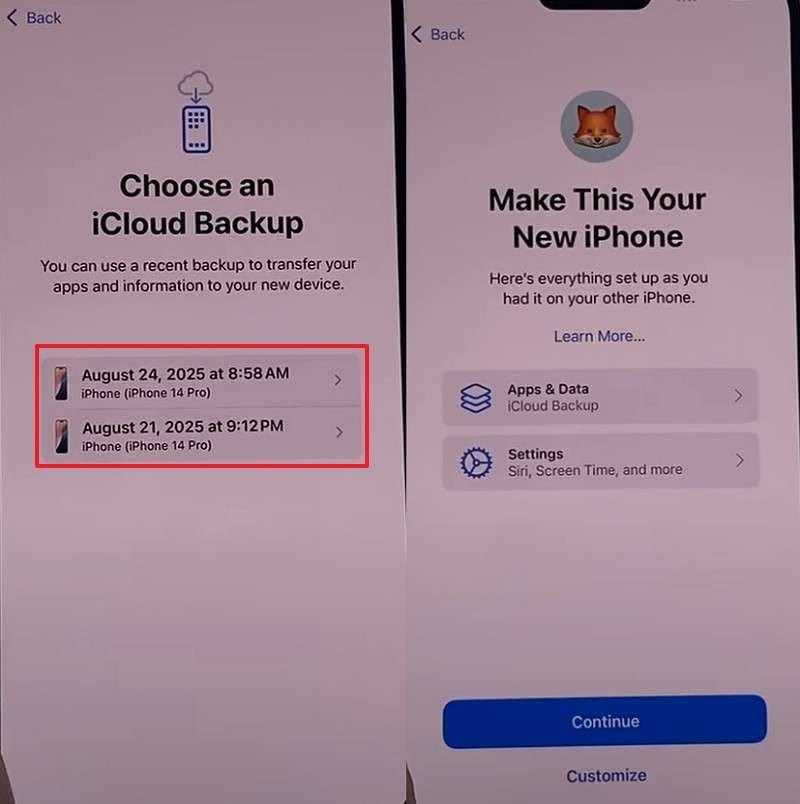
Step 3 Choose the required iPhone backup and press “Continue” to restore the data on the new iOS 27 iPhone.
Way 3. iCloud Sync (Contacts, Photos, Notes)
After the iOS 27 setup, move data like calendar, contacts, and reminders. When sync is enabled, you can easily access your data when you sign in with the same Apple ID.
So, this method will not need any backup restore and is guided ahead:
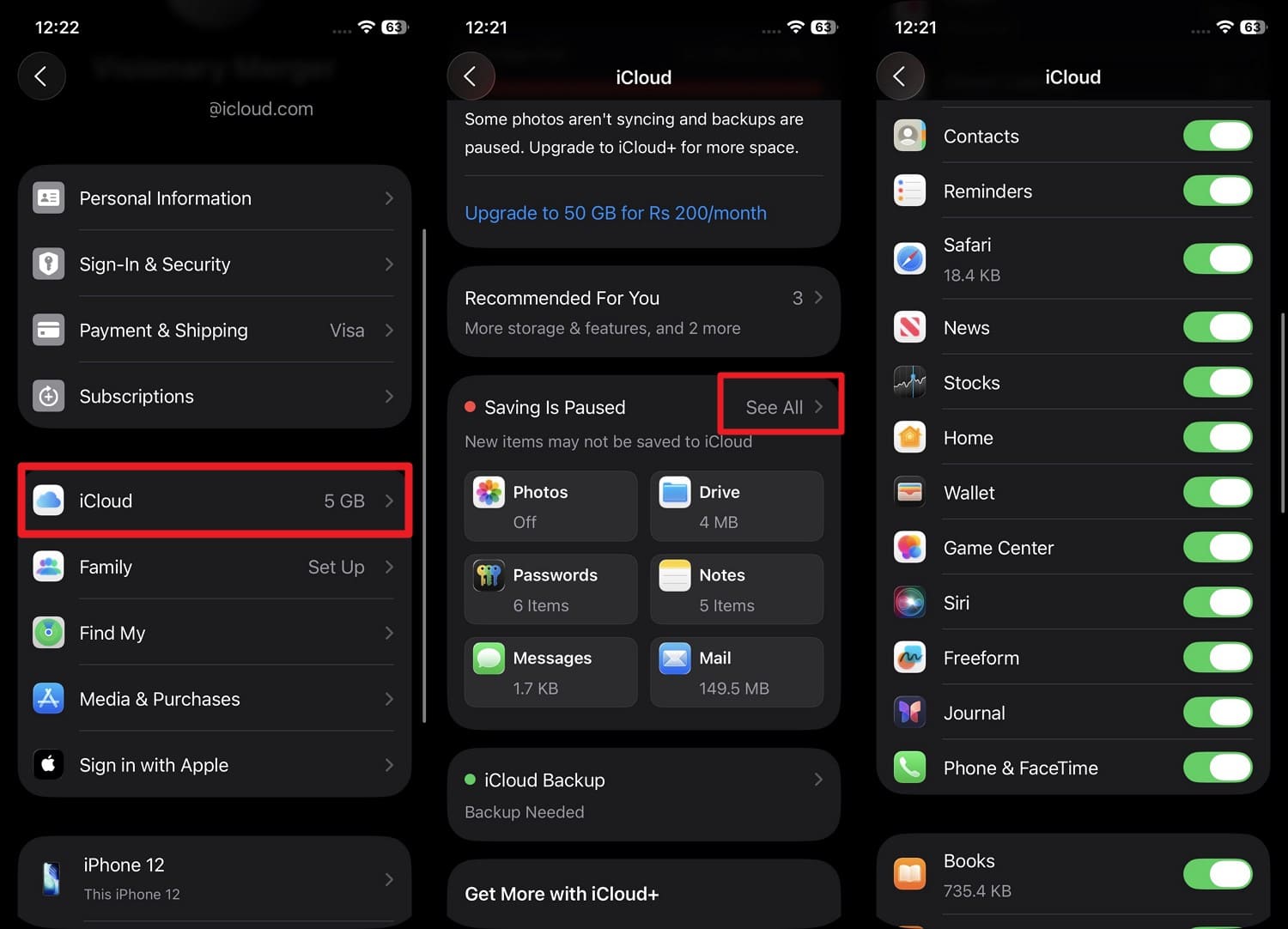
Instructions. Choose “iCloud” settings in the Settings app, then select the “See All” menu to enable syncing for the listed apps. Keep the new iPhone connected to Wi‑Fi and powered on during this process, and sign in to the new iPhone to fetch the synced data.
Way 4. AirDrop for Manual File Transfer
To move selected data, this method works wirelessly via Wi-Fi and Bluetooth. Most of all, it keeps the data integrity intact and shares the data that was missed in the setup process, as guided:
-
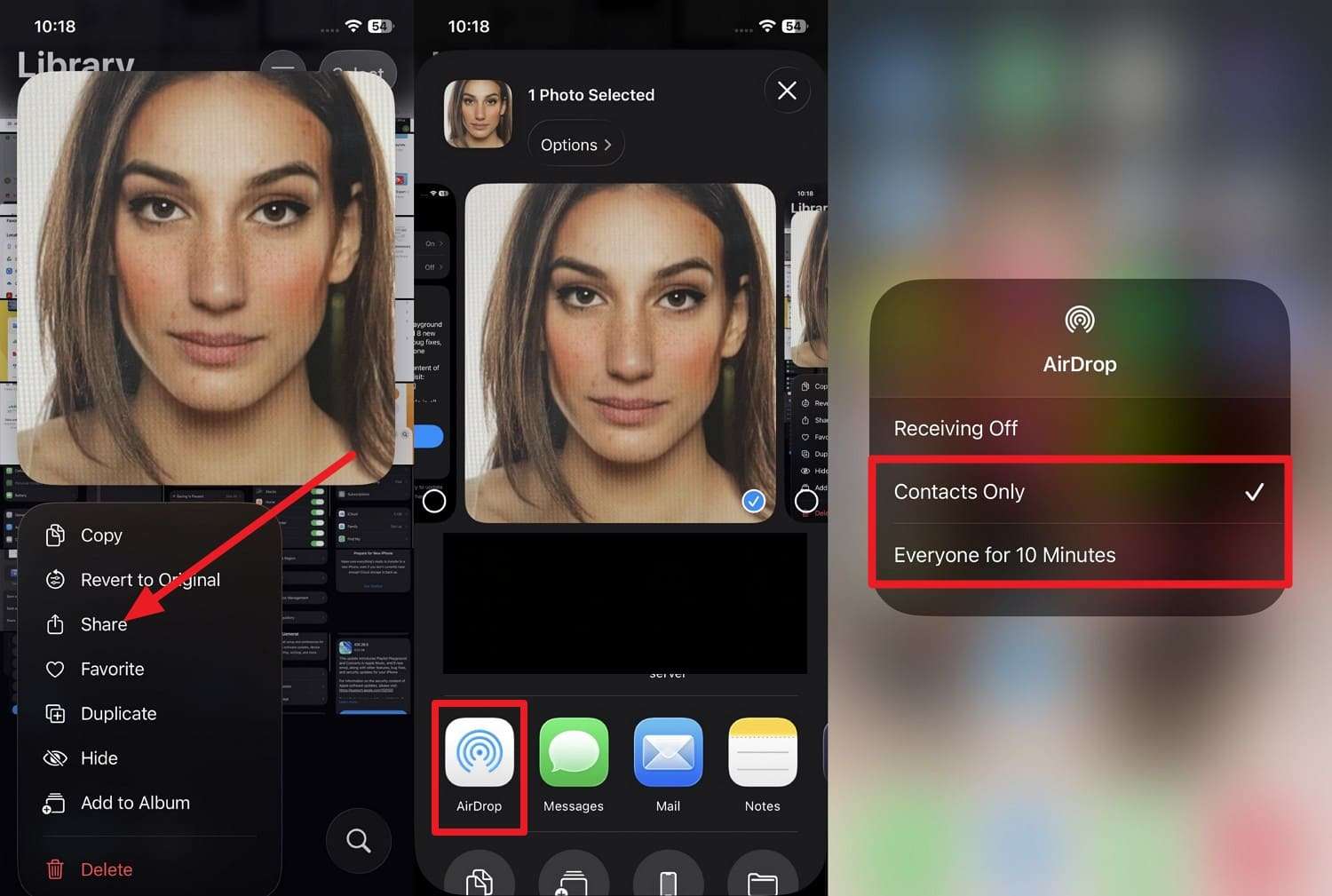
Step 1 Select the “Share” option for the media you want to move, then choose “AirDrop.” On the new iPhone, set the AirDrop settings to “Contact Only” or “Everyone for 10 Minutes.”
-
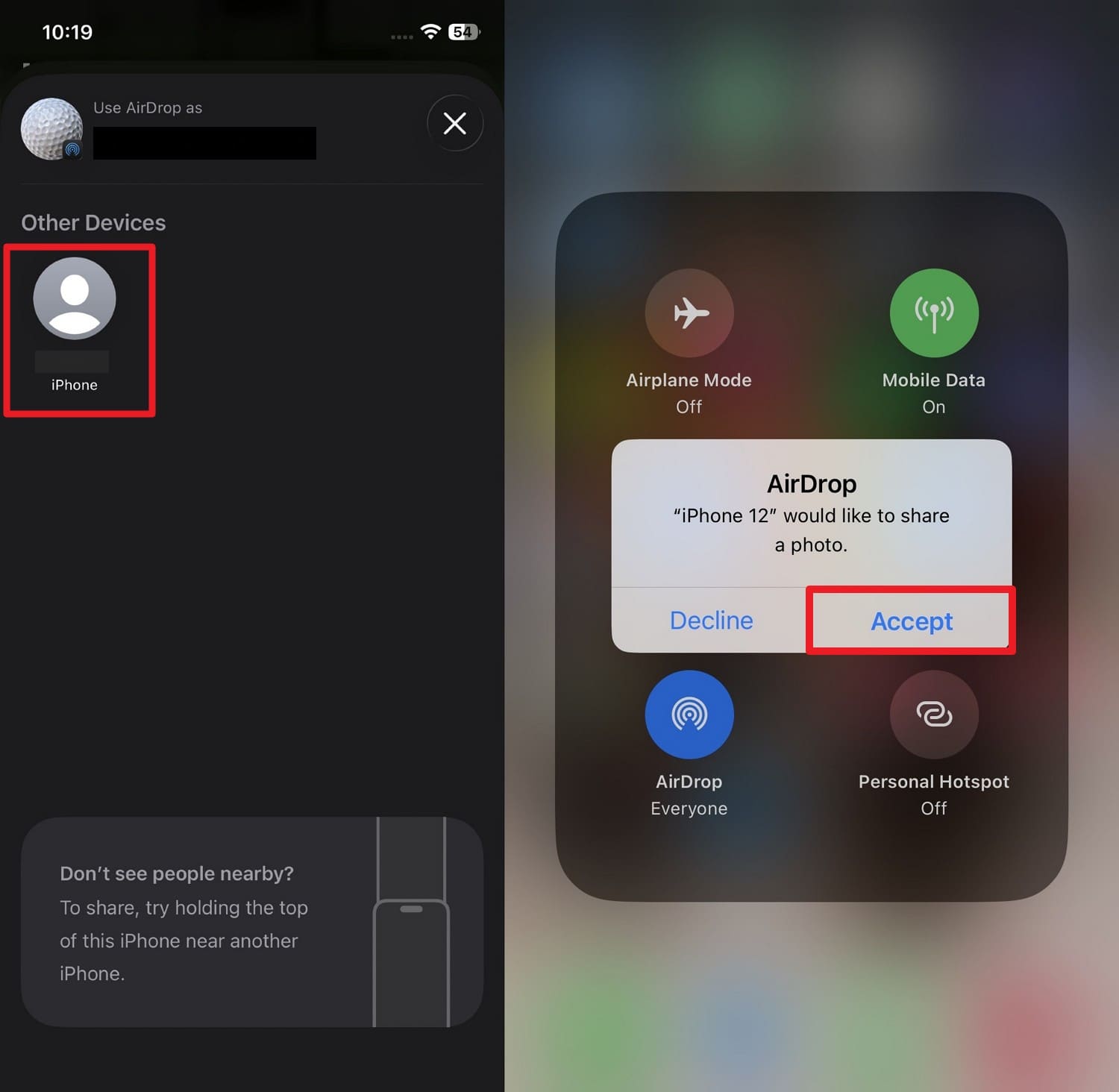
Step 2 When the new iPhone appears on the old one, tap it and accept the shared files on the new iPhone.
Way 5. Quick Start iPhone-to-iPhone Transfer
During the iOS 27 setup of a new iPhone, Quick Start is Apple’s easiest method to move data and requires only an animation scan. Since it works through a direct connection between devices, it's guided ahead:
-
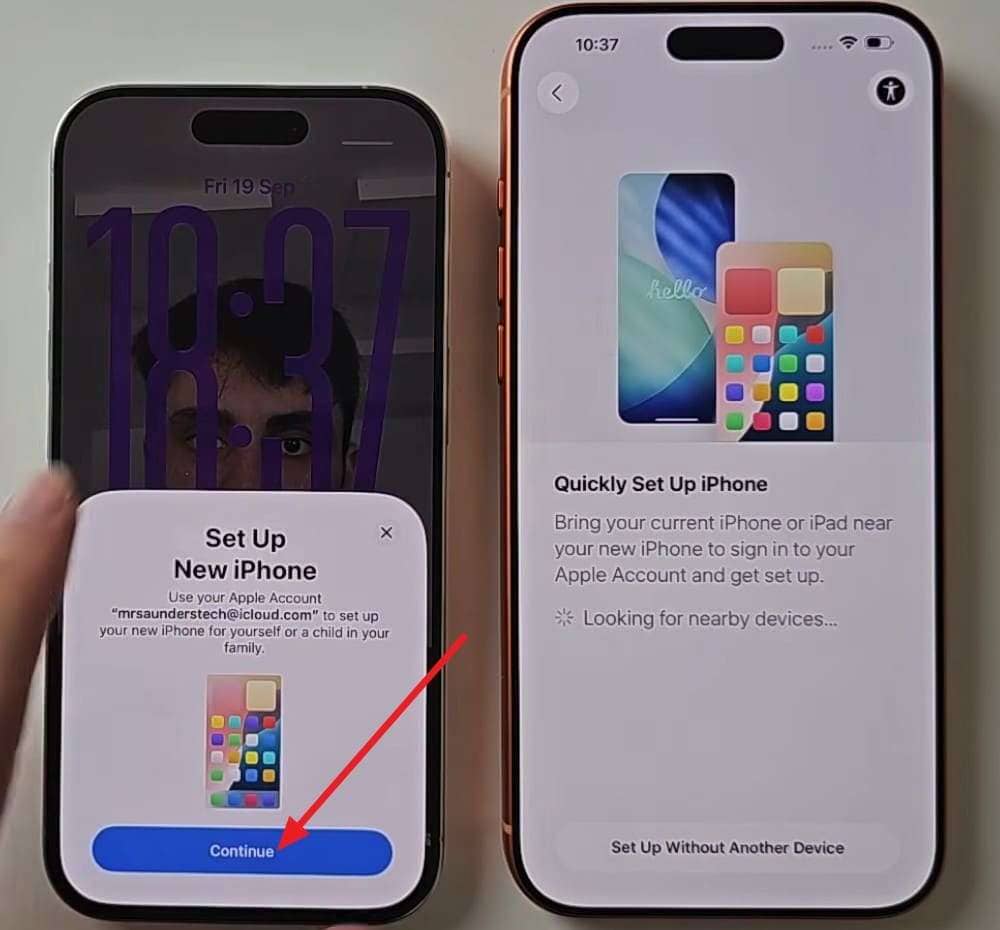
Step 1 Connect both devices to Wi-Fi and Bluetooth, then place them near each other to open the setup menu on the old phone. Tap “Continue” when prompted, and wait for the new iPhone to animate.
-
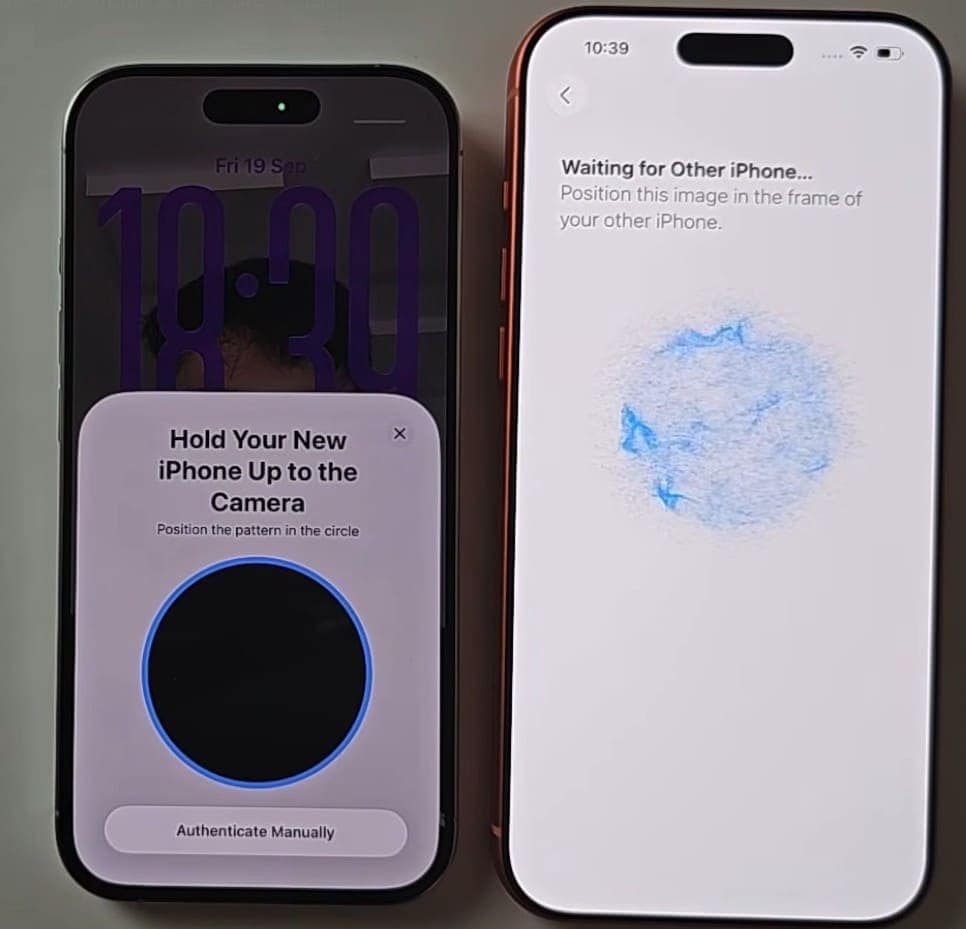
Step 2 Scan the animation by placing the circle scanner from the old iPhone on the new one.
-
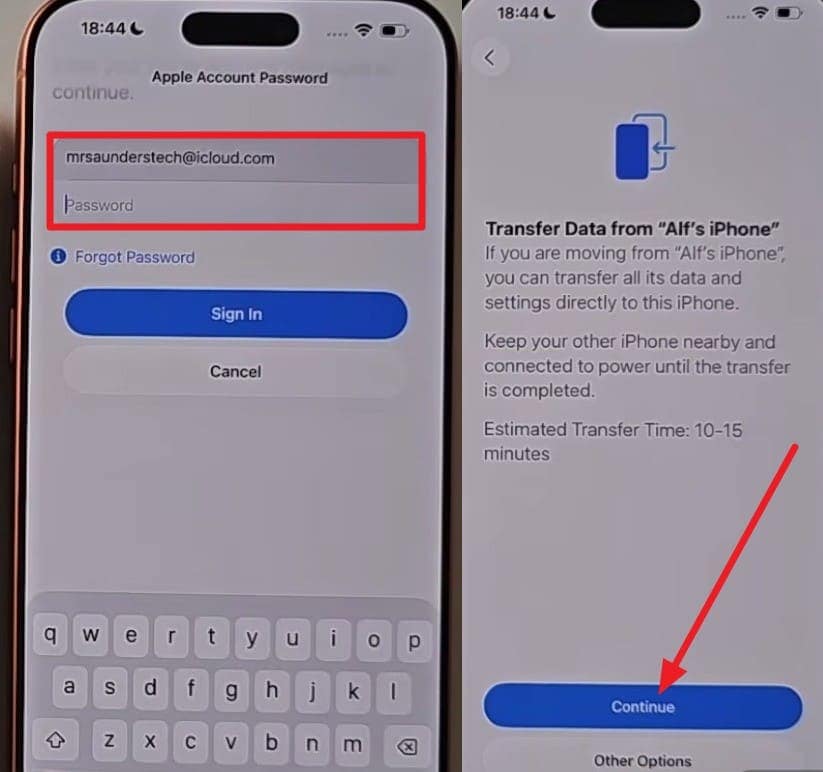
Step 3 Then, choose the “Set Up for Me” option on the “Transfer All Data From (User) Phone” screen as you add the Apple ID.
-
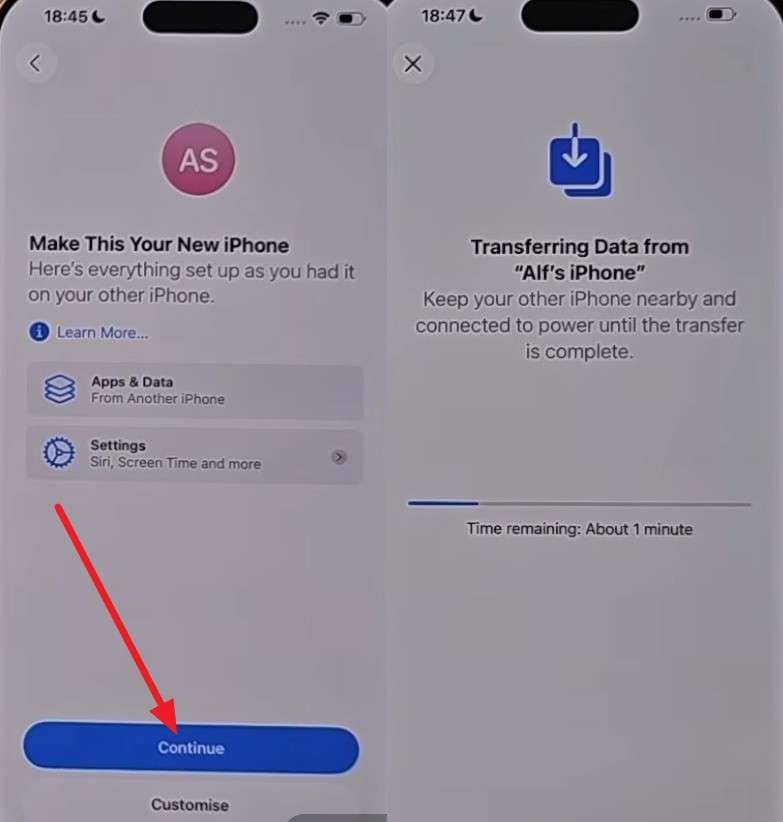
Step 4 Now, on the “Make This Your New iPhone” screen, choose the “Continue” button, and the data transfer process will commence.
Way 6. Direct Cable Transfer (USB-C or Lightning)
For selective, controlled iPhone-to-iPhone transfers in iOS 27, this USB-connection-based method is fast and reliable. Additionally, it is ideal for large transfers and users with limited iCloud storage.
Since the connection is created during Quick Start, it's guided in detail in the given steps:
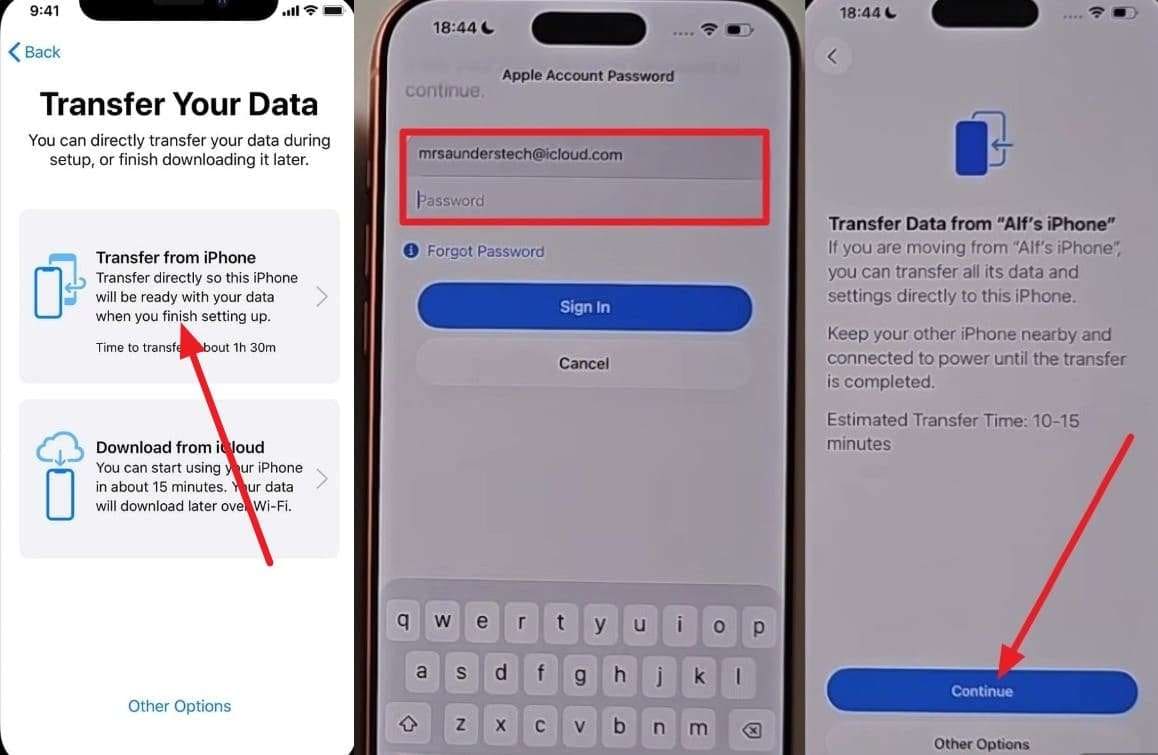
Instructions. Use a USB-C-to-Lightning or USB-C-to-USB-C cable, depending on the phone type, and power on both devices. After that, go to the “Transfer Your Data” screen during the Quick Start and connect the phones. There, choose the “Transfer from iPhone” option and add the Apple ID to press “Continue” on the new interface.
Way 7. Transfer Using iTunes/Finder Backup
In the iOS 27 setup for new iPhone methods, you can use iTunes/Finder Backup when you want a full, local copy of your old device stored on a computer. Thus, it is ideal for larger data, slow internet, or users who prefer offline backup restoration, as guided:
-
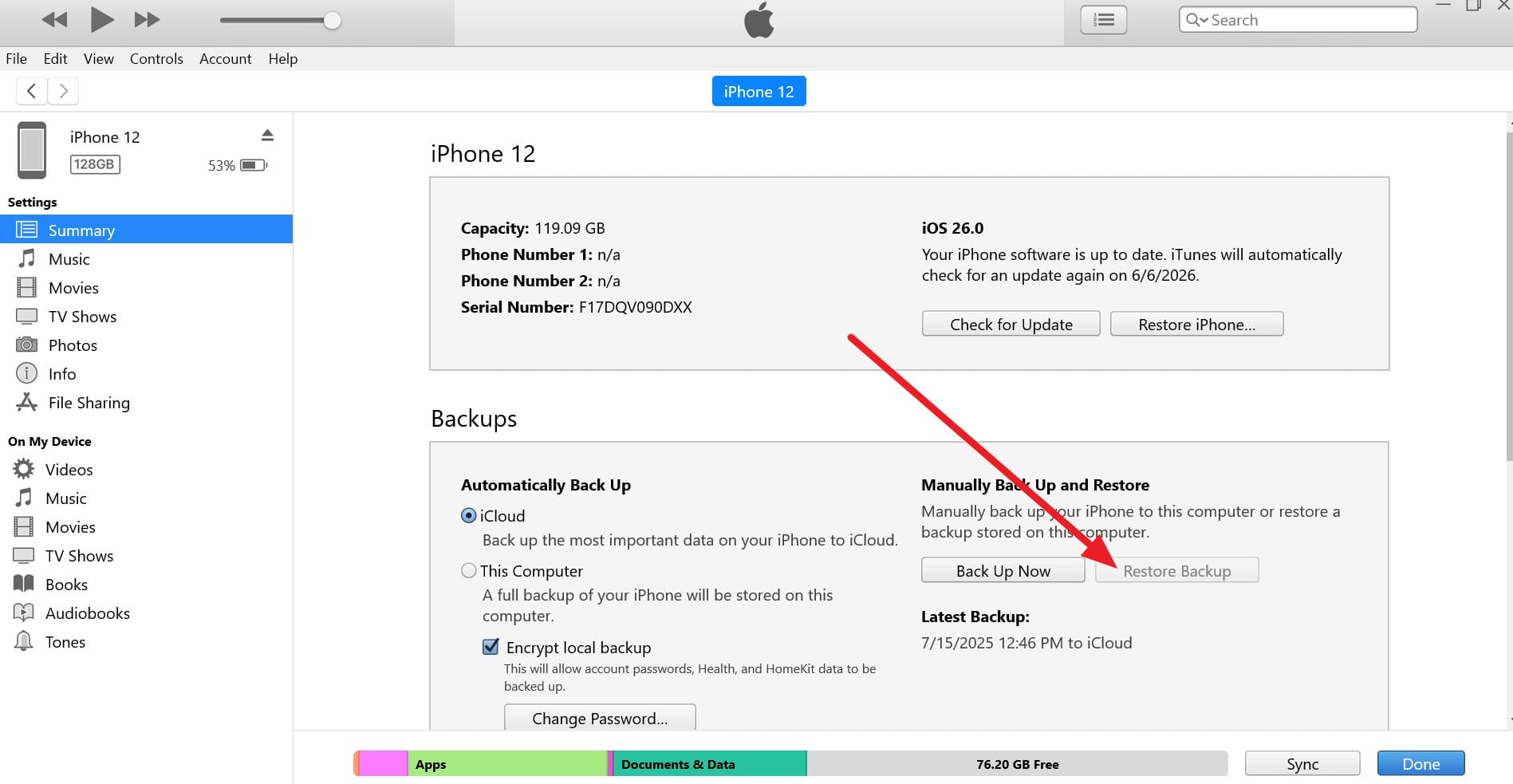
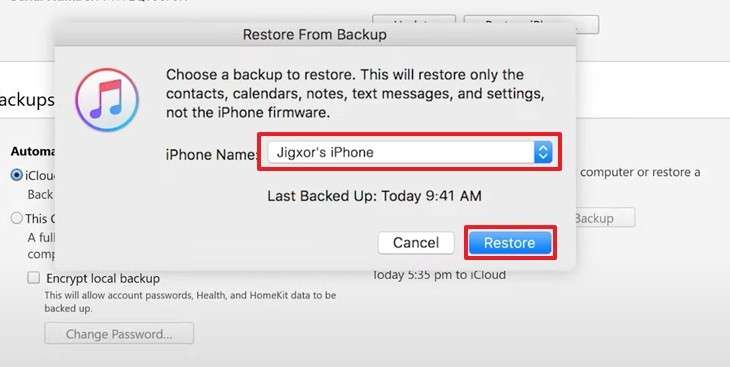
Step 1 Connect the new iPhone to iTunes, choose the “Trust” option on the device, and go to the “Summary” tab. There, choose the “Restore Backup” option in the “Backups” section to continue.
-
Step 2 Select the old device backup from the “iPhone Name” menu and press “Restore” to get data on the new iOS 27 device.
Way 8. Restore from Encrypted Backup (Full Data Move)
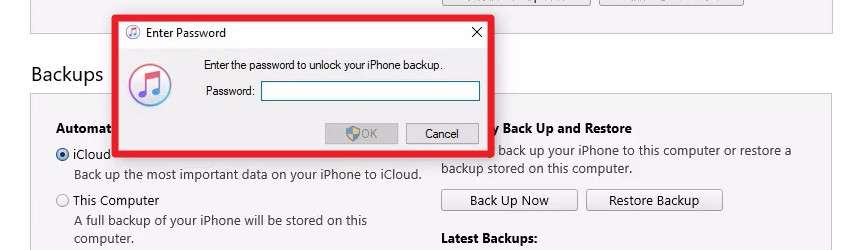
This method is the same as above, but the encrypted backup is the complete version. This means that it can move saved passwords, Wi-Fi details, and other sensitive information that normal backups don’t include.
You just tap the “Restore Backup” option, then enter the backup passcode when prompted to pick a backup, and tap “Restore.”
Way 9. Transfer WhatsApp and App Data Separately
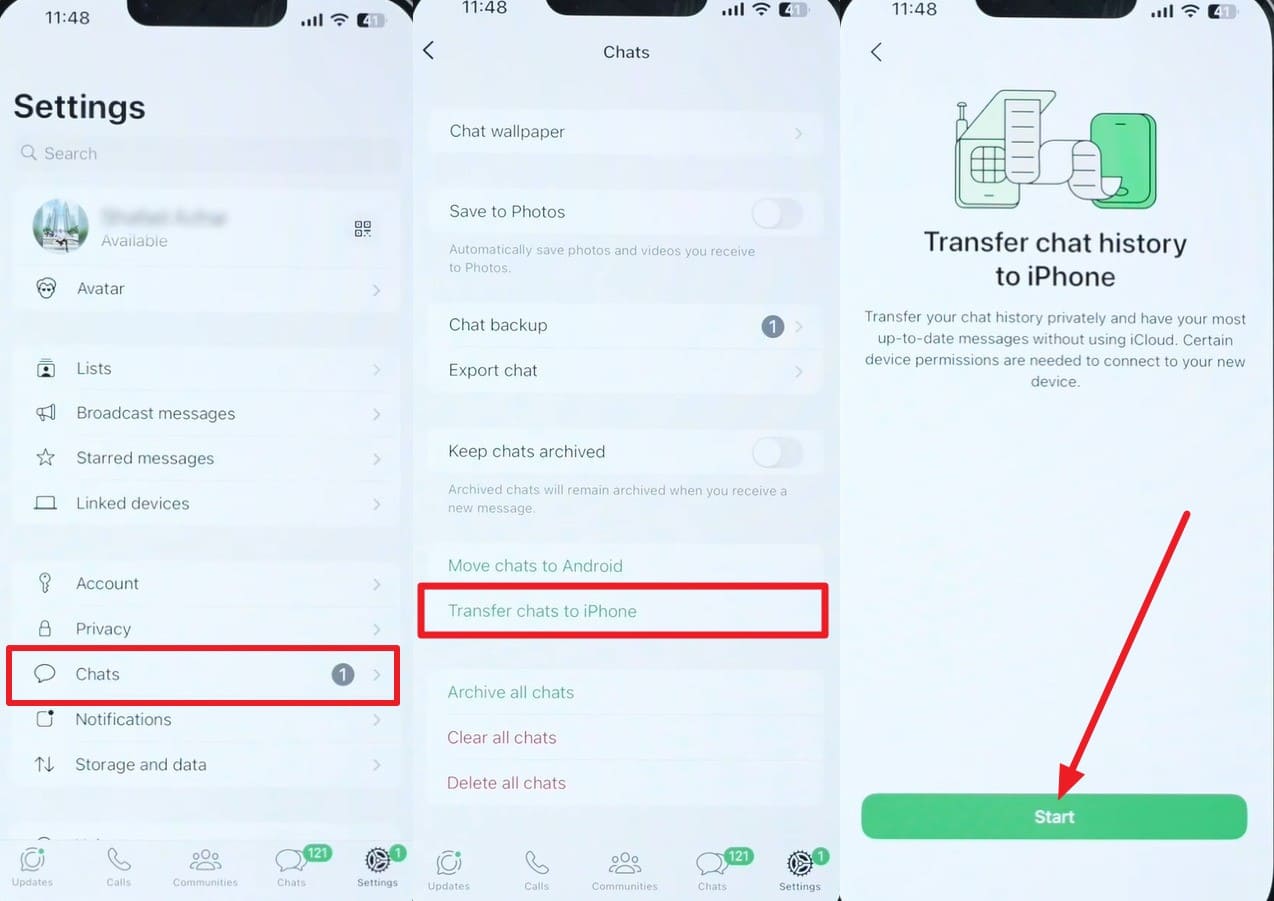
To move WhatsApp to iOS 27, use the WhatsApp chat transfer option, as not all apps are transferred during a normal iPhone transfer.
Such apps need their own login and backup methods, and when you treat such apps separately, you ensure no important data is lost, as demonstrated:
-
Step 1 On the old WhatsApp “Chats” settings, pick the “Transfer Chats to iPhone” option and tap “Start” to continue.
-
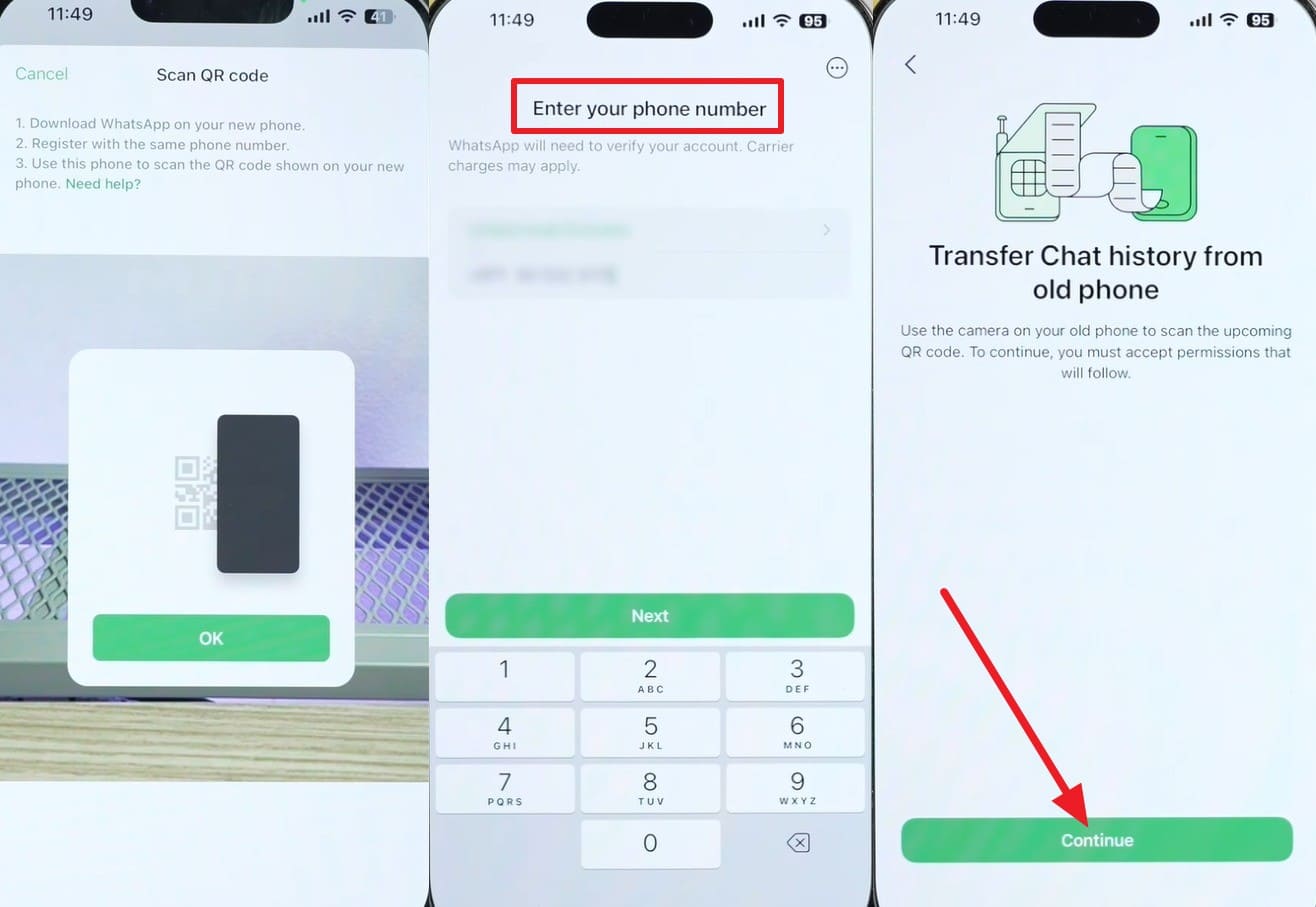
Step 2 When you get the QR code scanner, install the app on the new device, and add the same phone number details. After that, press “Continue” and scan the QR code on the old device to transfer chats.
Conclusion
With the new update, many users search for safe iPhone-to-iPhone transfer iOS 27 methods. Thus, this guide has explained how you can ensure a secure migration using pre-checks and 9 built-in and third-party methods.
When Apple's methods baffle you, and you can’t move apps, experts suggest you use the Dr.Fone - Phone Transfer to move 13 data types from iOS to iOS.
Frequently Asked Questions
-
1. Will my apps automatically log in after transfer?
Some apps may restore login details, but most applications require you to sign in again for security reasons. -
2. Does transferring data delete anything from my old iPhone?
No, the original phone remains unchanged, and all the data stays safe unless you manually erase it. Still, for safety and peace of mind, you can use Dr.Fone - Phone Transfer to move 13 data types from iOS to iOS without any loss or connection issues. -
3. Is it safe to use public Wi-Fi while transferring data to a new iPhone on iOS 27?
No, public Wi-Fi is not recommended because it can be unstable and may pose security risks during transfer. Instead, it's best to use cable connection methods like Dr.Fone - Phone Transfer to avoid transfer failure and connectivity issues.
 Add Wondershare Dr.Fone as a preferred source on Google