Move contacts, messages, photos, videos, app data, and more between iOS and Android.

 100% Security Verified | No Subscription Required | No Malware

 :
: 
 ChatGPT
 Perplexity
 Gemini
 Claude
 Grok
Grok
Have you ever picked up your phone after an hour of silence, only to find the notification bar flooded with messages all at once? This frustrating lag isn't the glitch in the device, but rather the "Doze Mode." While designed to extend the battery life, this Android feature often silences your most important alerts until you manually wake the screen.
Since missing any real-time alert can cause consequences, this guide has you covered. Get to know why Android notifications delayed via this feature and how to resolve this issue. If nothing helps and the problem persists, try upgrading the device and see how transfer tools like Dr.Fone can help.
In this article
- Why Your Android Notifications Are Delayed
-
How to Fix Delayed Notifications on Android? 8 Ways
- Check "Do Not Disturb" and Notification Priority Settings
- Turn Off Power-Saving or Ultra Power-Saving Modes
- Disable Battery Optimization for Key Apps
- Lock Important Apps in Recent Apps/Multitasking View
- Allow Background Data and Unrestricted Battery Usage
- Turn Off Adaptive Battery or App Standby for Messaging Apps
- Update System Software or Reset App Preferences
- Pro Tip. Avoid Data Loss During Transfer with Dr.Fone - Phone Transfer

Part 1. Why Your Android Notifications Are Delayed
If you wonder why are my notifications delayed Android, you are not alone. Many users have reported the same issue on platforms like Reddit, saying that:

I'm on a Samsung Galaxy A34, and I'm noticing delayed notifications because Doze Mode makes my phone sleep too deeply. Even when apps like Teams, Outlook, and WhatsApp work fine on my computer, my phone sometimes misses or delays calls and messages, and I'm wondering if this is a common Android issue or if I should switch to an iPhone.- r/Android
Nevertheless, this section explains how and why it happens on Android devices.
What Is Doze Mode on Android?
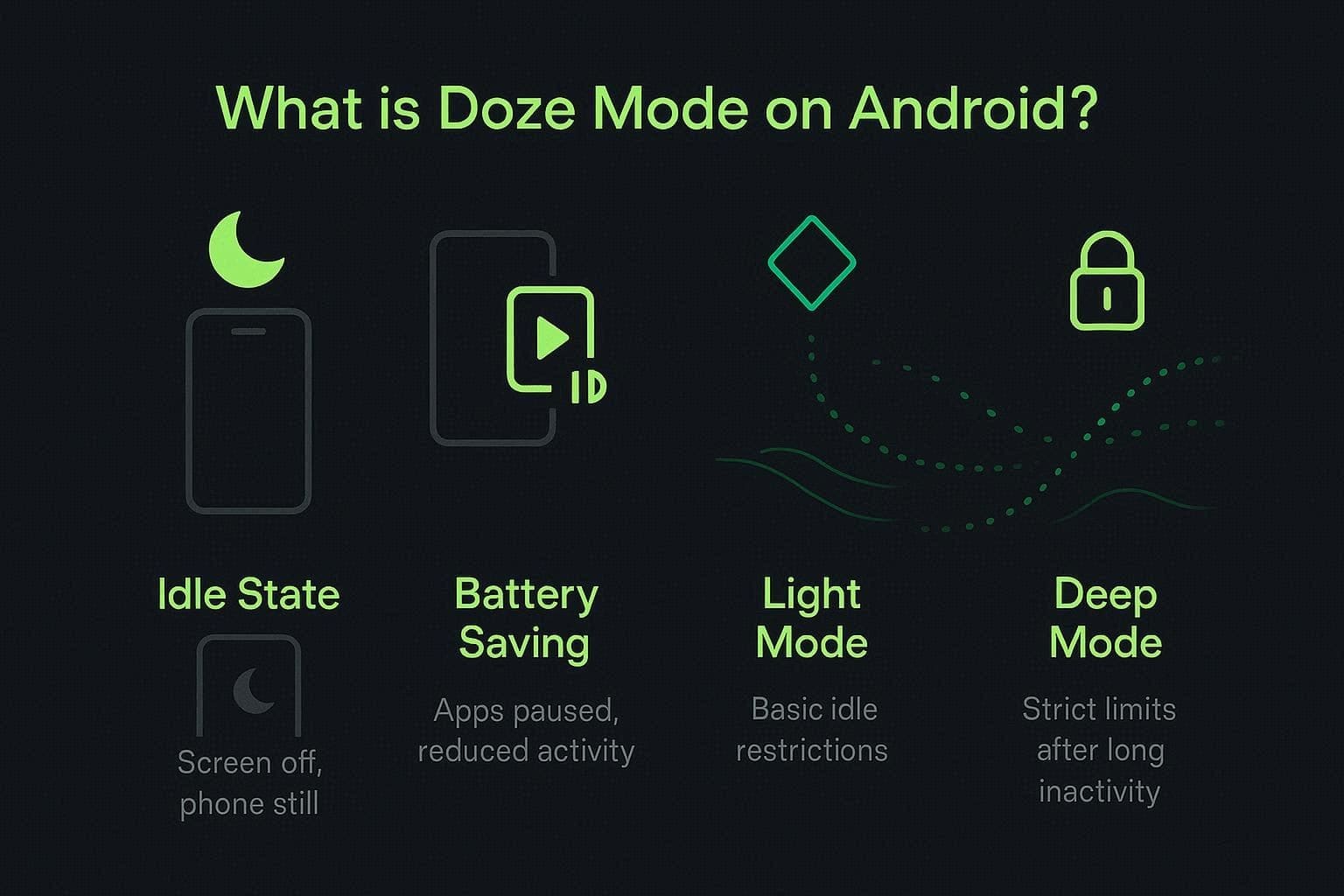
According to Android Developers, Android notifications delayed because of a battery-saving feature called Android Doze Mode. This mode is a power-saving system on Android that activates when the phone is idle with the screen off and not moving. Furthermore, it comes with 2 levels: light mode, which applies when the phone is idle, and deep mode, which activates after prolonged inactivity and imposes stricter limits.
How Doze Mode Causes Delayed Notifications
Now that you know what is Doze Mode Android, it reduces background activities like app syncing and network use. However, it still allows important alerts and high-priority notifications to come through. This means your messages and updates do not always arrive in real time, since the system holds them until the phone briefly wakes or is used again.
5 Common Signs of Doze Mode Notification Delay
According to a Stack Overflow report, when you notice a notification arriving late or all at once, it's a sign that Doze Mode is activated. Other than that, there are also some indicators, and a few of them are mentioned below to better understand the Android Doze Mode notifications delayed issue:
| Sign of Delay | What It Looks Like to You |
|---|---|
| Late Message Timestamps | Notifications arrive minutes or hours late compared to when they were sent. |
| Calls Or Pings, But No Banner | Someone says they messaged you, but you didn't see an alert until you opened the app. |
| Silent Nights, Noisy Mornings | No alerts overnight, then a stack of missed app notifications in the morning. |
| App Shows New Items, No Prior Alert | You open an app and see new chats or updates that never triggered a notification. |
| Delay Only When the Phone is Idle | Notifications are on time while you're using the phone, but lag whenever it sits locked on a table. |
Part 2. How to Fix Delayed Notifications on Android? 7 Ways
When the Doze Mode causing notification delay, review this section and follow the 7 ways to get instant, real-time alerts:
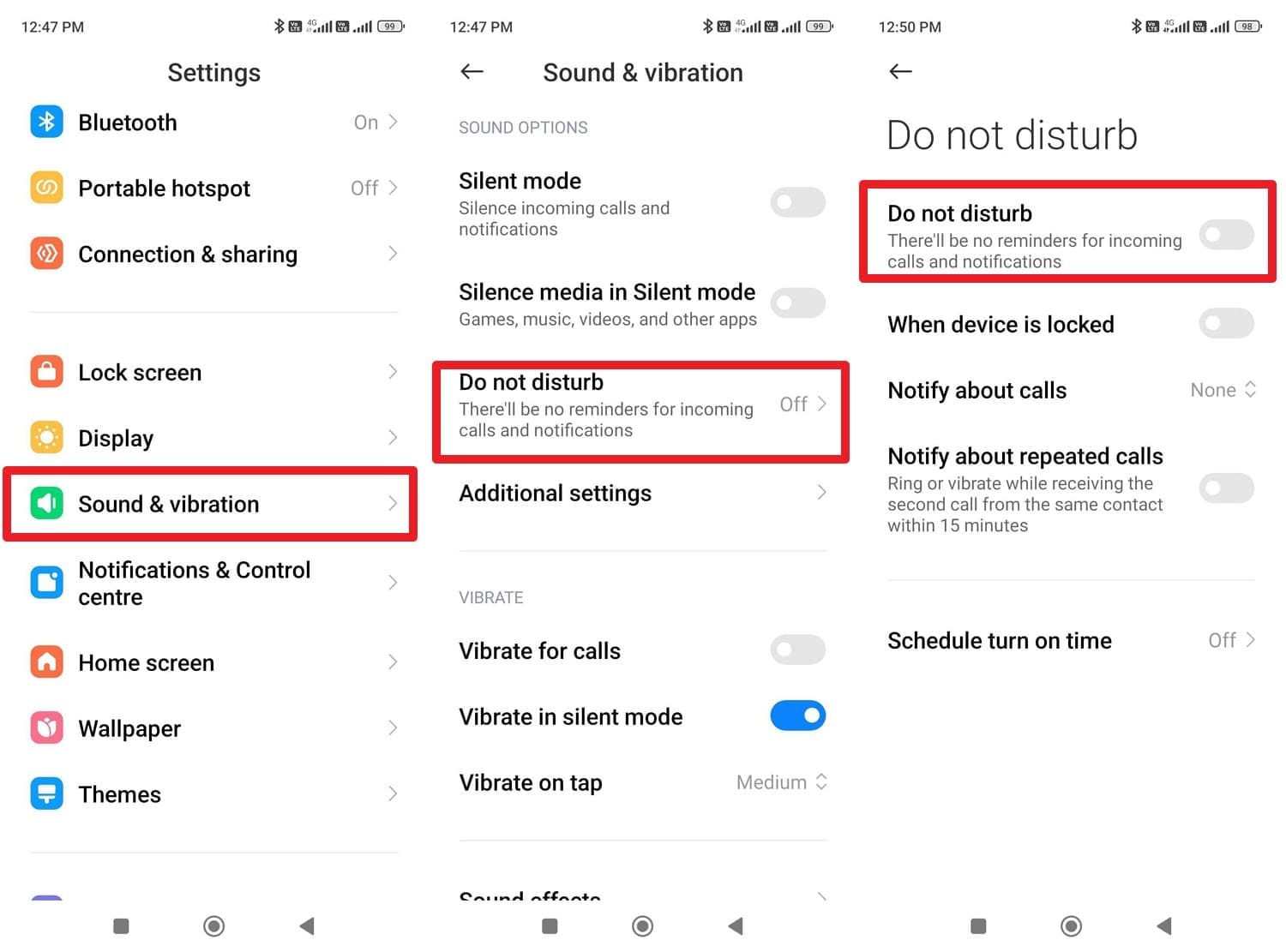
Way 1. Check "Do Not Disturb" and Notification Priority Settings
Checking these options tells Android which apps should still send important notifications even during silent or battery-saving modes. Additionally, it ensures that important applications, such as banking or security alerts, are not locked and still appear on time. Through this, you can prevent unwanted settings from causing delays and give a balanced setup, once the given steps are followed:
Check "Do Not Disturb":
-
Instructions
In the settings, go to the "Sound & Vibration" option and choose the "Do Not Disturb" menu to disable the "Do Not Disturb" option on the new interface.
Check Notification Priority Settings:
-
Instructions
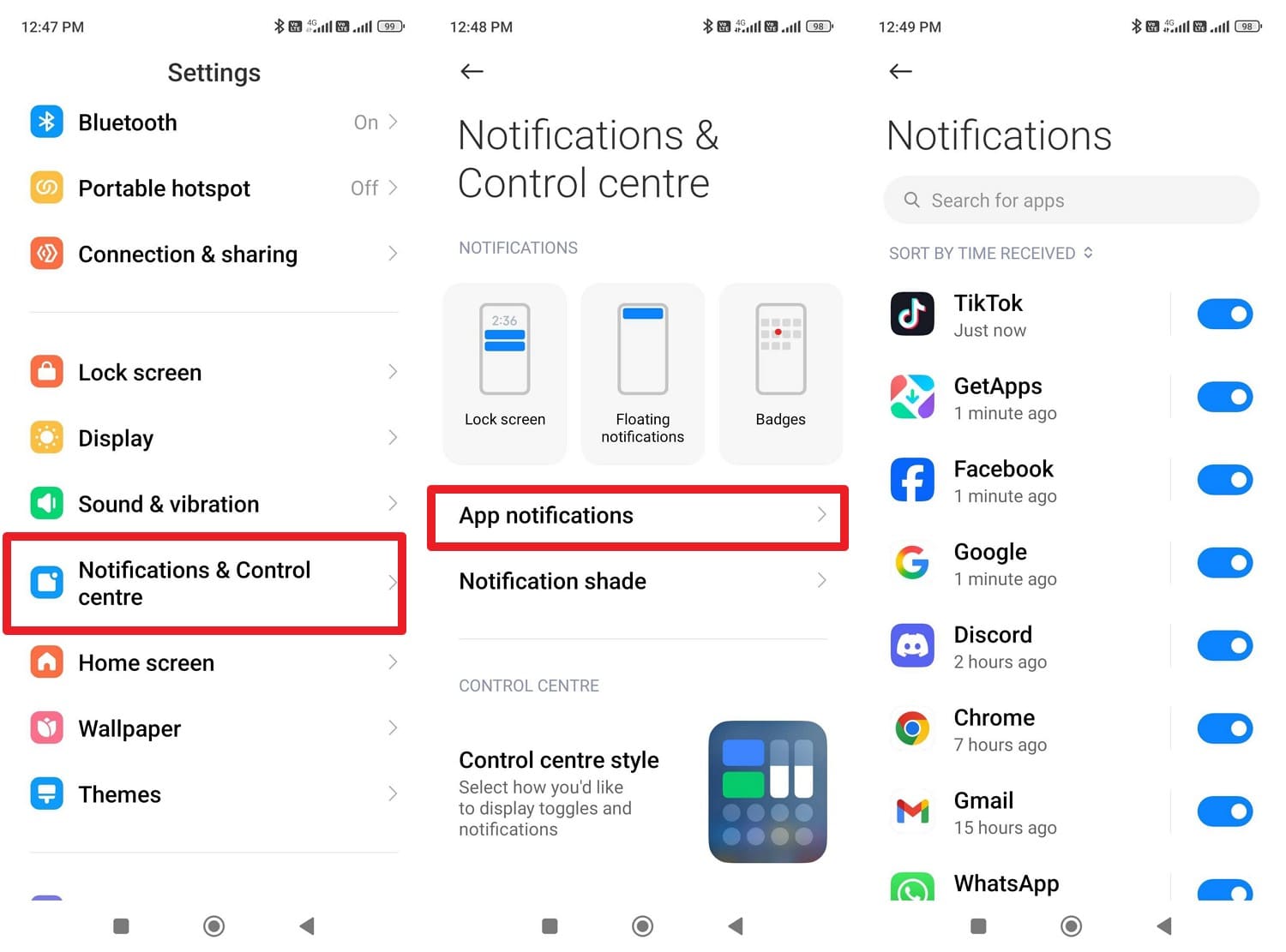
Pick the "Notification & Control Center" option, and choose the "App Notifications" menu. After that, toggle the notification option next to the high-priority app to manage the alerts.
Way 2. Turn Off Power-Saving or Ultra Power-Saving Modes
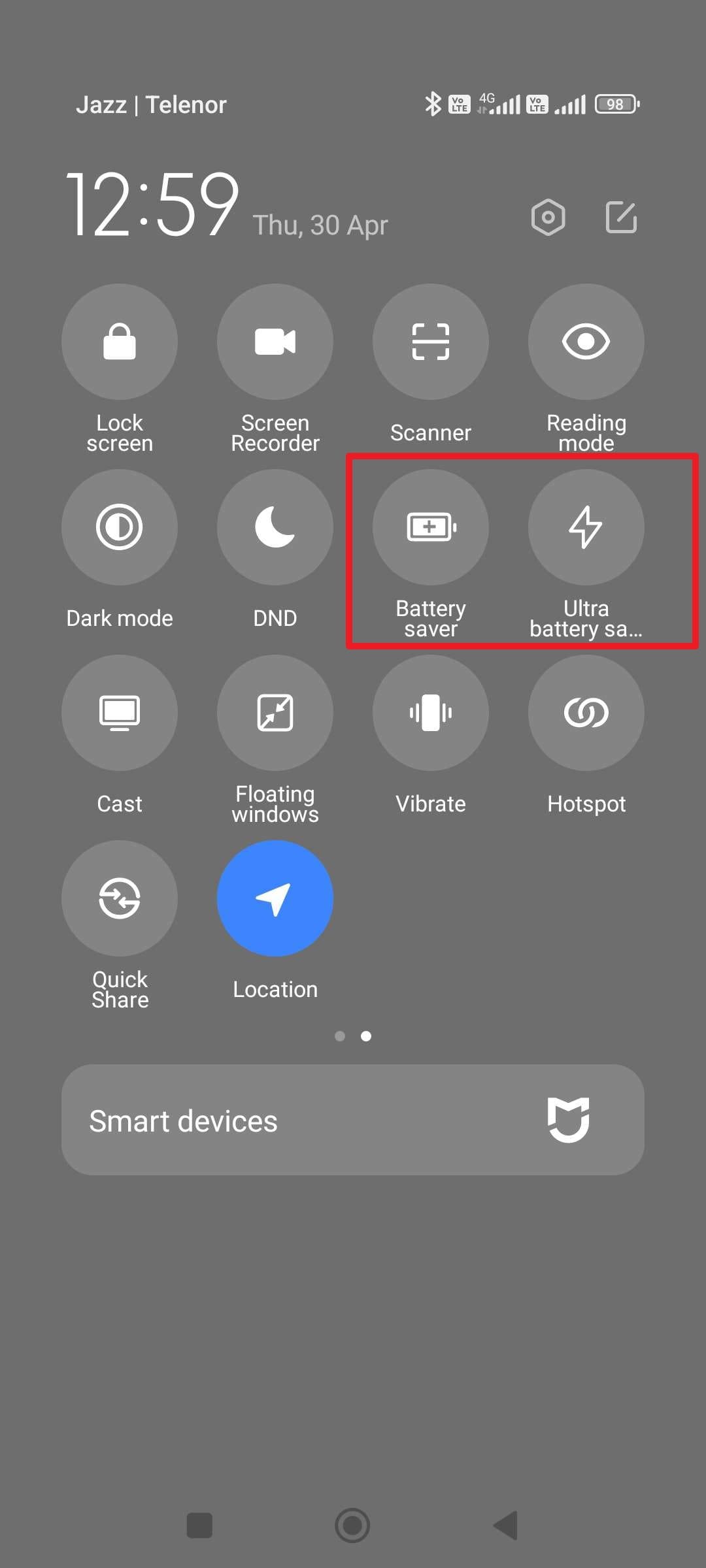
When Android notifications delayed, you can also turn off power-saving mode, as it can limit background data, sync, and app activity on top of Doze Mode. Once disabled, applications like Email and chat can sync normally, push notifications arrive faster, and you avoid extra delays. You can also determine the real issue by removing battery restrictions first via the simple steps mentioned below:
-
Instructions
Scroll down from the top of the screen, then in the Quick Settings menu, disable the "Battery Saver" and "Battery Ultra Saver" options.
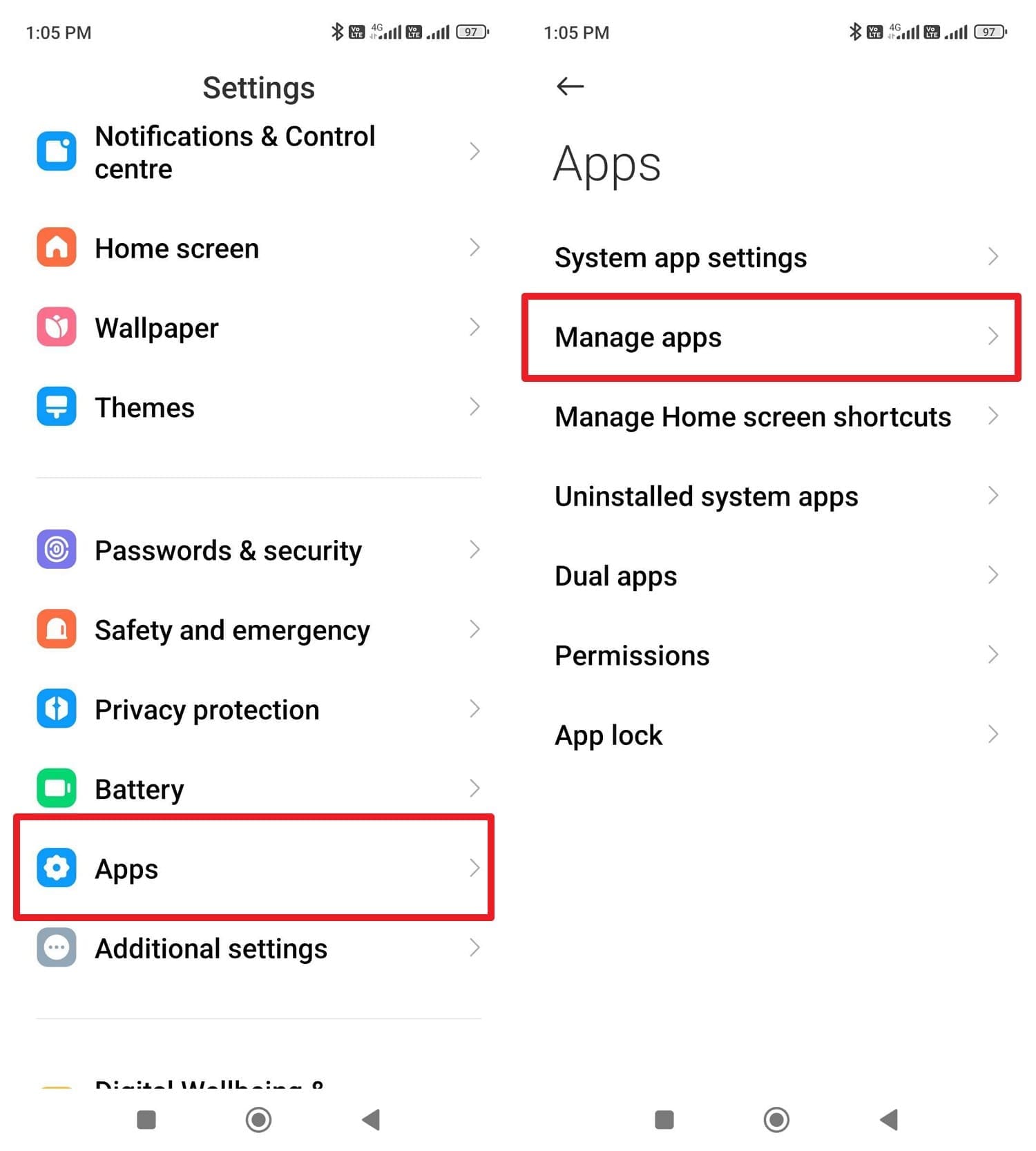
Way 3. Disable Battery Optimization for Key Apps
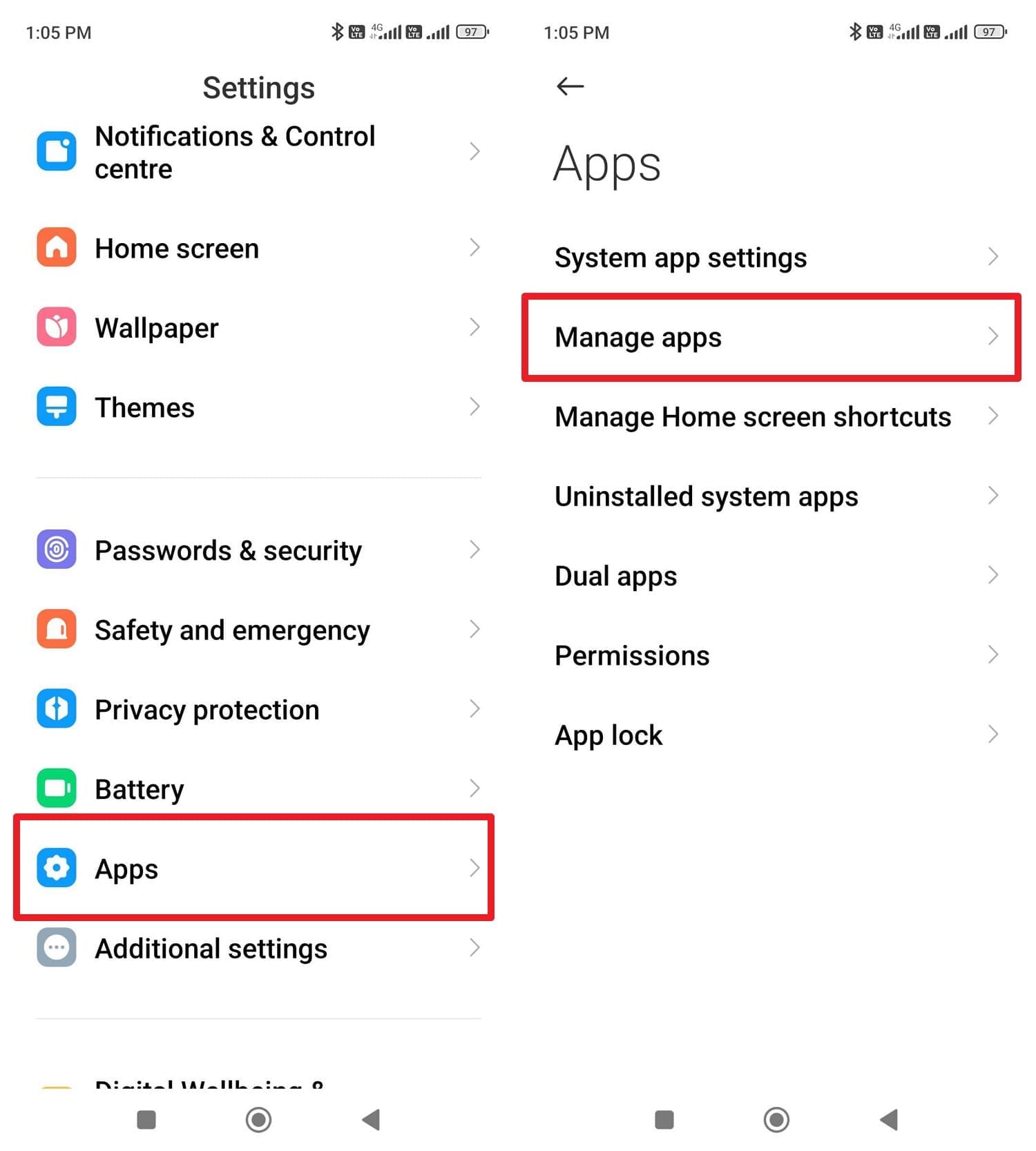
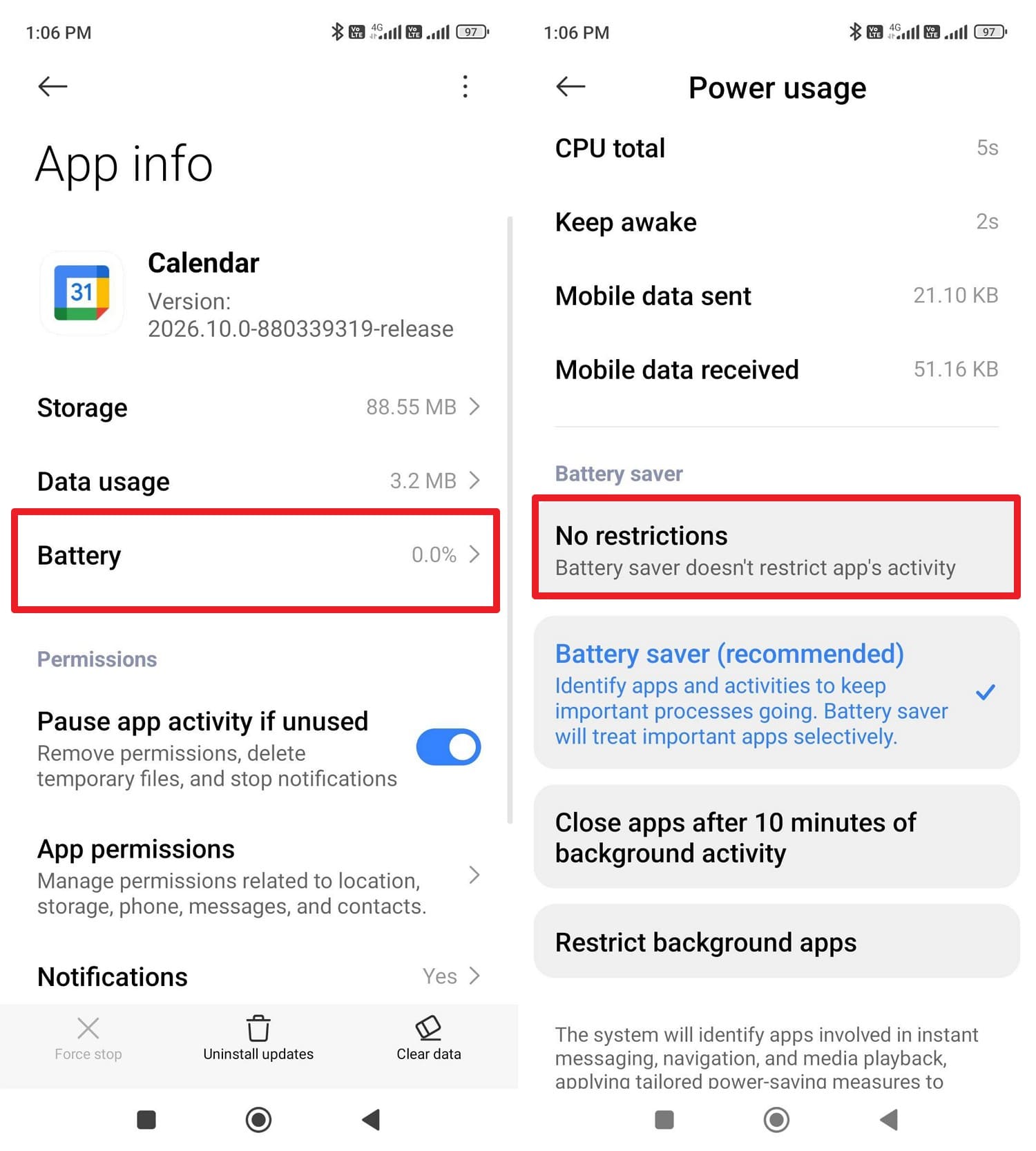
To fix delayed notifications Android, this solution stops Android from putting specific apps into sleep mode under Doze and battery saver rules. Hence, they can keep running in the background and send notifications on time, without any delay. In addition, it reduces delays caused by restricted network access and may fix notification issues, as the listed steps are adhered to:
-
Step 1
In the "Apps" settings, choose the "Manager App" option and select the desired application.
-
Step 2
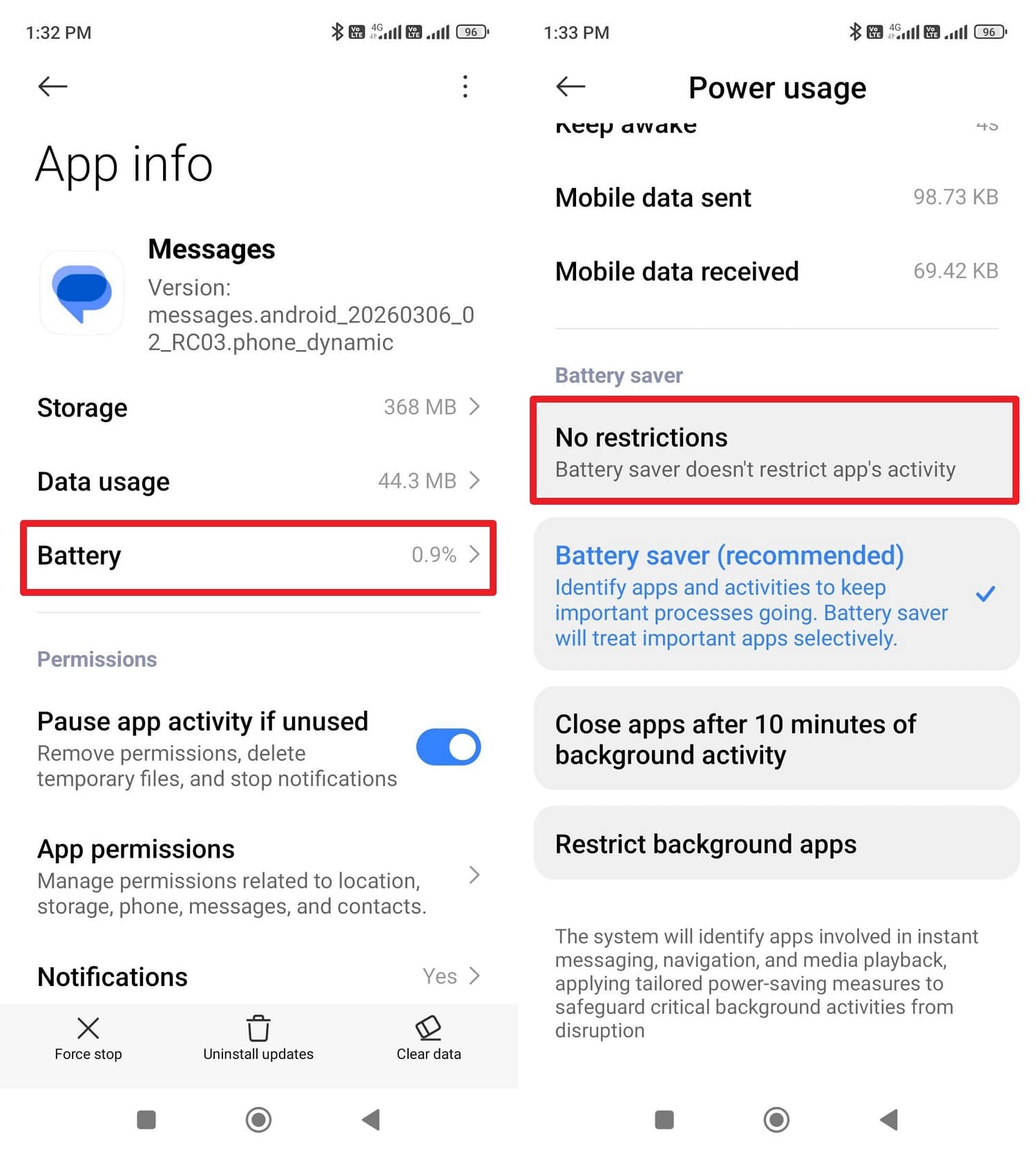
After that, pick the "Battery" option and set the "Battery Saver" option to "No Restrictions."
Way 4. Lock Important Apps in Recent Apps/Multitasking View
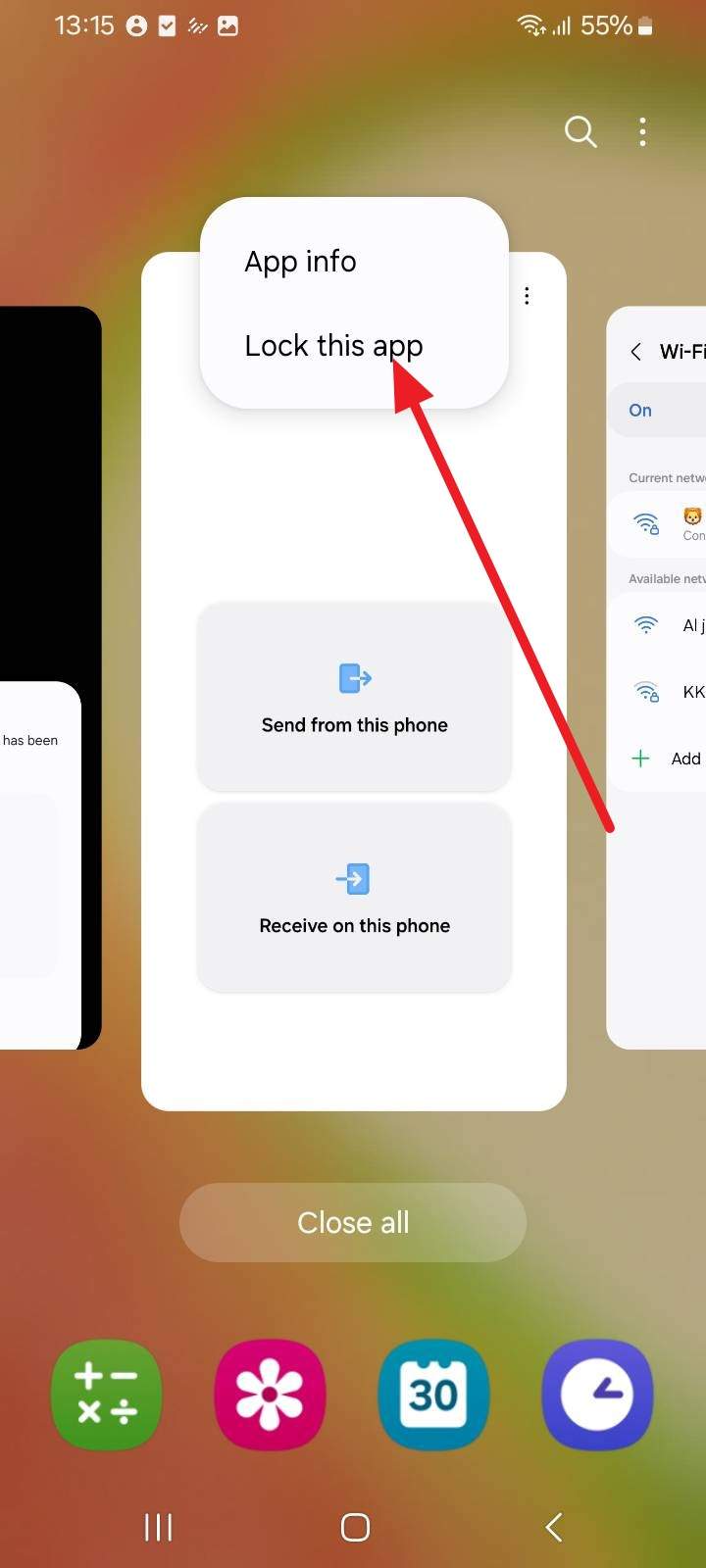
For the constant Android notifications delayed issue, lock important apps in Recent Apps. This will prevent the system from closing notifications, keeping them active in the background, and sending alerts on time. Furthermore, it reduced aggressive notification stoppage on some Android phones without turning off all battery-saving features. To know how it's done, review the steps mentioned ahead for guidance:
-
Instructions
In the Recent Apps menu, tap the "App" icon and choose the "Lock This App" option.
Way 5. Allow Background Data and Unrestricted Battery Usage
As another solution for the delayed notifications, this fix can help because it lets them stay connected to the internet and run properly even when the phone is idle or in Doze. Thus, this ensures messages and alerts arrive on time and avoids delays caused by data or battery limits. So, instead of wondering why are my notifications delayed Android, try the comprehensive guide mentioned below:
Unrestricted Battery Usage (No Restrictions):
To set the "Battery Saver" option to "No Restrictions," you can follow the steps given in Way 3.
Allow Background Data:
-
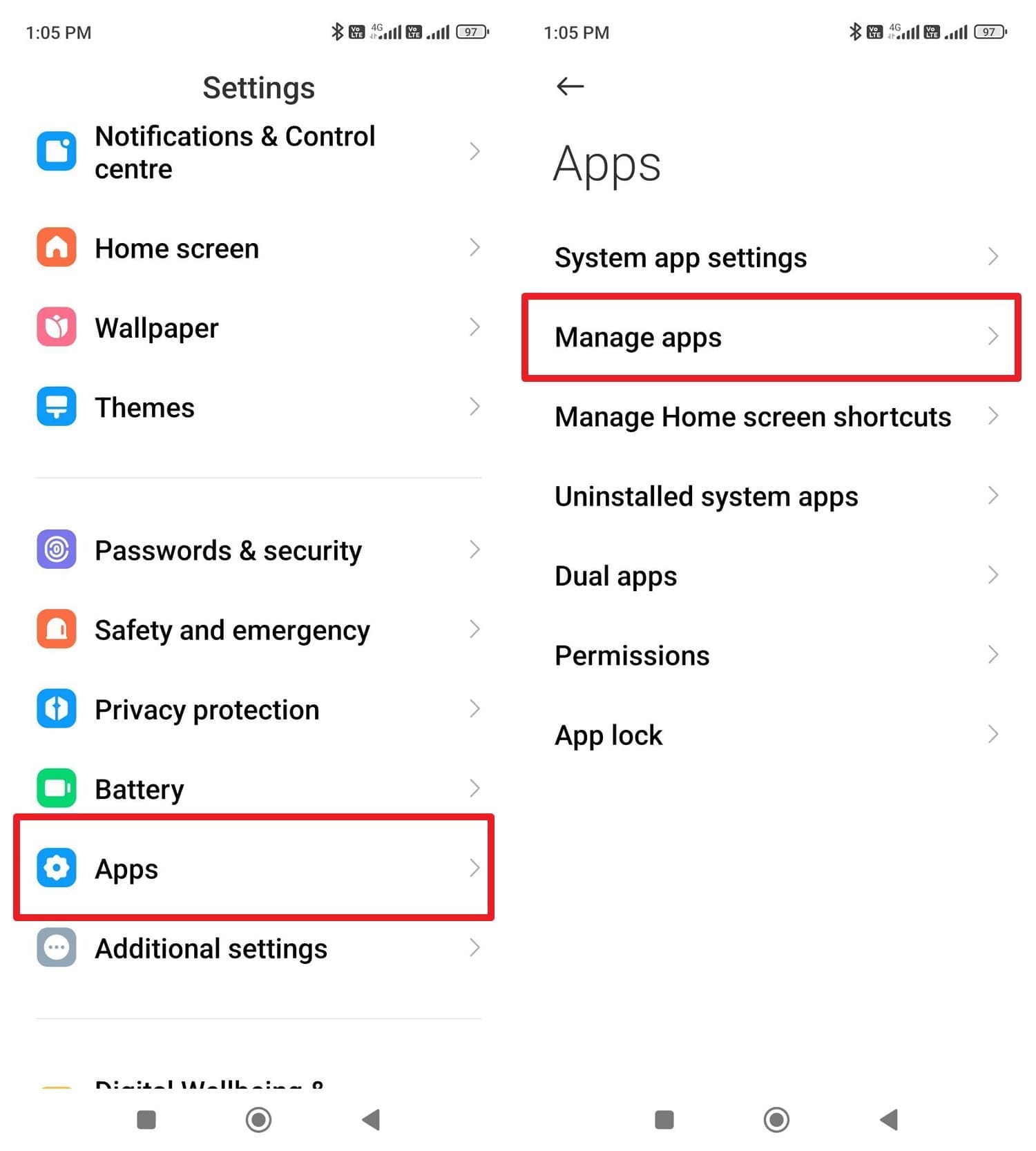
Step 1
In the "Apps" settings, choose the "Manage Apps" option and pick the application where you don't want to pause notifications.
-
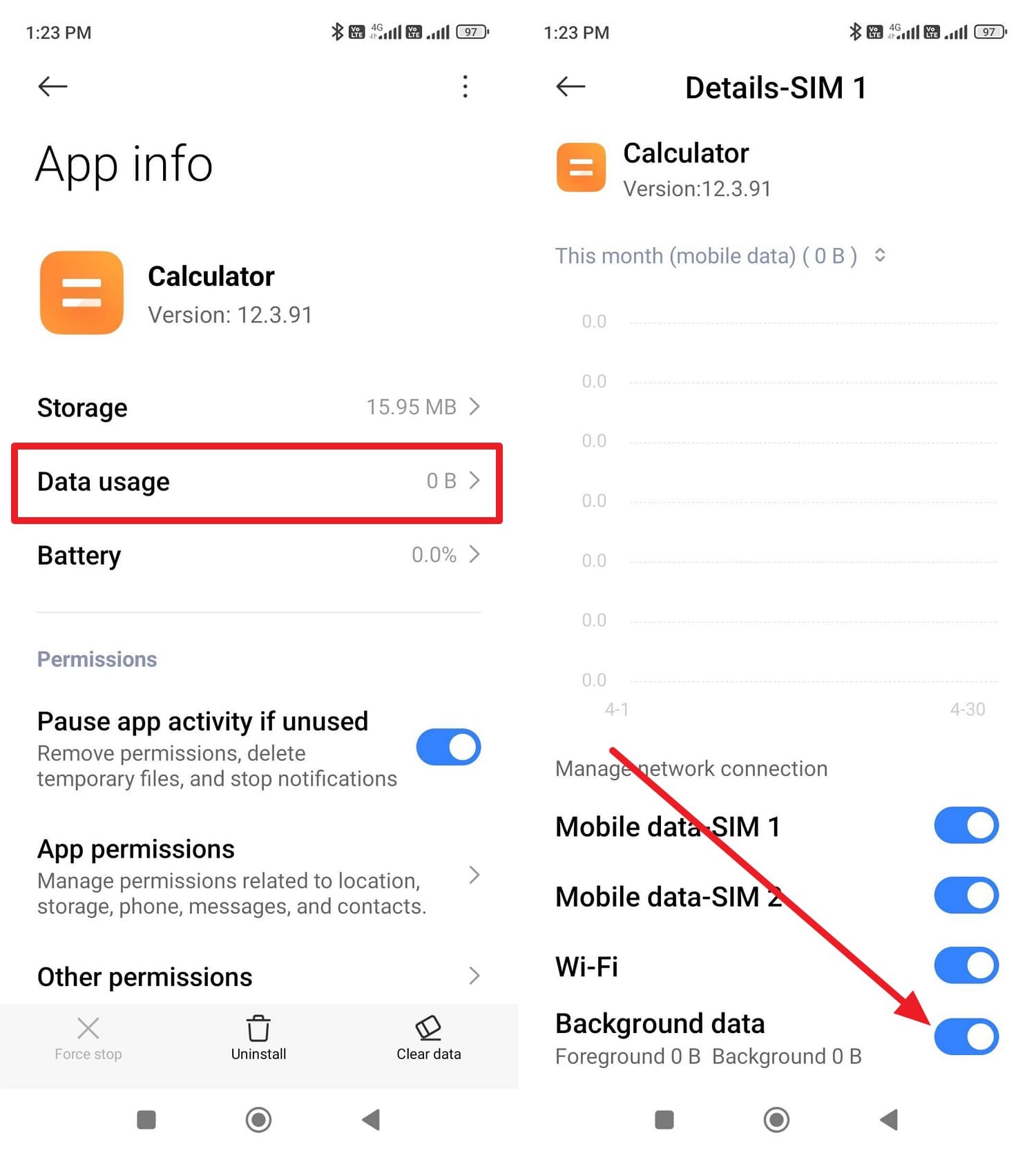
Step 2
On the "App Info" interface, press the "Data Usage" option and scroll down to enable the "Background Data" option.
Way 6. Turn Off Adaptive Battery or App Standby for Messaging Apps
Turning off Adaptive Battery or App Standby for the messaging app can also fix delayed notifications Android. This is because these features can make the app "Rarely Used" and limit its background activity, thereby delaying alerts. So, when you disable these options via the mentioned guide, it improves real-time notification delivery and gives more control:
-
Step 1
Choose the "Manage App" option in the "App" settings and pick "Messages" from the list.
-
Step 2
In the "App Info" interface, as you choose the "Battery" option, set it to "No Restrictions."
Way 7. Update System Software or Reset App Preferences
As a last resort for the Android Doze Mode notifications delayed issue, update system software or reset app preferences. These solutions can remove bugs and clear hidden settings that may block alerts. Updates often fix issues with Doze and battery control, while a rest restores the default notification and permission settings without deleting apps or data. So, if you prefer to update the system software, here is the detailed guideline:
-
Instructions
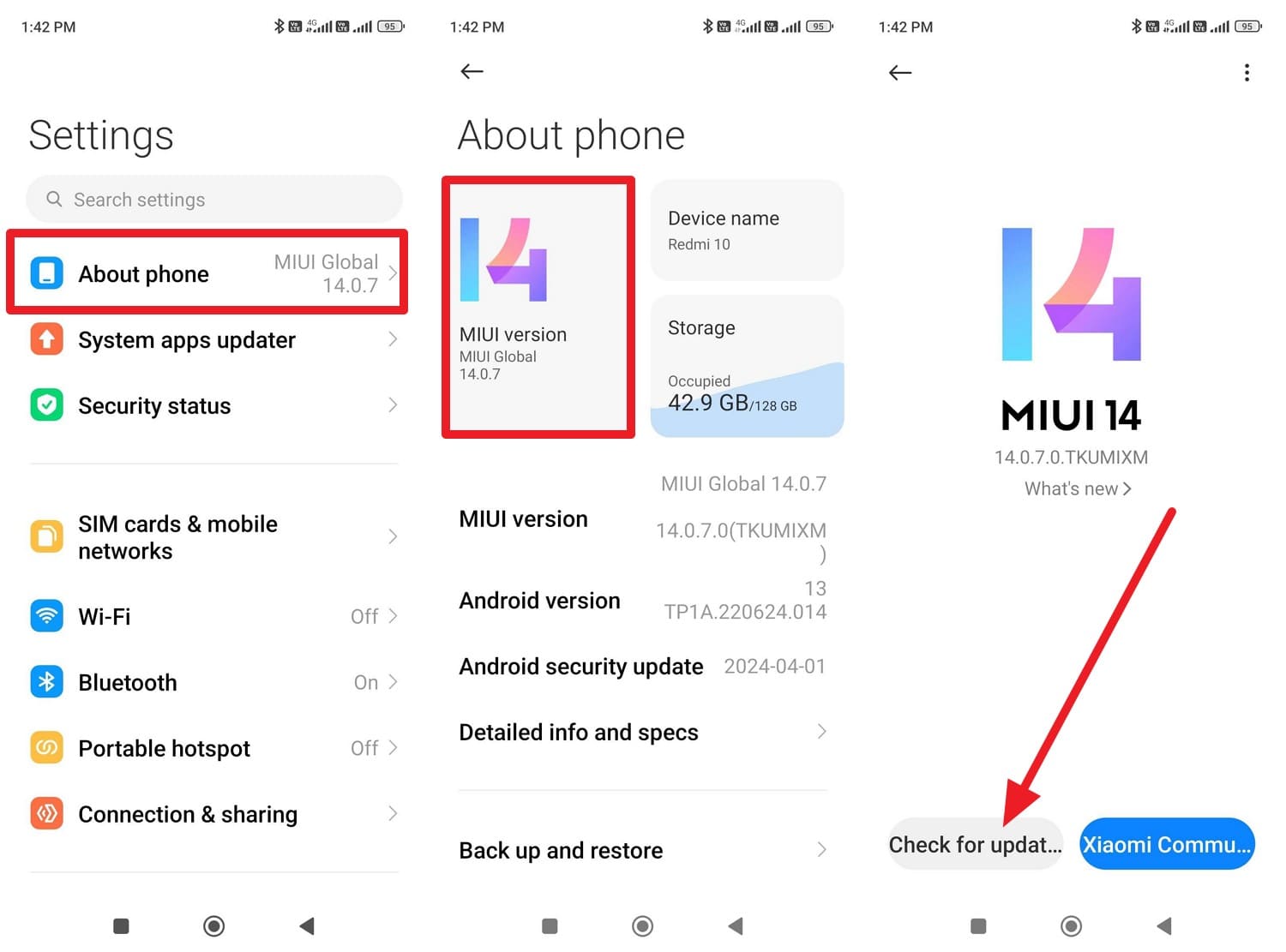
In the settings, choose "About Phone" and "MIUI Version" option if you are a Redmi user. After that, tap the "Check for Updates" option, and if an update is available, tap the "Download" button.
Pro Tip. Avoid Data Loss During Transfer with Dr.Fone - Phone Transfer
While learning what is Doze Mode Android, let's say nothing works, and you can't afford to miss any alerts further. To overcome this entirely, if you have decided to upgrade the device, ensure that all data remains intact and use transfer tools like Dr.Fone – Phone Transfer. Such tools allow you to move data between different devices, including iOS to Android or Android to iOS.
Since tools like Dr.Fone support Android 16 and the latest iOS 26, you can transfer contacts, SMS, photos, videos, music, and more. To keep the transfer safe, Dr.Fone claims to offer local transfers, which can be done in 2-3 simple steps. Just by identifying the devices, you can decide which data to keep or remove to get real-time alerts without Doze issues.
 Move data
between iOS to Android and vice versa.
Move data
between iOS to Android and vice versa.- Transfer
contacts, SMS, photos, videos, music, and more types.
- Available with
all phones with Android and iOS versions.
- Simple,
click-through process.

Guide to Transfer Data from Android to iOS with Dr.Fone
To avoid the situation where Doze Mode causing notification delay, switching to iOS can be a suitable choice. To test Dr.Fone in this aspect, a detailed guide is mentioned below to help you determine the ease of use and success rate:
-
Step 1 Choose the Phone Transfer Tool from the Toolbox
Select the "Phone Transfer" tool in the toolbox, then connect the Android and iOS devices. After that, determine the source and target devices by tapping on the "Flip" icon and tapping "Start Transfer."
-
Step 2 Pick the Data Types to Move to iOS
Now that the transfer direction is set, select the data types you want to move and click the "Start Transfer" button.
-
Step 3 Review the Data Shared and Confirm
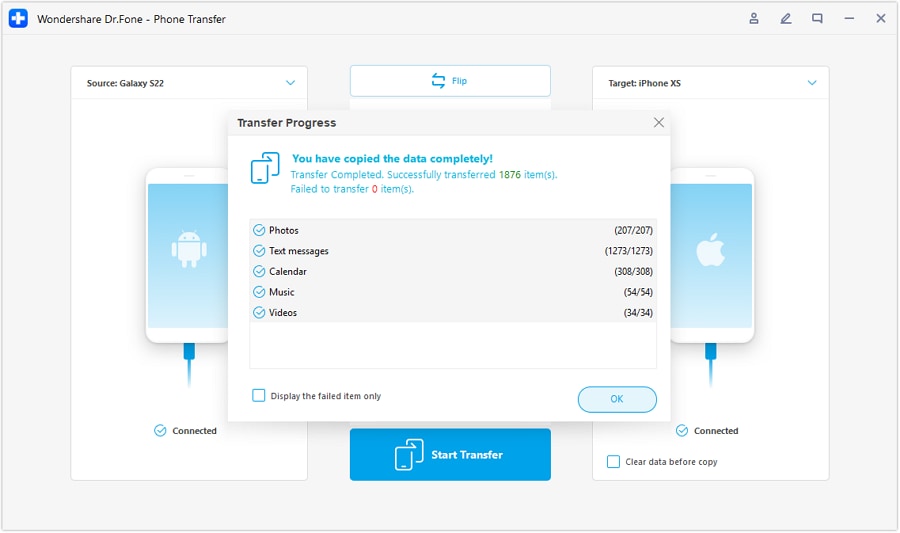
Monitor the progress bar as it appears on the new interface, or choose "Cancel" if needed. When the transfer completes, review the migrated data and press the "Ok" button.






Conclusion
To keep your Android alerts arriving on time, it's important to bypass the Doze Mode. Therefore, this guide has explained why Android notifications delayed and consistent with Doze and how to fix it via 7 simple ways. If nothing works, one might have to switch to iOS (or Android) using data transfer tools like Dr.Fone – Phone Transfer to ensure a safe, complete migration.
FAQs
-
1. Does Doze Mode affect my alarm clock?
No, Android is designed to prioritize alarms, even in deep Doze Mode. To put it simply, standard alarm apps like the preinstalled Clock app use "Alarm Clock" permissions to wake up exactly when needed. -
2. Does "Data Saver" work the same way as Doze Mode?
Not exactly, but they work together to cause delays, and the Doze Mode restricts background processing. On the contrary, Data Saver restricts the background internet access. If both are on, an app might be awake but unable to check for new messages until you open it. -
3. Why do my notifications only arrive when I move my phone?
This is the most common sign of the Doze Mode, and the system uses your phone's motion sensors to detect activity. If the move is in one place for a longer period, it enters "Doze Mode." Only picking up the device triggers the sensors, which tells Android to exit the Doze and flush all pending notifications to your screen.
 Add Wondershare Dr.Fone as a preferred source on Google