Transfer WhatsApp Swiftly between iOS and Android.

 100% Security Verified | No Subscription Required | No Malware

 :
: 
 ChatGPT
 Perplexity
 Gemini
 Claude
 Grok
Grok
“Without a reset” creates 2 concerns at once. The first is whether your iPhone keeps its current apps, photos, and settings intact. The second is what happens to the WhatsApp history already stored on it. Instead of handling them separately, Dr.Fone - WhatsApp Transfer is designed to address both within the same transfer process.
Apple’s official WhatsApp migration through Move to iOS requires a new or factory reset iPhone. That becomes a problem once the device is already set up. To transfer WhatsApp from Android to iPhone 18 Pro without a reset, you need a method that works outside the initial setup process while also managing existing destination WhatsApp data. This guide explains how Dr.Fone handles both concerns together from a computer.

In this article
- Part 1. Can You Transfer WhatsApp from Android to iPhone 18 Pro Without Reset?
- Part 2. How to Transfer WhatsApp from Android to iPhone 18 Pro Without Reset Using Dr.Fone
- Part 3. What Happens to Existing WhatsApp Data on iPhone 18 Pro?
- Part 4. What WhatsApp Data Can Dr.Fone Transfer from Android to iPhone 18 Pro?
- Part 5. Dr.Fone vs. Move to iOS for Android WhatsApp Transfer
- Part 6. Will Transferring WhatsApp Without Reset Erase Other iPhone 18 Pro Data?
- Frequently Asked Questions
Part 1. Can You Transfer WhatsApp from Android to iPhone 18 Pro Without Reset?
Yes, through a desktop route rather than Apple’s setup-based option. If you need to transfer WhatsApp from Android to iPhone 18 Pro without a factory reset, Move to iOS creates a key limitation because it only works during initial iPhone setup. A desktop transfer provides an alternative while keeping the iPhone configured as it is. Here are the main reasons the official option does not work after setup:

- Move to iOS Requires the Setup Screen: Apple places Android migration under “Transfer Your Apps & Data” > “From Android” during initial setup. If the iPhone 18 Pro is already configured, Apple requires you to erase it before using Move to iOS. This rules out the official method for a no-reset transfer.
- WhatsApp Transfer Is Tied to Move to iOS: WhatsApp messages and media can transfer from Android through Move to iOS. However, this iPhone migration occurs during initial setup, so it cannot move WhatsApp to an already set up iPhone 18 Pro without a reset.
- Direct Chat Transfer Does Not Solve Cross-Platform Migration: WhatsApp’s Chat Transfer feature handles supported direct device transfers. For Android to iPhone migration, the official route remains Move to iOS, which cannot bypass the setup requirement on an already configured iPhone.
- Google Account Backup Cannot Be Restored Directly on iPhone: WhatsApp on Android can back up chats to a Google Account, while iPhone uses iCloud. The Android cloud backup cannot be directly restored on iPhone, so it does not provide a no-reset migration route.
- Export Chat Cannot Migrate Live WhatsApp History: Export Chat can save individual conversations with or without media, but WhatsApp does not allow exported chats to be imported back into the app. It provides a readable archive rather than a no-reset migration method.
Verdict: If you want to transfer WhatsApp to an already configured iPhone without resetting it, Dr.Fone - WhatsApp Transfer provides a computer-based alternative. It lets you transfer WhatsApp to an already set up iPhone 18 Pro while giving you options to manage existing WhatsApp data on the destination device.
Part 2. How to Transfer WhatsApp from Android to iPhone 18 Pro Without Reset Using Dr.Fone
To move WhatsApp from Android to iPhone 18 Pro after setup, Dr.Fone - WhatsApp Transfer provides a desktop-based alternative to Apple's setup-dependent method. It supports both new and already configured iPhones without requiring a factory reset. You can even transfer WhatsApp and WhatsApp Business data directly between Android and iOS devices.
Dr.Fone also provides useful options beyond direct device transfer. You can back up WhatsApp chats, photos, videos, voice notes, and other supported data to a computer. It also supports restoring compatible backups when needed. Conversations and attachments can be exported as readable PDF or HTML files for viewing, printing, or sharing.
Transfer Android WhatsApp to an Already-Set-Up iPhone 18 Pro with Dr.Fone
Connect both phones with reliable cables and keep them connected throughout the process. Trust the computer on your iPhone if prompted. Follow these steps to transfer WhatsApp from Android to iPhone 18 Pro without a factory reset:
 Transfer WhatsApp across Android & iOS.
- Backup & restore WhatsApp to PC securely.
- Preview & export chats selectively.
- Works with all iPhone & Android models.
-
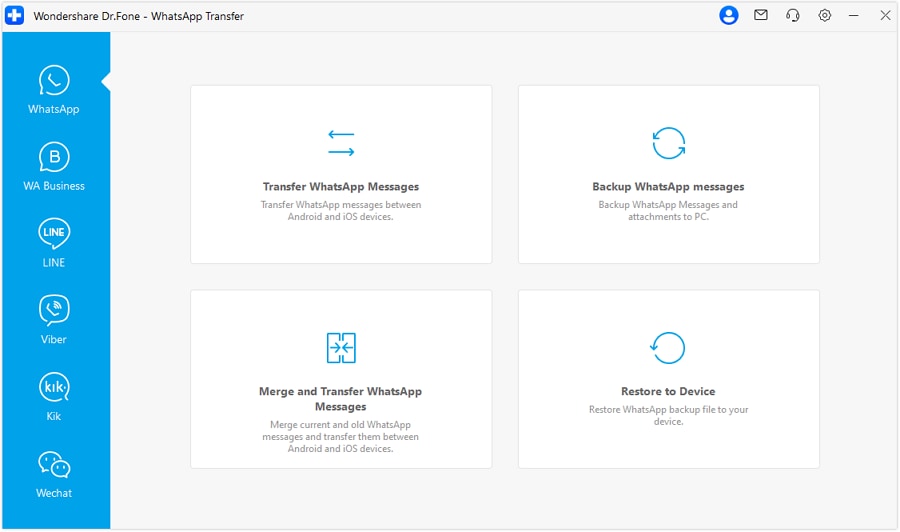
Step 1. Select Transfer WhatsApp Messages
Launch Dr.Fone and open the “WhatsApp Transfer” tool. Under “WhatsApp,” select “Transfer WhatsApp Messages” to start the process.
-
Step 2. Choose Data and Transfer Option
Confirm the source and destination devices in “A2I” mode. Choose the WhatsApp data types you want to move and click “Transfer” to continue.

-
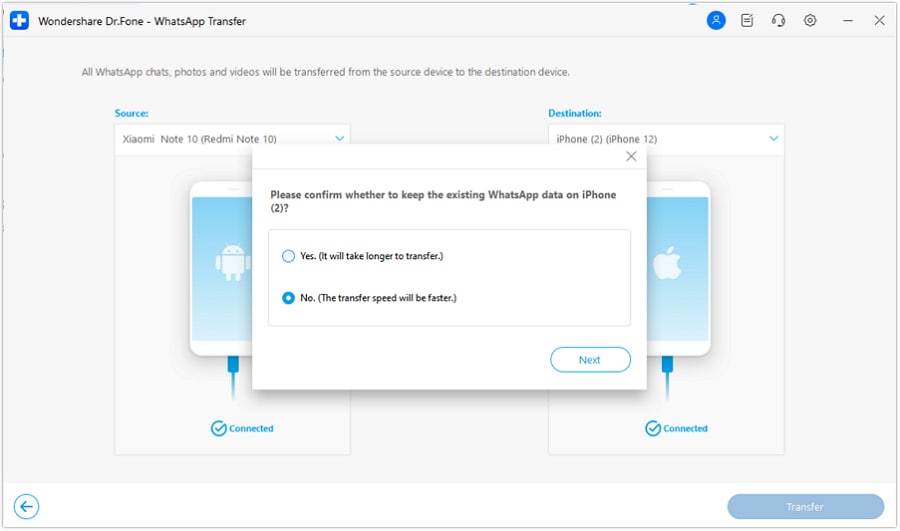
Step 3. Choose Whether to Keep Existing WhatsApp Data
Select “Yes” to keep the existing WhatsApp data on your iPhone 18 Pro. Click “Next,” and Dr.Fone will automatically start the transfer process.




Part 3. What Happens to Existing WhatsApp Data on iPhone 18 Pro?
While you transfer WhatsApp to an already set up iPhone 18 Pro, there is no need to erase the entire device. Dr.Fone lets you keep the WhatsApp data already stored on the destination iPhone instead of automatically overwriting it. During the transfer process, review the destination data option carefully, as your selection determines whether the existing WhatsApp history is retained.
If you choose to keep the existing data, Dr.Fone can combine the incoming Android WhatsApp history with the conversations already stored on the iPhone. Once the transfer finishes, check both existing and newly transferred chats, including important media. Keep the original Android device and its WhatsApp data until you have verified everything you need on the iPhone.

Part 4. What WhatsApp Data Can Dr.Fone Transfer from Android to iPhone 18 Pro?
When you transfer WhatsApp Android to iPhone 18 Pro without a factory reset, knowing exactly what moves is just as important as keeping the iPhone intact. Dr.Fone supports multiple WhatsApp data types during Android to iPhone transfers. Review the table below to see what can move and what you should verify afterward:
| WhatsApp Data Type | Dr.Fone – WhatsApp Transfer | What to Verify After Transfer |
|---|---|---|
| Messages, Individual Chats, and Group Chats | Yes | Open older and recent conversations, including important group chats. |
| Community Messages | Yes | Open important Communities and confirm their transferred conversations are available. |
| Starred Messages | Yes | Check several starred items and confirm they remain marked and accessible. |
| Photos, Videos, and GIFs | Yes | Open images, play videos, and check animated GIFs inside transferred chats. |
| Voice Notes and Audio Files | Yes | Play several voice notes and audio attachments to confirm proper playback. |
| Instant Video Messages | Yes | Open recent video messages and confirm they play correctly. |
| Files and Documents | Yes | Open important PDFs and other documents to confirm file access. |
| Stickers | Yes | Check chats containing stickers and confirm they display correctly. |
| Polls | Yes | Open transferred polls and confirm their questions and options appear. |
| Call Logs | Yes | Compare important WhatsApp call entries with those on the Android device. |
Part 5. Dr.Fone vs. Move to iOS for Android WhatsApp Transfer
The choice mainly depends on whether your iPhone 18 Pro is already set up. For Move to iOS for iPhone 18 Pro without reset, the official route is unavailable after setup, while Dr.Fone can transfer WhatsApp afterward. The comparison below shows how both options differ in practice:
| Feature | Dr.Fone - WhatsApp Transfer | Move to iOS |
|---|---|---|
| Android to iPhone WhatsApp Transfer | Yes | Yes |
| Works on an Already Set Up iPhone | Yes | No |
| Factory Reset Required After Setup | No | Yes |
| Initial Setup Required | No | Yes |
| Computer Required | Yes | No |
| Official WhatsApp Supported Method | No | Yes |
| Keeps Current iPhone Setup | Yes | No |
| Existing Destination WhatsApp Data | Keep or replace option | Not preserved |
| Data Merging | Supported when keeping existing data | No |
| Selective Data Transfer | Yes | No |
| Best Use Case | New or already set up iPhone | New or erased iPhone |
Part 6. Will Transferring WhatsApp Without Reset Erase Other iPhone 18 Pro Data?
If you move WhatsApp from Android to iPhone 18 Pro after setup with Dr.Fone, you do not need to erase the entire iPhone. Existing apps, photos, videos, contacts, accounts, and device settings can remain in place while WhatsApp data is handled separately through the transfer options. Review the destination-data prompt carefully because it determines how the WhatsApp history already stored on the iPhone is handled.
Before starting, keep a current iCloud or computer backup of the iPhone as an extra precaution. Once the transfer finishes, check both the existing iPhone chats and the newly transferred Android history before deleting anything from the original device. This helps confirm that the required messages, media, and other WhatsApp data are available on the iPhone.

Conclusion
The right transfer method depends on your iPhone’s setup status. Move to iOS works well for a new or erased iPhone, but an already configured device needs a different approach. Dr.Fone - WhatsApp Transfer lets you transfer WhatsApp from Android to iPhone 18 Pro without a reset while keeping the current setup intact. As a final step, verify your chats and media before removing data from the old Android phone.
Frequently Asked Questions
-
1. Can I use Move to iOS after iPhone 18 Pro setup is complete?
No. Once iPhone 18 Pro setup is complete, Move to iOS requires you to erase the device and return to the setup screen. To avoid a reset, you can use a desktop transfer tool such as Dr.Fone - WhatsApp Transfer instead. -
2. Can Dr.Fone keep existing WhatsApp chats on iPhone 18 Pro?
Dr.Fone provides a destination-data option during Android to iPhone transfers, allowing you to keep existing WhatsApp chats on the iPhone. Choosing this option retains the current history while combining it with the incoming Android WhatsApp data. -
3. Can Dr.Fone merge Android and iPhone WhatsApp chats?
During Android to iPhone transfers, Dr.Fone can combine incoming WhatsApp messages with existing chats retained on the destination iPhone. Review the destination-data option carefully before proceeding to ensure both WhatsApp histories are merged as intended. -
4. Can I restore a Google Drive WhatsApp backup directly to iPhone 18 Pro?
Google Drive WhatsApp backups cannot be restored directly to iPhone 18 Pro because Android uses Google Account storage, while iPhone restores WhatsApp backups through iCloud. The two cloud backup systems are not directly compatible for cross-platform restoration.
 Add Wondershare Dr.Fone as a preferred source on Google