Transfer WhatsApp Swiftly between iOS and Android.

 100% Security Verified | No Subscription Required | No Malware

 :
: 
 ChatGPT
 Perplexity
 Gemini
 Claude
 Grok
Grok
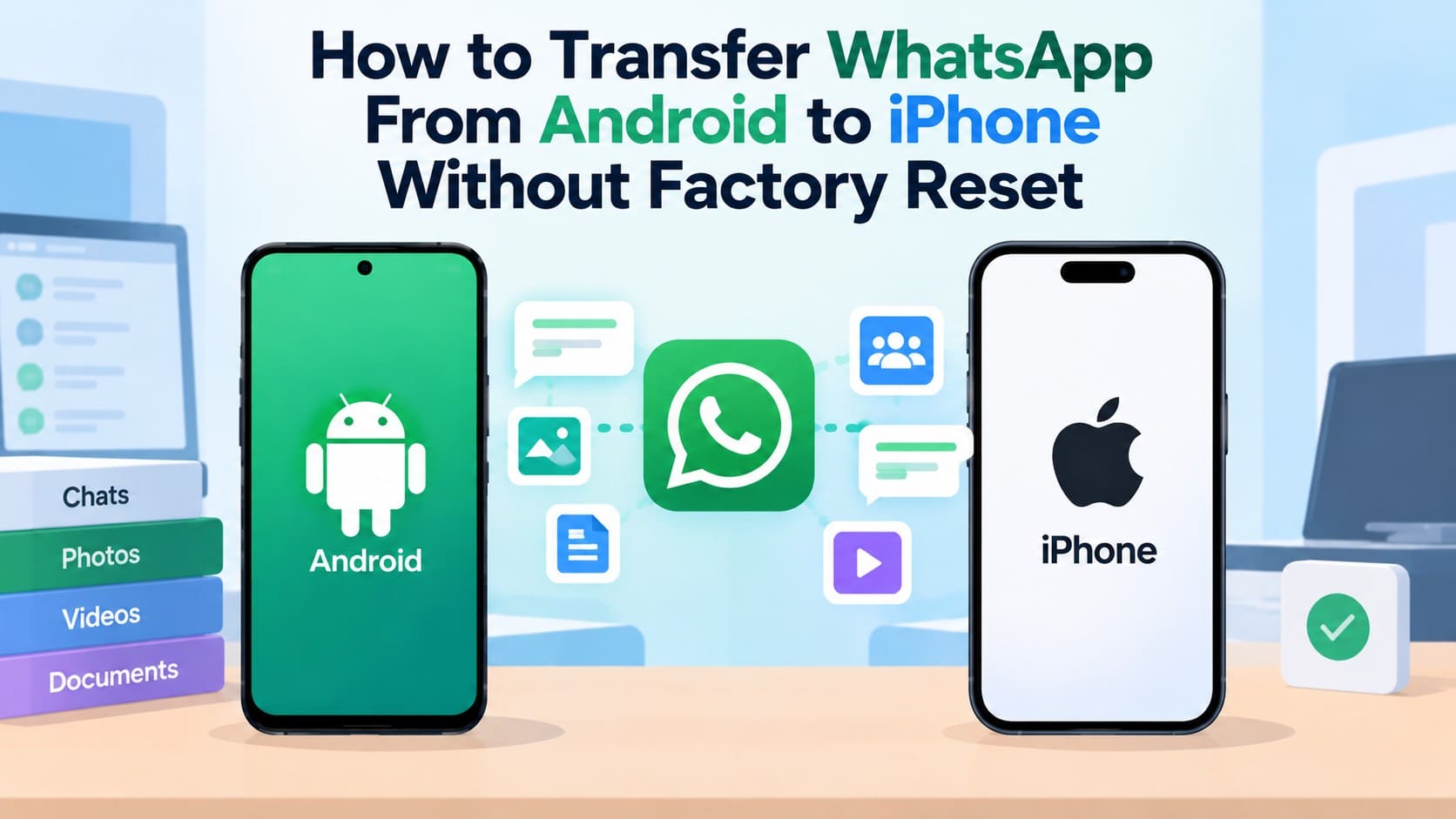
WhatsApp's official Android-to-iPhone migration only works during initial setup, requiring a new or factory-reset iPhone. If your iPhone already contains apps, photos, and settings, erasing everything just to move WhatsApp chats may not be practical.
Users who want to transfer WhatsApp from Android to iPhone without a factory reset need another approach. This guide explains the official reset requirement, the limitations of free methods, and how Dr.Fone - WhatsApp Transfer can move WhatsApp data without erasing the existing iPhone setup.
In this article
- Part 1. Can You Transfer WhatsApp from Android to iPhone Without Factory Reset?
- Part 2. Why Does the Official WhatsApp Transfer Require a Factory Reset on an iPhone?
- Part 3. Can You Transfer WhatsApp from Android to iPhone Without Factory Reset for Free?
- Part 4. How to Transfer WhatsApp from Android to iPhone Without a Factory Reset
- Part 5. What Happens to WhatsApp Data Already on the iPhone?
- Part 6. Factory Reset vs. No-Reset WhatsApp Transfer: Which Should You Choose?
- Part 7. Why Does a No-Reset WhatsApp Transfer Fail?
Part 1. Can You Transfer WhatsApp from Android to iPhone Without Factory Reset?
Yes, but the best no-reset option depends on whether your iPhone already has WhatsApp chats or you only need archived copies. Compare the available routes below to choose the right way to move WhatsApp from Android to iPhone without a factory reset:
| iPhone Situation | Available Transfer Route | Factory Reset Required | Existing iPhone Setup Kept | Best For |
|---|---|---|---|---|
| Already-Set-Up iPhone | Dr.Fone - WhatsApp Transfer | No | Yes | Moving WhatsApp without erasing the configured iPhone |
| Already-Set-Up iPhone With Existing WhatsApp Chats | Dr.Fone - WhatsApp Transfer | No | Yes, depending on the destination-data option selected | Keeping existing iPhone chats while adding Android WhatsApp history |
| Only Need Archived Copies of Selected Chats | WhatsApp Export Chat | No | Yes | Saving readable chat copies for reference, not restoring them into WhatsApp |
Part 2. Why Does the Official WhatsApp Transfer Require a Factory Reset on an iPhone?
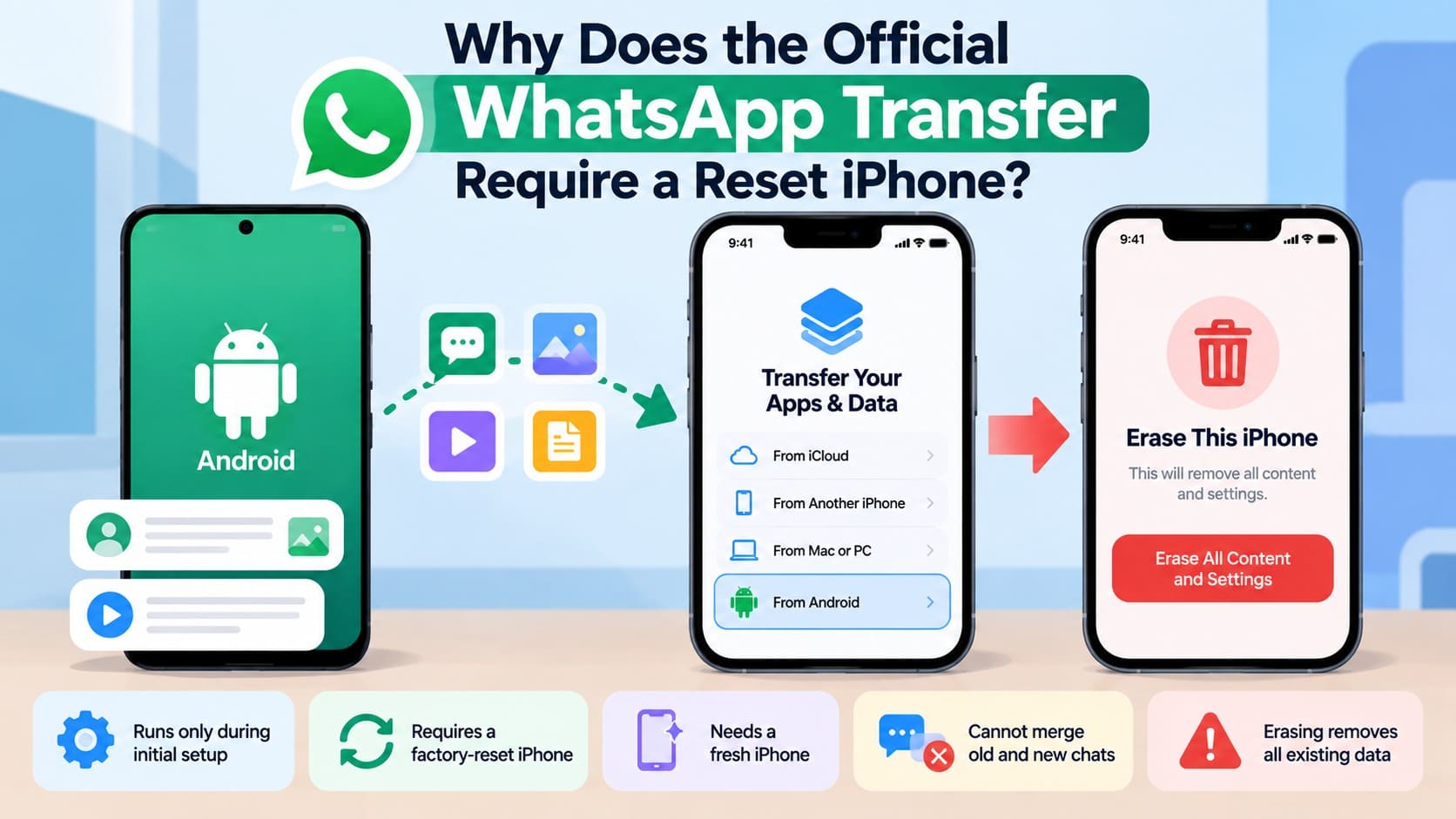
Official Android-to-iPhone WhatsApp migration only works during initial iPhone setup. Once setup is complete, you cannot start it later. Here’s why you cannot transfer WhatsApp messages without a factory reset officially:
-
Step 1 Required During Initial Setup
Apple places the Android migration option on the Transfer Your Apps & Data screen during initial iPhone setup. The official WhatsApp transfer must be started at this stage.
-
Step 2 Factory Reset for Configured Devices
Once iPhone setup is complete, the official Android migration workflow is no longer available. Users must erase the iPhone and restart setup to access the transfer option again.
-
Step 3 Official Migration Does Not Merge Histories
The official Android-to-iPhone workflow does not merge transferred Android WhatsApp history with chats already stored on the destination iPhone. This limitation also makes a clean setup necessary for the official transfer.
Part 3. Can You Transfer WhatsApp from Android to iPhone Without Factory Reset for Free?
No official free method can transfer WhatsApp from Android to iPhone without a factory reset when the iPhone is already configured. Move to iOS transfers WhatsApp for free, but it requires the initial iPhone setup stage.
Google Drive backups cannot be directly restored to WhatsApp on iPhone, while exported chats are only readable copies. A no-reset WhatsApp transfer therefore requires a third-party transfer tool, which typically needs a paid plan.
Part 4. How to Transfer WhatsApp from Android to iPhone Without a Factory Reset
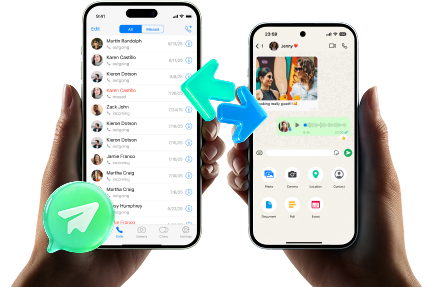
No free method can move WhatsApp from Android to iPhone without a factory reset, but a computer-based transfer provides another route. Dr.Fone - WhatsApp Transfer transfers WhatsApp and WhatsApp Business chats between Android and iPhone in either direction. It works with already-set-up phones without requiring a factory reset and transfers messages, photos, voice notes, documents, stickers, call logs, and polls.
For Android-to-iPhone transfers, you can select specific data types instead of moving everything. Dr.Fone also lets you keep existing WhatsApp data on the destination iPhone or back it up before continuing. You can back up WhatsApp and WhatsApp Business to a computer or export chats as PDF, HTML, CSV, or Excel files. The tool also supports backing up and restoring LINE, Kik, Viber, and WeChat chats.
 Transfer WhatsApp across Android & iOS.
- Backup & restore WhatsApp to PC securely.
- Preview & export chats selectively.
- Works with all iPhone & Android models.
Guide to Use Dr.Fone to Transfer WhatsApp Without Factory Reset
Review the following guide and learn how to transfer WhatsApp messages from Android to iPhone without a factory reset:
-
Step 1 Open WhatsApp Transfer on Your Computer
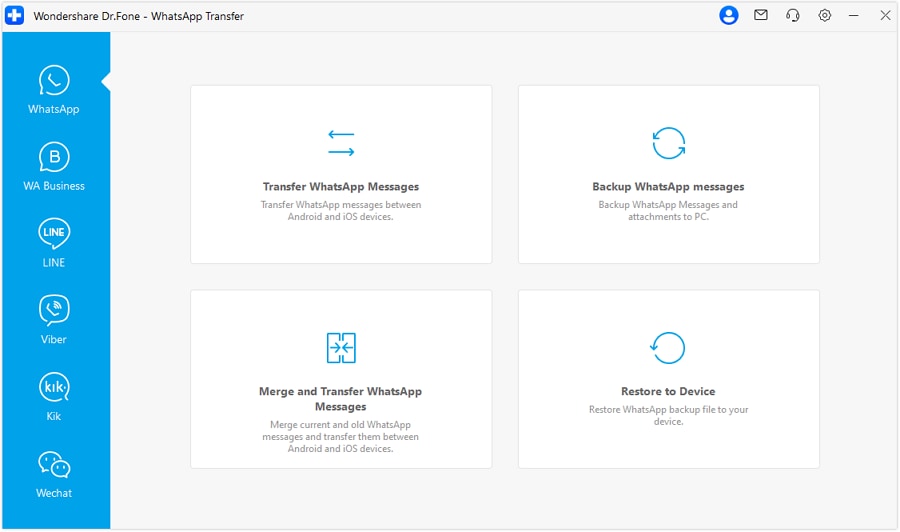
Open the WhatsApp Transfer tool, access the "WhatsApp" tab, and select the "Transfer WhatsApp Messages" option.
-
Step 2 Start the Transfer and Confirm Direction
Once you connect both handsets, confirm the “Source” and “Target” devices. Select the specific data types in A2I transfer mode, press “Transfer,” and continue to the next interface.

-
Step 3 Decide What Happens to Existing iPhone Data
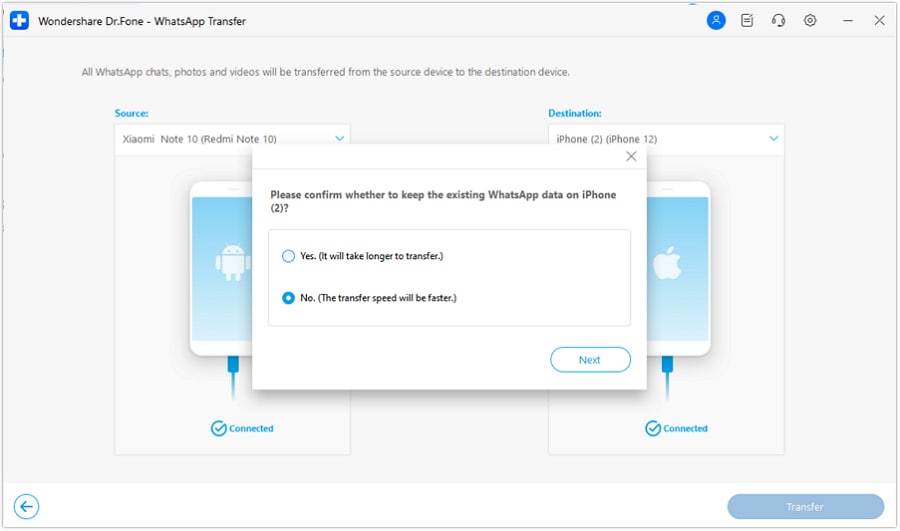
Decide whether to keep the existing WhatsApp data on the destination iPhone, then press “Next.” The transfer will start automatically afterward, so keep both handsets connected and charged until it finishes.

Part 5. What Happens to WhatsApp Data Already on the iPhone?
When you transfer WhatsApp from Android to iPhone without a factory reset, existing WhatsApp chats on the destination iPhone become an important consideration. Dr.Fone provides an option to keep existing destination WhatsApp data and combine it with the transferred Android history.
Before starting, carefully review the destination-data prompt and choose the appropriate option. The following table explains what happens to existing and transferred WhatsApp data and what you should verify afterward:
| Data Scenario | Dr.Fone Android-to-iPhone Behavior | What to Check After Transfer |
|---|---|---|
| Transferred Android Chats | Transfers supported Android WhatsApp messages to the iPhone | Check recent and older Android conversations |
| Combined Chat History | Combines transferred Android history with the WhatsApp data kept on the iPhone | Confirm chats from both devices remain accessible |
| Transferred Media | Transfers supported photos, videos, voice notes, and attachments | Open several media files and confirm they work |
| Groups and Other Chat Data | Transfers supported group messages, polls, call logs, and other supported data | Check important groups and other transferred content |
Part 6. Factory Reset vs. No-Reset WhatsApp Transfer: Which Should You Choose?
Choosing between the official reset-based method and a no-reset transfer depends on your iPhone's current setup and data needs. The following table compares both routes to help you move WhatsApp from Android to iPhone without a factory reset or decide whether resetting is practical:
| Situation | Better Route | Main Advantage | Main Limitation |
|---|---|---|---|
| iPhone Is New and Not Yet Set Up | Official WhatsApp Migration | Free and officially supported | Must be completed during initial setup |
| iPhone Can Be Erased Safely | Official WhatsApp Migration | Free Android-to-iPhone WhatsApp transfer | Existing iPhone data must be erased first |
| iPhone Is Already Configured | Dr.Fone - WhatsApp Transfer | Keeps the existing iPhone setup intact | Requires a computer and paid software |
| iPhone Contains Important Personal Data | Dr.Fone - WhatsApp Transfer | Avoids erasing existing iPhone data | Requires cables and desktop access |
| iPhone Already Has WhatsApp Chats | Dr.Fone - WhatsApp Transfer | Offers an option to keep existing WhatsApp data | Keep-data option must be selected carefully |
| You Want an Official Free Transfer | Official WhatsApp Migration | No paid transfer software required | Requires a new or erased iPhone |
Part 7. Why Does a No-Reset WhatsApp Transfer Fail?
You may encounter a few issues while you transfer WhatsApp messages from Android to iPhone without a factory reset. The following table covers common transfer problems, their likely causes, and quick checks to help resolve them:
| Problem | Likely Cause | Recommended Check |
|---|---|---|
| Android Phone Not Detected | USB debugging is disabled, or device authorization is incomplete | Enable USB debugging and complete the connection prompts on Android |
| iPhone Not Detected | iPhone is locked, or the computer has not been trusted | Unlock the iPhone, reconnect it, and tap “Trust” when prompted |
| Wrong Source and Destination | Android and iPhone are assigned to the wrong sides | Use “Flip” and confirm Android is Source and iPhone is Destination |
| Transfer Cannot Start | One or both devices are not connected correctly | Reconnect both devices and wait until Dr.Fone recognizes them |
| Insufficient iPhone Storage | Destination storage cannot accommodate the transferred WhatsApp data | Free up enough iPhone storage before starting the transfer again |
| Transfer Gets Interrupted | A device disconnects during the Dr.Fone transfer process | Keep both devices connected and avoid disconnecting their USB cables |
| Existing iPhone Chats Are at Risk | The wrong destination-data option is selected | Choose the option to keep existing WhatsApp data before continuing |
| Transfer Does Not Complete | The transfer process was interrupted before Dr.Fone finished | Keep both devices connected until Dr.Fone confirms successful completion |
Conclusion
A factory reset is required because the official WhatsApp migration runs during initial iPhone setup. Once that stage has passed, no official free method transfers chats without erasing the configured iPhone. Dr.Fone - WhatsApp Transfer provides a computer-based alternative that keeps the existing setup intact. It offers a practical way to transfer WhatsApp from Android to iPhone without factory reset while preserving existing iPhone data.




FAQ
-
1. Can I transfer WhatsApp from Android to an already-set-up iPhone?
Yes, but not through the official Move to iOS workflow. An already-configured iPhone must be erased to use Apple’s Android migration process. To avoid a factory reset, Dr.Fone - WhatsApp Transfer provides a desktop-based alternative that can transfer WhatsApp while keeping the existing iPhone setup. -
2. Can I transfer WhatsApp from Android to iPhone without factory reset for free?
No official free method supports this on an already-set-up iPhone. Move to iOS requires initial setup, while Export Chat cannot restore conversations. A no-reset transfer requires a third-party tool, such as Dr.Fone - WhatsApp Transfer. -
3. Does Move to iOS work after the iPhone has already been set up?
Move to iOS only works during initial iPhone setup. If setup is already complete, Apple requires erasing the iPhone and starting again. Manual transfer is another option, but it does not migrate WhatsApp chat history. -
4. Can Android WhatsApp chats be merged with existing chats on an iPhone?
WhatsApp's official migration does not merge the two histories. Dr.Fone - WhatsApp Transfer offers an option to keep existing iPhone WhatsApp data and combine it with transferred Android history. Review the destination data option before proceeding.
 Add Wondershare Dr.Fone as a preferred source on Google