Transfer WhatsApp Swiftly between iOS and Android.

 100% Security Verified | No Subscription Required | No Malware

 :
: 
 ChatGPT
 Perplexity
 Gemini
 Claude
 Grok
Grok
You might have planned a FIFA World Cup trip for months on WhatsApp groups/chats and don’t want to lose all the chats and important shared documents. Whether it's entry/hotel tickets or important tournament schedules, these chats contain information that you need throughout the trip.
So, if you're planning to use a new phone during the tournament, learn how to transfer WhatsApp chats to a new phone before the World Cup. In this regard, this article will explain some built-in and cross-platform transfer options to assist you. Review all and find out why Dr.Fone - WhatsApp Transfer outshines all the options in 2026.
In this article
Part 1. Why Transfer WhatsApp Data Before the World Cup
Review these reasons to understand why you need to move WhatsApp group chats to a new phone:
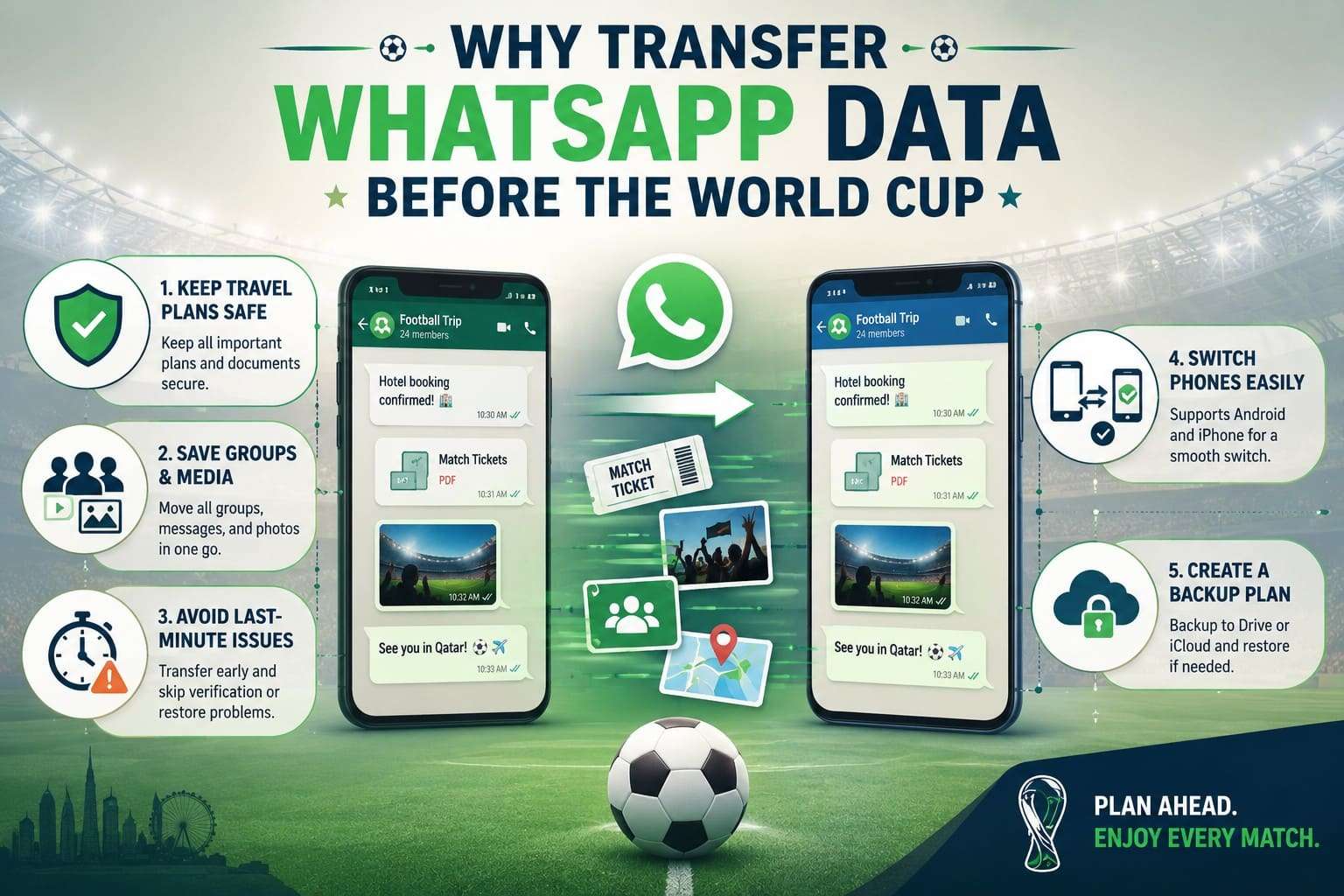
- Keep Travel Plans Safe: WhatsApp stores all the important FIFA World Cup-related files shared in groups and individual chats. So, when you transfer them to a new device, this information becomes available on it as well.
- Save Groups and Media: You can move all football groups, messages, and media files together instead of transferring them individually. Hence, this preserves all World Cup discussions and media when WhatsApp is moved to a new device.
- Avoid Last-Minute Problems: It's best to transfer WhatsApp data before the tournaments start. This way, you won’t have to deal with the verification or restore problems during the transfer.
- Switch Phones Easily: Unlike other apps or platforms, WhatsApp supports transfers between Android and iPhone devices. Hence, if you switch phones or move data early, you have time to complete the process and fix any issues.
- Have a Backup Plan: If you create an iCloud or Google Drive backup before you travel, you can also restore World Cup data if the QR transfer fails. So, don’t erase or reset your old phone until you've confirmed that all important WhatsApp data has been moved.
Part 2. Before You Transfer: Quick WhatsApp Checklist
If you have decided to back up WhatsApp before the football trip, perform the basic checks mentioned:
| What To Do | Why It Matters |
|---|---|
| Keep the Same Phone Number | Needed to verify WhatsApp and restore chats easily. |
| Update WhatsApp & Phone | Fixes bugs and enables smooth transfer. |
| Delete Extra Media | Makes transfer faster and reduces backup size. |
| Create a Fresh Backup | Keeps the latest chats and media safe for the rest. |
| Charge & Connect Devices | Prevents interruption during the transfer process. |
Part 3. 4 Best Ways to Transfer WhatsApp Chats and Media to a New Phone
To transfer football travel chats without losing media, follow the 4 listed ways in detail. Before that, adhere to the given table to have a quick glance at all the ways guided in this section:
| Metric | Dr.Fone WhatsApp Transfer (A2I & Others) | Built-In Chat Transfer (No Cloud) | Official Cross-Platform Transfer (Move to iOS / Smart Switch) | Cloud Backup & Restore (Google Drive / iCloud) |
|---|---|---|---|---|
| Cross-platform Support | Full support for Android - Android, Android - iPhone, iPhone - Android, and iPhone - iPhone transfers | Supports Android - Android and iPhone - iPhone/Android transfers | Yes, but mainly Android - iPhone (Move to iOS) and iPhone - Samsung Galaxy (Smart Switch) transfers through official methods | No cross-platform support; Google Drive is Android-only, and iCloud is iPhone-only |
| A2I (Android-to-iPhone) Mode | Dedicated A2I mode for direct Android - iPhone transfers without complex manual steps | Not supported | Not supported | Not supported |
| Internet/Cloud Requirements | No | Uses a local QR code and Wi-Fi connection; no cloud storage is required | Usually uses a cable or local Wi-Fi connection during migration; no third-party cloud service is required | Requires a stable internet connection and sufficient Google Drive or iCloud storage space |
| Estimated Completion Time | 5-15 minutes | 10-30 minutes | 15-60 minutes | 20-90+ minutes |
| Speed with Large Data | Highest | Medium | Medium | Medium |
| Ease of Use | Highest | Medium | Medium | Medium |
| Best Use Case | All-in-one transfers between any phones, including large chat histories and media files | Upgrading to a new phone and transferring data without cloud backups or a PC | Official cross-platform migration during device setup with secure transfer methods | Automatic backups and restores on the same platform using cloud storage |
Method 1: Use a WhatsApp Transfer Tool for Cross-Platform Moves
Dr.Fone - WhatsApp Transfer is a smart and easy way to keep access to your WhatsApp history across platforms. This means that you can move WhatsApp chats or WhatsApp Business data between Android and iOS devices. Unlike traditional methods, it requires no extra setup, requires no skill, and is 96% faster.
You can also use it to back up your WhatsApp data, which you can later preview and export as a PDF, HTML, CSV, or Excel file. Whereas for WhatsApp Business backup, you can also choose what to save and what to move to Android and iOS. Since you have complete control over data transfer, the facility is also available for LINE/Kik/Viber/WeChat.
 Transfer WhatsApp across Android & iOS.
- Backup & restore WhatsApp to PC securely.
- Preview & export chats selectively.
- Works with all iPhone & Android models.
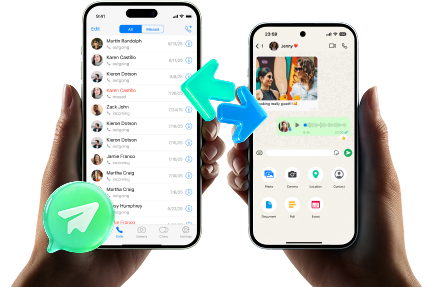
Guide to Move Android WhatsApp to iOS Before FIFA World Cup
Since the tool is primarily designed for transfers, its backup and restore features make it even more versatile. It also lets you recover WhatsApp View Once media related to the FIFA World Cup, a capability that Dr.Fone introduced first. Since the major concern is WhatsApp Transfer, here is the guide to test all its claims to transfer football travel chats without losing media:
-
Step 1 Choose to Transfer FIFA World Cup WhatsApp Messages
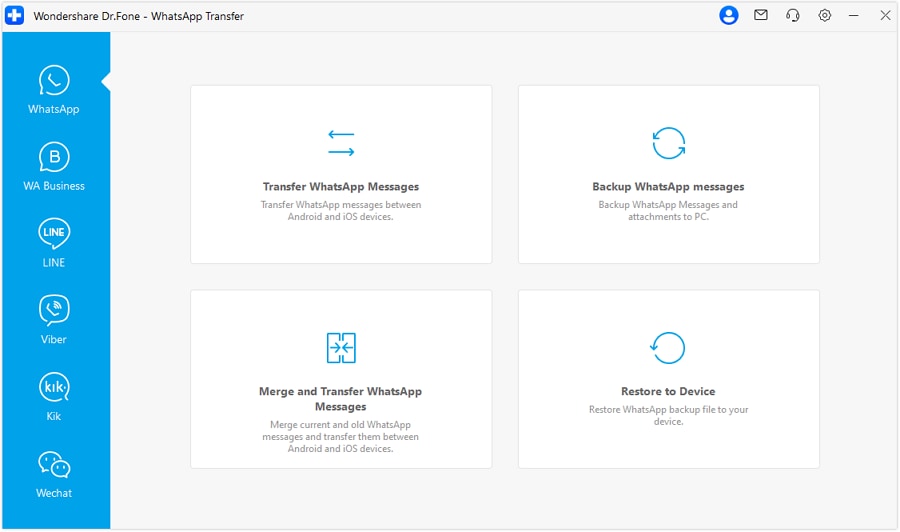
Access the “WhatsApp Transfer” tool and “WhatsApp” tab to choose the “Transfer WhatsApp Messages” option.
-
Step 2 Pick the WhatsApp Data Types to Transfer
With the phone connected, use the “Flip” icon to choose the source and target devices. After that, select the chat data types you want to move to the new phone, then press the “Transfer” button.

-
Step 3 Customize Data Types in A2I Transfer Mode
In the A2I transfer mode, further select the chats you want to transfer, then choose whether to keep or skip the existing data in the pop-up. Monitor the transfer progress and when it ends, click the “Done” button to complete the FIFA World Cup WhatsApp data transfer.




Method 2: Use WhatsApp’s Built-In Chat Transfer (No Cloud Required)
To move WhatsApp group chats to a new phone, WhatsApp's built-in Chat Transfer option lets you move data directly. Here, it uses a QR code and a local Wi-Fi/Wi-Fi Direct connection, and the transfer happens device to device. This means that you don't need Google Drive or iCloud Storage options, making it less dependent on the internet. As for the guide, the complete steps for Android and iOS are listed ahead:
From Android to Android
-
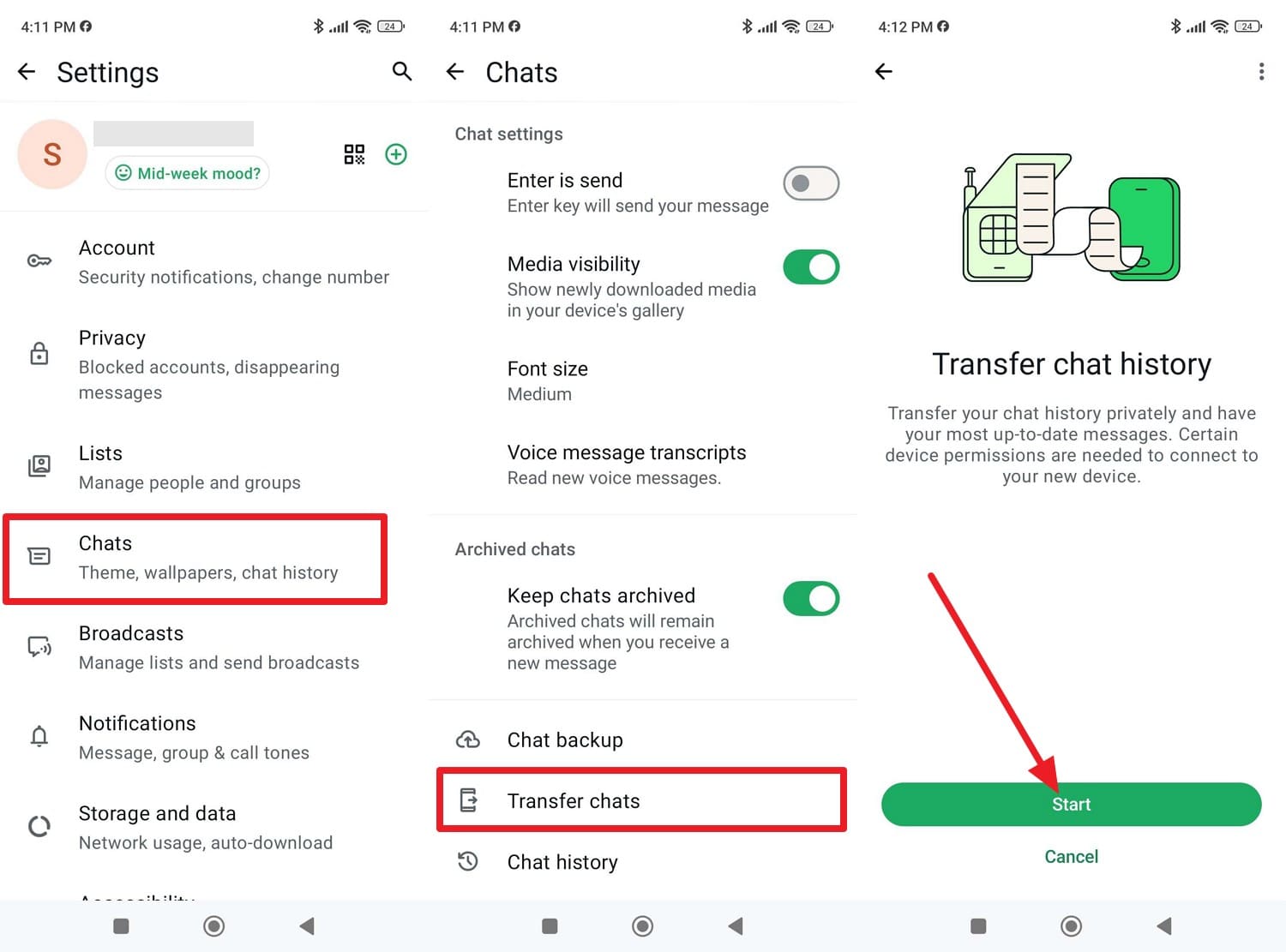
Step 1 In WhatsApp settings, go to Chat > Transfer Chat > and tap the “Start” button to continue.
-
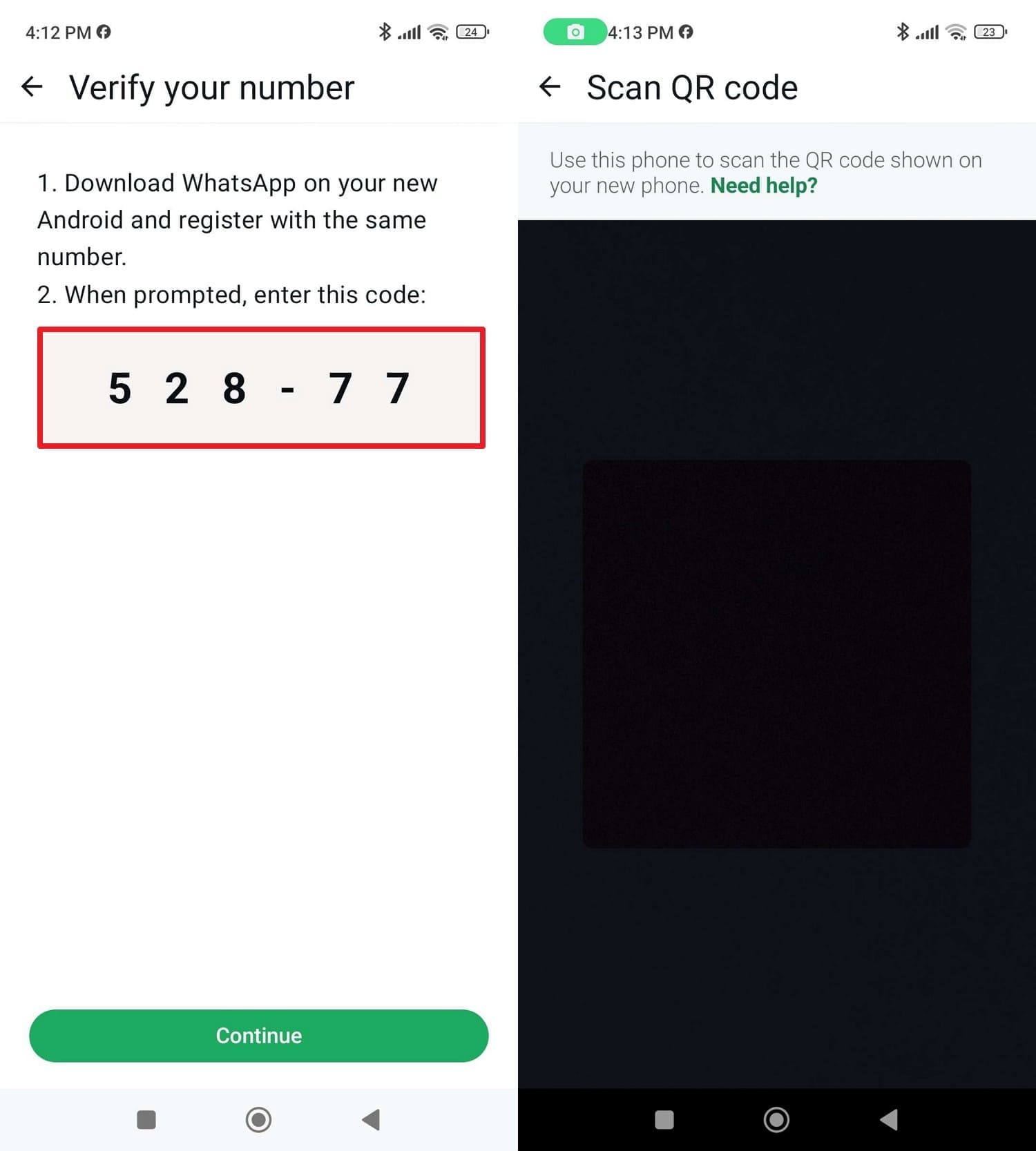
Step 2 Copy the given code and install the app on a new phone to scan the QR code from the old one.
-
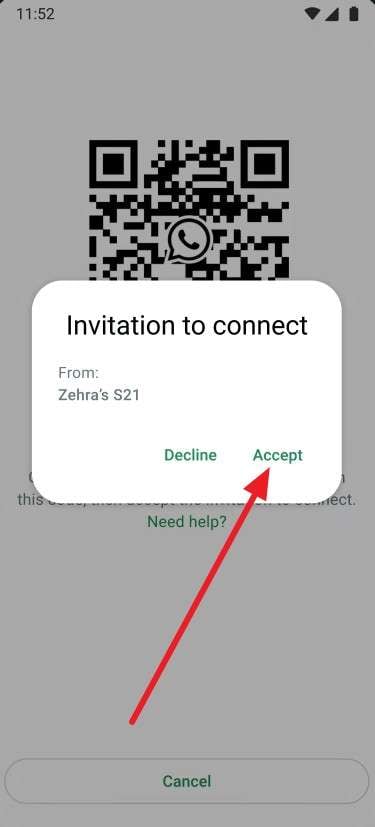
Step 3 Press “Continue” on the old phone and “Accept” on the new phone, and the chat transfer slider will appear.
From iPhone to iPhone/Android
-
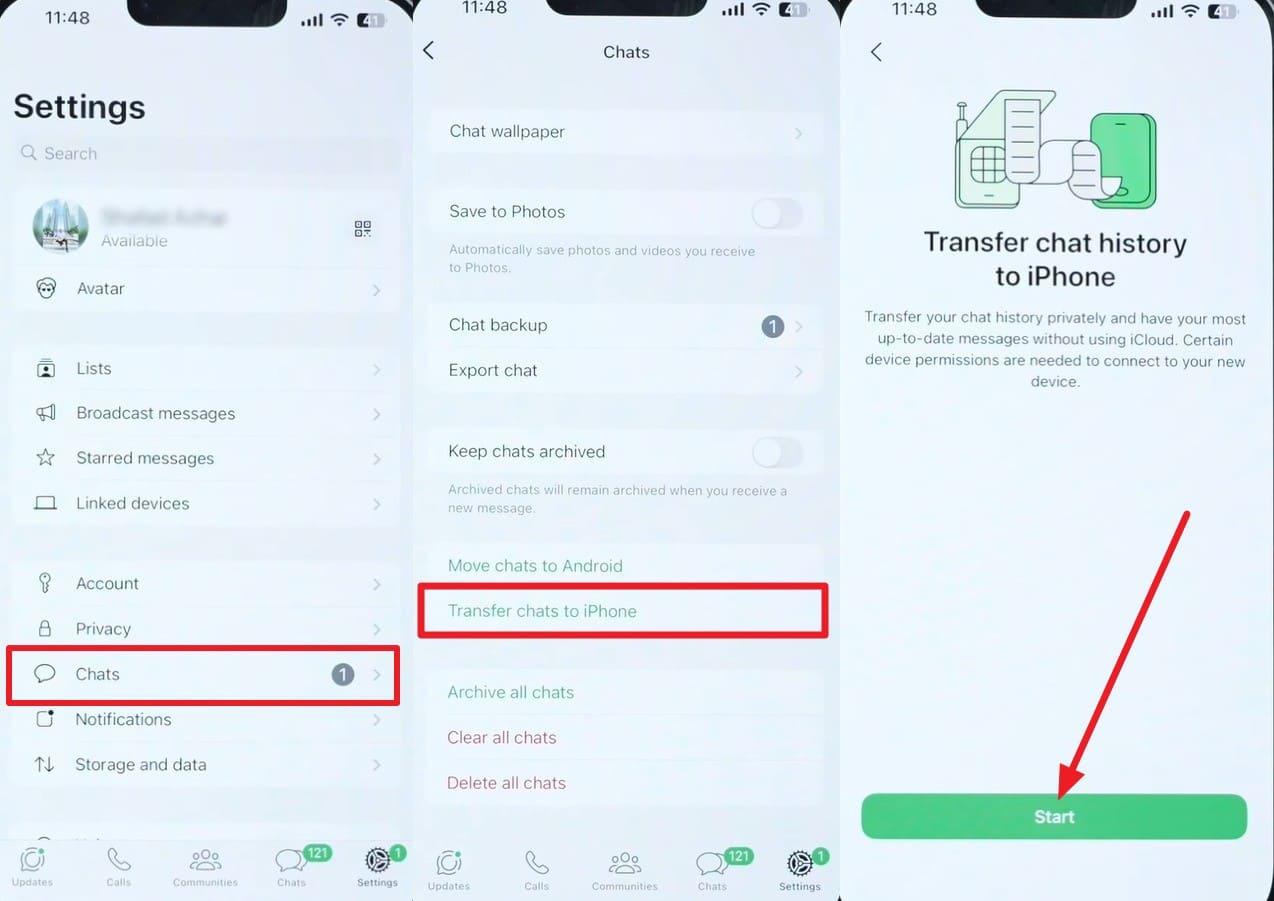
Step 1 In the WhatsApp settings, pick the Chat > Transfer Chats to iPhone and the "Start" button to continue.
-
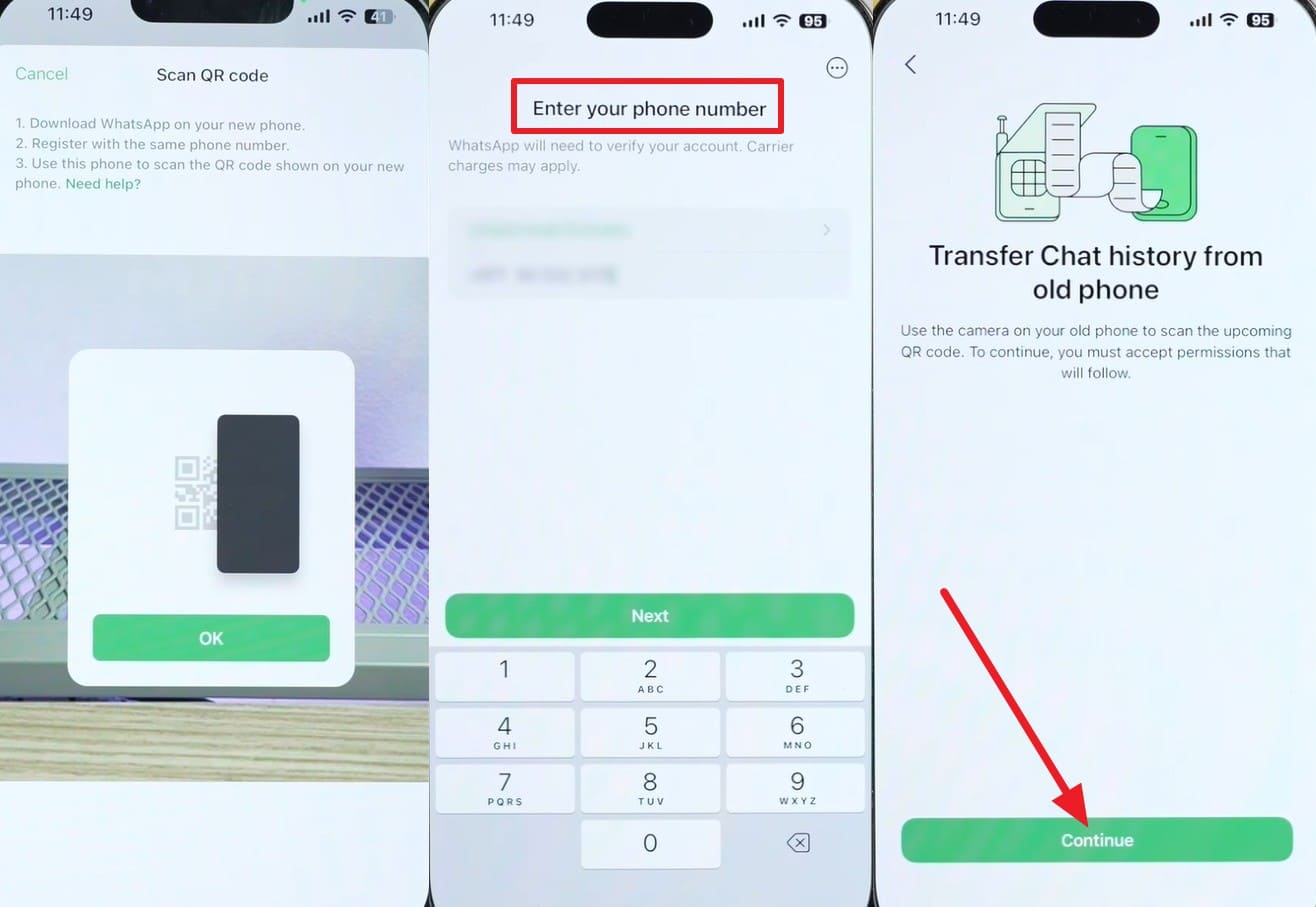
Step 2 When the scanner appears, install the app on your new iPhone and add the same details used on the old one. Tap the “Continue” button, then scan the QR code on the new iPhone using the old iPhone to start the chat transfer. Wait until the transfer is completed.
Method 3: Official Cross-Platform Transfer (Android ↔ iPhone)
When you want to transfer football travel chats without losing media across platforms, Move to iOS & Smart Switch & Android Switch can help. These official tools can move all the WhatsApp data in one go, and the process is officially supported by WhatsApp, Apple, Google, and Samsung. In addition, the data is encrypted end-to-end during transfer, and is guided below for all solutions:
For Move to iOS [Android to iPhone]
-
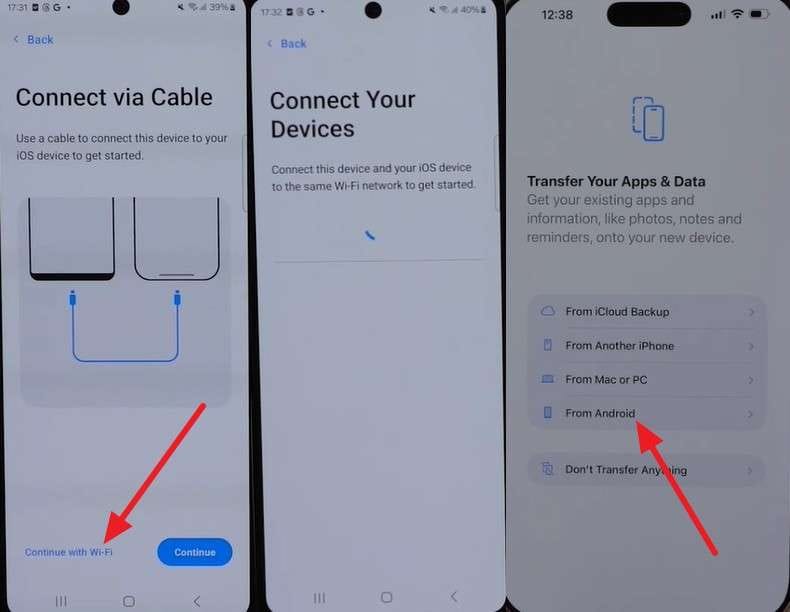
Step 1 On the Move to iOS Android app, pick the “Connect with Wi-Fi” option for wireless transfer and choose the “From Android” option to connect.
-
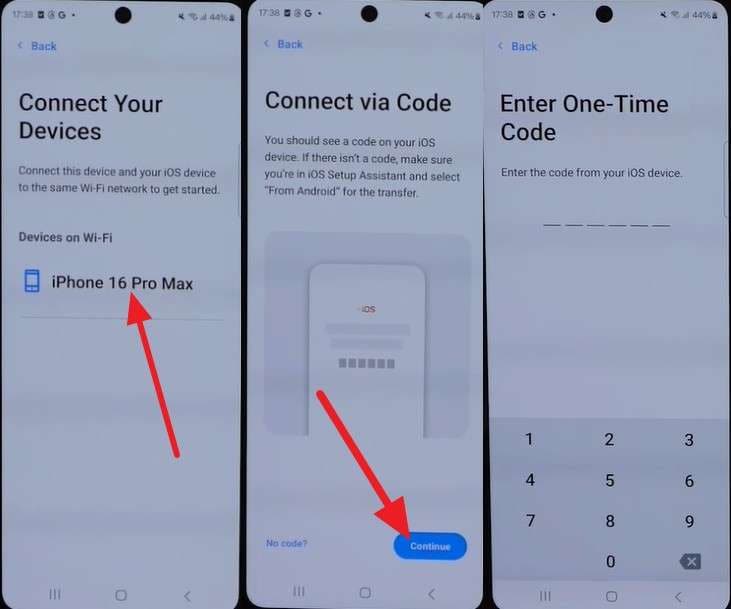
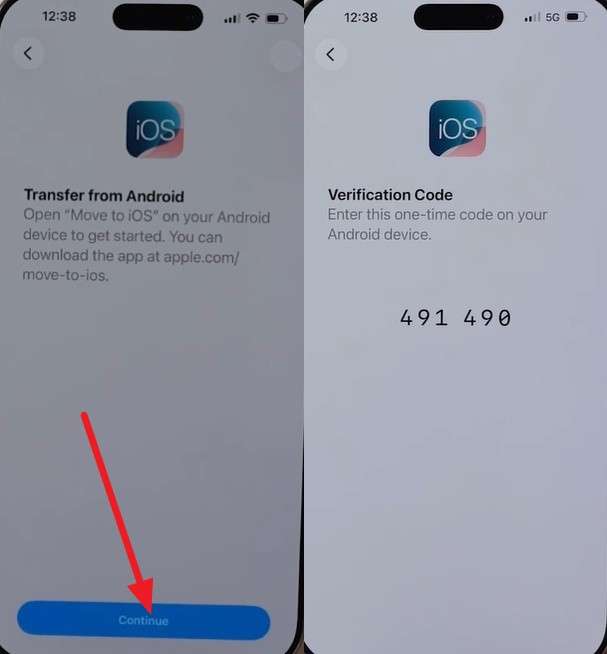
Step 2 When the iPhone appears on Android, tap on it and choose the “Continue” button to access the “Enter One Time Code” screen.
-
Step 3 Meanwhile, tap “Continue” on iPhone to access the one-time code, then enter it on Android.
-
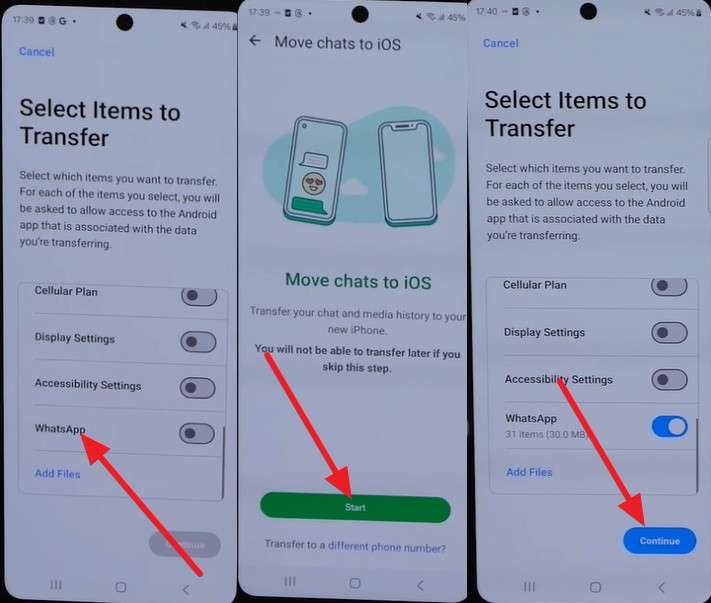
Step 4 When the data list appears, pick “WhatsApp,” then tap “Start > Next > Continue” on Android.
-
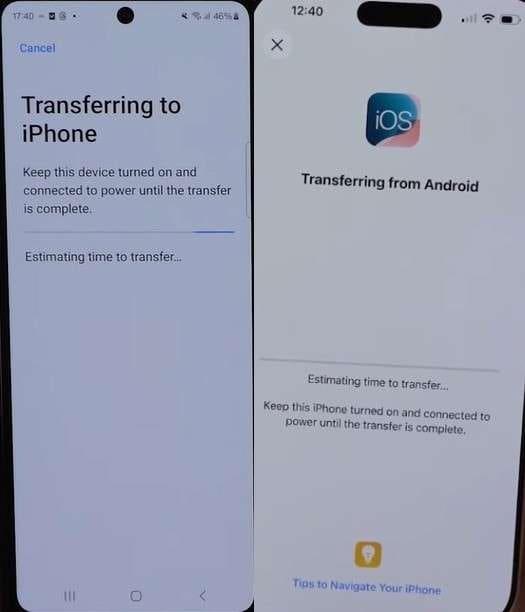
Step 5 A transfer progress bar will appear on both devices. Once the transfer finishes, tap “Continue” on the iPhone to complete the setup process.
For Smart Switch [iPhone to Samsung Galaxy]
To transfer football travel chats without losing media using Smart Switch, use WhatsApp version 2.21.160.13 on iOS. This restoration works through a cable connection and won’t work if WhatsApp was already used on a Galaxy device before restoring it with Smart Switch, says Samsung.
-
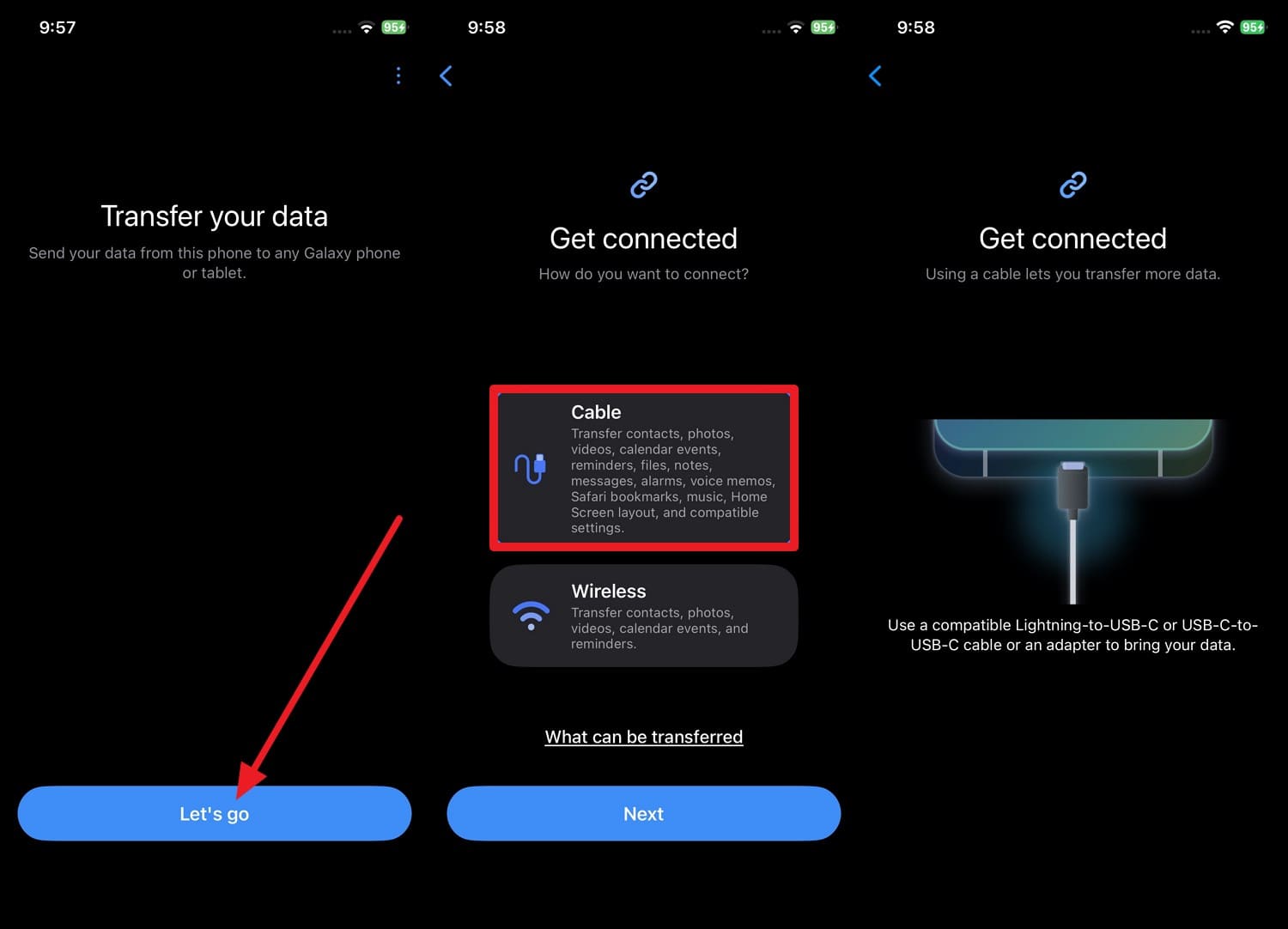
Step 1 On the iPhone, tap the “Let’s Go > Cable > Next” option and connect both devices with the cable.
-
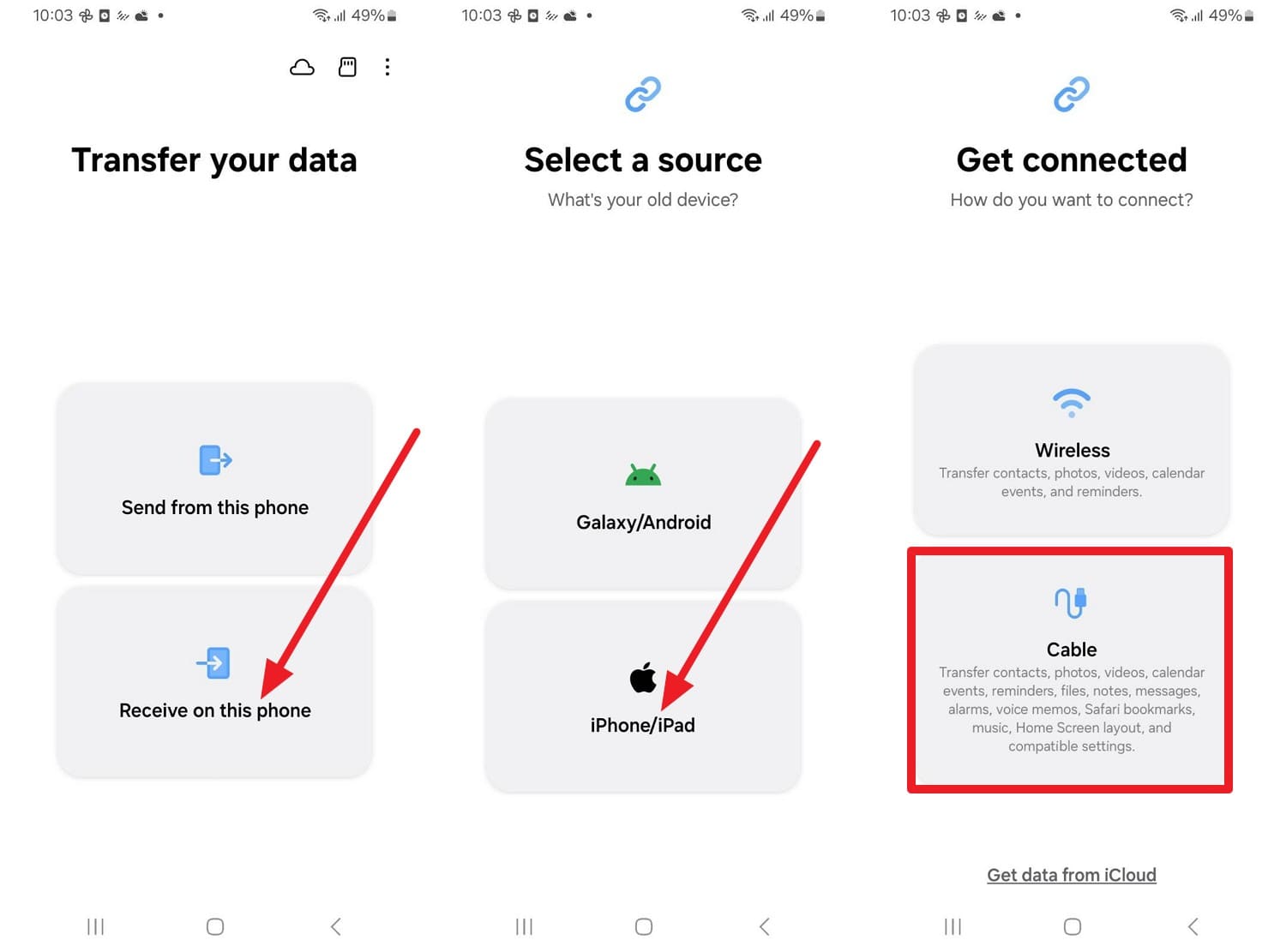
Step 2 Choose “Receive On This Phone > iPhone/iPad > Cable” and choose “OK” on Android and “Trust” on iPhone.
-
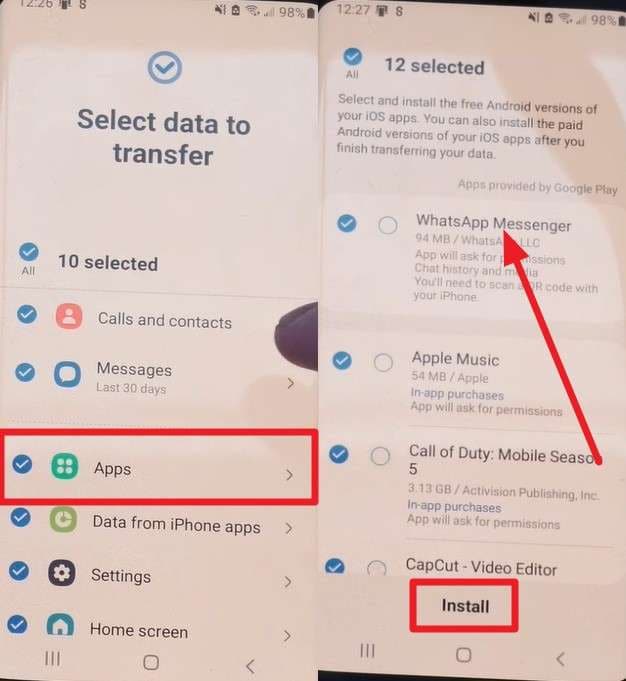
Step 3 When the data types appear, tap “Apps > Transfer,” then choose the “WhatsApp Messenger > Install” option.
-
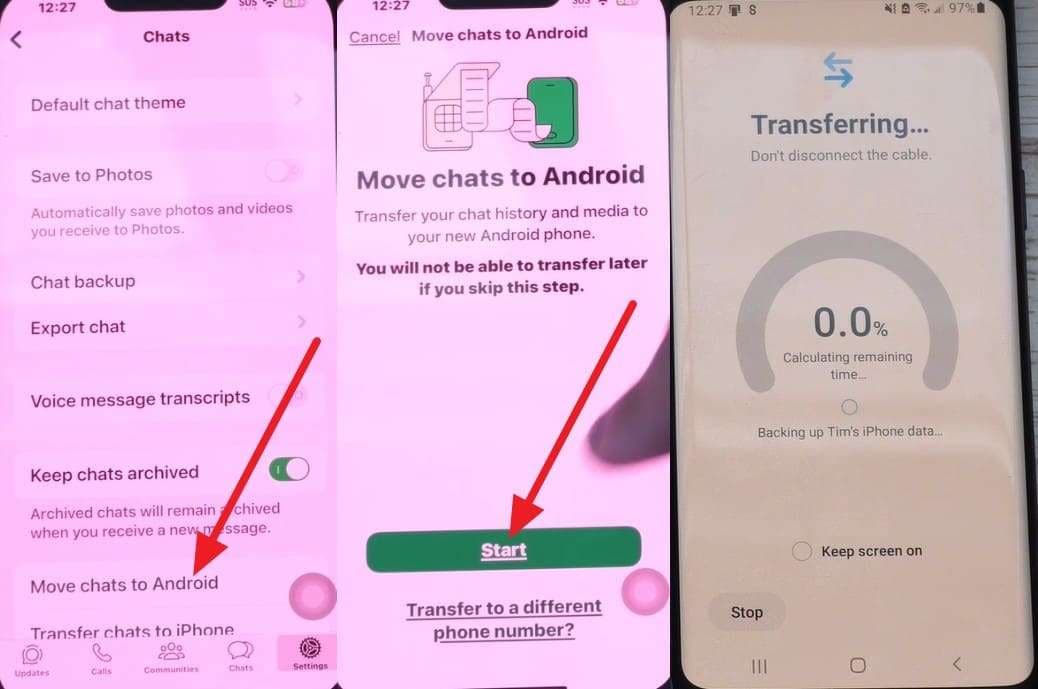
Step 4 Pick the “Move Chats to Android > Start” option on iPhone, and the progress bar will appear.
For Android to Android or iOS to Android
The Chat Transfer option in the WhatsApp app is the built-in tool you use when switching your WhatsApp account from an old device to a new Android phone. So, follow method 2 for detailed instructions.
Method 4: Cloud Backup & Restore
To move WhatsApp group chats to a new phone, you can also use the WhatsApp Backup and Restore option. This way, you can save data to Google Drive (Android) or iCloud (iPhone) so you can restore it on a new phone.
Furthermore, backup runs automatically in the background, and you can recover data if your phone is lost or damaged. So, to restore the Google Drive and iCloud backups, adhere to the mentioned steps:
To Restore Google Drive (Android)
-
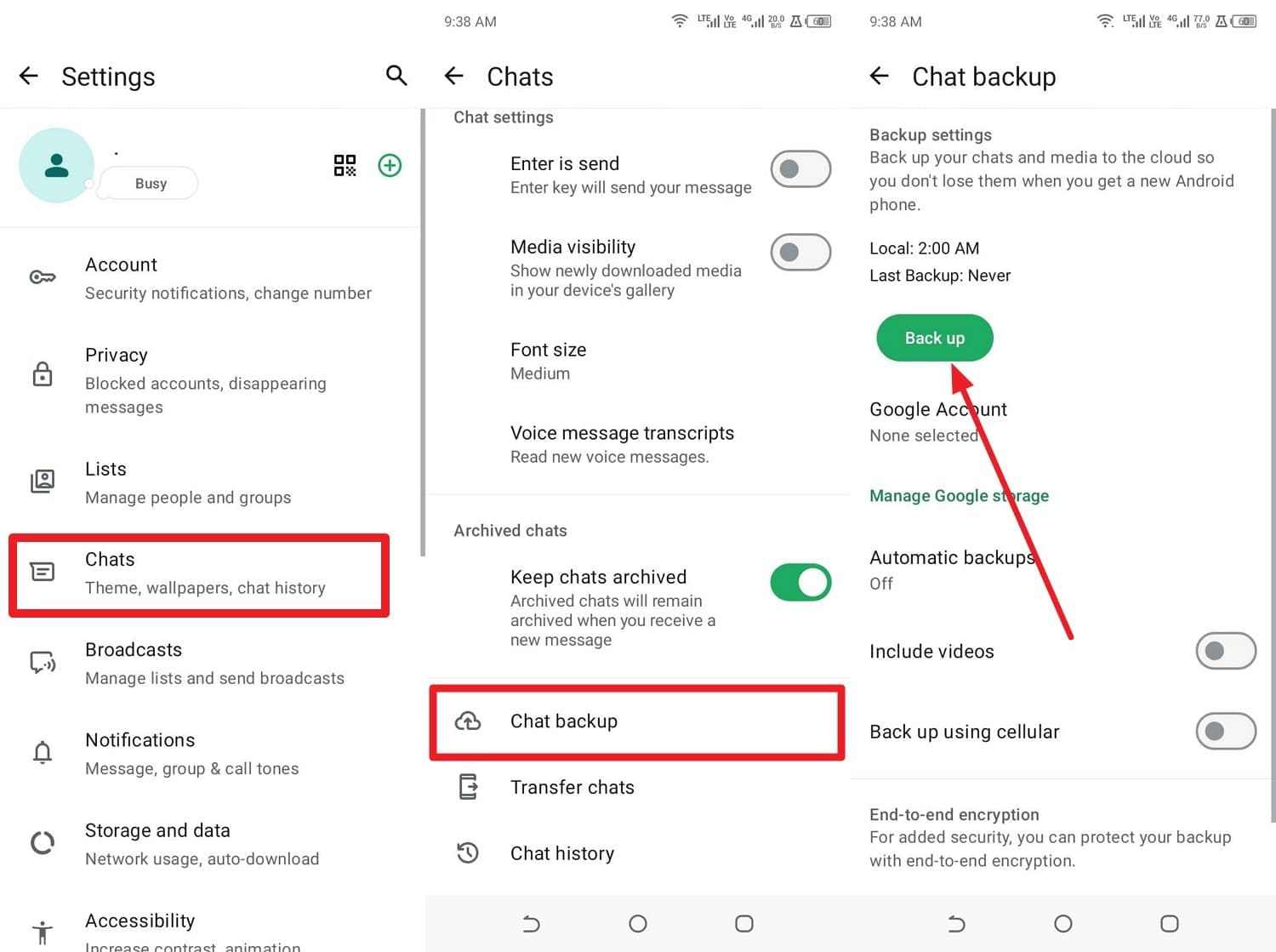
Step 1 Go to settings, Chats > Chat Backup, and tap the “Back Up” button to create a Google Drive backup.
-
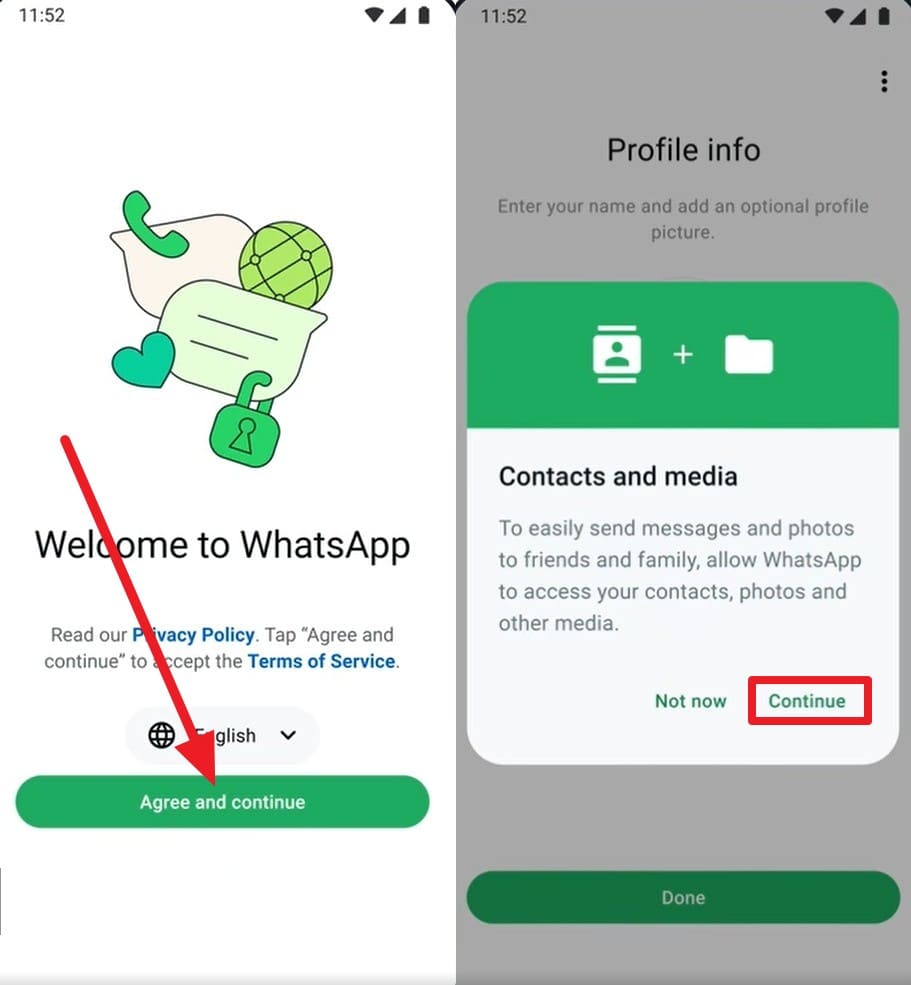
Step 2 Reinstall the app and tap the “Agree & Continue” button to add the phone number details. Add the code when you get it, then select the “Continue” and “Allow” options in the new interface.
-
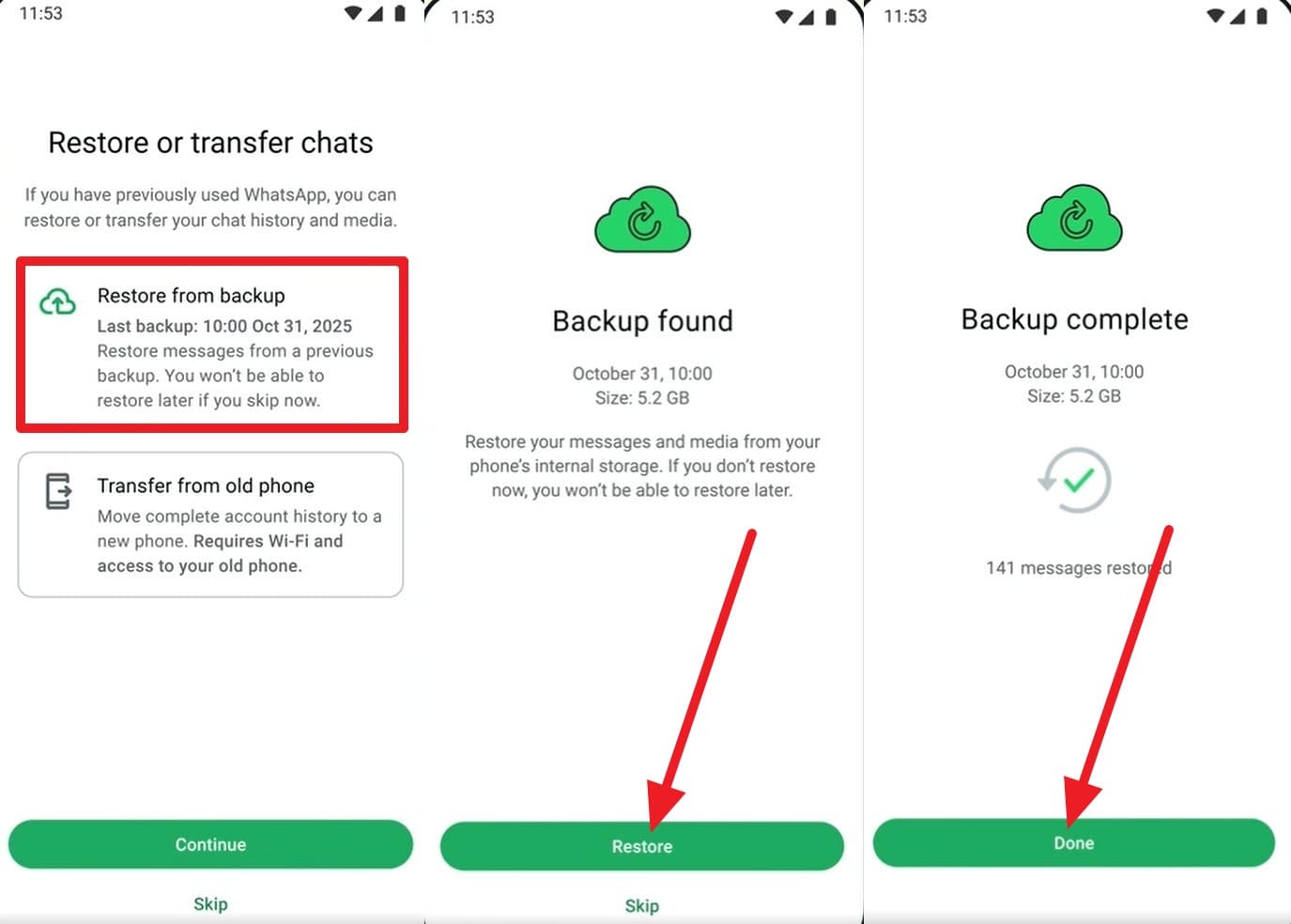
Step 3 Now, choose the “Restore from Backups” and “Continue” option. Once the WhatsApp Backup is detected automatically, choose the “Restore” option and tap “Done” when it finishes.
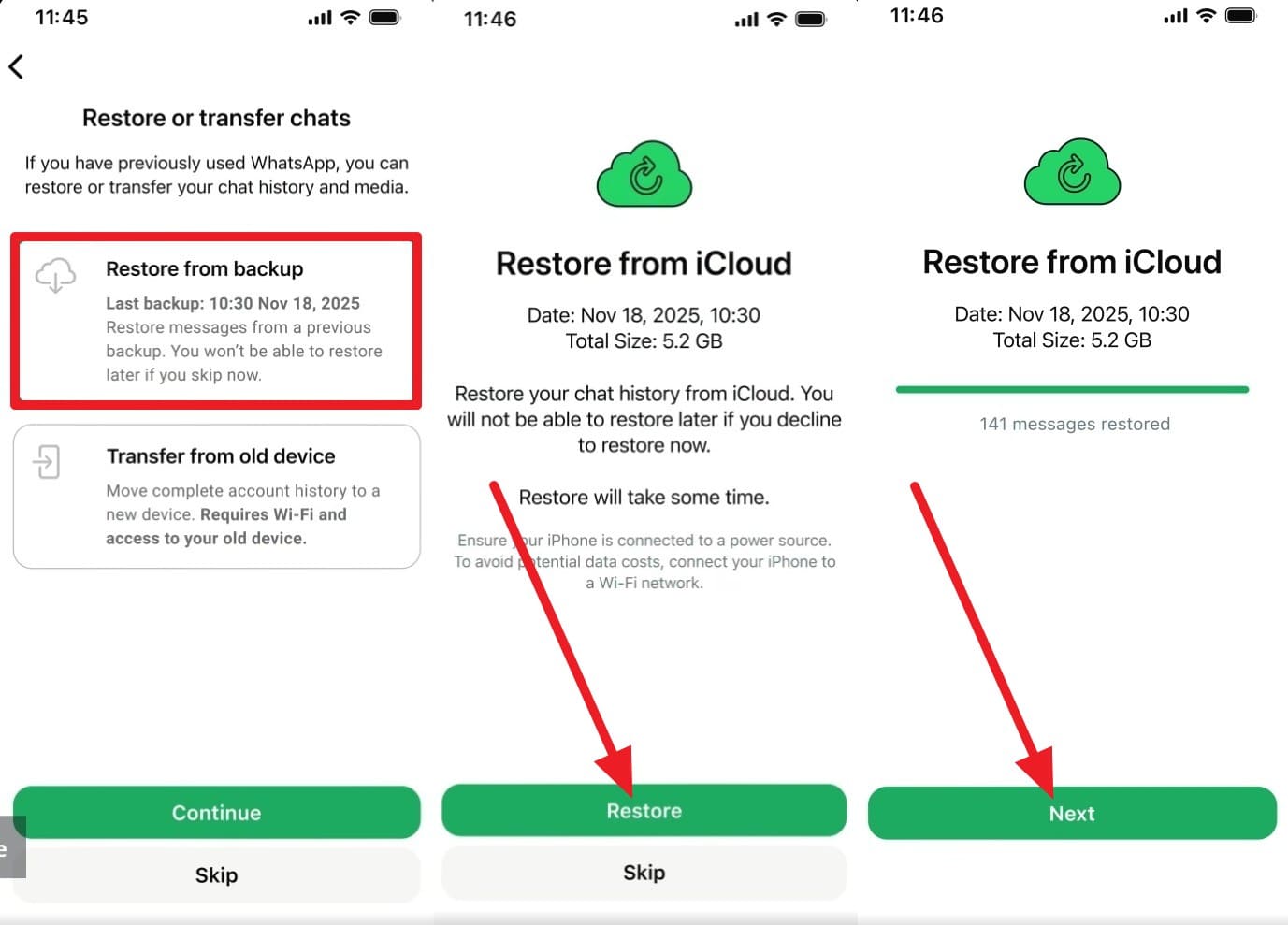
To Restore iCloud (iPhone)
-
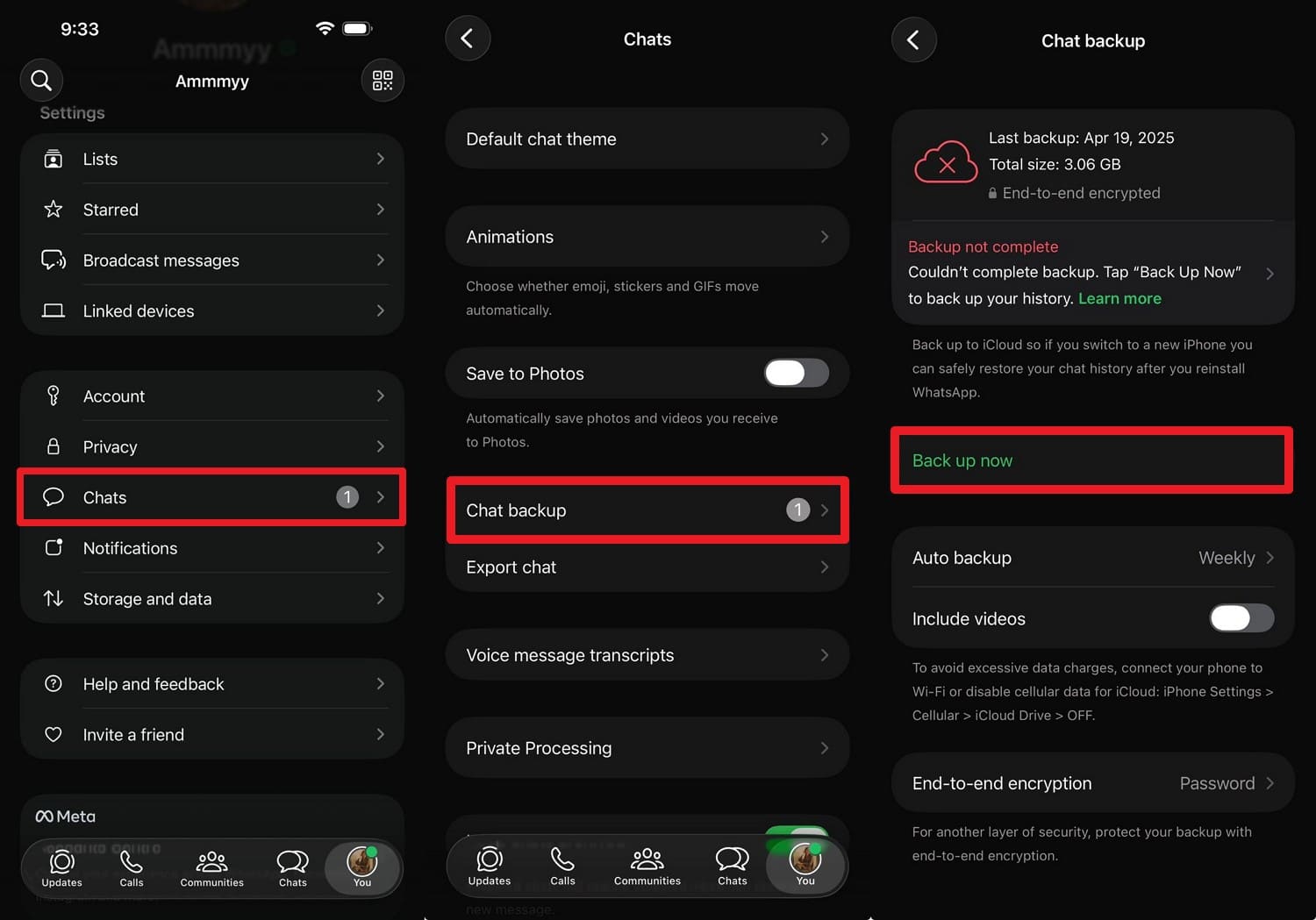
Step 1 In the settings, go to Chats > Chat Backup and tap the “Back Up Now” button. Otherwise, confirm the last backup time when you shared World Cup data to transfer WhatsApp chats to a new phone before the World Cup.
-
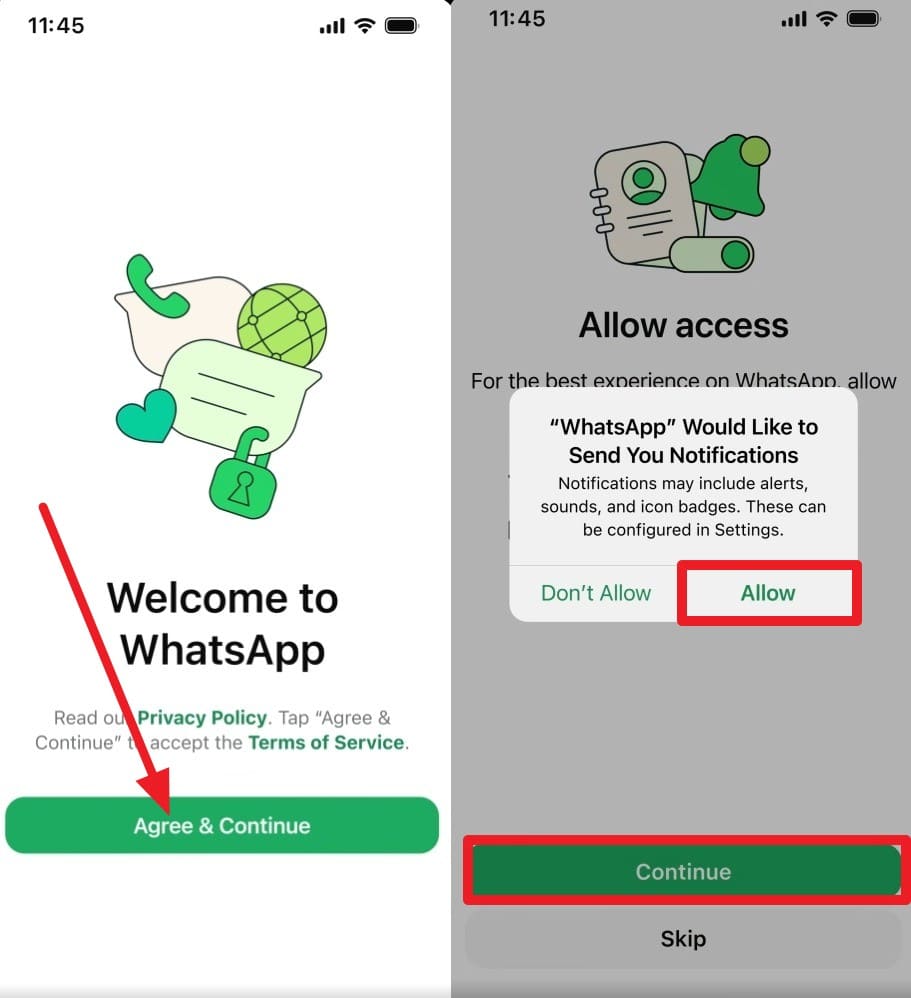
Step 2 Reinstall WhatsApp and tap the “Agree & Continue” button to add the same old phone number. After that, press the “Next” button, add the code, and choose the “Continue” and “Allow” options to continue.
-
Step 3 From the given options, choose “Restore From iCloud” and wait for the backup to be detected automatically. Tap “Continue,” check the backup date, and choose the “Restore” button.
Part 4. 5 Tips for Protecting WhatsApp Data Before a Football Trip
As you try the mentioned ways to move WhatsApp group chats to a new phone, follow the 5 tips mentioned for safety:
| Tips | Why It Helps |
|---|---|
| Enable Two‑step Verification | Stops others from registering your number on another phone, even if they get your SMS code. |
| Lock WhatsApp & Your Phone | Prevents friends, strangers, or thieves from opening your chats if they get your device. |
| Review Privacy Settings | Reduces how much info is visible to unknown fans or people you meet around the stadium. |
| Secure Your Connection | Makes it harder for attackers on hotel or stadium Wi‑Fi to snoop on your traffic. |
| Back Up Chats Securely | Let you recover chats if your phone is lost or damaged during the FIFA World Cup. |
Conclusion
If you want to transfer WhatsApp chats to a new phone before the World Cup, this guide has listed some ways. Of all the official and third-party methods, Dr.Fone - WhatsApp Transfer is the preferred choice for selective transfer. With its A2I transfer mode, you can also select FIFA World Cup-related chats and media files to transfer between Android and iPhone.
FAQ
-
1. Will my WhatsApp stickers transfer to the new phone?
Yes, downloaded and favorite stickers transfer along with your WhatsApp data. -
2. Can I use WhatsApp on my old phone after transferring?
Your primary WhatsApp account can remain active on only one phone at a time. -
3. Do archived chats transfer to the new device?
Yes, archived chats are transferred and usually remain archived after migration.
 Add Wondershare Dr.Fone as a preferred source on Google